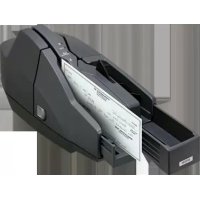
TMS1000 - To scan EPSON - Free user manual and instructions
Find the device manual for free TMS1000 EPSON in PDF.


| Product Type | Document Scanner |
| Brand | Epson |
| Model | TMS1000 |
| Dimensions (W × H × D) | 355 × 176 × 160 mm |
| Weight (multi feed) | Approx. 4.0 kg |
| Weight (single feed) | Approx. 3.9 kg |
| Power Supply | +24 V ± 10% |
| Power Consumption (operating) | 1.0 A |
| Power Consumption (standby) | 0.2 A |
| Interface | USB 2.0 |
| Sensor Type | CIS (Contact Image Sensor) |
| Resolution | 200 × 200, 120 × 120, 100 × 100 dpi |
| Processing Speed (multi feed) | 30, 60 or 90 dpm depending on model |
| Paper Size (W × H) | 120 × 68 mm to 235 × 120 mm |
| Paper Thickness | 0.075 to 0.2 mm |
| Paper Weight | 60 to 120 g/m² |
| ASF Feeder Capacity (multi feed) | 100 sheets max |
| SF Feeder Capacity (single feed) | 1 sheet |
| Stamp Cartridge | EFC-01, red ink, 18,000 impressions |
| Main Functions | Duplex scanning, MICR reading, stamp printing |
| Glass Cleaning | Every 6 months or 100,000 passes |
| MICR Unit Cleaning | KIC Team cleaning card or Epson Check Scanner Cleaning Kit |
| Safety Precautions | Disconnect if abnormal odor, do not open during operation, use specified adapter |
| Spare Parts | EFC-01 stamp cartridge, power adapter (M235A or M235B), USB cable |
Frequently Asked Questions - TMS1000 EPSON
User questions about TMS1000 EPSON
0 question about this device. Answer the ones you know or ask your own.
Ask a new question about this device
Download the instructions for your To scan in PDF format for free! Find your manual TMS1000 - EPSON and take your electronic device back in hand. On this page are published all the documents necessary for the use of your device. TMS1000 by EPSON.
USER MANUAL TMS1000 EPSON
natural_image
Technical line drawing of a mechanical device with internal compartments and mounting brackets (no text or symbols)User's Manual .... 1
natural_image
Technical line drawing of a mechanical device with internal components and mounting brackets (no text or symbols)All rights reserved. No part of this publication may be reproduced, stored in a retrieval system, or transmitted in any form or by any means, electronic, mechanical, photocopying, recording, or otherwise, without the prior written permission of Seiko Epson Corporation. No patent liability is assumed with respect to the use of the information contained herein. While every precaution has been taken in the preparation of this book, Seiko Epson Corporation assumes no responsibility for errors or omissions. Neither is any liability assumed for damages resulting from the use of the information contained herein.
Neither Seiko Epson Corporation nor its affiliates shall be liable to the purchaser of this product or third parties for damages, losses, costs, or expenses incurred by purchaser or third parties as a result of: accident, misuse, or abuse of this product or unauthorized modifications, repairs, or alterations to this product, or (excluding the U.S.) failure to strictly comply with Seiko Epson Corporation's operating and maintenance instructions.
Seiko Epson Corporation shall not be liable against any damages or problems arising from the use of any options or any consumable products other than those designated as Original Epson Products or Epson Approved Products by Seiko Epson Corporation.
EPSON is a registered trademark of Seiko Epson Corporation. Exceed Your Vision is a registered trademark or trademark of Seiko Epson Corporation. All other trademarks are the property of their respective owners and used for identification purpose only.
NOTICE: The contents of this manual are subject to change without notice.
©Seiko Epson Corporation 2007-2020. All rights reserved.
Important Safety Information
This section presents important information intended to ensure safe and effective use of this product. Read this section carefully and store it in an accessible location.
Key to Symbols
The symbols in this manual are identified by their level of importance, as defined below. Read the following carefully before handling the product.

WARNING:
Warnings must be followed carefully to avoid serious bodily injury.

CAUTION:
Cautions must be observed to avoid minor injury to yourself or damage to your equipment.
Safety Precautions

WARNING:
Shut down your equipment immediately if it produces smoke, a strange odor, or unusual noise. Continued use may lead to fire. Immediately unplug the equipment and contact qualified service personnel.
Never attempt to repair this product yourself. Improper repair work can be dangerous.
Never disassemble or modify this product. Tampering with this product may result in injury or fire.
Be sure to use the specified AC adapter. Connection to an improper power source may cause fire.
Be sure your power cable meets the relevant safety standards and includes a power-system ground terminal (PE terminal). Otherwise shock may result.
Do not allow foreign matter to fall into the equipment. Penetration by foreign objects may lead to fire.
If water or other liquid spills into this equipment, do not continue to use it. Continued use may lead to fire. Unplug the power cord immediately and contact qualified service personnel.
Do not use aerosol sprayers containing flammable gas inside or around this product. Doing so may cause fire.
LED RADIATION
CLASS 1 LED PRODUCT
Maximum output: 320 μW
Emitted wavelength: 515-540 nm (Green)
Test Specification: IEC 60825-1 (2001)

CAUTION:
Do not connect cables in ways other than those mentioned in this manual. Different connections may cause equipment damage and burning.
Be sure to set this equipment on a firm, stable, horizontal surface. Product may break or cause injury if it falls.
Do not use in locations subject to high humidity or dust levels. Excessive humidity and dust may cause equipment damage or fire.
Do not place heavy objects on top of this product. Never stand or lean on this product. Equipment may fall or collapse, causing breakage and possible injury.
To ensure safety, unplug this product before leaving it unused for an extended period.
Before moving the product, unplug it and unplug all cables connected to it.
Notes on Usage
☐When using the scanner, do not open the covers.
□Protect the scanner from impact.
☐Do not apply excessive force to the scanner case.
☐Do not place food or beverages such as coffee on the scanner case.
☐Do not change the settings of the DIP switch under the bottom cover.
Notes on Installation
☐Be sure that the scanner is installed horizontally.
☐Do not install the scanner in a dusty place.
☐Install the scanner away from magnetic devices.
☐Cables or other foreign objects must not be caught on the scanner.
Notes on Transportation
□Keep the scanner upright and horizontal during transportation.
☐Ensure that the ASF/SF and pocket guides are fully inserted during transportation.
Restriction of Use
When this product is used for applications requiring high reliability/safety such as transportation devices related to aviation, rail, marine, automotive etc.; disaster prevention devices; various safety devices etc.; or functional/precision devices etc., you should use this product only after giving consideration to including fail-safes and redundancies into your design to maintain safety and total system reliability. Because this product was not intended for use in applications requiring extremely high reliability/safety such as aerospace equipment, main communication equipment, nuclear power control equipment, or medical equipment related to direct medical care etc., please make your own judgment on this product's suitability after a full evaluation.
Purpose of This Manual
This manual describes basic operations for operators of the following TM-S1000 models to enable safe and correct installation and use of the scanner.
□Multi feed models (30 dpm/60 dpm/90 dpm models)
☐Single feed models (One pocket/Two pocket models)
Unpacking
The following items are included for the standard specification product. If any item is damaged, contact your dealer.
Scanner
☐Exclusive franking cartridge
Power switch cover
□AC adapter
□AC cable (*1)
☐USB cable (length: 170 cm {66.9 in})
□User's Manual (this manual)
□Utility & Documents CD (*2)
*1: May not be included with the scanner.
*2: The following items are included on the CD:
- TM-S1000 Driver
- TM-S1000 Utility
• TM-S1000 Utility User's Manual
- User's Manual (PDF in 4 languages: English, French, Portuguese, Spanish)
Part Names
For Multi feed models
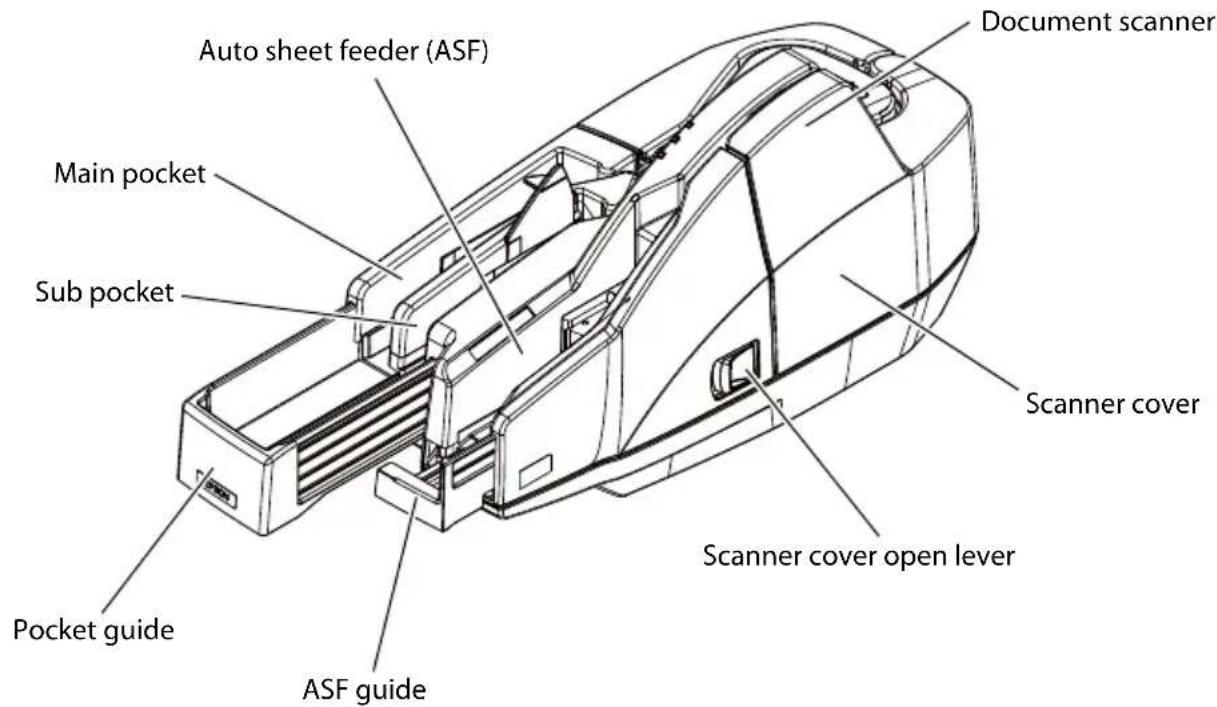
For Single feed models
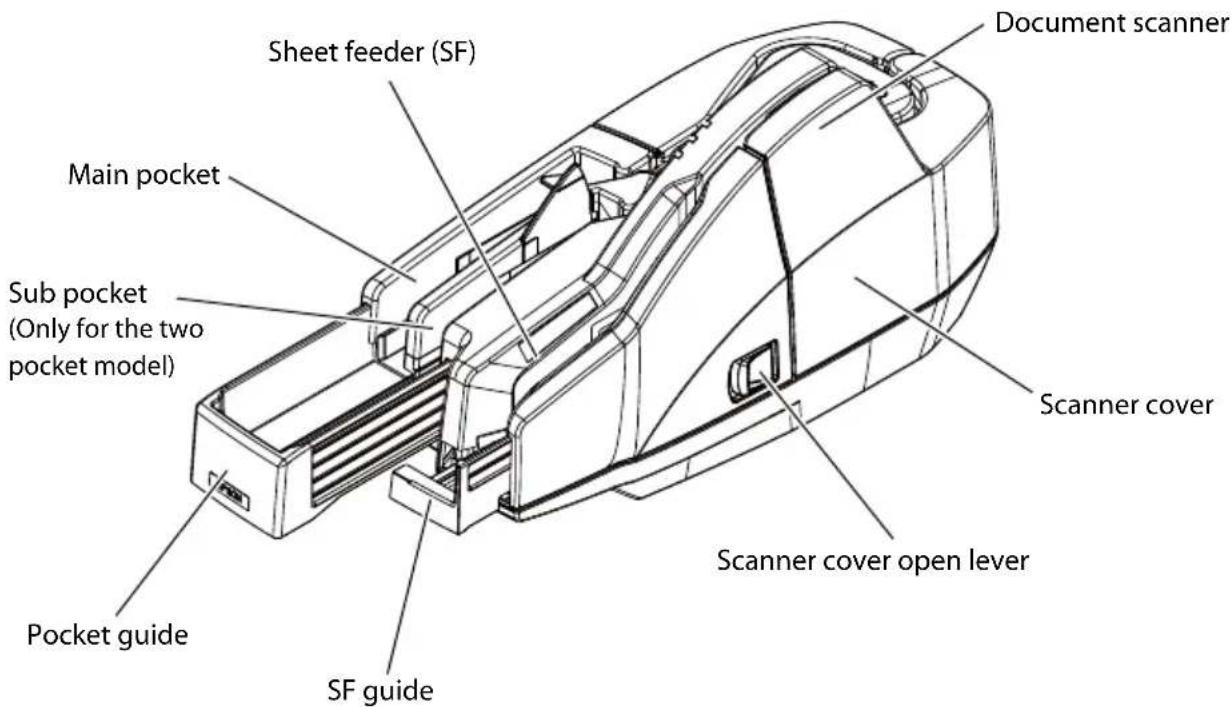
For All models
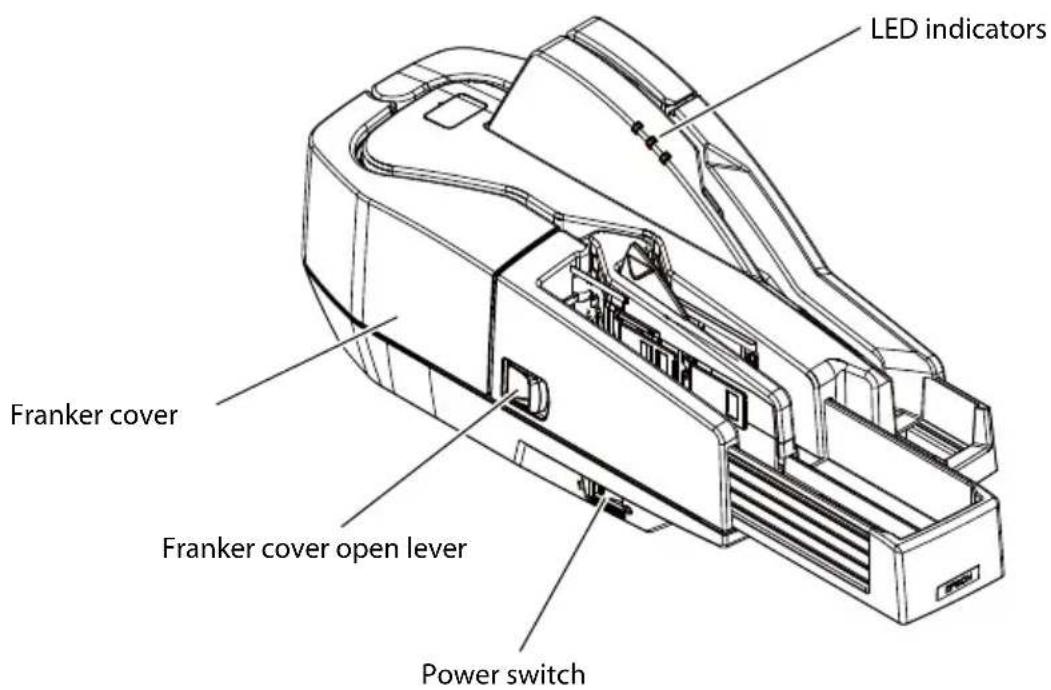
Note: The illustration shows the multi feed model.
What Is the Franker?
The franker is a mechanism in the TM-S1000 that stamps the phrase "Electronically Presented" in red ink on the front of each check as it is processed. This helps prevent processing a check more than once.
LED Indicators
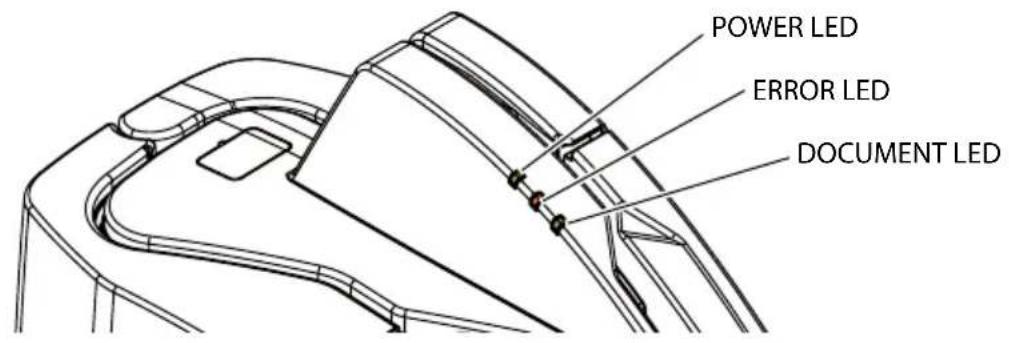
POWER LED
□Comes on when the scanner power is on.
ERROR LED
□Comes on when the scanner is off line (and when the scanner cover or franker cover is open.)
☐Flashes when an error occurs or when waiting for document removal. (See "Troubleshooting"[on page 19 of this manual] for more information.)
DOCUMENT LED
□ Comes on when the scanner is ready to process documents in the ASF/SF or while the scanner is processing documents.
□Flashes when the scanner is waiting for document insertion.
Power Switch
Press the power switch to turn on or off the scanner.
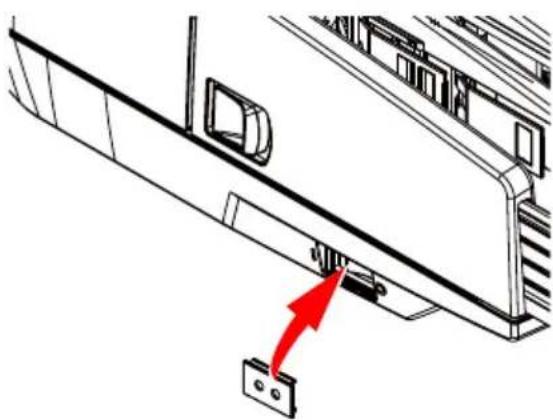
Power Switch Cover

WARNING:
If a machine failure has occurred while the included power switch cover is attached, unplug the power cable immediately. Continued use may result in a fire hazard.
The power switch cover is intended to prevent the power switch from being pressed accidentally. To use the cover,
place it over the power switch. When turning on or off of the switch is required, insert a pointed object into one of the holes of the cover, and press the switch.
When the scanner is stored or not in use for an extended period, turn off the power switch and disconnect the power cord.
natural_image
Technical line drawing of a mechanical assembly with a red arrow pointing to a component (no text or symbols present)Connecting the Scanner to the Host Computer
Follow these steps to connect the scanner to a host computer.
- Confirm that the power is not supplied to the scanner.
- Start the TM-S1000 Utility included on the Utility & Documents CD.

CAUTION:
Starting the TM-S1000 Utility causes the USB driver to be installed. Be sure to start the TM-S1000 Utility before connecting the scanner to a host computer.
Note:
If the scanner is connected to a host computer before installing the USB driver, the Found New Hardware Wizard will be displayed. In that case, cancel the wizard and start the TM-S1000 Utility to install the USB driver.
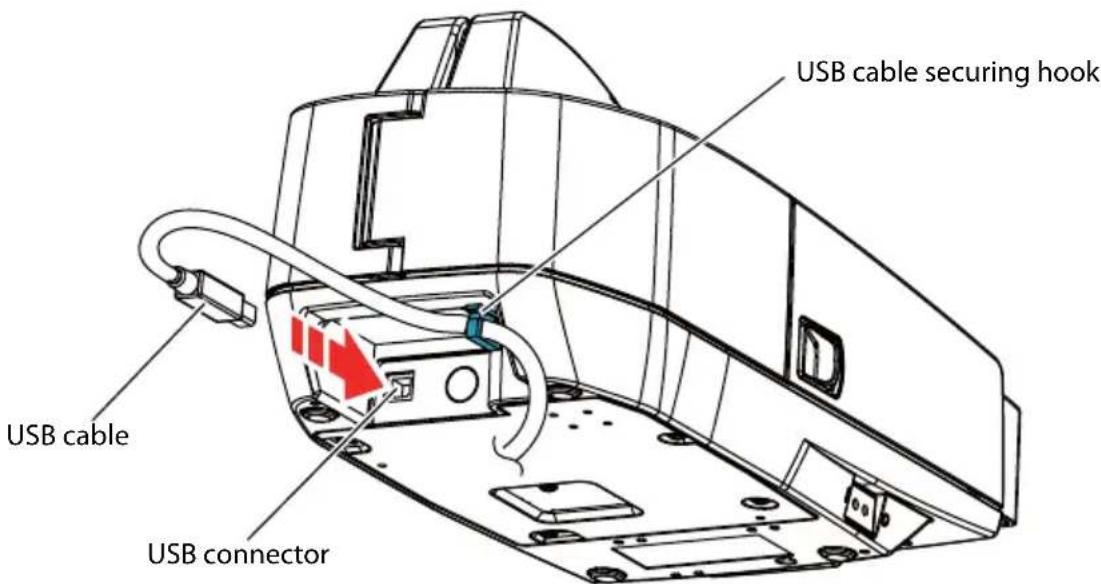
- When the TM-S1000 Utility has started, connect the scanner to the host computer via the USB cable.

CAUTION:
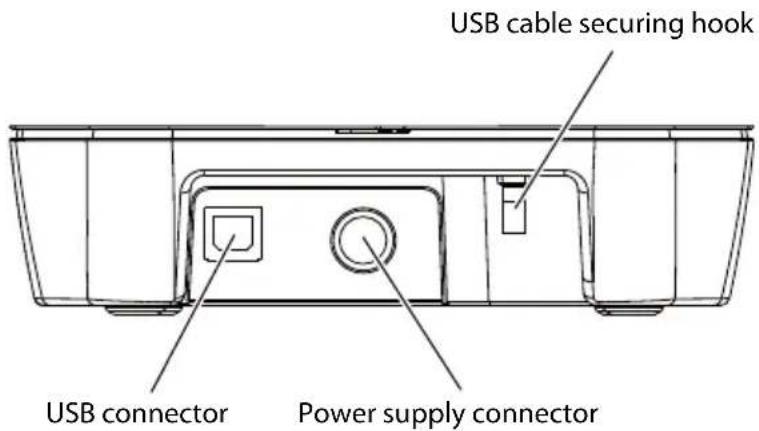
Hook the USB cable on the USB cable securing hook to prevent the cable from falling off. Be sure to use the USB cable that is included with the scanner.
Note:
With the TM-S1000 Utility, you can check the operation of the scanner. For more information, see the TM-S1000 Utility User's Manual.
Connecting the AC Adapter
Carefully read the manual for the AC adapter before using the AC adapter.

CAUTION:
Be sure to use the specified AC Adapter [AC adapter, C (Model: M235A) or AC adapter, C1 (Model: M235B)] only.
Should a fault ever occur in the AC adapter, immediately turn off the power to the scanner and remove the AC cable from the wall socket.
- Insert the connector of the AC cable into the AC inlet.
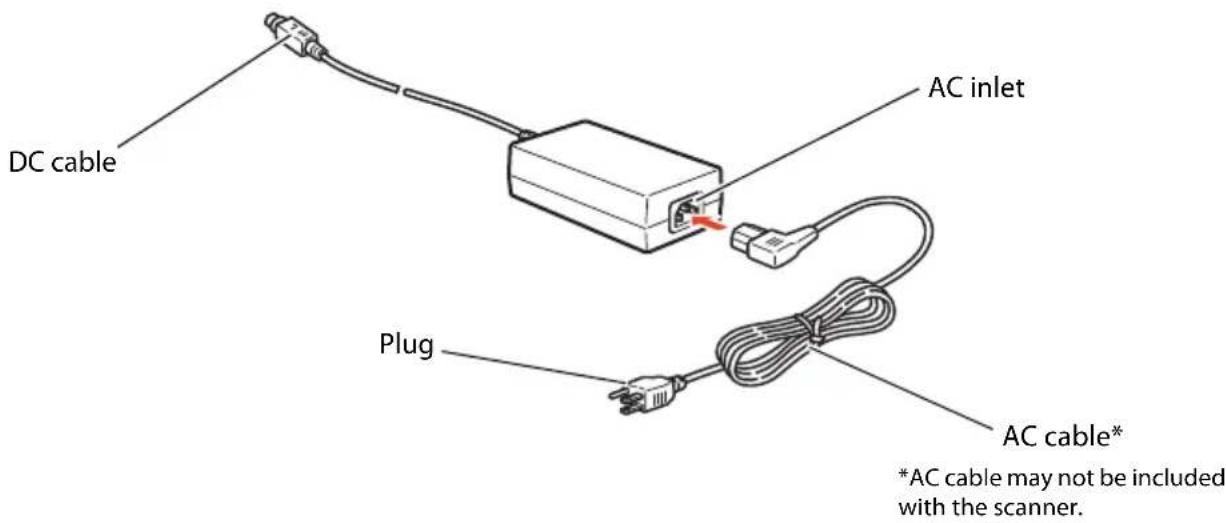
- Insert the connector of the DC cable into the power supply connector.
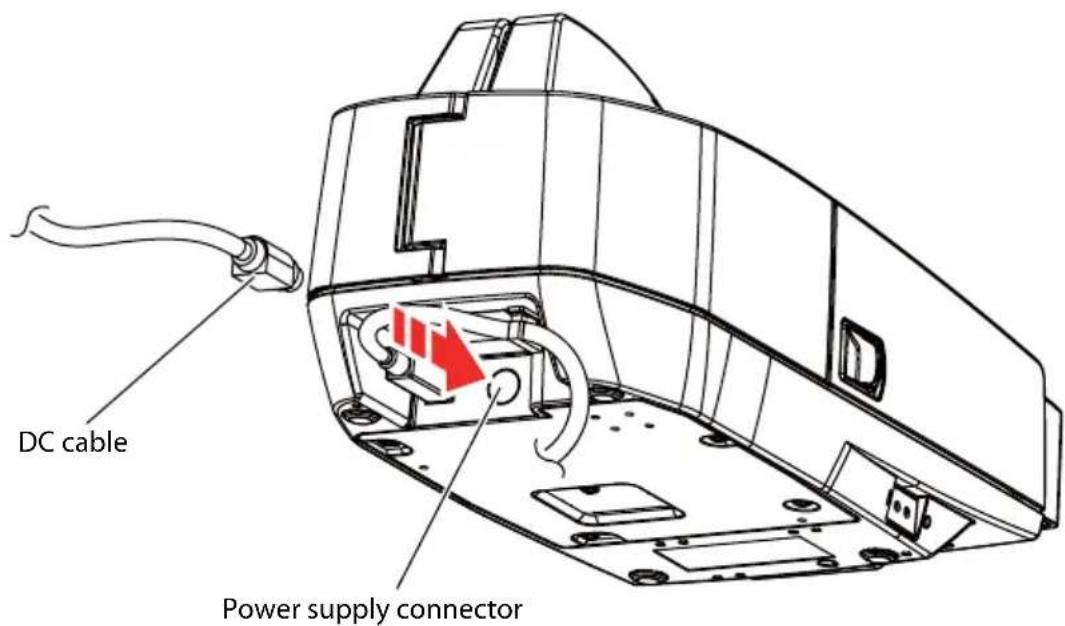
- Connect the plug of the AC cable to the wall socket.
Opening the Covers

CAUTION:
Do not open the covers during processing. Otherwise a scanning error, a MICR error, or a paper jam may occur.
Opening the Scanner Cover
Pull the scanner cover open lever to open the scanner cover.
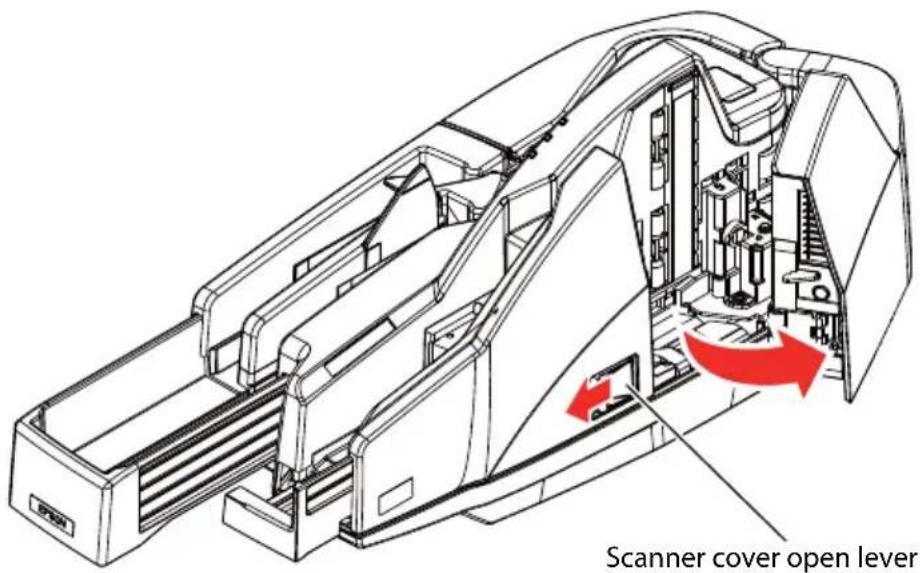
Opening the Franker Cover
Pull the franker cover open lever to open the franker cover.
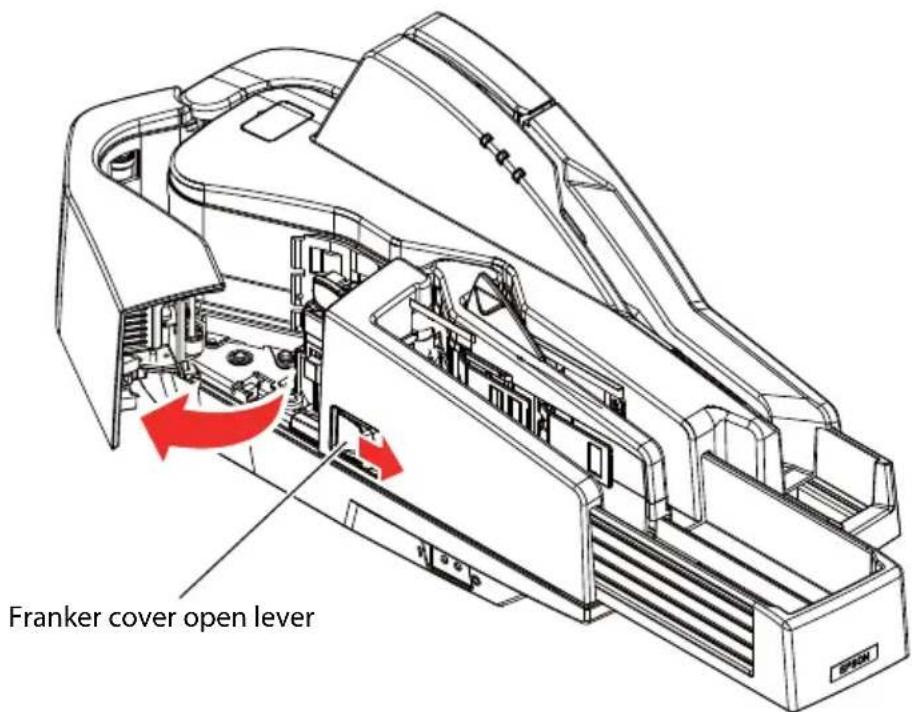
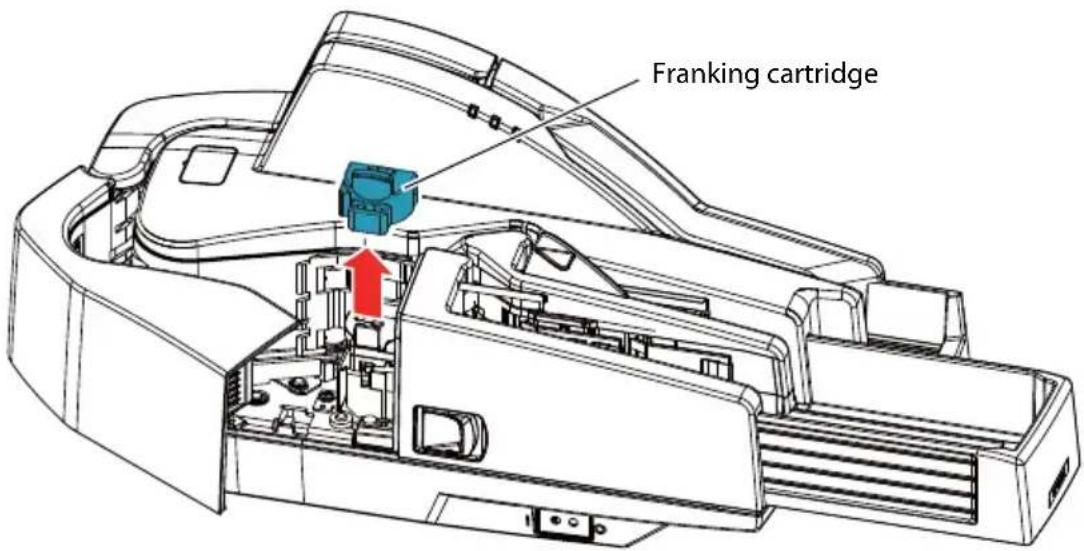
Installing and Replacing the Franking Cartridge

CAUTION:
Keep the franking cartridges out of the reach of children.
Do not disassemble franking cartridges.
Be careful during handling because the ink can permanently stain clothing.
Seiko Epson recommends using genuine Epson cartridges for your scanner. Products of other manufacturers may adversely affect the scanner and printing quality, and may result in the scanner not being able to achieve the specified performance levels.
Do not remove the franking cartridge from the packing box until immediately before its installation. Leaving the cartridge out of its packing for a prolonged period of time may adversely affect printing quality.
Use up the franking cartridge within 18 months from the date of production indicated on the cartridge box.
Dispose of the franking cartridge in accordance with any relevant national or local laws, ordinances, and regulations.
Follow these steps to install a franking cartridge for the first time or to replace it.
-
Open the franker cover. (See "Opening the Franker Cover" on page 11.)
-
If a used franking cartridge is installed, hold the knob at the top of the cartridge and lift the cartridge out of the scanner.
-
Carefully insert a new franking cartridge from the top, and push it firmly but gently until it clicks in place.
-
Close the franker cover firmly until it clicks in place.
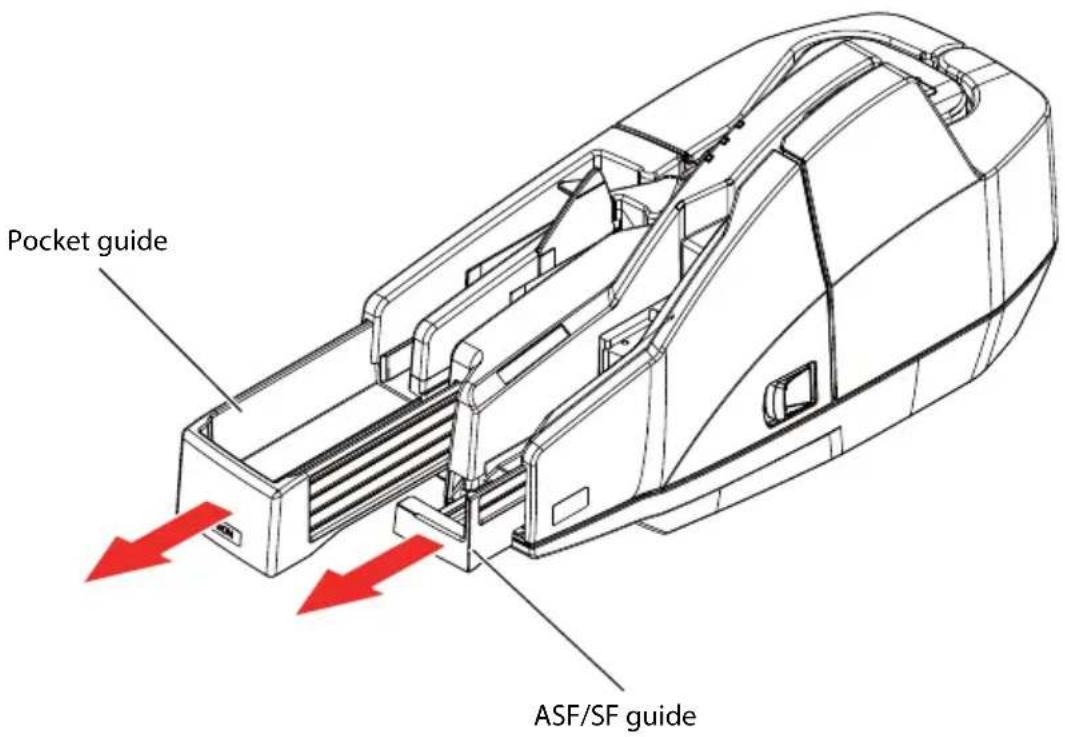
Pulling Out the Guides
Pocket Guide

CAUTION:
Be sure to pull out the pocket guide far enough to accommodate the documents stored in the guide before using the scanner. Otherwise a paper jam may occur.
ASF/SF Guide
Feeding paper using the ASF/SF guide allows you to insert documents straight. Pull out the ASF/SF guide if necessary.
Processing Documents
The TM-S1000 is capable of performing the following four actions on a document in a single pass: scanning the image of both the face and the back, reading magnetic characters, and franking.
Flow of Single Pass Processing
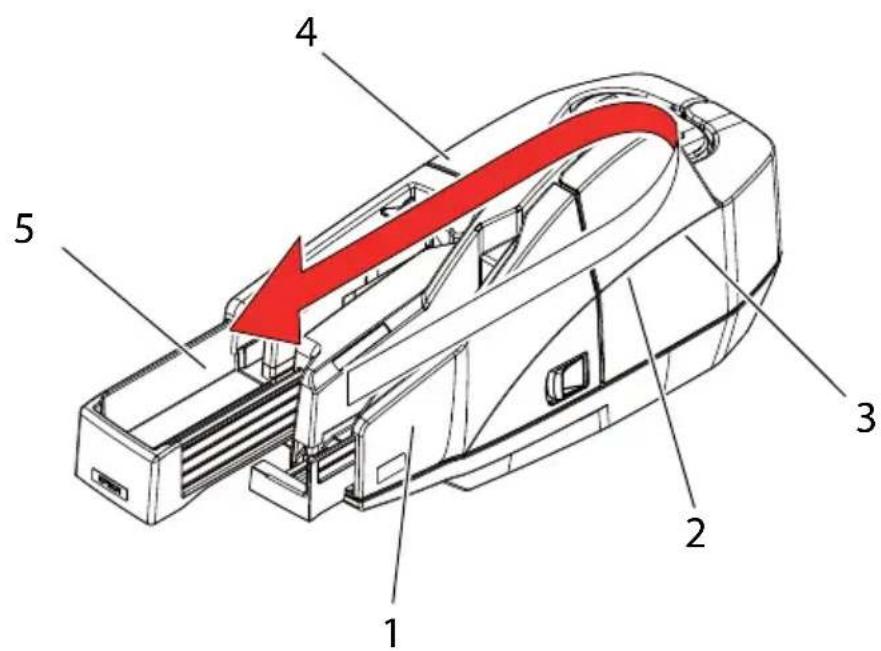
- Insert a document into the feeder section.
- The scanner scans the images of the face and back.
- The scanner reads the magnetic characters on the document.
- The franking section prints a pattern.
- The document is fed to the outlet.
Notes on Processing Documents
☐Do not use documents smaller than 120 × 68 mm 4.72 × 2.68 in (W × H).
☐Do not use documents larger than 235 × 120 mm {9.25 × 4.72 in} (W × H).
☐ Do not use documents whose thickness or weight is out of the specified range.
☐Do not use copy paper or other multi-ply paper.
□Make sure that the documents have no curl, bending (especially on the corners), warpage, or wrinkles.
☐Do not use checks with paper clips, staples, adhesive tape, or other foreign materials attached.
☐Do not open the covers while processing is in progress.
Inserting Checks
For the multi feed models, you can put up to 100 documents in the ASF to be fed automatically. For the single feed models, put documents in the SF one by one to be fed automatically.
For multi feed models
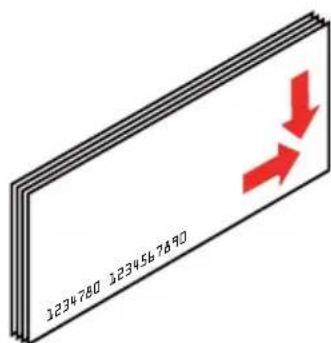
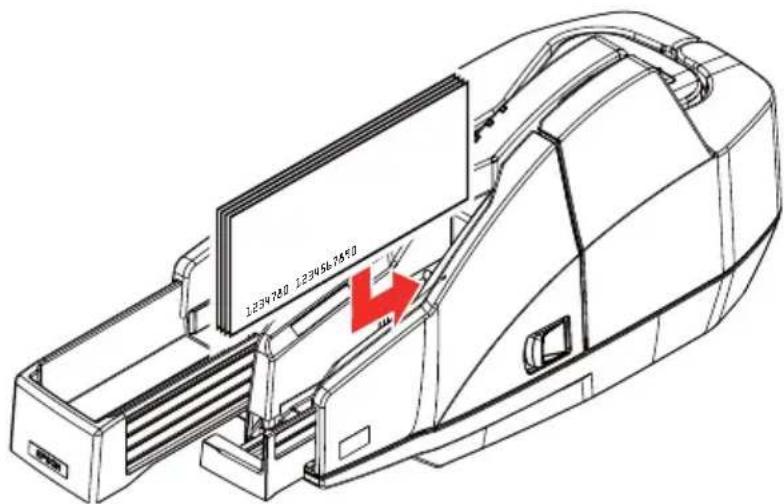
- Align the documents neatly on the bottom-right corner as shown in the picture below so that they will be fed one by one.

CAUTION:
If the documents are inserted without being aligned, they may not be fed at all, or a paper jam or incorrect feeding of multiple documents may result.
- Insert documents straight with their faces (the side on which magnetic characters are printed) facing outside into the ASF, as shown in the picture below.

CAUTION:
Be sure to let go of the documents before the scanner starts feeding. Otherwise, there may be a paper skew, paper jam, or MICR reading error.
Do not open the covers while processing is in progress.
For single feed models
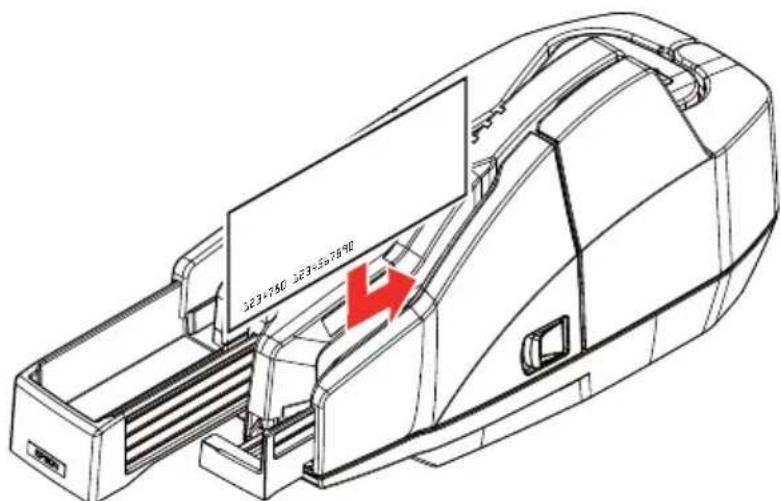
- Insert a document straight with its face (the side on which magnetic characters are printed) facing outside into the SF, as shown in the picture below.

CAUTION:
Do not put more than one document in the SF. Otherwise, a paper jam or incorrect feeding of multiple documents may result.
Be sure to let go of the document before the scanner starts feeding. Otherwise, there may be a paper skew, paper jam, or MICR reading error.
Do not open the covers while processing is in progress.
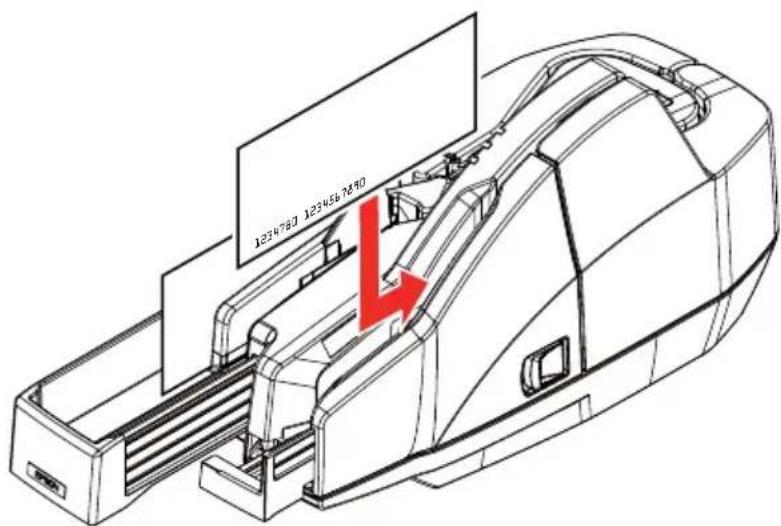
- After the document is automatically ejected to the Main/Sub pocket, put the next document into the SF.
Ejecting Checks
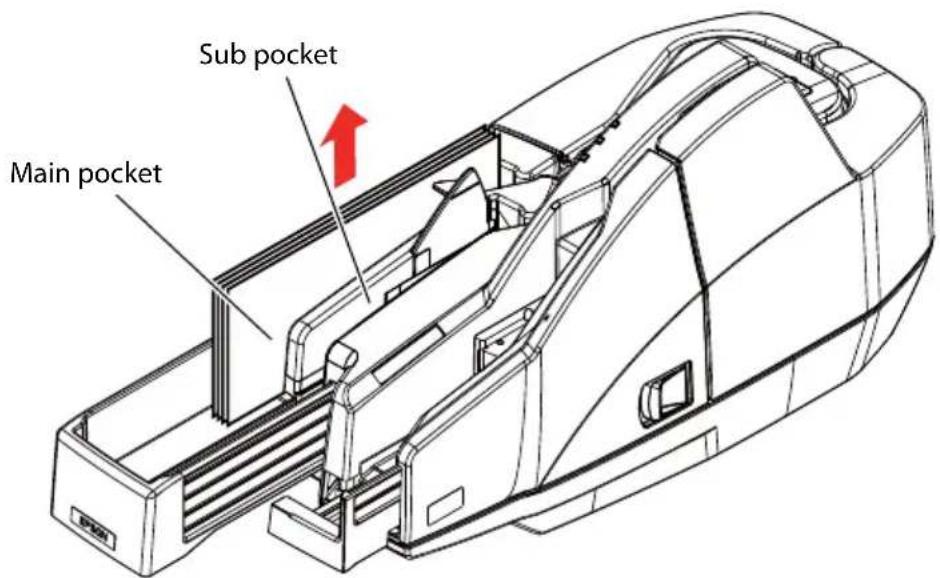
When the documents are ejected, remove the documents.

CAUTION:
Do not leave more than the specified number of documents in the pockets while processing documents (Main pocket: 100 sheets, sub pocket: 50 sheets). Otherwise, a paper jam may occur.
Note:
Some documents may be ejected into the sub pocket depending on your application. (Except for the one pocket model)
Cleaning
Cleaning the Image Scanner
If the glass of the scanner gets soiled from ink or paper dust, the quality of the image data may deteriorate. Clean the glass every 6 months or every 100,000 passes.
Follow these steps to clean the glass.
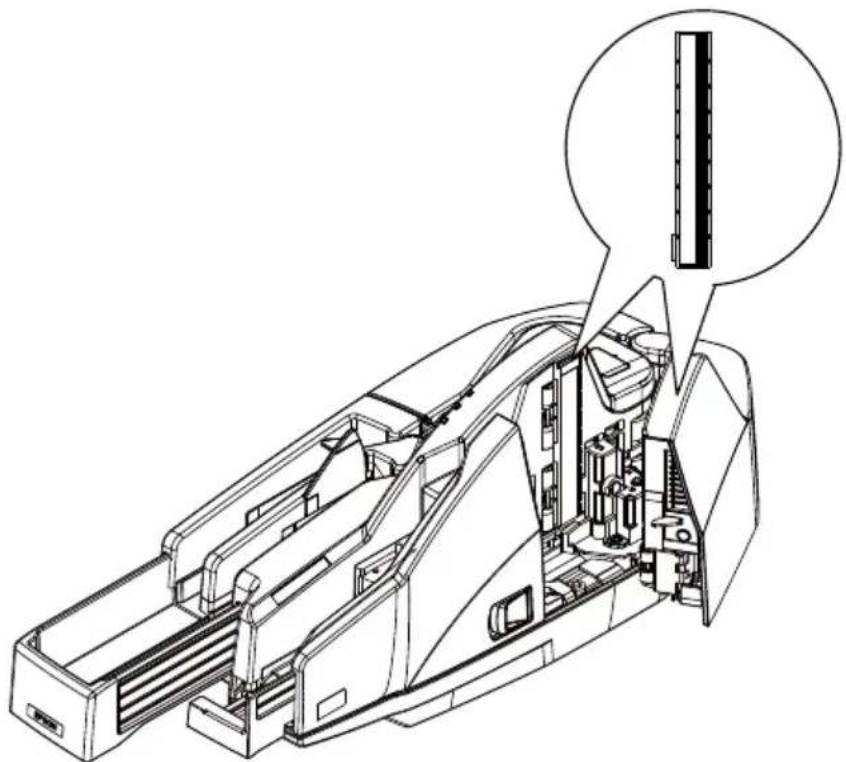
- Open the scanner cover. (See "Opening the Covers" on page 11.)
- Lightly wipe the glass areas shown in the picture below with a soft, dry cloth.

CAUTION:
Do not use synthetic detergent, benzine, water, or other liquid for cleaning. Doing so may result in a stain.
Never apply any liquid directly to the glass of the scanner.
natural_image
Technical line drawing of a mechanical device with internal components and a magnified inset showing a vertical component (no text or symbols present)When the glass of the scanner is smeared with oil, grease or other unremovable substance, wipe it with a cloth lightly dipped in alcohol.
- Close the scanner cover firmly until it clicks in place.
Note:
It is recommended to clean the image scanner once per week or once every 2,000 checks for good reading results.
Cleaning the MICR Unit
Dirt on the MICR unit may cause frequent magnetic character reading errors. Clean the MICR unit every six months or every 100,000 passes.
Use the TM-S1000 Utility in the Utility & Documents CD or your application to clean the MICR unit.
Use the following cleaning card:
KIC Team, Inc.
- Waffletechnology ^ MICR cleaning card (model:CS1B15WS)
- Epson Check Scanner Cleaning Kit (model:KWEPS-KCS2)
Note:
For information on cleaning procedures, see the TM-S1000 Utility User's Manual.
Do not use sticky cleaning sheets. They may cause a paper jam or machine failure.
Be sure to dispose of used cleaning sheets.
It is recommended to clean the MICR unit once per week or once every 2,000 checks for good reading results.
It is recommended to clean the image scanner after cleaning the MICR unit. (See "Cleaning the Image Scanner" on page 18.)
Troubleshooting
ERROR LED is Flashing or Lit
☐Make sure that the covers are properly closed.
☐If a paper jam has occurred, remove the jammed paper, referring to the next section “Paper Jams.”
☐Turn off the scanner, and then turn it on after a while. If the error persists, consult a qualified service person for repair.
Paper Jams
Open the scanner cover or franker cover to remove the jammed paper. (See “Opening the Covers” on page 11 and “Opening the Franker Cover” on page 11.)
Specifications
| Operating environment (for satisfying the processing speed specified) | CPU | 30/60 dpm models without using IQA or single feed models: At least a Pentium 4, 1.2 GHz or the equivalent Multi feed models using IQA or 90 dpm model without using IQA: At least a Pentium 4, 2.0 GHz or the equivalent |
| Memory | 30/60 dpm models without using IQA or single feed models: At least 256 MB or above the minimum operating system requirement Multi feed models using IQA or 90 dpm model without using IQA: At least 512 MB or above the minimum operating system requirement | |
| HDD | Free space of more than 30 MB (with the driver installed) | |
| Processing speed (only for the multi feed moldels) | 30 dpm, 60 dpm, or 90 dpm depending on the model. | |
| Image Scanner | CIS (Contact Image Sensor) | |
| Resolution | 200 × 200 dpi, 120 × 120 dpi, 100 × 100 dpi | |
| Gradation | 256-level gray scale, 2 values (Black and White) | |
| Data format | Gray scale: TIFF, JPEG, BMP, Raster Black and White: TIFF (CCITT Group4), BMP | |
| Scanning area (W × L) | 100* (*fixed) × max. 235 mm {3.94* (*fixed) × max. 9.25 in} | |
| Scanning speed | 500 mm/s {19.69 in/s} | |
| Paper Type | Normal paper (single-ply only) | |
| Size (H × L) | 68 ~ 120 mm {2.68 ~ 4.72 in} × 120 ~ 235 mm {4.72 ~ 9.25 in} | |
| Thickness | 0.075 ~ 0.2 mm {0.003 ~ 0.008 in} (single-ply only) | |
| Weight | 60 ~ 120 g/m2{16 ~ 32 lb} | |
| ASF/SF paper supply (Number of sheets that can be loaded) | ASF (for multi feed models): 100 sheets or fewer. SF (for single feed models): one sheet | |
| Pocket storage | Main pocket | 100 sheets or fewer (when the paper thickness is 0.13 mm or less.) However, the total thickness must be 13 mm or less including warps. |
| Sub pocket (Except for the one pocket model) | 50 sheets or fewer (when the paper thickness is 0.13 mm or less.) However, the total thickness must be 6.5 mm or less including warps. | |
| Franking cartridge | Type | Exclusive franking cartridge (EFC-01) |
| Ink color | Red | |
| Life of ink | 18,000 times (based on Epson's standard pattern used for printing.) | |
| Power supply | +24 V ± 10% | |
| Current consumption | Operating | 1.0 A |
| Standby | 0.2 A | |
| Interface | USB 2.0 | |
| Reliability Life | 1,000,000 sheets | |
| Temperature Operating | 10 ~ 40°C {50 to 104°F} | |
| When packed: -20 ~ 60°C {-4 to 140°F} (within 120 hours at -20°C {-4°F} or 60°C {140°F}) | ||
| Humidity | Operating | 20 ~ 80% (non-condensing) |
| Storage | 5 ~ 85% | |
| Overall dimension (W × H × D) | 355 × 176 × 160 mm {14.0 × 6.93 × 6.30 in} | |
| Mass (approx.) | Multi feed models: Approximately 4.0 kg {8.82 lb}Single feed models: Approximately 3.9 kg {8.60 lb} | |
dpm: documents per minute, dpi: dots per inch (25.4 mm)
IQA (Image Quality Assurance): Conforms to the recommendations of FSTC (Financial Services Technology Consortium).
TM-S1000
natural_image
Technical line drawing of a mechanical device with internal components and mounting brackets (no text or symbols)PRODUIT LED CLASSE 1
natural_image
Technical line drawing of a staircase with a red arrow pointing to a component (no text or symbols present)natural_image
Technical line drawing of a mechanical device interior with a magnified inset showing a vertical component (no text or symbols present)natural_image
Technical line drawing of a mechanical device with internal components and mounting brackets (no text or symbols)PRODUCTO LED CLASE 1