Perfection 3490 Photo - Scanner EPSON - Free user manual and instructions

Find the device manual for free Perfection 3490 Photo EPSON in PDF.

EPSON Perfection 3490 Photo - Scanner
📄 4 pages English EN Download 💬 AI Question 10 questions ⚙️ Specs
Notice EPSON Perfection 3490 Photo - page 1
Pick your language and provide your email: we'll send you a specifically translated version.
Product Type Flatbed Scanner
Brand Epson
Model Perfection 3490 Photo
Scanner Type Flatbed with Transparency Unit
Optical Resolution 2400 dpi (9600 dpi interpolated)
Color Depth 48-bit (input), 24-bit (output)
Maximum Document Size 8.5 x 11.7 inches (A4/Letter)
Scanning Media Photos, documents, 35mm film strips, slides
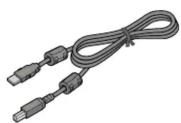
Interface USB 2.0 (Type B)
Dimensions (W x D x H) 430 x 280 x 90 mm (16.9 x 11.0 x 3.5 in)
Weight 2.5 kg (5.5 lbs)
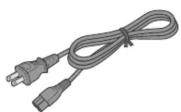
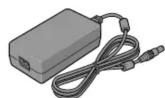
Power Supply AC adapter: 100-240V, 50/60 Hz
Power Consumption 15 W (operating), 3 W (standby)
Operating Systems Windows 98/Me/2000/XP; Mac OS 9.x/X
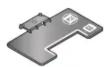
Included Accessories USB cable, AC adapter, software CD, film holders
Cleaning Instructions Wipe glass with a soft, lint-free cloth; avoid solvents
Safety Precautions Unplug before cleaning; avoid exposure to liquids
Repairability No user-serviceable parts; contact Epson support
Energy Star Compliant

Frequently Asked Questions - Perfection 3490 Photo EPSON

How do I install the Epson Perfection 3490 Photo scanner?
Connect the scanner to your computer via USB, plug in the power adapter, and install the software from the included CD. For Windows, run the setup wizard; for Mac, follow the on-screen instructions. Download the latest drivers from the Epson support website if needed.
What is the maximum resolution of this scanner?
The optical resolution is 2400 dpi, and the interpolated resolution goes up to 9600 dpi. It is suitable for high-quality scans of photos and documents.
Can I scan 35mm film strips and slides?
Yes, the Perfection 3490 Photo includes a built-in transparency unit with film holders for 35mm film strips and slides. Place the film in the holder and scan as directed in the manual.
Why is my scanner not being recognized by the computer?
Ensure the USB cable is securely connected to both scanner and computer. Try a different USB port. Restart the computer and reinstall the scanner software. Check Device Manager (Windows) or System Information (Mac) for errors.
How do I clean the scanner glass?
Use a soft, lint-free cloth slightly dampened with water or a mild glass cleaner. Wipe gently to avoid streaks. Do not use abrasive cleaners or spray liquid directly onto the glass.
What are the power requirements for this scanner?
The scanner uses an external AC adapter supporting 100-240V, 50/60 Hz. Rated power consumption is 15 W during operation and 3 W in standby mode.
Is the Epson Perfection 3490 Photo compatible with Windows 10?
The scanner is officially supported up to Windows XP, but Windows 10 may work with legacy drivers. Download the Vista/XP drivers from Epson's website and install in compatibility mode. Full functionality is not guaranteed.
How can I improve scan quality for old photos?
Scan at a higher resolution (300-600 dpi for prints) and use the color restoration feature if available. Clean the scanner glass and adjust settings like brightness and contrast in the scanning software.
What software is included with the scanner?
The scanner comes with Epson Scan, ArcSoft PhotoImpression, and ABBYY FineReader for OCR. You can also use third-party software like VueScan for advanced features.
How do I replace the film holders if lost?
Contact Epson parts department or authorized resellers. You can use generic film holders designed for flatbed scanners, but proper alignment may be needed. Otherwise, purchase a replacement set online.

User questions about Perfection 3490 Photo EPSON

0 question about this device. Answer the ones you know or ask your own.

Ask a new question about this device

Your email remains private: it is only used to notify you if someone answers your question.

No questions yet. Be the first to ask one.

Download the instructions for your Scanner in PDF format for free! Find your manual Perfection 3490 Photo - EPSON and take your electronic device back in hand. On this page are published all the documents necessary for the use of your device. Perfection 3490 Photo by EPSON.

USER MANUAL Perfection 3490 Photo EPSON

Perfection 3490 Photo
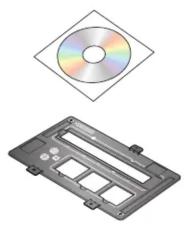
Illustration of a CD/DVD disc and its corresponding physical device casing (no text or symbols).

Two electronic devices: a power adapter with two leads and a charging plug, shown in black-and-white (no text or symbols visible).

Note: Do not connect the USB cable yet.EPSON Perfection 3490 Photo - 3
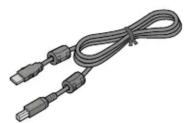
Illustration of a gray electronic device with a screen and ports (no text or symbols visible).

Perfection 3590 Photo

EPSON Perfection 3490 Photo - 5

EPSON Perfection 3490 Photo - 6

EPSON Perfection 3490 Photo - 7

EPSON Perfection 3490 Photo - 8

Note: Do not connect the USB cable yet.EPSON Perfection 3490 Photo - 9

Note: The setup illustrations show the Perfection 3590 Photo scanner, but the instructions are the same for the Perfection 3490 Photo.

2 Install software

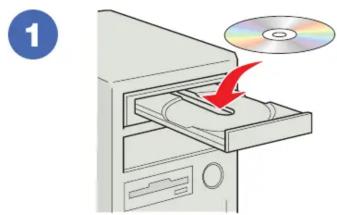
1

Insert the Scanner Software CD. Windows:® The installer starts automatically. Macintosh® OS X: Double-click the CD-ROM icon on the desktop.

2 Epson Perfection 3490/3590 Photo Software Installation This is EPSON's all the software of Information you used for accessing CIBs by the local server system to get stored. SPCOS System Airflow Hardware System NordFusion System CIR Microsoft PowerPoint Card Windows Computer Epson Photo Center Auto…

Click Install and follow the on-screen instructions.

3 Unlock and assemble

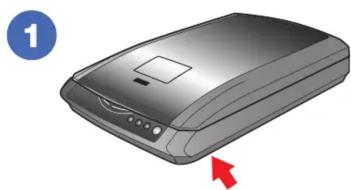
Illustration of a gray scanner device with a blue circular icon labeled '1' and a red arrow pointing to it (no text or symbols on the device itself).

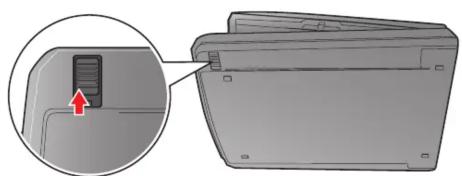
Unlock the transportation lock.

Diagram showing a device with a button inserted into a folder, with an inset close-up highlighting the insertion area (no text or symbols present).

Note: Do not connect the USB cable yet.
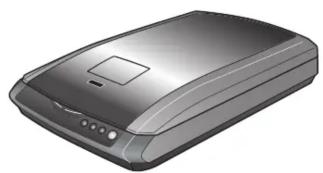
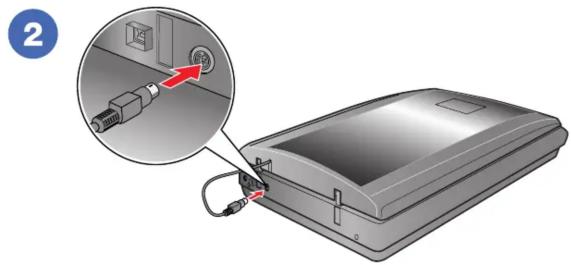
Illustration of a device with an attached cable and connector, showing internal wiring and a magnified view of the cable connection (no text or symbols present).

Connect the cover cable.

4

Connect and turn on

1Diagram showing connection between a desktop computer tower and an attached device, with labeled ports and cable connections.
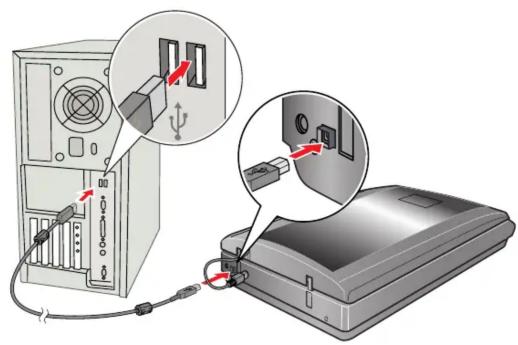
Connect the USB cable.

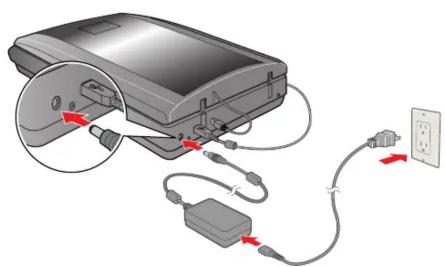
2Diagram of a device connected to a power outlet via cable and plug, showing wiring and connection points (no text or symbols).

Connect the power adapter and cable to turn on the scanner.

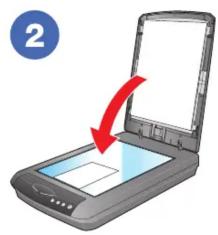
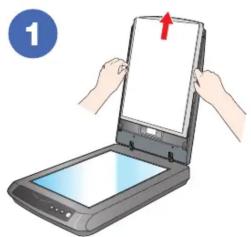
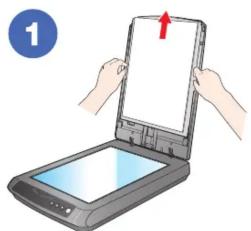
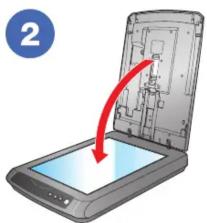
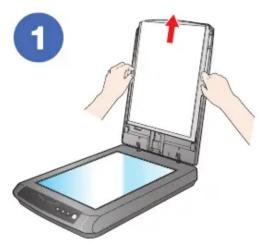
Place a document or photo
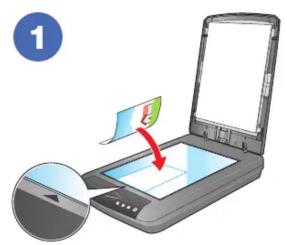
1

Illustration of a digital scanner with an open lid and a red arrow indicating compression (no text or symbols).

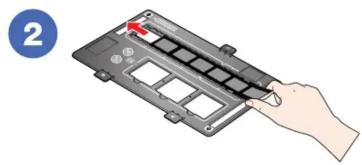
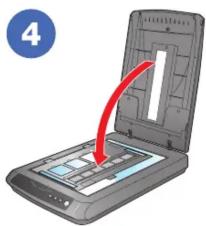
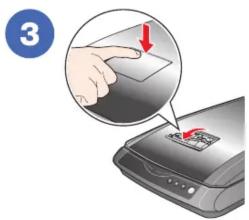
Place film

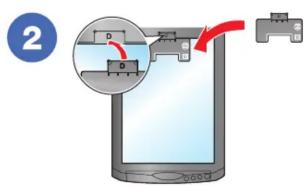
Perfection 3490Illustration of hands holding a tablet device with a red arrow indicating the open position (no text or symbols present).

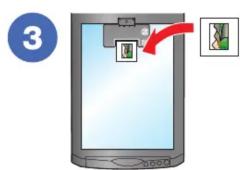
Hand inserting a card into a device with a red arrow indicating the card's left side (no text or symbols present).

3 A

4

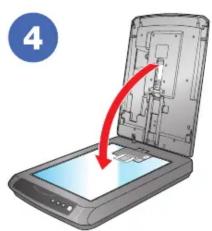
Perfection 3590Illustration of hands holding a tablet device with a red arrow indicating the screen (no text or symbols present)

2

3

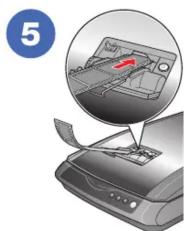
Illustration of a device with a magnified inset showing internal components (no text or symbols)

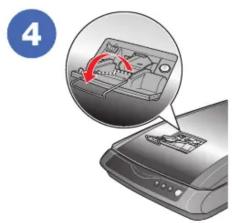
Illustration of a printer with a close-up view showing internal components (no text or symbols)

Caution:

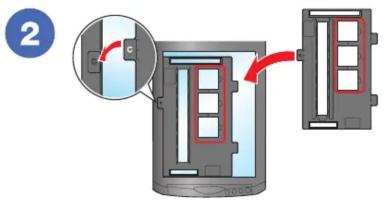
Make sure the film strip contains between 2 and 6 photos.

Don't load folded or creased film

Slide in the film with the shiny base side facing down.

The scanner automatically feeds the film into position.

Place slides

Perfection 34901
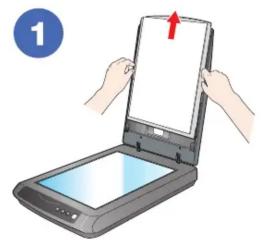
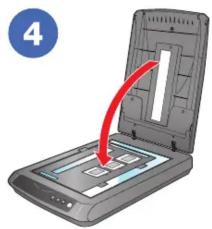
Diagram showing a door opening process with labeled parts and directional arrows indicating movement or change.

3

4

Perfection 35901

2 WOO

3

4

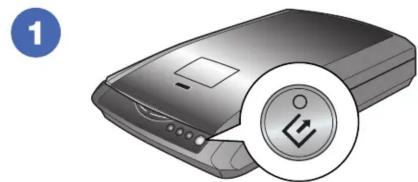
Scan

Illustration of a printer with a circular icon highlighting the print symbol (no text or symbols present)

Press the Start button.

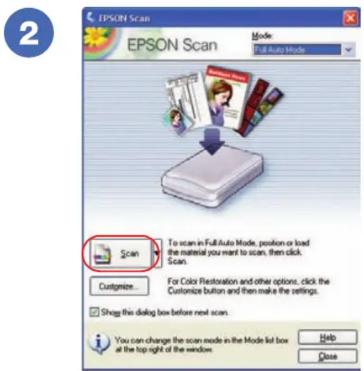
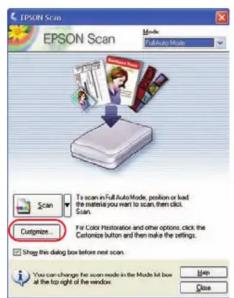
EPSON Scan EPSON Scan File Mode: Full Auto Mode Scan To scan in Full Auto Mode, position or load the material you want to scan, then click Scan. Customize... For Color Restoration and other options, click the Customize button and then make the settings. Show this dialog box before next scan. You can…

Click Scan.

File Save Settings Location C:\Documents and Settings\epson\My Documents\My Pictures\Browse... File Name (Prefix + 3-digit number) Prefix: img Start Number: 001 Image Format Type: JPEG (*.jpg) Options... Details: Compression Level [16] Encoding: Standard Overwrite any files with the same name Show t…

Select your file settings, then click OK.
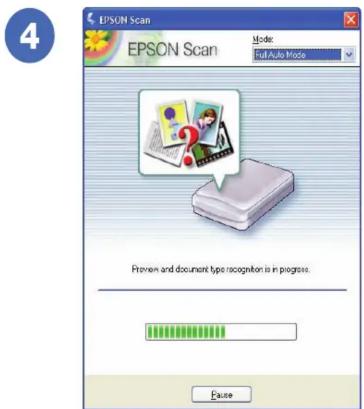
4 EPSON Scan EPSON Scan Mode: Full Auto Mode Preview and document type recognition is in progress. Pause

EPSON Scan scans in Full Auto Mode. Wait for your scan to finish or click Pause to change settings.

Do more

Restore colorTwo side-by-side photos showing a child in pink outfit sitting on grass, with a red arrow pointing to the right image (no text or symbols)

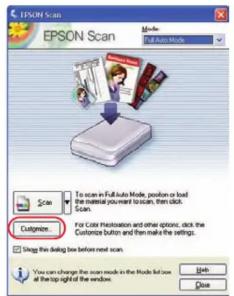
1EPSON Scan File Mode To scan in Full Auto Mode, position or load the material you want to scan, then click Scan. For Color Restoration and other options, click the Customize button and then make the settings. Show this dialog box before next scan. You can change the scan mode in the Mode list box at…

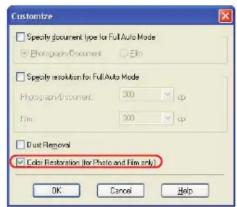
2Customize Specify document type for Full Auto Mode Photographs Document Film Specify resolution for Full Auto Mode Photographic Document: 300 dpi Film: 300 dpi Dust Removal Color Restoration (for Photo and Film only) OK Cancel Help

Remove dust from film/slidesTwo side-by-side photos showing a blue sky with clouds and green fields, one with red circles and another with a red arrow pointing right (no text or symbols)

1EPSON Scan EPSON Scan Browse Mode To scan in Full Auto Mode, position or load the material you want to scan, then click Scan. Customize... For Color Restoration and other options, click the Customize button and then make the settings. Show this dialog box before next scan. You can change the scan mo…

2Customize Specify document type for Full Auto Mode Photograph Document Film Specify resolution for Full Auto Mode Photographic Document: 300 dpi Film: 300 dpi Dust Removal Color Restoration (for Photo and Film only) OK Cancel Help

Help

User's Guide

Double-click the PERF3490P_3590P User's Guide icon on your desktop.

Scanner software help

Click the Help or ? button on your scanner software screen.

Epson Technical Support

Epson provides technical assistance 24 hours a day through the electronic support services and automated telephone services described below:

World Wide Web: From the Internet, you can reach Epson Support at http://support.epson.com.

Automated Telephone Services: To use Automated Telephone Services, you must have a touch tone telephone and call (800) 922-8911. Use Epson SoundAdvice Express Code 70655 to quickly select your scanner in SoundAdvice.

To Speak to a Customer Service Representative: Dial (562) 276-4382 (U.S.) or (905) 709-3839 (Canada), 6 am to 6 pm, Pacific Time, Monday to Friday. Toll or long distance charges may apply.

Software Technical Support

ArcSoft Photolmpression®: (510) 440-9901, www.arcsoft.com, support@arcsoft.com

Presto! BizCard®: (510) 445-8616, Fax (510) 445-8601, www.newsoftinc.com, contactus@newsoftinc.com

ABBYY® FineReader® Sprint: (510) 226-6719, Fax (510) 226-6069, www.abbyyusa.com, support@abbyyusa.com

Epson is a registered trademark of Seiko Epson Corporation. Perfection is a registered trademark and Sound Advice is a service mark of Epson America, Inc. General Notice: Other product names used herein are for identification purposes only and may be trademarks of their respective owners. Epson disclaims any and all rights in those marks.

© 2005 Epson America, Inc. 4/05 CPD-19431

Manual assistant
Powered by Anthropic
Waiting for your message
Product information

Brand : EPSON

Model : Perfection 3490 Photo

Category : Scanner