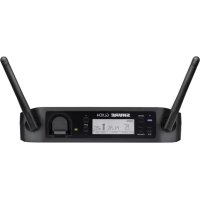
GLXD4 - Receiver SHURE - Free user manual and instructions
Find the device manual for free GLXD4 SHURE in PDF.



| Product type | Digital wireless receiver |
| Brand | Shure |
| Model | GLXD4 |
| Frequency band | 2.4 GHz (2400-2483.5 MHz) |
| Dimensions (H x W x D) | 40 x 183 x 117 mm |
| Weight | 286 g (without batteries) |
| Power supply | 14 to 18 V DC, 550 mA (positive tip) |
| Output connectors | XLR balanced (100 Ω) and 6.35 mm TRS (100 Ω) |
| Audio frequency response | 20 Hz - 20 kHz |
| Dynamic range | 120 dB (A-weighted) |
| Total harmonic distortion | 0.2% (typical) |
| Gain adjustment range | -20 to 40 dB in 1 dB steps |
| Battery life (transmitter) | Up to 16 hours |
| Main features | Automatic linking, built-in battery charging, channel scanning, remote identification, automatic interference avoidance |
| Maintenance and cleaning | Clean with a dry cloth |
| Safety instructions | Do not expose to water, do not obstruct ventilation, use only specified accessories |
| Available spare parts | SB902 battery pack, SBC-USB charger, PS42 power supply |
| Operating temperature | -18 °C to 57 °C |
| Certifications | FCC, IC, CE, Digital Class B |
Frequently Asked Questions - GLXD4 SHURE
User questions about GLXD4 SHURE
0 question about this device. Answer the ones you know or ask your own.
Ask a new question about this device
Download the instructions for your Receiver in PDF format for free! Find your manual GLXD4 - SHURE and take your electronic device back in hand. On this page are published all the documents necessary for the use of your device. GLXD4 by SHURE.
USER MANUAL GLXD4 SHURE
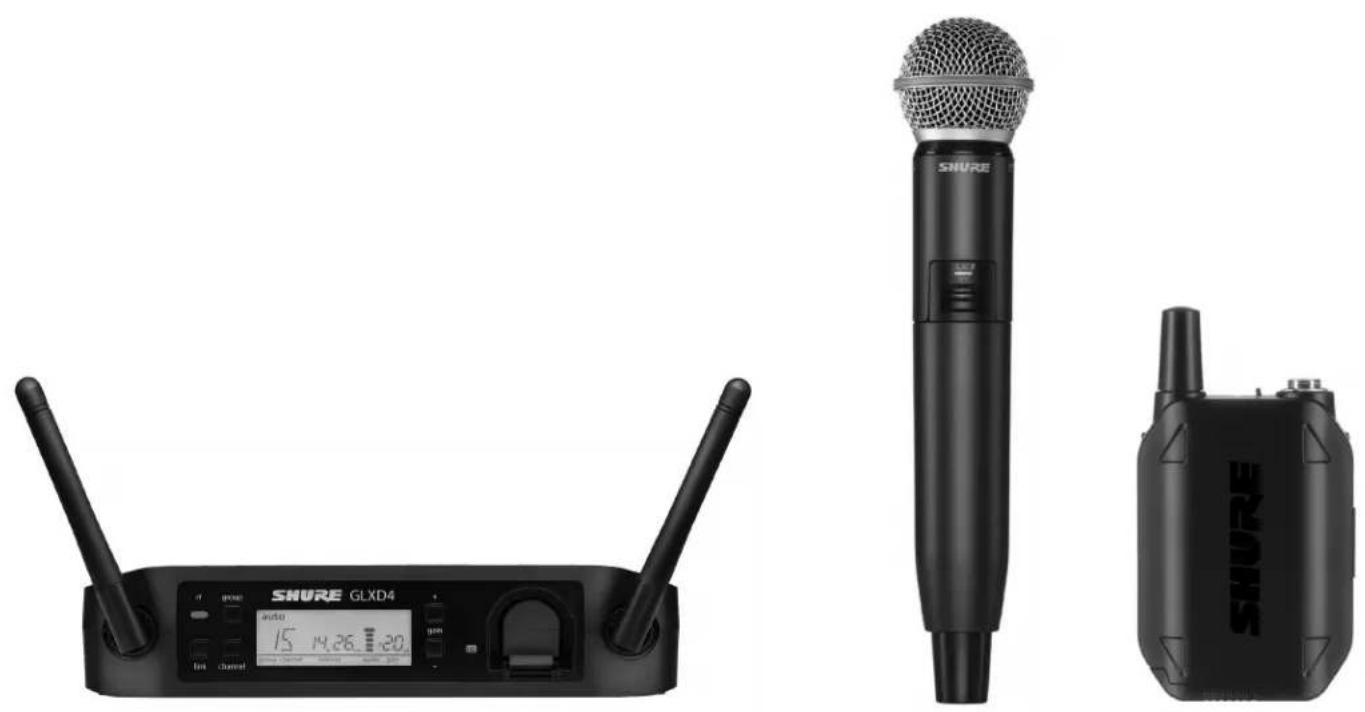
GLXD4 Wireless Receiver
IMPORTANT SAFETY INSTRUCTIONS
- READ these instructions.
- KEEP these instructions.
- KEEP these instruc
- HEED all warnings.
- FOLLOW all instruc
- DO NOT use this apparatus near water.
- CLEAN ONLY with dry cloth.
- DO NOT block any ventilation openings. Allow sufficient distances for adequate ventilation and install in accordance with the manufacturer's instructions.
- DO NOT install near any heat sources such as open flames, radiators, heat registers, stoves, or other apparatus (including amplifiers) that produce heat. Do not place any open flame sources on the product.
- DO NOT defeat the safety purpose of the polarized or groundingtype plug. A polarized plug has two blades with one wider than the other. A grounding type plug has two blades and a third grounding prong. The wider blade or the third prong are provided for your safety. If the provided plug does not fit into your outlet, consult an electrician for replacement of the obsolete outlet.
- PROTECT the power cord from being walked on or pinched, particularly at plugs, convenience receptacles, and the point where they exit from the apparatus.
- ONLY USE attachments/accessories specified by the manufacturer.
- USE only with a cart, stand, tripod, bracket, or table specified by the manufacturer, or sold with the apparatus. When a cart is used, use caution when moving the cart'apparatus combination to avoid injury from tip-over.
- UNPLUG this apparatus during lightning storms or when unused for long periods of time.

- REFER all servicing to qualified service personnel. Servicing is required when the apparatus has been damaged in any way, such as power supply cord or plug is damaged, liquid has been spilled or objects have fallen into the apparatus, the apparatus has been exposed to rain or moisture, does not operate normally, or has been dropped.
- DO NOT expose the apparatus to dripping and splashing. DO NOT put objects filled with liquids, such as vases, on the apparatus.
- The MAINS plug or an appliance coupler shall remain readily operable.
- The airborne noise of the Apparatus does not exceed 70dB (A).
- Apparatus with CLASS I construction shall be connected to a MAINS socket outlet with a protective earthing connection.
- To reduce the risk of fire or electric shock, do not expose this apparatus to rain or moisture.
- Do not attempt to modify this product. Doing so could result in personal injury and/or product failure.
- Operate this product within its specified operating temperature range.

This symbol indicates that dangerous voltage constituting a risk of electric shock is present within this unit.

This symbol indicates that there are important operating and maintenance instructions in the literature accompanying this unit.
WARNING: This product contains a chemical known to the State of California to cause cancer and birth defects or other reproductive harm.
CONSIGNES DE SÉCURITÉ IMPORTANTES
WARNING: Danger of explosion if battery incorrectly replaced. Operate only with Shure compatible batteries.
WARNING: Battery packs shall not be exposed to excessive heat such as sunshine, fire, or the like.

WARNING
- Battery packs may explode or release toxic materials. Risk of fire or burns. Do not open, crush, modify, disassemble, heat above 140^ (60°C), or incinerate
- Follow instructions from manufacturer
- Never put batteries in mouth. If swallowed, contact your physician or local poison control center
- Do not short circuit; may cause burns or catch fire
- Do not charge or use battery packs with other than specified Shure products
- Dispose of battery packs properly. Check with local vendor for proper disposal of used battery packs
Note:
- This equipment is intended to be used in professional audio applications.
- EMC conformance is based on the use of supplied and recommended cable types. The use of other cable types may degrade EMC performance.
- Use this battery charger only with the Shure charging modules and battery packs for which it is designed. Use with other than the specified modules and battery packs may increase the risk of fire or explosion.
- Changes or modifications not expressly approved by Shure Incorporated could void your authority to operate this equipment.
Note: Use only with the included power supply or a Shure-approved equivalent.

The new groundbreaking GLX-D Wireless Systems from Shure combine the leading edge of Automatic Frequency Management technology with best-in-class intelligent lithium ion battery rechargeability, world-renown microphones and unparalleled design and construction. Available in a wide offering of bodypack and handheld configurations - including vocal, headset and presenter systems as well as traditional guitar options. The revolutionary GLX-D Wireless Systems define the newest standard for seamless ease of operation and exceptional digital audio clarity.
• Exceptional digital audio clarity
- Operates in 2.4 GHz spectrum, available worldwide
- Rechargeable batteries deliver cost-efficiency and up to 16 hours of runtime
- Adjustable transmitter gain to optimize audio signal
• Automatically moves away from interference without audio interruption
• RF back-channel for remote control of transmitter functions
- Globally-unlicensed 2.4 GHz frequency band allows operation of up to 8 compatible systems
• Automatic transmitter power-off to conserve battery life when transmitter is not in use.
Included Components
| Shure Rechargeable Battery SB902 | |
| Micro USB Battery Charger SBC-U$B | |
| Power Supply PS42 | |
Optional Accessories
| Car Battery Charger SBC-CAR | |
| Stand Alone Single Battery Charger | SBC-902 |
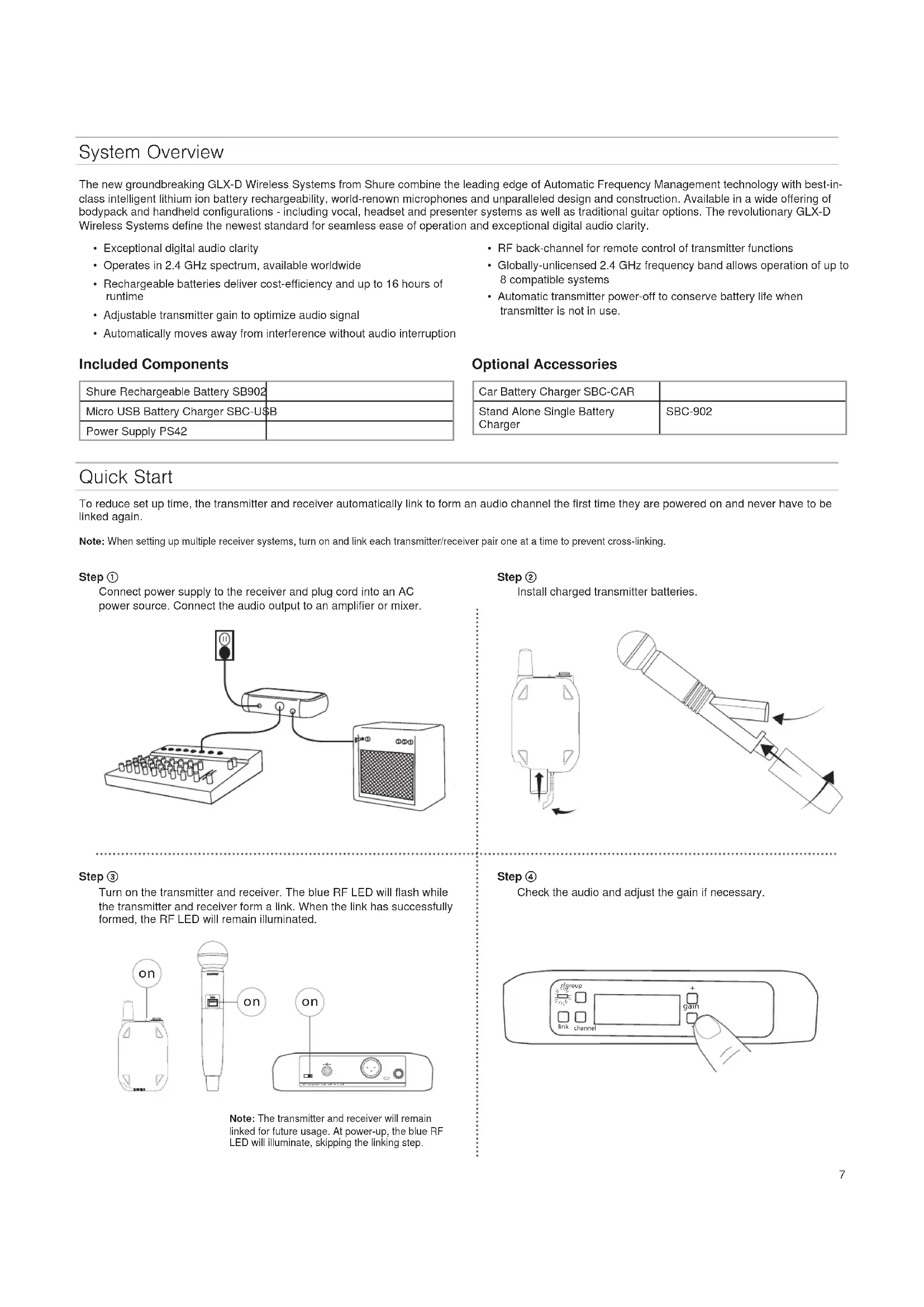
Quick Start
To reduce set up time, the transmitter and receiver automatically link to form an audio channel the first time they are powered on and never have to be linked again.
Note: When setting up multiple receiver systems, turn on and link each transmitter/receiver pair one at a time to prevent cross-linking.
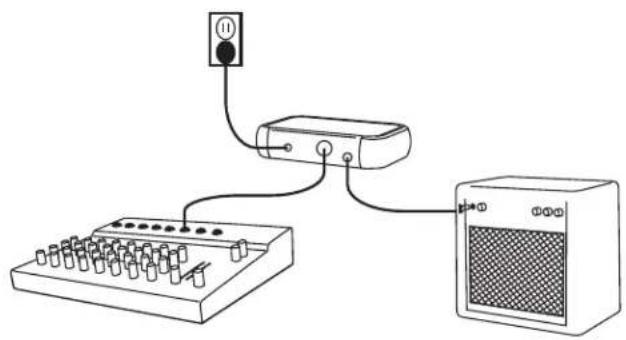
Step ①
Connect power supply to the receiver and plug cord into an AC power source. Connect the audio output to an amplifier or mixer.
natural_image
Simple line drawing of an electronic device with a power outlet, connected to a radio and a monitor (no text or symbols)Step ②
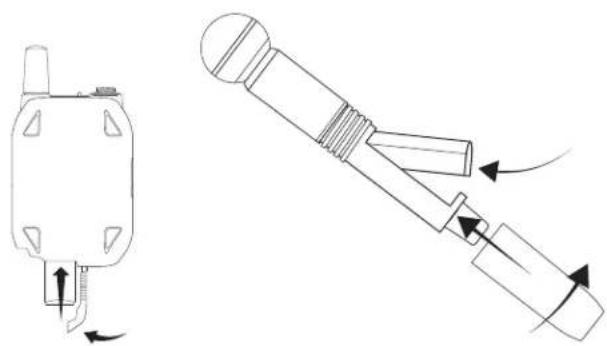
Install charged transmitter batteries.
natural_image
Technical line drawing of a mechanical component with two views: top shows internal structure, bottom shows assembly with arrows indicating motion (no text or symbols)Step ③
Turn on the transmitter and receiver. The blue RF LED will flash while the transmitter and receiver form a link. When the link has successfully formed, the RF LED will remain illuminated.
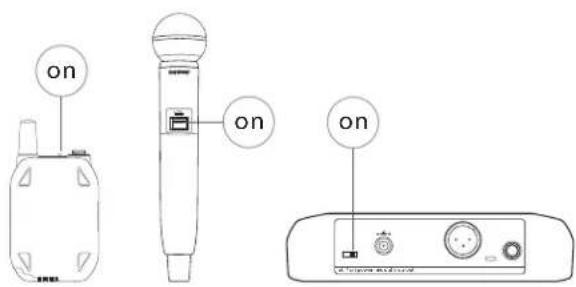
Note: The transmitter and receiver will remain linked for future usage. At power-up, the blue RF LED will illuminate, skipping the linking step.
Step ④
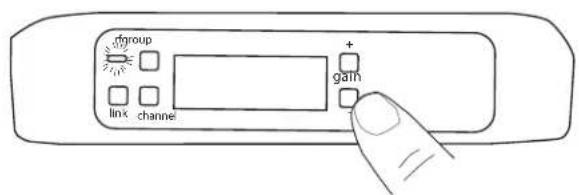
Check the audio and adjust the gain if necessary.
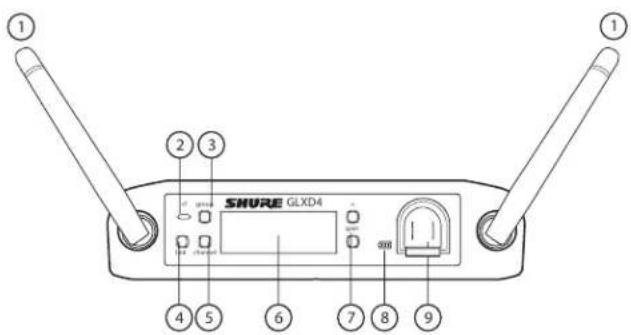
GLXD4 Receiver Controls and Connectors
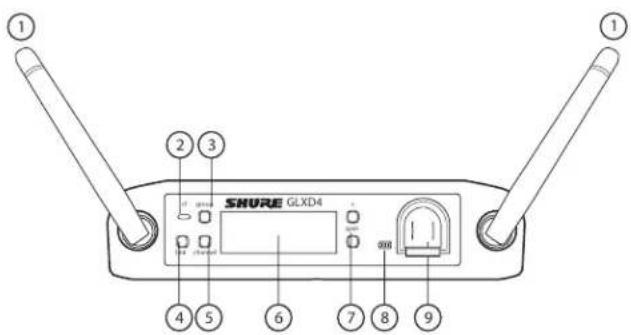
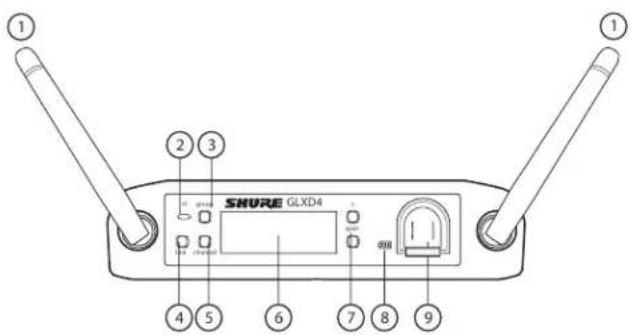
Front Panel
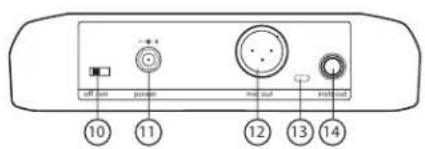
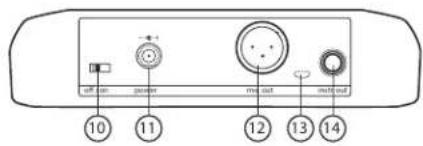
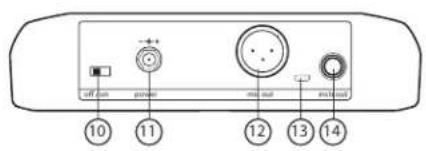
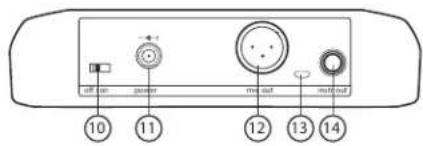
Rear Panel
① Antenna
Carries the wireless signal, 2 per receiver.
② RF Status LED
• ON = Linked transmitter is on
- Flashing = Searching for transmitter
• OFF = Linked transmitter off or transmitter unlinked
③ Group Button
Press and hold for two seconds to enable manual group edit.
④ Link Button
Press to manually link receiver to a transmitter or to activate the remote ID function
⑤ Channel
• Momentary press to start a channel scan
- Press and hold 2 seconds to enable manual channel edit
⑥ LCD Screen
Displays receiver and transmitter status.
⑦ Gain Buttons
Press to increase or decrease transmitter gain in 1 dB increments.
⑧ Battery Charging Indicator
Illuminates when battery is in charging bay:
• Red = battery charging
• Green Flashing = battery charge > 90%
- Green = battery charged
- Amber Flashing = charging error, replace battery
⑨ Battery Charging Bay
Charges transmitter battery while receiver is powered.
⑩ Power Switch
Powers the unit on and off.
⑪ Power Supply Jack
Connect the supplied 15 V DC external power supply.
⑫ Mic Out
XLR microphone output jack supplies microphone-level audio output.
⑬ USB Port
⑭ Instr Out
TRS 1/4" (6.35mm) audio output. Connect to mixers, recorders, and amplifiers.
Receiver Screen
① Group
Displays the selected group.
② Channel
Displays the selected channel.
③ Transmitter Battery Runtime
Displays remaining battery life in hours and minutes.
Alternatively displays the following battery status:
• CALC = battery life calculation
- Lo = battery life less than 15 minutes
- Err = replace battery
④ Audio Meter
Indicates audio signal level and peaks.
⑤ Gain
Displays transmitter gain settings (dB).
⑥ OL Indicator
Indicates audio overload, reduce gain.
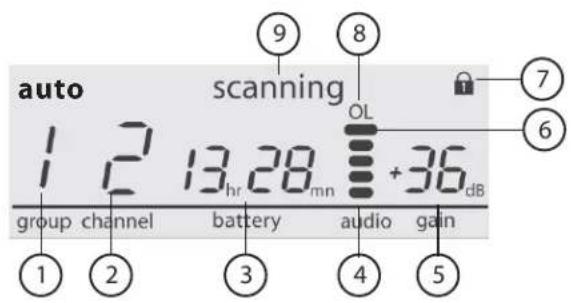
⑦ Transmitter Locked
Displayed when linked transmitter controls are locked.
⑧ Scanning
Indicates a scan is in progress.
⑨ Auto
Indicates that the selected group has backup channels available.
Transmitters
① Antenna
Carries wireless signal.
② Status LED
LED color and state indicate transmitter status.
③ Power Switch
Turns the transmitter on/off.
④ TA4M Input Jack
Connects to a 4-Pin mini connector (TA4F) microphone or instrument cable.
⑤ Micro USB Charging Port
Connect to USB battery charger.
⑥ Link Button
- Press and hold within 5 seconds of power-on to manually link with receiver
- Press momentarily to activate Remote ID function
⑦ Battery Compartment
Holds 1 Shure rechargeable battery.
⑧ Microphone Cartridge
GLXD-2 transmitter models are available with the following cartridge types: SM58, Beta 58, SM86, Beta 87A.
Transmitter Status LED
LED is green during normal operation.
LED color or flashing indicates a change in transmitter status as shown in the following table:
| Color State Status | ||
| Green Flashing (slow) transmitter attempting relink with receiver | ||
| Red On battery life < 1 hour | ||
| Red/Green Flashing remote ID | active | |
| Amber Flashing battery error, replace battery | ||
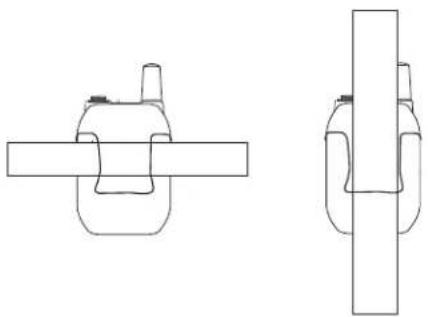
Wearing the Bodypack Transmitter
Clip the transmitter to a belt or slide a guitar strap through the transmitter clip as shown.
For best results, the belt should be pressed against the base of the clip.
natural_image
Two technical line drawings of mechanical components, one with a handle and the other with a vertical rod (no text or symbols)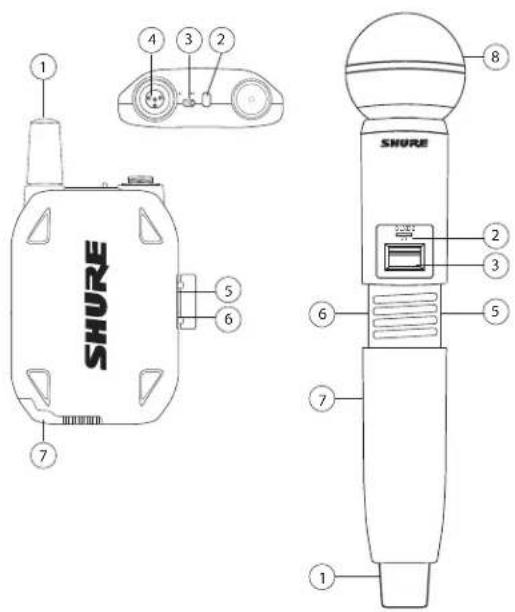
Wearing the Headworn Microphone
- Position the headworn microphone 13 mm (1/2 in.) from the corner of your mouth.
- Position lavalier and headworn microphones so that clothing, jewelry, or other items do not bump or rub against the microphone.
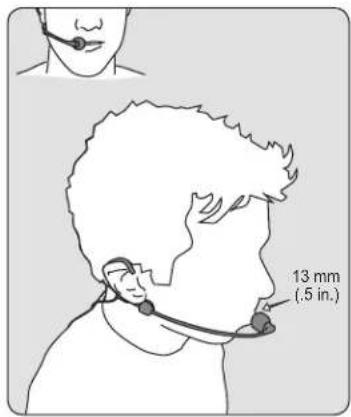
Correct Microphone Placement
- Hold the microphone within 12 inches from the sound source.
- For a warmer sound with increased bass presence, move the microphone closer to the sound source.
- Do not cover grille with hand.
Batteries and Charging
GLX-D transmitters are powered by Shure SB902 lithium-ion rechargeable batteries. Advanced battery chemistry maximizes runtimes with zero memory effects, eliminating the need to discharge batteries prior to charging.
When not in use, recommended battery storage temperature is 10^ C ( 50^ F) to 25^ C ( 77^ F).
Note: The transmitter will not pass RF or audio signals when connected to the charging cable.
The following battery charging options are available:
Receiver Charging Bay
The GLXD4 receiver has a built-in charging bay for the transmitter batteries.
- Insert the battery into the charging bay.
- Monitor the battery charging indicator on the front panel until charging is complete.
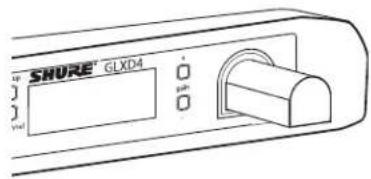
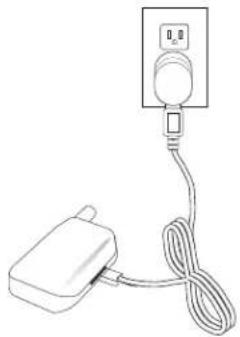
Charging from an AC Power Source
- Plug the charging cable into the charging port on the transmitter.
- Plug the charging cable into an AC power source.
natural_image
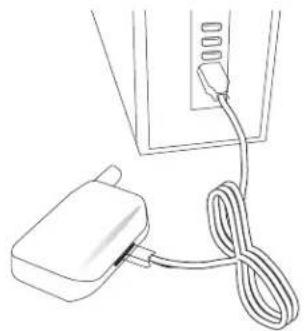
Simple line drawing of a plug connected to a power outlet with cables (no text or symbols)Charging from a USB Port
- Plug the USB charging cable into the charging port on the transmitter.
- Plug the cable into a standard USB port.
natural_image
Line drawing of a cable and plug connected to a device (no text or symbols)LED Status During Charging
The following LED states indicate battery status when the transmitter is connected to a charger:
• Green = charging complete
• Green Flashing = battery charge > 90%
• Red = battery charging
- Amber Flashing = battery error, replace battery
Charging Times and Transmitter Runtimes
Use the following table to determine approximate battery runtime based on the duration of charging time. Times shown are in hours and minutes.
| Receiver Bay or AC Power Source Charging | USB Connection Charging | Transmitter Runtime |
| 0:15 0:30 up to 1:30 | ||
| 0:30 1:00 up to 3:00 | ||
| 1:00 2:00 up to 6:00 | ||
| 3:00 4:00 up to 16:00* |
*Storage time or excessive heat will reduce maximum runtime.
Note: GLX-D transmitters automatically power-off after approximately 1 hour to conserve battery life if the signal from a linked receiver is not detected.
Installing Transmitter Batteries
Bodypack Transmitter
- Move the locking lever to the open position and slide the battery door open.
- Place the battery into the transmitter.
- Close the battery door and slide the latch to lock.
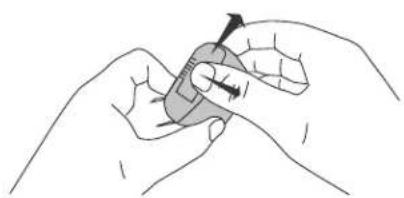
natural_image
Illustration of a hand holding a small object with an arrow indicating motion (no text or symbols)Handheld Transmitter
- Unscrew and remove the battery cover.
- Place the battery into the transmitter.
- Replace and tighten the battery cover.
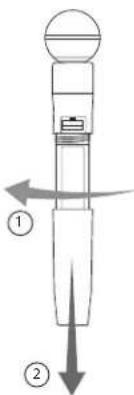
Multiple Receiver Systems
If several channels of wireless audio are needed, up to 8 GLX-D receivers can operate simultaneously in the 2.4 GHz spectrum. For ease of set up, available frequencies are divided into three groups based on the number of receivers supported.
All receivers in the system must be set to the same group. To select a group, determine the total number of receivers in the system (channel count), and then select the appropriate group.
Note: To maximize the number of receivers on-air, Group 3 does not offer backup frequencies. Group 3 should only be used in controlled Wi-Fi environments to prevent interference from unexpected Wi-Fi devices.
| Group Channel | Count Backup Frequencies | Available? Notes | |
| 1 Up to 4 Yes | Initial Factory Setting. | ||
| 2 Up to 5 Yes | Best Group to use if you experience interference. | ||
| 3 Up to 8 No | Only use Group 3 in controlled Wi-Fi environments because | there are no backup frequencies to avoid interference. |
Note: If you experience interference, reduce transmitter to receiver distance and set all GLX-D systems to group 2, which is the most robust wireless group.
See "Tips to Improve Wireless System Performance" section for additional information.
Setting Up Receivers and Transmitters
Note: Before beginning, turn off all receivers and transmitters. Turn on and set up each receiver/transmitter pair individually to prevent cross-linking.
- Turn on the first receiver.
- Press and hold the group button to select a group (if necessary) or if the group is already set, press the channel button to scan for the best available channel.
- Turn on the first transmitter. The blue RF light will illuminate when a link is established.
Repeat steps 1-3 for each additional receiver and transmitter. Remember to set each receiver to the same group.
Note: Dashes appearing on the group and channel display during a channel scan indicate that frequencies are not available in the selected group. Choose a group that supports more receivers and repeat the set up steps.
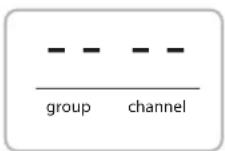
Manually Linking a Transmitter to a Receiver
Use the manual linking option to change the transmitter linked to a receiver. For example, changing the linked transmitter from a bodypack to a handheld.
- Turn on the transmitter: Within 5 seconds, press and hold the LINK button until the transmitter LED begins to flash green.
- Press and hold the link button on the receiver: The blue rf LED will flash, and then remain on when the link has been established.
- Test the audio to verify the link and adjust the gain if necessary.
Combo Systems
A combo system is created by linking two transmitters to a single receiver. Only one transmitter can be active at a time to prevent cross interference. Gain settings for each transmitter can be independently set and stored when the transmitter is active.
Important! Do not turn on and operate both linked transmitters at any time.
Turn off both transmitters before beginning.
- Press the group button to select a group. The receiver automatically scans the selected group to find the best available channel.
- Turn on transmitter 1 and link it to the receiver. Adjust the gain, and then turn off the transmitter.
- Turn on transmitter 2 and link it to the receiver. Adjust the gain, and then turn off the transmitter.
2.4 GHz Spectrum Overview
GLX-D operates within the 2.4GHz ISM band which is utilized by Wi-Fi, Bluetooth, and other wireless devices. The benefit of 2.4GHz is that it's a global band that can be used anywhere in the world, license free.
Overcoming the Challenges of 2.4GHz
The challenge of 2.4GHz is that Wi-Fi traffic can be unpredictable. GLX-D meets these challenges in the following ways:
- Prioritizes and transmits on the best 3 frequencies per channel (choosing from a pool of 6 frequencies across the 2.4GHz band)
- Repeats the most important information such that one frequency can be taken out entirely without audio interruption
- Continuously scans during usage to rank all frequencies (both current and backup frequencies)
- Seamlessly moves away from interference to backup frequencies without audio interruption
Coexisting with Wi-Fi
GLX-D avoids continuous Wi-Fi traffic by scanning the entire 2.4GHz environment and selecting the 3 best frequencies to transmit on. The result of this is reliable performance for your GLX-D wireless system as well as avoiding Wi-Fi transmissions which may be important as well.
"Bursting" Wi-Fi is harder to detect as it is periodic; however, because GLX-D repeats the most important information, even bursts at very high-levels don't have an effect on your audio performance.
Challenging Wireless Environments
Some environments are more difficult than others for 2.4 GHz wireless system performance. The simplest solution in many cases is to reduce the transmitter to receiver distance such as placing the receivers on the stage with a clear line of sight.
Challenging environments include:
- Outdoors
- Very high ceilings
• 3 or more GLX-D receivers in use
• Strong Wi-Fi presence
• Non-Shure 2.4 GHz systems in use
Tips and Methods to Improve Wireless System Performance
If you encounter interference or dropouts, try the following suggestions:
- Scan for the best available channel (press the channel button)
- Reposition the receiver so there is nothing obstructing a line of sight to the transmitter (including the audience)
- Change all GLX-D systems to Group 2, which is the most robust wireless group
- Keep the transmitter and receiver more than 2 meters (6 feet) apart
- Keep transmitter to receiver distance within 60 meters (200 feet) - place receivers on-stage within line of sight if possible
- Remove or relocate nearby sources of wireless interference, such as Wi-Fi devices or hotspots, cell phones, two-way radios, computers, media players, and digital signal processors
-
Disable non-essential Wi-Fi/bluetooth devices and avoid heavy Wi-Fi traffic activities such as downloading large files or viewing a movie.
-
Locate GLX-D receivers away from non-Shure 2.4 GHz receivers
- Avoid placing transmitter and receiver where metal or other dense materials may be present
- Move the receiver to the top of the equipment rack
- Recharge or replace the transmitter battery
- Keep transmitters more than 2 meters (6 feet) apart - this is less critical at shorter receiver to transmitter distances
Note: If transmitters are within 6 inches of non-GLXD transmitters or microphone cartridges, audible noise is possible. - During sound check, mark trouble spots and ask presenters or performers to avoid those areas
2.4 GHz Frequency Tables
The following tables list receiver channels, frequencies, and latency for each group:
Group 1: Channels 1-4 (latency = 4.0 ms)
| Group/Channel Frequencies | |||
| 1/1 2424 | 2425 | 2442 | |
| 2443 2462 2464 | |||
| 1/2 2418 | 2419 | 2448 | |
| 2450 2469 2471 | |||
| 1/3 2411 | 2413 | 2430 | |
| 2431 2476 2477 | |||
| 1/4 2405 | 2406 | 2436 | |
| 2437 2455 2457 | |||
Group 2: Channels 1-5 (latency = 7.3 ms)
| Group/Channel Frequencies | |||
| 2/1 2423 2424 2443 | |||
| 2444 2473 2474 | |||
| 2/2 2404 2405 2426 | |||
| 2427 2456 2457 | |||
| 2/3 2410 2411 2431 | |||
| 2432 2448 2449 | |||
| 2/4 2417 2418 2451 | |||
| 2452 2468 2469 | |||
| 2/5 2437 2438 2462 | |||
| 2463 2477 2478 | |||
Group 3: Channels 1-8 (latency = 7.3 ms)
| Group/Channel Frequencies | |||
| 3/1 | 2415 | 2416 | 2443 |
| 3/2 | 2422 | 2423 | 2439 |
| 3/3 | 2426 | 2427 | 2457 |
| 3/4 | 2447 | 2448 | 2468 |
| 3/5 | 2409 | 2451 | 2452 |
| 3/6 | 2431 | 2462 | 2463 |
| 3/7 | 2404 | 2473 | 2474 |
| 3/8 | 2435 | 2477 | 2478 |
Operation
Gain Adjustment
Use the gain buttons on the receiver to increase or decrease the gain of a linked transmitter:
- Turn on the linked transmitter and momentarily press the gain buttons to adjust the gain in 1 dB increments
- For faster gain adjustments, press and hold the gain buttons
Tip: Monitor the audio and observe the receiver audio meter level while adjusting the gain to prevent signal overload.

Locking and Unlocking the Controls
The controls of the receiver and transmitter can be locked to prevent accidental or unauthorized changes to settings.
Note: Locks are not affected by power cycles.
Locking the Receiver Controls
Simultaneously press and hold the group and channel buttons until LK appears on the LCD. Repeat to unlock.
- LK is displayed if a locked control is pressed
- UN is displayed momentarily to confirm the unlock command
Locking the Transmitter Power Switch
Starting with the transmitter set to off, press and hold the LINK button while turning on the transmitter. Continue to hold the link button until the lock icon appears on the receiver LCD. Repeat sequence to unlock.

Optionally, the transmitter power switch can be remotely locked from the receiver front panel:
Simultaneously press and hold the group and link buttons for approximately 2 seconds until the flashing lock icon appears on the receiver LCD. Repeat sequence to unlock.
Identifying Linked Transmitters and Receivers with Remote ID
Use the Remote ID feature to identify linked transmitter and receiver pairs in multiple receiver systems. When Remote ID is active, the receiver LCD will blink and display ID. The status LED of the corresponding transmitter will alternately flash red and green for approximately 45 seconds.
To activate Remote ID:
- Momentarily press the link button on the transmitter or receiver.
- The LCD of the linked receiver will blink and display ID and the status LED on the linked transmitter will flash red/green.
- To exit Remote ID mode, momentarily press the link button or allow the function to timeout.
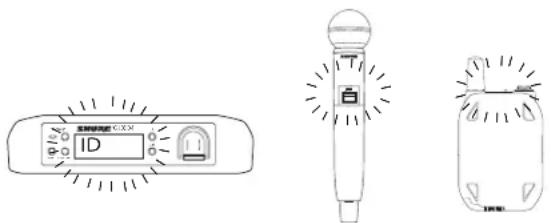
Manually Selecting a Group and Channel
Specific groups and channels can be assigned to the receiver instead of using the automatic scan function.
Note: Group 3 should only be used in controlled Wi-Fi environments to prevent interference from unexpected Wi-Fi devices.
Selecting a Group
- Press and hold the group button for 2 seconds until the group display flashes.
- Press the group button to scroll through the available groups.
- The receiver will automatically save the selected group.
Selecting a Channel
- Press and hold the channel button for 2 seconds until the channel display flashes.
- Press the channel button to scroll through the available channels.
- The receiver will automatically save the selected channel.
Note: A double dash symbol-- displayed on the receiver screen during a channel scan indicates that there are no available channels within the selected group. Choose a group with more channels and repeat set up steps.
Troubleshooting
| Issue Indicator Status Solution | ||
| No sound or faint sound | Receiver RF LED on | ·Verify all sound system connections or adjust gain as needed (see Adjusting Gain).·Verify that the receiver is connected to mixer/amplifier. |
| Receiver RF LED off | ·Turn on transmitter.·Make sure the batteries are installed correctly.·Link transmitter and receiver (see Linking topic).·Charge or change transmitter battery. | |
| Receiver LCD screen off · Make sure AC adapter is securely plugged into electrical outlet.·Make sure receiver is powered on. | ||
| Transmitter indicator LED flashing red Charge or change transmitter battery. | ||
| Transmitter plugged into charger. Disconnect transmitter from charger. | ||
| Audio artifacts or dropouts | r-f LED flickering or off | ·Change receiver and transmitter to a different group and/or channel.·Identify nearby sources of interference (cell phones, Wi-Fi access points, signal processor, etc...) and shutdown or remove source.·Charge or change transmitter battery.·Ensure that receiver and transmitter are positioned within system parameters.·System must be set up within recommended range and receiver kept away from metallic surfaces.·Transmitter must be used in line of sight from receiver for optimal sound. |
| Distortion OL indicator appears on receiver LCD Reduce transmitter gain (see Gain Adjustment). | ||
| Sound level variations when switching to different sources | N/A Adjust transmitter gain as necessary (see Gain Adjustment). | |
| Receiver/transmitter won't turn off | Transmitter LED flashing rapidly Controls locked. See Locking and Unlocking Controls. | |
| Receiver gain control cannot be adjusted | N/A Check transmitter. Transmitter must be on to enable gain changes. | |
| Receiver controls cannot be adjusted | LK shown on receiver display when buttons are pressed | Controls locked. See Locking and Unlocking Controls. |
| Transmitter ID function does not respond | Transmitter LED flashes green 3 times Controls locked. See Locking and Unlocking Controls. | |
| Transmitter information does not appear on the Receiver LCD | N/A Linked transmitter is off or the receiver is not linked to a transmitter. | |
| Transmitter powers off after 1 hour | Transmitter status LED off GLX-D transmitters automatically power-off after 1 hour to conserve battery life if the signal from a linked receiver is not detected. Make sure that linked receiver is turned on. | |
Resetting Components
Use the reset function if it is necessary to restore the transmitter or receiver to their factory settings.
Resetting the Receiver
Restores the receiver to the following factory settings:
- Gain level = default
- Controls = unlocked
Press and hold the link button while turning on the receiver power until the LCD displays RE.
Note: When reset is complete, the receiver will automatically initiate linking to search for a transmitter. Press and hold the transmitter link button within five seconds of powering-on to complete the link.
Resetting the Transmitter
Restores the transmitter to the following factory settings:
- Controls = unlocked
Press and hold the transmitter link button while turning on the transmitter until power LED goes off.
When the link button is released, the transmitter will automatically initiate linking to find an available receiver. Press the link button on an available receiver to relink.
Specifications
Tuning Bandwidth
2400-2483.5 MHz
Working Range
60 m (200 ft) typical
Note: Actual range depends on RF signal absorption, reflection and interference.
Transmit Mode
Frequency Hopping
Audio Frequency Response
20 Hz - 20 kHz
Note: Dependent on microphone type
Dynamic Range
120 dB, A-weighted
RF Sensitivity
-88 dBm, typical
Total Harmonic Distortion
0.2%, typical
RF Output Power
10 mW E.I.R.P. max
Operating Temperature Range
-18°C (0°F) to 57°C (135°F)
Note: Battery characteristics may limit this range.
Storage Temperature Range
-29°C (-20°F) to 74°C (165°F)
Polarity
Positive pressure on microphone diaphragm (or positive voltage applied to tip of WA302 phone plug) produces positive voltage on pin 2 (with respect to pin 3 of low-impedance output) and the tip of the high impedance 1/4-inch output.
Battery Life
Up to 16 hours
GLXD4
Dimensions
40 x 183 x 117 mm (1.6 x 7.2 x 4.6 in.), H x W x D
Weight
286 g (10.1 oz.) without batteries
Housing
Molded Plastic
Power Requirements
14 to 18 V DC (Tip positive with respect to ring), 550 mA
Spurious Rejection
35 dB, typical
Gain Adjustment Range
-20 to 40 dB in 1 dB steps
Phantom Power Protection
Yes
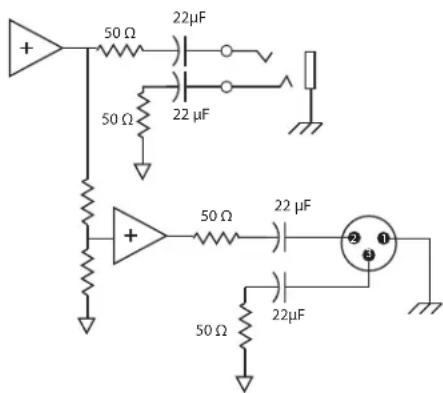
Pin Assignments
| XLR Output | 1=ground, 2=hot, 3=cold |
| 6.35 mm (1/4") connector | Tip=audio, Ring=no audio,Sleeve=ground |
Receiver Antenna Input
Impedance
50 Ω
Antenna Type
12 Wave Sleeve Dipole, non-removable
Maximum Input Level
-20 dBm
Output Connections
Configuration
| XLR Output | Impedance balanced |
| 6.35 mm (1/4") output | Impedance balanced |
Impedance
| XLR Output | 100 Ω |
| 6.35 mm (1/4") output | 100 Ω(50 Ω, Unbalanced) |
Maximum Audio Output Level
| XLR connector (into 600 Ω load) | +1 dBV |
| 6.35 mm (1/4") connector (into 3 kΩ load) | +8.5 dBV |

GLXD1 GLXD2
Dimensions
90.4 x 64.5 x 22.9 mm (3.56 x 2.54 x 0.90 in.), H x W x D (without antenna)
Power Requirements
3.7 V Rechargeable Li-Ion
Housing
Cast Metal, Black Powdercoat
Input Impedance
900 kΩ
RF Output Power
10 mW E.I.R.P. max
Transmitter Input
Connector
4-Pin male mini connector (TA4M)
Configuration
Unbalanced
Maximum Input Level
1 kHz at 1% THD
+8.4 dBV (7.5 Vp-p)
Antenna Type
Internal Monopole
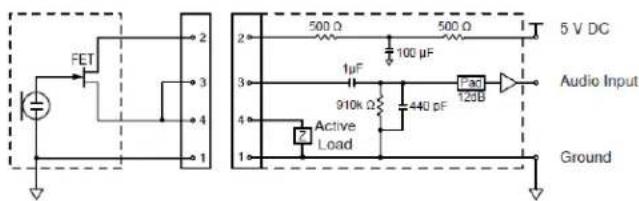
Pin Assignments
TA4M
| 1 | ground (cable shield) |
| 2 | +5 V Bias |
| 3 | audio |
| 4 | Tied through active load to ground (On instrument adapter cable, pin 4 floats) |
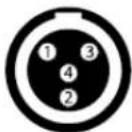
TA4M Connector
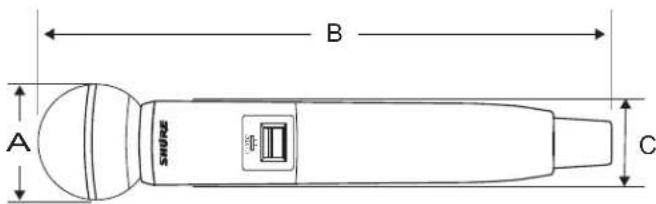
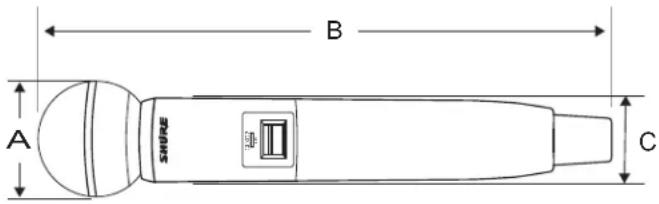
Dimensions
| Model A B C | |||
| SM58 51 mm, 2.0 in. 252 mm, 9.9 in. 37 mm, 1.5 in. | |||
| BETA 58 51 mm, 2.0 in. 252 mm, 9.9 in. 37 mm, 1.5 in. | |||
| SM86 49 mm, 1.9 in. 252 mm, 9.9 in. 37 mm, 1.5 in. | |||
| BETA 87A 51 mm, 2.0 in. 252 mm, 9.9 in. 37 mm, 1.5 in. | |||
Weight
| SM58 | 267 g (9.4 oz.) without batteries |
| BETA 58 | 221 g (7.8 oz.) without batteries |
| SM86 | 275 g (9.1 oz.) without batteries |
| BETA 87A | 264 g (9.3 oz.) without batteries |
Housing
Molded Plastic
Power Requirements
3.7 V Rechargeable Li-Ion
RF Output Power
10 mW E.I.R.P. max
Maximum Input Level
| SM58 | 146 dB SPL |
| BETA 58 | 147 dB SPL |
| SM86 | 143 dB SPL |
| BETA 87A | 147 dB SPL |
Certifications
This device complies with part 15 of the FCC Rules. Operation is subject to the following two conditions: (1) This device may not cause harmful interference, and (2) this device must accept any interference received, including interference that may cause undesired operation.
This wireless system operates in the globally available ISM band 2400 MHz to 2483.5 MHz. The operation does not require a user license.
Meets requirements of the following standards: EN 300 328, EN 301 489 Parts 1 and 9, EN60065.
Meets essential requirements of the following European Directives:
• R&TTE Directive 99/5/EC
• WEEE Directive 2002/96/EC, as amended by 2008/34/EC
• RoHS Directive 2002/95/EC, as amended by 2008/35/EC
Note: Please follow your regional recycling scheme for batteries and electronic waste
Certified by IC in Canada under RSS-210 and RSS-GEN.
IC: 616A-GLXD1, 616A-GLXD2, 616A-GLXD4
Certified under FCC Part 15.
This device complies with Industry Canada licence-exempt RSS standard(s). Operation of this device is subject to the following two conditions: (1) this device may not cause interference, and (2) this device must accept any interference, including interference that may cause undesired operation of the device.
The CE Declaration of Conformity can be obtained from Shure Incorporated or any of its European representatives. For contact information please visit www.shure.com
The CE Declaration of Conformity can be obtained from: www.shure.com/europe/compliance
Authorized European representative:
Shure Europe GmbH
Headquarters Europe, Middle East & Africa
Department: EMEA Approval
Jakob-Dieffenbacher-Str. 12
75031 Eppingen, Germany
Phone: 49-7262-92 49 0
Fax: 49-7262-92 49 11 4
Email: EMEAsupport@shure.de
Information to the user
This equipment has been tested and found to comply with the limits for a Class B digital device, pursuant to Part 15 of the FCC Rules. These limits are designed to provide reasonable protection against harmful interference in a residential installation. This equipment generates uses and can radiate radio frequency energy and, if not installed and used in accordance with the instructions, may cause harmful interference to radio communications. However, there is no guarantee that interference will not occur in a particular installation. If this equipment does cause harmful interference to radio or television reception, which can be determined by turning the equipment off and on, the user is encouraged to try to correct the interference by one or more of the following measures:
- Reorient or relocate the receiving antenna.
- Increase the separation between the equipment and the receiver.
- Connect the equipment to an outlet on a circuit different from that to which the receiver is connected.
- Consult the dealer or an experienced radio/TV technician for help.
natural_image
Simple line drawing of an audio equipment setup with a speaker, antenna, and power outlet (no text or symbols)Étape ②
natural_image
Technical line drawing of a mechanical component with directional arrows indicating motion (no text or symbols)Étape ③
Panneau arrière
① Antenne
Contient un accu rechargeable Shure.
⑧ Capsule de microphone
natural_image
Two technical line drawings of mechanical components with no visible text or symbols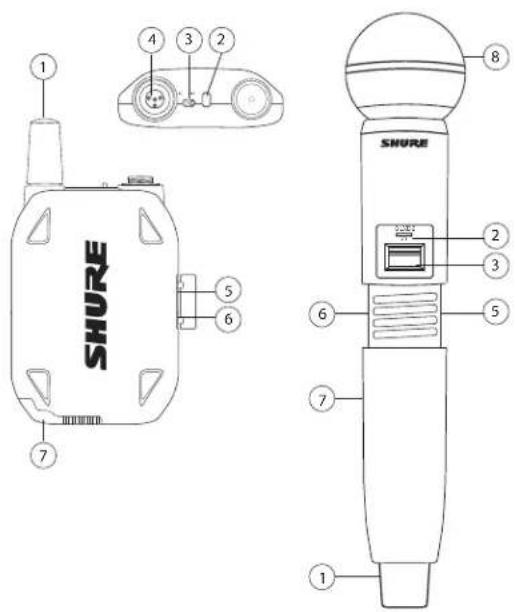
Placement correct du microphone
natural_image
Simple line drawing of a plug connected to a power outlet with cable (no text or symbols)natural_image
Simple line drawing of a plug connected to a cable with a connector (no text or symbols)natural_image
Line drawing of hands performing a finger manipulation or tooling task (no text or symbols present)Émetteur main
Service : Homologation EMA
Jakob-Dieffenbacher-Str. 12
Schritt ②
natural_image
Technical line drawing of a mechanical component with two views: one showing a pin inserted into a housing, the other showing a lever mechanism (no text or symbols)Schritt ③
Rückseite
① Antenne
⑦ Sender gesperrt
natural_image
Technical line drawing of two mechanical components with no visible text or symbolsnatural_image
Simple line drawing of a plug connected to a power outlet with cable (no text or symbols)natural_image
Line drawing of a cable and plug attached to a device (no text or symbols)natural_image
Line drawing of hands performing a finger manipulation or tooling task (no text or symbols present)Handsender
natural_image
Three line drawings of a handheld device with a digital display, a lit microphone, and a jar with a lid (no text or symbols)natural_image
Simple line drawing of a radio connected to an audio device via a cable (no text or symbols)Paso ②
natural_image
Technical line drawing of a mechanical component with two views: one showing a pin inserted into a housing, the other showing a lever mechanism with arrows indicating motion (no text or symbols)Paso ③
Controles y conectores del receptor GLXD4
Panel delantero
Panel trasero
① Antena
natural_image
Technical line drawing of two mechanical components with no visible text or symbols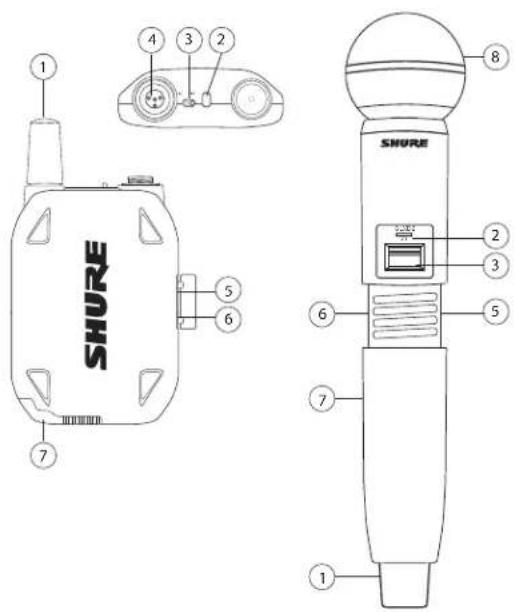
natural_image
Simple line drawing of a connected electrical plug and cable (no text or symbols)natural_image
Line drawing of a plug connected to a cable with a connector (no text or symbols)Estado del LED durante la carga
natural_image
Illustration of two hands performing a medical procedure with an arrow indicating direction (no text or symbols)Transmisor de mano
natural_image
Three line drawings of a handheld device with a display, a microphone, and a jar (no text or symbols)natural_image
Simple line drawing of an audio equipment setup with a switch, antenna, and audio unit (no text or symbols)Passaggio ②
natural_image
Technical line drawing of a mechanical component with two views: one showing a pin-like assembly and the other showing a threaded rod assembly (no text or symbols)Passaggio ③
Pannello posteriore
① Antenna
natural_image
Technical line drawing of two mechanical components with no visible text or symbolsnatural_image
Line drawing of a connected electrical plug and cable with a digital display (no text or symbols)natural_image
Simple line drawing of a plug connected to a cable with a connector (no text or symbols)natural_image
Illustration of two hands performing a finger manipulation technique (no text or symbols present)natural_image
Simple line drawing of an electronic device connected to a power supply unit (no text or symbols)Etapa ②
natural_image
Technical line drawing of a mechanical component with two views: one showing a pin-like assembly and the other showing a threaded rod assembly (no text or symbols)Etapa ③
Conectores e Controles do Receptor GLXD4
Painel Frontal
Painel Traseiro
① Antena
③ Interruptor Liga/Desliga
Liga e desliga o transmissor.
natural_image
Technical line drawing of two mechanical components with no visible text or symbols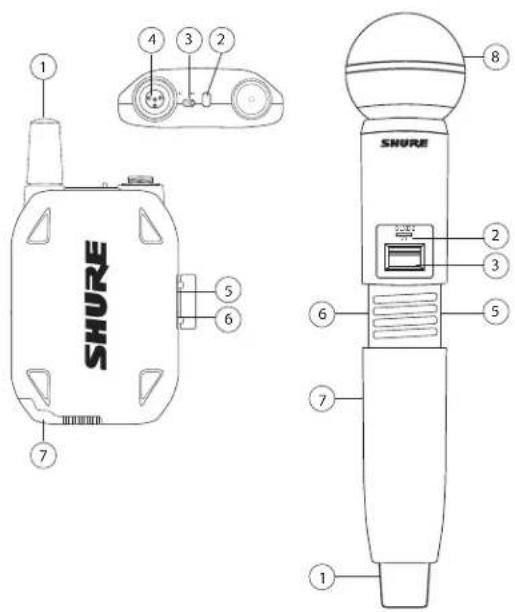
natural_image
Simple line drawing of a connected electrical plug and cable (no text or symbols)natural_image
Line drawing of a plug connected to a cable with a power outlet (no text or symbols)natural_image
Illustration of two hands holding a small object with an arrow indicating motion (no text or symbols)Transmissor de Mão
Diversos Sistemas Receptores
natural_image
Three line drawings of a handheld device with indicator lights and a labeled screen (no text or symbols present)This wireless system operates in the globally available ISM band 2400 MHz to 2483.5 MHz. The operation does not require a user license.
Atende aos requisitos das seguintes normas: EN 300 328, Partes 1 e 9 da Norma EN 301 489, EN60065.
natural_image
Simple line drawing of a computer setup with an antenna, switch, and monitor (no text or symbols)War ②
natural_image
Technical line drawing of a mechanical component with two views: one showing a pin inserted into a housing, the other showing a lever mechanism with arrows indicating motion (no text or symbols)War ③
Задняя панель
① Антенна
natural_image
Technical line drawing of two mechanical components with no visible text or symbols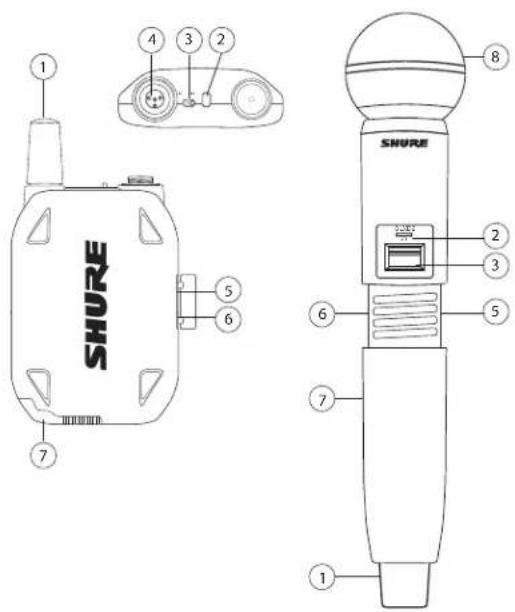
natural_image
Simple line drawing of a plug connected to a wall-mounted power outlet (no text or symbols)natural_image
Simple line drawing of a plug connected to a cable with a connector (no text or symbols)natural_image
Illustration of two hands performing a finger manipulation technique (no text or symbols present)Ручной передатчик
natural_image
Three line drawings of a handheld device with a control panel, a lit microphone, and a jar (no text or symbols)This wireless system operates in the globally available ISM band 2400 MHz to 2483.5 MHz. The operation does not require a user license.
Headquarters Europe, Middle East & Africa
Department: EMEA Approval
Jakob-Dieffenbacher-Str. 12
75031 Eppingen, Germany
natural_image
Simple line drawing of a computer setup with an antenna, switch, and monitor (no text or symbols)Stap ②
natural_image
Technical line drawing of a mechanical component with two views: one showing a pin-like assembly and the other showing a threaded rod assembly (no text or symbols)Stap ③
Bedieningselementen en connectors GLXD4-ontvanger
Voorpaneel
Achterpaneel
① Antenne
⑦ Zender vergrendeld
natural_image
Technical line drawing of two mechanical components with no visible text or symbols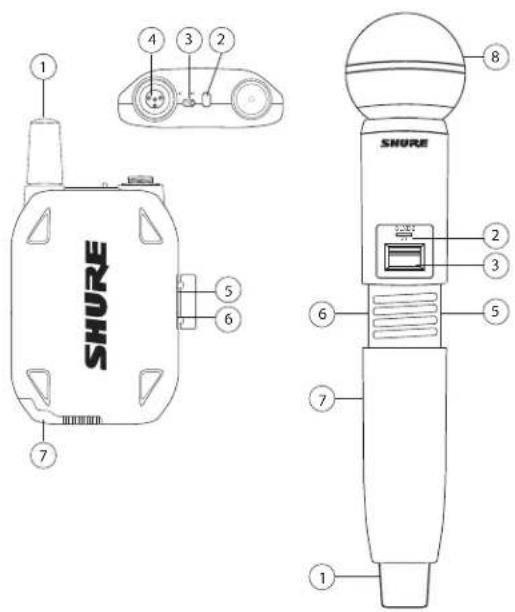
natural_image
Simple line drawing of a plug connected to a power outlet with cable (no text or symbols)natural_image
Line drawing of a plug connected to a cable with a connector (no text or symbols)natural_image
Line drawing of two hands holding a small object with an arrow indicating motion (no text or symbols)Handheld zender
natural_image
Three line drawings of a handheld device with a digital display, a lit microphone, and a jar with a handle (no text or symbols)| XLR-connector (in 600 Ω belasting) | +1 dBV |
| 6,35 mm (1/4") connector (in 3 kΩ belasting) | +8,5 dBV |
GLXD1 GLXD2
Afmetingen
90 x 65 x 23 mm(3,56 x 2,54 x 0,90in.), H x B x D (zonder antenne)
Voedingsvereisten
4-pens miniconnector, mannetje (TA4M)
Configuratie
Ongebalanceerd
Maximaal ingangsniveau
1 kHz bij 1% THD
+8,4 dBV (7,5 Vp-p)
Antennetype
Interne monopool
Pentoewijzingen
TA4M
| Model A B C | |||
| SM58 51 mm, 2,0 in. 252 mm, 9,9 in. 37 mm, 1,5 in. | |||
| BETA 58 51 mm, 2,0 in. 252 mm, 9,9 in. 37 mm, 1,5 in. | |||
| SM86 49 mm, 1,9 in. 252 mm, 9,9 in. 37 mm, 1,5 in. | |||
| BETA 87A 51 mm, 2,0 in. 252 mm, 9,9 in. 37 mm, 1,5 in. | |||
Gewicht
| SM58 | 267 g (9,4 oz.) zonder batterijen |
| BETA 58 | 221 g (7,8 oz.) zonder batterijen |
| SM86 | 275 g (9,1 oz.) zonder batterijen |
| BETA 87A | 264 g (9,3 oz.) zonder batterijen |
Behuizing
Gegoten plastic
Voedingsvereisten
This wireless system operates in the globally available ISM band 2400 MHz to 2483.5 MHz. The operation does not require a user license.
United States, Canada, Latin
America, Caribbean:
Shure Incorporated
5800 West Touhy Avenue
Niles, IL 60714-4608 USA
Phone: 847-600-2000
Fax: 847-600-1212 (USA)
Fax: 847-600-6446
Email: info@shure.com
www.shure.com
©2013 Shure Incorporated
Europe, Middle East, Africa:
Shure Europe GmbH
Jakob-Dieffenbacher-Str. 12,
75031 Eppingen, Germany
Phone: 49-7262-92490
Fax: 49-7262-9249114
22/F, 625 King's Road
North Point, Island East
Hong Kong
Phone: 852-2893-4290
Fax: 852-2893-4055

- IMPORTANT SAFETY INSTRUCTIONS
- CONSIGNES DE SÉCURITÉ IMPORTANTES
- WARNING
- Note:
- Quick Start
- Step ①
- Step ②
- Step ③
- Step ④
- GLXD4 Receiver Controls and Connectors
- ① Antenna
- ② RF Status LED
- ③ Group Button
- ④ Link Button
- ⑤ Channel
- ⑥ LCD Screen
- ⑦ Gain Buttons
- ⑧ Battery Charging Indicator
- ⑨ Battery Charging Bay
- ⑩ Power Switch
- ⑪ Power Supply Jack
- ⑫ Mic Out
- ⑬ USB Port
- ⑭ Instr Out
- Receiver Screen
- ① Group
- ② Channel
- ③ Transmitter Battery Runtime
- ④ Audio Meter
- ⑤ Gain
- ⑥ OL Indicator
- ⑦ Transmitter Locked
- ⑧ Scanning
- ⑨ Auto
- Transmitters
- Transmitter Status LED
- Wearing the Bodypack Transmitter
- Wearing the Headworn Microphone
- Correct Microphone Placement
- Batteries and Charging
- Receiver Charging Bay
- Charging from an AC Power Source
- Charging from a USB Port
- LED Status During Charging
- Charging Times and Transmitter Runtimes
- Installing Transmitter Batteries
- Bodypack Transmitter
- Handheld Transmitter
- Multiple Receiver Systems
- Setting Up Receivers and Transmitters
- Manually Linking a Transmitter to a Receiver
- Combo Systems
- GHz Spectrum Overview
- Overcoming the Challenges of 2.4GHz
- Coexisting with Wi-Fi
- Challenging Wireless Environments
- Tips and Methods to Improve Wireless System Performance
- GHz Frequency Tables
- Operation
- Gain Adjustment
- Locking and Unlocking the Controls
- Locking the Receiver Controls
- Locking the Transmitter Power Switch
- Identifying Linked Transmitters and Receivers with Remote ID
- Manually Selecting a Group and Channel
- Selecting a Group
- Selecting a Channel
- Resetting Components
- Resetting the Receiver
- Resetting the Transmitter
- Specifications
- Tuning Bandwidth
- Working Range
- Transmit Mode
- Audio Frequency Response
- Dynamic Range
- RF Sensitivity
- Total Harmonic Distortion
- RF Output Power
- Operating Temperature Range
- Storage Temperature Range
- Polarity
- Battery Life
- GLXD4
- Dimensions
- Weight
- Housing
- Power Requirements
- Spurious Rejection
- Gain Adjustment Range
- Phantom Power Protection
- Receiver Antenna Input
- Impedance
- Antenna Type
- Maximum Input Level
- Output Connections
- GLXD1 GLXD2
- Input Impedance
- Transmitter Input
- Connector
- Configuration
- Pin Assignments
- Certifications
- Information to the user
- Étape ②
- Étape ③
- ① Antenne
- Placement correct du microphone
- Émetteur main
- Schritt ②
- Schritt ③
- ⑦ Sender gesperrt
- Handsender
- Paso ②
- Paso ③
- Controles y conectores del receptor GLXD4
- ① Antena
- Estado del LED durante la carga
- Transmisor de mano
- Passaggio ②
- Passaggio ③
- Etapa ②
- Etapa ③
- Conectores e Controles do Receptor GLXD4
- Transmissor de Mão
- Diversos Sistemas Receptores
- War ②
- War ③
- ① Антенна
- Ручной передатчик
- Stap ②
- Stap ③
- Bedieningselementen en connectors GLXD4-ontvanger
- Handheld zender
- Afmetingen
- Voedingsvereisten
- Configuratie
- Maximaal ingangsniveau
- Antennetype
- Pentoewijzingen
- Behuizing
Brand : SHURE
Model : GLXD4
Category : Receiver