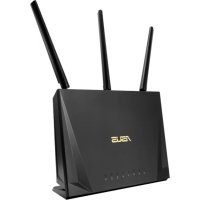
RTAC85P - Wireless Router ASUS - Free user manual and instructions
Find the device manual for free RTAC85P ASUS in PDF.



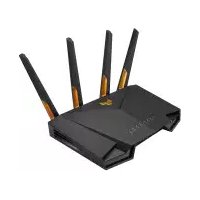
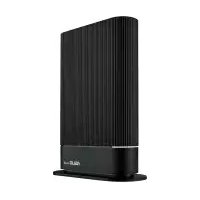
| Product type | Wireless router |
| Brand | ASUS |
| Model | RT-AC85P |
| Dimensions (L x W x H) | 23.5 x 12.6 x 3.6 cm |
| Weight | 300 g |
| Power supply | AC adapter 12V/1.5A |
| WiFi standard | IEEE 802.11a/b/g/n/ac |
| Frequency band | 2.4 GHz and 5 GHz |
| Max speed | 867 Mbps (5 GHz) + 300 Mbps (2.4 GHz) |
| Ports | 4 Gigabit LAN ports, 1 Gigabit WAN port, 1 USB 2.0 port |
| Key features | MU-MIMO, Beamforming, QoS, VPN |
| Security | WPA/WPA2-PSK, built-in firewall, MAC filtering |
| Care and cleaning | Clean with a soft dry cloth, avoid moisture |
| Spare parts and repairability | No consumables, professional repair recommended |
| General information | Manual available in multiple languages, free download |
Frequently Asked Questions - RTAC85P ASUS
User questions about RTAC85P ASUS
0 question about this device. Answer the ones you know or ask your own.
Ask a new question about this device
Download the instructions for your Wireless Router in PDF format for free! Find your manual RTAC85P - ASUS and take your electronic device back in hand. On this page are published all the documents necessary for the use of your device. RTAC85P by ASUS.
USER MANUAL RTAC85P ASUS
Wireless-AC2400 Dual Band Gigabit Router
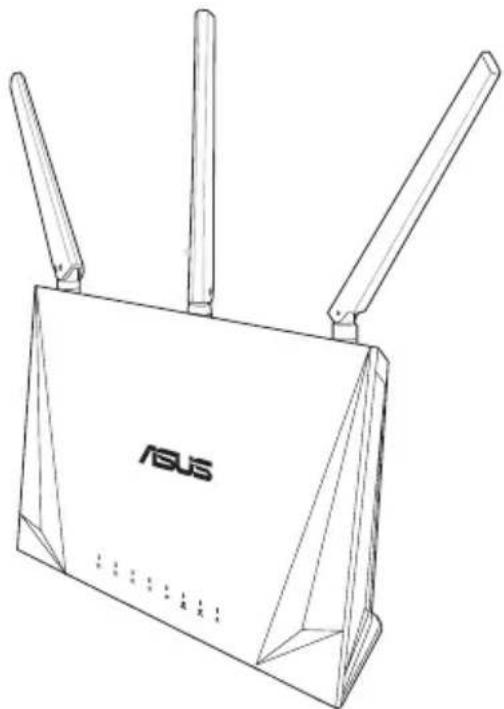
natural_image
Line drawing of a Huawei 8.0 wireless router with three antennas (no text or symbols on the device body)Quick Start Guide
EEU15674 / Second Edition / July 2019
Table of contents
Package contents ....3
A quick look at RT-AC85P 3
Position your wireless router......4
Preparing your modem....5
Setting up your Router....6
A. Wired connection....6
B. Wireless connection....7
FAQ 9
Networks Global Hotline Information ....119
This QSG contains these languages:
English
български
Hrvatski
Čeština
Eesti
Magyar
Latviski
Lietuvių
Polski
Русский
Română
Srpski
Slovensky
Slovenščina
Türkçe
Українська
בִרְשָׁה
Package contents
√ RT-AC85P Wireless Router AC adapter
√ Network cable (RJ-45) Quick Start√Guide
A quick look at RT-AC85P
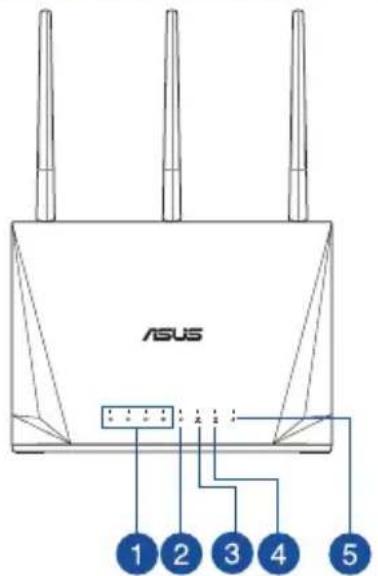
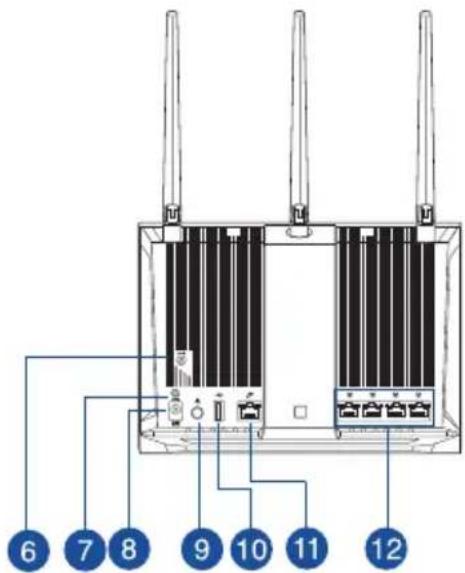
| 1 LAN 1~4 LEDs WPS button | 7 |
| 2 WAN LED Power (DC-IN) port | 8 |
| 3 2.4GHz LED Power button | 9 |
| 4 5GHz LED USB 3.0 port | 10 |
| 5 Power LED WAN (Internet) port | 11 |
| 6 Reset button LAN 1 ~ 4 ports | 12 |
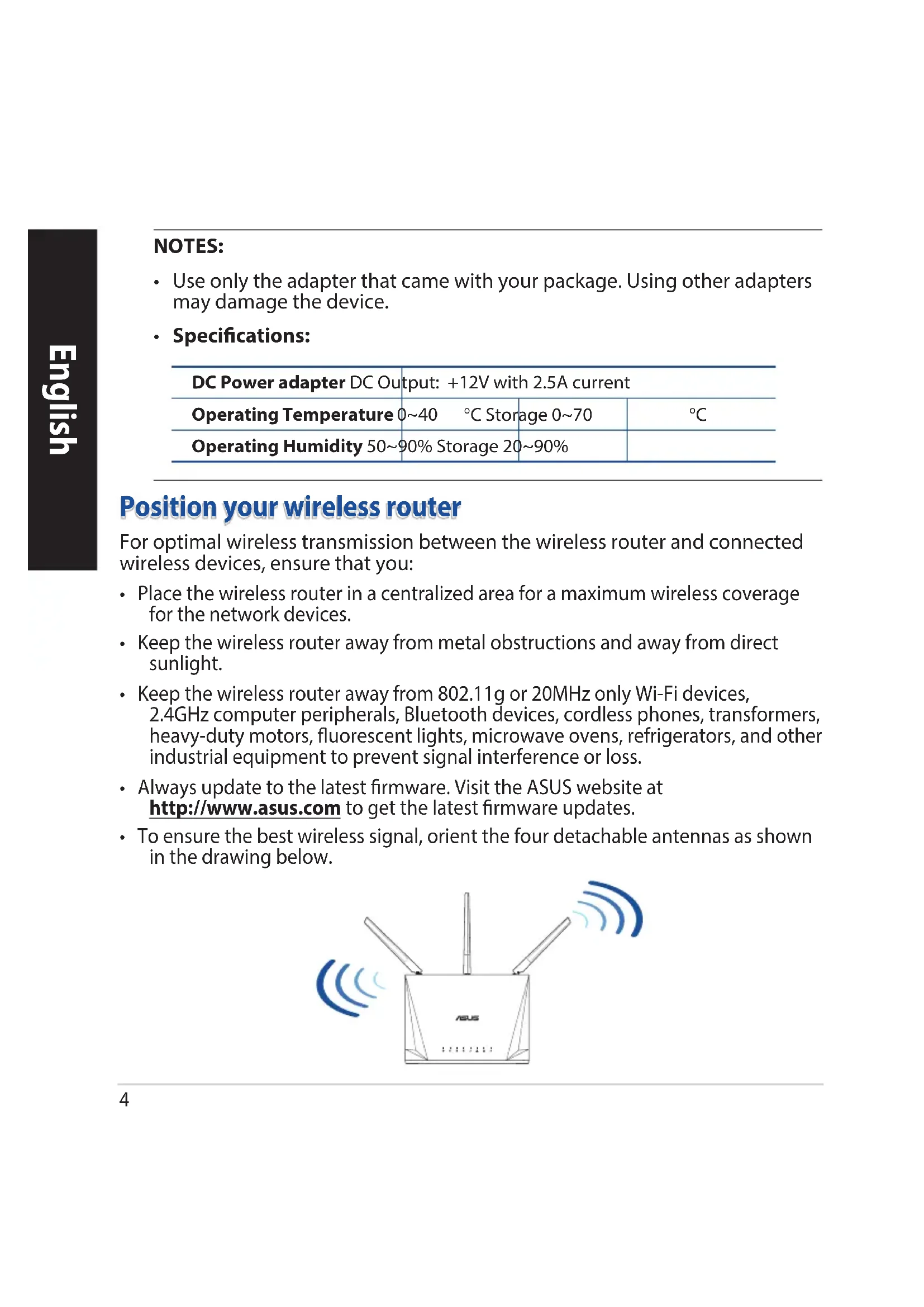
NOTES:
- Use only the adapter that came with your package. Using other adapters may damage the device.
- Specifications:
| DC Power adapter DC Output: +12V with 2.5A current | |||
| Operating Temperature | 0~40 °C Storage | 0~70 | °C |
| Operating Humidity | 50~90% Storage | 20~90% | |
Position your wireless router
For optimal wireless transmission between the wireless router and connected wireless devices, ensure that you:
- Place the wireless router in a centralized area for a maximum wireless coverage for the network devices.
- Keep the wireless router away from metal obstructions and away from direct sunlight.
- Keep the wireless router away from 802.11g or 20MHz only Wi-Fi devices, 2.4GHz computer peripherals, Bluetooth devices, cordless phones, transformers, heavy-duty motors, fluorescent lights, microwave ovens, refrigerators, and other industrial equipment to prevent signal interference or loss.
- Always update to the latest firmware. Visit the ASUS website at http://www.asus.com to get the latest firmware updates.
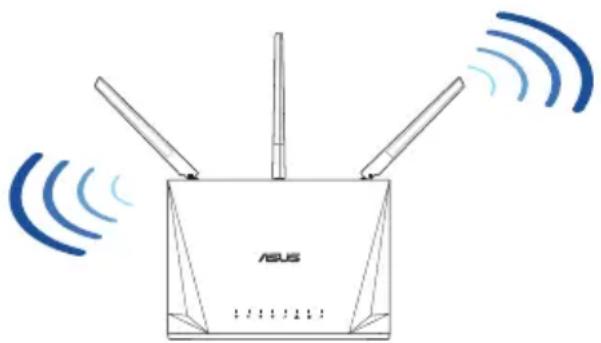
- To ensure the best wireless signal, orient the four detachable antennas as shown in the drawing below.
natural_image
Line drawing of a Huawei 8.0 network device with two antennas and wireless signal waves (no text or symbols)Preparing your modem
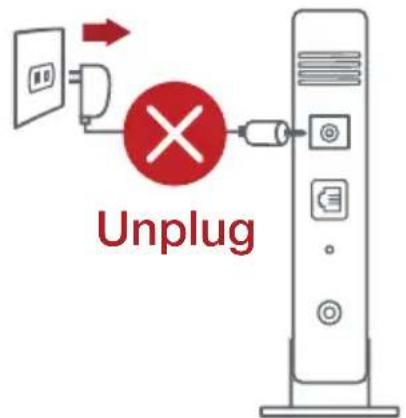
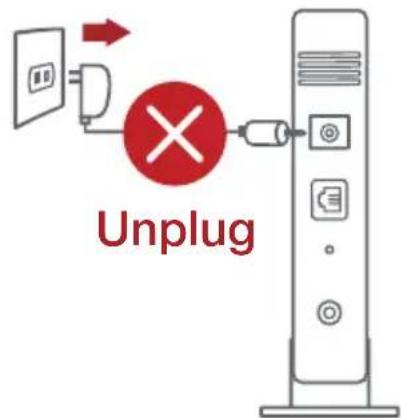
- Unplug the power cable/DSL modem. If it has a battery backup, remove the battery.
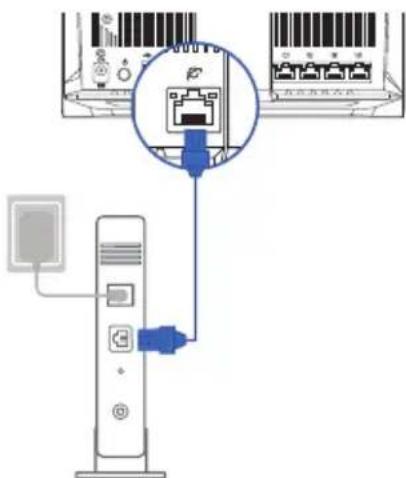
NOTE: If you are using DSL for Internet, you will need your username/password from your Internet Service Provider (ISP) to properly configure the router. - Connect your modem to the router with the bundled network cable.
- Power on your cable/DSL modem.
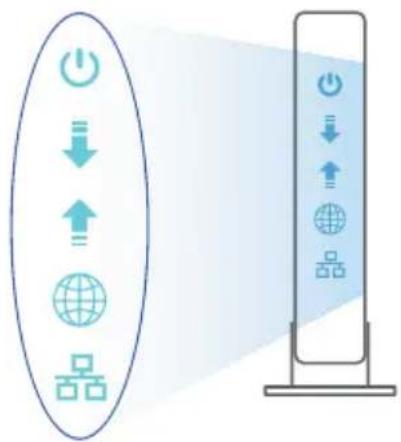
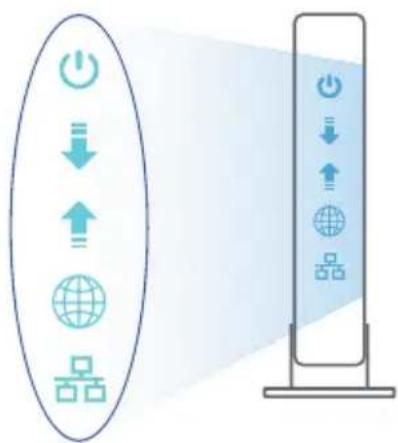
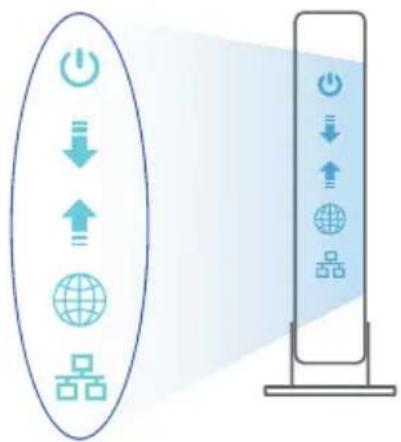
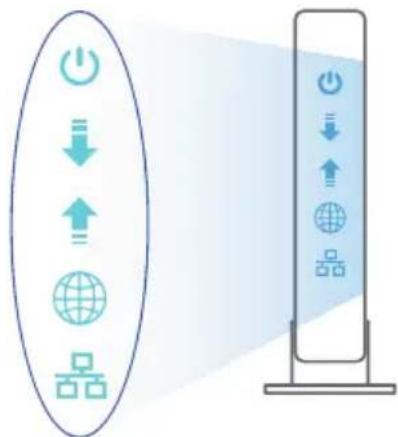
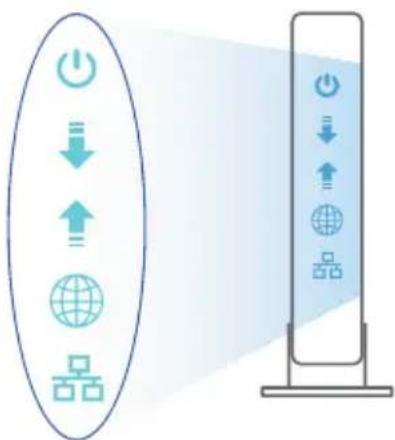
- Check your cable/DSL modem LED lights to ensure the connection is active.

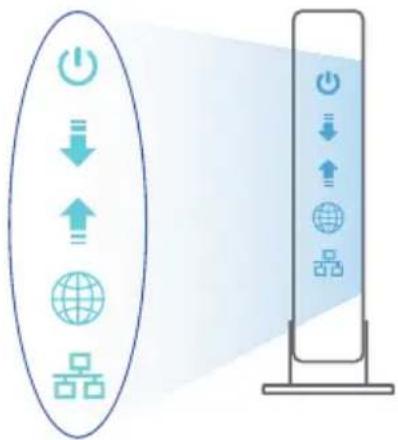
flowchart
graph TD
    A["Power Icon"] --> B["Download Icon"]
    B --> C["Upload Icon"]
    C --> D["Global Icon"]
    D --> E["Group Icon"]
    E --> F["Server Tower"]
Setting up your Router
You can set up your Router via wired or wireless connection.
A. Wired connection
- Plug your router into a power outlet and power it on. Connect the network cable from your computer to a LAN port on your router.
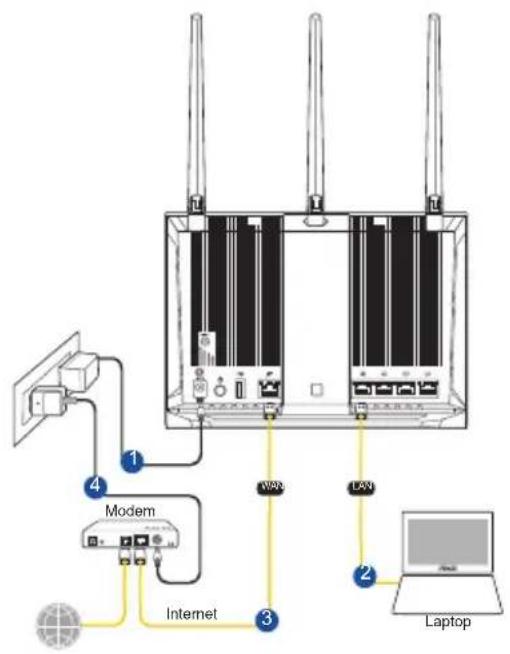
flowchart
graph TD
    A["Router 1"] -->|Internet| B["Modem"]
    B --> C["Laptop"]
    D["Router 2"] -->|Internet| B
    E["Router 3"] -->|Internet| B
    F["Router 4"] -->|Internet| B
    G["Power Supply"] --> A
    H["External Device"] --> A
-
The web GUI launches automatically when you open a web browser. If it does not auto-launch, enter http://router.asus.com.
-
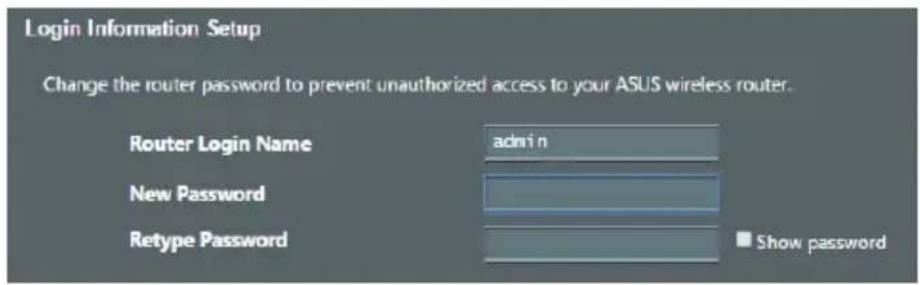
Set up a password for your router to prevent unauthorized access.
B. Wireless connection
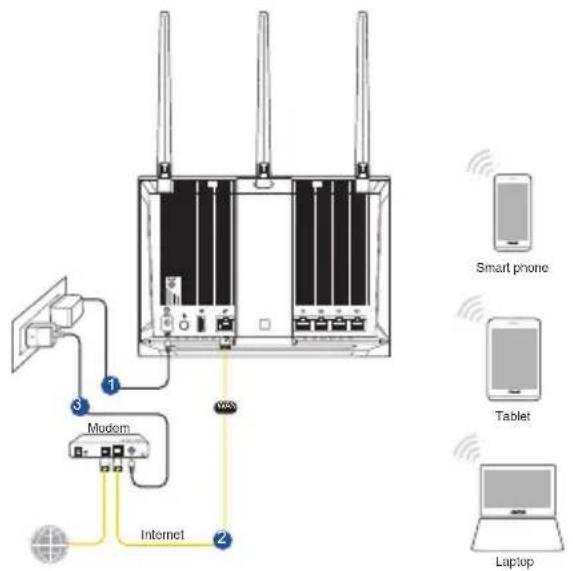
- Plug your router into a power outlet and power it on.
- Connect to the network with SSID shown on the product label on the back side of the router. For better network security, change to a unique SSID and assign a password.
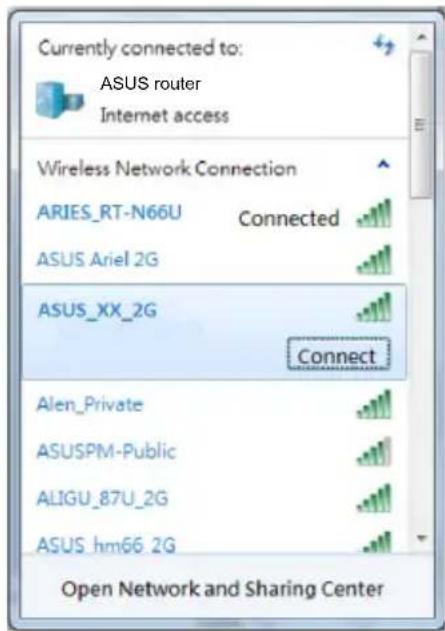
2.4G Wi-Fi Name (SSID): ASUS_XX_2G
5G Wi-Fi Name (SSID): ASUS_XX_5G
* XX refers to the last two digits of 2.4GHz MAC address. You can find it on the label on the back of your router.
- You can choose either the web GUI or ASUS Router app to set up your router.
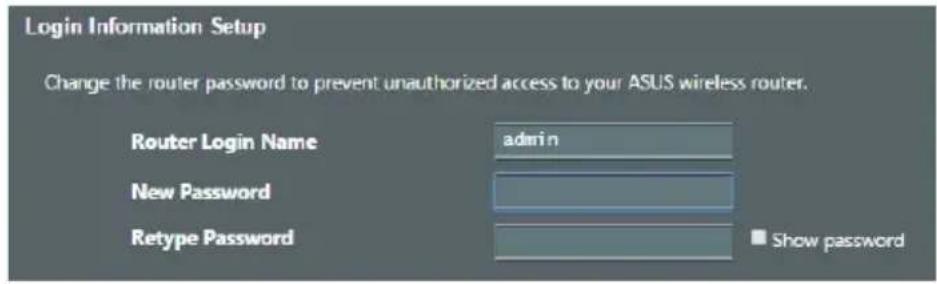
a. Web GUI Setup
• Once connected, the web GUI launches automatically when you open a web browser. If it does not auto-launch, enter http://router.asus.com.
- Set up a password for your router to prevent unauthorized access.
b. App Setup
Download ASUS Router App to set up your router via your mobile devices.
- Turn on Wi-Fi on your mobile devices and connect to your router's network.
• Follow ASUS Router App setup instructions to complete the setup.
ASUS Router
GET IT ON Google Play
Download on the App Store

ASUS Router
Remembering your wireless router settings
- Remember your wireless settings as you complete the router setup.
| Router Name: Password: | |
| 2.4 GHz network SSID: Password: | |
| 5GHz network SSID: Password: |
FAQ
- Where can I find more information about the wireless router?
• Online FAQ site: https://www.asus.com/support/faq
• Technical support site: https://www.asus.com/support
- Customer hotline: refer to the Support Hotline section in this Quick Start Guide
- You can get the user manual online at https://www.asus.com/support
Бърз преглед
natural_image
Line drawing of a ASUS router with two antennas and wireless signal waves (no text or symbols)flowchart
graph TD
    A["Power Icon"] --> B["Down Arrow"]
    B --> C["Up Arrow"]
    C --> D["Global Circle"]
    C --> E["Square Block"]
    F["Vertical Stack"] --> G["Power Icon"]
    G --> H["Down Arrow"]
    H --> I["Up Arrow"]
    I --> J["Global Circle"]
    I --> K["Square Block"]
В. Безжична връзка
2,4G Wi-Fi име (SSID): ASUS_XX_2G
5G Wi-Fi име (SSID): ASUS_XX_5G
natural_image
Line drawing of a Huawei 6.0 network device with two antennas and wireless signal waves (no text or symbols)Pripremanje modema
B. Bežična veza
Naziv za 2,4G Wi-Fi (SSID): ASUS_XX_2G
Naziv za 5G Wi-Fi (SSID): ASUS_XX_5G
b. Podešavanje aplikacije
Download on the App Store

ASUS Router
Pamćenje postavki bežičnog usmjerivača
- Zapamtite bežične postavke po dovršetku postave usmjerivača.
| Naziv usmjerivača: lozinka: | |
| 2,4 GHz mreže SSID: lozinka: | |
| 5G Hz mreže SSID: lozinka: |
ČPP
-
Gdje mogu naći više informacija o bežičnom usmjerivaču?
-
Internetska stranica za ČPP: https://www.asus.com/support/faq
- Stranica za tehničku podršku: https://www.asus.com/support
- Korisnički telefon: Potražite dežurni telefon za podršku u ovom vodiču za brzi početak rada
- Korisnički priručnik možete naći na internetu na https://www.asus.com/support
Obsah krabice

RT-AC85P

Napájecí adaptér

natural_image
Line drawing of a Huawei 8.0 wireless router with two antennas and signal waves (no text or symbols)Příprava modemu
flowchart
graph TD
    A["Power Input"] --> B["Down"]
    B --> C["Up"]
    C --> D["Global"]
    D --> E["Server Port"]
    F["Power Supply"] --> G["Down"]
    G --> H["Up"]
    H --> I["Global"]
    I --> J["Server Port"]
Download on the App Store

natural_image
Line drawing of a Huawei ASUS router with two antennas and wireless signal waves (no text or symbols)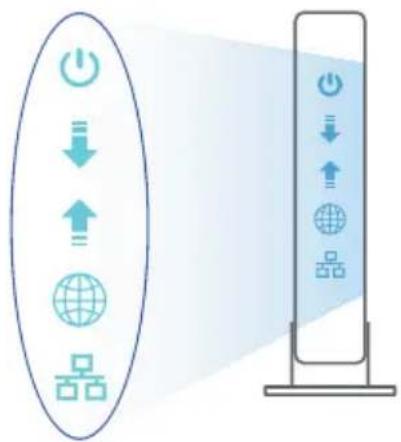
flowchart
graph TD
    A["Power"] --> B["Down"]
    B --> C["Up"]
    C --> D["Global"]
    D --> E["Group Components"]
    F["Server Tower"] --> G["Power"]
    G --> H["Down"]
    H --> I["Up"]
    I --> J["Global"]
    J --> K["Group Components"]
B. Traadita ühendus
2,4 G Wi-Fi nimi (SSID): ASUS_XX_2G
5 G Wi-Fi nimi (SSID): ASUS_XX_5G
b. Rakenduse seadistamine
Download on the App Store

ASUS Router
Traadita ruuteri sätete meeles pidamine
| 1 LAN 1~4 | 7 WPS |
| 2 (DC) | 8 |
| 3 2.4GHz | 9 |
| 4 5GHz USB 3.0 | 10 |
| 5 (USB) | 11 |
| 6 (USB) | 12 LAN 1~4 |
תַרְשָׁ:
•
: כְרִי אַת
| 2.5A הכלה +12V :DC הכלה | DC הכלה הכלה | ||
| 0~70°C | הכלה | °C | הכלה הכלה 0~40 |
| 90%~20 | הכלה | 90%~50 | הכלה הכלה |
תְרָה בְּרָה
802.11g Wi-Fi, 2.4GHz, 20MHz, Bluetooth,
natural_image
Line drawing of a wireless router with two antennas and three waves emitting signals (no text or symbols)תְרָה בְּרָה
Change the router password to prevent unauthorized access to your ASUS wireless router.
Router Login Name
New Password
Retype Password
Show password
ASUS_XX_2G
Wi-Fi(SSID) בַרְבָה
:2.4G
5G Wi-Fi Name (SSID):ASUS_XX_5G
תְקַרִיָה בְּרִיָה.
Downloaded on the App Store

ASUS Router
natural_image
Line drawing of an ASUS router with two antennas and wireless signal waves (no text or symbols)natural_image
Diagram showing connection between a device via USB cable and a server rack (no text or symbols visible)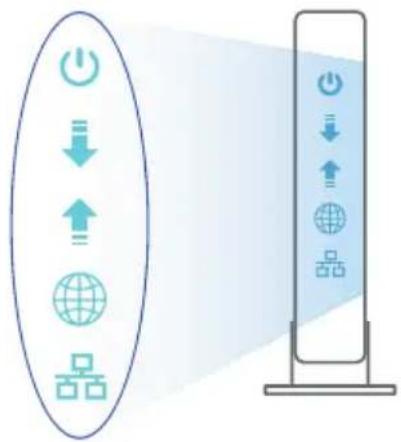
flowchart
graph TD
    A["Input"] --> B["Processing"]
    B --> C["Global Mapping"]
    C --> D["Output"]
    style A fill:#f9f,stroke:#333
    style D fill:#bbf,stroke:#333
Az beállítása
2,4G Wi-Fi neve (SSID): ASUS_XX_2G
5G Wi-Fi neve (SSID): ASUS_XX_5G
B. Belaidis ryšys
Download on the App Store

ASUS Router
natural_image
Line drawing of a Huawei ASUS wireless router with two antennas and signal waves (no text or symbols)Jūsu modems tiek sagatavots darbam
flowchart
graph TD
    A["Power"] --> B["Down"]
    B --> C["Up"]
    C --> D["Global"]
    D --> E["Server"]
    style A fill:#f9f,stroke:#333
    style E fill:#bbf,stroke:#333
2,4 G Wi-Fi nosaukums (SSID): ASUS_XX_2G
5G Wi-Fi nosaukums (SSID): ASUS_XX_5G
Download on the App Store

ASUS Router
natural_image
Illustration of a Huawei ASOS router with wireless signal waves (no text or symbols on the device body)
Download on the App Store

natural_image
Line drawing of a Huawei 6.0 network device with two antennas and wireless signal waves (no text or symbols)Подготовка модема
flowchart
graph TD
    A["Power"] --> B["Down"]
    B --> C["Up"]
    C --> D["Global"]
    D --> E["Grid"]
    E --> F["Output"]
    style A fill:#f9f,stroke:#333
    style F fill:#bbf,stroke:#333
Настройка роутера
Download on the App Store

ASUS Router
natural_image
Line drawing of a Huawei 8.0 wireless router with two antennas and signal waves (no text or symbols)Nume rețea Wi-Fi 2,4 GHz ASUS_XX_2G (SSID):
Nume rețea Wi-Fi 5 GHz ASUS_XX_5G (SSID):
b. Configurare prin aplicatie
natural_image
Line drawing of a Huawei 8.0 wireless router with two antennas and signal waves (no text or symbols)Priprema vašeg modema
- Izvucite kabl za struju/DSL modem. Ukoliko postoji baterija za podršku, izvadite bateriju.
NAPOMENA: Ukoliko koristite DSL za internet, biće vam potrebni korisničko ime/lozinka od vašeg internet provajdera (ISP) da ispravno konfigurišete ruter. - Povežite svoj modem za ruter uz pomoć priloženog mrežnog kabla.
- Uključite svoj kabl/DSL modem.
- Proverite LED lampice svog kabla/DSL modema da proverite da je veza aktivna.
flowchart
graph TD
    A["Power"] --> B["Download"]
    B --> C["Upload"]
    C --> D["Global"]
    D --> E["Server"]
    style A fill:#f9f,stroke:#333
    style B fill:#ccf,stroke:#333
    style C fill:#cfc,stroke:#333
    style D fill:#fcc,stroke:#333
    style E fill:#cff,stroke:#333
2,4G Wi-Fi ime (SSID): ASUS_XX_2G
5G Wi-Fi ime (SSID): ASUS_XX_5G
b. Podešavanje aplikacije
Download on the App Store

ASUS Router
Pamćenje podešavanja bežičnog rutera
natural_image
Illustration of a wireless router with two antennas and three waves emitting signals (no text or symbols)Príprava modemu
b. App Setup

Download on the App Store

ASUS Router
natural_image
Illustration of a wireless router with two antennas emitting sound waves (no text or symbols)Prioprava modema
flowchart
graph TD
    A["Power Icon"] --> B["Download Icon"]
    B --> C["Upload Icon"]
    C --> D["Global Icon"]
    D --> E["Storage Port"]
B. Brezžična povezava
Ime 2,4 GHz omrežja Wi-Fi (SSID): ASUS_XX_2G
Ime 5 GHz omrežja Wi-Fi (SSID): ASUS_XX_5G
Download on the App Store

ASUS Router
natural_image
Line drawing of a Huawei 8.0 wireless router with two antennas and signal waves (no text or symbols)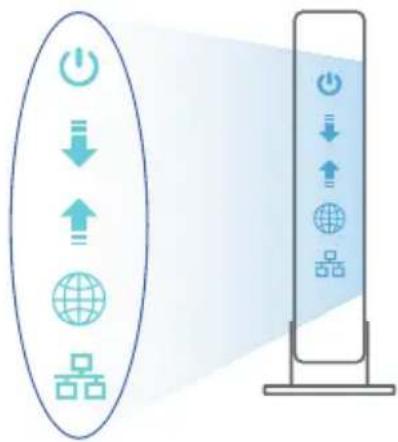
flowchart
graph TD
    A["Power"] --> B["Down"]
    B --> C["Up"]
    C --> D["Global Network Icon"]
    E["Input"] --> F["Output"]
    G["Server Tower"] --> H["Load"]
    style A fill:#f9f,stroke:#333
    style E fill:#bbf,stroke:#333
    style G fill:#bfb,stroke:#333
2,4 G Wi-Fi Adi (SSID): ASUS_XX_2G
5 G Wi-Fi Adı (SSID): ASUS_XX_5G
natural_image
Line drawing of a Huawei ASUS router with wireless signal waves (no text or symbols on the device itself)Підготовка модема

flowchart
graph TD
    A["Power"] --> B["Download"]
    B --> C["Upload"]
    C --> D["Global"]
    D --> E["Storage"]
    F["Server Tower"] --> G["Power"]
    G --> H["Download"]
    H --> I["Upload"]
    I --> J["Global"]
    J --> K["Storage"]
Назва Wi-Fi 2,4 Г (SSID): ASUS_XX_2G
Назва Wi-Fi 5 Г (SSID): ASUS_XX_5G
ASUS recycling and takeback programs come from our commitment to the highest standards for protecting our environment. We believe in providing solutions for you to be able to responsibly recycle our products, batteries, other components, as well as the packaging materials. Please go to http://csr.asus.com/english/Takeback.htm for the detailed recycling information in different regions.
REACH
Complying with the REACH (Registration, Evaluation, Authorisation, and Restriction of Chemicals) regulatory framework, we published the chemical substances in our products at ASUS REACH website at http://csr.asus.com/english/REACH.htm
Federal Communications Commission Statement
This device complies with Part 15 of the FCC Rules. Operation is subject to the following two conditions:
- This device may not cause harmful interference.
- This device must accept any interference received, including interference that may cause undesired operation.
This equipment has been tested and found to comply with the limits for a class B digital device, pursuant to part 15 of the FCC Rules. These limits are designed to provide reasonable protection against harmful interference in a residential installation.
This equipment generates, uses and can radiate radio frequency energy and, if not installed and used in accordance with the instructions, may cause harmful interference to radio communications. However, there is no guarantee that interference will not occur in a particular installation. If this equipment does cause harmful interference to radio or television reception, which can be determined by turning the equipment off and on, the user is encouraged to try to correct the interference by one or more of the following measures:
- Reorient or relocate the receiving antenna.
- Increase the separation between the equipment and receiver.
- Connect the equipment into an outlet on a circuit different from that to which the receiver is connected.
- Consult the dealer or an experienced radio/TV technician for help.

WARNING! Any changes or modifications not expressly approved by the party responsible for compliance could void the user's authority to operate the equipment.
Prohibition of Co-location
This device and its antenna(s) must not be co-located or operating in conjunction with any other antenna or transmitter.
IMPORTANT NOTE:
Radiation Exposure Statement: This equipment complies with FCC radiation exposure limits set forth for an uncontrolled environment. End users must follow the specific operating instructions for satisfying RF exposure compliance. To maintain compliance with FCC exposure compliance requirement, please follow operation instruction as documented in this manual.

WARNING! This equipment must be installed and operated in accordance with provided instructions and the antenna(s) used for this transmitter must be installed to provide a separation distance of at least 20 cm from all persons and must not be co-located or operating in conjunction with any other antenna or transmitter.
Precautions for the use of the device
a. Pay particular attention to the personal safety when use this device in airports, hospitals, gas stations and professional garages.
b. Medical device interference: Maintain a minimum distance of at least 15 cm (6 inches) between implanted medical devices and ASUS products in order to reduce the risk of interference.
c. Kindly use ASUS products in good reception conditions in order to minimize the radiation's level.
d. Keep the device away from pregnant women and the lower abdomen of the teenager.
.הכלההוּרָהוּרָהוּרָהוּרָהוּרָהוּרָהוּרָהוּרָהוּרָהוּרָהוּרָהוּרָהוּרָהוּרָהוּרָה
•
•
.הכלההוּרָהִיַעֹתְבָרָהִיַעֹתְבָרָהִיַעֹתְבָרָהִיַעֹתְבָרָהִיַעֹתְבָרָהִיַעֹתְבָרָהִיַפְרָה
•
| Manufacturer ASUSTeK Computer Inc.Tel: +886-2-2894-3447Address: 4F, No. 150, LI-TE RD., PEITOU, TAIPEI 112, TAIWAN |
| Authorised representative in Europe |
| Authorised distributors in Turkey |
Networks Global Hotline Information
| Region Country/ Area Hotline Number Service Hours | ||
| Europe | Cyprus 800-92491 | 09:00-13:00;14:00-18:00 Mon-Fri |
| France 0033-170949400 09:00-18:00 Mon-Fri | ||
| Germany | 0049-18050109200049-1805010923(component support)0049-2102959911 (Fax) | |
| Hungary 0036-15054561 09:00-17:30 Mon-Fri | ||
| Italy 199-400089 | 09:00-13:00;14:00-18:00 Mon-Fri | |
| Greece 00800-44142044 | 09:00-13:00;14:00-18:00 Mon-Fri | |
| Austria 0043-820240513 09:00-18:00 Mon-Fri | ||
| Netherlands/Luxembourg | 0031-591570290 09:00-17:00 Mon-Fri | |
| Belgium 0032-78150231 09:00-17:00 Mon-Fri | ||
| Norway 0047-2316-2682 09:00-18:00 Mon-Fri | ||
| Sweden 0046-858769407 09:00-18:00 Mon-Fri | ||
| Finland 00358-969379690 10:00-19:00 Mon-Fri | ||
| Denmark 0045-38322943 09:00-18:00 Mon-Fri | ||
| Poland 0048-225718040 08:30-17:30 Mon-Fri | ||
| Spain | 0034-902889688 09:00-18:00 Mon-Fri | |
| Portugal | 00351-707500310 09:00-18:00 Mon-Fri | |
| Slovak Republic | 00421-232162621 08:00-17:00 Mon-Fri | |
| Czech Republic | 00420-596766888 08:00-17:00 Mon-Fri | |
| Switzerland-German | 0041-848111010 09:00-18:00 Mon-Fri | |
| Switzerland-LFrench | 0041-848111014 09:00-18:00 Mon-Fri | |
| Switzerland-Italian | 0041-848111012 09:00-18:00 Mon-Fri | |
| United Kingdom | 0044-1442265548 09:00-17:00 Mon-Fri | |
| Ireland 0035-31890719918 | 09:00-17:00 Mon-Fri | |
| Russia and CIS | 008-800-100-ASUS 09:00-18:00 Mon-Fri | |
| Ukraine 0038-0445457727 09:00-18:00 Mon-Fri | ||
Networks Global Hotline Information
| Region Country/ Area Hotline Numbers Service Hours | ||
| Asia-Pacific | Australia 1300-278788 09:00-18:00 Mon-Fri | |
| New Zealand 0800-278788 09:00-18:00 Mon-Fri | ||
| Japan | 09:00-18:00 Mon-Fri | |
| 09:00-17:00 Sat-Sun | ||
| 09:00-18:00 Mon-Fri | ||
| ( Non-Toll Free ) 09:00-17:00 Sat-Sun | ||
| Korea 0082-215666868 09:30-17:00 Mon-Fri | ||
| Thailand 0066-24011717 09:00-18:00 Mon-Fri | ||
| 1800-8525201 | ||
| Singapore 0065-64157917 11:00-19:00 Mon-Fri | ||
| 0065-67203835 11:00-19:00 Mon-Fri | ||
| ( Repair Status Only ) 11:00-13:00 Sat | ||
| Malaysia 1300-88-3495 9:00-18:00 Mon-Fri | ||
| Philippine 1800-18550163 09:00-18:00 Mon-Fri | ||
| India | 09:00-18:00 Mon-Sat | |
| India(WL/NW) 09:00-21:00 Mon-Sun | ||
| Indonesia 0062-2129495000 | 09:30-17:00 Mon-Fri | |
| 500128 (Local Only) | 9:30 – 12:00 Sat | |
| Vietnam | 08:00-12:00 | |
| 13:30-17:30 Mon-Sat | ||
| Hong Kong | 00852-35824770 10:00-19:00 Mon-Sat | |
| Taiwan | 0800-093-456; 9:00-12:00 Mon-Fri; | |
| 02-81439000 13:30-18:00 Mon-Fri | ||
| Americas | USA | 8:30-12:00 EST Mon-Fri |
| Canada | 9:00-18:00 EST Sat-Sun | |
| Mexico | 001-8008367847 08:00-20:00 CST Mon-Fri | |
| 08:00-15:00 CST Sat | ||
| Brazil | 4003 0988 (Capital) | |
| 0800 880 0988 9:00am-18:00 Mon-Fri | ||
| (demais localidades) | ||
Networks Global Hotline Information
| Region Country/ Area Hotline Numbers Service Hours | |
| Middle East + Africa | Egypt 800-2787349 09:00-18:00 Sun-Thu |
| Saudi Arabia 800-1212787 09:00-18:00 Sat-Wed | |
| UAE 00971-42958941 09:00-18:00 Sun-Thu | |
| Turkey 0090-2165243000 09:00-18:00 Mon-Fri | |
| South Africa 0861-278772 08:00-17:00 Mon-Fri | |
| Israel *6557/00972-39142800 08:00-17:00 Sun-Thu*9770/00972-35598555 08:30-17:30 Sun-Thu | |
| Balkan Countries | Romania 0040-213301786 09:00-18:30 Mon-Fri |
| Bosnia Herzegovina 00387-33773163 09:00-17:00 Mon-Fri | |
| Bulgaria 00359-70014411 09:30-18:30 Mon-Fri00359-29889170 09:30-18:00 Mon-Fri | |
| Croatia 00385-16401111 09:00-17:00 Mon-Fri | |
| Montenegro 00382-20608251 09:00-17:00 Mon-Fri | |
| Serbia 00381-112070677 09:00-17:00 Mon-Fri | |
| Slovenia 00368-59045400 00368-59045401 08:00-16:00 Mon-Fri | |
| Baltic Countries | Estonia 00372-6671796 09:00-18:00 Mon-Fri |
| Latvia 00371-67408838 09:00-18:00 Mon-Fri | |
| Lithuania-Kaunas 00370-37329000 09:00-18:00 Mon-Fri | |
| Lithuania-Vilnius 00370-522101160 09:00-18:00 Mon-Fri | |

NOTES:
• UK support e-mail: network_support_uk@asus.com
- For more information, visit the ASUS support site at: https://www.asus.com/support/
English
CE statement
Simplified EU Declaration of Conformity
ASUSTek Computer Inc. hereby declares that this device is in compliance with the essential requirements and other relevant provisions of Directive 2014/53/EU. Full text of EU declaration of conformity is available at https://www.asus.com/Networking/RT-AC85P/HelpDesk_Declaration/.
Declaration of Conformity for Ecodesign directive 2009/125/EC
Testing for eco-design requirements according to (EC) No 1275/2008 and (EU) No 801/2013 has been conducted. When the device is in Networked Standby Mode, its I/O and network interface are in sleep mode and may not work properly. To wake up the device, press the Wi-Fi on/off, LED on/off, reset, or WPS button. This equipment complies with EU radiation exposure limits set forth for an uncontrolled environment. This equipment should be installed and operated with minimum distance 20 cm between the radiator & your body. All operational modes:
2.4GHz: 802.11b, 802.11g, 802.11n (HT20), 802.11n (HT40), 802.11ac (VHT20), 802.11ac (VHT40)
5GHz: 802.11g, 802.11n (HT20), 802.11n (HT40), 802.11ac (VHT20), 802.11ac (VHT40), 802.11ac (VHT80)
The frequency, mode and the maximum transmitted power in EU are listed below:
2400-2483.5MHz (802.11ac VHT40 MCS0/Nss1): 19.947dBm
5150-5250MHz (802.11ac VHT80 MCS0/Nss1): 22.815 dBm
5250-5350MHz (802.11ac VHT80 MCS0/Nss1): 22.863 dBm
5470-5725MHz (802.11ac VHT40 MCS0/Nss1): 29.933 dBm
The device is restricted to indoor use only when operating in the 5150 to 5350 MHz frequency range.
The adapter shall be installed near the equipment and shall be easily accessible.
 | AT BE BG CZ DK EE FR | ||||||
| DE IS IE IT EL ES CY | |||||||
| LV | LI | LT | LU | HU | MT | NL | |
| NO PL PT RO SI | SK TR | ||||||
| FI | SE CH UK HR UA | ||||||
Safety Notices
- Use this product in environments with ambient temperatures between 0^(32^) and 40^(104^) .
- Refer to the rating label on the bottom of your product and ensure your power adapter complies with this rating.
• DO NOT place on uneven or unstable work surfaces. Seek servicing if the casing has been damaged. - DO NOT place or drop objects on top and do not shove any foreign objects into the product.
- DO NOT expose to or use near liquids, rain, or moisture. DO NOT use the modem during electrical storms.
- DO NOT cover the vents on the product to prevent the system from getting overheated.
- DO NOT use damaged power cords, accessories, or other peripherals.
- If the Adapter is broken, do not try to fix it by yourself. Contact a qualified service technician or your retailer.
- To prevent electrical shock hazard, disconnect the power cable from the electrical outlet before relocating the system.
Bulgarian
CE statement
2400-2483.5MHz (802.11ac VHT40 MCS0/Nss1): 19.947dBm
5150-5250MHz (802.11ac VHT80 MCS0/Nss1): 22.815 dBm
5250-5350MHz (802.11ac VHT80 MCS0/Nss1): 22.863 dBm
5470-5725MHz (802.11ac VHT40 MCS0/Nss1): 29.933 dBm
2400-2483.5MHz (802.11ac VHT40 MCS0/Nss1): 19.947dBm
5150-5250MHz (802.11ac VHT80 MCS0/Nss1): 22.815 dBm
5250-5350MHz (802.11ac VHT80 MCS0/Nss1): 22.863 dBm
5470-5725MHz (802.11ac VHT40 MCS0/Nss1): 29.933 dBm
Uređaj je ograničen na uporabu u zatvorenim prostorima samo pri radu u frekvencijskom rasponu od 5150 do 5350 MHz.
Adapter se mora instalirati blizu uređaja i mora biti lako dostupan.
Safety Notices
- Ovaj proizvod koristite u okruženjima s temperaturom okruženja između 0 °C (32 °F) i 40 °C (104 °F).
- Pogledajte nazivnu oznaku na donjem dijelu proizvoda kako biste provjerili je li adapter sukladan.
- NE postavljajte uređaj na neravne i nestabilne radne površine. U slučaju oštećenja kućišta, zatražite pomoć servisera.
- NEMOJTE postavljati ili spuštati predmete na gornji dio uređaja i nemojte umetati strane predmete u proizvod.
- NE izlažite i ne upotrebljavajte uređaj u blizini tekućina, kiše ili vlage. NEMOJTE koristiti modem tijekom električne oluje.
- NEMOJTE prekrivati otvore na proizvodu kako ne biste uzrokovali pregrijavanje sustava.
- Nemojte koristiti oštećene kabele za napajanje, dodatnu opremu i ostale vanjske uređaje.
- Ako je adapter oštećen, nemojte ga popravljati sami. Obratite se kvalificiranom servisnom tehničaru ili dobavljaču.
- Kako biste spriječili opasnost od električnog udara, iskopčajte kabel iz električne utičnice prije premještanja sustava.
Czech
CE statement
2400-2483.5MHz (802.11ac VHT40 MCS0/Nss1): 19.947dBm
5150-5250MHz (802.11ac VHT80 MCS0/Nss1): 22.815 dBm
5250-5350MHz (802.11ac VHT80 MCS0/Nss1): 22.863 dBm
5470-5725MHz (802.11ac VHT40 MCS0/Nss1): 29.933 dBm
2400-2483.5MHz (802.11ac VHT40 MCS0/Nss1): 19.947dBm
5150-5250MHz (802.11ac VHT80 MCS0/Nss1): 22.815 dBm
5250-5350MHz (802.11ac VHT80 MCS0/Nss1): 22.863 dBm
5470-5725MHz (802.11ac VHT40 MCS0/Nss1): 29.933 dBm
2400-2483.5MHz (802.11ac VHT40 MCS0/Nss1): 19.947dBm
5150-5250MHz (802.11ac VHT80 MCS0/Nss1): 22.815 dBm
5250-5350MHz (802.11ac VHT80 MCS0/Nss1): 22.863 dBm
5470-5725MHz (802.11ac VHT40 MCS0/Nss1): 29.933 dBm
2400-2483.5MHz (802.11ac VHT40 MCS0/Nss1): 19.947dBm
5150-5250MHz (802.11ac VHT80 MCS0/Nss1): 22.815 dBm
5250-5350MHz (802.11ac VHT80 MCS0/Nss1): 22.863 dBm
5470-5725MHz (802.11ac VHT40 MCS0/Nss1): 29.933 dBm
2400-2483.5MHz (802.11ac VHT40 MCS0/Nss1): 19.947dBm
5150-5250MHz (802.11ac VHT80 MCS0/Nss1): 22.815 dBm
5250-5350MHz (802.11ac VHT80 MCS0/Nss1): 22.863 dBm
5470-5725MHz (802.11ac VHT40 MCS0/Nss1): 29.933 dBm
2400-2483.5MHz (802.11ac VHT40 MCS0/Nss1): 19.947dBm
5150-5250MHz (802.11ac VHT80 MCS0/Nss1): 22.815 dBm
5250-5350MHz (802.11ac VHT80 MCS0/Nss1): 22.863 dBm
5470-5725MHz (802.11ac VHT40 MCS0/Nss1): 29.933 dBm
2400-2483.5MHz (802.11ac VHT40 MCS0/Nss1): 19.947dBm
5150-5250MHz (802.11ac VHT80 MCS0/Nss1): 22.815 dBm
5250-5350MHz (802.11ac VHT80 MCS0/Nss1): 22.863 dBm
5470-5725MHz (802.11ac VHT40 MCS0/Nss1): 29.933 dBm
2400-2483.5MHz (802.11ac VHT40 MCS0/Nss1): 19.947dBm
5150-5250MHz (802.11ac VHT80 MCS0/Nss1): 22.815 dBm
5250-5350MHz (802.11ac VHT80 MCS0/Nss1): 22.863 dBm
5470-5725MHz (802.11ac VHT40 MCS0/Nss1): 29.933 dBm
2400-2483.5MHz (802.11ac VHT40 MCS0/Nss1): 19.947dBm
5150-5250MHz (802.11ac VHT80 MCS0/Nss1): 22.815 dBm
5250-5350MHz (802.11ac VHT80 MCS0/Nss1): 22.863 dBm
5470-5725MHz (802.11ac VHT40 MCS0/Nss1): 29.933 dBm
2400-2483.5MHz (802.11ac VHT40 MCS0/Nss1): 19.947dBm
5150-5250MHz (802.11ac VHT80 MCS0/Nss1): 22.815 dBm
5250-5350MHz (802.11ac VHT80 MCS0/Nss1): 22.863 dBm
5470-5725MHz (802.11ac VHT40 MCS0/Nss1): 29.933 dBm
2400-2483.5MHz (802.11ac VHT40 MCS0/Nss1): 19.947dBm
5150-5250MHz (802.11ac VHT80 MCS0/Nss1): 22.815 dBm
5250-5350MHz (802.11ac VHT80 MCS0/Nss1): 22.863 dBm
5470-5725MHz (802.11ac VHT40 MCS0/Nss1): 29.933 dBm
- Wireless-AC2400 Dual Band Gigabit Router
- Table of contents
- This QSG contains these languages:
- Package contents
- NOTES:
- Position your wireless router
- Preparing your modem
- Setting up your Router
- Wired connection
- Wireless connection
- Remembering your wireless router settings
- FAQ
- Бърз преглед
- В. Безжична връзка
- Pripremanje modema
- Bežična veza
- Pamćenje postavki bežičnog usmjerivača
- ČPP
- Obsah krabice
- Příprava modemu
- Traadita ühendus
- Traadita ruuteri sätete meeles pidamine
- תְרָה בְּרָה
- Az beállítása
- Belaidis ryšys
- Jūsu modems tiek sagatavots darbam
- Подготовка модема
- Настройка роутера
- Priprema vašeg modema
- Pamćenje podešavanja bežičnog rutera
- Príprava modemu
- Prioprava modema
- Brezžična povezava
- Підготовка модема
- REACH
- Federal Communications Commission Statement
- Prohibition of Co-location
- IMPORTANT NOTE:
- Precautions for the use of the device
- Networks Global Hotline Information
- English
- CE statement
- Simplified EU Declaration of Conformity
- Declaration of Conformity for Ecodesign directive 2009/125/EC
- Safety Notices
- Bulgarian
- Czech
Brand : ASUS
Model : RTAC85P
Category : Wireless Router