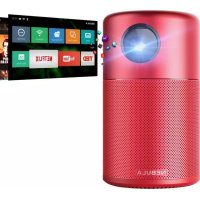
Capsule D4111 - Projector NEBULA - Free user manual and instructions
Find the device manual for free Capsule D4111 NEBULA in PDF.

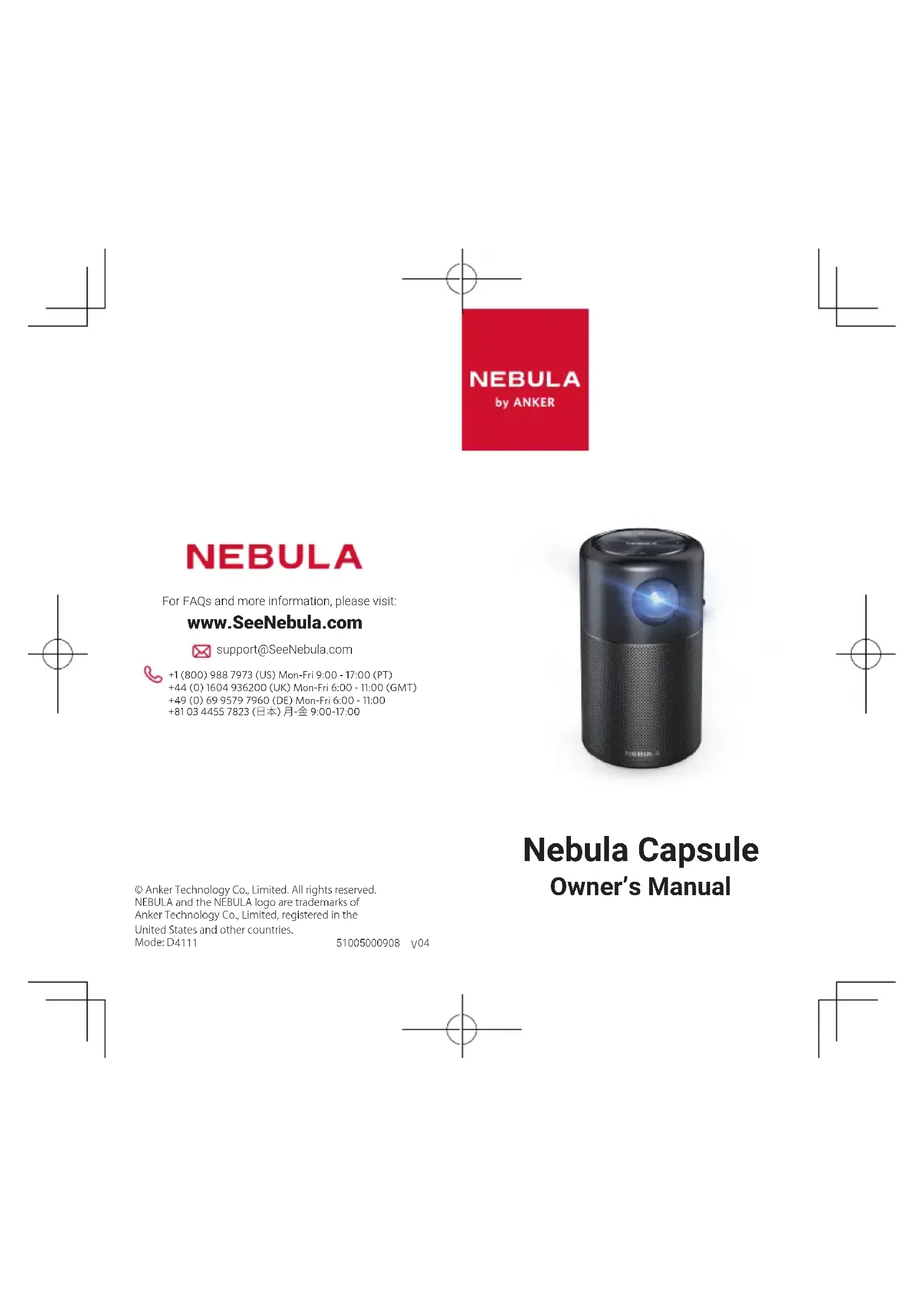


| Product type | Portable DLP projector |
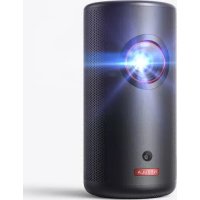
| Brand / Model | Nebula Capsule D4111 |
| Dimensions (L x H x D) | 120 x 68 mm (4.72 x 2.67 inches) |
| Weight | 470 g |
| Power supply | 9 V / 2 A (QC2.0) |
| Standby power consumption | < 0.5 W |
| Display technology | DLP 0.2 inch 854 × 480p |
| Light source | RGB LED |
| Native resolution | 854 × 480 pixels |
| Brightness | 100 ANSI lumens |
| Contrast ratio | 400:1 |
| Projected image size | 20 to 100 inches (50 to 250 cm) |
| Projection distance | 0.58 m to 3.08 m |
| Throw ratio | 1.3 |
| Processor | Quad core A7 |
| Operating system | Android 7.1 |
| RAM | 1 GB DDR |
| Internal storage | 8 GB eMMC |
| Built-in speaker | 5 W |
| Battery capacity | 5200 mAh / 3.85 V, Li-polymer |
| Projection battery life | 2.5 hours (battery mode) |
| Bluetooth speaker battery life | 40 hours |
| Wireless connectivity | Wi-Fi, Bluetooth |
| Connectivity ports | HDMI, USB (via OTG cable) |
| Operating temperature | 5 °C to 35 °C |
Frequently Asked Questions - Capsule D4111 NEBULA
User questions about Capsule D4111 NEBULA
0 question about this device. Answer the ones you know or ask your own.
Ask a new question about this device
Download the instructions for your Projector in PDF format for free! Find your manual Capsule D4111 - NEBULA and take your electronic device back in hand. On this page are published all the documents necessary for the use of your device. Capsule D4111 by NEBULA.
USER MANUAL Capsule D4111 NEBULA
For FAQs and more information, please visit:
www.SeeNebula.com

support@SeeNebula.com

+1 (800) 988 7973 (US) Mon-Fri 9:00 - 17:00 (PT) +44 (O) 1604 936200 (UK) Mon-Fri 6:00 - 11:00 (GMT)
+49(0)6995797960(DE)Mon-Fri 6:00-11:00
+810344557823(日本)月-金9:00-17:00
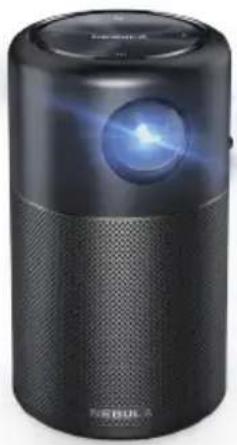
Nebula Capsule
Owner's Manual
Anker Technology Co., Limited. All rights reserved.
NEBULA and the NEBULA logo are trademarks of
Anker Technology Co., Limited, registered in the
United States and other countries.
Mode:D4111
51005000908V04
Safety Instructions
Read all instructions before you use this device. Do not make any changes or create settings that are not described in this manual. If physical injury, loss of data or damage is caused by failure to follow instructions, the warranty does not apply.
Setup
- To reduce the risk of fire and/or electric shock, do not expose the device to rain or moisture. Objects filled with liquids, such as vases, should not be placed on this device.
- Do not place this device on soft surfaces such as tablecloths or carpets, otherwise the device could be a fire hazard.
- Do not place this device in areas susceptible to excessive dust and dirt or near any appliance generating a strong magnetic field.
- To prevent overheating do not block or clog the ventilation openings.
- Never place this device in a confined space. Always leave enough space around this device for ventilation.
- Protect this device from overexposure to direct sunlight, heat, large temperature fluctuations and moisture. Avoid extreme temperatures. The suitable operations and storage temperature for this device and its accessories is 0^ to 35^/0^ to 95^ .
-
When this device is running for a long period of time, the surface may become hot. Shut it down immediately and unplug the charger. Resume operation after this device has cooled down.
Always handle this device with care. Avoid touching the lens. Do not allow children to handle the device without supervision. -
Never place heavy or sharp objects on this device.
- To avoid electric shock, do not disassemble.
- Use attachments or accessories specified by the manufacturer only.
- Avoid extreme vibrations as they may damage the internal components.
Hearing Safety
To avoid hearing damage, do not listen for extended periods at high volume. Set the volume to a safe level.
Charging
- The charger type is Q183 with output voltage/ current of DC 9V/2A. The plug comes as a separate piece from the adaptor. The charger should be installed near this product and should be easily accessible.
This charger is for indoor use only. - When charging, place this device in an environment that has a normal room temperature (ranges from 5^ to 25^ / 41^ to 77^ recommended) and good ventilation.
- Due to the enclosure material used, this device shall only be connected to a USB interface of version 2.0 or higher.
Battery
- Do not replace the built-in battery yourself. Contact an authorized service center to replace it.
- The remote control contains a button cell battery, which can be swallowed. Keep the remote control out of reach of children.
- Risk of explosion! Keep batteries away from heat, direct sunlight or fire. Never dispose of batteries
by burning.
- When the remote control is not used for a long period of time, remove the battery.
- Replace the remote control battery only with the same or an equivalent type.
- Batteries contain chemical substances and should be disposed of properly.
- Charge this device regularly. Do not store this device with a completely discharged battery.
Cleaning
- Use a soft, lint-free cloth. Never use liquid, gaseous or easily flammable cleansers (sprays, abrasives, polishes, alcohol) to clean.
- Do not use any liquid cleaning agents to clean the lens to avoid damaging the coating film on the lens. Use lens cleaning paper to clean the lens.
Repairs
- Do not make any repairs to this device yourself. Only have your device repaired by an authorized service center.
- Improper maintenance can result in injuries or damage to this device.
Refer all servicing to qualified service personnel.
Caution:
- Possibly hazardous optical radiation emitted from this device.
- Do not stare at the operating beam. The bright light may damage your eyes.
EN What's Included
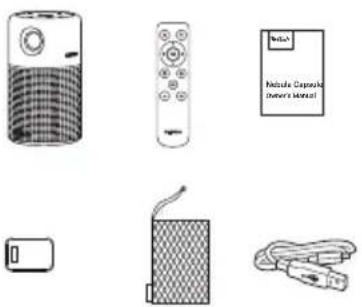

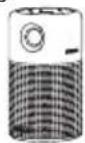
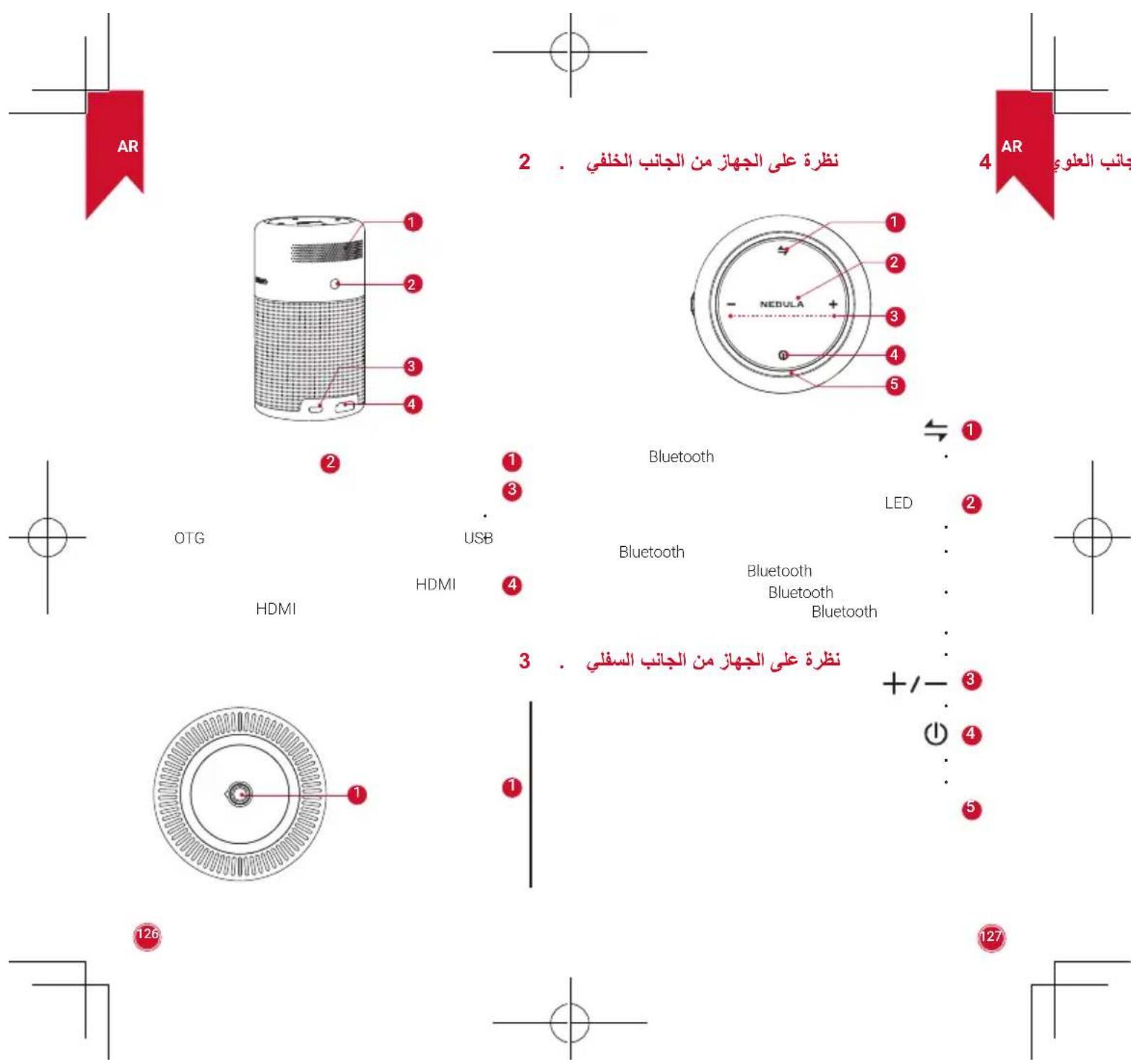
2. Rear View
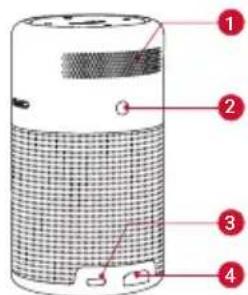
Air ventilation (outlet) Infrared Receiver
3 INPUT
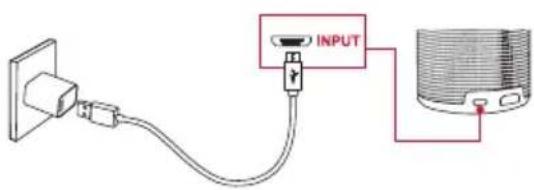
- Connect to power supply
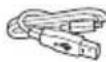
- Connect to a USB flash drive (via supplied OTG cable)
4 HDM
Connect to a playback device via HDMI output
Overview
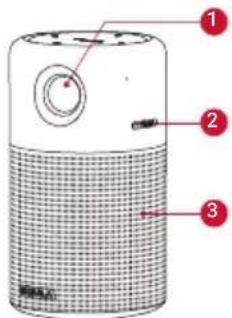
1. Front View
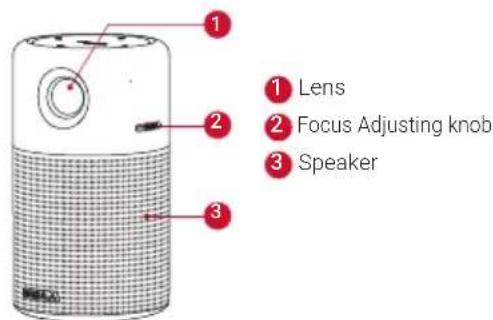
3. Bottom View
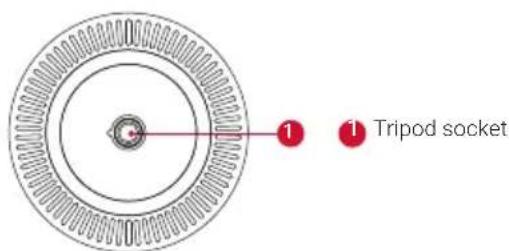
04
05
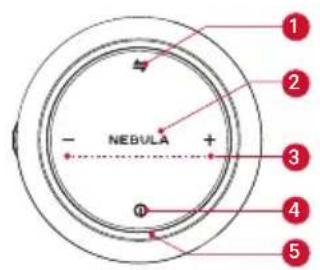
EN 4. Top View
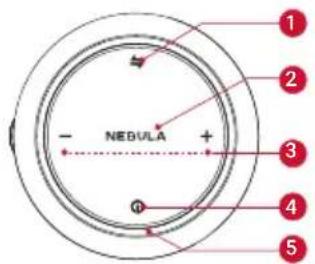
1 与
- Press to switch between Bluetooth speaker mode and projector mode.
2 LED indicators
Solid blue: Operating in projector mode.
- Flashing blue: Ready to pair / Bluetooth pairing (Bluetooth speaker mode).
- Solid blue: Bluetooth connected (Bluetooth speaker mode).
Solid red:Charging.
Solid green: Fully charged.
+/-
- Press to turn volume up / down.
4 ①
- Hold for 2 seconds to power on / off.
- Press to switch between standby and resume when powered on.
Air ventilation (inlet)
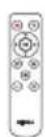
5. Remote Control
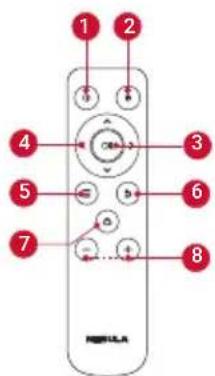
10
- Press to select an option: shutdown, standby, reboot or enter Bluetooth Speaker mode.
20
- Press to enter / exit mouse key mode.
OK
- Press to confirm a selection or entry
- Pause / resume play
4 _i_i < _i > Navigation buttons
5 三
- Navigate menus or adjust the selected content.
6
- Access more options during play (available depend on the source).
#
- Return to the previous menu.
-十
- Open the home menu.
Volume down / up
06
07
EN
Getting Started
1. Placement
Place this device on a surface table, flat table in front of the projection surface. For best results, the projection surface should be white and flat. The distance between this device and the projection surface must be a minimum of 0.58 meters (23") and a maximum of 3.08 meters (121") to get a projection image from 20 to 100 inches.
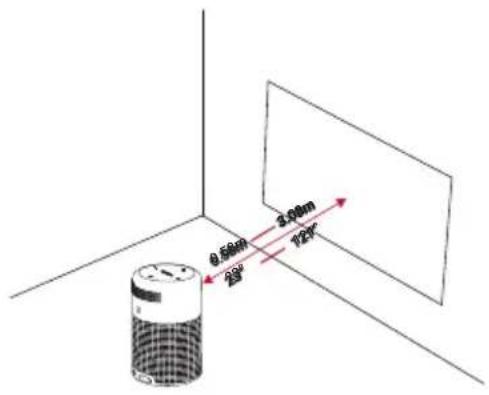

It is unnecessary to tilt it towards the projection surface. You can correct the projection image with the built-in keystone correction.
- The distance between the device and the projection surface determines the projection image size. For the best result, set the projection image ranging from 40 to 80 inches.
2. Preparing the Remote Control
① For first time use, remove the protective tab to activate the remote control battery.
(2) To replace the battery, unlock and open the battery compartment, insert a new battery positioning the polarity (+/-) as indicated, and then close and lock the battery compartment.
3. Get Started
① Fully charge the built-in battery before using for the first time by using the provided cable and charger.
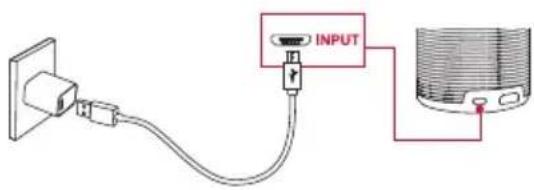
② Hold for 2 seconds on the projector to power on.
③ Turn the device towards a suitable projection surface or wall.
④ Rotate the focus by adjusting knob to get the best focus.
For first time use, follow the on-screen instructions to complete the basic settings.

To give your Nebula Capsule the fastest, safest charge, use the supplied charger only.
08
09
EN
4. Nebula App
To easily control this device, we recommend you to download the devoted Nebula App, Capsule Control. Using this app, you can use your smartphone's keyboard to input text and use the screen as a mouse.
① Download the Capsule Control app from the App Store (iOS devices) or Google Play (Android devices).
② Enable Bluetooth on your smartphone.

③ Open the Capsule Control app and follow the on-screen instructions to complete connection setup.
Settings
Finish the main settings when you power on the device for the first time.
1. Network
This device can be connected to the Internet via a wireless (Wi-Fi) connection.
① Press to access the home menu, select [Network] and press OK
② Follow the on-screen instructions to complete the network connection.
2. Bluetooth
A. Bluetooth Speaker Mode
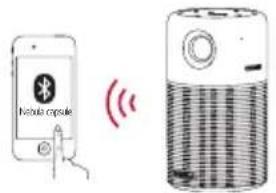
You can use this device as a standalone Bluetooth speaker.
① Press to switch to Bluetooth speaker mode.
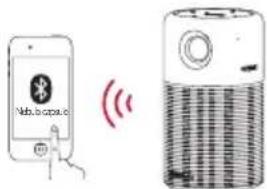
② Enable Bluetooth on your smartphone and select [Nebula Capsule] as the device to be added.
B. Projector Mode
You can connect Bluetooth headphones or a speaker to Capsule while in projector mode.
① Press to access the home menu, select [Settings] > [Bluetooth] and press OK
② Follow the on-screen instructions to complete the Bluetooth connection.
3. Projector
Press to access the home menu, select [Settings] > [Projector] and press OK
| [Image Mode] | [Auto] / [Standard Mode] / [Battery Mode] |
| [Color Temperature] | [Normal] / [Cool] / [Warm] |
10
11
| [Auto Keystone Correction] | Enable / disable auto Keystone correction. |
| [Keystone Correction] | Correct Keystone manually. Default value is 0. |
| [Projector mode] | [Front]: The device is located in front of the projection surface. |
| [Rear]: The device is located behind the projection surface. | |
| [Front Ceiling]: The device is hanging from the ceiling in an upside down position. The image is rotated by 180 degrees. | |
| [Rear Ceiling]: The device is hanging from the ceiling in an upside down position behind the projection surface. The image is rotated by 180 degrees and horizontal mirrored. |
4. App Manager
① Press to access the home menu, select [Settings] > [App Manager] and press OK
② Select an app and check the current version, open or force stop, check the storage used or clear data, or uninstall it.

When more than 3 apps are installed, you can select [All] at the bottom line of the home page to enter the [Apps] page. Select an app and press in the remote control, and then you can select [Move To Home] or [Uninstall].
5. Other
Press to access the home menu, select [Settings] find more settings.
| [General] | |
| (Language) | Select an on-screen display language. |
| [Keypad Tone] Turn on / off the keypad tone. | |
| [Automatic Sleep Interval] | 5 min / 15 min / 30 min |
| [Background] Select a background. | |
| [Date&Time] | |
| [Automatic Date&Time] | Enable / disable automatic date and time. |
| [Date] Manually set date. | |
| [Time] Manually set time. | |
| [Select time zone] | Select time zone. |
| [Use 24-hour format] | Select 24-hour format or 12-hour format. |
| [Upgrade] | |
| [Check Update] | Check if it is the latest version. Follow the on-screen instructions to upgrade the software version. |
| [About] | |
| [Recovery] | All data on the built-in storage will be erased. |
EN
Enjoy
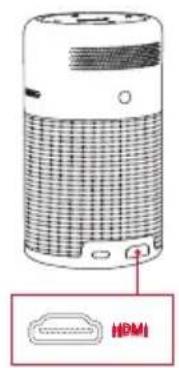
1. Connect to HDMI Playback Devices
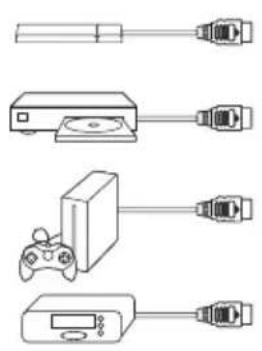
This device supports connections with various HDMI playback devices such as TV stick, TV box, DVD player, set-top box (STB), game machine or other devices.
① Connect this device to an HDMI playback device with an HDMI cable (not provided).
② Press to access the home menu, select [HDMI] and press OK it will automatically start the HDMI playback when connected to an HDMI playback device for the first time.)
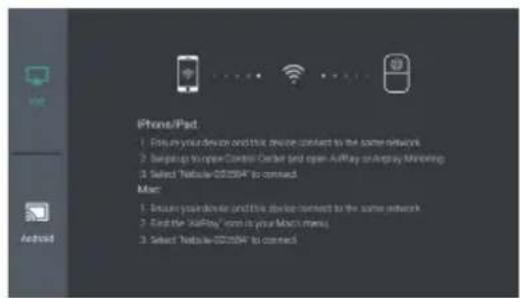
2. Screen Cast
You can wirelessly cast the screen of your smartphone or tablet onto the projection surface.
For iOS devices:
For Android devices:
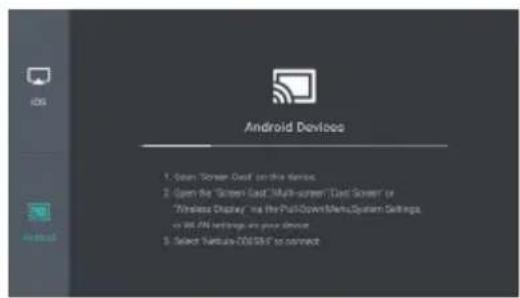
Certain content may be unavailable to be casted due to copyright restrictions. In this case, you can stream those content via the same app installed in your Nebula Capsule.
14
15
EN
3. Apps
Once connected to a wireless network, you can access online services, enjoy movies, music and pictures, and browse internet. Apart from the apps installed, you can also install any other apps either from the Nebula App Store or by a USB flash drive.
① Press to access the home menu.
② Select an Internet service, and press OK
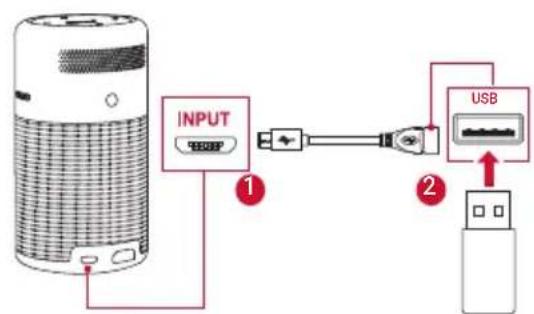
4. Connect to USB Storage Device
With this device, you can enjoy music, video, and picture, or install apps that are stored on a USB 2.0 storage device by using the supplied OTG cable.
① Press to access the home menu.
② Select [File Manager] and press OK
③ Select a file, then press OK
Specifications

Specifications and design are subject to change without notice.
Power supply: 9V-2A (QC2.0)
Power consumption: < 10W
Standby power consumption: < 0.5W
Display technology: 0.2inch 854*480p DLP
Light source: RGB LED
Projection image size: 20 - 100 inch
Resolution: 854 x 480 Pixel
Brightness: 100 ANSI Lumens
Contrast ratio: 400:1
Throw ratio: 1.3
Throw distance: 0.58m to 3.08m
CPU: Quad core A7
OS:Android 7.1
RAM:1GB DDR
ROM:8GB eMMC
Speaker drivers: 5W
Wi-Fi: IEEE802.11a/b/g/n Dual Frequency 2.4G/5G
Bluetooth version: V4.2
Built-in battery type: Li-Polymer
Capacity: 5200mAh 3.85V
Movie playtime: approximate 4 hours in battery mode
Music playtime: approximate 30 hours in Bluetooth speaker mode
Remote control batteries: CR2032 x 1
Recommended ambient: 5^ to 35^ / 41^ to 95^
Relative humidity: 15% 85% (non-condensing)
Storage temperature and humidity: < 65°C / 149°F, < 90% humidity
Dimensions (H^) .. 120^68~mm / 4.72^2.67 inch
Weight: 470g / 16.6oz
16
EN
17
EN
Troubleshooting
① Fail to power on by the remote control?
- Hold for 2 seconds on the projector to power on.
- When powered off, you cannot use the remote control to power on.
② The remote control doesn't work?
- Remove the protective tab to activate the remote control batteries.
③ Blurred image?
- Rotate the focus adjusting knob to get the best focus.
④ Reversed projection image?
- Press to access the home menu, select [Settings] > [Projector Mode] and switch to a correct state.
⑤ Cannot connect to a Wi-Fi network?
- Refresh the list of available networks and retry.
- Reboot the wireless router or the device and retry.
⑥ How do I update the firmware?
- When new version is detected, you will be asked to reboot and update.
Notice
C
Declaration of Conformity
This product complies with the radio interference requirements of the European Community. Hereby, Anker Technology Co., Limited, declares that this device is in compliance with the essential requirements and other relevant provisions of Directive 2014/53/EU. For the Declaration of Conformity, visit the Web site www.SeeNebula.com/certification.
BT Maximum output power: 8 dBm; BT Frequency band: 2402~2480 MHz; Wi-Fi Max Output Power: 16 dBm (2.4G); 10 dBm (5G);
Wi-Fi Frequency Band: 2412~2472 MHz (2.4G); 5150~5250 MHz, 5725~5850 MHz (5G).
5150~5250 MHz can be used indoor only.
| B | BGEBE |
| ES | U | RO |
| CZ | FR | HU |
| SI | DK | HR |

This product is designed and manufactured with high quality materials and components, which can be recycled and reused.

This symbol means the product must not be discarded as household waste, and should be delivered to an appropriate collection facility for recycling. Follow local rules and never dispose of the product and rechargeable batteries with normal household waste. Correct disposal of old products and rechargeable batteries helps prevent negative consequences for the environment and human health.
18
19
FCC notice
This device complies with the FCC rules, Part 15. Operation is subject to the following two conditions: (1) This device may not cause harmful interference, and (2) This device must accept any interference received, including interference that may cause undesired operation.
Warning: Changes or modifications not expressly approved by the partly responsible for compliance could void the user's authority to operate the equipment.
Note: This equipment has been tested and found to comply with the limits for a Class B digital device, pursuant to part 15 of the FCC Rules. These limits are designed to provide reasonable protection against harmful interference in a residential installation.
This equipment generates, uses and can radiate radio frequency energy and, if not installed and used in accordance with the instruction manual, may cause harmful interference to radio communications. However, there is no guarantee that interference will not occur in a particular installation. If this equipment does cause harmful interference to radio or television reception, which can be determined by turning the equipment off and on, the user is encouraged to try to correct the interference by one or more of the following measures:
Reorient or relocate the receiving antenna.
- Increase the separation between equipment and receiver.
- Connect the equipment into an outlet on a circuit different from that to which the receiver is connected.
- Consult the dealer or an experienced radio/TV technician for help.
FCC Radiation Exposure Statement:
This equipment complies with FCC radiation exposure
limits set forth for an uncontrolled environment. This equipment should be installed and operated with a minimum distance of 20cm between the radiator and your body. This transmitter must not be co-located or operated in conjunction with any other antenna or transmitter.
Notice: Shielded cables
All connections to other computing devices must be made using shielded cables to maintain compliance with FCC regulations.
EN
Trademarks
HOMI
HDMI, and HDMI logo and High-Definition Multimedia Interface are trademarks or registered trademarks of HDMI licensing LLC in the United States and other countries.

Bluetooth
The Bluetooth® word mark and logos are registered trademarks owned by Bluetooth SIG, Inc.
Other trademarks and trade names are those of their respective owners.
Warranty
30-Day Money-Back Guarantee for Any Reason
You may return your undamaged product and packaging within 30 days of purchase to receive a FULL REFUND for any reason. If the reason for return isn't quality-related, the customer must pay for the return shipping.
12-Month Warranty for Quality-Related Issues
Nebula's products are warranted to be free from material and workmanship defects for 12 months from the date of purchase. Within this period, Nebula will provide a replacement and cover any return shipping costs for products that fail in normal use.
Please Note: Any provided shipping labels must be used within 20 days from the date they're issued by Nebula Support.
Resolution: 854 x 480 pixels
Brillo: 100 lumes ANSI
Wi-Fi: IEEE802.11a/b/g/n freuencydual 2,4G/5G
Version de Bluetooth: V4.2
Consommation: < 10 W
Wi-Fi: IEEE802.11a/b/g/n Bi-Frequency 2.4G/5G
Version Bluetooth : V4.2
Consumo energetico in standby: < 0.5 W
Tecnologia display: DLP 0,2 pollici 854*480p
Sorgente luminosa:LED RGB
aall aal llll all lall, alal yal .
a
Jc 10000000000000000000000000000000000000000000000000
x_1 = y_1
jll 1/2 g jss jaa jaii jai jai jai jai jai jai jai jai jai jai jai jai jai jai jai jai jai jai jai jai jai jai jai jai jai jai jai jai jai jai jai jai jai jai jai jai jai jai jai jai jai jai jai jai
y = 4x + 3 S_ ACD = - 25
#
1gQ183
j 219
AALLJUSSLLI
J 1
Joo jso Jg Jn 100
1 1
aai jaiy aiai aai i jaiil 1s bai aai
5 1
a 2.0 USB
sJ 350
aegssgssgssssssssssssssssssssssss
4
aal aal jay Jai, aliy aaiy ay Jaiy
i 1
J 1
j 1
Jbdu 2y, aall yaiy 1y. Jy. Jy. Jy. Jy. Jy. Jy. Jy. Jy. Jy. Jy. Jy. Jy. Jy. Jy. Jy. Jy. Jy. Jy. Jy. Jy. Jy. Jy. Jy. Jy. Jy. Jy. Jy. Jy. Jy. Jy. Jy. Jy. Jy. J
alba qaiy 1 jellal gale sall y alqilj y
山
Jie 10
122
123
AR
jaiy jaiy jaiy jaiy
L
i
iisipss 2. yil jia jai, auiu jiuie aaii
aeg aeggagaaagaaagaaagaaagaaagaaagaaagaaagaaagaaagaaagaaagaaagaaagaaagaaagaaagaaagaaagaaagaaagaaagaaagaaagaaagaaagaaagaaagaaagaaagaaagaaagaaagaaagaaagaaagaa
15 1
y
aennn


C

y
.
a jell aal yjdl aal Jui Jj
4
.0yjbi yjwclj jzjj 1
e e e
动量守恒
1
aannnnn
jssjjb0
C
125
124
AR
S ACD = S COD + S DCE - S CDE
( x,y) = u y + v x
AR
- = 1 ;
jssll baiy jie aiaa, aiai iaie jess
1
23) 0,58 bIJIg jIJIJIJIJIJIJIJIJIJIJIJIJIJIJIJIJIJIJIJIJIJIJIJIJIJIJIJIJIJIJIJIJIJIJIJIJIJIJIJIJIJIJIJIJIJIJIJIJIJIJIJIJIJIJIJIJIJIJIJIJIJIJIJIJIJIJIJIJIJIJIJIJIJIJIJIJIJIJIJIJIJIJIJIJIJIJIJIJIJIJIJIJIJIJIJIJIJIJIJIJ
1JUaal 25 (A,121) jai3,08,
100 20
1
3
4
a
- jieill 5
6
i 1 1 1 1 1 1 1 1 1 1 1 1 1 1 1 1 1 1 1 1 1 1 1 1 1 1 1 1 1 1 1
40 80

128
129
AR
2.
jay jy jay jay jay jay jay jay jay jay jay jay jay jay jay jay jay jay jay jay jay jay jay jay jay jay jay jay jay jay jay jay jay jay jay jay jay jay jay jay jay jay jay jay jay jay jay jay jay jay jay jay j
y j 2
ylll jiei iiee yis (-/+) aaiii
1
3
1
Aa a jai ai jai ai ay
Jaiy jia Jaiy jaiy aal 1 y jaoaal ②
j ③
Download on the App Store

GO TOON Google Play
Capsule Control ③
Jusy
1
yll jll jilie yll lll
.(Wi-Fi)
[Network]
OK
Juiy Juyi aai 1
1.
a_5 + a_6 + a_7 = 8 个
130
131
AR
2
Bluetooth
Bluetooth 2000
Bluetooth 2000
[Nebulacapsule] 1
| Bluetooth .0 .0 .0 .0 .0 .0 .0 .0 .0 .0 .0 .0 .0 .0 .0 .0 .0 .0 .0 .0 .0 .0 .0 .0 .0 .0 .0 .0 .0 .0 .0 .0 .0 .0 | [blakew] |
| jagl jagl lssie : [galell ] jagl jagl lssie jagl jagl lssie : [galell ] jagl jagl lssie jagl jagl lssie : [galell ] jagl jagl lssie jagl jagl lssie : [galell ] jagl jagl lssie jagl jagl lssie : [galell ] jagl jagl lssie | [blakew] |
| jagl jagl lssie : [galell ] jagl jagl lssie jagl jagl lssie : [galell ] jagl jagl lssie jagl jagl lssie : [galell ] jagl jagl lssie jagl jagl lssie : [galell ]jagl jagl lssie jagl jagl lssie : [galell ] jagl jagl lssie jagl jagl lssie : [galell ] jagl jagl lssie jagl jagl lssie : [galell ] jagl jagl lssie jagl jagl lssie : [galell ]jagl jagl lssie | [blakew] |
AR
1
y 1
<[c]
<[c] 1 0
4
S OBC = S COD + S_ BDO
1 1
yjba jai jia jia jia jia jia
sill jess slll 15y . jess jess jess loie .
alil
100 2
sill jles clljls blll lalll 8e all ll p.22 1
aai jie jyj ③
. jS j S Jua Jia Jie
Paaee aaii jss 4
<[C]
aall aal y [baw] jg
W-Fi Asy Juaa 1
a aal 1, s j gai ai
aJaaai jai jai ai aai
910 6
yill yill sle) dio hll, jilal ksl ie
139
AR

aalll aaiy jaii iiaai 100

aie 1

1 1 1 1 1 1 1 1 1 1 1 1 1 1 1 1 1 1 1 1 1 1 1 1 1 1 1 1 1 1 1 1 1 1 1 1 1 1 1 1 1 1 1 1 1 1 1 1 1


- Nebula Capsule
- Owner's Manual
- Safety Instructions
- Setup
- Hearing Safety
- Charging
- Battery
- Cleaning
- Repairs
- Caution:
- EN What's Included
- Rear View
- Overview
- Front View
- Bottom View
- EN 4. Top View
- 与
- LED indicators
- +/-
- ①
- Remote Control
- 10
- 20
- OK
- _i_i < _i > Navigation buttons
- 三
- 6
- #
- -十
- 06
- 07
- Getting Started
- Placement
- Preparing the Remote Control
- Get Started
- Nebula App
- Settings
- Network
- Bluetooth
- Bluetooth Speaker Mode
- Projector Mode
- Projector
- App Manager
- Other
- Enjoy
- Connect to HDMI Playback Devices
- Screen Cast
- Apps
- Connect to USB Storage Device
- Specifications
- Troubleshooting
- Notice
- C
- Declaration of Conformity
- FCC notice
- FCC Radiation Exposure Statement:
- Notice: Shielded cables
- Trademarks
- HOMI
- Bluetooth
- Warranty
- 30-Day Money-Back Guarantee for Any Reason
- 12-Month Warranty for Quality-Related Issues
- a
- x_1 = y_1
- 4
- 山
- 122
- 123
- AR
- 3
- 1
- 1.
- a_5 + a_6 + a_7 = 8 个
- 130
- 131
Brand : NEBULA
Model : Capsule D4111
Category : Projector