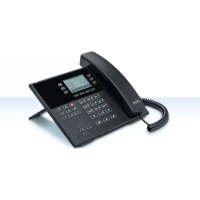
COMfortel D100 - Phone Auerswald - Free user manual and instructions
Find the device manual for free COMfortel D100 Auerswald in PDF.



| Product type | VoIP phone for Ethernet connection, use in enclosed and dry room |
| Brand | Auerswald |
| Model | COMfortel D100 |
| Dimensions (L x H x P) | 238 mm x 125/160 mm x 145/195 mm (depending on foot position) |
| Weight | 697 g |
| Power supply | Power over Ethernet (PoE) compliant with IEEE 802.3af, class 1 |
| Power consumption | 1.5 W min., 3.8 W max. |
| Display | Illuminated graphic display, black/white, 240 x 128 pixels, backlight |
| Keypad | Telephone keypad, 12 fixed-function keys, directional pad, 6 programmable keys on left and right (3 levels), 4 context-sensitive keys |
| LED indicators | 12 multicolored LEDs |
| Audio | Wideband, electret microphone, dynamic speaker, hearing aid compatible |
| Network connectivity | 10/100Base Tx Ethernet, 2 Ethernet ports (one for network, one for PC) |
| VoIP codecs | G.711 A-law, μ-Law, G.722, G.723, G.726, G.729, iLBC |
| USB port | 1 USB port for COMfortel D-XT20 key expansion module |
| Headset interface | Separate interface for dynamic headsets, DHSG compatible |
| Switch | Magnetic contact switch (crocket switch) |
| Operating temperature | 0 to 40 °C |
| Storage temperature | -30 to +70 °C, without condensation |
| Safety | CE, compliance with EN 62368-1 |
| Manufacturer warranty | 24 months from date of purchase |
| Cleaning | Clean only with a dry cloth, avoid liquid penetration |
| Repair | Do not open the device, repair exclusively by the manufacturer |
| Environment | Do not dispose of with household waste, recycle packaging |
Frequently Asked Questions - COMfortel D100 Auerswald
User questions about COMfortel D100 Auerswald
0 question about this device. Answer the ones you know or ask your own.
Ask a new question about this device
Download the instructions for your Phone in PDF format for free! Find your manual COMfortel D100 - Auerswald and take your electronic device back in hand. On this page are published all the documents necessary for the use of your device. COMfortel D100 by Auerswald.
USER MANUAL COMfortel D100 Auerswald
B E F G R I N L P L U K
www.fontevo.com
Anleitungen (de) / Manuals (en) / Instrucciones (es) / O8nyiες χρήσης (el) / Notices (fr) / Guide (it) / Handleidingen (nl) / Instrukcje (pl)
| Die Anleitung „Erweiterte Informationen"finden Sie im Konfigurationsmanager und auf unserer Internetseite. Die Kurzanleitungfinden Sie auf unserer Internetseite. Nach einem Firmware-Updatenbenöttigen Sie ggf. aktualisierte Anleitungen. Diese finden Sie auf unserer Internetseite. | de |
| You will find the "Advanced Information" manuals in the configuration manager and on our website. You will find the Quick Guide on our website. After a firmware update you usually require a new version of the manuals. You will find this on our website. | en |
| Encontrará las instrucciones del apartado "Advanced Information" en Administrador de configuración y en{nuestra páginaweb. En{nuestra página web encontrará la Guía rápida. Después de efectuar unaactualización del firmware es posible que necesite descargar una copiaactualizada de las instrucciones.La encontrará en{nuestra páginaweb. | es |
| Öi önbývççxρñçç"Advanced Information" utpápxouv στο Πρóγραμα διαχερίασς διαμόρφωασκ και στοδιδικίtu. Öi ouvotπικέç oënbýíçç xρñçç utpápxouv στο διαδικίtu. Mětá týν ενημερωαŋ touuλιολογιομικουθα xρειαστēITE evδ. ενημερωμένεç σönbýíçç xρñçç. Mπopeǐte va tic βρεīte στο διαδικίtu. | el |
| La notice « Advanced Information » est disponible dans le gestionnaire de configuration ainsi que sur notre site Internet. Vous trouverez la notice abrégée sur notre site Internet. ÀpRES une mise à jour de la versiondu logiciel, vous aurez besoin de notices actualisées. Elles sont disponibles sur notre site Internet. | fr |
| La guida "Advanced Information" è disponible in Manager configurazione e sul nostro site web. La guida rapida è disponibile sul nostro site web. Dopo un aggiornamento del firmware possono servire guidaggiornate. Queste sono disponibili sul nostro site web. | it |
| De handledig "Advanced Information" vindt u in de Configuratiemanager van de telefoon en op onsiteinternetpagina. Een korte handledigvingt u op once internetpagina. Na een firmware-update—heft uevtgeactualiserde handledingen nodig. Deze vindt u op once internetpagina. | nl |
| Instrukcja „Advanced Information" znajduje sie w Menedžer konfiguraci i na naszej stronie internetowej.Skrócona instrukcja znajduje sie na naszej stronie internetowej. Po zaktualizowaniu oprogramwomaniawewnétrzngo mogá być ewentualnie potrzebne zaktualizowane instrukcje. Można je znaleźć na naszejstronie internetowej. | pl |
Copyright
© Auerswald GmbH & Co. KG, 38162 Cremlingen, Germany, 2019
Licenses
Please read the End User Licence Information (EULA) before using your Auerswald Product or downloading the software update accompanying this license.
The software included in this product contains parts of copyrighted software that is subject to the GPL, the LGPL or other licenses.
The licenses can be found in the configuration manager under Home > Licenses.
Trademarks
Android is a trademark of Google, Inc. All other trademarks mentioned are the property of the corresponding manufacturer.
Deutsch
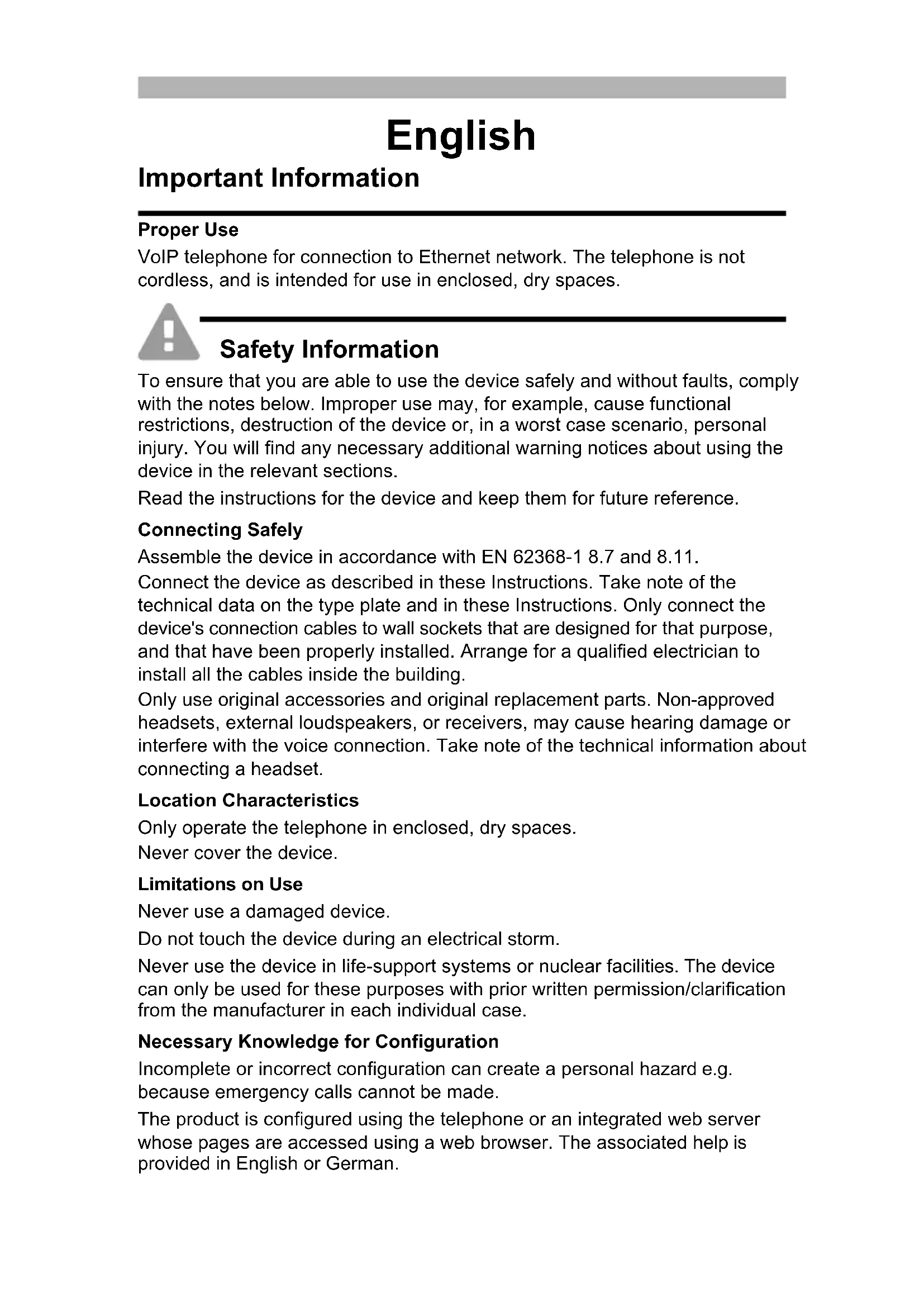
VoIP telephone for connection to Ethernet network. The telephone is not cordless, and is intended for use in enclosed, dry spaces.

Safety Information
To ensure that you are able to use the device safely and without faults, comply with the notes below. Improper use may, for example, cause functional restrictions, destruction of the device or, in a worst case scenario, personal injury. You will find any necessary additional warning notices about using the device in the relevant sections.
Read the instructions for the device and keep them for future reference.
Connecting Safely
Assemble the device in accordance with EN 62368-1 8.7 and 8.11.
Connect the device as described in these Instructions. Take note of the technical data on the type plate and in these Instructions. Only connect the device's connection cables to wall sockets that are designed for that purpose, and that have been properly installed. Arrange for a qualified electrician to install all the cables inside the building.
Only use original accessories and original replacement parts. Non-approved headsets, external loudspeakers, or receivers, may cause hearing damage or interfere with the voice connection. Take note of the technical information about connecting a headset.
Location Characteristics
Only operate the telephone in enclosed, dry spaces.
Never cover the device.
Limitations on Use
Never use a damaged device.
Do not touch the device during an electrical storm.
Never use the device in life-support systems or nuclear facilities. The device can only be used for these purposes with prior written permission/clarification from the manufacturer in each individual case.
Necessary Knowledge for Configuration
Incomplete or incorrect configuration can create a personal hazard e.g. because emergency calls cannot be made.
The product is configured using the telephone or an integrated web server whose pages are accessed using a web browser. The associated help is provided in English or German.
If you are not familiar with these languages, and the technical terms that are used, seek support from someone who has the necessary technical and language skills.
Repair
Do not open the device. Only the manufacturer is permitted to open the device and repair it.
Cleaning

Caution: Liquids penetrating the casing can damage or destroy the device.
- Only clean the device with a dry cloth.
Technical Data
| COMfortel® D-100 COMfortel® D-200 | ||
| Operating voltage Supply via the Ethernet port using PoE in compliance with IEEE 802.3af. (If there is no PoE supply on the network, use a COMfortel® PoE-100 or COMfortel® PoE-1000, available as an accessory.) | ||
| PoE class Class 1 (identified on the type plate) | Class 2 (identified on the type plate) | |
| Power consumption | Min. 1.5 W, max. 3.8 W Min. | 1.2 W, max. 6.5 W |
| System connection | 0/100Base Tx Ethernet 10/100 | 0/1000 Tx Ethernet |
| 2nd Ethernet port | 100Base Tx Ethernet 10/100 | 1000 Tx Ethernet |
| VoIP codes G.711 A-law, μ-Law, G.722 (Wideband), G.723, G.726, G.729, iLBC | ||
| USB connection 1x for connecting a | COMfortel® D-XT20 key extension module | |
| Displays 12 polychromatic LEDs, illuminated graphic display, black/white, 240 x 128 pixels, backlight | ||
| User elements | Keypad, 12 fixed function keys, directional pad. 6 freely programmable function keys on the left and right, beside the display (3 levels), labelled, status display LED. 4 context-sensitive soft keys under the display. | |
| Receiver | Wideband audio, electret microphone, receiver with dynamic loudspeaker, hearing aid-compatible | |
| Headset | Separate interface for dynamic headsets, also with DHSG support | |
| Telephone hook | Magnetic switch contact | |
| Casing | Plastic material, black | |
| Dimensions (W x H x D) | 238 mm x 125/160 mm x 145/195 mm | |
| Weight | 697 g | |
| COMfortel® D-100 COMfortel® D-200 | ||
| Temperature | Operation: 0 ° to 40 °C, storage: -30 ° to +70 °C, non-condensing | |
| Safety CE | ||
| Technical Data for Headset Connections | |
| Microphone current consumption Max. 0.5 mA | |
| Microphone sensitivity - 43 dB | |
| Loudspeaker impedance 100 Ohms | |
| Loudspeaker sensitivity at 1 kHz 19.5 +/- 3 dBPa/V | |
| Sound level threshold 24 dBPa | |
Environmental Notices
If you want to dispose of the device, please ensure its professional disposal. Do not put it in the normal household waste.

Dispose of the packaging material properly and in interest of the environmental protection.

Consult your responsible authority for information about the professional and environment-friendly disposal of your device. If you want that we handle the disposal for you, you can send the device at your costs to
Declaration of Conformity
This device complies with the basic health, safety and environmental requirements in all relevant EU directives. You will find the Declaration of Conformity on our website.
Conditions of Guarantee
- Auerswald GmbH & Co. KG, Vor den Grashöfen 1, 38162 Cremlingen, Germany, grants 24 months Manufacturer's Warranty from the date of purchase, as the manufacturer of this product.
- For you, as a consumer, this means: We guarantee that our devices are error-free when supplied. If a manufacturing error is identified within 24 months of the delivery date we will repair or replace the device free of charge without you, as the consumer, having to provide the usual legally required proof that this fault was present when you received the device. We either use new parts or parts in mint condition for the repair or replacement delivery. Any parts removed from the device become our property and can be destroyed by us.
- In addition to this warranty, you have the unlimited legal right to claim against the supplier on the basis of the terms of the warranty for defects on the basis of the purchase contract. However, in contrast to our Manufacturer's Warranty, the legal warranty for defects only applies to the device's state when sold (handover).
- You can only claim against this warranty if you return the faulty device to Auerswald GmbH & Co. KG or our local general importer or distributor, outside Germany, at your own cost, with a valid proof of purchase (invoice or till receipt). When you return it to us, please provide a detailed description of the fault that has occurred, and also tell us your telephone number, in case we need to contact you. To prevent shipping damage, provide suitable transport packaging (e.g. original packaging with a secondary shipping box).
- The Manufacturer's Warranty excludes damage caused by mishandling, operating errors, misuse, external influences, lightning strikes/power surges, modifications to the product and extensions. Also excluded are wearing parts (e.g. batteries, fuses, rechargeable batteries and memory cards) and damage caused by wearing parts (e.g. if batteries go flat). Shipping damage, consequential damage, and costs arising from down times and travel times are also excluded.
- The warranty is cancelled if repairs are carried out by unauthorised agents.
Initial Commissioning

Note: These Instructions describe how to perform initial commissioning without provisioning.
-
Mount the device base. See Figure A 1.
-
Connect the device. See Figure A 2.
The device starts operating.
The company logo is displayed for 2 to 3 minutes.
The system displays a message that it is searching for provisioning files.
The telephone's IP address is shown on the display at the same time.
-
Write down the IP address.
-
Press the Cancel soft key.
You access the First setup menu.

Note: Then make these settings:
- Use the direction keys to navigate in lists.
- Use the keypad to enter numbers and characters.
- Press the OK key confirm your selection or entry.
Configuring language and location
- Press the Country soft key.
- Open Phone language.
- Configure the language for the telephone (here: English).
The menu language changes.
- Select Location.
- Set the telephone's location.
- Select Configuration manager language.
- Configure the language for the configuration manager.
- Press the back key.
You return to the First setup menu.
-
The following alternatives are available for further configuration:
-
Press the OK soft key to configure additional settings on the telephone. See Configuring identity on the telephone.
- Press the WebUI soft key to enable Access > Web administration (https). You can now conveniently configure additional settings in the configuration manager. See Opening the Configuration Manager.
The First setup menu closes.
Configuring identity on the telephone
- Open Menu > Settings > Identities.
You access a list of 6 unconfigured identities, marked with ---.
- Open an unconfigured identity.
- Then enter the data that is listed, depending on the operating mode.

Note: Hold down the digit keys to enter numbers.
| PBX VoIP provider | ||
| SIP Username | The internal number configured for the telephone Example: 557 | The username configured for the account Example: telephonenumber@Provider.co.uk |
| Password The associated password The asso-ciated password | ||
| SIP Registrar | the PBX's IP address Example: 192.168.196.37 | the VoIP provider's URL Example: Providername.co.uk |
- In the entry field under Displayname, enter the name that is to be displayed on the device's display.
- Select activate Identity (cross mark). This completes initial setup. All other settings are optional.
Opening the Configuration Manager
- Enter the telephone's IP address in the browser's address line.
- Enter the username and password. They are both admin in the factory settings.
- Click on Login.

Caution: Passwords that are unchanged from the factory settings are a security risk.
- Select User and then change the password without delay.

Note: You will find more information, among other things about how to configure an identity, in the Online help.