EasyManual
DR 870 CD - Radio ALBRECHT - Free user manual and instructions
Find the device manual for free DR 870 CD ALBRECHT in PDF.



User questions about DR 870 CD ALBRECHT
0 question about this device. Answer the ones you know or ask your own.
Ask a new question about this device
Download the instructions for your Radio in PDF format for free! Find your manual DR 870 CD - ALBRECHT and take your electronic device back in hand. On this page are published all the documents necessary for the use of your device. DR 870 CD by ALBRECHT.
USER MANUAL DR 870 CD ALBRECHT
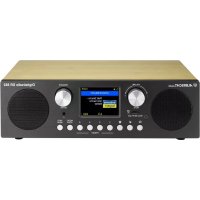
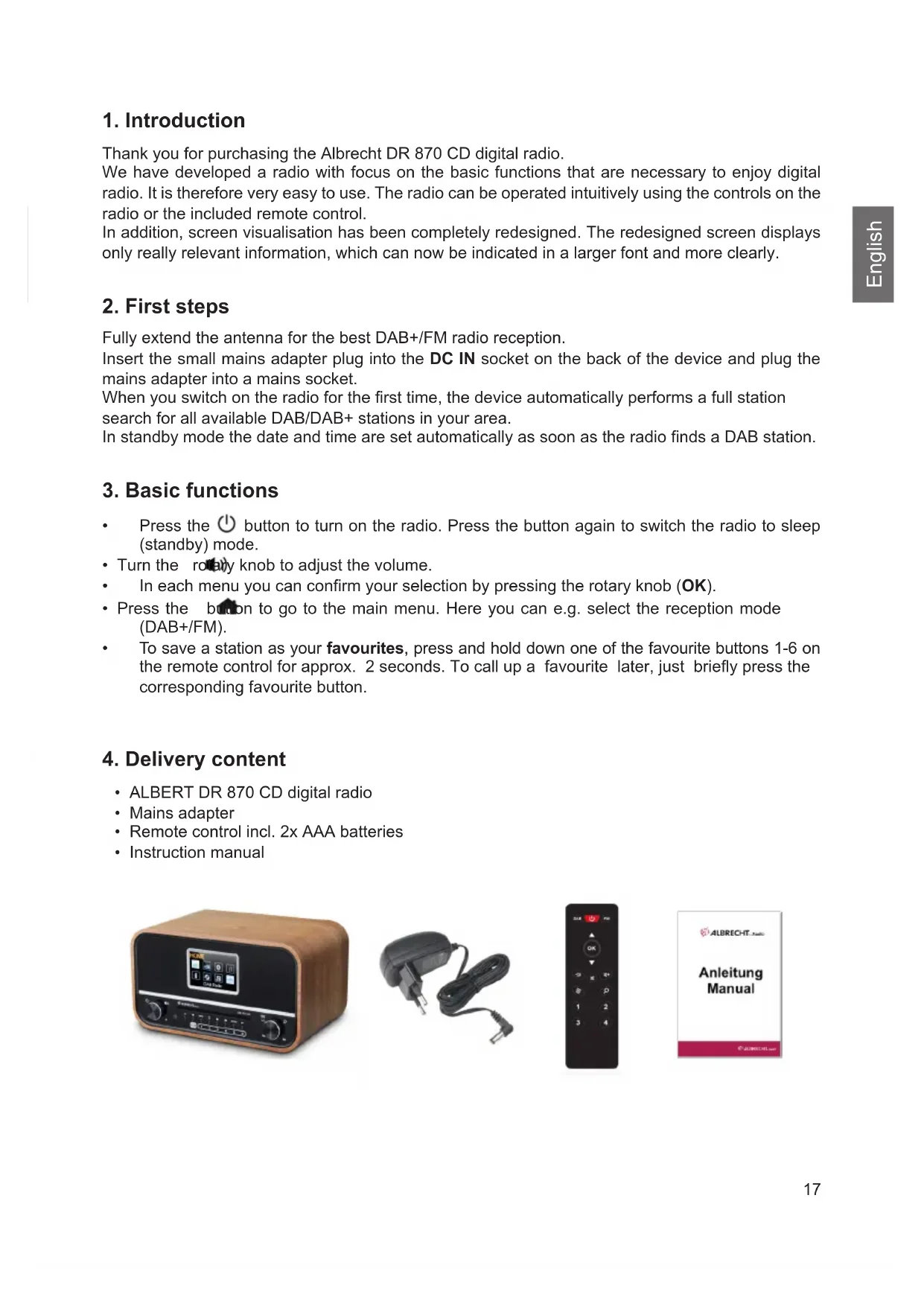
Thank you for purchasing the Albrecht DR 870 CD digital radio. We have developed a radio with focus on the basic functions that are necessary to enjoy digital radio. It is therefore very easy to use. The radio can be operated intuitively using the controls on the radio or the included remote control. In addition, screen visualisation has been completely redesigned. The redesigned screen displays only really relevant information, which can now be indicated in a larger font and more clearly.
Fully extend the antenna for the best DAB+/FM radio reception. Insert the small mains adapter plug into the DC IN socket on the back of the device and plug the mains adapter into a mains socket. When you switch on the radio for the rst time, the device automatically performs a full station search for all available DAB/DAB+ stations in your area. In standby mode the date and time are set automatically as soon as the radio nds a DAB station.
- Press the button to turn on the radio. Press the button again to switch the radio to sleep (standby) mode.
- Turn the rotary knob to adjust the volume.
- In each menu you can conrm your selection by pressing the rotary knob (OK).
- Press the button to go to the main menu. Here you can e.g. select the reception mode (DAB+/FM).
- To save a station as your favourites, press and hold down one of the favourite buttons 1-6 on the remote control for approx. 2 seconds. To call up a favourite later, just briey press the corresponding favourite button.
English v Description Functions 1 Screen Displays all information about current station/song
Turn the rotary knob to adjust the volume Press the rotary knob to switch on/off (standby) 3 Infrared sensor Point the remote control at the sensor 4 Press the eject key to eject the CD 5 Stops the current playback (CD/USB) 6 INFO Change the current station / song information
Long press opens the alarm clock setting menu Short press to de-/activate alarms 8 Save to / open the favourites list 9 Opens the main menu 10 MENU Use this button for various settings 11 Go back to the previous menu 12 CD slot Instert the CD slowly with the labeled side facing up
Conrm selection / search for stations or set manually Play or pause, skip to next / previous song 14 Antenna Externd the telescopic antenna fully for the best possible reception 15 15.0V DC IN Mains adapter power supply connection 16 Headphone jack 17 AUX IN Connection for external audio devices (e.g. MP3 player) 18 USB USB connector for USB storage20 English
Long press: enter alarm clock menu Short press: turn alarm clocks on / off 5 Dim the screen brightness 6 Open the main menu 7 ▲/▼ Move up or down in menus
Long press: Open the settings menu Short press: Switch through info on the current station / song 9 OK Conrm your selection 10 Open the favourites menu 11 Turn down the volume 12 Mute the radio 13 Turn up the volume 14 1 - 6 Recall favourite stations 1 - 6 15 Previous song / seek backwards 16 Play / pause 17 Next Song / seek forward 18 Shufe play 19 Stop playback (USB and CD only) 20 Repeat current / all songs21 English
Station name Current artist / song Reception type Signal strength / favourite / volume Activated senior mode
To call up the main menu, press the HOME button. In this menu you can access various device modes, call up favourites, congure settings and alarm clock and activate the senior mode. Alternatively, you can also change the mode using the button on the remote control.
9. DAB+ digital radio mode
9.1. DAB+ station search The radio automatically performs a full station search when you switch it on for the rst time. If you would like to carry out a station search again at a later time (e.g. after moving), press and hold down the rotary knob for approx. 2 seconds. 9.2. Station list After the search is complete, you can view all currently available stations in the station list. To do this, either turn the right rotary knob or press the ▲/▼ arrow buttons on the remote control and conrm your selection with OK. 9.3. Saving / recalling favourite stations If you want to save the current DAB+ station as a favourite, press and hold down the button for approx. 2 seconds. Now select a free memory location and conrm your selection with OK. Alternatively, press and hold down one of the favourite buttons 1-6 on the remote control. To recall a favourite again later, just briey press the corresponding favourite button on the remote control or select a station via the PRESET menu. You can access this menu using the button on the device / remote control or the main menu. 9.4. DAB+ slideshow If the current station has a station logo or album cover, you can enlarge the logo or cover to full screen by pressing OK. Press this button again to go back to the playback screen.22 English 9.5. DAB+ menu In DAB+ mode, press the MENU button or press and hold down the button on the remote control to call up the DAB+ menu. In this menu you can view a station list or initiate a new station search. You can also sort the station list by multiplex, name or current availability. The DRC function (Dynamic Range Compression) reduces the volume difference between quiet and loud programme sections and can be congured in two intensities. Use the “Clear station list” menu item to remove currently unavailable DAB+ stations from the station list. The main menu can also be called up directly from this menu.
The bar icon in the centre of the screen shows strength of the FM signal received by the device. 10.1. FM station search The radio automatically performs a full station search when you switch it on for the rst time. If you would like to carry out a station search again at a later time (e.g. after moving), press and hold down the rotary knob for approx. 2 seconds. 10.2. Station list After the search is complete, you can view all currently available stations in the station list. Select the “Station list” menu item in the main menu. To do this, use the MENU button on the device or press and hold down the button on the remote control. Navigate through the station list with the radio rotary knob or the ▲/▼ arrow buttons on the remote control and conrm your selection with OK. 10.3. Setting the FM frequency manually Use the ▲/▼ buttons on the remote control to change the FM frequency in 0.05 MHz increments. Press and hold down one of the arrow buttons to automatically search for the next available station. Alternatively, you can also use the radio to directly control the station search. Briey press the rotary knob. The search process stops automatically at the next available station. For manual frequency setting, turn the radio rotary knob to change the FM frequency in 0.05 MHz increments. 10.4. Saving / calling up favourite stations FM stations can also be saved as favourites and quickly called up again. The operation procedure is the same as for DAB transmitters, see “Saving / recalling favourite stations” on page 21. DAB+ and FM stations can be stored together in the favourites.23 English 10.5. FM menu In FM mode, press the MENU button or press and hold down the button on the remote control to call up the FM menu. In this menu you can view the station list or initiate a new station search. Use the “Search sensitivity” menu item to set whether only strong or all recognised stations should be included in the station search. The “Audio settings” menu item determines whether stereo transmitters should be used or whether playback should be limited to mono transmitters. The main menu can also be called up directly from this menu.
11. Wireless music streaming
A Bluetooth-enabled mobile phone can be used for wireless playback of any audio content. For this purpose, you need to activate the “Bluetooth” mode via the main menu. Once this is done, select the “ALBRECHT DR 870 CD” device on your mobile phone. For more details about operation of your mobile phone, please refer to the device manual.
This mode is used for wired playback of audio content. To do this, connect an audio device to the AUX IN connection on the back of the device using a 3.5 mm audio jack cable.
Connect a USB storage medium (USB stick, etc.) to the USB socket on the back of the unit. MP3 les on it can now be played. Playback occurs alphabetically according to folder and le names. Use the rotary wheel or the / buttons on the remote control to skip to the next / previous song. Press the rotary wheel or the button on the remote control to pause and resume playback. Press the button to activate random playback and the button to switch between normal playback, repeat of the current song and repeat of all songs. With the INFO button on the unit or by briey pressing the button on the remote control, you can switch between displaying the le name and the various information embedded in the MP3 le (title, artist, album).
In CD mode, both commercially available and self-burned CDs can be played back. To do this, insert the CD slowly into the CD slot with the labelled side facing upwards until the unit starts to pull it in automatically. If the unit is not yet in CD mode, it will start automatically and playback will begin. To eject the CD, press the button on the unit or on the remote control. CD playback is controlled in the same way as USB mode (see chapter “USB” on page 23). NOTE: Do not touch the bottom of CDs as this may cause reading errors. We recommend touching CDs only on the outer edge and the centre cutout.24 English
Settings can be called up from the main menu or individual menus in various modes. Here you can make the following settings:
- Set the equalizer: Eight preset congurations are available
- Adjust screen brightness in operation and standby mode
- Set language: choose between English, French, German, Italian, Spanish, Czech, Dutch, Turkish and Danish
- Reset the radio to factory settings
- Display the current software version Press the MENU button again to exit the main menu without making a selection.
The “Senior Mode” simplies the operation of the Albrecht DR 870 CD radio. In Senior Mode an incorrect operation of the radio is virtually impossible, because almost all options/buttons are disabled. Unintentional radio adjustments are no longer possible. In this mode only the following functions are enabled:
- Favourite stations (number buttons 1-6)
- Activate CD mode and eject CD
- Start, pause, stop CD playback and skip songs forward and backward To activate the Senior Mode, open the main menu with the HOME button or the button on the remote control and select the senior mode. After conrming the selection, a lock icon appears on the display. To disable the mode, quickly press the number buttons 1 and then 3 in succession on the device or on the remote control. Attention! Please note that only six saved favourite stations and CD playback are available when the senior mode is enabled. Other stations or playback modes can no longer be used. Therefore, make sure you save the desired stations to the favourites in advance.25 English
To enter the alarm clock settings, long press the button on the radio. You can choose to set Alarm 1 or Alarm 2. Press OK to enter the settings.
- Activate: off / once / daily / weekdays / weekend
- Time: set hours by rotating knob, then press OK to set minutes
- Source: select between buzzer / FM radio / DAB radio
- Volume: select the volume with which the alarm should be played
- Save: conrm to save your settings You can quickly activate or deactivate both alarms if you short press the button on the radio. If an alarm is active, an alarm clock symbol will be shown in the display.26 English
- Always protect the device from moisture and humidity. Do not expose the device to water or other liquids! Accidental penetration of liquids into the device can cause serious damage. If this is the case, immediately disconnect the device from the mains. Unplug the power cord and contact your dealer.
- Using the device in rooms or environments with high humidity and temperatures can lead to condensate build-up inside the device. Condensate can damage the device under certain circumstances.
- Using the device in a dusty environment can damage the internal electronic components, causing the device to malfunction.
- The device must be placed on a level, stable surface and must not be exposed to vibrations.
- Do not remove the screws to reduce the risk of electric shock. The device contains no user serviceable parts. Entrust maintenance work to qualied personnel.
- Use only the mains adapter that comes with the device.
- Avoid both extremely high and extremely low temperatures. Do not place the device near heat sources such as radiators or gas/electric stoves.
- Never touch the power plug or the device with wet hands. Never remove the mains adapter from the mains socket by pulling on the power cord.
- If you are not going to use the device for a long time (e.g. vacation), disconnect it from the mains socket.27 English
- When using headphones, please note that excessive sound pressure or high volume from headphones or earphones can damage your hearing. Adjust the volume to a comfortable, not too loud level. Using headphones which are too loud over an extended period of time can damage your hearing.
- Before cleaning the device, make sure it is unplugged from the mains socket.
- Never throw batteries and rechargeable batteries into re as this can cause an explosion. Please dispose of empty batteries in the recycling bin, not in the normal household waste.
- Do not use scouring cloths or abrasive cleaning agents as these can damage the device surface.
Problem Remedy The device does not switch on 1. Make sure the mains adapter is correctly connected to the mains socket and the radio. No sound or low volume
No signal or hissing in DAB/FM mode. 1. Re-position the antenna. Check that the antenna is fully extended.
2. Relocate the radio.
Some buttons/functions can no longer be used
1. Is the radio in senior mode? Senior mode can be
recognised by a “lock” symbol on the display. Disable senior mode by quickly pressing buttons 1 and 3 in succession.
2. Reset the radio to factory settings (see “15. Settings”
21. Warranty and recycling Information
We are obliged to include information on disposal, legal warranty provisions and EC declarations of conformity with instructions on the use of devices in various countries in the scope of supply of every device. This information can be found below. 21.1. Legal warranty for 2 years from the date of purchase The seller of this device grants you a legal warranty of two years from the date of purchase of the device. This warranty covers all failures that occur due to defective components or faulty functions within the warranty period, other than failures resulting from normal wear and tear, such as used batteries, scratches on the screen, housing defects, broken antennas, as well as defects due to external effects such as corrosion, overvoltage due to improper external power supply or use of unsuitable accessories. The warranty also excludes failures resulting from improper use of the device. In the event of a warranty claim, please contact the dealer from whom you purchased the device or our service partner without delay. The dealer will either repair or replace your device, or it will refer you to a specialist service centre. If you send in your device, please do not forget your purchase receipt as proof of the date of purchase and describe the fault that occurred as accurately as possible.28 English
22. Electronic waste law and recycling
European laws prohibit the disposal of defective or unusable devices in the household waste. If you want to dispose of your device, make sure you hand it over to one of the municipal collection points for recycling. These collection points are nanced by industry and ensure the environmentally sound disposal and recycling of valuable raw materials. 22.1. CE declaration of conformity Standards and directives Alan Electronics GmbH hereby declares that the model DR 865 radio complies with regulation 2014/53/EU. The full text of the EU declaration of conformity can be found at the following Internet address: www.service.alan-electronics.de/CE-Papiere 22.2. Notes on battery disposal The batteries used in this product contain environmentally harmful chemicals. To protect our environment, dispose of empty batteries according to local laws or regulations. Do not dispose of batteries with normal household waste. For more information, please contact your local authorities or the dealer where you purchased the product.