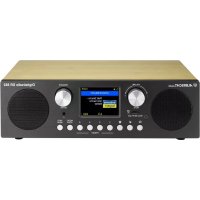
ALBRECHT DR 882 - Radio

DR 882 - Radio ALBRECHT - Free user manual and instructions

Find the device manual for free DR 882 ALBRECHT in PDF.

📄 48 pages English EN 💬 AI Question
Notice ALBRECHT DR 882 - page 19
View the manual : Français FR Deutsch DE English EN

User questions about DR 882 ALBRECHT

0 question about this device. Answer the ones you know or ask your own.

Ask a new question about this device

L'email reste privé : il sert seulement à vous prévenir si quelqu'un répond à votre question.

No questions yet. Be the first to ask one.

Download the instructions for your Radio in PDF format for free! Find your manual DR 882 - ALBRECHT and take your electronic device back in hand. On this page are published all the documents necessary for the use of your device. DR 882 by ALBRECHT.

USER MANUAL DR 882 ALBRECHT

15.1. Legal warranty for 2 years from the date of purchase ..........................................29

Thanks for purchasing the Albrecht DR 882 digital radio. Before you can start, plug the power adapter into the DC IN socket on the backside of the radio and connect the adapter to a wall outlet at home. Fully extend the antenna for the best DAB+/FM radio reception. Press the On/Off button to power on the radio. If you use the radio for the very rst time, it will automatically perform a full scan of all available DAB stations and play the rst station available.

  • Short press the MODE button to switch between DAB, FM, AUX, SD card, USB or Bluetooth mode.
  • Save your favourite stations by long pressing the favourite button .
  • Adjust the volume by using the left turning knob on the radio or the volume buttons on the remote control. Press the mute button to mute and unmute the radio.
  • In each menu you can conrm your selection by pressing the navigation knob or the OK button on the remote.
  • Enter the settings by long pressing the INFO/MENU button. Here you can nd several functions related to the current mode, as well as the main menu, where you can set the alarm, select a language, adjust the backlight brightness and much more. Exit the menu or go back a step in each menu by pressing the INFO/ MENU button again.

3. Scope of delivery

English No. Description Function 1 Infrared sensor Do not block the sensor to ensure proper function of the remote. 2 Volume / Mute Turn knob to change Volume, press to mute. 3 Display Displays information and user interface.

Navigate / Enter Turn knob to change stations and navigate menus, press to conrm selections.

On / Off Press to put radio into standby mode, press again to wake.

Micro SD card Insert micro SD card here with the golden contact pins facing up. 7 Sleep Timer Press to quickly open the sleep timer menu.

Favourites Press to recall favourite stations, long press to save favourites. 9 Presets Press to recall the rst four favourite stations, long press to save station to the corresponding save slot. 10 Mode / Scan Press to cycle operating modes, long press to initiate a full DAB/FM scan. 11 Info / Menu Press to cycle available station information, long press to enter menu. 12 Headphones Connect headphones with a 3.5 mm audio jack. 13 Antenna Please fully extend the antenna and position is upright for optimal reception. 14 DC IN Connect the supplied DC wall adapter here. 15 USB Port Connect USB storage with audio les here. 16 AUX IN Connect an external audio source using a 3.5 mm audio jack.22 English 4.1. Remote control Button Description Press to put radio into standby mode, press again to wake. Mode Press to cycle operating modes. Menu/Info Press to cycle available station information, long press to enter menu. Press to recall favourite stations, long press to save favourites.

Vol + / Vol - Navigate in menus up and down. Increase and decrease volume.

Change stations. Skip to next / previous track. OK Conrm menu selection Alarm Press to quickly open the alarm menu. Mute Press to mute the speakers. Sleep Press to quickly open the sleep timer menu. Dimmer Press to change display brightness. 1-4 Press to recall the rst 4 favourite stations, long press to save station to the corresponding save slot.23 English

To select the operating mode, press the MODE button on the device / remote. You can use the navigation knob or the ▲ / ▼ buttons on the remote to select an operating mode. Conrm your choice by pressing the navigation knob or OK button on the remote, or by simply waiting shortly. The available modes are:

Select the DAB radio mode to listen to a wide variety of high quality digital radio stations. Select a station from the list of currently available ones by turning and pressing the navigation knob. You can also use the or button on the remote to open the station list. Afterwards use the ▲ / ▼ and OK buttons to make a selection. Text and pictures transmitted by the current station are shown in the display, if available. Use the INFO button to cycle through different information, including current program information, genre, DAB carrier and frequency, error rate and signal strength, audio data information, and current date. 6.1. Store and recall favourites You can save up to 40 stations as favourites for quick access. To save a station, long press the button on the device or remote. Now select the desired preset number with the navigation knob or the ▲ / ▼ buttons, and conrm your selection with ENTER / OK. You can quickly save a station to the rst four preset slots, by long pressing the corresponding number key on the device or remote. To recall a saved favourite, short press the button on the device or remote. Now select the desired station with the navigation knob or the ▲ / ▼ buttons, and conrm your selection with ENTER / OK. You can quickly recall a station from the rst four preset slots, by short pressing the corresponding number key on the device or remote. 6.2. Full scan If new DAB stations have become available (e.g. after the radio was moved), a full scan is necessary to add these stations to the station list. To perform a full scan, open the menu by long pressing the INFO / MENU button and selecting the “Scan” option. You can also long press the INFO / SCAN button on the radio to start the scan directly. If the stations list is empty (e.g. at rst startup), the radio will start a full scan automatically.24 English 6.3. Manual tune To manually tune a DAB station, open the menu by long pressing the INFO / MENU button and select the “Manual Tune” option. You can now select the desired DAB ensemble and frequency. This function is recommended only for advanced users. 6.4. Prune invalid stations To prune not available DAB station from the station list, open the menu by long pressing the INFO / MENU button and select the “Prune Invalid” option. All stations, which can no longer be received, will be deleted from the station list. If you want to re-add them later, run a full scan (see “6.2. Full scan” on page 23) once they are available again.

Select the FM radio mode to listen to analogue radio stations. Tune a station manually by turning the navigation knob or using the or buttons on the remote. You can automatically search for the next available station by pressing ENTER or OK. To automatically search for all available stations and save them as favourites, long press MODE / SCAN on the device. Text transmitted by the current station is shown in the display, if available. Use the INFO button to cycle through different information, including current program information, genre, frequency, and current date. 7.1. Save and recall favourites You can save up to 40 stations as favourites for quick access. To save a station, long press the button on the device or remote. Now select the desired preset number with the navigation knob or the ▲ / ▼ buttons, and conrm your selection with ENTER / OK. You can quickly save a station to the rst four preset slots, by long pressing the corresponding number key on the device or remote. To recall a saved favourite, short press the button on the device or remote. Now select the desired station with the navigation knob or the ▲ / ▼ buttons, and conrm your selection with ENTER / OK. You can quickly recall a station from the rst four preset slots, by short pressing the corresponding number key on the device or remote. 7.2. Scan settings To change the scan settings, open the menu by long pressing the INFO / MENU button and select the “Scan Setting” option. You can now choose between “All Stations” and “Strong Stations”. “Strong Stations” disregards radio stations with weak signal while scanning, as they have noticeable interference and therefore inferior audio quality. Choose “All Stations”, to hear all receivable stations while scanning.25 English 7.3. Audio settings To change the audio settings, open the menu by long pressing the INFO / MENU button and select the “Audio Setting” option. You can now choose between “Stereo” and “Mono”. “Stereo” disregards all mono radio stations while scanning, while “Mono” allows all mono and stereo stations. Stereo stations usually offer better sound quality, but are more difcult to receive.

Select AUX mode to play audio from an external device connected via 3.5 mm audio jack. In this mode all audio input from the rear AUX input is played through the devices speakers. No controls other than volume are available. Please use the external audio device to control playback.

Select the Bluetooth mode to wirelessly stream audio from your smartphone or other device. The radio will try to connect to the last paired Bluetooth device. If it is not available, or the radio has not been connected before, it will enter pairing mode. To connect a phone to the radio in pairing mode, consult your phone’s manual and select the device “Albrecht DR 882”. To pair a new phone to the radio, rst disconnect the old phone by disabling Bluetooth on the phone or unpairing the radio from the phone’s Bluetooth menu. The radio will now enter pairing mode again. During Bluetooth playback you can control the media with ENTER / OK to play and pause and by turning the navigation knob or using the / buttons on the remote to skip forward / backwards.

10. Media playback mode

Select the SD-Card or USB modes, to play audio les from the respective storage media. The radio will read the storage media and play the rst song. After the last song on the media is nished, playback will restart from the beginning. During playback you can control the media with ENTER / OK to play and pause. Use the navigation knob or the / buttons on the remote to skip forward / backwards songs. Use the INFO button to cycle through various information about the current le.26 English

Various system settings can be found in the menu regardless of the current playback mode. Open the menu by long pressing the INFO / MENU button and use the navigation knob or the ▲ / ▼ buttons to select an option. Conrm your selection with ENTER / OK or use the INFO / MENU button to go back. 11.1. Sleep timer In this menu you can set a sleep timer. The radio will automatically enter standby mode after the selected amount of time. This way you can fall asleep to music without worrying about turning off the radio. This function can also quickly be accessed with the SLEEP button on the device or remote. 11.2. Time and date In this menu you can change the time and date settings.

11.2.1. Set Time/Date

Manually set the time and date.

11.2.2. Set Hour System

Choose between 24 and 12 hour clock.

Choose between an analogue and digital clock on the standby screen.

Choose between automatic clock setting via radio signal or manual clock setting. 11.3. Alarms You can congure two separate alarms in this menu. Select alarm 1 or 2 and then select enable/disable, set the time, set the source (Buzzer, DAB, FM), repeat the alarm daily / on weekends / on workdays or only once, and set the alarm volume. This function can also quickly be accessed with the ALARM button on the remote.27 English 11.4. Backlight In this menu you can congure the display backlight in three levels as well as the timeout before the display is dimmed during inactivity. Display dimming is set to off by default. You can also change the display backlight quickly by using the DIMMER button on the remote. 11.5. Equalizer (EQ) Use the equalizer to customize the sound signature to your liking. Multiple EQ presets are available. The EQ preset is applied in real time in this EQ menu, making is easy to compare presets and nd your personal preference. 11.6. Language Use this menu to change the language of the user interface. The following languages are available: English, German, French, Italian, Spanish, Norwegian, Polish, Dutch. 11.7. Factory reset Select this option to reset the radio to factory settings.

Warning: All settings, saved stations and paired BT devices will be deleted. A new DAB full

scan will be necessary and will start automatically after the reset. 11.8. System version This menu entry displays the current software version. Please include this information when contacting customer support.28 English

  • Only use the supplied power adapter. Using non-compatible power supplies can cause damage to the device and pose a risk of re.
  • Do not open the device to avoid the risk of electric shock. The device contains no user serviceable parts. Entrust maintenance work to qualied personnel.
  • Avoid both extremely high and extremely low temperatures. Do not place the device near heat sources such as radiators or gas/electric stoves. Avoid prolonged exposure to high humidity.
  • Do not spill water or other liquids on the device or submerge it, even partially. Avoid condensation due to extreme humidity. If the radio got wet, disconnect the power immediately and contact customer support.
  • Please note that excessive sound pressure or high volume can damage your hearing, especially when using headphones. Always reduce the volume before plugging in headphones.
  • Before cleaning the device, make sure it is unplugged from the power supply.
  • Never throw batteries and rechargeable batteries into re as this can cause an explosion. Please dispose of empty batteries in the recycling bin, not in the normal household waste.
  • Do not use scouring cloths or abrasive cleaning agents as these can damage the device surface.29 English

Problem Remedy The device does not switch on • Make sure the radio is connected to the power adapter and plugged into a working outlet.

  • Unplug the power adapter from the radio, wait for 10 minutes, then plug it back in. No sound or low volume • Is the radio muted? Use the volume up button to increase the volume. No signal or hissing in DAB/FM mode.
  • Re-position the antenna or the radio. Check that the antenna is fully extended and as vertical as possible. Some buttons/functions can no longer be used
  • Reset the radio to factory settings (see “11.7. Factory reset” on page 27).
  • Unplug the power adapter from the radio, wait for 10 minutes, then plug it back in.
  • Make sure the remote sensor on the front of the radio is clear of obstructions. Aim the remote directly at the sensor.
  • Change the remote batteries.

15. Warranty and recycling Information

We are obliged to include information on disposal, legal warranty provisions and EC declarations of conformity with instructions on the use of devices in various countries in the scope of supply of every device. This information can be found below. 15.1. Legal warranty for 2 years from the date of purchase The seller of this device grants you a legal warranty of two years from the date of purchase of the device. This warranty covers all failures that occur due to defective components or faulty functions within the warranty period, other than failures resulting from normal wear and tear, such as used batteries, scratches on the screen, housing defects, broken antennas, as well as defects due to external effects such as corrosion, over-voltage due to improper external power supply or use of unsuitable accessories. The warranty also excludes failures resulting from improper use of the device. In the event of a warranty claim, please contact the dealer from whom you purchased the device or our service partner without delay. The dealer will either repair or replace your device, or it will refer you to a specialist service centre. If you send in your device, please do not forget your purchase receipt as proof of the date of purchase and describe the fault that occurred as accurately as possible.30 English

16. Electronic waste law and recycling

European laws prohibit the disposal of defective or unusable devices in the household waste. If you want to dispose of your device, make sure you hand it over to one of the municipal collection points for recycling. These collection points are nanced by industry and ensure the environmentally sound disposal and recycling of valuable raw materials. 16.1. CE declaration of conformity Standards and directives Alan Electronics GmbH hereby declares that the model DR 882 radio complies with regulation 2014/53/EU. The full text of the EU declaration of conformity can be found at the following Internet address: www.service.alan-electronics.de/CE-Papiere 16.2. Notes on battery disposal The batteries used in this product contain environmentally harmful chemicals. To protect our environment, dispose of empty batteries according to local laws or regulations. Do not dispose of batteries with normal household waste. For more information, please contact your local authorities or the dealer where you purchased the product.

17. Service address and technical hotline

Manual assistant
Powered by Anthropic
Waiting for your message
Product information

Brand : ALBRECHT

Model : DR 882

Category : Radio