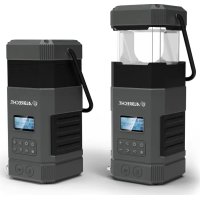
DR 114 - Radio ALBRECHT - Free user manual and instructions
Find the device manual for free DR 114 ALBRECHT in PDF.


| Product type | Emergency DAB+/FM radio with Bluetooth |
| Dimensions (L x D x H) | 100 x 200 x 100 mm |
| Weight | 810 g |
| Power supply | Rechargeable internal battery via USB-C (5V/2A), solar panel and hand crank |
| Radio functions | DAB+ (Band III), FM (87.5-108 MHz), Bluetooth 5.3 |
| Speaker power | 2 x 7 watts |
| Battery life | Approximately 4 hours of USB charging, solar charging: 5 hours for 15 minutes of radio, hand crank: 30 minutes for 15 minutes of radio |
| Additional functions | Programmable alarm (2 alarms), torch/lantern (3 modes), SOS siren, power bank function (USB-A output 5V/2A) |
| Protection rating | IPX5 (resistant to water jets) |
| Operating temperature | -10°C to +55°C |
| Maintenance | Clean with a soft non-abrasive cloth; close the connector cap to avoid moisture |
| Safety | Do not expose to water when ports are open; do not charge in a humid environment; avoid extreme temperatures |
| Spare parts and repairability | No user-serviceable parts; reset button under the charging cover |
| Warranty | Legal 2-year warranty from date of purchase |
| Box contents | Radio, USB-C to USB-A cable, carry bag, instruction manual |
Frequently Asked Questions - DR 114 ALBRECHT
User questions about DR 114 ALBRECHT
0 question about this device. Answer the ones you know or ask your own.
Ask a new question about this device
Download the instructions for your Radio in PDF format for free! Find your manual DR 114 - ALBRECHT and take your electronic device back in hand. On this page are published all the documents necessary for the use of your device. DR 114 by ALBRECHT.
USER MANUAL DR 114 ALBRECHT
- First steps 17
- Basic functions 17
- Scope of delivery 17
- Radio controls 18
- Standby mode 21
6.Mode selection 21 - DAB+ digital radio mode 21
7.1.DAB+station search 22
7.2. Station list 22
7.3. Saving / recalling a favourite stations 22
7.4.DAB menu 22
8.FM radio mode 22
8.1.FM station search 22
8.2.Setting the FM frequency manually 22
8.3. Saving / recalling a favourite stations 22
8.4.FM menu 23 - Wireless music streaming (Bluetooth) 23
- System setup 23
10.1.Alarm 23
10.2.Backlight 23
10.3.Time setup 23
10.4. Language 23
10.5.Factory reset. 23
10.6.Software Version 23 - Battery charging 24
11.1. Solar panel 24
11.2. Hand crank 24
12.SOS emergency function 24
13.Torch/Camping lamp. 24 - Technical data 25
- Safety instructions 26
- Troubleshooting 27
- Warranty and recycling Information 27
17.1. Legal warranty for 2 years from the date of purchase 27 - Electronic waste law and recycling 28
18.1. CE declaration of conformity 28
18.2. Notes on battery disposal 28 - Service address and technical hotline 28
1. First steps
Thanks for purchasing the Albrecht DR 114 emergency radio.
Before you can start, you should fully charge the internal battery through the supplied USB-C charging cable. Connect it to any sufficient power source like a wall adapter, PC, laptop or similar.
Before use, fully extend the antenna for the best DAB+/FM radio reception. Long press the On/Off button until the radio powers on. If you use the radio for the very first time, it will automatically perform a full scan of all available DAB stations and play the first station available.
2. Basic functions
- Short press the On/Off button to switch between DAB, FM or Bluetooth mode.
- Save your favourite stations by long pressing the favourite button.
- Adjust the volume by using the and buttons.
- In each menu you can confirm your selection by pressing the OK button.
- Enter the menu by long pressing the button. Here you can find several functions related to the current mode, as well as the main menu, where you can set the alarm, select a language, adjust the backlight brightness and much more.
- The USB-C socket can be used to connect headphones (Attention! not all headphone models are compatible)
3. Scope of delivery
ALBRECHT DR 114 emergency radio
- USB-C to USB-A charging cable
- Nylon transport bag
- Carabiner
- Instruction manual

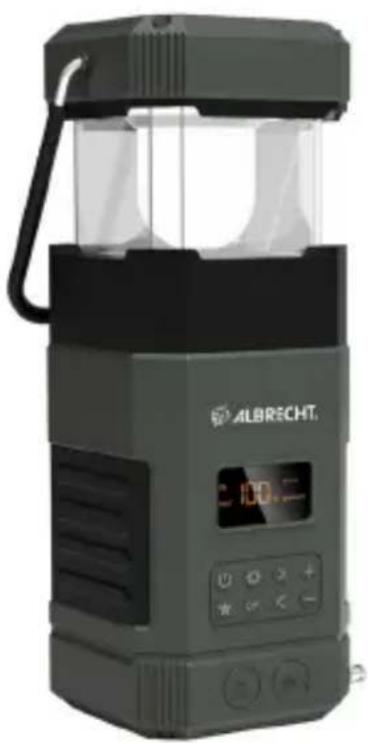
4. Radio controls
| No. Description Function | |
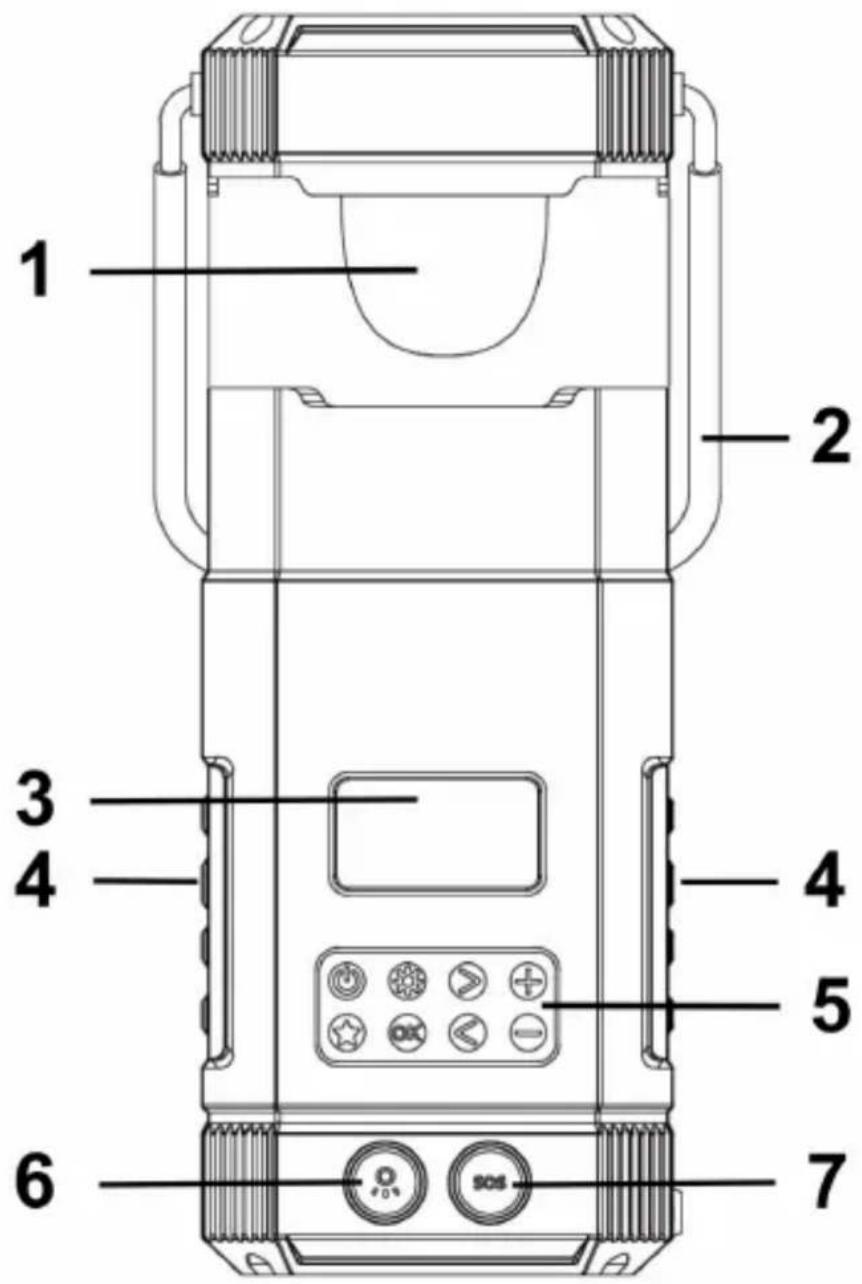
| 1 | Lantern Extend the unit to use the lantern |
| 2 | Handle You can use the handle to carry or hang the unit |
| 3 | Display Shows information about the current station/song/artist |
| 4 | Speaker Here are the two loudspeakers of the radio |
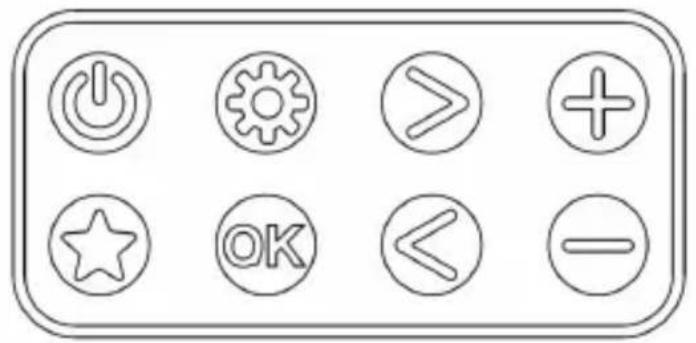
| 5 | Controls The following buttons for operating the radio are located here: |
| On/Off/Mode Short press: turn radio on / change mode (DAB / FM / Bluetooth)Long press: Standby mode / turn off completely when already in standby | |
| Favourites Short press: open a favourite radio stationLong press: save current radio station to favourites | |
| Settings Short press: toggle radio text informationLong press: enter menu | |
| Confirm Short press: confirm any selection in menusLong press: start full scan in DAB/FM | |
| Right DAB: next radio stationFM: short press +0.05 MHz / long press: search for next station | |
| Left DAB: previous radio stationFM: short press -0.05 MHz / long press: search for previous station | |
| Volume Up Increase the volume of the radio | |
| Volume Down Decrease the volume of the radio | |
| 6 | Torch on/offPress to activate torch, press again to change torchIf the unit is extended, the button activates the lantern |
| 7 | SOS button Press SOS button to play a loud siren sound and activate the emergency light |
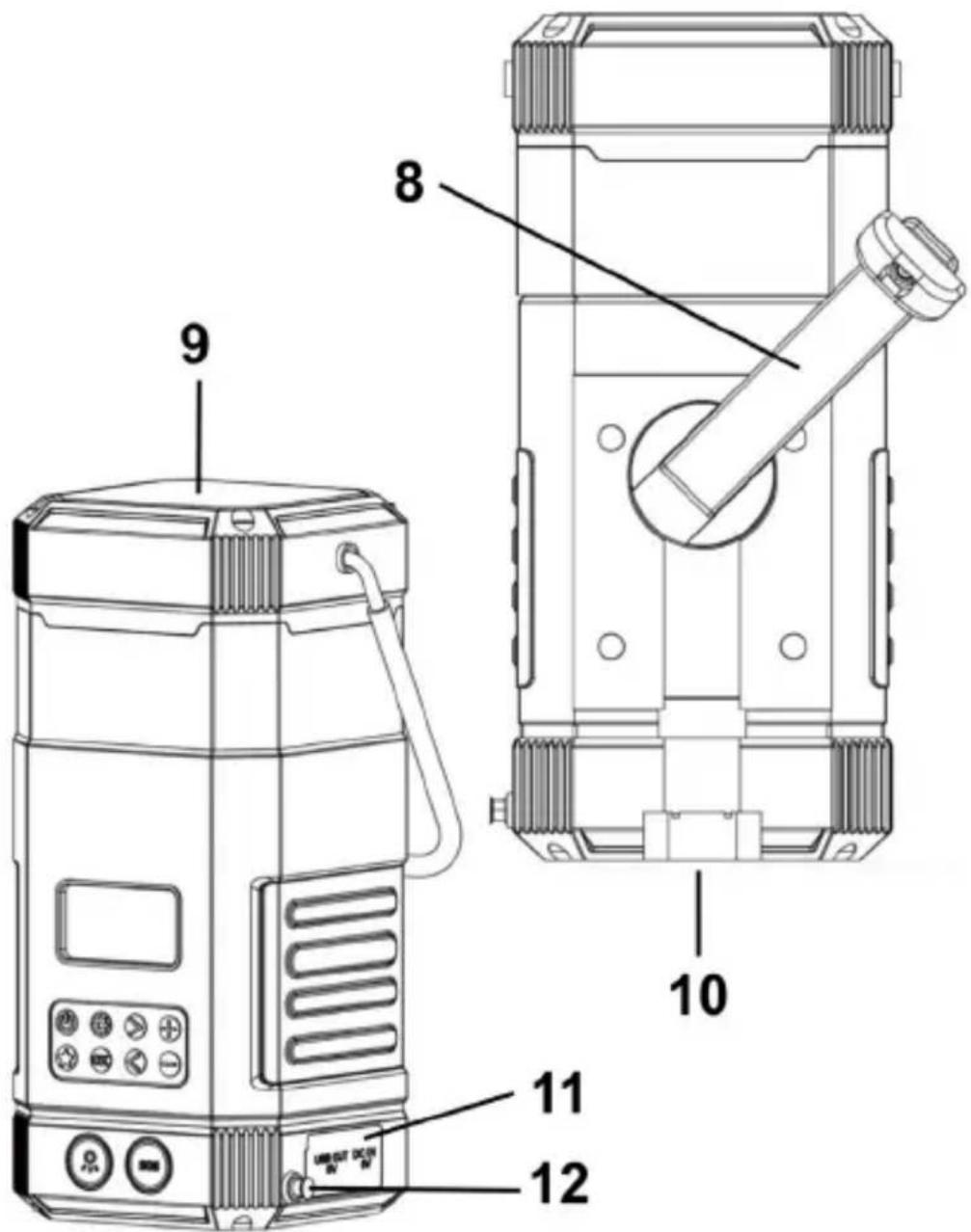
| 8 Hand crank | Twist hand crank to manually recharge the internal battery | |
| 9 Solar panel Face the | solar panel to the sun to recharge the radio | |
| 10 Torch / Emergency Light | Bright torch to use during night timeEmergency light flashes if SOS button is pushed | |
| 11 Connectors | Close the cover when the connectors are not in use to ensure protection against dirt and moisture | |
| USB-C charging | Use to recharge the integrated battery of Albrecht DR 114 | |
| USB output Power bank function to charge any mobile device | ||
| Reset button Hard reset the radio in case of software error | ||
| Charging Indicator | LED blinks red while charging and turns solid red when full | |
| 12 Antenna Extend antenna to full length for best reception | ||
5. Standby mode
To put the radio into standby mode, long press the On/Off button To reactivate the radio, short press the On/Off button To fully turn off the radio and preserve battery life, long press the On/Off button again in standby mode. No alarms are available, when the radio is turned off completely.
In standby mode, press the settings button to quickly view your currently set alarm settings, or press the OK button to quickly jump to the alarm settings wizard (see "10.1. Alarm" on page 24).
6. Mode selection
To select the desired audio mode, short press the mode button while the radio is turned on. The available audio modes are:
DAB+ digital radio
FM analogue radio
- Bluetooth wireless audio
7. DAB+ digital radio mode
Use this mode to listen to digital radio broadcasts. You can cycle through available stations with the left and right buttons. To access more functions, open the menu by long pressing the settings button. Navigate the menu with the left and right buttons, and use the OK button to confirm. To exit the menu use the settings button again.
7.1. DAB+ station search
The radio automatically performs a full station search when you turn it on for the first time.
If you would like to perform a full station scan again at a later time (e.g. after moving), press and hold down the OK button for approx. 2 seconds.
7.2. Station list
After the scan is complete, you can view all currently available stations in the station list, accessible in the menu. Navigate through the list with the left and right buttons and confirm your selection with OK.
7.3. Saving / recalling a favourite stations
If you want to save the current DAB+ station as a favourite, press the favourite button for about 2 seconds.
To recall a favourite later, short press the favourite button.
7.4. DAB menu
The DAB menu contains the following options:
- Trim invalid stations: Prune unavailable stations from station list.
- Station order: Sort stations in the station list by name or frequency.
- DRC: Adjust the level of the Dynamic Range Compression, reducing the volume differences between loud and quite passages.
- Manual tune: Manually tune a DAB frequency.
8. FM radio mode
Use this mode to listen to analogue radio broadcasts. You can cycle through available stations by long pressing the left and right buttons. To access more functions, open the menu by long pressing the settings button Navigate the menu with the left and right buttons, and use the OK button to confirm. To exit the menu use the settings button again.
8.1. FM station search
To perform a full station scan, press and hold down the OK button for approx. 2 seconds. All found radio stations will be saved in the favourite station list.
8.2. Setting the FM frequency manually
Press the left and right buttons briefly to set an FM frequency manually. The frequency is adjusted in 0.05 MHz steps.
8.3. Saving / recalling a favourite stations
If you want to save the current FM station as a favourite, press the favourite button for about 2 seconds.
To recall a favourite later, short press the favourite button on the radio.
8.4.FM menu
Other menu items in the FM menu include:
- Scan settings: Restrict the full scan to strong stations only.
- Audio settings: Only allow mono stations to improve reception.
9. Wireless music streaming (Bluetooth)
A Bluetooth-enabled mobile phone can be used for wireless playback of any audio content. For this purpose, you need to activate the "Bluetooth" mode by pressing the mode button Once this is done, search for "ALBRECHT DR 114" on your mobile device. For more details about operation of your mobile phone, please refer to the device's manual.
10. System setup
You can find the system setup in the menu of every audio mode.
10.1. Alarm
Use this menu to configure the alarm function. Two separate alarms can be programmed. Each alarm can be repeated daily, on weekdays or on weekends. The alarms can play a standard alarm sound or the last set FM or DAB station.
10.2. Backlight
Use this entry to set the display backlight illumination level and timeout.
10.3. Time setup
Use this entry to set time/date, change the time or date format or configure automatic time setting via FM/DAB.
10.4. Language
Select one of the following menu languages: English, German, French, Italian, Spanish, Portuguese, Danish, Finnish
10.5. Factory reset
Reset the radio to factory settings.
Attention: All settings and favourites will be deleted by this procedure!
10.6. Software Version
The current software version of the radio is displayed here.
11. Battery charging
During the charging process, the charging indicator blinks red. As soon as the radio is fully charged, the charging indicator turns solid red.
Attention! Reception may be impaired during charging or when charging an external device via the USB-A output.
11.1. Solar panel
To recharge the radio, place the radio's solar panel directly into sunlight. Be careful to not shade any part of the solar panel. Even small shadows can drastically decrease the panel's performance. Artificial light sources mostly do not provide enough energy to charge the radio.
1 hour of solar charging can power the radio for about 20 minutes or the integrated torch for 1 hour.
11.2. Hand crank
To recharge the radio, extend the hand crank and turn it in either direction. For optimal charging, turn the crank at 120 - 150 rpm (2 - 2.5 times a second). 1 minute of turning can power the radio for about 3 minutes.
12. SOS emergency function
Use this function in an emergency to alert people near your location. To activate, long press the SOS button on the bottom of the radio. The radio will play a loud siren and flash a red and blue signal light.
Attention: The siren is very loud. Prolonged close range exposure can cause hearing damage. Try to set up the radio some distance away, when using the emergency function. Use of the emergency function drains the battery at an excessive rate.
13. Torch / Camping lamp
To turn on the torch, press the button on top of the radio. If you press the button a second time, the light flashes.
If the lantern is extended, the button does not activate the torch, but the lantern light instead. This can be set to 3 different levels:
Cool white for maximum brightness
Warm white for a pleasant atmosphere
Red (attracts nocturnal insects less)
14. Technical data
| Model number Albrecht DR 114 | |
| Description DAB+/FM radio | |
| Speaker power 2x 7 Watt | |
| FM 87.5 to 108.0 MHz | |
| DAB+ 174 – 240 MHz (Band III) | |
| Bluetooth Version 5.3 / range 10m | |
| Bluetooth frequency / power 2.402 - | 2.480 GHz; 1 mW |
| Charging input USB-C / 5.0 V; 2 A | |
| Charging output USB-A / 5.0 V; 2 A | |
| Charging time approx. 4 hours | |
| Waterproof IPX5 | |
| Operating temperature -10°C to +55°C | |
| Dimensions (L x W x H) 100 x 200 x | 100 mm |
| Weight 810 g |
15. Safety instructions
- Always make sure, the charging port cover is properly closed, to protect the device from moisture and humidity. Do not expose the device to water or other liquids while the charging ports are uncovered! Accidental penetration of liquids into the device can cause serious damage. Do not charge the device in wet environments!
- Do not remove the screws to reduce the risk of electric shock. The device contains no user serviceable parts. Entrust maintenance work to qualified personnel.
- Avoid both extremely high and extremely low temperatures. Do not place the device near heat sources such as radiators or gas/electric stoves.
- Please note that excessive sound pressure or high volume can damage your hearing. Do not use the device a high volumes directly next to you head. Please be aware of the high volume of the emergency siren function.
- Before cleaning the device, make sure it is unplugged from the charger.
- Never throw batteries and rechargeable batteries into fire as this can cause an explosion. Please dispose of empty batteries in the recycling bin, not in the normal household waste.
- Do not use scouring cloths or abrasive cleaning agents as these can damage the device surface.
16. Troubleshooting
| Problem Remedy | |
| The device does not switch on | Make sure the radio is charged, by connecting it to a power source and charging for at least 30 minutes. ·If the radio is charged but still does not switch on, press the reset button under the charge cover with a small object. |
| No sound or low volume • Is the radio muted? Use the volume up button to increase the volume. | |
| No signal or hissing in DAB/FM mode. | ·Re-position the radio or change the antenna. Check that the antenna is fully extended. |
| Some buttons/functions can no longer be used | ·Reset the radio to factory settings (see “10.5. Factory reset” on page 24). ·Press the reset button under the charge cover with a small object. |
17. Warranty and recycling Information
We are obliged to include information on disposal, legal warranty provisions and EC declarations of conformity with instructions on the use of devices in various countries in the scope of supply of every device. This information can be found below.
17.1. Legal warranty for 2 years from the date of purchase
The seller of this device grants you a legal warranty of two years from the date of purchase of the device. This warranty covers all failures that occur due to defective components or faulty functions within the warranty period, other than failures resulting from normal wear and tear, such as used batteries, scratches on the screen, housing defects, broken antennas, as well as defects due to external effects such as corrosion, over-voltage due to improper external power supply or use of unsuitable accessories. The warranty also excludes failures resulting from improper use of the device.
In the event of a warranty claim, please contact the dealer from whom you purchased the device or our service partner without delay. The dealer will either repair or replace your device, or it will refer you to a specialist service centre.
If you send in your device, please do not forget your purchase receipt as proof of the date of purchase and describe the fault that occurred as accurately as possible.
18. Electronic waste law and recycling
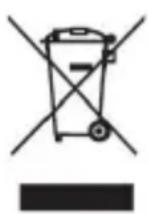
European laws prohibit the disposal of defective or unusable devices in the household waste. If you want to dispose of your device, make sure you hand it over to one of the municipal collection points for recycling. These collection points are financed by industry and ensure the environmentally sound disposal and recycling of valuable raw materials.
18.1. CE declaration of conformity
CE Standards and directives Alan Electronics GmbH hereby declares that the model DR 114 radio complies with regulation 2014/53/EU. The full text of the EU declaration of conformity can be found at the following Internet address: www.service.alan-electronics.de/CE-Papiere
18.2. Notes on battery disposal
The batteries used in this product contain environmentally harmful chemicals. To protect our environment, dispose of empty batteries according to local laws or regulations. Do not dispose of batteries with normal household waste.
For more information, please contact your local authorities or the dealer where you purchased the product.
19. Service address and technical hotline
You can call our service hotline at +49 6103 / 9481 - 66 (at a fee of the German landline network) or email us at service@albrecht-midland.de.
Before you send us back a supposedly defective device in the event of a problem, you can save your time and shipping costs by performing a few simple tests (see chapter "16. Troubleshooting" on page 28) or use our hotline service for support.