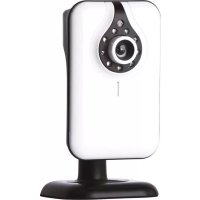
C706IP - Surveillance Camera Flamingo - Free user manual and instructions
Find the device manual for free C706IP Flamingo in PDF.



User questions about C706IP Flamingo
0 question about this device. Answer the ones you know or ask your own.
Ask a new question about this device
Download the instructions for your Surveillance Camera in PDF format for free! Find your manual C706IP - Flamingo and take your electronic device back in hand. On this page are published all the documents necessary for the use of your device. C706IP by Flamingo.
USER MANUAL C706IP Flamingo
indoor pan & tilt IP camera
GB WIFI NETWORKCAMERA
DE WIFI NETZWERK-KAMERA
PL BEZPRZEWODOWA KAMERA IP
NL WIFI NETWERKCAMERA
FR CAMERA EN RESEAU WIFI
ES CAMARA IP WIFI
TR IP AGI KAMERASI
Thank you for your purchase of the C706IP network camera. We recommend that you carefully read this manual before use in order to use your camera as quickly and easily as possible.
You can find the illustrations from this manual prior to this chapter.
| smartwares safety & lighting b.v. | NL:0900-208888 lokaal tarief |
| BE:070-233031 lokaal tarief | |
| F:0825 560 650 15ct/min | |
| Broekakkerweg 15 5126 BD Gilze The Netherlands | DE:+49 (0) 1805 010762 14Ct./Min. dt. Festnetz, Mobil max. 42Ct./Min |
| UK:+44 (0) 845 230 1231 | |
| www.smartwares.eu | ES:+34 938427589 |
1. Preventive measures and safety instructions
1.1. Safety symbols used
Warning! A warning indicates the risk of (serious) damage to the user or the product if the user does not carry out the procedures with care.
Please note! A comment makes the user aware of possible problems.
Tip: A tip makes the user aware of convenient functions and additional options.
1.1.1. Notifications
Warning! Do not install the product outdoors or in any place where it might become wet.
Warning! Do not install the product in any place that might be exposed to extreme heat or cold.
Warning! Before beginning assembly, check to make sure there are no electrical wires or water pipes running through the wall where you want to drill.
Warning! By removing the plug from the power outlet, you immediately cut off power to the product; then contact the Smartwares service desk when:
a hard fall;
Warning! It is not permitted to open the product yourself or to have it opened, neither is it permitted to repair the product yourself or to have it repaired. This will void the warranties. Please let any maintenance be carried out by certified maintenance personnel.
Warning! Only use original accessories from the manufacturer.
Warning! Keep the product out of reach of children.
Warning! Disconnect the device from all power sources before cleaning it.
4 Warning! Use a clean, dry cloth to clean the product.
A Warning! Do not use any abrasive agents, corrosive cleaning products or any substances that contain bleach or solvents to clean the product.
Warning! Remove the adapter from the power outlet during storms, lightning and whenever the product will not be used for a longer period of time.
Please note! Install the product as indicated in this manual. If in doubt, consult a recognised technician and always take account of local installation codes and regulations.
Please note! The camera should be kept out of direct sunlight.
Please note! Do not point the camera at bushes, tree branches or other moving objects.
Please note! The product must not be discarded as unsorted municipal waste, it must be disposed of separately.
Please note! Find out about the options in your region for disposing of the product after use. Do not throw away electrical appliances or components, but see whether the product (components) can be turned in, recycled or reused.
Please note! Wireless systems can be affected by interference from wireless telephones, microwave ovens and other wireless devices that operate in the 2.4 GHz range. Keep the product at least 3 metres away from any possible sources of interference during installation and operation.
Please note! The camera is not able to view through glass at night. Keep this in mind when positioning it.
2. Intended use
The C706IP is a security camera that allows you to view surveillance video on your smartphone using the "uCare Cam" app. For this, the C706IP needs to be connected to a WIFI network.
The camera can make audio and video recordings during the day. Furthermore, the camera is fitted with motion detection and sound detection.
Caution! The manual is based on use of the camera with an Android phone. The main steps are described separately for the iPhone. The other operations are similar to the Android App.
3. Technical specifications
3.1. General product specifications
Sensor: 1/6" Colour CMOS Sensor
Resolution: 640× 480 pixels (300k pixels)
IR Lens: f: 3.0mm
Viewing angle: 55 degrees
Video compression: MJPEG
Images per second: 1 25 fps(QVGA)
Power source: 230VAC/5VDC/1A Adapter
Energy consumption: 5W (Max.)
Temperature: 0^ 55^ (32^ 131^)
Minimal system requirements:
Memory card: Supports microSD card up to 32 GB
Supported mobile OS: iOS 5.0 and higher / Android 4.0 and higher
Certification: CE, FCC, RoHS, R&TTE
Warranty: Limited 3-year warranty
3.2. Main component parts ①
- USB cable
- Adapter
- C706IPcamera with base
- User's manual
5.Cardboard template
3.3. Connections ②
- Reset/WSP button
- Slot-in for micro SD card
- Micro USB connection
- Microphone
4. Camera installation
4.1. Connecting the camera

You can add your IP Camera to your phone using a WIFI Router. You can choose to connect via the router mode or using the WPS setup mode. The text below explains how to connect to the router mode.
4.2. Adding a camera to your smartphone via router mode
Please note! You need a wireless router in order to establish a wireless connection with your camera.
Please note! If your router is password protected, you will need to know the password.
Attention! To use the "uCare Cam" App, you need a smartphone with internet access.
To set up your camera using Android, go to section 4.2.1. To set up your camera using iOS, go to section 4.2.2.
4.2.1. Android
appears B.

A2 The "WiFi connect" menu
to add the camera via the WIFI network.

Caution! When the camera does not alternately flash green or red:

button. D
Please note! If your router is password protected, you will need to know the password.
list of cameras. (E)
4.2.2. iOS

appears B.
to add the camera via the WIFI network.
click on "next".
Please note! If your router is password protected, you will need to know the password.
After the camera has received the information it will restart.

Tip: The default username is "admin". The default password is "0000".
The camera will now restart and connect to the router; this may take up to 10 minutes. Once it is successful, the LED on the camera will be orange.
Caution! If the LED does not turn orange, check if your camera is within the range of your router. Then complete the above steps again.

4.3. Adding the camera to a new smartphone using a QR code

Caution! This function only works when the camera has already been added using another smartphone. Go to section 4.2.2. for Android, and 4.2.2. for iOS.
4.3.1. Android

menu appears.
Next, scan the QR code at the bottom of your camera.
After scanning screen G appears.
Caution! The default "Camera's Password" is "0000".
The camera is now connected to your smartphone and has been added to your list of cameras E.
4.3.2. iOS

camera.
After scanning screen G appears.
Caution! The default "Camera's Password" is "0000".
The camera is now connected to your smartphone and has been added to your list of cameras E.
4.4. Camera installation
Please note! Make sure that the camera functions properly in the chosen location before starting installation.
You can choose to place the camera on a flat surface, or to attach the camera to the location of your choice with screws.
To mount the camera using screws, perform the following steps:
included.
Caution! Use screws with a head that fits into the base of the camera.
Caution! If the surface is too hard to put screws in (stone/aerated concrete), you need to drill holes and use plugs.

5. Managing your camera using your smartphone
Make sure your camera(s) is/are connected to your smartphone via the "uCare Cam" app (see section 4.2.).
Caution! This chapter only explains the operations for an Android phone. The operations for the iPhone are similar to those for the Android App.
5.1. Viewing your camera image on your smartphone
E The camera
picture appears on your smartphone. (H)
Attention! If you do not have a picture it is possible that your wireless connection is not fast enough. In that case change the resolution of your camera image (see section 5.1.2.)
The camera screen provides a number of options:
to make a snapshot of your camera image.
H2 button to turn the microphone on and off.
H3 for more information.
5.1.1. Tabs
Camera List: This is the home screen of the app. Here you can add a new camera, import a camera and view your installed cameras.
WIFI Setting H5: You can add a new camera in this tab.
Play List: A list of snapshots is displayed per camera here.
Setting: You can view a list of installed cameras here. Enter your username and password to change your settings.
Tip: The default "Manager's Name" is "admin". The default "Manager's Password" is "0000".
5.1.2. Changing the settings of your camera on your Android smartphone
"Manager's Password", and press "OK".
Tip: The default "Manager's Name" is "admin". The default "Manager's Password" is "0000".
Camera Info: Press this button to retrieve more information, including the IP address.
Change WIFIRouter12: Press this button to view and change a list of available WIFI networks.
Alert & Notify Setting 13: Press this button to set when you wish to receive an alert when the camera detects motion or a sound. For information, see section 5.2.
Real time video Setting 14: Press this button to turn the microphone and the time display on and off, among other things. Under "Video quality setting" you can change the resolution of the video image.
SD Card Recording Setting 15: Press this button for the SD card recording settings.
SD Card Video Playback 16: Press this button to play back recordings on the SD card.
Password Setting 17: Press this button to change your username at "Manager's Name" and the password at "Manager's Password". You can also change the password of the camera at "Camera's Password".
Date & Time 18: Press this button to change the date and time.
5.2. Motion and sound detection
With this function, the camera displays a message when the camera detects motion or sound.
5.2.1. Email snapshot alert
With this function, you will receive an email with a picture when the camera detects motion or sound.
Caution! For this function you need a Gmail address.
1 menu.
- Next, press "Email snapshot alert" 11.

and low. (K3)

and low. (K5)
Enter the password for your email at "Password".
5.2.2. Phone App alert notification
With this function, you will receive an alert on your mobile phone when the camera detects motion or sound.
B menu.
- Next, press "Phone App alert notification" (M1)

and low.

and low.


6. Cleaning and maintenance
Warning! Disconnect the device from all power sources before cleaning it. The devices are maintenance-free, so do not open them. Opening the device will void the warranty. Only clean the outside of the devices with a soft, dry cloth or brush
7. Environment and disposal
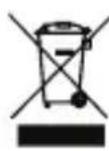
The symbol on the material, accessories or packaging indicates that this product may not be discarded as household waste. Dispose of the equipment through a recycling centre that handles electronics and electrical appliances within the EU and in other European countries which use separate collection systems for used electronics and electrical appliances. By disposing of the equipment in the
proper way, you will be helping to prevent possible risks to the environment and public health, which might otherwise be caused by improper handling of the discarded equipment. Recycling of materials contributes to the conservation of natural resources. Therefore, please do not dispose of your old electronics and electrical appliances via household waste.
8. Warranty
A limited 3 year warranty applies to this device. To view the warranty terms please go to: www.smartwares.eu.
Change WiFi Router12
5.2.2. Phone App alert notification
App alert notification"
5.2.2. Phone App alert notification
5.2.2. Phone App alert notification
Certifications: CE, FCC, RoHS, R&TTE
Garantie: Garantie limitee de 3 ans
3.3. Raccordements ②
A A2. Le menu "WiFi connect"
SD Card Recording Setting
5.2.2. Phone App alert notification
SD Card Recording Setting15
5.2.2. Phone App alert notification
"WiFi connect" menüsu

duğmesine basiniz.
5.2.2. Phone App alert notification
5.2.2. Phone App alert notification
Me autyn tvn aeitoupyia lauabve tia avapopa oTo tnlepwvo ac otav n kapea avxveo e Kivnon n xy.
"SD card remove detection" K6 out of space alert"K7
zpravu 1. dostavat
5.2.2. Phone App alert notification
Change WiFi Router12
Real time video Setting
SD Card Recording Setting
5.2.2. Phone App alert notification
Certificate: CE, FCC, RoHS, R&TTE
faceti clipe "next".
Change WiFi Router12
5.2.2. Phone App alert notification
CE, FCC, RoHS, R&TTE
Jamstvo:
Ograničeno jamstvo u trajanju od 3 godine
5.2.2. Phone App alert notification
Pomocu ove funkcije dobit cete obavijest na svoj Telefon kad kamera otkrierePokret ili zvuk.
| App alert notification" M1. |
| pokret M2. |
| visoka, srednja i niska. M5. |
| zvuk M4. |
| visoka, srednja i niska. M5. |
| uklonjena M6. |
napuniM7.
6. Čiśćenje i održavanje
4. Camera installation
5.2.2. Phone App alert notification
EC DECLARATION OF CONFORMITY
GB Smartwares hereby declares that the device complies with the essential requirements and other relevant provisions of Directive 1999/5/EC. Go to www.elro.eu for the declaration of conformity or scan the QR code.
D Hiermit erklart Smartwares, dass sich das Gerät in Übereinstimmung mit den grundlegenden Anforderungen und den übrigen einschlagigen Bestimmungen der Richtlinie 1999/5/EG befindet. Die Konformitätserklärung finden Sie auf www.elro.eu oder scannen Sie den QR-Code.
NL Hierbijk verkaart Smartwares dat het toestel in overeenstemming is met de essentiele eisen en de andere relevante bepalingen vanrichtlijn 1999/5/EG. Gaaar www.elro.eu voor het document van conformiteit of scan de QR code.
F Par la presente Smartwares declare que l'appareil est conforme aux exigences essentielles et aux autres dispositions pertinentes de la directive 1999/5/CE. Pour le document de conformité, visitez www.elro.eu ou scannez le code QR.
PL Niniejszym Smartwares oswiadca, ze wyrrob jest zgodny z zasadniczymi wymogami oraz pozostalymi stosownymi postanowieniami Dyrektywy 1999/5/WE. Certyfikat zgodnosci przy poubrac ze strony www.elro.eu, lub ceskanować kod QR. W celu poubrania deklaracje zgodnosci przyd z do witryny www.elro.eu lub ceskanuj kod QR.
Por medio de la presente Smartwares declar que el equipo cumple con los requisitos esenciales y cualesquieraoras disposiciones aplicables o exigibles de la Directiva 1999/5/CE.Para ver el documento de conformidad,visite www.elro.eu o digitalice el@cdoigo QR.
GR Me to npawv n Smartwares otu oakevivai oupwn me tic onavtkec anaitheic kai aalec oxetike, diataeic tnc odnyiac 1999/5/EG. IyaiveTe OTo www.elro.eu yia to eyypaO oumopwongn oapwot ToV kwokr QR.
CZ Smartwares timto prohlasuje, ze toto zaifzeni odpopvida zakladnim pozadavkum a dalsim ustanovenim smernice 1999/5/ES. Dokument o shod e Najdete na strance www.elro.eu nebo k nemu prjejdtene naskenovanim QR kodu.
H A Smartwares ezennel kijelenti, hogy a keszülek megfelel az 1999/5/EK irányelvek alapvető kovetelményeinek és mas vonatkozó elöirasainak. Lepjen tovább a www.elro.eu oldalra a megfeleloségi nyilatkozathoz, vagy szkennelje be a QR kódot.
RO Smartwares declară prin prezenta cà echipamentul se afla in conformitate cu cerinteile esentiaeși alte prevederi relevante ale Directivei 1999/5/CE. Pentru declaratia de conformitate mergeti la www.elro.eu pau scanati codul QR.
TR Isbu belge ile Smartwares bu cihazin 1999/5/EC Direktifinin temel gerekliklerine ve diger ilgili hukumlerine uygun oldugunu bany erder. Uygunluk belgesi icin www.elro.eu adresine gadin veya QR kodunu tarayin.
HR Smartwares ovime izjavljue da uredaj uodovljava svim osnovnim zahtjevima i ostalim relevantnim odredbama direktive 1999/5/EZ. Dokument o sukladnosti potrazite na www.elro.eu ili skenirajte QR kód.
Smartwares dichiarac on la presente che l'apparecchio e conformare alle esigenze essenziali e alle other dispositions pertinenti della direttiva 1999/5/CE. Per il documento di conformità, visitare www.eiro.eu o eseguire lo scan del codice QR.
Authorized representative: Mr. Ad Netten
Quality Manager
Date: 01.02.2013
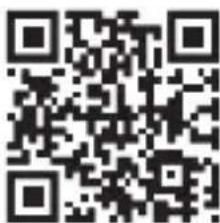
QR code


R&TTE APPROVED
C706IP - 2,4 GHz.
3 YEAR
smartwares
safety & lighting b.v.
Broekakkerweg 15
5126BDGilze
The Netherlands
www.smartwares.eu
NL:0900-208888 lokaal tarief
BE:070-233031 lokaal tariel
F:0825560650
DE:+49(0)1805010762