PCLKLSA1 - Other camera accessories SONY - Free user manual and instructions
Find the device manual for free PCLKLSA1 SONY in PDF.



| Product type | LISSA audio system connection kit and control software |
| Brand | Sony |
| Model | PCLK-LSA1 |
| Kit contents | i.LINK cable (1), Digital Link Manager CD-ROM, instruction manual, warranty card |
| Software compatibility | Windows 98 Second Edition / Windows 2000 |
| Required hardware | IBM PC/AT compatible computer with i.LINK connector, CD-ROM drive |
| Required disk space | 10 MB or more |
| Required display | VGA (640×480 pixels), 65,536 colors or more |
| Compatible devices | STR-LSA1, CDP-LSA1, MDS-LSA1 |
| Main functions | Control of LISSA devices from the computer, text input, MD editing, CD-MD recording via drag and drop, radio selection and presetting, radio recording on MD, audio settings |
| Connectivity | i.LINK (IEEE 1394) |
| Length of supplied cable | Not specified (standard i.LINK cable) |
| Maintenance and cleaning | Clean with a soft, dry cloth. Avoid moisture and chemicals. |
| Safety precautions | Disconnect i.LINK devices before installing the software. Do not insert metal objects into the i.LINK connector. Use only with specified devices. |
| Spare parts and repairability | The i.LINK cable can be replaced by a standard cable (4-pin to 6-pin if necessary). The software can be reinstalled from the CD-ROM. |
| Warranty | Limited warranty by Sony (replacement of defective product) |
| General information | This software does not transmit music data between the computer and i.LINK devices. The online manual is in PDF format requiring Adobe Acrobat Reader. |
Frequently Asked Questions - PCLKLSA1 SONY
User questions about PCLKLSA1 SONY
0 question about this device. Answer the ones you know or ask your own.
Ask a new question about this device
Download the instructions for your Other camera accessories in PDF format for free! Find your manual PCLKLSA1 - SONY and take your electronic device back in hand. On this page are published all the documents necessary for the use of your device. PCLKLSA1 by SONY.
USER MANUAL PCLKLSA1 SONY
Digital Link Manager for LISSA
Version 1.0E
Operating Instructions ____ GB
Mode d'emploi FR
- Duplication of any or all of the contents of this software and instruction manual or lending of this software to third parties without the express permission of the copyright holder is strictly prohibited by copyright law.
- Sony cannot be held liable in any way for monetary losses, lost profits or claims from third parties arising from the use of this software.
- Should any manufacturing defects occur, Sony's responsibility shall be limited solely to replacing said defective merchandise.
- This software is approved for use only with the specified equipment.
- Sony reserves the right to change software specifications without prior notice.
Program © 2000 Sony Corporation Documentation © 2000 Sony Corporation
© 2000 Sony Corporation All rights reserved.
- Microsoft, MS-DOS and Windows are the registered trademarks of U.S. Microsoft Corporation in the U.S. and other countries.
- IBM and PC/AT are the registered trademarks of U.S. International Business Machines Corporation.
- All other names of systems, products and services are trademarks of their respective owners. In the manual, the ^TM or ^® mark are not specified.
- Adobe ^® and Adobe ^® Acrobat ^® Reader are trademarks of Adobe Systems Incorporated.
• Is the registered trademarks of Sony Corporation.
Table of contents
Getting started
Overview 3
System requirements...... 4
Notes 4
Preparation
Checking the supplied items...... 5
About this manual 6
Using the on-line manual...... 6
Using the Help 7
Installing a software 8
Installing the Digital Link Manager....8
Installing the Adobe Acrobat Reader 13
Uninstalling a software ..... 14
Connections 15
Starting the software 16
Quitting the software 17
Additional Information
Troubleshooting 18
Overview
This software allows you to use your computer to control STR-LSA1, CDP-LSA1 and MDS-LSA1 that are connected to your computer by i.LINK connecting cables.
- Control LISSA-series components from your computer through an i.LINK connecting cable.
- Enter text through the computer keyboard for recording to various media.
- Edit MDs while viewing the computer's display.
- Enjoy easy recording by performing a drag and drop from a CD to an MD.
- Select a radio station from the computer.
- Edit and memory preset radio stations from the computer.
- Enjoy easy recording from a radio onto an MD.
- Check a variety of information with the computer's display.
- Make the settings for each connected component from your computer.
- Adjust the sound from the computer.
System requirements
Digital Link Manager (Ver. 1.0E) requires the following hardware and software.
☐ IBM PC/AT (or compatible) personal computer (This software does not run on the Macintosh.)
— Recommended models: VAIO notebooks sold in Europe from summer 2000 (PCG-X29, PCG-F701, PCG-F707, PCG-F707K, PCG-F709, PCG-F709K, PCG-Z600NE, PCG-Z600NEK, PCG-SR1K, PCG-C1XD) and later models.
— i.LINK connector (or i.LINK card)
— Free hard disc space:
10 MB or more
— Video board and display driver:
VGA (640 · 480 pixels), 65,536 colours or more
— CD-ROM drive (for software installation)
☐ OS : Windows98 Second Edition/Windows2000 (This software does not run on Microsoft Windows3.1, Windows95 or WindowsNT.)
☐ Video monitor: VGA (640 · 480 pixels), 65,536 colours or more
Notes
- This software does not support the transmission of music data from your computer to an i.LINK component, or from an i.LINK component to your computer.
- This software can be used only with STR-LSA1, CDP-LSA1 and MDS-LSA1.
- We recommend that this software be used within a configuration consisting of one STR-LSA1, one CDP-LSA1 and one MDS-LSA1.
Checking the supplied items
Make sure that you have received the following supplied items with the PCLK-LSA1. If anything is missing, please contact the shop where you purchased this kit or your nearest Sony dealer.
• i.LINK connecting cable (1)

• Digital Link Manager CD-ROM (1)
- Operating instructions
- Warranty card
About this manual
This manual explains how to install the Digital Link Manager.
The latest information about this software can be found in the
"Readme.txt" file in the supplied CD-ROM.
After installing the software, you can use the on-line manual and the help.
Using the on-line manual
Before you use the on-line manual, Adobe Acrobat Reader (Adobe Systems Incorporated) must be installed in your computer. If it is not, do the procedure "Installing the Adobe Acrobat Reader" on page 13. With the computer turned on, do the following:
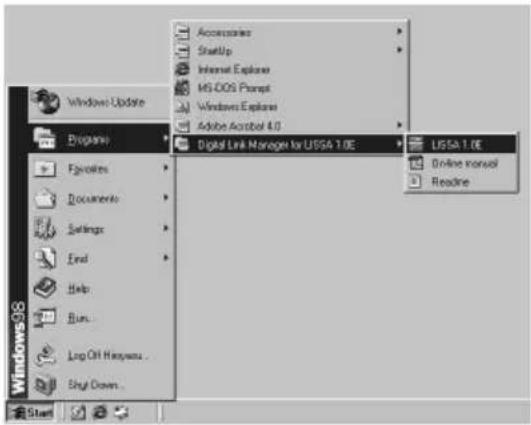
To open the on-line manual, click "Start", point to "Program", point to "Digital Link Manager for LISSA 1.0E", and then click "On-line manual".
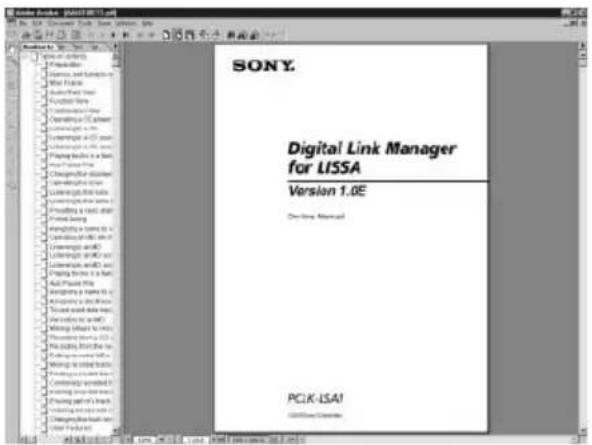
The cover page appears in the display.
Using the Help
Note
Help exists only in English.
Operating instructions in other languages can be found in the on-line manual (page 6).
Opening the table of contents of Help
Click the Help button on the Main Window, and the table of contents of Digital Link Manager will be opened.
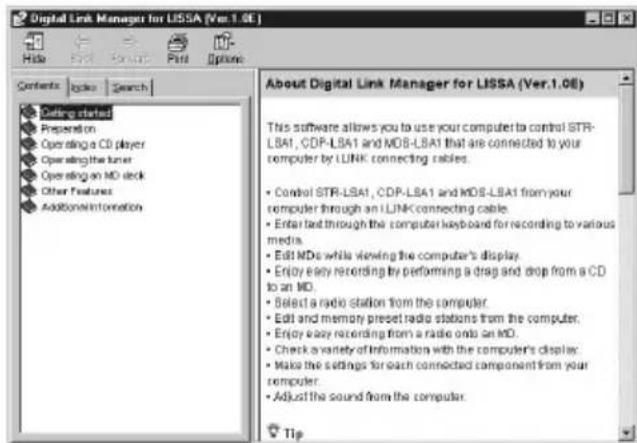
- Double-click and the titles of the items contained in it appear.
- Click ☐, and an explanation of the item appears.
- Click an underline in the explanation, and the page of the related explanation appears.
Searching by Keywords
Click the "Index" tab in the above search topic window, and the table of contents disappears and a list of keywords appears.
To search for a keyword, enter the word by which you want to search or scroll the list of keywords.
To view the explanation on a keyword, select the keyword from the list of keywords and click "Display".
Installing a software
Follow the procedures given below to install a software onto your computer's hard disc. Set the computer to the operation mode before proceeding.
Note
Be sure to install this software before connecting an i.LINK component to your computer. If not, this software may not function properly.
Installing the Digital Link Manager
1 Insert the supplied CD-ROM into the computer.
The setup window appears.
Carefully read the precautions which appear.
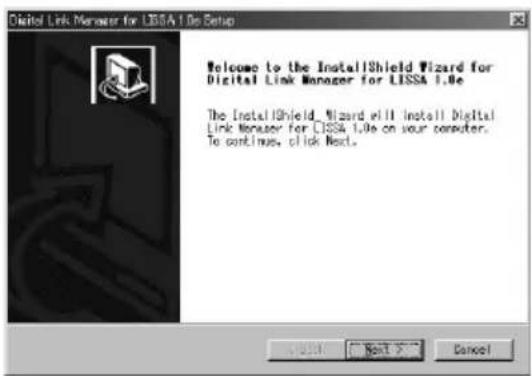
If the window does not appear, do the following operations.
1 Click "Start", point to "Settings", and then click "Control Panel".
The control panel is opened.
2 Double-click "Add/Remove Programs".
The "Add/Remove Programs Properties" window appears.
3 Click "Install ......", and then click "Next" after the "Install Program From Floppy Disk or CD-ROM" window appears.
The installer on the CD-ROM will be detected automatically and the "Run Installation Program" window appears.
4 Check that "X:\Setup.exe" (X means the drive name of the CD-ROM) is displayed in the "Command line for installation program" and click "Finish". The installer starts up.
After a while, the setup programme is started.
2 Click "Next".
The window for selecting a destination appears.
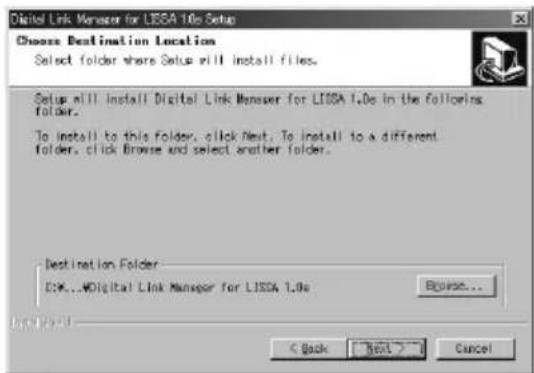
To change a destination folder, click "Browse ..." and select a folder in which you want to install this software.
3 Click "Next".
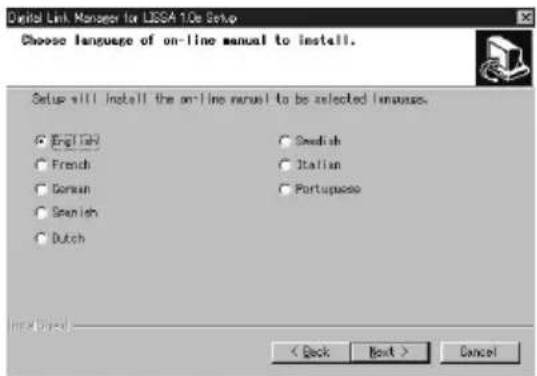
Select from the list the desired language version of the on-line manual to be installed.
(continued)
Installing the Digital Link Manager (continued)
4 Click "Next".
The process of installing the software on the hard disc starts. The Digital Link Manager folder is created in the folder in which this software is installed.
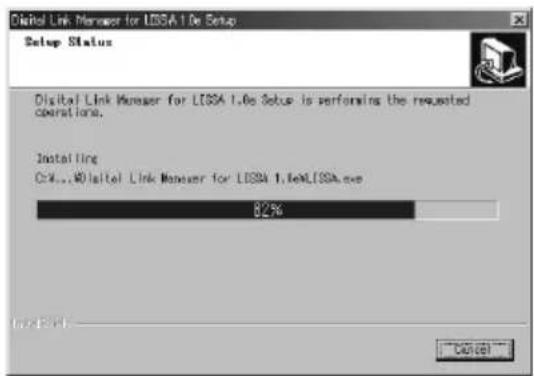
5 Click "Finish" after the window for finishing the installation procedure appears.
A "Readme.txt" file is opened.
Be sure to read the precautions which appear.
6 Close the "Readme.txt" file.
The window for restarting the computer appears.
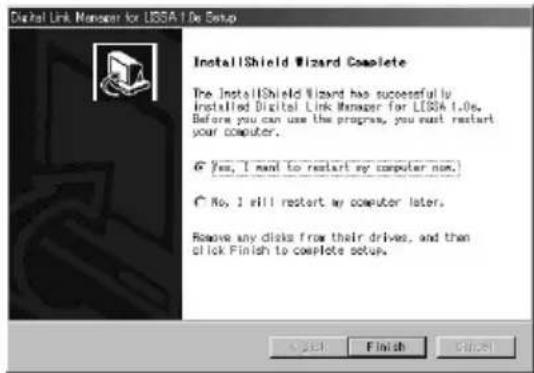
7 Eject the CD-ROM and restart the computer.
This completes the setup process.
Be sure to restart the computer. If not, the software will not function properly.
Notes
- Installing the software creates a folder. Because this software uses this folder, please do not erase, move, or change the contents of this folder.
- When you connect STR-LSA1, CDP-LSA1 or MDS-LSA1 to your computer for the first time, and the operating system on your computer is Windows2000, a message may appear requesting that you insert the supplied CD-ROM. Follow the on-screen instructions at this time.
If nothing appears in the Audio Rack View when you start up the software for the first time
When you start up the Digital Link Manager, the icons of the connected components will not appear in the Audio Rack View and the window shown below will appear if:
- you connected the LISSA-series components to your computer before you installed the Digital Link Manager.
- you connected the LISSA-series components to your computer after you installed the Digital Link Manager, but you did not restart the computer.
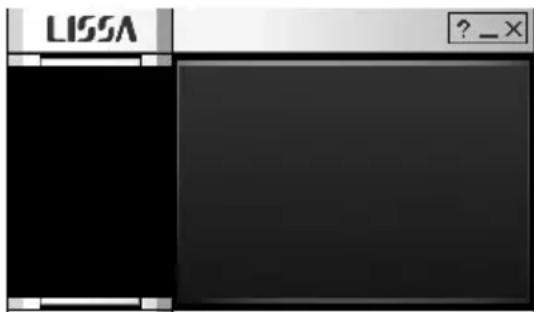
If the window appears when you are using Windows98 Second Edition
1 Disconnect all i.LINK devices from the computer.
2 Do the procedure "Uninstalling a software" on page 14 to uninstall the software.
3 Do the procedure "Installing the Digital Link Manager" on page 8 to re-install the software.
4 Restart the computer.
(continued)
Installing the Digital Link Manager (continued)
If the window appears when you are using Windows2000
1 Disconnect all i.LINK devices from the computer, and then reconnect only the LISSA-series components to the computer.
2 Right-click "My Computer", select "Properties", click the "Hardware" tab, and then click "Device Manager" to open the "Device Manager" window.
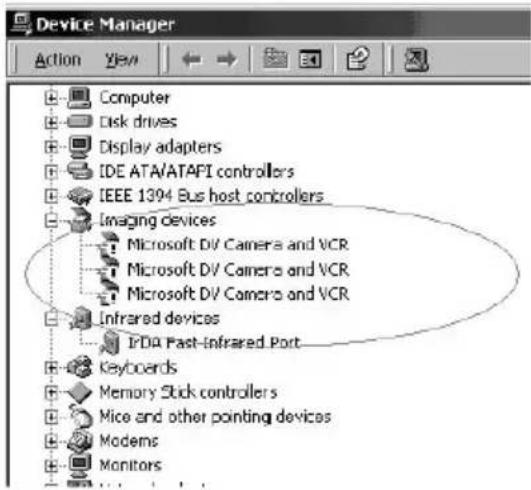
3 Double-click "Microsoft DV Camera and VCR", click the "Driver" tab in the "Properties" window, and then click "Update Driver" to update the driver.
4 Select "Sony i.LINK device (xxx-LSA1)" (xxx, indicated as MDS, CDP or STR, is the model name of the LISSA-series component) in the window as the driver.
5 Restart the computer.
Installing the Adobe Acrobat Reader
You must install the Adobe Acrobat Reader in your computer in order to open the on-line manual.
Only the English version of Adobe Acrobat Reader 4.0 is provided in the Acrobat directory on the supplied CD-ROM. Different language versions of Adobe Acrobat Reader 4.0 are available at the Adobe website (http://www.adobe.com/). Download the desired version from the website and install it.
The following procedure is for installing the English version of Adobe Acrobat Reader 4.0.
1 Double-click "ar405eng.exe" in the Acrobat directory.
The Set up Adobe Acrobat Reader appears.
Carefully read the precautions which appear.
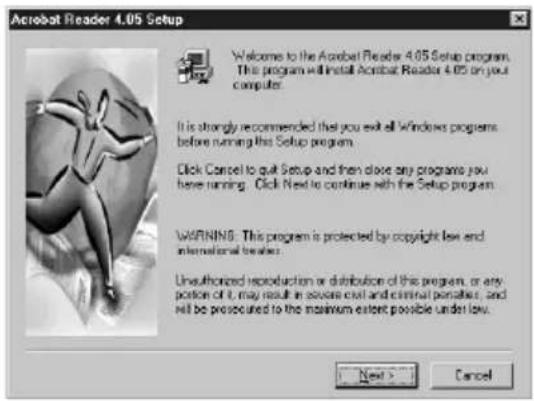
If you do not want to install it, click "Cancel".
Note
When you have already installed the Adobe Acrobat Reader 3.0 in your computer, "Warning" appears.
In this case, uninstall the Adobe Acrobat Reader 3.0 and restart your computer. Installing the Adobe Acrobat Reader 4.0 after restart, "Warning" does not appear.
2 Follow the instructions that appear in the display to install the application.
Uninstalling a software
If you do not need the Digital Link Manager or Adobe Acrobat Reader, uninstall a software as follows:
1 Select the control panel and display it.
Click "Start", point to "Settings", and then click "Control Panel" to open the control panel.
2 Double-click "Add/Remove Programs".
The "Add/Remove Programs Properties" window appears.
3 Click "Digital Link Manager for LISSA 1.0E" or "Adobe Acrobat
Reader 4.0" in the programme list below.
4 Click "Add/Remove".
5 Click "OK" in the "Confirm File Deletion" window.
Uninstaller starts up and the software selected in step 3 is deleted automatically.
Connections
Do not connect an i.LINK component to your computer before installing this software.
Connect a LISSA-series component to your computer with an i.LINK connecting cable.
Example: Connecting the STR-LSA1
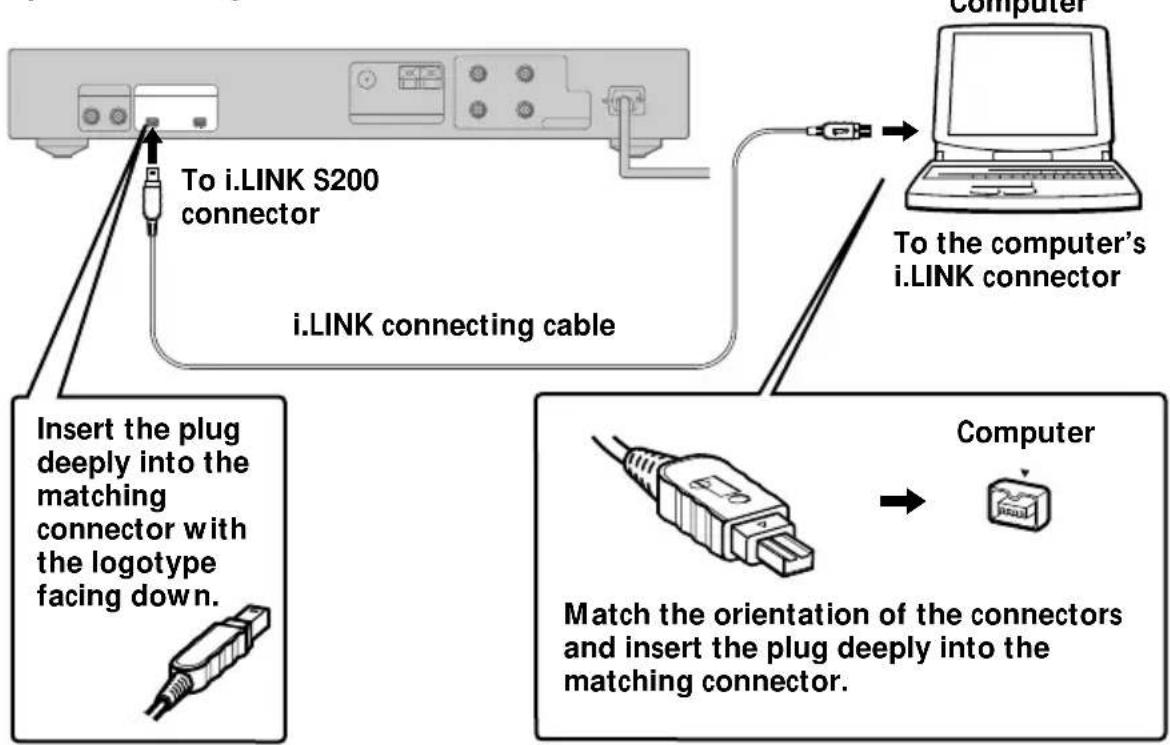
flowchart
graph TD
    A["To i-LINK S200 connector"] -->|Insert the plug deeply into the matching connector with the logotype facing down.| B["i-LINK connecting cable"]
    C["Computer"] -->|Match the orientation of the connectors and insert the plug deeply into the matching connector.| D["Computer"]
    B --> E["To the computer's i-LINK connector"]
Notes
- Different models of personal computers refer to their i.LINK connectors with different connector names. For further information, refer to the instruction manual of your computer.
- Match the orientation of the cable plug with that of the connector on the main unit when plugging the cable into the computer. The orientation of the connector differs according to the computer.
- Be sure to plug in the cable straight. Plugging in the cable at an angle may damage the jack or the plug.
- Do not insert any metal objects into an i.LINK connector. Short-circuit may occur resulting in damage.
- It may not be possible to use the supplied i.LINK connecting cable with certain VAIO series models. If your model is one of these, please use the optional i.LINK connecting cable (4 pins-6 pins).
Starting the software
Notes
- Before starting the software, be sure to set all the power control functions in the “Power Properties” window to off.
- Do not turn on or off the computer during recording on MDS-LSA1. If you do so, the recording may not be done properly.
- Only the following buttons on the deck or remote can be used to operate MDS-LSA1 while the software is running:
■, 令, DISPLAY, ▷, ▶, □, ◀◀/▶▶, ◁◀/▶▶, PLAY MODE
- MDS-LSA1 will not be automatically attached* if you start the software while MDS-LSA1 is in the middle of the CD Synchro-recording. To attach this component, start the software after first stopping the CD Synchro-recording, or wait until the CD Synchro-recording ends and then use the right-click menu in the Audio Rack View to attach the component.
* • When you select "Attach", the specified component is attached to the i.LINK configuration, allowing you to check the condition of the component and control it.
- Only one STR-LSA1 can be attached at a time.
→ Click “Start”, point to “Program”, point to “Digital Link Manager for LISSA 1.0E”, and then click “LISSA 1.0E”.
This software is then started and the Digital Link Manager Main Window appears.
When you start the software, the following display appears (when MD is selected as the sound source):

If nothing appears in the Audio Rack View when you start up the software for the first time, see page 11.
Quitting the software
→ Click in the Main Window.
Troubleshooting
If you experience any of the following difficulties while using this software, use this troubleshooting guide to remedy the problem. Should any problem persist, consult your nearest Sony dealer. Please also refer to your computer's manual, as well as the "Readme.txt" file installed on the hard disc with the software.
| Problem Cause/countermeasure | |
| No screen response or screen error. | →Turn off and on the i.LINK component, and then restart the Digital Link Manager.→Start up another application often used and check if the computer functions properly.→After uninstalling (page 14), try re-installing (page 8). |
| Character input, recording, editing, etc. cannot be done. | The MD write protect tab may be set for write protect.→Slide the write protect tab so that recording is possible.The MD may probably be a commercial playback-only MD (an MD with prerecorded tracks).→Character input, recording, editing, etc. are not possible in commercial playback-only MDs. |
| An i.LINK component does not respond. | →Make sure that i.LINK connecting cables are connected properly (page 15).→Disconnect i.LINK connecting cables and then reconnect them. |
| Displayed name of MD or CD does not match the disc's data. | →Restart the Digital Link Manager. |
Programme © 2000 Sony Corporation Documentation © 2000 Sony Corporation
Program © 2000 Sony Corporation Documentation © 2000 Sony Corporation

- Digital Link Manager for LISSA
- Version 1.0E
- Table of contents
- Getting started
- Preparation
- Additional Information
- Overview
- System requirements
- Notes
- Checking the supplied items
- About this manual
- Using the on-line manual
- Using the Help
- Note
- Opening the table of contents of Help
- Searching by Keywords
- Installing a software
- Installing the Digital Link Manager
- Click "Next".
- Click "Next".
- Installing the Digital Link Manager (continued)
- Click "Next".
- If nothing appears in the Audio Rack View when you start up the software for the first time
- Installing the Adobe Acrobat Reader
- Uninstalling a software
- Connections
- Starting the software
- → Click “Start”, point to “Program”, point to “Digital Link Manager for LISSA 1.0E”, and then click “LISSA 1.0E”.
- Quitting the software
- Troubleshooting
Brand : SONY
Model : PCLKLSA1
Category : Other camera accessories