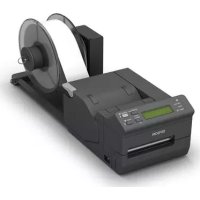
TML500A - Printer EPSON - Free user manual and instructions
Find the device manual for free TML500A EPSON in PDF.



| Product type | Thermal printer |
| Brand | EPSON |
| Model | TM-L500A |
| Supported paper widths | 50.8 / 54 / 79.5 / 82.5 mm |
| Available interfaces | USB, serial (RS-232), Ethernet (depending on model) |
| Power supply | PS-180 power adapter (model M159B) |
| Special functions | Automatic cutter (ACS) on some models, optional LCD screen, setting menu (buzzer volume, contrast, brightness) |
| Case maintenance | Dry or damp cloth (no alcohol, benzene, thinner) |
| Thermal head cleaning | Cleaning card and alcohol (ethanol or IPA) |
| Safety | Do not use flammable gas nearby; unplug immediately if smoke or odor; use only specified adapter |
| Included accessories | Printer, power adapter, cable hook, user manual |
| Paper type | Thermal paper, rolls or folded (depending on model with BP tray) |
| Operating environment | Firm horizontal surface, avoid dust and excessive humidity |
| Important warning | Do not disassemble or modify the product; repair by a professional only |
Frequently Asked Questions - TML500A EPSON
User questions about TML500A EPSON
0 question about this device. Answer the ones you know or ask your own.
Ask a new question about this device
Download the instructions for your Printer in PDF format for free! Find your manual TML500A - EPSON and take your electronic device back in hand. On this page are published all the documents necessary for the use of your device. TML500A by EPSON.
USER MANUAL TML500A EPSON
natural_image
Technical line drawing of a mechanical component with a directional arrow indicating rotation (no text or symbols)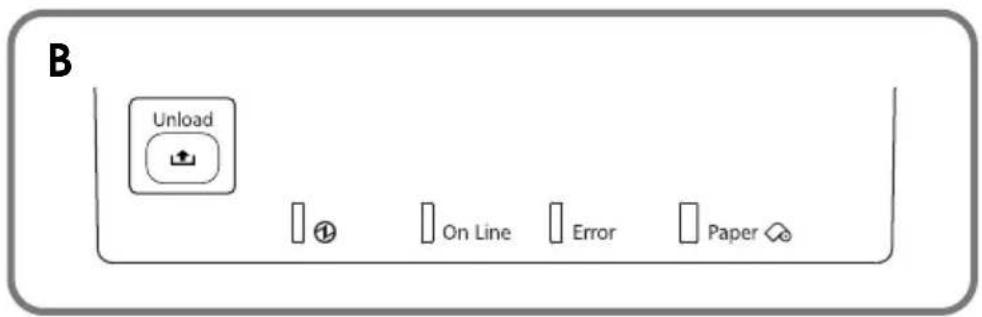
Specifications
| Printing method Thermal line | ||
| Paper dimensions | Boarding pass | Width: 82.5 ± 0.5 or 79.5 ± 0.5 mm {3.25 ± 0.02" / 3.13 ± 0.02"}Length: 203.2 ± 0.38 and 187.325 mm {8 ± 0.015 and 7.38"}Thickness: 75 ~ 200 μm |
| Baggage tag | Width: 54 ± 0.5 mm or 50.8 ± 0.5 mm {2 ± 0.02" or 2.13 ± 0.02"}Length: 400 to 600 mm {15.75 to 23.62"}Thickness: 220 μm or less | |
| Interface Serial (RS-232)/Ethernet (10BASE-T/100BASE-TX)/USB (Compliance: USB 2.0, Communication speed: Full-speed (12 Mbps)) | ||
| Power supply PS-180 (model: M159B) | ||
| Temperature Operating: 5 to 45°C {41 to 113°F}Storage: -20 to 50°C {-4 to 122°F}, except for paper | ||
| Humidity Operating: 10 to 80% RHStorage: 10 to 90% RH, except for paper | ||
| Overall dimensions (H × W × D) | Model without BP-trayModel without LCD: 122 × 156 × 230 mm {4.80 × 6.14 × 9.06"}Model with LCD: 147 × 156 × 236 mm {5.83 × 6.14 × 9.29"}Model with BP-tray147 × 156 × 328 mm {5.83 × 6.14 × 12.91"} | |
| Weight (mass) Approx. 2.8 kg {6.2 lb} | ||
Mbps: megabits per second
Standards and Approvals
The following standards are applied only to the printers that are so labeled. (EMC is tested using the Epson power supplies.)
Europe: CE marking
North America: FCC Class A, ICES-003 Class A
Oceania: AS/NZS CISPR22 Class A
WARNING
This is a Class A product. In a domestic environment this product may cause radio interference in which case the user may be required to take adequate measures.
The connection of a non-shielded printer interface cable to this printer will invalidate the EMC standards of this device.
You are cautioned that changes or modifications not expressly approved by Seiko Epson Corporation could void your authority to operate the equipment.
CE Marking
The printer conforms to the following Directives and Norms:
Directive 2004/108/EC
EN 55022 Class A
EN 55024
IEC 61000-4-2 IEC 61000-4-5
IEC 61000-4-3 IEC 61000-4-6
IEC 61000-4-4 IEC 61000-4-11
FCC Compliance Statement For American Users
This equipment has been tested and found to comply with the limits for a Class A digital device, pursuant to Part 15 of the FCC Rules. These limits are designed to provide reasonable protection against harmful interference when the equipment is operated in a commercial environment.
This equipment generates, uses, and can radiate radio frequency energy and, if not installed and used in accordance with the instruction manual, may cause harmful interference to radio communications.
Operation of this equipment in a residential area is likely to cause harmful interference, in which case the user will be required to correct the interference at his own expense.
For Canadian Users
This Class A digital apparatus complies with Canadian ICES-003.
For California customers only:
The lithium batteries in this product contain Perchlorate Material - special handling may apply. See www.dtsc.ca.gov/hazardouswaste/perchlorate.
English
Illustrations
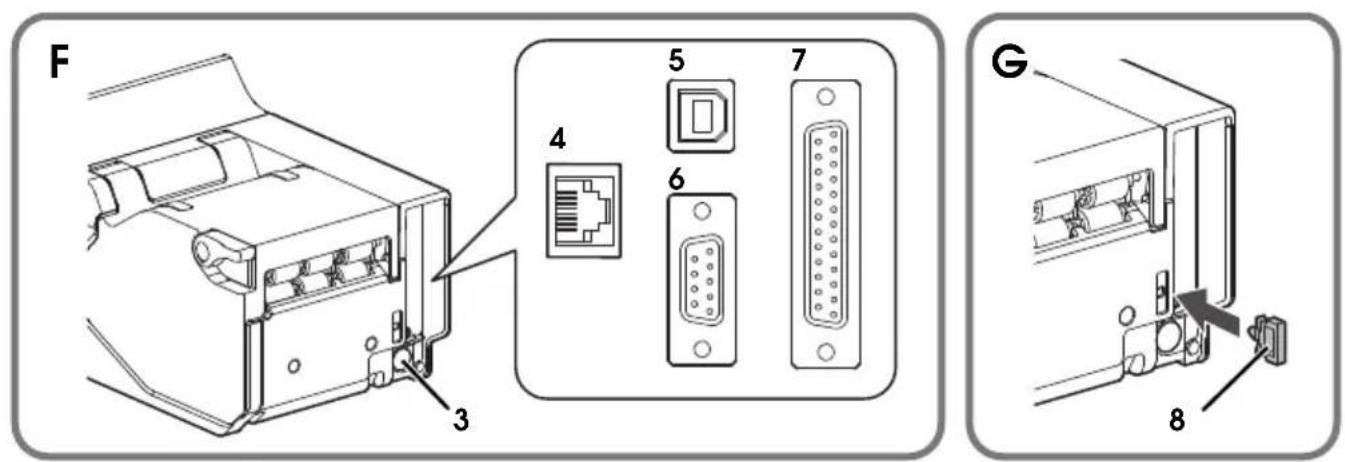
Most of the illustrations are at the beginning of this manual. They may be different from your printer in appearance, depending on your printer model. See the list below for the meaning of the numbers in the illustrations.
- Paper guide
- Screw 14. Platen frame
- Power supply connector
- Ethernet connector
- USB connector
-
Serial interface connector (9-Pin D-Sub)
-
Serial interface connector (25-Pin D-Sub)
- Cable hook
- Rollers
- Paper path
- Head plate
-
Thermal head
-
Platen lever
-
Cleaning card
Restriction of Use
When this product is used for applications requiring high reliability/safety, such as transportation devices related to aviation, rail, marine, automotive, etc.; disaster prevention devices; various safety devices, etc.; or functional/precision devices, etc.; you should use this product only after giving consideration to including fail-safes and redundancies into your design to maintain safety and total system reliability. Because this product was not intended for use in applications requiring extremely high reliability/safety, such as aerospace equipment, main communication equipment, nuclear power control equipment, or medical equipment related to direct medical care, etc., please make your own judgment on this product's suitability after a full evaluation.
Caution
All rights reserved. No part of this publication may be reproduced, stored in a retrieval system, or transmitted in any form or by any means, electronic, mechanical, photocopying, recording, or otherwise, without the prior written permission of Seiko Epson Corporation. No patent liability is assumed with respect to the use of the information contained herein. While every precaution has been taken in the preparation of this book, Seiko Epson Corporation assumes no responsibility for errors or omissions. Neither is any liability assumed for damages resulting from the use of the information contained herein.
Neither Seiko Epson Corporation nor its affiliates shall be liable to the purchaser of this product or third parties for damages, losses, costs, or expenses incurred by purchaser or third parties as a result of: accident, misuse, or abuse of this product or unauthorized modifications, repairs, or alterations to this product, or (excluding the U.S.) failure to strictly comply with Seiko Epson Corporation's operating and maintenance instructions.
Seiko Epson Corporation shall not be liable against any damages or problems arising from the use of any options or any consumable products other than those designated as Original Epson Products or Epson Approved Products by Seiko Epson Corporation.
EPSON is a registered trademark of Seiko Epson Corporation in Japan and other countries/regions.
NOTICE: The contents of this manual are subject to change without notice.
Copyright © 2010 by Seiko Epson Corporation
Purpose of This Manual
This manual provides information describing basic operations to operators of the TM-L500A to enable safe and correct use of the printer.
Important Safety Information
This section presents important information intended to ensure safe and effective use of this product. Read this section carefully and store it in an accessible location.
Key to Symbols
The symbols in this manual are identified by their level of importance, as defined below. Read the following carefully before handling the product.
WARNING:
Warnings must be followed carefully to avoid serious bodily injury.
CAUTION:
Cautions must be observed to avoid minor injury to yourself, damage to your equipment, or loss of data.
Note:
Notes have important information and useful tips on the operation of your equipment.
Safety Precautions
WARNING:
Shut down your equipment immediately if it produces smoke, a strange odor, or unusual noise. Continued use may lead to fire. Immediately unplug the equipment and contact your dealer or a Seiko Epson service center for advice.
Never attempt to repair this product yourself. Improper repair work can be dangerous.
Never disassemble or modify this product. Tampering with this product may result in injury or fire.
Be sure to use the specified AC adapter (Epson PS-180 (Model: M159B)) only. Connection to an improper power source may cause fire.
Do not allow foreign matter to fall into the equipment. Penetration by foreign objects may lead to fire.
If water or other liquid spills into this equipment, unplug the power cable immediately, and then contact your dealer or a Seiko Epson service center for advice. Continued usage may lead to fire.
Do not use aerosol sprayers containing flammable gas inside or around this product. Doing so may cause fire.
CAUTION:
Do not connect cables in ways other than those mentioned in this manual. Different connections may cause equipment damage and burning.
Be sure to set this equipment on a firm, stable, horizontal surface. Product may break or cause injury if it falls.
Do not use in locations subject to high humidity or dust levels. Excessive humidity and dust may cause equipment damage or fire.
Do not place heavy objects on top of this product. Never stand or lean on this product. Equipment may fall or collapse, causing breakage and possible injury.
Take care not to injure your fingers on the manual cutter.
To ensure safety, unplug this product before leaving it unused for an extended period.
Usage Notes
☐Install the printer horizontally.
☐ When installing, leave enough space around the printer for loading paper, turning on/off the power switch, removing jammed paper, and so on.
☐ Make sure cables and foreign objects are not caught in the printer.
☐Do not open the covers during printing or autocutting.
☐ Make sure that the printer is not subjected to any impact or vibration.
☐Do not put any food or drink on the printer case.
☐Do not move the printer with the paper loading cover open. The cover may be closed unexpectedly.
☐To prevent a paper jam, do not prevent paper from being ejected from the paper exit, and do not pull the paper being ejected.
Setting up the Printer
To set up the printer, follow the steps below.
- Unpacking (See "Unpacking" on page 9.)
- Setting the paper width (See "Setting the Paper Width" on page 12.)
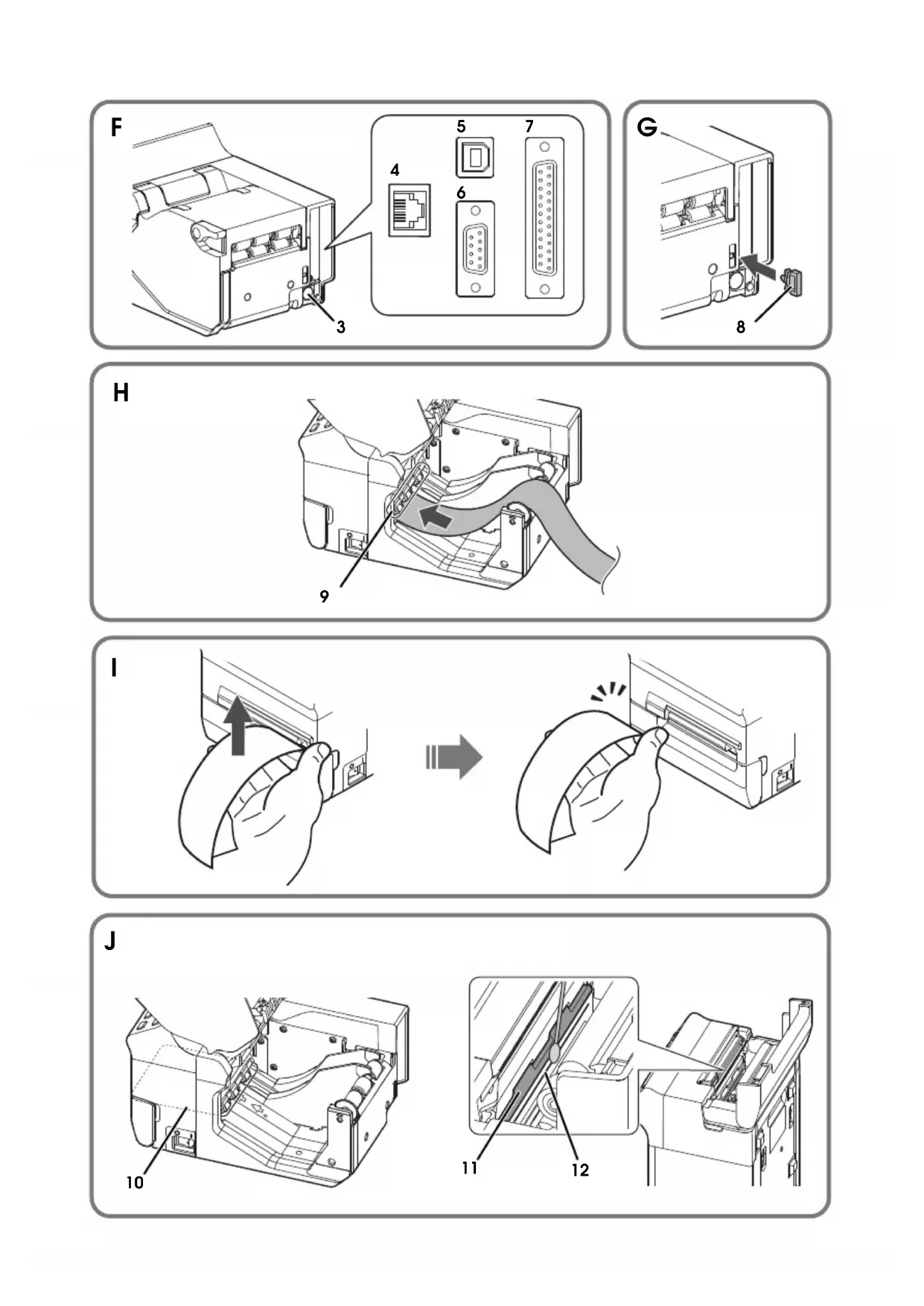
- Connecting the cables (See "Connecting the Cables" on page 13.)
- Turning on the printer (See "Turning On/Off the Printer" on page 11.)
- Loading the paper (See "Loading Paper" on page 13.)
- Operation check with test print (See "Test Printing" on page 15.)
Unpacking
Check whether the following items are included. If any item is damaged, contact your dealer.
Printer
☐AC adapter [PS-180 (Model: M159B)]
Cable hook
□ User's manual (this manual)
Downloading Drivers, Utilities, and Manuals
Drivers, utilities, and manuals can be downloaded from one of the following URLs.
For customers in North America, go to the following web site:
http://www.epsonexpert.com/
For customers in other countries, go to the following web site:
http://download.epson-biz.com/?service=pos
Part Names
This printer differs in equipment and appearance, depending on the combinations of the following specifications.
□Whether or not the printer is equipped with an LCD
☐ Whether or not the printer is equipped with a BP (Boarding Pass) tray
☐ Whether or not the printer is equipped with an Auto Cut Switch (ACS)*
*After a printing job is completed, the ACS becomes ready. When the ACS detects lifted paper, the printer cuts the paper and becomes ready for the next printing.

Note:
The shape of the printer in the illustrations in this manual may be different from yours, depending on the printer model.
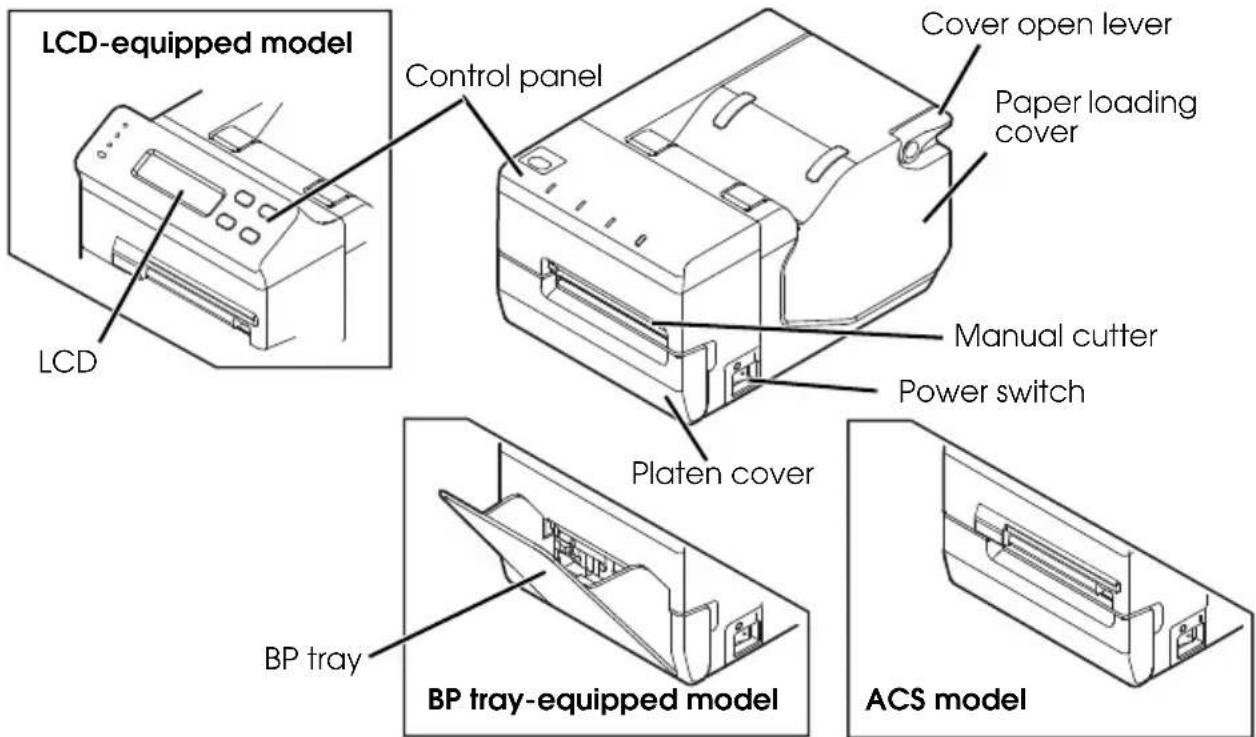
Control Panel
See illustration A for models with an LCD and illustration B for models without an LCD.

Note:
In the default setting, if the printer does not operate for 10 seconds, the LEDs and the backlight of the LCD become dim, and for five minutes, the backlight of the LCD is turned off. They come back on when you operate the control panel.

(Power) LED
On when the printer is turned on.
On Line LED
On when the printer is online. Off when the printer is offline: during test printing, in the menu mode, or in an error status.
Error LED
On when the paper loading cover or the platen frame is open.
Flashes when the printer is in an error status.
Off when the printer is operating normally.
Paper LED
On when paper is out.
Flashes during test printing standby state or autoloading standby state.
For the Auto Cut Switch model, the paper LED flashes when the ACS is ready.
Unload (↑) button
Holding down this button for one second or more feeds paper backward until the paper can be removed from the back of the printer.
For models with LCD, this button switches the menu items and options in the menu mode.
For the Auto Cut Switch model, this button causes the printer to cut the paper and become ready for the next job.
Feed (↓) button (only for models with LCD)
This button feeds paper.
In the menu mode, this button switches the menu items and options.
For the Auto Cut Switch model, this button causes the printer to cut the paper and become ready for the next job.
On/Off Line (Back) button (only for models with LCD)
This button switches between online and offline.
In the menu mode, this button returns to an upper menu item, or exits the menu mode.
Menu (OK) button (only for models with LCD)
This button enters the menu mode when the printer is offline. For the setting items in the menu mode and setting procedures, see "Setting Menu on the LCD"
In the menu mode, this button sets the displayed setting option.
Turning On/Off the Printer
Use the power switch on the right side of the printer to turn the printer on and off.

Note:
Be sure to turn on and off the power switch when the power cable is connected to the printer.
Before turning on the printer soon after turning it off, make sure the LEDs on the control panel are off.
Setting Menu on the LCD
If your printer is equipped with an LCD, you can set three menu items with the buttons on the control panel.
Menu Items
Buzzer volume
In the default setting, the buzzer sounds when the printer is in an error status. You can adjust the volume of the buzzer from OFF to level 5.
LCD contrast
You can adjust the contrast of the LCD from level 1 to 3.
LCD brightness
You can select the brightness of the LCD from Bright/Dim/Off.
Setting Procedures
- Turn on the printer.
- When "On Line" is displayed on the LCD, press the On/Off Line (Back) button to put the printer offline.
- Press the Menu (OK) button to display “(Setting menu)” on the LCD.
- Use the Unload ( ) button and Feed ( ) button to display the setting item for which you want to make a setting, and press the Menu (OK) button.
- Use the Unload (↑) button and Feed (↓) button to display the setting options, and press the Menu (OK) button to set it.
- To make another setting, press the On/Off Line (Back) button once to return to the menu selecting screen.
To finish setting, press the On/Off Line (Back) button twice to exit the menu mode.
Setting the Paper Width
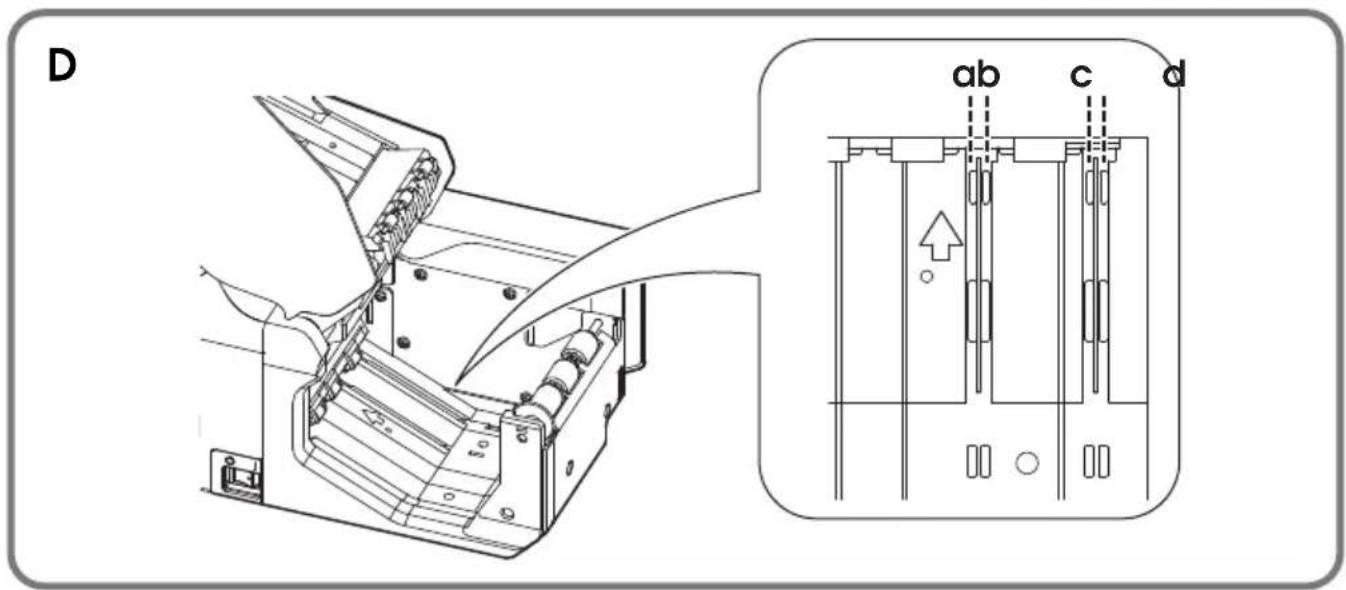
You can use four types of paper width; 50.8/54/79.5/82.5 mm by removing or changing the paper guides installed in the printer. The default setting is 54 mm paper width with the paper guides installed in grooves b and d in illustration D.
CAUTION:
Be sure to set the paper width before using the printer. Do not change it once you start using the printer.
When setting the paper width from the default setting, be sure to make the setting for the paper width with the utility software for the TM-L500A.
Setting the Paper Width to 82.5 mm
To change the paper width to 82.5 mm, remove the paper guide installed in groove b in illustration D.
- Make sure the printer is turned off.
- Open the paper loading cover by pulling up the cover open lever. (See illustration C)
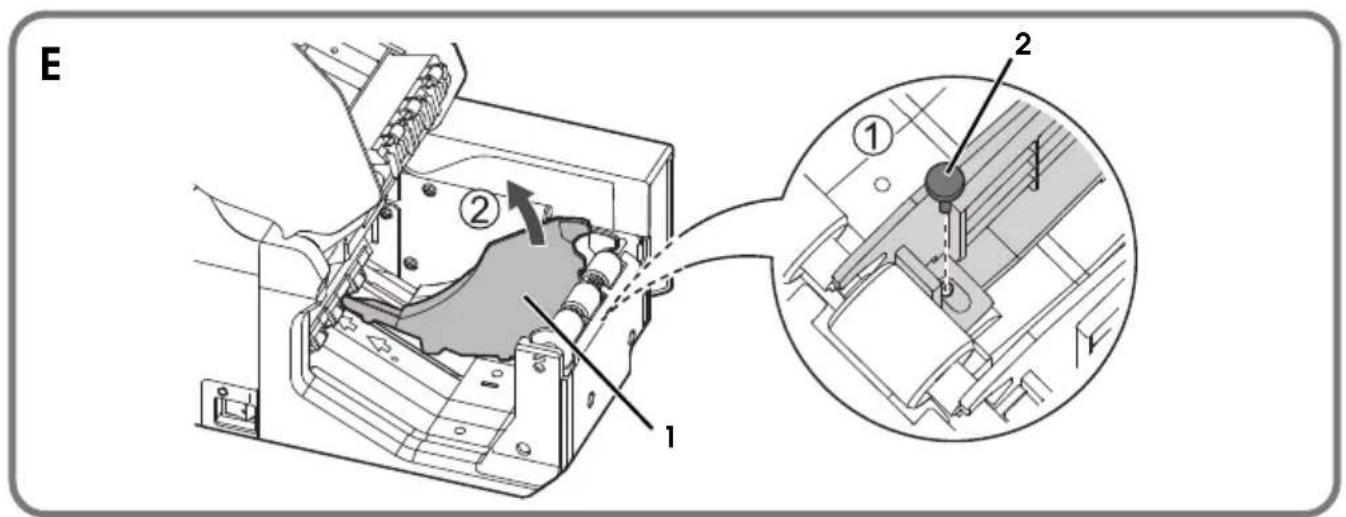
- Remove the screw fixing the paper guide installed in groove b in illustration D. (See illustration E)
- Remove the paper guide by pulling it up. (See illustration E)
Setting the Paper Width to 79.5 mm
To change the paper width to 79.5 mm, remove the paper guides installed in grooves b and d, and install one of them in groove c in illustration D.
- Remove the two paper guides by following the same steps as "Setting the Paper Width to 82.5 mm"
- Install one of the removed paper guides in groove c in illustration D so that the projections of the paper guide are aligned with the holes along the groove.
- Fix the paper guide with the screw.
Setting the Paper Width to 50.8 mm
To change the paper width to 50.8 mm, remove the paper guide installed in groove b in illustration D, and install it in groove a.
- Remove the paper guide installed in grooves b by following the same steps as "Setting the Paper Width to 82.5 mm."
- Install the removed paper guide in groove in illustration D so that the projection of the paper guide is aligned with the hole along the groove.
- Fix the paper guide with the screw.
Connecting the Cables
CAUTION:
For a serial interface, use a null modem cable.
Before using the USB interface, be sure to install the printer driver for the TM-L500A or Epson USB device driver. Do not turn on the printer before installing the driver.
For an Ethernet interface, when LAN cables are installed outdoors, make sure devices without proper surge protection are cushioned by being connected through devices that have surge protection. Otherwise, the devices can be damaged by lightning.

Note:
Available interfaces vary by the printer model. For the positions and shapes of the connectors on the back of the printer, see illustration F.
- Make sure the power switch is off.
- Connect the power cable to the power supply connector.
- Connect each interface cable to the printer. When using the USB interface, install the cable hook and fix the USB cable to prevent it from coming off. (See illustration G)
- Connect the interface cable to the computer.
- Insert the power cable plug into a socket.
Loading Paper
When the Paper LED is on, follow the steps below to load paper.
CAUTION:
Be sure to use the specified paper.
Set the paper width properly for the paper you wish to use. For how to set the paper width, see "Setting the Paper Width" on page 12.
- Turn on the printer.
- Open the paper loading cover by pulling up the cover open lever. (See illustration C)
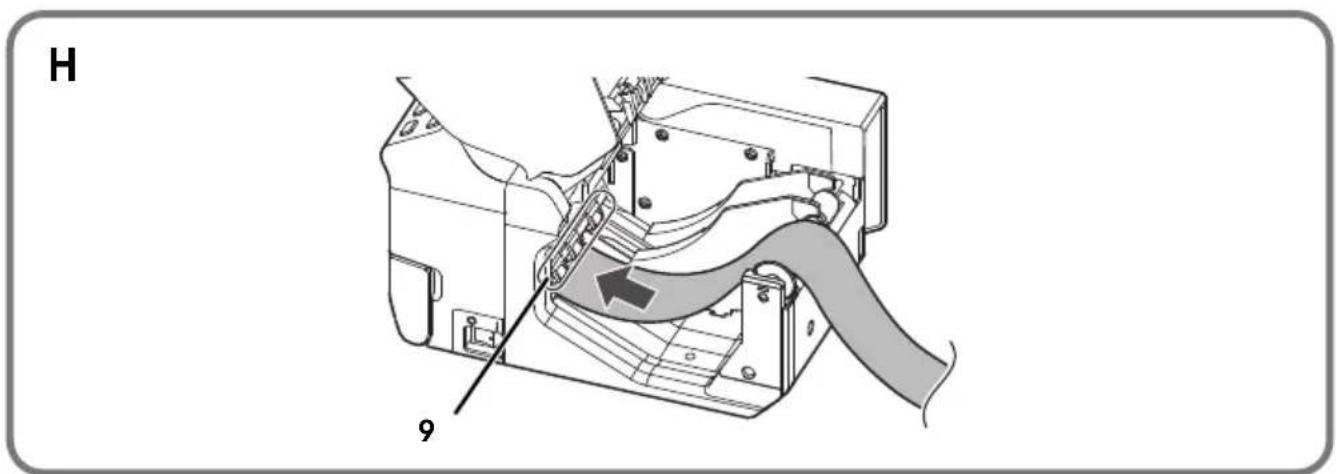
- Insert the end of the paper under the rollers. (See illustration H) The paper is fed automatically.
- Close the paper loading cover.
The paper is fed to the position of a punch hole or a black mark, and cut automatically.

Note:
For the BP tray-equipped model, up to 20 sheets of fanfold paper can be stored in the BP tray.
Cutting the paper
The Auto Cut Switch model
- The LED flashes when a printing job has been completed.
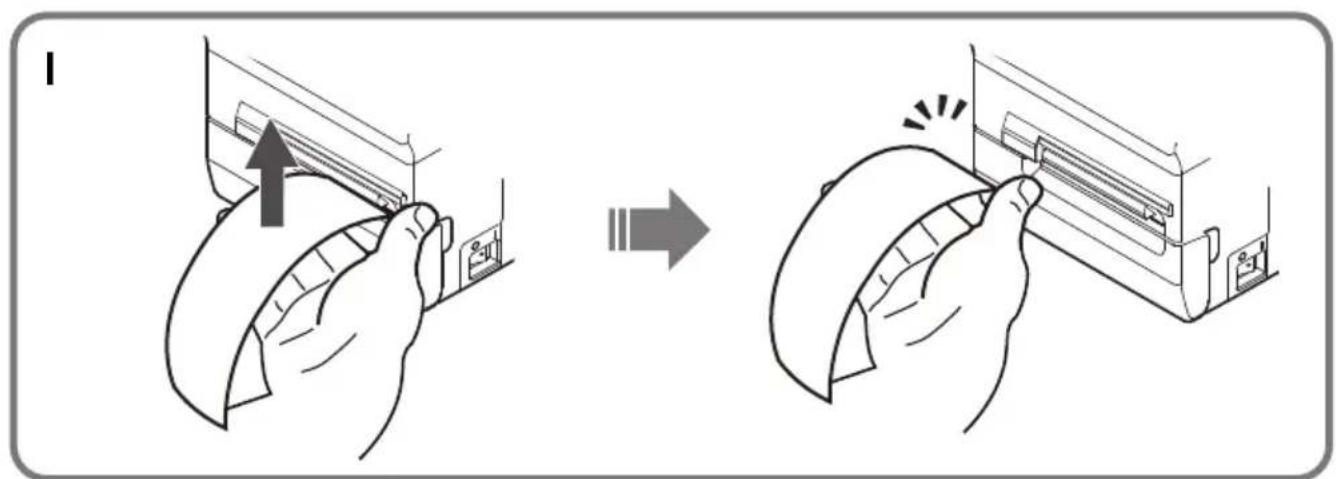
- Lift up the paper gently. The paper is automatically cut. (See illustration I)

CAUTION:
Do not pull the paper hard.
Do not pull the paper sideways.

Note:
After a printing job is completed, the ACS becomes ready. When the ACS detects lifted paper, the printer cuts the paper and becomes ready for the next printing.
- If the printer is turned off with paper remaining, turn on the printer and push the feed button. The paper is automatically cut after it is fed. (the LCD-equipped model only)
- If the paper is torn off even before the ACS detects the lifted paper, the printer cannot receive the next job. Push the unload/feed button. The printer automatically cuts the paper and becomes ready for the next job.
The BP tray-equipped model
The paper is automatically cut.
The Other model
The autocutter and the manual cutter are available.
When using the manual cutter, pull up the paper to manually cut the paper.
Test Printing
After the printer setup or when the printer is not operating correctly, you can check the printer operation with test printing. If the printer performs pattern printing following the steps below, the printer is operating normally.
- Make sure the paper is correctly inserted and all the covers are closed.
- While pressing the Unload ( ) button, turn on the printer.
- After the printer prints its status and the Paper LED flashes, turn off the printer to exit the test printing or press the Unload (↑) button again to restart the test printing.
The test printing is completed when "*** completed***" is printed.
Cleaning
Cleaning the Printer Case
Be sure to turn off the printer, and wipe the dirt off the printer case with a dry cloth or a damp cloth.

CAUTION:
Never clean the product with alcohol, benzine, thinner, or other such solvents.
Doing so may damage or break the parts made of plastic and rubber.
Cleaning the Paper path, the Head plate, and the Thermal Head
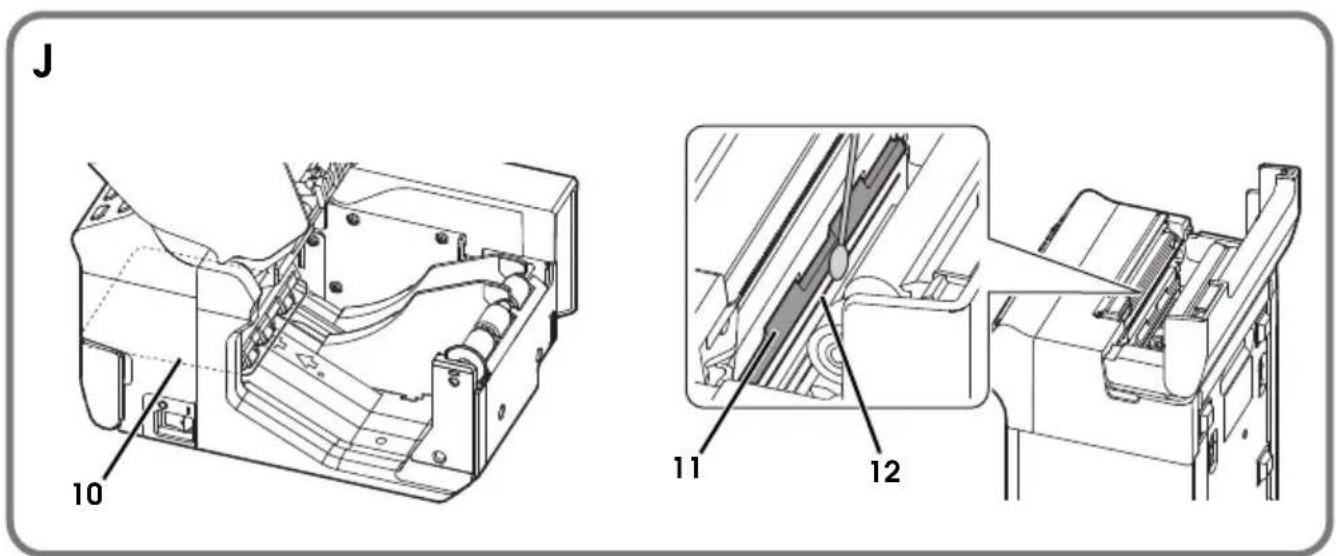
After the printer is used for a long period, the glue from the labels accumulates in the paper path (10 in illustration J), and on the head plate (11 in illustration J) and the thermal head (12 in illustration J). If you leave them in such a condition, the glue may stick to issued labels, or a paper jam may occur. To prevent malfunctions and maintain good print quality, clean the paper path, the head plate, and the thermal head regularly (generally every month).

CAUTION:
The thermal head can be very hot after printing. Be careful not to touch it, and let it cool before you clean it.
Do not damage the thermal head by touching it with your fingers or any hard object.
- Prepare a cleaning card.

Note:
Epson recommends KICTeam cleaning card. Please purchase it from KICTeam's web site.
URL: http://www.kicteam.com/
Model: KCTP2639 (For Baggage Tag)
KCTP2638 (For Boarding Pass)
- Turn off the printer.
- Open the paper loading cover and the platen cover. (or BP tray for the BP tray-equipped model)
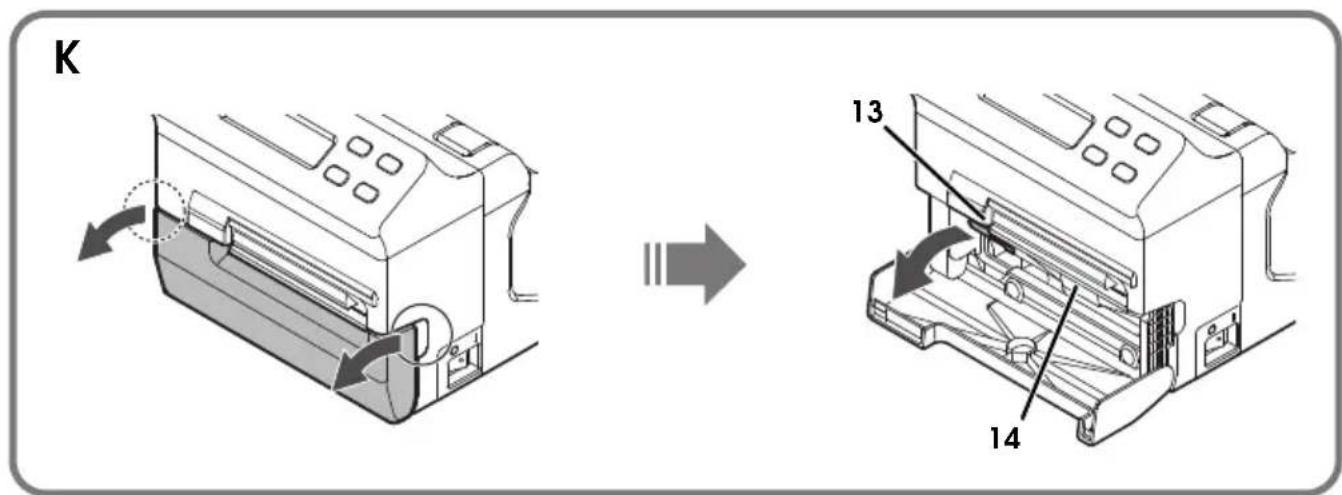
- Push down the platen lever to open the platen frame. (See illustration K)
- Blow out the paper dust.
- Clean the head plate and the thermal head with a cotton swab moistened with an alcohol solvent (ethanol or IPA)
-
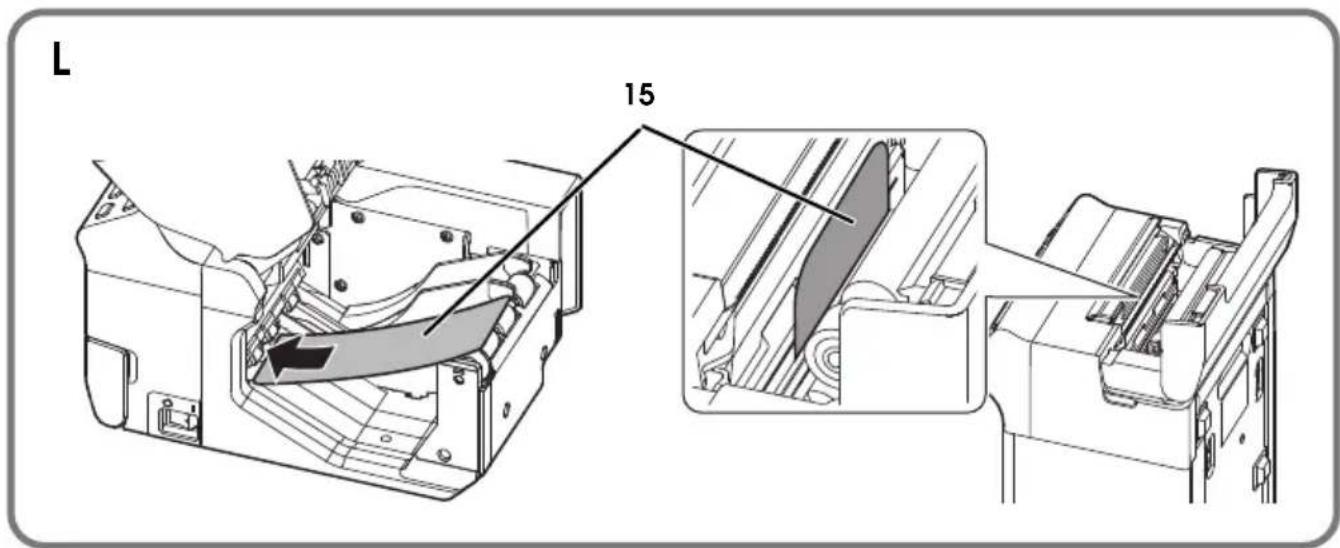
Insert cleaning card into printer until the card is seen in front and can be grasped. (See illustration L)
-
Close the platen frame, the platen cover (or BP tray for the BP tray-equipped model) and the Paper loading cover.
- Pull the cleaning card through the printer.
- Repeat if necessary.
CAUTION:
Use the cleaning cards in a well ventilated room.
Allow the printer to dry completely before turning on the printer.
Troubleshooting
Error LED is on
Make sure the paper loading cover and the platen frame are properly closed.
Error LED is flashing
☐ Printing stops if the head overheats and resumes automatically when it cools.
☐ Make sure the correct type of paper is set properly. If your printer is equipped with an LCD, "Check paper" is displayed on the LCD when the paper is not correct or set improperly.
☐ When a paper jam occurs, remove the jammed paper referring to “Paper jam occurs (only the BP tray-equipped model)” If your printer is equipped with an LCD, “Paper JAM” is displayed on the LCD when a paper jam occurs.
☐ Turn the printer off, and after 10 seconds, turn it back on. If the LED is still flashing, the printer may require servicing.
☐ If your printer is equipped with an LCD and "Fatal error" is displayed on the LCD, turn off the printer as soon as possible. The printer requires servicing.
Printout is faint
When a foreign substance such as paper powder attaches to the thermal head, print quality may be degraded. In such case, see “Cleaning the Paper path, the Head plate, and the Thermal Head” on page 15 to clean the thermal head.
Paper jam occurs (only the BP tray-equipped model)
CAUTION:
Do not touch the thermal head, because it can be very hot after printing. Let it cool before you remove the jammed paper.
- Turn off the printer.
- Open the platen cover (or BP tray for the BP tray-equipped model), and push down the platen lever to open the platen frame. (See illustration K)
- Pull out the jammed paper forward, and cut any distorted, crumpled, or torn parts of the paper.
- Open the paper loading cover by pulling up the cover open lever. (See illustration C)
- Pull out the paper backward, and cut any distorted, crumpled, or torn parts of the paper if there are any.
- Close the platen frame and the platen cover (or BP tray for the BP tray-equipped model).
- Turn on the printer.
- Load the paper correctly. (See "Loading Paper" on page 13.)
Français
Illustrations
Voyant (Alimentation)
URL: http://www.kicteam.com/
Online-LED (On Line LED)
LCD-Helligkeit (LCD brightness)
URL: http://www.kicteam.com/
Copyright © 2010 by Seiko Epson Corporation
WAARSCHUWING
□Wisselstroomadapter [PS-180 (Model: M159B)]
Kabelhaak
URL: http://www.kicteam.com/
Model: KCTP2639 (voor bagagelabel)
KCTP2638 (voor boarding pass)
Copyright © 2010 di Seiko Epson Corporation
AVVERTENZA
LED in linea (On Line)
URL: http://www.kicteam.com/
Copyright © 2010 Seiko Epson Corporation
ADVERTENCIA
URL: http://www.kicteam.com/
Copyright © 2010 pela Seiko Epson Corporation
IMPORTANTE
URL: http://www.kicteam.com/
Modelo: KCTP2639 (Para Etiqueta de Bagagem)
WEEE (Waste Electrical and Electronic Equipment) Directive
This information only applies to customers in the European Union, according to Directive 2012/19/EU OF THE EUROPEAN PARLIAMENT AND OF THE COUNCIL OF 04 July 2012 on waste electrical and electronic equipment (WEEE) and legislation transposing and implementing it into various national legal systems, and to customers in countries in Europe, Middle East and Africa (EMEA) where they have implemented equivalent regulations.
For other countries, please contact your local government to investigate the possibility of recycling your product.
natural_image
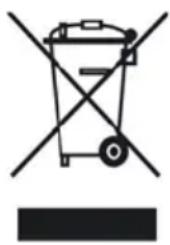
Symbol of a waste bin with crossed lines indicating no waste, and a solid black rectangle below (no text or labels)English
The crossed out wheeled bin label that can be found on your product indicates that this product should not be disposed of via the normal household waste stream. To prevent possible harm to the environment or human health please separate this product from other waste streams to ensure that it can be recycled in an environmentally sound manner. For more details on available collection facilities please contact your local government office or the retailer where you purchased this product.
Deutsch
- Standards and Approvals
- WARNING
- CE Marking
- FCC Compliance Statement For American Users
- For Canadian Users
- For California customers only:
- English
- Illustrations
- Restriction of Use
- Caution
- Purpose of This Manual
- Important Safety Information
- Key to Symbols
- WARNING:
- CAUTION:
- Note:
- Safety Precautions
- Usage Notes
- Setting up the Printer
- Unpacking
- Downloading Drivers, Utilities, and Manuals
- Part Names
- Control Panel
- (Power) LED
- On Line LED
- Error LED
- Paper LED
- Unload (↑) button
- Feed (↓) button (only for models with LCD)
- On/Off Line (Back) button (only for models with LCD)
- Menu (OK) button (only for models with LCD)
- Turning On/Off the Printer
- Setting Menu on the LCD
- Menu Items
- Buzzer volume
- LCD contrast
- LCD brightness
- Setting Procedures
- Setting the Paper Width
- Setting the Paper Width to 82.5 mm
- Setting the Paper Width to 79.5 mm
- Setting the Paper Width to 50.8 mm
- Connecting the Cables
- Loading Paper
- Cutting the paper
- The Auto Cut Switch model
- The BP tray-equipped model
- The Other model
- Test Printing
- Cleaning
- Cleaning the Printer Case
- Cleaning the Paper path, the Head plate, and the Thermal Head
- Troubleshooting
- Error LED is on
- Error LED is flashing
- Printout is faint
- Paper jam occurs (only the BP tray-equipped model)
- Français
- Voyant (Alimentation)
- Online-LED (On Line LED)
- LCD-Helligkeit (LCD brightness)
- WAARSCHUWING
- AVVERTENZA
- LED in linea (On Line)
- ADVERTENCIA
- IMPORTANTE
- WEEE (Waste Electrical and Electronic Equipment) Directive
- Deutsch
Brand : EPSON
Model : TML500A
Category : Printer