
DigiFrame 1060 - Digital photo frame BRAUN - Free user manual and instructions
Find the device manual for free DigiFrame 1060 BRAUN in PDF.
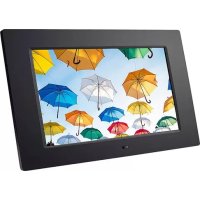



| Product type | Digital photo frame |
| Brand | Braun |
| Model | DigiFrame 1060 |
| Screen size | 25.7 cm (10.1 inches) |
| Resolution | 1024 x 600 pixels |
| Aspect ratio | 16:9 |
| Internal memory | 4 GB |
| Supported image formats | JPG, JPEG, BMP |
| Supported audio formats | MP3, WMA |
| Supported video formats | MPEG1, MPEG2, MPEG4, M-JPEG, AVI |
| Supported memory cards | SD, SDHC, MMC |
| Connectivity | USB 2.0, Mini USB |
| Power supply | AC adapter 100-240 V, output 5 V DC |
| Main functions | Slideshow, music, video, calendar, clock, file copy |
| Built-in speakers | Stereo 2 x 1 W |
| Headphone jack | Yes |
| Remote control | Yes (CR2025 battery included) |
| Wall and table mount | Yes |
| OSD languages | English, German and others |
| Care and cleaning | Soft non-abrasive cloth; LCD screen cleaning products |
| Safety | For indoor use only; do not expose to moisture or condensation |
| Package contents | Photo frame, adapter, remote control, manual, fixing ring, USB cable |
Frequently Asked Questions - DigiFrame 1060 BRAUN
User questions about DigiFrame 1060 BRAUN
0 question about this device. Answer the ones you know or ask your own.
Ask a new question about this device
Download the instructions for your Digital photo frame in PDF format for free! Find your manual DigiFrame 1060 - BRAUN and take your electronic device back in hand. On this page are published all the documents necessary for the use of your device. DigiFrame 1060 by BRAUN.
USER MANUAL DigiFrame 1060 BRAUN
This symbol on the product or in the instructions means that your electrical and electronic equipment should be disposed at the end of its life separately from your household waste. There are separate collection systems for recycling in the EU. For more information, please contact the local authority or your retailer where you purchased the product.
Design and specifications are subject to change without notice.
2. Setup
2.1 Remote Control
2.2 Button Assignments
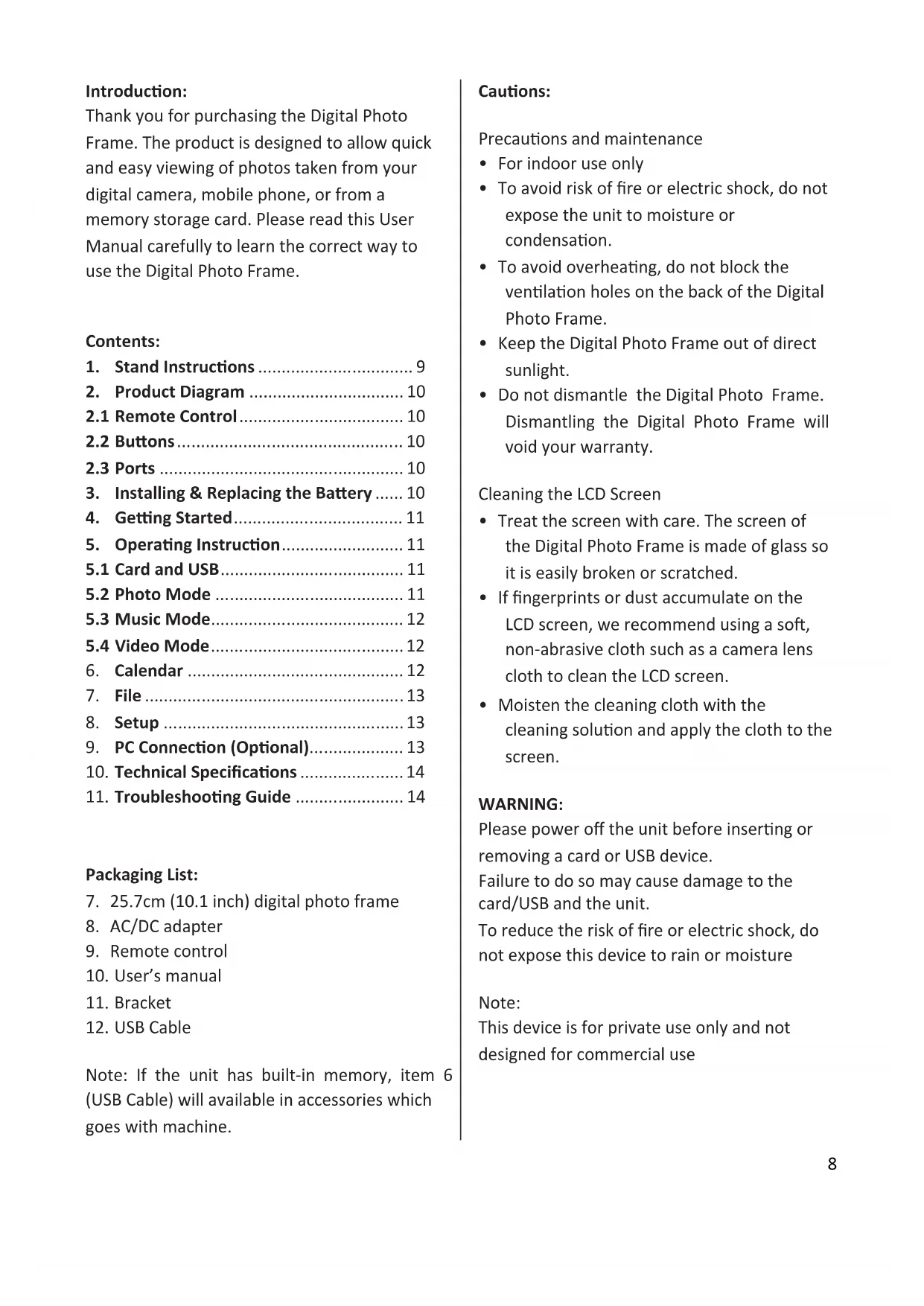
Thank you for purchasing the Digital Photo Frame. The product is designed to allow quick and easy viewing of photos taken from your digital camera, mobile phone, or from a memory storage card. Please read this User Manual carefully to learn the correct way to use the Digital Photo Frame.
Contents:
- Stand Instructions 9
- Product Diagram ...... 10 2.1 Remote Control.... 10 2.2 Buttons....10 2.3 Ports 10
- Installing & Replacing the Battery ..... 10
- Getting Started.... 11
- Operating Instruction...... 11 5.1 Card and USB.... 11 5.2 Photo Mode 11 5.3 Music Mode.... 12 5.4 Video Mode.... 12
- Calendar 12
- File 13
- Setup 13
- PC Connection (Optional).... 13
- Technical Specifications .... 14
- Troubleshooting Guide ...... 14
Packaging List:
- 25.7cm (10.1 inch) digital photo frame
- AC/DC adapter
- Remote control
- User's manual
- Bracket
- USB Cable
Note: If the unit has built-in memory, item 6 (USB Cable) will be available in accessories which go with the machine.
Cautions:
Precautions and maintenance
- For indoor use only
- To avoid risk of fire or electric shock, do not expose the unit to moisture or condensation.
- To avoid overheating, do not block the ventilation holes on the back of the Digital Photo Frame.
- Keep the Digital Photo Frame out of direct sunlight.
- Do not dismantle the Digital Photo Frame. Dismantling the Digital Photo Frame will void your warranty.
Cleaning the LCD Screen
- Treat the screen with care. The screen of the Digital Photo Frame is made of glass so it is easily broken or scratched.
- If fingerprints or dust accumulate on the LCD screen, we recommend using a soft, non-abrasive cloth such as a camera lens cloth to clean the LCD screen.
- Moisten the cleaning cloth with the cleaning solution and apply the cloth to the screen.
WARNING:
Please power off the unit before inserting or removing a card or USB device.
Failure to do so may cause damage to the card/USB and the unit.
To reduce the risk of fire or electric shock, do not expose this device to rain or moisture
Note:
This device is for private use only and not designed for commercial use
Features:
- Supported picture formats: JPG, JPEG, BMP
- Supported audio formats: MP3 & WMA
- Supported video formats: MPEG1, MPEG2, MPEG4, M-JPEG and AVI
- Supported memory cards: SD/SDHC/MMC.
- USB connection: Mini USB & USB 2.0
- Built-in 4GB memory, supports PC connection and file storage
- Auto slideshow when memory card is inserted
- Picture & Music: Slideshow with background music
- Supports viewing pictures in thumbnail mode
- Built-in clock and calendar with the slideshow window, schedule auto on/off
- Image display modes: slideshow, preview, zoom, rotate function
- Adjustable slideshow speed and more than 10 kinds of slideshow transitions
- Adjustable brightness, contrast, saturation
- Copy files to memory and delete files in the Card, Memory and USB Flash Drive
- Built-in stereo speaker (2x1W) and earphone jack
- Adjustable stand (vertical and horizontal); the DPF can be hung on a wall
- OSD languages: English, German and other languages.
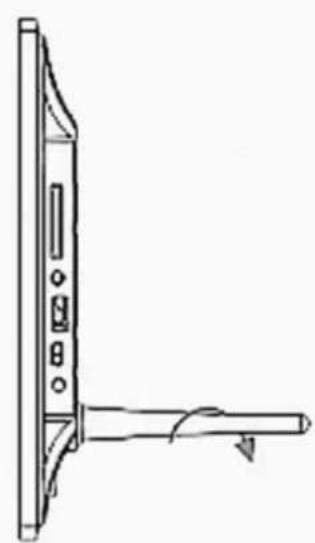
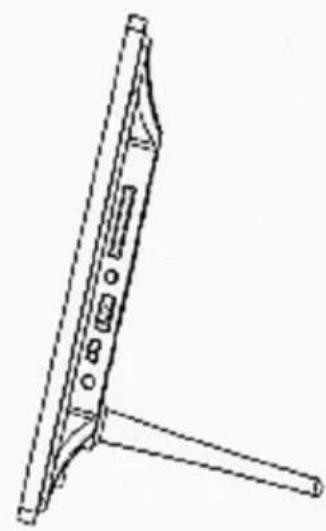
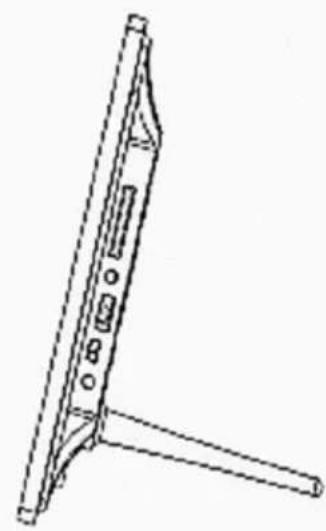
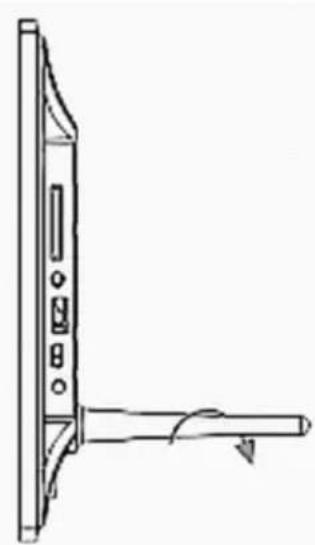
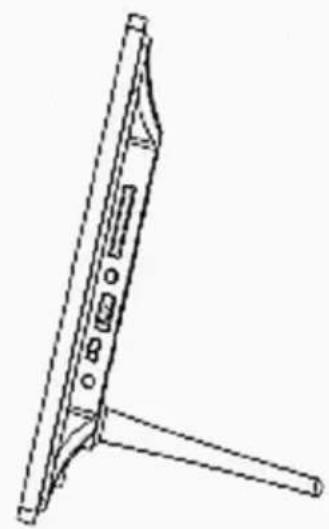
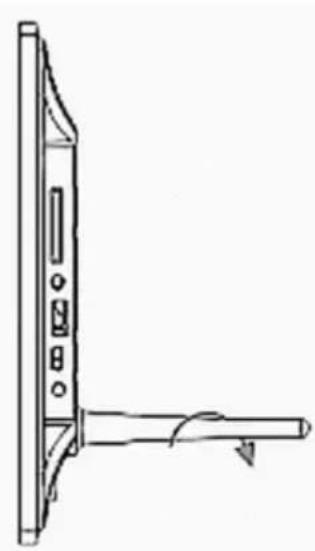
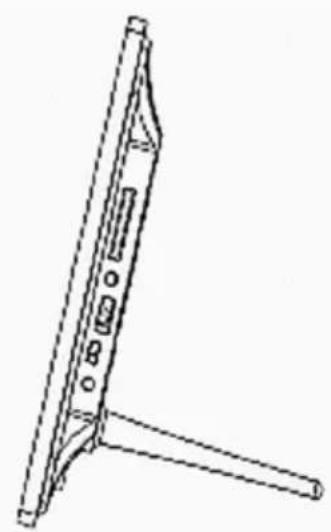
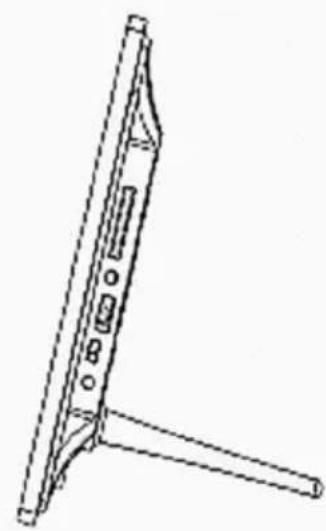
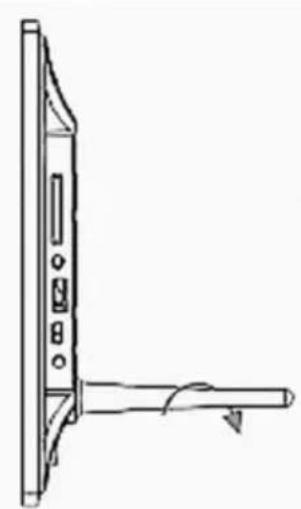
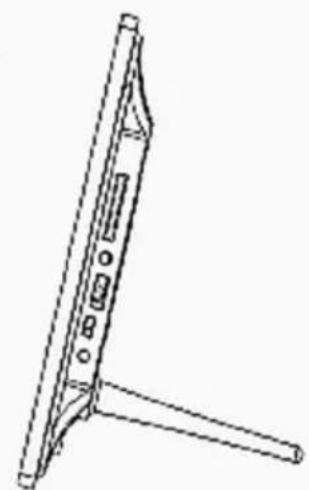
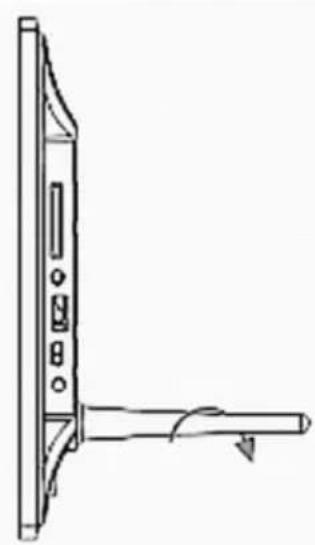
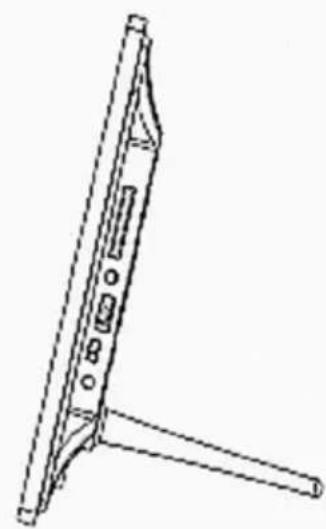
12. Stand Instructions
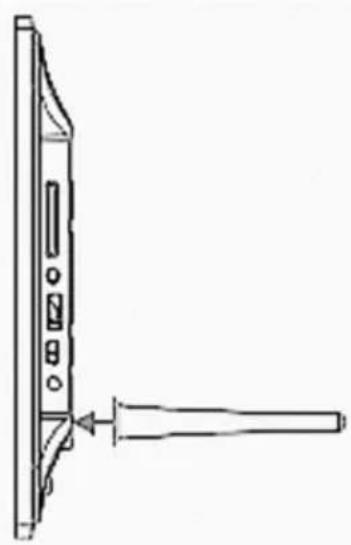
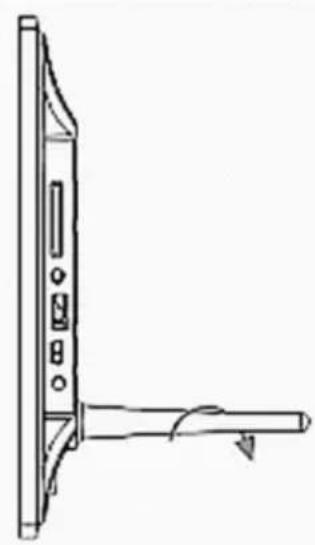
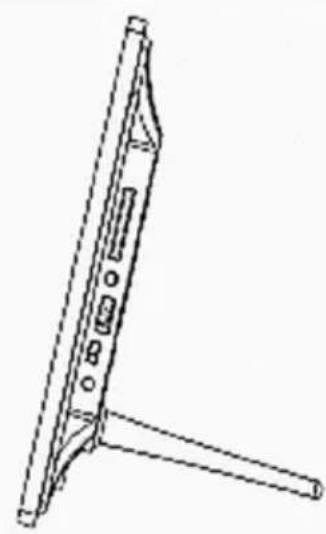
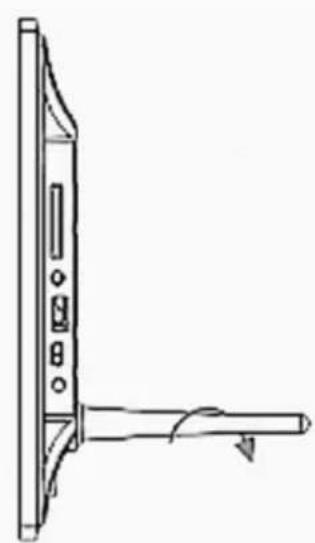
Insert the bracket into the slot of the digital photo frame and rotate the bracket
anticlockwise to set it tight. Please make sure the stand is locked, then put it on a table steadily. Please refer to the illustration below.
13. Product Diagram
13.1 Remote Control
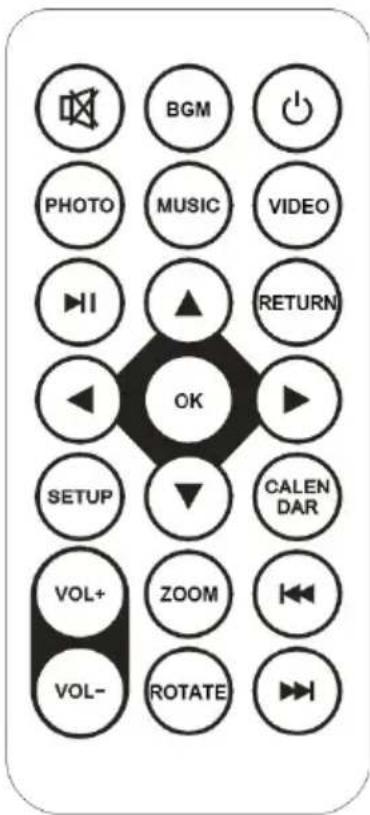
MUTE: Silence the sound temporarily.
BGM: Play photo slideshow with background music.
POWER: Power on/off switch.
PHOTO: Play photo slideshow.
MUSIC: Play music.
VIDEO: Play video.
▶II: Pause or play the media again.
RETURN: Return to previous page.
▼▲◀▶: Move up/down/left/right cursor keys.
OK: Confirm or switch between pause/play function in media play mode.
SETUP: Go to setup menu.
CALENDAR: See date and time.
VOL +/-: Turn up/down the volume.
ZOOM: Enlarge the photo in photo play mode
ROTATE: Rotate images 90° clockwise in the photo play mode
: Move back to previous file in media play mode.
▶▶: Move forward to next file in media play mode.
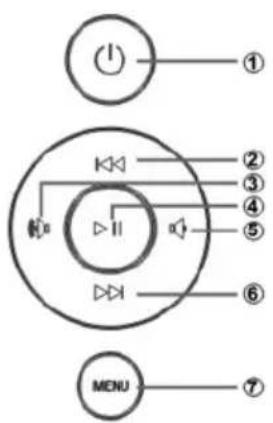
13.2 Buttons
- Power
- UP
- VOL +/Right
- Play/Pause/O K
- VOL-/Left
- DOWN
- MENU
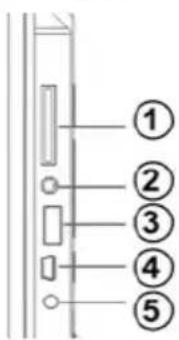
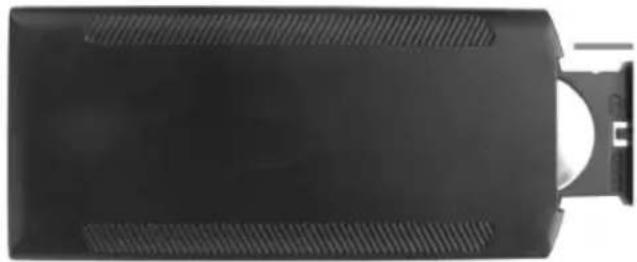
13.3 Ports
- SD/MMC/MS Slot
- Earphone Jack
- USB port
- MINI USB
- DC IN
14. Installing & Replacing the Battery
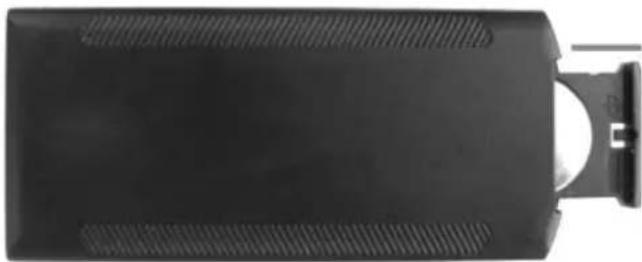
Place the remote control upside down, press down on the ridged area of the battery cover and pull towards you to remove the tray.
Place one CR2025 lithium button-cell battery on the tray with the positive "+" side facing you. Reinsert the tray.
15. Getting Started
4.5. Place the digital photo frame with the installed bracket in a steady flat position, then plug one end of the AC adapter into a standard 110-240V AC electrical outlet and the other end into the DC IN slot on the left side of the frame. 4.6. Slowly remove the protective film covering the LCD. 4.7. Remove the plastic battery insulator from the battery compartment and make sure the remote control has a battery inside. Please refer to "Installing & Replacing Battery" if you need a new battery. 4.8. It will start up automatically when the power is on. Press the power button on the backboard or press the Power Button on the Remote Control to Switch On/Off.
16. Operating Instruction
After turning on the unit, a startup picture will show. The slideshow with background music will play automatically if there is built-in memory, a memory card, or a USB device.
NOTE: Make sure there are supported picture and music files in the card or USB device.
10.1 Card and USB
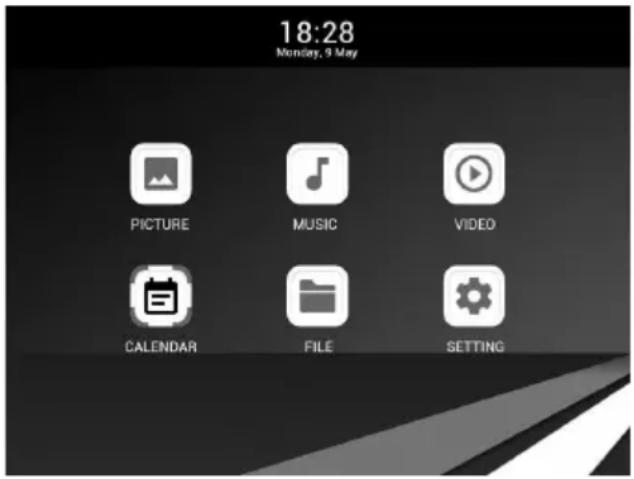
SD/SDHC/MMC and USB 2.0 are supported. After inserting a card or USB device, the slideshow will play automatically. Press RETURN to access Photo, Music, Video, File, Calendar, and Setup. Press "OK" to confirm.
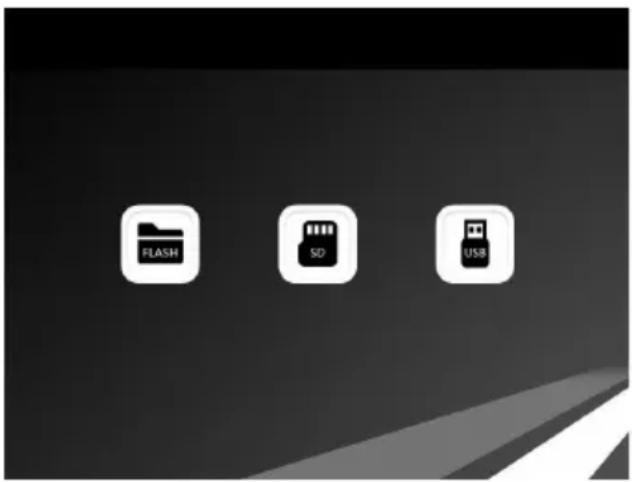
Note:
3) Make sure there are supported Picture, Music, and Video files in the Card or USB device. 4) If there are supported picture and music files in the memory card or USB device, the slideshow will play automatically with background music.
10.2 Photo Mode
Press "RETURN" to choose Storage Device. Press "OK" to enter the main menu. Choose Photo and press OK to start the slideshow. Press "Return" to enter the 9-Pictures Mode. Use
▼▲◀▶ to choose the picture and press "OK" to play. If Music is activated in the Photo setup, the slideshow will play with background music. The music must be stored in the same memory device! You can use VOL+/VOL- to turn the volume up or down.

You can configure different settings in the setup menu. Press "OK" to enter the sub-menu items.
Press ◀ to set the value and press ▼ to select the previous or next item.
Note: For random picture slideshow mode, you can go to Setting/Photo Setup/Slideshow Repeat, and select the Random option.
10.3 Music Mode
Press "RETURN" to choose "MEMORY CARD" in the main menu. Choose the Music icon and press "OK" to enter. Press ▲ to select the music in the playlist, then press ▶ to Play/Pause. Press VOL+/- to turn up/down the volume.
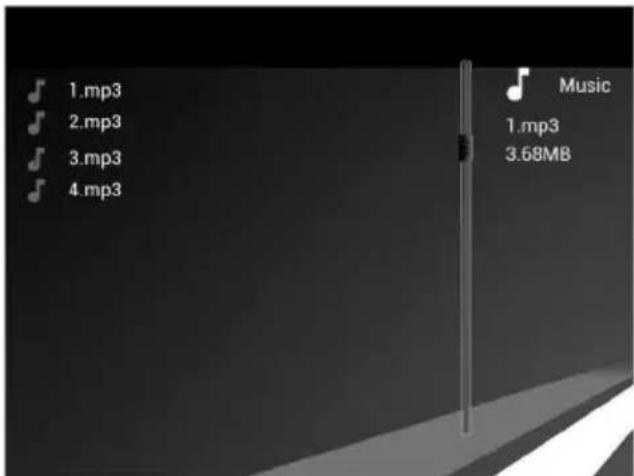
In music playing mode, press to fast forward or rewind, press "OK" to Pause or Play again. With you can play the previous or next track.
10.4 Video Mode
Press "RETURN" to choose a storage device. Press "OK" to enter the main menu, select the Movie icon, and press "OK". Use ▲▼ to select a video from the playlist, then press "OK" to play. Press VOL+/- to adjust the volume.
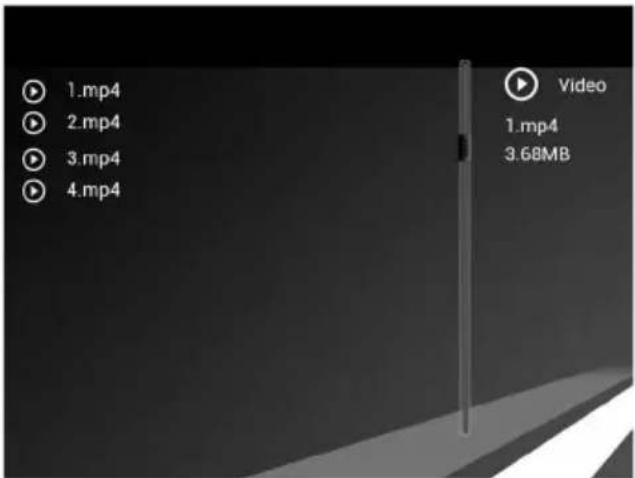
In video playing mode, press ◀ to fast forward or rewind. Press ▶ to pause; press again to resume playback.
Press to play the previous or next video.
17. Calendar
Select Calendar in the Main Menu, then press "OK" to enter. A calendar with a window on the right will be shown with the slideshow. Supported files must be stored in the selected storage device.
Press to adjust the year, and press to adjust the month.
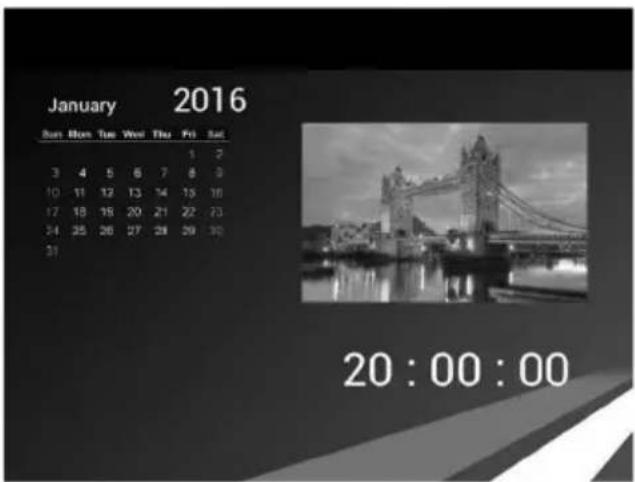
To set the date/time, press Setup to enter the Calendar Setup menu. Press "OK" to enter the sub-menu items. Press ◀▶ to set the value and press ▲ to confirm. The set time will be shown in the Calendar Interface.
18. File
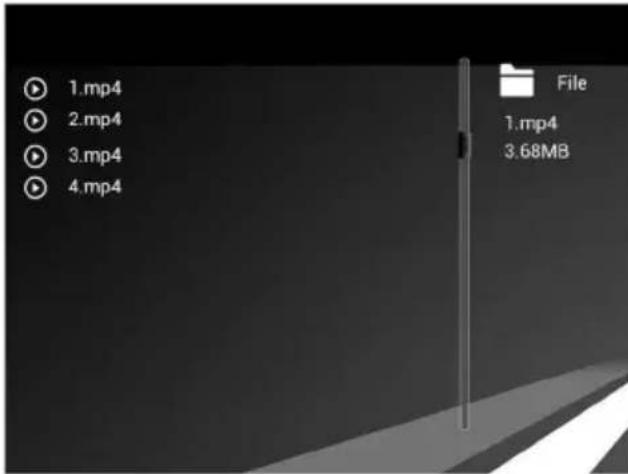
Choose "File" in the main menu and press "OK" to enter. You can browse all files in your selected storage device. Press ▲ to choose a file, then press "OK" to confirm.
Delete file
Use ▲ to highlight the file, then press to show a sub-menu for delete operation.
Copy file
Select Setting in the main menu. Press OK to enter the Setup interface. Press ▲ to highlight System Setup and press OK to enter. Then press ▲ to move to Auto Copy, press to set the value to On. All files in the USB Flash Drive will be automatically copied to Memory.
19. Setup
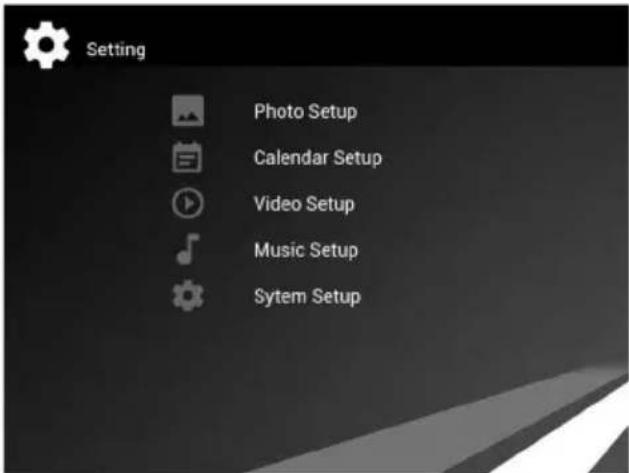
Select "Setup" from the main menu. Press "OK" to enter the setup interface and press ▲▼ to highlight the main item and press "OK" to enter the sub-menu items. Press ◀ to set the Value and press ▲ to confirm and move.
Note: After you make a setting for an item and enter into the next item, the mode/data will be saved automatically.
20. PC Connection (Optional)
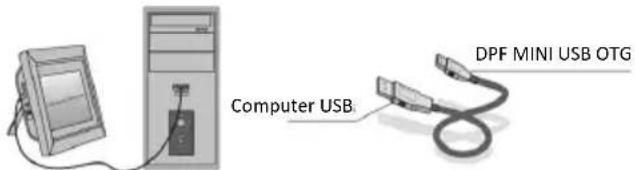
You can connect the unit to external equipment using USB Cable for file copying, deleting and editing operations.
C. Turn on the digital photo frame, connect it with your Windows2000/XP/Vista/WIN7 PC using a USB cable
D. The unit will be detected automatically and a "Connecting" icon will be displayed. You can then copy, delete, or edit files in the built-in memory or other storage devices. You need to restart the digital photo frame after you finished copying, deleting, editing or inserting a memory card.
21. Technical Specifications
- Adapter: Input AC 100-240V 50/60HZ, Output DC: 5V • Picture Formats: JPG, JPEG, BMP • Audio Format: MP3 & WMA • Video formats: MPEG1, MPEG2, MPEG4, M-JPEG and AVI • Memory Cards: SD/SDHC/MMC • Built-in memory: 4GB • USB: USB Host; MINI USB (USB Cable)
- Screen Parameter: Screen Size: 25.7cm (10.1 inch) TFT LED Resolution: 1024x600 Pixel Aspect Ratio: 16:9 Working temperature: 0°\~40°, Humidity: 10-85%
22. Troubleshooting Guide
If you are having problems with your player, please consult the following. If you need further assistance, please contact our technical support team.
No power:
- Please check whether the plug is inserted correctly.
Remote control not functioning:
- Please check whether the battery has power (the battery can be used for half a year under normal conditions). Replace with new battery if necessary.
Cannot read the CARD or USB:
- Please confirm whether there is storage in the card or USB device. • Empty devices cannot be read.
Cannot play the file:
- Please confirm if the file format is compatible with the player.
Display is too bright or too dark:
- Please adjust the brightness or contrast in the setup menu.
The color is too sharp or there is no color:
- Please adjust the color and contrast setup.
No sound:
- Please check whether the volume is correct and that the player is not in Mute mode.
Introduction:
24.2 Buttons
15.1 Card and USB
34. Instructions regarding the support
20.1 Card and USB
46. Product diagram
46.1 Remote control
46.2 Keys
25.1 Board and USB

57. Product diagram
57.1 Remote control
57.2 Keys
- On/Off
- OMH00G
- VOL +/Right
- Start/Pause/OK
- VOL-/Links
- OMLAAG
- MENU
57.3 Ports
58. Installing & replacing the battery
30.1 Card and USB
65. Technical specifications
- Adapter: Input AC 100-240V 50/60HZ, output DC: 5V
- Photo formats: JPG, JPEG, BMP • Audio format: MP3 & WMA
- Video formats: MPEG1, MPEG2, MPEG4, M-JPEG and AVI • Memory cards: SD/SDHC/MMC
- Built-in memory: 4GB • USB: USB-host; MINI-USB (USB cable)
- Screen parameters: Screen size: 25.7 cm (10.1 inch) TFT LED
Resolution: 1024x600 pixels
Product diagram
67.1 Remote control
MUTE: Temporarily removes sound.
67.2 Buttons
35.1 Card and USB
If you want to set the date/time, press Setup, you can enter the Calendar Setup menu, press "OK" to enter the submenu items. Press
78.2 Buttons
- Power
- UP
- VOL+/Right
- Play/Pause/OK
- VOL-/Left
- DOWN
- MENU
78.3 Ports
- SD/MMC/MS
- Headphone jack
- USB port
- MINI USB
- DC IN (DC power input)
40.1 Card and USB
Device description
45.1 Card and USB


- SETUP
- REMOTE CONTROL
- BUTTON ASSIGNMENTS
- CONTENTS
- PACKAGING LIST
- CAUTIONS
- PRECAUTIONS AND MAINTENANCE
- CLEANING THE LCD SCREEN
- WARNING
- NOTE
- FEATURES
- STAND INSTRUCTIONS
- PRODUCT DIAGRAM
- BUTTONS
- PORTS
- INSTALLING & REPLACING THE BATTERY
- GETTING STARTED
- OPERATING INSTRUCTION
- CARD AND USB
- PHOTO MODE
- MUSIC MODE
- VIDEO MODE
- CALENDAR
- FILE
- PC CONNECTION (OPTIONAL)
- TECHNICAL SPECIFICATIONS
- TROUBLESHOOTING GUIDE
- NO POWER
- REMOTE CONTROL NOT FUNCTIONING
- CANNOT READ THE CARD OR USB
- CANNOT PLAY THE FILE
- DISPLAY IS TOO BRIGHT OR TOO DARK
- THE COLOR IS TOO SHARP OR THERE IS NO COLOR
- NO SOUND
- INTRODUCTION
- INSTRUCTIONS REGARDING THE SUPPORT
- KEYS
- BOARD AND USB
- DEVICE DESCRIPTION
Brand : BRAUN
Model : DigiFrame 1060
Category : Digital photo frame