
ACC8120 - Docking station PHILIPS - Free user manual and instructions
Find the device manual for free ACC8120 PHILIPS in PDF.
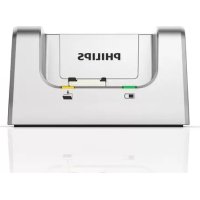



| Product Type | Docking station for digital dictation recorder |
| Brand | Philips |
| Model | ACC8120 |
| Compatibility | Philips Pocket Memo series DPM8000, DPM7000 and DPM6000 recorders; Philips LFH2210 foot control (optional) |
| Dimensions (W × H × D) | 80 mm × 77 mm × 45 mm |
| Weight | 196 g |
| Power supply | AC adapter 5 V DC / 1800 mA |
| Power consumption | 800 mA max. |
| Docking station port | 1 (for recorder connection) |
| Foot control port | 1 (3.5 mm jack) |
| USB port | Micro USB 2.0 (computer connection); Micro USB 5 V DC (power) |
| Charging indicator | Flashing green (charging) / solid green (fully charged) |
| Download indicator | Flashing orange (file transfer in progress) |
| Main functions | Battery charging, transferring recordings to computer, hands-free mode for dictation and transcription with optional foot pedal |
| Water protection | Protect from rain and water ingress to avoid short circuits |
| Heat protection | Do not expose to excessive heat or direct sunlight |
| Recycling | Compliant with EU Directive 2002/96/EC (crossed-out wheelie bin); do not dispose with household waste |
| Package contents | Docking station, USB cable, AC adapter, user manual |
| Operating temperature | 5 °C to 45 °C |
| Operating humidity | 10 % to 90 % non-condensing |
| Compliance | Class B, compliant with Canadian interference-causing equipment regulations |
Frequently Asked Questions - ACC8120 PHILIPS
User questions about ACC8120 PHILIPS
0 question about this device. Answer the ones you know or ask your own.
Ask a new question about this device
Download the instructions for your Docking station in PDF format for free! Find your manual ACC8120 - PHILIPS and take your electronic device back in hand. On this page are published all the documents necessary for the use of your device. ACC8120 by PHILIPS.
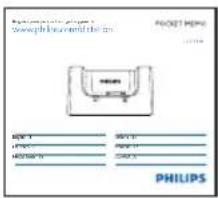
USER MANUAL ACC8120 PHILIPS
Register your product and get support at
www.philips.com/dictation
POCKET MEMO
ACC8120
English 3
German 9
Dutch 15
Italian 21
French 27
Spanish 33
PHILIPS
1 Important
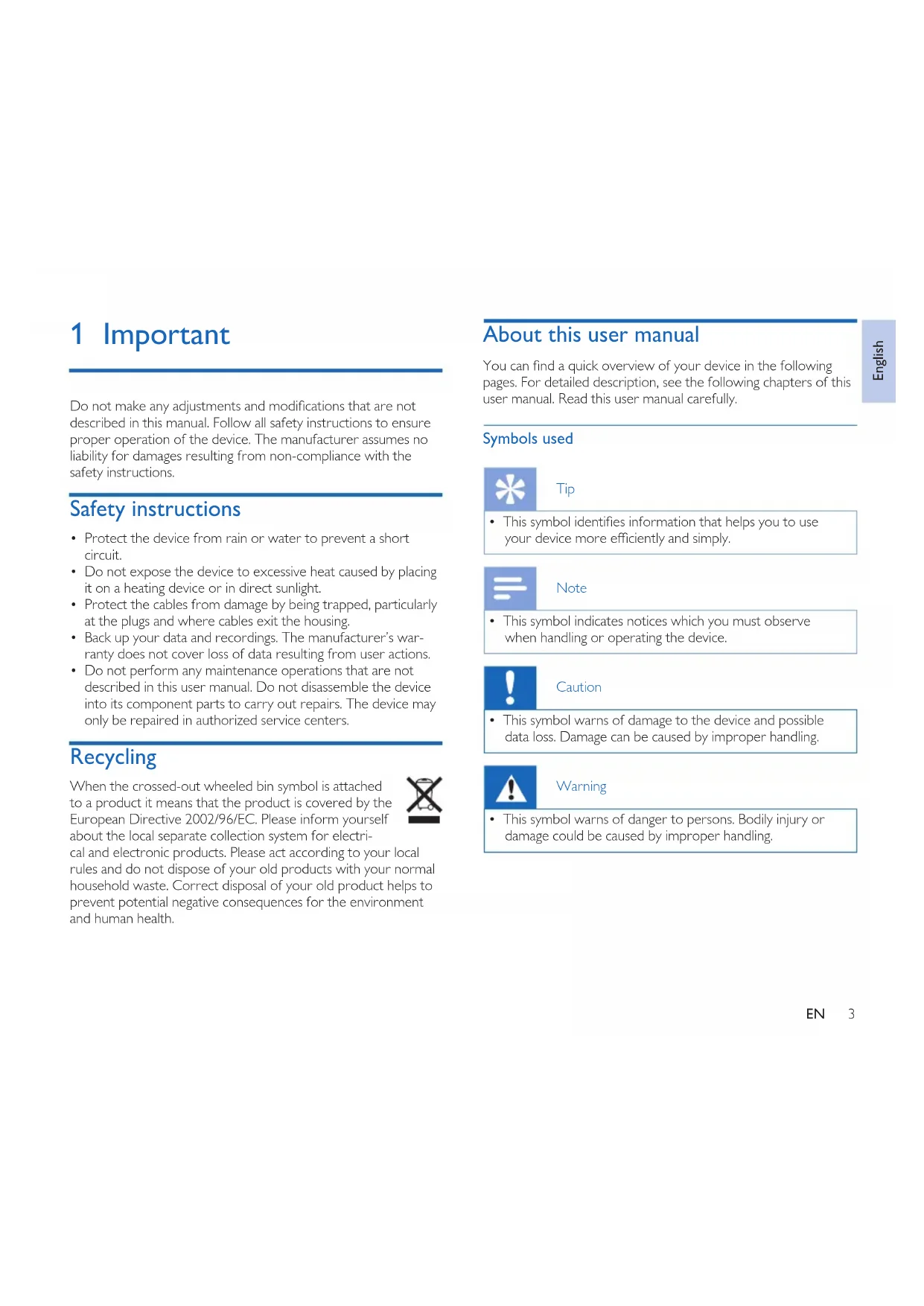
Do not make any adjustments and modifications that are not described in this manual. Follow all safety instructions to ensure proper operation of the device. The manufacturer assumes no liability for damages resulting from non-compliance with the safety instructions.
Safety instructions
- Protect the device from rain or water to prevent a short circuit.
- Do not expose the device to excessive heat caused by placing it on a heating device or in direct sunlight.
- Protect the cables from damage by being trapped, particularly at the plugs and where cables exit the housing.
- Back up your data and recordings. The manufacturer's warranty does not cover loss of data resulting from user actions.
- Do not perform any maintenance operations that are not described in this user manual. Do not disassemble the device into its component parts to carry out repairs. The device may only be repaired in authorized service centers.
Recycling
When the crossed-out wheeled bin symbol is attached to a product it means that the product is covered by the European Directive 2002/96/EC. Please inform yourself about the local separate collection system for electrical and electronic products.
Please act according to your local rules and do not dispose of your old products with your normal household waste. Correct disposal of your old product helps to prevent potential negative consequences for the environment and human health.

About this user manual
You can find a quick overview of your device in the following pages. For detailed description, see the following chapters of this user manual. Read this user manual carefully.
Symbols used

Tip
- This symbol identifies information that helps you to use your device more efficiently and simply.

Note
This symbol indicates notices which you must observe when handling or operating the device.

Caution
- This symbol warns of damage to the device and possible data loss. Damage can be caused by improper handling.

Warning
- This symbol warns of danger to persons. Bodily injury or damage could be caused by improper handling.
2 Your docking station
We are delighted that you have chosen a Philips device. Visit our website for comprehensive support such as user manuals, software downloads, warranty information and more: www.philips.com/dictaton.
What's in the box
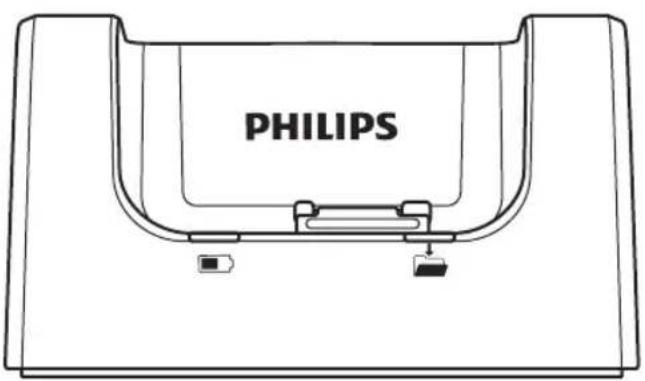
Docking station
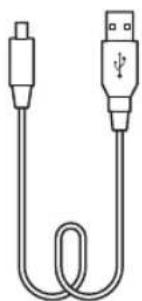
USB cable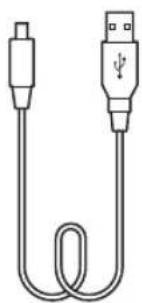
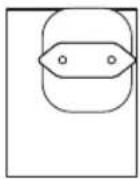
Power adapter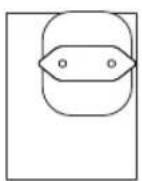
User manual
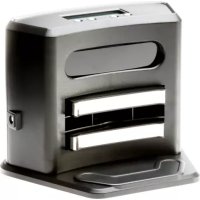
Overview of the docking station
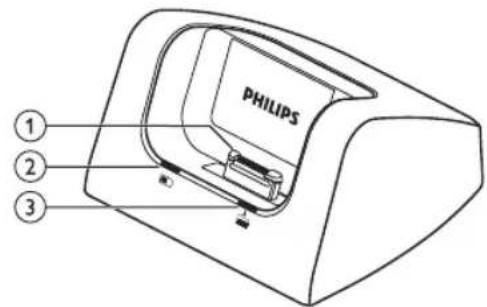
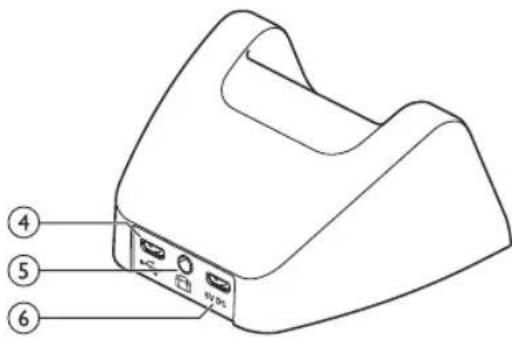
① Docking port ② Charge indicator light ③ Download indicator light ④ USB port
- Micro USB connection for the computer
⑤ Foot pedal port - Connect the Philips foot control LFH2210 (optional) for hands-free dictation and transcription. ⇒ Hands-free recording and transcription, p. 6. 65V DC Power adapter port - Connect the power adapter
3 Get started

Caution
- Ensure you have read the safety instructions before you connect and install your recorder. → Safety instructions, p. 3.
Connect the docking station
1 Plug the USB cable supplied with the docking station into the power adapter and connect it to the main power supply. 2 Insert the micro USB plug into the power adapter port (SVDDe rear side of the docking station. 3 Plug the USB cable supplied with the recorder into a USB port on your computer. 4 Insert the micro USB plug into the USB port ( ) on the rear side of the docking station.
Charge the battery
1 Place the recorder in the docking station.
The recorder starts charging. The charge indicator light flashes green while the battery is being charged. The charge indicator light changes to solid green when the battery is fully charged.

Notes
- Charge the battery for 3 hours before first use.
- The recorder may become warm when the battery is being charged.
- The maximum battery capacity will only be reached after several charging/discharging cycles.
2 Your recorder is now ready to use.
Download recordings to the computer
With USB mass storage support, the recorder is automatically displayed as an external drive when it is connected to the computer. It can then be accessed easily with any program as a regular drive.
Use Philips SpeechExec software for automatic download, conversion, and routing of files.
1 Make a recording with the recorder. 2 Start Philips SpeechExec Pro software. 3 Place the recorder in the docking station. 4 By default, the recordings on the recorder will be downloaded automatically to the computer and moved to the Finished dictations folder of the work list.

Caution
- The download indicator light flashes orange while file transfer is in progress.
- Do not remove the recorder from the docking station or switch off the recorder while the file transfer is in progress, otherwise your dictation files may be damaged.

Note
- How and which files are downloaded after the recorder is connected to a computer can be configured in the settings menu of Philips SpeechExec software or with the configuration wizard.
Hands-free recording and transcription
The recorder can be used for hands-free recording and transcription by connecting the optional Philips foot pedal LFH2210 to the docking station. In this operating mode, you can control the recording and playback functions with the foot pedal.

Tip
- Use the auto-backspace feature to jump back the configured number of seconds in the recording when restarting playback.
- To activate the auto-backspace feature, press F2 (Menu) on the recorder while the recorder is in stop mode and select Device > Auto backspace.
Hands-free recording
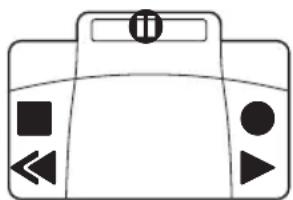
1 Make sure that the docking station is NOT connected to a computer via USB. 2 To activate the hands-free recording feature, press F2 (Menu) on the recorder while the recorder is in stop mode and select Device > Hands-free mode > Dictate. 3 Connect the foot pedal to the foot pedal port on the rear side of the docking station and place the recorder in the docking station.
The symbol is displayed in the information bar at the top of the screen.
4 Press the middle pedal of the foot pedal to enter record standby mode. To start recording, press the right pedal of the foot pedal. The behavior for starting and stopping recording depends on the setting of the switch on the underside of the foot control:
- N (Neutral) position: Press and hold the right pedal for recording. For short pauses, release the right pedal.
- T (Toggle) position: Press and release the right pedal to start recording. For short pauses, press the right pedal of the foot pedal again. To continue recording, press the right pedal of the foot pedal again.
5 To stop recording, press the left pedal of the foot pedal. To continue recording, repeat step 4. 6 Press and hold the left pedal of the foot pedal for fast rewind. When rewinding reaches the desired position, release the pedal. 7 When recording is stopped, press the right pedal of the foot pedal to start playback. The behavior for starting and stopping playback depends on the setting of the switch on the underside of the foot control:
- N (Neutral) position: Press and hold the right pedal for playback. When the pedal is released, playback is stopped.
- T (Toggle) position: Press and release the right pedal to start continuous playback. Press the right pedal again to stop playback.
8 Double click the left pedal of the foot pedal during recording to finish/lock (EOL) the current recording and create a new file.
Hands-free transcription
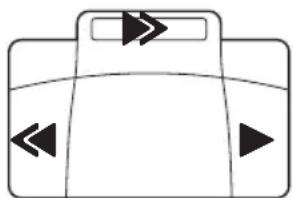
1 Make sure that the docking station is NOT connected to a computer via USB. 2 To activate the hands-free transcription feature, press F2 (Menu) on the recorder while the recorder is in stop mode and select Device > Hands-free mode > Transcribe. 3 Connect the optional Philips foot pedal to the foot pedal port on the rear side of the docking station and place the recorder in the docking station.
The symbol is displayed in the information bar at the top of the screen.
4 Press and hold the left pedal for fast rewind. When rewinding reaches the desired position, release the pedal. 5 Press and hold the middle pedal to fast forward. When forwarding reaches the desired position, release the pedal. 6 Press the right pedal to start playback. The behavior for starting and stopping playback depends on the setting of the switch on the underside of the foot control:
- N (Neutral) position: Press and hold the right pedal for playback. When the pedal is released, playback is stopped.
- T (Toggle) position: Press and release the right pedal to start continuous playback. Press the right pedal again to stop playback.

Note
- If the docking station is connected to a computer, you can switch between USB mode and hands-free mode. In USB mode the recorder is displayed as an external drive on the connected computer. The function is only available when the switch on the underside of the foot pedal is in the N position and the recorder is in the stop mode and at the end of the current recording.
- To switch between USB mode and hands-free mode, double click the right pedal of the foot pedal and then hold the pedal for about 1 second.
4 Technical data
Connectivity
- Docking port
- Port for foot pedal: 3.5 mm
- USB: micro USB 2.0
- USB: micro USB 5V DC
Compatibility
- Philips Pocket Memo digital recorder DPM8000, DPM7000 and DPM6000 series Philips foot pedal LFH2210
Power
Power adapter: 5 V DC/1800 mA Power consumption: 800 mA max.
Green Specifications
Compliant to 2002/95/EC (RoHS) - Lead-free soldered product
Operation conditions
Temperature: 5° - 45°C / 41° - 113°F Humidity: 10% - 90% non-condensing
Specifications
Product dimensions (W x D x H) 80 mm x 77 mm x 45 mm / 3.1 x 3.0 x 1.8 inches. Weight: 196 g / 6.9 oz.
1 Important
2 Your docking station
Docking station USB cable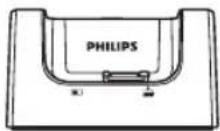
2 II Your docking station
Connecting the docking station
Federal Communications Commission notice
This equipment has been tested and found to comply with the limits for a Class B digital device, pursuant to part 15 of the FCC rules. These limits are designed to provide reasonable protection against harmful interference in a residential installation.
Modifications
The FCC requires the user to be notified that any changes or modifications made to this device that are not expressly approved by the manufacturer may void the user's authority to operate the equipment.
Cables
Connections to this device must be made with shielded cables with metallic RFI/EMI connector hoods to maintain compliance with FCC rules and regulations.
Canadian notice
This Class B digital apparatus meets all requirements of the Canadian interference-causing equipment regulations.
Canadian notice
Declaration of conformity
Model number: ACC8120
Trade name: Philips Pocket Memo docking station
Responsible party: Speech Processing Solutions USA Inc
Address: Two Ravinia Drive, Suite 965, Atlanta,
GA 30346, USA
Telephone number: 888-260-6261
Website: www.philips.com/dictation

ACC8120
Tested to comply with FCC standards FOR HOME OR OFFICE USE
This device complies with Part 15 of the FCC rules. Operation is subject to the following two conditions: 1) This device may not cause harmful interference. 2) This device must accept any interference received, including interference that may cause undesired operation.
CE Declaration of Conformity

The conformity with the relevant EU directives is confirmed by the CE mark.
Declaration of conformity
Speech Processing Solutions GmbH hereby declares that the device ACC8120 fully comply with the basic requirements and other relevant provisions of directives 2006/95/EC, 2004/108/EC and 2009/125/EC. A complete declaration of conformity for this product is available at www.philips.com/dictation.
Neither Speech Processing Solutions GmbH nor its affiliates shall be liable to the purchaser of this product or third parties with respect to claims for damages, losses, costs or expenses incurred by purchaser or third parties as a result of an accident, misuse or abuse of this product or unauthorized modifications, repair, modification of the product or failure to meet the operating and maintenance instructions provided by the manufacturer.
This user manual is a document with no contractual nature. We accept no liability for changes, mistakes or printing errors.

Specifications are subject to change without notice.
© 2013 Speech Processing Solutions GmbH. All rights reserved. Philips and the Philips' shield emblem are registered trademarks of Koninklijke Philips N.V. and are used by Speech Processing Solutions GmbH under license from Koninklijke Philips N.V. All trademarks are the property of their respective owners.
Document version 1.0, 2013/09/05. Document number 5103 109 9769.1
- IMPORTANT
- SAFETY INSTRUCTIONS
- RECYCLING
- ABOUT THIS USER MANUAL
- SYMBOLS USED
- YOUR DOCKING STATION
- WHAT'S IN THE BOX
- OVERVIEW OF THE DOCKING STATION
- GET STARTED
- CONNECT THE DOCKING STATION
- CHARGE THE BATTERY
- DOWNLOAD RECORDINGS TO THE COMPUTER
- CAUTION
- NOTE
- HANDS-FREE RECORDING AND TRANSCRIPTION
- TIP
- HANDS-FREE RECORDING
- HANDS-FREE TRANSCRIPTION
- TECHNICAL DATA
- CONNECTIVITY
- COMPATIBILITY
- POWER
- GREEN SPECIFICATIONS
- OPERATION CONDITIONS
- SPECIFICATIONS
- II YOUR DOCKING STATION
- CONNECTING THE DOCKING STATION
- FEDERAL COMMUNICATIONS COMMISSION NOTICE
- MODIFICATIONS
- CABLES
- CANADIAN NOTICE
- DECLARATION OF CONFORMITY
- CE DECLARATION OF CONFORMITY
Brand : PHILIPS
Model : ACC8120
Category : Docking station