
Imageview 118313 - Binoculars BUSHNELL - Free user manual and instructions
Find the device manual for free Imageview 118313 BUSHNELL in PDF.



| Product Type | Digital binoculars with integrated camera |
| Brand | Bushnell |
| Model | Imageview 118313 |
| Power Supply | CR123A battery (not included) or USB cable |
| High photo resolution | 1280 x 1024 pixels |
| Low photo resolution | 1024 x 768 pixels |
| Shooting modes | Photo, AVI video, 10s self-timer |
| Photo memory capacity (Hi) | Up to 40 photos (high quality) |
| Photo memory capacity (Lo) | Up to 85 photos (low quality) |
| Video memory capacity | 40 to 70 seconds (320 x 240) |
| PC connection | USB (mass storage, driverless for Windows Me/2000/XP) |
| System requirements | Pentium 166 MMX, 32 MB RAM, USB port, Windows 98/Me/2000/XP |
| Warranty | 2-year limited |
| Maintenance and cleaning | Clean the lenses with a soft, dry cloth |
| Safety | Do not look directly at the sun with the binoculars |
Frequently Asked Questions - Imageview 118313 BUSHNELL
User questions about Imageview 118313 BUSHNELL
0 question about this device. Answer the ones you know or ask your own.
Ask a new question about this device
Download the instructions for your Binoculars in PDF format for free! Find your manual Imageview 118313 - BUSHNELL and take your electronic device back in hand. On this page are published all the documents necessary for the use of your device. Imageview 118313 by BUSHNELL.
USER MANUAL Imageview 118313 BUSHNELL
natural_image
Black and silver binoculars with visible lens, no text or symbols on the main bodyModel: 11-8313
LIT. #: 98-0393/02-04
CONTENTS
ENGLISH 1
FRANÇAIS....11
ESPAÑOL 23
DEUTSCH....33
ITALIANO 43
PORTUGUÊS 53
Congratulations on your purchase of a Bushnell ImageView binocular. Before using the product, please read the instructions contained in this manual and take time to familiarize yourself with the different parts and features of the product.
CAMERA OPERATION INSTRUCTIONS
BUTTON DESCRIPTIONS
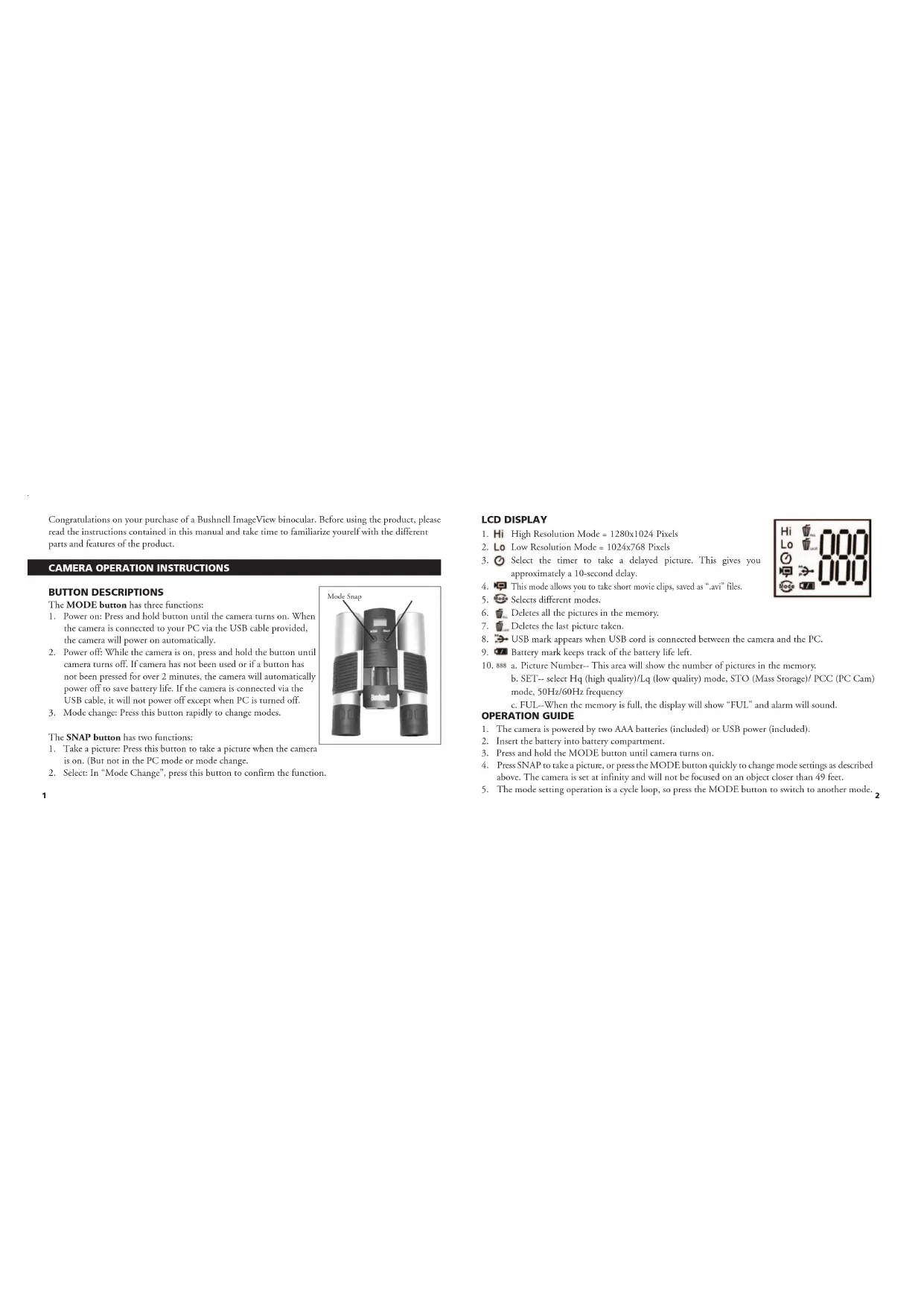
The MODE button has three functions:
- Power on: Press and hold button until the camera turns on. When the camera is connected to your PC via the USB cable provided, the camera will power on automatically.
- Power off: While the camera is on, press and hold the button until camera turns off. If camera has not been used or if a button has not been pressed for over 2 minutes, the camera will automatically power off to save battery life. If the camera is connected via the USB cable, it will not power off except when PC is turned off.
- Mode change: Press this button rapidly to change modes.
The SNAP button has two functions:
- Take a picture: Press this button to take a picture when the camera is on. (But not in the PC mode or mode change.
- Select: In "Mode Change", press this button to confirm the function.
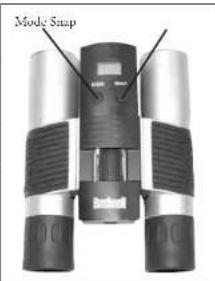
LCD DISPLAY
- Hi High Resolution Modc = 1280x1024 Pixels
- Lo Low Resolution Mode = 1024x768 Pixels
- Select the timer to take a delayed picture. This gives you approximately a 10-second delay.
- This mode allows you to take short movie clips, saved as ".avi" files.
- Mode Selects different modes.
- Deletes all the pictures in the memory.
- Deletes the last picture taken.
- USB mark appears when USB cord is connected between the camera and the PC.
- Battery mark keeps track of the battery life left.
- 888 a. Picture Number-- This area will show the number of pictures in the memory.
b. SET-- select Hq (high quality)/Lq (low quality) mode, STO (Mass Storage)/ PCC (PC Cam) mode, 50Hz/60Hz frequency
FUL--When the memory is full, the display will show "FUL" and alarm will sound.
OPERATION GUIDE
- The camera is powered by two AAA batteries (included) or USB power (included).
- Insert the battery into battery compartment.
- Press and hold the MODE button until camera turns on.
- Press SNAP to take a picture, or press the MODE button quickly to change mode settings as described above. The camera is set at infinity and will not be focused on an object closer than 49 feet.
- The mode setting operation is a cycle loop, so press the MODE button to switch to another mode.
The loop order of the different modes is shown here:

-
To change settings, toggle through the different modes by pressing the MODE button. When a mode is selected, the indicator symbol on the LCD will appear. You can then select that mode by pressing the SNAP button.
-
When in "Normal" mode, press SNAP to take a picture.
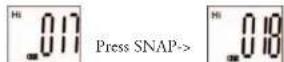
-
By pressing the MODE button the camera will enter "Mode Change".
-
To select "Self-Timer" mode, press MODE and the self-timer mark appears, then press SNAP and the camera will take a picture after a 10 second delay. The camera exits self-timer mode automatically after capture is done and the self-timer mark disappears on the LCD at the same time.

- Low Resolution mode, will cause your pictures to be of a lower resolution, but will allow you to store many more pictures in the camera's memory. The default setting is Hi. To change the resolution, press the MODE button until you see the "mode" icon appears. Press the SNAP button, and Lo will appear. The camera is changed from high resolution to low resolution. Repeat the same steps to change the camera back to Hi resolution mode.
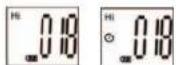
| CAPTURED PICTURES WITH BUILT-IN MEMORY: | ||
| Pixels (Resolution) | Image Quality | Captured Picture Quantity |
| 1280X1024(Hi) | High Quality (HQ) | Up to 40 pictures |
| Low Quality (LQ) | Up to 55 pictures | |
| 1024X768(Lo) | High Quality (HQ) | Up to 55 pictures |
| Low Quality (LQ) | Up to 85 pictures | |
- When in "Normal" mode press the MODE button 3 times to enter the "AVI" mode. The icon will appear. Press the SNAP button to start AVI capturing, and counting. The resolution for AVI is 320X240 pixies. The memory of the camera can hold from 40-70 seconds of live action. It depends on what objects you are capturing and the lighting conditions.

- To delete all pictures in the camera's memory, select the "Delete All" mode. This represented by the trash can icon. Press the SNAP button to confirm. The picture number will then blink. You will hear a tone that becomes higher as the pictures are deleted. Once complete, the picture number will reset to possible captured numbers.
- If the "delete Last" icon appears, the display will show the following: Press SNAP to delete the last picture in the camera's memory. 'The picture number will be automatically increased after deletion is done.
- Press the MODE button until SET mode appears on the LCD. Press SNAP to enter Setting mode. To change the setting of image quality (default setting is High), StorageCam (default setting is Storage), 50 Hz/60 Hz frequency (default setting is 60 Hz).
a. Select the image quality at Hq (High quality) or Lq (Low quality) by pressing the SNAP button. Then press the MODE button to confirm and enter next setting.


b. Select the STO (Mass Storage) or PCC (PC CAM) mode by pressing the SNAP button. Then press MODE button to confirm and enter next setting.


c. Select 50 Hz or 60 Hz settings for the camera output by pressing the SNAP button. Then press MODE button to confirm and enter next setting. The camera's default mode is the "60" mode, which matches the power frequency for the United States. To change to the "50" mode, press the SNAP button until the "60" changes to "50". Confirm the selection by pressing the SNAP button. To avoid any flickering on the picture, the correct power frequency (either 50 or 60) for your country must be selected.


d. Escape the Setting mode by pressing the SNAP button.

- The battery mark keeps tracking the battery life. If the battery indicator is blinking, it is necessary to replace the batteries soon.

DOWNLOADING THE PICTURES TO YOUR COMPUTER
- The camera has a mass storage function. When connected to the PC without changing any setting, a new disc icon will appear in the computer interface. Click the icon, the captured pictures will be seen directly.
- The captured pictures can also be downloaded and saved in the PC via the photo imaging software.
CONNECTING TO THE COMPUTER
System Requirements:
Pentium 166MMX minimum
(Recommended Pentium 266)
Windows 98 / Me / Windows 2000 / XP
Minimum 32MB of RAM
USB port
Minimum 200MB of Hard Drive space with additional 65 MB space for IE and DirectX
CD-ROM driver
Super VGA Monitor and video card
SOFTWARE INSTALLATION
For OS Windows Me/2000/XP, no need to install software, just plug in and use.
Load software prior to connecting your camera to your computer if your OS is Windows 98.
To load software insert CD into your CD-ROW drive and it will self-start. The CD contains the Roxio Photo Suite software as well as the drivers that will allow your computer to recognize your camera.
Follow the "On Screen" instructions. If your computer does not have an auto play function and will not automatically run CDs, open the CD in the "My Computer" window and click on the "autorun.exe" icon. After the drivers are successfully installed, click on "Roxio Photo Suite" to install the photo imaging software.

WARNING: Make sure you download any picture from your camera before you remove the batteries from the camera.
Follow the instructions on the software to successfully download and save the pictures on your computer. An installation screen will automatically guide you through the installation process.
WARRANTY / REPAIR
TWO-YEAR LIMITED WARRANTY
Your Bushnell® product is warranted to be free of defects in materials and workmanship for two years after the date of purchase. In the event of a defect under this warranty, we will, at our option, repair or replace the product, provided that you return the product postage prepaid. This warranty does not cover damages caused by misuse, improper handling, installation, or maintenance provided by someone other than a Bushnell Authorized Service Department.
Any return made under this warranty must be accompanied by the items listed below:
1) A check/money order in the amount of \$10.00 to cover the cost of postage and handling
2) Name and address for product return
3) An explanation of the defect
4) Proof of Date Purchased
5) Product should be well packed in a sturdy outside shipping carton, to prevent damage in transit, with return postage prepaid to the address listed below:
IN U.S.A. SEND TO: IN CANADA SEND TO:
Bushnell Performance Optics Bushnell Performance Optics
Attn.: Repairs Attn.: Repairs
8500 Marshall Drive 25A East Pearce Street, Unit 1
Lenexa, Kansas 66214 Richmond Hill, Ontario L4B 2M9
For products purchased outside the United States or Canada please contact your local dealer for applicable warranty information. In Europe you may also contact Bushnell at: BUSHNELL Performance Optics GmbH
European Service Centre
MORSESTRASSE 4
D- 50769 KÖLN
GERMANY
Tél: +49 (0) 221 709 939 3
Fax: +49 (0) 221 709 939 8
This warranty gives you specific legal rights.
You may have other rights which vary from country to country
©2004 Bushnell Performance Optics
FRANÇAIS
25A East Pearce Street, Unit 1
Lenexa, Kansas 66214
Richmond Hill, Ontario L4B 2M9
European Service Centre
MORSESTRASSE 4
D- 50769 Cologne
Allemagne
Tel: +49 (0) 221 709 939 3
Fax: +49 (0) 221 709 939 8
©2004 Bushnell Performance Optics
ESPAÑOL
8500 Marshall Drive 25A East Pearce Street, Unit 1
Lenexa, Kansas 66214 Richmond Hill, Ontario L4B 2M9
European Service Centre
MORSESTRASSE 4
D. 50769 KÖLN
D° 30769 KO ALEMONIA
Tél: 49 (0) 221 709 929 2
Tel: 449 (0) 221 709 939 3 Fax: +48 (0) 221 709 939 8
8500 Marshall Drive 25A East Pearce Street, Unit 1
Lenexa, Kansas 66214 Richmond Hill, Ontario L4B 2M9
European Service Centre
MORSESTRASSE 4
D-50769 KÖLN
Deutschland
Tel: +49 (0) 221 709 939 3
Fax: +49 (0) 221 709 939.8
(2) 10.3.14
©2004 Bushnell Performance Optics
NOTES
ITALIANO
25A East Pearce Street, Unit 1
8500 Marshall Drive
Richmond Hill, Ontario L4B 2M9
European Service Centre
MORSESTRASSE
D- 50769 - Cologne
Germania
Tel: +49 (0) 221 709 939 3
Fax: +49 (0) 221 709 939 8
©2004 Bushnell Performance Optics
PORTUGUÊS
©2004 Bushnell Performance Optics