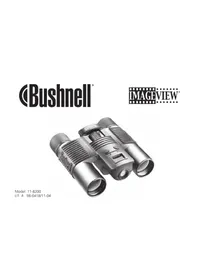
Imageview 118200 - Binoculars BUSHNELL - Free user manual and instructions
Find the device manual for free Imageview 118200 BUSHNELL in PDF.



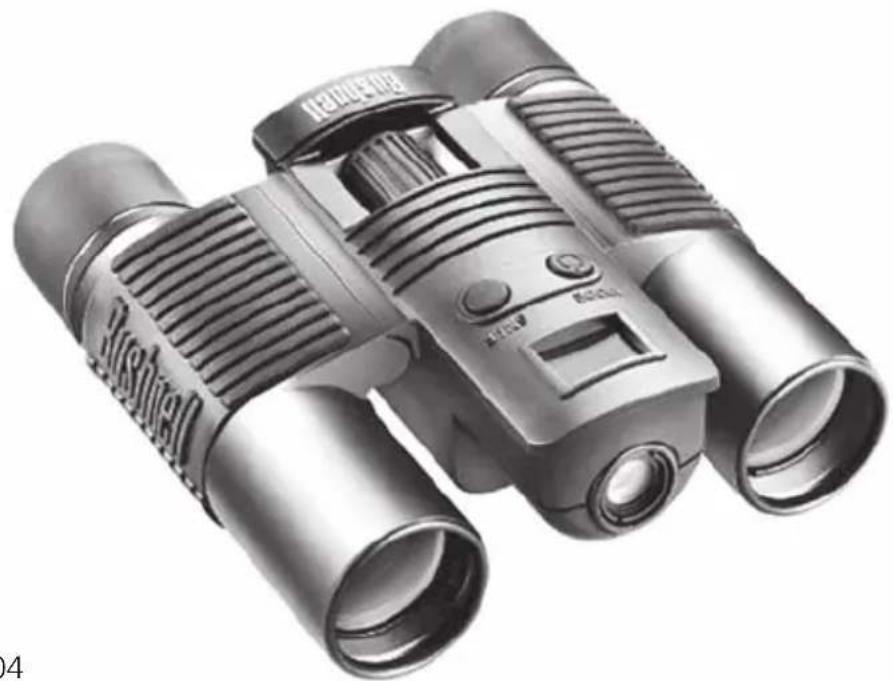
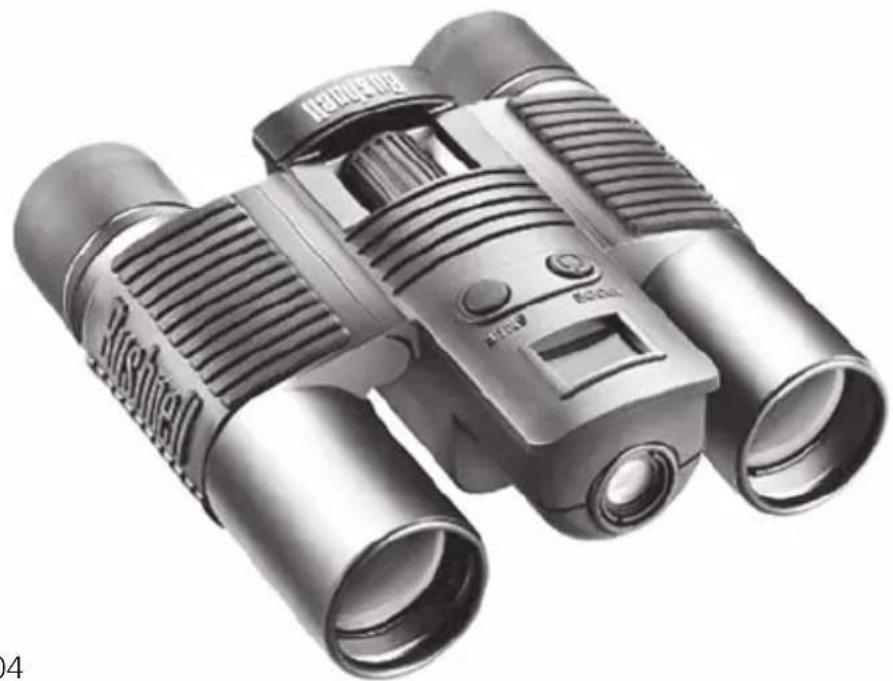
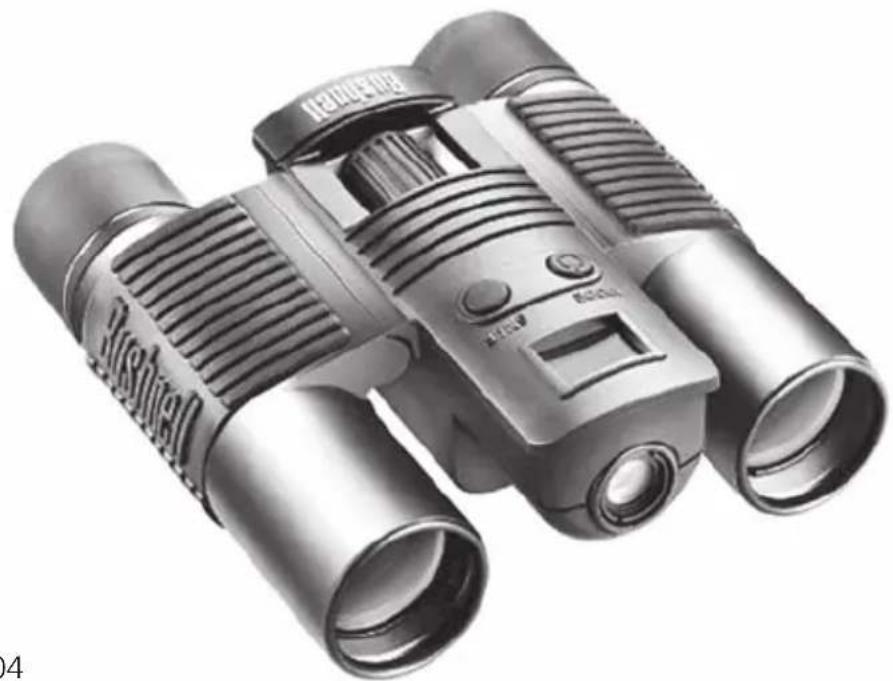
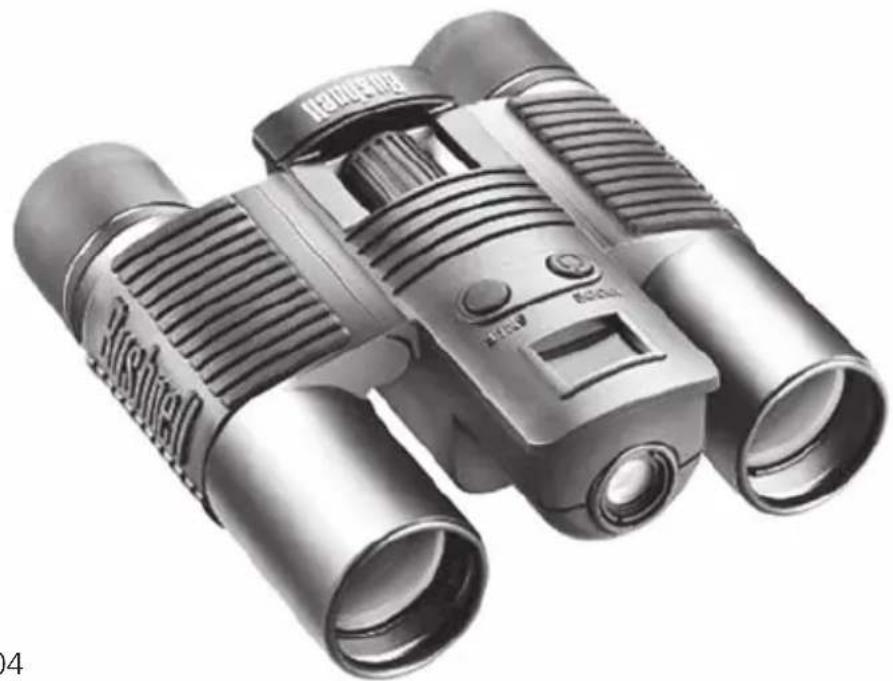
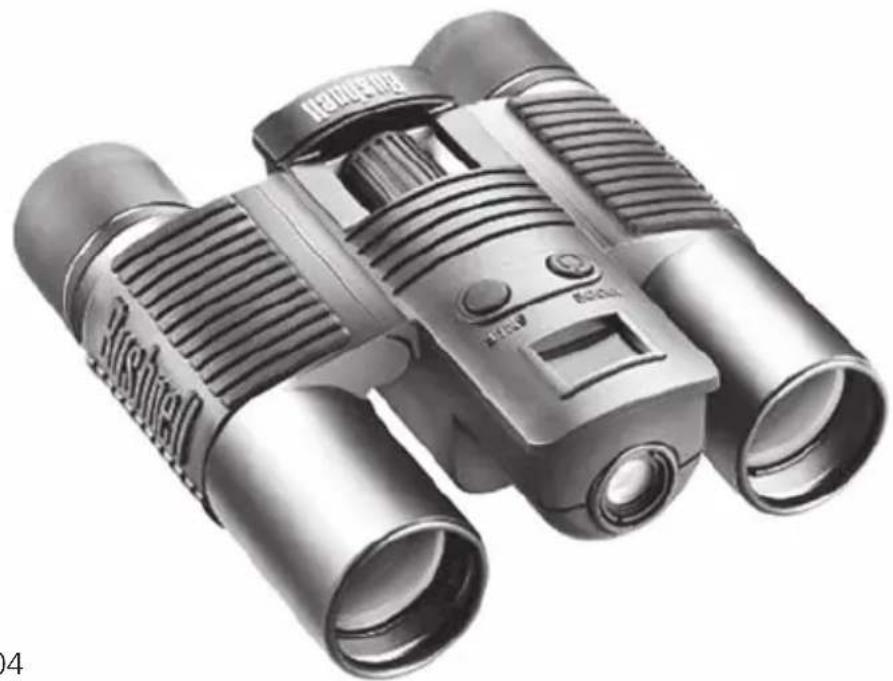
| Product Type | Binoculars with built-in digital camera |
| Brand | Bushnell |
| Model | Imageview 118200 |
| Power Supply | 2 AAA alkaline batteries |
| Photo Resolution | 640 x 480 pixels (high quality) / 320 x 240 pixels (low quality) |
| Video Format | AVI |
| Internal Memory | Yes (number of photos depends on resolution) |
| Minimum focus distance (photo) | 9 meters |
| Minimum focus distance (binoculars) | Approximately 4.5 meters |
| Adjustments | Center focus, right diopter adjustment, interpupillary distance |
| Photo Modes | Timer (10 s), burst (3 photos), high/low quality, erase |
| PC Connection | USB (cable included), recognized as removable disk |
| Compatible Operating System | Windows 98/ME/2000/XP |
| Included Software | Roxio PhotoSuite 5 |
| Warranty | 2-year limited |
| Maintenance | Clean with soft cloth or microfiber, avoid moisture |
| Safety | Do not look directly at the sun |
| Spare parts / repairability | Not specified, have repaired by authorized Bushnell service center |
Frequently Asked Questions - Imageview 118200 BUSHNELL
User questions about Imageview 118200 BUSHNELL
0 question about this device. Answer the ones you know or ask your own.
Ask a new question about this device
Download the instructions for your Binoculars in PDF format for free! Find your manual Imageview 118200 - BUSHNELL and take your electronic device back in hand. On this page are published all the documents necessary for the use of your device. Imageview 118200 by BUSHNELL.
USER MANUAL Imageview 118200 BUSHNELL
LIT. #: 98-0418/11-04
CONTENTS
ENGLISH 1
FRANÇAIS 11
ESPANOL 25
DEUTSCH 39
ITALIANO 53
PORTUGUES 67
QUICK GUIDE: BUSHNELL IMAGEVIEW 11-8200
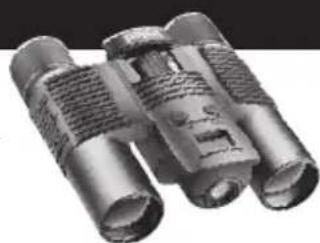
INSTALL BATTERIES
Insert 2 AAA alkaline batteries as indicated inside the battery compartment on the bottom of theImageView.
ADJUST THE BINOCULAR FOR COMFORTABLE VIEWING
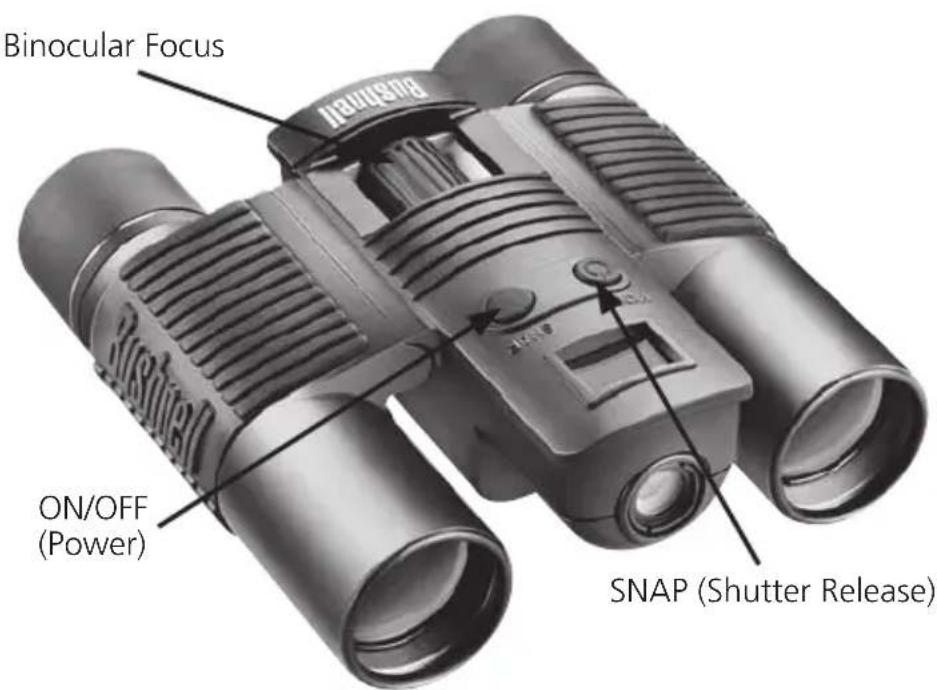
Adjust the center focus knob while viewing a distant object through the binocular, until it appears sharp. Move the left and right sides of the binocular closer together or farther apart until you see a single circular image. Rotate the right eyepiece (diopter adjustment) to change the setting if the image does not appear as sharp to your right eye as it does to your left eye.
TURN ON THE CAMERA
Press the MODE button, then release it when you see the LCD display in front of the button come on. You will see a battery indicator and 3 digits indicating the number of photos taken (currently stored in the internal memory). As you take new photos, this counter will advance. Press and hold MODE to turn off the camera. You should download all photos before changing batteries or storing the camera unused for a long period of time (more than a few weeks) as a precaution.
CHECK CAMERA SETTINGS
Make sure the camera is set for high quality ("LQ" does not show on the LCD display-see full instructions for setting photo quality) if you want the best results, especially if you will be printing the photos. See "Changing Operational Modes" for full instructions in using features such as repeat shot, movie clips (avi mode), and deleting a photo you have just taken.

QUICK GUIDE
TAKE A PHOTO (TIPS FOR BETTER QUALITY PHOTOS)
Holding theImageView as steadily as possible with both hands wrapped around the binocular, lightly press down the SNAP button using the flat end of a finger. Leaning against a wall, tree, etc. to brace yourself can also help insure the camera does not move as you take the photo. Make sure you are at least
30 feet or more away from your photo subject. Unlike the binocular optics (which will focus down to about 15 ft.), the camera focus is preset and is designed only for distant subjects- your photos may look out of focus if you were too close.
USING THE IMAGEVIEW WITH YOUR COMPUTER
BEFORE CONNECTING THE IMAGEVIEW TO A COMPUTER, first install the driver from the CD-ROM as directed in "Software Installation". After the driver has been installed, you may install Roxio® PhotoSuite 5 as well, following the on-screen instructions (if you do not already have photo software you prefer to use). Connect the supplied USB cable between the ImageView and your computer, using a USB port on the computer itself (avoid USB "hubs"). Please read "Downloading Photos to Your Computer" for detailed instructions on transferring photos to a PC using PhotoSuite.



Congratulations on your purchase of a BushnellImageView binocular. Before using the product, please read these instructions and take time to familiarize yourself with the different parts and features of the product.
BINOCULAR INSTRUCTIONS
TURNING THE CAMERA ON AND OFF
Insert 2 AAA alkaline batteries as indicated on the inside of the battery compartment, located on the bottom of the camera unit. Turn the camera on by pressing and holding the MODE button until the display comes on and the camera beeps. To turn the unit off, press and hold the MODE button until the display goes out. The camera will turn itself off automatically to save batteries if none of the buttons have been pressed for two minutes.
TAKING A PICTURE
With the camera turned on, press the SNAP button to take a new photo. For best results, hold the ImageView steady using both hands, and lightly press down the SNAP button using the flat end of your finger rather than "punching" it with a fingertip. Be sure you are at least 30 feet away from your subject as the camera focus is preset for optimum results with distant objects (ie: sports, wildlife, etc.).
CHANGING OPERATIONAL MODES
Pressing the MODE button briefly will cycle through several special camera modes and settings. A corresponding icon or symbol (indicated in parentheses below) will be displayed on the LCD for each mode as you cycle through them by tapping the MODE button, and blink unless you select or confirm it with the SNAP button (icon will stop blinking). If no button is pressed for more than 5 seconds, the camera will return to normal operation. The modes/settings are shown as you cycle through them in the following order:
- Timer ( ): selects the self-timer, which will take a photo after a 10 second delay when you press the SNAP button. This is useful for avoiding blurry photos from bumping the camera when it is mounted on a tripod (optional), especially in low light conditions. Once set, the camera will remain in self timer mode until you return to the timer mode setting and turn it off.
- Repeat Shot ( 📦 : Takes rapid series of 3 consecutive photos, approx. 1 second apart, when you press and hold the SNAP button. As with the timer, the camera will remain in
this mode until you change it, or until the camera's memory is full. This is indicated by the display showing "FUL" and a beep alarm.
-
High/Low Quality (LQ): When "LQ" is displayed, pressing "OK" will set the camera to low resolution mode (320x240 pixels)-the "LQ" icon will stop blinking. LQ mode will allow you to fit more photos in the memory before you stop to download them, with the tradeoff of less quality per photo. To reset the camera to high resolution, return to the LQ mode, and press SNAP again ("LQ" will no longer be displayed). When the LQ icon is off, the camera is in high resolution mode (640x480 pixels) for best quality.
-
AVI Mode: ( ) : This mode sets the camera to take short movie clips (.avi files) rather than still photos. After this mode has been activated (press SNAP when the movie icon blinks), holding down the SNAP button will film an avi movie until you release it (or the memory is full). When the SNAP button is released, the camera reverts back to normal still photo operation (assuming unused memory remains). Repeat the steps to set AVI mode again if you wish to shoot more movie clips.
-
Power Frequency Setting: (60 / 50Hz) : This sets the correct electrical frequency to avoid any "flickering" in the camera's output. The normal default is "60" Hz (cycle), as used in the United States. If you are using the camera in a country with 50Hz power frequency, press SNAP when the "50" icon blinks to select it.
-
Delete Last (W): Pressing SNAP when the "Delete Last" icon is blinking will delete (erase) the last photo you took from the camera's memory.
-
Delete All ( : When this mode is selected, the word "ALL" appears next to the trash can icon, and the number of total photos in memory will blink in the display. Press and hold the SNAP button to erase the entire memory contents. You will hear a tone that becomes higher as the photos are deleted. When the process is complete, the photo number display will reset to zero. If no button is pressed for 5 seconds, the camera returns to stand-by. "Delete All" is a quick way to clear the memory following a download of your photos to a computer, so that the camera is ready to hold as many new photos as possible.
OTHER DISPLAY ICONS
- Battery Indicator (W): Shows the amount of battery life left. When only one third of the icon is filled in, you should plan to replace the batteries soon. Be sure to bring an extra set of batteries on a long trip or for important events.

Make sure you download all photos (see directions below) from the camera before removing or changing the batteries. The camera memory is battery dependant, and your photos will be lost if you take the batteries out, or if the batteries are allowed to become completely dead.
- PC Connection (PC): When the camera is connected to your PC via the supplied USB cable, the "PC" icon is displayed. Note: when the camera is connected to a PC, the camera will power on automatically, and uses the USB connection for power to conserve battery life while downloading photos.
USING THE IMAGEVIEW WITH YOUR COMPUTER
System Requirements:
Pentium 166MMX or equivalent minimum
(Recommended Pentium II 266)
Windows 98/ME/2000/XP
Minimum 32MB of RAM
USB Port (do not connect the camera through a USB hub)
Minimum 200 MB of hard drive space, with additional 65MB for IE and Direct X
CD-ROM driver
Super VGA monitor and video card
SOFTWARE INSTALLATION
DO NOT CONNECT THE IMAGEVIEW CAMERA TO THE COMPUTER BEFORE INSTALLING THE DRIVER SOFTWARE (Windows 98/98SE only)
Insert the supplied CD-ROM disc. It will startup automatically and display the driver and PhotoSuite installation screen.
Windows 98 users must install the driver (click "Install Driver") prior to connecting the camera for downloading. Windows 2000, ME, and XP do not require a driver.
Unless you already have photo editing software you plan to use, click the button to install PhotoSuite (compatible with Windows 98/98SE/2000/ME/XP).
DOWNSLOADING PHOTOS
Be sure you have first installed the driver if you use Windows 98/98SE
Connect the camera is connected to your PC with the supplied USB cable. it will be recognized as a "mass storage device", which will act just like an external hard drive.
Open Windows Explorer or "My Computer," the camera will be shown as a new "Removable Disk" icon. Open this "Disk", and locate your photos (.jpg files) inside the folders.
Click on an individual photo file, or use "Edit>Select All" if you want to download all the photos. Then choose "Move to Folder..." in the Edit menu. You may choose an existing folder (e.g. "My Pictures") or create a new folder located and named as you wish. Then click "OK" and your photos will be transferred from the camera to that folder on your hard drive. Alternatively, if you prefer, you may simply copy and paste or drag and drop you photo files from the camera "Disk" to the hard drive location of your choice.
The camera may then be disconnected-you should first click the camera's icon in your system tray (move the mouse cursor over icons in lower right corner of screen to find this) and follow your PC's directions to stop and remove the USB device.
To view and edit your photos, you use PhotoSuite (included on the CD), or use any other photo editing software. Select "File>Open" in the photo editor and navigate to the folder containing your previously transferred camera files. Refer to the photo software's instruction manual or Help menu for specific details on editing, resaving and printing photos.
To view downloaded avi movie files, open Windows Media Player (included with all versions of Microsoft Windows) and open the avi file from the location where you previously saved it. On recent versions of Media Player, you may simply drag the movie file name from its location onto the Media Player window, and it will begin playing automatically. QuickTime, pre-installed on many computers (or available as a free download from Apple.com) can also be used to open and play the avi movie clips.
BINOCULAR INSTRUCTIONS
Your Bushnell binocular is a precision instrument designed to provide many years of pleasurable viewing. This portion of the booklet will help you achieve optimum performance by explaining how you can adjust the binocular to your eyes, and how to care for this instrument. Read the instructions carefully before using your binocular.
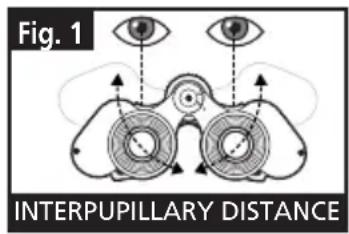
EYE ADJUSTMENTS (Figure 1)
How to Adjust For Distance Between Your Eyes
The distance between the eyes, called "interpupillary distance," varies from person to person. To achieve perfect alignment of lens to eye, follow these simple steps.
- Hold your binocular in the normal viewing position.
- Grasp each barrel firmly. Move the barrels closer together or further apart until you see a single circular field. Always re-set your binocular to this position before using.
How to Adjust For Individual Eye Strength
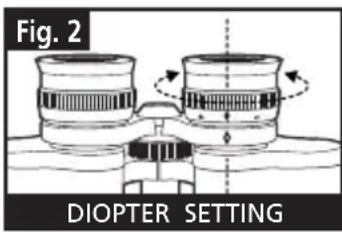
As individual eyesight varies from one person to another, Bushnell binoculars have a diopter setting feature which allows you to fine-tune the binocular to your vision. Follow the focusing instructions below for your binocular.
FOCUSING
- Adjust interpupillary distance. (Figure 1)
- Set the "diopter setting" (Figure 2) to zero and view a distant object.
- Keep both eyes open at all times.
- Using a lens cover or your hand, cover the objective (front) lens of the same side of the binocular that has the "diopter setting." This is usually the right side.
- Using the center focus wheel, focus on a distant object with fine detail (e.g., brick wall, tree branches, etc.) until it appears as sharp as possible.
- Uncover the objective lens on the diopter side, cover the other objective lens, then view the same object.
- Using the "diopter setting" adjustment ring, focus the same object being viewed. Caution should be used as over turning or forcing the diopter eyepiece can cause damage or cause the eyepiece to break away from the chassis.
- Your binocular should be adjusted for your eyes. Focus at any far or near distances can now be attained simply by turning the center focus wheel. Make a note of the diopter setting for your eyes for future reference.
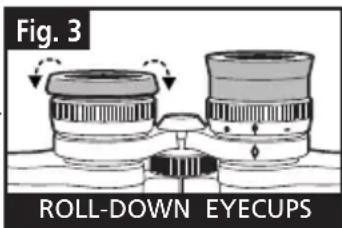
EYECUPS (Figure 3)
Your Bushnell binocular is fitted with rubber roll-down eyecups designed for your comfort and to exclude extraneous light. If you wear sun/eyeglasses, roll down the eyecups. This will bring your eyes closer to the binocular lens thus providing improved field of view.
INSTRUCTIONS FOR CARE OF BINOCULARS
Your Bushnell binocular will provide years of trouble-free service if it receives the normal care you would give any fine optical instrument. Non-waterproof models should not be exposed to excessive moisture.
- If your binocular has roll-down, flexible eyecups, store it with the eyecups up. This avoids excessive stress and wear on the eyecups in the down position.
- Avoid banging and dropping.
- Store in a cool, dry place.
- CAUTION: Looking directly at the sun with your binocular may be very harmful to your eyes.
- Never expose your ImageView binocular to any type of excessive of liquid or fluid, as the binocular is not water/fogproof.
- Take the batteries out of your ImageView if you are not going to use it for a long period of time. (Make sure you download any pictures from your camera before you remove the batteries from the camera.)
CLEANING
- Blow away any dust or debris on the lens (or use a soft lens brush).
- To remove dirt or finger prints, clean with a soft cotton cloth rubbing in a circular motion. Use of a coarse cloth or unnecessary rubbing may scratch the lens surface and eventually cause permanent damage. A "microfiber" cleaning cloth (available at most photo dealers) is ideal for the routine cleaning of your optics.
- For a more thorough cleaning, photographic lens tissue and photographic-type lens cleaning fluid or isopropyl alcohol may be used. Always apply the fluid to the cleaning cloth – never directly on the lens.
WARRANTY / REPAIR
TWO-YEAR LIMITED WARRANTY
Your Bushnell® product is warranted to be free of defects in materials and workmanship for two years after the date of purchase. In the event of a defect under this warranty, we will, at our option, repair or replace the product, provided that you return the product postage prepaid. This warranty does not cover damages caused by misuse, improper handling, installation, or maintenance provided by someone other than a Bushnell Authorized Service Department.
Any return made under this warranty must be accompanied by the items listed below:
1) A check/money order in the amount of $10.00 to cover the cost of postage and handling
2) Name and address for product return
3) An explanation of the defect
4) Proof of Date Purchased
5) Product should be well packed in a sturdy outside shipping carton, to prevent damage in transit, with return postage prepaid to the address listed below:
IN
U.S.A. SEND TO:
IN CANADA SEND TO:
Bushnell Performance Optics
Optics Bushnell Performance Optics
Attn.: Repairs Attn.: Repairs
8500 Marshall Drive 25A East Pearce Street, Unit 1
Lenexa, Kansas 66214 Richmond Hill, Ontario L4B 2M9
For products purchased outside the United States or Canada please contact your local dealer for applicable warranty information. In Europe you may also contact Bushnell at: BUSHNELL Performance Optics GmbH
European Service Centre
MORSESTRASSE 4
D-50769 KOLN
GERMANY
Tel: +49 (0) 221 709 939 3
Fax: +49 (0) 221 709 939 8
This warranty gives you specific legal rights.
You may have other rights which vary from country to country.
©2004 Bushnell Performance Optics
Bushnell
IMAGEVIEW
Français
Model: 11-8200
LIT. #: 98-0418/11-04
GUIDERAPIDE:IMAGEVIEW11-8200BUSHNELL
INSTALLATION DES PILES
8500 Marshall Drive 25A East Pearce Street, Unit 1
Lenexa, Kansas 66214 Richmond Hill, Ontario L4B 2M9
European Service Centre
MORSESTRASSE 4
D-50769 KOLN
ALLEMAGNE
©2004 Bushnell Performance Optics
Bushnell
IMAGEVIEW
Espanol
Model: 11-8200
LIT. #: 98-0418/11-04
GUIA RAPIDA: BUSHNELL IMAGEVIEW 11-8200
INSTALAR LAS PILAS
25A East Pearce Street, Unit 1
Lenexa, Kansas 66214
Richmond Hill, Ontario L4B 2M9
European Service Centre
MORSESTRASSE 4
D-50769 KOLN
ALEMANIA
Tel: +49 (0) 221 709 939 3
Fax: +49 (0) 221 709 939 8
©2004 Bushnell Performance Optics
Bushnell
IMAGEVIEW
Deutsch
Model: 11-8200
LIT.#:98-0418/11-04
KURZER LEITFADEN: BUSHNELL IMAGEVIEW 11-8200
BATTERIEN EINLEGEN
GARANTIE / REPARATUR
AUF ZWEI JAHRE BEGRENZTE GARANTIE
Richmond Hill Ontario L4B 2M9
European Service Centre
MORSESTRASSE 4
D-50769 KOLN
DEUTSCHLAND
©2004 Bushnell Performance Optics
Bushnell
IMAGEVIEW
Italiano
Modello: 11-8200
LIT. #: 98-0418/11-04
GUIDA RAPIDA: BUSHNELL IMAGEVIEW 11-8200
8500 Marshall Drive 25A East Pearce Street, Unit 1
Lenexa, Kansas 66214, USA Richmond Hill, Ontario L4B 2M9, Canada
European Service Centre
MORSESTRASSE 4
D-50769 KOLN
GERMANIA
©2004 Bushnell Performance Optics
Bushnell
IMAGEVIEW
Portugues
Modelo: 11-8200
LIT. #: 98-0418/11-04
GUIA DE CONSULTA RÁPIDA: BUSHNELL IMAGEVIEW 11-8200
INSTALE AS PILHAS
8500 Marshall Drive 25A East Pearce Street, Unit 1
Lenexa, Kansas 66214 Richmond Hill, Ontario L4B 2M9
© 2004 Bushnell Performance Optics
Bushnell
www.bushnell.com
©2004 Bushnell Performance Optics