
SRP5002 - Remote control PHILIPS - Free user manual and instructions
Find the device manual for free SRP5002 PHILIPS in PDF.

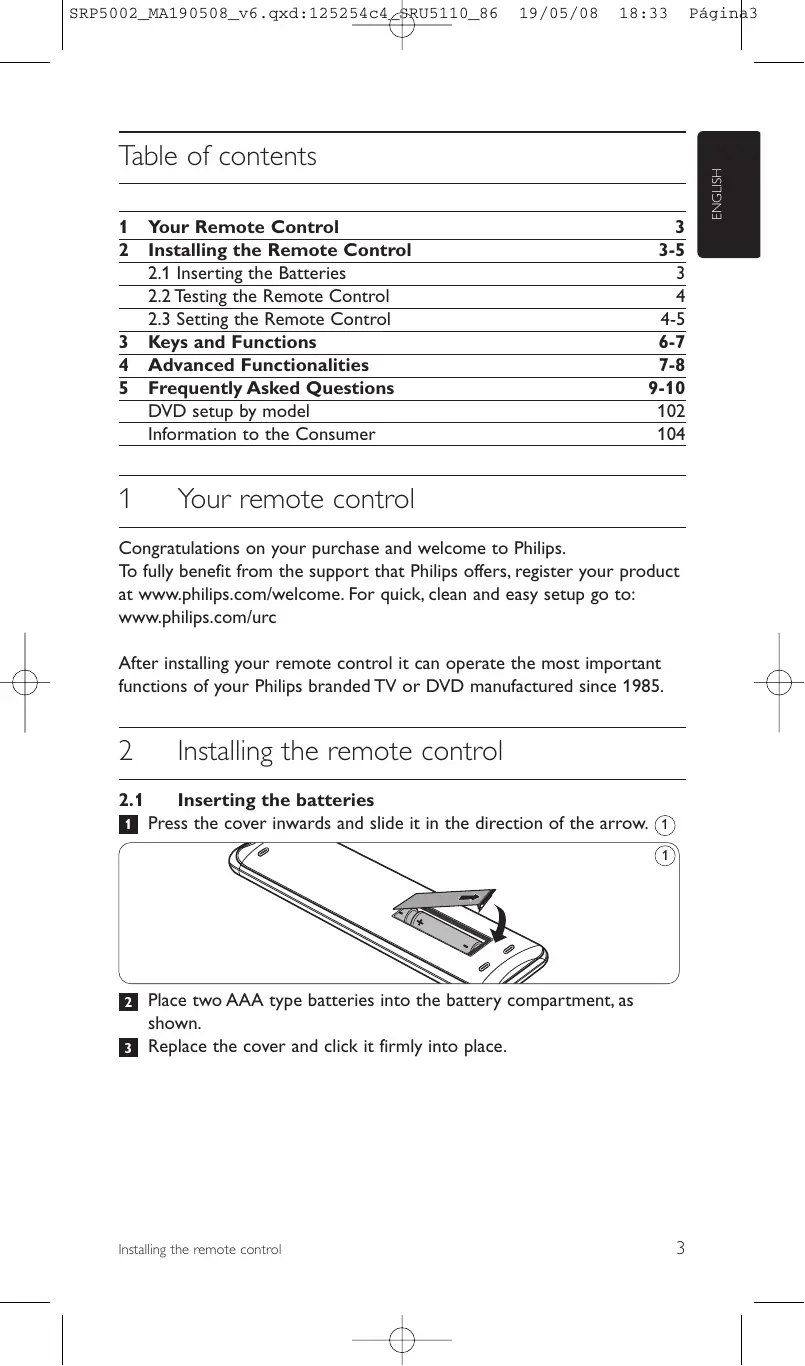


| Product type | Universal remote control |
| Brand | Philips |
| Model | SRP5002 |
| Power supply | 2 AAA batteries (1.5 V each) |
| Compatibility | Philips TVs and DVD players/recorders (manufactured after 1985) |
| Infrared range | Up to 10 meters |
| Number of keys | Approximately 40 keys |
| Mode keys | TV and DVD |
| Shift function | Allows access to secondary functions |
| Color keys | Red, green, yellow, blue (teletext and DVD functions) |
| Display | No display, LED indicator for setup |
| Dimensions (approx.) | 200 x 50 x 25 mm |
| Weight (with batteries) | Approximately 120 g |
| Material | ABS plastic |
| Color | Black |
| Maintenance | Clean with a soft, dry cloth |
| Safety | Do not expose to moisture or excessive heat; remove batteries if not used for a long time |
| Operating temperature | 0 °C to 40 °C |
| Disposal | Do not dispose of with household waste; follow WEEE directive |
Frequently Asked Questions - SRP5002 PHILIPS
User questions about SRP5002 PHILIPS
0 question about this device. Answer the ones you know or ask your own.
Ask a new question about this device
Download the instructions for your Remote control in PDF format for free! Find your manual SRP5002 - PHILIPS and take your electronic device back in hand. On this page are published all the documents necessary for the use of your device. SRP5002 by PHILIPS.
USER MANUAL SRP5002 PHILIPS
Register your product and get support at www.philips.com/welcome
Universal remote control
SRP 5002/10
PHILIPS
EN Remote control 3
FR Telecommande 11
DE Fernbedienung 20
NL Afstandsbediening 29
DK Fjernbetjeningen 38
SV Fjarrkontroll 46
NO Fjernkontrollen 54
SF Kaukosaatimen 62
IT Telecomando 70
| 1 | Your Remote Control | 3 |
| 2 | Installing the Remote Control | 3-5 |
| 2.1 Inserting the Batteries | 3 | |
| 2.2 Testing the Remote Control | 4 | |
| 2.3 Setting the Remote Control | 4-5 | |
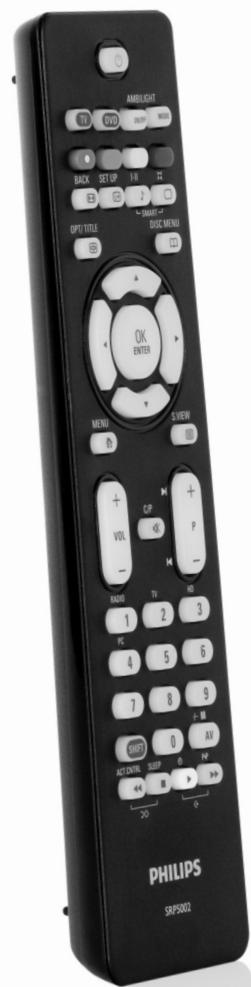
| 3 | Keys and Functions | 6-7 |
| 4 | Advanced Functionalities | 7-8 |
| 5 | Frequently Asked Questions | 9-10 |
| DVD setup by model | 102 | |
| Information to the Consumer | 104 |
1 Your remote control
Congratulations on your purchase and welcome to Philips.
To fully benefit from the support that Philips offers, register your product at www.philips.com/welcome. For quick, clean and easy setup go to: www.philips.com/urc
After installing your remote control it can operate the most important functions of your Philips branded TV or DVD manufactured since 1985.
2 Installing the remote control
2.1 Inserting the batteries
Press the cover inwards and slide it in the direction of the arrow. (1)
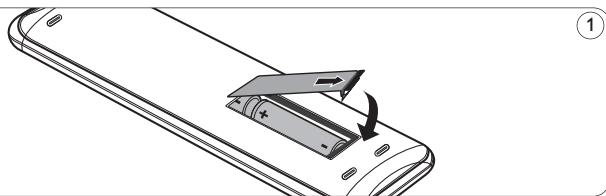
2 Place two AAA type batteries into the battery compartment, as shown.
3 Replace the cover and click it firmly into place.
2.2 Testing the remote control
The SRP5002 is programmed to operate the most of the functions used on Philips TV and DVD. Because the available functions are not the same for all the Philips TV and DVD models, it is advisable to test whether your device fully responds to the SRP5002.
Example of TV:
1 Turn your TV on manually or use the original remote control.
Tune to channel 1.
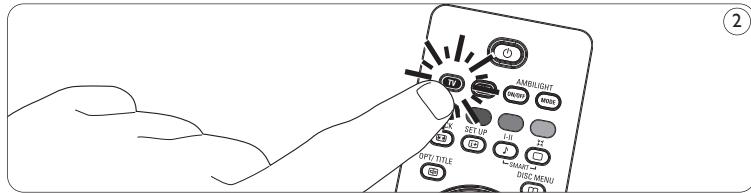
Press the TV key to select TV.
- The key lights up. (2)
- If the key does not light up, check whether the batteries are properly inserted (see '2.1 Inserting the batteries').
3 Check whether all the keys are working.
For an overview of the keys and their functions see
-
Keys and functions'.
-
If the TV responds as it should to all of the key commands the SRP5002 is ready for use.
Tip
If the TV does not respond at all or not to all of the key commands, follow the instructions under '2.3 Setting the remote control', or for online setup go to: www.philips.com/urc.
2.3 Setting the remote control
This is only necessary if your device does not fully respond to all the command keys of your remote control. If that is the case, the example below instructs you how to look for a most suitable set up on the remote control for your Philips branded TV or DVD.
Example of TV:
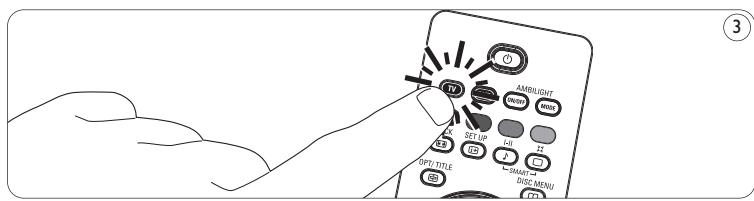
1 Press the mode key of the device you wish to set up the remote for. E.g. the TV key. ③
Press and hold the OK key and digit key 1 until the LEDs under the TV Mode key flashes twice
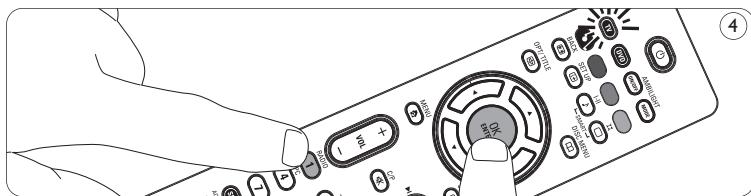
- If the LED of the TV Mode key flashes twice just once for an extended period, the code has not been entered properly. Start again by pressing the OK key and the digit key.
3 Check if you can operate all the functions on your TV with the SRP5002.
- If there are keys that do not respond properly go back to step 2 and press OK key and digit key 2. You can repeat this operation until you find the programming that better fits your Philips TV, combining the OK key with any digit key from 1 to 9.
- For DVD you can combine the OK key with digit keys from 1 to 7
Tips for DVD set up:
If you own a Philips DVD rewritable without Hard Disk Drive, while setting the remote control, on chapter '2.3 Setting the remote control', step 2, press OK key and digit key 3.
If you own a hard drive Philips DVD recorder, while setting the remote control, on chapter '2.3 Setting the remote control', step 2, press OK key and digit key 4.
If you own a Philips Blu Ray DVDplayer, while setting the remote control, on chapter '2.3 Setting the remote control', step 2, press OK key and digit key 6.
You might also find your set up code for Philips DVDR with Hard Drive by model. On the chapter 'DVD setup by model' you can look for your Philips DVD model and its set up code.
When setting up the remote for DVD, be sure to press the DVD mode key before starting the set up from step 2.
3 Keys and functions
1 TV/DVD Device mode selection keys:
- Select TV or DVD mode
- Blink when the remote is setup
- Light when a remote control is sent to the selected device
2 TV text Colour keys

(TV) text red
(DVD) Pressed with SHIFT key - record

(TV) text green
(DVD) Pressed with SHIFT key - repeat

(TV) text yellow
(DVD) Pressed with SHIFT key - repeat AB

(TV) text blue
(DVD) Pressed with SHIFT key - shuffle
3 Wide screen

Info
Smart sound
Displays on screen channel information
(TV) Smart sound
(DVD) audio

Smart picture
(TV) Smart picture
(DVD) Surround

(TV) Option/text hold
(DVD) title/chapter
5 Cursor Keys

Cursor up, down, left, right, in a menu
7 -VOL +

Menu
9 numeric keys
10 Shift
Adjusts the TV Volume
Mutes the TV sound
time as a second key will get another function. All blue labelled keys can be used together with SHIFT.
- For a complete list of the possible combinations for the SHIFT key, please check '4 Advanced Functionalities'

- Rewind (DVD).
Active Control (TV)

- Stop (DVD).
Sleep (TV).

- Play (DVD).
Clock (TV).

- Fast forward (DVD).
Previous (TV).

Install
- Memory out • For leaving the teletext menu or the installation menu on older Philips TVs
12 AV
(TV/DVD) Selects external:Audio/Video inputs connected to your equipment (A/V function). (DVD) pause
13 PROG + /▶
- Selects a previous or following channel (TV and DVD's with recording functionality).
14
- Selects a previous or following track (DVD).
(TV) Text; Text Cancel (pressed with SHIFT ke (DVD) timer/show view
15 OK/Enter
Confirms your selection
16
(TV) Guide
(DVD) Disc menu
17 Ambilight
(TV) Smiley / Ambilight On/Off;
Conceal / Ambilight Brightness Up (pressed with SHIFT key)
(DVD) Angle
(TV) Frownie / Ambilight Mode/ Enlarge / Ambilight Brightness Down (pressed with SHIFT key)
(DVD) Subtitle
18 Standby
Switches TV or DVD off.
Note
If the device does not respond at all, or not to all of the key commands, follow the instructions under '2.3 Setting the remote control'.
4 Advanced Functionalities
Restoring the original functions of your remote control
1 Press and hold the OK key and digit key 0 until the LEDs under the Mode keys flash twice.⑤
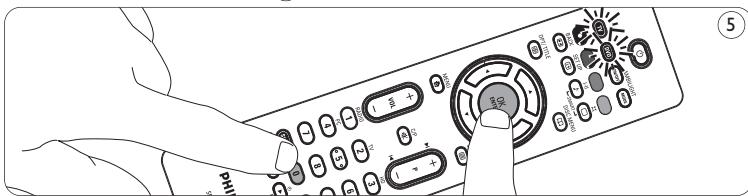
- If the LEDs of the mode keys flash just once for an extended period, the code has not been entered properly. Start again by pressing the OK key and the digit key 0.
SHIFT key features
-
Most of the remote keys, when pressed together with the shift key, will get another function.
-
The table below gives you an overview of the functions available, for the shift key feature.
HSIN3
| Key | TV Shift function | DVD Shift function | |
| 2 | TV Text Red | PIP/dual scr | Record |
| TV Text Green | PIP swap | Repeat | |
| TV Text Yellow | PIP freeze | Repeat AB | |
| TV Text Blue | PIP shift | Shuffle | |
| 3 | Aspect Ratio | TV | |
| Info | Main Still | Setup | |
| Smart Sound | I-II | Options | |
| Smart Picture | Surround | Info | |
| 4 | Option/TXT Hold | Zoom | |
| 5 | Up | Brightness + | |
| Down | Brightness - | ||
| Left | Color - | ||
| Right | Color + | ||
| 6 | Menu | Search + | Home |
| 7 | Volume Up | ||
| Volume Down | |||
| 8 | Mute | C/P | |
| 9 | Digit 1 | Radio | Cam |
| Digit 2 | TV | Edit | |
| Digit 3 | HD | ||
| Digit 4 | PC | ||
| Digit 8 | PIP | ||
| Digit 9 | Pixelplus | ||
| 11 | Active Control | CC | Rewind |
| Play / White | Clock | ||
| / P< P | Fast Forward | ||
| 12 | AV | - / -- | Pause |
| 13 | Channel Up | Increment | Next |
| Channel Down | Decrement | Previous | |
| 14 | TXT | Text cancel | Eject |
| 15 | OK ENTER OK | Enter | Select |
| 16 | Guide | EPG record | Timer / Guide |
| 17 | Smiley / Ambilight ON/OFF | Enlarge/Ambilight Brightness Up | Live TV |
| Smiley / Ambilight Mode | Enlarge/Ambilight Brightness Down | HDD List |
5 Frequently asked questions
In this chapter you find answers to the most frequently asked questions about your remote control.
How can I get the standby key working on my Philips Ambilight TV?
While setting the remote control, on chapter '2.3 Setting the remote control', step 2, press OK key and digit key 2.
How can I get the smart sound and smart picture keys working for my TV?
While setting the remote control, on chapter '2.3 Setting the remote control', step 2, press OK key and digit key 4.
How can I get the play key working on my Philips Ambilight TV?
While setting the remote control, on chapter '2.3 Setting the remote control', step 2, press OK key and digit key 3.
How can I get the standby key working for my TV?
While setting the remote control, on chapter '2.3 Setting the remote control', step 2, press OK key and digit key 6.
How can I get the standby key working for my DVD?
While setting the remote control, on chapter '2.3 Setting the remote control', step 2, press OK key and digit key 2.
The device I want to operate does not respond and the mode key (TV or DVD) does not flash when I press a key.
Replace the old batteries with two new AAA batteries.
The device I want to operate does not respond but the mode key (TV or DVD) does flash when a key is pressed.
Point the SRP5002 at the device and make sure that there are no obstructions between the SRP5002 and the device.
The SRP5002 does not respond properly to commands.
Try programming the SRP5002 again.
If the device still does not respond, call our helpline.
The Text TV keys do not work.
Find out whether your TV is equipped with Text TV.
- If it is equipped with Text TV, try a different setup for your remote (chapter 2.3).
- If none of the above options solved your problem, call our helpline for support.
6 Need help?
If you have any questions about the SRP5002, you can always contact us. You will find our contact details after the code list at the back of this manual.
Read this manual carefully before you make a call.
You can solve most of the problems yourself. If you cannot find any answers to your problems, write down the details of your device in the code list at the back of this manual.
This will help our operators to assist you better and more quickly. Look up the numbers of the models in the instructions accompanying the device or on the back of your device. When you call our helpline, make sure the device is to hand so that our operators can help you determine whether your remote control is working properly.
The model number of your Philips universal remote control is SRP5002/10.
Date of purchase: ..../..../....
(day/month/year)
Table des matieres
www.philips.com/urc for onlineinstalling.
2.3 Stalla in fjarrkontrollen
Alternatively, you can use the configuration of DVD Philips to run a video game. This is possible using the Video Game Manager (VG) program, which uses the same configuration as the original configuration.
Characteristicshed botonSHIFT
EN Information to the consumer
Disposal of your old product
Your product is designed and manufactured with high quality materials and components, which can be recycled and reused.
When this crossed-out wheeled bin symbol is attached to a product it means the product is covered by the European Directive 1902/96/EC.
Please inform yourself about the local separate collection system for electrical and electronic products.
Please act according to your local rules and do not dispose of your old products with your normal household waste. The correct disposal of your old
product will help prevent potential negative consequences for the environment and human health.

All rights reserved. Reproduction in whole or in part is prohibited without the prior written consent of the copyright owner. The information presented in this document does not form part of any quotation or contract, is believed to be accurate and reliable and may be changed without notice.
No liability will be accepted by the publisher for any consequence of its use. Publication there of does not convey nor imply any license under patent- or other industrial or intellectual property rights.
Document order number: 3128 145 22011
April 2008
www.philips.com
Printed in Portugal
C E

N'MW/RR/RD/4407
- Your remote control
- Installing the remote control
- Inserting the batteries
- Testing the remote control
- Example of TV:
- Setting the remote control
- Tips for DVD set up:
- Keys and functions
- TV/DVD Device mode selection keys:
- TV text Colour keys
- Wide screen
- Cursor Keys
- -VOL +
- numeric keys
- Shift
- Note
- Advanced Functionalities
- Restoring the original functions of your remote control
- SHIFT key features
- Frequently asked questions
- How can I get the standby key working on my Philips Ambilight TV?
- How can I get the smart sound and smart picture keys working for my TV?
- How can I get the play key working on my Philips Ambilight TV?
- How can I get the standby key working for my TV?
- How can I get the standby key working for my DVD?
- The device I want to operate does not respond and the mode key (TV or DVD) does not flash when I press a key.
- The device I want to operate does not respond but the mode key (TV or DVD) does flash when a key is pressed.
- The SRP5002 does not respond properly to commands.
- The Text TV keys do not work.
- Need help?
- Stalla in fjarrkontrollen
- Characteristicshed botonSHIFT
- EN Information to the consumer
- Disposal of your old product
Brand : PHILIPS
Model : SRP5002
Category : Remote control