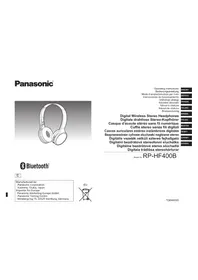
RPHF400B - Headphones PANASONIC - Free user manual and instructions
Find the device manual for free RPHF400B PANASONIC in PDF.


| Product type | Digital wireless stereo headphones |
| Brand | Panasonic |
| Model | RP-HF400B |
| Weight | Approx. 130 g |
| Power supply | DC 5 V, 330 mA (internal Li-ion battery 3.7 V, 430 mAh) |
| Battery life | Approx. 20 hours |
| Charging time | Approx. 2.5 hours (at 25 °C) |
| Speaker | 30 mm driver |
| Bluetooth version | 4.1 |
| Supported Bluetooth profiles | A2DP, AVRCP, HSP, HFP |
| Audio codec | SBC |
| Operating range | Up to 10 m |
| Frequency band | 2402 to 2480 MHz |
| Operating temperature | 0 °C to 40 °C |
| Operating humidity | 35 % to 80 % RH (without condensation) |
| Supplied accessories | USB charging cord (0.1 m) |
| Care and cleaning | Clean with a soft dry cloth. Do not use solvents. |
| Safety | Do not use at high volume, do not drive while using headphones, avoid exposure to moisture. |
| Spare parts and repairability | Replaceable battery (for disposal). Use only the supplied cord. |
| General information | CE certification, automatic shutoff after 5 minutes of inactivity, reset possible. |
Frequently Asked Questions - RPHF400B PANASONIC
User questions about RPHF400B PANASONIC
0 question about this device. Answer the ones you know or ask your own.
Ask a new question about this device
Download the instructions for your Headphones in PDF format for free! Find your manual RPHF400B - PANASONIC and take your electronic device back in hand. On this page are published all the documents necessary for the use of your device. RPHF400B by PANASONIC.
USER MANUAL RPHF400B PANASONIC
natural_image
Line drawing of a pair of white headphones with earbuds and front latches (no text or symbols)
Bluetooth®
E
Manufactured by:
Panasonic Corporation
Kadoma, Osaka, Japan
Importer for Europe:
Panasonic Marketing Europe GmbH
Panasonic Testing Centre
Winsbergring 15, 22525 Hamburg, Germany
Operating Instructions
Bedienungsanleitung
Mode d'emploi/Istruzioni per l'uso
Digital Wireless Stereo Headphones
Thank you for purchasing this product. Please read these instructions carefully before using this product, and save this manual for future use.
Table of contents
Before use
Accessories 2
Safety precautions 2
Maintenance 3
Part names 3
Preparation
Charging 4
Turning the power on/off 4
Connecting a Bluetooth ^® device ..... 4
Operation
Listening to music 5
Making a phone call.... 6
Useful functions 6
Other
Restoring to the factory settings ..... 6
About Bluetooth ^® 7
Specifications 7
Troubleshooting guide 8
Copyright, etc. 9
To remove the battery when
disposing of this unit 9
Limited Warranty
(ONLY FOR AUSTRALIA) ...... Back cover
Accessories Safety precautions
Please check and identify the supplied accessories.
□ 1 USB charging cord
For the United Kingdom and Ireland customers
Sales and Support Information
Customer Communications Centre
• For customers within the U.K.: 0344 844 3899
• For customers within Ireland: 01289 8333
• Monday - Friday 9:00am - 5:00pm (Excluding public holidays).
- For further support on your product, please visit our website: www.panasonic.co.uk
Direct Sales at Panasonic U.K.
- Order accessory and consumable items for your product with ease and confidence by phoning our Customer Communications Centre - Monday - Friday 9:00am - 5:00pm (Excluding public holidays).
- Or go on line through our Internet Accessory ordering application at www.pas-europe.com
- Most major credit and debit cards accepted.
- All enquiries transactions and distribution facilities are provided directly by Panasonic U.K.
- It couldn't be simpler!
- Also available through our Internet is direct shopping for a wide range of finished products. Take a browse on our website for further details.
Unit
- Avoid using or placing this unit near sources of heat.
- Do not listen with this unit at high volume in places where you need to hear sounds from the surrounding environment for safety, such as at railroad crossings, and construction sites.
- Wide band characteristic voltage equal or larger than 75 mV.
WARNING:
To reduce the risk of fire, electric shock or product damage,
- Do not expose this unit to rain, moisture, dripping or splashing.
- Do not place objects filled with liquids, such as vases, on this unit.
- Use only the recommended accessories.
- Do not remove covers.
- Do not repair this unit by yourself. Refer servicing to qualified service personnel.
Allergies
- Discontinue use if you experience discomfort with the speakers or any other parts that directly contact your skin.
- Continued use may cause rashes or other allergic reactions.
Precautions for listening with the Headphones
- Do not use your headphones at a high volume. Hearing experts advise against continuous extended play.
- If you experience a ringing in your ears, reduce volume or discontinue use.
- Do not use while operating a motorised vehicle. It may create a traffic hazard and is illegal in many areas.
- You should use extreme caution or temporarily discontinue use in potentially hazardous situations.
This unit may receive radio interference caused by mobile telephones during use. If such interference occurs, please increase separation between this unit and the mobile telephone.
This unit is intended for use in moderate and tropical climates.
Maintenance
Clean this unit with a dry and soft cloth.
- Do not use solvents including benzine, thinner, alcohol, kitchen detergent, a chemical wiper, etc. This might cause the exterior case to be deformed or the coating to come off.
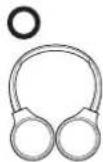
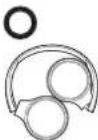
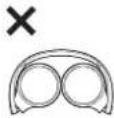
Folding this unit
Fold the headphones as shown below. Improper folding may result in a malfunction.
Do Do Not
Declaration of Conformity (DoC)
Hereby, "Panasonic Corporation" declares that this product is in compliance with the essential requirements and other relevant provisions of Directive 2014/53/EU. Customers can download a copy of the original DoC to our RE products from our DoC server:
http://www.doc.panasonic.de
Contact to Authorised Representative:
Panasonic Marketing Europe GmbH, Panasonic Testing Centre,
Winsbergring 15, 22525 Hamburg, Germany
For Thailand only
This telecommunication equipment conforms to NTC/NBTC technical requirement.
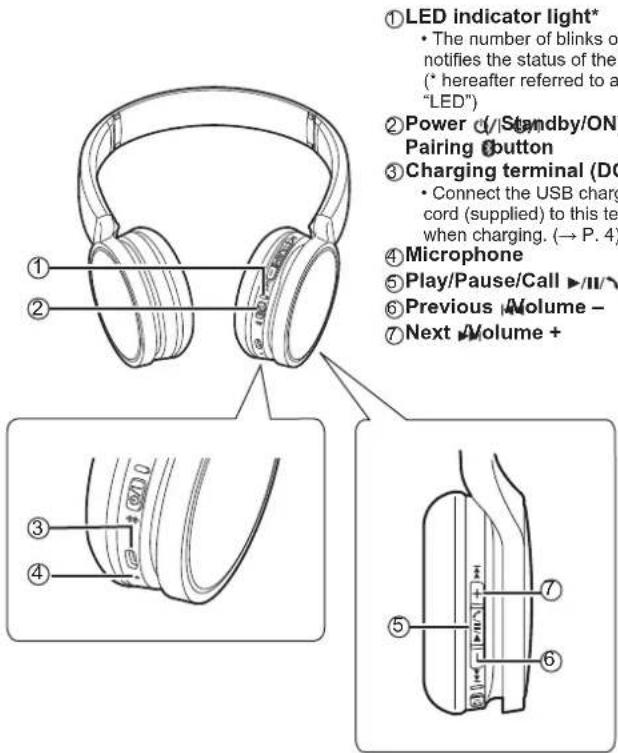
Part names
Note
- Do not use any other USB charging cords except the supplied one.
- When using the unit, do not cover the right speaker with the palm of your hand. The Bluetooth® connection may be blocked.
The product illustrations may differ from the actual product.
Charging
The rechargeable battery (installed in the unit) is not charged initially. Charge the battery before using the unit.
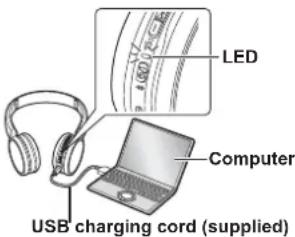
1 Connect this unit to a computer using the USB charging cord
• The LED will light in red.
- The LED lights in red when charging is in progress. When charging is completed, the LED will go out.
- Charging will take approximately 2.5 hours from empty state to fully charged.
Note
- The Bluetooth feature cannot be used when this unit is connected to a computer using the USB charging cord.
- Charge in a room temperature between 10^ and 35^ .
- The power cannot be turned on while charging.
- Do not use any other USB charging cords except the supplied one.
Caution: Use only the supplied USB charging cord when connecting to a computer.
Turning the power on/off
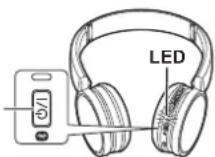
1 In the power-off state, press and hold the power button of this unit for approx.
3 seconds until the LED (blue) blinks
- A beep will sound, and the LED (blue) will blink slowly. Power button
To turn the power off
- Press and hold the power button for approximately 3 seconds. A beep will sound and the power will be turned off.
Note
- When the unit is not operated for approximately 5 minutes, the power will automatically turn off. (See "Auto power off" ( P. 6))
Connecting a Bluetooth ^® device
Preparation
- Place the Bluetooth device within approx. 1 m from the unit.
- Check the device operation using its operation instructions as required.
Pairing (Registration) this unit with the Bluetooth® device for connection
1 Press and hold the power button of this unit until the LED blinks
When pairing a device for the first time : approx. 3 seconds
When pairing a second or subsequent devices : approx. 5 seconds
- The unit starts to search for the Bluetooth device for connection, and the LED will blink in blue and red alternately.
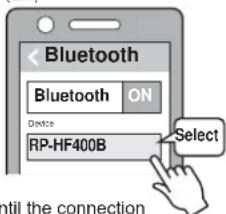
2 Turn on the power of the Bluetooth ^® unit, and enable the Bluetooth ^® function
3 Select "RP-HF400B" from the Bluetooth® device's menu
- The MAC address “☐☐☐☐☐” (“☐” stands for a character that is unique to each set.) may be displayed before “RP-HF400B” is displayed.
- If prompted for a passkey, input the passkey "0000 (four zeros)" of this unit.
(Ex.)
4 Check the connection with the Bluetooth® device on the unit
- The LED will blink in blue and red alternately until the connection with the device is completed. When the LED (blue) blinks twice every approx. 2 seconds, pairing (registration) is completed. (Connection established)
Note
- If connection to a device is not established within approximately 5 minutes, the unit will be turned off. Perform pairing again.
- 2 or more Bluetooth devices cannot be registered to the unit at the same time.
- You can pair up to 8 Bluetooth devices with this unit. If a 9th device is paired, the device with the oldest connection will be replaced. To use it, perform pairing again.
Connecting a paired Bluetooth ^® device
1 Turn on the unit
- Press and hold the power button of this unit for approx. 3 seconds until the LED (blue) blinks.
- A beep will sound, and the LED (blue) will blink slowly.
2 Perform steps 2 and 3 of "Pairing (Registration) this unit with the Bluetooth® device for connection" (→ P. 4)
- When the LED (blue) blinks twice every approx. 2 seconds, pairing (registration) is completed. (Connection established)
Note
- This unit remembers the device lastly connected. Connection may be automatically established after step 1 (see above).
- If connection to a device is not established within approximately 5 minutes, the unit will be turned off. Perform pairing again. (→ P. 4)
Listening to music
If the Bluetooth® compatible device supports the "A2DP" and "AVRCP" Bluetooth® profiles, music can be played back with remote control operations on the unit.
• A2DP (Advanced Audio Distribution Profile): Transmits audio to the unit.
- AVRCP (Audio/Video Remote Control Profile):
Allows remote control of the device using the unit.
1 Connect the Bluetooth ^® device and the unit ( P. 4)
2 Select and play the music on the Bluetooth® device
- The selected music is output to the speakers of the unit.
Operating time of battery
| Battery type Operating time | |
| Rechargeable battery (installed in the unit) Approx. 20 hours | |
Operating time may be less depending on the operating conditions.
Attention
- The unit might leak sound depending on the volume level.
- When the volume is increased to near maximum level, music may sound distorted. Decrease the volume until the distortion is cleared.
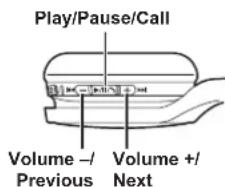
Remote controlling
You can control the Bluetooth ^® device using the unit.
- Depending on Bluetooth devices, some functions below do not work, or work differently via operation of the unit.
(Operation example)
| Play/Pause/Call | ||
| ▶/II/↘ | Press Play/Pause/Call | |
| Previous/Next/Volume | ||
| + | Press Increase the volume | |
| Press and hold | Forward to the start of next track | |
| - | Press Decrease the volume | |
| Press and hold | Return to the start of current track | |
Note
• The volume can be adjusted in 15 levels.
When the maximum or minimum volume is reached, a beep will sound.
Making a phone call
With Bluetooth® enabled phones (cell phones or smartphones) that support the "HSP" or "HFP" Bluetooth® profile, you can use the unit for phone calls.
• HSP (Headset Profile):
This profile can be used to receive monaural sounds and establish two-way communication using the microphone on the unit.
• HFP (Hands-Free Profile):
In addition to the HSP functions, this profile has the incoming and outgoing calls function.
- Connect the Bluetooth enabled phone and unit (→ P. 4)
1
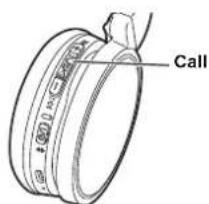
When answering an incoming call
Press Call on the unit and answer the call
- During an incoming call, ringtone will sound from the speaker and the LED will blink. - ( HFP only) To reject the incoming call, press Call twice quickly.
When making an outgoing call
Make an outgoing call on the Bluetooth® enabled
phone
- Also refer to the operating manual for the Bluetooth® enabled phone.
(Checking and operation steps on the unit are explained below)
- During an outgoing call, ringtone will sound from the speaker and the LED will blink.
• To cancel the outgoing call, press Call A beep will sound.
• (HFP only) When the phone is idle, press and hold Call for approximately 5 seconds. An outgoing call will be made to the last dialed number. One short click will sound from the speaker and the LED will blink.
2 Start talking
• The LED will repeatedly blink 2 times during a call.
- The volume can be adjusted during a phone call. For setting instructions, see page 5.
Press Call to end the phone call
• A beep will sound.
Note
- There may be instances when hands free setting needs to be done on the Bluetooth® enabled phone.
- Depending on the Bluetooth enabled phone, you may hear incoming and outgoing call ringtones of the phone from the unit.
- (HFP only) The calling device will be switched between the Bluetooth® enabled phone and the unit. (Press the Call 📋 on the unit twice quickly to switch.)
Useful functions
Resetting the unit
This unit can be reset when all operations are rejected. To reset the unit, press and hold the power ⏻/|button for 10 seconds or more. All the previous operations will be cancelled. (The pairing device information will not be deleted.)
Auto power off
If the unit is silent for approximately 5 minutes and operations for Bluetooth ^® devices are idle during that period, a beep will sound and the power will be automatically turned off.
LED indicator light
When the battery level is low during use of the unit, the blue blinking LED will change to red*. A beep will sound every 1 minute. When the battery runs out, the power will turn off.
* If you press and hold the pairing button when the battery level is low, the LED will blink only in red.
Restoring to the factory settings
When you want to delete all pairing device information, etc., you can restore the unit to the factory settings (original settings upon purchase). Charge the battery before restoring the unit.
1 Press and hold the power/|button for approximately 5 seconds - Start searching for Bluetooth devices to connect.
2 Press and hold + and - for 6 seconds or more simultaneously while searching
- The LED will blink fast in blue. The unit will restore to the factory settings.
Attention
- When pairing a device again, delete the registering information (Device: "RP-HF400B") from the Bluetooth® device's menu, and register this unit with the Bluetooth® device again. (→ P. 4)
About Bluetooth®
Panasonic bears no responsibility for data and/or information that is compromised during a wireless transmission.
Frequency band used
This unit uses the 2.4 GHz frequency band.
Certification of this unit
- This unit conforms to frequency restrictions and has received certification based on frequency laws. Thus, a wireless permit is not necessary.
• The actions below are punishable by law in some countries:
– Taking apart/modifying the unit.
– Removing specification indications.
Restrictions of use
- Wireless transmission and/or usage with all Bluetooth equipped devices is not guaranteed.
- All devices must conform to standards set by Bluetooth SIG, Inc.
- Depending on the specifications and settings of a device, it can fail to connect
or some operations can be different. - This system supports Bluetooth security features. But depending on the operating environment and/or settings, this security may not be sufficient. Transmit data wirelessly to this system with caution.
- This system cannot transmit data to a Bluetooth device.
Range of use
Use this unit at a maximum range of 10 m.
The range can decrease depending on the environment, obstacles or interference.
interference from other devices
- This unit may not function properly and troubles such as noise and sound jumps may arise due to radio wave interference if this unit is located too close to other Bluetooth ^9 devices or the devices that use the 2.4 GHz band.
- This unit may not function properly if radio waves from a nearby broadcasting station, etc. is too strong.
Intended usage
- This unit is for normal, general use only.
- Do not use this system near an equipment or in an environment that is sensitive to radio frequency interference (example: airports, hospitals, laboratories, etc).
Specifications
general
| Power supply | DC 5 V, 330 mA(Internal battery : 3.7 V(Li-polymer 430 mAh)) |
| Operating time*1 | Approx. 20 hours |
| Charging time*2 (25 °C) Approx. 2.5 hours | |
| Charging temperature range 10 °C to 35 °C | |
| Operating temperature range 0 °C to 40 °C | |
| Operating humidity range 35%RH to 80%RH (no condensation) | |
| Mass Approx. 130 g | |
*1 It may be shorter depending on the operating conditions.
*2 Time taken to recharge from empty to full.
Bluetooth® section
| Bluetooth® system specification Ver. 4.1 | |
| Wireless equipment classification Class 2 (2.5 mW) | |
| Frequency band 2402 MHz to 2480 MHz | |
| Max RF power | 4 dBm |
| Supported profiles | A2DP, AVRCP, HSP, HFP |
| Supported codec | SBC |
| Operating distance | Up to 10 m |
Speaker section
| Driver units | 30 mm |
Terminal section
| DC IN | DC 5 V, 330 mA |
Microphone section
| Type | Mono |
■accessory section
| USB charging cord | 0.1 m |
- Specifications are subject to change without notice.
Troubleshooting guide
Before requesting service, make the following checks. If you are in doubt about some of the check points, or if the remedies indicated do not solve the problem, consult your dealer for instructions.
General
The unit does not respond
- This unit can be reset when all operations are rejected. To reset the unit, press and hold the power ⏻/1 button for 10 seconds or more. (→ P. 6)
Power supply and charging
Cannot charge the unit
- Make sure the computer is turned on and is not on standby or sleep mode.
- Is the USB port you are currently using working properly? If your computer has other USB ports, unplug the connector from its current port and plug it into one of the other ports.
- If the measures mentioned above are not applicable, unplug the USB charging cord and plug it in again.
- If the charge time and operating time become shortened, the battery may have run down. (Number of charging times of the installed battery: Approximately 500.)
LED does not light during charging / Charging takes longer
- Is the USB charging cord (supplied) connected firmly to the USB terminal of the computer? ( P.4)
- Make sure to charge in a room temperature between 10^ and 35^ .
The power does not turn on
- Is the unit being charged? The power cannot be turned ON during charging. ( P.4)
Bluetooth ^® device connection
The device cannot be connected
- Delete the pairing information for this unit from the Bluetooth device, then pair them again. ( P.4)
Sound and audio volume
No sound
Make sure that the unit and the Bluetooth® device are connected correctly. (→ P. 4)
- Check if music is playing on the Bluetooth® device.
- Make sure that the unit is turned on and the volume is not set too low.
- Pair and connect the Bluetooth device and the unit again. (→ P. 4)
- Check if the Bluetooth® compatible device supports "A2DP" profile. For details on profiles, see "Listening to music" (→ P. 5). Also refer to the operating manual for the Bluetooth® compatible device.
Low volume
- Increase the volume of the unit. ( P. 5)
- Increase the volume on the Bluetooth device.
Sound from the device is cut off / Sound quality is bad
- Sound may be disrupted if signals are blocked. Do not fully cover this unit with the palm of your hand, etc.
- The device may be out of the 10 m communication range. Move the device
closer to this unit. - Remove any obstacle between this unit and the device.
- Switch off any wireless LAN device when not in use.
- A communication problem may arise if the battery is not fully charged. Charge the unit. (→ P. 4)
Phone Calls
You cannot hear the other person
- Make sure that the unit and the Bluetooth enabled phone are turned on.
- Check if the unit and the Bluetooth enabled phone are connected. (→ P. 4)
- Check the audio settings of the Bluetooth enabled phone. Switch the calling device to the unit if it is set to the Bluetooth® enabled phone. (→ P. 4)
- If the volume of the other person's voice is too low, increase the volume of both the unit and the Bluetooth® enabled phone.
Cannot make a phone call
- Check if the Bluetooth® compatible device supports "HSP" or "HFP" profile. For details on profiles, see "Listening to music" (→ P. 5) and "Making a phone call" (→ P. 6). Also refer to the operating manual for the Bluetooth® enabled phone.
Copyright, etc.
The Bluetooth® word mark and logos are registered trademarks owned by Bluetooth SIG, Inc. and any use of such marks by Panasonic Corporation is under license. Other trademarks and trade names are those of their respective owners.
- Other system names and product names appearing in this document are in general the registered trademarks or trademarks of the respective developer companies. Note that the ™ mark and ® mark do not appear in this document.
Disposal of Old Equipment and Batteries Only for European Union and countries with recycling systems
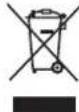
These symbols on the products, packaging, and/or accompanying documents mean that used electrical and electronic products and batteries must not be mixed with general household waste. For proper treatment, recovery and recycling of old products and used batteries, please take them to applicable collection points in accordance with your national legislation.
By disposing of them correctly, you will help to save valuable resources and prevent any potential negative effects on human health and the environment. For more information about collection and recycling, please contact your local municipality. Penalties may be applicable for incorrect disposal of this waste, in accordance with national legislation.

Note for the battery symbol (bottom symbol): This symbol might be used in combination with a chemical symbol. In this case it complies with the requirement set by the Directive for the chemical involved.
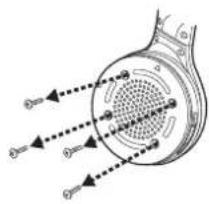
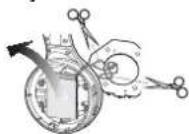
To remove the battery when disposing of this unit
1 Remove the right ear pad
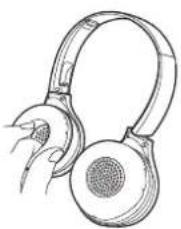
natural_image
Line drawing of a pair of headphones with earbuds (no text or symbols)2 Remove the 4 screws
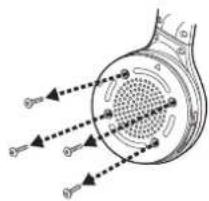
3 Remove the 2 screws, and the board
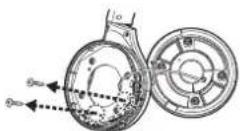
4 Cut off the wires one by one with scissors, and remove the battery
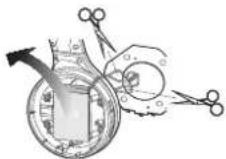
The following instructions are not intended for repairing purposes but for the disposal of this unit. This unit is not restorable once disassembled. When disposing of this unit, take out the battery installed in this unit and recycle it.
- Disassemble after the battery runs out. - Keep disassembled parts out of reach of children.
Regarding the handling of used batteries
- Insulate the terminals with adhesive tape or similar material. - Do not disassemble.
Batteries
- Do not heat or expose to flame.
- Do not leave the battery(ies) in a car exposed to direct sunlight for a long period of time with doors and windows closed.
- Battery mishandling can cause electrolyte leakage which can damage items the leaked fluid comes into contact with. If electrolyte leaks from the battery, consult your dealer. Wash thoroughly with water if electrolyte comes in contact with any part of your body.
- When disposing of the batteries, please contact your local authorities or dealer and ask for the correct method of disposal.
Sehr geehrter Kunde
• A2DP (Advanced Audio Distribution Profile):
• AVRCP (Audio/Video Remote Control Profile):
natural_image
Line drawing of a pair of headphones with earbuds (no text or symbols)natural_image
Diagram of a mechanical component with arrows indicating force or direction (no text or symbols)natural_image
Line drawing of a pair of headphones with earbuds (no text or symbols)natural_image
Diagram of a mechanical component with arrows indicating force or direction (no text or symbols)natural_image
Line drawing of a pair of headphones with earbuds (no text or symbols)natural_image
Diagram of a mechanical component with internal structure and force arrows, no text or symbols presentnatural_image
Line drawing of a pair of headphones with earbuds (no text or symbols)natural_image
Diagram of a mechanical component with arrows indicating force direction (no text or symbols)natural_image
Line drawing of a pair of headphones with earbuds and microphone (no text or symbols)2 Wykręć 4 śruby
natural_image
Line drawing of a pair of headphones with earbuds and microphone (no text or symbols)natural_image
Diagram of a mechanical component with arrows indicating force or direction (no text or symbols)natural_image
Line drawing of a pair of white headphones with earbuds (no text or symbols)natural_image
Diagram of a mechanical component with arrows indicating force or direction (no text or symbols)natural_image
Line drawing of a pair of headphones with earbuds (no text or symbols)natural_image
Diagram of a mechanical component with arrows indicating force or direction (no text or symbols)4 Odstrihnite postupne nožničkami drôty a vyberte batériu
natural_image
Line drawing of a pair of headphones with earbuds (no text or symbols)natural_image
Diagram of a mechanical component with arrows indicating force or direction (no text or symbols)PRO-031-FIT issue: 4.0
1 Innovation Road, Maquare Park NSW 2113
/81 765 100 S8 NBY /81 769 100 NQY
Panasonic Australia Pty. Limited
If phonging in, please ensure you have your operating instructions available.
If you require assistance regarding warranty conditions or any other enquires, please visit the Panasonic Australia website WW.panasonic.com.au or contact by phone on 132 600
SHOULD BE RETAINED BY THE CUSTOMER AT ALL TIMES
THIS WARRANTY CARD AND THE PURCHASE DOCKET (OR SIMILAR PROOF OF PURCHASE)
If there is a major failure in regard to the product which cannot be remedied then you must notify us within a reasonable period by contacting the Panasonic Customer Care Centre. If the failure in the product is not a major failure than Panasonic may choose to repair or replace the product and will do so in a reasonable period of time from receiving notice from you.
In addition to your rights under this warranty, Panasonic products with consent guarantees that cannot be reproduced if the product fails to be of acceptable quality and the failure does not amount to a major failure. And be composited for the drop in value of the goods. You are entitled to have the product repaired on and be prepared by those products or products and also to have a refund to have the product replaced or if you wish you may effect to keep the goods produced and lead to have a refund to have the product replaced or if you wish you may effect to keep the goods reproduced if the product fails to be of acceptable quality and the failure does not amount to a major failure.
Panasonic Authorsed Service Centres are located in major metropolitan areas and most regional centres of Australia, however, coverage will vary dependent on product. For advice on exact Authorsed Service Centres locations for your product, please telephone our customer Care Centre on 132600 or visit our website and use the Service Centre Location.
The warrants hereby converted do not extend to, and excise, any costs associated with the installation de-transful. The product of any part interest or replacement of and do not extend to, and excise, any damage or loss of any scope (and any other acclery activities), delivery, handling, financing, transportation or insurance of installation or re-installation of a product, including costs related to the mounting, de-mounting or remounting transactions of the product or any other acclery activities) for several others. The products by reason of during, associated with, or related to each installation, de-installation, re-installation or transfus.
- Planama/LCD televisions / displays (screen size greater than 103 cm) - areas of Australia or the normal operating areas of the nearest Authored Service Centres
Note that home or pick-up/delivery service is available for the following products in the major metropolitan
The Service Centre Locator for the name/addresses of the nearest Authorized Service Centre. Send or take the product to a Panasonic Authorized Service Centre together with your proof of purchase receipt as a proof of purchase date. Please note that freight and insurance to and / or from your nearest Authorized Service Centre must be agreed by you.
- To claim warranty service, when required, you should
(4) If you want to choose a school classroom, use classroom and the teacher class or in middle to use the classroom in connection to the internet or any other device.
(2) Any indirect or contractual costs associated with the local pue
(b) Access fees and or charges incurred for internet connection (c) The use of incompatible software or software not strictly can
(a) Internet and/or DLNA connection / setup related problems and will hot cover
- Some products may be supplied with Ethernet connection hardware. The warranty is limited on such products
etc
(c) SD cards or USB devices (g) information stored on Hard Disk Drive, USB stick or SD card (h) DTV reception issues caused by TV Rental / Cable/ng / Wall socket(s) (d) User replaceable Batteries (i) Information stored on Hard Disk Drive, USB stick or SD card
(b) Video or Audio Tapes (f) Video / Audio Heads from wear and tear in normal use (a) Calendar Panels (e) DVD, Binary of Recyclable Disks
- This warranty does not cover the following items unless the fault or defect existed at the time of purchase:
This warranty only applies if the product has been installed and used in accordance with the manufacturer's material having entered the product. This warranty includes its use of uncorrected voltage, incoorrical installation, accident, misuse, negative maintenance of failure resulting from use of incorrect voltage, incomplete installation, accident, misuse, negative maintenance of failure resulting from use of incorrect voltage, incomplete installation, accident, misuse, negative maintenance of failure resulting from use of incorrect voltage, incomplete installation, accident, misuse, negative maintenance of failure resulting from use of incorrect voltage, incomplete installation, accident, misuse, negative maintenance of failure resulting from use of incorrect voltage, incomplete installation, accident, misuse, negative maintenance of failure resulting from use of incorrect voltage, incomplete installation, accident, missing or damaged by manufacturer's products or related to rental or rental unit (excluding commercial uses such as solar, other nonrenewable units), replacement of sand, humidity and liquids, commercial uses such as solar, other nonrenewable units (excluding commercial uses) or related to rental or rental unit (excluding commercial uses) or related to rental or rental unit (excluding commercial uses). This warranty covers notional domestically and is not under damage. This warranty includes any applicable product information which is intended to be used for sale.
No warranty requirements, prior and prior to purchase is required by the above service of the above commercial insurance companies. And only if valid proof of purchase is presented when warranty service is requested.
-
This warranty only applies to Panasonic products purchased in Australia and sold by Panasonic Australia or its Authorized Districts of Dealers and only where the products are used and serviced within Australia or
-
The product is warranted for 12 months from the date of purchase. Subject to the conditions of this warranty Panasonic or its Authorised Service Centre will perform necessary service on the product without charge for pars or labour, if in the opinion of Panasonic, the product is found to be faulty within the warranty period. The products are not guaranteed for
Panasonic Warranty
Limited Warranty (ONLY FOR AUSTRALIA)
- Bluetooth®
- E
- Table of contents
- Before use
- Preparation
- Operation
- Other
- Accessories Safety precautions
- For the United Kingdom and Ireland customers
- Sales and Support Information
- Unit
- WARNING:
- Allergies
- Precautions for listening with the Headphones
- Maintenance
- Declaration of Conformity (DoC)
- For Thailand only
- Note
- Charging
- Connect this unit to a computer using the USB charging cord
- Turning the power on/off
- In the power-off state, press and hold the power button of this unit for approx.
- seconds until the LED (blue) blinks
- To turn the power off
- Connecting a Bluetooth ® device
- Pairing (Registration) this unit with the Bluetooth® device for connection
- Press and hold the power button of this unit until the LED blinks
- Turn on the power of the Bluetooth ® unit, and enable the Bluetooth ® function
- Select "RP-HF400B" from the Bluetooth® device's menu
- Check the connection with the Bluetooth® device on the unit
- Connecting a paired Bluetooth ® device
- Turn on the unit
- Perform steps 2 and 3 of "Pairing (Registration) this unit with the Bluetooth® device for connection" (→ P. 4)
- Listening to music
- Connect the Bluetooth ® device and the unit ( → P. 4)
- Select and play the music on the Bluetooth® device
- Attention
- Remote controlling
- Making a phone call
- When answering an incoming call
- Press Call on the unit and answer the call
- When making an outgoing call
- Make an outgoing call on the Bluetooth® enabled
- phone
- Start talking
- Useful functions
- Resetting the unit
- Auto power off
- LED indicator light
- Restoring to the factory settings
- About Bluetooth®
- Frequency band used
- Certification of this unit
- Restrictions of use
- Range of use
- interference from other devices
- Intended usage
- Specifications
- Troubleshooting guide
- General
- The unit does not respond
- Power supply and charging
- Cannot charge the unit
- LED does not light during charging / Charging takes longer
- The power does not turn on
- Bluetooth ® device connection
- The device cannot be connected
- Sound and audio volume
- No sound
- Low volume
- Sound from the device is cut off / Sound quality is bad
- Phone Calls
- You cannot hear the other person
- Cannot make a phone call
- Copyright, etc.
- Disposal of Old Equipment and Batteries Only for European Union and countries with recycling systems
- To remove the battery when disposing of this unit
- Regarding the handling of used batteries
- Batteries
- Sehr geehrter Kunde
- PRO-031-FIT issue: 4.0
- Panasonic Australia Pty. Limited
- SHOULD BE RETAINED BY THE CUSTOMER AT ALL TIMES
- THIS WARRANTY CARD AND THE PURCHASE DOCKET (OR SIMILAR PROOF OF PURCHASE)
- Panasonic Warranty
- Limited Warranty (ONLY FOR AUSTRALIA)
Brand : PANASONIC
Model : RPHF400B
Category : Headphones