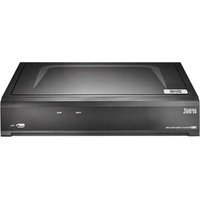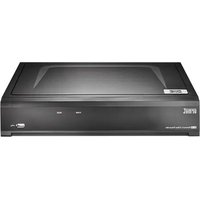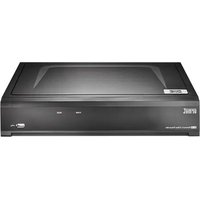
NVR 1098328P - VCR GROTHE - Free user manual and instructions
Find the device manual for free NVR 1098328P GROTHE in PDF.


| Product Type | H.265 Network Video Recorder (NVR) |
| Brand | Grothe |
| Model | NVR 1098328P |
| Compatibility | PoE and non-PoE IP cameras |
| Power Supply | 12 V DC, 2 A (adapter included) |
| Video Outputs | HDMI, VGA |
| Network Ports | 1 RJ45 10/100/1000 port, built-in PoE ports (PoE model) |
| USB Ports | 2 USB ports (mouse, backup) |
| Hard Drive | Internal SATA (not supplied, installation by qualified personnel) |
| Recording Resolution | Up to 4K (depending on camera), main and secondary stream |
| Video Compression | H.265, H.264 |
| Main Functions | Continuous or motion-triggered recording, playback, remote access via smartphone (iUVS plus) or PC (browser, client software) |
| Motion Detection | Yes, configurable per channel |
| Security | Administrator password, unlock pattern, firmware update |
| Maintenance and Cleaning | Dry, soft cloth; do not use volatile products (gasoline, alcohol) or sprays |
| Installation Conditions | Free space ≥ 5 cm around the device, avoid heat sources, humidity, dust |
| Operating Temperature | 0 °C to 40 °C (estimate) |
| Dimensions (L x W x H) | Approximately 260 x 220 x 45 mm (estimate) |
| Weight | Approximately 1.5 kg (estimate) |
| General Information | Use in video surveillance system; respect local privacy legislation |
Frequently Asked Questions - NVR 1098328P GROTHE
User questions about NVR 1098328P GROTHE
0 question about this device. Answer the ones you know or ask your own.
Ask a new question about this device
Download the instructions for your VCR in PDF format for free! Find your manual NVR 1098328P - GROTHE and take your electronic device back in hand. On this page are published all the documents necessary for the use of your device. NVR 1098328P by GROTHE.
USER MANUAL NVR 1098328P GROTHE
Index 21
General Information 22
WARNING 22
Installation 24
First access to the NVR 26
Starting up the NVR 27
DEVICE CONFIGURATION 27
IP CHANNEL CONFIGURATION 28
OPERATING INFORMATION 31
NVR CHANNEL CONFIGURATION FROM A PC 31
Recording and Playback 32
RECORDING PARAMETERS 32
PLAYBACK 34
Viewing from a Smartphone via QR Code 35
Viewing from a PC browser 37
Viewing from Client Software 39
QR Code 82
General Information
Dear Customer,
Thank you for purchasing this product.
This document describes how to quickly install and use the URMET S.p.A. H.265 series
NVR models. Before using the device, read this document carefully and keep in a safe place where it is easily accessible for reference when needed.
\*NOTE
For further information, see the instruction manual on the Uromet website. To download the manual from the site, see the QR code on the Addendum sheet.
WARNING
Power supply
Before connecting the device to the electrical outlet, ensure that the ratings on the nameplate match those of the mains power supply.
Do not pull on the cable to unplug the device.
Switch off the device before disconnecting the power. Do not switch the NVR off while recording or playing, or from the configuration menu. Stop recording and playback before disconnecting the device, to prevent damage to the hard disk.
Safety precautions
Keep the device away from rain and dampness to prevent the risk of fire or electrocution. Do not introduce any material (solid or liquid) inside it. If this should accidentally occur, disconnect the device from the mains outlet and have it inspected by qualified personnel.
Never open the device. In all cases, contact qualified personnel or an authorised service centre for repairs (www.urmet.com >> Contacts >> Technical Support Centres).
Keep the device away from children, to avoid accidental damage.
Do not touch the device with wet hands to prevent electric shock or mechanical damage.
Stop using the device if it falls or if the external casing is damaged. Continuing to use the device in these conditions could cause electric shock. Contact the retailer or authorised installer.
Installation precautions
To prevent the device from overheating, place it in a position that allows a flow of air through the vents in the casing. Leave a space of at least 5cm when installing in a rack. For the same reason, do not install near heat sources such as radiators or hot air ducts.
Keep the device away from direct sunlight. Do not install in areas subject to excessive dust, mechanical vibration or shock.
Do not place the device on an unstable surface, such as an unsteady or sloping table, as the device could fall, causing damage or mechanical failure.
Do not install the device where it may be exposed to moisture or water. Do not spray water on the device, to avoid risk of fire, electric shock or mechanical damage.
Stop using the device if water or any other material penetrates inside it, to prevent risk of fire or electric shock. In such cases, contact the retailer or authorised installer.
Do not place heavy or heat-generating objects on top of the device: this could damage the casing and/or increase the internal temperature, leading to damage.
Do not cover the device with a cloth while it is running to prevent deforming the external casing and overheating the internal parts, causing risk of fire, electrocution and mechanical failure. Keep magnets and magnetised objects away from the device to avoid malfunction. Do not use the device in the presence of smoke, vapour, humidity, dust or intense vibrations.
Do not operate the device immediately after moving it from a cold place to a warm place or vice versa. Wait for around three hours: this will allow the device to adapt to the new ambient (temperature, humidity, etc.).
Cleaning the device
Rub gently with a dry cloth to remove dust and dirt.
Dip the cloth in a neutral detergent if dirt cannot be removed with a dry cloth alone.
Do not use spray products to clean the device. Do not clean the device using volatile liquids (such a petrol, alcohol, solvents, etc.) or chemically treated cloths to prevent deformation, deterioration or scratches to the paint finish.
Disconnect the device from the electrical outlet before any cleaning or maintenance operations.
Hard Disk
The hard disk installed in this device is sensitive to shock, temperature changes and vibrations. Failure to adopt suitable precautions could compromise the proper functioning of the device and cause loss of data from the hard disk.
If repairs are required, it is advisable to backup all important data before taking the device to the service centre.
Uromet S.p.A. is not liable for the loss of stored data.
Hard disks must be installed by qualified technical personnel or by contacting the technical support centre.
Image recording
This device was designed to record images. It is not a burglar alarm. URMET SpA cannot be held liable for loss or damage due to theft suffered by the user.
Make a test recording before using the device to ensure that it is working properly. URMET SpA is not liable for loss of stored data due to loss or damage caused by failure to follow the instructions for installation and use, improper use or malfunctioning of the device. This device contains precision electronic components. Protect the device from shocks to ensure proper image recording.
Privacy and Copyright
The NVR is a device for CCTV systems. The recording of images is subject to the laws in force in the country of use. Recording of images protected by copyright is forbidden.
Product users are responsible for checking and complying with all local rules and regulations regarding monitoring and the recording of video signals. The manufacturer SHALL NOT BE LIABLE for any use of this product not in compliance with the laws currently in force.
Software upgrade
Regularly check the specific section of the manufacturer's website at www.urmet.com >> Download >> Software for software upgrades.
Firmware upgrade
Contact URMET SpA Customer Service to check the availability of firmware upgrades.
Network configuration
The factory default IP address for the NVR is assigned via DHCP.
From the NVR Network OSD Menu, assign the NVR an IP address that has not been assigned to other devices in order to prevent any network conflict.
Once the NVR had been assigned a suitable address, it can be connected to the network.
Network connections
When connecting a remote PC (using client software or a browser), bear in mind that all video channels used by the PC correspond to a "unicast" type connection (TCP, RTP, UDP).
Installation
For rapid installation and use, connect the NVR to a monitor with a VGA or HDMI input and carefully follow the instructions below in the given order.
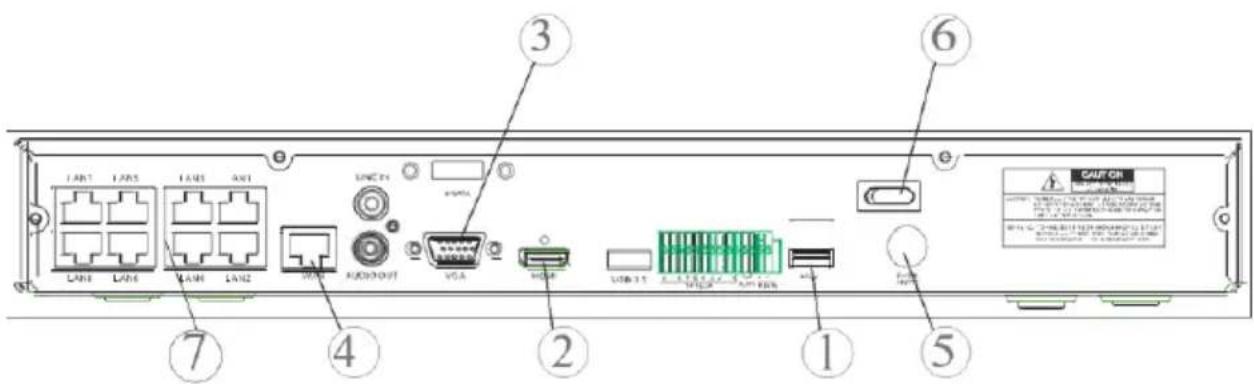
Rear panel on 1/2 HD NVR
Rear panel on 4 HD NVR
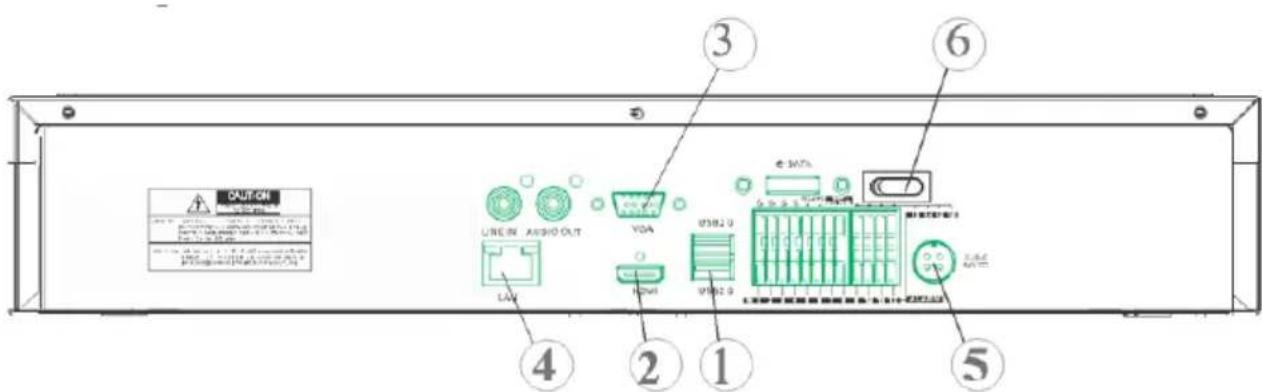
① USB ports
② HDMI output
③ VGA port
④ Network connection port (to router, switch and PoE switch)
⑤ Power plug
⑥ Switches
⑦ PoE ports (available on the PoE model NVR) for direct connections to IP cameras (direct network cable)
Before installing the NVR, make sure the IP cameras are working and connected (via cable or WiFi) to the network that will be used by the NVR. For the IP camera network connection and configuration, see the instructions supplied with the cameras.
Installing the NVR
- Connect the mouse to the USB port ①.
- Connect the HDMI output ② or the VGA port ③ to the monitor to configure the IP cameras.
- Connect the network cable to the port ④.
Only for the PoE series:
Connect one or more PoE IP cameras with network cables directly to one or more ports ⑦.
- Turn on the device by plugging it in ⑤ to the electrical mains and turning the switches ⑥ to the 1 position.
First access to the NVR
- The first time you switch on the NVR, you must immediately set the password in order to protect your privacy. Write down the username and password and keep them in a safe place.
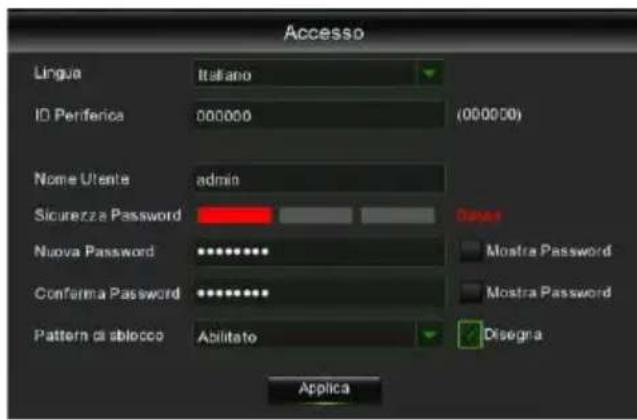
- Language: choose an OSD language
Device ID: enter the device ID in brackets. Default ID: 000000. - New Admin Name (Username): enter you administrator name.
- Password Strength: indicates the security level of the changed password.
- New Admin Password: enter your password. The password can be a combination of 8 characters.
- Confirm Password: enter your password once more.
- Enable Unlock Pattern: if this function is enabled, press Draw (pencil icon) to trace and confirm an unlock pattern; the set pattern must be traced each time to log in to the NVR system.
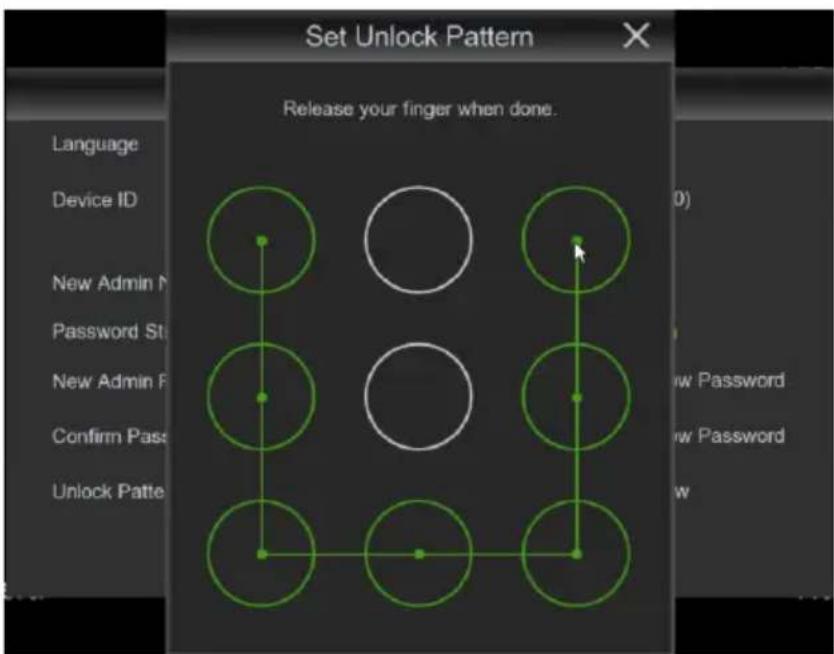
- Click on Apply to confirm the settings and pass to the login interface. Enter the username and password to access the NVR system.
NOTE: if you forget your password and e-mail is disactivated, you will not be able to log in to the system; contact your retailer to reset the password.
Starting up the NVR
DEVICE CONFIGURATION
- Right click and enter the administrator password to access the NVR OSD menu. To check the firmware version currently installed in the NVR, access the menu page "System" -> "Info". If the version is not recent, the NVR system software (firmware) can be updated by following the instructions given in the complete User Manual available on the Umet website (to download the manual from the site, see the QR code printed on the Addendum sheet).
View the network parameters currently in use in the NVR on the "Menu" -> "Network" page: wait about ten seconds for assignment and automatic display of the network parameters on the menu.
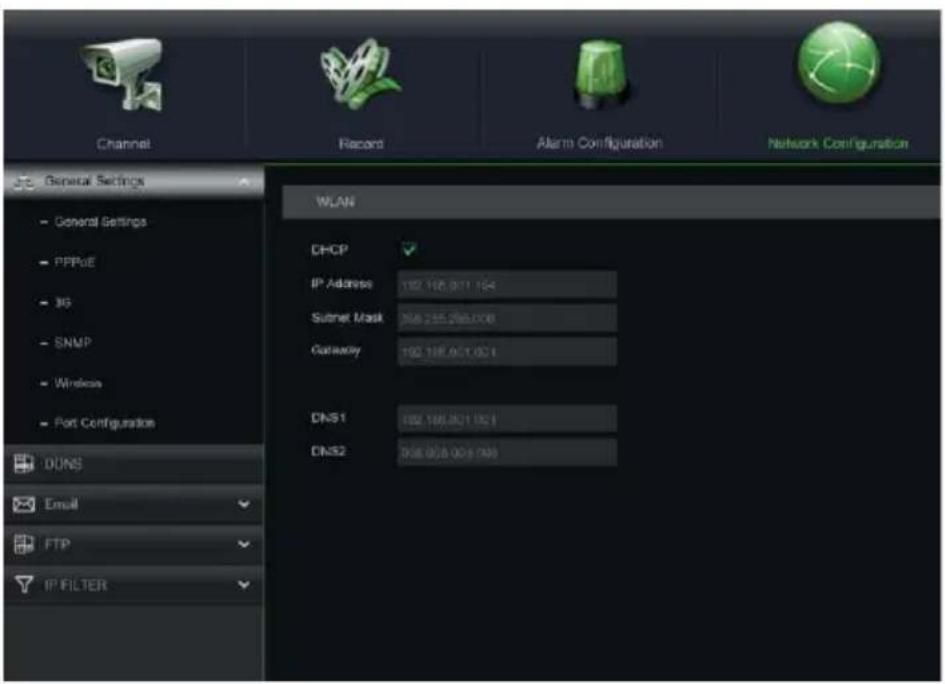
If the LAN network does not support the DHCP service, go to the "Menu" -> "Network" page, change from "DHCP" to "Static" mode, and then manually enter the appropriate network parameters: IP address, Mask, Gateway, DNS.
IMPORTANT
For IP channel recording, make sure that the IP cameras have a static IP address to avoid loss of video signal. The IP camera address can be changed from dynamic to static using the button (see following steps).
IP CHANNEL CONFIGURATION
Before configuring the NVR IP channels, make sure that the IP cameras are working and are connected to the same network that will be used by the NVR. For IP camera network connection and configuration, see the instructions supplied with the cameras.
- To manually assign IP cameras to the NVR channels, click on the “+” button to add the IP camera to the relevant channel, as shown in Figure:
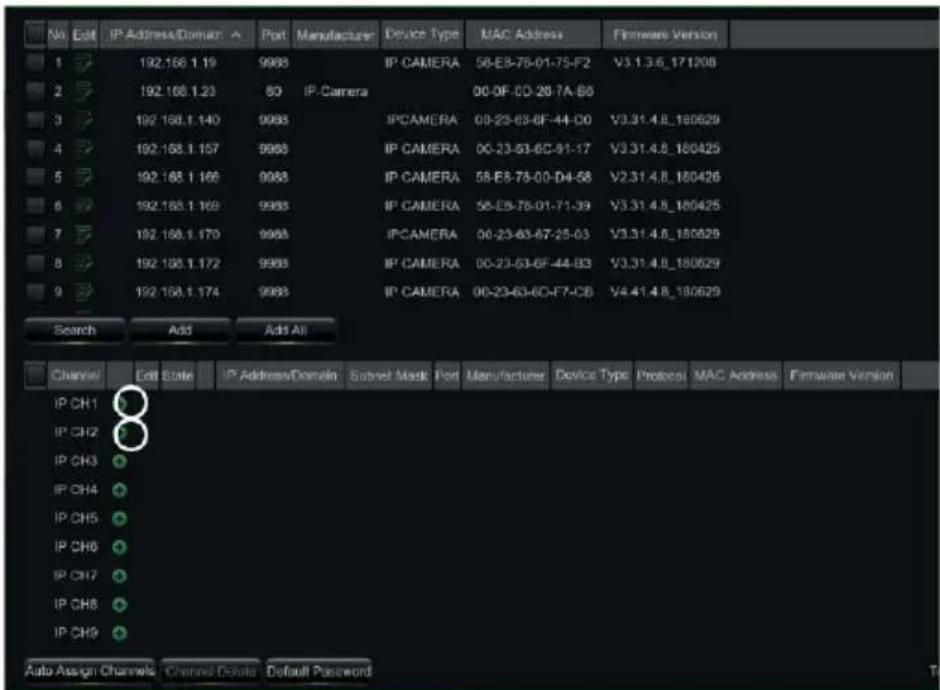
2. To continue manually adding IP cameras:
- Click on "Search" to find the IP cameras in the network, select the IP camera you want to add and enter the password (Default Password: admin), then check that the protocol and port are set correctly, as shown in the figure below. Select "Add" and wait for the device to come online (wait for the icon to turn green).
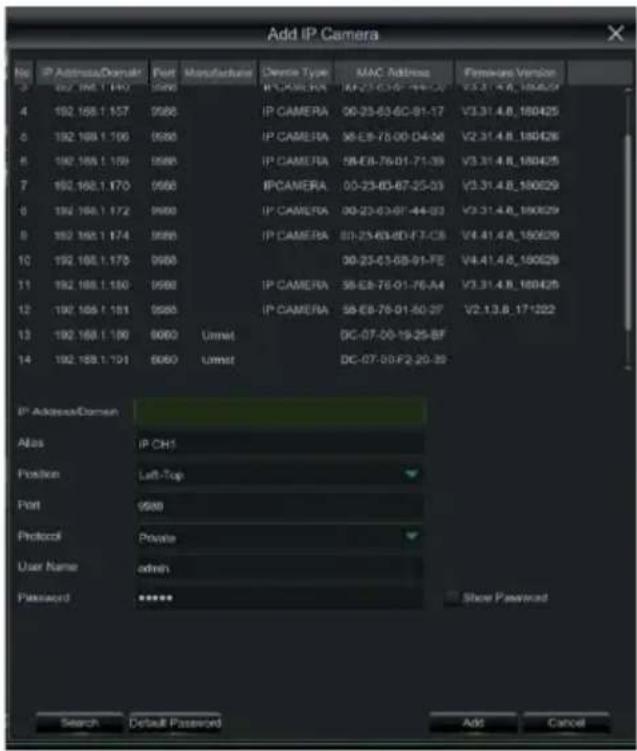
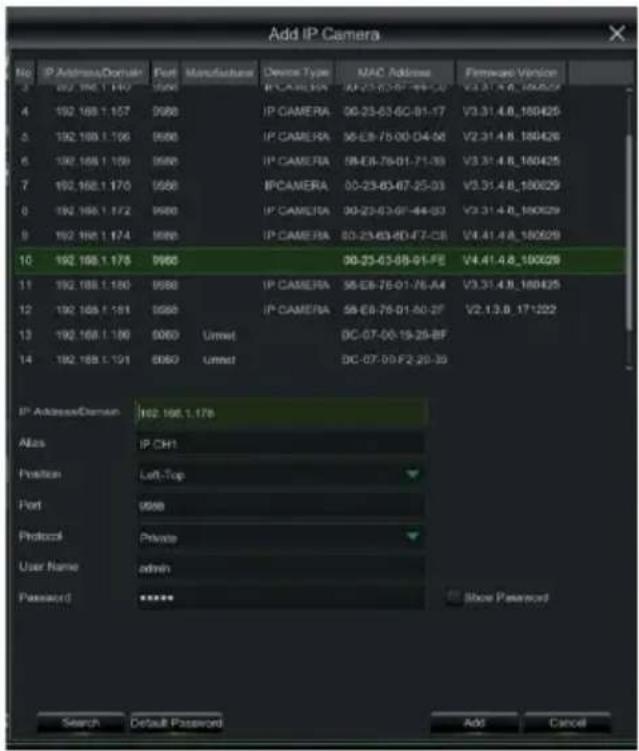
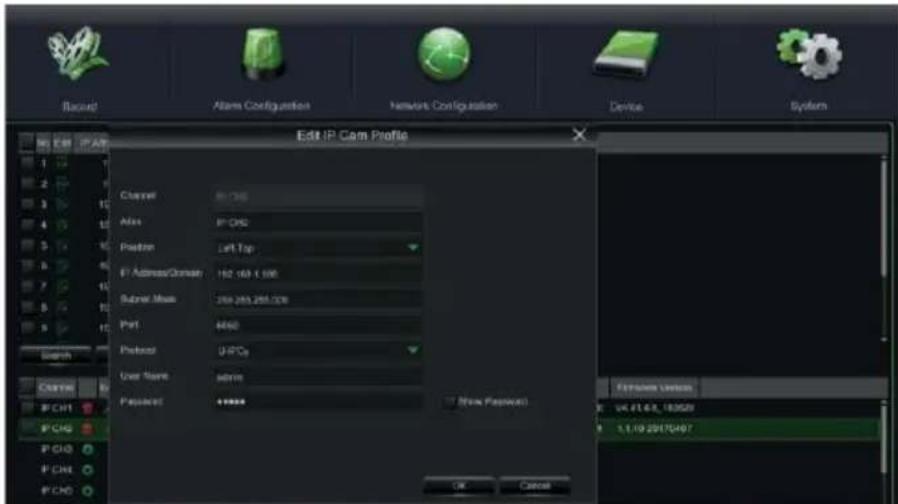
- To change the data used by the NVR to connect each channel, select the button (sided in the previous image).
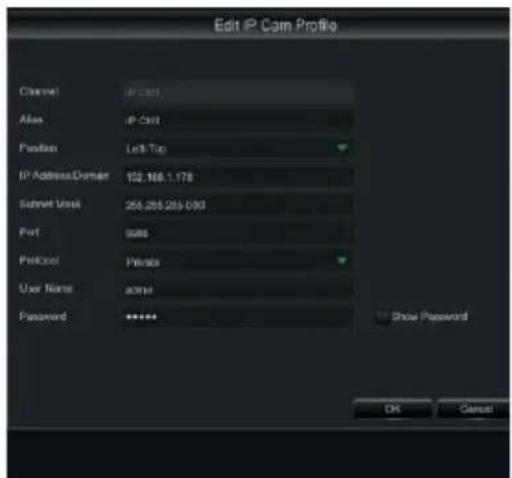
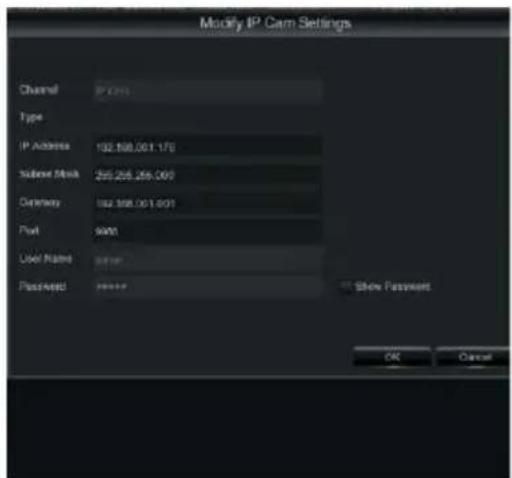
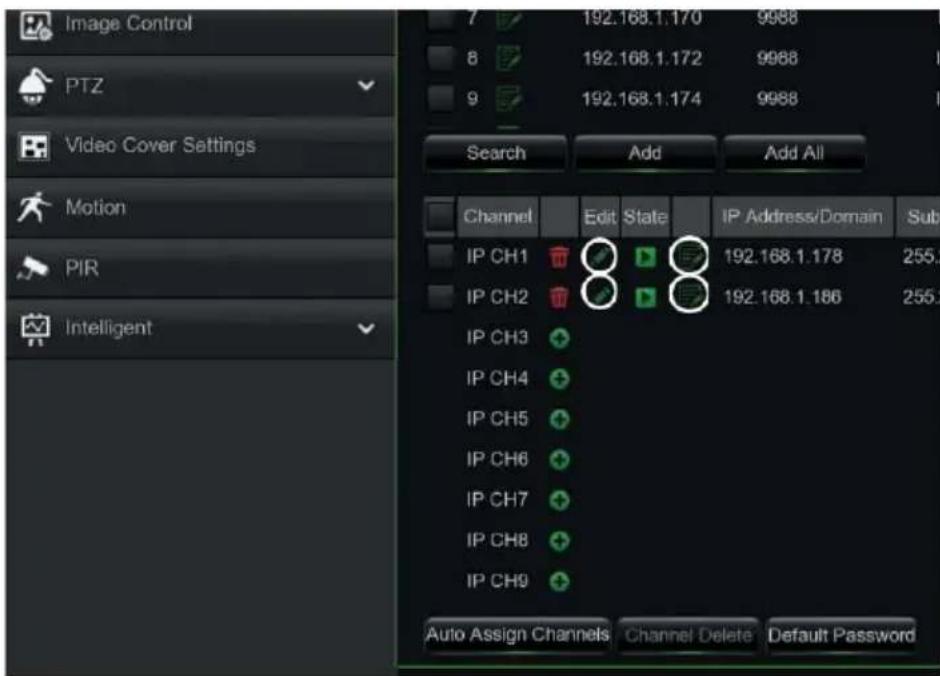
To change the network parameters of the connected camera (e.g.: camera IP address from DHCP to static, mask, Gateway, port) select the button (circle in the previous image).
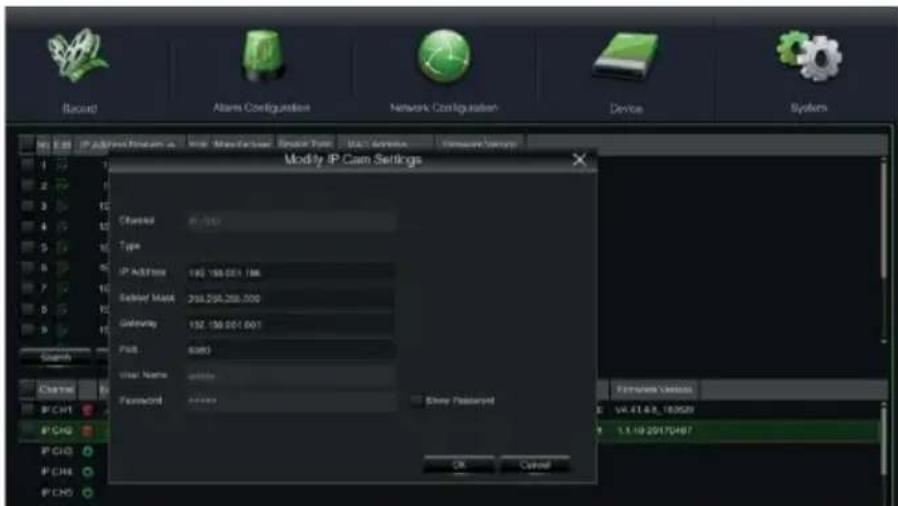
- The NVR is configured to automatically start the continuous recording of the cameras assigned to the channels. Check that the red "●" symbol is displayed on the monitor for each camera.
- In the LIVE preview grid, by default, the NVR displays the MAINSTREAM of all the IP cameras enabled and configured. However, if the decoding resources are insufficient, the NVR automatically displays the SUBSTREAM of the channels.
- When the "Insufficient Resources" message is displayed next to the IP channels in the LIVE preview grid, the MAINSTREAM or SUBSTREAM frame-rate and bitrate settings should be reduced on the IP channel settings page of the NVR OSD menu: "Main Menu" -> "Parameter" -> "Record" -> "MainStream" or "Main Menu" -> "Parameter" -> "Record" -> "SubStream".
- If the IP camera web interface is used to change its parameters (e.g. Mainstream, Substream or Mobile Stream), the NVR must be restarted so that the changes on the camera are also displayed in the menu parameters of the corresponding channel on the NVR.
- Once the network configuration is completed, the NVR and cameras can be remotely viewed using the URMET iUVS plus app on an iOS or Android smartphone or from a PC using Internet Explorer / Firefox or Umet UVS client software.
\*NOTE
- The Password should be changed after installation.
- If the IP camera is not detected, try adding it manually.
- For further details, see the complete instruction manual on the Uromet website (to download the manual, see the QR code printed in the specific section on this Quick Guide).
NVR CHANNEL CONFIGURATION FROM A PC
To add the device quickly from a PC, without needing to connect it to a monitor, see the complete manual for the device, which can be read and downloaded from the Umet website (to download the manual, see the QR code printed on this Quick Guide).
Recording and Playback
RECORDING PARAMETERS
Select "Menu" -> "Recording" to access the recording menu. The following functions are available:
- The "Schedule" menu allows you to set the recording options: 24 hours or Normal, on Motion/Alarm; recording timetables can be customised. Both recording options, Normal/Alarm, can be set within the same timetables.
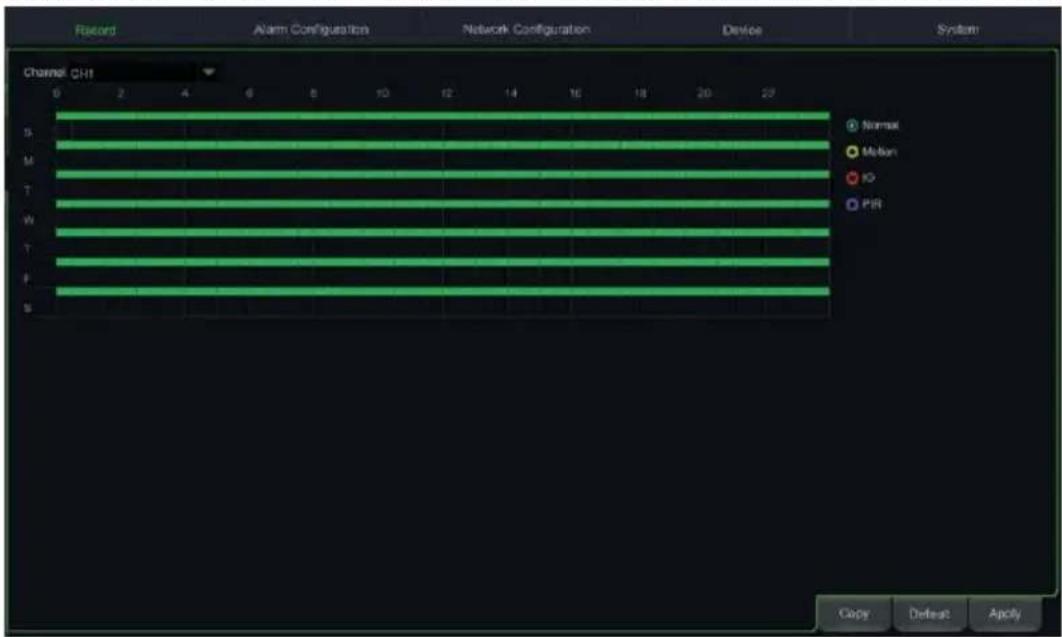
- In the "Recording" menu you can set the stream to be recorded: Mainstream or DualStream (Mainstream + Substream).
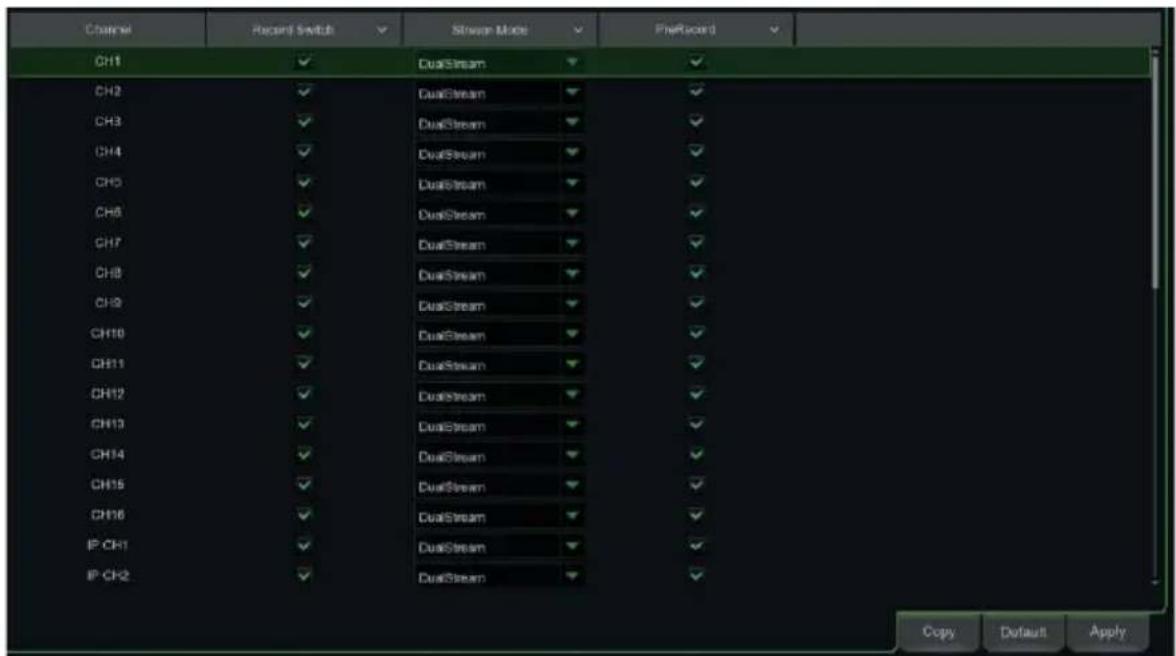
The device manages different video streams for each IP input, as follows:
- Mainstream: maximum resolution stream, used for video recording to Hard Disk and display on a local network
- Substream: medium resolution stream for display in a multi-screen room or remote viewing
- Mobile stream: optional stream that can only be activated if supported by the IP camera. This is a low-resolution stream for remote viewing.
To configure each stream, open the "Recording" -> "Coding" page in the OSD menu and select the stream to configure:
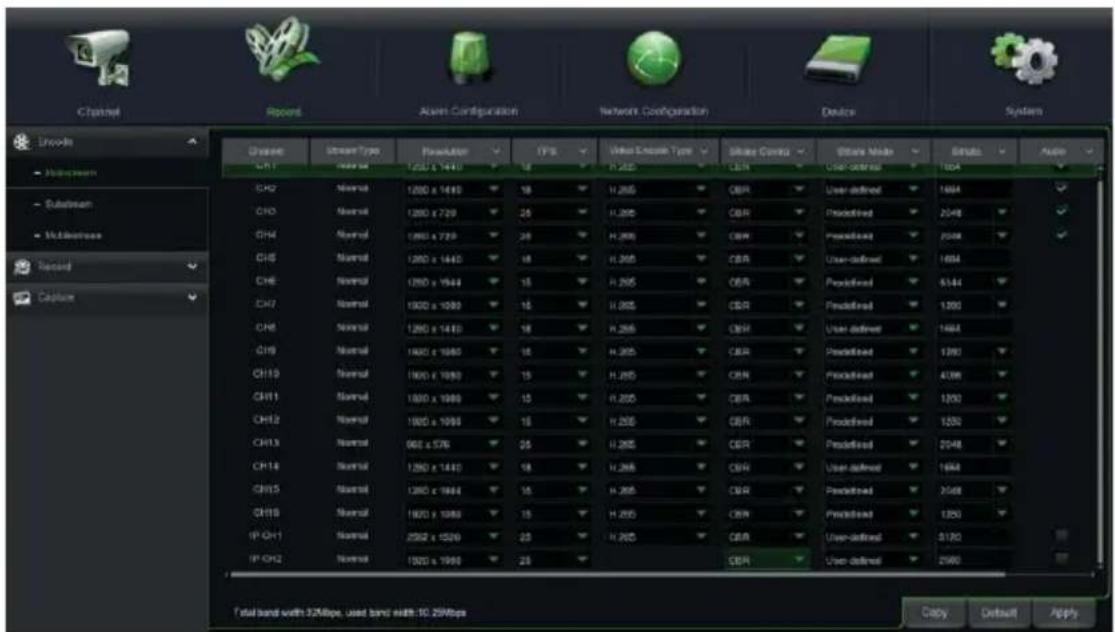
Once the settings have been made on the Recording menu, save the changes, exit the device menu and then check that the "●" icon is displayed for each channel in LIVE mode, which shows that the device is recording in accordance with the set parameters.
IMPORTANT
The default factory settings are those recommended for video streams in order to obtain the right balance between video quality and fluidity, both for recording and LIVE display, locally or remotely. Streaming parameters can, however, be set differently to the factory ones described above.
PLAYBACK
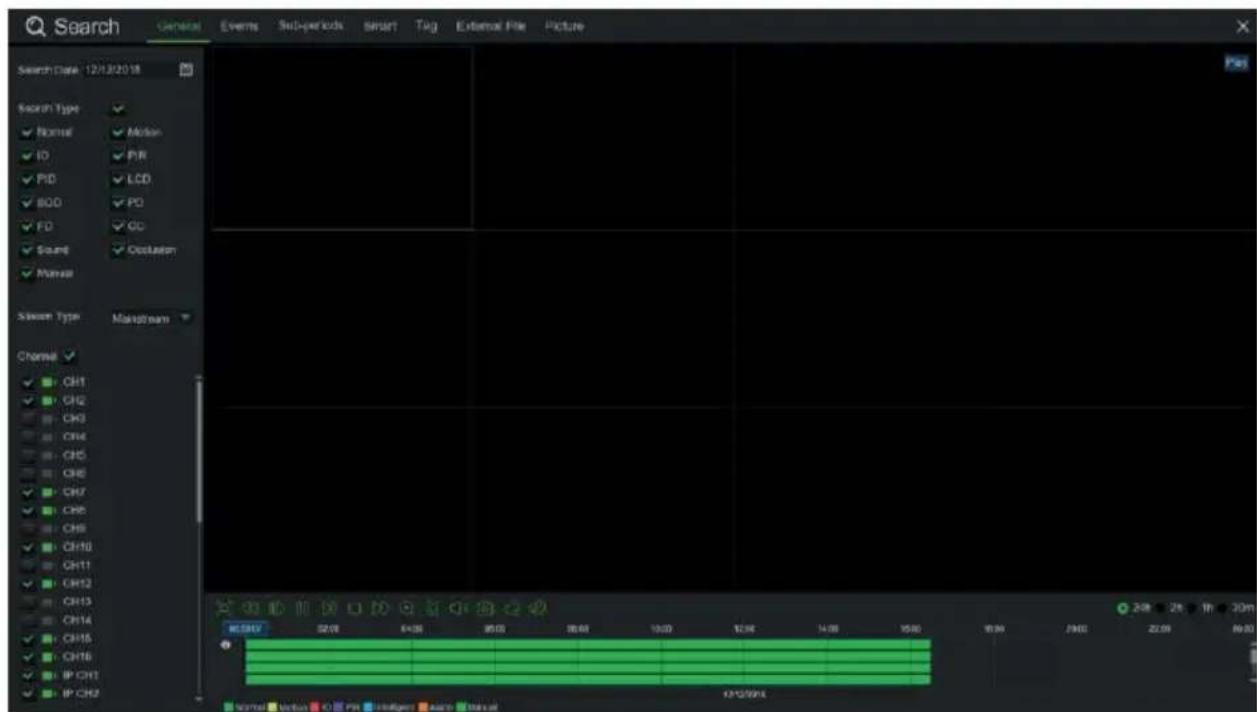
Right click on the mouse in LIVE view and press the "Play" button on the popup menu that appears at the bottom of the LIVE grid, to access the interface shown below.
Then select the channel you want to playback and click on the "Play" button to access the playback mode shown above.
You can use the Playback control bar to activate Fast Forward (X2, X4 and X8), Slow Play (1/2, 1/4 and 1/8 speed), Play, Pause/Frame and Rewind (X2, X4 and X8).
At the end of playback, the NVR will return to the previous menu, shown below.
The Play control bar displays the progress of the current playback, as shown below. When clicking on any point of the control bar, if there are no recorded files at that point, the system returns to the previous menu.
Viewing from a Smartphone via QR Code
Once the NVR and cameras are configured in the network, for remote viewing on an iPhone or Android smartphone, download the URMET iUVS plus app from the respective stores.
Google Play
AppStore
After downloading and installing the app, you can add and view the NVR on a smartphone via a P2P connection as follows:
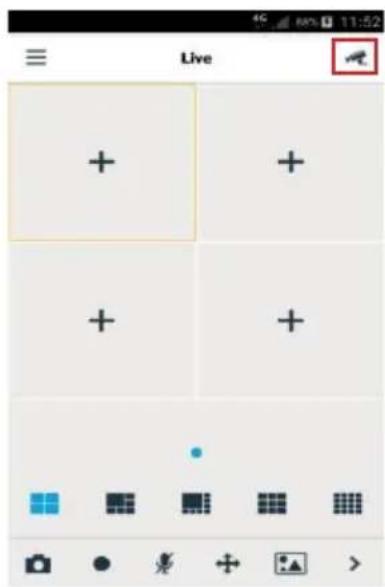
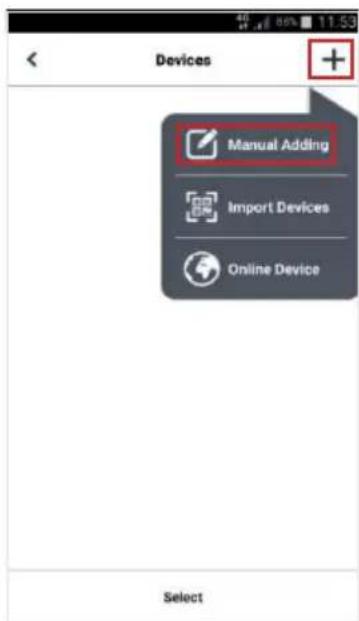
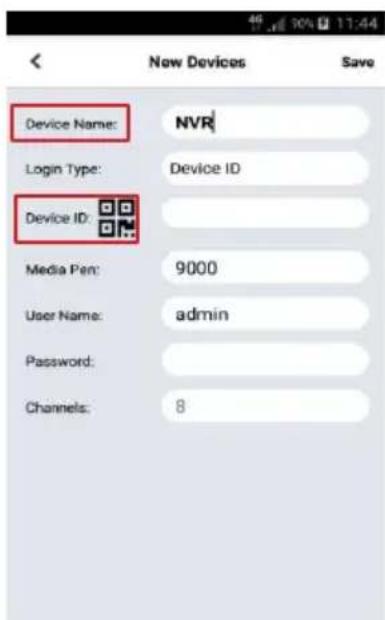
Fill in the "Device name" field. Select the icon to enter the NVR ID by reading it from the QR code. Install a QR code reader app on the smartphone, if necessary, and then scan the QR on the NVR case.
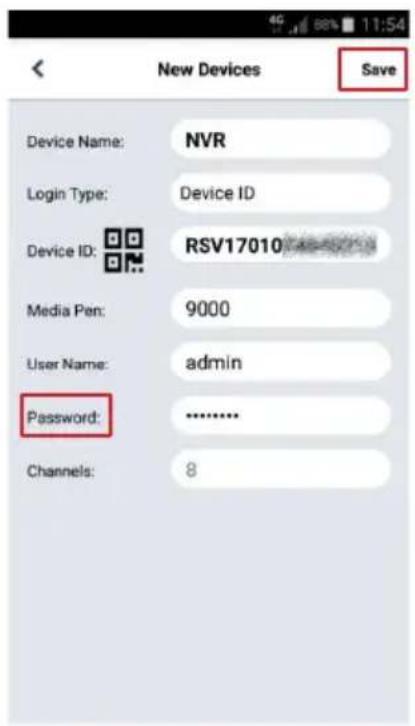
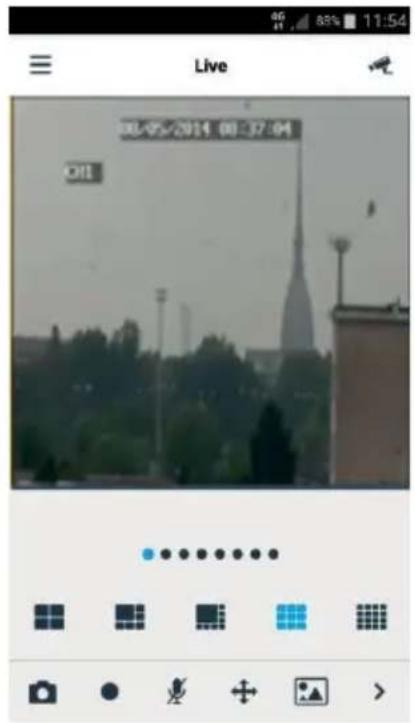
Enter the NVR password in the "Password" field, press "Save" and wait for about ten seconds until the NVR LIVE video is loaded automatically.
IMPORTANT
In addition to P2P mode, the NVR can also be remotely displayed on a smartphone with the Umet DDNS service (for which, the router must be set for port opening and forwarding). For further details about using the Umet DDNS, service, see the complete NVR manual (to download the manual, see the QR code printed on the Addendum sheet).
To display the NVR on a local (LAN) network, it can be added to the app via the IP address. To know the local IP address of the NVR, see the "Menu" -> "Networks" page in the NVR menu.
Viewing from a PC browser
Once the NVR and cameras are configured in the network, you can connect to the NVR via a browser from:
A PC with a Windows operating system and an Internet Explorer or Firefox browser
A MAC with a 10.8.0 operating system or higher and a Safari browser version 6.0 or higher.
The PC or MAC must be connected to the same local network (LAN) as the NVR.
To connect to the NVR (for Windows systems only), perform the following operations:
- Install the "Device Config Tool" software from the CD supplied with the product on a PC with a Windows operating system connected to the same network as the NVR. Once installed, the software will detect the NVR in the local area network and display it in the list.
- If the LAN to which the NVR is connected has an automatic address service (DHCP), the NVR will be automatically assigned a valid IP address, which will appear in the list in the "Device Config Tool" screen:

- If the LAN network to which the NVR is connected does not support the DHCP service, an IP address must be assigned manually to the device. To do this, set the required network parameters to be assigned to the NVR at the bottom of the "Device Config Tool" screen: IP, Gateway, Net Mask, then enter the password and press "Modify" to save the network parameters in the NVR settings:

- Now click on the NVR IP address displayed in the "Device Config Tool" list to open Internet Explorer automatically. At the first connection, the browser will require the installation of a software component (ActiveX, in the case of Internet Explorer), which is downloaded directly by the NVR. Accept the installation of the component and continue. For further details, see the complete instruction manual on the Urmet website (to download the manual, see the QR code printed on the Addendum sheet).
- The NVR can also be reached without using the "Device Config Tool" software by opening your browser (Internet Explorer or Firefox for Windows, Safari for Mac) and typing in the IP address in the navigation bar. To know the NVR IP address, open the "Menu" -> "Network" page on the NVR monitor.
-
- Once the component has been installed, the browser will display the login page: enter the NVR password and press "Login" to start the connection and display the video streams inside the browser window.
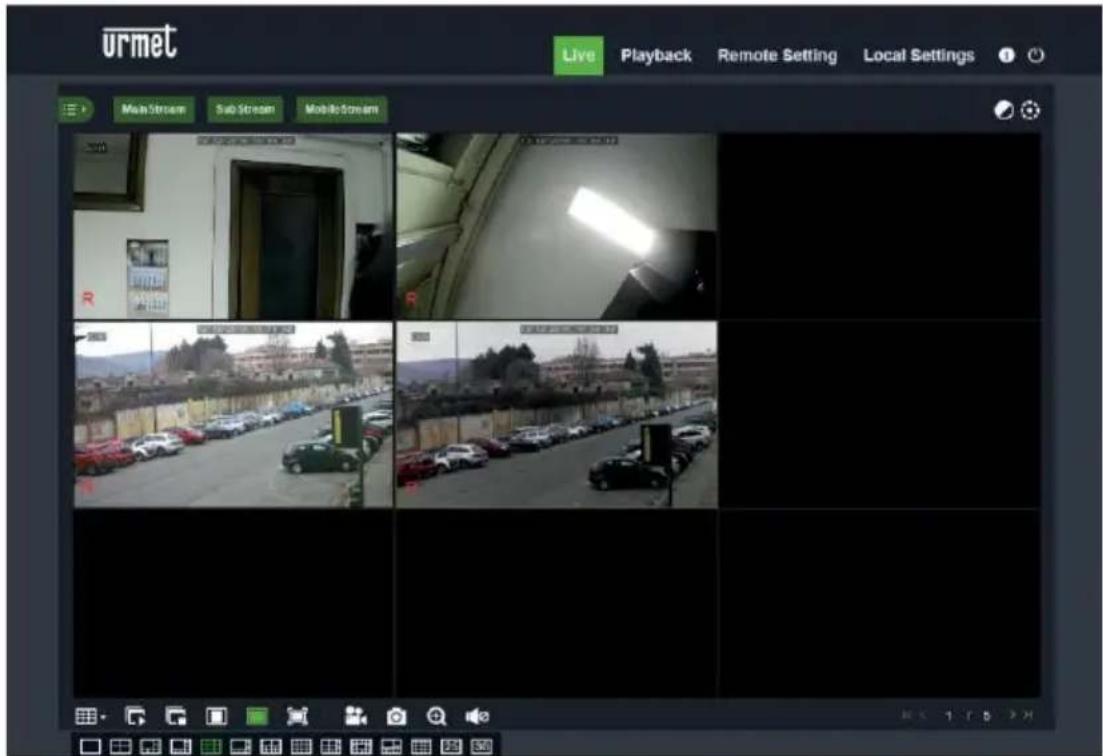
For further details about using the NVR from a browser, see the complete manual available on the Urmet website (to download the manual, see the QR code printed on the Addendum sheet).
Viewing from Client Software
You can also simultaneously connect to one or more NVRs with the URMET UVS client software included in the CD provided with the product. The URMET UVS software is available in two versions: for Windows and for the Mac OS version 10.8.0 or higher.
For details on installing and using the URMET UVS client software, see the full manual on the provided CD or on the Urmet website.
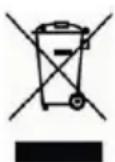
DIRECTIVE 2012/19/EU OF THE EUROPEAN PARLIAMENT AND OF THE COUNCIL of 4 July 2012 on waste electrical and electronic equipment (WEEE).
The crossed-out wheeled bin symbol on the product or on its packaging indicates that the product must not be disposed of together with ordinary household waste.
The user must therefore dispose of the waste equipment by taking it to a designated collection centre for the recycling of waste electrical and electronic equipment. As an alternative to independent disposal,
you can hand in the equipment you wish to dispose of to the retailer when purchasing a new appliance of the same type.
Electronic products up to 25cm in size can also be handed in for free disposal, with no purchase obligation, at electronics stores with sales areas of over 400m^2
Adequate separate collection for recycling, treatment and environmentally friendly disposal of the scrapped equipment helps to prevent negative impacts on the environment and on human health, and promotes recycling and/or reuse of the materials with which the equipment is made.
Quick Guide
NVR H.265 AVEC HDMI
Table des matieres
These works, including the work of the German and French universities, are also acknowledged. The German universities have been working with a variety of projects on the development of video games, such as the "Videogame" project, "The V3 Game", and "Video Game" (2014).
The updated version of this quick start guide, the complete manual, the software and firmware of the devices are available for download at www.urmet.com. Open the page dedicated to the product by scanning the QR code below with your smartphone and then select the section DOCUMENTATION AND RESOURCES.