ManualGo.com
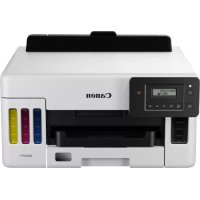
MAXIFY GX1040 - Printer CANON - Free user manual and instructions
Find the device manual for free MAXIFY GX1040 CANON in PDF.



| Features | Details |
|---|---|
| Printer type | Inkjet printer |
| Functions | Printing, copying, scanning |
| Print resolution | Up to 600 x 1200 dpi |
| Print speed | Up to 24 pages per minute in black and white, 15.5 pages per minute in color |
| Connectivity | USB, Wi-Fi, Ethernet |
| Paper tray capacity | 250 sheets |
| Operating system compatibility | Windows, macOS, Linux |
| Dimensions | 375 x 251 x 159 mm |
| Weight | 5.9 kg |
| Power consumption | About 18 W (printing), 0.9 W (standby) |
| Maintenance | Print head cleaning, ink cartridge replacement |
| Security | Network security features, password protection |
| Warranty | 1 year |
Frequently Asked Questions - MAXIFY GX1040 CANON
Download the instructions for your Printer in PDF format for free! Find your manual MAXIFY GX1040 - CANON and take your electronic device back in hand. On this page are published all the documents necessary for the use of your device. MAXIFY GX1040 by CANON.
USER MANUAL MAXIFY GX1040 CANON
Safety and Important Information
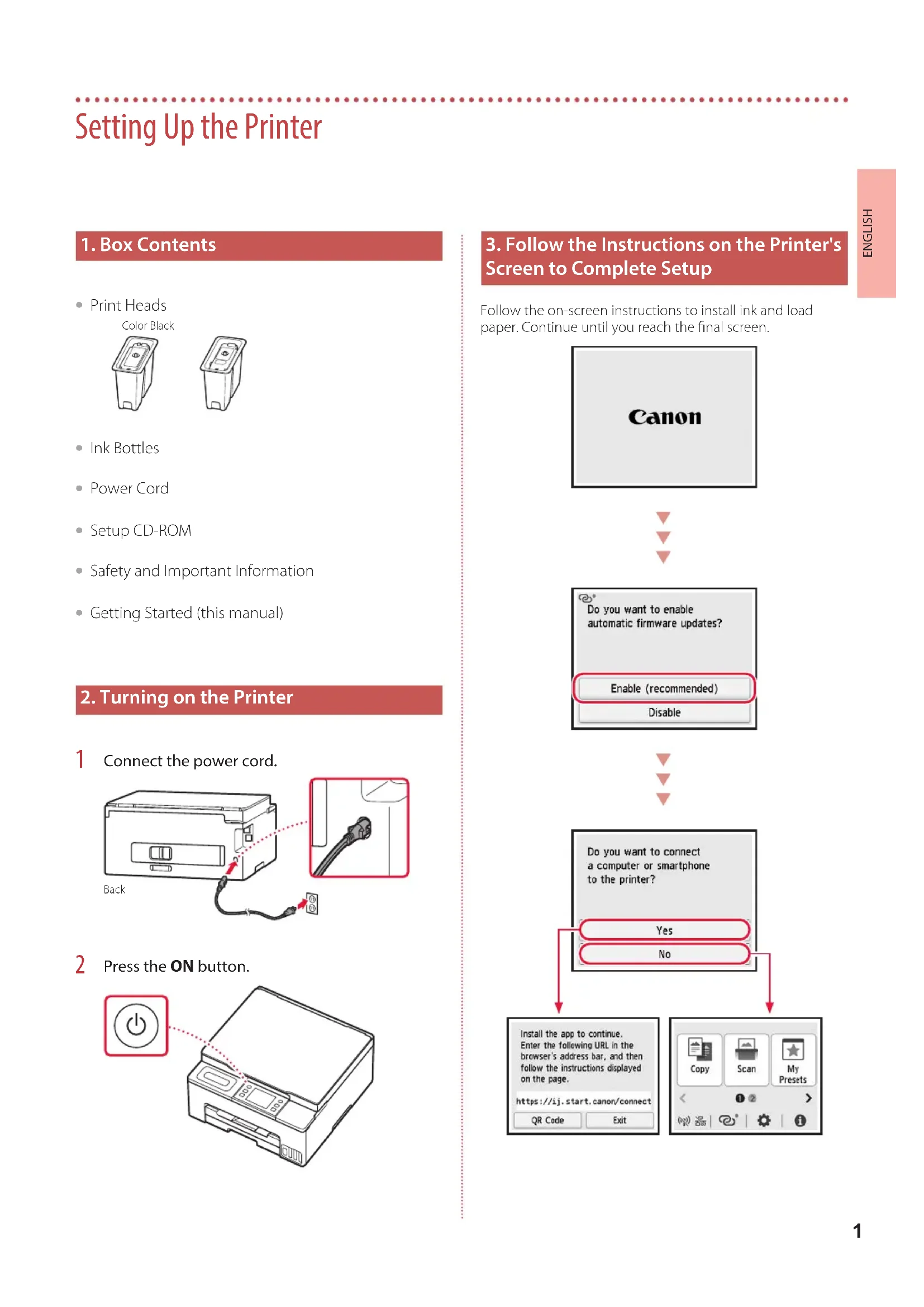
2. Turning on the Printer
Connect the power cord. Back
3. Follow the Instructions on the Printer's
Screen to Complete Setup Follow the on-screen instructions to install ink and load paper. Continue until you reach the nal screen.2 Setting Up the Printer
4. Connecting to a Computer or Smartphone
If you are using multiple computers/smartphones, perform these steps on each device. Also perform these steps to add a new computer/smartphone or replace your current one.
Access the Canon website directly. No need to search. https://ij.start.canon/connect
Enter your printer's model name and click Go.
Follow the on-screen instructions. Note Refer to the Online Manual if you cannot connect the printer to your computer or smartphone (network trouble). Using the Setup CD-ROM
1. Double click EasySetup.exe on the screen that appears.
2. If the printer selection screen appears, select GX1040.
If the installation screen appears, click Next.
3. Follow the on-screen instructions.
If nothing appears, start Explorer and then run EasySetup.exe in the CD-ROM.3 ENGLISH When relocating the printer, check the following. Refer to the Online Manual for details.
Check that the position of the ink valve lever is closed.
Check if the tank caps are completely closed.
If the print head holder is in the center of the printer, check that the cover is closed. Pack the printer in a plastic bag in case ink leaks.
Pack the printer in a sturdy box so that it is placed with its bottom facing down, using sucient protective material to ensure safe transport.
Do not tilt the printer. Ink may leak.
Please handle with care and ensure the box remains at and NOT turned upside down or on its side, as the printer may be damaged and ink in the printer may leak.
When a shipping agent is handling transport of the printer, have its box marked "THIS SIDE UP" to keep the printer with its bottom facing down. Mark also with "FRAGILE" or "HANDLE WITH CARE". Transporting Your Printer1 ESPAÑOL Instalación de la impresora
EasySetup.exe (Explorer) 1