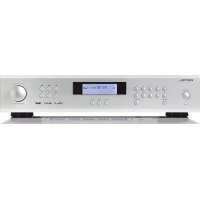
T14 - Audio Receiver ROTEL - Free user manual and instructions
Find the device manual for free T14 ROTEL in PDF.



| Product Type | Digital Audio Receiver with DAB+/FM Tuner and Network Streaming |
| Dimensions (W x H x D) | 430 x 93 x 334 mm (front panel height 80 mm) |
| Weight | 5.1 kg |
| Power Supply | 230 V / 50 Hz (CE version) or 120 V / 60 Hz (US version) |
| Power Consumption | 16 W operating, < 0.5 W standby (normal mode) |
| FM Tuner | Stereo FM reception with RDS, 30 presets |
| DAB/DAB+ Tuner | Digital reception Band III, 30 presets |
| Network Streaming | DTS Play-Fi (Wi-Fi), Spotify Connect, music streaming services |
| Wireless Connectivity | Wi-Fi 802.11 b/g/a/n dual-band, WPS, WEP/WPA/WPA2 security |
| Audio Outputs | Stereo analog (RCA) and digital coaxial (75 ohms) |
| Antenna Input | F connector 75 ohms for DAB and FM |
| Special Features | 12 V trigger input/output, Rotel Link, RS-232 for home automation |
| Maintenance and Cleaning | Clean with a dry cloth or vacuum. Do not use liquids. |
| Safety | Double electrical insulation (no grounding required). Do not expose to moisture. |
| Spare Parts and Repairability | No user-serviceable parts. Contact a Rotel authorized technician. |
| Included Accessories | Power cable, DAB/FM antenna, Rotel Link cables, RR-T99 remote control |
| General Information | Compliant with FCC Class B, Canadian NMB-003, RoHS and WEEE directives. |
Frequently Asked Questions - T14 ROTEL
User questions about T14 ROTEL
0 question about this device. Answer the ones you know or ask your own.
Ask a new question about this device
Download the instructions for your Audio Receiver in PDF format for free! Find your manual T14 - ROTEL and take your electronic device back in hand. On this page are published all the documents necessary for the use of your device. T14 by ROTEL.
USER MANUAL T14 ROTEL
ROTEL®
T14
Network/FM/DAB+ Tuner
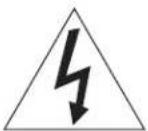
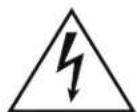
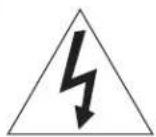
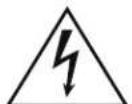
This symbol is to alert the user to the presence of uninsulated dangerous voltages inside the product's enclosure that may constitute a risk of electric shock.
This symbol is to alert the user to important operating and maintenance (service) instructions in this manual and literature accompanying the product.
This Class B digital apparatus complies with Canadian ICES-003.
Rotel products are designed to comply with international directives on the Restriction of Hazardous Substances (RoHS) in electrical and electronic equipment and the disposal of Waste Electrical and Electronic Equipment (WEEE). The crossed wheelie bin symbol indicates compliance and that the products must be appropriately recycled or processed in accordance with these directives.

This symbol means that this unit is double insulated. An earth connection is not required.
CE
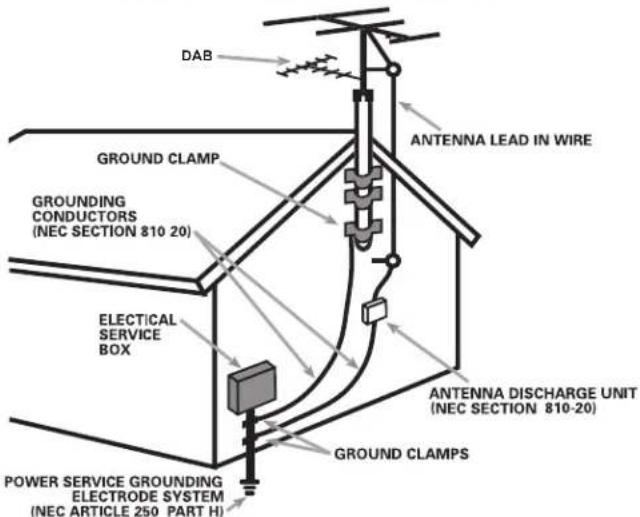
ANTENNA GROUNDING ACCORDING TO NATIONAL ELECTRICAL CODE INSTRUCTIONS
SECTION 810: "RADIO AND TELEVISION EQUIPMENT"
Important Safety Instructions
Notice
The rear RS232 connection should be handled by authorized persons only.
WARNING: There are no user serviceable parts inside. Refer all servicing to qualified service personnel.
WARNING: To reduce the risk of fire or electric shock, do not expose the unit to moisture or water. Do not expose the unit to dripping or splashing. Do not place objects filled with liquids, such as vases, on the unit. Do not allow foreign objects to get into the enclosure. If the unit is exposed to moisture, or a foreign object gets into the enclosure, immediately disconnect the power cord from the wall. Take the unit to a qualified service person for inspection and necessary repairs.
Read these instructions.
Keep these instructions.
Heed all warnings.
Follow all instructions.
Do not use this apparatus near water.
Clean only with dry cloth.
Do not block any ventilation openings. Install in accordance with the manufacturer's instructions.
Do not install near any heat sources such as radiators, heat registers, stoves, or other apparatus (including amplifiers) that produce heat.
Do not defeat the safety purpose of the polarized or grounding-type plug. A polarized plug has two blades with one wider than the other.
A grounding type plug has two blades and a third grounding prong.
The wide blade or the third prong are provided for your safety. If the provided plug does not fit into your outlet, consult an electrician for replacement of the obsolete outlet.
Protect the power cord from being walked on or pinched particularly at plugs, convenience receptacles, and the point where they exit from the apparatus.
Only use attachments/accessories specified by the manufacturer.
Use only with the cart, stand, tripod, bracket, or table specified by the manufacturer, or sold with the apparatus. When a cart is used, use caution when moving the cart/ apparatus combination to avoid injury from tip-over.
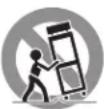
Unplug this apparatus during lightning storms or when unused for long periods of time.
Refer all servicing to qualified service personnel. Servicing is required when the apparatus has been damaged in any way, such as powersupply cord or plug is damaged, liquid has been spilled or objects have fallen into the apparatus, the apparatus has been exposed to rain or moisture, does not operate normally, or has been dropped.
The apparatus should be used in non tropical climate.
WARNING: The rear panel power cord connector is the mains power disconnect device. The device must be located in an open area that allows access to the cord connector.
The unit must be connected to a power supply only of the type and voltage specified on the rear panel. (USA: 120 V/60Hz, EC: 230V/50Hz)
Connect the component to the power outlet only with the supplied power supply cable or an exact equivalent. Do not modify the supplied cable. Do not use extension cords.
The mains plug is the disconnect of the unit. In order to completely disconnect the unit from the supply mains, remove the main plug from the unit and the AC power outlet. This is the only way to completely remove mains power from the unit.
Power off the unit and allow the unit to cool before attempting to move to avoid injury.
The batteries in the remote control should not be exposed to excessive temperature such as sunshine, fire or other heat sources. Batteries should be recycled or disposed as per state and local guidelines.
FCC Information
This equipment has been tested and found to comply with the limits for a Class B digital device, pursuant to Part 15 of the FCC Rules. These limits are designed to provide reasonable protection against harmful interference in a residential installation. This equipment generates, uses and can radiate radio frequency energy and, if not installed and used in accordance with the instruction, may cause harmful interference to radio communications.
However, there is no guarantee that interference will not occur in a particular installation. If this equipment does cause harmful interference to radio or television reception, which can be determined by turning the equipment off and on, the user is encouraged to try to correct the interference by one or more of the following measures:
- Reorient or relocate the receiving antenna.(TV, radio, etc.)
- Increase the separation between the equipment and receiver.
- Connect the equipment to an outlet on circuit different from that to which the receiver is connected.
- Consult the dealer or an experienced radio/TV technician for additional help.
Caution
This device complies with part 15 of the FCC Rules. Operation is subject to the following to conditions: (1) This device may not cause harmful interference, and (2) this device must accept any interference received, including interference that may cause undesired operation.
NOTE TO CATV SYSTEM INSTALLER: Call the CATV system or antenna installer's attention to Article 820-40 of the NEC. This provides guidelines for proper grounding and, in particular, specifies that the cable ground shall be connected to the grounding system of the building, as close to the point of cable entry as practical. See installation diagram.
NOTE: This equipment has been tested and found to comply with the limits for a Class B digital device, pursuant to Part 15 of the FCC Rules. These limits are designed to provide reasonable protection against interference in a residential installation. This equipment generates and can radiate radio frequency energy and, if not installed and used in accordance with the instructions, may cause interference to radio or TV communications. There is no guarantee that interference will not occur in a particular installation. If this equipment does cause interference to radio or television reception, which can be determined by turning the equipment off and on, try to correct the interference by one or more of the following measures:
- Reorient or relocate the receiving antenna.
- Increase the separation between the unit and the television tuner.
- Connect the unit to an AC power outlet on a different electrical circuit.
- Consult your authorized Rotel retailer for assistance.
Figure 1: Controls and Connections
Figure 3: Antenna and Audio Output Connections
Important! : The 12V trigger cables will override the Rotel Link commands. Do not connect the 12V trigger cable if Rotel Link is connected.
Important Notes
When making connections be sure to:
√ Turn off all the components in the system before hooking up any components, including loudspeakers.
√ Turn off all components in the system before changing any of the connections to the system.
Remarques importantes
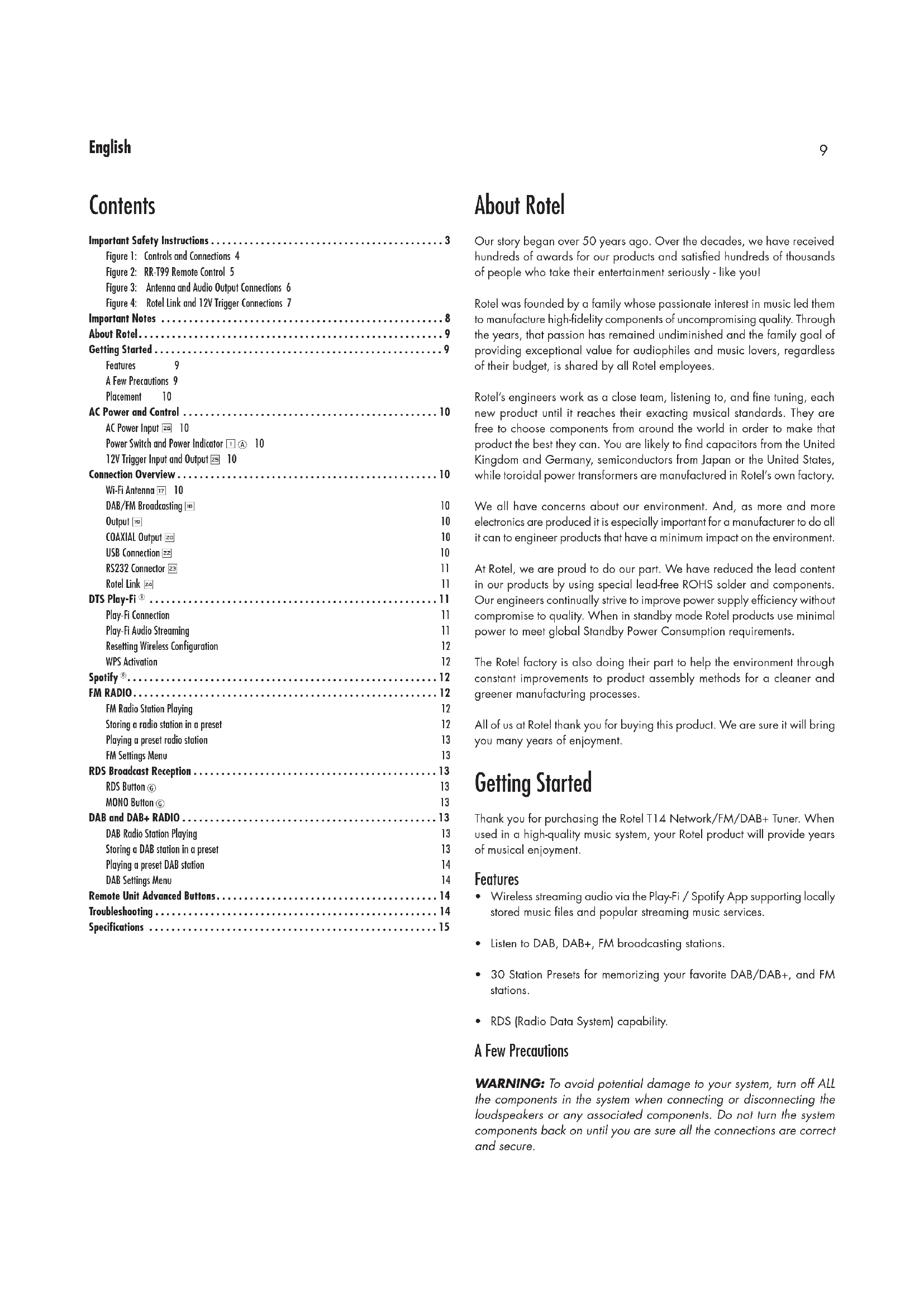
Important Safety Instructions .... 3
Figure 1: Controls and Connections 4
Figure 2: RR-T99 Remote Control 5
Figure 3: Antenna and Audio Output Connections 6
Figure 4: Rotel Link and 12V Trigger Connections 7
Important Notes 8
About Rotel....9
Getting Started....9
Features 9
A Few Precautions 9
Placement 10
AC Power and Control 10
AC Power Input 26 10
Power Switch and Power Indicator 1 A 10
12V Trigger Input and Output [25] 10
Connection Overview....10
Wi-Fi Antenna 17 10
DAB/FM Broadcasting 10
Output 10
COAXIAL Output 20 10
USB Connection 22 10
RS232 Connector 11
Rotel Link 24 11
DTS Play-Fi ^® 11
Play-Fi Connection 11
Play-Fi Audio Streaming 11
Resetting Wireless Configuration 12
WPS Activation 12
Spotify ^® 12
FM RADIO....12
FM Radio Station Playing 12
Storing a radio station in a preset 12
Playing a preset radio station 13
FM Settings Menu 13
RDS Broadcast Reception 13
RDS Button ⑥ 13
MONO Button ⑥ 13
DAB and DAB+ RADIO 13
DAB Radio Station Playing 13
Storing a DAB station in a preset 13
Playing a preset DAB station 14
DAB Settings Menu 14
Remote Unit Advanced Buttons....14
Troubleshooting 14
Specifications 15
About Rotel
Our story began over 50 years ago. Over the decades, we have received hundreds of awards for our products and satisfied hundreds of thousands of people who take their entertainment seriously - like you!
Rotel was founded by a family whose passionate interest in music led them to manufacture high-fidelity components of uncompromising quality. Through the years, that passion has remained undiminished and the family goal of providing exceptional value for audiophiles and music lovers, regardless of their budget, is shared by all Rotel employees.
Rotel's engineers work as a close team, listening to, and fine tuning, each new product until it reaches their exacting musical standards. They are free to choose components from around the world in order to make that product the best they can. You are likely to find capacitors from the United Kingdom and Germany, semiconductors from Japan or the United States, while toroidal power transformers are manufactured in Rotel's own factory.
We all have concerns about our environment. And, as more and more electronics are produced it is especially important for a manufacturer to do all it can to engineer products that have a minimum impact on the environment.
At Rotel, we are proud to do our part. We have reduced the lead content in our products by using special lead-free ROHS solder and components. Our engineers continually strive to improve power supply efficiency without compromise to quality. When in standby mode Rotel products use minimal power to meet global Standby Power Consumption requirements.
The Rotel factory is also doing their part to help the environment through constant improvements to product assembly methods for a cleaner and greener manufacturing processes.
All of us at Rotel thank you for buying this product. We are sure it will bring you many years of enjoyment.
Getting Started
Thank you for purchasing the Rotel T14 Network/FM/DAB+ Tuner. When used in a high-quality music system, your Rotel product will provide years of musical enjoyment.
Features
- Wireless streaming audio via the PlayFi / Spotify App supporting locally stored music files and popular streaming music services.
- Listen to DAB, DAB+, FM broadcasting stations.
- 30 Station Presets for memorizing your favorite DAB/DAB+, and FM stations.
• RDS (Radio Data System) capability.
A Few Precautions
WARNING: To avoid potential damage to your system, turn off ALL the components in the system when connecting or disconnecting the loudspeakers or any associated components. Do not turn the system components back on until you are sure all the connections are correct and secure.
Please read this manual carefully. In addition to basic installation and operating instructions, it provides valuable information on various T14 system configurations as well as general information that will help you get the optimum performance from your system. Please contact your authorized Rotel dealer for answers to any questions you might have. In addition, all of us at Rotel welcome your questions and comments.
Save the T14 shipping carton and all enclosed packing material for future use. Shipping or moving the T14 in anything other than the original packing material may result in severe damage to your unit and void the warranty.
If included in the box please fill out and send in the owner's registration card. Also be sure to keep the original sales receipt. It is your best record of the date of purchase, which you will need in the event warranty service is ever required.
Placement
Place the unit on a solid, level surface away from sunlight, heat, moisture, or vibration.
AC Power and Control
AC Power Input 26
Your unit is configured at the factory for the proper AC line voltage in the country where you purchased it (USA: 120 volts/60 Hz, Europe: 230 volts/50 Hz). The AC line configuration is noted on a label on the back panel.
NOTE: Should you move your unit to another country, it may be possible to reconfigure it for use on a different line voltage. Do not attempt to perform this conversion yourself. Opening the enclosure of the unit exposes you to dangerous voltages. Consult a qualified service person or the Rotel factory service department for information.
NOTE: Some products are intended for sale in more than one country and as such are included with more than one AC cord. Please use only the one appropriate for your country/region.
The T14 should be plugged directly into a 2-pin polarized (where possible) wall outlet or into the switched outlet on another component in your audio system. Do not use an extension cord.
Be sure the POWER SWITCH 1 on the front panel of the T14 is turned off (in the "out" position). Then, connect the supplied power cord to the Power Connector 26 on the rear of the unit and the AC power outlet.
If you are going to be away from home for an extended period of time such as a month-long vacation, it is a sensible precaution to unplug the T14 (as well as other audio and video components) while you are away.
Power Switch and Power Indicator 12 A
The power switch is located on the left side of the front panel. To turn the unit ON, push the switch in. The power LED above the power switch will be blue when the unit is powered on and red when in standby mode. To turn the unit off, push the button again and return it to the "out" position.
When the power switch is in the ON position, the remote control ON and OFF buttons Ⓐ may be used to activate the T14. In Standby mode the power LED is red, but the display is turned OFF.
12V Trigger Input and Output 25
See figure 4
The jack labeled IN is for connecting the 3.5mm Plug/Cable carrying a +12 volt trigger signal from a preamp or surround sound processor to turn the unit on and off. This input accepts any control signal (AC or DC) ranging from 3 volts to 30 volts.
The jack labeled OUT is for connecting another 3.5mm plug/cable to provide a 12V trigger signal to other components. Any 12V Trigger signal at the INPUT jack will be passed through to the OUT jack.
NOTE: If you are using other units in the series with Rotel Link, please use the Rotel Link connection to turn the units on or off. Do not connect both the Rotel Link and 12V trigger cables. The 12V trigger's power on or off features will override the Rotel Link features.
Connection Overview
See figure 3.
Before continuing further to other sections in the manual, please make sure all the cable connections are made properly.
Wi-Fi Antenna 17
Please use the supplied Wi-Fi antennas to connect to the Wi-Fi connectors on the rear panel. This allows the T14 to connect to the Wi-Fi network. To configure the Wi-Fi settings please see the Play-Fi section.
DAB/FM Broadcasting 18
Please use the supplied indoor antennas to connect the DAB and FM connector on the rear panel. To receive the best FM signal, make sure there is enough room for the T-shaped indoor antenna to fully extend. Eyelets at both ends of the T allow tacking the antenna to a wall if desired. Experiment with different positions to maximize reception.
NOTE: For improved reception performance, consider using an external antenna for FM and DAB.
Output 19
A pair of standard RCA jacks supply an analog output signal from the T14 to the source inputs of an audio preamplifier, integrated amplifier, or receiver.
Select high quality audio interconnect cables. Connect the left and right channel outputs of the T14 to the corresponding inputs on the preamplifier or other component.
COAXIAL Output 20
If you are using an outboard D/A converter or other digital processor, you will need an unprocessed digital data stream from the T14. Using a standard 75 ohm coax digital cable, connect the T14's coaxial output to the digital input connector on the outboard D/A converter.
USB Connection 22
This connection is used for service. For more information please contact your authorized Rotel dealer.
RS232 Connector 23
The T14 can be controlled via RS232 for integration with automation systems. The RS232 input accepts a standard straight DB-9 Male-to-Female cable.
For additional information on the connections, software, and operating codes for RS232 control of the T14, contact your authorized Rotel dealer.
Rotel Link 24
See Figure 4.
The 2 ROTEL LINK OUT connectors can be used to connect to any Rotel product with a ROTEL LINK IN connection, using the stereo 3.5mm cables supplied.
This allows the attached Rotel products to communicate with each other and be controlled via the Rotel App (available for download on the iTunes® store).
NOTE: Only the Rotel Link cables supplied with this product should be used. These 3.5 mm cables have WHITE connector ends and should not be confused with the 12 Volt Trigger cables that have BLACK connector ends.
DTS Play-Fi®
The T14 includes the DTS Play-Fi wireless streaming ecosystem to effortlessly stream HiFi grade audio from network attached storage devices and multiple Internet based audio streaming services. For more information on supported Play-Fi services please visit the DTS Play-Fi website at https://www.play-fi.com.
Play-Fi Connection
To utilize the Play-Fi enabled services you will need to do the following:
Connecting T14
Ensure the Wi-Fi antennas have been installed and power on the T14 unit. The Wi-Fi LED on the T14 rear panel will blink quickly on and off, every 0.5 seconds for 20 seconds. After which it should change to pulsing slowly on and off, glowing from bright to dim and then bright again. This means the T14 is ready to connect to your Wi-Fi network.
From your devices (phones, tablets, computers), download the free Play-Fi App from an App store, such as the Google Play store, Amazon app marketplace, or Apple App store. After download, launch and run the Play-Fi App on your devices, following the relevant steps below, dependent on your device type:
For the iOS devices:
-
Go to the SETTINGS menu on your iOS device.
-
Select the Wi-Fi settings menu and ensure Wi-Fi is enabled.
-
Wait for up to 90 seconds for the list of available Wi-Fi networks to be refreshed and find the T14 enabled PlayFi device listed at the bottom of the list under the "SET UP NEW AIRPLAY SPEAKER" option.
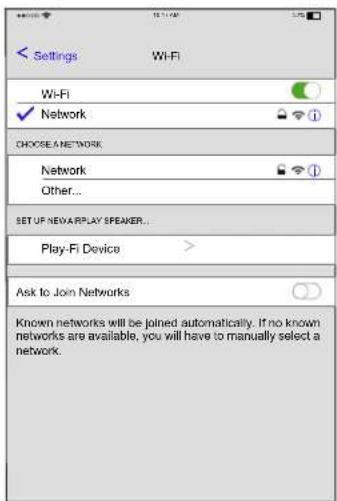
- Select the new Play-Fi device and confirm to add to the current Wi-Fi network by choosing the desired Network listed and selecting Next.
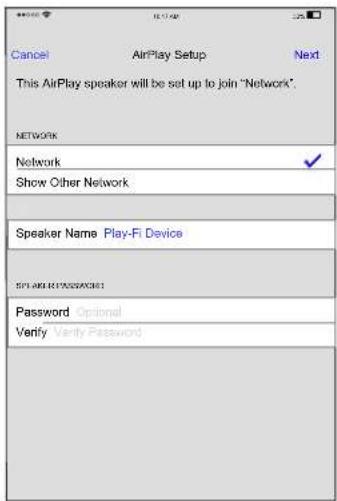
NOTE: You can also rename the Play-Fi device by changing the Speaker Name at this menu.
- Wait for 60-90 seconds for the PlayFi device to configure the settings and attach to the wireless network. When connected, the rear panel LED will stop flashing and be solid blue, the front display will indicate "Connected".
Play-Fi Connected
-
Launch the Play-Fi App to confirm if any software updates are needed and select the desired audio source.
-
You're connected! From here, feel free to enjoy music.
For Android device:
- Launch the Play-Fi App on your device.
- Run the Play-Fi App, tap on the "gear" icon in the top right, then tap "More Settings..." > "Add Play-Fi Device" > "Search" in sequence. The App will automatically find the T14 and prompt you to set it up. Tap the "Set-Up" button.
- If your Wi-Fi network is protected, enter the password. The App will connect the T14 to the network.
- When the T14 is connected to the network, the rear panel LED will stop flashing and be solid blue, the front display will indicate "Connected".
Play-Fi
Connected
- You're connected! From here, feel free to rename your device with the preset names, create your own custom name, or skip this and just start enjoying music.
Play-Fi Audio Streaming
Once properly configured, you can begin streaming audio to the T14. Launch the Play-Fi App and select the device or multiple devices you want to control. Then select an audio service to begin streaming audio.
The Home menu of the Play-Fi App displays the available source options. Select "Music" to see all of your local music, or select from one of the many great music service listed. For more information on the Play-Fi App or controlling Play-Fi enabled devices please visit https://www.play-fi.com.
Resetting Wireless Configuration
To reset the Wi-Fi configuration settings on the T14, press and hold the Play-Fi button 21 on the rear panel for 8 seconds until "Set-Up" shows on the display. This will erase all Wi-Fi configuration options, including attached wireless network and encryption key, if any, stored in the T14.
NOTE: This clears all Wi-Fi configuration settings and requires following the Wi-Fi setup steps again. This is useful if you change the Wi-Fi network settings or install new wireless network equipment.
WPS Activation
To activate the WPS function of the T14, enable the WPS function on your Wi-Fi router by following the instructions provided by the manufacturer. Then press the rear panel Play-Fi button for 3 seconds. If not successful the WPS process will reset after about 90 seconds.
NOTE: This is an automatic configuration option available on some wireless networking equipment and should only be used if you are familiar with this process.
Spotify®

Spotify®
How to use Connect
You'll need Spotify Premium to use connect, see details as below steps:
- Add your new device to the same wifi network as your phone, tablet or PC (see product user instructions for details).
- Open the Spotify app on your phone, tablet or PC, and play any song.
- If you're using the app on a phone - tap the song image in the bottom left of the screen. For tablet and PC move to step 4.
- Tap the Connect icon
- Pick your device from the list. If you can't see it, just check it's connected to the same wifi network as your phone, tablet or PC.
All done! Happy listening.
Licenses
The Spotify Software is subject to third party licenses found here: www.spotify.com/connect/third-party-licenses.
FM RADIO
Before listening to FM radio, make sure that the antenna has been properly connected.
FM Radio Station Playing
- Select the FM Button from the source button ^12 ①. The display will show as below.
M 95.25 MHz [RDS TEXT]
-
Turn the PUSH SELECT knob on the front panel or use the up/down arrow buttons on the remote control to change the frequency of radio station. Turning the PUSH SELECT knob on the front panel or using the up/down arrow buttons on the remote control one step at a time changes the frequency one step.
-
To auto scan for an FM station, you can choose any of the steps below:
-
Turn the PUSH SELECT knob ☐ on the front panel quickly up or down.
- Press and hold the up/down arrow buttons on the remote control.
Storing a radio station in a preset
While a radio station is playing, push the memory button ⑨⑤ button, then enter the 2 digit preset number where you want to save this station on the numeric keypad ③⑭, the display will show preset saved. Up to 30 preset FM radio stations may be stored.
Playing a preset radio station
Anytime you are on the FM source you can select a preset station for listening.
- From the numeric keypad 3 D, press the preset number of the desired station.
- Press the PRESET +/- 📄 buttons on the remote control to display preset numbers. Press the up/down Ⓑ arrow buttons or the PRESET +/- 📄 buttons on the remote control or turn the knob 📋 on the front panel to select the desired station, then press the PUSH SELECT 📋 on the front panel or the ENT button on the remote control. Press the FM 📋 button again to exit the preset menu and go back to playing status.
FM Settings Menu
Press the FM 12① button and toggle to the FM settings Menu. There are 3 sub-menus under FM setting.
- SCAN SETTINGS: Select between ALL STATION or STRONG STATIONS ONLY.
FM SETUP
STRONG STATIONS ONLY ALL STATIONS
- AUDIO SETTINGS: Select "STEREO OR MONO" or "MONO ONLY".
FM SETUP
STEREO OR MONO MONO ONLY
- FM PRESET: Display all 30 of the FM preset stations and allows tuning to the selected preset by pressing the PUSH SELECT ☐ on the front panel or the ENT button on the remote control.
To make changes in the FM settings menu, turn the PUSH SELECT knob on the front panel or the up/down arrow buttons on the remote control. To save a change, press the PUSH SELECT knob on the front panel or the ENT button on the remote control.
RDS Broadcast Reception
This Rotel unit is equipped with RDS (Radio Data Systems) reception capabilities. The RDS broadcast system provides additional functionality to FM radio reception by transmitting encoded information along with the radio signal. This signal is decoded by an RDS receiver and can provide a range of informational features including:
- A display of the station's identifying name (e.g. BBC1).
- A display of the station's program content (e.g. ROCK or NEWS).
- Traffic information broadcasts.
- A scrolling text display for announcements or information.
- Current time and date.
RDS broadcasting has been widely available in many European markets for years. There are a large number of RDS stations and most users will be familiar with the features and operation.
NOTE: The RDS features are entirely dependent on the broadcaster sending properly encoded signals. Thus, they will only be available in markets where RDS is currently implemented and where stations are broadcasting these data signals.
RDS Button ©
The RDS button on the remote control can step through the various displays. Press the RDS button on the remote control to step through the following displays.
- Radio Text.
- Name of station.
- PTY.
- Today's date and current time.
MONO Button ©
The MONO button on the remote control changes the FM mode from stereo reception to mono reception. In stereo mode, a stereo signal will be heard if the station is broadcasting a stereo signal and there is sufficient signal strength.
NOTE: Switching to mono mode can be a useful way to improve the reception of weak or distant FM signals. Less signal strength is required for clean mono reception than for stereo reception.
DAB and DAB+ RADIO
NOTE: Make sure that your local area can receive Digital Audio Broadcast (DAB or DAB+) broadcasting signal.
Press the DAB 13 button on the front of the panel, or remote Ⓜ.
DAB channels are categorized into ensembles, which are also known as multiplexes. Each multiplex provides a number of stations and each service contains a primary service that can contain secondary services. DAB technology allows broadcasters to transmit additional data along with the audio, which can include other audio channels, text and even images and computer data in the future.
DAB Radio Station Playing
- Select the DAB Button from the front panel or the remote control and the unit will scan for available stations. After scanning you will see the following menu.
Station List
BBC 1 BBC 2
- Turn the PUSH SELECT knob ☐ on the front panel or use the up/down arrow buttons on the remote control to see available stations and press the PUSH SELECT knob ☐ on the front panel or the ENT button on the remote control to select.
Storing a DAB station in a preset
While a DAB station is playing, push the memory button ⑨⑧, then enter the 2 digit preset number where you want to save this station on the numeric keypad ③⑭. Up to 30 preset DAB radio stations may be stored.
Playing a preset DAB station
When a DAB station is playing, you can switch to a preset station in one of the following ways.
- From the numeric keypad 3①, press the preset number of the desired station.
- Press the PRESET +/- 📊 buttons on the remote control to display preset numbers. Press the up/down Ⓑ arrow buttons or the PRESET +/- 📊 buttons on the remote control or turn the knob 📣 on the front panel to select the desired station, then press the PUSH SELECT knob 📈 on the front panel or the ENT button on the remote control.
DAB Settings Menu
Press DAB ☐ on the front panel or remote control, to toggle to the DAB settings Menu. Turn the PUSH SELECT knob ☐ on the front panel, or use the up/down arrow buttons on the remote control to go through each sub-menu.
: Shows stations list. : Start a limited scan of available stations by pressing the PUSH SELECT knob ☐ on the front panel or the ENT button on the remote control. (Not available in all markets.) : Start a full range scan by pressing the PUSH SELECT knob ☐ on the front panel or the ENT button on the remote control.
-
-
-
-
NOTE: Prune will remove unavailable stations from both the Station List and the DAB Preset List.
-
Remote Unit Advanced Buttons
MENU Setting Ⓙ
To enter the setup menu, press the MENU Ⓐ button on the remote control and you will see the following display to configure additional settings:
SETUP
POWER OPTION DISPLAY DIMMER
- POWER OPTION: In Normal mode, the network connection is turned OFF when the unit is in standby mode. Setting this to Quick leaves the network connection active during standby mode. Use Quick mode to reduce the power on time allowing the network to stay connected. "Normal" is the factory default.
Valid settings include: Quick, Normal.
NOTE: When the POWER OPTION is configured to Quick, the T14 will consume additional power in standby mode.
• DISPLAY DIMMER: Changes the display brightness.
- POWER LED DIMMER: Changes the Power LED brightness.
NOTE: These settings are stored permanently even after the T14 is powered off.
- VERSION: Shows the current software version.
- EXIT: Exits this setting menu.
DIM Button ©
Remote Only
Press the DIM button repeatedly to change the DISPLAY brightness.
NOTE: Adjustment made using the DIM © button is temporary only and not saved after powering off the T14.
Troubleshooting
Most difficulties in audio systems are the result of incorrect connections, or improper control settings. If you encounter problems, isolate the area of the difficulty, check the control settings, determine the cause of the fault and make the necessary changes. If you are unable to get sound, refer to the suggestions for the following conditions:
Power Indicator Is Not Illuminated
The power Indicator should be illuminated, either Blue (on) or Red (standby), whenever the unit is plugged into the wall power outlet and the power button is depressed. If it does not illuminate, test the power outlet with another electrical device, such as a lamp. Be sure the power outlet being used is not controlled by a switch that has been turned off.
Network Does Not Work
If you have trouble connecting to your wireless network, check your network setting carefully, these steps may help to resolve the problem.
- Confirm that a Wi-Fi network works, ie, PC can access the Internet using the same network.
- Check that your network's firewall is not blocking any outgoing ports.
- Make sure the placement of your unit allows it to receive the Wi-Fi signal.
No Sound
- Check the cables between the output and the pre-amplifier inputs, be sure they are connected properly. Refer to Figure 3.
- Music played from Play-Fi App are affected by the speed of your internet connection. If you find that music is cutting out regularly, check the signal strength of the Wi-Fi network, consider the installation of Wi-Fi repeaters or contact your Internet service provider or authorized Rotel dealer.
- Make sure the station you selected is operating at the current hour. The station can be broadcasting from a different time zone.
Cannot Tune to DAB/DAB+ Preset Station
Some stations may become unavailable and will be displayed in the Station List with a “?” character in front of the station name. These stations are no longer broadcasting or received by the T14. Presets that are set to these stations will not function and if selected the T14 will display the DAB menu. To remove stations no longer transmitting, use the PRUNE function in the DAB Menu. This will remove these stations from the Station List and from the Preset list.
Specifications
FM Tuner
Usable Sensitivity 22.2 dBf
50dB Quieting Sensitivity 27.2 dBf (mono)
Signal to Noise Ratio (at 70 dBf)
Mono: 65 dBf
Stereo: 60 dBf
Harmonic Distortion (at 70 dBf)
Mono: 0.2%
Stereo: 0.3%
Frequency Response 10 Hz - 15k Hz, ± 3 dB
Stereo Separation (100 Hz/1k Hz) 35 dB/30 dB
Output Level 1.4 V
Antenna Input 75 ohms F connector
DAB Tuner
Sensitivity - 80 dBm
Tuning Range Band III (174 - 240M Hz)
Audio Data Rate 224Kbps (Max)
Frequency Response 20 Hz - 20k Hz, ± 0.2 dB
Analog Output 2.1 V at 0 dBFS
Antenna Input 75 ohms F connector
General
Network Connection 802.11 b/g/a/n Dual Band
Push button set-up (WPS)
Security WEP, WPA/WPA2
WPA-PSK/WPA2-PSK
Power Consumption 16 watts
Standby Power Consumption (normal mode) 0.5 watts
BTU 55 BTU/h
Power Requirements (AC)
USA: 120 V, 60 Hz
Europe: 230 V, 50 Hz
Dimensions (W x H x D) 430 x 93 x 334 mm
(17 × 3 ^5/8 × 13 ^1/8 ins)
Front Panel Height 80 mm, 3 ^1 /8 ins
Weight (net) 5.1 kg, 11.3 lbs.
All specifications are accurate at the time of printing.
Rotel reserves the right to make improvements without notice.
Rotel and the Rotel Hifi logo are registered trademarks of
The Rotel Co., Ltd. Tokyo, Japan.
For DTS patents, see http://patents.dts.com. Manufactured under license from DTS Licensing Limited. DTS, Play-Fi, the Symbol, and Play-Fi together in combination with the Symbol are trademarks of DTS, Inc. DTS and Play-Fi are registered trademarks of DTS, Inc. © DTS, Inc. All Rights Reserved.
CAUTION
RISK OF ELECTRIC SHOCK DO NOT OPEN

WARNING : SHOCK HAZARD-DO NOT OPEN AVIS: RISQUE DE CHOC ÉLECTRIQUE-NE PAS OUVRIR
This Class B digital apparatus complies with Canadian ICES-003.
To utilize the Play-Fi enabled services you will need to do the following:
Connexion à T14
Strong Stations Only * All Stations
For DTS patents, see http://patents.dts.com. Manufactured under license from DTS Licensing Limited. DTS, Play-Fi, the Symbol, and Play-Fi together in combination with the Symbol are trademarks of DTS, Inc. DTS and Play-Fi are registered trademarks of DTS, Inc. © DTS, Inc. All Rights Reserved.
CAUTION
RISK OF ELECTRIC SHOCK DO NOT OPEN

WARNING : SHOCK HAZARD-DO NOT OPEN AVIS: RISQUE DE CHOC ÉLECTRIQUE-NE PAS OUVRIR
This Class B digital apparatus complies with Canadian ICES-003.
M 95.25 MHz [RDS TEXT]
Strong Stations Only * All Stations
For DTS patents, see http://patents.dts.com. Manufactured under license from DTS Licensing Limited. DTS, Play-Fi, the Symbol, and Play-Fi together in combination with the Symbol are trademarks of DTS, Inc. DTS and Play-Fi are registered trademarks of DTS, Inc. © DTS, Inc. All Rights Reserved.
This Class B digital apparatus complies with Canadian ICES-003.
M 95.25 MHz T11 [RDS TEXT]
Strong Stations Only * All Stations
- "Audio Settings" ("Ajustes de Audio"): Permite seleccionar entre "Stereo" ("Estéreo") y "Forced Mono" ("Mono Forzado").
FM SETUP
Stereo or Mono * Mono Only
For DTS patents, see http://patents.dts.com. Manufactured under license from DTS Licensing Limited. DTS, Play-Fi, the Symbol, and Play-Fi together in combination with the Symbol are trademarks of DTS, Inc. DTS and Play-Fi are registered trademarks of DTS, Inc. © DTS, Inc. All Rights Reserved.
This Class B digital apparatus complies with Canadian ICES-003.
Strong Stations Only * All Stations
- Audio Settings (Audio-instellingen): Allow Stereo (Stereo toegestaan) of Forced Mono (Alleen Mono).
FM SETUP
Stereo or Mono * Mono Only
For DTS patents, see http://patents.dts.com. Manufactured under license from DTS Licensing Limited. DTS, Play-Fi, the Symbol, and Play-Fi together in combination with the Symbol are trademarks of DTS, Inc. DTS and Play-Fi are registered trademarks of DTS, Inc. © DTS, Inc. All Rights Reserved.
This Class B digital apparatus complies with Canadian ICES-003.
Antenna radio DAB/FM 60
Uscite 60
Uscita Coassiale 20 60
Connessione USB 60
Connettore RS232 60
Rotel Link 24 60
DTS Play-Fi ^® 60
Antenna radio DAB/FM 18
M 95.25 MHz [RDS TEXT]
Strong Stations Only * All Stations
Dimensioni (L × A × P) 430 × 93 × 334 mm
For DTS patents, see http://patents.dts.com. Manufactured under license from DTS Licensing Limited. DTS, Play-Fi, the Symbol, and Play-Fi together in combination with the Symbol are trademarks of DTS, Inc. DTS and Play-Fi are registered trademarks of DTS, Inc. © DTS, Inc. All Rights Reserved.
This Class B digital apparatus complies with Canadian ICES-003.
RDS-mottagning....72
RDS-knapp 72
MONO-knapp ^6 72
DAB-radio....72
M 95.25 MHz [RDS TEXT]
Strong Stations Only * All Stations
For DTS patents, see http://patents.dts.com. Manufactured under license from DTS Licensing Limited. DTS, Play-Fi, the Symbol, and Play-Fi together in combination with the Symbol are trademarks of DTS, Inc. DTS and Play-Fi are registered trademarks of DTS, Inc. © DTS, Inc. All Rights Reserved.
The Rotel Co. Ltd, Tokyo, Japan.
CAUTION
RISK OF ELECTRIC SHOCK DO NOT OPEN
WARNING : SHOCK HAZARD-DO NOT OPEN AVIS: RISQUE DE CHOC ÉLECTRIQUE-NE PAS OUVRIR
The T14 includes the DTS Play-Fi wireless streaming ecosystem to effortlessly stream HiFi grade audio from network attached storage devices and multiple Internet based audio streaming services. For more information on supported Play-Fi services please visit the DTS Play-Fi website at https://www.play-fi.com.
Play-Fi соединения
M 95.25 MHz [RDS TEXT]
Y
Strong Stations Only * All Stations
For DTS patents, see http://patents.dts.com. Manufactured under license from DTS Licensing Limited. DTS, Play-Fi, the Symbol, and Play-Fi together in combination with the Symbol are trademarks of DTS, Inc. DTS and Play-Fi are registered trademarks of DTS, Inc. © DTS, Inc. All Rights Reserved.
The Rotel Co. Ltd.
Tachikawa Bldg. 1F.,
2-11-4, Nakane, Meguro-ku,
Tokyo, 152-0031
Japan
Rotel of America
54 Concord Street
North Reading, MA 01864-2699
USA
Phone: +1 978-664-3820
Fax: +1 978-664-4109
Rotel Europe
Dale Road
Worthing, West Sussex BN11 2BH
England
Phone: +44 (0)1903 221 710
Fax: +44 (0)1903 221 525
Rotel Deutschland

- ROTEL®
- T14
- Important Safety Instructions
- Notice
- FCC Information
- Caution
- Important Notes
- When making connections be sure to:
- Remarques importantes
- About Rotel
- Getting Started
- Features
- A Few Precautions
- Placement
- AC Power and Control
- AC Power Input 26
- Power Switch and Power Indicator 12 A
- 12V Trigger Input and Output 25
- Connection Overview
- Wi-Fi Antenna 17
- DAB/FM Broadcasting 18
- Output 19
- COAXIAL Output 20
- USB Connection 22
- RS232 Connector 23
- Rotel Link 24
- DTS Play-Fi®
- Play-Fi Connection
- Connecting T14
- For the iOS devices:
- Play-Fi Connected
- For Android device:
- Play-Fi Audio Streaming
- Resetting Wireless Configuration
- WPS Activation
- Spotify®
- How to use Connect
- Licenses
- FM RADIO
- FM Radio Station Playing
- Storing a radio station in a preset
- Playing a preset radio station
- FM Settings Menu
- FM SETUP
- RDS Broadcast Reception
- RDS Button ©
- MONO Button ©
- DAB and DAB+ RADIO
- DAB Radio Station Playing
- Station List
- Storing a DAB station in a preset
- Playing a preset DAB station
- DAB Settings Menu
- Remote Unit Advanced Buttons
- MENU Setting Ⓙ
- SETUP
- DIM Button ©
- Troubleshooting
- Power Indicator Is Not Illuminated
- Network Does Not Work
- No Sound
- Cannot Tune to DAB/DAB+ Preset Station
- Specifications
- FM Tuner
- DAB Tuner
- General
- Connexion à T14
- This Class B digital apparatus complies with Canadian ICES-003.
- Antenna radio DAB/FM 18
- Play-Fi соединения
- The Rotel Co. Ltd.
- Rotel of America
- Rotel Europe
- Rotel Deutschland
Brand : ROTEL
Model : T14
Category : Audio Receiver