BackTrack GPS FishTrack - GPS device BUSHNELL - Free user manual and instructions
Find the device manual for free BackTrack GPS FishTrack BUSHNELL in PDF.



| Product Type | GPS handheld navigation device with lightning detector and fishing forecasts |
| Brand | Bushnell |
| Model | BackTrack GPS FishTrack |
| Power Supply | 3 AAA batteries (not included) |
| Battery Life | Automatic shutdown after 10 minutes of inactivity (normal mode); backlight turns off after 30 seconds |
| Display | Digital display with icons, backlight activated by MEMORIZE button |
| Main Functions | GPS navigation, location memory (5 icons + 20 numbers), electronic compass, lightning detector (24 km range), fish activity forecasts, route recording (up to 48 hours of data), barometric pressure and temperature indicator, sunrise/sunset and moon phase |
| Connectivity | Mini USB port (cable included) for data transfer to computer |
| Software | FishTrack application for Windows and Mac (requires Adobe Air); online account at FishTrackgps.com |
| GPS Accuracy | ±3 to 5 meters (or yards) under normal conditions |
| Calibration | Compass: make a figure eight with the device; hold horizontal for best accuracy |
| Safety | Do not use while driving; do not use for aerial navigation; the lightning detector does not predict storms but indicates nearby active lightning; take shelter if a storm approaches |
| Maintenance and Cleaning | Clean with a soft, dry cloth; avoid moisture; store in a dry place |
| Spare Parts and Repairability | No spare parts available; repair by Bushnell authorized center under warranty |
| Warranty | One year against defects in materials and workmanship (excluding damage due to misuse) |
| Serial Number | Inside the battery compartment (required for online registration) |
| General Information | Compliant with electronic waste treatment standards (WEEE); do not dispose of with household waste |
Frequently Asked Questions - BackTrack GPS FishTrack BUSHNELL
User questions about BackTrack GPS FishTrack BUSHNELL
0 question about this device. Answer the ones you know or ask your own.
Ask a new question about this device
Download the instructions for your GPS device in PDF format for free! Find your manual BackTrack GPS FishTrack - BUSHNELL and take your electronic device back in hand. On this page are published all the documents necessary for the use of your device. BackTrack GPS FishTrack by BUSHNELL.
USER MANUAL BackTrack GPS FishTrack BUSHNELL
Warnings and Notices
GPS System & Location Accuracy Notice:
The Global Positioning System (GPS) is operated by the government of the United States, which is solely responsible for its accuracy and maintenance. The system is subject to changes which could affect the accuracy and performance of all GPS equipment. The inherent nature of the GPS system itself limits the accuracy of the distance indicated on the unit's display to within about ± 3 5 meters (or yards) of the actual marked location.
Warning:
This device is intended as a supplemental handheld navigation aide only. The user assumes all responsibility associated with the use of this product. It must not be used for any purpose requiring precise measurement of location, direction, distance, velocity or topography. This device should not be used for any aircraft navigation applications.
Vehicular Use Notice:
Bushnell is committed to the safe and responsible enjoyment of the outdoors.
Do not use this product while driving. An accident can result in property damage, injury or death if the operator fails to practice prudent driving practices. It is the sole responsibility of the driver of any vehicle to operate the motor vehicle in a safe manner. Information from the GPS unit can distract the operator of a motor vehicle. It is unsafe to operate the controls of the GPS unit while operating a motor vehicle. If used in a motor vehicle, it must not be used by the operator of the motor vehicle. If it is used in a motor vehicle it must be mounted in a manner such that it does not distract the operator, does not interfere with the operator's field of view, and does not block or interfere with the air bags or other safety mechanisms of the motor vehicle. Windshields and car windows with integrated metallic materials, such as defrosters, or car window tinting films, can degrade GPS reception inside a car.
Liability Notice:
In no event shall Bushnell be liable for any incidental, special, indirect or consequential damages, whether resulting from the use, misuse, or inability to use this product or from defects in the product.
Some states do not allow the exclusion of incidental or consequential damages, so the above limitations may not apply to you.
Lightning Indicator Warning:
Bushnell Fishtrack uses the latest electronic and computer technology to detect and track storms. However, storms can rapidly evolve and change. Therefore the FishTrack should be used in conjunction with other weather information sources. The FishTrack detects ACTIVE storms, and cannot predict when or where a storm may form and or where the first lightning strike occurs. It is not a predictor, but an indication lightning has happened and is near. Please seek shelter whenever your area experiences severe weather of any kind. Do not use the Bushnell Fishtrack in any way that may increase your exposure to severe weather. Bushnell assumes no responsibility for the use or misuse of this product.
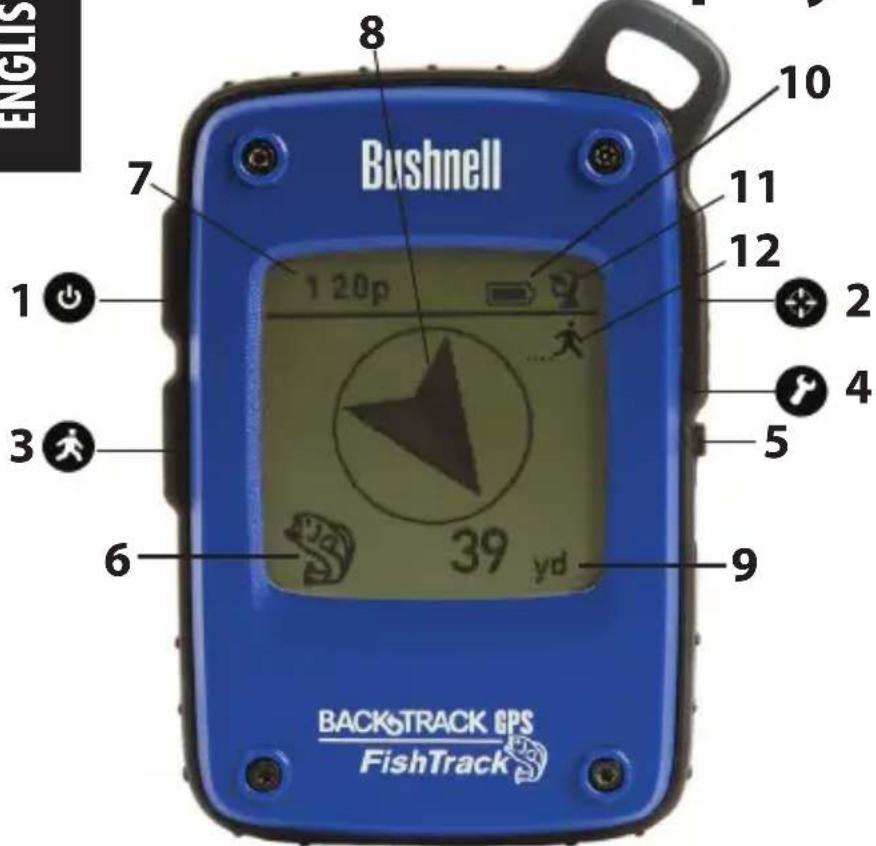
Control & Display Guide
ENGLISH
FRONTVIEW
- POWER Button
- MARK Button
- TRIP/DATA Button
- SETUP Button
- USB Port
- Location Icon (1 of 5)
- Local Time
- Direction to Location
- Distance to Location
- Battery Level Indicator
- Satellite Lock Icon
- Trip Icon
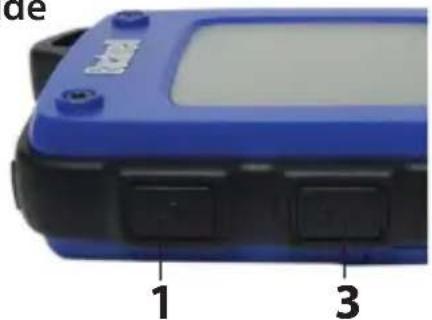
Left Side
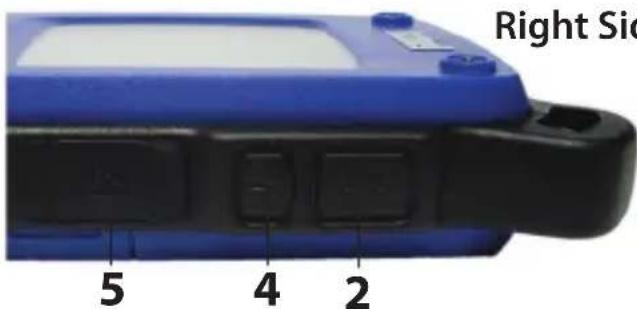
Right Side
SIDE & BACK VIEWS
Fig.1
Battery Cover Lock
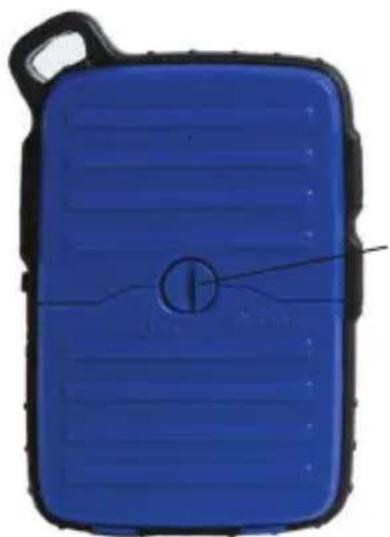
Note: Serial # is inside battery compartment.
BASIC SETUP
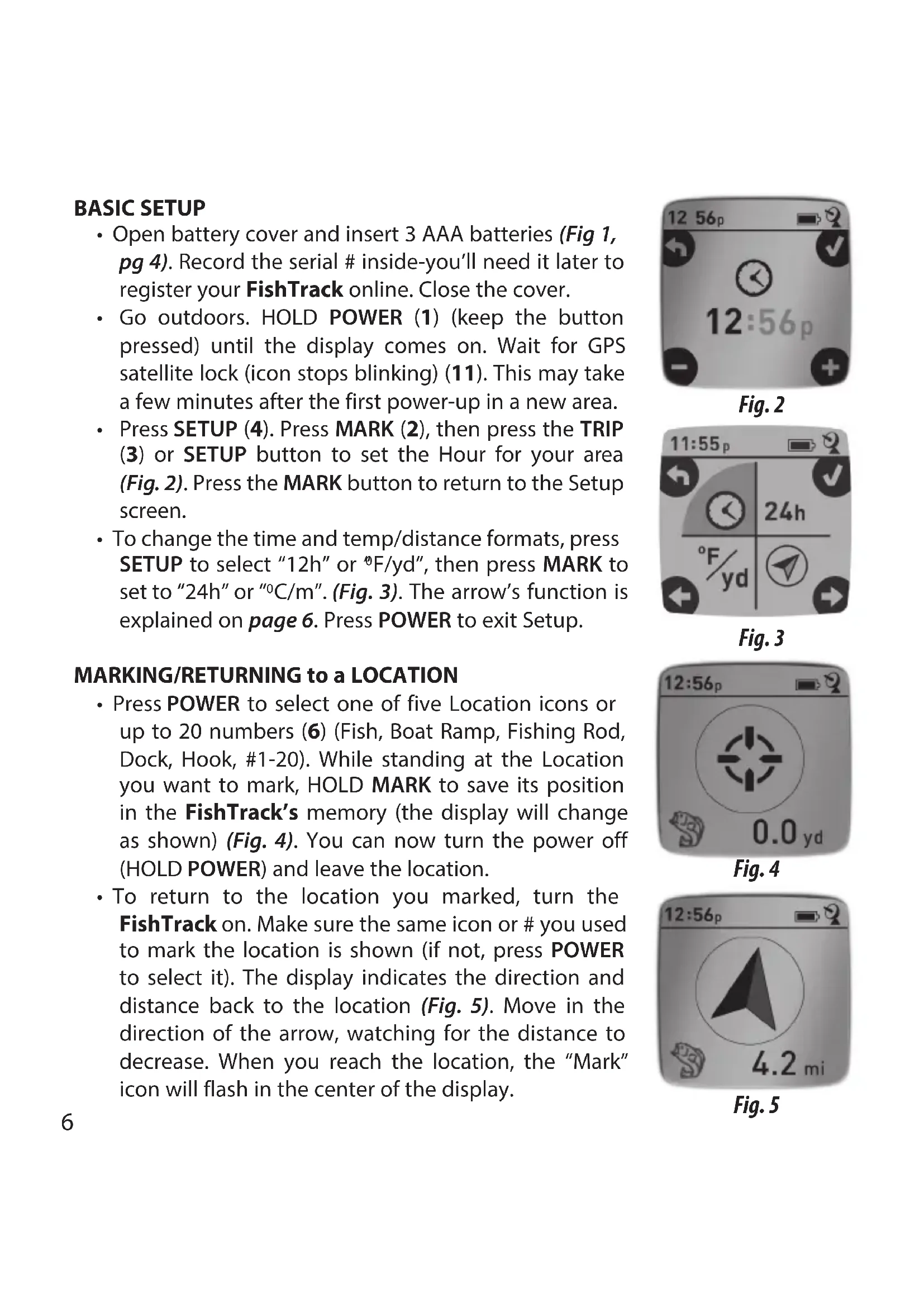
- Open battery cover and insert 3 AAA batteries (Fig 1, pg 4). Record the serial # inside-you'll need it later to register your FishTrack online. Close the cover.
- Go outdoors. HOLD POWER (1) (keep the button pressed) until the display comes on. Wait for GPS satellite lock (icon stops blinking) (11). This may take a few minutes after the first power-up in a new area.
- Press SETUP (4). Press MARK (2), then press the TRIP (3) or SETUP button to set the Hour for your area (Fig. 2). Press the MARK button to return to the Setup screen.
- To change the time and temp/distance formats, press SETUP to select "12h" or "F/yd", then press MARK to set to "24h" or "0C/m". (Fig. 3). The arrow's function is explained on page 6. Press POWER to exit Setup.
MARKING/RETURNING to a LOCATION
- Press POWER to select one of five Location icons or up to 20 numbers (6) (Fish, Boat Ramp, Fishing Rod, Dock, Hook, #1-20). While standing at the Location you want to mark, HOLD MARK to save its position in the FishTrack's memory (the display will change as shown) (Fig. 4). You can now turn the power off (HOLD POWER) and leave the location.
- To return to the location you marked, turn the FishTrack on. Make sure the same icon or # you used to mark the location is shown (if not, press POWER to select it). The display indicates the direction and distance back to the location (Fig. 5). Move in the direction of the arrow, watching for the distance to decrease. When you reach the location, the "Mark" icon will flash in the center of the display.
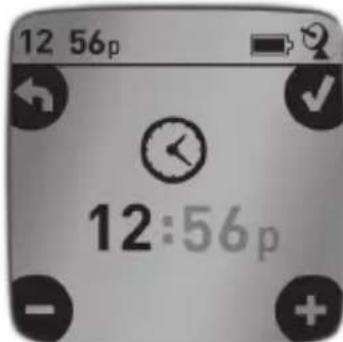
Fig. 2
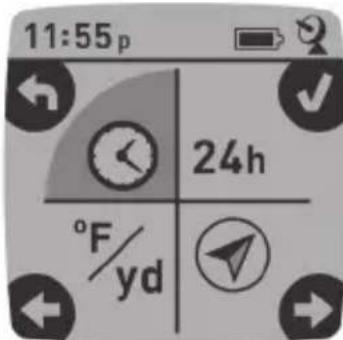
Fig. 3
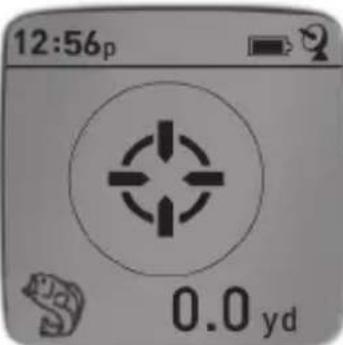
Fig. 4
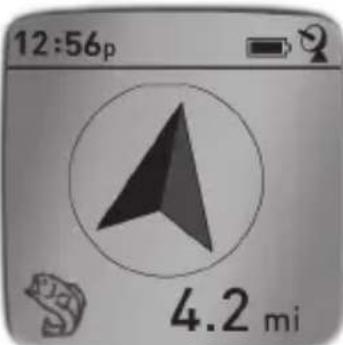
Fig. 5
- You can use the five icons (and up to 20 numbers) to mark different locations of any kind (your favorite fishing spot, boat loading ramp, a campsite, etc.). Be sure you select a different icon or # to store each new location. If you hold down MARK with a previously used location icon still selected, you will replace that one with your current location.
- To expand or restrict the number of "extra" locations (numbers from 1 to 20) that are available, Press SETUP (4) three times until the location arrow on the lower right is highlighted. Press MARK (2), then use the TRIP/DATA or SETUP buttons to decrease or increase the number below the arrow (Fig. 6). Press the MARK button to confirm and return to the Setup screen.
- Power automatically turns off after 10 minutes if no buttons have been pressed (except in Trip mode, described next). HOLD POWER to turn the unit off manually.
- Press the MARK button to turn the display backlight on. It automatically turns off after 30 seconds.
COMPASS CALIBRATION
- To ensure directional accuracy, hold the FishTrack out in front of you and move it in a "Figure 8" pattern a few times to re-calibrate the compass (Fig. 7). A compass calibration video is available at: http://www.bushnell.com/products/gps/instruction-videos/.
- For best results, we recommend holding the FishTrack in a horizontal position (not tilted) during use (Fig. 8).
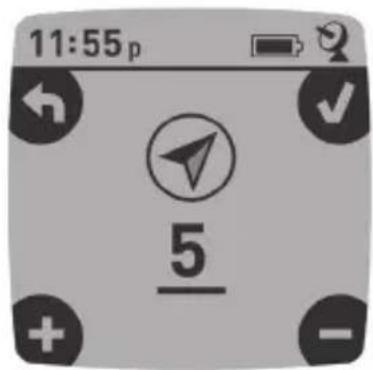
Fig. 6
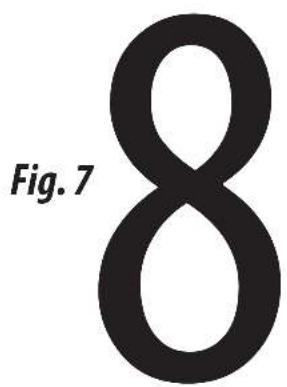
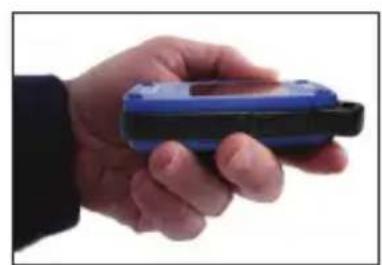
Fig. 8
RECORDING A NEW TRIP (ROUTE)
-
Press TRIP/DATA (3) to enter Trip mode. HOLD the TRIP/DATA button to start recording new trip data. The display shows a moving "hiker" icon, along with updated readouts of elapsed distance and average speed during your trip (Fig. 9). Keep the FishTrack powered ON during your trip.
-
To stop recording the trip data, HOLD the TRIP/DATA button again.
-
The FishTrack automatically saves the data it collects between the time you start and stop recording your trip, including the date and time of the trip, total distance traveled, your average speed, and changes in altitude and temperature.
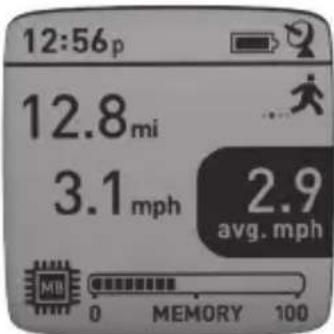
Fig. 9
VIEWING THE DATA SCREENS
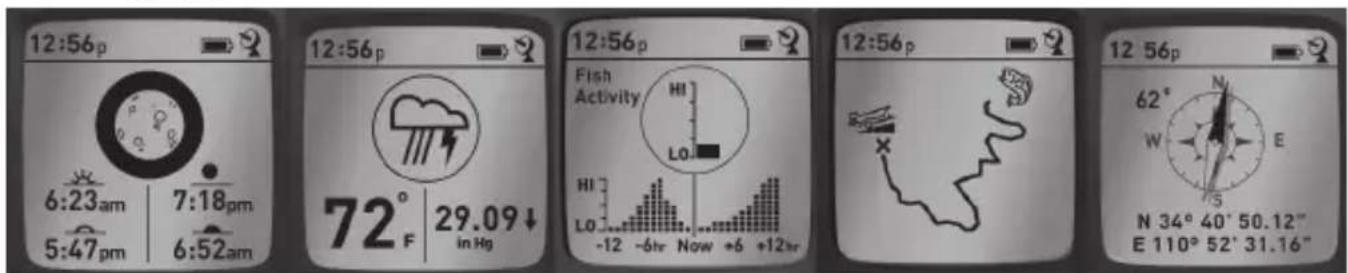
Press TRIP/DATA (3) briefly to view and cycle through the FishTrack's data screens (when in Trip mode, don't hold the button down or you will start a new trip or stop your current trip). Press POWER briefly to return to the main navigation screen. The 6 data screens display (in order) the following data for your current location :
- Sunrise/Sunset and Moon Phase
- Temperature, Barometric Pressure, and Weather Trend
- Fish Activity (current level and graph over + / - 12 hour period)
- Distance and Average Speed (current or last trip) and Remaining Memory (% of trip data used). The FishTrack can store up to 48 hours of total trip data (can be multiple trips on different days). See Fig. 9 above.
- Route Traveled (from start to stop points of current or last trip)
- Compass w/Altitude and Lat/Long
12356
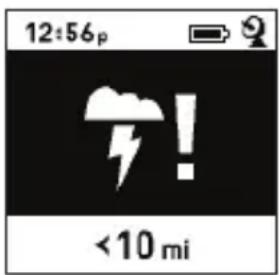
Your Bushnell Fishtrack includes a lightning detector feature. When lightning has been detected in your local area, a visual alert will be displayed on screen (Fig. 10). You must physically push any of the 4 buttons to clear this notification from the screen. The detector will notify you of lightning strikes within a 15 mile radius of your location. The lightning indicator does not need to obtain
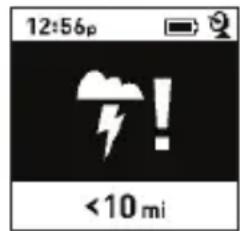
Fig. 10
GPS signal lock to warn you of a strike—however no notification is possible, and no warning will appear, if the unit is turned off.
VIEWING TRIP DATA
After recording at least one trip, connecting the FishTrack to your computer will enable you to see the path you took on any of 4 types of map, view a trip data graph, and share your trip via email or social media. To get the software:
- Go to http://www.FishTrackgps.com/ and follow the directions to create an
account (free) and register your FishTrack, and download the software app (Fig. 12, next pg.). Your account provides online backup for all your trip data. (Serial number is inside the battery compartment-(Fig. 11). After registering, you'll be taken to a screen to download the FishTrack application (Fig. 13) (Adobe Air® is required-it will be installed automatically if you do not already have it on your computer). Click "Download Now", then select "Open". A link to download the software will also be provided in your confirmation email. Turn on the FishTrack and connect its USB port to your computer with
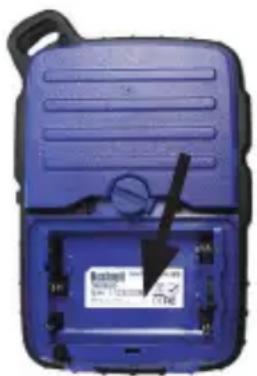
Fig. 11
the supplied USB cable. On Windows® PCs, the app should open automatically (if not, click the desktop icon (Fig. 14)). Note: if you get a Windows "AutoPlay" popup when you connect your FishTrack, click "Open Folder to View Files", then double click a .btk (trip data) file). On Mac®, double click the "FishTrack" icon in your Applications folder to launch the application.
- Enter the User Name (email address) and Password you used when setting up your account, then select "LOGIN" (Fig. 15). This will enable all your trip data to be stored within your online account, so it will be automatically backed up, and accessible to you from any computer.
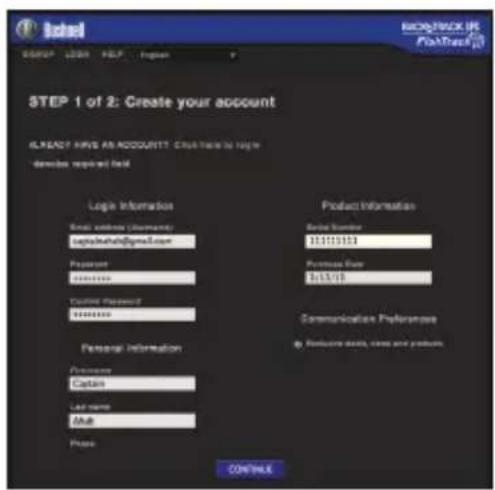
Fig. 12
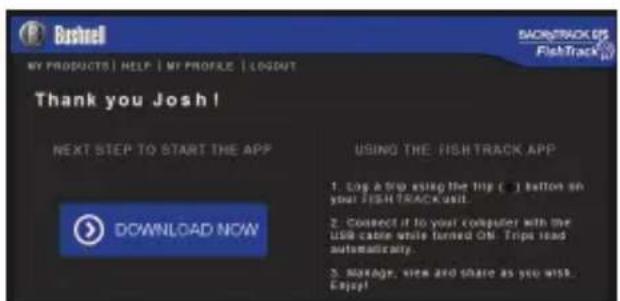
Fig. 13
Fig. 14
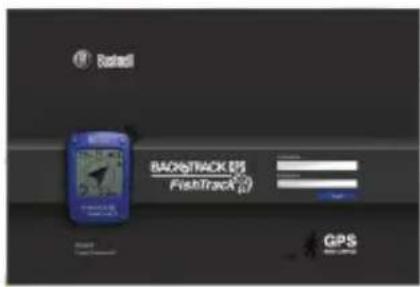
Fig. 15
USING THE FISHTRACK APP (Fig. 16)
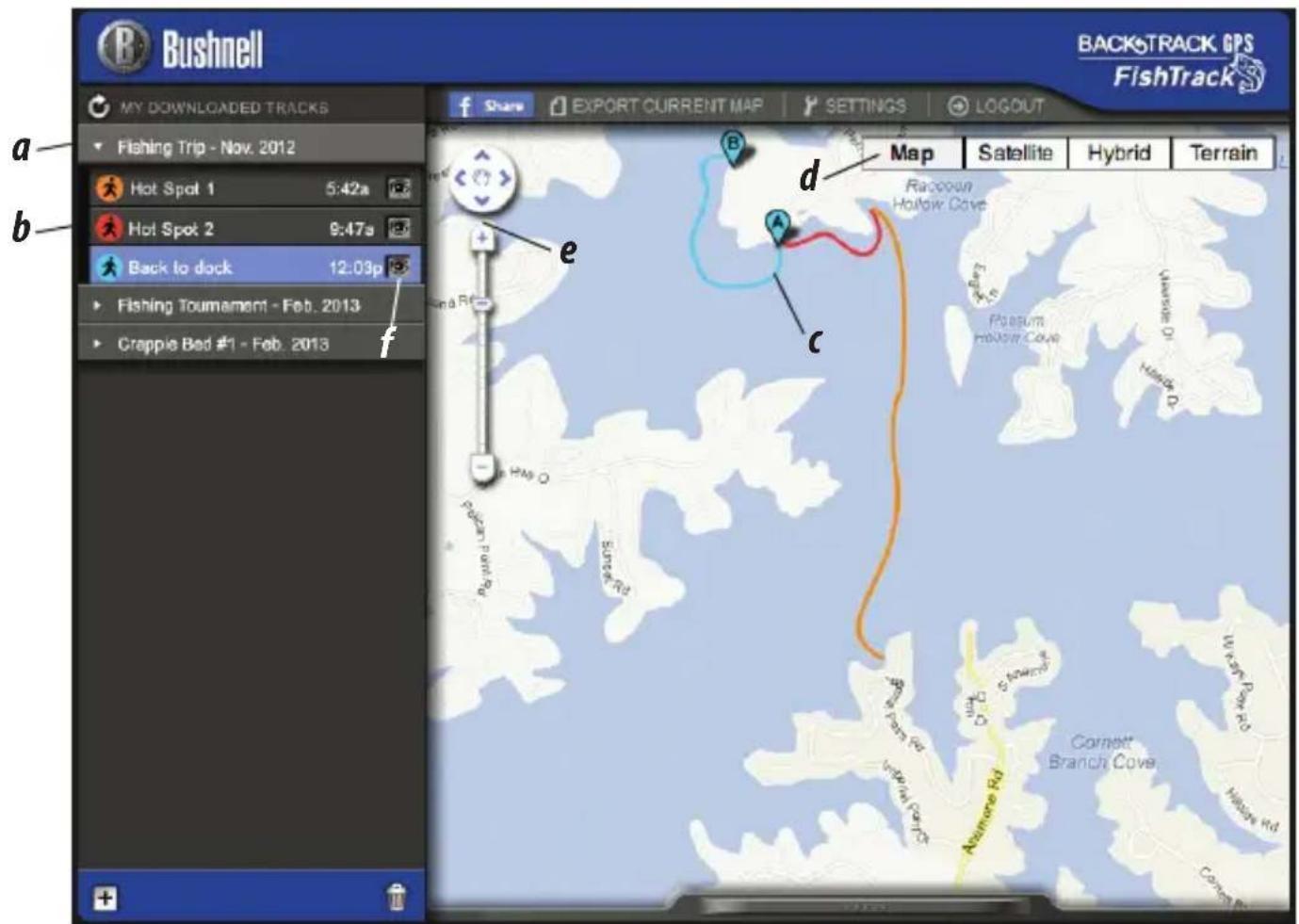
- After the FishTrack app opens, you will see one or more gray folders on the left (a) below "My Downloaded Tracks", each labeled with a date. Each folder contains information on the trips taken in a 24 hour period.
- Click the folder to open it and view the individual trips (±bb) you made on that date (the duration of each trip is based on the time elapsed between the starting and stopping of a new trip recording when you held down the TRIP button).
- The route you traveled for each trip is shown as a colored line (c) on a map. Four types of maps are available-click on the name of a map type (d) to change the view:
MAP-a "road map" style view, complete with road names.
SATELLITE-an aerial photo of the area.
HYBRID-a combination of the first two maps.
TERRAIN-this is a topographic map showing elevation data for the area.
- The zoom slider and position arrow pad allow you to zoom in/out and move around on the map (e).
- Click on the name of a trip to highlight it on the map. You can hide any trip by clicking on the "eye" icon next to it's name (f) .
- To change the name of a folder (from the default date to something like "Canyon Trip Day 1"), right click on its name. You can also right click on a trip within the folder to rename it.
USING THE FISHTRACK APP (Fig. 17)
- Clicking on the "handle" (g) at the bottom center of the map screen will open a popup graph window. This will allow you to view graphs for elevation, temperature or speed (any two of these) over distance traveled, or over time elapsed during any part of your trip. The graph line color matches the selected trip segment's color. Use the pull-downs (h) to select what data is displayed.
- To create a new folder, click the plus (+) icon on the bottom left (i). Existing trips can be dragged from their original folder into the new one.
- To delete a trip or trips folder, drag it to the trash icon (j) .
- Click "Share" (k) to post your trip map on Facebook.
- Click "Export Current Map" (I) and to save as a .jpg image, or send via email
- Click "Settings" (m) to select the menu language and English/metric units.
- When you have finished using the FishTrack application, simply click "Logout" (n). Your trip data is automatically saved in your account.
ADDITIONAL APP FEATURES
- Clicking on the target icon on the right side of the map (Fig. 18, A) will allow you to add custom location marks anywhere on the map, using one of five icons. Move the cursor where you want it on the map, click, then select an icon and click "+" to add the location to the map (Fig. 19). To remove a custom location, click it again and select "Remove" (Fig. 20).
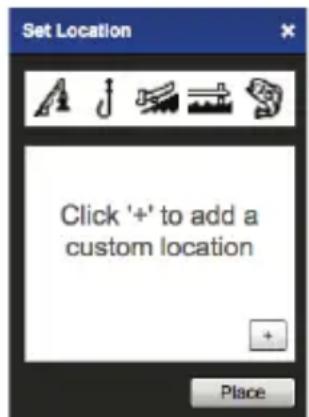
Fig. 19
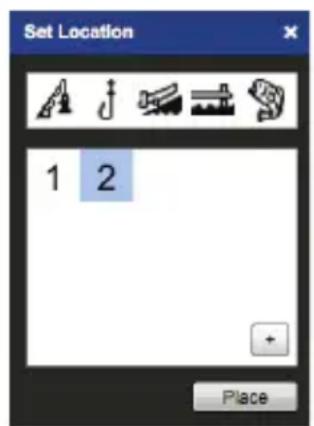
Fig.20
Please read the Google™ Maps Terms of Service at: http://maps.google.com/intl/en/help/terms_maps.html
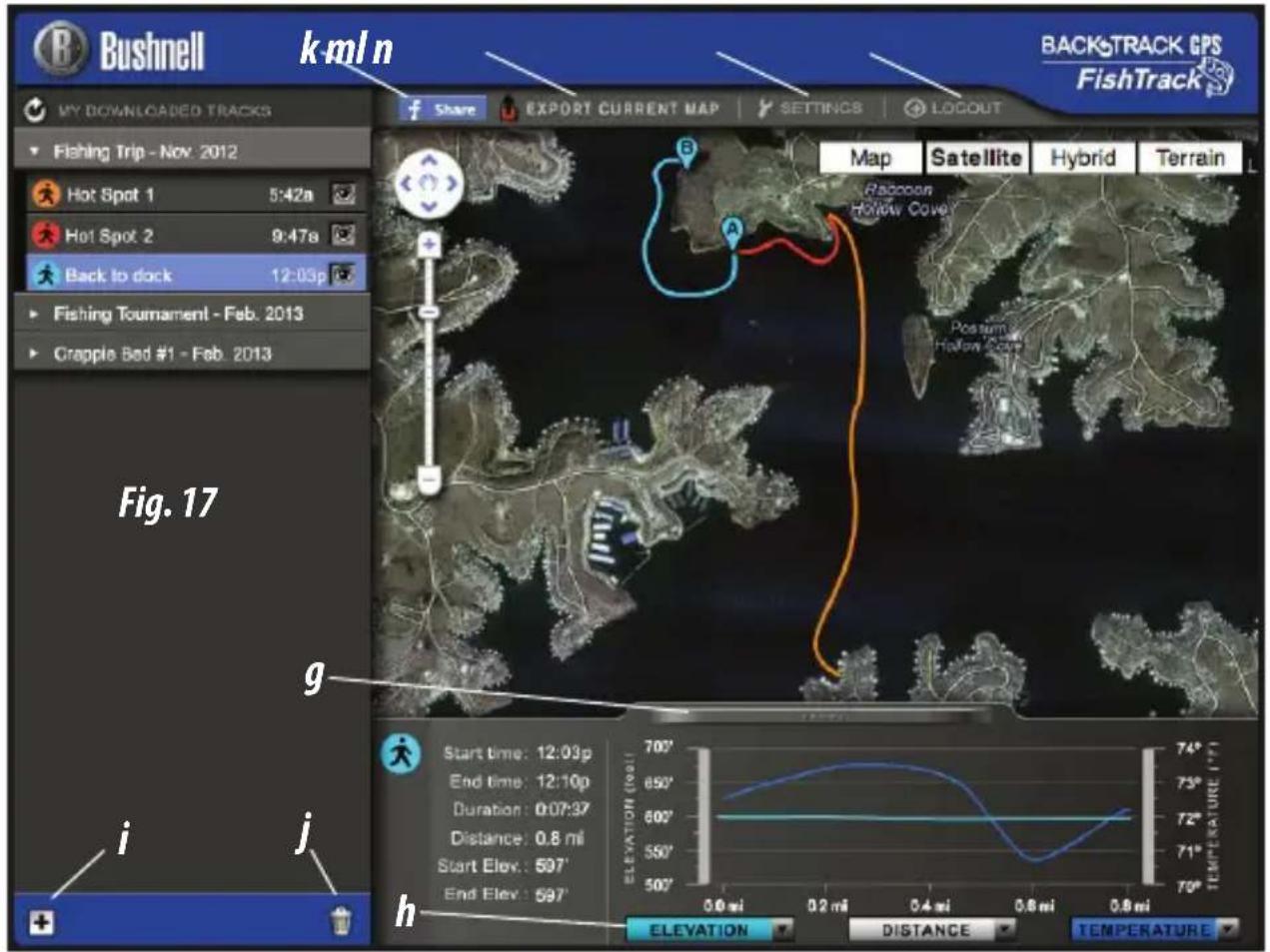
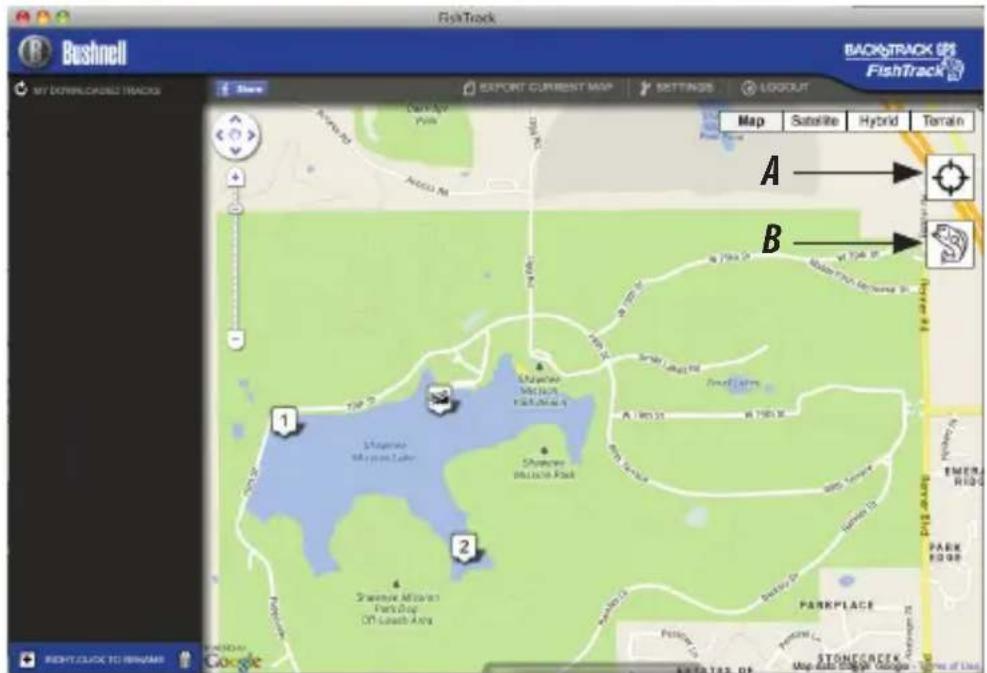
Fig. 18
- To view a fish activity graph for any point on the map (based on its location, current date/time and solunar tables built into the app), click the fish icon (Fig. 18, B), then anywhere on the map. You can even view predicted (or past) fish activity for that location by changing the date and time within the fish activity pop-up window (Fig. 21).
USING THE FISHTRACK APP ON OTHER COMPUTERS
If you want to access your FishTrack trip information from another computer, it is not necessary for you to create a new account. Simply login to your account at http://FishTrackgps.com, click on the download link, and install the app.
LOGIN/CHANGE PASSWORD
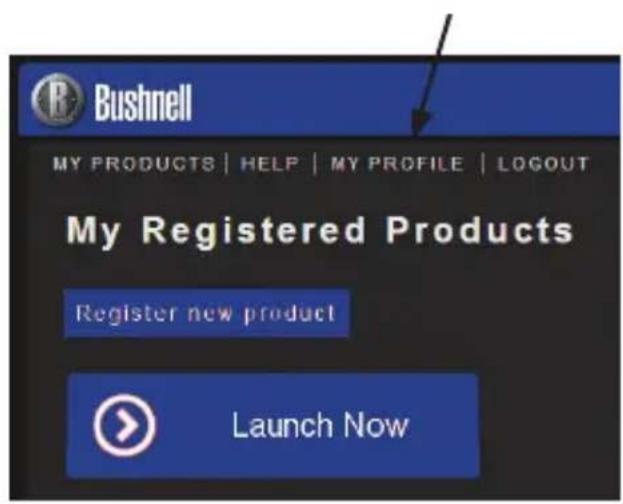
If you log out of the FishTrack application, you will be prompted to log in again the next time you launch the application. If you forget your password or want to change it, you may click on the "Forgot Password?" link on the application log in screen (Fig. 22). You may also change your password after logging in to your existing account at http://FishTrackgps.com. Click "My Profile" in the menu at the top of the screen (Fig. 23).
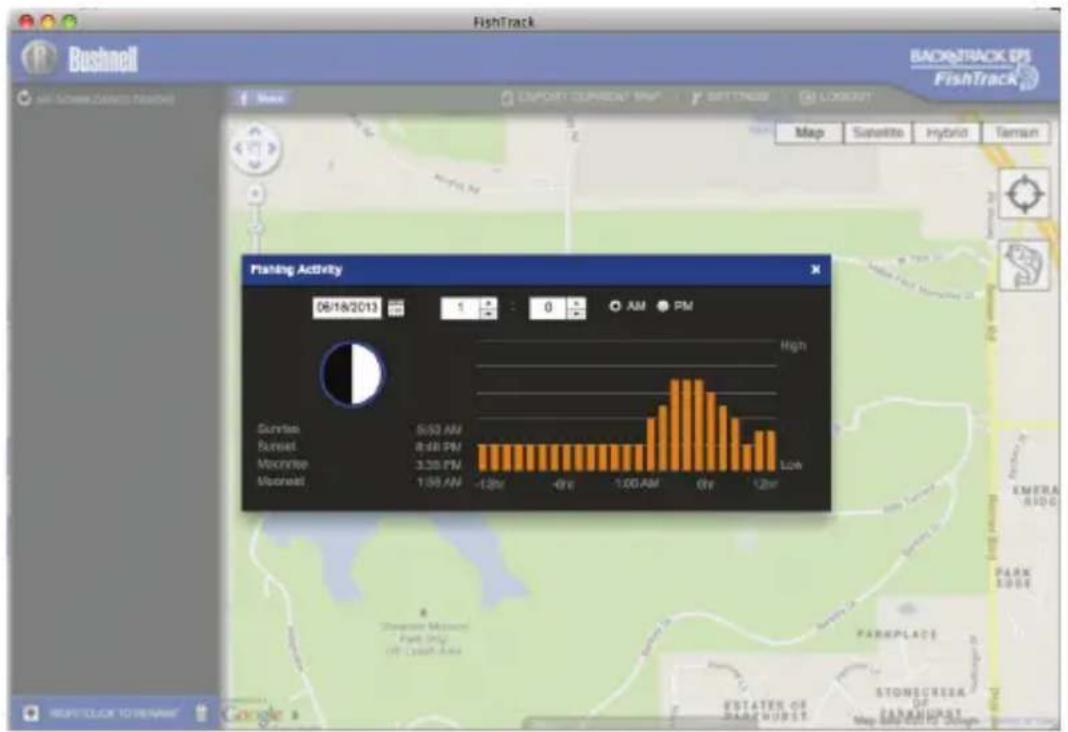
Fig. 21
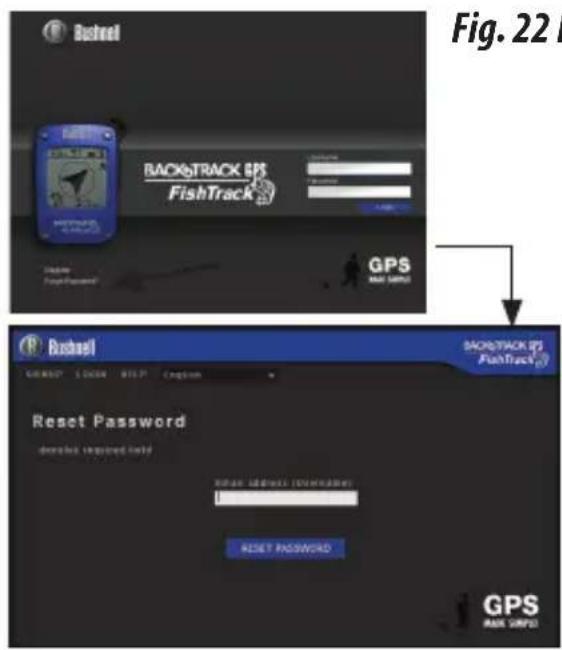
Fig.22 Fig.23
ONE YEAR LIMITED WARRANTY
Your Bushnell® FishTrack™ GPS unit is warranted to be free of defects in materials and workmanship for one year after the date of purchase. In the event of a defect under this warranty, we will, at our option, repair or replace the product, provided that you return the product postage prepaid. This warranty does not cover damages caused by misuse, improper handling, installation, or maintenance provided by someone other than a Bushnell Authorized Service Department.
Any return made under this warranty must be accompanied by the items listed below:
- A check/money order in the amount of (10.00 to cover the cost of postage and handling
- Name and address for product return
- An explanation of the defect
- Proof of Date Purchased
- Product should be well packed in a sturdy outside shipping carton, to prevent damage in transit, with return postage prepaid to the address listed below:
IN U.S.A. Send To: IN CANADA Send To:
Bushnell Outdoor Products Bushnell Outdoor Products
Attn.: Repairs Attn.: Repairs
9200 Cody 140 Great Gulf Drive, Unit # B
Overland Park, Kansas 66214 Vaughan, Ontario L4K 5W5
For products purchased outside the United States or Canada please contact your local dealer for applicable warranty information.
In Europe you may also contact Bushnell at:
Bushnell Germany GmbH
European Service Centre
Mathias-Bruggen-Str. 80
D-50827 Köln
GERMANY
This warranty gives you specific legal rights.
You may have other rights which vary from country to country.
©2013 Bushnell Outdoor Products
FCC Note:
This equipment has been tested and found to comply with the limits for a Class B digital device, pursuant to Part 15 of the FCC Rules. These limits are designed to provide reasonable protection against harmful interference in a residential installation. This equipment generates, uses and can radiate radio frequency energy and, if not installed and used in accordance with the instructions, may cause harmful interference to radio communications. However, there is no guarantee that interference will not occur in a particular installation. If this equipment does cause harmful interference to radio or television reception, which can be determined by turning the equipment off and on, the user is encouraged to try to correct the interference by one or more of the following measures:
- Reorient or relocate the receiving antenna.
- Increase the separation between the equipment and receiver.
- Connect the equipment into an outlet on a circuit different from that to which the receiver is connected.
- Consult the dealer or an experienced radio/TV technician for help.
Shielded interface cable must be used with the equipment in order to comply with the limits for a digital device pursuant to Subpart B of Part 15 of FCC Rules.

Adobe®,Air®, Copyright © 2011 Adobe Systems Incorporated. All rights reserved.
Windows® Copyright © 2011 Microsoft. Windows® is a registered trademark of Microsoft Corporation in the United States and other countries. All rights reserved.
Mac©, Copyright © 2011 Apple Inc. Mac© is a registered trademark of Apple Inc. in the United States and other countries. All rights reserved.
Third-party marks and brands are the property of their respective owners. All products, dates, and figures are preliminary and subject to change without notice.
Google is the registered trademark of Google, Inc.
Please read the Google® Maps Terms of Service at: http://maps.google.com/intl/en/help/terms_maps.html
Bushnell Outdoor Products Bushnell Outdoor Products
Attn.: Repairs Attn.: Repairs
9200 Cody 140 Great Gulf Drive, Unit # B
Overland Park, Kansas 66214 Vaughan, Ontario L4K 5W5
European Service Centre
Mathias-Bruggen-Str. 80
D-50827 Köln
GERMANY
©2013 Bushnell Outdoor Products
Bushnell Outdoor Products Bushnell Outdoor Products
Attn.: Repairs Attn.: Repairs
9200 Cody 140 Great Gulf Drive, Unit # B
Overland Park, Kansas 66214 Vaughan, Ontario L4K 5W5
European Service Centre
Mathias-Bruggen-Str. 80
D-50827 Köln
GERMANY
©2013 Bushnell Outdoor Products
Bushnell Outdoor Products Bushnell Outdoor Products
Attn.: Repairs Attn.: Repairs
9200 Cody 140 Great Gulf Drive, Unit # B
Overland Park, Kansas 66214 Vaughan, Ontario L4K 5W5
European Service Centre
Mathias-Bruggen-Str. 80
D-50827 Köln
GERMANY
©2013 Bushnell Outdoor Products
Bushnell Outdoor Products Bushnell Outdoor Products
Attn.: Repairs Attn.: Repairs
9200 Cody 140 Great Gulf Drive, Unit # B
Overland Park, Kansas 66214 Vaughan, Ontario L4K 5W5
European Service Centre
Mathias-Bruggen-Str. 80
D-50827 Köln
GERMANY
©2013 Bushnell Outdoor Products
©2013 Bushnell Outdoor Products