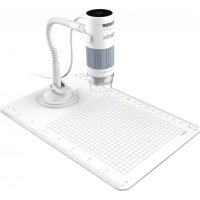
DigiMicroscope Flex - Microscope Reflecta - Free user manual and instructions
Find the device manual for free DigiMicroscope Flex Reflecta in PDF.



| Product type | USB digital microscope |
| Brand | Reflecta |
| Model | DigiMicroscope Flex |
| Dimensions (L × diameter) | 30 × 86 mm |
| Weight | 207 g |
| Power supply | 5 V, 250 mA via USB (USB 2.0 port) |
| Sensor | CMOS |
| Maximum resolution (photo) | 1600 × 1200 pixels (UXGA) |
| Maximum resolution (video) | 640 × 480 pixels (VGA) |
| Magnification (on 17" screen) | 60× and 250× |
| Lighting | 4 LEDs with adjustable brightness |
| Connection | USB 2.0 |
| Compatible operating systems | Windows 7, 8, 10; Mac OS X 10.5.6 to 10.11.x |
| Package contents | Digital microscope with USB cable, suction cup stand, millimeter ruler, installation CD, user guide |
| Care and cleaning | Wipe with a soft cloth slightly moistened with mild soapy water. Do not use solvents or harsh detergents. |
| Safety | Do not point the illuminated microscope at eyes. Do not open or disassemble the device. |
| Main functions | Capture snapshots, video recording, automatic image capture, image rotation, brightness adjustment, manual focus |
Frequently Asked Questions - DigiMicroscope Flex Reflecta
User questions about DigiMicroscope Flex Reflecta
0 question about this device. Answer the ones you know or ask your own.
Ask a new question about this device
Download the instructions for your Microscope in PDF format for free! Find your manual DigiMicroscope Flex - Reflecta and take your electronic device back in hand. On this page are published all the documents necessary for the use of your device. DigiMicroscope Flex by Reflecta.
USER MANUAL DigiMicroscope Flex Reflecta
PRODUCT AT A GLANCE 6
Package contents 6
Product overview 7
Product specification 8
GETTING STARTED 9
Software installation 9
Connecting the device 10
Starting the xploview software 10
Assembling the stand 11
Attaching the microscope to 12
the stand
BASICS 12
Focusing 12
Preparation position 12
Viewing using the microscope stand 13
Viewing directly on an object 14
For 60x magnification 14
For 250x magnification 15
Adjusting the LED light intensity 16
Taking a snapshot 16
BEFOREUSE
Important information
Please read this instruction manual carefully before using this product, and retain this instruction for future reference.
Improvements and changes to this text necessitated by typographical errors, or improvements to the software and / or equipments may be made at any time without notice.
Care and maintenance
Avoid vibration, shock and pressure e.g. dropping the microscope.
- Keep the device dry and protect it from water or vapour.
Do not leave your device in a place with an extreme high or low temperature.
- Do not touch the device with a wet hand as it may damage the device, or cause an electric shock to the user.
- Do not use or store the device in dusty, dirty areas as its moving parts may be damaged.
- Do not use harsh chemicals, cleaning solvents or strong detergents to clean the device. Wipe it with a soft cloth slightly dampened in a mild soap-and-water solution.
Warning
- Do not place lighted digital microscope upon the eye, doing so may cause permanent eye damage.
Do not attempt to open or dismantle the digital microscope.
Product description
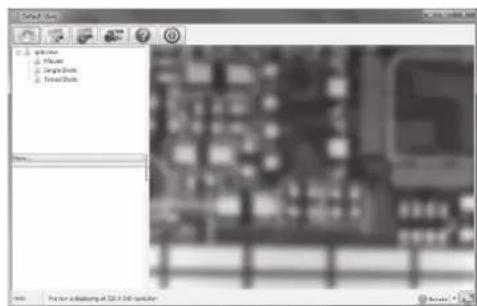
This digital microscope differs from a traditional optical microscope, where, instead of looking through an eyepiece, magnified image or live video is displayed on a computer monitor via USB connection.
This device has 2 magnification powers, it can magnify images up to 60x and 250x when placed directly on top of the object and through a 17^ monitor. Magnification power depends on the size of the monitor used - the larger the monitor, the higher the magnification.
This device has 4 LED lights, where the intensity can be adjusted.
Computer requirements
Windows based PC
Compatible operating systems
Windows 10 (32 bit or 64 bit)
Windows 8 (32 bit or 64 bit)
Windows 7 (32 bit or 64 bit)
Windows Vista (32 bit or 64 bit)
Windows XP SP2, SP3
USB
USB 2.0
Mac OS based PC
Compatible operating systems
Mac OS X 10.5.6 - Mac OS X 10.11.x
USB 2.0USB
PRODUCT AT A GLANCE
Package contents
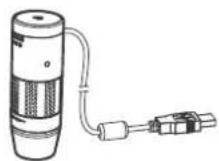
Digital microscope with USB cable
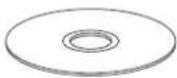
Installation CD
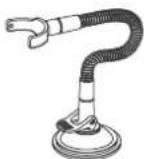
Microscope stand with suction cup
User manual

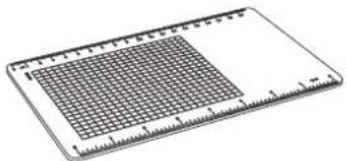
Gridded observation board
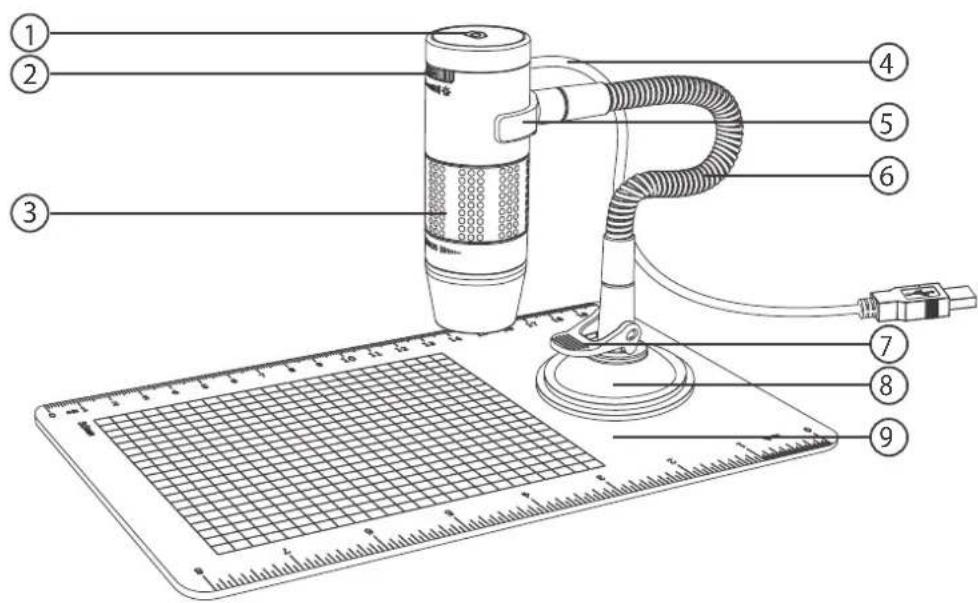
Product overview
-
Snapshot button
-
Flexible tube
-
Light intensity knob
-
Locking lever
-
Focusing knob
-
Suction cup
-
USB cable
-
Observation board
-
Stand bracket
Product specification
| Connection type | USB 2.0 |
| Effective magnifications (on a 17" monitor) | 60x, 250x |
| Effective viewing area | 5.6 x 4.2mm (60x), 1.4 x 1.1mm (250x), |
| Illumination | Four LEDs |
| Power supply | 5V =>250mA (via USB) |
| Sensor CMOS | |
| Maximum snapshot resolution | 1600 x 1200 pixels (UXGA) |
| Maximum video capturing resolution | 640 x 480 pixels (VGA) |
| Size | Ø 30 x 86mm |
| Weight | 207 grams |
GETTING STARTED
Software installation
Windows based PC
Insert the supplied application CD to the CD-ROM of the computer.
Double click the "xploview v3.2.xx.exe" icon < located on the driver CD.
- Follow the xploview setup wizard to install the application software for the digital microscope.
Mac OS based PC
Insert the supplied application CD to the CD-ROM of the computer.
Double click the "xploview v3.2.xx.dmg" icon < located on the driver CD.
Drag the xploview icon < > into the Applications folder.
Connecting the device
Connect the device to the computer using the USB cable provided.
Starting the xploview software
Windows based PC
The xploview software can be launched by double clicking the xploview icon < > from the desktop, or from the start menu.
Mac OS based PC
The xploview software can be launched by double clicking the xploview icon < > from the Applications menu.

Note
When the device is connected to the computer for the first time, a driver will automatically be installed by Windows or Mac OS. This process could take up to a few minutes.
Each time when the xploview software is started, the device should start up automatically. Otherwise, the device can be selected from the device setup section of the system settings menu.
It is normal that the LED will flash once when the device is plugged in. When xploview is running, the LED will switch on again automatically.
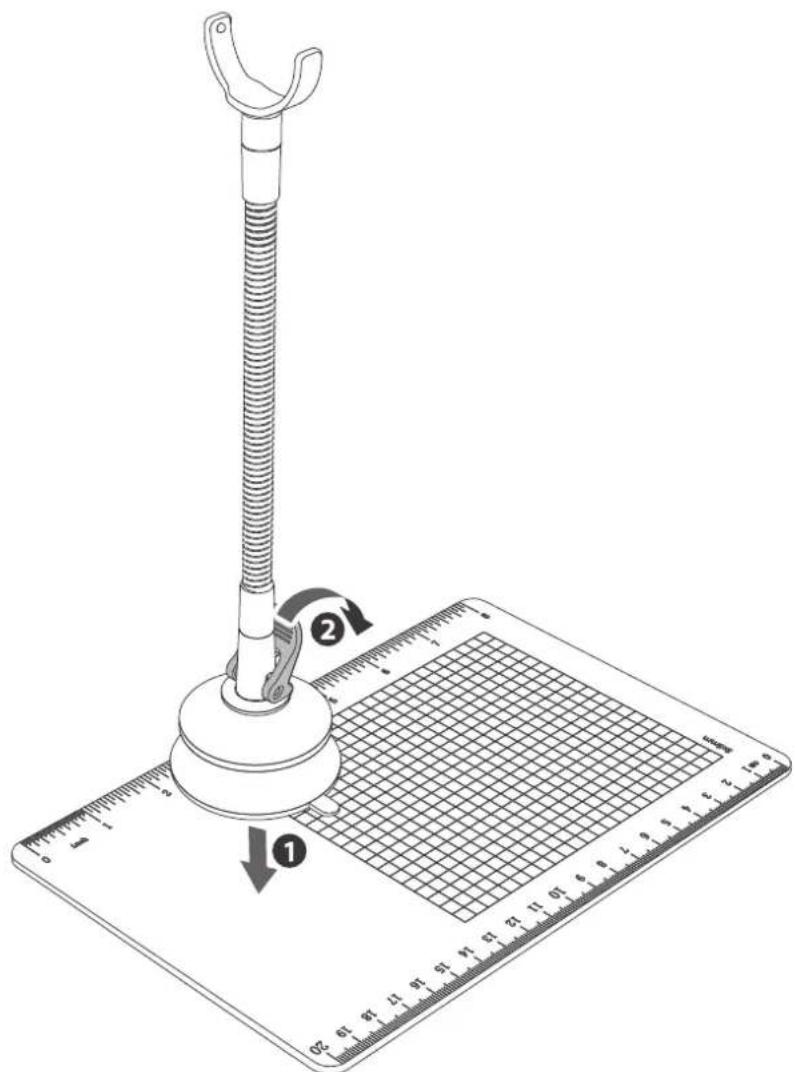
Assembling the stand
Make sure the mounting surface is free from oil and dirt, and ensure the locking lever is released.
Press the suction cup down and secure it into place by pushing the locking lever down.
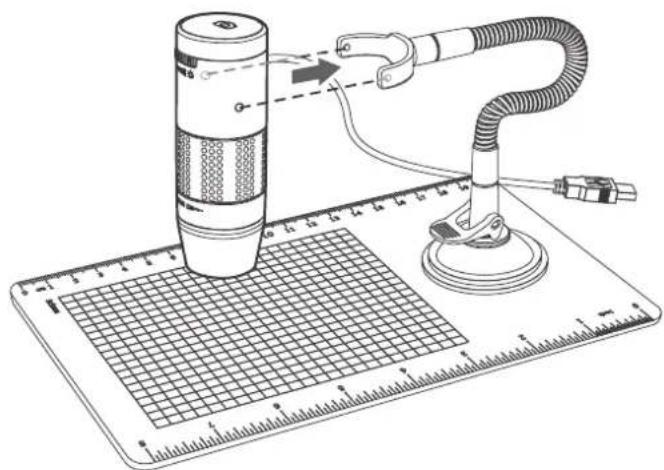
Attaching the microscope to the stand
Secure the microscope to the stand as shown below.
BASICS
Focusing
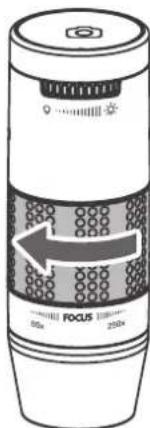
Preparation position
Turn the focusing knob clockwise to the furthest position.
Viewing using the microscope stand
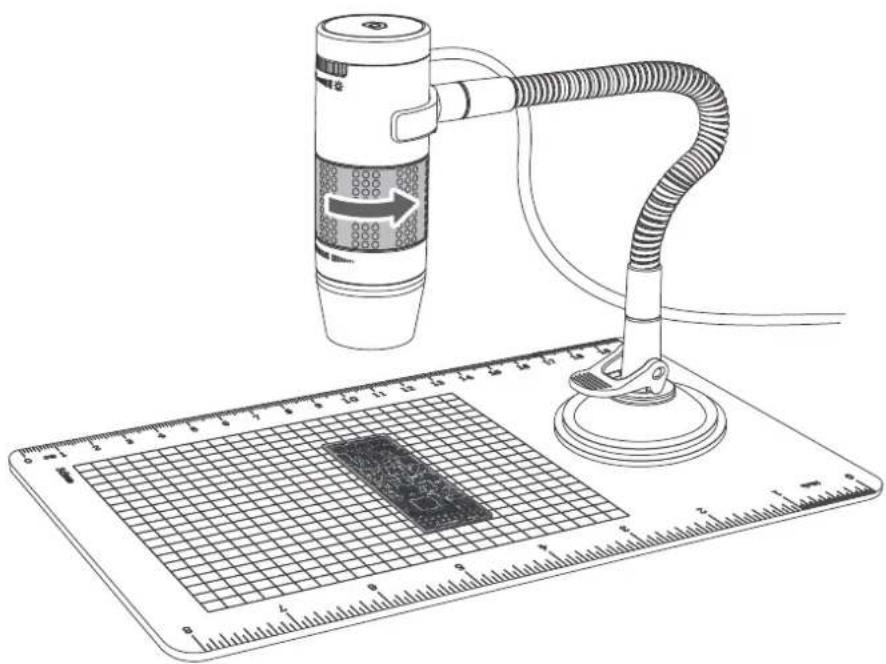
Place the object on the observation board.
From the preparation position, turn the focusing knob anticlockwise until the image is sharp and clear. The closer the microscope to the object, the higher the magnification power.

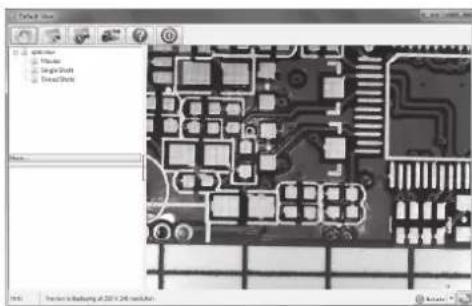
Viewing directly on an object
For 60x magnification (17" monitor)
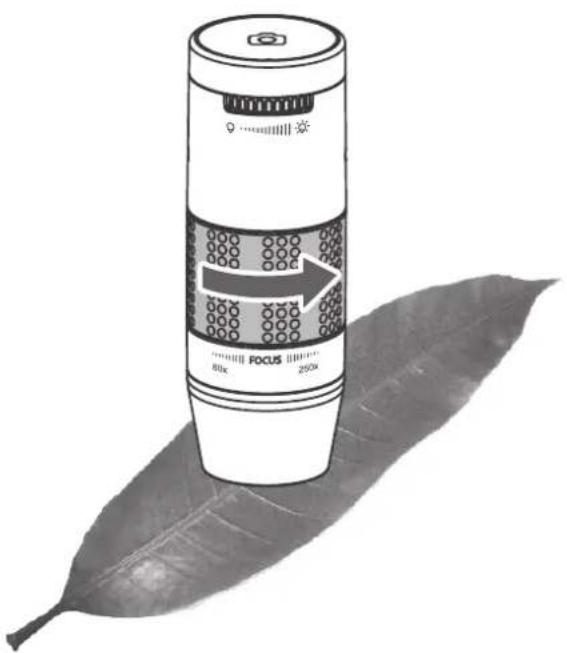
Place the microscope directly on top of an object.
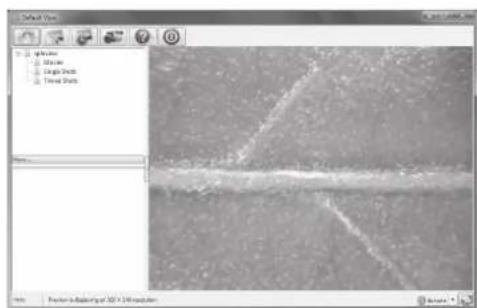
From the preparation position, turn the focusing knob anticlockwise until the first focal point has been reached where the image is sharp and clear. Magnification of 60x can be achieved when viewing on a 17^ monitor.
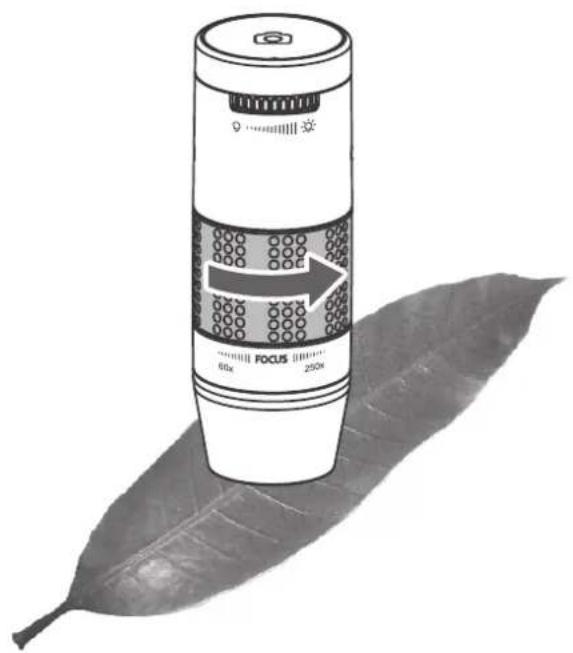
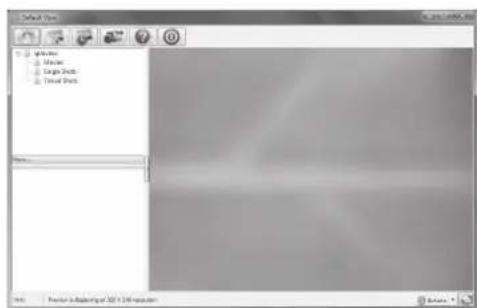

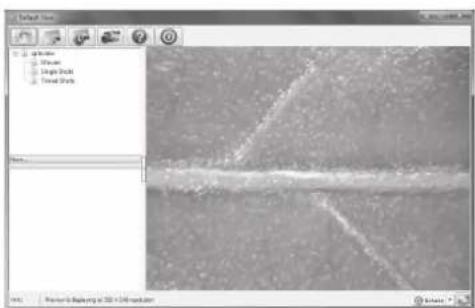
For 250x magnification (17" monitor)
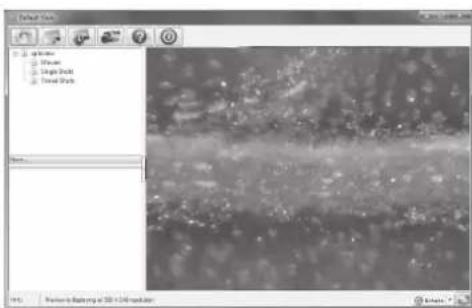
At 60x magnification, turn the focusing knob further in anticlockwise direction until the second focal point has been reached where the image is sharp and clear. Magnification of 250x can be achieved when viewing on a 17^ monitor.

Adjusting the LED light intensity
Turn the light intensity knob clockwise or anticlockwise to increase or decrease the LED light intensity.
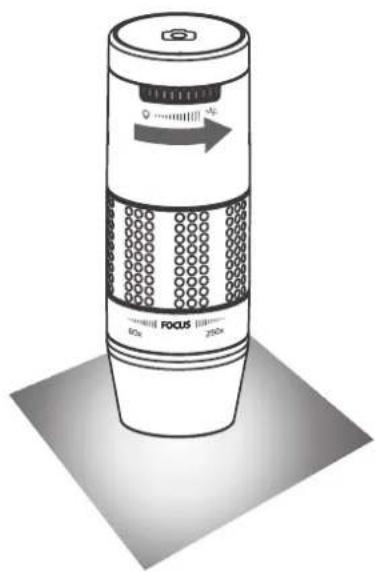
Increasing the LED light intensity
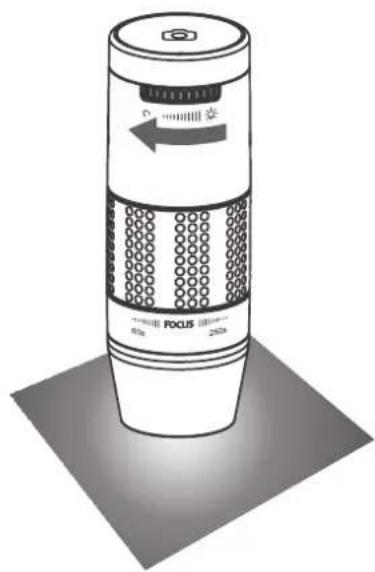
Reducing the LED light intensity
Taking a snapshot
The snapshot button is touch-sensitive. Tap the snapshot button located on top of the device to take a snapshot.
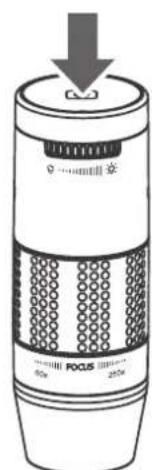
USING THE XPLOVIEW SOFTWARE
Button menu
The icons on the button menu :
Open System Settings Menu (see system settings menu on page 20).
Capture on screen image.
To start and to stop Timed Shot. Images will be captured at a regular interval (see system settings menu on page 21 to adjust frequency and duration).
To start and to stop Video Recording.

Information of the application software. This information maybe helpful when updating software.

Shut down the application software.
Full screen viewing
To activate the full screen mode, click the full screen button < located on the bottom right corner of the xploview application software window.
To exit full screen mode, either double click on the screen, or press the "Esc" button on the keyboard.
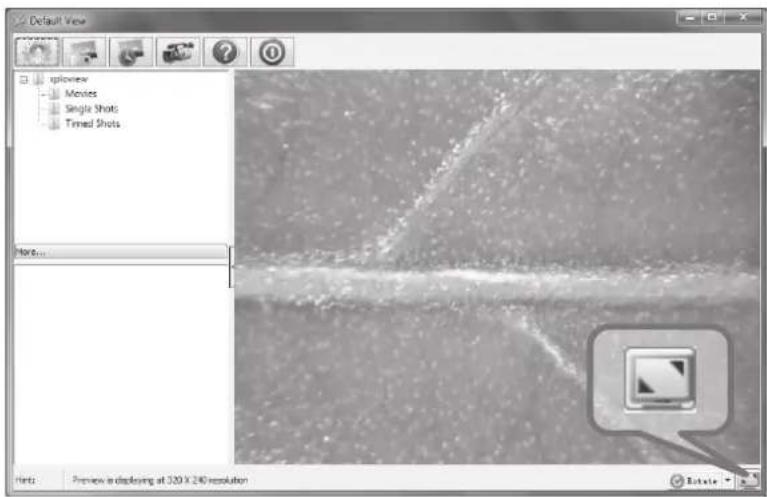
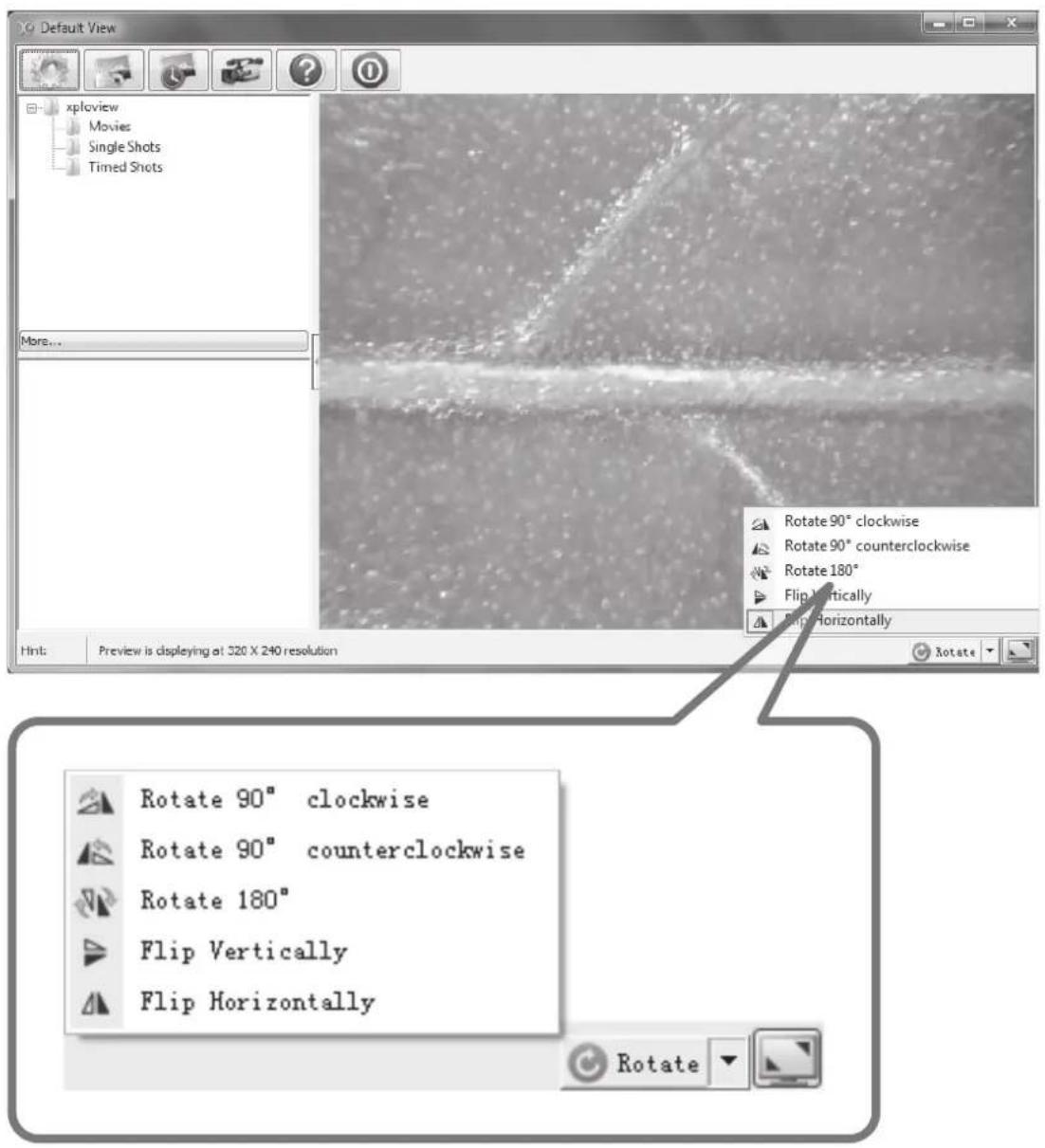
Image rotation / flip
Click < Rotate > button to rotate or flip the image.
System settings menu
The first time the xploview software is started, the default settings will be loaded, you may change these settings manually in the system settings menu.
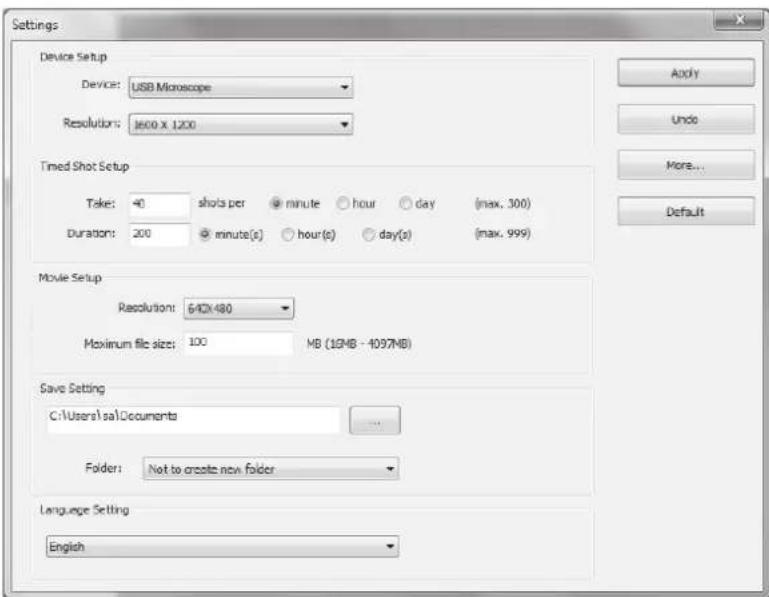
Device setup
If the image captured by the digital microscope was not displayed by default, you can change this by selecting it from the "Device" drop-down menu.
The resolution of images you capture can be changed from the "Resolution" drop-down menu.

Timed shot setup
The frequency and duration of automatic images capture can be adjusted under this option.

Movie setup
The resolution of videos you record can be changed from the "Resolution" menu. You can also set a maximum file size for each video.

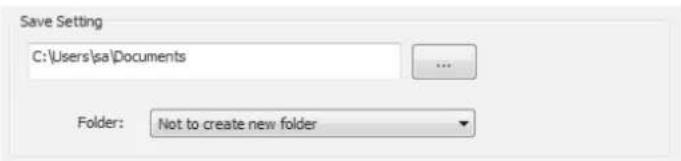
Save setting
The default location for captured images or videos can be changed under this option.
Language setting
The language of the xploview software can be changed under this option.

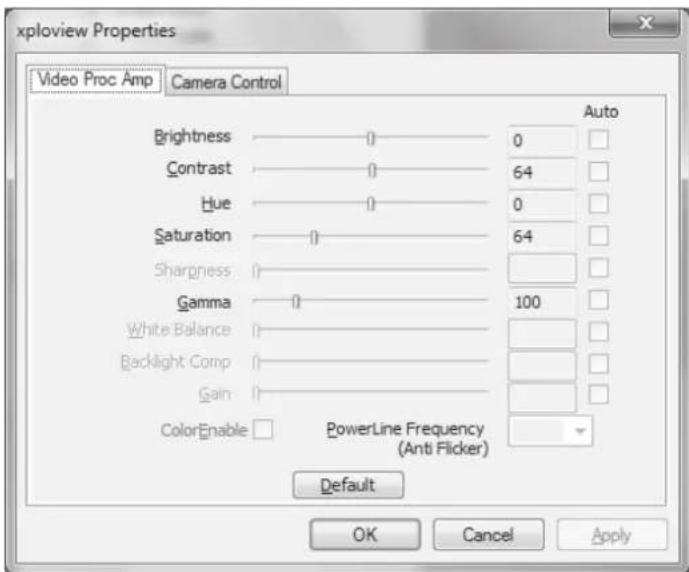
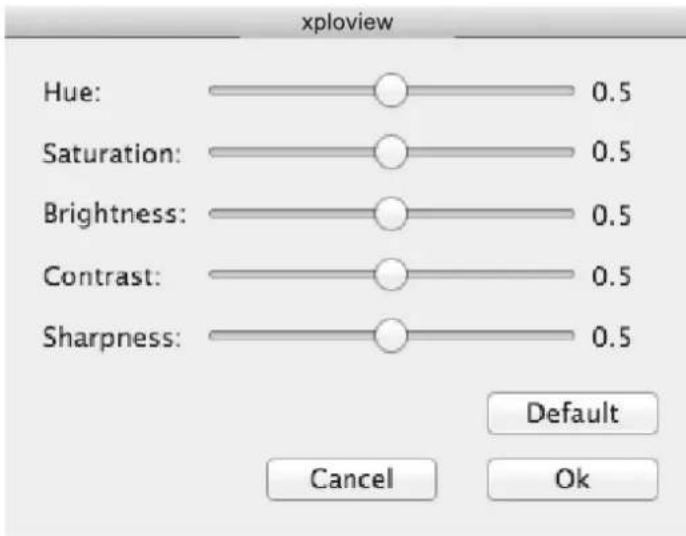
Advanced settings
By clicking the "More..." button on the right of the system settings menu, you will be able to manually adjust all of the image settings. Note that the settings available may be different, depending on your operating system.
Windows based PC
Mac OS based PC
Saved files
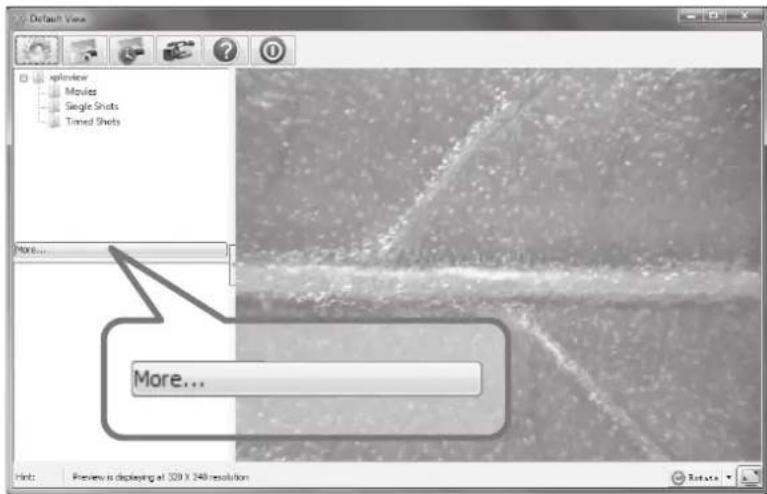
With the xploview application software opened, you can locate the saved files folder by clicking the "More..." button located on the left of the main software window.
Uninstalling the xploview software
Windows based PC
Select "Uninstall" from the start menu (Start > All Programs > xploview > Uninstall).
Mac OS based PC
Drag the xploview application icon from the "Applications" folder to "Trash".
FCC compliance statement (United States only)
This device complies with part 15 of the FCC Rules. Operation is subject to the following two conditions: (1) This device may not cause harmful interference, and (2) this device must accept any interference received, including interference that may cause undesired operation.
Changes or modifications not expressly approved by the party responsible for compliance could void the user's authority to operate this device.
This device has been tested and found to comply with the limits for a Class B digital device, pursuant to part 15 of the FCC Rules. These limits are designed to provide reasonable protection against harmful interference in a residential installation. This device generates, uses and can radiate radio frequency energy and, if not installed and used in accordance with the instructions, may cause harmful interference to radio communications. However, there is no guarantee that interference will not occur in a particular installation. If this device does cause harmful interference to radio or television reception, which can be determined by turning the equipment off and on, the user is encouraged to try to correct the interference by one or more of the following measures:
Reorient or relocate the receiving antenna.
Increase the separation between the equipment and receiver.
Connect the device into an outlet on a circuit different from that to which the receiver is connected.
Consult the dealer or an experienced radio/TV technician for help.
Legal information
This document is published without any warranty. While the information provided is believed to be accurate, it may include errors or inaccuracies. In no event shall the manufacturer or its distributors be liable for incidental or consequential damages of any nature, including but not limited to loss of profits or commercial loss, arising out of the use of the information in this document.
All rights reserved. Mac, Mac OS and OS X are trademarks of Apple Inc., registered in the U.S. and other countries. Windows is a registered trademark of Microsoft Corporation in the United States and other countries. All other trademarks and brands are property of their respective owners.
reflecta
DigiMicroscope Flex
PRODUCT IN EEN OOGOPSLAG 6
Inhoud verpakking 6
Productverzicht 7
Productspecificatie 8
AAN DE SLAG 9
Windows 10 (32 bit of 64 bit)
Windows 8 (32 bit of 64 bit)
Windows 7 (32 bit of 64 bit)
Windows Vista (32 bit of 64 bit)
Windows XP SP2, SP3
USB
USB 2.0
PRODUCT IN EEN OOGOPSLAG
Inhoud verpakking
- PRODUCT AT A GLANCE 6
- GETTING STARTED 9
- BASICS 12
- BEFOREUSE
- Important information
- Care and maintenance
- Warning
- Product description
- Computer requirements
- PRODUCT AT A GLANCE
- Package contents
- Product overview
- Product specification
- GETTING STARTED
- Software installation
- Connecting the device
- Starting the xploview software
- Note
- Assembling the stand
- Attaching the microscope to the stand
- BASICS
- Focusing
- Preparation position
- Viewing using the microscope stand
- Viewing directly on an object
- For 250x magnification (17" monitor)
- Adjusting the LED light intensity
- Taking a snapshot
- USING THE XPLOVIEW SOFTWARE
- Button menu
- Full screen viewing
- Image rotation / flip
- System settings menu
- Device setup
- Timed shot setup
- Movie setup
- Save setting
- Language setting
- Advanced settings
- Saved files
- Uninstalling the xploview software
- FCC compliance statement (United States only)
- Legal information
- reflecta
- DigiMicroscope Flex
- PRODUCT IN EEN OOGOPSLAG 6
- AAN DE SLAG 9
- PRODUCT IN EEN OOGOPSLAG
Brand : Reflecta
Model : DigiMicroscope Flex
Category : Microscope