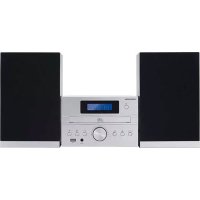
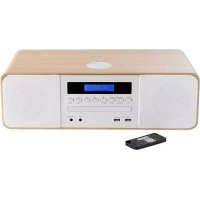
150510 - Hi-Fi System THOMSON - Free user manual and instructions
Find the device manual for free 150510 THOMSON in PDF.

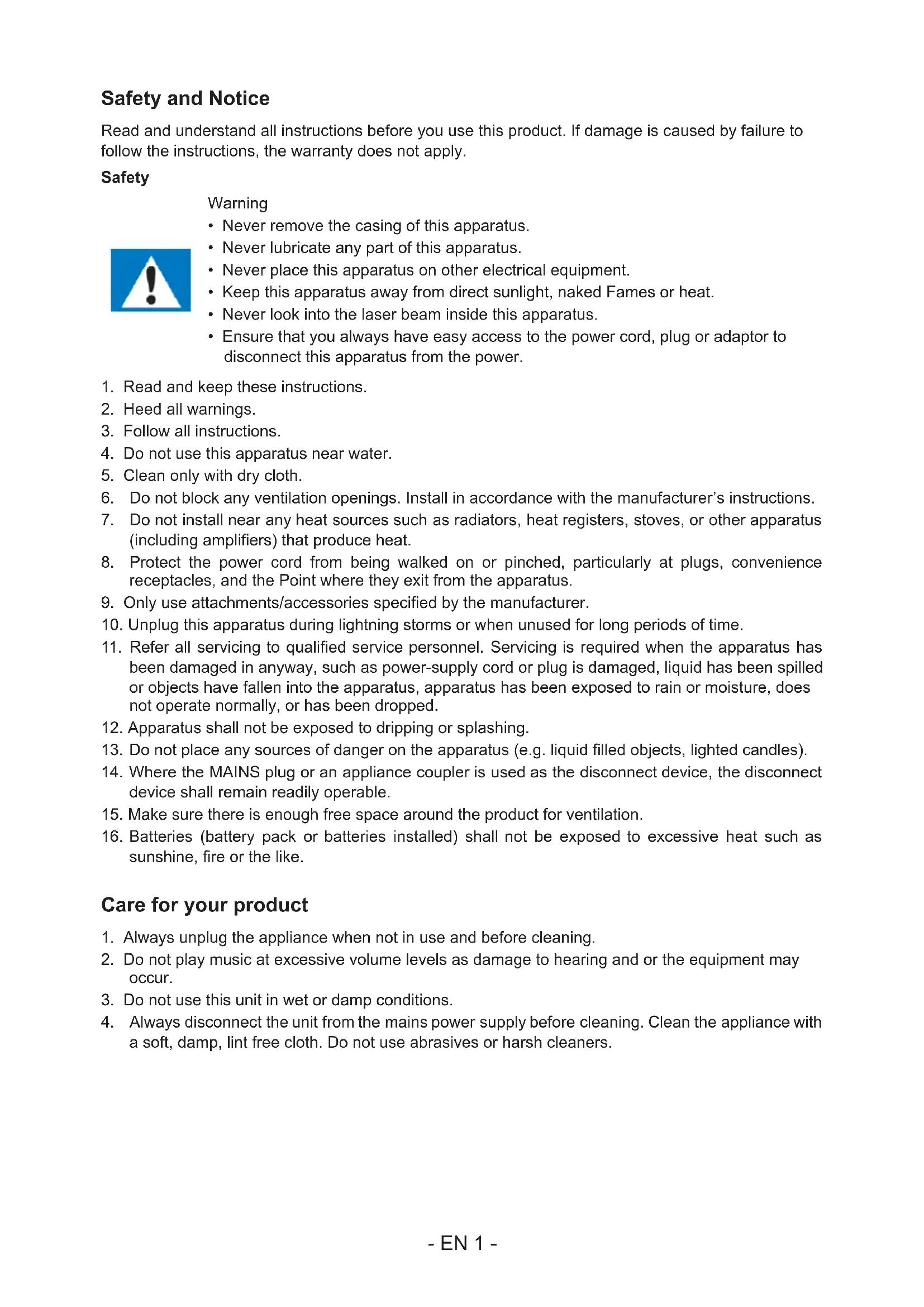


| Product type | Hi-Fi system with CD player, FM/DAB radio, Bluetooth, USB |
| Brand | Thomson |
| Model | 150510 |
| Power supply | 230 V ~ 50 Hz |
| Maximum power consumption | 30 W |
| Audio output power | 10 W x 2 (stereo) |
| Speaker impedance | 6 ohms |
| Signal-to-noise ratio (A) | 86 dB |
| Total harmonic distortion (1 kHz, 1 W) | 0.5% |
| Frequency response | 20 Hz - 20 kHz |
| Input sensitivity (Line-in) | 700 mV |
| Bluetooth frequency bands | 2402 - 2480 MHz |
| FM radio frequencies | 87.5 - 108.00 MHz |
| DAB radio frequencies | 174.928 - 239.200 MHz |
| Available audio sources | CD, USB, Bluetooth, Line-in (3.5 mm audio input), FM, DAB |
| Main functions | CD player (audio and MP3), FM/DAB radio with RDS, Bluetooth, clock with alarm (wake to CD/DAB/FM/USB), sleep timer, equalizer, remote control |
| Package contents | Main unit, remote control, user manual, FM/DAB antenna, Line-in cable, power cord |
| Ventilation | Do not obstruct ventilation openings; leave free space around the device |
| Maintenance and cleaning | Disconnect the device before cleaning; use a soft, damp cloth, no harsh chemicals |
| Safety | Do not remove the casing; avoid exposure to water, heat, or direct sunlight; unplug during storms |
| Spare parts and repairability | Use only parts specified by the manufacturer; any repairs must be carried out by a qualified professional |
| General information | Made in China by Bigben Interactive SA; Thomson brand under license; complies with European directives |
Frequently Asked Questions - 150510 THOMSON
User questions about 150510 THOMSON
0 question about this device. Answer the ones you know or ask your own.
Ask a new question about this device
Download the instructions for your Hi-Fi System in PDF format for free! Find your manual 150510 - THOMSON and take your electronic device back in hand. On this page are published all the documents necessary for the use of your device. 150510 by THOMSON.
USER MANUAL 150510 THOMSON
CHAÎNE STÉRÉO CD AVEC BLUETOOTH ET DAB
MODÈLE N° MIC120DABBT
MIC122DABBT
MIC125DABBT
natural_image
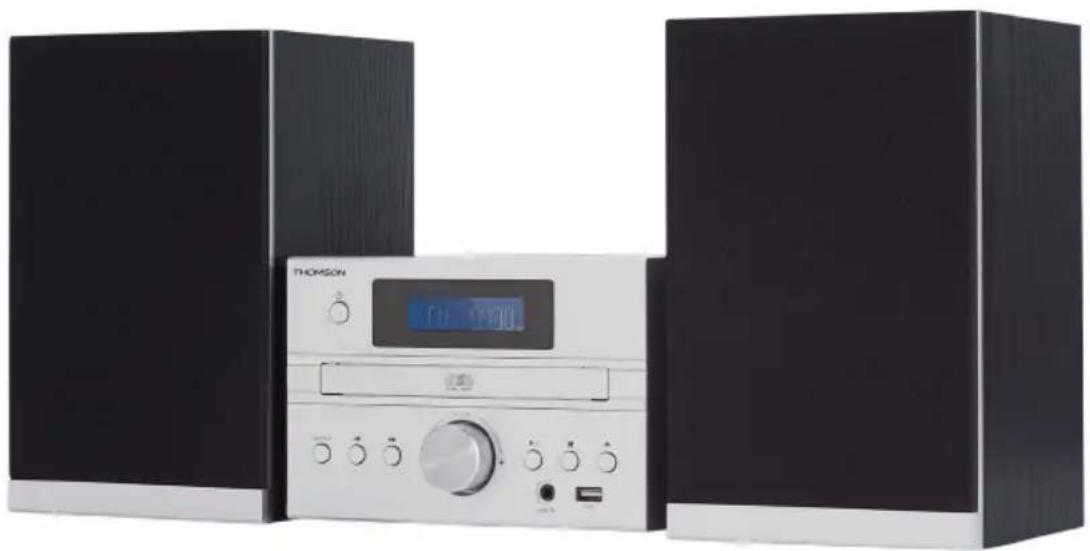
Exterior view of a modern audio workstation with black speakers and a digital display (no visible text or symbols)MODE D'EMPLOI
LISEZ COMPLÈTEMENT CE MANUEL D'UTILISATION AVANT D'UTILISER CET APPAREIL ET CONSERVEZ CE LIVRET POUR VOUS Y RÉFÉRER ULTÉRIEUREMENT
natural_image
Diagram showing battery components and a mechanical device with an arrow indicating motion (no text or symbols)Recherche manuelle
EN : https://www.bigben-interactive.co.uk/support/
natural_image
Exterior view of a modern audio workstation with black speakers and a digital display (no visible text or symbols)OPERATING INSTRUCTIONS
PLEASE READ THIS USER MANUAL CAREFULLY BEFORE
OPERATING THIS UNIT AND RETAIN FOR
FUTURE REFERENCE
Safety and Notice
Read and understand all instructions before you use this product. If damage is caused by failure to follow the instructions, the warranty does not apply.
Safety

Warning
- Never remove the casing of this apparatus.
- Never lubricate any part of this apparatus.
- Never place this apparatus on other electrical equipment.
- Keep this apparatus away from direct sunlight, naked Fames or heat.
- Never look into the laser beam inside this apparatus.
-
Ensure that you always have easy access to the power cord, plug or adaptor to disconnect this apparatus from the power.
-
Read and keep these instructions.
- Heed all warnings.
- Follow all instructions.
- Do not use this apparatus near water.
- Clean only with dry cloth.
- Do not block any ventilation openings. Install in accordance with the manufacturer's instructions.
- Do not install near any heat sources such as radiators, heat registers, stoves, or other apparatus (including amplifiers) that produce heat.
- Protect the power cord from being walked on or pinched, particularly at plugs, convenience receptacles, and the Point where they exit from the apparatus.
- Only use attachments/accessories specified by the manufacturer.
- Unplug this apparatus during lightning storms or when unused for long periods of time.
- Refer all servicing to qualified service personnel. Servicing is required when the apparatus has been damaged in anyway, such as power-supply cord or plug is damaged, liquid has been spilled or objects have fallen into the apparatus, apparatus has been exposed to rain or moisture, does not operate normally, or has been dropped.
- Apparatus shall not be exposed to dripping or splashing.
- Do not place any sources of danger on the apparatus (e.g. liquid filled objects, lighted candles).
- Where the MAINS plug or an appliance coupler is used as the disconnect device, the disconnect device shall remain readily operable.
- Make sure there is enough free space around the product for ventilation.
- Batteries (battery pack or batteries installed) shall not be exposed to excessive heat such as sunshine, fire or the like.
Care for your product
- Always unplug the appliance when not in use and before cleaning.
- Do not play music at excessive volume levels as damage to hearing and or the equipment may occur.
- Do not use this unit in wet or damp conditions.
- Always disconnect the unit from the mains power supply before cleaning. Clean the appliance with a soft, damp, lint free cloth. Do not use abrasives or harsh cleaners.
Care of the environment

Your product contains batteries covered by the European Directive 2006/66/EC,
When this crossed-out wheeled bin symbol is attached to a product it means that the product is covered by the European Directive 2002/96/EC. Please inform yourself about the local separate collection system for electrical and electronic products.
Please act according to your local rules and do not dispose of your old products with your normal household waste. Correct disposal of your old product helps to prevent potential negative consequences for the environment and human health.
Compliance

This product complies with the radio interference requirements of the Europe Community.

This apparatus includes this label.
Technical specifications:
• Power supply: 230V\~50Hz
• Max consumption: 30W
- Input sensitivity: LINE IN 700MV
- Speaker impedance: 6 ohms
- S/N (A): 86db
• THD(1kHz,1W): 0.5%
• Frequency response:20Hz-20KHz
- Bluetooth frequency band: 2402-2480MHz
• FM frequency: 87.5-108.00MHz
• DAB frequency: 174.928MHz-239.200MHz
• Total music output: 10W X2
What's in the box
Check and identify the contents of your package:
- 1 Main unit
• 1 Remote control - 1 User manual
- 1 Indoor antenna
- 1 Line in cable
- 1 AC power cable
Getting Started
- Remove the appliance from the box.
- Remove any packaging from the product.
- Place the packaging inside the box and either or dispose of safe.
Description of Parts
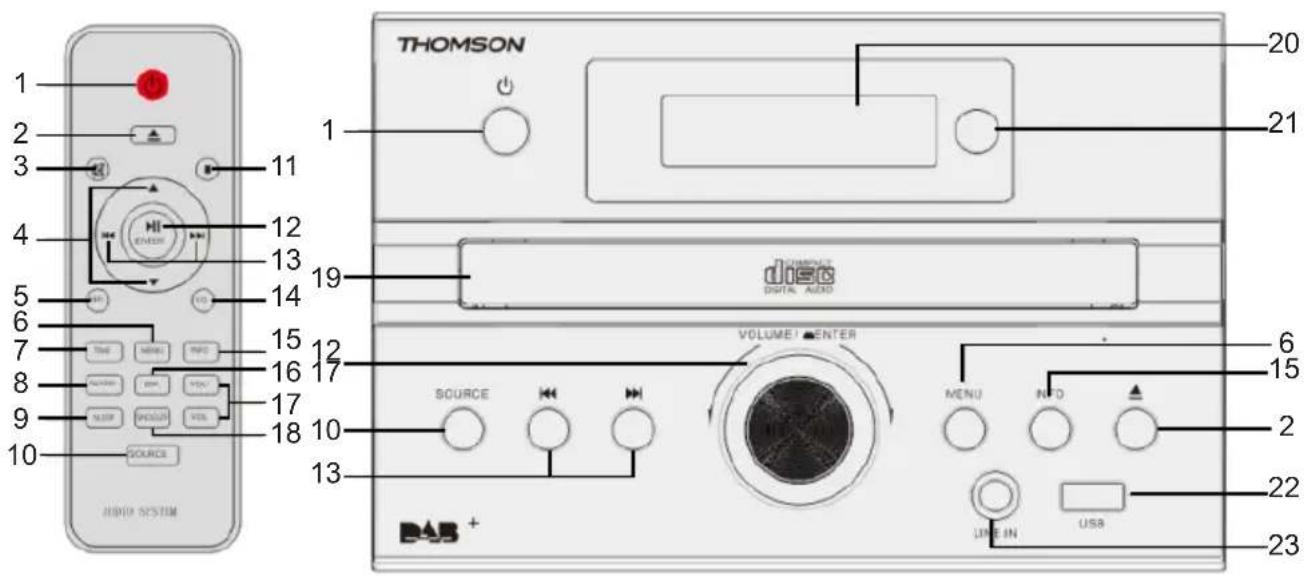
1) Standby/Power on switch
Press to switch the unit from on to standby mode or vice versa. In standby mode, the unit is still consuming a small amount of power.
2) Open or close the disc tray
3) Mute the sound
To cancel, press the button again.
4) Select the option
5) Repeat the disc
6) Menu
7) Select the time setup
8) Select the alarm setup
9) Select the sleep timer setup
10) Select the audio source: DAB-FM-CD-USB-BT-LINE
11) Stop the play
12) Play or pause plays the disc Select or confirm the option.
13) Skip to the next track or previous track
Tune to a radio station.
Press and hold the key to search within a track / USB.
14) Select the EQ setup
15) Info button
16) Dimmer for brightness setting
17) Adjust the volume level
18) Snooze
19) CD insert door
20) LCD display
21) Remote receive window
22) Line in jack
23) USB port
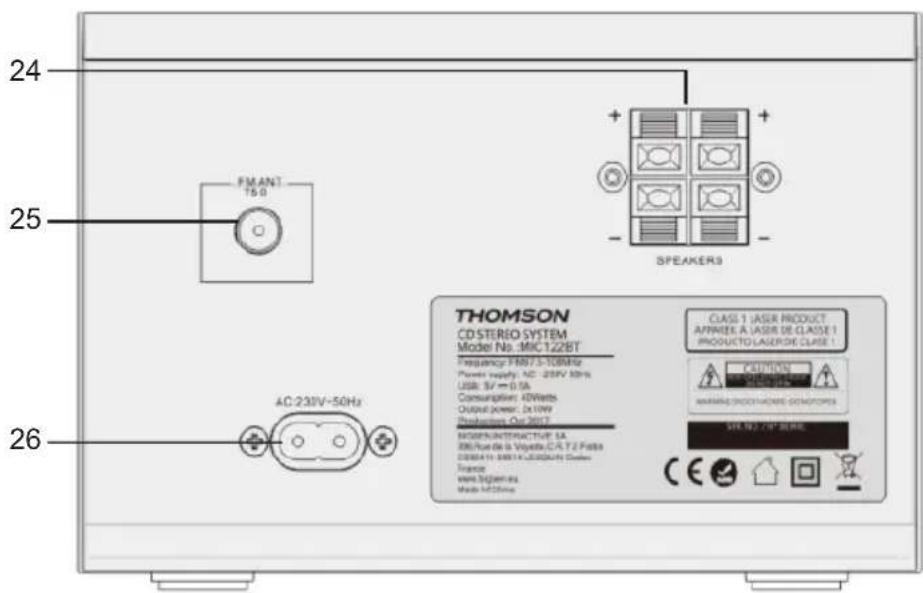
24) R/L speaker connector
25) FM/DAB ant
26) AC mains socket
Power

CAUTION
- Risk of product damager! Make sure that the power voltage corresponds to the voltage printed on the back label.
- Risk of electric shock! When you unplug the AC power cord always pull the plug from the socket. Never pull the cord.
- Before connecting the AC power cord, ensure you have completed all other connections.
Place the unit in the desired position and unravel the mains cable. Insert the cable into the supply socket and switch on if applicable.
Auto standby
When playing media from a connected device, the Tower automatically switches to standby if:
- No button is pressed for 10 minutes,
- No audio from a connected device for 10 minutes.
Connecting up
- Connect the FM/DAB indoor antenna.
- Place the antenna where reception is best.
- Connect the AC mains lead only after all the other connections have been made.
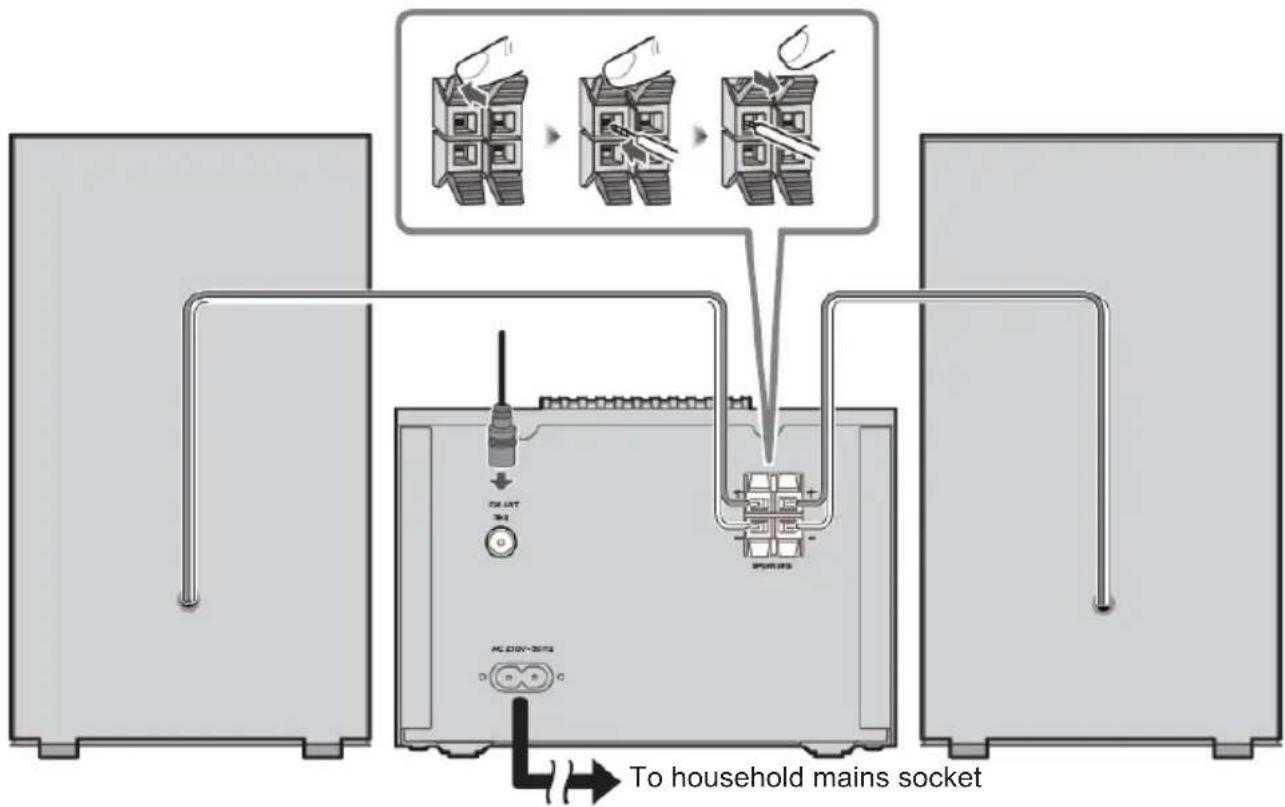
flowchart
graph TD
    A["To household mains socket"] --> B["USB PORT"]
    B --> C["SPURS23"]
    C --> D["To household mains socket"]
    style A fill:#f9f,stroke:#333
    style B fill:#ccf,stroke:#333
    style C fill:#cfc,stroke:#333
    style D fill:#fcc,stroke:#333
Preparing the remote control
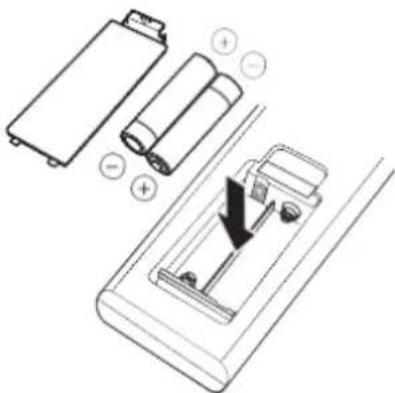
Requires 2 AAA batteries
natural_image
Diagram showing battery components and a mechanical device with a directional arrow (no text or symbols)Use alkaline or manganese battery.
Install the battery so that the poles (+ and -) align with those in the remote control.
Close the battery compartment.
Note: dispose of properly. Batteries contain chemical substances, so they last a long time. Remove the battery if you are not going to use the remote control for a long time.
WARNING: Danger of explosion if the batteries are not inserted correctly.
Clock and timers
Setting the clock
After the unit is plugged into a mains supply or following a mains power failure, the display will show "0:00" on the LCD display. The unit should be in standby mode to set the current clock.
- Press the [TIME] button. The digits for the display will blink.
- Press the ▲/▼ button repeatedly until the correct hour is set. Press [ENTER] to confirm the hour setting.
- The minute digits on the display will blink.
- Press the ▲ / ▼ button repeatedly until the correct minute is set. Press [ENTER] to confirm the minute setting.
Setting the alarm
This unit can be used as an alarm clock. The Bluetooth device, USB and FM are activated to play at a preset time.
- Press to switch the unit to standby mode.
- Make sure that you have set the clock correctly.
- Press the [ALARM] button in shutdown mode. The display will flash ON to select alarm setting, and the display will blink.
- Press [ENTER] to confirm. The time display will blink.
- Press the ▲ button repeatedly to set the hour. Press [ENTER] to confirm.
- Press ▲ to set the minutes.
- Press [ENTER] to confirm, and then press ▲/▼ to select CD/DAB/FM/USB status. Press [ENTER] to confirm.
- The volume turns up from 0 to 20 gradually.
- Press the [ALARM] button in shutdown mode. The display will flash ON to select the alarm setting, and the display will blink.
- Press ▲ to select OFF to cancel the alarm.
Snooze
- Press to set the alarm; it re-sounds after 9 minutes.
Sleep timer
- Press the [SLEEP] button. The display will blink. Press the button until the display shows the minute you want to set. You can set 90/60/45/30/15 minutes.
- It blinks three times to confirm, and then returns to the previous interface. If you want to cancel the sleep mode, press OFF. After blinking three times, sleep mode will cancel.
Playing the media
Disc
Play a disc
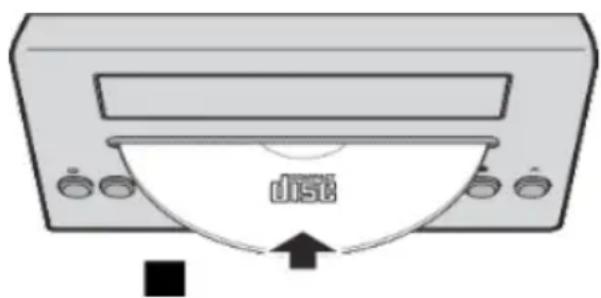
- Press [SOURCE] repeatedly to select DISC source.
- Insert a disc with the printed side facing upward.
- Play starts automatically, if not, press ▶
- Press the [VOL+/VOL-] to adjust the volume.
Pause / resume play
- During play, press ▶ pause/resume play.
- During play, long press the ◀ button to fast forward/rewind.
Skip to a track
For CD:
- Press |/◄ to select another track.
- Press the [VOL+/VOL-] to adjust the volume.
For MP3 disc:
- Press ▲ to select an album or a folder.
- Press |◀ to select a track or a file.
- Press the [VOL+/VOL-] to adjust the volume.
USB
Reduce the volume and connect the USB device to the USB port.
Hold the main unit when connecting or disconnecting the USB device.
- Press [SOURCE] repeatedly to select "USB". The USB will play automatically.
- Press the ▲ to select the folder. Press the / to lead a track.
- Press the [VOL+/VOL-] to adjust the volume.
Bluetooth®
You can connect and play an audio device wirelessly through Bluetooth®
Preparation
- Switch on the Bluetooth® feature of device and put the device near the system.
-
Read the device's operating instructions for details.
-
Press [SOURCE] repeatedly to select the Bluetooth mode; "PAIRING" blinks,
- Select "MIC120DABBT/MIC122DABBT/MIC125DABBT" from the Bluetooth menu of the device.
If prompted for a passkey, input "0000".
The device connects with this system automatically after pairing is complete.
The name of the connected device is shown for a few seconds.
- If this system is connected to a Bluetooth device, press and hold ▶|| to disconnect it, until [NO BT] is shown.
- Start playback on the device.
- Press lo to skip tracks.
- Press [VOL+/VOL-] or rotate the VOLUME knob to adjust the volume.
Audio in
You can play music from an external audio device such as an MP3 player through this unit.
Line in Jack (Requires a 3.5mm cable)
- Connect a 3.5mm cable to the Line in jack on the top panel. Connect the other end of the 3.5mm cable to an MP3 player or other audio device.
- Press the [SOURCE] button repeatedly to select Line In mode.
- Use the controls on the connected device to begin playing audio.
DAB radio
Carefully extend the telescopic aerial
Auto scan
- Press [SOURCE] to select "DAB MODE".
If this is the first time the unit has gone into DAB Mode, it will automatically start an 'Auto Scan' to search for available stations. (Once DAB mode has been used before, the MIC120DABBT/MIC122DABBT/MIC125DABBT will automatically select the previously played station)
- Press the [ENTER] key. It will automatically start auto scan to search for available stations. During the scanning process, the lower line of the display shows a bar-graph indicating the progress of the scan.

Manual scan
- Press [SOURCE] on the main unit to select "DAB MODE".
-
Press ◀◀ or ▶▶ to select "Manual tune". Press the [ENTER] key to access the DAB frequency selection.
-
Press is to go to the desired channel. The graph will indicate the signal strength.
-
Press [MENU] or to exit scan.
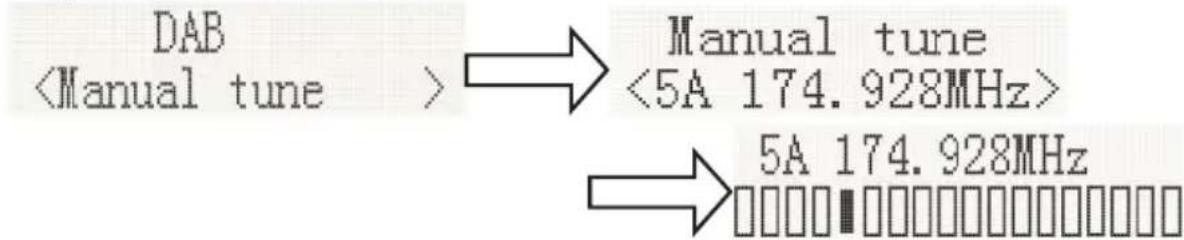
- If no stations are found, please ensure the aerial is extended and test the reception by doing another auto scan in a different location.
DRC (Dynamic range control)
Dynamic Range Control (also known as DRC) is a technology used to help make quieter sounds easier to hear in a noisy environment.
- Under DAB mode, press |◀◀ or ▶▶| to select "DRC". Press the [ENTER] key and "*" will be displayed on the top right.
- Press MENU to confirm the setting. The display will return to normal.
DRC OFF - DRC is switched off, Broadcast DRC will be ignored.
DRC LOW - DRC level is set to 1/2 that sent by broadcaster.
DRC HIGH - DRC level is used as sent by broadcaster.
Prune (To remove stations which are listed but unavailable)
Under DAB mode, press ◄ to ▶ show the submenu" Prune". Press the [ENTER] button to access the Prune option.

System (DAB)
Under DAB mode, press ◀◀◀ sh▶▶the "SYSTEM" submenu. Press the ENTER button to enter the system setting.
1. Language
Press [ENTER] to set the language. The source language is English and the selected language will have "*" displayed on the top right.
It's available in a choice of "Deutsch", "Italiano", "Français".

2. Factory Reset
Press [ENTER] for factory reset. If you wish to perform the reset operation, push |◀◀ or ▶▶| until "YES" is highlighted on the display and press [ENTER]. A full reset of your radio will be performed. All presets and station lists will be erased.

flowchart
graph LR
    A["System <Factory Reset>"] --> B["Factory Reset? <No> Yes"]
3. SW Version
Press [ENTER] to view the DAB software version. Press [Menu] of ▶The display will return to normal.

*If no buttons are pressed after 30 seconds, the display will return to normal.
©
Menu
1. Scan setting
Under FM mode, press [MENU] to enter the FM menu setting, then press or to select [Scan setting], then press [ENTER] for the sensitivity setting:
1.1. All stations:\~ 15dB
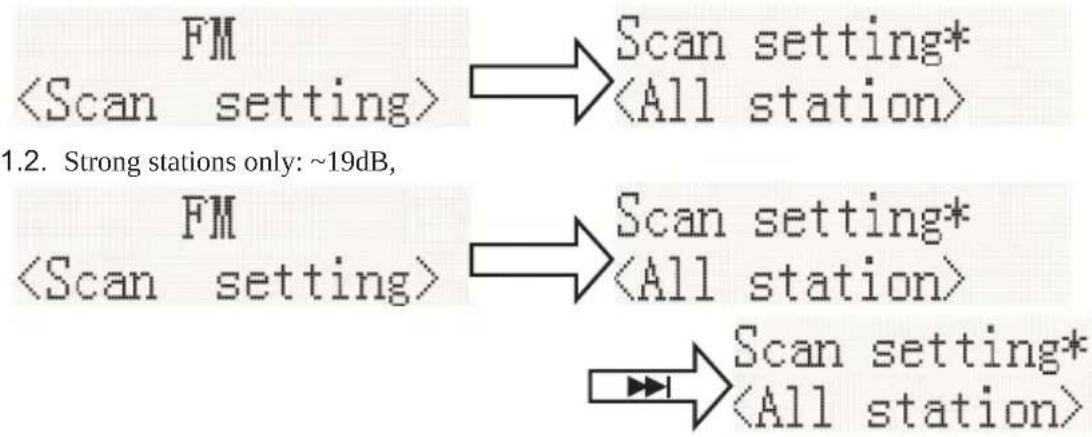
flowchart
graph TD
    A["FM <Scan setting>"] --> B["Scan setting* <All station>"]
    C["FM <Scan setting>"] --> D["Scan setting* <All station>"]
    E["..."] --> F["Scan setting* <All station>"]
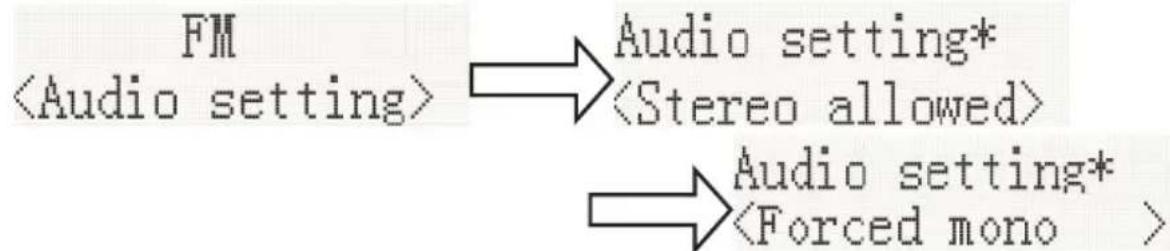
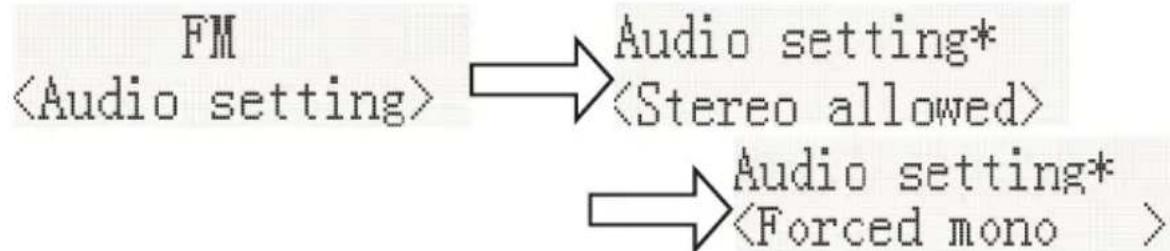
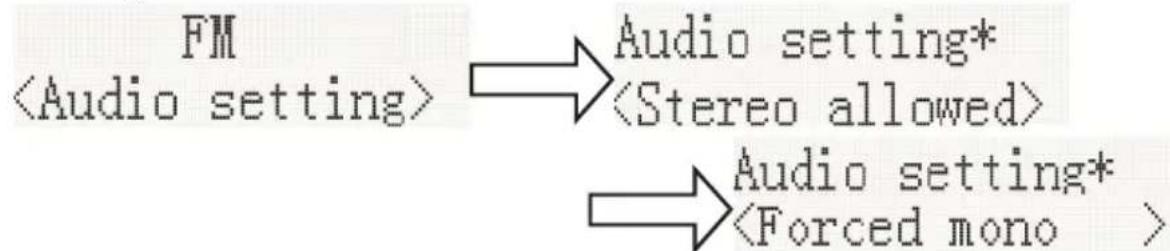
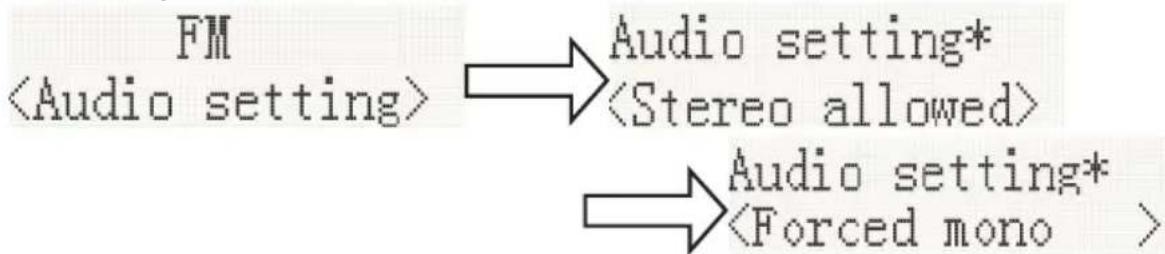
2. Audio setting
2.1. Stereo allowed

2.2. Forced mono
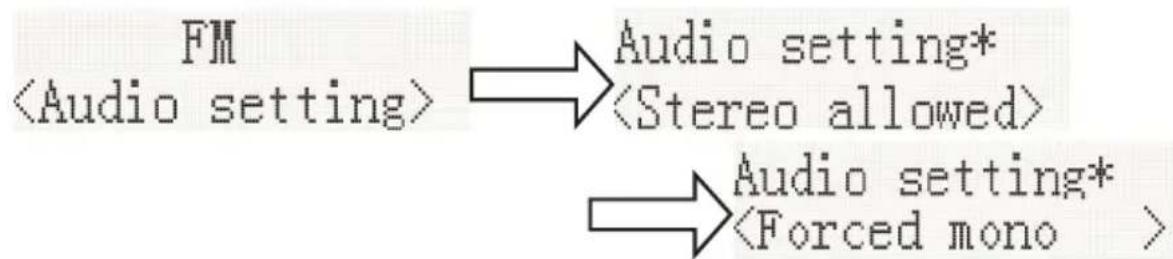
flowchart
graph TD
    A["FM\n<Audio setting>"] --> B["Audio setting*\n<Stereo allowed>"]
    A --> C["Audio setting*\n<Forced mono >"]
2.3. System (FM system) same DAB system setting
3. PRESET:
3.1. Preset Recall (choose the station):
Press [ENTER] to tune to the station stored in the preset memory.
![Preset Recall <1: 90.50MHz > → 90.50MHz St P1 [No RadioText]](/content/2026/03/440525/images/163448f8101c7f0ce987699fe963bc147b58144ac609578348c9993d98f74a77.jpg)
3.2. Preset Recall (choose the station):
You may store your preferred FM stations to the pre-set station memories. There are 20 memory presets in your radio. Presets are remembered by your radio in the event of a power failure.
The procedure for setting presets and using them to tune stations is the same for DAB modes:
Under the FM mode, select the desired wave band. Press / . to view the stored stations, press | to and to the required station as previously described, and then press [ENTER] for the desired pre-set number to which you wish to store the station. Press [ENTER] to con rm.

Remarks:

Don't discard the electrical and electronic appliances in the regular waste disposal.
• Take them to a collection point.
- Some components in these appliances may be hazardous to health and the environment.
In order to save energy when the unit has no sound output for a while, the unit will be switched to stand-by automatically. It can be switched ON by using the POWER selector again.
If there is an incoming call while MIC120DABBT/MIC122DABBT/MIC125DABBT is connected to your cell phone for music playback, it will pause at once when you answer the call and resume after the call ended. (Sometimes it will pause after end the call, it depend on your cell phone.)
The Bluetooth® word, mark and logo are registered trademarks owned by Bluetooth SIG, Inc. and any use of such marks by Bigben Interactive is under license. Other trademarks and trade names are those of their respective owners.
THOMSON is a trademark of TECHNICOLOR SA or its affiliates used under license to Bigben Interactive.
The undersigned, Bigben Interactive declares that the radio equipment of the MIC120DABBT/MIC122DABBT/MIC125DABBT type complies with the 2014/53/EU directive.
The complete text is available at www.bigben.fr/support
To download the full statement, please visit our website:
EN : https://www.bigben-interactive.co.uk/support/
OTHER LANGUAGES : https://www.bigbeninteractive.com/support/
Manufactured by BIGBEN INTERACTIVE SA
396, Rue de la Voyette
CRT2 - FRETIN
CS 90414
59814 LESQUIN Cedex - France
www.bigben.eu
Made in China






REACH
compliance initiatives

Fabricant : Bigben Interactive FRANCE
396, Rue de la Voyette, C.R.T. 2 Fretin, CS 90414 - 59814 LESQUIN Cedex, France
natural_image
Exterior view of a modern THOMSON audio recording device with two black speakers and a digital display (no visible text or symbols on the device body)natural_image
Diagram of battery components with polarity indicators (no text or symbols)Use pilas alcalinas o de manganeso.
Búsqueda manual
©
Búsqueda manual
EN: https://www.bigben-interactive.co.uk/support/
DE: https://www.bigben-interactive.de/support/
ES: https://www.bigbeninteractive.es/asistencia-tecnica/
IT: https://www.bigbeninteractive.it/supporto-tecnico/
OTROS IDIOMAS: https://www.bigbeninteractive.com/support/
COMPLIANCE APPROVED and EBITDA-related financials

Fabricant : Bigben Interactive FRANCE
396, Rue de la Voyette, C.R.T. 2 Fretin, CS 90414 - 59814 LESQUIN Cedex, France
natural_image
Exterior view of a modern audio workstation with black speakers and a digital display (no visible text or symbols)ISTRUZIONI D'USO
PRIMA DI UTILIZZARE L'APPARECCHIO, LEGGERE PER INTERO IL PRESENTE MANUALE E CONSERVARLO PER CONSULTAZIONI FUTURE.
natural_image
Diagram showing battery components and a mechanical device with a directional arrow (no text or symbols)Ricerca manuale
EN: https://www.bigben-interactive.co.uk/support/
DE: https://www.bigben-interactive.de/support/
ES: https://www.bigbeninteractive.es/asistencia-tecnica/
IT: https://www.bigbeninteractive.it/supporto-tecnico/
ALTRE LINGUE: https://www.bigbeninteractive.com/support/
Fabbricato da BIGBEN INTERACTIVE SA
396, Rue de la Voyette
CRT2 - FRETIN
CS 90414
59814 LESQUIN Cedex - Francia
www.bigben.eu
Prodotto in Cina






REACH
compliance updates

Fabricant : Bigben Interactive FRANCE
396, Rue de la Voyette, C.R.T. 2 Fretin, CS 90414 - 59814 LESQUIN Cedex, France
natural_image
Exterior view of a modern THOMSON audio recording device with two black speakers and a digital display (no visible text or symbols on the device body)7) Seleccionar as horas
natural_image
Diagram showing battery components and a mechanical device with a directional arrow (no text or symbols)Use pilhas alcalinas ou de manganésio.
Procura manual
flowchart
graph LR
    A["System\n<Language>"] --> B["Language *\n<English>"]
3. Versão SW
Procura manual
EN: https://www.bigben-interactive.co.uk/support/
DE: https://www.bigben-interactive.de/support/
ES: https://www.bigbeninteractive.es/asistencia-tecnica/
IT: https://www.bigbeninteractive.it/supporto-tecnico/
OUTRAS LÍNGUAS: https://www.bigbeninteractive.com/support/
compliance approaches

Fabricant : Bigben Interactive FRANCE
396, Rue de la Voyette, C.R.T. 2 Fretin, CS 90414 - 59814 LESQUIN Cedex, France
natural_image
Exterior view of a modern audio workstation with black speakers and a digital display (no visible text or symbols)BEDIENUNGSANLEITUNG
natural_image
Diagram showing battery components and a mechanical device with an arrow indicating motion (no text or symbols)Manuelle Suche
1.2. Strong stations only (nur starke Sendersignale): \~19 dB,
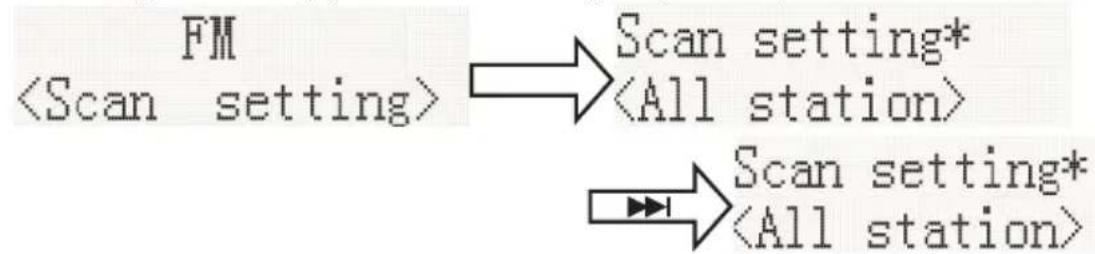
flowchart
graph TD
    A["FM\n<Scan setting>"] --> B["Scan setting*\n<All station>"]
    C["..."] --> D["Scan setting*\n<All station>"]
2.2. Forced mono (Immer Mono)
flowchart
graph TD
    A["FM\n<Audio setting>"] --> B["Audio setting*\n<Stereo allowed>"]
    A --> C["Audio setting*\n<Forced mono >"]
EN: https://www.bigben-interactive.co.uk/support/
DE: https://www.bigben-interactive.de/support/
ES: https://www.bigbeninteractive.es/asistencia-tecnica/
IT: https://www.bigbeninteractive.it/supporto-tecnico/
SONSTIGE SPRACHEN: https://www.bigbeninteractive.com/support/

compliance attitudes

Fabricant : Bigben Interactive FRANCE
396, Rue de la Voyette, C.R.T. 2 Fretin, CS 90414 - 59814 LESQUIN Cedex, France
natural_image
Exterior view of a modern audio workstation with black speakers and a digital display (no visible text or symbols)HANDLEIDING
LEES DEZE GEBRUIKSAANWIJZING VOLLEDIG DOOR ALVORENS DEZE EENHEID TE BEDIENEN, EN BEWAAR DIT BOEKJE VOOR UW ADMINISTRATIE.
Dit apparaat bevat dit label.
natural_image
Diagram showing battery components and a mechanical device with an arrow indicating motion (no text or symbols present)Installeer alleen alkaline of mangaan batterijen.
Handmatig zoeken
2. Fabrieksinstellingen terugzetten
2.2. Alleen mono
flowchart
graph TD
    A["FM\n<Audio setting>"] --> B["Audio setting*\n<Stereo allowed>"]
    A --> C["Audio setting*\n<Forced mono >"]
EN: https://www.bigben-interactive.co.uk/support/
DE: https://www.bigben-interactive.de/support/
ES: https://www.bigbeninteractive.es/asistencia-tecnica/
IT: https://www.bigbeninteractive.it/supporto-tecnico/
OVERIGE TALEN: https://www.bigbeninteractive.com/support/
natural_image
Exterior view of a modern audio workstation (no visible text or symbols on main components)ANVÄNDARMANUAL
LÄS DENNA ANVÄNDARMANUAL NOGA INNAN PRODUKTEN ANVÄNDS OCH SPARA FÖR FRAMTIDA BRUK.
Denna apparat inkluderar denna etikett.
Tekniska specifikationer:
natural_image
Diagram of battery components with polarity indicators and a downward arrow indicating a process (no text or symbols present)Manuell sökning
EN: https://www.bigben-interactive.co.uk/support/
DE: https://www.bigben-interactive.de/support/
ES: https://www.bigbeninteractive.es/asistencia-tecnica/
IT: https://www.bigbeninteractive.it/supporto-tecnico/
ÖVRIGA SPRÅK: https://www.bigbeninteractive.com/support/
natural_image
Exterior view of a modern audio workstation with black speakers and a digital display (no visible text or symbols)BETJENINGSVEJLEDNING
LÆS VENLIGST DENNE BRUGERVEJLEDNING OMHYGGELIGT IGENNEM F∅R BETJENING AF ENHEDEN, OG GEM DEN TIL EVT. SENERE BRUG.
natural_image
Diagram of battery components with polarity indicators (no text or symbols)Brug alkaline-mangan batteri.
Manuel søgning
- Indstilling for scanning
I FM-tilstand trykkes på [MENU] for at gå ind i indstilling af FM, tryk derefter på ◀◀◀ eller ▶▶▶ for at vælge [Scan setting] (indstilling for scanning), tryk derefter på [ENTER] for indstilling af følsomhed:
2.2. Tvunget mono
flowchart
graph TD
    A["FM\n<Audio setting>"] --> B["Audio setting*\n<Stereo allowed>"]
    A --> C["Audio setting*\n<Forced mono >"]
EN: https://www.bigben-interactive.co.uk/support/
DE: https://www.bigben-interactive.de/support/
ES: https://www.bigbeninteractive.es/asistencia-tecnica/
IT: https://www.bigbeninteractive.it/supporto-tecnico/
ANDRE SPROG: https://www.bigbeninteractive.com/support/
Produceret af BIGBEN INTERACTIVE SA
396, Rue de la Voyette
CRT2 - FRETIN
CS 90414
59814 LESQUIN Cedex - Frankrig
www.bigben.eu
Fremstillet i Kina






REACH
COMPLIANCE APPROVED

Fabricant : Bigben Interactive FRANCE
396, Rue de la Voyette, C.R.T. 2 Fretin, CS 90414 - 59814 LESQUIN Cedex, France
natural_image
Exterior view of a modern audio workstation with black speakers and a digital display (no visible text or symbols)BRUKSANVISNING
LES DENNE BRUKSANVISNINGEN N∅YE F∅R DU
BETJENER APPARATET, OG OPPBEVAR DEN
TIL SENERE BRUK
19) Innsettingsluke for CD
20) LCD-skjerm
21) Mottaksvindu for fjernstyring
flowchart
graph TD
    A["House with hand fastening"] --> B{To hovedstøpsel for husholdning}
    B --> C["Assembly of house with hand fastening"]
    C --> D["Assembly of house with hand fastening"]
    D --> E["Assembly of house with hand fastening"]
    E --> F["Assembly of house with hand fastening"]
natural_image
Diagram of battery components with polarity indicators (no text or symbols)Bruk alkalisk- eller manganbatteri.
Manuell skann
2. Factory Reset (fabrikktilbakestilling)
2.3. System (FM-system) samme DAB-systeminnstilling
3. FORHÅNDSINNSTILLING:
EN: https://www.bigben-interactive.co.uk/support/
DE: https://www.bigben-interactive.de/support/
ES: https://www.bigbeninteractive.es/asistencia-tecnica/
IT: https://www.bigbeninteractive.it/supporto-tecnico/
ANDRE SPRÅK: https://www.bigbeninteractive.com/support/
Produsert av BIGBEN INTERACTIVE SA
396, Rue de la Voyette
CRT2 - FRETIN
CS 90414
59814 LESQUIN Cedex – Frankrike
www.bigben.eu
Produsert i Kina








Fabricant : Bigben Interactive FRANCE
396, Rue de la Voyette, C.R.T. 2 Fretin, CS 90414 - 59814 LESQUIN Cedex, France
natural_image
Exterior view of a modern audio workstation with black speakers and a digital display (no visible text or symbols)NÁVOD K OBSLUZE
PŘEČTĚTE SI POZORNĚ TUTO UŽIVATELSKOU PŘÍRUČKU PŘED TÍM, NEŽ TENTO PŘÍSTROJ UVEDETE DO PROVOZU A USCHOVEJTE SI JI PRO BUDOUCÍ POUŽITÍ.
natural_image
Diagram showing battery components and a mechanical device with a downward arrow indicating motion (no text or symbols present)3. SW version (SW verze)
EN: https://www.bigben-interactive.co.uk/support/
DE: https://www.bigben-interactive.de/support/
ES: https://www.bigbeninteractive.es/asistencia-tecnica/
IT: https://www.bigbeninteractive.it/supporto-tecnico/
JINÉ JAZYKY: https://www.bigbeninteractive.com/support/
natural_image
Exterior view of a modern audio workstation with black speakers and a digital display (no visible text or symbols)HASZNÁLATI UTASÍTÁS
KÉRJÜK, A KÉSZÜLÉK MÜKÖDTETÉSE ELÖTT OLVASSA EL FIGYELMESEN EZT AZ ÚTMUTATÓT, ÉS ÖRIZZE MEG KÉSÖBBI TÁJÉKOZÓDÁS CÉLJÁBÓL.
natural_image
Diagram showing battery components and a mechanical device with a lightning bolt indicating a disassembly or repair (no text or symbols present)Kézi keresés
3. Szoftververzió
flowchart
graph TD
    A["FM\n<Scan setting>"] --> B["Scan setting*\n<All station>"]
    A --> C["Scan setting*\n<All station>"]
2. Audiobeállítás
flowchart
graph TD
    A["FM\n<Audio setting>"] --> B["Audio setting*\n<Stereo allowed>"]
    A --> C["Audio setting*\n<Forced mono >"]
EN: https://www.bigben-interactive.co.uk/support/
DE: https://www.bigben-interactive.de/support/
ES: https://www.bigbeninteractive.es/asistencia-tecnica/
IT: https://www.bigbeninteractive.it/supporto-tecnico/
MÁS NYELVEK: https://www.bigbeninteractive.com/support/
natural_image
Exterior view of a modern audio workstation with black speakers and a digital display (no visible text or symbols)INSTRUKCJA OBSŁUGI
PRZED UŻYCIEM URZĄDZENIA NALEŻY UWAŻNIE PRZECZYTAĆ NINIEJSZĄ INSTRUKCJĘ OBSŁUGI. INSTRUKCJĘ NALEŻY ZACHOWAĆ NA PRZYSZŁOŚĆ.
natural_image
Diagram showing battery components and a device with an arrow indicating a process (no text or symbols present)Wyszukiwanie ręczne
flowchart
graph TD
    A["FM\n<Scan setting>"] --> B["Scan setting*\n<All station>"]
    A --> C["Scan setting*\n<All station>"]
- Ustawienie audio
2.1. Stereo dozwolone

2.2. Mono wymuszone
flowchart
graph TD
    A["FM\n<Audio setting>"] --> B["Audio setting*\n<Stereo allowed>"]
    A --> C["Audio setting*\n<Forced mono >"]
EN : https://www.bigben-interactive.co.uk/support/
POZOSTAŁE JEŻYKI: https://www.bigbeninteractive.com/support/

Fabricant : Bigben Interactive FRANCE
396, Rue de la Voyette, C.R.T. 2 Fretin, CS 90414 - 59814 LESQUIN Cedex, France
- CHAÎNE STÉRÉO CD AVEC BLUETOOTH ET DAB
- MODÈLE N° MIC120DABBT
- MIC122DABBT
- MIC125DABBT
- MODE D'EMPLOI
- Recherche manuelle
- OPERATING INSTRUCTIONS
- Safety and Notice
- Safety
- Warning
- Care for your product
- Care of the environment
- Compliance
- Technical specifications:
- What's in the box
- Getting Started
- Power
- CAUTION
- Auto standby
- Connecting up
- Preparing the remote control
- Clock and timers
- Setting the clock
- Setting the alarm
- Snooze
- Sleep timer
- Playing the media
- Disc
- For MP3 disc:
- USB
- Bluetooth®
- Preparation
- Audio in
- DAB radio
- Auto scan
- Manual scan
- DRC (Dynamic range control)
- Prune (To remove stations which are listed but unavailable)
- System (DAB)
- Language
- Factory Reset
- SW Version
- Menu
- Scan setting
- Audio setting
- PRESET:
- Remarks:
- Búsqueda manual
- ISTRUZIONI D'USO
- Ricerca manuale
- Procura manual
- Versão SW
- BEDIENUNGSANLEITUNG
- Manuelle Suche
- HANDLEIDING
- Handmatig zoeken
- Fabrieksinstellingen terugzetten
- ANVÄNDARMANUAL
- Tekniska specifikationer:
- Manuell sökning
- BETJENINGSVEJLEDNING
- Manuel søgning
- BRUKSANVISNING
- Manuell skann
- Factory Reset (fabrikktilbakestilling)
- FORHÅNDSINNSTILLING:
- NÁVOD K OBSLUZE
- SW version (SW verze)
- HASZNÁLATI UTASÍTÁS
- Kézi keresés
- Szoftververzió
- Audiobeállítás
- INSTRUKCJA OBSŁUGI
- Wyszukiwanie ręczne
Brand : THOMSON
Model : 150510
Category : Hi-Fi System