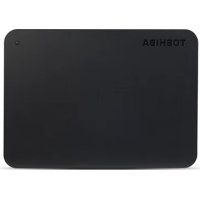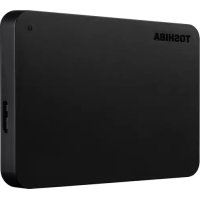
Canvio Basics Exclusive - External hard drive TOSHIBA - Free user manual and instructions
Find the device manual for free Canvio Basics Exclusive TOSHIBA in PDF.

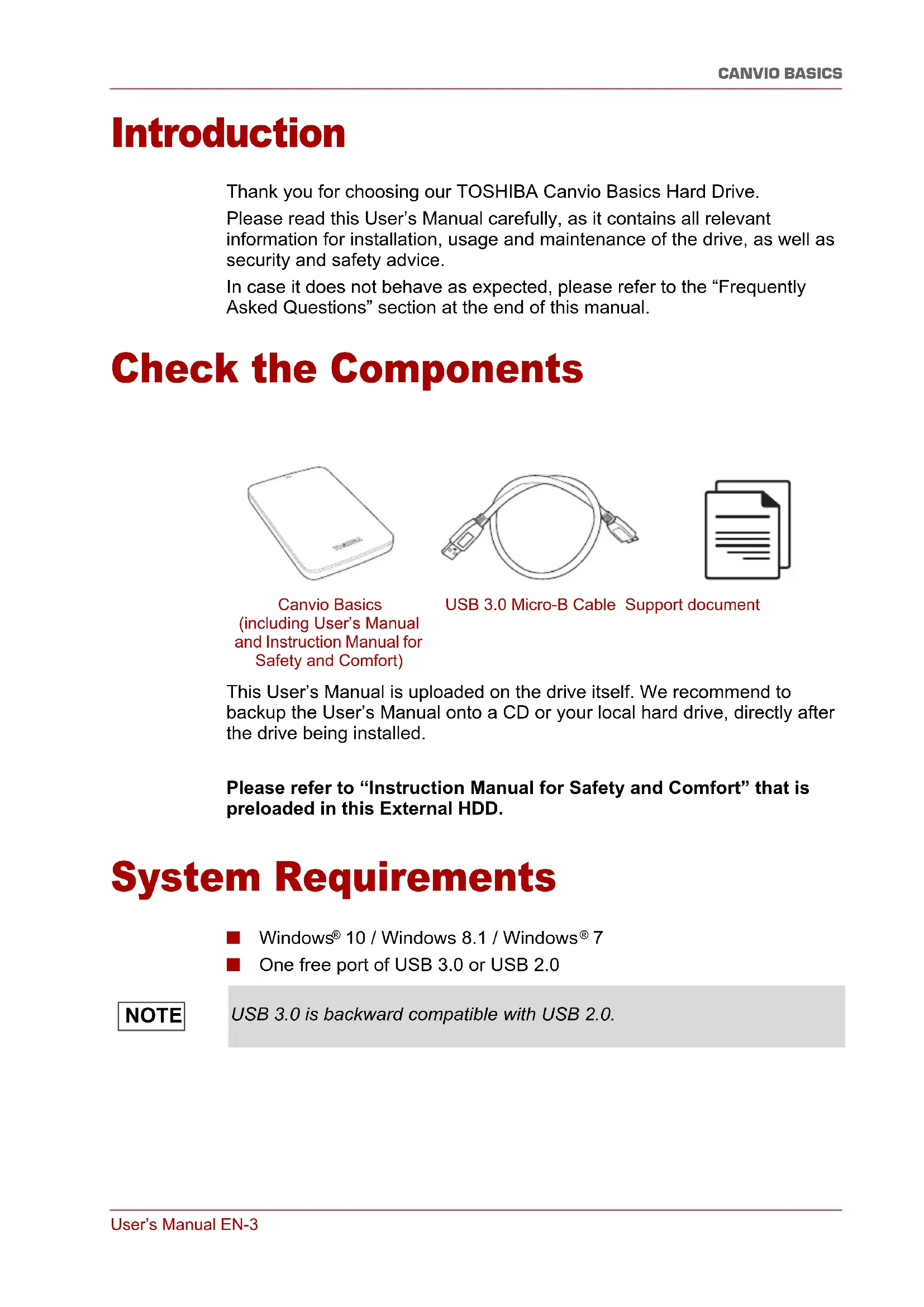


| Product type | External portable hard drive |
| Brand | Toshiba |
| Model | Canvio Basics Exclusive |
| Capacity | Varies by model (factory formatted, ready to use) |
| Interface | USB 3.0 (compatible with USB 2.0) |
| Power supply | Via USB bus (no power adapter required) |
| Dimensions (approx.) | 78 x 109 x 14 mm |
| Weight (approx.) | 130 g |
| Supported operating systems | Windows 10, 8.1, 7 |
| Formatting | Pre-formatted at factory, ready to use |
| Main functions | Data backup, portable storage, plug-and-play |
| Activity indicator | Yes, power/data indicator |
| Maintenance and cleaning | Clean with a dry cloth, unplug before cleaning |
| Safety | Do not expose to moisture, shocks; avoid explosive environments |
| Spare parts and repairability | Not user-serviceable; data recovery service available |
| General information | CE compliant, REACH; Limited warranty (see Toshiba website) |
Frequently Asked Questions - Canvio Basics Exclusive TOSHIBA
User questions about Canvio Basics Exclusive TOSHIBA
0 question about this device. Answer the ones you know or ask your own.
Ask a new question about this device
Download the instructions for your External hard drive in PDF format for free! Find your manual Canvio Basics Exclusive - TOSHIBA and take your electronic device back in hand. On this page are published all the documents necessary for the use of your device. Canvio Basics Exclusive by TOSHIBA.
USER MANUAL Canvio Basics Exclusive TOSHIBA
Introduction 3
Check the Components 3
System Requirements 3
4
Connecting the drive to your computer 4
Dismount and disconnect the drive 5
Further Advise 5
Frequently Asked Questions 6
Troubleshooting 7
TOSHIBASupport 8
Regulatory statements 8
Introduction
Thank you for choosing our TOSHIBA Canvio Basics Hard Drive.
Please read this User's Manual carefully, as it contains all relevant information for installation, usage and maintenance of the drive, as well as security and safety advice.
In case it does not behave as expected, please refer to the "Frequently Asked Questions" section at the end of this manual.
Check the Components
Canvio Basics (including User's Manual and Instruction Manual for Safety and Comfort)
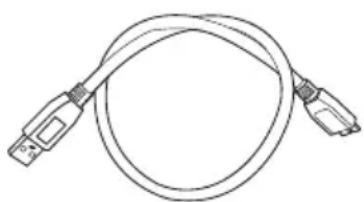
USB 3.0 Micro-B Cable Support document

This User's Manual is uploaded on the drive itself. We recommend to backup the User's Manual onto a CD or your local hard drive, directly after the drive being installed.
Please refer to "Instruction Manual for Safety and Comfort" that is preloaded in this External HDD.
System Requirements
Windows® 10 / Windows 8.1 / Windows® 7
One free port of USB 3.0 or USB 2.0
NOTE
USB 3.0 is backward compatible with USB 2.0.
Installing the drive
Some information about bus-powered operation and the supplied USB cable:
- Your drive is bus-powered. Therefore, there is no need to connect an external power supply as all needed current will be supplied by the connected USB port(s).
Passive USB hubs or USB connectors like keyboards, mice or similar products cannot be used or connected to the drive.
Make sure that the connectors will be inserted correctly.
Never use pressure for connecting the cables. Check the polarity before connecting!
Connecting the drive to your computer
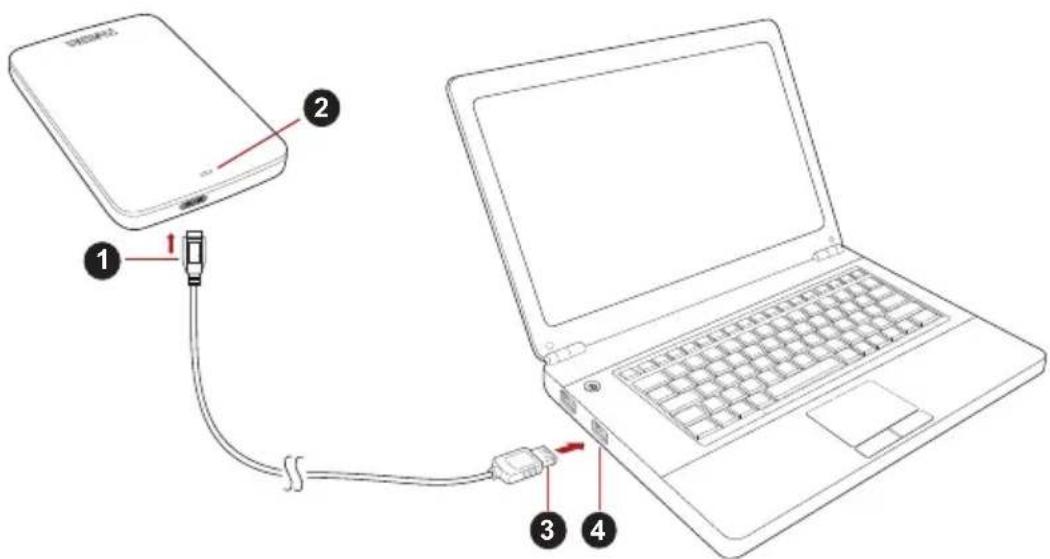
- USB 3.0 Micro-B connector 3. USB 3.0 Standard-A connector
- Power/Data indicator light 4. USB 3.0 host
backward compatible to USB 2.0
- With your computer powered on and fully booted up, plug the USB 3.0 Standard-A connector into a USB port of your host system, or an active USB HUB.
NOTE
You may need USB 3.0 Express Card Host Controller for your computer if the computer doesn't have USB 3.0 port. You also can connect the device to USB 2.0 port of your computer, However the transfer rate will be downgraded to that of USB 2.0.
- Now, plug the USB 3.0 micro-B connector into the corresponding port of the drive itself.
Immediately,
the Power/Data indicator light will illuminate
the drive will power up
the drive should mount and a new drive icon should appear in "My Computer"
Dismount and disconnect the drive
It is strongly recommended not to unplug the drive by just unplugging the cable connection as it may be that data is written to the drive at that time.
Such data will be lost and the drive may be damaged physically!
Please follow the steps below for a safe dismount of the drive (Windows®).
- Click the "Hardware and Eject Media - icon"
A pop-up message box will appear listing the external devices connected to your computer. - Select the TOSHIBA drive to eject.
After a few seconds, you will get the notification that it is now safe to remove the device. - Click "OK" and you can unplug the drive now.
Cleaning the drive case / enclosure
Before cleaning the drive, make sure that it's physically disconnected from the computer. We suggest to use standard products for cleaning it and to make sure that possible remaining liquid on the surface will be wiped off.
Further Advise
For any further action of normal operation such as renaming the drive, backup data, or file management, we suggest to read your operation system user's manual.
Also for maintenance tasks such as defragmenting and optimisation we suggest to refer to the operating system user's manual.
We also strongly suggest having anti-virus software installed to protect your data against intended damage caused by virus or trojan programs.
Frequently Asked Questions
Q: Do I need to format my drive after installation?
A: No, as the drive is already formatted during the manufacturing process.
Q: Do I need USB drivers for Windows?
A: No, they are already available with your operating system.
Q: Can I boot my system from the drive?
A: No, because Windows® does not support booting from external hard drives.
Q: Why doesn't the drive need a fan?
A: The drives are designed to have optimal heat dissipation, and therefore no fan is required. This results in a near silent operation.
Q: Why is the capacity of my drive (as shown in Windows®) lower than the drives actual stated capacity?
A: This difference can be explained because of the different methods of calculating the capacity.
Hard drive manufacturers calculate on the decimal system, while the operating system calculates in the binary system.
Example decimal:
[ 1\mathrm{{TB}} = 1,{000}\mathrm{{GB}} ]
[ 1GB = 1,000MB = 1,000,000KB = 1,000,000,000 ] bytes
Example binary:
[ 1GB = 1,024MB = 1,048,576KB = 1,073,741,824 bytes ]
As a result, a 1TB (decimal) hard disk appears in Windows to have just 931GB (binary).
Q: Can I use my drive to copy an operating system from one computer to another?
A: No, you must follow the operating system supplier instructions for installation. A simple copy does not work.
Q: Does Toshiba offer a data recovery services?
A: Yes, Toshiba offers a Data Recovery Service for external hard drives. Please check our website www.toshiba-europe.com/services for further information about this service.
Troubleshooting
My computer does not recognize the disk drive at all.
Make sure all of your connections are secure.
If your drive is connected via a USB hub, make sure that it has its own power supply.
If using an add-on card, make sure it is working properly and update the software/firmware.
Is it dangerous if the drive feels warm whilst in operation?
A: This is normal, and therefore not dangerous.
The drive gives me a "Device cannot start."
A: Two possible reasons. It is either a power problem and you should check the connections, or the drive has a malfunction and requires service.
I cannot see my drive in "My Computer", but it does appear in the Device Manager.
A: Follow these instructions:
- Right-click "My Computer".
- Select "Manage" in the pop-up menu.
- Select "Disk Management". You should see a list of available storage devices.
- Check whether your drive is listed.
- Right-click the right hand box and select "Delete Partition" in the pop-up menu.
- Right-click the box and select "Create New Partition" in the pop-up menu.
- Then select "Primary Partition" in the partition wizard window. Click next.
- A drive letter will be displayed, which you can change. Click next.
- Confirm to format the drive.
NOTE
When you format the drive all the data on your drive will be deleted.
As I try to format the drive, I receive the message "Could not complete format".
A: This can be caused by formatting the drive with FAT file system. Try "NTFS" file system. This should solve the problem.
TOSHIBA Support
Need help?
Please contact TOSHIBA's hard drive and storage products support page:
www.toshiba.eu/externalstorage/support
For warranty claims, please check: www.externalhdd.storrepair.de/
Regulatory statements
CE Compliance
This product is CE marked in accordance with the requirements of the applicable EU Directives. Responsible for CE marking is Toshiba Electronics Europe GmbH, Hansaallee 181, 40549 Dusseldorf, Germany. A copy of the official Declaration of Conformity can be obtained from following website: http://epps.toshiba-tec.com.
Working Environment
The Electromagnetic Compliance (EMC) of this product has been verified typically for this product category for a so called Residential, Commercial & Light Industry Environment. Any other working environment has not been verified by Toshiba and the use of this product in these working environments is maybe restricted or cannot be recommended. Possible consequences of the use of this product in non verified working environments can be: Disturbances of other products or of this product in the nearby surrounding area with temporarily malfunction or data loss/ corruption as result. Example of non verified working environments and related advices:
Industrial environment (e. g. where 3-phase 380V mains is being used mainly): Danger of disturbances of this product due to possible strong electromagnetic fields especially near to big machinery or power units.
Medical environment: The compliance to the Medical Product Directive has not been verified by Toshiba, therefore this product cannot be used as a medical product without further verification. The use in usual office environments e.g. in hospitals should be no problem if there is no restriction by the responsible administration.
Automotive environment: Please search the owner instructions of the related vehicle for advices regarding the use of this product (category).
■ Aviation environment: Please follow the instructions of the flight personnel regarding restrictions of use.
Additional Environments not Related to EMC
- Outdoor use: As a typical home/office equipment this product has no special resistance against ingress of moisture and is not strong shock proofed.
- Explosive atmosphere: The use of this product in such special working environment (Ex) is not allowed.
Following information is only valid for EU-member States:
REACH - Compliance Statement
The new European Union (EU) chemical regulation, REACH (Registration, Evaluation, Authorization and Restriction of Chemicals), entered into force on 1 June 2007.
Toshiba will meet all REACH requirements and is committed to provide our customers with information about the chemical substances in our products according to REACH regulation.
Disposal of products
The use of the symbol indicates that this product may not be treated as household waste. By ensuring this product is disposed of correctly, you will help prevent potential negative consequences for the environment and human health, which could otherwise be caused by inappropriate waste handling of this product. For more detailed information about recycling of this product, please contact your local city office, your household waste disposal service or the shop where you purchased the product.
The following information is valid only for Turkey:
Compliant with AEEE Regulation.
Notices
©2016 TOSHIBA Electronics Europe GmbH. All rights reserved.
TOSHIBA reserves the right to make technical changes. TOSHIBA assumes no liability for damages incurred directly or indirectly from errors, omissions or discrepancies between this product and the documentation.
The Toshiba name and its logos are registered trademarks of Toshiba. Other trademarks mentioned or appearing in this document are the property of their respective owners. Errors and omissions excepted.
Windows is either registered trademark or trademark of Microsoft Corporation in the United States and/or other countries.
All other trademarks are the properties of their respective owners.
One Gigabyte (1GB) means 10^9 = 1,000,000,000 bytes and one Terabyte (1TB) means 10^12 = 1,000,000,000,000 bytes using powers of 10. A computer operating system, however, reports storage capacity using powers of 2 for the definition of 1GB = 2^30 = 1,073,741,824 bytes and 1TB = 2^40 = 1,099,511,627,776 bytes, and therefore shows less storage capacity. Available storage capacity (including examples of various media files) will vary based on file size, formatting, setting, software and operating system and other factors.
Obsah
www.toshiba.eu/externalstorage/support
1 GB = 1.024 MB = 1.048.576 KB = 1.073.741.824 Byte
www.toshiba.eu/externalstorage/support
www.toshiba.eu/externalstorage/support
1 GB = 1.024 MB = 1.048.576 KB = 1.073.741.824 bytes
No veo la unidad en "Mi PC", except that it is possible to use the Administrative Director of Dispositivos.
www.toshiba.eu/externalstorage/support
1 Gt = 1000 Mt = 1000000 kt = 1000000000 tavua
Binaarjärestelmä:
1 Gt = 1024 Mt = 1048576 kt = 1073741824 tavua
www.toshiba.eu/externalstorage/support
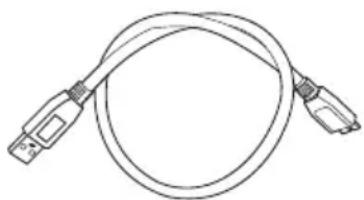
Cable USB 3.0 micro-B
1 Go = 1000 Mo = 1000000 Ko = 100000000 octets
Exemple binaire :
1 Go = 1 024 Mo = 1 048 576 Ko = 1 073 741 824 octets
www.toshiba.eu/externalstorage/support
A: A: A: A: A: A: A: A: A: A: A: A: A: A: A: A: A: A: A: A: A: A: A: A: A: A: A: A: A: A: A: A: A: A: A: A: A: A: A: A: A: A: A: A: A: A: A: A: A: A: A:
mTOpw va 8w tn movada biokou otnv EITIOyN "O YTOAOYIOIOTnC MOU", aAa eMgavizetai otn DIAxEipion SuOKeuwv.
www.toshiba.eu/externalstorage/support
Tia aIomegaic yyyunong, EtnoKeepTe Tn dieuovon:
www.externalhdd.storrepair.de/
1 GB = 1.024 MB = 1.048.576 KB = 1.073.741.824 bajtova
Posljedica toga je da tvrdi disk od 1 TB (decimalni) u sustavu Windows ima samo 931 GB (binarni).
www.toshiba.eu/externalstorage/support
U vezi popravaka u jamstvenom roku potražite:
www.externalhdd.storrepair.de/
Regulativne izjave
CE sukladnost
Ovaj proizvod nosi CE oznaku sukladno zahtjevima važecih direktiva EZ. Toshiba Electronics Europe GmbH, Hansaallee 181, 40549 Düsseldorf, Njemačka odgovorna je za CE oznake. Kopija službene Izjave o sukladnosti se moze pronači na ovoj internetskoj stranici:
http://epps.toshiba-tec.com.
Radno okruženje
Elektromagnetska sukladnost (EMC) ovo proizvoda se obicno verificirata za kategoriju ovo proizvoda i vrijedi za takozvana stambena, komercijalna i lakoindustrijska okruženja. Sva druga okruženja u Toshibi nisu verificirana i upotreba ovo proizvoda u tim radnim okruženjima moze bitiograničena ili se ne preporučuje. Moguce posljedice korištenja ovo proizvoda u neverificiranim okruženjima mogu biti: ometanje rada drugih urežaja ili ovo gureda u blizem okolnom području, posljedica Čega je povremeni neispravan rad ili gubitak/ostećenje podataka. Primjeri neverificiranih radnih okruženja i odgovarajući savjeti:
Industrijsko okruženje (npr. gdje se pretežno koristi trofazna mreža od 380 V): opasnost od smetnji na ovom urežaju zbog mogucišn snažnih elektromagnetskih polja osobito u blizini velikih strojeva ili jedinica za napajanje.
■ Medicinska okrużenja: sukladnost s direktivom o medicinskim proizvodima;nije verificirana u Toshibi, te se stoga ovaj proizvod bez dalnjih verifikacja ne smije koristiti kao medicinski proizvod. Upotreba u uobićajenim uredskim okrużenjima, npr. u bolnicama ne predstavlja problem ako odgovarajuća administracja;nije nametnula odgovarajućaogranićenia.
Automobilska oprema: molimo vas potražite savjete o upotrebi ovog proizvoda (kategorije) u vlasnickim uputama svakog pojedinog vozila.
Zrakoplovna oprema: držite se uputa koje cete dobiti od zrakoplovnog osoblja u vezi ograničenja uporabe.
m = 311 ;
Ovaj znak označava da se ovaj proizvod ne smije smatrati kućnim OTPadom. Propisnim zbrinjavanjem ovog ureža pomocoćete u prevalciji mogučih negativnih posljedica po okoliš i ljudsko zdravlje, do kojih bi u protivnom moglo doci nepropisnim zbrinjavanjem ovog proizvod u OTPad. Vise pojedinosti o reciklranju ovog proizvod zatražite od lokalnih vlasti, vaše lokalne organizacije za zbrinjavanje OTPada ili trgovine u kojoj ste kupili ovaj proizvod.
www.toshiba.eu/externalstorage/support
www.toshiba.eu/externalstorage/support
1 GB = 1.024 MB = 1.048.576 KB = 1.073.741.824 bytes
A: Volg deque instructions:
www.toshiba.eu/externalstorage/support
Feilmeldingen Device cannot start (Kan/DD) vises.
www.toshiba.eu/externalstorage/support
For garantikrav, se www.externalhdd.storrepair.de/
www.toshiba.eu/externalstorage/support
1GB = 1.024MB = 1.048.576KB = 1.073.741.824 bytes
www.toshiba.eu/externalstorage/support
www.toshiba.eu/externalstorage/support
Za zahtve u vezi garancije pogledajte stranu:
www.externalhdd.storrepair.de/
Regulativne izjave
Usaglašenost sa oznakom CE
Ovaj proizvod nosi oznaku CE u skladu sa zahtevima primenljivih Direktiva EU. Odgovorna za oznaku CE je kompanija Toshiba Electronics Europe GmbH, Hansaallee 181, 40549 Dusseldorf, Nemačka. Primerak zvanične Izjave o usaglašenosti možete preuzeti sa sledeće vib lokacije: http://epps.toshiba-tek.com.
Radno okruženje
Elektromagnetna usaglasenost (EMC) ovog proizvoda odobrena je tipicno za ovu kategoriju uredaja, za takozvano stambeno, komercijalno i neintezivno industrijsko okruzjenje. Svako drugo radno okruzjenje kompanija Toshiba ne odobrava, a upotreba ovog proizvoda u takvim radnim okruzjenima moze biti ograničena ili se ne moze preporuciti. Moguce posledice upotrebe ovog proizvoda u neodobrenim radnim okruzjenima mogu biti ometanja drugih proizvoda ili ovog proizvoda u okolnoj oblasti uz privremeni otkaz ili gubitak/ostećenje podataka kao rezultat. Primer neodobrenih radnih okruzjenja i saveta vezanih za njih:
Industrijsko okruženje (npr. gde se uglavnom koristi trofazno napajanje od 380 V): opasnost od smetnji kod ovog proizvoda usled mogucih snažnih elektromagnetnih polja, posebno u blizini velikih mašina ili strujnih ureăda.
■ Medicinsko okruženje: usaglasenost sa Direktivom za medicinske proizvode不同程度a od strane kompanije Toshiba, stoga se ovaj proizvod ne moze koristiti u medicinske svrhe bez dodatne potvrde. Upotreba u uobičajenim kancelarijskim okruženjima, npr. u bolnicama, ne bi trebalo da predstavlja problem, ukoliko ne postoje ograničanja od strane odgovorne administracione.
Automobilsko okrużenje: pogledajte korisnička uputstva za dato vozilo za savete koji se odnose na upotrebu ovog proizvoda (kategorija).
Vazdušno okruženje: sledite savete letačkog osoblja koji se odnose na ograničenja upotrebe.
Ostala okrużenja koja nisu vezana za EMC
Upotreba na otvorenom: kao tipicna kuca/kancelarijska oprema, ovaj proizvod nema posebnu opcornost na prodor vlage i nije otporan na jak udar.
Eksplozivna atmosfera: upotreba ovog proizvoda u takvom specijalnom radnom okrużenju (Ex){nije dozvoljena.
Informacije koje slede vaze isključivo za korisnike u državama-članicama EU:
REACH - Izjava o usaglašenosti
Novi propis Evropske Unije (EU) o hemikalijama, REACH (Registration, Evaluation, Authorization and Restriction of Chemicals - Registracija, procena, odobrenje i ograničenje upotrebe hemikalija), stipio je na snagu 1. juna 2007.
Kompanija Toshiba ce zadovolji sve zahteve propisa REACH i posvećena je pružanju informacija svojim korisnicima o hemijskim supstancama u svojim proizvodima u skladu sa propisom REACH.
Odlaganje proizvoda na OTPad
Upotreba ovog symbola ukazuje na to da se ovaj proizvod ne sme smatrati opadom domacinstva. Starajuci se da se ovaj proizvod pravilno odloži na opad, pomoci cete u sprečavanju mogucih negativnih posledica po prirodnu sredinu i ljudsko zdravlje, do kojih bi u suprotnom moglo doci nepravilnim rukovanjem opadom ovog proizvoda. Vise informacija u vezi s recikliranjem ovog proizvoda možete dobiti ukoliko se obratite lokalnoj upravi, preduzeću koje odnosi vaš domaci opad ili prodavnici u kooj ste kupili ovaj proizvod.
www.toshiba.eu/externalstorage/support
IHHOpMaunO npedbBneHn npTeH3n no rapaHTn cM. no aDpecy www.extenalhdd.storrepair.de/
3aЯВленья O COOTBETCTBnHopMaTHNbHbIM Tpe6obahniaM
CootBetCTBne Tpe6obAHnram CE
Данhoe Издени IMeET МаркИрOBky CE, OTBeчaIOуTO Tpe6OBaHnM COOTBETCTByIOxДиpeKtNB EC. OТВЕТСBEHNOCTb 3a 3Tu МаркИрOBky Hecet KOMпанЯ Toshiba Electronics Europe GmbH, Hansaallee 181, 40549 Dusseldorf, Germany (Германя). C TeKCTOM oФицальнОД DeКларaцIN COOTBETCTBnA MoxHo O3HaKOMNTbCЯ Ha Be6-caITe http://epps.toshiba-tek.com.
YcNoBnE KcNpyatauH
CoOTBcTCTBn DaHNOr O3dEINr Tpe6OBaHNrM B OTHOWeHNn 3JIeKTPOMarHHTHO CoBMecTmOcTN IpOBepraIOCB TINOBbIM DJIa DAHHo KaterOpnn I3dEINr CnOC6OM npimEnHtBJHO K TaK Ha3bIBaEMbIM 6bITOBbIM, KOMMepeckn m MeJIKOPomByIshJeHHbIM ycNobnM. PpOBepKa HA BO3MOxHOCTb NcNoJIb3OBaHNr B dpyrnx ycNobnX KopnpaCnei Toshiba He npOBoDInacb. NcNoJIb3OBaHNr DaHHoro n3dEINr B dpyrnx ycNobnX MoKeT 6bITb OrpaHnueHo n He peKomeHdyetcR. Bo3MOxHbI CNeDuOuIe NocJeDCTBn rNCNoJIb3OBaHNr DaHHoro n3dEINr B HEPPOBepeHHbIX ycNobnX: HapUSeHne HopMaJIbHO pa60TbI dpyrNX HaxOJaXxCra NObJIb3OCTn I3dEINr IINI daHHoro n3dEINr C NocJeDyUoIeMM BbIXODom IN 3 CTPOr IIn6o Notepen IINI NOBpeKDeHnem DaHHbIX. PpIMePbI HEPPOBepeHHbIX ycNobN rNCNoJIb3OBaHNr N COOTBcTCTByOuIe peKomeHdaCNI:
IpnmbiHneHHbIe ycnoBn (HaNPmep, MeCTa, rpe npemMyueCTBeHNO nCNoJIb3yETcra 3-0a3HbI ToK c HaprrxHeHem 380 B): onachoctb HapyuHnB pa6Ote daHHoro I3dJIINr I3-3a BO3MOXHbIX CnJIbHbIX 3JIeKTPOMaHHTbIX NOIeN, OCObeHNO prIOM C KpynHbIM o6OpyIDOBaHHeM N 3HEpRETuYeCKMn YCTaHOBkAMN.
MeiHcknue ycnoBna: Kopnpaunr Joshiba He npoBoiHa npOBepky DaHHoro n3deJnHa COOTBeCTBne DnpeKTBe O MeiHcHcknx N3dEInyX, PO3tOMy DaHHoe N3deJnne HEnb3ra NcNoIb3OBAtB B MeiHcHcknx UeJx 6e3 COOTBeCTByUoUeN npOBepKn. IcNoJIb3OBAHne B O6bIHyBIX OΦIChbIX YcNOBnX, HApPIMep, B BoJIbHIuaX, He DoJIxHO npIBecTI K BO3HKnHObeHIO npoBlem pRn OTCyTCTBnOrpaHHeHn Co CTOPOHbI OTBECTBeHHo aDMMHnCTpaCnn.
A BTOTaHcNOpT: peKOMeHdaaunB OTHoUeHn NcNoJb3OBAHn JaHHoro n3dJIy (IIN KATEOPUN N3deJIy) CMOTpTe B pyKOBoDCTBe IONb3OBaTeNA COOTBeTCTByIOUeTo TpaHCnOpTHOrO cpeDCTBa.
Bo3nyhBn TpaHcnpT: co6IouaTe yka3aHnaJeTHoro nepcoHa na oIgpanuHHeHIO nCNoJb3OBAHnI N3dEIny.
Support for TOSHIBA 7
Bestammelser 7
Inledning
www.toshiba.eu/externalstorage/support
www.toshiba.eu/externalstorage/support
Ak si chcete uplatnit narok vyplyvajuci zo zaruky, pozrite si stranku: www.externalhdd.storrepair.de/
www.toshiba.eu/externalstorage/support
www.toshiba.eu/externalstorage/support
J 3.0 Express Card Host Controller
JSLjssSLSL USB2.0 jia jgljg JSLsKg USB jia jssSLL
USB2.0
"Hardware and Eject Media" 1
jsslll lglgall jzjll 0jgsybl ailiaaaiiailw r g
TOSHIBA
jgl jgl jgl jgl jgl jgl jgl jgl jgl jgl jgl jgl jgl jgl jgl jgl jgl jgl jgl jgl jgl jgl jgl jgl jgl jgl jgl jgl jgl jgl jgl jgl jgl jgl jgl jgl jgl jgl jgl jgl jgl jgl jgl jgl jgl jgl jgl jgl jgl jgl
"OK" 1e jai -yJy Jzall JsiSg
/
a a a a a a a a a a a a a a a a a a a a a a a a a
.(trojan) 1
J 1
4j j 1000000000000000000000000000000000000000000
eill aac 1 jll jn all gni pi 2
?Windows USB J
L 1
jll jill jll j:
J 1700000000000000000000000000000000000000000000
:
y 1
J
J (Windows 品 )
aewll 1w 2y
iilll lll l lai i y
:sslll lill
1,000= 1
1,000,000,000 = 1,000,000 = 1,000 = 1
:ilill lill
1073741824 = 1048576 = 1024 = 1
1 1 1
Windows
() 931
j 1
Jy y 1
:
Data Recovery Service
www.toshiba-europe.com/ liagao jia jia jia jia jia jia jia jia jia jia jia jia jia jia jia jia jia jia jia jia jia jia jia jia jia jia jia jia jia jia jia jia
aodll oio jc clogal ju yjal services
JSL
y
1
USB
A
add-on card)
1
a
a
1j 1
Device cannot start
j 1 j 1 j 1 j 1 j 1 j 1 j 1 j 1 j 1 j 1 j 1 j 1 j 1 j 1 j 1 j 1 j 1 j 1 j 1 j 1 j 1 j 1 j 1 j 1 j 1 j 1 j 1 j 1 j 1 j 1 j
ii
Device Manager My Computer
:
"My Computer" 1e JnJgall jzj
"Manage" jai -
"Disk Management" -
aaii jjii 8 jgai s
-
"Delete Partition"
-
aieeial
"Create New Partition"
-
aaii
"Primary Partition" -Ylll l jai.
1
1 9
aiee gaoi iiaai 1000
"Could not complete format"
.
FAT 1
:
Aikaiall Jj jy jy jy. "NTFS" 1alal
#
: 1
www.toshiba.eu/externalstorage/support
www.externalhdd.storrepair.de/;jzj
a#i1
CE
EU Ue Tj CEE CE JcIaI IcIy
Toshiba Electronics 10000000000000000000000000000000000000000000000000000000000000000000000000000000000000000000000000
Hansaallee 181, 40549 Dusseldorf 1111111111111111111111111111111111111111111
(Declaration of Conformity) clll (Decription of Conformity) clll (Declaration of Conformity) clll (Declaration of Conformity) clll (Declaration of Conformity) clll (Declaration of Conformity) clll (Declaration of Conformity) clll (Declaration of Conformity) clll (Declaration of Conformity) clll (Declaration of Conformity) clll (Declaration of Conformity) clll (Declaration of Conformity) clll (Decription of Conformity) clll (Decription of Conformity) clll (Decription of Conformity) clll (Decription of Conformity) clll (Decription of Conformity) clll (Decription of Conformity) clll (Decription of Conformity) clll (Decription of ConformITY) clll (Decription of ConformITY) clll (Decription of ConformITY) clll (Decription of ConformITY) clll (Decription of ConformITY) clll (Decription of ConformITY) clll (Decription of ConformITY) clll (Decription of ConformITY) clll (Decription of ConformITY) clll (Decription of ConformITY)
CE
JooJI
Aeill l ELL (EMC) y E 1000000000000000000000000000000000000000000000000000000000000000000000000000000000000000
aaglll lalldn nnnn nn nnnn nnnn nnnn nnnn nnnn nnnn nnnn nnnn nnnn nnnn nnnn nnnn nnnn nnnn nnnn nnnn nnnn nnnn nnnn nnnn nnnn nnnn nnnn nnnn nnnn nnnn nnnn nnnn nnnn nnnn nnnn nnnn nnnn nnnn
(Ex) 1
.000
y
REACH
LALs no 1g) REACH 2y
) Restriction of Chemicals, Authorization, Evaluation, Registration
y 1
e 10000000000000000000000000000000000000000000
1.REACH 2.
i
1 1 1 1 1 1 1 1 1 1 1 1 1 1 1 1 1 1 1 1 1 1 1 1 1 1 1 1 1 1 1 1 1 1 1 1 1 1 1 1 1 1 1 1 1 1
aia 1y jil jil
:
AEEE
. TOSHIBA Electronics Europe GmbH 2016©
J 1
1 1
.
y 111111111111111111111111111
I 1