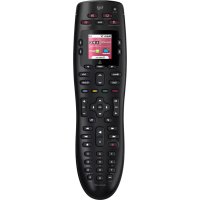
Harmony 665 - Remote control LOGITECH - Free user manual and instructions
Find the device manual for free Harmony 665 LOGITECH in PDF.



| Product Type | Universal Remote Control |
| Brand | Logitech |
| Model | Harmony 665 |
| Power Source | 2 AA batteries (included) |
| Battery Life | Approximately 6 months depending on usage |
| Dimensions (approx.) | 200 x 50 x 25 mm |
| Weight (with batteries) | Approximately 200 g |
| Box Contents | Harmony 665 remote, USB cable, 2 AA batteries, user documentation |
| Display | Backlit LCD screen, displays activities and functions |
| Activity Buttons | Allow launching multimedia activities (watch TV, DVD, etc.) |
| Menu Area | Access to TV menu |
| Color Buttons | Access to cable/satellite functions, customizable |
| Numeric Keypad | To enter channel numbers |
| Playback Area | Play, pause, stop, forward, reverse buttons |
| Volume and Channel Control | Dedicated area for quick adjustments |
| Setup | Via MyHarmony software (setup.myharmony.com), requires USB connection and online account |
| Compatibility | Works with most TVs, DVD players, cable/satellite boxes, etc. |
| Connectivity | Mini-USB port for setup and synchronization |
| Help Button | Resolves synchronization and activity issues |
| Maintenance | Clean with a soft dry cloth, avoid moisture and extreme temperatures |
| Safety | Do not expose to water, do not open, use only recommended AA batteries |
| Spare Parts / Repairability | Standard AA batteries available everywhere, USB cable optional. No official spare parts; contact Logitech support |
Frequently Asked Questions - Harmony 665 LOGITECH
User questions about Harmony 665 LOGITECH
0 question about this device. Answer the ones you know or ask your own.
Ask a new question about this device
Download the instructions for your Remote control in PDF format for free! Find your manual Harmony 665 - LOGITECH and take your electronic device back in hand. On this page are published all the documents necessary for the use of your device. Harmony 665 by LOGITECH.
USER MANUAL Harmony 665 LOGITECH
Advanced Remote Control
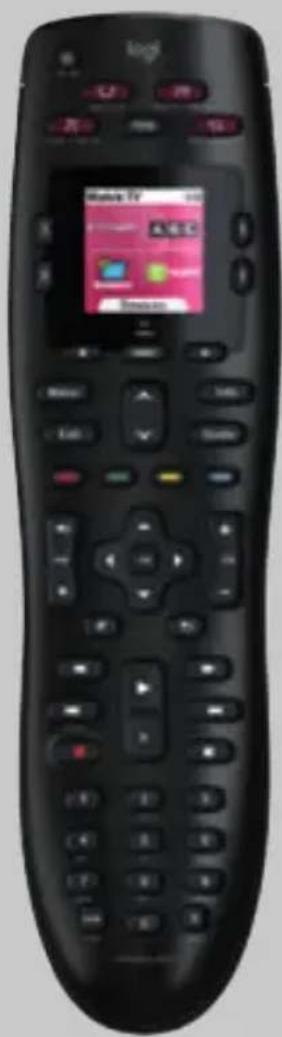
Setup Guide
Languages
English 4
Deutsch 12
Francais 20
Italiano. 28
Espanol. 36
Nederlands. 44
Svenska 52
Dansk 60
Norsk. 68
Suomi 76
Thank you!
The Harmony 665 Advanced Remote Control is your answer to effortless home entertainment. The Activities buttons enable control of all your devices in one convenient remote. You can go from watching TV to watching a DVD to listening to music with the touch of an Activity button. You no longer need to type in codes to get your remote working with your entertainment system. The guided online setup walks you through the step-by-step configuration of your Harmony 665 with your entertainment system and then you'll be ready to sit back and enjoy!
Package contents
- Harmony 665 Advanced Remote Control
- USB cable
- 2 AA batteries
- User documentation
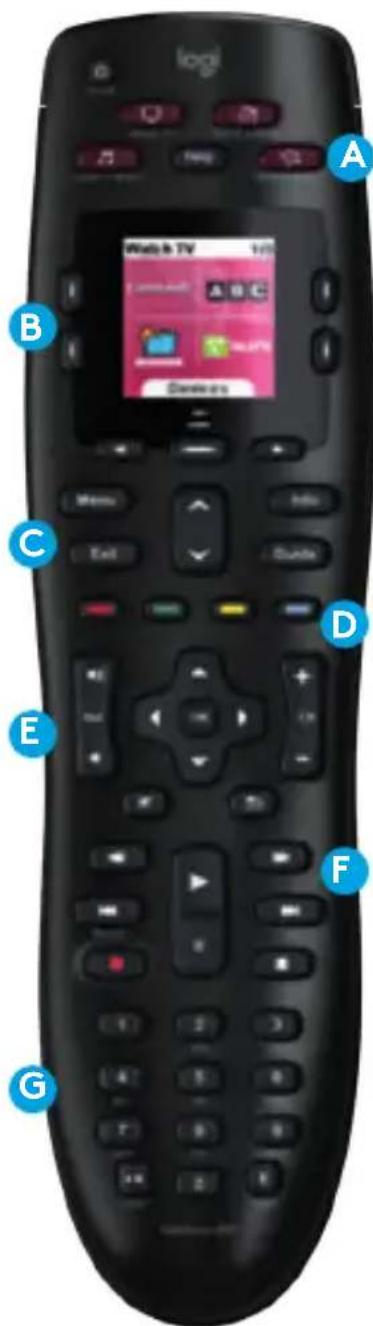
Getting to know your Harmony 665
A The Activity buttons allow you to start your Activities. If an Activity does not start as expected, press the Help button and answer simple questions to get your Activity working the way you expect.
B The buttons around the screen control the functions that appear on the screen such as favorite channels. It also gives you access to other commands and remote functions.
C The menu area controls your TV-screen guides and menu.
D The color-coded buttons perform cable and satellite functions or you can customize them with your favorite commands.
E The channel area puts the most popular buttons at your fingertips. You can control the volume or change channels from one location.
F The play area puts your play, pause, skip, and other buttons in one area for quick access.
G The number pad.
English
What to expect
Set aside at least 45 minutes to set up your Harmony remote.
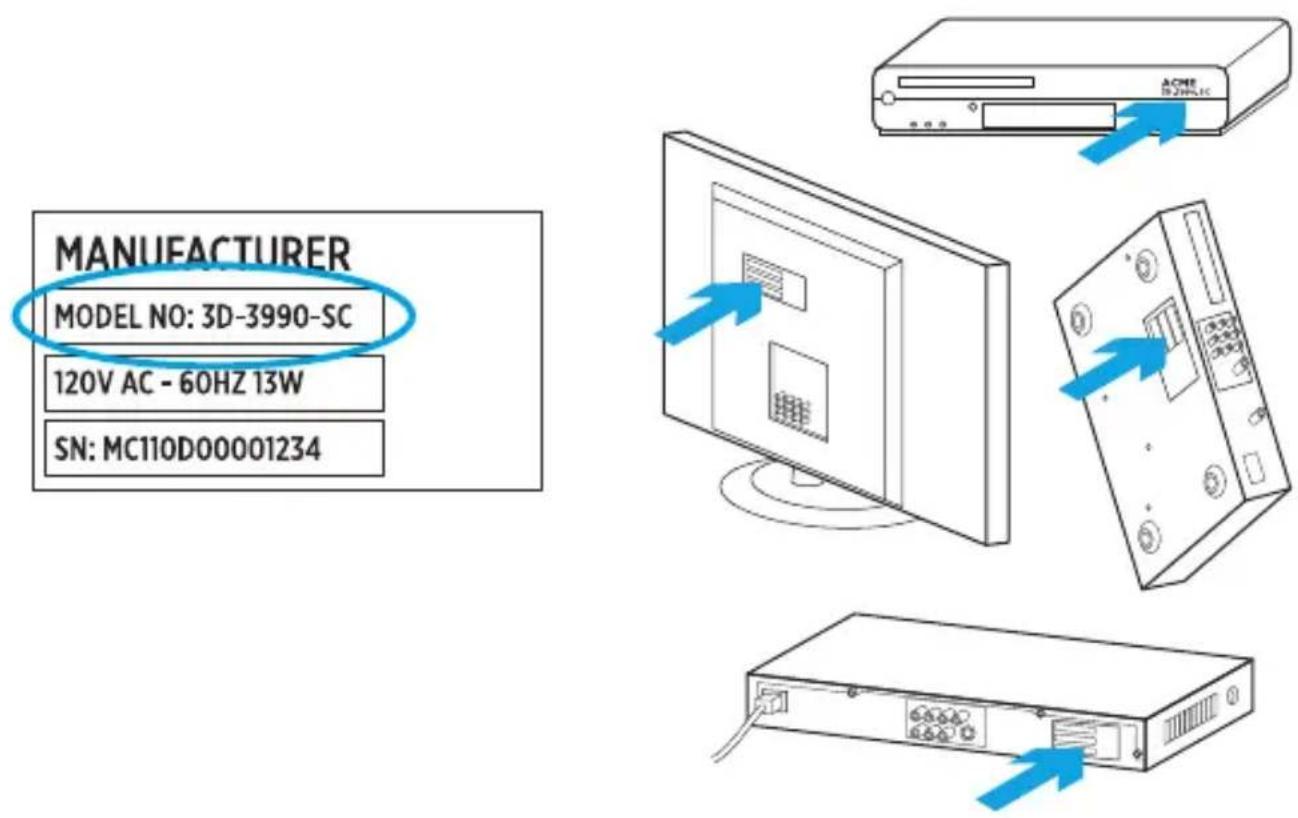
- Collect your manufacturer and model numbers of all the devices in your entertainment system.
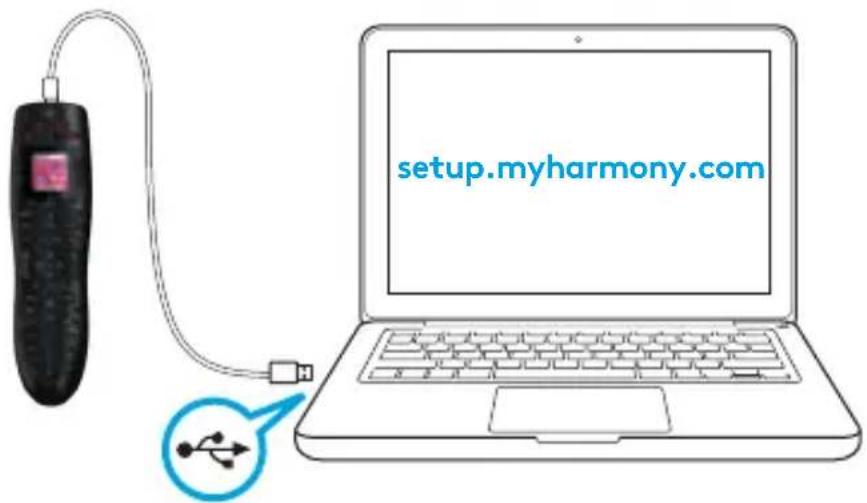
- Visit setup.myharmony.com on your computer and download the MyHarmony desktop software, create your account, and set up your devices an Activities.
- Test your remote.
1 Get details about your system
You will need to collect your devices' manufacturer and model numbers before you start.
- Find the model numbers on the front, back or bottom of each device in your entertainment system.
- Write down the information in the table provided on page 8 (Device type, Manufacturer, Model number).
- Take note of how your devices are connected together. For example, your DVD player is plugged into Video 1 on your TV etc. For more help, see What are Inputs... on the page 8.
| Device Manufacturer Model number | |
| TV | |
| Cable/Satellite | |
| DVD | |
What are inputs... and why do I need to know about them?
Inputs are how your devices are connected. For example, if your DVD player is connected to your TV using Video 1 input, you would need to select Video 1 when setting up your Watch a DVD Activity in the MyHarmony software. Once you set up Activities on your remote, one touch of an Activity button will power on and set the inputs on all the devices needed for that Activity.
2 Setup
Create an account in the MyHarmony desktop software so that you can set up your Harmony 665 to control your home entertainment system.
-
Visit setup.myharmony.com to download the MyHarmony desktop software.
-
After installing the software, connect your remote to your computer using the supplied USB cable.
-
Follow the on-screen instructions to create a new account or sign in to a current Harmony account, and then set up your devices and Activities.
-
Update or sync your remote before you disconnect it from your computer.
3 Test your remote
Test your remote to make sure everything is working.
- Disconnect your remote from your computer and go to your entertainment system.
- Go through the tutorial provided on the remote to get to know your remote better.
- Try your remote to see that it works. If you want to make changes, launch the MyHarmony desktop software from your computer and login to your Harmony account.
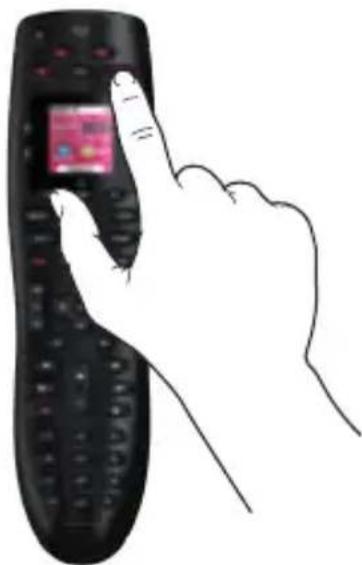
Note: Once setup is complete, use Harmony 665 as your only remote; using other remotes could cause the devices in your Activities to go out of sync. If this happens, use the "Help" button and follow the on-screen instructions.
10 English
We're here to help
Visit support.myharmony.com/665 to find additional support including:
- Set up tutorials
- Support articles
- Troubleshooting guides
- User forums
Vielen Dank!
Besök support.myharmony.com/665 for ytterligare support inklusive:
- Konfigurationsguider
Supportartiklar
Felsökningsguider
Anvandarforum
Mange tak!
© 2017 Logitech. Logitech, Logi, the Logitech logo, Harmony, and other Logitech marks are owned by Logitech and may be registered. All other trademarks are the property of their respective owners.
620-007925.003




Brand : LOGITECH
Model : Harmony 665
Category : Remote control