MPD26 - Mixer AKAI - Free user manual and instructions
Find the device manual for free MPD26 AKAI in PDF.



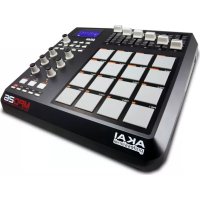
| Product Type | Pad MIDI Controller |
| Brand | AKAI |
| Model | MPD26 |
| Dimensions (L x D x H) | 314 mm x 289 mm x 70 mm |
| Weight | 2.2 kg |
| Power Supply | USB 5V DC (100 mA) or 6V DC 1A AC adapter (optional) |
| Display | Backlit LCD |
| Pads | 16 MPC-style pads, velocity and pressure sensitive, 4 banks (64 virtual pads) |
| Potentiometers | 6 assignable potentiometers |
| Knobs | 6 assignable 360° rotary knobs |
| MIDI Connections | MIDI Input (5-pin DIN), MIDI Output (5-pin DIN), USB (MIDI over USB) |
| Number of Presets | 30 |
| MIDI Channels | 48 channels via USB (16x3 ports), 16 channels via MIDI DIN |
| Main Functions | Note Repeat, Swing, 16 Level, Full Level, Tap Tempo, Time Division, scroll keys, Program Change, Preview |
| Security | Kensington Lock |
| Maintenance and Cleaning | Use a soft, dry cloth. Do not use solvents or abrasive products. |
| Included Software | Editor Librarian (edit and manage presets) |
| Supplied Accessories | Quick Start Guide, USB cable, CD-ROM |
Frequently Asked Questions - MPD26 AKAI
User questions about MPD26 AKAI
0 question about this device. Answer the ones you know or ask your own.
Ask a new question about this device
Download the instructions for your Mixer in PDF format for free! Find your manual MPD26 - AKAI and take your electronic device back in hand. On this page are published all the documents necessary for the use of your device. MPD26 by AKAI.
USER MANUAL MPD26 AKAI
16 pressure and velocity-sensitive MPC pads with four banks each
MPC technologies include Note Repeat, Swing, 16 Level, Full Level, and Tap Tempo
12 software parameters on assignable Q-Link knobs and faders
Dedicated transport controls transmit MMC, MIDI Clock or MIDI CC messages to DAW and sequencing applications
- MIDI output over USB and traditional MIDI I/O for controlling software and hardware
Backlit, easy-to-read screen
USB bus powered, class compliant: plug and play with one USB cable
- Comes with Editor Librarian software
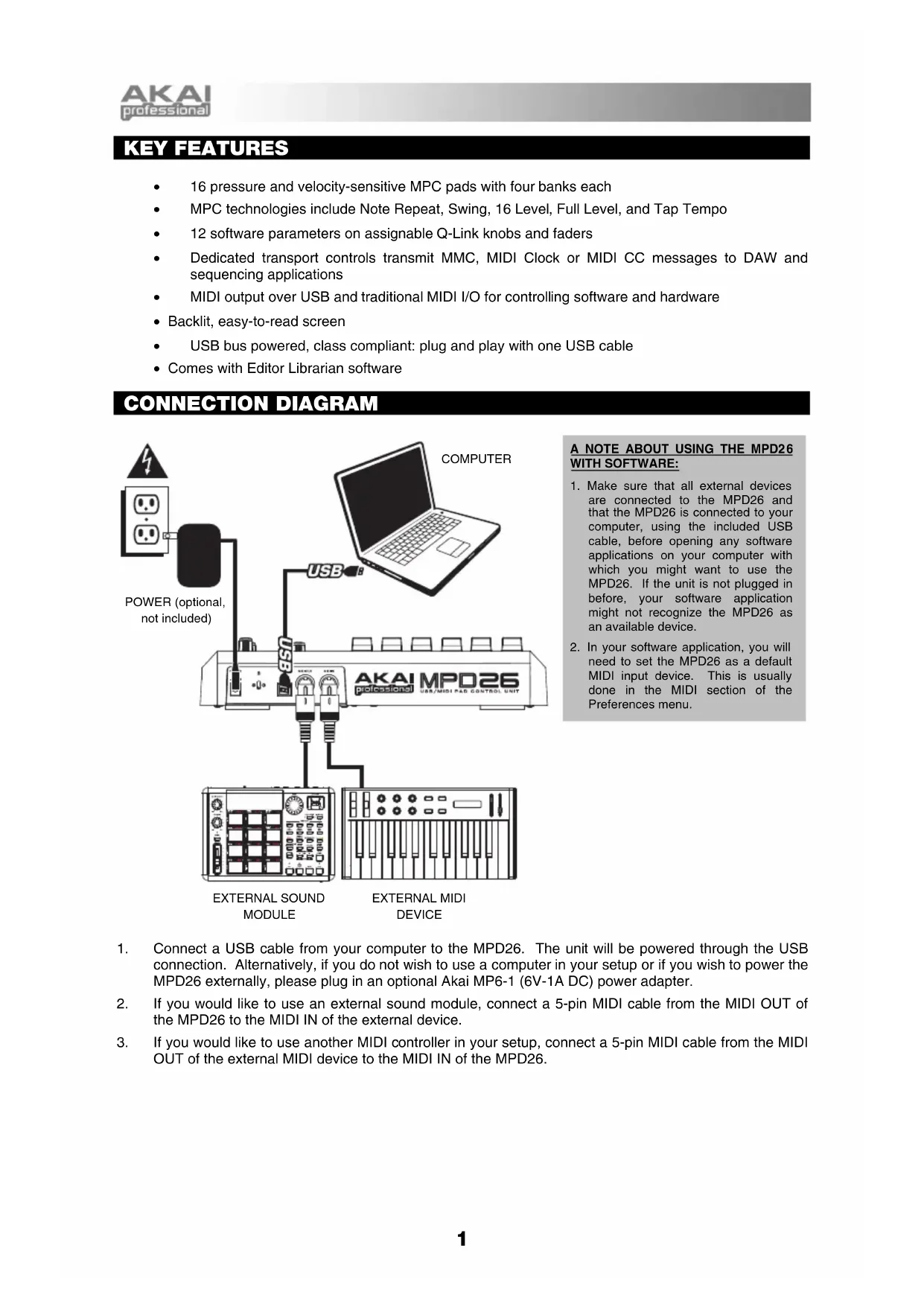
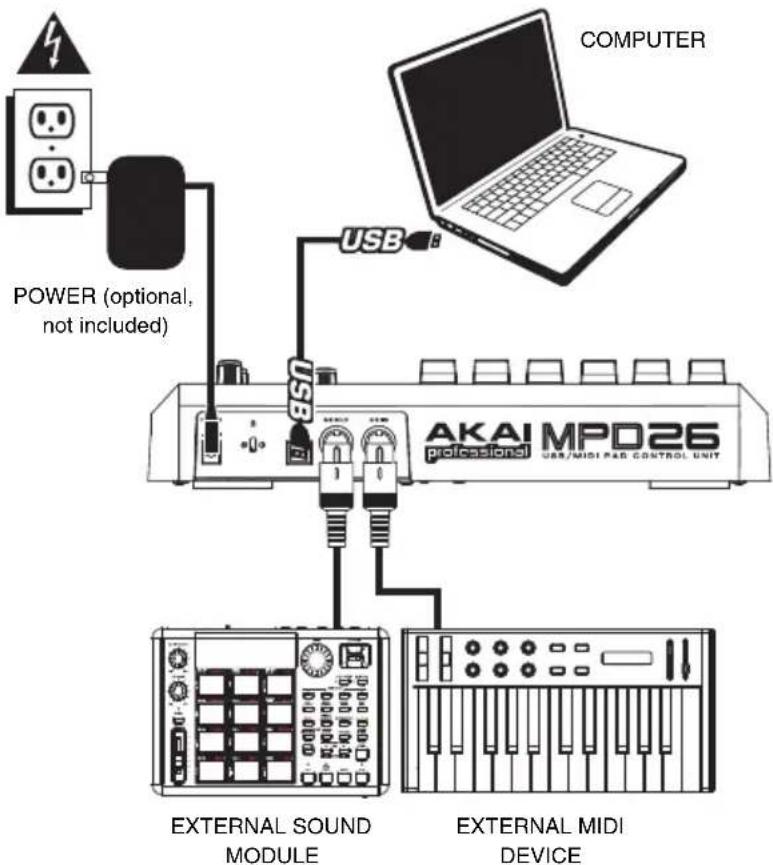
CONNECTION DIAGRAM
A NOTE ABOUT USING THE MPD26 WITH SOFTWARE:
- Make sure that all external devices are connected to the MPD26 and that the MPD26 is connected to your computer, using the included USB cable, before opening any software applications on your computer with which you might want to use the MPD26. If the unit is not plugged in before, your software application might not recognize the MPD26 as an available device.
-
In your software application, you will need to set the MPD26 as a default MIDI input device. This is usually done in the MIDI section of the Preferences menu.
-
Connect a USB cable from your computer to the MPD26. The unit will be powered through the USB connection. Alternatively, if you do not wish to use a computer in your setup or if you wish to power the MPD26 externally, please plug in an optional Akai MP6-1 (6V-1A DC) power adapter.
- If you would like to use an external sound module, connect a 5-pin MIDI cable from the MIDI OUT of the MPD26 to the MIDI IN of the external device.
- If you would like to use another MIDI controller in your setup, connect a 5-pin MIDI cable from the MIDI OUT of the external MIDI device to the MIDI IN of the MPD26.
TOP PANEL OVERVIEW
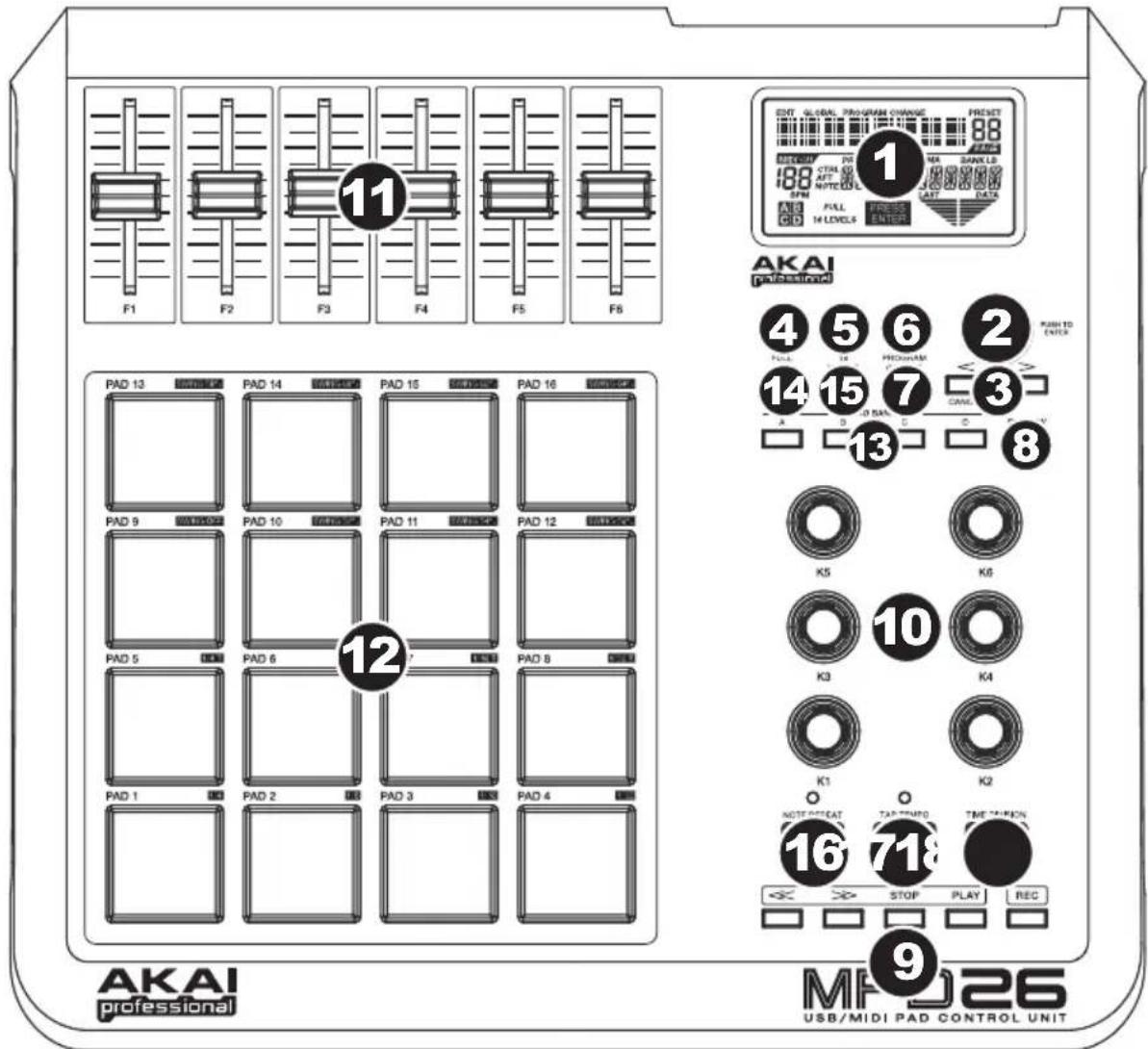
- LCD - The display is used for navigating menus, displaying data, and affecting change on MPD26's options and parameters.
- [VALUE] (Push to Enter) - This dial is used to increment and decrement Presets, parameter values and settings. This dial also functions as an [ENTER] button when it is pressed down.
- [<] AND [>] - These buttons are used for navigate through fields of menus and options. The [<] button also functions as a [CANCEL] button.
- [PRESET] - This button calls up Preset Mode. You can select and recall different Preset programs in this mode.
- [EDIT] - This button calls up Edit Mode, which allows you to edit the behavior of pads, knobs, faders and default settings for each preset.
- [GLOBAL] - This button calls up Global Mode, where MIDI reset commands and global system preferences are set.
- [PROGRAM CHANGE] - Pressing this button will enter Program Change mode. In this mode, you can send a Program Change or Program with Bank Change message to a hardware or software module.
-
[PREVIEW] - This button allows you to see what value will be sent by a controller, without actually sending the value. This gives you precise control over your parameters and helps avoid erroneous controller data being sent to your devices due to the physical position of the controller. Holding down [PREVIEW] allows you to view the original value and adjust the physical position of a fader, for example, as necessary before transmitting any values.
-
TRANSPORT CONTROL BUTTONS - These five buttons are dedicated buttons for sending transport control commands. The transport control buttons can be set to transmit either MMC (MIDI Machine Control), MMC/MIDI Clock, MIDI START/STOP or pre-assigned MIDI CC values.
-
6 ASSIGNABLE KNOBS - Each 360-degree knob can be used to send continuous control data to a desktop audio workstation or external MIDI device.
-
6 ASSIGNABLE FADERS - Each fader can be used to send continuous control data to a desktop audio workstation or external MIDI device.
-
16 REAL MPC PRESSURE AND VELOCITY SENSITIVE PADS - The pads can be used to trigger drum hits or samples on your software or hardware module. The pads are pressure and velocity sensitive, which makes them very responsive and intuitive to play.
-
PAD BANK BUTTONS - These 4 buttons switch among pad banks A, B, C, D. Each bank can address a unique set of 16 sounds, giving you access of up to 64 different sounds you can trigger with the pads. The currently selected pad bank will be indicated on the LCD display.
-
[FULL LEVEL] - When [FULL LEVEL] is activated, the pads always play back at a maximum velocity (127), no matter how hard or soft you hit them.
-
[16 LEVEL] - When [16 LEVEL] is activated, you can use the 16 pads to change a selected sound's velocity in 16 steps. When you press the [16 LEVEL] button, the last pad that was hit gets mapped to all 16 pads. The pads will now output the same note number and pressure controller as the initial pad, but the velocity is fixed at the values shown in the diagram on the right, regardless of how hard you hit them. This allows you to have more control over the velocity of a sound.
-
[NOTE REPEAT] - Holding this button while pressing and holding down a pad causes the pad to retrigger at a rate based on the current Tempo and Time Division settings. The Note Repeat feature can be synced to an internal or external MIDI Clock source. [NOTE REPEAT] can function as a latching or momentary button.
-
[TIME DIVISION] - This button is used to specify the rate of the Note Repeat feature or Swing, which will be displayed in the LCD. When [TIME DIVISION] is pressed and held, you can press one of Pads 1-8 to specify a time division or one of Pads 9-16 to specify the amount of Swing. [TIME DIVISION] is a momentary button.
-
[TAP TEMPO] - This button allows you to tap in a new tempo. If the preset is reloaded, the tempo will revert to the saved tempo value. (Please note that a preset's default tempo can be set in Edit Mode). Tap Tempo does not work when the MPD26 is set to External sync.
REAR PANEL OVERVIEW
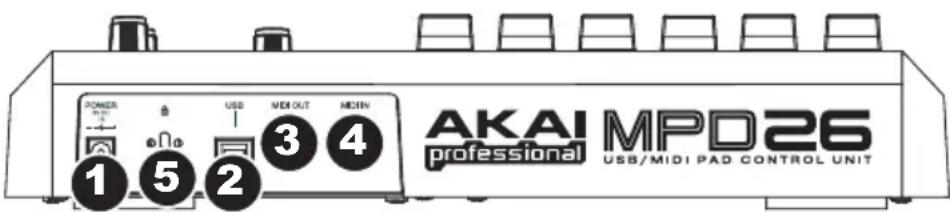
- DC POWER ADAPTER INPUT - Plug in an optional Akai MP6-1 power adapter (6V-1A DC) if you do not wish to power the MPD26 through the USB connection.
- USB CONNECTION - Plug a standard USB cable into this outlet and into the USB port of your computer. The computer's USB port will provide power to the MPD26. This connection is used to send and receive MIDI data to and from your computer and may also be used to send MIDI data from your computer to a device attached to the MIDI OUT port of the MPD26.
- MIDI OUT - Use a five-pin MIDI cable to connect the MIDI OUT of the MPD26 to the MIDI IN of an external device.
- MIDI IN - Use a five-pin MIDI cable to connect the MIDI OUT of an external MIDI device to the MIDI IN of the MPD26.
- KENSINGTON LOCK - The unit may be secured to a table or surface using this Kensington Lock slot.
ABOUT MODES
The MPD26 has four different modes of operation. Each mode can be accessed by pressing the corresponding button on the MPD26. Following is a short description of each mode:
Preset Mode
PRESET
This mode allows you to load, save and copy Presets. A Preset is a collection of information about how different faders, knobs, and pads will behave. Using Presets allows you to save different configurations so you can quickly load them when you need them, without having to reprogram the MPD26 every time.
Edit Mode
EDIT
This mode allows you to edit the configuration of the MPD26. Edit Mode is a powerful tool for customizing your set-up. In this mode, you can make changes to how the pads, knobs and faders are behaving. For example, you may wish to have a fader or a knob transmit only a limited range of MIDI data, or you may wish to have a pad that transmits on a different MIDI Channel. You can change these and various other parameters in Edit Mode. See the Edit Mode Parameters table for a full listing of editable parameters.
Global Mode
This mode allows you to set global parameters and make general changes to how your MPD26 is functioning. The parameters that you can modify in Global Mode include Controller Resets, Pad Velocity Curves, Pad Threshold, MIDI Clock options, Display Brightness, and more.
Program Change Mode
PROGRAM CHANGE
This mode allows you to transmit various Program Change messages. In this mode, you can remotely switch between different programs on your DAW or external device directly from the MPD26.
PRESET MODE
A Preset is a collection of information about how the MPD26's faders, knobs, and pads will behave. Using Presets allows you to save different configurations so you can quickly recall them at any time, without having to reprogram the MPD26 every time. You can press [PRESET] at any time to call up this mode. In Preset Mode you can load, save/copy and rename Presets - each of these functions can be accessed through the 3 different pages.
PAGE 1-LOAD PRESET
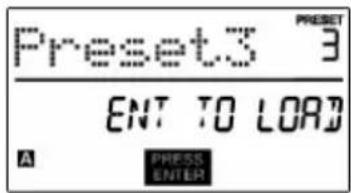
- While you are in Preset Mode, you can change Presets with the [VALUE] dial below the screen. Turning the dial increments or decrements the current Preset number and displays the screen on the right:
When you do this, you will notice that 'PRESS ENTER' will begin to blink.
- Pressing [ENTER] loads the selected Preset. Pressing [<] or [PRESET] cancels and returns you to the Preset that was last selected.
PAGE 2 - SAVE / COPY PRESET
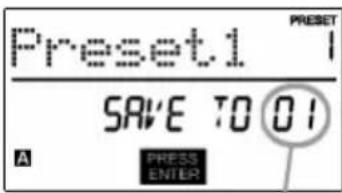
In Preset Mode, you can also save and copy a Preset to a new location. This allows you to save any changes that you would have made to the Preset in EDIT MODE.
Note that if you are saving the Preset to the same location (same preset number) the screen will display 'SAVE TO' and if you are saving to a different location (different preset number), the screen will display 'COPY TO'.
DESTINATION
- While you are in Preset Mode, press [>] until you see the 'SAVE TO' screen similar to the one shown above.
- You can select the location where you want to save the Preset by turning the [VALUE] knob.
When you do this, you will notice that 'PRESS ENTER' will begin to blink.
- Press [ENTER] to save current Preset to the destination. Pressing [ ] or [PRESET] cancels the operation.
PAGE 3 - NAME PRESET
While you are in Preset Mode, you can also change the Preset name. This way you can assign specific names to different Presets so you can better keep track and quickly access different controller configurations.
- To name or rename the Preset, press the [>] button until you see 'Preset Name' displayed on the screen.
You will notice that the first letter of the name will begin blinking.
- Turn the [VALUE] dial to change the blinking character.
- To move between the characters, use [<] and [>] .
- When done, press [PRESET] again. The name will be saved.
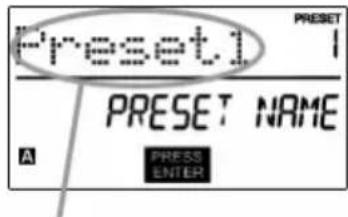
ENTER PRESET NAME IN THIS FIELD
EDIT MODE
Pressing [EDIT] calls up Edit Mode. In this mode, you can edit the settings of the currently selected Preset. The settings vary depending on the controller you are editing and are described on the following page.
Please note that the changes you make will only apply to the currently selected Preset.
Also note that if you wish to save the changes made in Edit Mode, you will need to save the current preset.
You can use the example screenshot on the right to help you determine where the Page 2 parameters described on the following page will appear on the screen.
NAVIGATING EDIT MODE
- Press [EDIT] to enter Edit Mode.
- To select the controller you wish to edit, simply engage it - this will prompt the screen to display the available event types for the particular controller (Page 1).
- If there are multiple event types for the selected controller, turn the [VALUE] dial to select the desired event type. Press [ENTER] to view the parameters of the selected event type, if available (Page 2).
- To move between the parameter fields on Page 2, use [<] and [>] . To change the values of the fields, turn the [VALUE] dial.
- When finished editing the controller, press [ENTER] to accept the change or press [<] to cancel.
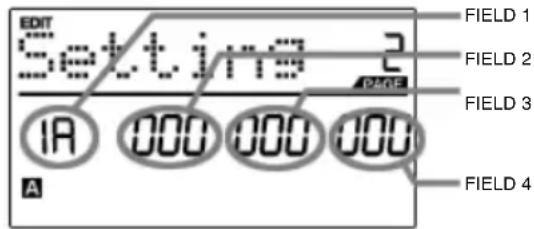
EDIT MODE PARAMETERS
| CONTROLLER PAGE 1 (EVENT TYPE) PAGE 2 (PARAMETERS) | ||
| PADS | NOTE | MIDI CHANNEL (field 1) NOTE NUMBER (field 2) PLAY MODE (field 3) PRESSURE BEHAVIOR (field 4) |
| PROGRAM CHANGE | MIDI CHANNEL (field 1) PROGRAM CHANGE NUMBER (field 2) BANK M (MSB) (field 3) BANK L (LSB) (field 4) | |
| KNOBS AND FADERS | CONTROL CHANGE | MIDI CHANNEL (field 1) CC NUMBER (field 2) RANGE - MINIMUM VALUE (field 3) RANGE - MAXIMUM VALUE (field 4) |
| AFTERTOUCH | MIDI CHANNEL (field 1) CC NUMBER (field 2) RANGE - MINIMUM VALUE (field 3) RANGE - MAXIMUM VALUE (field 4) | |
| BUTTONS | CONTROL CHANGE | MIDI CHANNEL (field 1) CC NUMBER (field 2) BUTTON MODE (field 4) |
| PROGRAM CHANGE | MIDI CHANNEL (field 1) PROGRAM CHANGE NUMBER (field 2) BANK M (MSB) (field 3) BANK L (LSB) (field 4) | |
| NOTE REPEAT | TOGGLE/MOMENTARY | BUTTON MODE (field 2) |
| GATE/SWING | NOTE REPEAT GATE VALUE (field 2) NOTE REPEAT SWING VALUE (field 4) | |
| TIME DIVISION | DIVISION | DEFAULT TIME DIVISION (field 2) |
| TRANSPORT | TRANSPORT FUNCTION | MMC, MIDI, MMC/MIDI, or CTRL (field 2) |
| TAP TEMPO | TEMPO | BPM (field 2) |
FOR DETAILED INFORMATION ON EDIT PARAMETERS, PLEASE REFER TO THE OPERATOR'S MANUAL INCLUDED ON THE CD.
GLOBAL MODE
In Global Mode, you can send global messages and make general changes to the way that your MPD26 functions. Global Mode options are organized under different pages and include the list of options shown below.
NAVIGATING GLOBAL MODE
- Press [GLOBAL] to enter Global Mode.
- Use [< ] and [>] to navigate through the available pages of options (shown below).
- Use the [VALUE] dial to change settings, values or select a message on the selected page.
- Press [ENTER] to accept the change or send a message or press [<] to cancel.
| KILL MIDI | Send an All Notes Off or Reset Controllers message | Page 1 |
| MIDI COMMON CHANNEL | Select which MIDI channel will be used as the Common Channel. | Page 2 |
| LCD CONTRAST | Adjust the contrast of the display. Page 3 | |
| PAD SENSITIVITY | Adjust how sensitive the pads are to the touch. Page 4 | |
| PAD VELOCITY CURVE | Adjust how the pads will output MIDI velocity, based on the force applied to them. | Page 5 |
| PAD THRESHOLD | Adjust the threshold of minimum force required to activate a pad. | Page 6 |
| MIDI CLOCK | Select Internal or External MIDI Clock source. Page 7 | |
| TAP TEMPO AVERAGE | Select the number of taps to be averaged in determining tempo. | Page 8 |
| SAVE SETUP | Save the current global settings. Page 9 | |
| SYSEX TX | Transfer a Preset via SysEx. Page 10 | |
| VERSION | Check the current firmware version. Page 11 |
PROGRAM CHANGE MODE
A Program Change, often referred to as a Patch Change, is a MIDI message used for sending data to devices to cause them to change to a new program.
There are two different types of Program Change messages on the MPD26:
PROG CHANGE - This event will transmit a regular Program Change message (0-127) to your DAW or an external device, allowing you to switch between 128 different program banks.
NAVIGATING PROGRAM CHANGE MODE
- Press the [PROGRAM CHANGE] button.
- On Page 1, use the [VALUE] dial to select a Prog Change or Prog+Bank message on and press [ENTER].
- On Page 2, use the [<] and [>] buttons to move through the different options and use the {VALUE} dial to change them.
- Press [ENTER] to send the message.
PROG+BANK - This event transmits a Program Change message (0-127), along with a Bank L (Least Significant Byte) Change message (0-127) and a Bank M (Most Significant Byte) Change message (0-126), which allows access of up to 16384 different program banks. You can use PROG+BANK if your DAW or external device supports LSB and MSB.
FREQUENTLY ASKED QUESTIONS
Question: Can the MPD26 be syncsed to external devices?
Answer: Yes, the MPD26 can receive MIDI Clock through both the USB and the MIDI IN connection. This means that you can synchronize the tempo-based Note Repeat to an external source. To synchronize the MPD26 to an external MIDI Clock source, please enter Global Mode, scroll to MIDI Clock and select "External".
Question: Does the MPD26 have internal sounds?
Answer: No. The MPD26 is a MIDI-controller, which means that it does not contain any sounds inside but is instead used to control external sound devices, such as hardware and software synthesizers, sequencers and drum machines.
Question: Do I need to use a power adapter if I am using the MPD26 with a computer?
Answer: No. The MPD26 will draw power directly from the USB port. However, if your USB port does not supply enough power or if you are using a USB hub, it may be necessary to use the adapter.
Question: What software applications is the MPD26 compatible with?
Answer: The MPD26 is compatible with any software or hardware device which supports the MIDI protocol. Please consult your specific hardware or software device's documentation for instructions on enabling the MPD26 as a MIDI input device.
Question: Can I use the MPD26 as a MIDI interface for other MIDI devices?
Answer: Yes. The MPD26 functions as a MIDI interface and can be used to send or receive MIDI to and from other MIDI devices connected to it.
Question: Can I control multiple devices with the MPD26?
Answer: Yes. The MPD26 can transmit information on 16 MIDI channels on 2 ports for a total of 32 different MIDI Channels.
Question: How many different Presets can the MPD26 hold?
Answer: The MPD26 can hold 30 Preset settings, which allow you to store different configurations for use with various software and hardware modules. Presets can easily be copied, edited and stored for quick recall of desired configurations.
Question: Can I send Program Change messages to my software or hardware devices?
Answer: Yes. You can send program change messages in Program Change mode. In addition, pads may also be assigned to transmit program change messages.
Question: Are the pads on the MPD26 velocity and pressure sensitive?
Answer: Yes. The MPD26 sports real MPC velocity and pressure sensitive pads. This allows you to be extremely expressive with your programming and performance.
Question: What type of pads is used on the MPD26?
Answer: The MPD26 features the same exact pads which are used on the Akai MPC2500.
Question: Are the knobs on the MPD26 endless?
Answer: The knobs on the MPD26 are endless pots. This allows you to limit the range of the knobs, as well as use them as increment/decrement controls. Please note that your software application must be able to receive and recognize NRPNs for Increment/decrement functions to work.
Question: I see 6 knobs, 6 faders, and 16 pads. Is that all I get?
Answer: No. The MPD26 features multiple banks of pads, which can be accessed with the [PAD BANK] button. There are 4 different pad banks which give you a total of 64 (4x16) pads.
Question: Does the Note Repeat feature on the MPD26 work similarly to Note Repeat on the Akai MPC series?
Answer: Yes, the MPD26 features the same Note Repeat algorithm as can be found on the legendary Akai MPC series. This feature allows you to perform and program rhythm patterns that would otherwise be nearly impossible to do by hand.
TROUBLESHOOTING
| PROBLEM CAUSE | SOLUTION | |
| The display does not light up. | No power. | Please make sure that the MPD26 is connected to your computer and that the computer is powered on. |
| If using a power adapter, please make sure that the adapter is plugged into a live power outlet. | ||
| No sound from target device. | MPD26 not properly connected. | Check your computer's USB connection to confirm that the MPD26 is recognized. If necessary, replug the connection and restart your computer. |
| If controlling an external hardware module, make sure that the MIDI cable is connected from the MPD26 to the device's MIDI IN port. | ||
| MPD26 connected after software application has started. | Restart the software application with the controller plugged in. | |
| Problem is caused by use of a USB hub. | Unplug the MPD26 from the USB hub and connect directly to the computer. | |
| Software application not set to receive MIDI data from the MPD26. | Ensure that the MPD26 or "USB" MIDI device is listed as an active MIDI source in your application. Usually, the MIDI settings can be accessed through the application's Preferences menu. | |
| MPD26's MIDI channel not the same as application's incoming MIDI channel. | Make sure that the MPD26 is sending MIDI information on the channel that the target device expects. | |
| Notes sustain continuously. | Stuck notes due to incomplete MIDI data. | Turn the unit's power off, wait a moment and then turn it on again. |
| Note Repeat feature is not synchronized to my clock source. | Clock source on MPD26 set to "Internal". | In Global Mode, change the MIDI Clock setting to "External". Also, make sure that the software you are using is set to send MIDI Clock to the MPD26. |
| My Seq/DAW is set to send clock but Note Repeat is not working. | Software DAW is not in play mode. | If your software DAW is not playing, it will not be sending clock. |
| My fader or knob works in reverse. | Controller minimum value is set higher than its maximum. | Edit the controller and set the minimum value to be lower than the maximum. |
| Transport control does not work. | Software does not support MMC messages, MIDI START/STOP or the MIDI CC mode. | Edit the transport control to send MIDI messages instead. Make sure that the Transport mode you are using on the MPK matches the receive modes of your software. |
| I am only hearing one sound when I hit different pads. | 16 Level feature is engaged. | When engaged, the 16 Level function will map the last hit pad to all 16 pads. Deactivate 16 Level to return to normal operation. |
| The pads always play at maximum velocity (127). | Full Level feature is engaged. | When engaged, the Full Level function will cause all the pads to output maximum velocity, no matter how hard they are hit. Turn off Full Level to return to normal operation. |
TECHNICAL SPECIFICATIONS
| GENERAL | |
| Display custom LCD w/ backlight | |
| Dimensions (WxDxH) 314mm x 289mm x 70mm | |
| Weight | 2.2kg |
| Power | ~100mA, 5V DC via USB ~1A, 6V DC via external adaptor |
| Number of Presets 30 | |
| MIDI output channels over USB 48 (16 channels x 3 ports) | |
| MIDI output channels from 5-pin MIDI 16 | |
| Drum pads 16 (velocity and pressure sensitive) | |
| Drum pad banks 4 | |
| Faders | 6 |
| 360 degree knobs 6 | |
| Accessories | Quickstart Guide USB cable Software CD |
| INPUTS/OUTPUTS | |
| MIDI inputs 5-pin DIN x 1 | |
| MIDI outputs 5-pin DIN x 1 | |
| USB Slave connector x 1 (MIDI over USB) | |
| DC IN 6V DC, 1A | |
CONTACT INFORMATION
Please visit the Akai Professional website (www.akaipro.com) regularly for additional information, news and firmware upgrades for the MPD26.
For additional technical support:
EMAIL: support@akaipro.com
TEL: 401.658.4032 (U.S)
CHARACTERISTICAS
MODE EDIT (Mode Édition)
NAVIGATION DU MODE EDIT
PARAMÉTRES DU MODE EDIT
| CONTRÔLR SÉLECTIONNÉ PAGE 1 PAGE 2 | ||
| PADS | NOTE | MIDI CHANNEL (champ 1) NOTE NUMBER (champ 2) ON/OFF BEHAVIOR (champ 3) ON/OFF BEHAVIOR (champ 4) |
| PROGRAM CHANGE | MIDI CHANNEL (champ 1) PROGRAM CHANGE NUMBER (champ 2) BANK M (MSB) (champ 3) BANK L (LSB) (champ 4) | |
| BOUTONS ET POTENTIOMÉTRES | CONTROL CHANGE | MIDI CHANNEL (champ 1) CC NUMBER (champ 2) RANGE - MINIMUM VALUE (champ 3) RANGE - MAXIMUM VALUE (champ 4) |
| AFTERTOUCH | MIDI CHANNEL (champ 1) CC NUMBER (champ 2) RANGE - MINIMUM VALUE (champ 3) RANGE - MAXIMUM VALUE (champ 4) | |
| TOUCHES | CONTROL CHANGE | MIDI CHANNEL (champ 1) CC NUMBER (champ 2) BUTTON MODE (champ 4) |
| PROGRAM CHANGE | MIDI CHANNEL (champ 1) PROGRAM CHANGE NUMBER (champ 2) BANK M (MSB) (champ 3) BANK L (LSB) (champ 4) | |
| NOTE REPEAT | TOGGLE/MOMENTARY | BUTTON MODE (champ 2) |
| GATE/SWING | NOTE REPEAT GATE VALUE (champ 2) NOTE REPEAT SWING VALUE (champ 4) | |
| TIME DIVISION | DIVISION | DEFAULT TIME DIVISION (champ 2) |
| TOUCHES DE DÉFILEMENT | TRANSPORT FUNCTION | MMC, MIDI, MMC/MIDI, or CTRL (champ 2) |
| TAP TEMPO | TEMPO | BPM (champ 2) |
NAVIGARE IN MODALITA EDIT
PARAMETRI MODALITA EDIT
| CONTROLLER SELECTIONATO | PAGINA 1 PAGINA 2 | |
| PAD | NOTA | CANALE MIDI (campo 1) NUMERO NOTA (campo 2) COMPORTAMENTO ON/OFF (campo 3) COMPORTAMENTO PRESSIONE (campo 4) |
| MODIFICA PROGRAMMA | CANALE MIDI (campo 1) NUMERO MODIFICA PROGRAMMA (campo 2) BANCO M (MSB) (campo 3) BANCO L (LSB) (campo 4) | |
| MANOPOLE E CURSORI | MODIFICA COMANDO | CANALE MIDI (campo 1) NUMERO CC (campo 2) GAMMA - VALORE MINIMO (campo 3) GAMMA - VALORE MASSIMO (campo 4) |
| AFTERTOUCH | CANALE MIDI (campo 1) NUMERO CC (campo 2) GAMMA - VALORE MINIMO (campo 3) GAMMA - VALORE MASSIMO (campo 4) | |
| TASTI | MODIFICA COMANDO | CANALE MIDI (campo 1) NUMERO CC (campo 2) MODALITÀ TASTO (campo 4) |
| MODIFICA PROGRAMMA | CANALE MIDI (campo 1) NUMERO MODIFICA PROGRAMMA (campo 2) BANCO M (MSB) (campo 3) BANCO L (LSB) (campo 4) | |
| NOTE REPEAT | COMMUTAZIONE/MOMENTANEO | MODALITÀ TASTO (campo 2) |
| GATE/SWING | VALORE GATE DI NOTE REPEAT (campo 2) VALORE SWING DI NOTE REPEAT (campo 4) | |
| DIVISIONE TEMPO | DIVISIONE | DIVISIONE TEMPO PREDEFINITA (campo 2) |
| TRASPORTO | FUNZIONE TRASPORTO | MMC, MIDI, MMC/MIDI, o CTRL (campo 2) |
| TAP TEMPO | TEMPO | BPM (battiti al minuto) (campo 2) |
MODALITÀ GLOBAL
E-MAIL: support@akaipro.com
TEL: 401.658.4032 (U.S)
FEATURES
PARAMETER DES EDIT MODUS
| GEWÄHLTER CONTROLLER | SEITE 1 SEITE 2 | |
| PADS | NOTE | MIDI KANAL (Feld 1) NOTE NUMMER(Feld 2) AN/AUS VERHALTEN (Feld 3) DRUCKVERHALTEN (Feld 4) |
| PROGRAM CHANGE | MIDI KANAL (Feld 1) PROGRAM CHANGE NUMMER(Feld 2) BANK M (MSB) (Feld 3) BANK L (LSB) (Feld 4) | |
| REGLER UND FADER | CONTROL CHANGE | MIDI KANAL (Feld 1) CC NUMMER (Feld 2) BEREICH - MINIMALWERT (Feld 3) BEREICH - MAXIMALWERT (Feld 4) |
| AFTERTOUCH | MIDI KANAL (Feld 1) CC NUMMER (Feld 2) BEREICH - MINIMALWERT (Feld 3) BEREICH - MAXIMALWERT (Feld 4) | |
| TASTEN | CONTROL CHANGE | MIDI KANAL (Feld 1) CC NUMMER (Feld 2) TASTEN MODUS (Feld 4) |
| PROGRAM CHANGE | MIDI KANAL (Feld 1) PROGRAM CHANGE NUMMER (Feld 2) BANK M (MSB) (Feld 3) BANK L (LSB) (Feld 4) | |
| NOTE REPEAT | TOGGLE/MOMENTARY | TASTEN MODUS (Feld 2) |
| GATE/SWING | NOTE REPEAT GATE WERT (Feld 2) NOTE REPEAT SWING WERT (Feld 4) | |
| TIME DIVISION | DIVISION | DEFAULT TIME DIVISION (Feld 2) |
| TRANSPORT | TRANSPORT FUNCTION | MMC, MIDI, MMC/MIDI, oder CTRL (Feld 2) |
| TAP TEMPO | TEMPO | BPM (Feld 2) |
GLOBAL MODUS
EMAIL: support@akaipro.de
TEL: 401.658.4032 (U.S)
AKAI
professional