Tracks HD2 - Earphones Sol Republic - Free user manual and instructions
Find the device manual for free Tracks HD2 Sol Republic in PDF.


| Product Type | Wireless headset (over-ear headphone) |
| Brand | Sol Republic |
| Model | Tracks HD2 |
| Weight | Approx. 200 g |
| Dimensions (L x W x H) | Approx. 18 x 15 x 5 cm |
| Power supply | Rechargeable lithium-ion battery via micro USB |
| Battery life | Up to 10 hours of listening |
| Connectivity | Bluetooth 4.0 (Easypair), NFC, 3.5 mm jack (wired mode) |
| Main functions | Play/pause, track skip, volume, call management, voice command, multipoint connection (2 devices) |
| Status indicator | Blue LED (on/pairing/connected), red (charging), green (fully charged) |
| Included accessories | PowerTrack headband, A2 earbuds, button/microphone cable, USB cable, carrying case |
| Care and cleaning | Wipe with a soft, dry cloth. Do not use chemicals. |
| Safety | Do not attempt to remove the battery. Use at moderate volume to protect hearing. |
| Spare parts and repairability | Contact customer service for any repairs. The battery is not user-replaceable. |
Frequently Asked Questions - Tracks HD2 Sol Republic
User questions about Tracks HD2 Sol Republic
0 question about this device. Answer the ones you know or ask your own.
Ask a new question about this device
Download the instructions for your Earphones in PDF format for free! Find your manual Tracks HD2 - Sol Republic and take your electronic device back in hand. On this page are published all the documents necessary for the use of your device. Tracks HD2 by Sol Republic.
USER MANUAL Tracks HD2 Sol Republic
With your new TRACKS AIR wireless Bluetooth headset, you are free to roam around the house at will. Crystal clear HD calls on your phone, simple controls in your hand, and high fidelity sound in your ears — now that's what we call Independence.
OVERVIEW
ASSEMBLY 4
THEGOODS 6
CONNECTING 8
BASICS 11
ADVANCED STUFF 12
CONTACT 14
CAUTION
Before using Tracks Air, please read the safety, regulatory and legal information document.
NOTE
The battery is designed to last the life of your device. You don't need to take it out or fiddle with it. If you try to remove or replace your battery it will void your warranty and could cause injury and damage your device.
ASSEMBLY
Let's get it together.
PowerTrackTM Headband
Wireless A2 Sound EnginesTM
Single button cable with microphone
USB charge cable
Carrying case
INSTRUCTIONS
The sound engines have slots in them. Insert the ends of the PowerTrackTM headband into these slots and slide them up a bit. Make sure to match the L (left) and R (right) markings on the sound engines with the corresponding L and R on the PowerTrackTM headband. Settle the sound engines over your ears and adjust to a comfortable position. For optimum sound, make sure the L and R sound engines are over the corresponding ear.
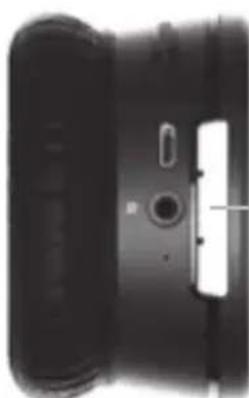
Sound Engine Slot
Sound Engine
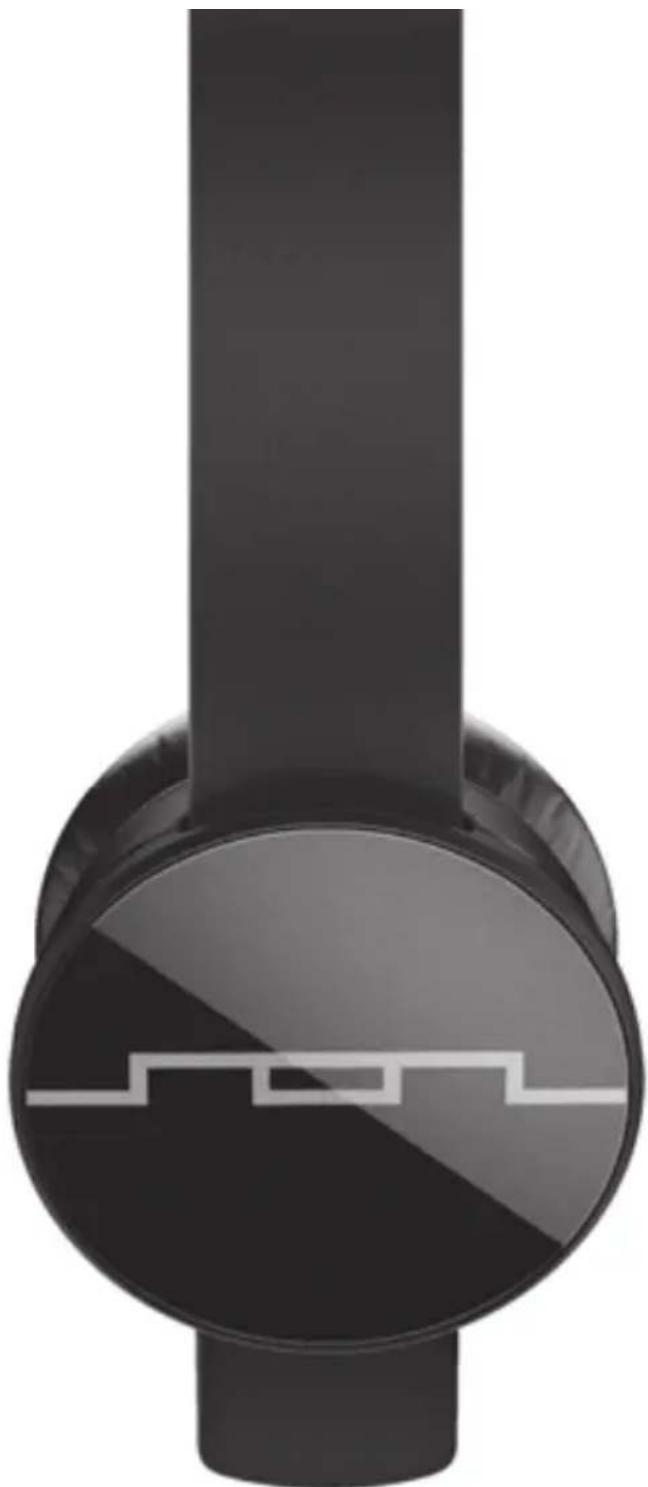
PowerTrad headband
THEGOODS
...at a glance.
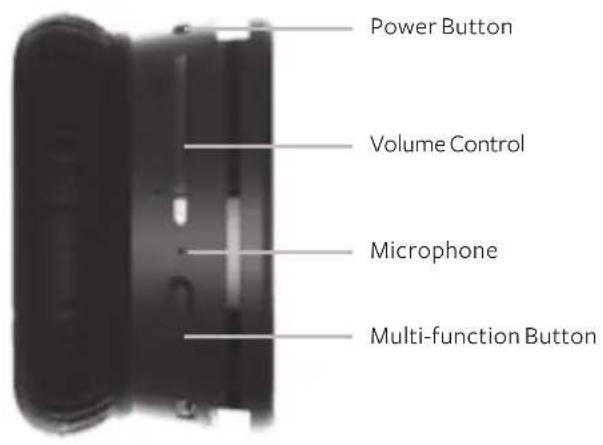
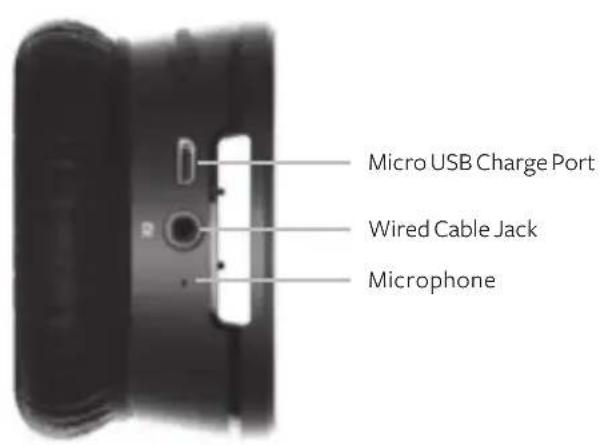
POWER
First thing's first: give Tracks Air a charge. Plug the small end of the USB into the micro USB port located on the Right Sound Engine. It is fully charged when the status light turns solid green.
NOTE
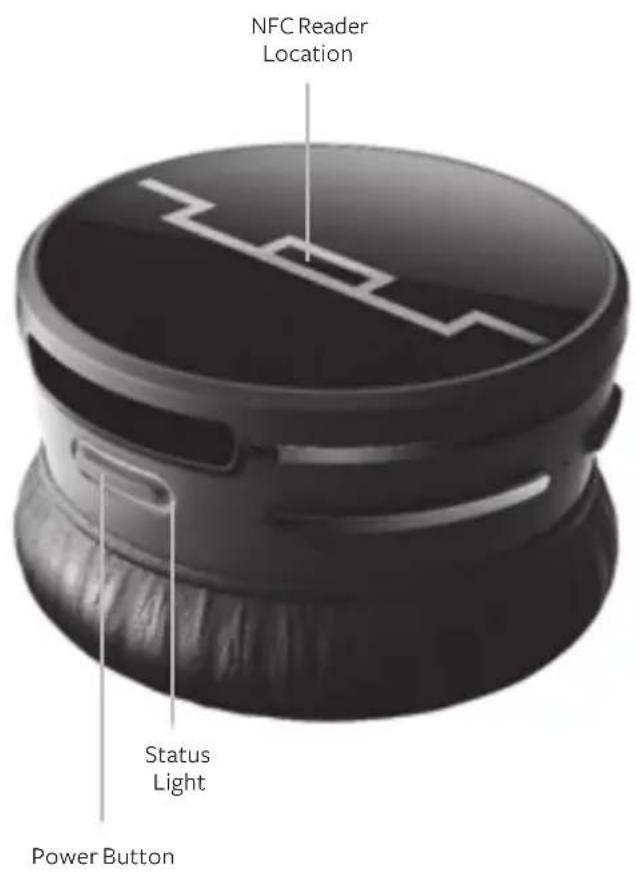
NFC only located on Right Sound Engine
CONNECT
Now let's get Tracks Air and your device talking to each other. There are two ways to pair it: the Bluetooth® EASYPAIR™ Method and the NFCTM way. EASYPAIR™ works for everybody. NFCTM people — you know who you are.
EASYPAIRTM METHOD

STEP1
Turn on Bluetooth on your device.
STEP3
Go to the Bluetooth menu on your device to pair and connect.

STEP2
Turn on TRACKS AI and it will automatically go into pairing mode.

STEP4
When the device and TRACKS AIR are connected, you'll get a pairing complete tone.
NFC METHOD
It seems obvious, but you must have an NFC Bluetooth-enabled device in order to use the NFC method. If you don't have it, use the Easypair Method.
STEP1
Turn on Bluetooth and NFC on your device.
STEP2
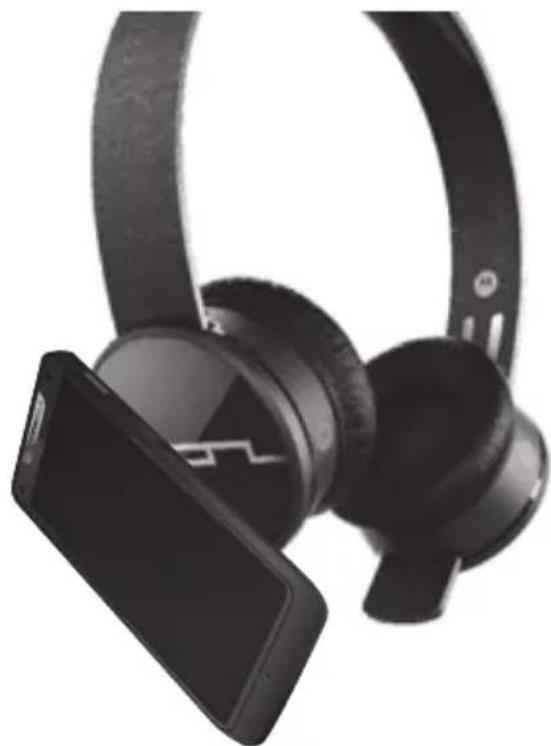
Tap your device to the top of the right sound engine. Abracadabra. The device tells you when you're connected.
NOTE
The above works for most devices, but not all NFC readers are located in the same place or function the same way. See your device's user guide for all the details.
Wired Mode
Now what if you prefer to stay wired? Friend, you can. Take the single button cable with mic (included) and plug the jacks into the respective sound engines. Not surprisingly, L goes into the left one, R goes into the right one. Push all connectors in until you hear a "click."
NOTE
In wired mode, the Bluetooth connection automatically switches off to save your battery.
BASICS
| YOU WANT TO | PRESS |
| Play or pause | The multi-function button once. |
| Skip to the next track | The multi-function button twice. |
| Skip to previous track | Press the multi-function button three times. |
CALLS — SOUND ENGINE CONTROLS
| YOU WANT TO | PRESS |
| Take a call | The multi-function button. |
| Decline a call | Hold a volume button until you hear a tone. |
| Make a voice dial call | Hold the music/call button until you hear a tone. |
| Mute or unmute a call | Hold both volume buttons at the same time, until you hear “mute on” or “mute off ” |
| End a call | The multi-function button. |
| Take a second incoming call | The multi-function button. |
| Decline a second incoming call | Use the phone keypad. |
| Hear remaining music playtime or batter status | The volume buttons while in standby. |
NOTE
Some features may work differently depending on your phone/type of service.
NOTE
Using a mobile device or accessory while driving can be distracting and may be illegal. Always follow the laws of your state and drive safely. Both hands on the wheel. Ten and two. Eyes on the road.
ADVANCEDSTUFF
For Smarties
SECOND DEVICE/MULTI-POINT CONNECTION
Do you use two phones? Do you use a tablet and a phone? Are you double jointed?
You can connect up to two devices to your headset for music and calls. As long as multi-point is enabled (see SETTINGS on page 13), pair both devices and then you can switch back and forth between devices seamlessly, whether you're playing music or managing calls.
Just follow the instructions under "Connect" on page 8 for each device. To connect both devices, just turn them on.
MUSIC
Select a music source by pressing play on that device. If you want to switch to your second paired device for music, just hit play on that device.
NOTE
Your headset will only stream from one music source at a time.
NOTIFICATION LIGHT
The easy way to check your headset
IF THE
LIGHT SHOWS...
IT MEANS...
Fading blue
Turning on or off
Flashing blue
In pairing mode
Steady blue
Device connected
Flashing red
Charging low power battery
Flashing green
Charging medium power battery
Steady Green
Battery fully charged
SETTINGS
To hear settings, press and hold the power and multi-function button. To change them, just follow the voice prompts.
Factory Reset
(CAUTION "Reset" erases all paired devices stored in your headset.)
Voice interface on/off
Multi-point on/off
Wide-band audio on/off
(NOTE Use for increased clarity and richer sound. Not all devices or carrier networks support Wide-band.)
CONTACT
Confused? Perplexed? Adrift? We've got answers and we're standing by.
Give Us a Shout
We're here to help.
CONNECT WITH MOTOROLA
Answers: Guides, online help, and more at www.motorola.com/support.
Support: visit www.motorola.com/support or contact the Motorola Customer Support Center at: 1-800-331-6456 (United States), 1-888-390-6456 (TTY/TDD United States for hearing impaired), or 1-800-461-4575 (Canada).
Bluetooth: If you have questions or need assistance, contact us at 1-877-MOTOBLU, or visit www.motorola.com/bluetoothsupport or www.bluetoothconnect.
FR
Interface vocale on/off
Multipoint on/off
Audio large bande on/off
Visit www.motorola.com/support