
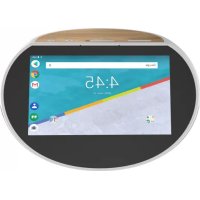
Hello 10 - Speakers ARCHOS - Free user manual and instructions
Find the device manual for free Hello 10 ARCHOS in PDF.
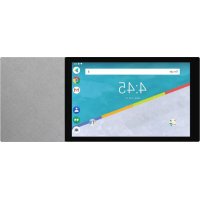



| Brand | ARCHOS |
| Model | Hello 10 |
| Product type | Smart speaker with touch screen |
| Power supply | Built-in rechargeable battery, charge via DC-in connector |
| Connectivity | WiFi (standard not specified) |
| Ports | 1 x Micro USB, 1 x Micro SD slot, 1 x Charge connector |
| Physical buttons | On/Off, Microphone mute, Volume +/-, Camera shutter |
| Camera | Integrated (front) |
| Microphones | Multiple (4, according to diagram) |
| Screen | Touch (size not specified) |
| Speakers | Front and rear |
| LED indicator | Red (microphone muted), Yellow (low battery), Off (microphone active) |
| Privacy shutter | For camera |
| Operating system | Android (settings type) |
| Reset method | Press ON/OFF for 10 seconds or Reset button; or via Settings > Backup & reset |
| Security | Screen lock by code/password |
| Main functions | Voice control, touch screen, camera, speaker |
| Compatibility | Requires compatible devices and/or subscriptions for full features |
Frequently Asked Questions - Hello 10 ARCHOS
User questions about Hello 10 ARCHOS
0 question about this device. Answer the ones you know or ask your own.
Ask a new question about this device
Download the instructions for your Speakers in PDF format for free! Find your manual Hello 10 - ARCHOS and take your electronic device back in hand. On this page are published all the documents necessary for the use of your device. Hello 10 by ARCHOS.
USER MANUAL Hello 10 ARCHOS
Quick Start Guide
ARCHOS


Joining us


twitter.com/archos

www.facebook.com/archos

https://blog.archos.com/

http://faq.archos.com/

www.archos.com, click Support > After-sales support

www.archos.com, click Support > Downloads > Declaration of conformity
Compatible devices and/or subscriptions to additional services may be necessary to take full advantage of your ARCHOS Hello 10.
Warranty, Legal and Safety booklet: www.archos.com/support/warranty.html
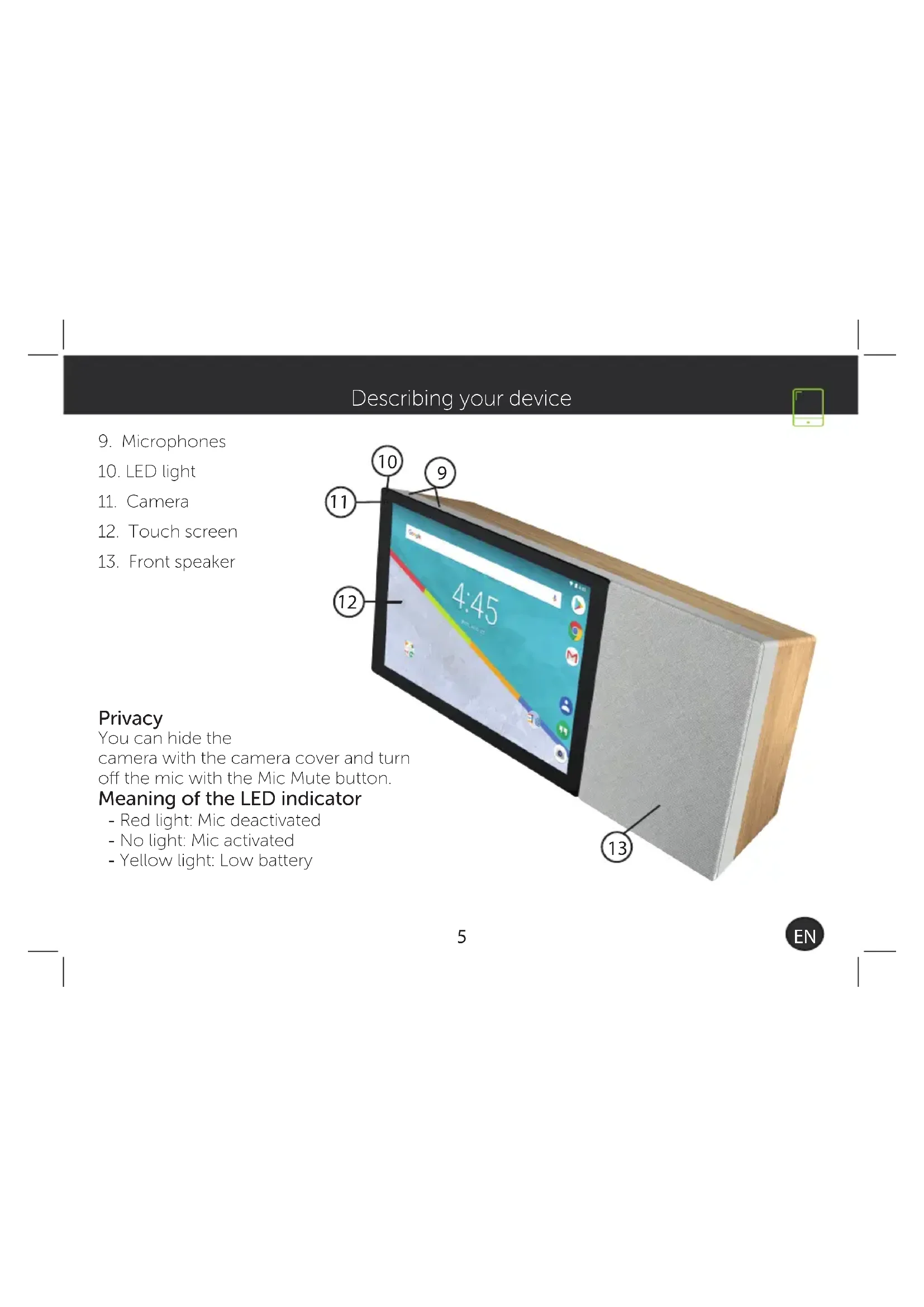
Describing your device
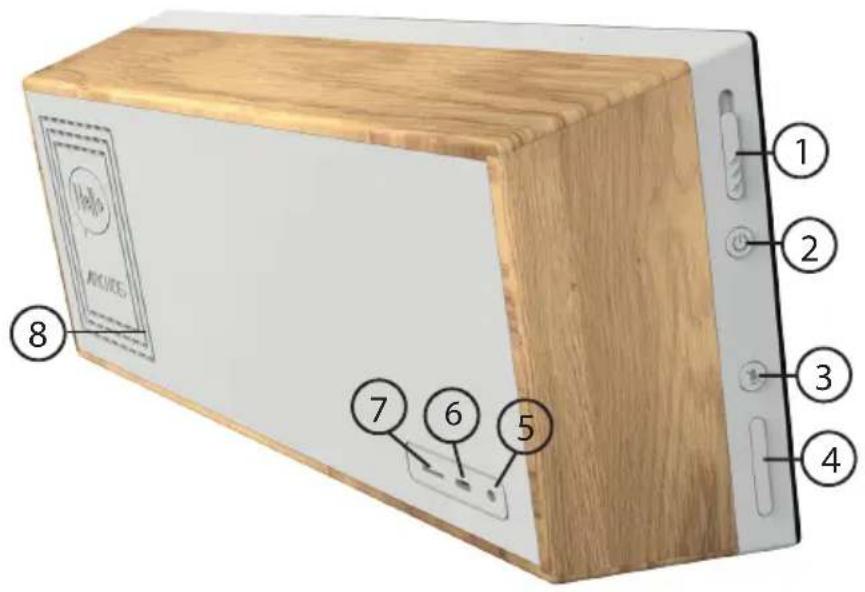
- Camera cover
- ON/OFF
- Mic Mute
- Volume +/-
- DC-in charging port
- Micro USB port
- Micro SD slot
- Back speaker
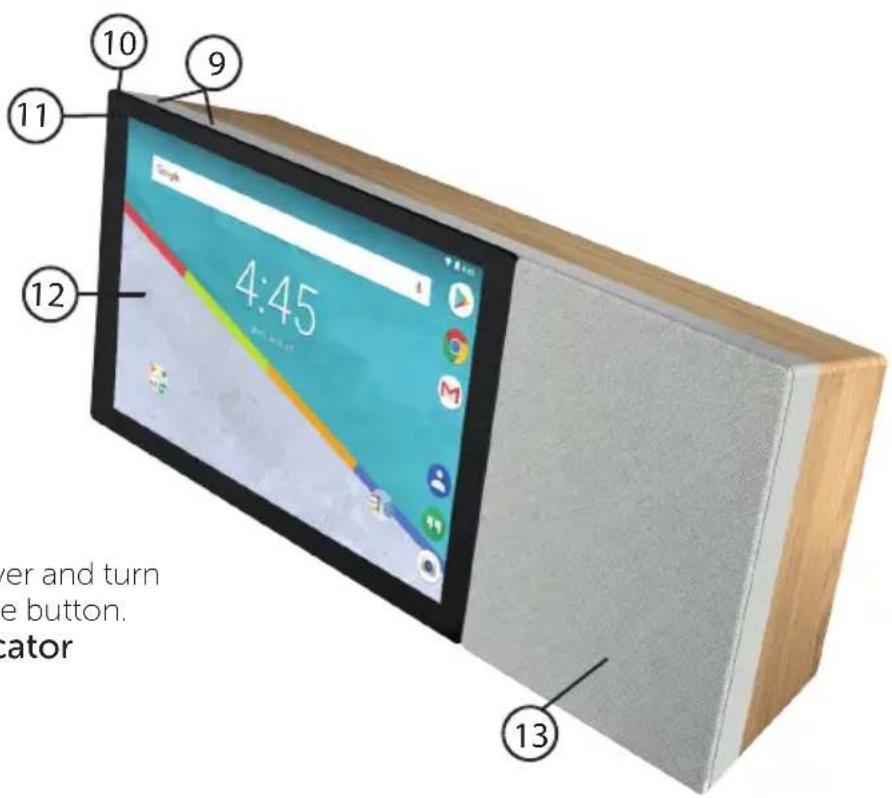
Describing your device
- Microphones
- LED light
- Camera
- Touch screen
- Front speaker
Privacy
You can hide the
camera with the camera cover and turn off the mic with the Mic Mute button.
Meaning of the LED indicator
- Red light: Mic deactivated
- No light: Mic activated
- Yellow light: Low battery

Starting up
Installing your ARCHOS Hello 10
- First, plug in the charging cable into the DC-in port of the ARCHOS Hello 10.
- Plug in the charger to a socket.
Note: your device is battery-powered. We advise you to keep it plugged.
We recommend to install the device on a plain surface.
Sleep Mode of your ARCHOS Hello 10
When your device is in sleep mode, you can still wake it up with your voice and launch apps. To see the results, unlock your screen. You can set up the time when the device goes in sleep mode. To do so, go to the Settings app.
Removing a home screen item:
Touch and hold it, slide your finger towards the top of the screen and drop it over the Remove icon.
Starting up

Uninstalling an item
From the All apps screens, touch and hold it, slide your finger towards the top of the screen and drop it over Uninstall bin.
Creating application folders
Drop one app icon over another on a home screen and the two icons will be combined.
Changing your wallpaper
Hold your finger on a home screen at an empty location, then choose from the list:
Wallpaper.
Widgets:
Hold your finger on a home screen at an empty location, then choose from the list: Widgets.
Securing your device
Define a lock screen to protect your privacy. Select the Settings app, then Security.
Choose a screen lock.

Troubleshooting
- If your device is frozen:
Press the ON/OFF button for 10 seconds or use the reset button.
- If your device doesn't turn on:
- Charge your device.
- Press the ON/OFF button for 10 seconds.
- If your device functioning is too slow:
Close all apps which are not currently used.
- If your WiFi reception is too low:
Make sure you are not far from the WiFi hotspot.
Reset and redefine your connection parameters.
Contact your WiFi connection provider.
- If your device has dysfunctions:
Reinitialize your device. Go to Settings > Backup & reset > Factory data reset. If you can't have access to the settings for any reason, consult our FAQs about the reinitialization process.
For more answers about your technical difficulties, do not hesitate to visit: faq.archos.com

Contact us


twitter.com/archos

www.facebook.com/archos

https://blog.archos.com/

http://faq.archos.com/

www.archos.com, click Support > After-sales service

www.archos.com, click Support > Downloads > Declaration of conformity
www.archos.com, click Support > Downloads > Declaration of conformity
- Camera lens cover
- ON/OFF
- Microphone mute
- Volume +/-
- DC-in charging port
- Micro USB port
- Micro SD slot
- Rear speaker
- Camera shutter
- ON/OFF
- Mic mute
- Volume +/-
- DC-in charging port
- Micro USB port
- Micro SD slot
- Rear speaker
National restrictions
This device is intended for home and office use in all EU countries (and other countries following the EU directive 2014/53/EU) without any limitation except for the countries mentioned below:
| Country Restriction Reason/remark | ||
| Bulgaria None | General authorization required for outdoor use and public service | |
| Italy None | If used outside of own premises, general authorization is required. | |
| Luxembourg None | General authorization required for network and service supply (not for spectrum) | |
| Norway Implemented | This subsection does not apply for the geographical aera within a radius of 20 km from the centre of Ny-Alesund | |
| Russian Federation | None Only for indoor applications | |
Archos company (Contact address: ARCHOS SA 12 Rue Ampère 91430 Igny France) declares that this device ARCHOS Hello 10 is in compliance with the essential requirements and other relevant provisions of directive 2014/53/EU: https://www.archos.com/products/conformity.html
Enjoy all Google services! For more information, go to:
Google Play https://www.android.com/play/
Youtube https://www.youtube.com/
Google Maps https://support.google.com/
Gmail https://support.google.com/mail
Google Drive https://www.google.com/drive/
Google, Google Play, Android, and related marks and logos are trademarks of
Google LLC.
| WLAN | ||
| Standard | Frequency | Max EIRP (dBm) |
| 802.11b/g | 2412 ~ 2472 MHz | 9.97 |
| 802.11n – HT20 | 2412 ~ 2472 MHz | 9.94 |
| 802.11n – HT40 | 2422 ~ 2462 MHz | 9.98 |
| Bluetooth | ||
| Bluetooth Version | Frequency Range | Max EIRP (dBm) |
| BDR | 2402 ~ 2480 MHz | 7.53 |
| BLE | 2402 ~ 2480 MHz | 7.37 |
CE
Declaration of Conformity We, the undersigned (Manufacturer / □ The manufacturers authorized representative established within EEA):
| Company | ARCHOS S.A. | |||
| Address | 12.rue Ampere 91430 lgny | |||
| Country | France | |||
| Telephone number | +(35)1 69 33 16 90 | |||
| Telefax number | +(35)1 69 33 16 99 | |||
| wu@archos.com | ||||
| Certify and declare under our responsibility that the following product: | ||||
| Product Description | Hello 101 | |||
| Manufacturer | ARCHOS S.A. | |||
| Brand Name | ARCHOS | |||
| Model/Type | AC101HELLO | |||
| Is tested to and conforms with the essential test suites included in the following standards, which are in force within the EEA: | ||||
| Standard | tssue date | Reference to report file | ||
| EN 301 489-1 V2 2.0 | 2017-03 | RSZ180806005-C2 | ||
| EN 301 489-17 V3 2.0 | 2017-03 | RSZ180806005-C2 | ||
| EN 300 328 V2 1.1 | 2018-11 | RSZ180806005-22A /22B/ 22C | ||
| EN 62479 | 2019 | RSZ180806005 | ||
| EN 55032 | 2015 | RSZ180806006-01 | ||
| EN 55035 | 2017 | RSZ180806006-01 | ||
| EN 61000-3-2 | 2014 | RSZ100000006-01 | ||
| EN 61000-3-3 | 2013 | RSZ180806006-01 | ||
| EN 60950-1 | 2006+A11:2009+A1:2010+A12:2011+A2:2013 | RSZ180806005-SF | ||
| And therefore complies with the essential requirements of the following directives: | ||||
| Directive Name | Directive number | Further identification | ||
| RED Directive | 2014/53/EU | |||
| LVD Directive | 2014/35/EU | Year of affixine the CE Markine: 2018 | ||
| ERP Directive | 2009/125/EC | |||
| RoHS Directive | 2011/65/EU | |||
| Battery Directive | 2006/66/EC | |||
| The following Notified Bodies have been consulted in the Conformity Assessment procedure of RED Directive (whenever applicable): | ||||
| The NOTIFIED BODY: | Bay Area Compliance Laboratories Corp. | |||
| Bay Area Compliance Laboratories Corp. 1274 Amvihwood Ave., Sunnyvale, CA 94089, USA http://dec.euera.auxaneatholis-databases/mando/index.cfm?/useaction=directive.nb&nfe. ocb-EPOS_50193 | ||||
| The technical documentation as required by the conformity assessment procedure is kept at the following address for a period ending at least 20 years after the last request has been manufactured at the disposal of the relevant national authorities of any Member State for inspection: | ||||
| Company | ARCHOS S.A. | |||
| Address | 12.rue Ampere 91430 lgny | |||
| Country | France | |||
| Telephone number | +(56)75583734678 | |||
| Telefax number | +(56)75583734821 | |||
| red@archos.org | ||||
| Product is CE-marked in | Europe | |||
 | Name of authorized officer. | Jacky Wu | Title of authorized officer | General Manager |
| Drawn up in | ||||
| Date | 2018.09.07 | |||
| ARCHOS SA (1), C#, A##p##s 21 QRT - 910000000000000000000000000000000000000000000000000000000000000000000000000000000000000000000000000000 | ||||
| Signature and Company Stamp | ||||
www.archos.com
PN: 116736

- JOINING US
- DESCRIBING YOUR DEVICE
- PRIVACY
- MEANING OF THE LED INDICATOR
- STARTING UP
- INSTALLING YOUR ARCHOS HELLO
- SLEEP MODE OF YOUR ARCHOS HELLO
- REMOVING A HOME SCREEN ITEM
- UNINSTALLING AN ITEM
- CREATING APPLICATION FOLDERS
- CHANGING YOUR WALLPAPER
- WIDGETS
- SECURING YOUR DEVICE
- TROUBLESHOOTING
- CONTACT US
- NATIONAL RESTRICTIONS
Brand : ARCHOS
Model : Hello 10
Category : Speakers