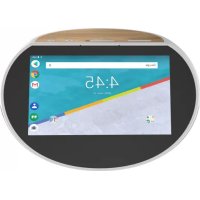
USER MANUAL Hello 5 ARCHOS
www.archos.com, click Support > After-sales support

www.archos.com, click Support > Downloads > Declaration of conformity
Compatible devices and/or subscriptions to additional services may be necessary to take full advantage of your ARCHOS Hello 5.
Warranty, Legal and Safety booklet: www.archos.com/support/warranty.html
EN
Describing your device
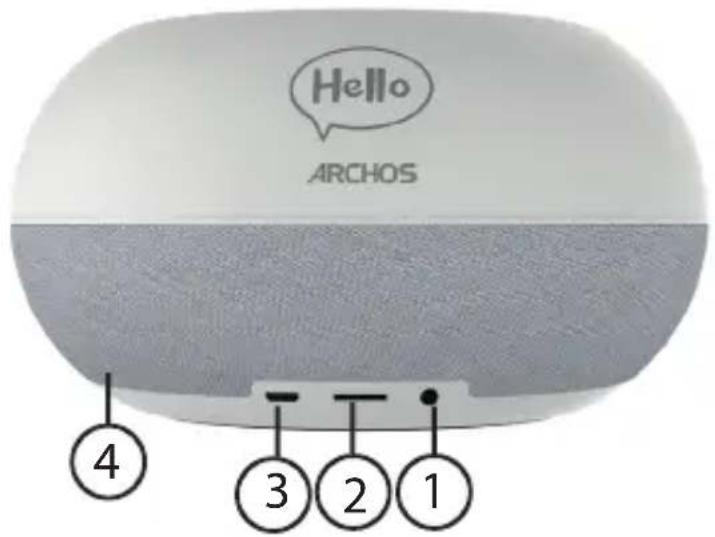
- DC-in charging port
- Micro SD slot
- Micro USB port
- Back speaker
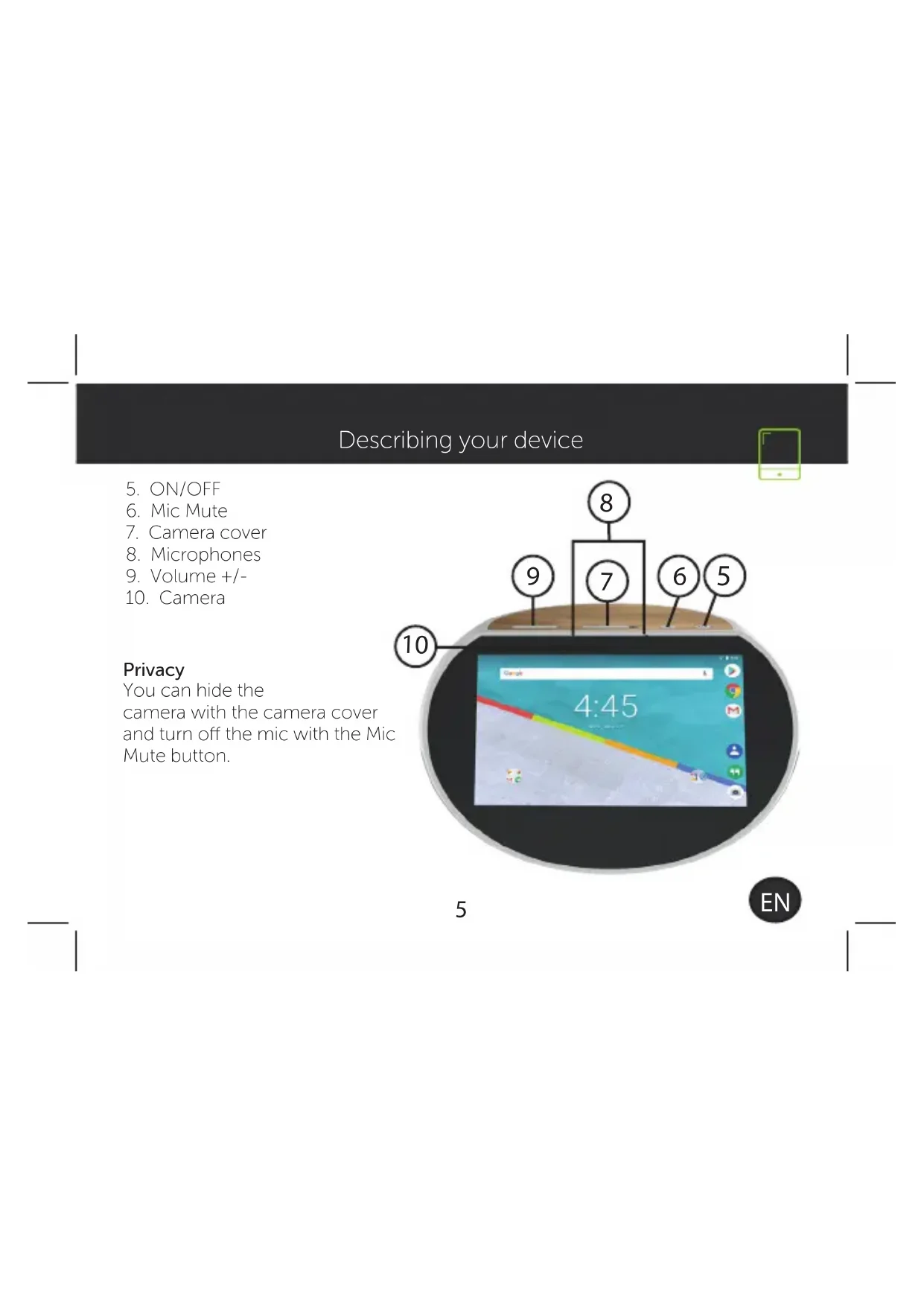
Describing your device
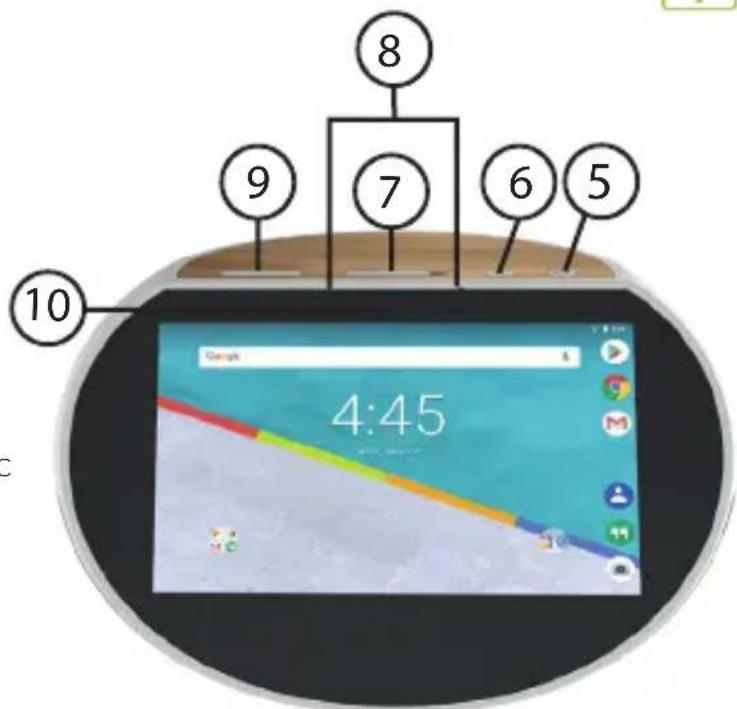
- ON/OFF
- Mic Mute
- Camera cover
- Microphones
- Volume +/-
- Camera
Privacy
You can hide the camera with the camera cover and turn off the mic with the Mic Mute button.
5
EN

Starting up
Installing your ARCHOS Hello 5
- First, plug in the charging cable into the DC-in port of the ARCHOS Hello 5.
- Plug in the charger to a socket.
Note: your device is battery-powered. We advise you to keep it plugged.
We recommend to install the device on a plain surface.
Sleep Mode of your ARCHOS Hello 5
When your device is in sleep mode, you can still wake it up with your voice and launch apps. It will not work if you have turned off the screen. You can set up the time when the device goes into sleep mode. To do so, go to the Settings app.
Removing a home screen item:
Touch and hold it, slide your finger towards the top of the screen and drop it over the Remove icon.
Uninstalling an item
From the All apps screens, touch and hold it, slide your finger towards the top of the screen and drop it over Uninstall bin.
Creating application folders
Drop one app icon over another on a home screen and the two icons will be combined.
Starting up

Changing your wallpaper
Hold your finger on a home screen at an empty location, then choose from the list: Wallpaper.
Hold your finger on a home screen at an empty location, then choose from the list: Widgets.
Securing your device
Define a lock screen to protect your privacy. Select the Settings app, then Security. Choose a screen lock.
Wireless charging for Qi compatible devices
To charge your Qi compatible device, put it in the center of the wooden surface. The ARCHOS Hello 5 must be plugged in during the charging process.
Qi wireless charging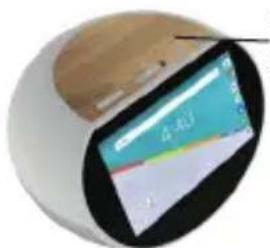
7
EN
Troubleshooting
- If your device is frozen:
Press the ON/OFF button for 10 seconds.
- If your device doesn't turn on:
- Charge your device.
- Press the ON/OFF button for 10 seconds.
- If your device functioning is too slow:
Close all apps which are not currently used.
- If your WiFi reception is too low:
Make sure you are not far from the WiFi hotspot.
Reset and redefine your connection parameters.
Contact your WiFi connection provider.
- If your device has dysfunctions:
Reinitialize your device. Go to Settings > Backup & reset > Factory data reset. If you can't have access to the settings for any reason, consult our FAQs about the reinitialization process.
For more answers about your technical difficulties, do not hesitate to visit: faq.archos.com


twitter.com/archos

www.facebook.com/archos
Blog: https://blog.archos.com/

http://faq.archos.com/

www.archos.com, click Support > After-sales service

www.archos.com, click Support > Downloads > Declaration of conformity
www.archos.com, click Support > Downloads > Declaration of conformity
Compatible devices and/or paid subscription services may be needed to fully benefit from your ARCHOS Hello 5. Warranty, legal and safety booklet: www.archos.com/support/warranty.html
NL
National restrictions
This device is intended for home and office use in all EU countries (and other countries following the EU directive 2014/53/EU) without any limitation except for the countries mentioned below:
| Country Restriction ReasonRemark |
| Bulgaria None | | General authorization required for outdoor use and public service |
| Italy None | | If used outside of own premises, general authorization is required. |
| Luxembourg None | | General authorization required for network and service supply (not for spectrum) |
| Norway Implemented | | This subsection does not apply for the geographical aera within a radius of 20 km from the centre of Ny-Alesund |
| Russian Federation None Only for indoor applications |
Enjoy all Google services! For more information, go to:
Google Play https://www.android.com/play/
Youtube https://www.youtube.com/
Google Maps https://support.google.com/
Gmail https://support.google.com/email
Google Drive https://www.google.com/drive/
Google, Google Play, Android, and related marks and logos are trademarks of Google LLC.
CE


www.archos.com
PN:116730