EasyManual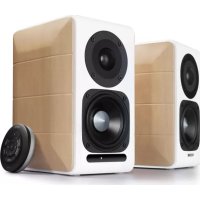
S880DB - Speaker EDIFIER - Free user manual and instructions
Find the device manual for free S880DB EDIFIER in PDF.



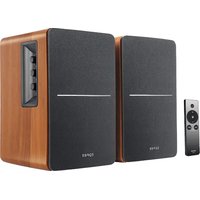
| Technical Specifications | Active speaker with Bluetooth connectivity, RCA input, and optical input. |
|---|---|
| Output Power | 24W per channel (48W total). |
| Frequency Response | 48 Hz - 20 kHz. |
| Dimensions | 220 x 350 x 260 mm. |
| Weight | 6.5 kg per speaker. |
| Usage | Ideal for home use, recording studio, or entertainment. |
| Maintenance | Clean regularly with a soft cloth, avoid moisture. |
| Safety | Do not expose to water or extreme temperatures, use with appropriate power source. |
| General Information | Compatible with most Bluetooth devices, TVs, and computers. |
Frequently Asked Questions - S880DB EDIFIER
User questions about S880DB EDIFIER
0 question about this device. Answer the ones you know or ask your own.
Ask a new question about this device
Download the instructions for your Speaker in PDF format for free! Find your manual S880DB - EDIFIER and take your electronic device back in hand. On this page are published all the documents necessary for the use of your device. S880DB by EDIFIER.
USER MANUAL S880DB EDIFIER
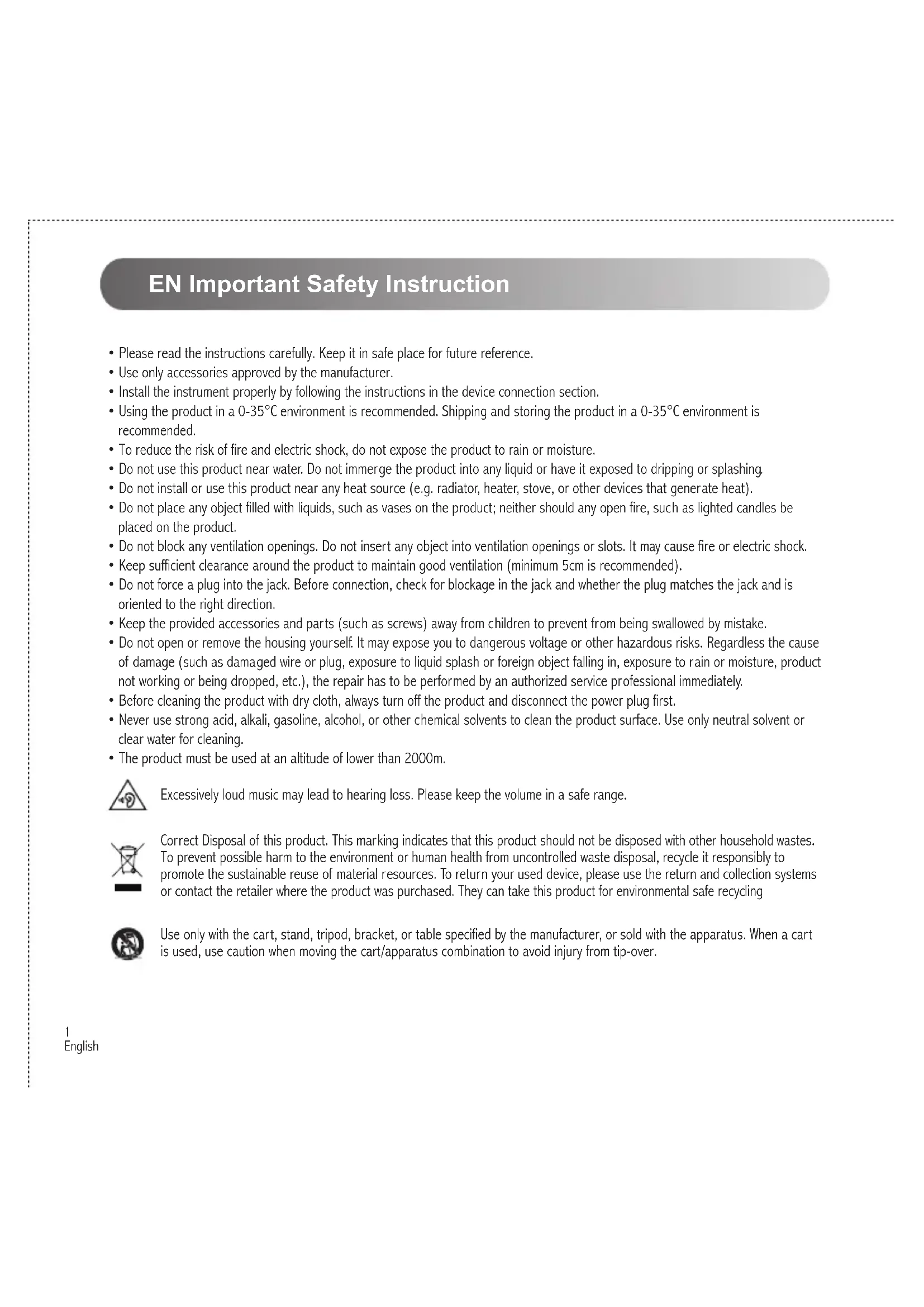
EN Important Safety Instruction
- Please read the instructions carefully. Keep it in safe place for future reference.
- Use only accessories approved by the manufacturer.
• Install the instrument properly by following the instructions in the device connection section. - Using the product in a 0-35°C environment is recommended. Shipping and storing the product in a 0-35°C environment is recommended.
- To reduce the risk of fire and electric shock, do not expose the product to rain or moisture.
- Do not use this product near water. Do not immerge the product into any liquid or have it exposed to dripping or splashing.
- Do not install or use this product near any heat source (e.g. radiator, heater, stove, or other devices that generate heat).
- Do not place any object filled with liquids, such as vases on the product; neither should any open fire, such as lighted candles be placed on the product.
- Do not block any ventilation openings. Do not insert any object into ventilation openings or slots. It may cause fire or electric shock.
- Keep sufficient clearance around the product to maintain good ventilation (minimum 5cm is recommended).
- Do not force a plug into the jack. Before connection, check for blockage in the jack and whether the plug matches the jack and is oriented to the right direction.
- Keep the provided accessories and parts (such as screws) away from children to prevent from being swallowed by mistake.
- Do not open or remove the housing yourself. It may expose you to dangerous voltage or other hazardous risks. Regardless the cause of damage (such as damaged wire or plug, exposure to liquid splash or foreign object falling in, exposure to rain or moisture, product not working or being dropped, etc.), the repair has to be performed by an authorized service professional immediately.
- Before cleaning the product with dry cloth, always turn off the product and disconnect the power plug first.
- Never use strong acid, alkali, gasoline, alcohol, or other chemical solvents to clean the product surface. Use only neutral solvent or clear water for cleaning.
- The product must be used at an altitude of lower than 2000m.

Excessively loud music may lead to hearing loss. Please keep the volume in a safe range.
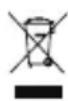
Correct Disposal of this product. This marking indicates that this product should not be disposed with other household wastes. To prevent possible harm to the environment or human health from uncontrolled waste disposal, recycle it responsibly to promote the sustainable reuse of material resources. To return your used device, please use the return and collection systems or contact the retailer where the product was purchased. They can take this product for environmental safe recycling

Use only with the cart, stand, tripod, bracket, or table specified by the manufacturer, or sold with the apparatus. When a cart is used, use caution when moving the cart/apparatus combination to avoid injury from tip-over.
Important Safety Instruction
Power warning:
- Place the product near the power outlet for easy use.
- Before use, make sure that the operating voltage is the same as your local power supply. Correct operating voltage can be found on the product plate.
- For safety purpose, unplug the product during lightning storms or when unused for extended periods of time.
- Under normal conditions, the power supply may get hot. Please keep good ventilation in the area and exercise caution.
- Product nameplate and safety warning labels on the housing or bottom of the product or power adaptor.

This symbol is to alert the user to the presence of un-insulated dangerous voltage within the product's enclosure that may be of sufficient magnitude to constitute a risk of electric shock to persons.

This symbol is to warn the user not to disassemble the enclosure of the product and there is no user-replaceable part inside. Take the product to an authorized service center for repair.

This symbol indicates that the product is for indoor use only.

This symbol indicates that the product is a CLASS II or double insulated electrical device with no earth requirement.
The MAINS plug is used as the disconnect device, the disconnect device shall remain readily operable.
For wireless product:
- Wireless product may generate shortwave radio frequencies and interfere with the normal use of other electronic devices or medical equipment.
- Turn off the product when it's disallowed. Do not use the product in medical facilities, on airplane, at gas stations, near automatic gates, automatic fire alarm system or other automated devices.
- Do not use the product in the vicinity of a pacemaker within a 20cm range. The radio waves may affect the normal operation of the pacemaker or other medical devices.
What's In The Box

Box Contents:

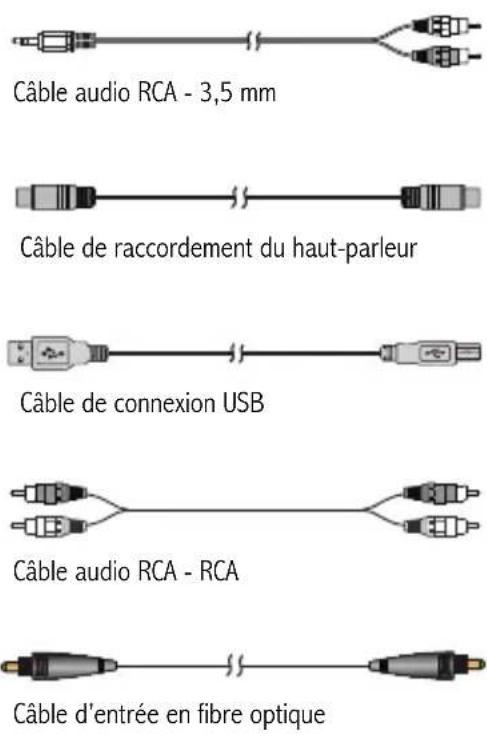
3.5mm-RCA audio cable

Speaker connecting cable

USB connecting cable

RCA to RCA audio cable

Fiber optic input cable
Passive speaker
Active speaker
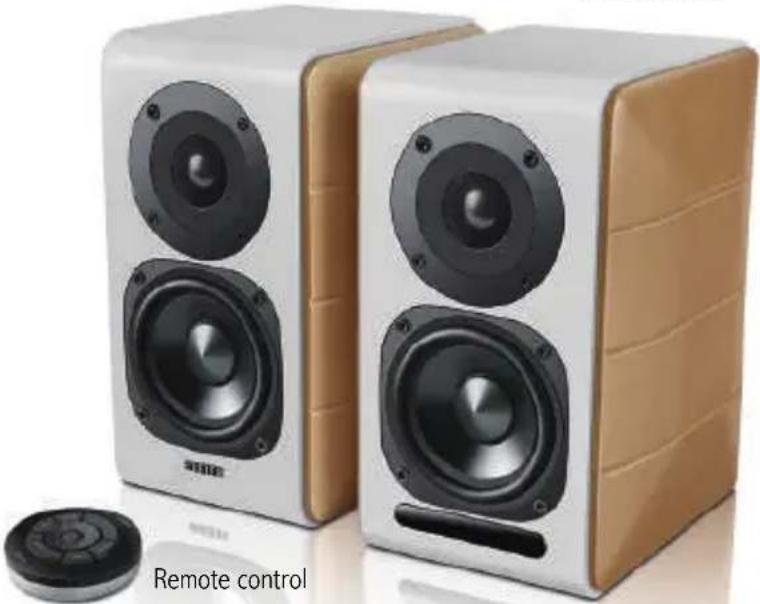
natural_image
Two white and beige electronic speakers with speaker holes, one labeled 'Remote control' (no other text or symbols visible)
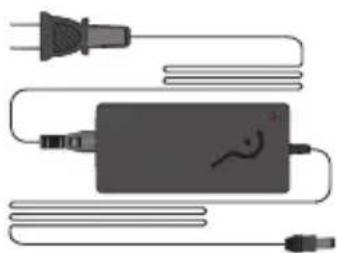
natural_image
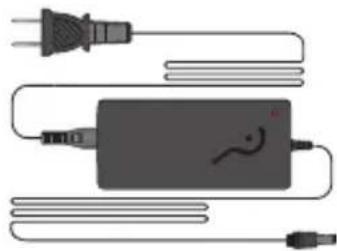
Illustration of a connected electrical device with power plug, cable, and connector (no text or symbols)Power adapter and power cable

natural_image
Simple geometric shape: a trapezoid outline with no text or symbolsUser manual
Speaker Controls
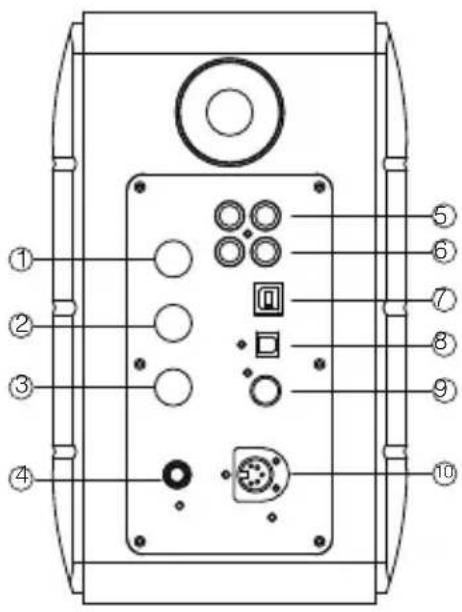
text_image
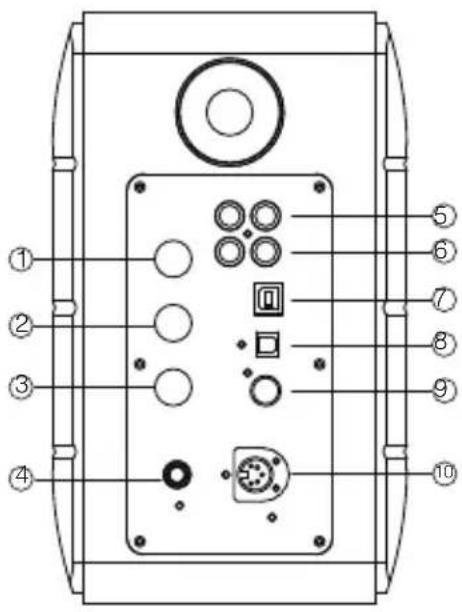
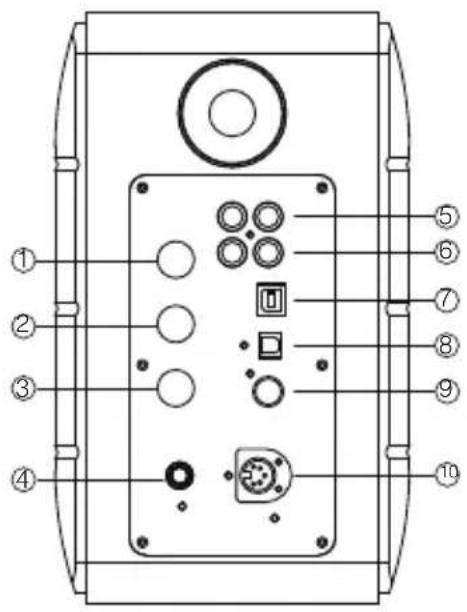
Technical diagram of a device rear panel with numbered labels pointing to various components such as buttons, sensors, and indicators.- Treble dial
- Bass dial
- Volume dial
Audio source selection (press to switch PC-AUX-USB-OPT-COX-PC input)
Standby control (press and hold it to enter standby mode, press again to power on speaker)
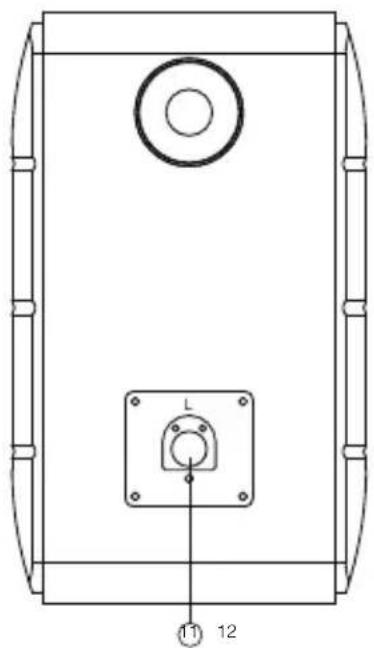
- Connect to power cable
- AUX input
- PC input
- USB B type connecting port (for USB digital audio input)
natural_image
Technical line drawing of a mechanical component with mounting holes and a circular top (no text or symbols)- Optical input port
- Coaxial input port
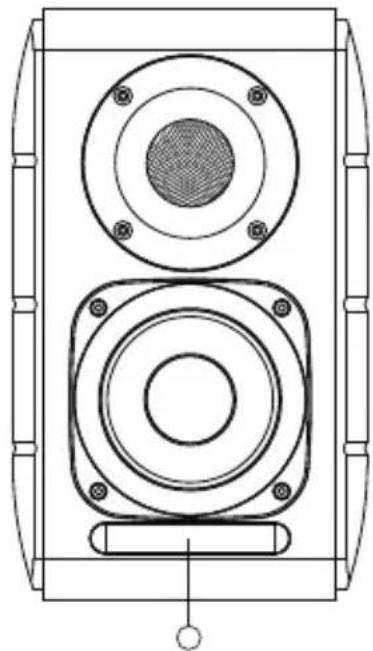
- Connect to passive speaker port(L)
- Connect to active speaker port(R)
- LED indicator
a. Show PC, AUX, USB, OPT, COX or ⚙, to indicate the current audio source
b. Flashing to indicate the playing mode
Enable MONITOR mode: LED light flashes once
Enable DYNAMIC mode: LED light flashes twice
Enable CLASSIC mode: LED light flashes thrice
Enable VOCAL mode: LED light flashes 4 times
natural_image
Technical line drawing of a two-tiered speaker or amplifier with circular components and mounting holes (no text or symbols)Remote Control
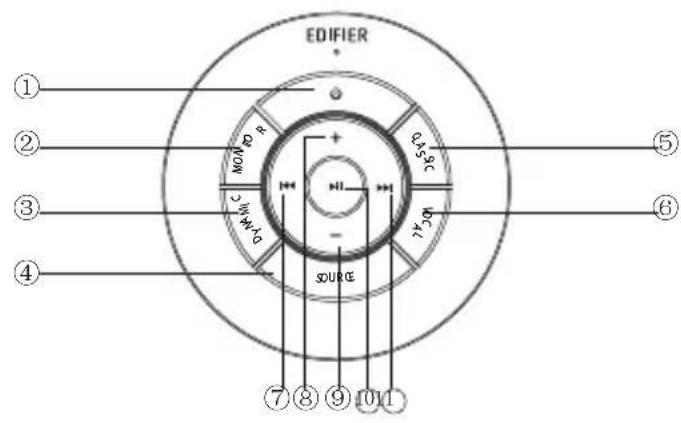
Remote control
text_image
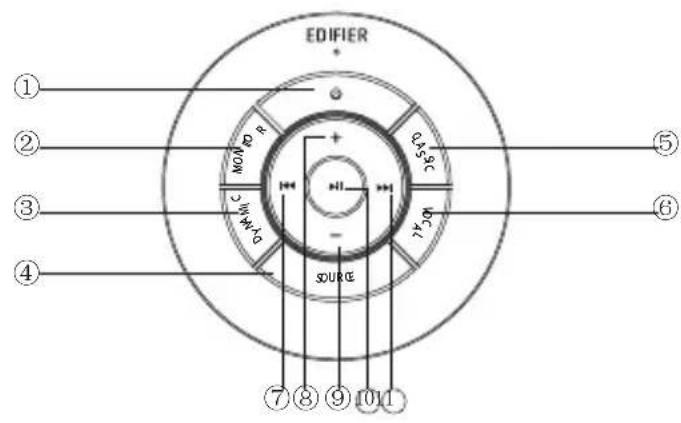
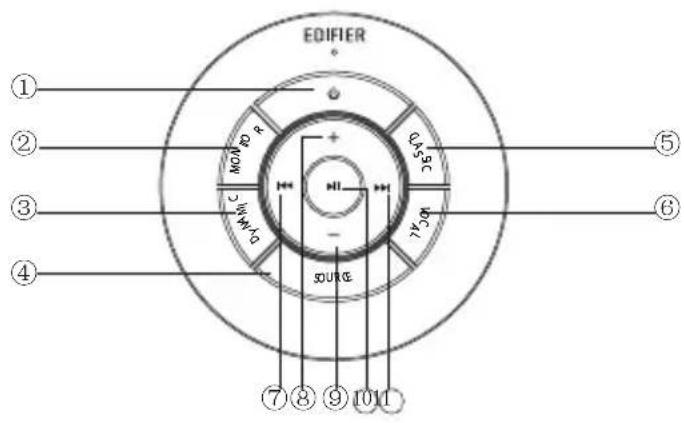
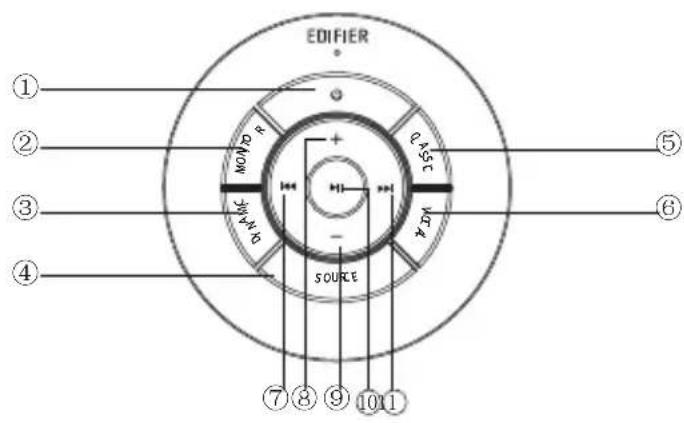
EDIFIER ① ② ③ ④ ⑤ ⑥ ⑦ ⑧ ⑨ ⑩ ⑪- ON/OFF
- MONITOR mode
- DYNAMIC mode
- Audio source selection (PC-AUX-USB-OPT-COX-PC input)
Note: because the system switching mode needs to be initialized, when you press this key to switch audio source, please keep 1 seconds before switch to next audio source, and the LED light will flash once to show it enter into the current mode, press again to switch to the next mode.
- CLASSIC mode
- VOCAL mode
- Previous track (under Bluetooth/USB mode)
- Volume increase
- Volume decrease
- Play/pause (under Bluetooth/USB mode)
- Next track (under Bluetooth/USB mode)
Tips:
CLASSIC mode - reproduces a classic HIFI sound
MONITOR mode - reproduces original and accurate sound
DYNAMIC mode - enjoys high dynamic passion
VOCAL mode - Highlights vocals
The system's default mode is set to "Classic" mode. Please manually choose your preferred mode by using the remote control.
Installation of remote control
Installation and replacement of controller battery:
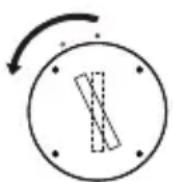
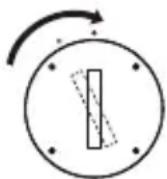
As the illustration, please insert a coin into the slot and rotate anticlockwise to the “○” position to open battery cover, then place the CR2025 battery and rotate clockwise to the “●” position to close the cover.
Open Close
WARNING!
DO NOT INGEST BATTERY, CHEMICAL BURN HAZARD
- (The remote control supplied with) This product contains a coin/button cell battery. If the coin/button cell battery is swallowed, it can cause severe internal burns in just 2 hours and can lead to death.
- Keep new and used batteries away from children, if the battery compartment does not close securely, stop using the product and keep it away from children.
- If you think batteries might have been swallowed or placed inside any part of body, seek immediate medical attention.
Note:
- Do not place the remote control in places that are hot and humid.
- Do not charge the batteries.
- Remove the batteries when unused for a long period of time.
- The battery (in remote control) shall not be exposed to excessive heat such as sunshine, fire or the like.
- Danger of explosion if battery is incorrectly replaced. Replace only with the same or equivalent type.
Symptoms from battery ingestion
No obvious symptoms
Unfortunately, it is not obvious when a button or coin battery is stuck in a child's oesophagus (food pipe).
There are no specific symptoms associated with this. The child might:
- cough, gag or drool a lot;
• appear to have a stomach upset or a virus; - be sick;
- point to their throat or stomach;
• have a pain in their abdomen, chest or throat; - be tired or lethargic;
- be quieter or more clingy than usual or otherwise "not themselves";
- lose their appetite or have a reduced appetite; and
- not want to eat solid food / be unable to eat solid food.
These sorts of symptoms vary or fluctuate, with the pain increasing and then subsiding.
A specific symptom to button and coin battery ingestion is vomiting fresh (bright red) blood. If the child does this, seek immediate medical help.
The lack of clear symptoms is why it is important to be vigilant with "flat" or spare button or coin batteries in the home and the products that contain them.
Connections
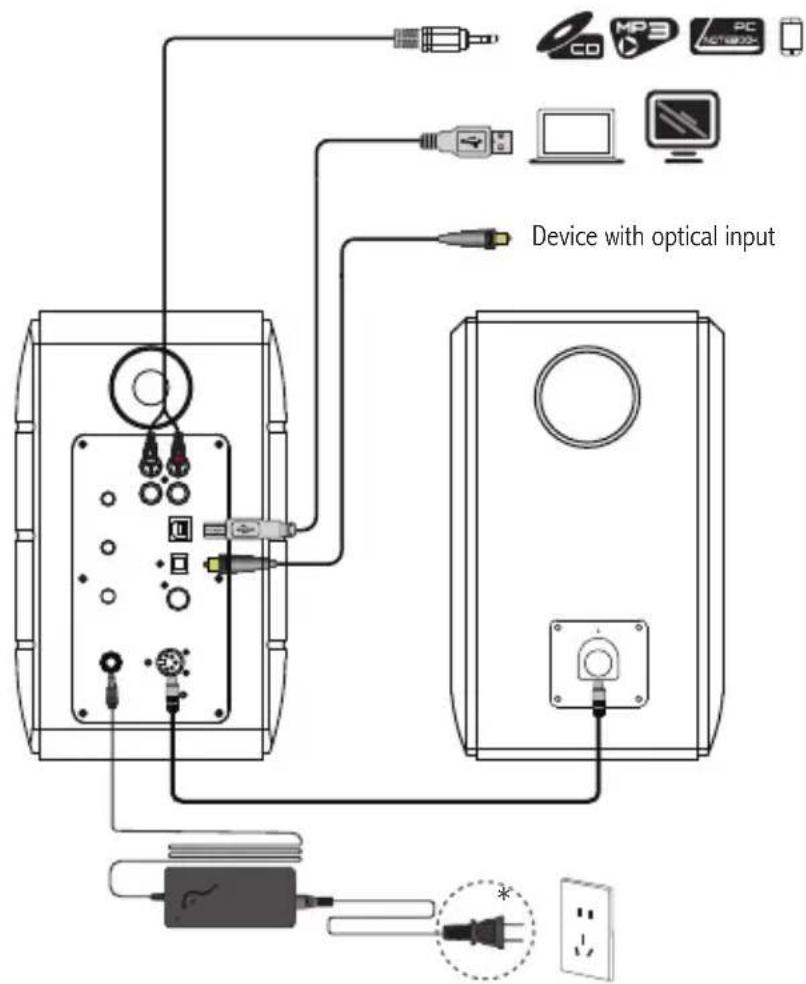
text_image
Device with optical input* This plug type is meant for illustration purpose only.
- Connect the active and passive speaker with the speaker connecting cable (included);
- Follow the above illustration to connect to the audio device;
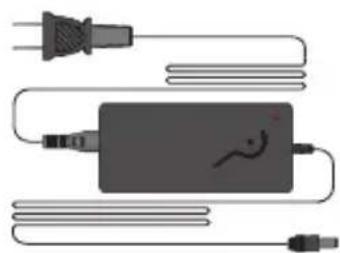
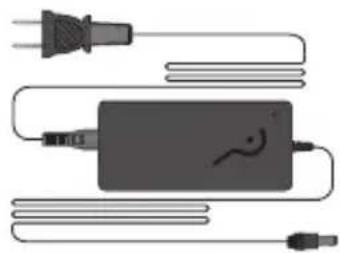
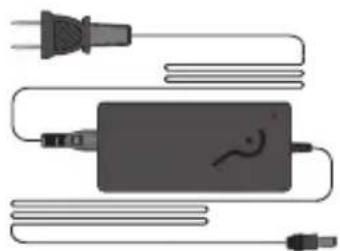
- Connect the speaker to power source with the power adapter and power cable (included);
- Speaker will power on, LED indicator on the active speaker shows the current audio source. If it is not what you want to select, please select the audio source with the remote control.
PC /AUX Input
flowchart
graph LR
    A["hand with 'sUR' icon"] --> B["or"]
    B --> C["hand pointing to 'circled' button with +/- mark"]
    C --> D["headband playing note"]
    D --> E["headband inside circle"]
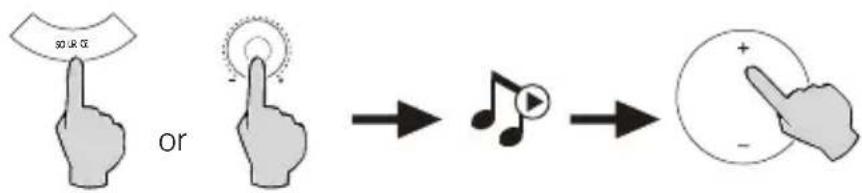
- Press the volume dial on the active speaker or press the SOURCE key on the remote control to select PC/AUX input, LED light will shows PC or AUX input.
- Play from your device and adjust the volume accordingly.
USB digital audio Input
text_image
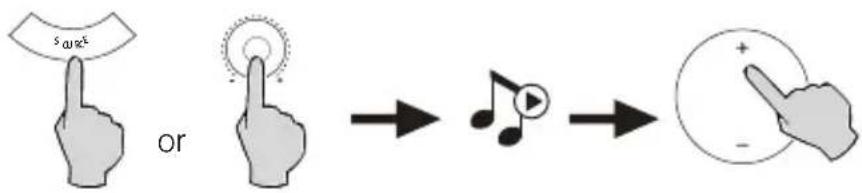
s_00%^k or → ↓ → + - -- Press the volume dial on the active speaker or press the SOURCE key on the remote control to select USB input, LED light will shows USB input.
- Play from your device and adjust the volume accordingly.
Tips:
USB interface chip in the S880DB is a XMOS chip used by high-end audio equipment. After being connected to PC, USB interface will directly extract and play back digital audio signal in a manner similar to the "USB external audio streaming", to avoid sound degradation and dynamic range compression caused by digital-to-analog conversion of PC audio streaming, and to ensure the restoration of original sound quality.
Note:
- Default USB driver for audio on Windows 7/Windows 10 operation system supports only USB Audio Class 1, which limits the audio stream to only 2 channels PCM with highest sample rate of 96kHz. To support PCM with higher sample rate(e.g., 192kHz etc.), USB interface of S880DB is built on USB Audio Class 2, therefore specific driver is needed for using with Windows 7/Windows 10. Please refer to https://www.edifier.com/product-s880db.html for details.
- Please understand Windows XP operation system is no longer maintained by Microsoft, driver software to work with Windows XP is no available. There may be risk warning during installation, please install according to your needs.
- USB driver in Mac OS supports USB Audio Class 1 and USB audio Class 2 by default, therefore no dedicated driver software is needed for S880DB to use with Mac computer.
- For further information referring to the driver software, please log on the link below for details: https://www.xmos.com/support/usb-audio-driver-support
- If you need to buy USB A-to-B data cable, you can search for and buy it on various e-commerce platforms.
- In USB mode, PCM stream with various sample rates is supported, including 44.1kHz/48kHz/96kHz/192kHz.
Note: The play control under USB input belongs to USB HID control, this control needs support of player software, and so there may be compatibility differences for different audio player software.
Optical and Coaxial Input
flowchart
graph LR
    A["Hand with 'sou' icon"] --> B["Hand pointing at 'circled' with dot"]
    B --> C["→ Mezzo Note Icon"]
    C --> D["→ Circle with plus sign and minus sign"]
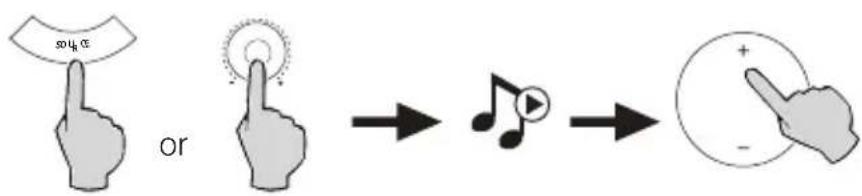
- Press the volume dial on the active speaker or press the "SOURCE" button on the remote control to select optical/coaxial input.
- Using optical or coaxial cable (Coaxial cable not included) to connect audio sources to your speaker.
- Play from your devices and adjust the volume accordingly.
Note:
- In optical and coaxial modes, only PCM signal with 44.1KHz/48KHz/96KHz/192KHz can be decoded.
Bluetooth Input

Bluetooth®
flowchart
graph LR
    A["Hand with 'θ' and 'uRξ') or"] --> B["Sensor icon"]
    B --> C["Mobile phone icons"]
    C --> D["Speaker with two speakers"]
    D --> E["Laptop icons"]
    E --> F["Music player icon"]
Pairing
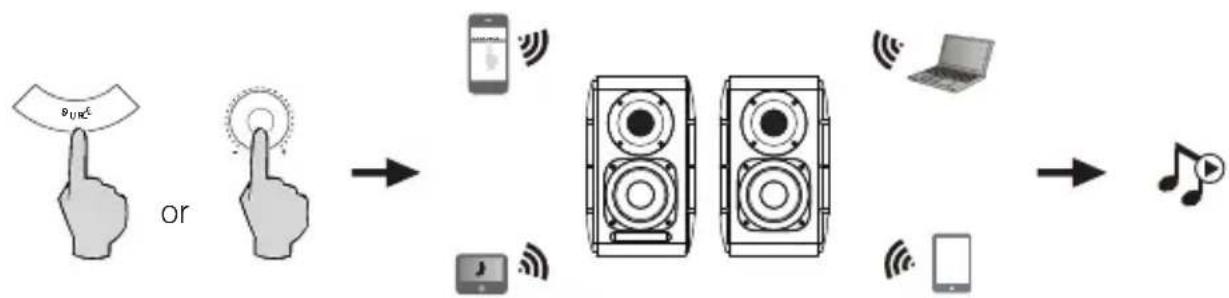
- Turn on speaker and switch to Bluetooth mode by pressing the SOURCE button on the remote control or press the volume dial on the active speaker until the indicator LED light shows 🎨 (Bluetooth)
- Go to setup on your source devices (mobile phones, tablets, etc.) and search for nearby Bluetooth devices, you will find "EDIFIER S880DB" in the list.
- Pair your device with "EDIFIER S880DB".
- Play audio tracks on your device and adjust the volume to a desired level.
- To disconnect Bluetooth, press and hold the SOURCE button on the remote control for about 2 seconds.
Note:
- Bluetooth on the product can be searched and connected only when speaker is ON and switch to the Bluetooth input. When the speaker is switch to other audio inputs, the Bluetooth connection will be disconnected. When switched to Bluetooth input, the speaker will try to connect the last connected Bluetooth source device.
- Bluetooth connectivity and compatibility may be different among different source devices, depending on the software version of source devices.
- To enjoy the full Bluetooth functions of this product, please ensure your mobile device supports A2DP and AVRCP profile.
- PIN code for connection is "0000" if needed.
Specifications
Power output: R/L (Treble): 12W+12W
R/L (Mid-range and bass): 32W+32W
Frequency response: 55Hz-40KHz
Audio inputs: PC/AUX/USB/Optical/Coaxial/Bluetooth
Power adapter information:
Manufacturer: EDIFIER
Model: ADT-60180
Input: 100-240V\~50/60Hz 1.5A
Output: 18V == 3A
Declaration for EU
Frequency Band: 2.402GHz\~2.480GHz
RF Power output: ≤10dBm (EIRP)
There is no restriction of use.
Troubleshooting
No sound
- Check if the power indicator light is ON.
- Try to turn up the volume using either the master volume control or remote control.
- Ensure the audio cables are firmly connected and the input is set correctly on the speaker.
- Check if there is a signal output from the audio source.
Cannot connect via Bluetooth
- Make sure the speaker is switched to Bluetooth input. If it is in other audio input modes, Bluetooth will not connect. Disconnect from any Bluetooth device by pressing and holding the volume dial in Bluetooth mode, then try again.
- Effective Bluetooth transmission range is 10 meters; please ensure that operation is within that range.
- Try another Bluetooth device for connection.
The S880DB does not turn on
- Check if main power is connected, or if the wall outlet is switched on.
Noise coming from speakers
- EDIFIER speakers generate little noise, while the background noise of some audio devices are too high. Please unplug audio cables and turn the volume up, if no sound can be heard at 1 meter away from the speaker, then there is no problem with this product.
To learn more about EDIFIER, please visit www.edifier.com
For EDIFIER warranty queries, please visit the relevant country page on www.edifier.com and review the section titled Warranty Terms.
USA and Canada: service@edifier.ca
South America: Please visit www.edifier.com (English) or www.edifierla.com (Spanish/Portuguese) for local contact information.
Troubleshooting
If speaker is under USB audio source and have connected to PC with USB connecting cable:
a. if the PC is Windows operating system, please ensure whether install S880DB special USB driver, if not, please download the driver and install it.
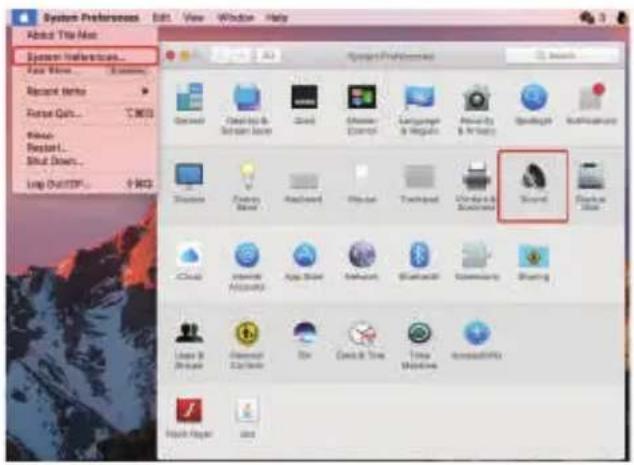
b. please ensure whether the speaker have finished USB enumeration. For Windows users, please open "device manager", to check whether enumerate to "EDIFIER S880DB" or "XMOS USB Audio" USB device., if not find it, you may need to install S880DB special USB driver or re-start PC. For Mac users, please open "System Preferences" → "Sound" Tab, to check whether enumerate to "EDIFIER S880DB" audio output device.
c. please ensure whether the speaker is set to audio output device.
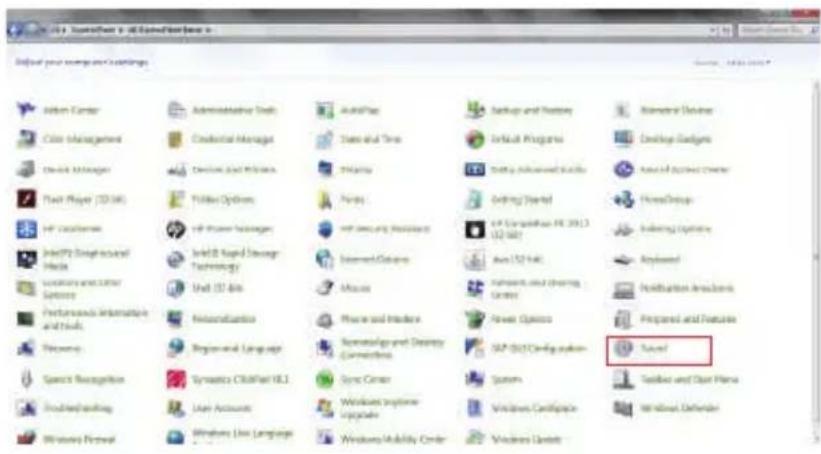
For Windows users, please open "Control panel" → "Sound and audio device", with "Audio" Tab → "Default device" item, to set "XMOS USB Audio" as current audio output device.
text_image
IBM 2003 Software - IBM Consulting Target your manager and Settings Action Center Clim Management Device Manager Tech Player (10.0K) HP Computer Intel® Deep-visual Media Locometry and Other Services Performance Information and Tools Frequency Speech Recognition Disassembling Windows Personal Administrator Tools Credential Manager Device and Models Folder Options HP User Manager Intel® Rapid Storage Technology Unit 12 Bits Relationalization Regional Language Synthesis CS/Panel 18.1 User Accounts Windows Live Language AutoPlay Data and Tree Pharmacy Finds Webging Software Webging Software (12.5 KB) Internet Centers Music Phone and Internet Knowledge and Security Connectors Sync Center Windows Interface Upgrade Windows Mobility Center Backup and History Default Programs Getting Advanced Skills Getting Startset GP Computation PE 2013 U2 567 Auto LS144 Internet and Sharing Center Power Options GP 2013 Config sub- System Windows Certificate Windows License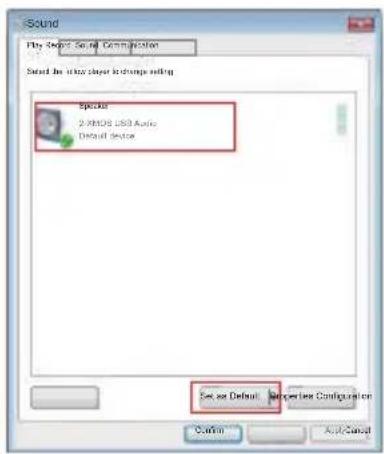
text_image
Sound Play Sound Signal Commlation Select In into cluster options setting Special 2.9008 USB Audio Default Device Set as Default Properties Configuration Cancel Apply/CancelTroubleshooting
For Mac users, please open "System Preferences" → "Sound" Tab, and select "EDIFIER S880DB" as the current audio output device.
text_image
System Preferences Edit View Window Help About Title Map System Preferences... Face Views... Search... Recent Items Recent QoS... C:\MOS Recent Recent... Shift Downs... Loop OutFTP... S:\MOS Project Preferences Search General CableUp & Screen User Cloud Explorer Language & Reports Annuity & Privacy OpenBig Accessibility Showers Family Board Applications Physical Technical Device & Services Smart Desktop Table Cloud Internet Accounts App Store Influence Webpage Commanding Sharing Layer 3 Drive Compress 2.5x100x Box Connect to Time Time Windows Accessories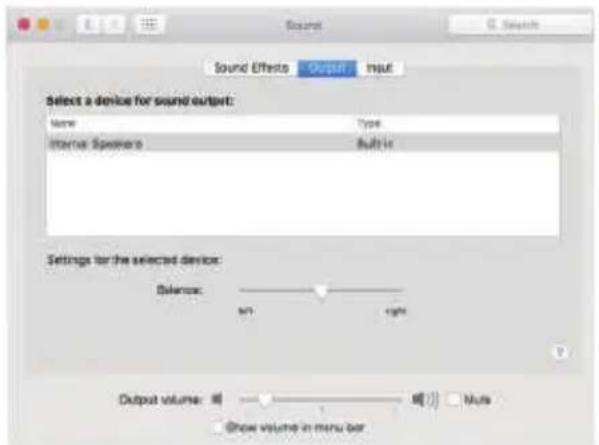
text_image
Sound Effects Output Input Select a device for sound output: Name Type Internal Spenders Sub-ir Settings for the selected device: Balance: sn +sn Output volume: ● ● ● ● ● ● ● ● ● ● ● ● ● ● ● ● ● ● ● ● ● ● ● ● ● ● ● ● ● ● ● ● ● ● ● ● ● ● ● ● ● ● ● ● ● ● ● ● ● ● ●FR Consignes de securite importantes
natural_image
Two white and beige electronic speakers with black speaker holes, one labeled 'Télécommande' (no other text or symbols visible)
natural_image
Illustration of a connected electrical device with power plug, cable, and connector (no text or symbols)natural_image
Simple geometric shape: a trapezoid outline with no text or symbolsmode d'emploi
text_image
Technical diagram of a device rear panel with numbered labels pointing to various components like buttons, connectors, and sensors.natural_image
Technical line drawing of a rectangular device with a circular top and central square button labeled L, showing mounting holes (no text or symbols beyond labels)flowchart
graph LR
    A["Input: SOURCE"] --> B["Arrow to Pie Chart"]
    B --> C["Arrow to Circle with Plus/Minus Button"]
flowchart
graph LR
    A["Hand with 'sUR' label"] --> B["Ou: Finger pointing to 'SUR' icon"]
    B --> C["→: Arrow to 'SUR' icon with musical note"]
    C --> D["→: Arrow to 'Circle' icon with plus sign and minus sign"]
flowchart
graph LR
    A["Hand with 's' labeled 'uR' on the left"] --> B["Arrow to 'ou'"]
    B --> C["Hand with musical note inside circle"]
    C --> D["Arrow to '+/-' inside circle"]
flowchart
graph LR
    A["Hand with 'S' button"] --> B["Ou"]
    B --> C["Speaker with two speakers"]
    C --> D["Laptop"]
    C --> E["Phone with microphone"]
    C --> F["Audio player"]
    C --> G["Music note"]
Association
text_image
Start Menu Start Menu Options Default your component's Settings System Large Cost Management Home Management Plant Player (32.0k) Soft Connections Install System Tools and Files Accessories/Context Sensors Performance Automation and Trials Resources Search Recognition Database Banking Windows Personal Administrative Study Controller/Storage Documents and Protocols Fululeh Options Soft Performance Manager Intel 800 Rapid Storage Technology Mail (32.0k) Remote/Remote Systems and Languages Synaptics Digital Field VRL User Accounts Windows Engine Upgrade Windows Security Cluster LockFlow Backup and Programs Default Programs MyBlock Information Tools Getting Started USB Interface (4K, 2011) (32.0k) Java (32.0k) Network and Networking Center Power Options SAP-SQLC Configuration Sound Settings and Start Home Windows Definder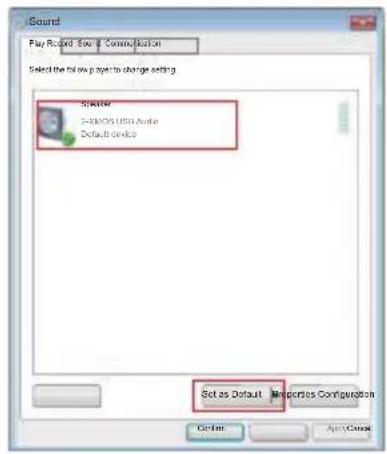
text_image
Sound Play Record Save Communication Select the follow page to charge setting Scatter SARMOOS USB Audio Default device Set as Default Properties Configuration Options Apply/CancelDépannage
text_image
Sound Effects Output Input Select a device for sound output: Name Type Internal Speakers Built in Settings for the extended device Balance: m g/m Output volume: Muts Show volume in menu barnatural_image
Two white and beige audio speakers with speaker holes, one labeled 'STUB' and the other 'Control remoto' (no additional text or symbols visible)
natural_image
Pure electrical circuit lines without any symbolsnatural_image
Simple geometric shape: a trapezoid outline with no text or symbolsManual de usuario
Controles del altavoz
text_image
Technical diagram of a device rear panel with numbered labels pointing to various components and connectors.natural_image
Technical line drawing of a mechanical component with circular top and square base (no text or symbols)natural_image
Technical line drawing of a speaker or audio device with two circular components and mounting brackets (no text or symbols)Control remoto
Control remoto
text_image
EDIFIER ① ② ③ ④ ⑤ ⑥ ⑦ ⑧ ⑨ ⑩ ⑪text_image
furo O → ↓↓ → +/-text_image
s0.01k² O → ↓ → +flowchart
graph LR
    A["Hand with 'δu' icon"] --> B["Hand with 'O' icon"]
    B --> C["→"]
    C --> D["App with 'S' icon"]
    C --> E["Speaker with 'L' icon"]
    C --> F["Laptop with 'W' icon"]
    C --> G["Music with 'T' icon"]
Emparejamiento
text_image
Start your company listings Action Center Color Management Device Manager Fruit Player (32.56) HP Location Microsoft Graphic Web Media Location and User Services Portfolios: Applications and Tech Recovery Speech Recognition User Resources Windows Firewall Administrated Tools Credential Manager Device and Tools Systems Finish HP Security Advisor Internet Options Music Phone and Users Software and Security Connectors System Center Windows Database Windows Activity Center Settings and Process Default Programs Setup Advanced Tools Ordering Wizard HP Composite, PC (2013) (27.48) Auto (32.48) Instructions and Clearing Center Newer Options SAP 3.0.1 Configuration Start Software and User Plans Windows Defense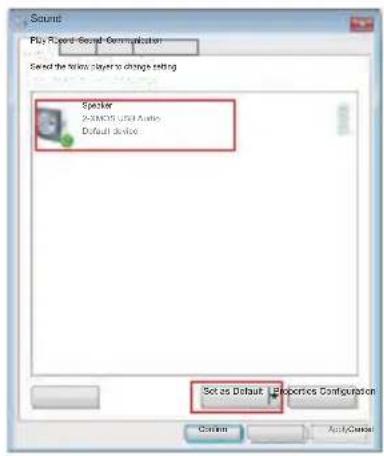
text_image
Sound Play Record-Sound Configuration Send the tick player to change editing Speaker X-MOS USD Audio Default device Set as Default - Properties Configuration Control AutoClustertext_image
System Preferences About the Home System Preferences... File Edit... Save As... Record Status Forest Go... °C (M) Show Reset... Shut Doct... Log Out ESP... © WOZ Standard Preferences Share Options Help Help Help Help Help Help Help Help Help Help Help Help Help Help Help Help Help Help Help Help Help Help Help Help Help Help Help Help Help Help Help Help Help Help Help Help Help Help Help Help Help Help Help Help Help Help Help Help Help Help Hospo & Shkord Commons & Lecosms. Dsn Data & Time Time Modified Accessibility Finish Player Status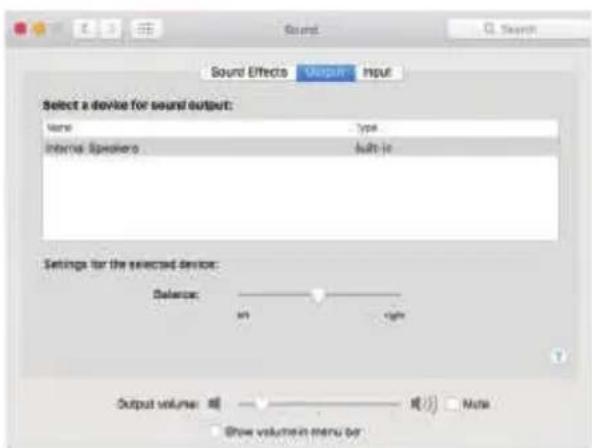
text_image
Sound Sound Effects Visept Input Select a device for sound output: Name Type Internal Speakers Built-in Settings for the selected device: Delete on right Output volume: 关闭 Note Show volume in menu bynatural_image
Exterior view of two white audio speakers with black and beige acoustic foam blocks, labeled 'Fernbedienung' (no other text or symbols visible)
natural_image
Diagram of an electrical device with power plug, capacitor, and wiring (no text or symbols)natural_image
Simple geometric shape: a trapezoid outline with no text or symbolsGebrauchsanleitung
Lautsprecherregler
text_image
Technical diagram of a device rear panel with numbered labels pointing to various components such as buttons, connectors, and sensors.- Hochtonregler
- Bassregler
- Lautstärkeregler
natural_image
Technical line drawing of a speaker or audio device with two circular speakers and a central grille (no text or symbols)Fernbedienung
Fernbedienung
text_image
EDIFIER ① ② ③ ④ ⑤ ⑥ ⑦ ⑧ ⑨ 10 11 SOURCEtext_image
Smart Windows 950 Security Select your component settings Name: 1231-2027 Action Manager Cable Management Crystal Manager Fruit Player (32.0K) HP Climate Smart Control & Infrastructure Location and Other Services Performance Automation and Tools Recovery Smart Accessories User Applications Windows User Language Administrative Tools Credential Manager Device and PC Home Yield System HP User Manager Smart Grid Storage Technology Mail (32.0K) Recommendation Register and Language Synnexics (36/45/18.1) Local Accounts Windows User Language AudioMap Start and Start Display Options Settings and Display Connections Server Center Windows Interface Interface Windows Mobility Center Setup and Settings Default Programs Setup Advanced Bands Setting Wizard IP Ecosystem PS 2012 (32.0K) Auto Web Network and Sharing Center Mouse Windows System Provider SAP SQL Configuration Smart Server and User Files Windows Commandbox Windows Update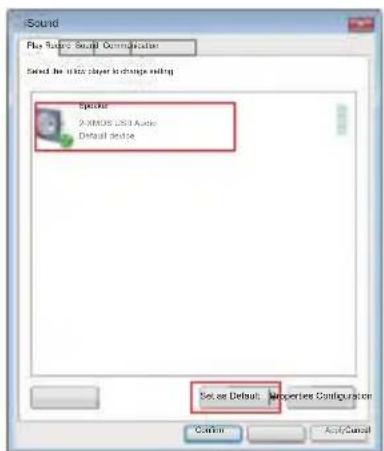
text_image
Sound Play Sound: Small Communicator Selected to this player in-line setting Elastic 2-MOS LED Audio Default device Set as Default Properties Configuration Cancel Apply/CancelFehlerbehebung
text_image
Sound Sound Effects Output Input Select a device for sound output: None Type Internal Spreads Built-in Settings for the selected device: Balance: M1 calm Output volume: 0000000000000000000000000000000000000000000000000000000000000000000000000000000000000000000000000000 Show volume in menu barnatural_image
Exterior view of two white and beige electronic speakers with black speaker dividers, labeled 'Telecomando' (no other text or symbols visible)
natural_image
Pure electrical circuit lines without any symbolsnatural_image
Simple geometric shape: a trapezoid outline with no text or symbolsManuale utente
text_image
Technical diagram of a device rear panel with numbered labels pointing to various components such as buttons, sensors, and connectors.natural_image
Technical line drawing of a mechanical component with mounting holes and a central circular feature (no text or symbols)text_image
EDIFIER ① ② ③ ④ ⑤ ⑥ ⑦ ⑧ ⑨ 10 11 SOURCE C:\MOM\OR C:\MAM\OR C:\PSC C:\PCLflowchart
graph LR
    A["hand with 'furo' icon"] --> B["hand pointing up to 'oppure'"]
    B --> C["→"]
    C --> D["hand with musical note"]
    D --> E["→"]
    E --> F["hand pointing down to circle with plus/minus signs"]
flowchart
graph LR
    A["hand with 'so4' symbol"] --> B["hand pointing at button"]
    B --> C["pass icon with 'circled' circle"]
    C --> D["hand with musical note inside circle"]
    D --> E["hand pointing at button"]
text_image
Sound Play Record Start Communication Select the voice paper in charge setting Speaker 2.0/108 USB Audio Default device Set as Default Properties Configuration Confirm AutoCADtext_image
System Preferences About the Web System Preferences... File View... Recorded Focus Cells... Stop Reset... Send Downs... Log Out EDP... Options System Preferences Sound Sound Options Options Options Options Options Options Options Options Options Options Options Options Options Options Options Options Options Options Options Options Options Options Options Options Options Options Options Options Options Options Options Options Options Options Options Options Options Options Options Options Options Options Options Options Options Options Options Options Options Options Only & Only None & Only None & Only None & Only None & Only None & Only None & Only None & Only None & Only None & Only None & Only None & Only None & Only None & Only None & Only None & Only None & Only None & Only None & Only None & Only None & Only None & Only None & Only None & Only None & Only None & Only No Data Options... All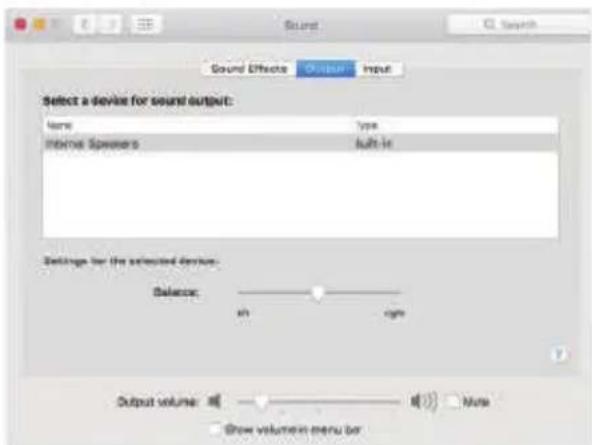
text_image
Sound Sound Effects Output Input Select a device for sound output: Name Type Internal Speakers Built-in Settings for the selected devices: Delete in right Output volume: More Show volume in menu barnatural_image
Two white and beige audio speakers with black speaker stands, one labeled 'Controllo remoto' (no other text or symbols visible)
natural_image
Diagram of an electrical device with power plug, cable, and connector (no text or symbols)natural_image
Simple geometric shape: a trapezoid outline with no text or symbolsManual do utilizador
text_image
Diagram of a device rear panel with numbered labels pointing to various electronic components and connectors.natural_image
Technical line drawing of a mechanical component with mounting holes and a circular top (no text or symbols)natural_image
Technical line drawing of a speaker or audio device with two circular speakers and a central grille (no text or symbols)Controlo remoto
Controlo remoto
text_image
EDIFIER ① ② ③ ④ ⑤ ⑥ ⑦ ⑧ ⑨ 10 11 SOURCE VOUT VOUT VOUT VOUT VOUTflowchart
graph LR
    A["Hand with 's_0/nk' icon"] --> B["Ou"]
    B --> C["→"]
    C --> D["Music note icon"]
    D --> E["→"]
    E --> F["Circle with plus and minus signs"]
flowchart
graph LR
    A["Hand with 'S UK' icon"] --> B["Hand pointing at 'ou'"]
    B --> C["Switcher"]
    C --> D["Smartphone"]
    D --> E["Speaker Setup"]
    E --> F["Laptop"]
    F --> G["Music Player"]
    G --> H["Phone"]
Emparelhamento
D/E (Mid-range e graves): 32W+32W
text_image
Special Special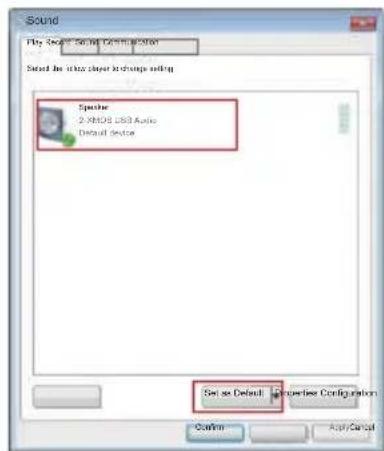
text_image
Sound Play Specific Serial Communication Select the audio player settings setting Specise 2 X808 USB Audio Default Device Set as Default Properties Configuration Option App/ControlHereby, Edifier International Limited declares that the radio equipment type EDF100042 is in compliance with Directive 2014/53/EU. The full text of the EU declaration of conformity is available at the following internet address: https://www.edifier.com/int/eu-doc.html
Manual Edition 1.2, December 2022 IB-200-S0880D-09
For more information, please visit our website:

text_image
www.edifier.com


@Edifier_Global @Edifier_Global@Edifierglobal
Model: EDF100042
FCC ID: Z9G-EDF162
IC: 10004A-EDF162
Edifier International Limited
P.O. Box 6264
General Post Office
Hong Kong
Tel: +852 2522 6989
Fax: +852 2522 1989
www.edifier.com
© 2022 Edifier International Limited. All rights reserved.
Printed in China
NOTICE:
For the need of technical improvement and system upgrade, information contained herein may be subject to change from time to time without prior notice.
Products of EDIFIER will be customized for different applications. Pictures and illustrations shown on this manual may be slightly different from actual product. If any difference is found, the actual product prevails.