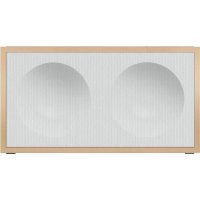
NCP302 - Loudspeaker ONKYO - Free user manual and instructions
Find the device manual for free NCP302 ONKYO in PDF.



| Product type | Active 2-way bookshelf speaker |
| Brand | Onkyo |
| Model | NCP302 |
| Dimensions (W × H × D) | 320 mm × 172 mm × 106 mm |
| Weight | 2.6 kg |
| Power supply | AC adapter 100-240 V~, 50/60 Hz, output 15 V ⎓ 3.5 A |
| Power consumption | Operating: 10 W; Standby: 0.5 W; Network standby (wired/Wi-Fi): 3 W |
| RMS output power | 18 W (woofer) + 10 W (tweeter) |
| Network connectivity | Wi-Fi 802.11 a/b/g/n (2.4/5 GHz), Ethernet 10BASE-T/100BASE-TX |
| Bluetooth | Version 4.1, profile A2DP, range ~15 m |
| Audio inputs | 1 × 3.5 mm stereo mini-jack (AUX) |
| Supported network services | Spotify Connect, TuneIn Radio, Music Server (DLNA) |
| Compatible audio formats (server) | MP3, WMA, WAV, AIFF, AAC, FLAC, LPCM, Apple Lossless |
| Speakers | Woofer: 77 mm × 2 (cone); Tweeter: 26 mm × 1 (soft dome) |
| Tone control (via app) | Bass: ±5 dB at 124 Hz; Treble: ±5 dB at 8 kHz |
| Auto standby function | Yes, after 20 min without signal (adjustable) |
| Care and cleaning | Unplug the adapter before cleaning; use a soft dry cloth |
| Safety | Use only the supplied adapter and cord; do not expose to moisture |
| Included accessories | Power cord, AC adapter, 1.2 m stereo mini cable |
Frequently Asked Questions - NCP302 ONKYO
User questions about NCP302 ONKYO
0 question about this device. Answer the ones you know or ask your own.
Ask a new question about this device
Download the instructions for your Loudspeaker in PDF format for free! Find your manual NCP302 - ONKYO and take your electronic device back in hand. On this page are published all the documents necessary for the use of your device. NCP302 by ONKYO.
USER MANUAL NCP302 ONKYO
Power standby/On
▶ Operation of the buttons on the main unit
Indicator illumination and flashing
Network services
Settings required to use Music Server
Information about the BLUETOOTH® feature
Troubleshooting
Specifications
License and Trademark Information
Power standby/On
The auto-standby feature
This unit supports the auto-standby feature, which automatically switches the power to standby when no signal is input or no BLUETOOTH connection is made by switching the input source to BLUETOOTH for 20 minutes. This feature is switched on by default on European models. On North American models, the feature is switched off. To switch it on/off, change the applicable setting on the app.
■ Manually switching the power to standby or on
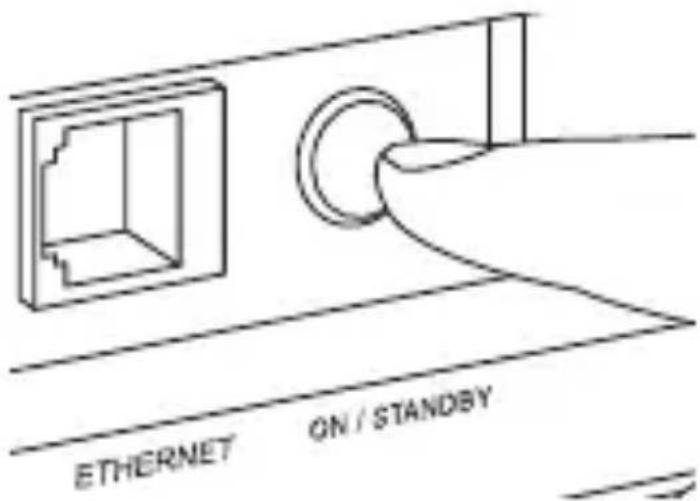
To manually switch the power to standby or on, either use the app or press ON/STANDBY on the back of the main unit.
To reduce the amount of power consumed in standby
While the power is on, press and hold ON/STANDBY for at least 3 seconds. In this state, the power cannot be turned on with the app, and to turn the power on again press ON/STANDBY on this unit.
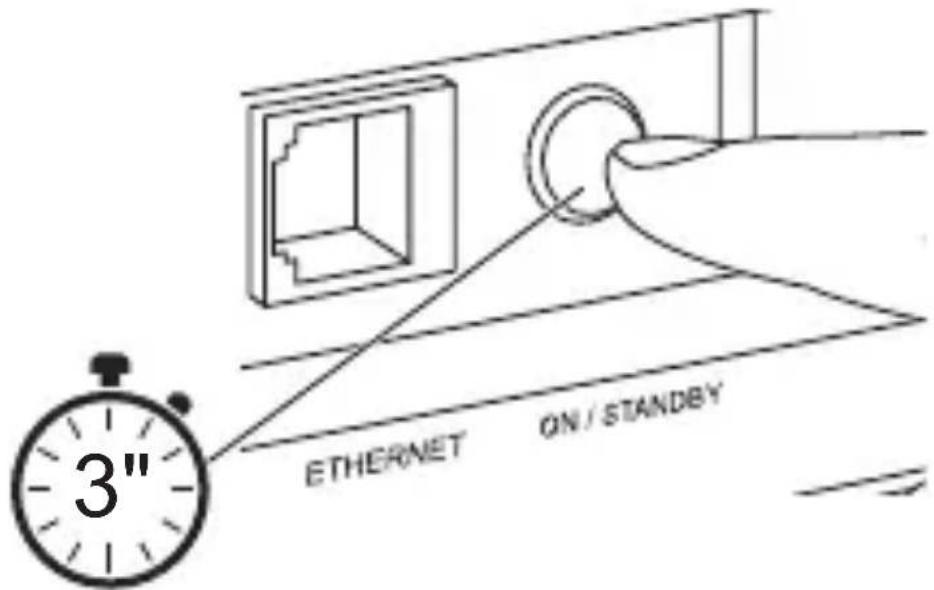

- Be sure to connect the AC adapter to the unit first, and then connect the power cord to the outlet. When disconnecting the power cord, be sure to press and hold ON/STANDBY for at least 3 seconds to switch the power of this unit to standby in advance, and always disconnect the outlet side first.
- When the unit is in standby, you can also press INPUT to turn the power on.
- Do not use any power cord or AC adapter other than the supplied ones. This may cause a fire or electrical shock.
- The supplied power cord and AC adapter are designed specifically for the unit. Do not use them for other devices. This may cause a fire or electrical shock.
Operation of the buttons on the main unit
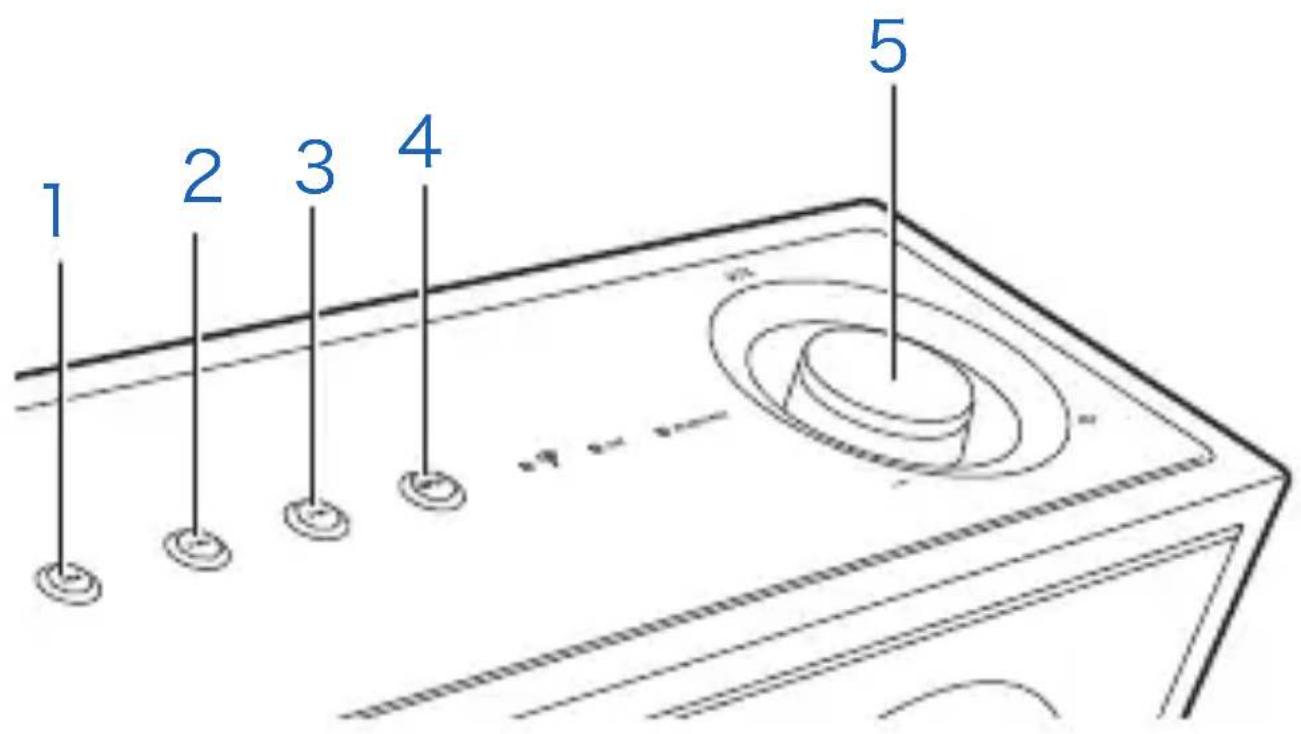
- Skip (◀◀) button
When playing a BLUETOOTH source or some network services, this skips to the beginning of the track or to the previous track when pressed during play. It does not rewind.
- Play/pause (▶/■) button
When playing a BLUETOOTH source or some network services, this starts play or pauses play.
- Skip (▶▶l) button
When playing a BLUETOOTH source or some network services, this skips to the next track when pressed during play. It does not fast-forward.
4. INPUT button
Switches input. When pressed while the unit is in standby, it also turns the unit on.
5. Volume dial
Adjusts the volume.
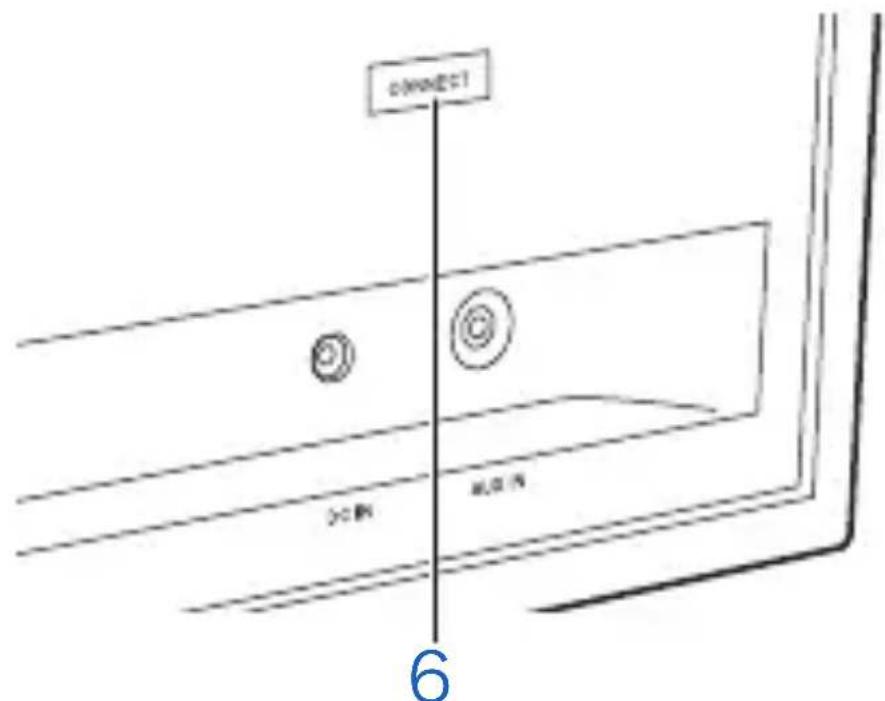
6. CONNECT button
Connects the unit to a BLUETOOTH enabled device.
Indicator illumination and flashing
The indicators on the main unit light blue according to the selected input source.
Indicators also tell you the status of the unit by lighting or blinking as follows.
Wi-Fi indicator
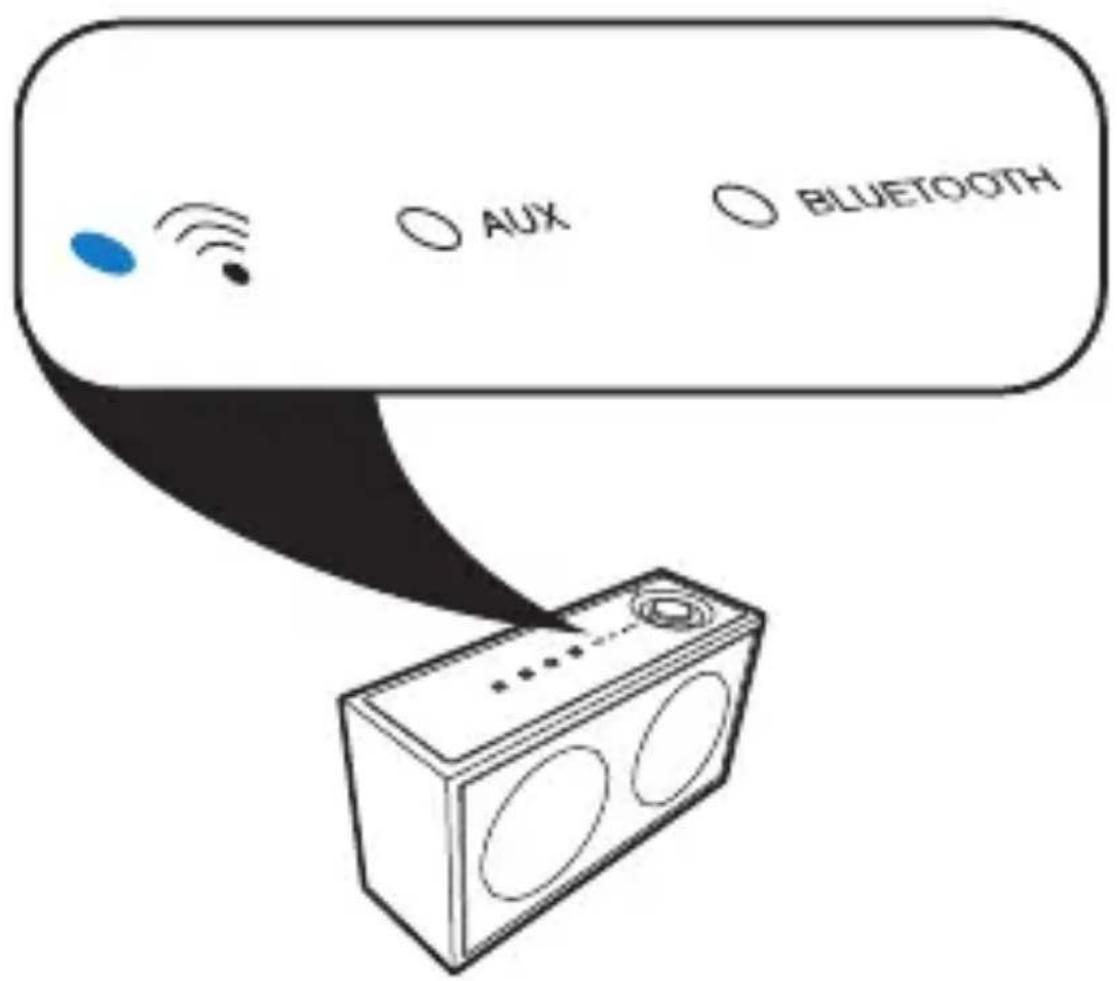
When flashing blue at 2-second intervals
Network function is starting up. Wait for a moment until it starts.
When flashing blue at 1-second intervals Not connected to an access point. It lights blue when connected to an access point.

BLUETOOTH indicator
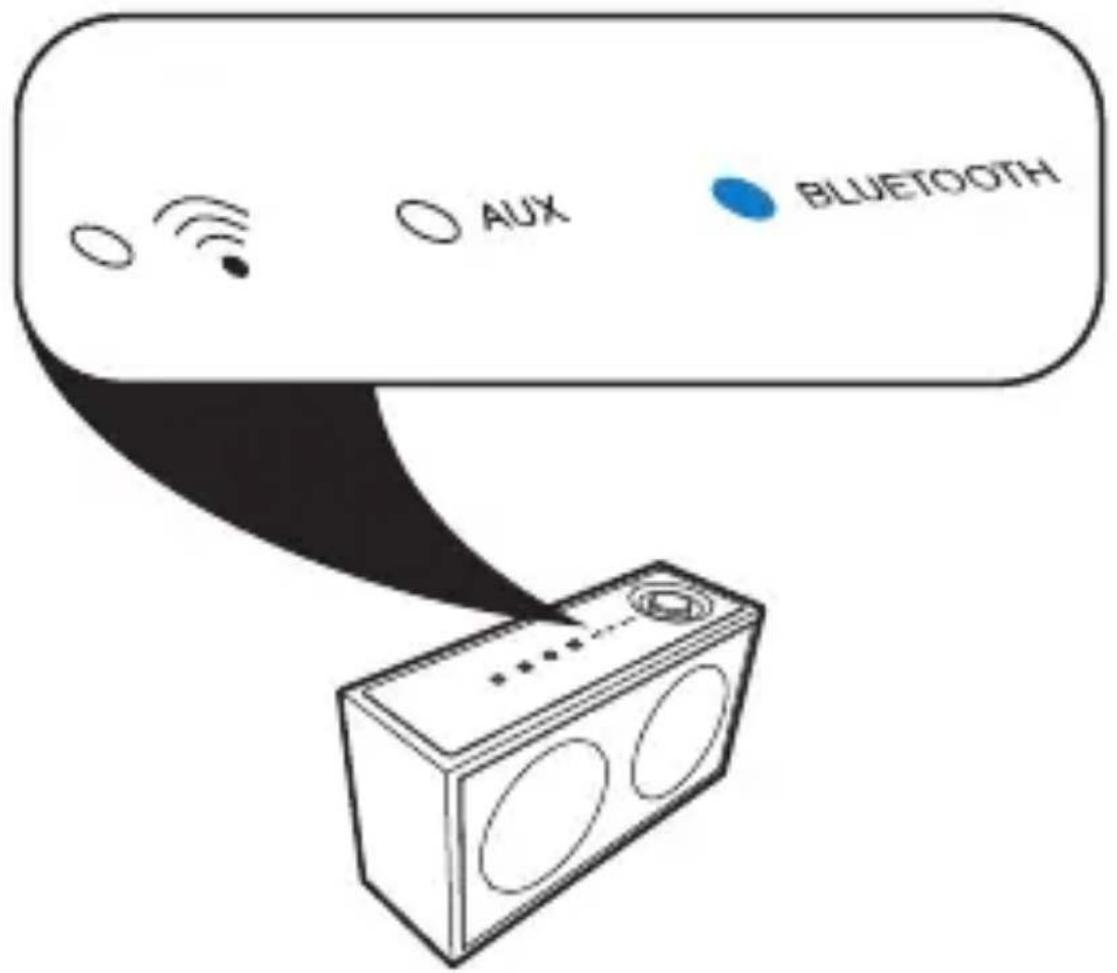
When flashing blue at 1-second intervals Not connected to a BLUETOOTH enabled device. It lights blue when connected to a BLUETOOTH enabled device.
When flashing blue at 0.5-second intervals In the pairing mode ready to connect with a BLUETOOTH enabled device.
The network services you can use
You can use internet radio services such as TuneIn Radio and network services such as Spotify Connect and Music Server.
Functionality may be introduced by firmware updates and service providers may cease services, meaning that some network services and content may become unavailable in the future. Furthermore, available services may vary depending on your area of residence.
Depending on the service, the user may need to register from their computer first.
Spotify Connect
To enable Spotify Connect, install the Spotify application on your smartphone or tablet and create a Spotify premium account.
• Refer to the following for Spotify settings: www.spotify.com/connect/
- The Spotify software is subject to third party licenses found here:
www.spotify.com/connect/third-party-licenses
Music Server
This service enables you to stream music files stored on PCs or NAS devices connected to the same network as this unit. The network servers this unit is compatible with are those PCs with players installed that have the server functionality of Windows Media ® Player 11 or 12, or NAS that are compatible with home network functionality.
You may need to make some settings on your computer in advance to use Windows Media® Player 11 or 12. Refer to here for details on how to set.
■ Audio formats supported by Music Server
The unit can play music files of the formats listed below. It is not possible to play files with a supported sampling rate of 88.2 kHz or above via wireless LAN.
- Variable bit-rate (VBR) files are supported. However, playback times may not be displayed correctly.
MP3 (.mp3/.MP3):
• Supported formats: MPEG-1/MPEG-2 Audio Layer-3
• Supported sampling rates: 44.1 kHz, 48 kHz
- Supported bitrates: Between 8 kbps and 320 kbps and VBR.
WMA (.wma/.WMA):
• Supported sampling rates: 44.1 kHz, 48 kHz
- Supported bitrates: Between 5 kbps and 320 kbps and VBR.
- WMA Pro/Voice/WMA Lossless formats are not supported.
WAV (.wav/.WAV):
WAV files include uncompressed PCM digital audio.
- Supported sampling rates: 44.1 kHz, 48 kHz, 88.2 kHz, 96 kHz, 176.4 kHz, 192 kHz
• Quantization bit: 8 bit, 16 bit, 24 bit
AIFF (.aiff/.aif/.aifc/.afc/.AIFF/.AIF/.AIFC/.AFC) : AIFF files include uncompressed PCM digital audio.
- Supported sampling rates: 44.1 kHz, 48 kHz, 88.2 kHz, 96 kHz, 176.4 kHz, 192 kHz
• Quantization bit: 8 bit, 16 bit, 24 bit
AAC (.aac/.m4a/.mp4/.3gp/.3g2/.AAC/.M4A/.MP4/.3GP/.3G2):
• Supported formats: MPEG-2/MPEG-4 Audio
- Supported sampling rates: 44.1 kHz, 48 kHz, 88.2 kHz, 96 kHz
• Supported bitrates: Between 8 kbps and 320 kbps and VBR.
FLAC (.flac/.FLAC):
- Supported sampling rates: 44.1 kHz, 48 kHz, 88.2 kHz, 96 kHz, 176.4 kHz, 192 kHz
• Quantization bit: 8 bit, 16 bit, 24 bit
LPCM (Linear PCM) :
• Supported sampling rates: 44.1 kHz, 48 kHz
• Quantization bit: 16 bit
Apple Lossless (.m4a/.mp4/.M4A/.MP4):
- Supported sampling rates: 44.1 kHz, 48 kHz, 88.2 kHz, 96 kHz
• Quantization bit: 16 bit, 24 bit
Settings required to use Music Server
You need to make the following settings on your computer before using Music Server. Note that when using Windows Media ® Player, only music files registered in the library can be played.
∫ Windows Media ® Player 11
1 Turn on your PC and start Windows Media ® Player 11.
2 In the "Library" menu, select "Media Sharing" to display a dialog box.
3 Select the "Share my media" check box, and then click "OK" to display the compatible devices.
4 Select this unit, and then click "Allow".
- When it is clicked, the corresponding icon is checked.
5 Click "OK" to close the dialog.
- Depending of the version of Windows Media® Player, there may be differences in the names of items you can select.
Windows Media® Player 12
1 Turn on your PC and start Windows Media ® Player 12.
2 In the "Stream" menu, select "Turn on media streaming" to display a dialog box.
- If media streaming is already turned on, select "More streaming options..." in the "Stream" menu to list players in the network, and then go to step 4.
3 Click "Turn on media streaming" to list players in the network.
4 Select this unit in "Media streaming options" and check that it is set to "Allow".
5 Click "OK" to close the dialog.
- Depending of the version of Windows Media® Player, there may be differences in the names of items you can select.
Information about the BLUETOOTH® feature
This unit supports BLUETOOTH enabled devices with the A2DP profile. However, connection is not always guaranteed with all BLUETOOTH enabled devices.
Read the following for cautions when pairing and playing.
Pairing
- The pairing mode is canceled after about 5 minutes.
- If a password is requested on the BLUETOOTH enabled device when selecting this unit, enter "0000".
- This unit can store the data of up to eight paired devices. The information for the oldest paired device is deleted when you try to pair a ninth device.
Notes when playing
• The coverage area is 15 meters.
- When the audio volume of your BLUETOOTH enabled device is set low, the playback of audio may be unavailable. Turn up the volume on the BLUETOOTH enabled device.
- Due to the characteristics of BLUETOOTH wireless technology, the sound produced on this unit may slightly be behind the sound played on the BLUETOOTH enabled device.
- Radio wave interference may occur in the vicinity of components, such as microwave ovens or cordless phones, which use radio waves in the 2.4 GHz range. This interference may render this unit unusable. Also, if there are metal objects near the unit, BLUETOOTH connection may not be possible as metal can interfere with the radio waves.
Troubleshooting
When operation is unstable, problems may be solved by turning the power to standby and back on or by disconnecting and connecting the power cord. Try the simple measures on both the unit and the connected device. If this doesn't fix the problem, restarting or initializing the unit may solve the problem.
■ Restarting this unit
Use a pin or similar long thin object to press the reset button. If restarting doesn't fix the problem, try initializing the unit.
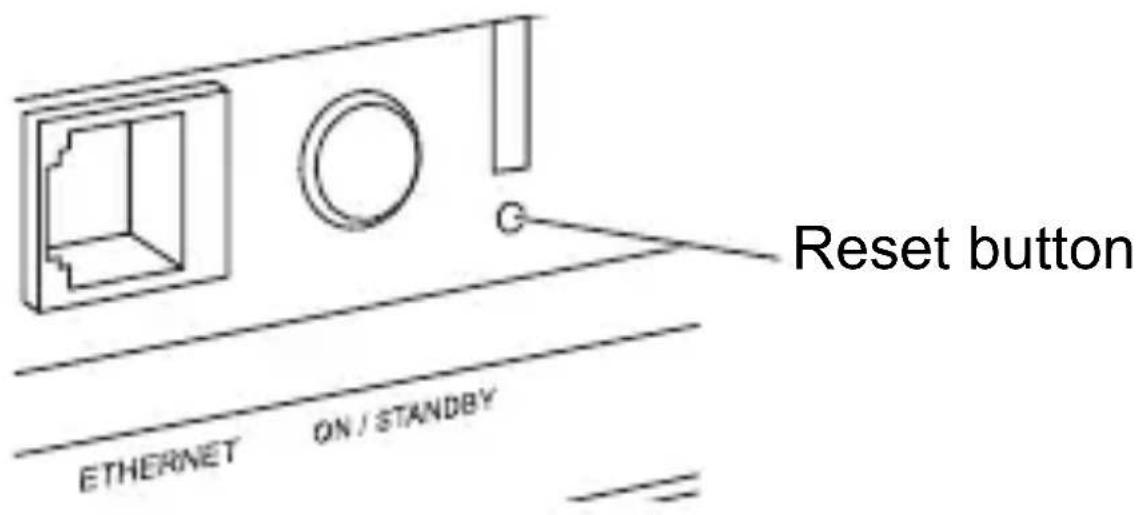
■ Initializing the unit (the settings are initialized)
When you initialize, network settings and pairing information will also be initialized, so we recommend that you note down your settings before initializing.
1 While the power is on, press ON/STANDBY while pressing INPUT.
- The indicators go out and the unit is initialized.
If the power goes off suddenly
The power may turn off suddenly when the protection circuit in the unit functions. If this occurs, unplug the power cord, then reconnect and turn the unit on again. If the power turns of repeatedly, unplug the power cord and contact the place of purchase.
When the power of other units cannot be turned on with the app
To turn on Onkyo devices connected to the same network as this unit using the app, you first need to enable the network standby settings on those devices.
When Wi-Fi settings can't be made with the app
If the volume of the device where the app is installed is low or if sound effects are set to on, it may not be possible to set properly. Try increasing the volume or turn the sound effects off.
When you cannot connect to a network via Wi-Fi
- If this unit is connected by both an ethernet cable and Wi-Fi to the access point, the ethernet connection is prioritized. The connection switches to Wi-Fi when you disconnect the ethernet cable.
- If the device being used (wireless LAN router, etc.) is too far from the unit, or if there is an obstacle between them, improve the Wi-Fi performance by closing the distance between them, for example.
- Avoid using devices that generate electromagnetic waves, such as a microwave.
- If your Wi-Fi network covers areas near devices that generate electromagnetic waves, keep the unit away from these areas.
■ Firmware update does not complete successfully
If you updated the unit from an app, if an error code is displayed on the screen of the app or the Wi-Fi indicator on the unit lights red, the update did not complete successfully. Press ON/STANDBY on the unit to turn the unit off and then on again, then restart the app. The unit restarts and the update starts again automatically about a minute later. Alternatively, if the update icon is displayed again in the app, tap the icon to restart the update. The Wi-Fi indicator on this unit flashes blue during the update. When the indicator stops flashing and lights blue, the update is complete, so press ON/STANDBY to turn the unit off and then on again. If the update cannot be restarted, check the network connection.
Specifications
Analog Audio Output
RMS Output Power
• 18 W (Woofer) + 10 W (Tweeter) (Woofer: 8 ohm × 2 at 1 kHz THD 1 %, Tweeter: 8 ohm at 10 kHz THD 1 %)
Tone Control Characteristics (when using app)
• ±5 dB, 124 Hz (BASS)
- ± 5 dB, 8 kHz (TREBLE)
Network
Wired LAN
- Ethernet Jack
• 10BASE-T/100BASE-TX
Wireless LAN (Wi-Fi)
• Supported standards : IEEE 802.11 a/b/g/n standard
- Wireless frequency : 5 GHz/2.4 GHz band
BLUETOOTH
Communication system
- BLUETOOTH Specification version 4.1
Frequency band
• 2.4 GHz (2.402 GHz - 2.480 GHz)
Modulation method
• FHSS (Freq Hopping Spread Spectrum)
Compatible BLUETOOTH profiles
A2DP 1.2
- AVRCP 1.3
• HOGP-Host (Client)
• HOGP-HID Device (Server)
- HID Service (HIDS)
Supported Codecs
• SBC
- AAC
Transmission range (A2DP)
• 20 Hz - 20 kHz (Sampling frequency 44.1 kHz)
Maximum communication range*
• (Line of sight approx.) 15 m
* The actual range will vary depending on factors such as obstacles between devices, magnetic fields around a microwave oven, static electricity, cordless phone, reception
sensitivity, antenna's performance, operating system, software application, etc.
General
Power Supply
- AC adapter input : AC 100 - 240 V, 50/60 Hz
• AC adapter output : DC 15 V, 3.5 A
Power Consumption
• 10 W
• 0.5 W (In Standby)
• 3 W (In Standby, Network Standby : On, Network Setting : Wired)
• 3 W (In Standby, Network Standby : On, Network Setting : Wi-Fi)
Auto Standby
- On (20 min)/Off
Speaker Type
• Bass-reflex bookshelf type
Speaker Configuration
- 2-way
- Tweeter : 26 mm (1 in.) × 1 Soft Dome
- Woofer : 77 mm (3 in.) × 2 Cone
Dimensions:
• 320 mm (W) × 172 mm (H) × 106 mm (D) (12 5/8 in. × 6 3/4 in. × 4 3/16 in.)
Weight:
• 2.6 kg (5.7 lbs)
Input jacks
- The unit does not have magnetic shielding. If a CRT TV is used near this unit, color irregularities and picture distortion may result. When this occurs, move the unit away from the TV.
- Specifications and appearance are subject to change without prior notice.
• We will not accept responsibility for damage arising from the connection of equipment manufactured by other companies.
License and Trademark Information
The Wi-Fi CERTIFIED Logo is a certification mark of Wi-Fi Alliance®.
Bluetooth®
The Bluetooth® word mark and logos are registered trademarks owned by the Bluetooth SIG, Inc.

Apple and the Apple logo are trademarks of Apple Inc., registered in the U.S. and other countries. App Store is a service mark of Apple Inc.

Google Play and the Google Play logo are trademarks of Google Inc.

BLACKFIRE
This Mark Certifies that this product is compliant with the BLACKFIRE ALLIANCE Standard.
Please refer to
WWW.BLACKFIREALLIANCE.COM for more information.
BLACKFIRE™ is a Registered Trademark (No. 85,900,599) of BLACKFIRE RESEARCH CORP. All rights reserved.
FireConnect™ is technology powered by BlackFire Research.
PANDORA
PANDORA, the PANDORA logo, and the Pandora trade dress are trademarks or registered trademarks of Pandora Media, Inc. Used with permission.
This product is protected by certain intellectual property rights of Microsoft. Use or distribution of such technology outside of this product is prohibited without a license from Microsoft.
Windows 7, Windows Media, and the Windows logo are trademarks or registered trademarks of Microsoft Corporation in the United States and/or other countries.
MPEG Layer-3 audio coding technology licensed from Fraunhofer IIS and Thomson.
"All other trademarks are the property of their respective owners."
(C) Copyright 2016 Onkyo & Pioneer Corporation Japan.
All rights reserved.
Onkyo group has established its Privacy Policy, available at
[ http://www.onkyo.com/privacy/ ].
SN 29402571A
Advanced Manual
AAC (.aac/.m4a/.mp4/.3gp/.3g2/.AAC/.M4A/.MP4/.3GP/.3G2):
• FHSS (Freq Hopping Spread Spectrum)
Profils BLUETOOTH compatibles
A2DP 1.2
- AVRCP 1.3
• HOGP-Host (Client)
• Périphérique HOGP-HID (Serveur)
• Service HID (HIDS)
Codecs pris en charge
- SBC
- AAC
The Wi-Fi CERTIFIED Logo is a certification mark of Wi-Fi Alliance®.

Bluetooth®
The Bluetooth® word mark and logos are registered trademarks owned by the Bluetooth SIG, Inc.

Apple and the Apple logo are trademarks of Apple Inc., registered in the U.S. and other countries. App Store is a service mark of Apple Inc.

Google Play and the Google Play logo are trademarks of Google Inc.

BLACKFIRE
This Mark Certifies that this product is compliant with the BLACKFIRE ALLIANCE Standard.
Please refer to
WWW.BLACKFIREALLIANCE.COM for more information.
BLACKFIRE™ is a Registered Trademark (No. 85,900,599) of BLACKFIRE RESEARCH CORP. All rights reserved.
FireConnect™ is technology powered by BlackFire Research.
PANDORA
PANDORA, the PANDORA logo, and the Pandora trade dress are trademarks or registered trademarks of Pandora Media, Inc. Used with permission.
This product is protected by certain intellectual property rights of Microsoft. Use or distribution of such technology outside of this product is prohibited without a license from Microsoft.
Windows 7, Windows Media, and the Windows logo are trademarks or registered trademarks of Microsoft Corporation in the United States and/or other countries.
MPEG Layer-3 audio coding technology licensed from Fraunhofer IIS and Thomson.
(C) Copyright 2016 Onkyo & Pioneer Corporation Japan.
All rights reserved.
Onkyo group has established its Privacy Policy, available at
[ http://www.onkyo.com/privacy/ ].
SN 29402571A
Advanced Manual
AAC (.aac/.m4a/.mp4/.3gp/.3g2/.AAC/.M4A/.MP4/.3GP/.3G2):
The Wi-Fi CERTIFIED Logo is a certification mark of Wi-Fi Alliance®.

Bluetooth®
The Bluetooth® word mark and logos are registered trademarks owned by the Bluetooth SIG, Inc.

Apple and the Apple logo are trademarks of Apple Inc., registered in the U.S. and other countries. App Store is a service mark of Apple Inc.

Google Play and the Google Play logo are trademarks of Google Inc.

BLACKFIRE
This Mark Certifies that this product is compliant with the BLACKFIRE ALLIANCE Standard.
Please refer to
WWW.BLACKFIREALLIANCE.COM for more information.
BLACKFIRE™ is a Registered Trademark (No. 85,900,599) of BLACKFIRE RESEARCH CORP. All rights reserved.
FireConnect™ is technology powered by BlackFire Research.
PANDORA
PANDORA, the PANDORA logo, and the Pandora trade dress are trademarks or registered trademarks of Pandora Media, Inc. Used with permission.
This product is protected by certain intellectual property rights of Microsoft. Use or distribution of such technology outside of this product is prohibited without a license from Microsoft.
Windows 7, Windows Media, and the Windows logo are trademarks or registered trademarks of Microsoft Corporation in the United States and/or other countries.
MPEG Layer-3 audio coding technology licensed from Fraunhofer IIS and Thomson.
(C) Copyright 2016 Onkyo & Pioneer Corporation Japan.
All rights reserved.
Onkyo group has established its Privacy Policy, available at
[ http://www.onkyo.com/privacy/].
SN 29402571A
Advanced Manual
AIFF (.aiff/.aif/.aifc/.afc/.AIFF/.AIF/.AIFC/.AFC) : I file AIFF includono audio digitale PCM non compresso.
AAC (.aac/.m4a/.mp4/.3gp/.3g2/.AAC/.M4A/.MP4/.3GP/.3G2):
• FHSS (Freq Hopping Spread Spectrum)
Profili BLUETOOTH compatibili
A2DP 1.2
- AVRCP 1.3
• HOGP-Host (Client)
- Dispositivo HOGP-HID (Server)
- Servizio HID (HIDS)
Codec supportati
- SBC
- AAC
The Wi-Fi CERTIFIED Logo is a certification mark of Wi-Fi Alliance®.
Bluetooth®
The Bluetooth® word mark and logos are registered trademarks owned by the Bluetooth SIG, Inc.

Apple and the Apple logo are trademarks of Apple Inc., registered in the U.S. and other countries. App Store is a service mark of Apple Inc.

Google Play and the Google Play logo are trademarks of Google Inc.

BLACKFIRE
This Mark Certifies that this product is compliant with the BLACKFIRE ALLIANCE Standard.
Please refer to
WWW.BLACKFIREALLIANCE.COM for more information.
BLACKFIRE™ is a Registered Trademark (No. 85,900,599) of BLACKFIRE RESEARCH CORP. All rights reserved.
FireConnect™ is technology powered by BlackFire Research.
PANDORA
PANDORA, the PANDORA logo, and the Pandora trade dress are trademarks or registered trademarks of Pandora Media, Inc. Used with permission.
This product is protected by certain intellectual property rights of Microsoft. Use or distribution of such technology outside of this product is prohibited without a license from Microsoft.
Windows 7, Windows Media, and the Windows logo are trademarks or registered trademarks of Microsoft Corporation in the United States and/or other countries.
MPEG Layer-3 audio coding technology licensed from Fraunhofer IIS and Thomson.
(C) Copyright 2016 Onkyo & Pioneer Corporation Japan.
All rights reserved.
Onkyo group has established its Privacy Policy, available at
[ http://www.onkyo.com/privacy/].
SN 29402571A
Advanced Manual
www.spotify.com/connect/third-party-licenses
Music Server
AAC (.aac/.m4a/.mp4/.3gp/.3g2/.AAC/.M4A/.MP4/.3GP/.3G2):
• FHSS (Freq Hopping Spread Spectrum)
Kompatible BLUETOOTH Profile
A2DP 1.2
- AVRCP 1.3
• HOGP-Host (Client)
• HOGP-HID-Gerät (Server)
- HID-Service (HIDS)
Unterstützte Codecs
- SBC
- AAC
The Wi-Fi CERTIFIED Logo is a certification mark of Wi-Fi Alliance®.

Bluetooth®
The Bluetooth® word mark and logos are registered trademarks owned by the Bluetooth SIG, Inc.

Apple and the Apple logo are trademarks of Apple Inc., registered in the U.S. and other countries. App Store is a service mark of Apple Inc.

Google Play and the Google Play logo are trademarks of Google Inc.

BLACKFIRE
This Mark Certifies that this product is compliant with the BLACKFIRE ALLIANCE Standard.
Please refer to
WWW.BLACKFIREALLIANCE.COM for more information.
BLACKFIRE™ is a Registered Trademark (No. 85,900,599) of BLACKFIRE RESEARCH CORP. All rights reserved.
FireConnect™ is technology powered by BlackFire Research.
PANDORA
PANDORA, the PANDORA logo, and the Pandora trade dress are trademarks or registered trademarks of Pandora Media, Inc. Used with permission.
This product is protected by certain intellectual property rights of Microsoft. Use or distribution of such technology outside of this product is prohibited without a license from Microsoft.
Windows 7, Windows Media, and the Windows logo are trademarks or registered trademarks of Microsoft Corporation in the United States and/or other countries.
MPEG Layer-3 audio coding technology licensed from Fraunhofer IIS and Thomson.
(C) Copyright 2016 Onkyo & Pioneer Corporation Japan.
All rights reserved.
Onkyo group has established its Privacy Policy, available at
[ http://www.onkyo.com/privacy/].
SN 29402571A
Advanced Manual
AAC (.aac/.m4a/.mp4/.3gp/.3g2/.AAC/.M4A/.MP4/.3GP/.3G2):
- Ondersteunde formaten: MPEG-2/MPEG-4 Audio
- Ondersteunde bemonsteringsfrequencies: 44,1 kHz, 48 kHz, 88,2 kHz, 96 kHz
- Ondersteunde bitsnelheden: Tussen 8 kbps en 320 kbps en VBR
FLAC (.flac/.FLAC):
- Ondersteunde bemonsteringsfrequencies: 44,1 kHz, 48 kHz, 88,2 kHz, 96 kHz, 176,4 kHz, 192 kHz
• Kwantiseringsbit: 8 bit, 16 bit, 24 bit
LPCM (Lineair PCM) :
- Ondersteunde bemonsteringsfrequencies: 44,1 kHz, 48 kHz
• Kwantiseringsbit: 16 bit
Apple Lossless (.m4a/.mp4/.M4A/.MP4):
- Ondersteunde bemonsteringsfrequenties: 44,1 kHz, 48 kHz, 88,2 kHz, 96 kHz
• Kwantiseringsbit: 16 bit, 24 bit
• FHSS (Freq Hopping Spread Spectrum)
Compatibele BLUETOOTH profielen
A2DP 1.2
- AVRCP 1.3
• HOGP-Host (Client)
• HOGP-HID Apparaat (Server)
- HID Service (HIDS)
Ondersteunde codecs
- SBC
- AAC
Zendbereik (A2DP)
- 20 Hz - 20 kHz (Bemonsteringsfrequentie 44,1 kHz)
Maximum communicatiebereik*
- 320 mm (B) × 172 mm (H) × 106 mm (D) (12 5/8 in. × 6 3/4 in. × 4 3/16 in.)
Gewicht:
• 2,6 kg (5,7 lbs)
Ingangsaansluitingen
The Wi-Fi CERTIFIED Logo is a certification mark of Wi-Fi Alliance®.

Bluetooth®
The Bluetooth® word mark and logos are registered trademarks owned by the Bluetooth SIG, Inc.

Apple and the Apple logo are trademarks of Apple Inc., registered in the U.S. and other countries. App Store is a service mark of Apple Inc.

Google Play and the Google Play logo are trademarks of Google Inc.

BLACKFIRE
This Mark Certifies that this product is compliant with the BLACKFIRE ALLIANCE Standard.
Please refer to
WWW.BLACKFIREALLIANCE.COM for more information.
BLACKFIRE™ is a Registered Trademark (No. 85,900,599) of BLACKFIRE RESEARCH CORP. All rights reserved.
FireConnect™ is technology powered by BlackFire Research.
PANDORA
PANDORA, the PANDORA logo, and the Pandora trade dress are trademarks or registered trademarks of Pandora Media, Inc. Used with permission.
This product is protected by certain intellectual property rights of Microsoft. Use or distribution of such technology outside of this product is prohibited without a license from Microsoft.
Windows 7, Windows Media, and the Windows logo are trademarks or registered trademarks of Microsoft Corporation in the United States and/or other countries.
MPEG Layer-3 audio coding technology licensed from Fraunhofer IIS and Thomson.
(C) Copyright 2016 Onkyo & Pioneer Corporation Japan.
All rights reserved.
Onkyo group has established its Privacy Policy, available at
[ http://www.onkyo.com/privacy/ ].
SN 29402571A
Advanced Manual
AAC (.aac/.m4a/.mp4/.3gp/.3g2/.AAC/.M4A/.MP4/.3GP/.3G2):
• FHSS (Freq Hopping Spread Spectrum)
Kompatibla BLUETOOTH profiler
The Wi-Fi CERTIFIED Logo is a certification mark of Wi-Fi Alliance®.
Bluetooth®
The Bluetooth® word mark and logos are registered trademarks owned by the Bluetooth SIG, Inc.

Apple and the Apple logo are trademarks of Apple Inc., registered in the U.S. and other countries. App Store is a service mark of Apple Inc.

Google Play and the Google Play logo are trademarks of Google Inc.

BLACKFIRE
This Mark Certifies that this product is compliant with the BLACKFIRE ALLIANCE Standard.
Please refer to
WWW.BLACKFIREALLIANCE.COM for more information.
BLACKFIRE™ is a Registered Trademark (No. 85,900,599) of BLACKFIRE RESEARCH CORP. All rights reserved.
FireConnect™ is technology powered by BlackFire Research.
PANDORA
PANDORA, the PANDORA logo, and the Pandora trade dress are trademarks or registered trademarks of Pandora Media, Inc. Used with permission.
This product is protected by certain intellectual property rights of Microsoft. Use or distribution of such technology outside of this product is prohibited without a license from Microsoft.
Windows 7, Windows Media, and the Windows logo are trademarks or registered trademarks of Microsoft Corporation in the United States and/or other countries.
MPEG Layer-3 audio coding technology licensed from Fraunhofer IIS and Thomson.
(C) Copyright 2016 Onkyo & Pioneer Corporation Japan.
All rights reserved.
Onkyo group has established its Privacy Policy, available at
[ http://www.onkyo.com/privacy/].
SN 29402571A
- POWER STANDBY/ON
- THE AUTO-STANDBY FEATURE
- MANUALLY SWITCHING THE POWER TO STANDBY OR ON
- TO REDUCE THE AMOUNT OF POWER CONSUMED IN STANDBY
- OPERATION OF THE BUTTONS ON THE MAIN UNIT
- INPUT BUTTON
- VOLUME DIAL
- CONNECT BUTTON
- INDICATOR ILLUMINATION AND FLASHING
- WI-FI INDICATOR
- BLUETOOTH INDICATOR
- THE NETWORK SERVICES YOU CAN USE
- SPOTIFY CONNECT
- MUSIC SERVER
- AUDIO FORMATS SUPPORTED BY MUSIC SERVER
- WMA (.WMA/.WMA)
- WAV (.WAV/.WAV)
- SETTINGS REQUIRED TO USE MUSIC SERVER
- ∫ WINDOWS MEDIA ® PLAYER 11
- WINDOWS MEDIA® PLAYER 12
- INFORMATION ABOUT THE BLUETOOTH® FEATURE
- PAIRING
- NOTES WHEN PLAYING
- TROUBLESHOOTING
- RESTARTING THIS UNIT
- INITIALIZING THE UNIT (THE SETTINGS ARE INITIALIZED)
- IF THE POWER GOES OFF SUDDENLY
- WHEN THE POWER OF OTHER UNITS CANNOT BE TURNED ON WITH THE APP
- WHEN WI-FI SETTINGS CAN'T BE MADE WITH THE APP
- WHEN YOU CANNOT CONNECT TO A NETWORK VIA WI-FI
- FIRMWARE UPDATE DOES NOT COMPLETE SUCCESSFULLY
- SPECIFICATIONS
- ANALOG AUDIO OUTPUT
- RMS OUTPUT POWER
- NETWORK
- WIRED LAN
- WIRELESS LAN (WI-FI)
- BLUETOOTH
- COMMUNICATION SYSTEM
- FREQUENCY BAND
- MODULATION METHOD
- COMPATIBLE BLUETOOTH PROFILES
- SUPPORTED CODECS
- TRANSMISSION RANGE (A2DP)
- MAXIMUM COMMUNICATION RANGE
- GENERAL
- POWER SUPPLY
- POWER CONSUMPTION
- AUTO STANDBY
- SPEAKER TYPE
- SPEAKER CONFIGURATION
- DIMENSIONS
- WEIGHT
- INPUT JACKS
- LICENSE AND TRADEMARK INFORMATION
- BLUETOOTH®
- BLACKFIRE
- PANDORA
- ADVANCED MANUAL
- PROFILS BLUETOOTH COMPATIBLES
- CODECS PRIS EN CHARGE
- PROFILI BLUETOOTH COMPATIBILI
- CODEC SUPPORTATI
- KOMPATIBLE BLUETOOTH PROFILE
- UNTERSTÜTZTE CODECS
- LPCM (LINEAIR PCM)
- APPLE LOSSLESS (.M4A/.MP4/.M4A/.MP4)
- COMPATIBELE BLUETOOTH PROFIELEN
- ONDERSTEUNDE CODECS
- ZENDBEREIK (A2DP)
- MAXIMUM COMMUNICATIEBEREIK
- GEWICHT
- INGANGSAANSLUITINGEN
- KOMPATIBLA BLUETOOTH PROFILER
Brand : ONKYO
Model : NCP302
Category : Loudspeaker