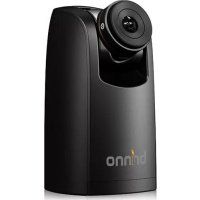
BCC200 - Camera Brinno - Free user manual and instructions
Find the device manual for free BCC200 Brinno in PDF.


| Product Type | Timelapse Camera |
| Brand | Brinno |
| Model | BCC200 (TLC200 Pro) |
| Dimensions (L x W x H) | 64 x 52 x 107 mm |
| Weight | 140 g (without batteries) |
| Power Supply | 4 AA batteries or DC 5V via micro USB connector |
| Display | 1.44 inch TFT LCD |
| Sensor | 1/3 inch HDR, 1.3 megapixels |
| Lens | CS mount, aperture f/2.0, field of view 112°, focal length 19 mm (35 mm equivalent) |
| Video Resolution | 1280 x 720 (AVI) |
| Storage | SD card (up to 32 GB) |
| Time Interval | From less than 1 second to 24 hours |
| Capture Modes | Time Lapse, Stop Motion (optional), Motion Detection (optional) |
| Battery Life (day mode) | Up to 45 days with 24-hour interval |
| Maintenance and Cleaning | Clean the lens with a soft, dry cloth. Avoid moisture. |
| Safety | Do not expose to water. Use good quality AA batteries. Do not open the casing. |
| Spare Parts and Repairability | Interchangeable lens (BCS 019), optional accessories (shutter line, motion detector). Replaceable CS mount. |
| General Information | Camera designed for creating time-lapse videos. Comes with BCS 019 lens, 4 AA batteries, SD card, screwdriver, and lens cap. |
Frequently Asked Questions - BCC200 Brinno
User questions about BCC200 Brinno
0 question about this device. Answer the ones you know or ask your own.
Ask a new question about this device
Download the instructions for your Camera in PDF format for free! Find your manual BCC200 - Brinno and take your electronic device back in hand. On this page are published all the documents necessary for the use of your device. BCC200 by Brinno.
USER MANUAL BCC200 Brinno
Kit Lens BCS 019 (Page 27)
SD Card Slot
3 Connector for Accessories
4 Connector for Micro USB cable
5 Battery Door
Strap Eyelet Tripod Screw Hole
LED indicator
LCD Screen
9 TIME () Button
10 MENU () Button
OK/ START Button
Power Switch
13
Display Icons
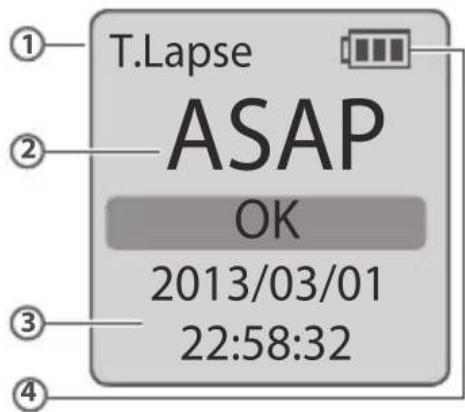
Set Up screen
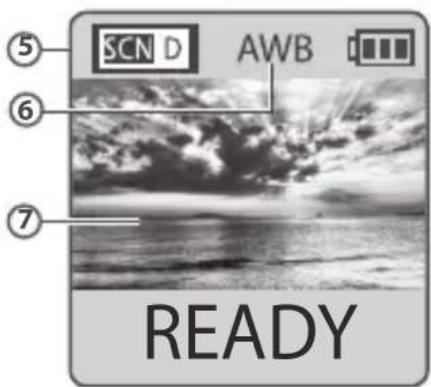
Preview screen
At Set Up screen
1 Capture mode
T.Lapse: Time Lapse mode
Shutter: Stop Motion mode
Motion: Motion Activated mode
2 Time interval
Select a pre-set time
interval or customize
yourself.
3 System date and time
4 Battery level
| Icon | Description |
| (green) | Battery fully charged. |
| (green) | Battery partially charged. |
| (yellow) | Low battery. Replace as soon as possible. |
| (red) | Out of battery. Replace battery immediately. |
At Preview screen
5 Scene mode
6 White Balance mode
Preview image capture window
Status icon
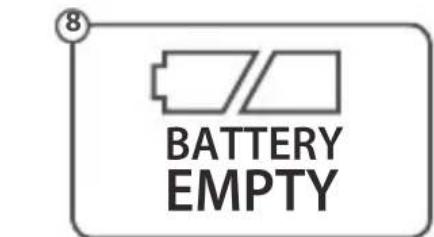
8 Battery Empty
Please replace battery immediately.
9 SD Card Full
Please download files to clear SD card space.
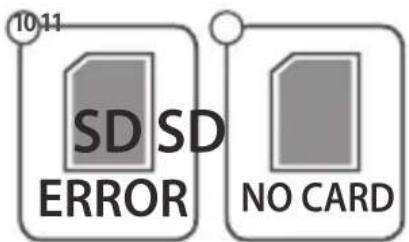
10 SD Card Error
Please replace SD card.
11 No Card
Please Insert SD card.

How Our Power Saving Technology Works
At The Set Up Screen After 10 seconds without activity on the set up screen, the camera will go to Preview screen automatically. You can press the MENU or TIME button to go back to the set up screen.
At Preview Screen After 50 seconds without activity on the set up or preview screen, the LCD screen will Turn off automatically to save power. You can press the OK button to wake up camera.
Installing the Batteries
- Open battery door. 2. Insert 4 AA batteries. 3. Close battery door. 4 Be sure the battery cover is locked into place.
Installing SD Card
-
Open SD card cover. 2. Insert SD card until it clicks into place.
-
Close SD card cover.
Turning on the Camera
- Rotate the Power switch to the ON position. 2. Process screen A It may display other information on screen, please refer to "Display Icons" 3. Set Up screen.
Setting the Time and Date
- Press the MENU button to go to Setting -> MORE 2. At MORE Setting, select Set Date & Time, and press OK. 3. At the highlight field, press MENU (←) to decrease value, press TIME (→) to increase value, press OK to confirm and go to the next field. When finished press OK to exit set up.
Mode
Time Lapse Mode
In Time Lapse Mode, the camera will take one photo at the time interval you selected. When you are finished recording, the camera will convert those photos into a time lapse video! Before you begin recording, you can change the "Time Lapse Frame Rate".
Output file format: AVI. (Without audio) Resolution: 720P
Time Lapse video length: The maximum size of each single AVI file ranges between 8,192 to 20,480 frames, depending on the time interval setting.
Setting the Time Interval
- Press TIME button to enter time interval set up. 2. Press MENU ( ) and TIME () to select a pre-set time interval or customize it by yourself. When complete, press the OK Button to confirm and return to the Set up screen.
Time Interval range: from below 1 second to 24 hours.
To Begin Recording
- After selecting the time interval, press OK to proceed to the Preview Screen. 2. On the Preview screen, press the OK button to start recording. During the recording period, the LCD panel will turn off to save power.
To Stop Recording
- While recording, hold the OK button until the LCD turns on and shows the text "Processing", it means the camera is processing file closing. When completed the processing it will display the text "Ready" This indicates the recording session is complete. 2. Remove the SD card from the camera, and insert it into your computer or laptop to enjoy your amazing Time Lapse Videos!
Storage status
In this mode, the LCD will display the SD card capacity, so you will know how much free space remains on the SD card.
Focus Mode
In this mode, the camera will enlarge the preview image, so you can adjust the lens focus easily.
- Select and enter "Focus" mode. 2. View the enlarged preview image. 3. Use the screwdriver to loosen the screw and adjust the lens focus. 4. When finished adjusting, use the screwdriver to tighten the screw. 5. Press "OK" to exit focus mode.
Settings
Setting-Time Lapse Frame Rate
- Press MENU button to enter "Setting" mode. 2. Select and enter "Time Lapse Frame Rate".
What frame rate should I use?
Generally, 10 FPS is suitable for Time Lapse video, but we suggested 30 FPS. 1 FPS: The video plays 1 frame per second, so the video will not look smooth, and the video length will be longer. 30 FPS: The video plays 30 frames per second, so the video will look smooth, and the video length will be shorter.
White Balance
At the default setting of Auto (AWB), the camera automatically adjusts white balance so that a white subject will appear white regardless of the color of the light source. It may however be necessary to match white balance to the light source under mixed lighting or when photographing a subject that is a solid color.
| Option Description | Color Temperature | ||
| AWB | Auto | The camera adjust white balance automatically | Approx. 4000 to 7000K |
| Day Use w | When shooting in Daylight Approx. 5000K | ||
| Shade | Use when shooting in the shade Approx. 7000K | ||
| Cloudy | Use when shooting on cloudy day | Approx. 6000K | |
| Fluorescent Light-Cool | Use when shooting under fluorescent light Cool White | Approx. 4000K | |
| Fluorescent Light-Warm | Use when shooting under fluorescent light Warm White | Approx. 3300K | |
| Tungsten Light | Use when shooting under Tungsten light | Approx. 2800K | |
Image Quality
The Image quality setting let s you choose a different image quality to fit your needs, and the image quality will determine the number of frames that can be stored on the SD Card.
[4GB SD card capability] Best 14,000 photos Better 20,000 photos Good 30,000 photos
Scene
Select scene to fit your shooting needs.
| Option Description | ||
| SCND | Daylight For | any shooting situation in Daytime . |
| SCNT | Twilight | Special setting for Sunrise & Sunset shooting. Time Interval ASAP mode: 1 seconds per picture. |
| SCNN | Night | Special setting for Nighttime shooting. Low ISO setting, long exposure time. Time Interval ASAP mode: 2 seconds per picture. |
| SCNM | Moon | Special setting for Moon photography. Low ISO setting, extra long exposure time up to 2 sec. Time Interval ASAP mode: 4 seconds per picture. |
HDR Range
HDR (High Dynamic Range) setting let's you choose the requires HDR setting.
High: Suggested setting for sunrise or sunset. Medium: For any standard shooting situation. Low: For portraits.
Exposure
Into Exposure setting, press MENU () and TIME () to increase (+) or decrease (-) the exposure and press OK to exit.
Custom Image
Control Saturation, Contrast, Sharpness. Select and enter each setting, using MENU ( ) and TIME () to adjust the effect. Then press OK to exit.
More Settings
Time Stamp
You can choose if you want the time stamp to show at bottom of your video.
- Select Time Stamp. 2. Select ON or OFF.
Low Light Recording
You can choose to set up your camera to record videos in a low light environment or not. (< 5 Lux).
- Select Low Light Recording. 2. ON: Allows your camera to record video in a low light environment. OFF: Your camera will go to sleep in a low lightenvironment.
Set Date & Time
Set the correct date and time for your camera.
- Select Set Date & Time. 2. In the highlight field, press MENU (-) to decrease the number, press TIME (+) to increase the number, press OK to confirm and go to the next field.
When finished, press OK to exit set up.
LED Indicator
You can choose whether or not the LED indicator will flash while capturing each frame.
- Select LED Display. 2. ON: When the camera is capturing a frame, the LED indicator will flash once. OFF: During capture period the LED indicator will not flash at all.
Band Filter
Select the correct fluorescent lighting frequency to match your indoor lighting frequency.
- Select Band Filter. 2. None: For outdoor environment. 50Hz USA 60Hz : Europe
Firmware version
Displays the current version of firmware installed on the camera.
- Select Firmware Version. 2. Displays the current version of firmware for 30 seconds. Press the OK button to exit firmware.
Reset
You can reset your camera back to the default setting.
- Select Reset. 2. Select YES and press the OK button to reset your camera.
| Function Setting | |
| Capture mode Time Lapse | |
| Time Interval 2 seconds | |
| Time Lapse Frame Rate 10 FPS | |
| White Balance Mode Auto | |
| Image Quality Better | |
| Scene Daylight | |
| HDR Range Medium | |
| Time Stamp ON | |
| Low Light Recording ON | |
| LED Indicator ON | |
| Band Filter None |
Reference
CS-mount lens
The TLC200 Pro comes with a n interchangeable CS-Mount lens, so you can change the CS-Mount lens by yourself to fit your shooting needs.
Extensional accessories
This extension connector is used for optional Brinno Time Lapse accessories. Shutter Line (ATS110): For creating Stop Motion film and Face Time Lapse video Motion Sensor (ATM110): For motion activated using, turn your time lapse camera into a motion activated camera!
External Power
For long term use, you can attach an external power supply (DV 5V) through the Micro USB connector.
Micro USB connector
A. File transfer-You can connect the TLC200 Pro to your computer in order to transfer the time lapse video from the SD card to the computer. OS requirement: Windows 98 and above.
B. Webcam-With the TLC200 Pro connected to your computer you can install free webcam software. The TOC200 Pro can then be used as a webcam for your computer! Suggested software: please check on Brinno.com OS requirement: Windows 98 and above.
What Setting Should I use
| Subject Description Time Interval | Time Lapse Frame Rate | ||
| Daily Life | Recording kids, pets all parts of daily life | 1~30 seconds 10~30 | |
| Party | Recording family parties, public events, and happy times all around | 1~10 seconds 10~30 | |
| Traveling | Recording your trips, short and long | 2 sec~1 min 10~30 | |
| Plant | Recording Flowers growing, or gardening over a period of time | 1~30 min 15~30 | |
| Construction | Recording a building being built or any construction project | 30 min~1 hr 15~30 | |
| Biking Recording | Recording a bike ride or trip 1 sec 10~30 | ||
| Face time lapse | You're the leading character in your time lapse videos | Shutter line 5 | |
What Size Card Should I use
| SD card size Stored photos | |
| 4 GB SD Card 30,000 | |
| 8 GB SD Card 60,000 | |
| 16 GB SD Card 120,000 | |
| 32 GB SD Card 240,000 | |

Based on a selected image quality setting of "Good"
Battery Life
Scene: Day mode Scene: Twilight mode
| Time interval | Captured frames to battery low | Days |
| ASAP | 168,000 | 1 |
| 1 SEC | 200,000 | 2.3 |
| 2 SEC | 244,000 | 5.6 |
| 5 SEC | 204,000 | 11.5 |
| 10 SEC | 145,000 | 17.0 |
| 20 SEC | 108,000 | 25.0 |
| 30 SEC | 84,500 | 29.0 |
| 1 MIN | 51,000 | 35.0 |
| 5 MIN | 12,300 | 42.0 |
| 10 MIN | 6,300 43.0 | |
| 1 HR | 1070 | 44.0 |
| 4 HR 269 | ||
| 24 HR 45 45.0 | ||
| Time interval | Captured frames to battery low | Days |
| 2 SEC | 67,400 1.6 | |
| 5 SEC | 55,500 3.2 | |
| 10 SEC | 51,300 | 5.9 |
| 20 SEC | 51,000 | 11.5 |
| 30 SEC | 45,000 | 15.0 |
| 1 MIN | 33,700 | 23.0 |
| 5 MIN | 10,900 | 38.0 |
| 10 MIN | 5,900 41.0 | |
| 1 HR 1,060 | 44.0 | |
| 4 HR 269 | ||
| 24 HR 45 45.0 |
Scene: Night mode Scene: Moon mode
| Time interval | Captured frames to battery low | Days |
| 5 SEC 39,000 2.3 | ||
| 10 SEC 30,000 3.5 | ||
| 20 SEC 28,100 6.5 | ||
| 30 SEC 26,200 9.0 | ||
| 1 MIN 21,800 15.0 | ||
| 5 MIN 9,300 32.0 | ||
| 10 MIN 5,400 37.0 | ||
| 1 HR 1,040 43.0 | ||
| 4 HR 268 | 44.0 | |
| 24 HR 44 |
| Time interval | Captured frames to battery low | Days |
| 7 SEC 18,300 1.5 | ||
| 10 SEC 18,800 2.2 | ||
| 20 SEC 16,000 3.5 | ||
| 30 SEC 15,500 5.0 | ||
| 1 MIN 13,800 9.0 | ||
| 5 MIN 7,400 25.0 | ||
| 10 MIN 4,700 32.0 | ||
| 1 HR 1,000 42.0 | ||
| 4 HR 266 | 44.0 | |
| 24 HR 44 |
Specification
CAMERA
Model TLC200 Pro LCD Screen 1.44" TFT LCD Lens Rotating Angle 120^ Waterproof Optional, (In use with TLC200Pro Weather Resistant Housing (ATH120))
CAPTURE MODE
Time Lapse Auto generation of Time Lapse video Stop Motion Optional, (In use with Shutter Line (ATS110)) Motion Activated Optional, (In use with Motion Sensor (ATM110))
SENSOR
Type 1/3" HDR sensor Dynamic Range115db Resolution 1.3 Mega pixel Pixel size 4.2um Sensitivity 3650mV / lux -sec (Ultra good low light quality)
OPTICS LENS (BCS 019)
Type CS Mount (Aspherical Glass Lens) Aperture F2.0 Field of View 112^ Focal Length 19 mm (35mm equivalent) Focus Distance Manual: 1cm to (factory setting: 40 cm)
RECORDING
Time Lapse Video Format: AVI Resolution: 1280x720 Still Image Format: JPEG (only for using Shutter Line) Resolution: 1280x720 Memory Storage SD Card (Supported up to 32 GB)
TIME INTERVAL
Custom From less than 1 second to 24 hours
POWER
Power source Battery: 4 AA Batteries \ DC IN: 5V (Micro USB connector)
DIMENSION
Size (DxWxH) 64x 52x 107 mm Weight 140 g (without batteries) Color Black

- Selecteer Firmware-verse 2. Displays the current version of firmware for 30 seconds. Press the OK button to exit firmware.
Reset-Reset
U kurz uw camera waar de standardinstelling-resetten.
- Selecteer Reset. 2. Selecteer JA en druk op OK om de camera te resetten.
Better 20,000oto'sGood 30,000oto's
Scene-Escena
Where did you buy our product?
When did you buy our product?
brinno
brilliant innovation
Brinno Incorporated
7F, No.75, Zhou Zi St.,
Taipei city 11493, Taiwan
Phone: +886-2-8751-0306
Fax: +886-2-8751-0549

brilliant innovation