GardenWatchCam Time Lapse - Camera Brinno - Free user manual and instructions
Find the device manual for free GardenWatchCam Time Lapse Brinno in PDF.


User questions about GardenWatchCam Time Lapse Brinno
0 question about this device. Answer the ones you know or ask your own.
Ask a new question about this device
Download the instructions for your Camera in PDF format for free! Find your manual GardenWatchCam Time Lapse - Brinno and take your electronic device back in hand. On this page are published all the documents necessary for the use of your device. GardenWatchCam Time Lapse by Brinno.
USER MANUAL GardenWatchCam Time Lapse Brinno
text_image
GardenWatchCam brinno incorporated www.brinno.com 7F, No.75, Zhou Zi St., Taipei City 11493, Taiwan -0306 F+886-2-8751-0549 301-0002-10 EN-A2 Watch Your Garden Grow The Brinno GardenWatchCam is a low cost, light weight, weather resistant, battery operated time-lapse camera that captures the entire lifecycle of any garden season by taking photos at predetermined time settings. brinno
www.brinno.com
7F, No.75, Zhou Zi St., Taipei City 11493, Taiwan -0306 F +886-2-8751-0549

301-0002-10 EN-A2
Package Contents
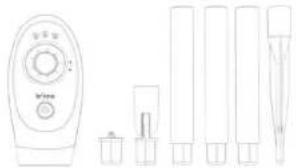
- GardenWatchCam unit
■ Mounting Stake - 2GB USB Flash Drive
4 AA Batteries - CD with software
■ User Manual

Brinno Incorporated's GardenWatchCam Users Manual
Thank you for purchasing the Brinno GardenWatchCam. The Brinno GardenWatchCam is designed to allow you to capture the entire life cycle of a growing garden from the first bud to the last leaf falling, or capture anything else that happens depending on where you set your camera up. It comes complete with everything you need to begin capturing all the growthhand life in your garden and is easy to set up and use. Let's get started.
Minimum Requirements to install and run the software
Windows 98 and above.

ardenWatchCam · 02.03 ·
How to set up your Brinno GardenWatchCam
natural_image
Line drawing of a handheld device with multiple cylindrical components and a small component (no text or symbols)- Remove the GardenWatchCam from the package.
- Check to make sure that all the contents are included.
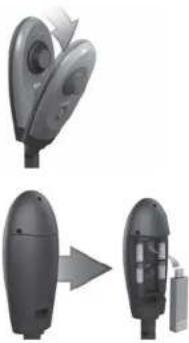
- Open up the GardenWatchCam by placing it Lens side down on a flat surface, or Lens side down in the palm of your hand, and remove the battery door by pulling open the latch.
- With the wheel in the middle of the camera you can choose between one of seven time interval settings. Simply rotate the wheel with your finger left or right to choose the desired setting.
The Custom Time Interval setting options are as follows:
| Wheel position | Time interval between pictures |
| 1 | 1 minute |
| 2 | 5 minutes |
| 3 | 30 minutes |
| 4 | 1 hour |
| 5 | 4 hours |
| 6 | 24 hours |
| 7 | Custom (Factory setting = 5 seconds) |
** To modify the 7th custom setting, insert the CD included with your GardenWatchCam into your computer, and follow the instructions.
The custom setting can range anywhere from 5 seconds to 11 hours and 59 minutes and 59 seconds. The factory default custom setting is set to 5 seconds.
(The specific steps to install the software onto your computer as well as your USB Flash Drive are listed below on page 8-11).
text_image
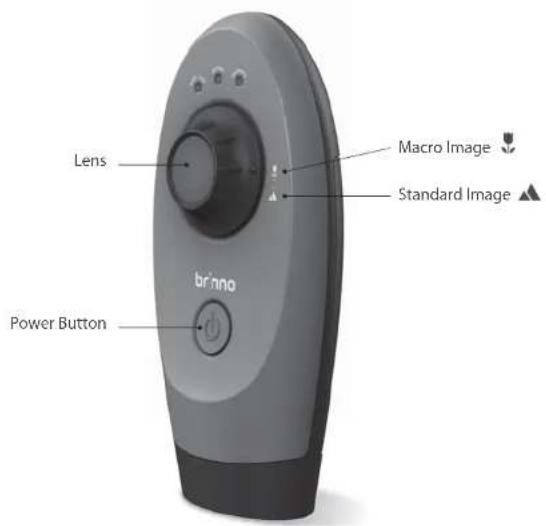
Lens Macro Image Standard Image Power Button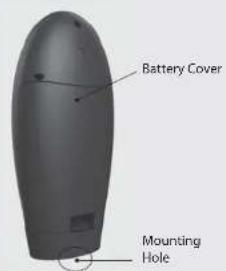
text_image
Battery Cover Mounting Hole
text_image
USB Flash Drive AA BatteryAA Battery Wheel AA Battery AA Batteries
ardenWatchCam

ardenWatchCam · 04 05 ·

text_image
Diagram showing three-step steps of a digital device with labeled parts and directional arrows indicating process flow.- Insert 4 AA batteries following the polarity markings (+ -) inside the camera.
- Insert any standard USB Flash Drive into the GardenWatchCam in the open slot between the batteries.
*** (Please note that the maximum size USB Flash Drive that the GardenWatchCam supports is a 8GB USB Flash Drive. If you use a USB Flash Drive with a larger memory density the camera will not function properly.)
- Replace the battery door on the GardenWatchCam. (Make sure to push down the latch until
you hear it "click" to ensure the door is closed properly.)
Mounting your GardenWatchCam (2 options)
- a- To set your GardenWatchCam on the mounting stake, screw the mounting stake clockwise into the hole on the bottom of the camera. (See images above
OR
b- To set your GardenWatchCam on any standard tripod, screw the tripod clockwise into the hole on the bottom of the camera.

ardenWatchCam

natural_image
Two line drawings of a laboratory pipette device, showing step 4 and step 5 with no visible text or symbols.Choosing your Lens setting
- The GardenWatchCam has two lens positions that determine the focal distance and the depth of field of the camera:
a- Standard Setting ▲: This option is obtained by turning the lens bezel to the "mountain" icon position. This will give a depth of field that extends from approximately 1 meter (2.6 feet) and beyond, and is best for getting shots of an entire garden or large area.
b- Macro Setting ↓: This option is obtained by turning the lens bezel to the "flower" icon position. This setting allows the camera to focus on an object that is approximately 0.5 Meters (19 inches) away from the camera. Because the depth of field is significantly reduced when using Macro setting, subjects in the background will be out of focus. This setting is best for following the growth of a single bloom, or any other subject that requires close-up observation.
OR
GardenWatchCam - 06 07
natural_image
Three-step diagram showing a device with internal components before and after assembly (no text or symbols)- After choosing the lens setting appropriate to the subject to be photographed, the camera should be aimed so that the lens is pointing at the center of the subject. Because the field of view of the lens is quite wide, the positioning of the GardenWatchCam does not have to be extremely precise. But because a typical time lapse sequence takes place over a long period of time, it is suggested that a short test session (with a short time interval) be used to ensure correct positioning of the GardenWatchCam. Once the positioning has been verified, then the desired time interval for the full time lapse sequence can be set, and its time to take pictures.
The table below shows the approximate image size (width x height) based on the distance between the camera and the subject(s) to be captured.
| Mode | Distance from Target Area (Meter / Inch) | Target Area captured Width (cm / inch) | Target Area captured Height (cm / inch) |
| Macro view | 0.5m / 19inch | 36cm / 14inch | 30cm / 12inch |
| Standard view | 1m / 39inch | 75cm / 29inch | 56cm / 22inch |
| 2m / 78inch | 146cm / 57inch | 110cm / 43inch | |
| 3m / 118inch | 219cm / 86inch | 168cm / 66inch |
The table above shows some typical distances, but since the GardenWatchCam is capable of focusing on objects that are far away (in standard mode), the GardenWatchCam can also be used to photograph many other subjects.
For example, you could set up the GardenWatchCam to take a photo once every 24 hours to capture the process of a house being built over several months. Or get a picture of the sunset every day for a year. The possibilities are only limited by your imagination and creativeness!
** Please note that the AVI files created by the GardenWatchCam can be viewed on the program "GardenWatchCam Player" in the CD supplied with GardenWatchCam or using Windows media player, or most other AVI players.
GardenWatchCam
GardenWatchCam Operation
On the front of the GardenWatchCam, above the lens, there are three LED lights. These LEDs allow you to monitor the status of the camera without having to move the camera from its mounted position.
Each LED supports a different function :
Green LED light : Power ON/OFF and Status Red LED light : Low Battery Level Blue LED light : Low USB flash drive Level
Beep voice:
Power On: 2 times beep
Power Off: 3 times beep
Register setting change: 3 times beep
Error status: 6 times beep
(Error= No USB insert, USB memory short, Low battery)
To turn on the GardenWatchCam
Press and hold the orange power button on the front of the camera until the green LED lights up. After a few seconds the GardenWatchCam will beep twice to indicate it has properly initialized and is waiting to start a time-lapse sequence. After a delay of approximately 5 seconds the GardenWatchCam will take the first picture of the time-lapse sequence.
NOTE: If the USB flash drive is full, or the batteries are completely empty, the Garden-WatchCam camera will not turn on.
If the batteries are too low for normal operation, the GardenWatchCam will turn on beep twice, the red LED will turn on, and then the GardenWatchCam will beep six times and then turn off. If the USB flash drive is full, or not installed, the GardenWatchCam will turn on beep twice, then after a few seconds the blue LED will turn on, then the GardenWatchCam will beep six times and then turn off.
During GardenWatchCam operation the Green LED will turn on for about one second every 15 seconds to indicate that the camera is running properly and is ready to take photos. If there is any other status to report, the camera will do so at the same time as the green LED flashes. If the batteries are getting low the red LED will turn
on in unison with the green LED. If the USB flash drive is getting close to being full, then the blue LED will turn on in unison with the green LED.
If the camera has previously automatically shut down due to low batteries or a full USB flash drive, the next time the power button is pressed the red or blue LED will turn on and will stay on until the green LED turns on. This allows you to determine the cause of the automatic shutdown so that the appropriate corrective action can be taken.
The Green LED will also turn on and flicker for a few seconds while a picture is captured at the chosen time setting, and then is stored on the USB flash drive. This indication of GardenWatchCam activity is independent of the status indication that occurs every 15 seconds.
To turn off the GardenWatchCam
Press and hold the orange power button until the GardenWatchCam beeps three times and the green LED turns off. This may take several seconds because the GardenWatchCam must first power itself on and initialize before it recognizes the turn off request. Please be patient and wait for the beeps and LED indication.

ardenWatchCam · 08 09
Installing the software for your GardenWatchCam
There are 2 programs on the CD supplied with the GardenWatchCam. The first program, "Garden-WatchCam Setup" allows you to set the time and date of the GardenWatchCam to your local time. This program also allows you to set the time interval for the Custom setting on the GardenWatchCam.
The second program called "GardenWatchCam Player" allows you to play the videos taken by the GardenWatchCam. (If you have misplaced your CD you can download the program from www.brinno.com).
Before running the GardenWatchCam programs, they must first be installed on your computer using one of the methods described below.
Standard Installation
- Insert the GardenWatchCam CD into your computer.
- The CD will automatically open to the folder named "Brinno GardenWatchCam", where you will see an icon named "Setup GWC".
- Double click on this icon to start the setup program.
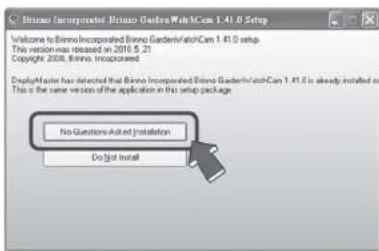
Two installation options are provided.
The No Questions Asked Installation option is the standard installation and asks no technical questions. This is the recommended method of installing the time, date and custom time interval setting program.
The Do Not Install option allows you to exit the setup program without installing "Brinno GardenWatchCam".
Manual Installation
If you insert your CD into your computer and it doesn't automatically open up to show the "Setup GWC" icon, use the following procedure to install the program manually.
1. Browse to the CD and find the "Setup GWC" icon.
2. Double click on this icon to start the setup program.
text_image
Brimo Incorporated BRino GardenWaterCam 1.41.0 Setup Welcome to Brimo Incorporated Brimo GardenWaterCam 1.41.0 setup. This version was released in 2016. 21. Copyright © 2008, Brimo, Incorporated DisplayMaster has detected that Brimo Incorporated Brimo GardenWaterCam 1.41.0 is already installed in This is the same version of the application in this setup package. No Questions-Asked Installation Do Not Install
ardenWatchCam
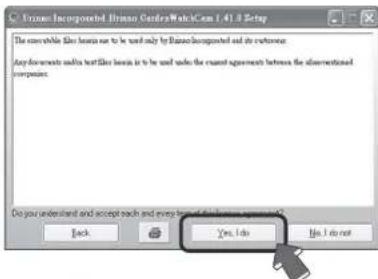
If you choose this option, the next step is to read the user agreement. If you agree, then click "Yes, I do" to continue.
text_image
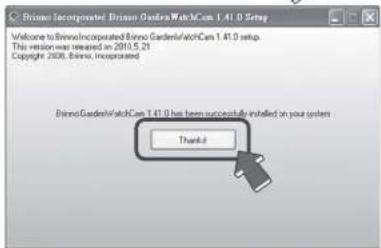
Trismus Incorporated Dlimsup CnclnsWatch iCam 1.41.0 Setup The convertible file enables us to be used only by Dlimsup Incorporated and its custom. Any documents provide text file enables us to be used under the content agreement between the aforementioned corporates. Do you understand and accept each and every form of this document agreement? Back Yes, I do No, I do notThe software will then be loaded onto your computer and you can click the "Thanks" button to complete the installation.
text_image
Binno Incorporated Binno GardenWatchCom 1.41.0 Setup Welcome to Binno Incorporated Binno GardenWatchCom 1.41.0 setup. This version was released on 2010.5.21 Copyright 2008, Binno, Incorporated Binno GardenWatchCom 1.41.0 has been successfully installed on your system ThankitThe setup program will then create and open a program group called "GardenWatchCam" containing three icons.
The "GardenWatchCam Setup" icon is used to start the time, date and custom time interval setting program.
The "GardenWatchCam Player" is used to play the videos taken by GardenWatchCam.
The "Remove GardenWatchCam" icon can be used to uninstall the program
How to use "GardenWatchCam Setup"
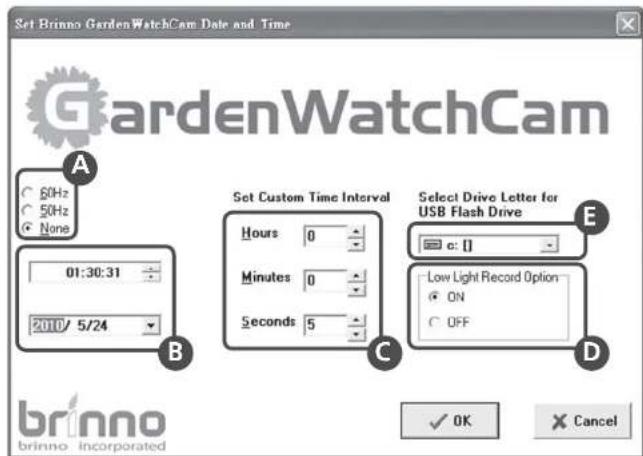
"GardenWatchCam Setup" allows you to set the time and date of the GardenWatchCam to your local time. This program also allows you to set the time interval for the Custom setting on the GardenWatchCam.
text_image
Set Brinno GardenWatchCam Date and Time GardenWatchCam A 60Hz 50Hz None 01:30:31 2010/ 5/24 B Set Custom Time Interval Hours 0 Minutes 0 Seconds 5 C Select Drive Letter for USB Flash Drive c: 0 Low Light Record Option ON OFF D ✓ OK × Cancel brinno brinno - IncorporatedA Fluorescent Lighting Frequency
Select the correct lighting frequency to match your indoor lighting frequency. eq. USA: 50Hz, Europe: 60Hz
None: Turns the flicker filter off. This is the normal way to operate a camera in an outdoor environment.
B Local Time and Date
Set the time and date to your local time.
Custom Time
You can set the custom time from 5 seconds to 11 hours 59 minutes 59 seconds.
D Low Light Record
This option allows your GardenWatchCam to work in low light environments.
USB Flash Drive
Select a drive letter assigned to your USB flash drive.
Loading your Time and Date Stamp and Custom Time Interval Setting onto your USB Flash Drive :
-
Insert your USB Flash Drive into any available USB port on your computer. Windows will automatically assign a drive letter to the USB flash drive. Make a note of the drive letter assigned to the USB flash drive.
-
Start the "GardenWatchCam Setup" program by double clicking the "GardenWatchCam Setup" icon in the "GardenWatchCam" program group. If the program group is not open, you can open it by using the "Start Programs... Brinno..." menus to find the program group.
-
The "GardenWatchCam Setup" program has a number of fields that can be modified. There are two fields that allow the time and date to be set, and there are three fields that allow the Custom time interval to be set. A sixth field is used to tell the program which drive is to be used to store the file with the time and date and custom time interval data. Make sure the drive letter in this field matches the drive letter in step 1. Once all the fields have been set, hit the OK button to save the file.
-
Remove the USB flash drive from your computer's USB port. Make sure your GardenWatchCam is turned off, and then insert the USB flash drive into your GardenWatchCam in between the 4 AA batteries on each side.
-
Turn on the GardenWatchCam. When the GardenWatchCam detects the time and date file on the USB flash drive it will automatically load the data from the file, beep three times, then turn off. The next time you turn on the GardenWatchCam it will be set to the time and date that were in the file. The GardenWatchCam will also remember the Custom interval setting that was in the file.
Once you have set up your GardenWatch-Cam you are READY to begin capturing all the garden action in your backyard!

ardenWatchCam · 12.13
How to use "GardenWatchCam Player"
Start the "GardenWatchCam Player" program by double clicking the "GardenWatchCam Player" icon in the "GardenWatchCam" program group. If the program group does not open, you can open it by using the "Start.. Programs. Brinno.." menus to find and open the program group.
GardenWatchCam Player
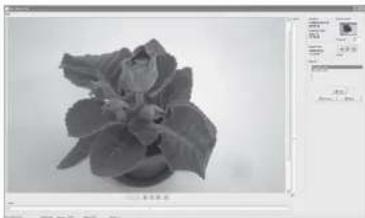
GardenWatchCam player is designed for use with the Brinno's GardenWatchCam.
The AVI file format produced by the GardenWatchCam is a Motion JPEG-encoded AVI in a standard format recognized by Microsoft's Windows Media Player and most other Generic Video Players.
natural_image
Black-and-white photo of a potted flower with visible petals and leaves, displayed within an image editing software interface (no text or symbols on the flower itself)NOTE The GardenWatchCam Player is NOT a general-purpose media player. It is a dedicated Player designed specifically to play AVI's produced by the GardenWatchCam. AVI's NOT generated by Brinno's GardenWatchCam will not play properly with this player.
The following sections describe the controls used to control the player.
1.1. Menu Functions
1.1.1. File - Open
"File Open" allows the user to select an AVI file for loading and displaying. Multiple files can be selected, and will be added to the playlist.
1.1.2. File - Save Current
"File Save". The currently-displayed frame can be saved as a JPEG file.
1.1.3. File - Exit
This exits the application. The standard Windows close application commands will also function as expected
1.2. Drag and Drop Interface
In addition to the standard menu commands, GardenWatchCam Player supports a "drag-and-drop" interface. If the application is open, dragging and dropping a file or group of files causes it to add the selected files to the playlist.
Statistics display
Statistics
Capture Interval 00:05:00
Elapsed Time days: 5 21:50:00
Date/Time 2008/07/29
Key statistics for the video sequence are shown in a statistics box, displayed in the upper-right corner of the application window.
Capture Interval: The number of elapsed seconds between frames. This is determined by switch settings on the camera, and
the information is embedded in the video sequence.
Elapsed Time: This is the amount of time elapsed since the beginning of the sequence.
Date/Time: Assuming that the correct date and time have been set in the camera's real time clock, this is the time and date at which the currently-displayed frame were captured.

ardenWatchCam
1.3. Speed Control

The Speed Control is a vertical tracking control on the right side of the display window. This is used to set the playback rate. Because this is a time-lapse camera, the playback rate has to be different from the recording rate.
Note that in some installations, if the requested playback rate exceeds the host PC's ability to decompress and display frames, some frames may be skipped in order to keep up with the requested GardenWatchCam rate.
For a mode in which frames will never be skipped, read about the Motion Search feature, described below.
1.4. Play Controls

Controls are enabled or grayed-out, depending on their functionality. For example, while playing the video forward or backward the single-step buttons are grayed out.
1.4.1 Forward Play Control

Controls are enabled or grayed-out, depending on their functionality. For example, while playing the video forward or backward the single-step buttons are grayed out.
1.4.2. Reverse Play Control

The reverse play control causes the player to play in reverse until either the beginning of the sequence is reached, or the stop or pause control is pressed
1.4.3. Single Step Forward Control

Pressing this control causes the player to display the next frame in the sequence.
1.4.4. Single Step Backward Control

Pressing this control causes the player to display the previous frame in the sequence.
1.4.5. Pause Control

Pressing this control during play stops the player at the current frame. In Pause mode, single step forward and backward are enabled.
1.4.6. Stop Control

Pressing this control during play stops the player, and returns it to the first frame of the sequence. Single-step forward function is enabled.
1.5. Seek Control


When the player is in Pause or Stop mode, the seek control is displayed. This can be used to seek any point in the sequence, either by watching the images in the display window, or by monitoring the elapsed time or real-time indicators.
NOTE - During play mode, the seek control is concealed.

ardenWatchCam · 14 15
1.6. Playlist
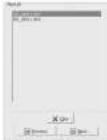
GardenWatchCam Player allows you to play multiple files, either from the same directory or from multiple directories. To add files to an existing playlist, simply drag and drop one or more files onto the GardenWatchCam
Player window. Alternatively, using the "File - Open" dialog box will allow you to select multiple files.
Files will be sorted in the playlist by their date and time stamp.
Wherever possible, the GardenWatchCam Player moves from one file in the playlist to the next, whether in regular play, single-frame, or motion search mode.
To skip files in the playlist, you can either click on the "Previous" or "Next": buttons, or you can double-click on any filename in the playlist.
To clear the playlist, you can click on the "Clear" button.
1.7. Motion Search

For certain uses such as surveillance and security applications, GardenWatch-Cam Player incorporates a motion search algorithm. This allows the user to quickly scan through long sequences in which nothing
moves, and only see frames where the scene has changed.
Motion Search is only available when Garden-WatchCam Player is in a paused or stopped state.
Note that during motion search, the main display is not updated. This allows the motion search to proceed more quickly than normal playback.
A subset of the image is displayed above the motion search controls, to provide visual feedback.
1.7.1 Threshold
This sets how sensitive the motion detection is. A value of 0 is most sensitive; any variation from one frame to the next stops the motion search. A threshold of 255 or greater is least sensitive; no change in the image will stop the search.
1.7.2. Search Forward

GardenWatchCam Player scans from the current frame toward the end, looking for a frame differing from the previous frame by more than the threshold value. When GardenWatchCam player detects a frame with motion, that frame is displayed in the main image window and the player is put into Pause mode.
1.7.3. Search Backward

Backward motion search functions identically with forward motion search, except that it scans from the current frame toward the beginning of the sequence.
1.74. Stop Motion Search

Stop Motion Search stops the motion search at the current frame, and place GardenWatchCam player into Pause mode.

ardenWatchCam
Thank you for purchasing Brinno GardenWatchCam
If you have any questions or problems setting up your Brinno GardenWatchCam please contact the sales staff where you purchased our product or email us at Brinno Incorporated directly
customerservice@brinno.com
Please Visit our website
www.brinno.com