Brinno

MAC200DN - Camera Brinno - Free user manual and instructions

Find the device manual for free MAC200DN Brinno in PDF.

📄 56 pages English EN Download 💬 AI Question
Notice Brinno MAC200DN - page 16
Pick your language and provide your email: we'll send you a specifically translated version.

User questions about MAC200DN Brinno

0 question about this device. Answer the ones you know or ask your own.

Ask a new question about this device

The email remains private: it is only used to notify you if someone responds to your question.

No questions yet. Be the first to ask one.

Download the instructions for your Camera in PDF format for free! Find your manual MAC200DN - Brinno and take your electronic device back in hand. On this page are published all the documents necessary for the use of your device. MAC200DN by Brinno.

USER MANUAL MAC200DN Brinno

Motion Activated Camera MAC200 DN

User Manual
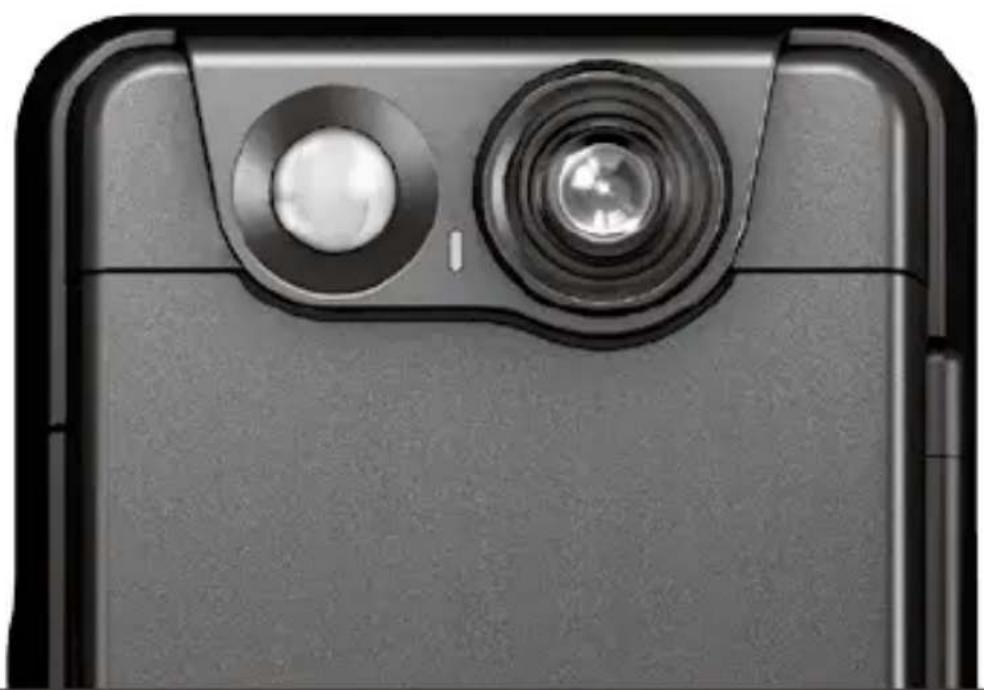
Brinno MAC200DN - Motion Activated Camera MAC200 DN - 1

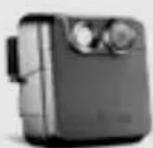
natural_image Close-up of a black smartphone camera with dual lens and circular head (no text or symbols visible)

www.brinno.com

Register@online

http://www.brinno.com/support/register.html

contact us: customerservice@brinno.com

more information: www.brinno.com

Brinno MAC200DN - Register@online - 1

text_image QR code image containing encoded data, no visible human-readable text

Brinno MAC200DN - Register@online - 2

natural_image Close-up of a smartphone camera face showing lens and aperture (no text or symbols visible)

WEL COME TO THE BRINNO FAMILY!

Follow Brinno to receive the latest product news

Brinno MAC200DN - WEL COME TO THE BRINNO FAMILY! - 1

text_image QR code image containing encoded data, no visible human-readable text

facebook.com/Brinnolnc

Brinno MAC200DN - WEL COME TO THE BRINNO FAMILY! - 2

natural_image Close-up of a smartphone camera with dual lens and aperture (no text or symbols visible)

Thank you for purchasing this Brinno Motion Activated Camera!

The Brinno Motion Activated Camera (MAC200 DN) is a battery powered, motion activated security camera.

Forget the power cord, Ethernet line or DVR system, it is your 100% DIY, 100% Wire-free, 100% portable security anywhere anytime camera. Brinno's new Hybrid Mode® provides 10 X's the Outlook Range over comparable motion activated cameras.

The dual functionality of a fixed capture interval + Motion Activation provides you with an unprecedented portable level of protection. Brinno's exceptional power saving technology, provides super long lasting standby time, combined with our "Rapid Wake Up" functionality, means you will never miss a shot!

Contents

Motion Activated Camera Features 01
Parts of the Camera 03
Display Icons 05
LED indicator 07
Installation 08
Initial Set Up 09
• Motion Activated Mode 12
• Time Lapse Mode 14
• Hybrid Mode 15
• Motion Activated Mode 17
• Time Lapse Mode & Hybrid Mode 18
• To Stop Recording 19
Basic Installation 20

Capture Mode

Start Recording

• SD card capacity 24
• Capture Mode 25
• Overwrite 26
- Timer 27
- Playback Rate 30
• Image Quality 31
• Time Stamp 33
• LED Display 34
• Band Filter 35
• Night Vision Mode 36
- Set Latitude 37
- Set Date and Time 39
- FW version 40
- Reset 41
- Default Setting 42

What Size SD Card Should I Use 43

Battery Life 44

Specification 45

Motion Activated Camera Features

Brinno MAC200DN - Motion Activated Camera Features - 1

14 Months Battery Life

The Brinno MAC200 DN needs only 2D batteries for up to fourteen months of power. No need for external power = truly portable.

Brinno MAC200DN - Months Battery Life - 1

Dual Protection

Brinno' new Hybrid Mode® provides the dual functionality of a fixed capture interval + flexible Motion Activation, providing you with an unprecedented level of portable protection.
Brinno MAC200DN - Dual Protection - 1

10x Outlook Range

Motion Activation Mode provides coverage up to 6 meters. Time Lapse Mode provides over 100 meters of coverage. Images captured at a Fixed Capture Rate in the Time Lapse mode cover over 10 times the area of a standard Motion Activated Camera.

Brinno MAC200DN - 10x Outlook Range - 1

< 1 Sec. Rapid Wake Up

All Brinno products have excellent power saving technology, providing super long standby time. Combined with our "Rapid Wake Up" technology, Brinno ensures you will never miss a shot!

Brinno MAC200DN - &lt; 1 Sec. Rapid Wake Up - 1

Instant Video/ Fast Playback

The Brinno MAC200 DN captures and converts thousands of photos into a Time Lapse video inside the camera. Review your daily activity with the push of a button.

Brinno MAC200DN - Instant Video/ Fast Playback - 1

100% DIY

The Brinno MAC200 DN is a battery powered, motion activated security camera. Forget the power cord, Ethernet line or DVR system, it is your 100% DIY, 100% Wire-free, 100% portable security, anywhere, anytime.

- Output file format

Fast Playback Time Lapse Video, AVI format, resolution is 720P (1280x720).

• Package Contents

  1. Motion Activated Camera x 1
  2. Tree strap x 1
  3. Rubber strap x 1
  4. Wall Mount x 1
  5. User Manual x 1

1
Brinno MAC200DN - • Package Contents - 1

2
Brinno MAC200DN - • Package Contents - 2

3
Brinno MAC200DN - • Package Contents - 3

4
Brinno MAC200DN - • Package Contents - 4

5
Brinno MAC200DN - • Package Contents - 5

Parts of the Camera

Brinno MAC200DN - Parts of the Camera - 1

text_image 2 1 3 4 5

Brinno MAC200DN - Parts of the Camera - 2

text_image Technical diagram of a mechanical device with numbered components for identification

Front B

  1. Lens
  2. Motion Sensor
  3. LED Indicator
  4. Operation Control Zone Latch
  5. Operation Control Zone Cover

  6. Battery Cover

  7. Tree Strap Hole
  8. Locking Hole
  9. External Power Port (DC IN 5V)

Brinno MAC200DN - Front B - 1

text_image 12 16 10 11 13 15 Motion Activated Camera InNino: CE FC S/NINOF180001

Inside Operation Control Zone

  1. SD Card Slot
  2. OK button
  3. Micro USB port
  4. Power Switch
  5. LCD Panel
  6. TIME / Next (▶) button
  7. MENU / Previous (◀) button

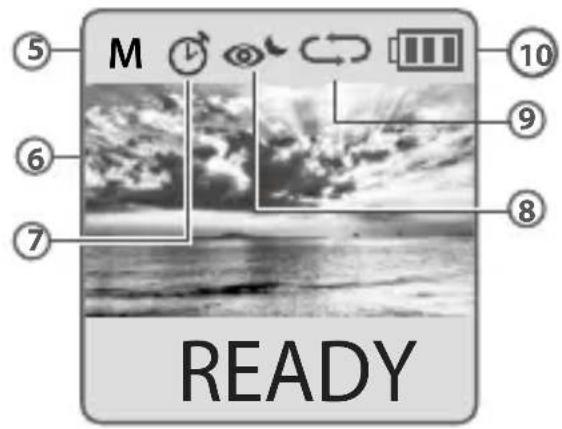
Display Icons

Set Up screen Preview Screen
Brinno MAC200DN - Display Icons - 1

text_image T.Lapse 20 Sec OK 2013/03/01 22:58:32

Brinno MAC200DN - Display Icons - 2

text_image M 10 6 9 8 7 READY

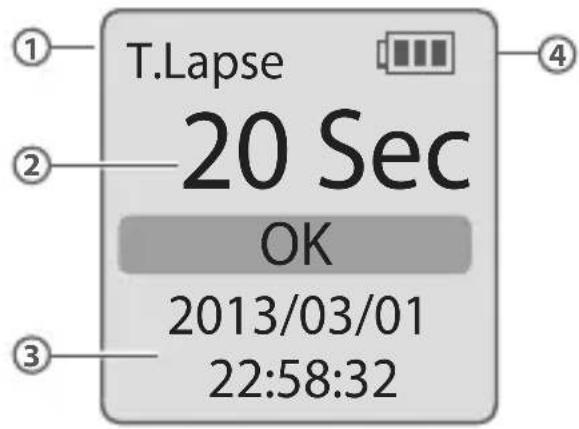
At Set Up screen

1. Capture mode:

  • Motion mode
  • Time Lapse
  • Hybrid

  • Capture Interval/ Capture Rate Displayed in Time Lapse Mode/ Hybrid Mode

  • System date and time

  • Battery level

IconDescription
(green)Battery full charged.
(green)Battery partially charged.
(yellow)Low battery-Replace as soon as possible.
(red)Out of battery-Replace battery immediately.

11
Brinno MAC200DN - Capture mode: - 1

BATTERY EMPTY

13
Brinno MAC200DN - Capture mode: - 2

ERROR

O
Brinno MAC200DN - Capture mode: - 3

12
Brinno MAC200DN - Capture mode: - 4

FULL

At Preview screen

5. Capture Mode:

• M (Motion mode)
• T (Time Lapse mode)
• H (Hybrid mode)

6. Preview Screen

7. Timer

8. Night Vision Mode

Please replace battery immediately.

12. SD Card Full

Please download files to clear SD card space.

13. SD Card Error

Please replace SD card.

14. Connected to computer via micro USB camera.

LED indicator

Brinno MAC200DN - LED indicator - 1

text_image LED color

Green light :

• Indicates image capture in process.

Red light:

  • Low battery.
  • Low recording memory on your SD card.

Orange light:

- PIR sensor is warming up.

Installation

Initial Set Up

Initial Step-1

Brinno MAC200DN - Initial Step-1 - 1

natural_image Close-up of two batteries with positive and negative charge indicators (no text or symbols visible)

Installing the Batteries

Open battery door, insert 2 D batteries and close battery door.

Brinno MAC200DN - Installing the Batteries - 1

Initial Step-2

Brinno MAC200DN - Initial Step-2 - 1

natural_image Close-up of a black plastic bag attached to a wall-mounted device, with no visible text or symbols.

Installing SD Card

Insert the SD card.

Brinno MAC200DN - Installing SD Card - 1

We support up to 32GB SD cards. And we recommend you use the maximum SD card to save your files.

Initial Step-3
Brinno MAC200DN - Initial Step-3 - 1

flowchart
graph LR
    A["1 MENU 12/14<br>Set Date & Time"] --> B["2 Date & Time<br>2014/08/11<br>ST 23:59:35<br>- + OK : NEXT"]
    B --> C["3 Date & Time<br>2014/08/11<br>ST 23:59:35<br>- + OK"]
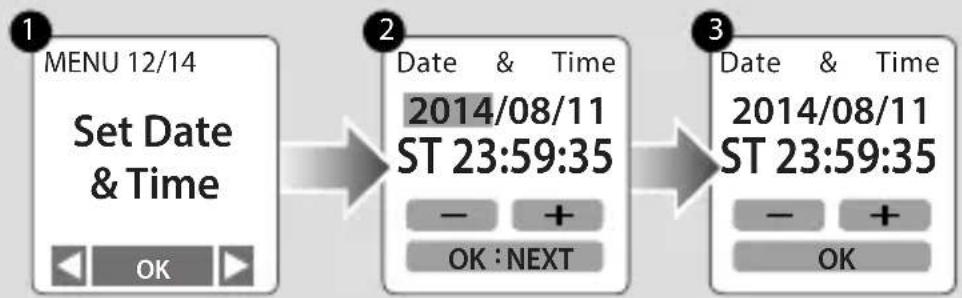
  1. To turn on the camera as a Motion Activated Camera, press to go to MENU setting, select Set Date & Time, and press OK.
  2. The number with the red background is the number you are setting. Press for a higher number. Press OK : Next to confirm and go to the next number.
  3. When finished press OK to exit and return to the Set Up Screen.
  4. ST: Standard Time DT: Daylight Saving Time

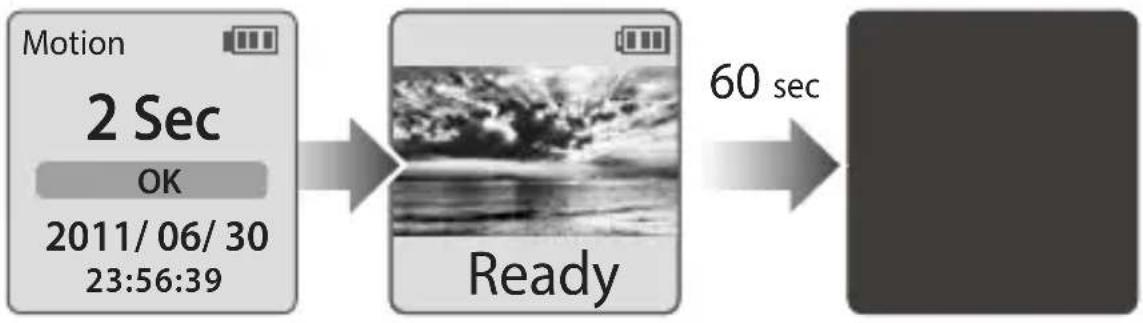
How Our Power Saving Technology Works

At Set Up Screen At Preview Screen
Brinno MAC200DN - How Our Power Saving Technology Works - 1

flowchart
graph LR
    A["Motion 2 Sec\nOK\n2011/06/30\n23:56:39"] --> B["Ready"]
    B --> C["60 sec"]

• At Set Up Screen

After 10 seconds without activity on the set up screen, the camera will go to preview screen automatically. You can press

or TIME> to go back to the set up screen.

• At Preview Screen

After 60 seconds without activity on the set up or preview screens, the LCD screen will turn off automatically to save power. You can press OK to wake up.

Motion Activated Mode

Capture Mode

Brinno MAC200DN - Capture Mode - 1

Motion Activated Mode

Images captured by Motion Activation are in what we consider the Hot Zone meaning close to the device. Motion Activation captures direct threats up close.

Capture Rate Captures 2-3 frames per second.
Clip LengthOnce activated captures for 5 seconds.
Motion Sensor Detecting AreaDetecting Angle: 100° Detecting Distance: 6M

Brinno MAC200DN - Motion Activated Mode - 1

natural_image Illustration of a robot interacting with a camera, showing signal waves and an arrow (no text or symbols)

6m (20 ft)

Capture Mode

Motion Activated Mode

Motion Sensor Activated Capture for 5 seconds

Motion Sensor Activated Capture for 5 seconds

Motion Sensor Activated Capture for 5 seconds

No Activities, capture finished.

Once activated the Motion Activated Camera will capture for 5 seconds, during this period if the Motion Sensor is activated again, it will extend the capture time for 5 more seconds. When the motion ceases and the Motion Activated Camera finishes capturing, all the frames will be stored into one AVI file.

Time Lapse Mode

Capture Mode

Brinno MAC200DN - Capture Mode - 1

Time Lapse Mode

Images captured at a Fixed Capture Rate are captured in the Time Lapse mode and cover a range over 100 meters deep in the capture area.

Capture RateCaptures 1 frame per second~24 hours ( How to set the Capture Interval? please refer to page 18)

Brinno MAC200DN - Time Lapse Mode - 1

text_image > > 100m (320 ft)

Capture Mode

Hybrid Mode

Brinno MAC200DN - Hybrid Mode - 1

Hybrid Mode

Brinno Hybrid Mode combines Fixed Capture Rate and Flexible Motion Detection. They provide Dual Protection in the Hot Zone. In standby mode the camera works in Time Lapse Mode, and the camera will capture images at your desired Capture Rate (2 second\~24 hours.) When motion is detected the camera will switch to Motion Mode and capture 2\~3 frames per second.

You will never miss a shot!

Capture RateTime Lapse mode, 1 frame per 2 second~24 hours.Motion mode, capture 2-3 frames in one second.

Hybrid Time Lapse Mode

Normally, the Motion Activated Camera is operating in the Time Lapse mode. It features an extended-time and wide angle recording area. The Playback Rate (the film frequency) is custom and based on your setting. (E.g. 1 minute captures 1 photo.)

Brinno MAC200DN - Hybrid Time Lapse Mode - 1

natural_image Illustration of a camera and a robot on a curved surface with motion lines (no text or symbols)

Hybrid Motion Mode

When any movement is detected in the Detecting Zone (Detect angle = 100°/ Detect distance = 6 M), the Motion Activated Camera will shift to the Motion Mode, and captures 2-3 photos per second. At this range it will record the target in greater detail.

Brinno MAC200DN - Hybrid Motion Mode - 1

natural_image Illustration of a robot interacting with a camera on a curved surface (no text or symbols)

Start Recording

Before starting recording, please select your capture mode: Motion Mode / Time Lapse / Hybrid Mode.

Motion Activated Mode

Brinno MAC200DN - Motion Activated Mode - 1

flowchart
graph LR
    A["OK\n2011/06/30\n23:56:39"] --> B["Ready"]
    B --> C["• REC"]
  1. At the set up screen, press OK to go to preview screen.
  2. Press OK again to start recording. The LCD will display the “* REC” icon.
  3. After 5 seconds without any activity, the LCD screen will turn off to save power.

Time Lapse Mode & Hybrid Mode

Brinno MAC200DN - Time Lapse Mode &amp; Hybrid Mode - 1

flowchart
graph LR
    A["T.Lapse 3 Sec\nOK\n2011/06/30\n23:56:39"] --> B["Time ASAP"]
    B --> C["Time 1 Sec\nOK"]
    C --> D["Custom OK"]
    style A fill:#f9f,stroke:#333
    style B fill:#ccf,stroke:#333
    style C fill:#cfc,stroke:#333
    style D fill:#fcc,stroke:#333
  1. At the set up screen, press to set a capture interval (capture rate).
  2. Press and TIME > to select a pre-set capture interval or customize it. When complete, press OK to confirm and return to the set up screen.

Stop Recording

To Stop Recording

Brinno MAC200DN - To Stop Recording - 1

flowchart
graph LR
    A["Input Image"] --> B["Processing..."]
    B --> C["Ready"]
  1. Hold OK until the LCD screen turns on.
  2. The LCD screen will show the "Processing" icon. The Motion Activated Camera is saving your data. Please wait until the icon disappears.
  3. Once complete, the LCD panel will return to the preview screen.

Basic Installation

Mount it anywhere, no power required so anywhere really means anywhere.

3 ways to mount the camera

A-1 Wall Mount
Brinno MAC200DN - ways to mount the camera - 1

flowchart
graph TD
    A["Measurement Instrument"] --> B["Target"]
    B --> C["Arrow to Target"]
    C --> D["Arrow to Target"]
    D --> E["Final Target with Arrow"]

Basic Installation

A-2 Wall Mount

Brinno MAC200DN - A-2 Wall Mount - 1

flowchart
graph TD
    A["Step 1: Rotation of motor component"] --> B["Step 2: Rotation of gear mechanism"]
    B --> C["Step 3: Rotation of shaft mechanism"]
    C --> D["Step 4: Rotation of motor component with torque"]

Brinno MAC200DN - A-2 Wall Mount - 2

text_image B Rubber Strap 1 2

Brinno MAC200DN - A-2 Wall Mount - 3

text_image c Tree strap 1 2

Basic Installation

2 ways to secure the camera safety

1 Security Lock Cable
Brinno MAC200DN - ways to secure the camera safety - 1

natural_image Two-panel image showing a mechanical component before and after a curved wire or filament, with no visible text or symbols.

2 Camera Body Lock
Brinno MAC200DN - ways to secure the camera safety - 2

natural_image Two-panel image showing a metal latch mechanism before and after modification, with no visible text or symbols.

SD card capacity

Go to the MENU setting

Power on the Motion Activated Camera, press

to go to the MENU setting.

1 SD card capacity

Brinno MAC200DN - SD card capacity - 1

text_image Menu 1/14 SD card capacity Size=4GB Used=27% Free=73% OK

In this mode, the LCD will display the SD card capacity, telling you how much free space remains on the SD card.

Capture Mode

2 Capture Mode

Brinno MAC200DN - Capture Mode - 1

flowchart
graph LR
    A["Menu 2/14 Capture Mode"] --> B["Cap Mode"]
    B --> C["Motion T.Lapse Hybrid"]
    style A fill:#f9f,stroke:#333
    style B fill:#ccf,stroke:#333

You select your capture mode with this function.

  1. Select between :
    Motion = Motion Activated mode.
    T. Lapse = Time Lapse mode.
    Hybrid = Hybrid mode.

  2. Press OK to confirm.

Overwrite

3 Overwrite

Brinno MAC200DN - Overwrite - 1

flowchart
graph LR
    A["Menu 3/14"] --> B["Overwrite Mode"]
    B --> C["OK OK"]
    D["Overwrite On Off"] --> E["OK"]
    F["OK"] --> G["OK"]

When the SD card free space is less than 1%, the Overwrite function will remove old files to ensure SD card has more than 1% free space. If you do not want the SD Card to be over written, and files deleted, select Off.

  1. Select On or Off by .
  2. Press OK to confirm.

Timer

4 Timer

Brinno MAC200DN - Timer - 1

flowchart
graph LR
    A["Menu 4/14"] --> B["Timer"]
    B --> C["OK OK"]
    D["Timer"] --> E["0000-0000 Exit Cancel"]

This function is used in Time Lapse mode and Hybrid mode. The Timer will allow you to pre-set a recording period. (E.g. 8 am–5 pm) Select 0000-0000 and select to go to the timer setting menu.

Don't want to set a daily recording time frame, select Cancel to cancel the setting.

4 Timer

Brinno MAC200DN - Timer - 1

text_image Timer 0000-0000 - + OK: NEXT A B 0000-0000 e.g. 0600-1600 mo 1600-2330 aft

e.g.

0600-1600 morning to afternoon

1600-2330 afternoon to night

2345-0500 overnight

  1. Set the start recording time (A area), then set the stop recording time (B area). Press to lower the number, press TIME > to increase the number and press OK to move to the next column.

Timer

4 Timer

Brinno MAC200DN - Timer - 1

flowchart
graph LR
    A["Timer 3 Sec OK 2011/06/30 23:56:39"] --> B["Ready"]
    B --> C["5 sec REC"]
    style A fill:#f9f,stroke:#333
    style B fill:#ccf,stroke:#333
    style C fill:#cfc,stroke:#333
  1. After setting the times, return to the set up screen and press OK to move to the preview screen.
  2. Press OK to start recording. The camera will automatically activate at the start recording time you selected.

Brinno MAC200DN - Timer - 2

Once you have activated the Timer, all functions, like Motion Activated mode, Time Lapse mode and Hybrid mode, will only work during the time period selected.

Playback Rate

5 Playback Rate

Brinno MAC200DN - Playback Rate - 1

text_image Menu 5/14 Playback Rate OK OK Frame Rate ► 1 FPS 5 FPS 10 FPS

You can select the videos FPS (frames per second) playback speed with this setting.

  1. Select a FPS number using the .
  2. What Playback Rate should I use? Generally, 10 FPS is suitable for Time Lapse video, but depending on your needs you can set it to anywhere between 1 - 30 FPS.

1 FPS If the video plays at 1 frame per second, the video will not look smooth, and the video length will be longer.

30 FPS If the video plays at 30 frames per second, the video will look smooth, and the video length will be shorter.

Image Quality

6 Image Quality

Brinno MAC200DN - Image Quality - 1

flowchart
graph LR
    A["Menu 6/14 Image Quality"] --> B["Quality Best Better Good"]
    style A fill:#f9f,stroke:#333
    style B fill:#bbf,stroke:#333

The image quality setting lets you choose a image quality to fit your needs. The image quality setting will determine the number of frames that can be stored on the SD Card: The higher the quality the fewer images you can store on your SD Card.

OptionSingle frame sizeDescription4GB capacity SD card
Best 200~400 KBLow compression rate produces the maximum image data for the highest quality images14,000 photos
Better 150~300 KB General usage20,000 photos
Good70~150 KBHigh compression rate produce less image data, best for long capture periods30,000 photos

Time Stamp

7 Time Stamp

Brinno MAC200DN - Time Stamp - 1

flowchart
graph LR
    A["Menu 7/14\nTime Stamp\nOK OK"] --> B["Time Stamp\nOn Off"]

You can choose if you want the time stamp to show at bottom of your video. Select On or Off using the

and TIME > buttons.
  1. Select .
  2. Press OK to confirm.

LED Display

8 LED Display

Brinno MAC200DN - LED Display - 1

flowchart
graph LR
    A["Menu 8/14 LED Display"] --> B["LED Display"]
    B --> C["OK OK"]
    style A fill:#f9f,stroke:#333
    style B fill:#ccf,stroke:#333

You can choose whether or not the LED will flash while capturing each frame.

  1. Select .
  2. Press OK to confirm.

Band Filter

9 Band Filter

Brinno MAC200DN - Band Filter - 1

text_image Menu 9/14 Band Filter OK OK Flicker Set ► None 50 Hz 60 Hz

Select the correct fluorescent lighting frequency to match your indoor lighting frequency.

  1. Select between: None, 50 Hz and 60 Hz options.
  2. None : For outdoor environments

50 Hz : Europe

60 Hz: USA

We suggest you use None when the scene is outdoors.

Night Vision Mode

The MAC200 DN is designed to operate in daytime and nighttime environments. The color quality is improved dramatically in daytime and with the addition of the Brinno Night view LED accessory, you will be able to capture events 24's a day.

10 Night Vision Mode

Brinno MAC200DN - Night Vision Mode - 1

flowchart
graph LR
    A["Menu 10/14 NightVision Mode"] --> B["→"]
    B --> C["NightVision On Off Auto"]

Night vision allows you to use the optional Brinno Night Vision LED Light to capture images in low light environments.

On: For Night/ Low Light environment use.

▲ IMAGE COLOR MAY VARY SLIGHTLY IN DAYLIGHT.

Off: For Daylight use.

Auto: Camera will automatically turn off night vision at sunrise, automatically turn on night vision at sunset.

⚠ LOCATION LATITUDE SETTING REQUIRED, PLEASE REFER TO PAGE 38 SET LATITUDE.

Set Latitude

11 Set Latitude

Brinno MAC200DN - Set Latitude - 1

text_image Menu 11/14 Set Latitude OK OK Latitude R 05:47:18 Latitude 16N Adjust 2 S 18:23:48 Sunrise time Sunset time

When you set the Night Vision Mode to AUTO, please set correct the location latitude, so your camera will automatically turn night vision on/off.

  1. Select your locations latitude
    (TO FIND OUT YOUR LOCATION LATITUDE, PLEASE REFER TO PAGE 38)
  2. If the Sunrise & Sunset time is not correct, you can change adjust to select a more close time.
    (HOW TO KNOW SET CORRECT SUNRISE & SUNSET TIMES? PLEASE REFER TO PAGE 38)

How to find your location latitude? Please go to: www.latlong.net

  1. Type in your location
  2. Get your latitude

Brinno MAC200DN - How to find your location latitude? Please go to: www.latlong.net - 1

text_image Place Name Boston ① Find Latitude 42.358431 Longitude -71.059773

Brinno MAC200DN - How to find your location latitude? Please go to: www.latlong.net - 2

text_image CATLONG.net Latitude Longitude Finder Search Name: Location: From: Latitude: 42°30'04'01" Longitude: 29°00'07'15" 1996 Lat: 42°-37' 30' 05'18" 19" 1996 Long: 27°-2' 30' 05'22" 19" Let Long Map Search & choose name, url, name, address on which are mapped to get fast being done 1996 Long: 27°-2' 30' 05'22" 19"

To know your correct sunrise and sunset time?

Please go to: www.timeanddate.com/astronomy

Brinno MAC200DN - To know your correct sunrise and sunset time? - 1

text_image Sun Sunrise & Sunset times Boston Sunrise Today: 06:18 Sunset Today: 19:04 1. Type in your location 2. Get the sunrise and sunset time

Set Date and Time

12 Set Date and Time

Brinno MAC200DN - Set Date and Time - 1

text_image Menu 12/14 Set Date & Time OK Date & Time 2014/08/11 ST 23:59:35 - + OK:NEXT

Set the correct date and time for your cameras location.

  1. The number with the red background is the number you are setting. Press - ( ) for a higher number. Press OK : Next to confirm and go to the next number.

ST: Standard time DT: Daylight Saving time

  1. When finished press OK to exit and return to the set up screen.

FW version

13 FW version

Brinno MAC200DN - FW version - 1

flowchart
graph LR
    A["Menu 13/14\nFirmware\nVersion"] --> B["Firmware\nX.XX.X\nOK"]

Displays the current version of firmware installed on the camera.

  1. Displays the current version of firmware.
  2. Press CK to exit.

Reset

14 Reset

Brinno MAC200DN - Reset - 1

flowchart
graph LR
    A["Menu 14/14 Reset"] --> B["OK OK"]
    A --> C["No Yes"]

You can reset your camera back to the factory default settings.

  1. Select Reset.
  2. Select Yes and press OK to reset your camera.

Default setting

Function Setting
Capture Mode Motion Mode
Overwrite On
Timer Off
Playback Rate 20 FPS
Image Quality Good
Time Stamp On
LED Display On
Band Filter None
NightVision Off

What Size SD Card Should I Use

SD card size Frame
4 GB SD Card30,000
8 GB SD Card60,000
16 GB SD Card120,000
32 GB SD Card240,000

Base on image quality setting of "Good"

Battery Life

Capture intervalFrames captured to low batteryDays
ASAP 1,845,000 7
1 sec 1,537,500 18
2 sec 1,476,000 34
5 sec 1,317,800 76
10 sec 1,118,000 129
30 sec 696,200 242
1 min 444,570 309
5 min 114,240 397
10 min 59,230 411
1 H 10,185 424
4 H 2,558 426
24 H 427 427

Motion mode & Hybrid mode

  • Stand by time: 427 days
  • Frames captured to low battery: 1,845,000 frames

Specification

Camera
Model MAC200 DN
LCD Screen 1.44" TFT LCD
Waterproof IPX4
Capture Mode
Motion Activated PIR motion detection
Time Lapse Fixed Capture Rate
HybridCombine Time Lapse and Motion Activated mode
PIR Sensor
Detect distance 6M
Detect Angle 100°
Image Sensor
Type 1/4" CMOS sensor
Resolution 1.3 Mega pixel
Pixel size 2.8 μm
Sensitivity2500mV/lux-sec(Good low light quality)
Optics Lens
Aperture F2.0
Field of View 70°
Optics Lens
Focal Length 28 mm (35mm equivalent)
Focus Distance 60 cm (Minimum)
Recording
Video Fast Playback Time Lapse Video
Format AVI
720P(1280x720)
Memory Storage SD Card ( Supported up to 32GB)
Power
Power source 2 x D cell Batteries
Battery Life 14 months*
External Power DC IN: 5V
Dimension
Size(DxWxH) 106x110x78 mm (4.13"x4.29"x3.04")
Weight 275g (without batteries)
Color Black
Operation Temperature
- 20°C ~ 50°C- 4°F ~ 122°F
  1. Batteries last 14 months usage under time lapse mode. (time interval setting: 5 minutes.)

brinno

brilliant innovation

Table of contents Click a title to access it
Manual assistant
Powered by Anthropic
Waiting for your message
Product information

Brand : Brinno

Model : MAC200DN

Category : Camera