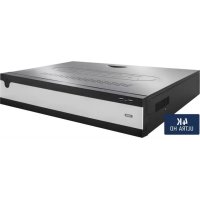
NVR10030 - Network video recorder ABUS - Free user manual and instructions
Find the device manual for free NVR10030 ABUS in PDF.



| Product Type | Network Video Recorder |
| Brand/Model | ABUS NVR10030 |
| IP Video Channels | 16 |
| Live Display Resolution | Up to 12 MP |
| Display Outputs | 1 x VGA (1080p) and 1 x HDMI (4K) |
| Audio | 2-way: 1 RCA input, 1 RCA output |
| Internal Storage | 4 SATA bays (hard drives not included) |
| Network Connectivity | 2 x RJ45 10/100/1000 Mbps |
| Alarm Inputs | 16 (NO/NC) |
| Relay Outputs | 4 (12 V DC / 1 A) |
| Power Supply | AC 100-240 V, < 80 W |
| Operating Temperature | -10 °C to 55 °C |
| Max Humidity | 90 % |
| Protocols | ONVIF Profile S; compatible with ABUS, Axis, Panasonic, Samsung |
| Mobile Access | iDVR Plus/HD (iOS and Android) |
| Software | ABUS CMS |
| VCA Functions | Line crossing detection, intrusion, face, blur, scene change, PIR alarm |
| Recording Modes | Manual, scheduled, motion detection, alarm, VCA |
| OSD Languages | German, English, French, Dutch, Danish |
| Operating Mode | Triplex (simultaneous recording, playback, network) |
| Package Contents | Recorder, power cables (DE/UK/AUS), SATA cables, rack mounts, USB mouse, quick guide, safety instructions, software CD |
Frequently Asked Questions - NVR10030 ABUS
User questions about NVR10030 ABUS
0 question about this device. Answer the ones you know or ask your own.
Ask a new question about this device
Download the instructions for your Network video recorder in PDF format for free! Find your manual NVR10030 - ABUS and take your electronic device back in hand. On this page are published all the documents necessary for the use of your device. NVR10030 by ABUS.
USER MANUAL NVR10030 ABUS
Security Tech Germany
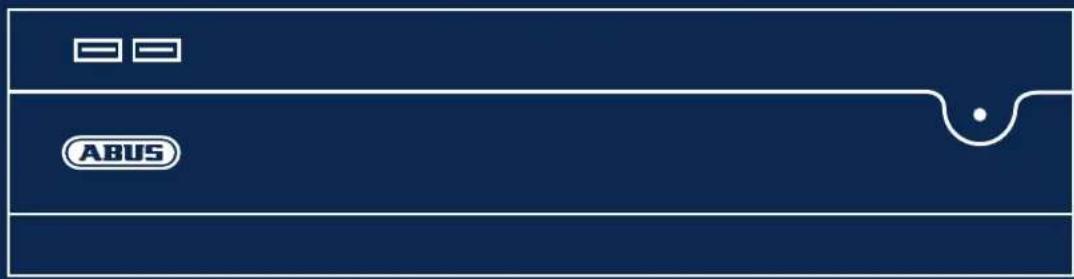
NVR10030
QUICKGUIDE FÜR NETZWERK VIDOREKORDER
abus.com/ger/products/NVR10030

natural_image
Pure diagram of a device casing with no text or symbols, showing a label 'ABUS' and a small curved line (no readable text or symbols beyond the label)Scope of delivery 29
Warnings 30
Connections and status LED 31
Hardware Installation 33
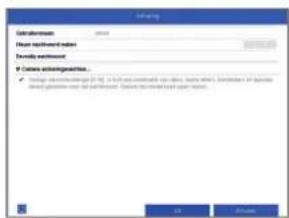
System activation 37
Resetting the password 38
Software Set-up 39
Specifications 45
Instructions, software and app 48
Nederlands
Leveringsomvang 52
Waarschuwingen 53
natural_image
Front view of a white electronic device with indicator lights and a logo labeled 'ABUS' (no text or symbols on the device itself)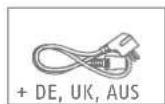

WARNHINWEISE

natural_image
Line drawing of a device with a screwdriver inserted into a box, showing internal components and directional arrows (no text or symbols)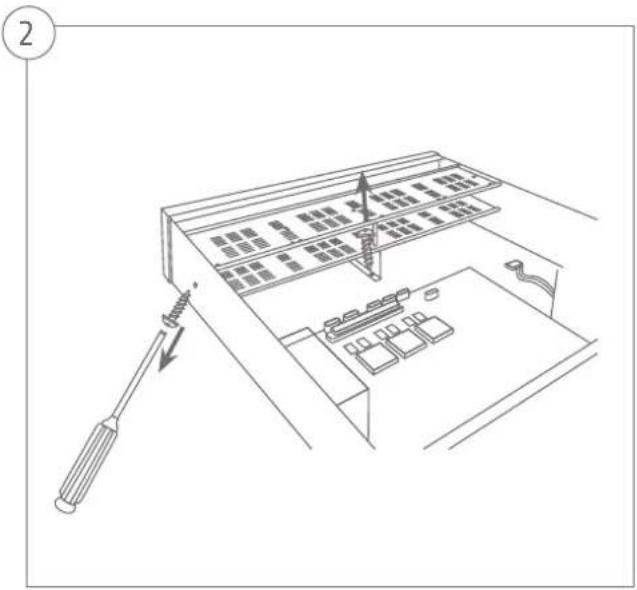

Security Tech Germany

Security Tech Germany
natural_image
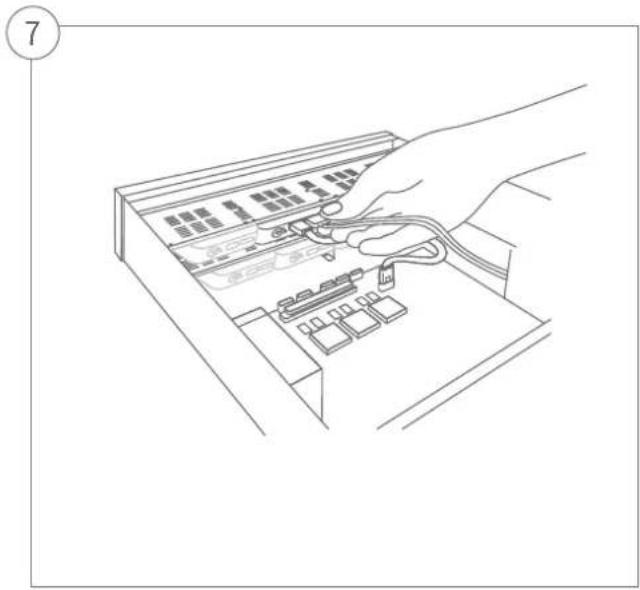
Line drawing of a hand inserting a device into an electronic device (no text or symbols visible)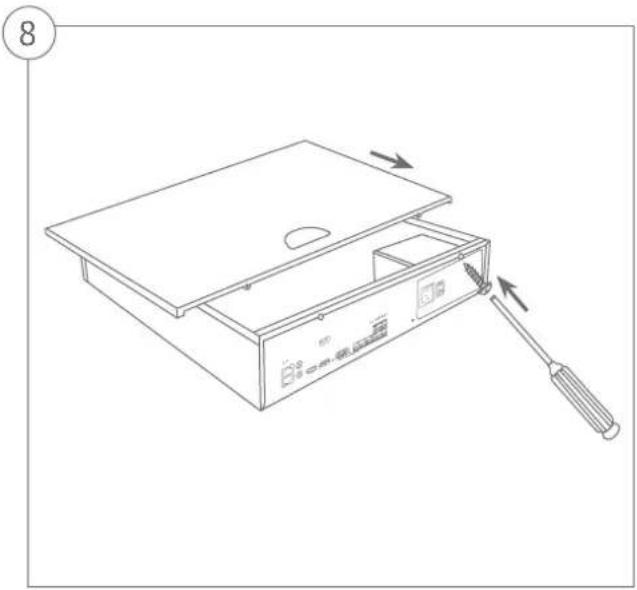
natural_image
Line drawing of a device with a screwdriver inserted, showing internal components and a lid (no text or symbols)SYSTEMAKTIVIERUNG
1

Security Tech Germany
10

Security Tech Germany
16
Audio Two-way audio: 1-ch, RCA (2,0 Vp-p, 1000 Ω)
Audio output: 1-ch, RCA (Linear, 1000 Ω)
Speichermedium 4 x SATA
Video Content Analysis (VCA) Tripwire Detection, Intrusion Detection, Face Detection, Defocus Detection, Scene Change Detection, PIR-Alarm
This quickstart guide describes the initial installation steps for your network video recorder.
You can download the user guide/installation instructions via the link below:
abus.com/eng/products/NVR100130
Dear Customer,
Thank you for purchasing one of our products. This device complies with the requirements of the following EU directives: the EMC Directive (2014/30/EU), the Low Voltage Directive (2014/35/EU) and the RoHS Directive (2011/65/EU).
Conformity has been verified, and the corresponding declarations and documents are kept on file by the manufacturer: ABUS Security-Center GmbH & Co. KG, Linker Kreuthweg 5, 86444 Affing, Germany.
To maintain this standard and guarantee safe operation, it is your obligation as the user to observe this user guide. Read the entire user guide carefully before putting the product into operation and observe all operating and safety information.
All company names and product descriptions are trademarks of the corresponding owner. All rights reserved. If you have any questions, please contact your specialist dealer
SCOPE OF DELIVERY

16-channel network video recorder
- 3x power cable (DE, UK, AU)
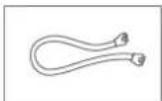
- 4x S-ATA cable and screws for hard disk drives
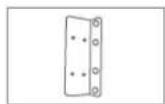
- Mounts and screws for server cabinet
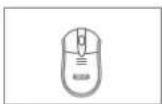
- USB wireless mouse
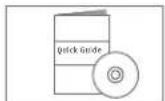
- Quick guide
- Safety information
- General information
- CD (software)
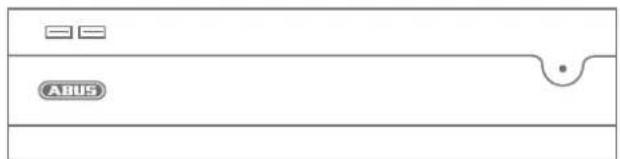
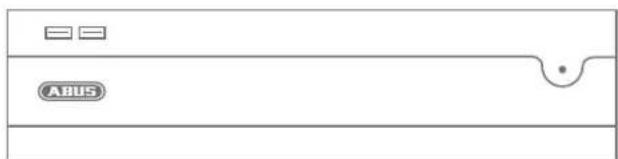
natural_image
Front view of a horizontal electronic device with two buttons and a logo, no visible text or symbols on the body.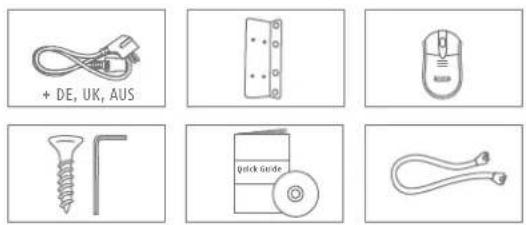
WARNINGS
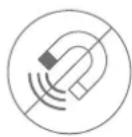
Keep the recorder away from strong magnetic fields.
Ensure an uninterrupted power supply.

Keep liquids away from the recorder.

Only operate and store the recorder in the ambient conditions recommended by the manufacturer.

Turn the recorder off before connecting or removing peripheral devices.

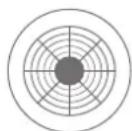
Ensure that there is always sufficient ventilation.
CONNECTIONS AND STATUS LED

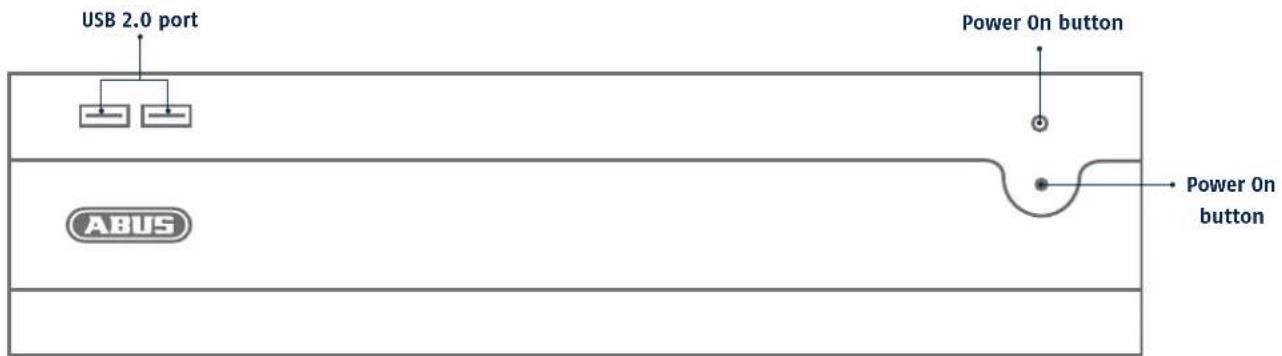
| LED | Notification |
| Permanently lit up blue | Recorder is started up and ready for operation |
| Rapid blue flashes | Recorder is starting up |
| Red light | System error: Network cable disconnected, HDD error, Camera offline |
| Slow blue flashes | Recorder is stand-by |
| Off | Recorder is switched off |
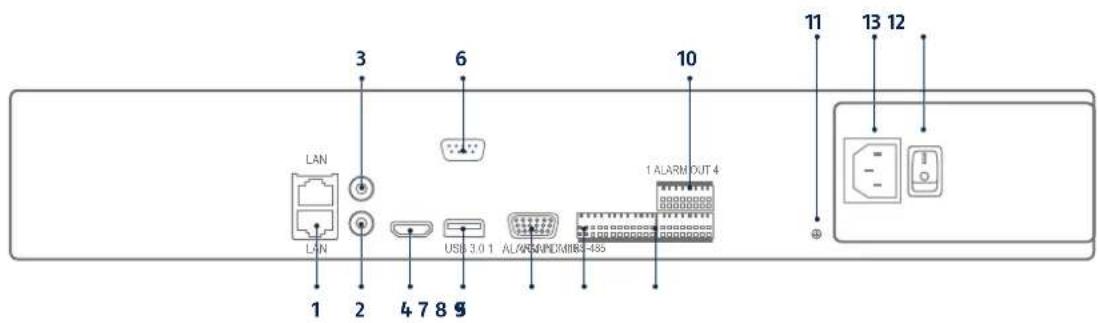
1 2x LAN (RJ45 connection)
2 Audio out (RCA audio output)
3 Audio in (RCA audio input)
4 HDMI (HDMI monitor connection)
5 USB 3.0 (connection for USB devices)
6 RS-232 serial connection (for service purposes only)
7 VGA (VGA monitor connection)
8 RS-485 serial connection
9 Alarm In
10 Alarm Out
11 Grounding
12 Power (on/off switch for the device)
13 240 V AC (connection for power supply)
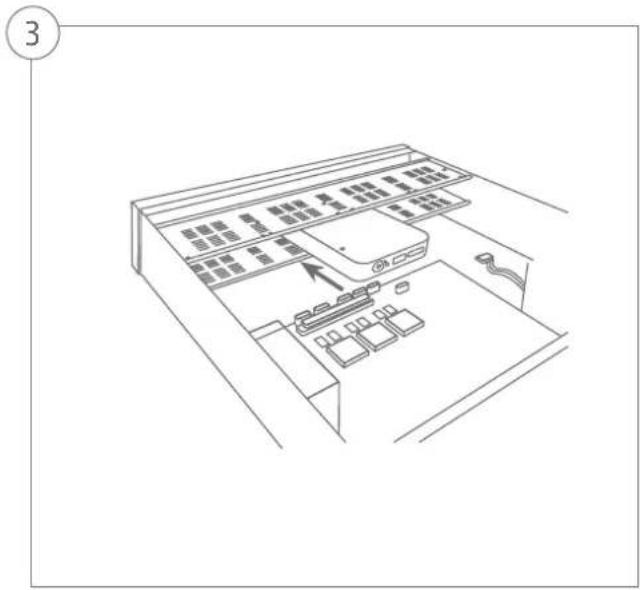
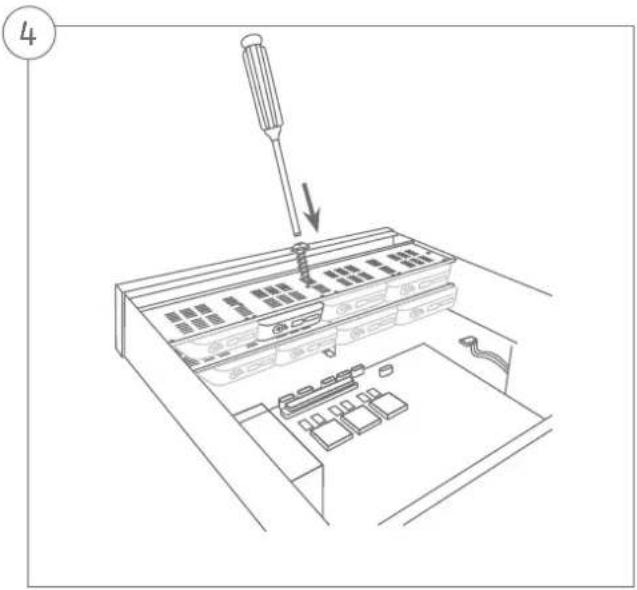
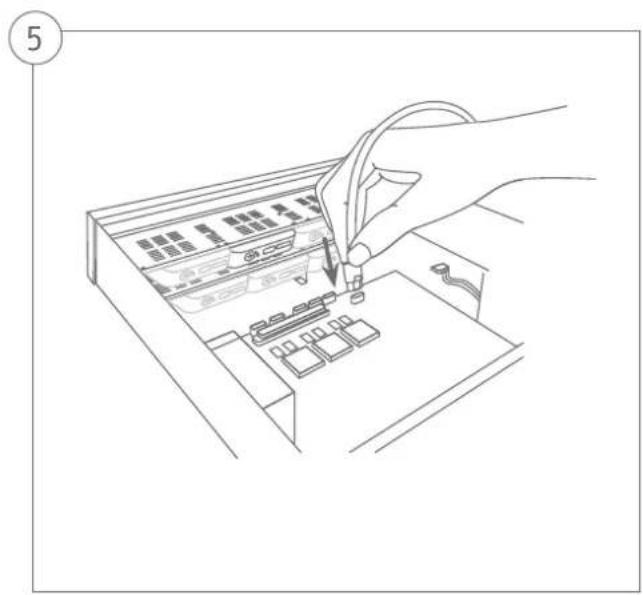
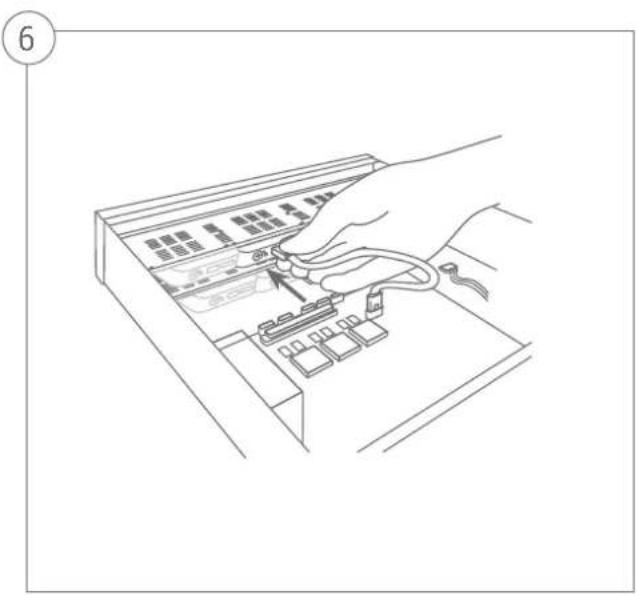
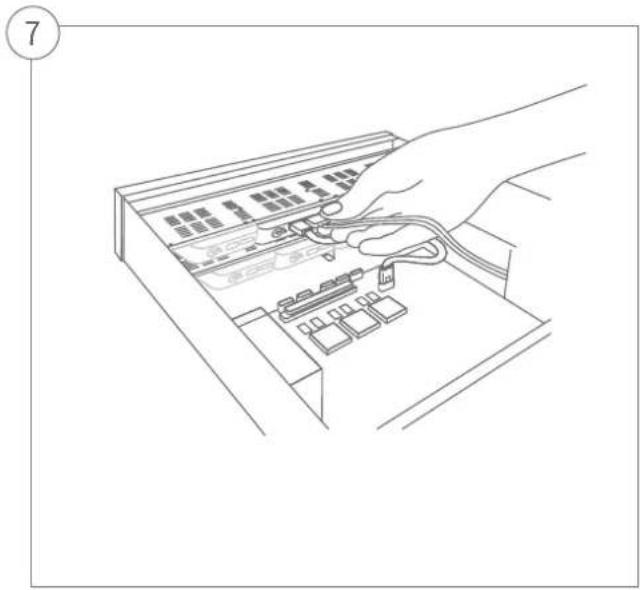
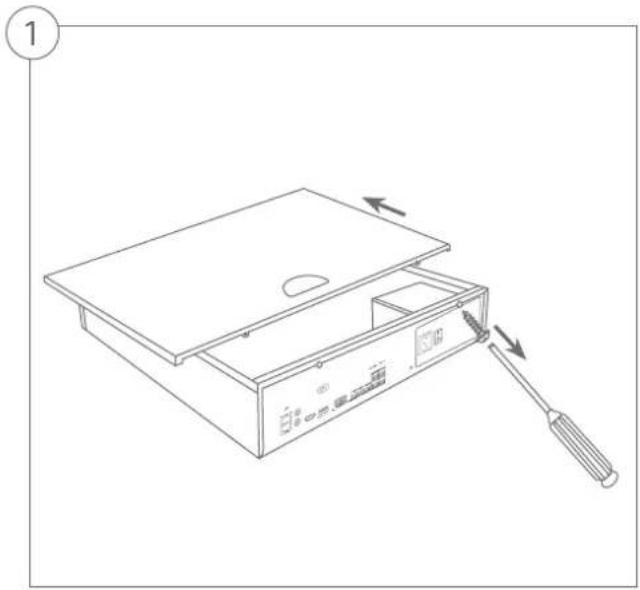
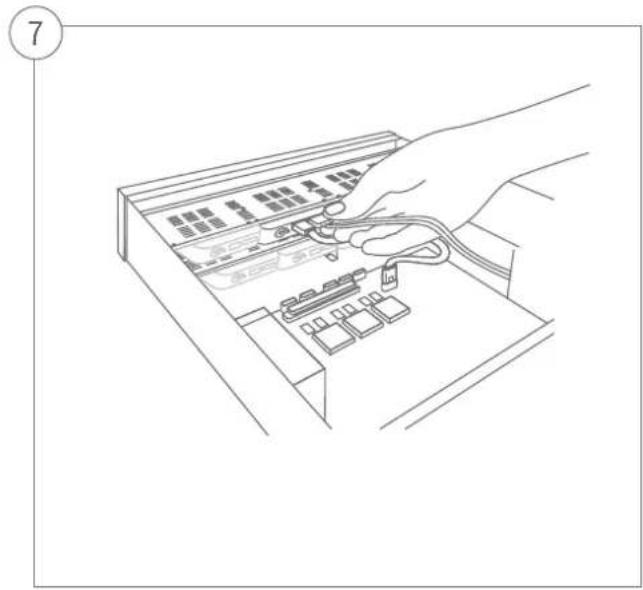
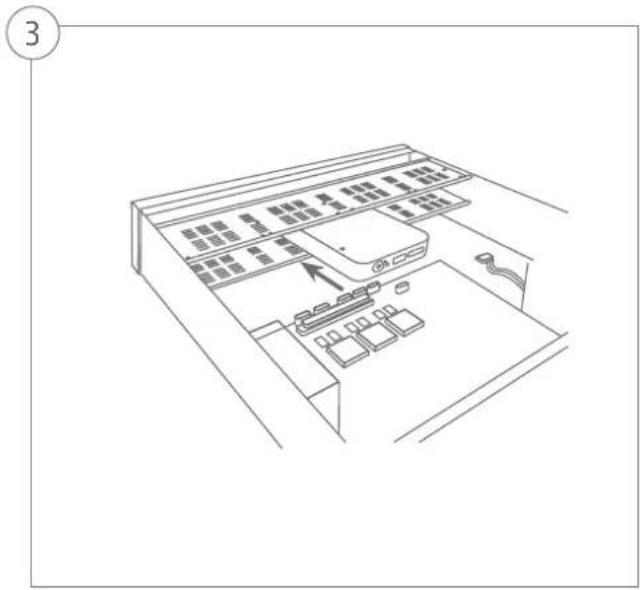
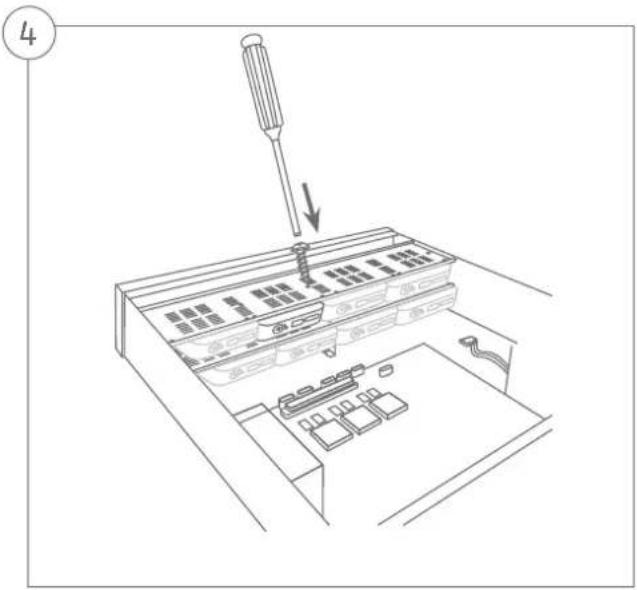
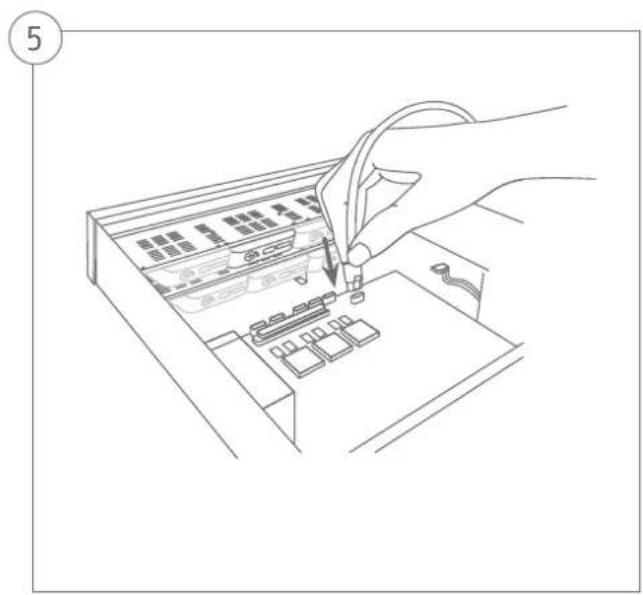
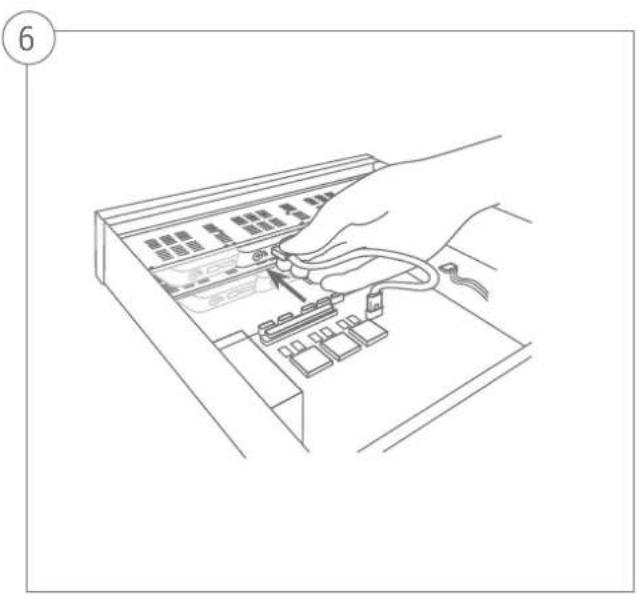
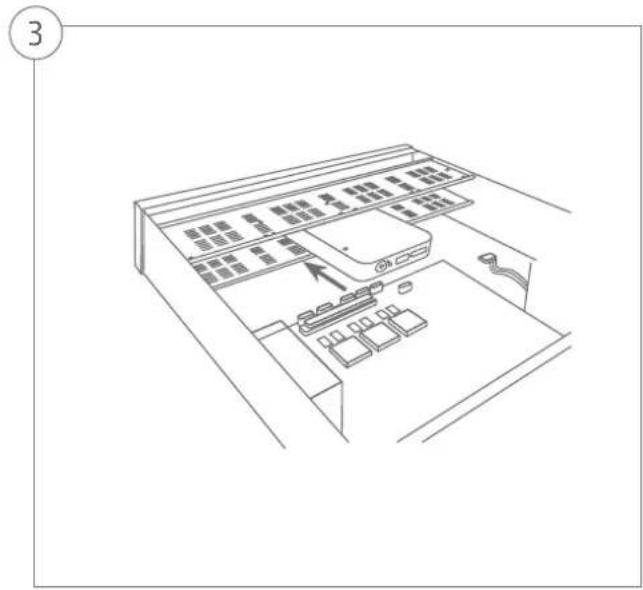
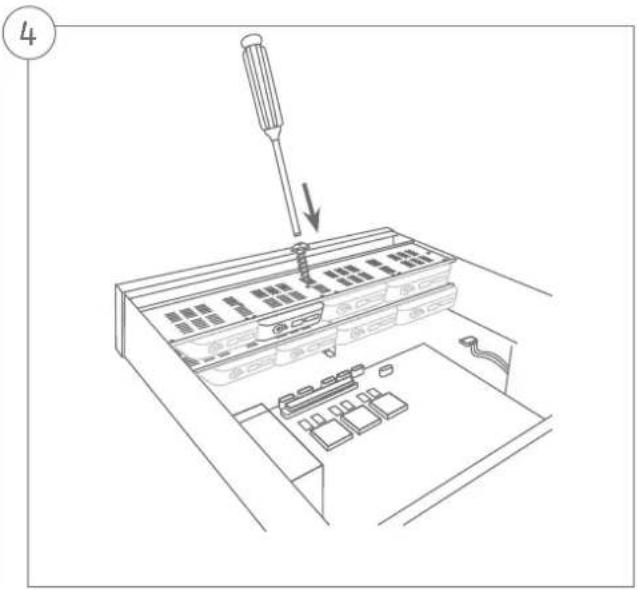
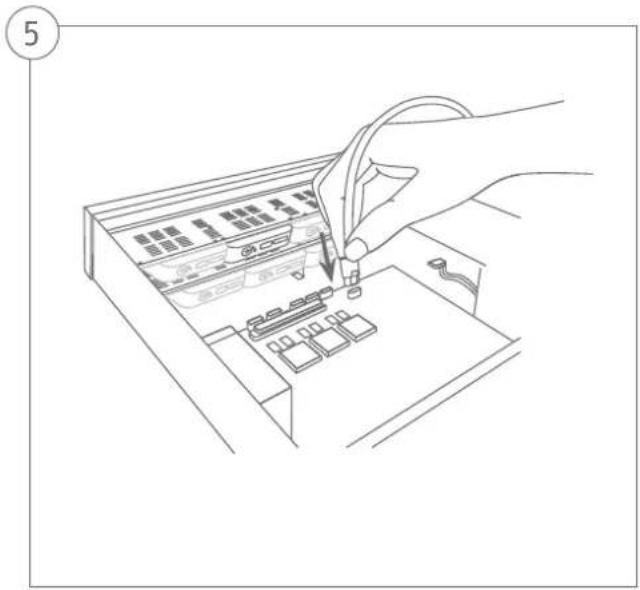
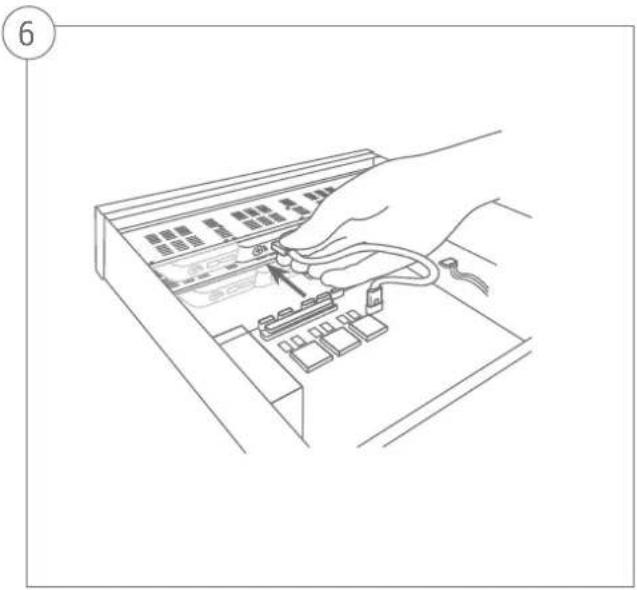
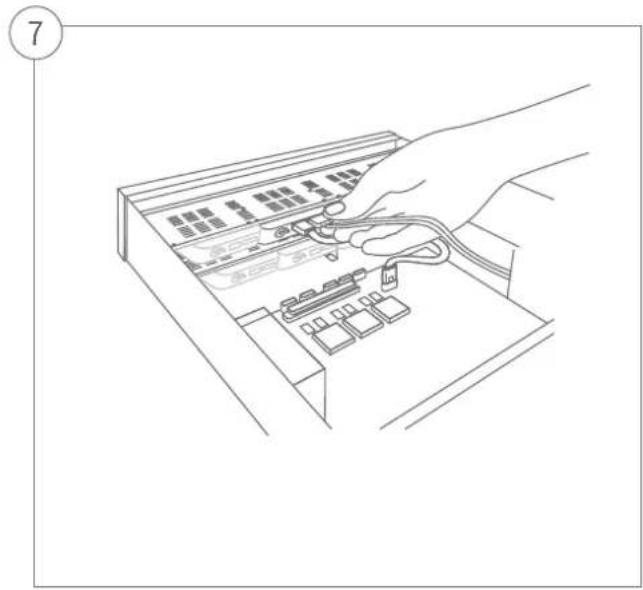
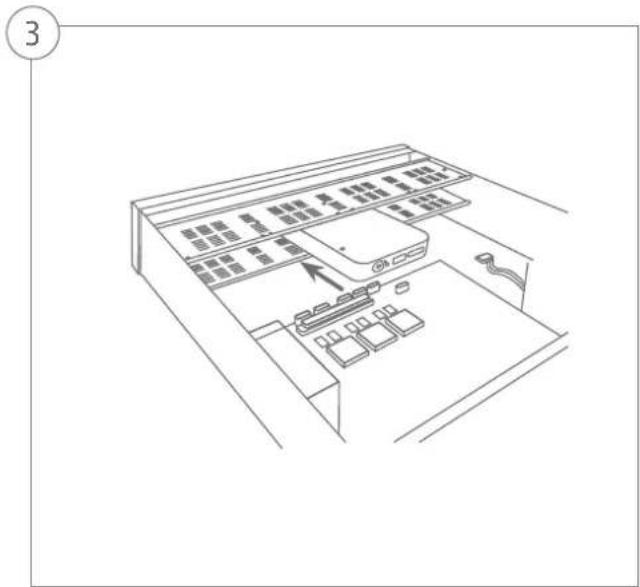
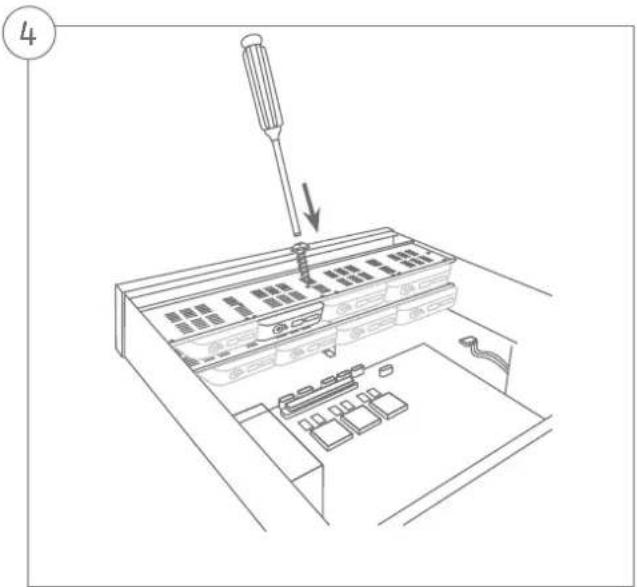
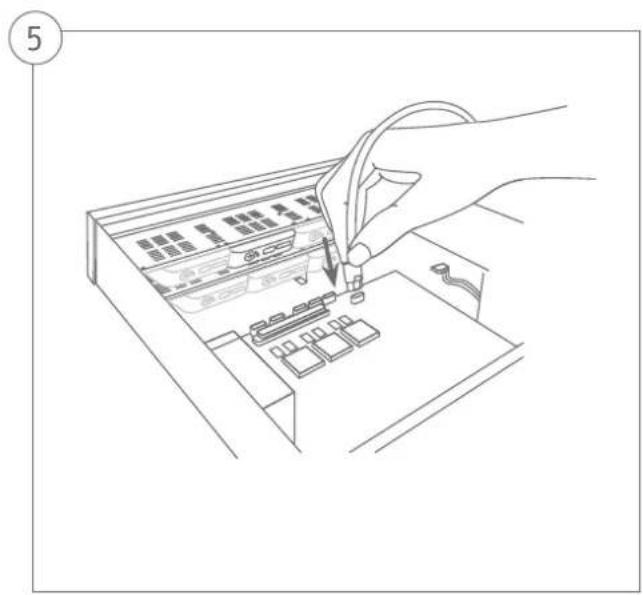
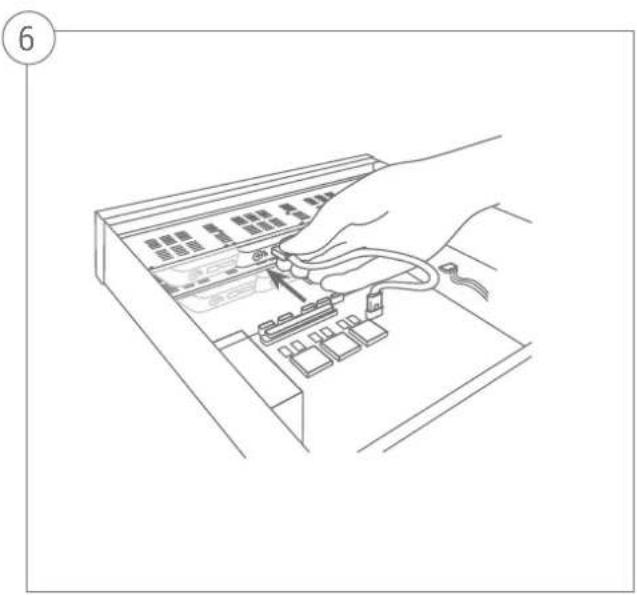
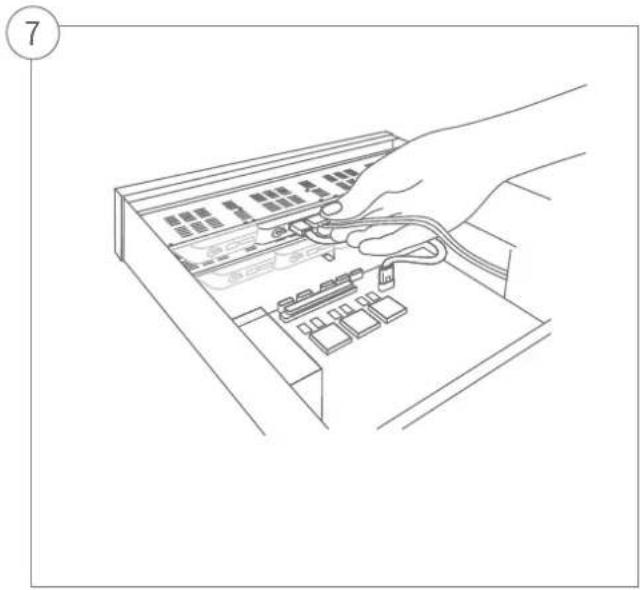
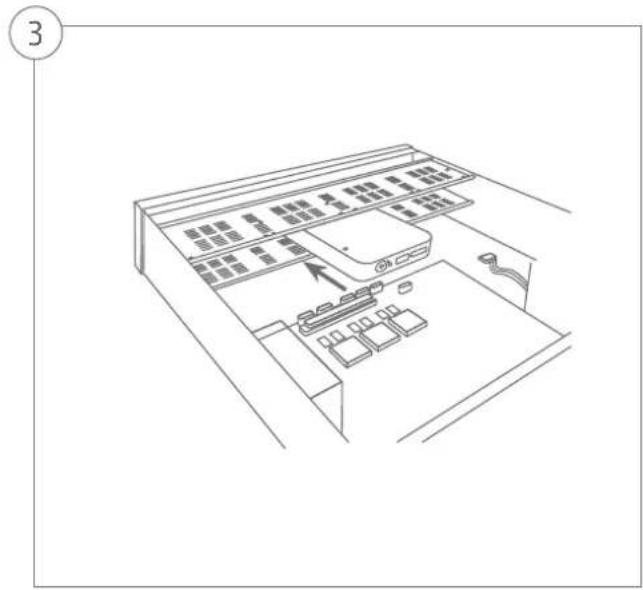
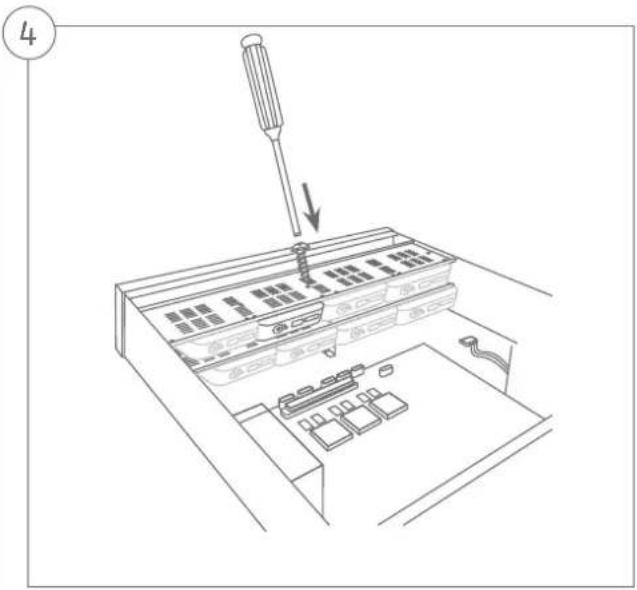
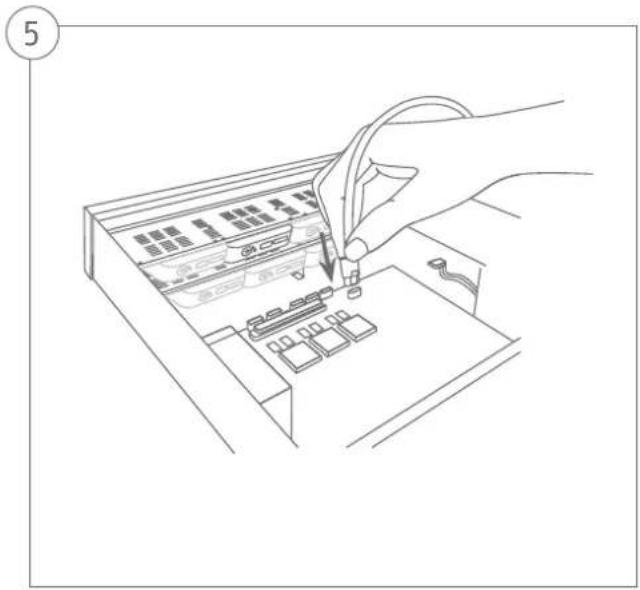
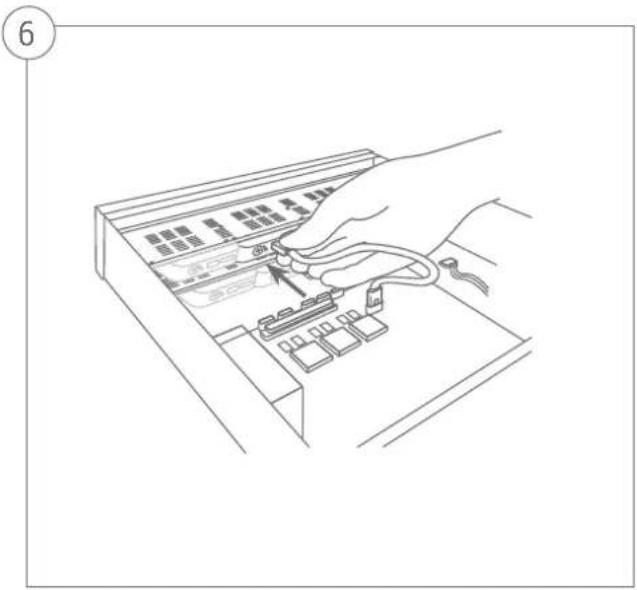
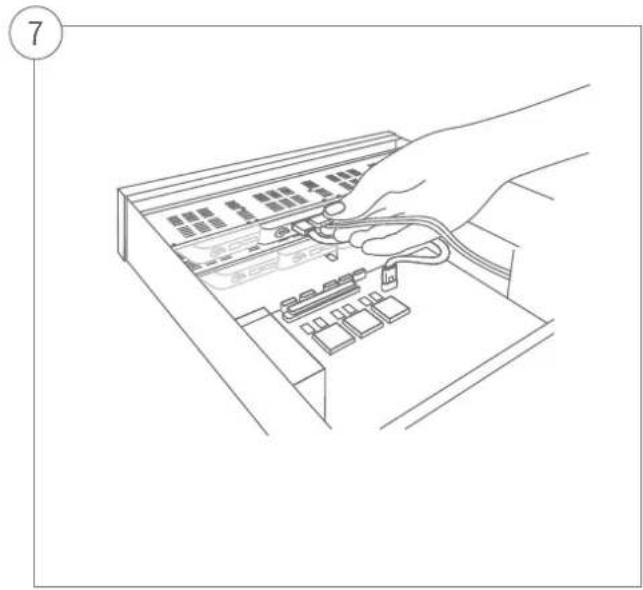
HARDWARE INSTALLATION

natural_image
Line drawing of a device with a screwdriver inserted into a box, showing internal components and directional arrows (no text or symbols)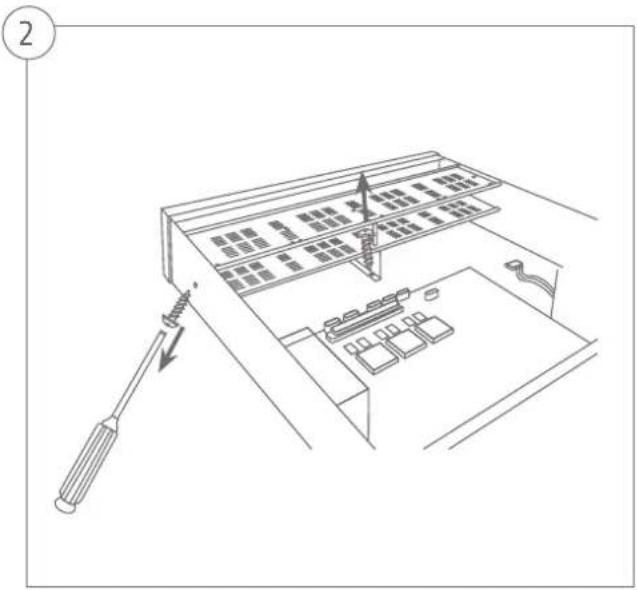
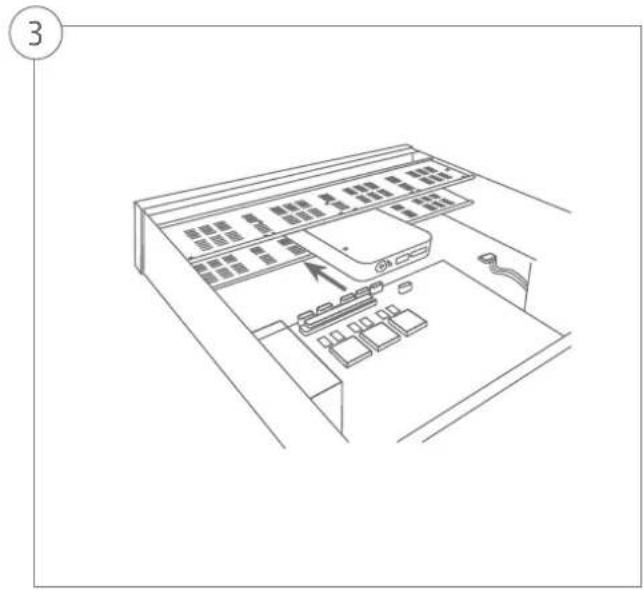
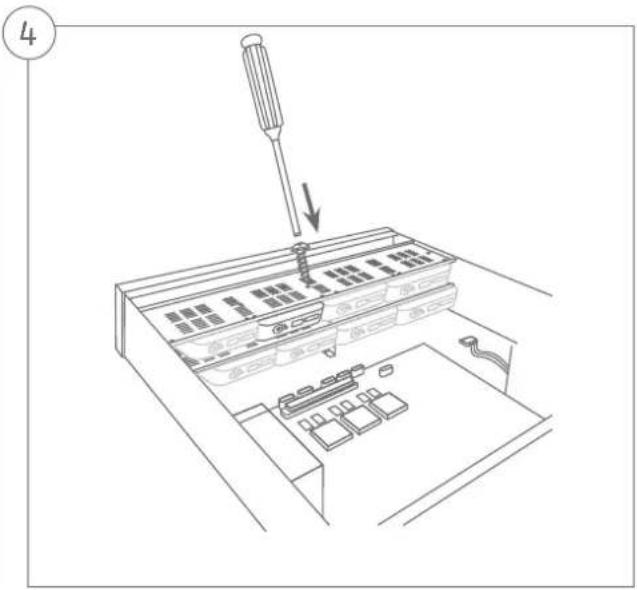

Security Tech Germany
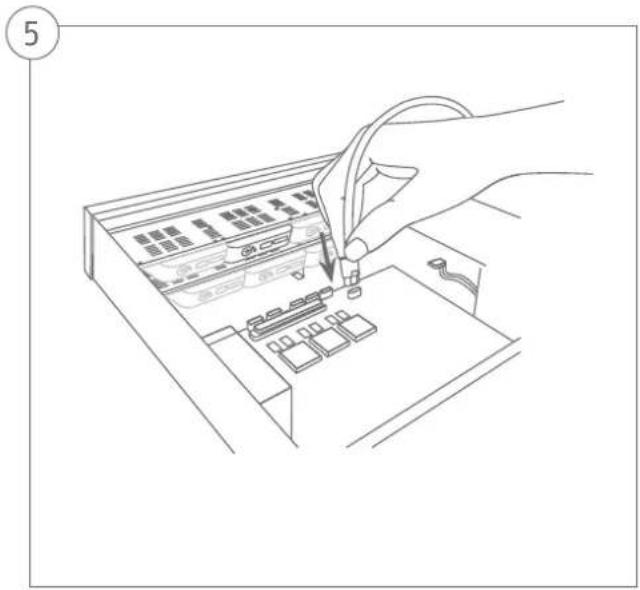
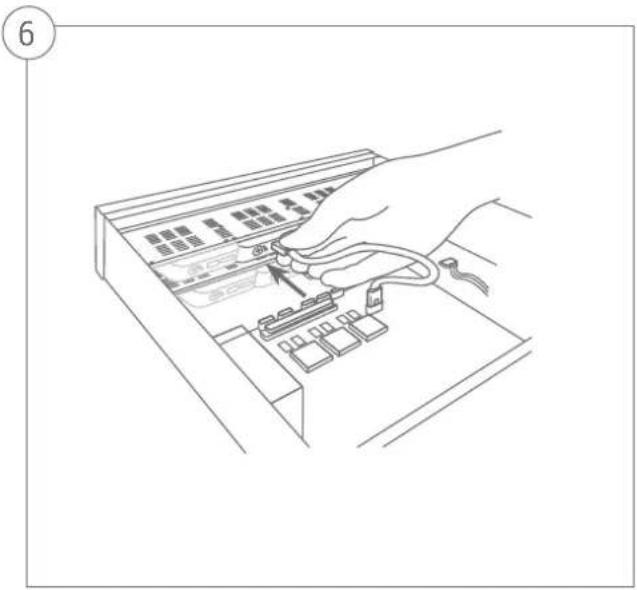
natural_image
Line drawing of a hand inserting a device into an open circuit board (no text or symbols)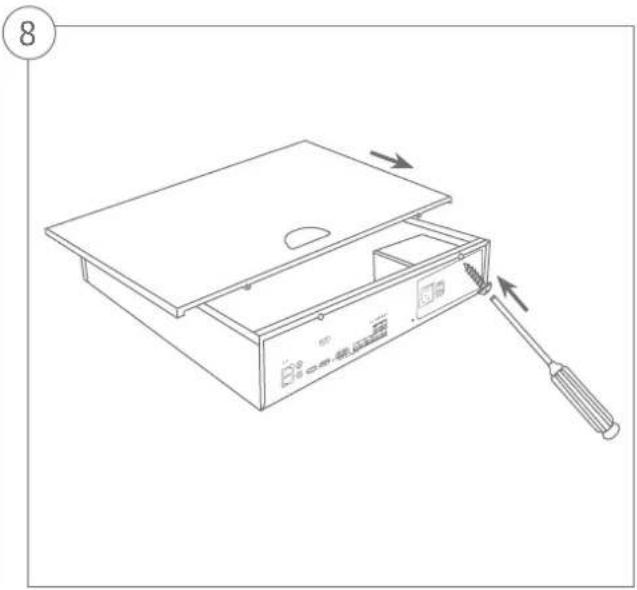
natural_image
Line drawing of a device with a screwdriver inserted, showing internal components and a lid (no text or symbols)SYSTEM ACTIVATION

Security Tech Germany
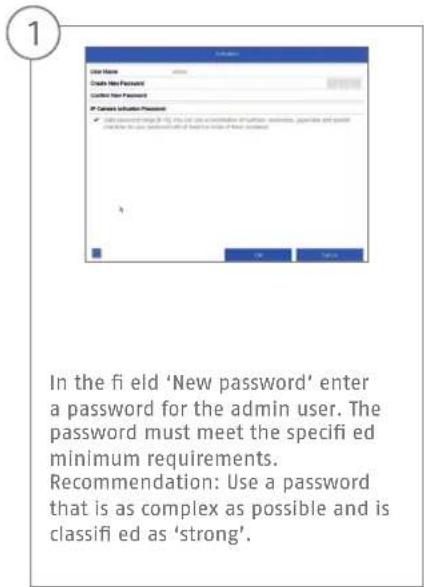
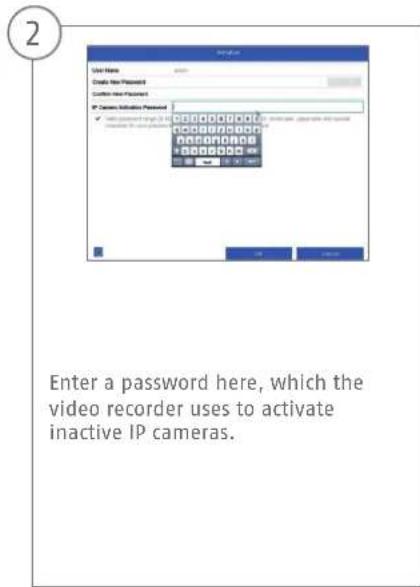
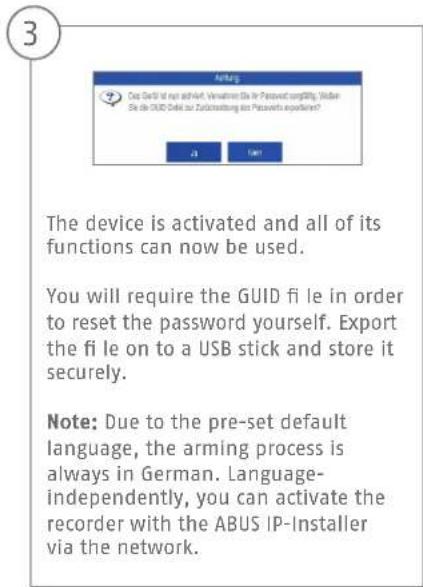
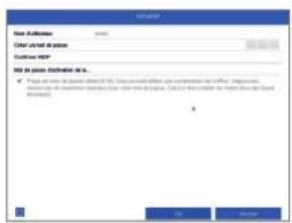
Admin password:
RESETTING THE PASSWORD
1
You can only reset the admin password yourself using the GUID file.
Please be aware that this file becomes invalid if the password is subsequently changed or the GUID file has already been used. In both cases, a new file will need to be created manually.
2
GUID import, local interface:
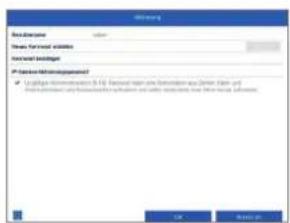
Click on the 'Forgotten password' button in the local login dialog. Insert a USB data carrier containing the secure GUID file and select this file. Click on the 'Import' button to reset the password.
3
GUID import, web interface:
Open your recorder's web interface and click on the 'Forgotten password' button. Insert a USB data carrier containing the secure GUID file and select this file. Click on the 'Import' button to reset the password.
Note: Resetting the admin password is a critical and complex process. Please ensure that you have access to this data in the event of an emergency by storing the password securely (leave a note in these instructions or keep the GUID file on an external data carrier). Therefore, please plan for this eventuality at initial start-up and specify where and how this data will be stored and who will have access to it.
Important: If the password needs to be reset, and the password has not been noted down and the GUID file cannot be accessed (or is no longer valid), you will need to contact Technical Support at the ABUS Security-Center. To reset the password with the help of ABUS, you must have a PC on the premises with a network connection to the recorder, and there must be internet access in order to receive the data that will be provided to you by technical support. If these requirements are not met, it will not be possible to reset the password on the recorder.
SOFTWARE SET-UP

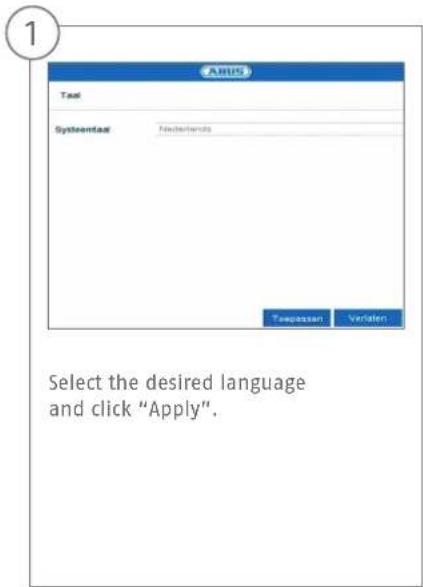
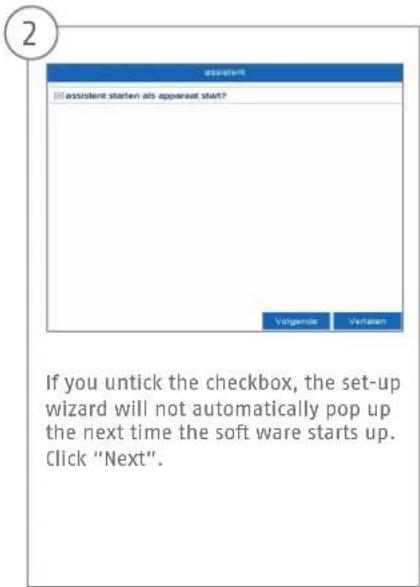
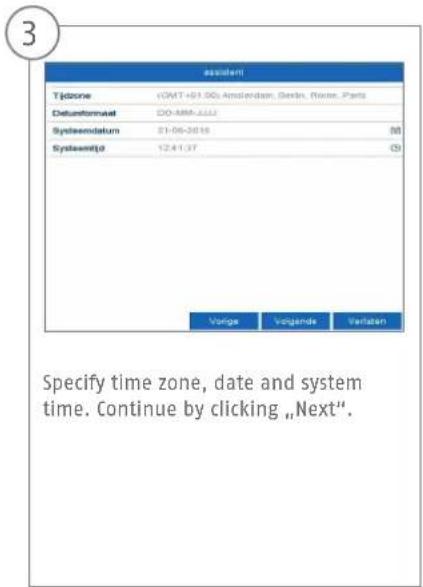
4
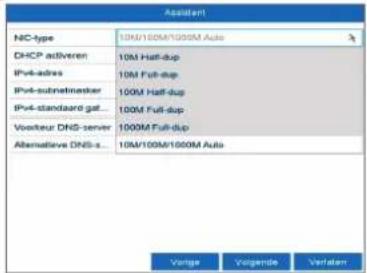
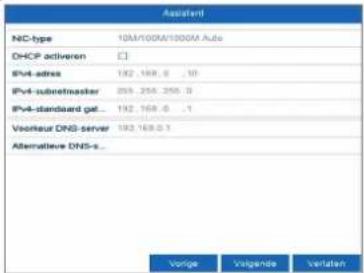
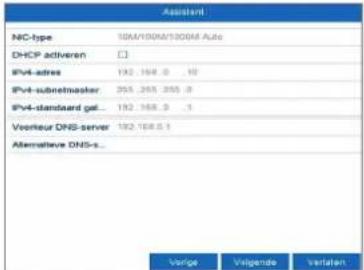
Set the adapter speed tye ,NIC type' manually. Default and recommended setting is the automatic detection (Self adaptive).
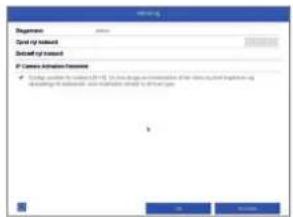
5
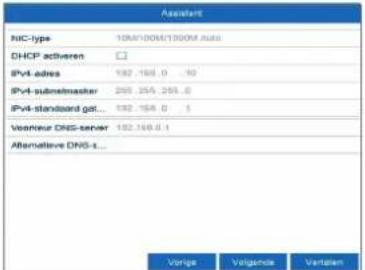
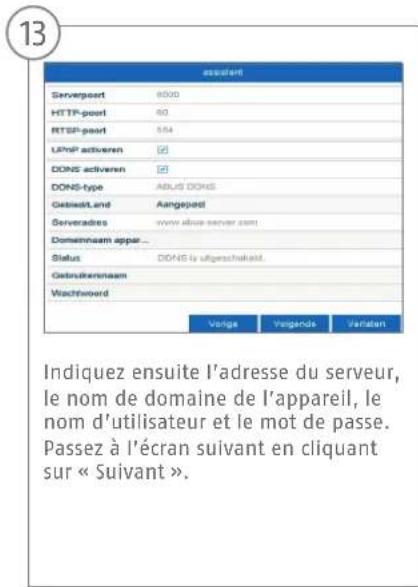
If you wish the address data to be automatically assigned, tick the "Enable DHCP" checkbox. The addresses will then be automatically assigned by your router (where supported). If proceeding in this way, move on to point 13.
6
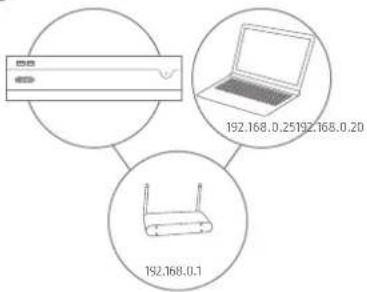
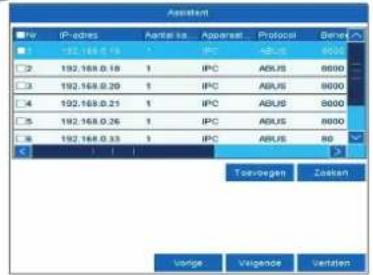
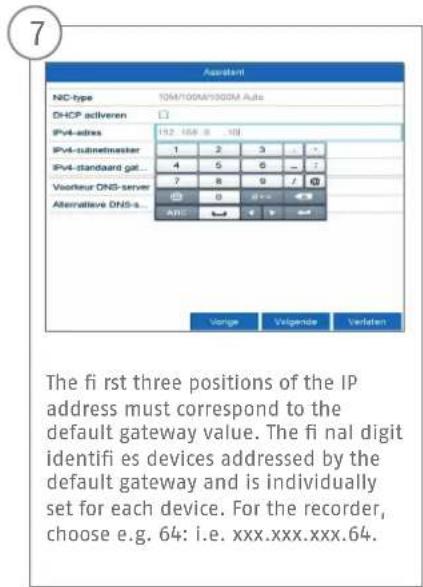
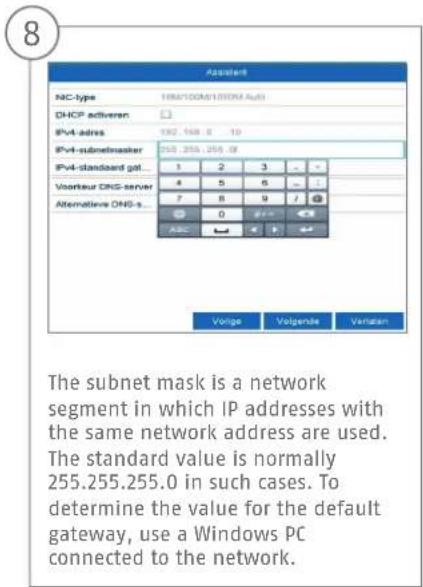
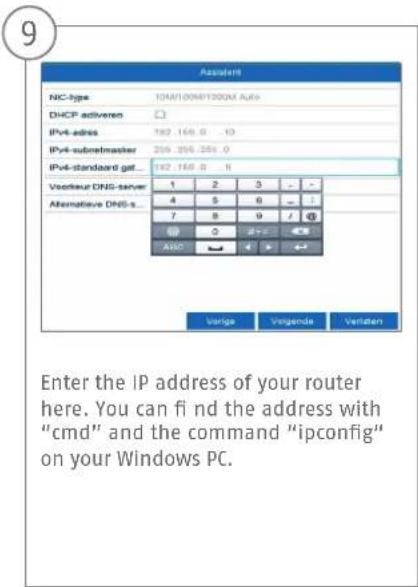
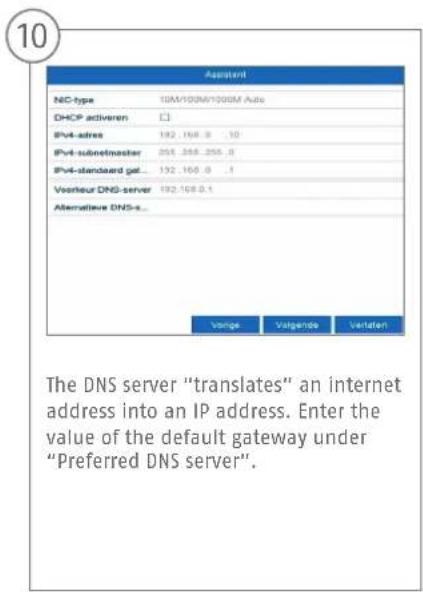
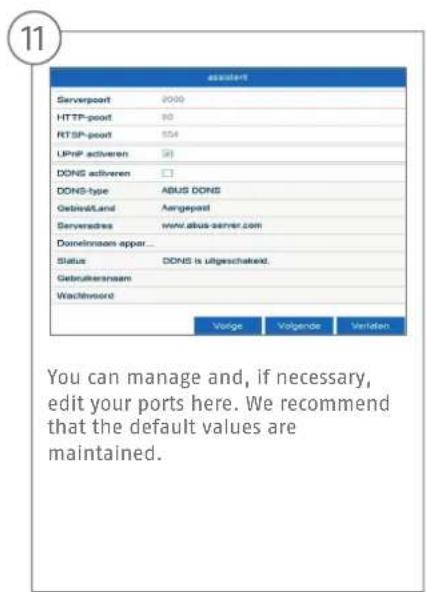
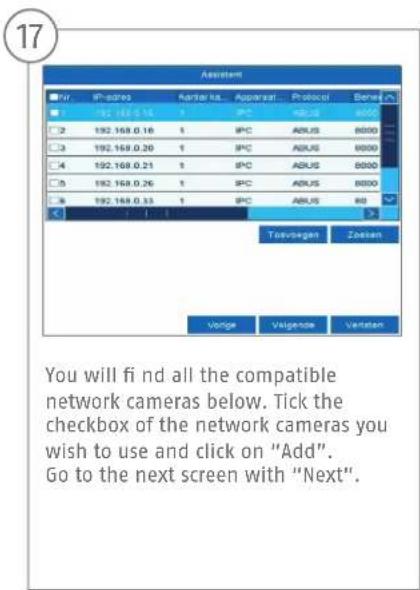
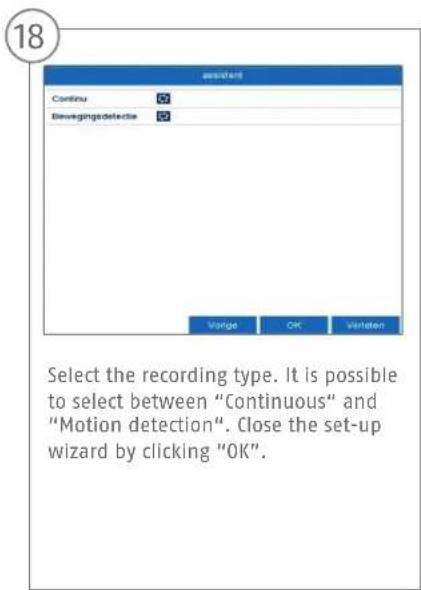
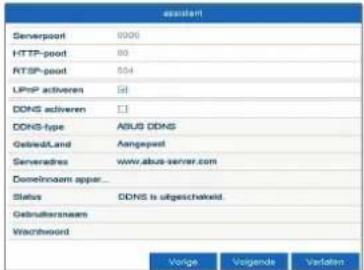
If your router does not automatically assign the address data, enter the data according to the following steps. The image gives an example of connected devices with the corresponding IP addresses.

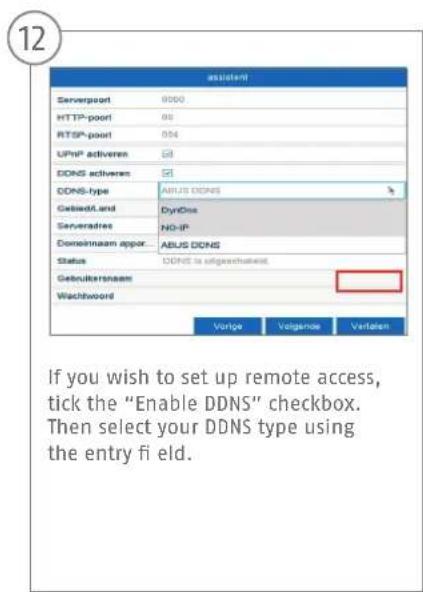

![13 assident Serverport 6000 HTTP-point 50 RTSP-point 554 UHHP activeren [S] DONE activeren [D] DONE-type ABUS DONE Gebiselt and Aangepast Serveradress www.albus-server.com Domainname appar... Status DDNS is uitgeschakelt. Gebruiksername Wachtword Varige Volgende Variation Next, save the server address and the Device Domain Name, user name and password. Go to the next screen with "Next".](/content/2026/03/436490/images/73d7c76b9a01b55d4c055c8729c105e9bdc629d5ce0fd680b7449a4951ba57cc.jpg)
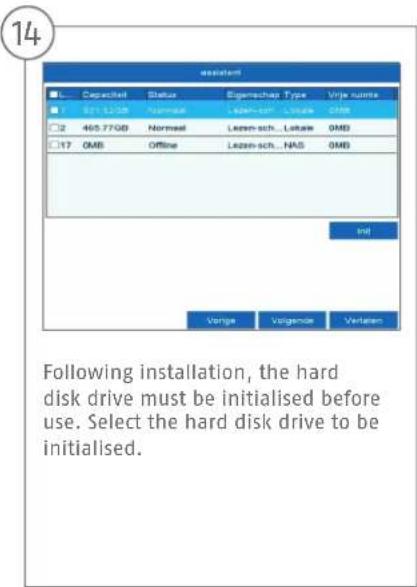
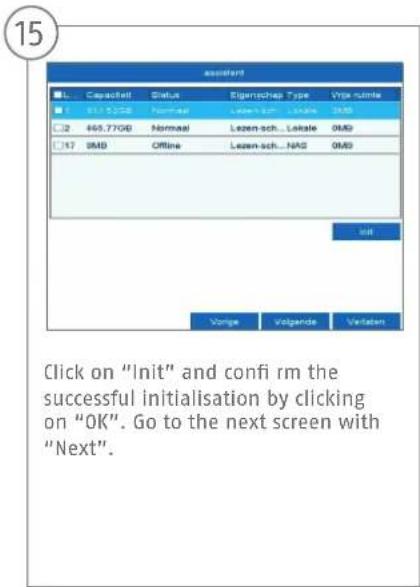
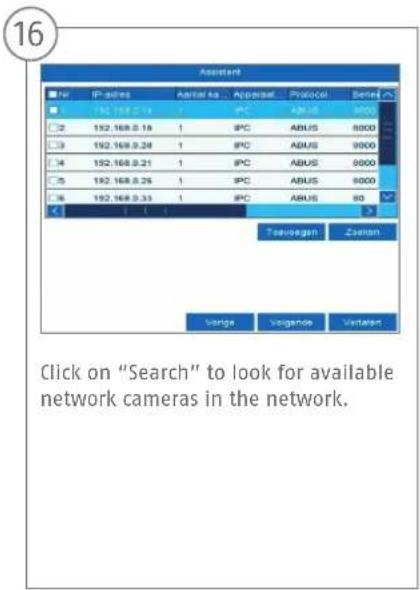
SPECIFICATIONS

Modell NVR10030
Total network throughput (input/output) 416 MBit/s (160 MBit/s/256 MBit/s)
IP video channels 16
Monitor outputs 1 x VGA (1080p:1920x1080p), 1 x HDMI (4k:3840x2160p)
Live view resolution
12MP / 8MP / 6MP / 5MP / 4MP / 3MP / 1080p / UXGA / 720p / VGA / 4CIF / DCIF / 2CIF / CIF / QCIF
Views 1/4/6/8/9/16
Control Mouse
Audio Two-way audio: 1-ch, RCA (2.0 Vp-p, 1000 Ω)
Audio output: 1-ch, RCA (linear, 1000 Ω) 4 x SATA
Total frame rate (PAL) 400
| Recording modes | Manual, time schedule, motion detection, alarm, motion detection and alarm, motion detection or alarm, VCA |
| Search modes By event, date and time, Smart Search, VCA | |
| Storage 2 x USB 2.0, 1 x USB 3.0 | |
| Network access 2x RJ45 10/100/1000 Mbps | |
| Network functions Live view, playback, data export, settings | |
| Simultaneous network access 128 camera connections | |
| ONVIF Profile S | |
| Network camera protocols | ABUS network cameras, Axis, Panasonic, Samsung (see compatibility list at www.abus.com) |
| Mobile access iDVR Plus/HD (Apple iOS & Android) | |
| Software ABUS CMS software | |
| DDNS Yes | |
| NTP Yes | |
| Video content analysis (VCA) | Tripwire detection, intrusion detection, face detection, defocus detection, scene change detection, PIR alarm |
| Relay output | 4 (max. load: 12 V DC/1 A) |

Alarm inputs (NO/NC) 16
Alarming Acoustic warning signal, OSD signal, email, VCA
User levels 2 (max, 31 users)
Operating mode Triplex
OSD language English, German, French, Dutch, Danish
Dimensions (WxHxD) 450 × 95 × 440
Net weight 6.3
Max. operating temperature 55
Max. humidity 90
Min. operating temperature -10
AC voltage supply 100-240
Power consumption < 80
Certifications CE, C-Tick, RoHS II, REACH, FCC, Law Sarkozy compliant
INSTRUCTIONS, SOFTWARE AND APP
Instructions:
Further instructions for operating the online and recorder interfaces can be found under the "Downloads" tab at the following link: http://www.abus.com
Soft ware:
001 ABUS Central Monitor Station (CMS) allows you to monitor, control and manage the video data from your corder on your PC: www.abus.com
ABUS IP Installer to fi nd your recorder in the network, to check for and install fi rmware updates and to ad instruction manuals and quickguides directly to your PC: http://www.abus.com
App:

us/HD App you free, fast remote access recorder:



Security Tech Germany
NVR10030
QUICKGUIDE VOOR NETWERKVIDEOREORDER

Security Tech Germany
Geachte klant,
natural_image
Front view of a white electronic device with two buttons and a logo, no visible text or symbols on the body.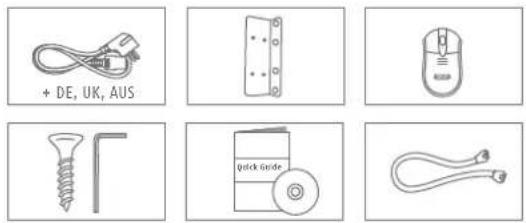
WAARSCHUWINGEN

natural_image
Line drawing of a device with a screwdriver inserted, showing internal components and a curved lid (no text or symbols)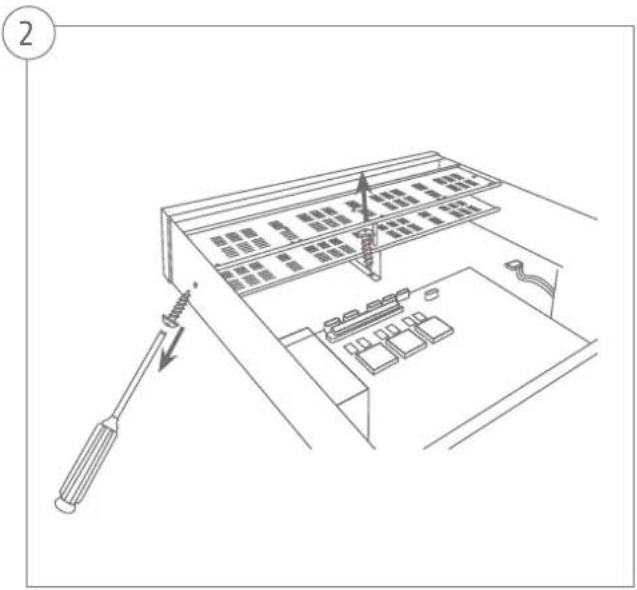

Security Tech Germany

Security Tech Germany
natural_image
Line drawing of a hand inserting a device into an electronic device (no text or symbols visible)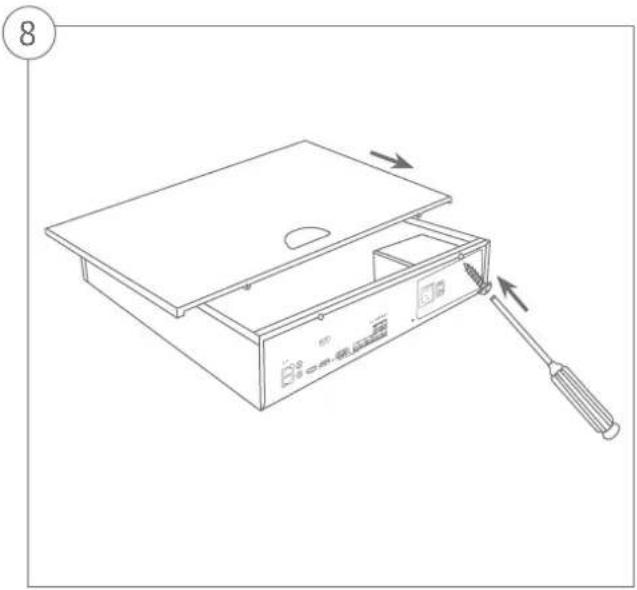
natural_image
Line drawing of a device with a screwdriver inserted, showing internal components and a lid (no text or symbols)SYSTEEMACTIVERING
1

Security Tech Germany
10
Audio Two-way audio: 1-ch, RCA (2,0 Vp-p, 1000 Ω)
Audio output: 1-ch, RCA (lineair, 1000 Ω) 4 x SATA
Security Tech Germany
Software ABUS CMS-software
DDNS Ja
NTP Ja
Security Tech Germany


NVR10030
GUIDE RAPIDE POUR ENREGI- STREUR NUMÉRIQUE RÉSEAU
Security Tech Germany
natural_image
Front view of a white electronic device with indicator lights and a logo labeled 'ABUS' (no text or symbols on the device itself)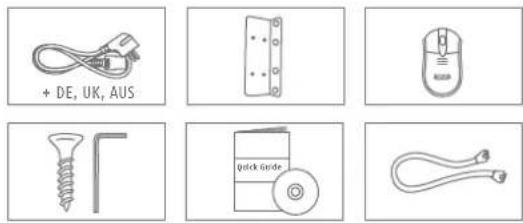
AVERTISSEMENTS
natural_image
Line drawing of a device with a screwdriver inserted into a box, showing internal components and directional arrows (no text or symbols)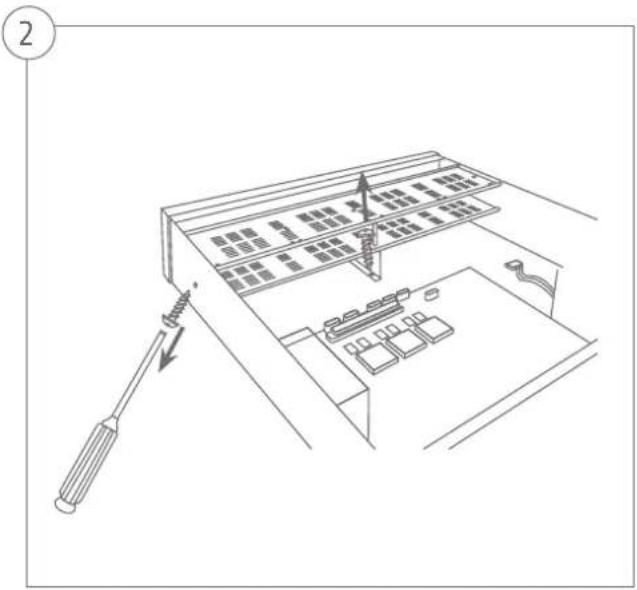

Security Tech Germany
natural_image
Line drawing of a hand inserting a device into an open box (no text or symbols)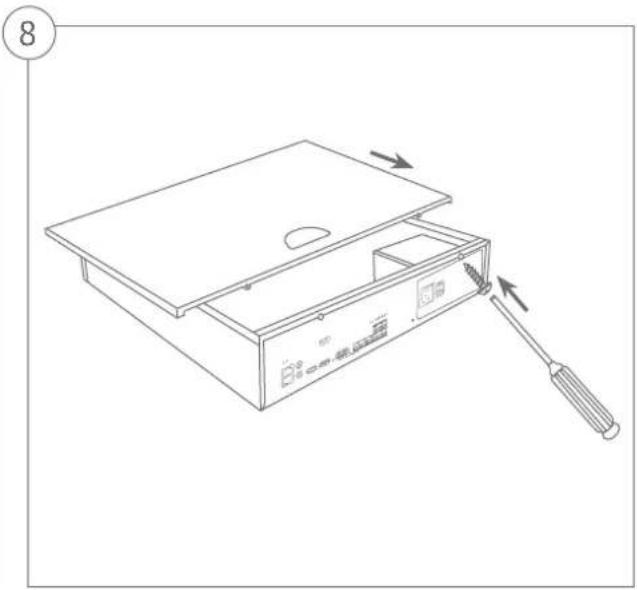
natural_image
Line drawing of a device with a screwdriver inserted, showing internal components and a lid (no text or symbols)ACTIVATION DU SYSTÈME

Security Tech Germany
①23

Security Tech Germany
Security Tech Germany
Dimensions (L x H x P) 450 x 95 x 440
Poids net 6,3
Certifications Conforme CE, C-Tick, RoHS II, REACH, FCC, lol Sarkozy
MANUEL + LOGICIEL + APPLICATION
Manuels :
Security Tech Germany
NVR10030
KVIKGUIDE TIL NETVÆRKS- VIDEOOPTAGER
abus.com/eng/products/NVR10030

natural_image
Pure diagram of a device casing with no text or symbols, showing two rectangular components and a central label 'ABUS' (no readable text or symbols beyond the label)Kære kunde
natural_image
Front view of a white electronic device with two buttons and a logo, no visible text or symbols on the body.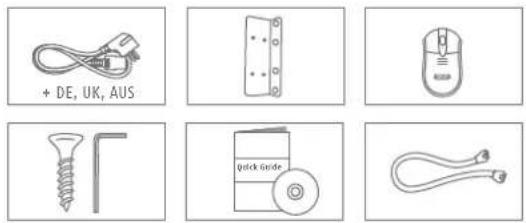
ADVARSELSHENVISNINGER

natural_image
Line drawing of a device with a screwdriver inserted into a box, showing internal components and directional arrows (no text or symbols)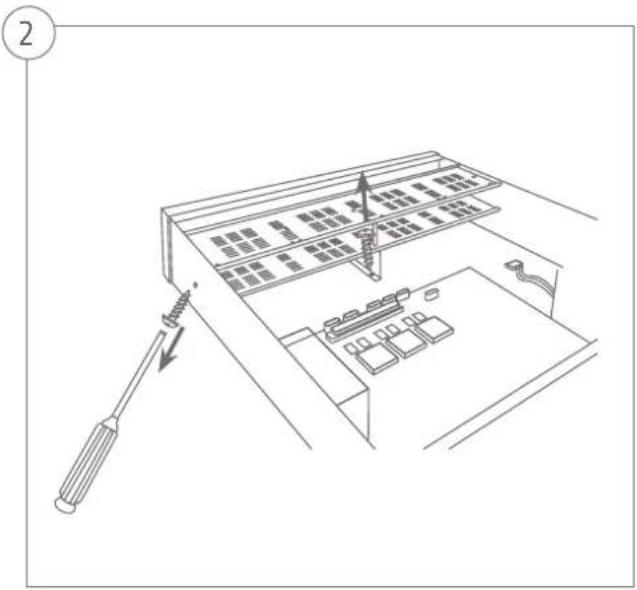

Security Tech Germany

Security Tech Germany
natural_image
Line drawing of a hand inserting a device into an electronic device (no text or symbols)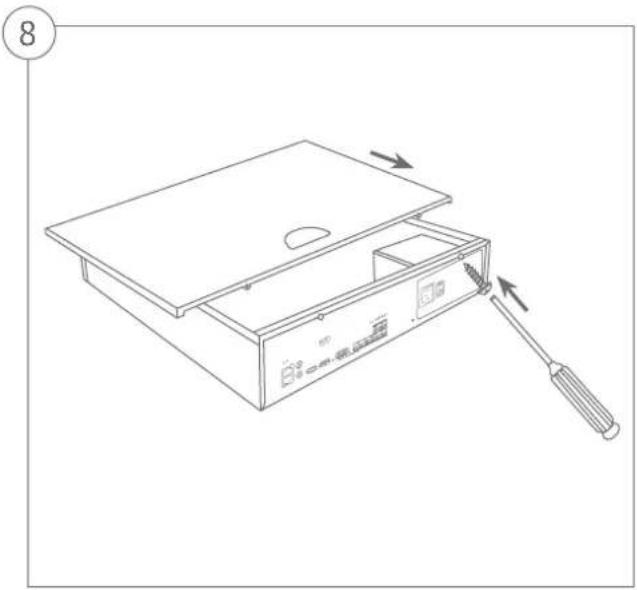
natural_image
Line drawing of a device with a screwdriver inserted, showing internal components and a lid (no text or symbols)SYSTEMAKTIVERING
123
Audio Two-way-audio: 1-ch, RCA (2,0 Vp-p, 1000 Ω)
Audio-output: 1-ch, RCA (linear, 1000 Ω)
Lagermedium 4 x SATA
Samlet billedhastighed (PAL) 400

CE, C-Tick, RoHS II, REACH, FCC, Law Sarkozy conform
VEJLEDNING + SOFTWARE + APP

Vejledninger:

natural_image
Front view of a horizontal electronic device with two buttons and a logo, no visible text or symbols on the body.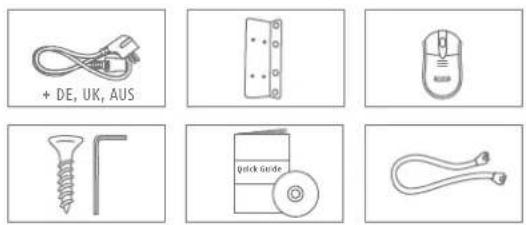
AVVERTENZE
natural_image
Line drawing of a device with a screwdriver inserted into a box, showing internal components and directional arrows (no text or symbols)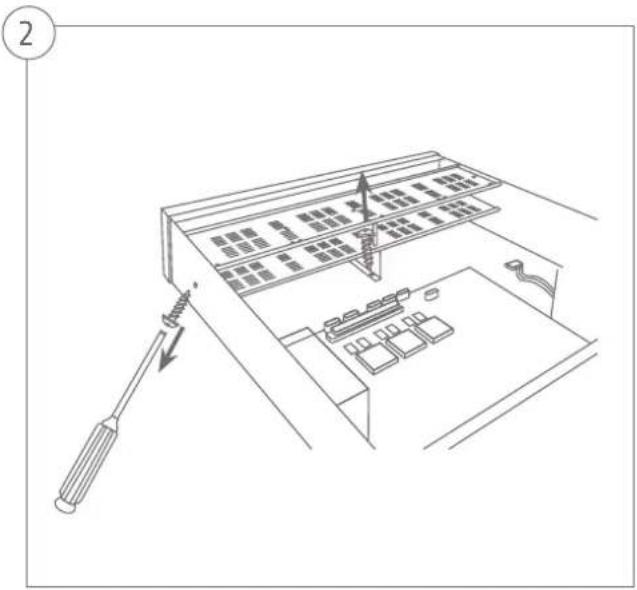

Security Tech Germany
natural_image
Line drawing of a hand inserting a device into an open box (no text or symbols)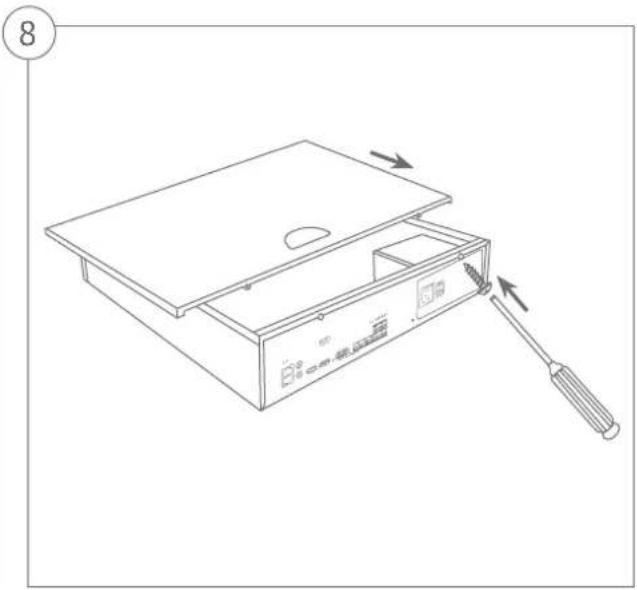
natural_image
Line drawing of a device with a screwdriver inserted, showing internal components and a lid (no text or symbols)Security Tech Germany
13 14 15
Uscite monitor 1 VGA (1080p:1920x1080p), 1 HDMI (4k:3840x2160p)
Security Tech Germany
- NVR10030
- QUICKGUIDE FÜR NETZWERK VIDOREKORDER
- Nederlands
- WARNHINWEISE
- SYSTEMAKTIVIERUNG
- SCOPE OF DELIVERY
- WARNINGS
- CONNECTIONS AND STATUS LED
- HARDWARE INSTALLATION
- SYSTEM ACTIVATION
- RESETTING THE PASSWORD
- SOFTWARE SET-UP
- SPECIFICATIONS
- INSTRUCTIONS, SOFTWARE AND APP
- QUICKGUIDE VOOR NETWERKVIDEOREORDER
- WAARSCHUWINGEN
- SYSTEEMACTIVERING
- Select settings:
- GUIDE RAPIDE POUR ENREGI- STREUR NUMÉRIQUE RÉSEAU
- AVERTISSEMENTS
- ACTIVATION DU SYSTÈME
- ①23
- MANUEL + LOGICIEL + APPLICATION
- KVIKGUIDE TIL NETVÆRKS- VIDEOOPTAGER
- ADVARSELSHENVISNINGER
- SYSTEMAKTIVERING
- 123
- VEJLEDNING + SOFTWARE + APP
- AVVERTENZE
- 14 15
Brand : ABUS
Model : NVR10030
Category : Network video recorder