View XL - Smartphone WIKO - Free user manual and instructions
Find the device manual for free View XL WIKO in PDF.



| Technical Specifications | Details |
|---|---|
| Screen | 6.0 inches, 720 x 1280 pixels resolution, IPS LCD technology |
| Processor | MediaTek MT6750, octa-core 1.5 GHz |
| RAM | 3 GB |
| Internal Storage | 32 GB, expandable via microSD up to 128 GB |
| Rear Camera | 13 MP, autofocus, LED flash |
| Front Camera | 16 MP, LED flash |
| Battery | 3000 mAh, non-removable |
| Operating System | Android 7.1 Nougat |
| Connectivity | 4G LTE, Wi-Fi, Bluetooth 4.1, GPS |
| Dimensions | 162 x 80.4 x 8.5 mm |
| Weight | 180 g |
| Maintenance | Regular cleaning, operating system updates |
| Security | PIN code lock, password, facial recognition |
| General Information | Smartphone with good value for money, ideal for users looking for a powerful device without spending a fortune. |
Frequently Asked Questions - View XL WIKO
User questions about View XL WIKO
0 question about this device. Answer the ones you know or ask your own.
Ask a new question about this device
Download the instructions for your Smartphone in PDF format for free! Find your manual View XL - WIKO and take your electronic device back in hand. On this page are published all the documents necessary for the use of your device. View XL by WIKO.
USER MANUAL View XL WIKO
natural_image
Exterior view of a modern smartphone with Google and Wiki branding, showing front and back views (no readable text or symbols beyond logos)USER GUIDE
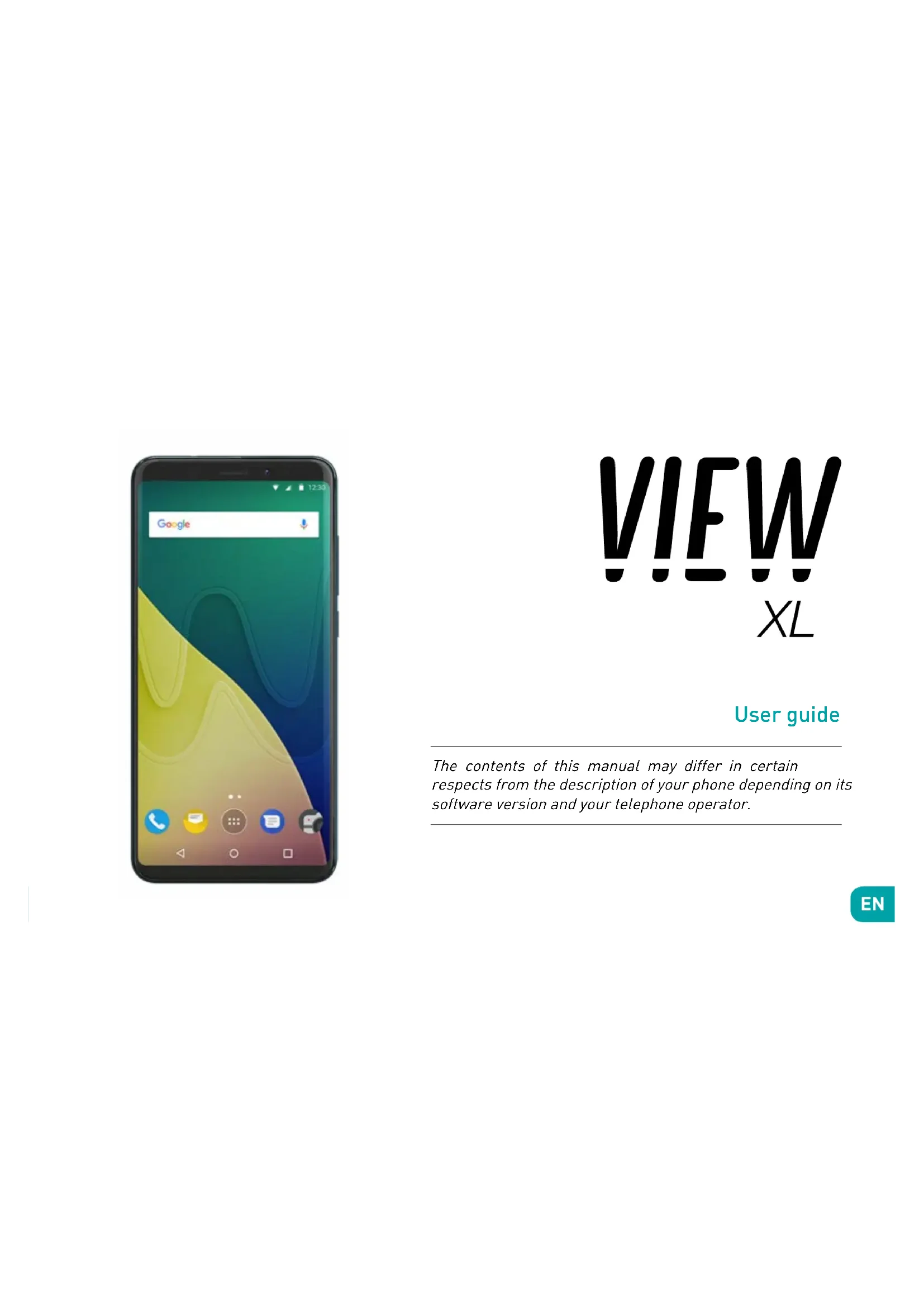
VIEW XL
User guide
The contents of this manual may differ in certain respects from the description of your phone depending on its software version and your telephone operator.
CONGRATULATIONS!
You have just purchased your WIKO VIEW XL mobile phone. This guide contains all the information needed to use the phone so that you can quickly familiarise yourself, we hope, with the world of WIKO.
A complete version of the guidelines, safety instructions and your device user guide is available on our website www.wikomobile.com. You can request a printed version via email or printed letter at the address listed at the end of the user guide.
Copyright © 2017 WIKO
The information contained in this manual may not be disclosed to third parties or reproduced in any form whatsoever without the express written consent of WIKO.
Trademarks
WIKO is a registered trademark of WIKO SAS.
Disclaimer
This manual has been prepared with the utmost care and attention and is designed to guide you through the functions and features of your device. However, the information and recommendations contained herein do not constitute a guarantee under the Applicable law. WIKO reserves the right to change or modify the information contained in this manual at any time
Limitation of Liability
All content and services accessible through this device are the exclusive property of third parties and are protected by the relevant laws (copyright, patent, licence and/or other intellectual property laws). These services are for your own personal non-commercial use. It is not permitted to use any content or services without prior written permission of the content owner. You may not copy, publish, transfer, sell, create derivative works or exploit in any manner or medium any content or services displayed through this device.
THIRD PARTY CONTENT AND SERVICES ARE PROVIDED "AS IS." WIKO DOES NOT GUARANTEE THE CONTENT OR SERVICES SO PROVIDED, EITHER EXPRESSLY OR IMPLIEDLY, FOR ANY PURPOSE WHATSOEVER. WIKO EXPRESSLY DISCLAIMS ANY WARRANTIES OF MERCHANTABILITY OR FITNESS FOR A PARTICULAR PURPOSE. WIKO DOES NOT GUARANTEE THE ACCURACY, VALIDITY, LEGALITY, OR COMPLETENESS OF ANY CONTENT OR SERVICES MADE AVAILABLE THROUGH THE DEVICE.
WIKO has no control over the content and services provided by third parties via networks or transmission devices. Moreover, third-party services may be terminated or interrupted any time without notice. Therefore, WIKO makes no representation or warranty whatsoever as to the availability of any third party content or service and expressly declines any responsibility for such termination or interruption.
WIKO cannot in any way be held responsible for the processing and/or monitoring of third party content and services accessible through this device. Any question or request relating to the content or services should be addressed directly to the respective content or service provider.
An independent third party operator provides the SIM card and the network or system (mobile or other) on which this device operates. WIKO expressly declines any responsibility in respect of the function, availability, coverage, services, or network or system capacity (mobile or other). The responsibility of WIKO and its authorised after-sales service is limited only to the cost of repair and/or replacement of the unit during the warranty period.
WIKO IS NOT LIABLE IN THE CASE OF NEGLIGENCE, WHETHER CONTRACTUAL OR BASED ON TORT, FOR ANY DIRECT, INDIRECT, INCIDENTAL OR SPECIAL DAMAGE, LEGAL FEES, EXPENSES, OR ANY OTHER DAMAGES RESULTING FROM THE USE BY YOU OR ANY THIRD PARTY OF THE CONTENT OR SERVICES ACCESSIBLE THROUGH THIS DEVICE. SOME JURISDICTIONS MAY NOT ALLOW THE EXCLUSION OF IMPLIED WARRANTIES OR THE LIMITATION OF THE CONSUMER'S LEGAL RIGHTS, THEREFORE THIS STATEMENT MAY NOT APPLY TO YOU.
What's in the Box :
- WIKO VIEW XL mobile phone
- AC adaptor
- Micro USB cable
- Hands-free kit
- Quick start guide and Safety book
- Non-removable battery
Getting to Know Your Phone
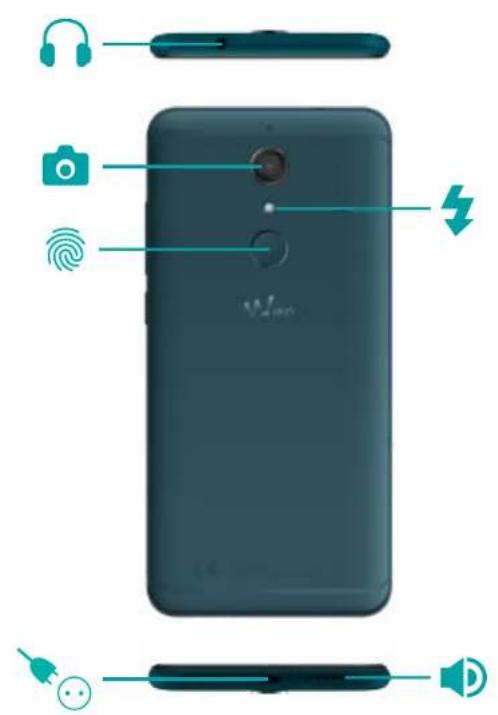
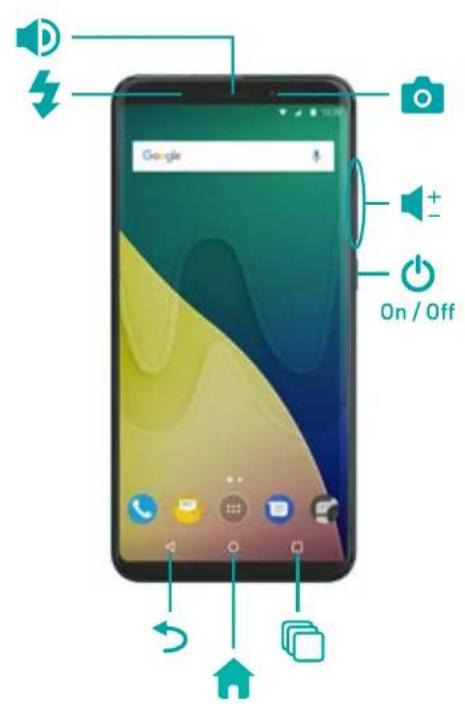
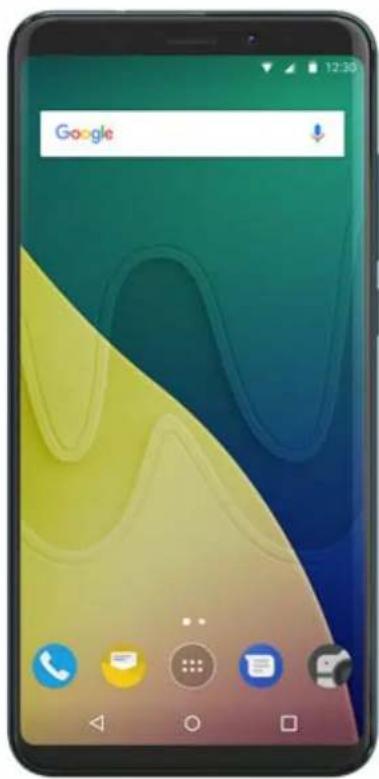
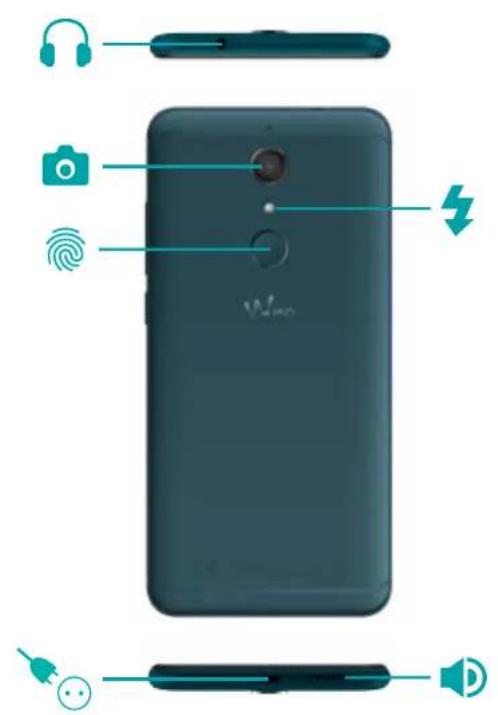
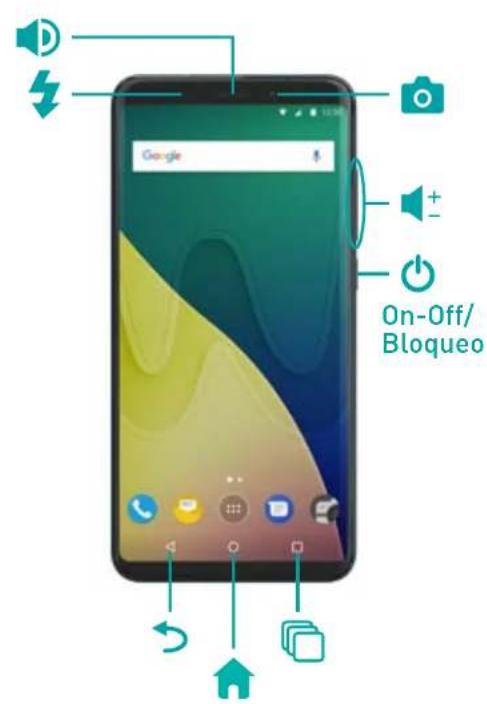
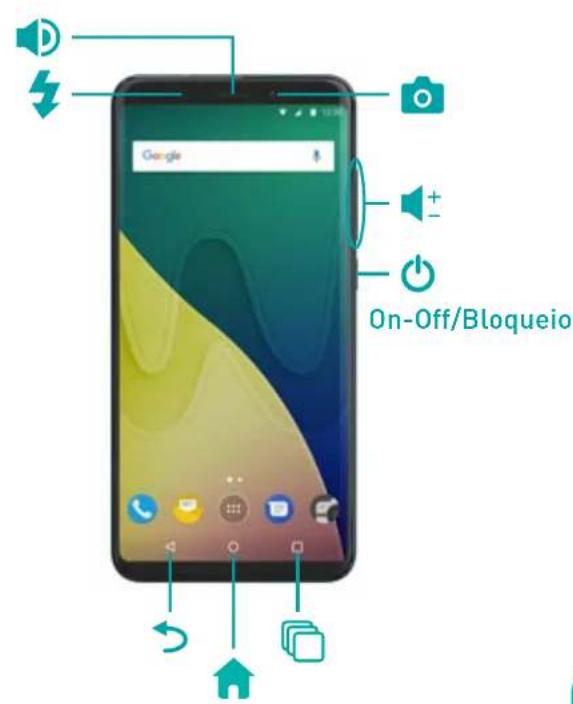
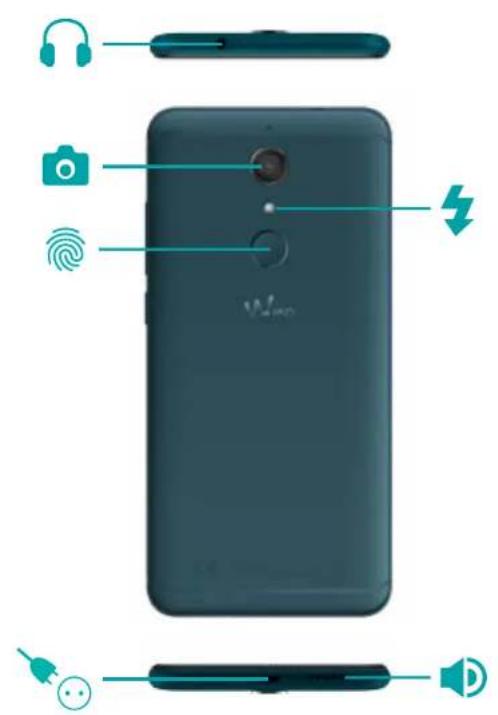
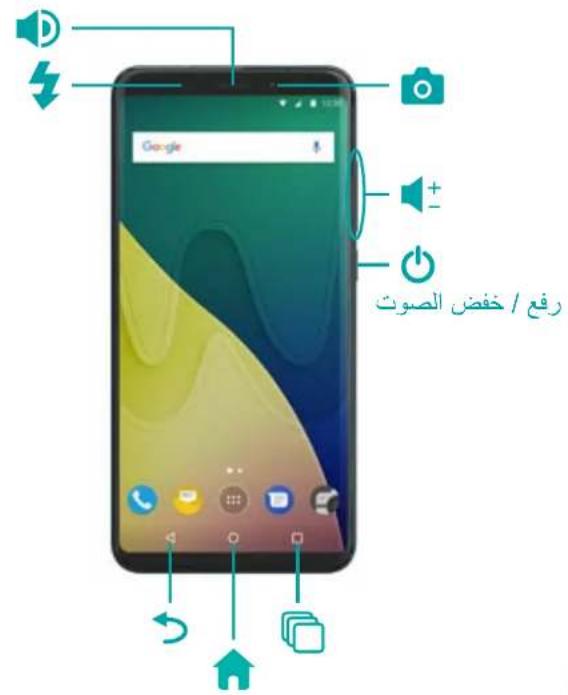
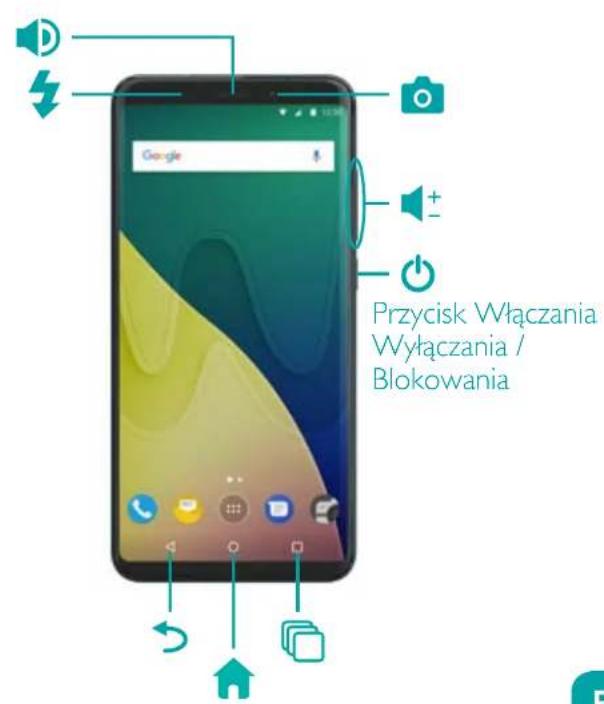
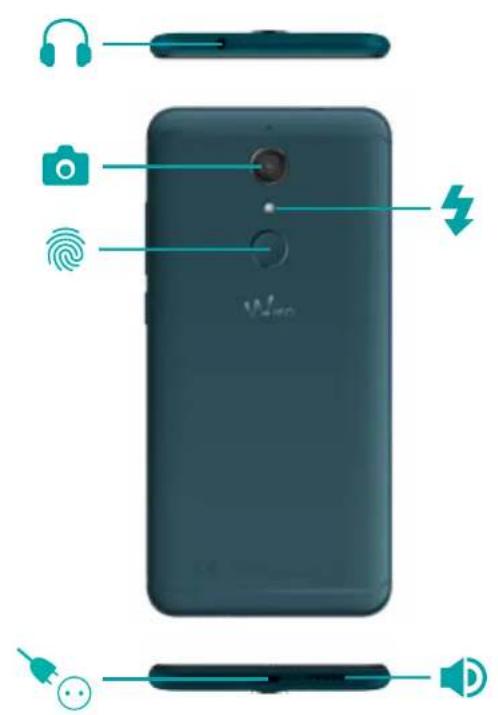
\~ The buttons on your phone
| Button | Function |
| On/Off [ATWW] | Press and hold the button to turn the phone on or off. Press the button lightly to lock the touch screen. |
| Home [1H6D] | Returns to the home screen. |
| Overview [6652] | Opens the list of recent applications. |
| Return [6X7T] | Returns to the previous screen. Closes the onscreen keyboard. |
| Volume [WTV8] | Increases or decreases the call volume, the ringtone, music, games and other audio functions. Switch the ringtone to silent mode when the phone rings. Press and hold on Volume- to enable the meeting profile. |
Getting Started
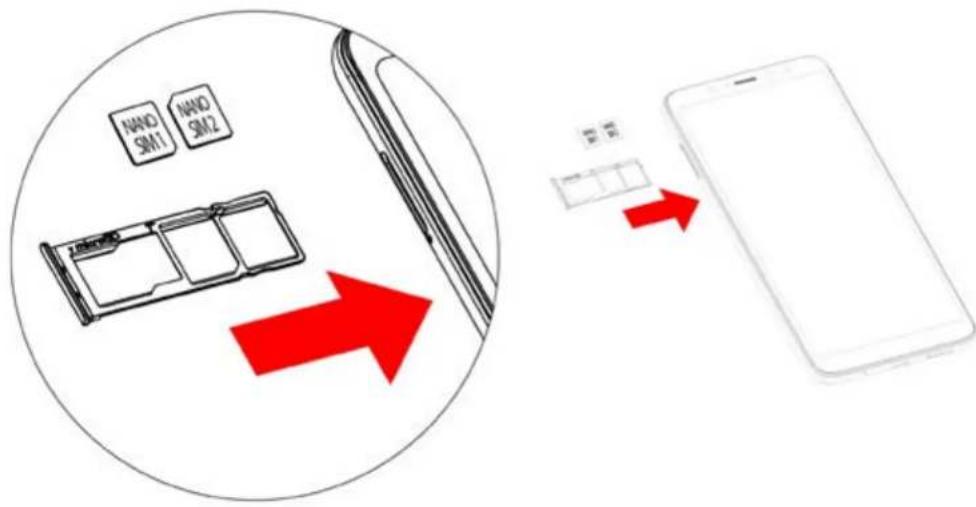
- Inserting the SIM cards
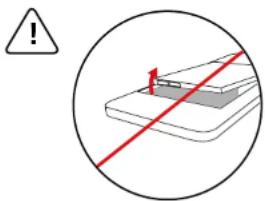
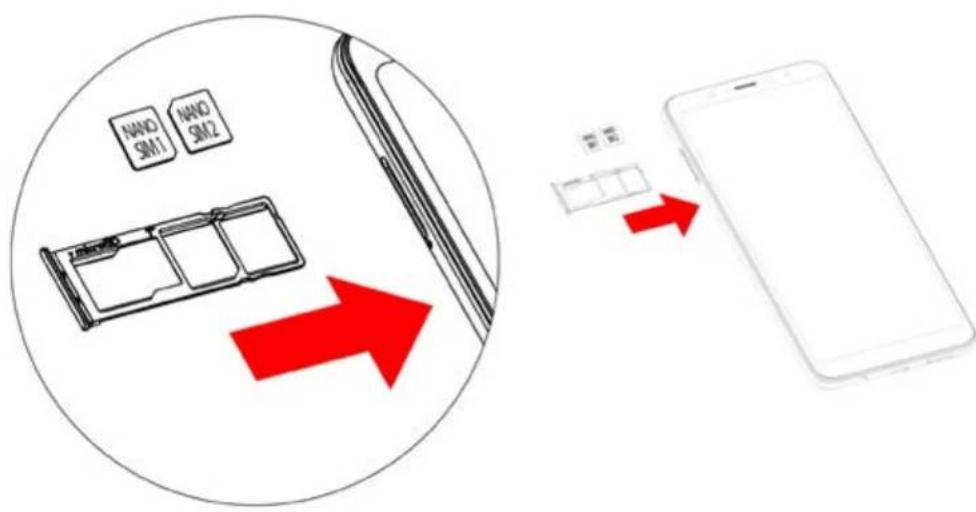
In order to use your telephone, you need to insert your SIM Card. The back cover of the phone is clipped on. Please unclip it using the notch on the cover, following the contour of the phone. Insert the SIM cards following the diagrams below.
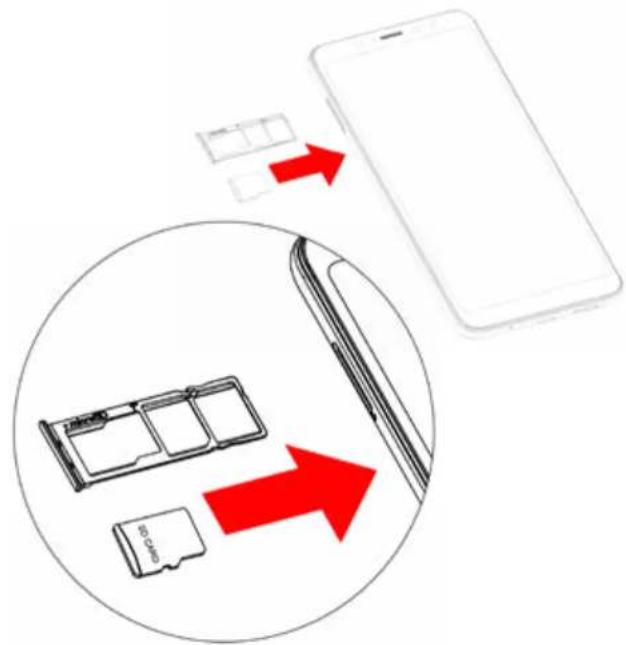
- Installing Memory Card
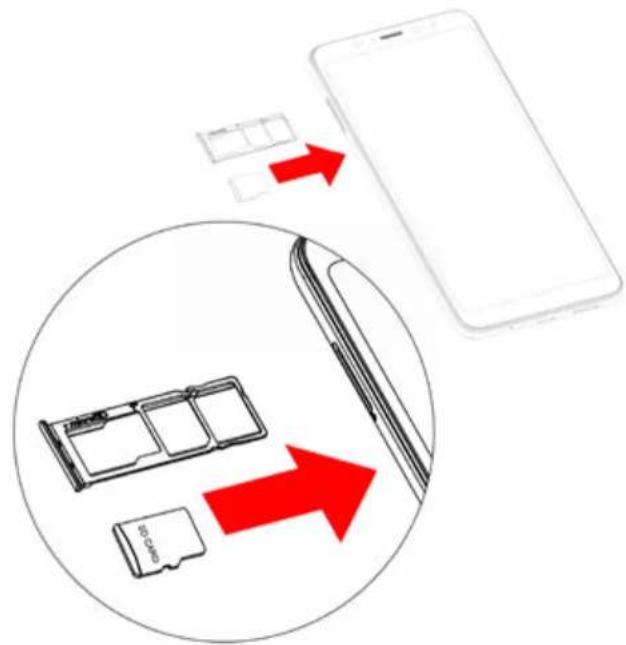
Your phone takes a MicroSD memory card of up to 128 GB.
Insert the microSD memory card following the diagram below.
\~ Charging the Battery
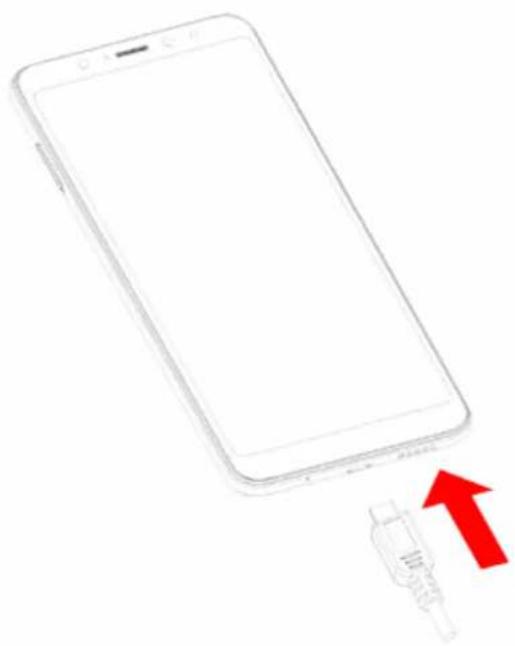
A flashing red light indicates that the battery level is very low: the battery should be recharged because, if the level is too low, it may shorten the life of the battery. Connect the charger to a power outlet and the micro USB connector to the phone's USB port.
The phone's status indicator changes to red, indicating that the device is charging.
Once the phone has finished charging, the status indicator changes to green and you should unplug the charger.
For more information, refer to the Safety Information section.
natural_image
Line drawing of a smartphone with a small device and a red upward arrow indicating growth (no text or symbols)\~ Turning the Phone On and Off
To turn the phone on, press on the ON/OFF button and hold it down until the phone begins to vibrate.
If your SIM card is locked, you must enter the correct PIN code to unlock the SIM card when the phone is powered up. Your PIN is supplied by your operator; if you did not receive it or have lost it, please contact them.
When the PIN is entered incorrectly three times, the mobile phone is blocked and has to be unblocked using your PUK (this is supplied with the SIM card; if this is not the case, you should contact your phone operator). To turn the phone off, press and hold the ON-OFF button until the menu opens, then press on Power Off.
Now press OK to confirm.
The phone vibrates when it is shut down completely.
Basic Operations
\~ SIM Management
When you turn on your phone for the first time, various items of information about the SIM card(s) are displayed. You are asked whether you want to modify the settings for calls, messages and the internet data connection. SIM1 is configured as the default SIM card for data connection.
Now you can:
- Set the default SIM for voice and video calls, SMS/MMS and internet data connection. The background color serves to differentiate the two SIMs
- You can still choose a different SIM when performing an action, such as before making a call or sending a SMS/MMS by selecting «Ask every time».
\~ Network Connection
• APN Not Available
If your operator does not appear in the list or the list is empty, ask your operator how to configure the APN manually. To do this, go to Settings → More → Cellular networks → SIM1 or SIM2 → Access Point Names, press on the ⊕ button and enter the information provided by your operator. Return to the previous menu, then choose the APN that you have just saved.
• Enabling Data Connection
To check your data connection settings:
- Go to Settings → More → Cellular networks → SIM 1 or SIM 2 → Access Point Names, then enable the access point according to your operator/package.
- To activate Mobile data, drag the notification panel downward with two fingers and enable data connection by clicking on ▲.
- You can choose with which SIM card you will enable data connection in Settings → SIM cards → Preferred SIM for Cellular data, then press on the SIM card you want to activate.
When you activate Data Connection for one SIM card, the 4G network can only be activated for this SIM card.
- Data Roaming
Note that for roaming SIM cards, you must enable the data roaming in the Settings → More → Cellular networks → Data Roaming. Otherwise, the internet connection will be disabled by default.
- Notifications
Notification icons on the status bar

Signal strength
4G
Connected to 4G
H+
Connected to HSPA+ (3G++)
H
Connected to HSPA (3G+)
3G
Connected to 3G
E
Connected to EDGE
G
Connected to GPRS

No signal
R
Roaming

Wi-Fi available

Connected to Wi-Fi

Bluetooth enabled

GPS in use

Voice call in progress

Call waiting

Missed call

Synchronising

New mail

Alarm on

Silent mode on

New voicemail

Downloading
Connected to computer
Battery level
New SMS or MMS
Airplane mode on
SIM card modified
No SIM card
Notifications Panel
Drag the status bar downwards to see details of all your notifications. Information about new messages received, upcoming calendar events, download status, etc. will then be displayed.
Drag a notification to the left or right to clear it. To close the panel, drag it upwards or press on RETURN ◀.
To access the settings panel, press on .
Depending on the application, notifications may be accompanied by a beep, vibration or a flashing LED.
Shortcut: pull the notification downwards with two fingers.
Safety Information
Please read this safety information carefully so that you can use your phone in complete safety:
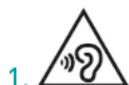
Prolonged listening to the music player at may damage the user's hearing.
To avoid possible hearing damage, do not listen to sounds or music at an excessive volume using the earphones (headsets, headphones) for a long period of time.
Exposure to high volumes while driving may cause distraction and increase the risk of an accident.
- Emergency call: Sometimes the emergency numbers are not accessible on all mobile networks, check first with your operator.
The option to make emergency phone calls depends on local laws and regulations in place. Never rely on your mobile phone to make important calls, such as in the event of a medical emergency.
-
Do not use your mobile phone in certain locations such as aircraft, hospitals, service stations and professional garages.
-
Children. Be very careful. A portable device is not designed for use by children. The phone contains small
parts that could be swallowed or cause choking.
- Driving safety: Using your mobile phone while driving is prohibited. It is your responsibility to respect the laws and regulations on the use of mobile phones in the country where you drive.
Having a telephone conversation or using the other features of a mobile phone (text messaging, internet, etc.) when driving may be a distraction and a contributing factor in serious accidents.
- Flying: Turn your phone off when flying.
Remember to turn your phone off when you are in a plane (GSM + Bluetooth) as it may cause interference.
-
Hospitals: Turn your phone off near any medical devices. It is extremely dangerous to leave a phone switched on near medical devices as it may cause interference. You must observe any instructions or warnings in hospitals and treatment centres.
-
Remember to turn your phone off in service stations. Do not use your device in a petrol station near fuel. It is dangerous to use your phone inside a professional garage.
-
A It is recommended to consult your doctor and the device manufacturer to determine if your mobile phone
may interfere with your medical device.
A minimum distance of 15cm between a mobile phone and a pacemaker is advised to avoid potential interference with the pacemaker. Hold the device on the opposite side to the implant as a precaution when making a call. If you notice that your device is causing interference with a pacemaker, switch it off immediately and contact a doctor for advice on what action to take. Respect the rules and regulations of the hospital and medical centers. Do not use mobile phone in areas where this is forbidden. Wireless equipment can affect the performance of hearing aids and pacemakers. For more information, contact your Internet or service provider.
-
Fire hazard: Do not leave your device near heat sources. Do not leave your device charging near flammable materials.
-
Contact with liquid: Do not expose the device to liquid or touch it with wet hands: any damage caused by water may be irreparable.
-
Use only WIKO-approved in box accessories.
The use of unauthorised accessories may damage your phone or cause a safety risk.
- Batteries must be used with caution. Do not attempt to disassemble the battery yourself. Do not destroy
the batteries and chargers. Never use a battery or charger that has been damaged. Keep batteries away from electronic objects. You should not expose the batteries to very low or very high temperatures (below 0^ C or above 45^ C). It is recommended to recharge the battery at a room temperature between 5^ C and 25^ C. To optimise battery life, only use the WIKO battery and charger supplied in the box. Incorrect use of the battery or replacement with an incorrect type of battery may cause fire, explosion or other risks. Dispose of used batteries according to the instructions.
-
Shocks and impact: Handle and use your phone with the utmost care. Protect your phone: shocks and impact may damage it. Some parts of your phone are made from glass and might break if the phone is dropped or is subject to severe impact. Avoid dropping your phone. Do not touch the screen with sharp objects.
-
Electric shock: Do not try to dismantle your device as there is a very real risk of electric shock.
-
Maintenance: If you want to clean your handset, use a dry cloth (do not use a solvent, such as benzene, or alcohol).
-
Recharge your phone in a well ventilated area. Do not recharge your device when it is resting on a soft surface.
-
Damage to magnetic strips: Keep your phone away from credit cards as they may damage the data on the magnetic strips.
- Do not use the mobile phone in an environment at too high or too low temperature, never expose your mobile phone to direct sunlight or too wet an environment. The suitable temperature for the phone is -10^ c to +45^ c, the maximum charging temperature declared by the manufacturer is +40^ c.
- Due to the used enclosure material, the GSM mobile phone should only be connected to a USB Interface of version 2.0 or higher. The connection to so called power USB is prohibited.
- The socket-outlet should be near the equipment and easily accessible.
- This charger is for indoor use only, the charger type is TN-050155E1, output voltage/current is 5.0V/1.55A.
- Directions for uses
As a preventive mesure, we recommend you use your mobile telephone under optimal signal conditions. This means when you have a full signal, as indicated by the signal reception bar. A hands-free kit can reduce radiation exposure. Pregnant women should keep the mobile phone away from their abdomen and teenagers should keep the mobile phone away from their lower abdomen.
\~ Important operating guidelines
Batteries - SIM - Emergency calls - SAR - Repairs
- To increase the life of your battery, only use WIKO chargers and batteries. Replacing the battery with a non-compliant model may result in the latter exploding.
- Never throw batteries on a fire and follow the guidelines in force for recycling used batteries and phones.
- Be careful not to crush or damage the battery, as this could cause an internal short circuit and overheating.
- Do not take the battery apart.
- The battery can be recharged several hundred times before needing to be replaced. When it shows signs of losing its power, it can be replaced.
- If you do not use your mobile phone for an extended period, remember to recharge the battery to optimise its use time.
- Do not throw batteries away with household waste: recycle them in accordance with the manufacturer's guidelines. If the battery is damaged, contact the after-sales service or the nearest authorised WIKO dealer.
-
Unplug the charger from the wall socket when the battery is fully charged in order to reduce your energy consumption.
-
Do not leave the battery being charged for more than a week as this might result in an overload and reduce the life of the product.
-
Handle the SIM cards with care: wipe them with a soft cloth if they appear dirty.
-
Emergency calls: the emergency numbers may not be accessible on all mobile telephone networks, in isolated areas or areas where there is no coverage; check first with your operator.
-
Radio Frequency Exposure:
Your device has been designed and produced to comply with international norms (ICNIRP) for exposure to radiofrequencies. The safety instructions related to exposure to radio frequencies use a measuring unit called SAR (Specific Absorption Rate). The SAR limit adopted by the European Directive 2014/53/EU is 2.0 W/kg.
The highest reported SAR value for your device when tested for use at the ear is 0.196 W/kg, and 1.278 W/kg when it is kept 0.5 cm from your body.
Tips for Reducing Exposure Levels
We recommend that you use your phone in good reception conditions in order to reduce the amount of radiation received. It is advisable to limit the amount of
time you use the phone in underground car parks and when travelling by car or train, etc.
Reception conditions are indicated by the bars that are displayed on your phone: the more bars there are, the better the reception quality.
We recommend that you use the hands-free kit to reduce exposure to radiation.
To reduce the adverse effects of prolonged radiation exposure, we advise teenagers to hold the phone away from their lower abdomen, and that pregnant women hold the phone at a distance from their stomach.
- Only qualified service personnel should repair your device. If you give your device to non-qualified personnel for repair, the phone will not be covered by WIKO's warranty.
-
The IMEI code is the serial number used to identify your device and for After-Sales support. There are several ways of finding your IMEI code:
-
Type * # 06 # on your mobile telephone's keypad.
- Refer to the packaging box that your telephone came in.
- Remove the battery from your device: on the back, you will see a label with your IMEI code. (For non-removable batteries, refer to the IMEI engraved on the telephone's rear casing).
\~ Radio frequencies Band information
| WWAN | ||
| Frequency Band | Maximum output power(dBm) | |
| GSM 850/900 35 | ||
| GSM 1800/1900 32 | ||
| UMTS B1/2/5/8 25 | ||
| FDD LTE B1/B3/B7/B20 25 | ||
| WLAN | ||
| Standard Frequency Avg.Power(dBm) | ||
| 802.11b | 2.4~2.4835GHz | 17.29 |
| 802.11g | 2.4~2.4835GHz | 13.2 |
| 802.11n | 2.4~2.4835GHz | 13.27 |
| BLUETOOTH | ||
| Bluetooth Version | Frequency Range | Avg.Power(dBm) |
| BT 2.1+EDR | 2.4~2.48GHz | 5.32 |
| BT 4.0 | 2.4~2.48GHz | 1.47 |
\~ Recycling
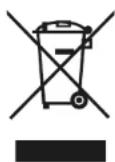
This product is subject to European Directive (WEEE Directive 2012/19/EU) and batteries (Directive 2006/66/EC). Electrical, electronic equipment, batteries, storage batteries and their accessories must always undergo
selective waste management. Therefore, these elements must be reported to an authorised collection point for appropriate reprocessing or recycling.
\~ Dangerous substances
This device complies with the requirements resulting from the REACH regulation (Regulation (EC) N°1907/200) and those of the revised RoHS Directive (Directive 2011/65/EU).
\~ Responsibility
Within the limits set by the legislation in force in your country, in case of negligence on your part or on the part of a third party in the use of your device or third party services accessible through it, WIKO will not be responsible for any damages whatsoever, arising from the said negligence. You remain solely responsible for the use of the device in accordance with all regulations applicable to and in effect in your country. These recommendations, safety instructions and use of your device can vary depending on the country in which you reside. To find out more regarding the recommendations, additional safety instructions and usage tips specific to your country, please visit www.wikomobile.com
In case of failure or defect of your product, please contact your seller to be informed of the warranty process to be followed.
NOTE
WIKO's warranty does not cover normal wear and tear (batteries, screens, keyboards, camera lenses, etc.).
Data Use Agreement
Registering your WIKO phone is a free service offered by WIKO that allows our engineers to connect to your phone's physical data so that they can tell what your model and hardware specifications are in real time. In return, the engineers can keep you informed of updates that are available for your system and warn you in case of a recognised technical failure on a model or series. In addition, this service allows us to alert you instantly if there is a malfunction so that we can provide a technical solution as soon as possible. It is necessary to gather this data in order for WIKO to propose appropriate updates for your mobile phone.
By registering your phone, you acknowledge that WIKO and its engineers are able to collect, store, analyse and use diagnostic, technical and usage data (and related data) including, without limitation, data regarding your WIKO device, your software system and your applications. We will collect this information on a regular basis to facilitate the provision of software updates and product support and miscellaneous services offered to customers (where applicable) relating to the software on your device.
WIKO may use this information without revealing the identity of the customer in order to offer and improve its products or services for the user.
This service will not give us access to your content and personal files.
You need to be connected to the mobile internet network for a short time to register your WIKO phone. This may result in connection costs, at your expense, depending on the nature of your contract with your mobile operator. We recommend that you use a Wi-Fi connection, as with this type of connection there is no data limit (if your phone service limits the exchange of data) and the connection is quicker.
The information obtained is processed electronically in order to access the physical data on your phone. They will be kept by WIKO in a dedicated, secure location for a maximum of three years from the date of collection, depending on the nature of the data.
The data recipient is WIKO SAS.
You have the right to access, modify, rectify or delete your personal data submitted upon registration. You may exercise this right by writing to WIKO SAS, 1 rue Capitaine Dessemond, 13007 MARSEILLE, FRANCE.
STATEMENT OF COMPLIANCE

We, WIKO SAS – 1, rue Capitaine Dessemond – 13007 Marseille – FRANCE, hereby declare that the radio equipment type VIEW XL is in compliance with Directive 2014/53/EU.
Software version: View XL-V01
The procedure for the Statement of Compliance, set out by Directive 2014/53/EU, was conducted under the supervision of the following organisation:
TELEFICATION B.V.
Edisonstraat 12A 6902 PK Zevenaar-The Netherlands
www.telefication.com
The full text of the device's Statement of Compliance is available on written request to the following address or www.wikomobile.com/certification: WIKO SAS - 1, rue Capitaine Dessemond - 13007 Marseille - FRANCE
21/08/2017
Michel ASSADOURIAN / CEO
EN
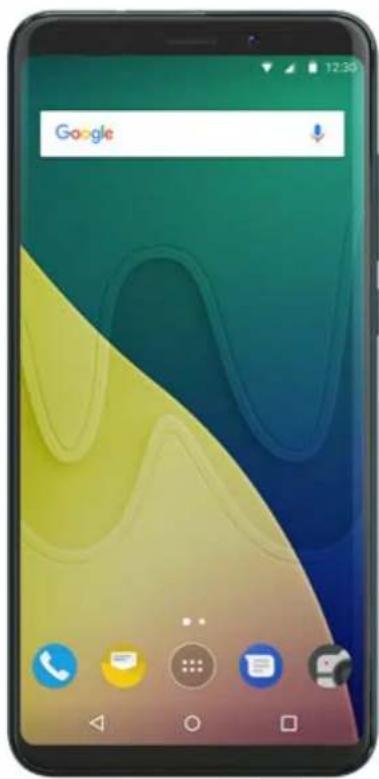
VIEW XL
Guide d'utilisateur
Copyright © 2017 WIKO
www.wikomobile.com
natural_image
Simple line drawing of a mechanical component with a red diagonal line and a red arrow, no text or symbols present.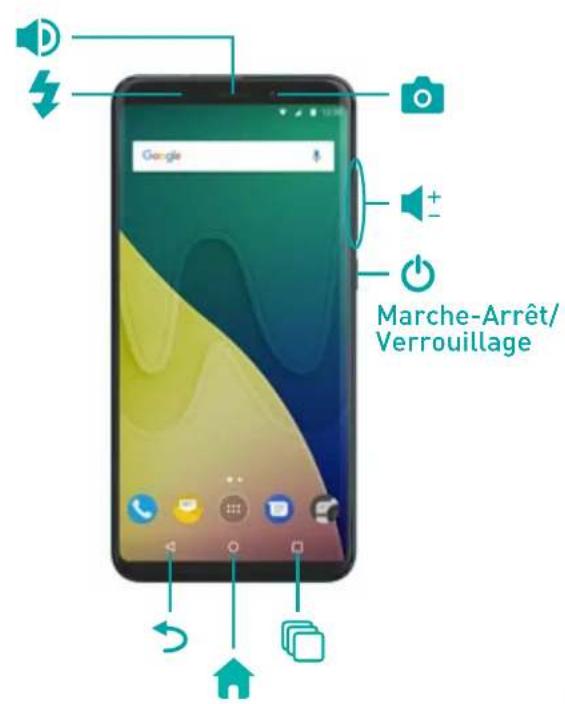
natural_image
Line drawing of a smartphone with a red upward arrow pointing to its internal component (no text or symbols)DÉCLARATION DE CONFORMITÉ

www.telefication.com
Michel ASSADOURIAN / CEO
(Date)
Copyright © 2017 WIKO
natural_image
Simple line drawing of a rectangular object with a red diagonal line and a small arrow, no text or symbols present.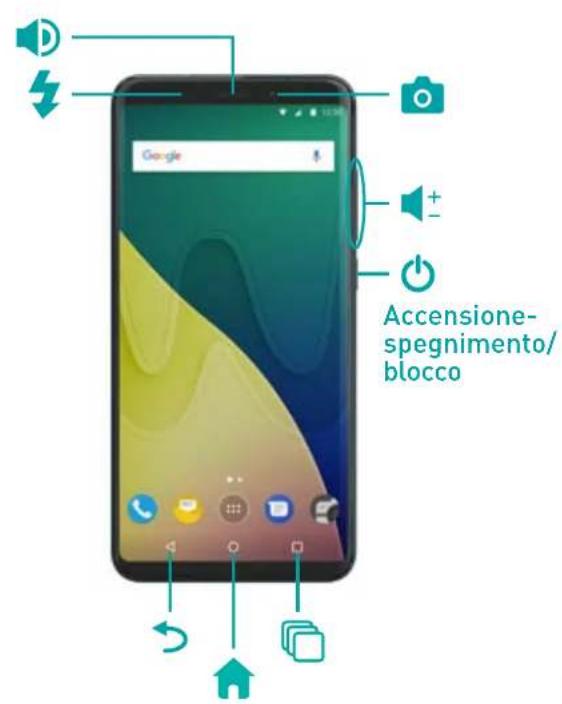
natural_image
Line drawing of a smartphone with a red upward arrow pointing to its cable (no text or symbols present)www.telefication.com
Michel ASSADOURIAN / CEO
(Data)
Copyright © 2017 WIKO
es.wikomobile.com
Introducción
natural_image
Line drawing of a smartphone with a small device and a red upward arrow indicating growth (no text or symbols)www.telefication.com
CE
Michel ASSADOURIAN / CEO
(Fecha)
Copyright © 2017 WIKO
natural_image
Line drawing of a smartphone with a small device and a red upward arrow indicating growth (no text or symbols)\~ Ligar e desligar
www.telefication.com
CE
Michel ASSADOURIAN / CEO
(Data)
Copyright © 2017 WIKO
natural_image
Simple line drawing of a device with a red diagonal line and a small arrow, no text or symbols present.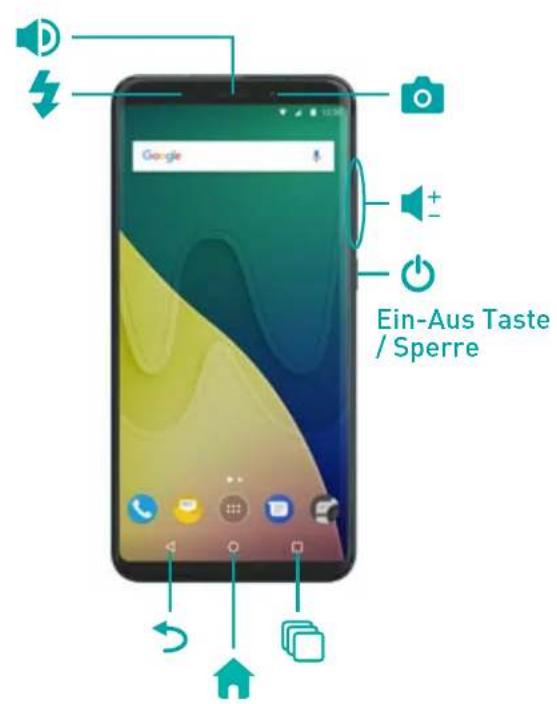
natural_image
Line drawing of a smartphone with a red upward arrow pointing to its right side (no text or symbols present)Softwareversion: View XL-V01
www.telefication.com
CE
Michel ASSADOURIAN / CEO
(Datum)
Copyright © 2017 WIKO
natural_image
Simple line drawing of a 3D object with a red diagonal line and a small arrow, no text or symbols present.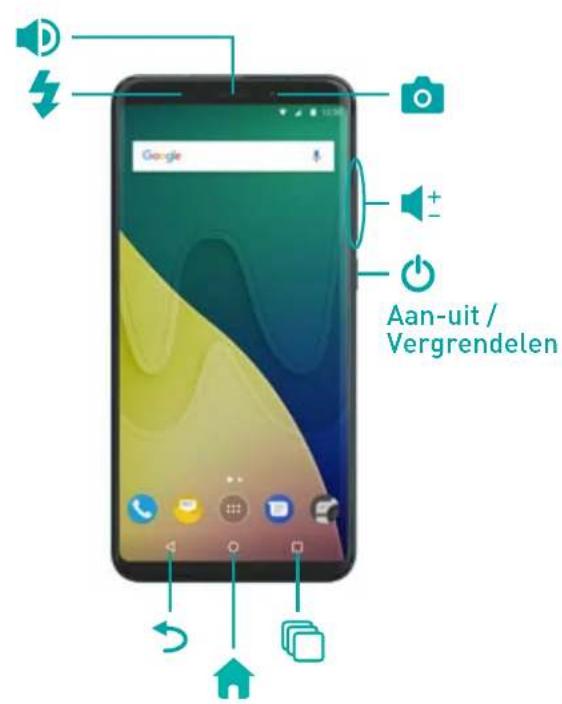
\~ Telefoontoetsen
\~ De batterij opladen
natural_image
Line drawing of a smartphone with a small connector and a red upward arrow indicating growth (no text or symbols)Nieuw voicemailbericht

Downloads
Aangesloten op de
Batterijniveau
Sms of mms
Vliegtuig-modus Aan
Simkaart gewijzigd
Geen simkaart
www.telefication.com
Michel ASSADOURIAN / CEO
(Datum)
شحن البطارية
natural_image
Line drawing of a smartphone with a small device and a red upward arrow indicating growth (no text or symbols)التشغيل والإيقاف
www.telefication.com
www.wikomobile.com/certification:
. مارسیلیا - فرنسا WIKO SAS - 1, rue Capitaine Dessemond - 13007
Michel ASSADOURIAN / CEO
21/08/2017
Copyright © 2017 WIKO
natural_image
Line drawing of a smartphone with a small device and a red upward arrow indicating growth (no text or symbols)www.telefication.com
CE
Michel ASSADOURIAN / CEO
(Data)
Copyright © 2017 WIKO
Zabranjeno je objelodanjivati informacije sadržane u ovom korisničkom uputstvu trećim osobama, kao i umnožavanje istih u bilo kojoj formi, bez izričite pismene suglasnosti kompanije WIKO.
Zaštitni znakovi
WIKO je registrirani zaštitni znak kompanije WIKO SAS.
Odricanje odgovornosti
Ovo Uputstvo je sastavljeno s najvećom marljivošću i pažnjom, s ciljem da Vam bude vodič kroz funkcije i karakteristike Vašeg uređaja. Ipak, informacije i preporuke iz ovog uputstva neće se smatrati garancijom u skladu s primjenjujućim zakonskim odredbama. WIKO zadržava pravo u bilo kojem trenutku izmijeniti informacije sadržane u ovom Uputstvu.
Ograničenje odgovornosti
Sav sadržaj i servisi koji su Vam dostupni kroz ovaj uređaj su ekskluzivno vlasništvo trećih osoba i zaštićeni su relevantnim zakonima (zakonima o autorskim pravima, patentnim pravima, licencama i/ili drugim pravima intelektualnog vlasništva). Ovi servisi su namijenjeni isključivo za osobnu nekomercijalnu upotrebu. Zabranjeno je korištenje bilo kojeg sadržaja ili servisa bez pribavljanja prethodnog pismenog odobrenja vlasnika tog sadržaja. Zabranjeno je kopirati, objavljivati, prenositi, prodavati sadržaj ili servise kao i kreirati derivativne radove od sadržaja ili servisa koji su dostupni preko ovog uređaja te iste koristiti na bilo koji način ili bilo kojim sredstvima.
SADRŽAJ I SERVISI KOJE PRUŽAJU TREĆE OSOBE SU DATI "U VIĐENOM STANJU". WIKO NE DAJE GARANCIJE, BILO IZRIČITE ILI PREŠUTNE, U POGLEDU TAKVOG SADRŽAJA ILI SERVISA, U BILO KOJU SVRHU. WIKO SE IZRIČITO ODRIČE ODGOVORNOSTI U POGLEDU DAVANJA GARANCIJA ZA UTRŽIVOST PROIZVODA ILI NJEGOVE PRIKLADNOSTI ZA ODREĐENU SVRHU. WIKO NE DAJE GARANCIJE ZA TOČNOST, VRIJEDNOST, ZAKONITOST ILI POTPUNOST BILO KOJEG SADRŽAJA ILI SERVISA KOJI SE STAVLJAJU NA RASPOLAGANJE KORISNIKU PREKO UREĐAJA. WIKO nema kontrolu nad sadržajem i servisima koje pružaju treće osobe putem mreža ili uređaja za prijenos podataka. Štoviše, servisi trećih osoba mogu biti potpuno ograničeni ili prekinuti u bilo kojem trenutku, bez obavještavanja o tome. Stoga, WIKO ne daje izjave niti garancije u pogledu raspoloživosti bilo kojeg sadržaja ili servisa trećih osoba i izričito se odriče odgovornosti za takvu ograničenost ili prekid u pružanju usluga/servisa ili sadržaja.
natural_image
Simple line drawing of a device with a red diagonal line and a small arrow, no text or symbols present.Upoznajte svoj telefon
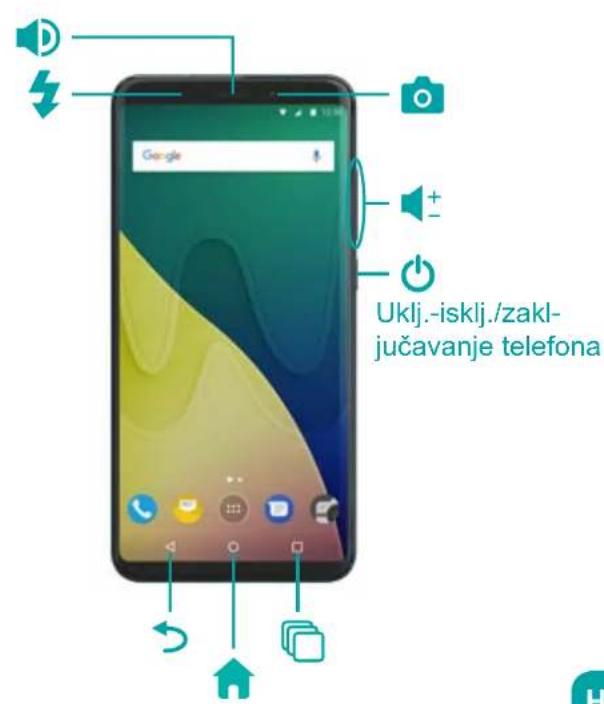
\~ Prevod naziva tipki
| Tipka | Funkcija |
On/Off  | Pritisnite i držite ovo tipku kako biste uključili ili isključili telefon.Za zaključavanje telefona, lagano pritisnite ovu tipku. |
Home (Početna stranicaa)  | Vraća vas na početnu stranicu ekrana. |
| Menu [YX60] | Otvara listu posljednjih otvaranih aplikacija. |
| Povratak unazad [S447] | Vraća vas na prethodni prikaz ekrana. Zatvara prikaz tipkovnice na ekranu. |
| Jačinatona [S458] | Pojačava ili smanjuje zvuk sugovornika, zvona, melodija, igara i drugih audiofunkcija. Pritiskom na ovu tipku način zvonjave se prebacuje na nečujno. Pritisnite i držite VOLUME – da omogućite način rada na sastanku. |
Kako početi
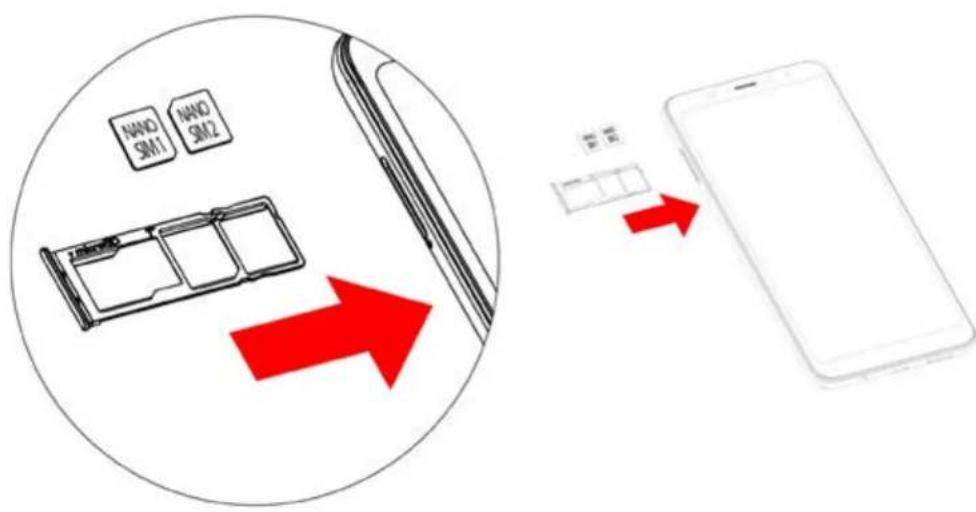
\~ Ubacivanje SIM kartice
Kako biste koristili telefon, potrebno je ubaciti SIM karticu. Poklopac na poleđini telefona je pričvršćen – zatvoren. Za njegovo otvaranje, koristite zarez na poklopcu, prateći konture telefona. SIM kartice ubacite prema uputama s grafiko
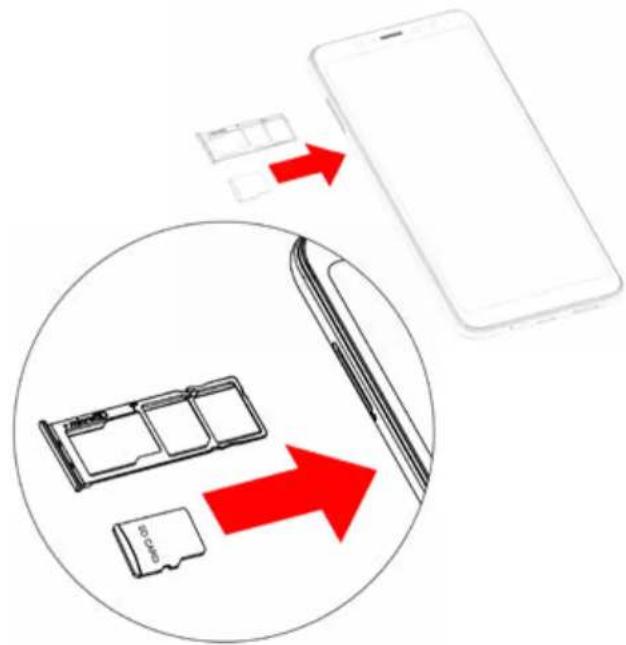
\~ Instaliranje memorijske karticu
Vaš telefon prima mikro SD memorijsku karticu do 128 GB.
Mikro SD memorijsku karticu ubacite prema instrukcija-ma s grafikona ispod.
\~ Mijenjanje baterije
Crvena lampica signalizira da je baterija pri kraju: bateriju treba dopuniti jer korištenje baterije na niskoj razini napunjenosti može skratiti njeno trajanje.
Povežite punjač s utičnicom, a mikro USB konektor s USB portom na telefonu.
Lampica indikatora statusa telefona će svijetliti crvenom bojom što znači da se uređaj puni.
Po završetku punjenja, lampica indikatora će ponovo svijetliti zelenom bojom te je potrebno telefon ukloniti s punjača.
natural_image
Line drawing of a smartphone with a small device and a red upward arrow indicating growth (no text or symbols)www.telefication.com
CE
Puni tekst izjave o sukladnosti za ovaj uređaj je na pisani zahtjev dostupan na sljedećoj adresi ili www.wikomobile.com/certification: WIKO SAS - 1, rue Capitaine Dessemond - 13007 Marseille - FRANCE
21/08/2017
Michel ASSADOURIAN / CEO
(Datum)
Copyright © 2017 WIKO
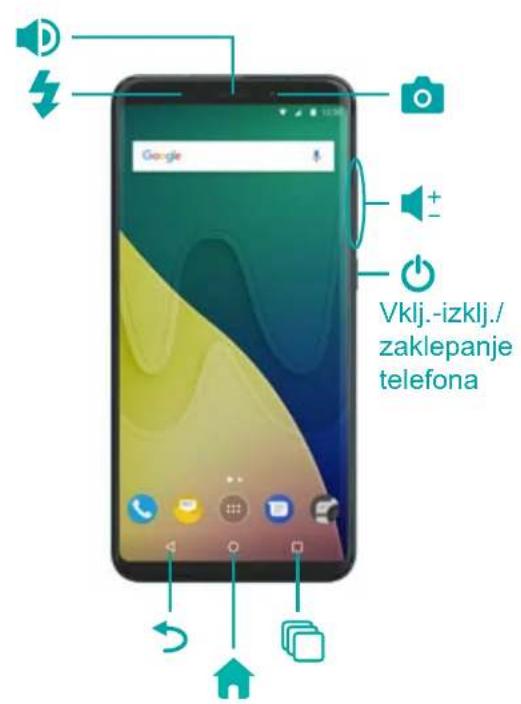
\~ Gumbi na vašem telefonu
\~ Zamenjava baterij
natural_image
Line drawing of a smartphone with a red upward arrow pointing to its internal component (no text or symbols)\~ Nevarne substance
Ta naprava je skladna z zahtevami REACH (Uredba (ES) št. 1907/2000) in zahtevami revidirane RoHS Direktive (Direktive 2011/65/EU).
\~ Odgovornost
www.telefication.com
Popolna inačica besedila Izjave o skladnosti za to napravo je dostopna na pisno zahtevo, poslano na tale naslov ali www.wikomobile.com/certification: WIKO SAS - 1, rue Capitaine Dessemond - 13007 Marseille - FRANCE
21/08/2017
Michel ASSADOURIAN / CEO
(Datum)
Copyright © 2017 WIKO
Zabranjeno je obelodanjivati informacije sadržane u ovom korisničkom uputstvu trećim licima, kao i umnožavanje istih u bilo kojoj formi, bez izričite pismene saglasnosti kompanije WIKO.
Zaštitni znakovi
WIKO je registrovani zaštitni znak kompanije WIKO SAS.
Odricanje odgovornosti
Ovo Uputstvo je sastavljeno sa najvećom marljivošću i pažnjom sa ciljem da Vam bude vodič kroz funkcije i karakteristike Vašeg uređaja. Ipak, informacije i preporuke iz ovog uputstva neće se tumačiti garancijom u skladu sa primenljivim zakonom. WIKO zadržava pravo da u bilo kom trenutku izmeni informacije sadržane u ovom Uputstvu.
Ograničenje odgovornosti
Sav sadržaj i servisi koji su Vam dostupni kroz ovaj uređaj su ekskluzivno vlasništvo trećih lica i zaštićeni su relevantnim zakonima (zakonima o autorskim pravima, patentnim pravima, licencama i/ili drugim pravima intelektualne svojine). Ovi servisi su namenjeni isključivo za ličnu nekomercijalnu upotrebu. Zabranjeno je korišćenje bilo kog sadržaja ili servisa bez pribavljanja prethodnog pismenog odobrenja vlasnika tog sadržaja. Zabranjeno je kopirati, objavljivati, prenositi, prodavati sadržaj ili servise kao i kreirati derivativne radove od sadržaja ili servisa koji su dostupni preko ovog uređaja, i eksploatisati iste na bilo koji način ili bilo kojim sredstvima.
SADRŽAJ I SERVISI KOJI PRUŽAJU TREĆA LICA SU DATI "U VIĐENOM STANJU". WIKO NE DAJE GARANCIJE, BILO IZRIČITE ILI PREĆUTNE, U POGLEDU TAKVOG SADRŽAJA ILI SERVISA, U BILO KOJU SVRHU. WIKO IZRIČITO ODRIČE ODGOVORNOST U POGLEDU DAVANJA GARANCIJA ZA UTRŽIVOST PROIZVODA ILI NJEGOVE PRIKLADNOSTI ZA ODREĐENU SVRHU. WIKO NE DAJE GARANCIJE ZA TAČNOST, VALIDNOST, ZAKONITOST ILI POTPUNOST BILO KOG SADRŽAJA ILI SERVISA KOJI SE STAVLJAJU NA RASPOLAGANJE KORISNIKU PREKO UREĐAJA.
WIKO nema kontrolu nad sadržajem i servisima koje pružaju treća putem mreža ili uređaja za prenos podataka. Štaviše, servisi trećih lica mogu biti potpuno obustavljeni ili u prekidu u bilo kom trenutku bez obaveštavanja o tome. Stoga, WIKO ne daje izjave niti garancije u pogledu raspoloživosti bilo kog sadržaja ili servisa trećih lica i izričito odriče odgovornost za takvu obustavu ili prekid u pružanju usluga/servisa ili sadržaja.
WIKO neće snositi odgovornost za obradu i/ili praćenje sadržaja i servisa trećih lica kojima se može pristupiti ovim uređajem. Svako pitanje ili zahtev u vezi sa sadržajem ili servisima treba uputiti direktno provajderu takvog sadržaja ili servisa.
natural_image
Simple line drawing of a 3D object with a red diagonal line crossing through it, no text or symbols present.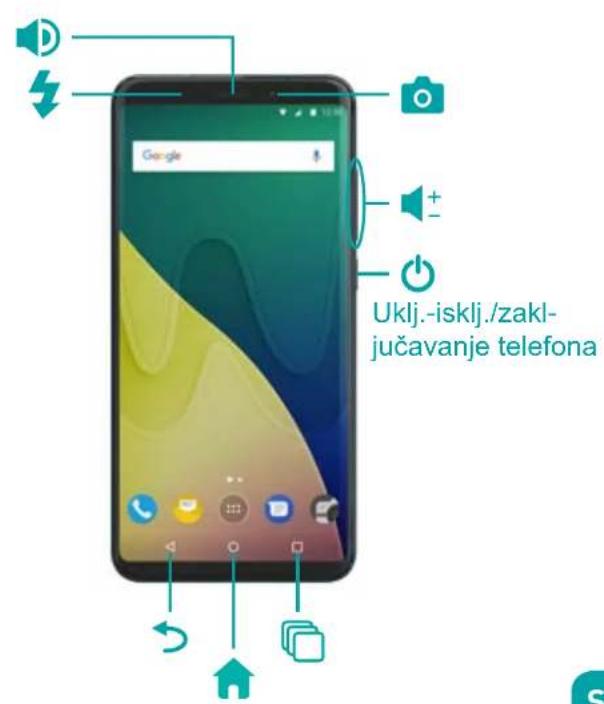
\~ Dugmad na vašem telefonu
| Dugme | Funkcija |
On/Off  | Pritisnite i držite ovo dugme kako biste uključili ili isključili telefon.Za zaključavanje telefona, lagano pritisnite ovo dugme. |
| Home (Početna strana) | Vraća vas na početnu stranu ekrana. |
| Pregled [EDT] | Otvara listu poslednjih otvaranih aplikacija. |
| Povratak unazad [EDB] | Vraća vas na prethodni prikaz ekrana. Zatvara prikaz tastature na ekranu. |
| Jačinatona [EDW] | Pojačava ili smanjuje zvuk sagovornika, zvona, muzike, igara i drugih audio funkcija. Priskom na ovo dugme režim zvona se prebacuje na nečuni režim.Pritisnite i držite VOLUME – da omogućite režim rada na sastanku. |
Kako početi
\~ Ubacivanje SIM kartice
Da biste koristili telefon, potrebno je da ubacite SIM karticu. Poklopac na poledini telefona je pričvršćen – zatvoren. Da biste ga otvorili, koristite zarez na poklop-cu, prateći konture telefona. SIM kartice ubacite prema instrukcijama sa
- Instaliranje memorijske karticu
Vaš telefon prima Mikro SD memorijsku karticu do 128 GB.
Mikro SD memorijsku karticu ubacite prema instrukcijama sa grafikona ispod.
natural_image
Line drawing of a smartphone with a red upward arrow pointing to its internal component (no text or symbols)www.telefication.com
Michel ASSADOURIAN / CEO
(Datum)
Copyright © 2017 WIKO
natural_image
Simple line drawing of a device with a red diagonal line and a small arrow, no text or symbols present.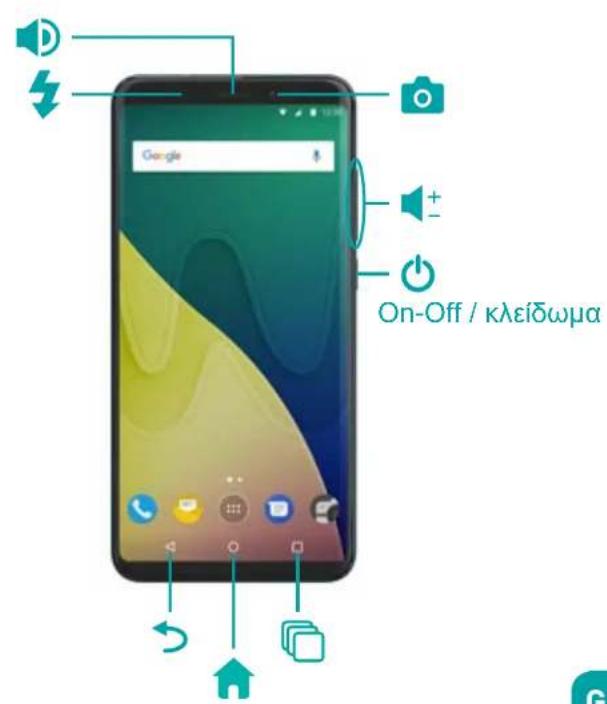
natural_image
Line drawing of a smartphone with a small device and a red upward arrow indicating growth (no text or symbols)www.telefication.com
Michel ASSADOURIAN / CEO
natural_image
Simple line drawing of a device with a red diagonal line and a small arrow, no text or symbols present.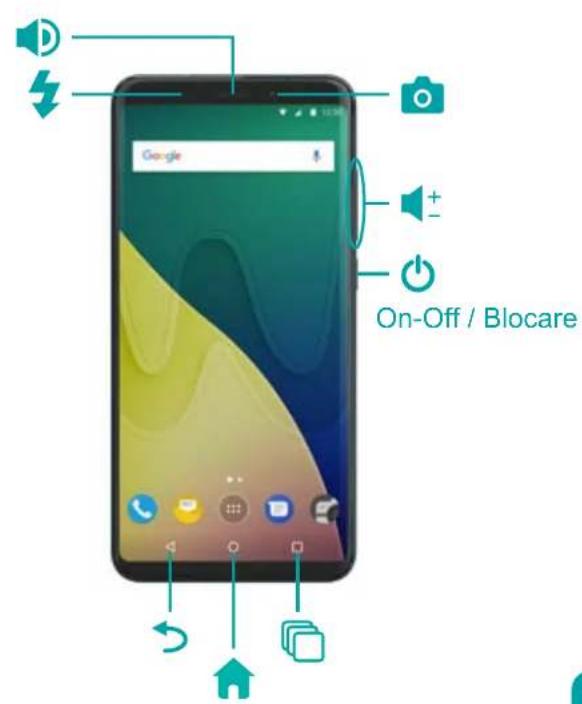
natural_image
Line drawing of a smartphone with a small connector and a red upward arrow indicating growth (no text or symbols)www.telefication.com
Michel ASSADOURIAN / CEO
(Dată)