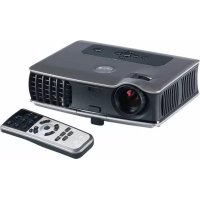
3400MP - Projector DELL - Free user manual and instructions
Find the device manual for free 3400MP DELL in PDF.



| Product type | DLP projector |
| Brand | Dell |
| Model | 3400MP |
| Display technology | DLP Texas Instruments |
| Native resolution | 1024 x 768 (XGA) |
| Brightness | 1500 ANSI lumens |
| Contrast ratio | 2100:1 (Full On/Off) |
| Number of displayable colors | 16.7 million |
| Lamp | 156 W, lamp life up to 3000 h (normal), 4000 h (eco) |
| Lens | Manual zoom 1.15x, F/2.7-2.88, f=28.43-32.73 mm |
| Screen size (diagonal) | 31.7" to 246" (80.5 cm to 6.25 m) |
| Projection distance | 1.5 m to 12 m |
| Keystone correction | Manual and automatic, ±16° |
| Built-in speaker | 1 W RMS |
| Noise level | 38 dB (normal mode), 36 dB (eco mode) |
| Connectivity | M1-DA, S-Video, composite RCA, 3.5mm audio input/output |
| Power supply | 100-240 V AC, 50-60 Hz, 195 W (normal) / 165 W (eco) |
| Weight | 1.09 kg |
| Dimensions (L x W x H) | 204 x 154 x 73.7 mm |
| Main functions | Preset video modes (PC, movie, game, sRGB), remote control with laser, multilingual OSD, password lock, power saving |
| Maintenance | User-accessible lamp replacement; exterior cleaning with soft cloth |
| Security | Password protection, overheat and fan failure indicators |
| Warranty | See terms in the manual, Dell support available |
Frequently Asked Questions - 3400MP DELL
User questions about 3400MP DELL
0 question about this device. Answer the ones you know or ask your own.
Ask a new question about this device
Download the instructions for your Projector in PDF format for free! Find your manual 3400MP - DELL and take your electronic device back in hand. On this page are published all the documents necessary for the use of your device. 3400MP by DELL.
USER MANUAL 3400MP DELL
Notes, Notices, and Cautions

NOTE: A NOTE indicates important information that helps you make better use of your projector.

NOTICE: A NOTICE indicates either potential damage to hardware or loss of data and tells you how to avoid the problem.

CAUTION: A CAUTION indicates a potential for property damage, personal injury, or death.
Information in this document is subject to change without notice.
© 2005 Dell Inc. All rights reserved.
Reproduction in any manner whatsoever without the written permission of Dell Inc. is strictly forbidden.
Trademarks used in this text: Dell, the DELL logo, Dimension, OptiPlex, Dell Precision, Latitude, Inspiron, DellNet, PowerApp, PowerEdge, PowerConnect, and PowerVault are trademarks of Dell Inc.; DLP and Texas Instruments are trademarks of Texas Instruments Corporation; Microsoft and Windows are registered trademarks of Microsoft Corporation; Macintosh is a registered trademark of Apple Computer, Inc.
Other trademarks and trade names may be used in this document to refer to either the entities claiming the marks and names or their products. Dell Inc. disclaims any proprietary interest in trademarks and trade names other than its own.
Restrictions and Disclaimers
The information contained in this document, including all instructions, cautions, and regulatory approvals and certifications, is based upon statements provided to Dell by the manufacturer and has not been independently verified or tested by Dell. Dell disclaims all liability in connection with any deficiencies in such information.
All statements or claims regarding the properties, capabilities, speeds, or qualifications of the part referenced in this document are made by the manufacturer and not by Dell. Dell specifically disclaims any knowledge of the accuracy, completeness, or substantiation for any such statements.
Contents
1 Your Dell Projector
About Your Projector 6
2 Connecting Your Projector
Connecting to a Computer 8
Connecting to a DVD Player 8
Connecting a DVD Player with an S-video Cable 8
Connecting a DVD Player with a Composite Cable. 9
Connecting a DVD Player with a Component Cable 9
3 Using Your Projector
Turning Your Projector On 11
Turning Your Projector Off 11
Adjusting the Projected Image 12
Raising the Projector Height 12
Lowering the Projector Height 12
Adjusting the Projector Zoom and Focus 13
Adjusting Projection Image Size 14
Using the Control Panel 15
Using the Remote Control 16
Using the On-Screen Display 18
Image Settings 18
Audio Menu 20
Management Menu 20
Language Menu 21
Factory Reset Menu 21
Computer Source Menu 22
Video Source Menu 22
4 Troubleshooting Your Projector
Self-diagnostic for Video 26
Changing the Lamp 26
5 Specifications
6 Contacting Dell
7 Appendix: Regulatory Notices
FCC Notices (U.S. Only). 61
NOM Information (Mexico Only) 62
8 Glossary
9 Index
Your Dell Projector
Your projector comes with all the items shown below. Ensure that you have all the items, and contact Dell if anything is missing.
Package Contents
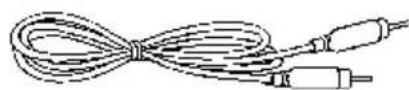
1.8m power cord (3.0m in Americas) 1.8m M1 to D-sub/USB cable
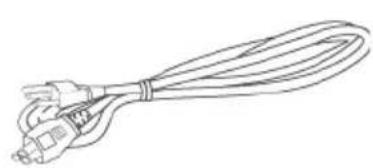
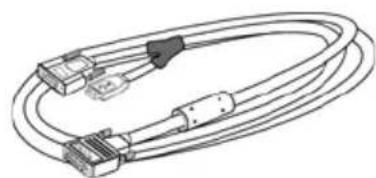
2.0m S-video cable 1.8m Composite Video cable

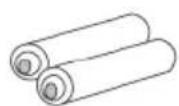
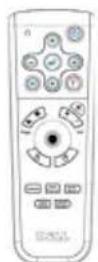
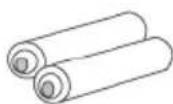
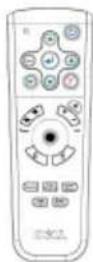
Batteries (2) Remote control
Package Contents (continued)
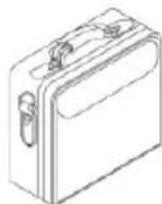
Documentation Carrying case
About Your Projector
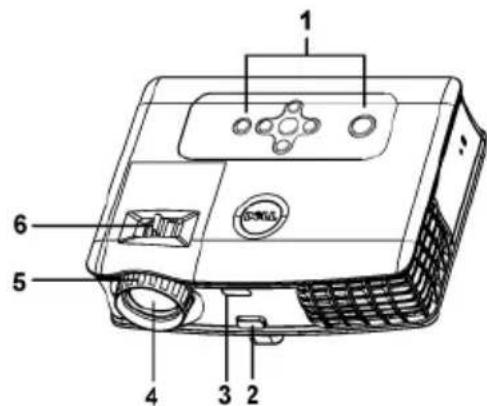
| 1 Control panel |
| 2 Elevator button |
| 3 Remote control receiver |
| 4 Lens |
| 5 Focus ring |
| 6 Zoom tab |
2
Connecting Your Projector
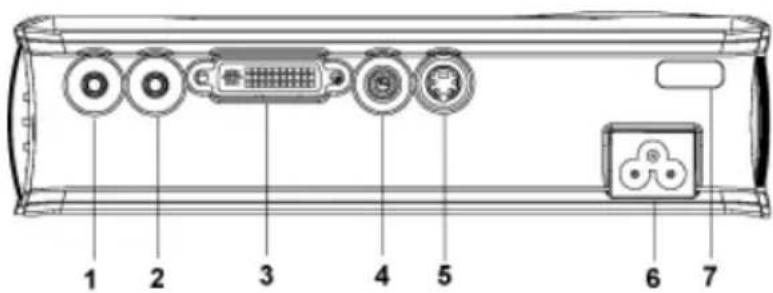
| 1 Audio output connector |
| 2 Audio input connector |
| 3 M1-DA connector |
| 4 Composite video connector |
| 5 S-video connector |
| 6 Power cord connector |
| 7 IR receiver |
Connecting to a Computer
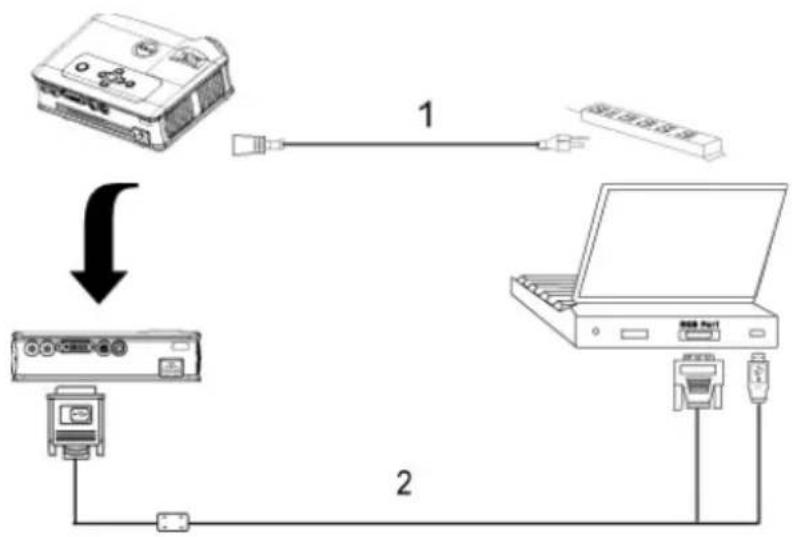
1 Power cord
2 M1A to D-sub/USB cable
Connecting to a DVD Player
Connecting a DVD Player with an S-video Cable
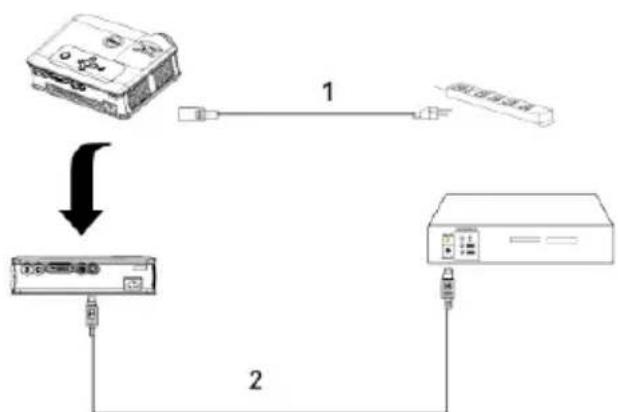
1 Power cord
2 S-video cable
Connecting a DVD Player with a Composite Cable

| 1 Power cord |
| 2 Composite video cable |
Connecting a DVD Player with a Component Cable

| 1 | P O W E R C O R |
| 2 M1-A to HDTV cable | |

NOTE: The M1-A to HDTV cable is not provided by Dell. Consult a professional installer for the cable.
Using Your Projector
Turning Your Projector On
NOTE: Turn on the projector before you turn on the source. The power button light blinks green until pressed.
1 Remove the lens cap.
2 Connect the power cord and appropriate signal cables. For information about connecting the projector, see "Connecting Your Projector" on page 7.
3 Press the power button (see "Using the Control Panel" on page 15" to locate the power button). The Dell logo displays for 30 seconds.
4 Turn on your source (computer, DVD player, etc.). The projector automatically detects your source.
If the "Searching for signal..." message appears on the screen, ensure that the appropriate cable(s) are securely connected.
If you have multiple sources connected to the projector, press the Source button on the remote control or control panel to select the desired source.
Turning Your Projector Off

NOTICE: Do not unplug the projector before properly shutting down as explained in the following procedure.
1 Press the power button.
2 Press the power button again. The cooling fans continue to operate for 90 seconds.
3 Disconnect the power cord from the electrical outlet and the projector.
NOTE: If you press the power button while the projector is running, the "Power Off the Lamp?" message appears on the screen. To clear the message, press any button on the control panel or ignore the message; the message disappears after 5 seconds.
Adjusting the Projected Image
Raising the Projector Height
1 Press the elevator button.
2 Raise the projector to the desired display angle, and then release the button to lock the elevator foot into position.
3 Use the tilt adjustment wheel to fine-tune the display angle.
Lowering the Projector Height
1 Press the elevator button.
2 Lower the projector, and then release the button to lock the elevator foot into position.
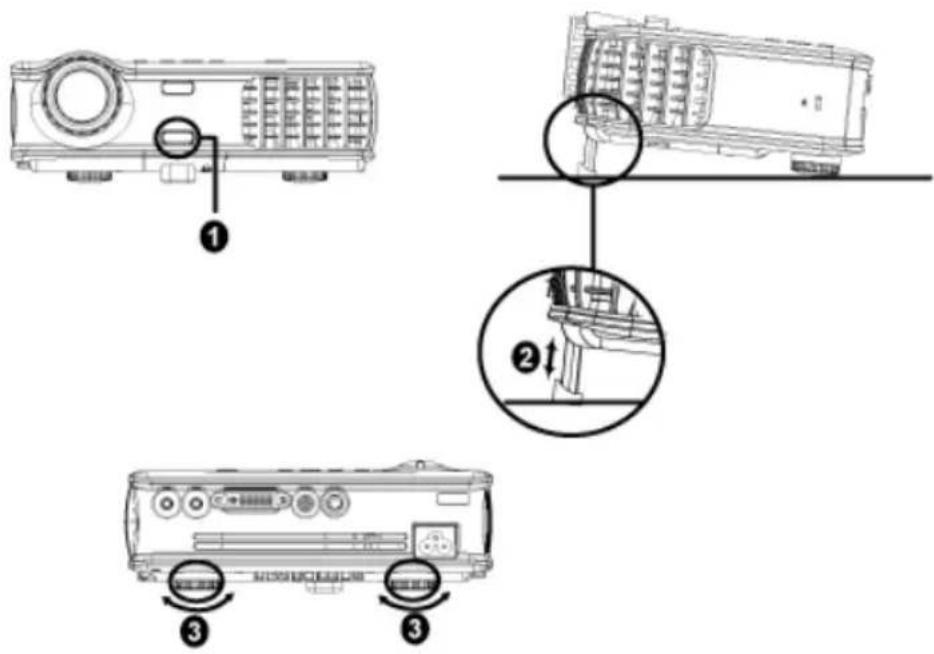
| 1 Elevator button |
| 2 Elevator foot |
| 3 Tilt adjustment wheel |
Adjusting the Projector Zoom and Focus

CAUTION: To avoid damaging the projector, ensure that the zoom lens and elevator foot are fully retracted before moving the projector or placing the projector in its carrying case.
1 Rotate the zoom tab to zoom in and out.
2 Rotate the focus ring until the image is clear. The projector focuses at distances from 4.9 ft to 39.4 ft (1.5 m to 12 m).
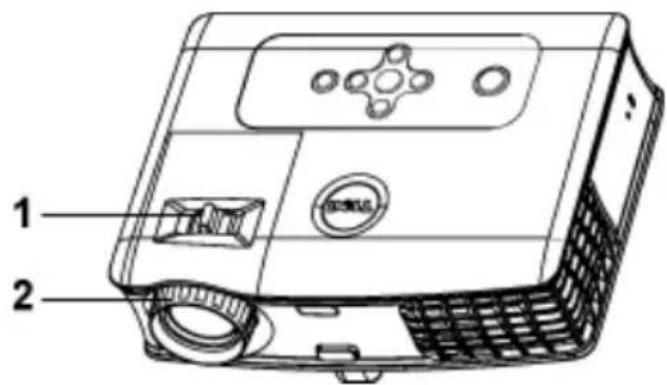
1 Zoom tab
2 Focus ring
Adjusting Projection Image Size
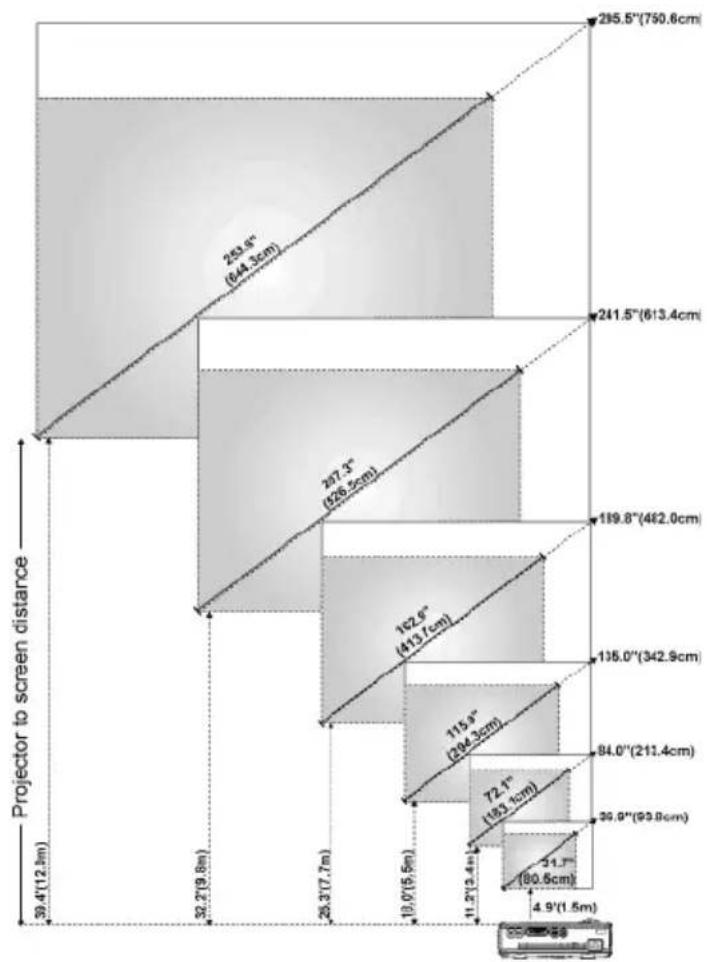
| Screen (Diagonal) | Max. 36.9" (93.8cm) | 84.0" (213.4cm) | 135.0" (342.9cm) | 189.8" (482.0cm) | 241.5" (613.4cm) | 295.5" (750.6cm) | |
| Min. 31.7" (80.5cm) | 72.1" (183.1cm) | 115.9" (294.3cm) | 162.9" (413.7cm) | 207.3" (526.5cm) | 253.6" (644.3cm) | ||
| Screen Size | Max. (WxII) | 29.5"X22.1"67.2"X50.4"108.0" X 81.0" | 151.8"X113.9" | 93.2" X 144.9" | 236.4" X 177.3" | ||
| (75.0cm X 56.3cm) | (170.7cm X 128.0cm) | (274.3cm X 205.7cm) | (385.6cm X 289.2cm) | (490.7cm X 368.0cm) | (600.5cmX 450.3cm) | ||
| Min. (WxH) | 25.3" X 19.0" | 57.7" X 43.3" | 92.7" X 69.5" | 130.3" X 97.7" 163.8" X 124.4" | 202.9" X 152.2" | ||
| (64.4cm X 48.3cm) | (146.5cm X 109.9cm) | (235.5cm X 176.6cm) | (331.0cm X 248.2cm) | (421.2cm X 315.9cm) | (515.4cm X 386.6cm) | ||
| Distance | 4.9' (1.5m) | 11.2' (3.4m) | 18.0' (5.5m) | 25.3' (7.7m) | 32.2' (9.8m) | 39.4' (12.0m) | |
| * This graph is for user reference only. | |||||||
Using the Control Panel
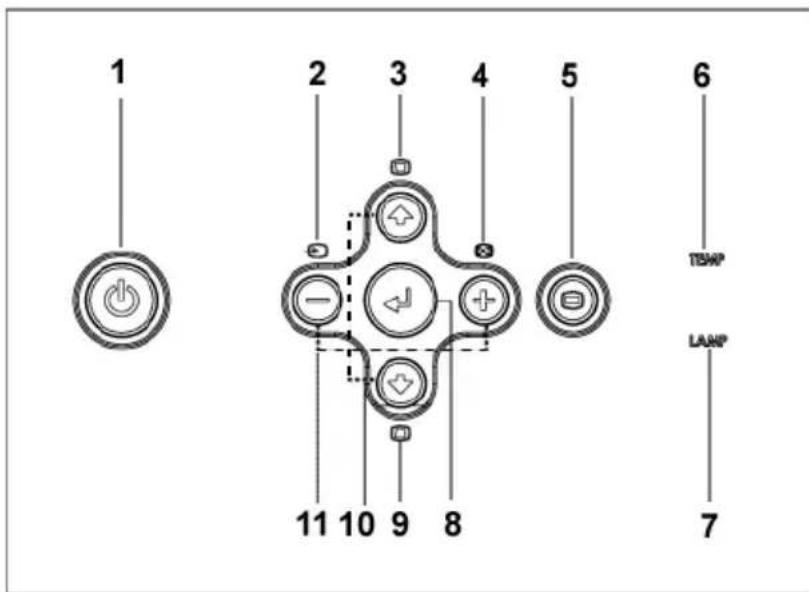
| 1 Power Turn the projector on and off. For more information, see "Turning Your Projector On" on page 11 and "Turning Your Projector Off" on page 11. |
| 2 Source Press to toggle through Analog RGB, Composite, Component-i, S-video, and Analog YPbPr sources when multiple sources are connected to the projector. |
| 3 Keystone adjustment Press to adjust image distortion caused by tilting the projector. (±16 degrees) |
| 4 Resync Press to synchronize the projector to the input source. Resync does not operate if the on-screen display (OSD) is displayed. |
| 5 Menu Press to activate the OSD. Use the directional keys and Menu button to navigate through the OSD. |
| 6 TEMP warning light | ·If the TEMP light is solid orange, the projector has overheated. The display automatically shuts down. Turn the display on again after the projector cools down. If the problem persists, contact Dell. ·If the TEMP light is blinking orange, a projector fan has failed and the projector automatically shuts down. If the problem persists, contact Dell. |
| 7 LAMP warning light | If the LAMP light is solid orange, replace the lamp. |
| 8 Enter Press to confirm the selection item. | |
| 9 Keystone adjustment Press to adjust image distortion caused by tilting the projector. (±16 degrees) | |
| 10 Up and Down Press to select the OSD items. | |
| 11 and buttons Press to adjust the OSD setting. | |
Using the Remote Control
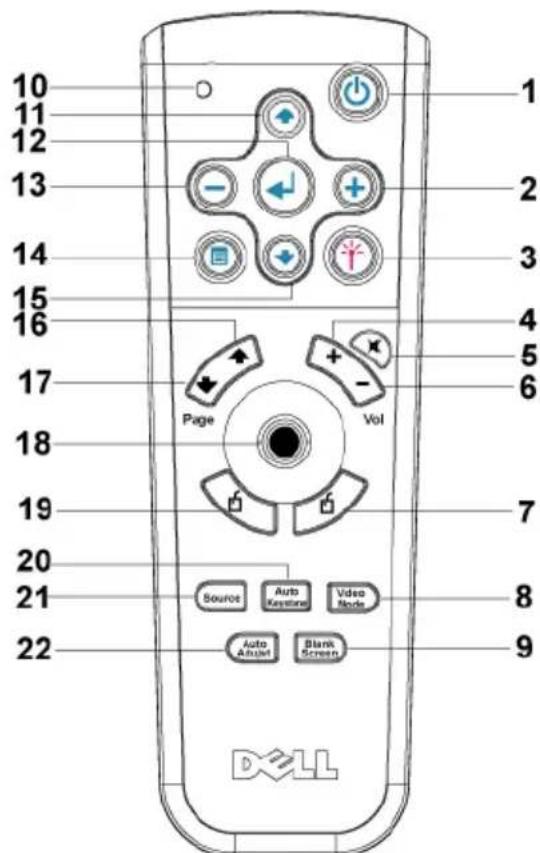
| 1 Power Turn the projector on and off. For more information, see "Turning Your Projector On" on page 11 and "Turning Your Projector Off" on page 11. | |
| 2 Press to adjust the OSD setting. | |
| 3 Laser Aim the remote control at the screen, press and hold the laser button to activate the laser light. | |
| 4 Volume Press to increase the volume. | |
| 5 Mute Press to mute or un-mute the projector speaker. | |
| 6 Volume Press to decrease the volume. | |
| 7 Right click Mouse right click. | |
| 8 Video mode The Dell 3400MP Micro-projector has preset configurations that are optimized for displaying data (PC Graphics) or video (movies, games, etc.). Press Video Mode button to toggle between PC mode, Movie mode, Game Mode, sRGB, or User mode (for user to setup and save preferred settings). Pressing the Video Mode button once will show the current display mode. Pressing the Video Mode button again will switch between modes. | |
| 9 Blank screen Press to hide the image, press again to resume display of the image. | |
| 10 LED light | LED indicator. |
| 11 Up button | Press to select OSD items. |
| 12 Enter button | Press to confirm the selection. |
| 13 | Press to adjust the OSD setting. |
| 14 Menu Press to activate the OSD. | |
| 15 Down button | Press to select OSD items. |
| 16 Page | Press to move to previous page. |
| 17 Page | Press to move to next page. |
| 18 Directional pad | The directional pad can be used to control mouse movement. The mouse function is enabled using the MI cable to connect your computer and the projector. |
| 19 Left click Mouse left click |
| 20 Auto keystone Press to enable the auto correction for image distortion due to tilting the projector. |
| 21 Source Press to switch between Analog RGB, Digital RGB, Composite, Component-i, S-video, and Analog YPbPr sources. |
| 22 Auto adjust Press to synchronize the projector to the input source. Auto adjust does not operate if the OSD (On-Screen Display) is displayed. |
Using the On-Screen Display
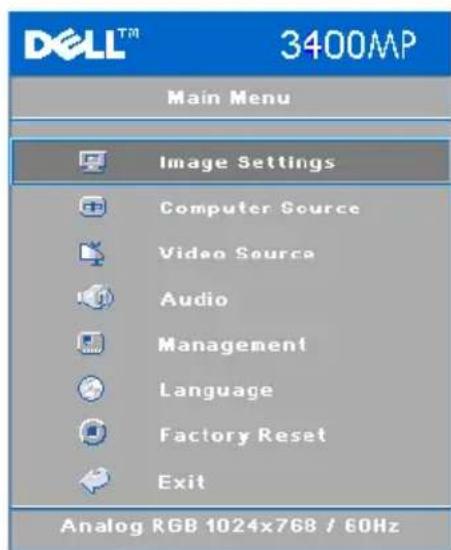
The projector has a multi-language On-Screen Display (OSD) that can be displayed with or without an input source present.
In the Main Menu, press or to navigate through the tabs. Press Enter button on the control panel or the remote control to select a submenu.
In the submenu, press or to make a selection. When an item is selected, the color changes to dark gray. Use or on the control panel or the remote control to make adjustments to a setting.
To exit the OSD, go to Exit tab and press Enter button on the control panel or the remote control.
Image Settings
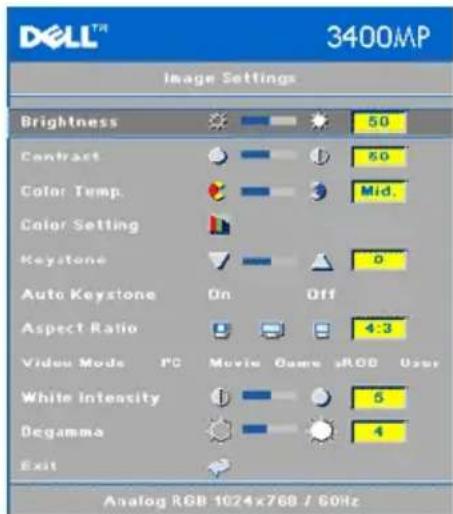
BRIGHTNESS—Use and 四 adjust the brightness of the image.
CONTRAST—Use and to control the degree of difference between the brightest and darkest parts of the picture. Adjusting the contrast changes the amount of black and white in the image.
COLOR TEMP. Adjust the color temperature. The higher the temperature, the screen appears more blue; the lower the temperature, the screen appears redder. User mode activates the values in the "color setting" menu.
COLOR SETTING—Manually adjust red, green, and blue color.
KEystone—Adjust image distortion caused by tilting the projector ( ± 16 degrees).
AUTO KESTONE—Auto adjust the image distortion by tilting the projector.
ASPECT RATIO—Select an aspect ratio to adjust how the image appears.
- 1:1 — The input source displays without scaling.
Use 1:1 aspect ratio if you are using one of the following:
VGA cable and the computer has a resolution less than XGA (1024 x 768) - Component cable (576p/480i/480p)
- S - Videocable
- Composite cable
- 16:9 - The input source scales to fit the width of the screen.
- 4:3 — The input source scales to fit the screen.
Use 16:9 or 4:3 if you are using one of the following: - Computer resolution greater than XGA
- Component cable (1080i or 720p)
VIDEO MODE—Select a mode to optimize the display image based on how the projector is being used: Movie, Game, PC, sRGB (provides more accurate color representation), and User (set your preferred settings). If you adjust the settings for White Intensity or Degamma, the projector automatically switches to User.
WHITE INTENSITY—Setting 0 to maximize the color reproduction and 10 to maximize the brightness.
DEGAMMA—Adjust between 1 and 4 to change the color performance of the display.
Audio Menu
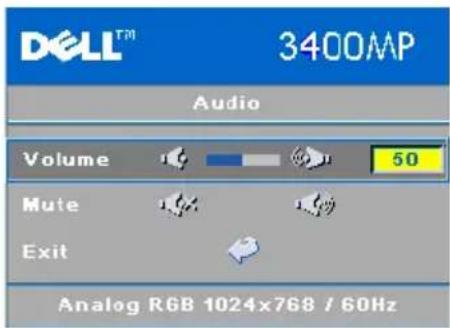
VOLUME—Press to decrease the volume and to increase the volume.
MUTE—Allow to mute the volume.
Management Menu

MENULocationSelect the location of the OSD on the screen.
PROJECTION MODE—Select how the image appears:
- Front Projection-Desktop (the default).
- Rear Projection-Desktop - The projector reverses the image so you can project from behind a translucent screen.
SIGNAL TYPE—Manually select signal type RGB, YCbCr, YPbPr.
LAMP HOUR—Display the operating hours since the lamp timer reset.
LAMP RESET—After you install a new lamp, select Yes to reset the lamp timer.
POWER SAVING—Select Yes to set the power saving delay period. The delay period is the amount of time you want the projector to wait without signal input. After that set time, the projector enters power saving mode and turns off the lamp. The projector turns back on when it detects an input signal or you press the power button. After two hours, the projector turns off and you need to press the power button to turn the projector on.
AUTO SOURCE—Select On (the default) to autodetect the available input signals. When the projector is on and you press SOURCE, it automatically finds the next available input signal. Select Off to lock the current input signal. When Off is selected and you press SOURCE, you select which input signal you want to use.
ECO MODE—Select On to use the projector at a lower power level (136 Watts), which may provide longer lamp life, quieter operating and dimmer luminance output on the screen. Select Off to operate at normal power level (156 Watts).
Password ENABLE—Select On to set one password for individual. Select Off to disable the password function.
CHANGE PASSWORD—Press to change the password as your preference.
Language Menu
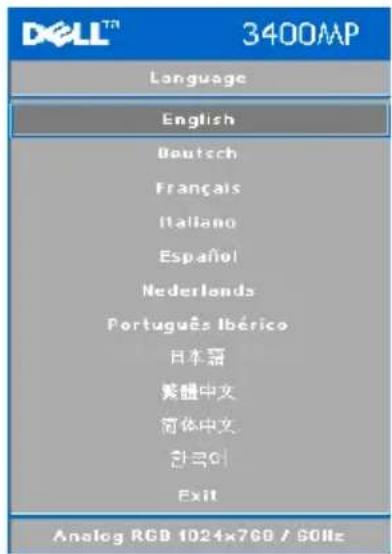
Press or to select the preferred language for the OSD.
Factory Reset Menu
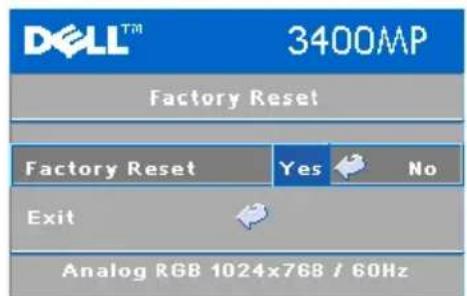
Factory Reset --Select Yes to reset the projector to its factory default settings. Reset items include both computer sources and video source settings.
Computer Source Menu

NOTE: This menu is only available connected to a computer.
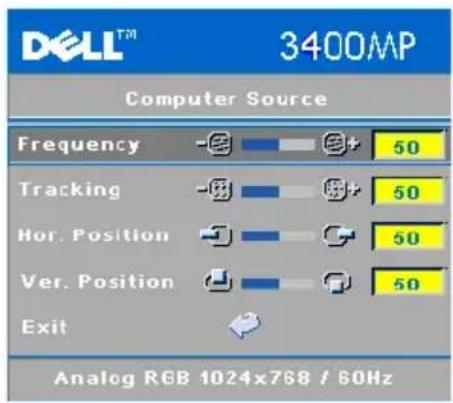
FREQUENCY—Change the display data clock frequency to match the frequency of your computer graphics card. If you see a vertical flickering bar, use Frequency control to minimize the bars. This is a coarse adjustment.
TRACKING—Synchronize the phase of the display signal with the graphic card. If you experience an unstable or flickering image, use the Tracking to correct it. This is a fine adjustment.

NOTE: Adjust the Frequency first and then the Tracking.
HOR. POSITION—Press to adjust the horizontal position of the image to the left and to adjust the horizontal position of the image to the right.
VER. POSITION—Press to adjust the vertical position of the image down and to adjust the vertical position of the image up.
Video Source Menu

NOTE: This menu is only available with S-video, Video (composite) signal connected.
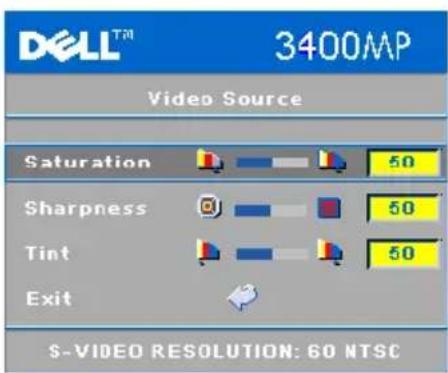
SATURATION—Adjust a video source from black and white to fully saturated color. Press to decrease the amount of color in the image and to increase the amount of color in the image.
SHARPNESS—Press to decrease the sharpness and to increase the sharpness.
TINT—Press to increase the amount of green in the image and to increase the amount of red in the image.
Troubleshooting Your Projector
If you experience problems with your projector, see the following troubleshooting tips. If the problem persists, contact Dell.
Problem Possible Solution
No image appears on the screen
- Ensure that the lens cap is removed and the projector turned on.
- Ensure the external graphics port is enabled. If you are using a Dell portable computer, press For other computers, see your documentation.
- Ensure that all the cables are securely connected. See "Connecting Your Projector" on page 7."
- Ensure that the pins of the connectors are not bent or broken.
- Ensure that the lamp is securely installed (see "Changing the Lamp" on page 26").
- Run Self-diagnostic test. See "Self-diagnostic for Video" on page 26. Ensure that the colors of the test pattern are correct.
| Problem (continued) | Possible Solution (continued) |
| Partial, scrolling, or incorrectly displayed image | 1 Press the Resync button on the remote control or the control panel. 2 If you are using a Dell portable computer, set the resolution of the computer to XGA (1024 x 768): a Right-lick the unused portion of your Windows desktop, click Properties and then select Settings tab. b Verify the setting is 1024 x 768 pixels for the external monitor port. c Press F# F# F# F# F# F# F# F# F# F# F# F# F# F# F# F# F# F# F# F# F# F# F# F# F# F# F# F# F# F# F# F# F# F# F# F# F# F# F# F# F# F# F# F# F# F# F# F# F# F# F# If you experience difficulty in changing resolutions or your monitor frcczcs, restart all the equipment and the projector. If you are not using a Dell portable computer, see your documentation. |
| The screen does not display your presentation | If you are using a portable computer, press F# F# F# F# F# F# F# F# F# F# F# F# F# F# F# F# F# F# F# F# F# F# F# F# F# F# F# F# F# F# F# F# F# F# F# F# F# F# F# F# F# F# F# F# F# F# F# F# F# F # |
| Image is unstable or flickering Adjust the tracking in the OSD Computer Source tab. | |
| Image has vertical flickering bar | Adjust the frequency in the OSD Computer Source tab. |
| Image color is not correct | If your graphic card output signal is sync on Green, and you would like to display VGA at 60Hz signal, please go into OSD select Management, select Signal Type and then select RGB. Run the Self-diagnostic test (see " Self-diagnostic for video") for preliminary diagnostic on image color problem. Ensure that the colors of the test pattern are correct. |
| Image is out of focus 1 | Adjust the focus ring on the projector lens. 2 Ensure that the projection screen is within the required distance from the projector (4.9 ft [1.5 m] to 39.4 ft [12 m]). |
| The image is stretched when displaying a 16:9 DVD | The projector automatically detects a 16:9 DVD and adjusts the aspect ratio to full screen with a 4:3 (letter-box) default setting. If the image is still stretched, adjust the aspect ratio as follows:·If you are playing a 16:9 DVD, select 4:3 aspect ratio type on your DVD player (if capable).·If you cannot select 4:3 aspect ratio type on your DVD player, select 4:3 aspect ratio in the Image Settings menu in the OSD. |
| Image is reversed Select Management from the OSD and adjust the projection mode. | |
| Lamp is burned out or makes a popping sound | When the lamp reaches its end of life, it may burn out and may make a loud popping sound. If this occurs, the projector does not turn back on. To replace the lamp, see "Changing the Lamp" on page 26. |
| LAMP light is solid orange If LAMP light is solid orange, replace the lamp. | |
| LAMP light is blinking orange | If the LAMP light is blinking orange, the lamp cover is not closed properly. Close the lamp cover properly. If the problem persists, contact Dell. |
| TEMP light is solid orange The projector has overheated. The display automatically shuts down. Turn the display on again after the projector cools down. If the problem persists, contact Dell. | |
| TEMP light is blinking orange | A projector fan has failed and the projector will automatically shut down. If the problem persists, contact Dell. |
| The remote control is not operating smoothly or in very limited range | The battery may be low. Check if the laser beam transmitted from the remote is too dim. If so, replace with 2 new AA batteries. |
Self-diagnostic for Video
Dell 3400MP Projector provides self-diagnostic test of the projector video display (for Video, S-video, Component-i). Use this advanced feature for preliminary self-diagnostic on your projector when encountering a display problem for video.
1 After turning on the projector, press "+" and "-" buttons on the control panel simultaneously for 3 seconds and release the buttons when screen goes blank.
2 Press "+" and "-" buttons again to exit the diagnostic mode.
3 While in Self-diagnostic mode, the screen will run a seven-color-cycle test as following:
Red--> Green--> Blue--> White--> Watchet Blue--> Dark Green--> Yellow. Ensure that the colors of the test pattern are correct. Contact Dell if the colors are not displayed correctly.
Changing the Lamp
Replace the lamp when you see "Lamp is approaching the end of its useful life in full power operation. Replacement suggested! www.dell.com/lamps" appears on the screen. If this problem persists after replacing the lamp, contact Dell.

CAUTION: The lamp becomes very hot when in use. Do not attempt to replace the lamp until the projector has been allowed to cool down for at least 30 minutes.

CAUTION: Do not touch the bulb or the lamp glass at any time. The bulb may explode due to improper handling, including the touching of the bulb or the lamp glass.
1 Turn off the projector and disconnect the power cord.
2 Let the projector cool for at least 30 minutes.
3 Loosen the 2 screws that secure the lamp cover, and remove the cover.
4 Loosen the 2 screws that secure the lamp.
5 Pull up the lamp by its metal handle.
6 Reverse steps 1 through 5 to install the new lamp.
7 Reset the lamp by usage time selecting the left Lamp Reset icon in the OSD Management tab.

NOTE: Dell may require that lamps replaced under warranty be returned to Dell. Otherwise, contact your local waste disposal agency for the address of the nearest deposit site.
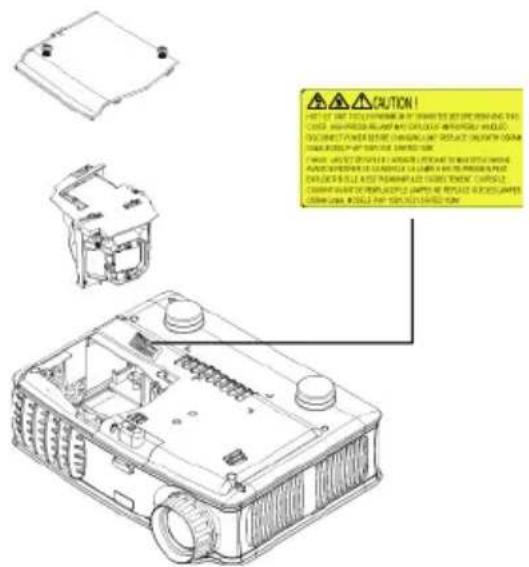

CAUTION: Lamp Disposal (for the US only)
LAMP(S) INSIDE THIS PRODUCT CONTAIN MERCURY AND MUST BE RECYCLED OR DISPOSED OF ACCORDING TO LOCAL, STATE OR FEDERAL LAWS. FOR MORE INFORMATION, GO TO WWW.DELL.COM/HG OR CONTACT THE ELECTRONIC INDUSTRIES ALLIANCE AT WWW.EIAE.ORG. FOR LAMP SPECIFIC DISPOSAL INFORMATION CHECK WWW.LAMPRECYCLE.ORG.
Specifications
Light Valve Single-chip DLP™ DDR (double data rate) technology
Brightness 1500 ANSI Lumens (Max.)
Contrast Ratio 2100:1 Typical (Full On/Full Off)
Uniformity 85% Typical (Japan Standard - JBMA)
Lamp 156-watt user-replaceable 3000-hour lamp (up to 4000 hours in eco mode)
Number of Pixels 1024 x 768 (XGA)
Displayable Color 16.7M colors
Color Wheel Speed 100 127.5Hz (2X)
Projection Lens F/2.7~2.88, f = 28.43 32.73 ~mm with 1.15x manual zoom lens
Projection Screen Size 31.7-246 inches (diagonal)
Projection Distance 4.9 39.4 ft (1.5m 12m)
Video Compatibility NTSC, NTSC 4.43, PAL, PAL-M, PAL-N, SECAM, and HDTV (1080i, 720p, 576i/p, 480i/p) compatibility Composite video, Component video and S-video capability
H. Frequency 15kHz - 80kHz (Analog/ Digital)
V. Frequency 50Hz-85Hz (Analog/ Digital)
Power Supply Universal 100-240V AC 50-60Hz with PFC input
Power Consumption 195 watts typical, 165 watts in eco mode
Audio 1 speaker, 1 watt RMS
Noise Level 38 dB(A) Full-on mode, 36 dB(A) Eco-mode
Weight 2.4 lbs (1.09kg)
Dimensions (WxHxD) External 8.0× 6.0× 2.9± 0.04 inches (204× 154× 73.7± 1mm)
Environmental Operating temperature: 5 ^ C - 35^ C (41°F-95°F)
Humidity: 80% maximum
Storage temperature: -20^ to 60^
(-4^oF to 140^oF)
Humidity: 80% maximum
Regulatory FCC, CE, VCCI, UL, cUL, TuV-GS, ICES-003, MIC, C-Tick, GOST, PCBC, CCC, PSB, EZU, NOM, S-TuV/Argentina
I/O Connectors Power: AC power input socket
Computer input: one M1-DA for analog/digital/component, HDTV input signals
Video input: one composite video RCA and one S-video
Audio input: one phone jack (diameter 3.5mm )
Audio output: one phone jack (diameter 3.5mm )
Compatibility Modes
| Mode | Resolution | (ANALOG) | (DIGITAL) | ||
| V. Frequency (1Hz) | H. Frequency (KHz) | V. Frequency (1Hz) | H. Frequency (KHz) | ||
| VGA 640X350 70 31.5 | 70 31.5 | ||||
| VGA 640X350 85 37.9 | 85 37.9 | ||||
| VGA 640X400 85 37.9 | 85 37.9 | ||||
| VGA 640X480 60 31.5 | 60 31.5 | ||||
| VGA 640X480 72 37.9 | 72 37.9 | ||||
| VGA 640X480 75 37.5 | 75 37.5 | ||||
| VGA 640X480 85 43.3 | 85 43.3 | ||||
| VGA 720X400 70 31.5 | 70 31.5 | ||||
| VGA 720X400 85 37.9 | 85 37.9 | ||||
| SVGA 800X600 56 35.2 | 56 35.2 | ||||
| SVGA 800X600 60 37.9 | 60 37.9 | ||||
| SVGA 800X600 72 48.1 | 72 48.1 | ||||
| SVGA 800X600 75 46.9 | 75 46.9 | ||||
| SVGA 800X600 85 53.7 | 85 53.7 | ||||
| XGA 1024X768 60 48.4 | 60 48.4 | ||||
| XGA 1024X768 70 56.5 | 70 56.5 | ||||
| XGA | 1024X768 | 75 | 60 | 75 | 60 |
| XGA | 1024X768 | 85 | 68.7 | - | - |
| *SXGA | 1280X1024 | 60 | 63.98 | 60 | 63.98 |
| *SXGA | 1280X1024 | 75 | 79.98 | - | - |
| *SXGA+ | 1400X1050 | 60 | 63.98 | - | - |
| *UXGA | 1600x1200 | 60 | 75 | - | - |
| MAC LC13* | 640X480 | 66.66 | 34.98 | - | - |
| MAC II 13* | 640X480 | 66.68 | 35 | - | - |
| MAC 16* | 832X624 | 74.55 | 49.725 | - | - |
| MAC 19* | 1024X768 | 75 | 60.24 | - | - |
| *MAC | 1152X870 | 75.06 | 68.68 | - | - |
| MAC G4 | 640X480 | 60 | 31.35 | - | - |
| IMAC DV | 1024X768 | 75 | 60 | - | - |
| * Compressed computer image. | |||||
Contacting Dell
To contact Dell electronically, you can access the following websites:
www.dell.com
- support.dell.com (technical support)
- premiersupport.dell.com (technical support for educational, government, healthcare, and medium/large business customers, including Premier, Platinum, and Gold customers)
For specific web addresses for your country, find the appropriate country section in the table below.
NOTE: Toll-free numbers are for use within the country for which they are listed.
NOTE: In certain countries, technical support specific to Dell Inspiron™ XPS computers is available at a separate telephone number listed for participating countries. If you do not see a telephone number listed that is specific for Inspiron XPS computers, you may contact Dell through the technical support number listed and your call will be routed appropriately.
When you need to contact Dell, use the electronic addresses, telephone numbers, and codes provided in the following table. If you need assistance in determining which codes to use, contact a local or an international operator.
| Country (City) | Department Name or Service Area, Website and E-Mail Address | Area Codes, Local Numbers, and Toll-Free Numbers |
| International Access Code | ||
| Country Code | ||
| City Code | ||
| Anguilla General Support | toll-free: 800-335-0031 | |
| Antigua and Barbuda | General Support | 1-800-805-5924 |
| Argentina | Website:www.dell.com.ar | |
| (Buenos Aires) | E-mail: | |
| International | us_latin_services@ Dell.com | |
| Access Code: 00 | E-mail for desktop and portable computers: | |
| Country Code: 54 | computers: | |
| City Code: 11 | la-techsupport@ dell.com | |
| E-mail for servers and EMC® storage products: | ||
| la-enterprisc@ Dell.com | ||
| Customer Care | toll-free: 0-800-444-0730 | |
| Tech Support | toll-frcc: 0-800-444-0733 | |
| Tech Support Services | toll-free: 0-800-444-0724 | |
| Sales | 0-810-444-3355 | |
| Aruba General Support | toll-free: 800-1578 | |
| Country (City) International Access Code Country Code City Code | Department Name or Service Area, Website and E-Mail Address | Area Codes, Local Numbers, and Toll-Free Numbers |
| Australia (Sydney) | E-mail (Australia): au_tech_support@ Dell.com | |
| International Access Code: 0011 | E-mail (New Zealand): nz_tech_support@ Dell.com | |
| Home and Small Business | 1-300-655-533 | |
| Country Code: 61 | Government and Business | toll-free: 1-800-633-559 |
| City Code: 2 | Preferred Accounts Division (PAD) | toll-free: 1-800-060-889 |
| Customer Care | toll-free: 1-800-819-339 | |
| Technical Support (portables and desktops) | toll-free: 1-300-655-533 | |
| Technical Support (servers and workstations) | toll-free: 1-800-733-314 | |
| Corporate Sales | toll-free: 1-800-808-385 | |
| Transaction Sales | toll-free: 1-800-808-312 | |
| Fax | toll-free: 1-800-818-341 | |
| Country (City) | Department Name or Service Area, Website and E-Mail Address | Area Codes, Local Numbers, and Toll-Free Numbers |
| International Access Code | ||
| Country Code | ||
| City Code | ||
| Austria (Vienna) | Website: support.euro.dell.com | |
| International | E-mail: | |
| Access Code: 900 | tech_support_central_curopc@ Dell.com | |
| Country Code: 43 | Home/Small Business Sales | 0820 240 530 00 |
| Home/Small Business Fax | 0820 240 530 49 | |
| Home/Small Business Customer Care | 0820 240 530 14 | |
| Preferred Accounts/Corporate Customer Care | 0820 240 530 16 | |
| IHome/Small Business Technical Support | 0820 240 530 14 | |
| Preferred Accounts/Corporate Technical Support | 0660 8779 | |
| Switchboard | 0820 240 530 00 | |
| Bahamas General Support | toll-free: 1-866-278-6818 | |
| Barbados General Support | 1-800-534-3066 | |
| Country (City) International Access Code Country Code City Code | Department Name or Service Area, Website and E-Mail Address | Area Codes, Local Numbers, and Toll-Free Numbers |
| Belgium (Brussels) | Website: support.euro.dell.com | |
| E-mail for French-speaking Customers: | ||
| International Access Code: 00 | support.euro.dell.com/be/fr/ | |
| Country Code: 32 | emaildell/ | |
| City Code: 2 | Technical Support for Inspiron XPS computers only | 02 481 92 96 |
| Technical Support for all other Dcell computers | 02 481 92 88 | |
| Technical Support Fax | 02 481 92 95 | |
| Customer Care | 0271315.65 | |
| Corporate Sales | 02 481 91 00 | |
| Fax | 02 481 92 99 | |
| Switchboard | 02 481 91 00 | |
| Bermuda General Support | 1-800-342-0671 | |
| Bolivia General Support | toll-free: 800-10-0238 | |
| Brazil | Website: www.dell.com.br | |
| International Access Code: 00 | Customer Support, Technical Support | 0800 90 3355 |
| Country Code: 55 | Technical Support Fax | 51 481 5470 |
| City Code: 51 | Customer Care Fax | 51 481 5480 |
| Sales | 0800 90 3390 | |
| British Virgin Islands | General Support | toll-free: 1-866-278-6820 |
| Brunei Country Code: 673 | Customer Technical Support (Penang, Malaysia) | 604 633 4966 |
| Customer Servicc (Penang, Malaysia) | 604 633 4949 | |
| Transaction Sales (Penang, Malaysia) | 604 633 4955 | |
| Canada (North York, Ontario) | Online Order Status: www.dell.ca/ostatus | |
| International Access Code: 011 | AutoTech (automated technical support) | toll-free: 1-800-247-9362 |
| Customer Care (Home Sales/Small Business) | toll-free: 1-800-847-4096 | |
| Customer Care (med./large business, government) | toll-free: 1-800-326-9463 | |
| Technical Support (Home Sales/Small Business) | toll-free: 1-800-847-4096 | |
| Technical Support (med./large bus., government) | toll-free: 1-800-387-5757 | |
| Technical Support (printers, projectors, televisions, handhelds, digital jukebox, and wireless) | 1-877-335-5767 | |
| Sales (Home Sales/Small Business) | toll-free: 1-800-387-5752 | |
| Sales (med./large bus., government) | toll-free: 1-800-387-5755 | |
| Spare Parts Sales & Extended Service Sales | 1 866 440 3355 | |
| Cayman Islands General Support | 1-800-805-7541 | |
| Chile (Santiago) Country Code: 56 | Sales, Customer Support, and Technical Support | toll-free: 1230-020-4823 |
| City Code: 2 | ||
| China (Xiamen) | Technical Support website: support.dell.com.cn | |
| Country Code: 86 | Technical Support E-mail: cn_support@dell.com | |
| City Code: 592 | Customer Care E-mail: customer_cn@dell.com | |
| Technical Support Fax | 592 818 1350 | |
| Technical Support (DellTM DimensionTM and Inspiron) | toll-free: 800 858 2969 | |
| Technical Support (OptiPlexTM, LatitudeTM, and Dell PrecisionTM) | toll-free: 800 858 0950 | |
| Technical Support (servers and storage) | toll-free: 800 858 0960 | |
| Technical Support (projectors, PDAs, switches, routers, and so on) | toll-free: 800 858 2920 | |
| Technical Support (printers) | toll-free: 800 858 2311 | |
| Customer Care | toll-free: 800 858 2060 | |
| Customer Care Fax | 592 818 1308 | |
| Home and Small Business | toll-free: 800 858 2222 | |
| Preferred Accounts Division | toll-fcc: 800 858 2557 | |
| Large Corporate Accounts GCP | toll-free: 800 858 2055 | |
| Large Corporate Accounts Key Accounts | toll-free: 800 858 2628 | |
| Large Corporate Accounts North | toll-free: 800 858 2999 | |
| Large Corporate Accounts North Government and Education | toll-free: 800 858 2955 | |
| Large Corporate Accounts East | toll-free: 800 858 2020 | |
| Large Corporate Accounts East Government and Education | toll-free: 800 858 2669 | |
| Large Corporate Accounts Queue Team | toll-free: 800 858 2572 | |
| Large Corporate Accounts South | toll-free: 800 858 2355 | |
| Large Corporate Accounts West | toll-free: 800 858 2811 | |
| Large Corporate Accounts Spare Parts | toll-free: 800 858 2621 | |
| Colombia General Support | 980-9-15-3978 | |
| Costa Rica General Support | 0800-012-0435 | |
| Czech Republic (Prague) | Website: support.euro.dell.com | |
| E-mail: czech_dell@dell.com | ||
| International Access Code: 00 | Technical Support | 22537 2727 |
| Customer Care | 22537 2707 | |
| Country Code: 420 | Fax | 22537 2714 |
| Tech Fax | 22537 2728 | |
| Switchboard | 22537 2711 | |
| Denmark (Copenhagen) | Website: support.euro.dell.com | |
| E-mail: support.euro.dell.com/dk/da/email Idell/ | ||
| International Access Code: 00 | ||
| Country Code: 45 | Technical Support for Inspiron XPS computers only | 7010 0074 |
| Technical Support for all other Dell computers | 7023 0182 | |
| Customer Care (Relational) | 7023 0184 | |
| Home/Small Business Customer Care | 3287 5505 | |
| Switchboard (Relational) | 3287 1200 | |
| Switchboard Fax (Relational) | 3287 1201 | |
| Switchboard (Home/Small Business) | 3287 5000 | |
| Switchboard Fax (Home/Small Business) | 3287 5001 | |
| Dominica General Support | toll-free: 1-866-278-6821 | |
| Dominican Republic | General Support | 1-800-148-0530 |
| Ecuador General Support | toll-free: 999-119 | |
| El Salvador General Support | 01-899-753-0777 | |
| Country (City) | Department Name or Service Area, Website and E-Mail Address | Area Codes, Local Numbers, and Toll-Free Numbers |
| International Access Code | ||
| Country Code | ||
| City Code | ||
| Finland(Helsinki) | Website: support.euro.dell.comE-mail: support.euro.dell.com/fi/fi/ emaildell/ | |
| International Access Code: 990 | ||
| Country Code:358 | Technical Support | 09 253 313 60 |
| Customer Care | 09 253 313 38 | |
| City Code: 9 | Fax | 09 253 313 99 |
| Switchboard | 09 253 313 00 | |
| Country (City) International Access Code Country Code City Code | Department Name or Service Area, Website and E-Mail Address | Area Codes, Local Numbers, and Toll-Free Numbers |
| France (Paris) (Montpellier) | Website: support.euro.dell.com | |
| E-mail: support.euro.dell.com/fr/fr/ | ||
| International Access Code: 00 | emaildell/ | |
| Country Code: 33 | Home and Small Business | |
| City Codes: (1) (4) | Technical Support for Inspiron XPS computers only | 0825 387 129 |
| Technical Support for all other Dell computers | 0825 387 270 | |
| Customer Care | 0825 823 833 | |
| Switchboard | 0825 004 700 | |
| Switchboard (calls from outside of France) | 04 99 75 40 00 | |
| Sales | 0825 004 700 | |
| Fax | 0825 004 701 | |
| Fax (calls from outside of France) | 04 99 75 40 01 | |
| Corporate | ||
| Technical Support | 0825 004 719 | |
| Customer Care | 0825 338 339 | |
| Switchboard | 01 55 94 71 00 | |
| Sales | 01 55 94 71 00 | |
| Fax | 01 55 94 71 01 | |
| Germany (Langen) | Website: support.euro.dell.com | |
| E-mail: | ||
| International Access Code: 00 | tech_support_central_curopc@ dell.com | |
| Country Code: 49 | Technical Support for Inspiron XPS computers only | 06103 766-7222 |
| City Code: 6103 | Technical Support for all other Dell computers | 06103 766-7200 |
| IHome/Small Business Customer Care | 0180-5-224400 | |
| Global Segment Customer Care | 06103 766-9570 | |
| Preferred Accounts Customer Care | 06103 766-9420 | |
| Large Accounts Customer Care | 06103 766-9560 | |
| Public Accounts Customer Care | 06103 766-9555 | |
| Switchboard | 06103 766-7000 | |
| Greece | Website: support.euro.dell.com | |
| International Access Code: 00 | E-mail: | |
| support.euro.dell.com/gr/en/ | ||
| Country Code: 30 | emaildell/ | |
| Technical Support | 00800-44 14 95 18 | |
| Gold Service Technical Support | 00800-44 14 00 83 | |
| Switchboard | 2108129810 | |
| Gold Service Switchboard | 2108129811 | |
| Sales | 2108129800 | |
| Fax | 2108129812 | |
| Grenada General Support | toll-free: 1-866-540-3355 | |
| Guatemala General Support | 1-800-999-0136 | |
| Guyana General Support | toll-free: 1-877-270-4609 | |
| Hong Kong | Website: support.ap.dell.com | |
| International Access Code: 001 | Technical Support E-mail: apsupport@dell.com | |
| Country Code: 852 | Technical Support (Dimension and Inspiron) | 2969 3188 |
| Technical Support (OptiPlex, Latitude, and Dell Precision) | 2969 3191 | |
| Technical Support (PowerAppTM, PowerEdgeTM, PowerConnectTM, and PowerVaultTM) | 2969 3196 | |
| Customer Care | 3416 0910 | |
| Large Corporate Accounts | 3416 0907 | |
| Global Customer Programs | 3416 0908 | |
| Medium Business Division | 3416 0912 | |
| Home and Small Business Division | 2969 3105 | |
| India Technical Support | 1600 33 8045 | |
| Sales (Large Corporate Accounts) | 1600 33 8044 | |
| Sales (Home and Small Business) | 1600 33 8046 | |
| Ireland (Cherrywood) | Website: support.euro.dell.com | |
| E-mail: dcll_direct_support@dcll.com | ||
| International Access Code: 16 | Technical Support for Inspiron XPS computers only | 1850 200 722 |
| Country Code: 353 | Technical Support for all other Dell computers | 1850 543 543 |
| City Code: 1 | U.K. Technical Support (dial within U.K. only) | 0870 908 0800 |
| Home User Customer Care | 01 204 4014 | |
| Small Business Customer Care | 01 204 4014 | |
| U.K. Customer Care (dial within U.K. only) | 0870 906 0010 | |
| Corporate Customer Care | 1850 200 982 | |
| Corporate Customer Care (dial within U.K. only) | 0870 907 4499 | |
| Ireland Sales | 01 204 4444 | |
| U.K. Sales (dial within U.K. only) | 0870 907 4000 | |
| Fax/Sales Fax | 01 204 0103 | |
| Switchboard | 01 204 4444 | |
| Italy (Milan) | Website: support.euro.dell.com | |
| International Access Code: 00 | E-mail: support.euro.dell.com/it/it/ emaildell/ | |
| Country Code: 39 | Home and Small Business | |
| City Code: 02 | Technical Support | 02 577 826 90 |
| Customer Care | 02 696 821 14 | |
| Fax | 02 696 821 13 | |
| Switchboard | 02 696 821 12 | |
| Corporate | ||
| Technical Support | 02 577 826 90 | |
| Customer Care | 02 577 825 55 | |
| Fax | 02 575 035 30 | |
| Switchboard | 02 577 821 | |
| Jamaica General Support (dial from within Jamaica only) | 1-800-682-3639 | |
| Japan (Kawasaki) | Website: support.jp.dell.com | |
| International Access Code: 001 | Technical Support (servers) | toll-free: 0120-198-498 |
| Country Code: 81 | Technical Support outside of Japan (servers) | 81-44-556-4162 |
| City Code: 44 | Technical Support (Dimension and Inspiron) | toll-free: 0120-198-226 |
| Technical Support outside of Japan (Dimension and Inspiron) | 81-44-520-1435 | |
| Technical Support (Dell Precision, OptiPlex, and Latitude) | toll-free:0120-198-433 | |
| Technical Support outside of Japan (Dell Precision, OptiPlex, and Latitude) | 81-44-556-3894 | |
| Technical Support (PDAs, projectors, printers, routers) | toll-free: 0120-981-690 | |
| Technical Support outside of Japan (PDAs, projectors, printers, routers) | 81-44-556-3468 | |
| Faxbox Service | 044-556-3490 | |
| 24-Hour Automated Order Service | 044-556-3801 | |
| Customer Care | 044-556-4240 | |
| Business Sales Division (up to 400 employees) | 044-556-1465 | |
| Preferred Accounts Division Sales (over 400 employees) | 044-556-3433 | |
| Large Corporate Accounts Sales (over 3500 employees) | 044-556-3430 | |
| Public Sales (government agencies, educational institutions, and medical institutions) | 044-556-1469 | |
| Global Segment Japan | 044-556-3469 | |
| Individual User | 044-556-1760 | |
| Switchboard | 044-556-4300 | |
| Korea (Seoul) | Technical Support | toll-free: 080-200-3800 |
| International Access Code: 001 | Sales | toll-free: 080-200-3600 |
| Country Code: 82 | Customer Service (Penang, Malaysia) | 604 633 4949 |
| City Code: 2 | Fax | 2194-6202 |
| Switchboard | 2194-6000 | |
| Technical Support (Electronics and Accessories) | toll-free: 080-200-3801 | |
| Latin America Customer Technical Support (Austin, Texas, U.S.A.) | 512 728-4093 | |
| Customer Scrvicec (Austin, Texas, U.S.A.) | 512 728-3619 | |
| Fax (Technical Support and Customer Service) (Austin, Texas, U.S.A.) | 512 728-3883 | |
| Sales (Austin, Texas, U.S.A.) | 512 728-4397 | |
| SalesFax (Austin, Texas, U.S.A.) | 512 728-4600 or 512 728-3772 | |
| Luxembourg Website: support.euro.dell.com | ||
| International E-mail: tech_be@dell.com | ||
| Access Code: 00 Technical Support (Brussels, Belgium) | 3420808075 | |
| Country Code: 352 Home/Small Business Sales (Brussels, Belgium) | toll-free: 080016884 | |
| Corporate Sales (Brussels, Belgium) | 02 481 91 00 | |
| Customer Care (Brussels, Belgium) | 02 481 91 19 | |
| Fax (Brussels, Belgium) | 02 481 92 99 | |
| Switchboard (Brussels, Belgium) | 02 481 91 00 | |
| Macao Technical Support toll-free: 0800 105 | ||
| Country Code: Customer Scvicec (Xiamen, China) | 34 160 910 | |
| Transaction Sales (Xiamen, China) | 29 693 115 | |
| Malaysia(Penang) | Website: support.ap.dell.com | |
| Technical Support (Dell Precision, OptiPlex, and Latitude) | toll-free: 1 800 88 0193 | |
| InternationalAccess Code: 00 | Technical Support (Dimension, Inspiron, and Electronics and Accessories) | toll-free: 1 800 88 1306 |
| Country Code: 60 | Technical Support (PowerApp, PowerEdge, PowerConnect, and PowerVault) | |
| City Code: 4 | Customer Service (Penang, Malaysia) | 04 633 4949 |
| Transaction Sales | toll-free: 1 800 888 202 | |
| Corporate Sales | toll-free: 1 800 888 213 | |
| Mexico | Customer Technical Support | 001-877-384-8979 |
| InternationalAccess Code: 00 | Sales | or 001-877-269-3383 |
| Country Code: 52 | 50-81-8800 | |
| or 01-800-888-3355 | ||
| Customer Service | 001-877-384-8979 | |
| or 001-877-269-3383 | ||
| Main | 50-81-8800 | |
| or 01-800-888-3355 | ||
| Montserrat General Support | toll-free: 1-866-278-6822 | |
| NetherlandsAntilles | General Support | 001-800-882-1519 |
| Netherlands (Amsterdam) | Website: support.euro.dell.com | |
| International Access Code: 00 | Technical Support for Inspiron XPS computers only | 020 674 45 94 |
| Technical Support for all other Dell computers | 020 674 45 00 | |
| Country Code: 31 | ||
| City Code: 20 | Technical Support Fax | 020 674 47 66 |
| Home/Small Business Customer Care | 020 674 42 00 | |
| Relational Customer Care | 020 674 4325 | |
| IHome/Small Business Sales | 020 674 55 00 | |
| Relational Sales | 020 674 50 00 | |
| Home/Small Business Sales Fax | 020 674 47 75 | |
| Relational Sales Fax | 020 674 47 50 | |
| Switchboard | 020 674 50 00 | |
| Switchboard Fax | 020 674 47 50 | |
| New Zealand | E-mail (New Zealand): nz_tech_support@dell.com | |
| International Access Code: 00 | F-mail (Australia): au_tech_support@dell.com | |
| Country Code: 64 | Technical Support (for desktop and portable computers) | toll-free: 0800 446 255 |
| Technical Support (for servers and workstations) | toll-fcc: 0800 443 563 | |
| IHome and Small Business | 0800 446 255 | |
| Government and Business | 0800 444 617 | |
| Sales | 0800 441 567 | |
| Fax | 0800 441 566 | |
| Nicaragua General Support | 001-800-220-1006 | |
| Norway (Lysaker) | Website: support.euro.dell.com | |
| International Access Code: 00 | E-mail: support.euro.dell.com/no/no/emailldell/ | |
| Country Code: 47 | Technical Support | 671 16882 |
| Relational Customer Care | 671 17575 | |
| Home/Small Business Customer Care | 23162298 | |
| Switchboard | 671 16800 | |
| Fax Switchboard | 671 16865 | |
| Panama General Support | 001-800-507-0962 | |
| Peru General Support | 0800-50-669 | |
| Poland (Warsaw) | Website: support.euro.dell.com | |
| International Access Code: 011 | E-mail: pl_support_tech@dell.com | |
| Country Code: 48 | Customer Service Phone | 57 95 700 |
| City Code: 22 | Customer Care | 57 95 999 |
| Sales | 57 95 999 | |
| Customer Service Fax | 57 95 806 | |
| Reception Desk Fax | 57 95 998 | |
| Switchboard | 57 95 999 | |
| Portugal | Website: support.euro.dell.com | |
| International Access Codc: 00 | E-mail: support.euro.dell.com/pt/en/emailldell/ | |
| Country Code: 351 | Technical Support | 707200149 |
| Customer Care | 800 300 413 | |
| Sales | 800 300 410 or 800 300 411 or 800 300 412 or 21 422 07 10 | |
| Fax | 21 424 01 12 | |
| Puerto Rico General Support | 1-800-805-7545 | |
| St. Kitts and Nevis | General Support | toll-free: 1-877-441-4731 |
| St. Lucia General Support | 1-800-882-1521 | |
| St. Vincent and the Grenadines | General Support | toll-free: 1-877-270-4609 |
| Singapore (Singapore) | Website: support.ap.dell.com | |
| Technical Support (Dimension, Inspiron, and Electronics and Accessories) | toll-free: 1800 394 7430 | |
| International Access Code: 005 | ||
| Country Code: 65 | Technical Support (OptiPlex, Latitude, and Dell Precision) | toll-fcc: 1800 394 7488 |
| Technical Support (PowerApp, PowerEdge, PowerConnect, and PowerVault) | toll-free: 1800 394 7478 | |
| Customer Servicc (Penang, Malaysia) | 604 633 4949 | |
| Transaction Sales | toll-free: 1 800 394 7412 | |
| Corporate Sales | toll-fcc: 1 800 394 7419 | |
| Slovakia (Prague) | Website: support.euro.dell.com | |
| International Access Code: 00 | E-mail: czech_dell@dell.com | |
| Technical Support | 02 5441 5727 | |
| Country Code: 421 | Customer Care | 420 22537 2707 |
| Fax | 02 5441 8328 | |
| Tech Fax | 02 5441 8328 | |
| Switchboard (Salcs) | 02 5441 7585 | |
| South Africa (Johannesburg) | Website: support.euro.dell.com | |
| E-mail: | ||
| International Access Code: 09/091 | dell_za_support@dell.com | |
| Gold Queue | 011 709 7713 | |
| Technical Support | 011 709 7710 | |
| Country Code: 27 | Customer Care | 011 709 7707 |
| City Code: 11 | Sales | 011 709 7700 |
| Fax | 011 706 0495 | |
| Switchboard | 011 709 7700 | |
| Southeast Asian and Pacific Countries | Customer Technical Support, Customer Service, and Sales (Penang, Malaysia) | 604 633 4810 |
| Spain (Madrid) | Website: support.euro.dell.com | |
| International Access Code: 00 | E-mail: support.euro.dell.com/es/es/email dell/ | |
| Country Code: 34 | dell/ | |
| City Code: 91 | Home and Small Business | |
| Technical Support | 902 100 130 | |
| Customer Care | 902 118 540 | |
| Sales | 902 118 541 | |
| Switchboard | 902 118 541 | |
| Fax | 902 118 539 | |
| Corporate | ||
| Technical Support | 902 100 130 | |
| Customer Care | 902 115 236 | |
| Switchboard | 91 722 92 00 | |
| Fax | 91 722 95 83 | |
| Sweden (Upplands Vasby) | Website: support.euro.dell.com | |
| E-mail: | ||
| International Access Code: 00 | support.euro.dell.com/se/sv/ emaildell/ | |
| Country Code: 46 | Technical Support | 08 590 05 199 |
| City Code: 8 | Relational Customer Care | 08 590 05 642 |
| Home/Small Business Customer Care | 08 587 70 527 | |
| Employee Purchase Program (EPP) Support | 20 140 14 44 | |
| Technical Support Fax | 08 590 05 594 | |
| Sales | 08 590 05 185 | |
| Switzerland (Geneva) | Website: support.euro.dell.com | |
| E-mail: | ||
| International Access Code: 00 | Tech_support_central_Europc@ dell.com | |
| Country Code: 41 | E-mail for French-speaking HSB and Corporate Customers: support.euro.dell.com/ch/fr/ emaildell/ | |
| City Code: 22 | ||
| Technical Support (Home and Small Business) | 0844 811 411 | |
| Technical Support (Corporate) | 0844 822 844 | |
| Customer Care (Home and Small Business) | 0848 802 202 | |
| Customer Care (Corporate) | 0848 821 721 | |
| Fax | 022 799 01 90 | |
| Switchboard | 022 799 01 01 | |
| Taiwan | Website: support.ap.dell.com | |
| International Access Code: 002 | E-mail: ap_support@dell.com | |
| Technical Support (OptiPlex, Latitude, Inspiron, Dimension, and Electronics and Accessories) | toll-free: 00801 86 1011 | |
| Country Code: 886 | ||
| Technical Support (PowerApp, PowerEdge, PowerConnect, and PowerVault) | toll-free: 00801 60 1256 | |
| Transaction Sales | toll-free: 00801 65 1228 | |
| Corporate Sales | toll-free: 00801 651 227 | |
| Country (City) | Department Name or Service Area, Website and E-Mail Address | Area Codes, Local Numbers, and Toll-Free Numbers |
| International Access Code | ||
| Country Code | ||
| City Code | ||
| Thailand | Website: support.ap.dell.com | |
| International Access Code: 001 | Technical Support (OptiPlex, Latitude, and Dcl Precision) | toll-free: 1800 0060 07 |
| Country Code: 66 | Technical Support (PowerApp, PowerEdge, PowerConnect, and PowerVault) | toll-free: 1800 0600 09 |
| Customer Service (Penang, Malaysia) | 604 633 4949 | |
| Corporate Sales | toll-free: 1800 006 009 | |
| Transaction Sales | toll-free: 1800 006 006 | |
| Trinidad/Tobago | General Support | 1-800-805-8035 |
| Turks and Caicos Islands | General Support | toll-free: 1-866-540-3355 |
| Country (City) International Access Code Country Code City Code | Department Name or Service Area, Website and E-Mail Address | Area Codes, Local Numbers, and Toll-Free Numbers |
| U.K. (Bracknell) | Website: support.euro.dell.com | |
| International Access Code: 00 | Customer Care website: support.euro.dell.com/uk/en/ECare/Form/Home.asp | |
| Country Code: 44 | ||
| City Code: 1344 | E-mail: dell_direct_support@dell.com | |
| Technical Support (Corporate/Preferred Accounts/PAD [1000+ employees]) | 0870 908 0500 | |
| Technical Support (direct and general) | 0870 908 0800 | |
| Global Accounts Customer Care | 01344 373 186 | |
| Home and Small Business Customer Care | 0870 906 0010 | |
| Corporate Customer Care | 01344 373 185 | |
| Preferred Accounts (500-5000 employees) Customer Care | 0870 906 0010 | |
| Central Government Customer Care | 01344 373 193 | |
| Local Government & Education Customer Care | 01344 373 199 | |
| Health Customer Care | 01344 373 194 | |
| Home and Small Business Sales | 0870 907 4000 | |
| Corporate/Public Sector Sales | 01344 860 456 | |
| IHome and Small Business Fax | 0870 907 4006 | |
| Uruguay General Support | toll-free: 000-413-598-2521 | |
| U.S.A. (Austin, Texas)International Access Code: 011Country Code: 1 | Automated Order-Status Service | toll-free: 1-800-433-9014 |
| AutoTech (portable and desktop computers) | toll-free: 1-800-247-9362 | |
| Consumer (Home and Home Office) | ||
| Technical Support | toll-free: 1-800-624-9896 | |
| Customer Service | toll-free: 1-800-624-9897 | |
| DellNet™ Service and Support | toll-free: 1-877-Dellnet(1-877-335-5638) | |
| Employee Purchase Program(EPP) Customers | toll-free: 1-800-695-8133 | |
| Financial Services website:www.dellfinancialservices.com | ||
| Financial Services (lease/loans) | toll-free: 1-877-577-3355 | |
| Financial Services (Dell Preferred Accounts [DPA]) | toll-free: 1-800-283-2210 | |
| Business | ||
| Customer Service and Technical Support | toll-free: 1-800-822-8965 | |
| Employee Purchase Program(EPP) Customers | toll-free: 1-800-695-8133 | |
| Printers and Projectors Technical Support | toll-free: 1-877-459-7298 | |
| Public (government, education, and healthcare) | ||
| Customer Service and Technical Support | toll-free: 1-800-456-3355 | |
| Employee Purchase Program(EPP) Customers | toll-free: 1-800-234-1490 | |
| Dell Sales | toll-free: 1-800-289-3355or toll-free: 1-800-879-3355 | |
| Country (City) | Department Name or Service Area, Website and E-Mail Address | Area Codes, Local Numbers, and Toll-Free Numbers |
| International Access Code | ||
| Country Code | ||
| City Code | ||
| U.S. Virgin Islands | General Support | 1-877-673-3355 |
| Venezuela General Support | 8001-3605 | |
Appendix: Regulatory Notices
FCC Notices (U.S. Only)
Most Dell computer systems are classified by the Federal Communications Commission (FCC) as Class B digital devices. To determine which classification applies to your computer system, examine all FCC registration labels located on the bottom, side, or back panel of your computer, on card-mounting brackets, and on the cards themselves. If any one of the labels carries a Class A rating, your entire system is considered to be a Class A digital device. If all labels carry an FCC Class B rating as distinguished by either an FCC ID number or the FCC logo, (your system is considered to be a Class B digital device.
Once you have determined your system's FCC classification, read the appropriate FCC notice. Note that FCC regulations provide that changes or modifications not expressly approved by Dcll could void your authority to operate this equipment.
This device complies with Part 15 of the FCC Rules. Operation is subject to the following two conditions:
- This device may not cause harmful interference.
- This device must accept any interference received, including interference that may cause undesired operation.
Class A
This equipment has been tested and found to comply with the limits for a Class A digital device pursuant to Part 15 of the FCC Rules. These limits are designed to provide reasonable protection against harmful interference when the equipment is operated in a commercial environment. This equipment generates, uses, and can radiate radio frequency energy and, if not installed and used in accordance with the manufacturer's instruction manual, may cause harmful interference with radio communications. Operation of this equipment in a residential area is likely to cause harmful interference, in which case you will be required to correct the interference at your own expense.
Class B
This equipment has been tested and found to comply with the limits for a Class B digital device pursuant to Part 15 of the FCC Rules. These limits are designed to provide reasonable protection against harmful interference in a residential installation. This equipment generates, uses, and can radiate radio frequency energy and, if not installed and used in accordance with the manufacturer's instruction manual, may cause interference with radio communications. However, there is no guarantee that interference will not occur in a particular installation. If this equipment does cause harmful interference to radio or television reception, which can be determined by turning the equipment off and on, you are encouraged to try to correct the interference by one or more of the following measures:
- Reorient or relocate the receiving antenna.
- Increase the separation between the equipment and the receiver.
- Connect the equipment into an outlet on a circuit different from that to which the receiver is connected.
- Consult the dealer or an experienced radio/television technician for help.
FCC Identification Information
The following information is provided on the device or devices covered in this document in compliance with FCC regulations:
- Product name: DLP Projector
- Model number: 3400MP/DELL
- Company name:
Dell Inc.
One Dell Way
Round Rock, Texas 78682 USA
512-338-4400
NOM Information (Mexico Only)
The following information is provided on the device(s) described in this document in compliance with the requirements of the official Mexican standards (NOM):
Exporter: Dell Inc.
One Dell Way
Round Rock, TX 78682
Importer: Dell Computer de Mexico, S.A. de C.V.
Paseo de la Reforma 2620 - 11^ Piso
Col. Lomas Altas
11950 Mexico, D.F.
Ship to: Dell Computer de Mexico, S.A. de C.V.
Avenida Soles No. 55
Model Supply Voltage Frequency Current Consumption
| 3400MP AC 100-240 V 50-60 Hz | 2.3 A |
Glossary
ANSI Lumens—A standard for measuring light output, used for comparing projectors.
Aspect Ratio—The most popular aspect ratio is 4:3 (4 by 3). Early television and computer video formats are in a 4:3 aspect ratio, which means that the width of the image is 4/3 times the height.
Backlit (Backlight)—Refers to a remote control, or a projector control panel, that has buttons and controls that are illuminated.
Bandwidth—The number of cycles per second (Hertz) expressing the difference between the lower and upper limiting frequencies of a frequency band; also, the width of a band of frequencies.
Brightness—The amount of light emitting from a display or projection display or projection device. The brightness of projector is measured by ANSI lumens.
Color Temperature—A method of measuring the whiteness of a light source. Metal halide lamps have a higher temperature compared to halogen or incandescent lights.
Component Video—A method of delivering quality video in a format that contains all the components of the original image. These components are referred to as luma and chroma and are defined as Y'Pb'Pr' for analog component and Y'Cb'Cr' for digital component. Component video is available on DVD players and projectors.
Composite Video — The combined picture signal, including vertical and horizontal blanking and synchronizing signals.
Compression—A function that deletes resolution lines from the image to fit in the display area.
Compressed SVGA—To project an 800x600 image to a VGA projector, the original 800x600 signal must be compressed down. The data displays all the information with only two thirds of the pixels (307,000 vs 480,000). The resulting image is SVGA page size but sacrifices some of the image quality. If you are using an SVGA computers, connecting VGA to a VGA projector provide better results.
Compressed SXGA—Found on XGA projectors, compressed SXGA handling allows these projectors to handle up to 1280x1024 SXGA resolution.
Compressed XGA—Found on SVGA projectors, compressed XGA handling allows these projectors to handle 1024x768 XGA resolution.
Contrast Ratio—Range of light and dark values in a picture, or the ratio between their maximum and minimum values. There are two methods used by the projection industry to measure the ratio:
1 Full On/Off - measures the ratio of the light output of an all white image (full on) and the light output of an all black (full off) image.
2 ANSI - measures a pattern of 16 alternating black and white rectangles. The average light output from the white rectangles is divided by the average light output of the black rectangles to determine the ANSI contrast ratio.
Full On/Off contrast is always a larger number than ANSI contrast for the same projector.
dB—decibel—A unit used to express relative difference in power or intensity, usually between two acoustic or electric signals, equal to ten times the common logarithm of the ratio of the two levels.
Diagonal Screen—A method of measuring the size of a screen or a projected image. It measures from one corner to the opposite corner. A 9FT high, 12FT wide, screen has a diagonal of 15FT. This document assumes that the diagonal dimensions are for the traditional 4:3 ratio of a computer image as per the example above.
DLP—Digital Light Processing—Reflective display technology developed by Texas Instruments, using small manipulated mirrors. Light passes through a color filter is sent to the DLP mirrors which arrange the RGB colors into a picture projected onto screen, also known as DMD.
DMD—digital Micro-Mirror Device—Each DMD consists of thousands of tilting, microscopic aluminum alloy mirrors mounted on a hidden yoke.
DVI—Digital Visual Interface—Defines the digital interface between digital devices such as projectors and personal computers. For devices that support DVI, a digital to digital connection can be made that eliminates the conversion to analog and thereby delivers an unblemished image.
Focal Length—The distance from the surface of a lens to its focal point.
Frequency—It is the rate of repetition in cycles per seconds of electrical signals. Measured in Hz.
Hz — Frequency of an alternating signal. See Frequency.
Keystone Correction—Device that will correct an image of the distortion (usually a wide-top narrow-bottom effect) of a projected image caused by improper projector to screen angle.
Laser Pointer—A small pen or cigar sized pointer that contains a small battery powered laser, which can project a small, red (typically), high intensity beam of light that is immediately very visible on the screen.
Maximum Distance—The distance from a screen the projector can be to cast an image that is useable (bright enough) in a fully darkened room.
Maximum Image Size—The largest image a projector can throw in a darkened room. This is usually limited by focal range of the optics.
Metal Halide Lamp—The type of lamp used in many medium and all high end portable projectors. These lamps typically have a "half-life" of 1000-2000 hours. That is they slowly lose intensity (brightness) as they are used, and at the "half-life" point, they are half as bright as when new. These lamps output a very "hot" temperature light, similar to mercury vapor lamps used in streetlights.. Their whites are "extremely" white (with slight bluish cast.) and make Halogen lamp's whites look very yellowish by comparison.
Minimum Distance—The closest position that a projector can focus on an image onto a screen.
NTSC—The United States broadcast standard for video and broadcasting.
PAL—A European and international broadcast standard for video and broadcasting. Higher resolution than NTSC.
Power Zoom—A zoom lens with the zoom in and out controlled by a motor, usually adjusted from the projector's control panel and also the remote control.
Reverse Image—Feature that allows you to flip the image horizontally. When used in a normal forward projection environment text, graphics, etc, are backwards. Reverse image is used for rear projection.
RGB—Red, Green, Blue—typically used to describe a monitor that requires separate signals for each of the three colors.
S-Video—A video transmission standard that uses a 4-pin mini-DIN connector to send video information on two signal wires called luminance (brightness, Y) and chrominance (color, C). S-Video is also referred to as Y/C.
SECAM—A French and international broadcast standard for video and broadcasting. Higher resolution than NTSC.
SVGA—Super Video Graphics Array—800 x 600 pixels count.
SXGA—Super Ultra Graphics Array, 1280 × 1024 pixels count.
UXGA—Ultra Extended Graphics Array—1600 x 1200 pixels count.
VGA—Video Graphics Array—640 x 480 pixels count.
XGA—Extra Video Graphics Array—1024 x 768 pixels count.
Zoom Lens—Lens with a variable focal length that allows operator to move the view in or out making the image smaller or larger.
Zoom Lens Ratio—Is the ratio between the smallest and largest image a lens can projector from a fixed distance. For example, a 1.4:1 zoom lens ratio means that a 10 foot image without zoom would be a 14 foot image with full zoom.
Index
A
Adjusting Projection Image Size 26
Adjusting the Projected Image 12
Adjusting the Projector Height 12
lower the projector Elevator button 12
Elevator foot 12
Tilt adjustment wheel 12
Adjusting the Projector Zoom and Focus 13
Focus ring 13
Zoom tab 13
C
Changing the Lamp 26
Connecting the Projector
Composite video cable 9
Connecting with a Component Cable 9
Connecting with a Composite Cable 9
Connecting with an S-video Cable 8
M1A to D-sub/SUB cable
8
M1-A to HDTV cable 9
Power cord 8, 9
Professional Installation Options 9
S-video cable 8
To Computer 8
Connection Ports
Audio input connector 7
Audio output connector 7
Composite video connector 7
IR receiver 7
M1-DA connector 7
Power cord connector 7
S-video connector 7
Control Panel 15
D
Dell
contacting 33
M
Main Unit 6
Control panel 6
Elevator button 6
Focus ring 6
Lens 6
Remote control receiver 6
Zoom tab 6
0
On-Screen Display 18
Audio Menu 20
Computer Source Menu 22
Factory Reset Menu 21
Image Settings Menu 18
Language Menu 21
Management Menu 20
Video Source Menu 22
P
Powering On/Off the Projector
Powering Off the Projector 11
Powering On the Projector 11
R
Remote Control 6, 16
S
Specifications
Audio 29
Brightness 29
Color Wheel Speed 29
Compatibility Modes 31
Contrast Ratio 29
Dimensions 30
Displayable Color 29
Environmental 30
H. Frequency 29
I/O Connectors 30
Lamp 29
Light Valve 29
Noise Level 30
Number of Pixels 29
Power Consumption 29
Power Supply 29
Projection Distance 29
Projection Lens 29
Projection Screen Size 29
Regulatory 30
Uniformity 29
V. Frequency 29
Video Compatibility 29
Weight 30
support
contacting Dell 33
T
Troubleshooting 23
contact Dell 23
Self-diagnostic 26
Dell™ Projektor 3400MP
Benutzerhandbuch
Round Rock, Texas 78682 USA
512-338-4400
Round Rock, TX 78682
Avenida Soles No. 55
Anschlüsse (I/O) 100
Piles (2) Telecommande
PAL, PAL-M, PAL-N, SECAM ct
HDTV (1080i, 720p, 576i/p, 480i/p)
Capacité video composite, video
Round Rock, Texas 78682 USA
512-338-4400
Information NOM (Mexique Seulement)
Round Rock, TX 78682
Importateur: Dell Computer de Mexico, S.A. de C.V.
Paseo de la Reforma 2620 - 11^ Piso Col.
Lomas Altas 11950 Mexico, D.F.
1 Sup projector Dell
Acerca de su projector: 226
2 Conectando su projector:
Color visible 16.7M de-colored
Round Rock, Texas 78682 USA
512-338-4400
Round Rock, TX 78682
Importador: Dell Computer de Mexico, S.A. de C.V.
Paseo de la Reforma 2620 - 11^ Piso
Col. Lomas Altas
11950 Mexico, D.F.
Embarcar a: Dell Computer de Mexico, S.A. dc C.V.
Avenida Soles No. 55
SVGA—Super Video Graphics Array—800 x 600 pixels.
SXGA—Super Ultra Graphics Array—1280 x 1024 pixels.
UXGA—Ultra Extended Graphics Array—1600 x 1200 pixels.
VGA—Video Graphics Array—640 x 480 pixels.
XGA—Extra Video Graphics Array—1024 x 768 pixels.
1 D再也没有 access to the projector.
2 D再也没有 access to the projector.
3 D no access to the projector.
4 D no access to the projector.
5 D no access to the projector.
6 D no access to the projector.
7 D no access to the projector.
8 D no access to the projector.
9 D no access to the projector.
10 D no access to the projector.
11 D no access to the projector.
12 D no access to the projector.
13 D no access to the projector.
14 D no access to the projector.
15 D no access to the projector.
16 D no access to the projector.
17 D no access to the projector.
18 D no access to the projector.
19 D no access to the projector.
20 D no access to the projector.
21 D no access to the projector.
22 D no access to the projector.
23 D no access to the projector.
24 D no access to the projector.
25 D no access to the projector.
2 Premere nuovamente i pulsanti "+" e "-" per uscire alla modalità diagnostica.
3 In modalità Autodiagnostica, lo scherno visualizzato la segunte prova ciclica a sette colori:
Round Rock, Texas 78682 USA
512-338-4400
Round Rock, TX 78682
Importatore: Dell Computer de Mexico, S.A. de C.V.
Paseo de la Reforma 2620 - 11^ Piso
Col. Lomas Altas
11950 Mexico, D.F.
Spedirc a: Dell Computer de Mexico, S.A. dc C.V.
Avenida Soles No. 55
Col. Peñon dc los Baños
15520 Mexico, D.F.
NTSC4.43, PAI, PAI-M, PAI-N,
SECAM en IIDTV (1080i, 720p,
576i/p, 480i/p)
195 watt standard, 165 watt in
energiebesparingsmodus
Audio
1 luidspreker, 1 watt RMS
Geluidsniveau 38 dB(A) modus volledig vermogen, 36 dB(A) energiebesparingsmodus
Gewicht 1,09kg (2,4 lbs)
Afmetingen (B x H x D) Extern 8 x 6 x 2,9 ± 0,04 inches (204 x 154 x 73,7 ± 1 mm)
Round Rock, Texas 78682 USA
512-338-4400
NOM-informatie (alleen Mexico)
Round Rock, TX 78682
Avenida Soles No. 55
SVGA—Super Video Graphics Array—800 x 600 pixels.
SXGA—Super Ultra Graphics Array, 1280 × 1024 pixels.
UXGA—Ultra Extended Graphics Array—1600 x 1200 pixels.
VGA—Video Graphics Array—640 x 480 pixels.
XGA—Extra Video Graphics Array—1024 x 768 pixels.
OSD (On-Screen Display) 386
Menu Beeldinstallingen 386
Menu Beheer 388
Menu Computerbron 390
OSD (On-Screen Display=
Round Rock, Texas 78682 USA
512-338-4400
Round Rock, TX 78682
Esigmayoea:
Dell Computer de Mexico, S.A. de C.V.
Paseo de la Reforma 2620 - 11^ Piso
Col. Lomas Altas
11950 Mexico, D.F.
AiooToaI npoc:
Dell Computer de Mexico, S.A. de C.V.
Avenida Soles No. 55
ATENÇA: REMOÇA DA LÁMPADA (APENAS NOS E.U.A.)
A LAMPADA NO INTERIOR DESTE PRODUCTO CONTÉM MERCÍRIO E DEVE SER RECICLADA OU ELIMINADA DE ACORDO COM AS LEIS LOCAIS, ESTADUAIS OU FEDERAIIS. PARA MAIS INFORMAQOs, CONSULTE O SITE WWW.DELL.COM/HG OU ENTRE EM CONTACTO COM A ELECTRONIC INDUSTRIES ALLIANCE EM WWW.EIAE.ORG.. PARA OBER INFORMAQOs RELATIVAS À ELIMINAÇÃO DA LAMPADA, CONSULTE O SITE WWW.LAMPRECYCLE.ORG.
Especificações
Compatibility de video Compatibility com as normas
NTSC, NTSC 4.43, PAL, PAL-M, PAL
N, SECAM e HDTV (1080i, 720p,
576i/p, 480i/p)
Competével com video composto,
video componente e S-Video
Round Rock, Texas 78682 E.U.A.
512-338-4400
Round Rock, TX 78682
Importador: Dell Computer de Mexico, S.A. de C.V.
Pasco dc la Rcforma 2620 - 11^ Piso
Col. Lomas Altas
11950 Mexico, D.F.
Enviar para: Dell Computer de Mexico, S.A. de C.V.
Avenida Soles No. 55
SVGA—"Super Video Graphics Array"—, contagem de 800x600 pixels.
SXGA— "Super Ultra Graphics Array"—, contagem de 1280x1024 pixels.
UXGA—“Ultra Extended Graphics Array”—, contagem de 1600 × 1200 pixels.
VGA—“Video Graphics Array”—, contagem de 640x480 pixels.
XGA—“Extra Video Graphics Array”—, contagem de 1024x768 pixels.
Opçoes de instalacao professional 511
Ligar/desligar o projector
Desligar o projector 513
Ligaro projector 513
P
Painel de controlo 517
Portas de ligaçao
Conector de entrada audio 509
Conector de saida audio 509
Conector de video
composto 509
Conector do cabo de
alimentação 509
Conector M1-DA 509
Conector S-Video 509
Receptor de IF 509
R
Resolucao de problemas 525
Diagnóstico automatico 528
entrarmcontactocoma
Dell 525
s
Substituicao da lampada 528
U

- Notes, Notices, and Cautions
- Restrictions and Disclaimers
- Contents
- Your Dell Projector
- Connecting Your Projector
- Using Your Projector
- Using the Remote Control 16
- Using the On-Screen Display 18
- Troubleshooting Your Projector
- Self-diagnostic for Video 26
- Changing the Lamp 26
- Your Dell Projector
- Package Contents
- Package Contents (continued)
- About Your Projector
- 2
- Connecting Your Projector
- Connecting to a Computer
- Connecting to a DVD Player
- Connecting a DVD Player with an S-video Cable
- Connecting a DVD Player with a Composite Cable
- Connecting a DVD Player with a Component Cable
- Using Your Projector
- Turning Your Projector On
- Turning Your Projector Off
- Adjusting the Projected Image
- Raising the Projector Height
- Lowering the Projector Height
- Adjusting the Projector Zoom and Focus
- Adjusting Projection Image Size
- Using the Control Panel
- Using the Remote Control
- Using the On-Screen Display
- Image Settings
- Audio Menu
- Management Menu
- Language Menu
- Factory Reset Menu
- Computer Source Menu
- Video Source Menu
- Troubleshooting Your Projector
- Problem Possible Solution
- Self-diagnostic for Video
- Changing the Lamp
- Specifications
- Compatibility Modes
- Contacting Dell
- Appendix: Regulatory Notices
- FCC Notices (U.S. Only)
- Class A
- Class B
- FCC Identification Information
- NOM Information (Mexico Only)
- Glossary
- Index
- A
- C
- 8
- D
- M
- 0
- P
- R
- S
- T
- Dell™ Projektor 3400MP
- Benutzerhandbuch
- Information NOM (Mexique Seulement)
- Sup projector Dell
- Conectando su projector:
- NOM-informatie (alleen Mexico)
- Especificações
- U
Brand : DELL
Model : 3400MP
Category : Projector