
EJFT810UBE - Keyboard SAMSUNG - Free user manual and instructions
Find the device manual for free EJFT810UBE SAMSUNG in PDF.



| Product type | Bluetooth Keyboard |
| Brand | Samsung |
| Model | EJ-FT810 |
| Connection technology | Bluetooth 2.4 GHz |
| Maximum range | 10 meters |
| Power supply | Rechargeable battery (charges via USB, charger not included) |
| Battery indicator | RGB LED: red (<30%), yellow (30-60%), green (>60%) |
| Function keys | Back, Home, Recent apps, Search, Screenshot, etc. keys |
| Built-in touchpad | Yes |
| Compatibility | Optimized for Samsung Galaxy Tab S2 |
| Number of connectable devices | Up to 2 Bluetooth devices |
| Status light | Blue (on), Red (off), Multicolor (pairing), White (F12) |
| Maintenance | Clean with a soft, dry cloth |
| Safety | Contains magnets; keep away from medical devices (pacemakers, etc.) |
| Included accessories | Keyboard, quick start guide |
| Repairability | Battery replaceable only by an authorized service center |
Frequently Asked Questions - EJFT810UBE SAMSUNG
User questions about EJFT810UBE SAMSUNG
0 question about this device. Answer the ones you know or ask your own.
Ask a new question about this device
Download the instructions for your Keyboard in PDF format for free! Find your manual EJFT810UBE - SAMSUNG and take your electronic device back in hand. On this page are published all the documents necessary for the use of your device. EJFT810UBE by SAMSUNG.
USER MANUAL EJFT810UBE SAMSUNG
Please read this manual before using the device to ensure safe and proper use.
- Images may differ in appearance from the actual product. Content is subject to change without prior notice.
- The keyboard is optimised to connect with the SAMSUNG Galaxy Tab S2 and may not be compatible with other devices. Before connecting the keyboard with devices other than the SAMSUNG Galaxy Tab S2, make sure they are compatible with the keyboard.
Instructional icons

Warning: situations that could cause injury to yourself or others

Caution: situations that could cause damage to your device or other equipment

Notice: notes, usage tips, or additional information
Getting started
Package contents
Check the product box for the following items:
- Keyboard
Quick start guide

- The items supplied with the device and any available accessories may vary depending on the region or service provider.
- The supplied items are designed only for this device and may not be compatible with other devices.
- Appearances and specifications are subject to change without prior notice.
- You can purchase additional accessories from your local Samsung retailer. Make sure they are compatible with the device before purchase.
- Use only Samsung-approved accessories. Using unapproved accessories may cause the performance problems and malfunctions that are not covered by the warranty.
- Availability of all accessories is subject to change depending entirely on manufacturing companies. For more information about available accessories, refer to the Samsung website.
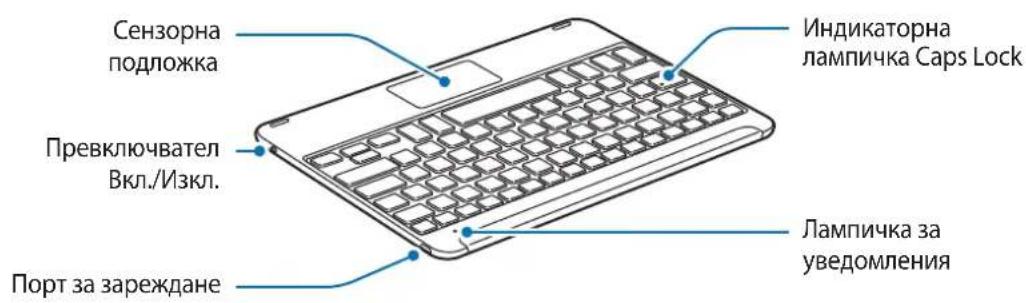
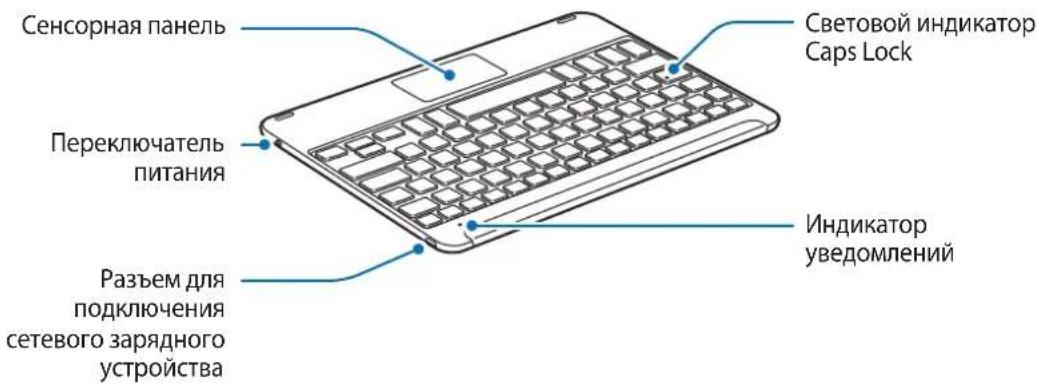
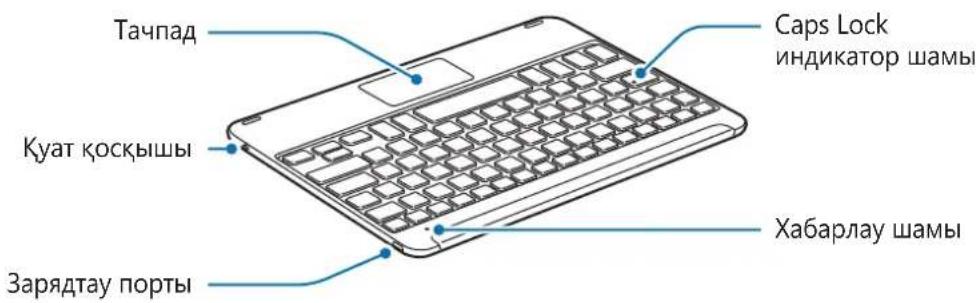
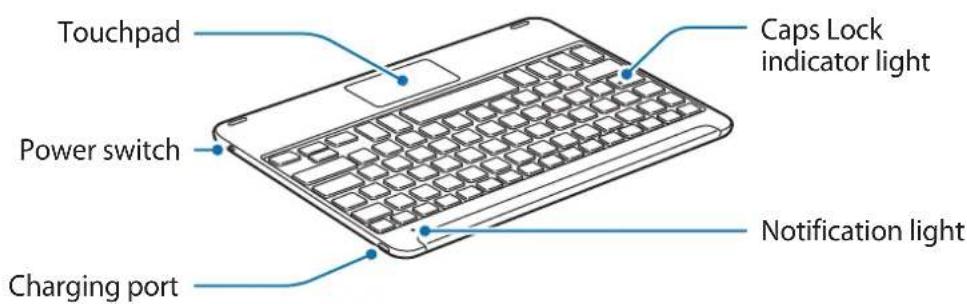
Device layout
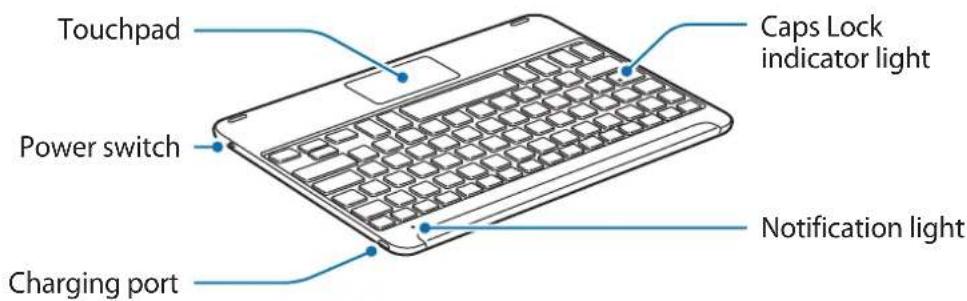
Charging the battery
Charge the battery before using the keyboard for the first time or when the keyboard has been unused for extended periods.

Use only Samsung-approved chargers, batteries, and cables. Unapproved chargers or cables can cause the battery to explode or damage the keyboard.

If the battery is completely discharged, the keyboard cannot be turned on immediately when the charger is connected. Allow a depleted battery to charge for a few minutes before turning on the keyboard.
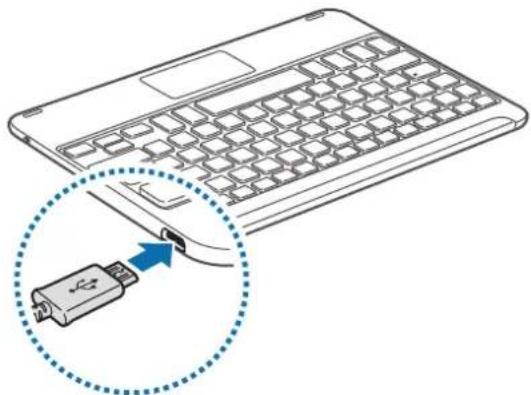
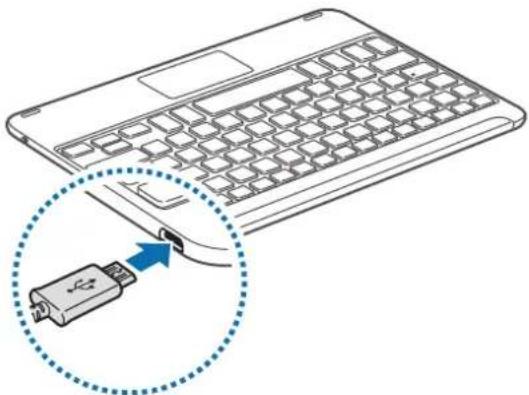
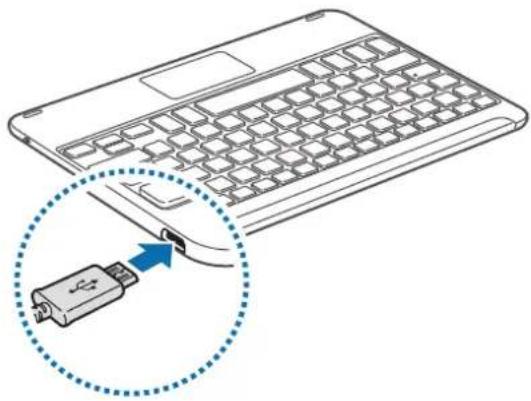
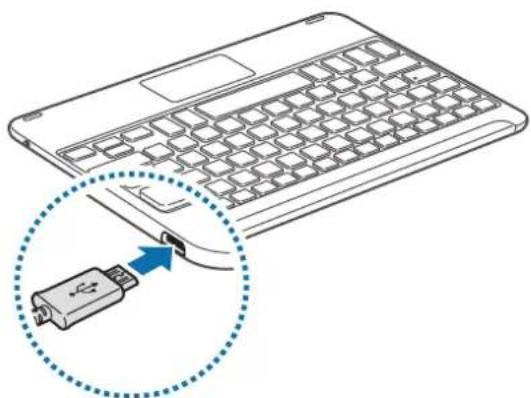
Connect the keyboard to a charger.
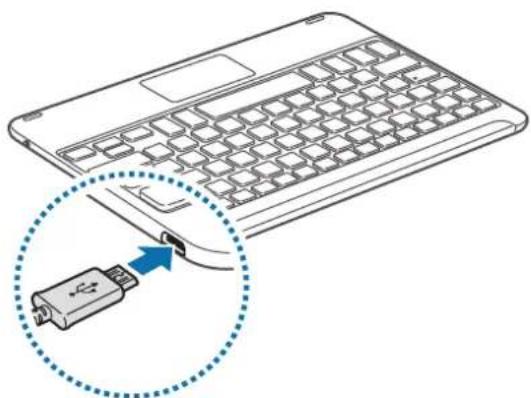

Connecting the charger improperly may cause serious damage to the keyboard. Any damage caused by misuse is not covered by the warranty.

- Chargers are sold separately.
- The keyboard can be used while it is charging, but it may take longer to fully charge the battery.
- While charging, the keyboard may heat up. This is normal and should not affect the keyboard's lifespan or performance. If the battery gets hotter than usual, the charger may stop charging.
- If the keyboard is not charging properly, take the keyboard to a Samsung Service Centre.
After fully charging, disconnect the keyboard from the charger.

- To save energy, unplug the charger when not in use. The charger does not have a power switch, so you must unplug the charger from the electric socket when not in use to avoid wasting power. The charger should remain close to the electric socket and easily accessible while charging.
- The socket-outlet shall be installed near the equipment and shall be easily accessible.
Checking the battery charging status
Press and hold the Ctrl key for approximately three seconds. The notification light will flash three times in different colours depending on the charging status.
| Status Colour | |
| Less than 30% | • Red |
| 30–60% | • Yellow |
| More than 60% | • Green |
Turning the keyboard on and off
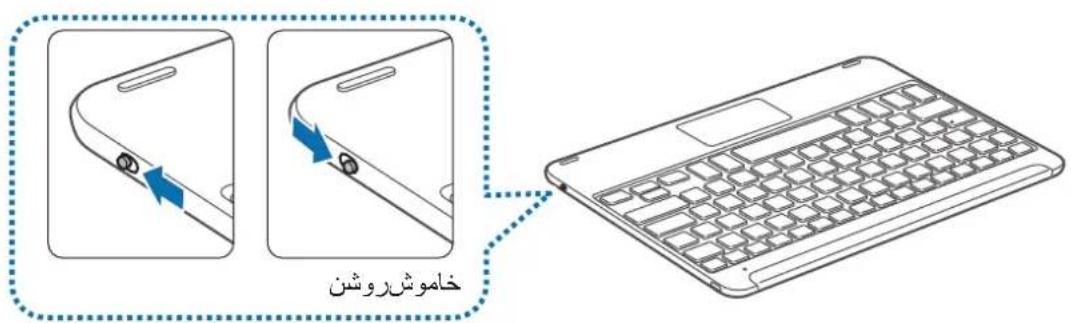
Slide the Power switch to turn on or off the keyboard.
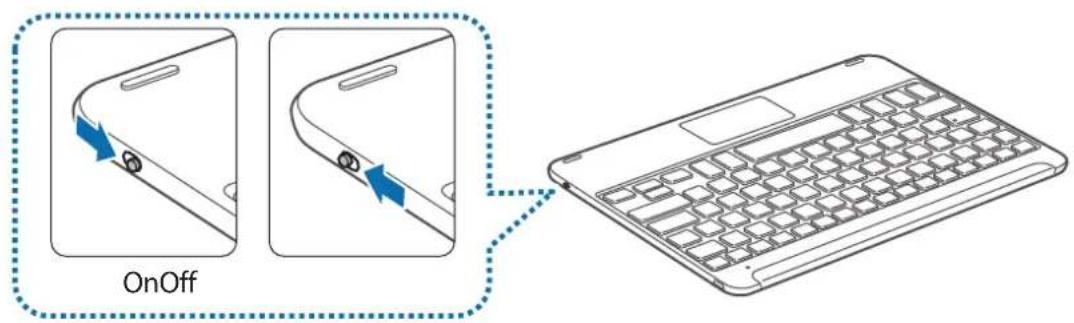

Follow all posted warnings and directions from authorised personnel in areas where the use of wireless devices is restricted, such as aeroplanes and hospitals.
Notification light identification
The notification light alerts you to the keyboard's status.
| Status Colour | |
| Power on | • Flashes blue three times |
| Power off | • Flashes red three times |
| Bluetooth pairing mode | • Flashes red, green, and then blue |
| Connected via Bluetooth | • F11 key: Quickly flashes blue three times, and then flashes blue three times • F12 key: Quickly flashes white three times, and then flashes white three times |
| During use or in Sleep mode | • Off |

- If the notification light does not work as described, disconnect the charger from the keyboard and reconnect it.
- The notification light may work differently depending on the connected device.
Bluetooth connections
Bluetooth
About Bluetooth
Bluetooth is a wireless technology standard that uses a 2.4 GHz frequency to connect to various devices over short distances. It can connect and exchange data with other Bluetooth enabled devices, such as mobile devices, computers, printers, and other digital home appliances, without connecting via cables.
Notices for using Bluetooth
- To avoid problems when connecting your keyboard to another device, place the devices close to each other.
- Ensure that your keyboard and the other Bluetooth device are within the Bluetooth connection range (10 m). The distance may vary depending on the environment the devices are used in.
- Ensure that there are no obstacles between the keyboard and a connected device, including human bodies, walls, corners, or fences.
- Do not touch the Bluetooth antenna of a connected device.
- Bluetooth uses the same frequency as some industrial, scientific, medical, and low power products and interference may occur when making connections near these types of products.
- Some devices, especially those that are not tested or approved by the Bluetooth SIG, may be incompatible with the keyboard.
- Do not use the Bluetooth feature for illegal purposes (for example, pirating copies of files or illegally tapping communications for commercial purposes).
Connecting devices via Bluetooth
This keyboard is optimised to connect with the SAMSUNG Galaxy Tab S2. When connecting to devices other than the SAMSUNG Galaxy Tab S2, the keyboard may not work properly or some of its features may not be available.
1 Keyboard Slide the Power switch to turn on the keyboard.
2 Keyboard Press and hold the key ( F11 or F12) for approximately three seconds to enter Bluetooth pairing mode.
The notification light will flash red, green, and blue.
When you turn on the keyboard for the first time, it automatically enters Bluetooth pairing mode.
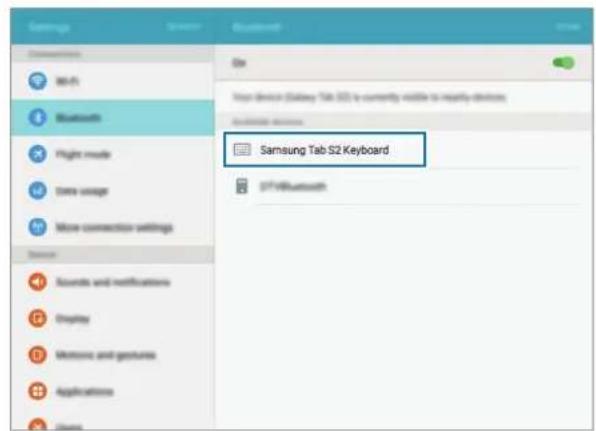
3 Other device Activate the Bluetooth feature and search for Bluetooth devices.
For more information, refer to the other device's user manual.
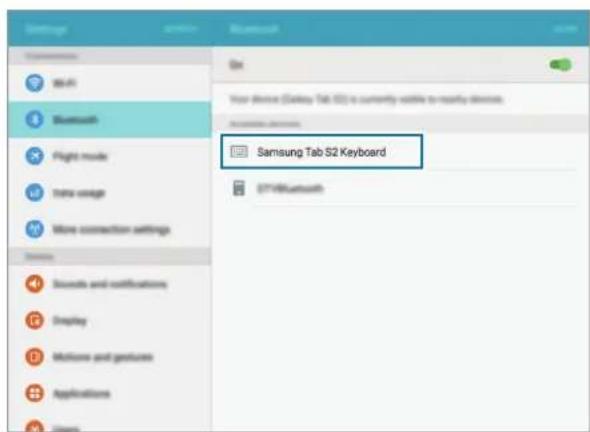
4 Other device Tap Samsung Tab S2 Keyboardfrom the list of available devices.
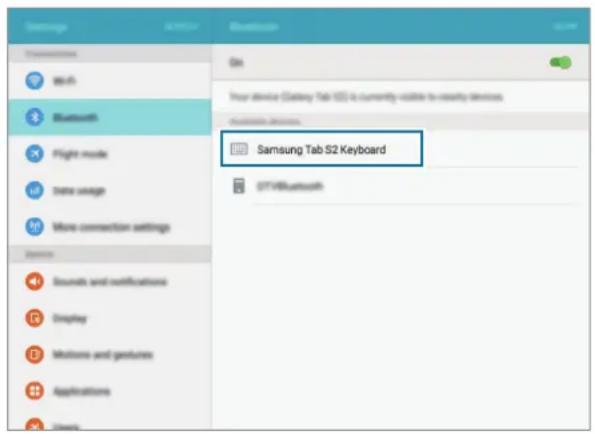
5 Keyboard Enter the passkey displayed on your other device's screen and press the Enter key.
The other device will be registered to the selected key (F11 or F12) and the connection will be made.

- If the Bluetooth connection fails or the other device cannot locate the keyboard, remove the device's information from the other device's list. Then, try to connect again.
- If the keyboard does not work properly, restart it or try to pair the devices again.
When re-pairing your device, previous pairing history will need to be cleared in order to pair the keyboard and tablet again
1 From tablet Bluetooth menu, select the Unpair option. Then, press the F11 key for about 3 seconds (until the LED starts blinking) to delete the paired device first.
2 Turn off the Bluetooth keyboard.
3 Turn on the Bluetooth keyboard again and set the keyboard to pairing mode by pressing and holding the F12 key.
4 Scan through tablet Bluetooth menu, then select the Samsung Tab S2 Keyboard in order to find and pair the device.
Pairing with multiple devices
Pair with up to two Bluetooth-enabled devices and easily switch connections between the keyboard and the paired devices.
Pairing with an additional device
1 Pair and connect the keyboard to a device via Bluetooth.
2 Press and hold the key ( F11 or F12) that you did not use to register the previous device for approximately three seconds to enter Bluetooth pairing mode.
The connection between the keyboard and the previously connected device will end.
3 Follow the same connection procedure used for connecting the previous device to connect the keyboard to an additional device.
Switching connections
Press the key (F11 or F12).
If the keyboard is currently connected to the device registered to the F11 key, press the F12 key to switch to the device registered to it.
If the keyboard is currently connected to the device registered to the F12 key, press the F11 key to switch to the device registered to it.

This feature may not be available depending on the paired device.
Reconnecting or disconnecting from another device
Reconnecting the device
When your keyboard is disconnected from the connected device due to the distance between the devices, bring the devices closer together. Then, press the key (F11 or F12) that the disconnected device is registered to in order to reconnect the devices. Or, you can use the Bluetooth menu on the disconnected device to connect the devices.
Disconnecting the device
Press and hold the key ( F11 or F12) for approximately three seconds. The current connection will end and the keyboard will enter Bluetooth pairing mode.
You can also end the connection by turning off the keyboard. When you turn on the keyboard again and the devices are in range, the keyboard automatically connects with the most recently connected device.
Using the keyboard
Using keyboard features

The device contains magnets. The American Heart Association (US) and the Medicines and Healthcare Products Regulatory Agency (UK) both warn that magnets can affect the operation of implanted pacemakers, cardioverters, defibrillators, insulin pumps or other electro medical devices (collectively, "Medical Device") within the range of 15cm (6 inches). If you are a user of any of these Medical Devices, DO NOT USE THIS DEVICE UNLESS YOU HAVE CONSULTED WITH YOUR PHYSICIAN.

Do not store your device near magnetic fields. Magnetic stripe cards, including credit cards, phone cards, passbooks, and boarding passes, may be damaged by magnetic fields.
Using the keyboard
Before using the keyboard, select a display language on the connected device. For more information about language settings, refer to the user manual of the connected device.
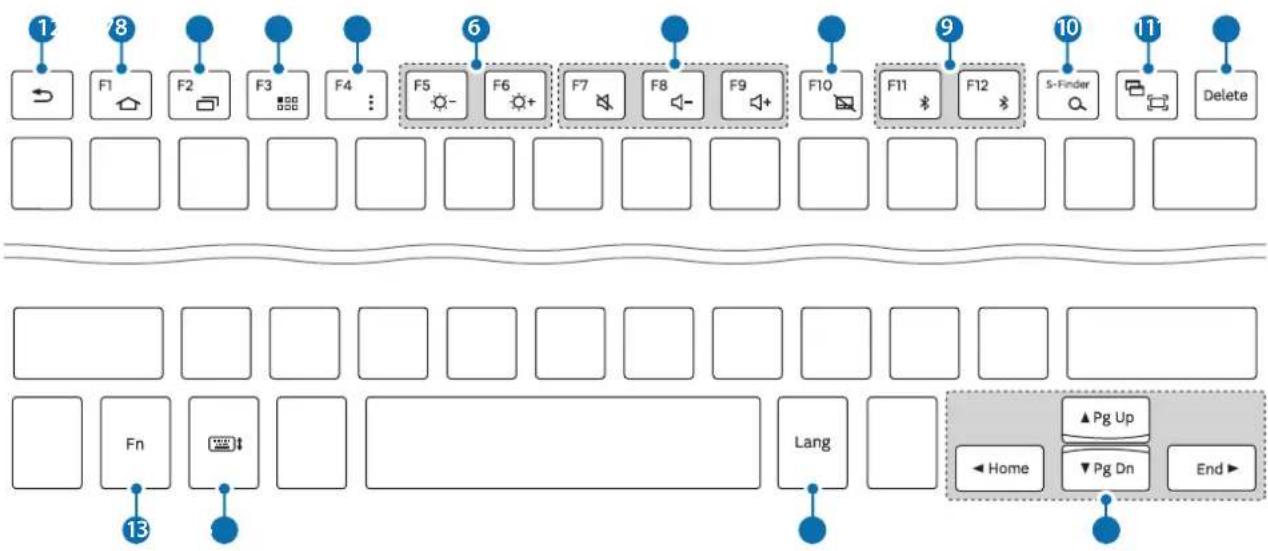
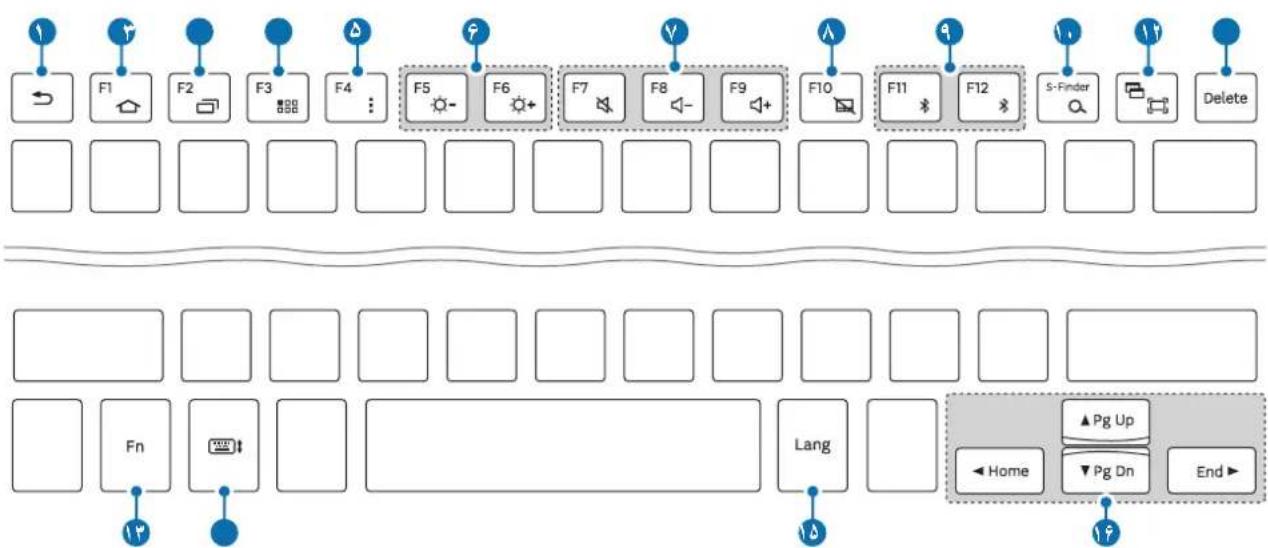
| Key Function | |
| 1 | • Press to return to the previous screen. • Press and hold to access additional options for the current screen. |
| 2 | • Press to return to the Home screen. • Press and hold to launch Google. |
| 3 | • Press to open the list of recent apps. • Press and hold to launch the split screen view. |
| 4 | • Press to open the Apps screen. |
| 5 | • Press to access additional options for the current screen. • Press and hold to launch S Finder. |
| 6 | • Press to adjust the brightness. |
| 7 | • Press to adjust the volume. |
| 8 | • Press to enable or disable the touchpad. |
| 9 | • Press to switch connections between the keyboard and the paired devices. • Press and hold to enter Bluetooth pairing mode. |
| 10 | • Press to launch Google. • Press with the Fray to launch S Finder. |
| 11 | • Press to capture a screenshot. • Press with the Fray to launch the split screen view. |
| 12 | • Press to delete characters following the cursor. |
| 13 | • Press with other keys to perform additional actions. |
| 14 | • Press to show or hide the keyboard on the touchscreen. |
| 15 | • Press to change the input language. |
| 16 | • Press to move the cursor or page. Fn+▲Scroll up the page. Fn+▼Scroll down the page. Fn+→Move the cursor to the start of the current row. Fn+→Move the cursor to the end of the current row. |

Some key functions may not work properly depending on the connected device and the software version of the connected device. For more information about updating device software, refer to each device's user manual.
Using the touchpad
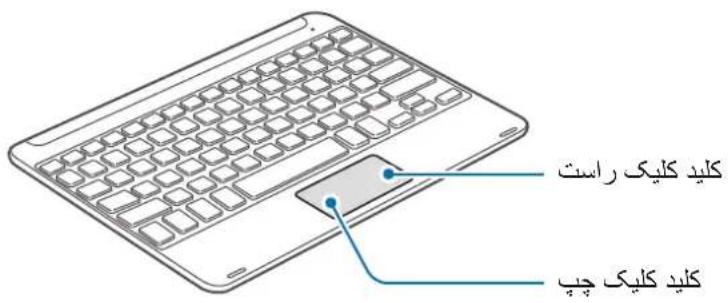
Control the screen of the connected device using the touchpad. You can perform various actions, such as moving the mouse pointer or selecting a desired item.
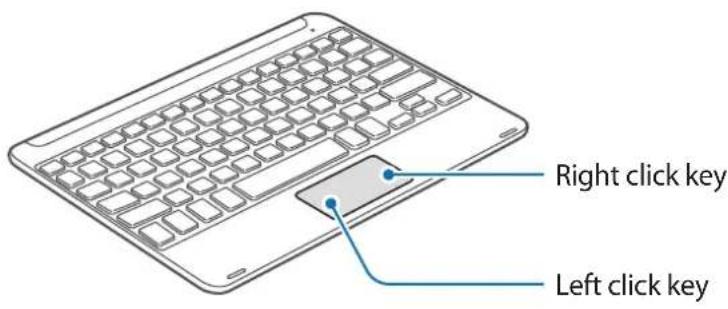
- Drag your finger on the touchpad to move the mouse pointer. To adjust the mouse speed, go to the connected device. Then, tap Apps Settings Language and input Pointer speed and drag the bar to the left or right.
- Place the mouse pointer over an item and tap the touchpad, or press the left click key, to open or launch the item.
- Place the mouse pointer over an item, double-tap and hold the touchpad, and then drag the item to a new location. You can also press and hold the left click key and then drag another finger on the touchpad.
- Press the right click key to return to the previous screen.
- Press and hold the right click key to access additional options for the current screen.

This feature may not work while using some apps.
Using the cover
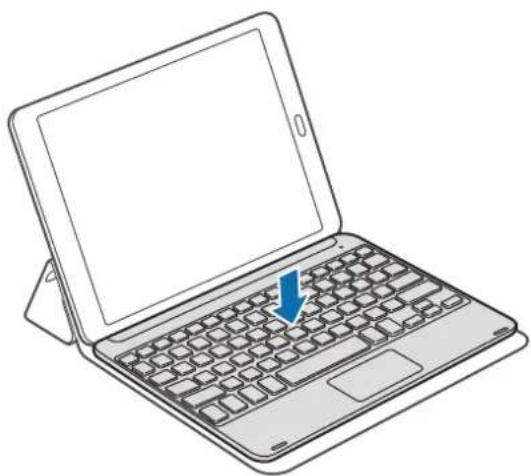
Attach the cover to your tablet and use it as a stand.
1 Open the cover.
2 Align and connect the cover's push clips to the push clips on the back of your tablet.
3 Fold the back of the cover into a triangular shape. Then, stand the tablet in landscape orientation.
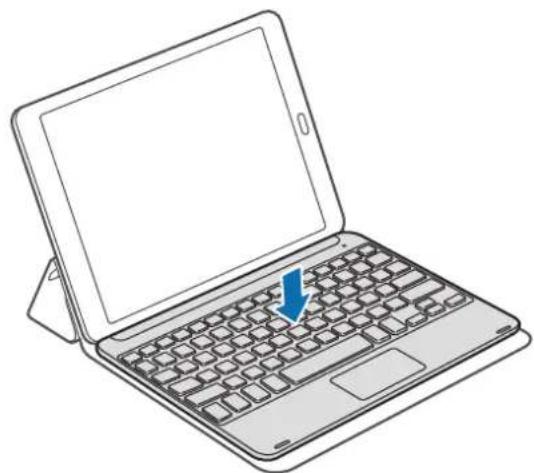
4 Place the keyboard on the front of the cover as shown in the image.
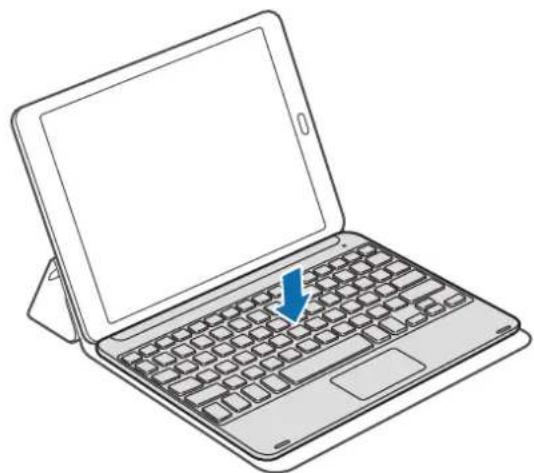

- When you close the cover while the keyboard is placed on it, the Bluetooth connection between the devices will end.
- Make sure to detach the cover and the keyboard from the tablet before using apps that require the gyroscope sensor, such as the map and compass. Gyroscope-related functions may not work properly due to the magnets embedded in the cover and the keyboard.
To detach the cover from the tablet, pull the cover away from the tablet while holding the tablet. Make sure to completely detach the push clips from each other.

Detaching the cover improperly may cause damage to the tablet or the cover.
Appendix
Troubleshooting
Before contacting a Samsung Service Centre, please attempt the following solutions. Some situations may not apply to your keyboard.
Your keyboard does not turn on
When the battery is completely discharged, your keyboard will not turn on. Charge the battery completely before turning on the keyboard.
Your keyboard does not work
If the keyboard does not work properly, try to resolve it by turning off the keyboard and then turning it on again.
If the keyboard is still unresponsive, end the Bluetooth connection and reconnect it. To do this, press the key (F11 or F12) for approximately three seconds. When the keyboard enters Bluetooth pairing mode, connect the devices again, and then check the operation of the keyboard.
If the problem is still not resolved, contact a Samsung Service Centre.
The battery does not charge properly (For Samsung-approved USB cables and chargers)
Ensure that the USB cable or the charger is connected properly.
If the problem is still not resolved, contact a Samsung Service Centre.
Another Bluetooth device cannot locate your keyboard
- Ensure that your keyboard is in Bluetooth pairing mode.
- Restart your keyboard and search for the keyboard again.
- Ensure that your keyboard and the other Bluetooth device are within the Bluetooth connection range (10 m).
If the tips above do not solve the problem, contact a Samsung Service Centre.
Your keyboard is not connected to another Bluetooth device
- Ensure that your keyboard and the other Bluetooth device are within the maximum Bluetooth range (10 m).
- On the device you want to connect with, disconnect all paired devices and try to connect again.
Bluetooth connection is often disconnected
- If there are obstacles between the devices, the operating distance may be reduced.
- Ensure that your keyboard and the other Bluetooth device are within the maximum Bluetooth range (10 m).
- When using the keyboard with other Bluetooth devices, the connection may be affected by electromagnetic waves. Use the keyboard in environments with fewer wireless devices present.
The keyboard works differently as described in the manual
Available functions may differ depending on the connected device.
The battery depletes faster than when first purchased
- When you expose the keyboard or the battery to very cold or very hot temperatures, the useful charge may be reduced.
- The battery is consumable and the useful charge will get shorter over time.
Removing the battery
- To remove the battery, you must visit an authorised service centre with the provided instructions.
- For your safety, you must not attempt to remove the battery. If the battery is not properly removed, it may lead to damage to the battery and device, cause personal injury, and/or result in the device being unsafe.
- Samsung does not accept liability for any damage or loss (whether in contract or tort, including negligence) which may arise from failure to precisely follow these warnings and instructions, other than death or personal injury caused by Samsung's negligence.
1 Turn the keyboard over and remove four rubber feet.
2 Loosen and remove the four screws.
3 Use a flat-edged tool between the keyboard and back cover to pry them apart.
4 Gently lever the battery away from the main body of the unit.
5 Use a nipper to cut the connections between the battery and the circuit board.

Do not short-circuit the keyboard by cutting the black and red wires at the same time. Doing so may cause electric shock or fire, or the battery may malfunction or explode.
Copyright
Copyright © 2015 Samsung Electronics
This manual is protected under international copyright laws.
No part of this manual may be reproduced, distributed, translated, or transmitted in any form or by any means, electronic or mechanical, including photocopying, recording, or storing in any information storage and retrieval system, without the prior written permission of Samsung Electronics.
Trademarks
SAMSUNG and the SAMSUNG logo are registered trademarks of Samsung Electronics.
- Bluetooth® is a registered trademark of Bluetooth SIG, Inc. worldwide.
- All other trademarks and copyrights are the property of their respective owners.
Blackbushe Business Park D'APPOSITION DU
Saxony Way, Yateley, Hampshire MARQUAGE CE: 2015)
GU46 6GG, UK
shldodoy
Copyright © 2015 Samsung Electronics
Copyright © 2015 Samsung Electronics
Blackbushe Business Park INIZIARE AD APPORRE
Saxony Way, Yateley, Hampshire LA MARCATURA CE 2015)
GU46 6GG, UK
Copyright © 2015 Samsung Electronics
Copyright © 2015 Samsung Electronics
Copyright © 2015 Samsung Electronics
Copyright © 2015 Samsung Electronics
Blackbushe Business Park APLICARE MARCA
Saxony Way, Yateley, Hampshire CE 2015)
GU46 6GG, UK
shldodoy
21 mai 2015 Stephen Colclough / Reprezentant UE
(Locali data eliberarii) (Numele si semnatura personei autorizate)
KnaBnataType
KpaTko pBKOBOCTBO

- EnemHTte n HaJIuHInTe npHaIeXHOCTn, DOCTaBeHN C yCTPOIcTBOTo, MoKe da ce pa3JIuHaBt B 3aBNCIMOcT OT perNoHa IIN DoCTaBUnKa Ha ycIyrN.
- Доставец селемпса пedingаизуши само за TOBA усточь и може на He с CBМECTIMС дугУсточь.
BbHnHnT Bn i CneuKauNTe ca npEmeT Ha npomHa 6e3 npen3BecTne. - MojkeTe Da 3aKyPnTe DoIbHnTeHn AkceCoapn OT BaIuM MeCTeH npOdaBaH Ha Samsung. PpeDN 3aKyIyBaHc Ce yBepTe, Ye Te Ca CbBMeCTUMC YCTPOINCTBOTo.
- I3noI3BaIte cmo oO6peHn ot Samsung akcecoapn. I3noI3BaHeTo Ha HeoIo6peHn akcecoapn MOKe Ja npuHHn npo6JIemn C npouI3BOJNTeHIOCTTa n HEn3PpABHOCTN, KOHTO He ce NOKpIBaT OT rapaHcIyTa.
HaHnueoCTTa Ha BCnKn akcecoapn nOJIeKn Ha npomHa n3IaIO B 3aBNCMOCT OT npOn3BOJnteJIte. 3a NOBeue INHΦOpMaunr 3a HaJIuHHTe akcecoapn ce o6bPHeTe KbM ye6 caTt ha Samsung.
OΦopMJIeHnE Ha yCTpoIcTBOTO
3apekdahe ha 6aTepeyTa
3apeTe 6aTePnTa, npEn Da n3non3BaTe KnaBnAtypaTa 3a npbB nbT nnKOraTO KnaBnAtypaTa He e 6nla n3non3BaHa npOdbJxHtEnHO BpeMe.

I3noJI3BaIte cMo Odo6peHn OT Samsung 3apAHN yCTpoiCtBa, 6aTePnN Ka6eI.
Heo6peHte 3apdHi yctpoCTBa nn Ka6e MoKe da npuHrT ekCnIOpaHe Ha 6aTePra nn NobPeHa Na KlaBnaTypata.

Ako 6aTePnraTae HnBnHO n3ToSeHa, KnaBnAtypaTa He MoKe da 6bDe BkIoueHa BeHara Cnei cBbP3BaHe KbM 3apAnHOTo yCTpoiCTBO. Octabe Te n3ToSeHaTa 6aTePnra Da ce 3apeN 3a HAKOLKO MInHTn, PpeN Da BKnIOHTe KnaBnAtypaTa.
Cbpxte KlaBnAtypaTkBm 3apAHO yCTPOCTBO.

HenpaBnHTo CBp3BaHe KbM 3apA Hoto yCTpoIcTBO MoKe Da npuHn Cepno3Ha NOpeHa KaBnaTypa. BcKaKbN Nobpei, npuHHeH O T He npaBnHa ynotpe6a, He ce nokpnbat OT rapaHnra.

3apnHTe yctpoCTBa ce npoDaBaT OTdEJIHO.
KnaBnAtypata MoKe Da Ce n3noI3Ba,doKaTo ce 3apeXda,Ho nbHOTo 3apeXdaHe Ha 6aTePnraTa MoKe Da OTHEMe NOBeYe BpeMe.
- По врeme на зараздане клавиатура Т море Да Загee.Това e hopmaно И He 6и Травал
Да зacerпспordьлжИтELHOCTTа HaЖИВОТа ИПпОИЗБОДИТELHOCCTTа Ha KlaBиATypa.
Ако 6atepyra ce harpee NOBEue OT OSHUaHOTO,ЗаряДНOTO yCTPOnIcTBО море Да спpe Д
Заразд。
- Ako KlaBnaTypaTa He ce 3apeXda npabnHNo, OTHeCeTe KlaBnaTypaTa Do cepBn3eH ueHTbp Ha Samsung.
Cne KaTo Ce 3apeHnblHo, pa3KaueTe KnaBnaTypaTa O T 3apAHO To yCTPOIcTBO.

3a da cneCTnTe eHepnra, n3BaTe Te 3apAnHO To yCTpoNCTBO OTEKTPueckn KOHTAKT, KOrato He ro n3noJ3BaTe. 3apAnHO To yCTpoNCTBO Hama IpeBknUoyBaTe NkI./N3Kn., 3aToBa Tpr6Ba Da ro n3BaJnte OT eNEKTPnuEckn KOHTAKT, KOrato He ro n3noJ3BaTe, 3a da He n3paXoDbaTe eHepnra. 3apAnHO To yCTpoNCTBO TpA6Ba Da octaHe 6n3O Do eNEKTPnuEckn KOHTAKT IN LeCHO DOCTbIHO, DOKaTO 3apejda.
Поберka на сбстяно на зараздане на батураута
HaTnCHe T 3aApbKTe KlaBnU Ctrl 3a np6n3nteHNO TpN cekyn. lamnuKaTa 3a yBeOMneHnIe npemrHe Tpr nBnB pa3nunu Hn CBeTOBE B 3aBNCIMOCT OT CbCToHNeTO Ha 3apeXdaHTo.
| Състорные цبيт | |
| Пос-mалко ot 30% | • червен |
| 30 - 60% | • XXbпт |
| Повоче ot 60% | • 3elen |
Copyright © 2015 Samsung Electronics
ToBa pBkoBOdCTBO e 3aUHTeHO OT MeKdyHapOHN 3aKOHN 3a ABTOpCKn npaba.
HnKoJtOT pBKOBOCTBOTO He MoKe da 6bJe Bb3POn3BExJaHa, pa3npocpaHbHa, npeBeXdaHa
IIN npexBbPraHa NOk KaBATO I Da e oopMa INI NIO KaKbBTO I Da e NaUnH, eNeKTpOHeH IN
MexAHueH, B TOBa YncNo oToKOpNipaHe, 3aInc INI CbXpaHeHne B KaBATO I Da e CnCTema 3a
INfOpMaunHO cBxaHHeHne IN 3BnuHahe, 6e3 npedBapntelHoto pa3peSeHne Ha Samsung
Electronics.
TbproBckn Mapkn
SAMSUNG n noroto Ha SAMSUNG ca perncptpupaH TbproBckn Mapkn Ha Samsung Electronics.
- Bluetooth® e périçtrpùpaHa TbproBcka Mapka Ha Bluetooth SIG, Inc. 3a ÇeɪnəcBЯT.
- Bcnyn npytn Tbprobckn Mapkn n aBTopckn npaba ca co6ctbeHOCT Ha CbOTBeHTHe IM co6ctBeHnCn.
Najprije pročitajte
Pije uporabe uredaja pažljivo procitajte ovaj prisučnik kako bist esigurali sigurnu i pravilnu uporabu.
Veze putem Bluetooth
Bluetooth
Blackbushe Business Park STAVLJANJA
Saxony Way, Yateley, Hampshire CE OZNAKA 2015.)
GU46 6GG, UK
Copyright © 2015 Samsung Electronics
Ovaj je prisucnik zasticen medunarodnim zakonima o zastiti autorskih prava.
Niti jegan dio ovog prisučnika ne smije se reproduci rati, distribuirati, prevoditi ili prenositi u bilokojem obliku, ni na koji način, elektronici ili mehanički, ukljućujuci fotokopiranje, snimanje ili pohranjivanje na bilo kojem mediju za pohranu informacije i sustavu dohvata podataka, bez prethodnog pisanog dopusteŋa Samsung Electronicsa.
Zašitni znakovi
Copyright © 2015 Samsung Electronics
Ovaj prisucnik je zasticen medunarodnim zakonima o autorskim pravima.
Nijedan deo ovog prisučnika se ne sme reprodukovati, distribuirati, prevoditi niti prenositi ni u Jednom obliku niti bilo kojim putem, elektronskim niti mehaničkim, što podrazumeva fotokopiranje, snimanje i skladistenje u okviru bilo kog skladišta informacija i sistemas za preuzimanje, bez prethodne dozvole kompanije „Samsung Electronics" u pisanom obliku.
Trgovačke marke
- SAMSUNG i SAMSUNG logotip su registrovane trgovache marke kompanije „Samsung Electronics".
- Bluetooth® je registrovana trgovačka marka kompanije Bluetooth SIG, Inc. širom sveta.
Sve ostale trgovačke marke i autorska prava su vlasništro njihovih vlasnika.
Leia primeiro
Copyright © 2015 Samsung Electronics
Blackbushe Business Park AFIKS
Saxony Way, Yateley, Hampshire CE-MARGISTUS 2015)
GU46 6GG, UK
- mai 2015. a Stephen Colclough / EL-i volinik
Copyright © 2015 Samsung Electronics
Blackbushe Business Park CE-MARKERING 2015
Saxony Way, Yateley, Hampshire MOET WORDEN TOEGEVOEGD)
GU46 6GG, UK
Shelodogh
Copyright © 2015 Samsung Electronics
Copyright © 2015 Samsung Electronics
Blackbushe Business Park DET TILFOYES
Saxony Way, Yateley, Hampshire CE-MERKING 2015)
GU46 6GG, UK
- mai 2015 Stephen Colclough / EU-representant
Copyright © 2015 Samsung Electronics
Blackbushe Business Park LIITTÄMISEN
Saxony Way, Yateley, Hampshire ALKAMISVUOSI 2015)
GU46 6GG, UK
Copyright © 2015 Samsung Electronics
Blackbushe Business Park PABEGYNDELSE
Saxony Way, Yateley, Hampshire AF CE-MERKNING 2015)
GU46 6GG, UK
- maj 2015 Stephen Colclough / EU-repraesentant
Blackbushe Business Park ENIKOANH∑TH∑
Saxony Way, Yateley, Hampshire ENIISHMANSHCE 2015)
GU46 6GG, UK
21 MÁIOC 2015 Stephen Colclough / Avtɪpólwoɪoc E.E.
(ToioC kai nepounvia ekdooc) (Ovoa kai unoypapn Eouoiodotnevou atou)
- Autév éivai n dieuθuvon tou Kévtpou επιοkeuwν tnc Samsung. Tia πλnpoopiec oxetiká με tn dieuθuvon n to tnλéφwvo tou Kévtpou επιοkeuwν tnc Samsung, δeite tvkapta εyyúnɔnc n επikoivwνnote με to eμtopoikó katασtnμa anio to onio aγopáσate to npoiov.
Samsung Electronics EANAAE
AOHNA:
Blackbushe Business Park 2015 SE JE ZACELO
Saxony Way, Yateley, Hampshire OZNAÇEVAÑJE Z OZNAKO CE)
GU46 6GG, UK
Telif hakki © 2015 Samsung Electronics
J 1 J 1 J 1 J 1 J 1 J 1 J 1 J 1 J 1 J 1 J 1 J 1 J 1 J 1 J 1 J 1 J 1 J 1 J 1 J 1 J 1 J 1 J 1 J 1

s
Crl 1
| العربية | |
| الجَن · | %. 4. 31. 45 |
| الجَن · | %. 4. 31. 45 |
| الجَن · | %. 9. 31. 45 |
15 4
1
olj jolai 45 jilj lal g la jia jbi jdo jdi jd jdi jdi j

#
202 123456789
| الله��فَسُّهِي | الله��فَسُّهِي |
| الله��فَسُّهِي مَلْدُ بَرْنَةِ | الله��فَسُّهِي |
| الله��فَسُّهِي مَلْدُ بَرْنَةِ | الله��فَسُّهِي |
| الله��فَسُّهِي مَلْدُ بَرْنَةِ | الله��fَسُّهِي |
| الله��fَسُّهِي مَلْدُ bَرْنَةِ | الله��fَسُّهِي |
| الله��fَسُّهِي مَلْدُ bَرْنَةِ | الله��fَسُّهِي |
| الله��fَسُّهِي مَلْdُ bَرْنَةِ | الله��fَسُّهِي |
| الله��fَسُّهِي مَلْdُ bَرْnَةِ | الله��fَسُّهِي |
| الله��fَسُّهِي مَلْdُ bَرْnَteِ | الله��fَسُّهِي |
| الله��fَسُّهِي مَلْdُ bَرْnَteِ | الله��fَسُّهِي |
| الله��fَسُّهِي مَلْdُ bَرْnَteِ | الله��fَسُّهِي |
| الله�� fَسُّهِي | الله�� fَسُّهِي |
.

.15 JAc Cgaiio j 1j
#
#
#
a 1000000000000000000000000000000000000000000000000000000000000
i j 100
1
()gjglJusil 1000000000000000000000000000000
.
2g j 1500000000000000000000000000000000000000000000
.
1 1
J 1
ii j 15 jw yds
()
i
SAMSUNG Galaxy Tab S2 4y Jy SAASSING Galaxy Tab S2 j y
1
115
s jw c t 10000000000000000000000000000000000000000000000000000000000
S OBC = S COD + S_ BOC
T
山
2j 1
1
反三角函数
142
Samsung Tab S2 Keyboard
Ss
4
1J Enter 5 5 5 5 5 5 5 5 5 5 5 5 5 5 5 5 5 5 5 5 5
.(F12 F11)
1 1
. 1JgI Jgil oJgD yis wss. 1sly jdsol
0j1j1 1
S OBC = S COD + S_ BOC
1 1
1 1
1
F12 5i j g j d j j j j j j j j j j j j j j j j j j j j j j j j j j j j j j j j j j j j j j j j j j j j j j j j j j
J 1 J
o
1 1
Jd
15
(F12F11)
.
J 1
J 1 J 1
y
(F12 F11)
F12 5k F11 k
.
F11 F12
.
.

Jd
1
J 1 J 1 J 1 J 1 J 1 J 1 J 1 J 1 J 1 J 1 J 1 J 1 J 1 J 1 J 1 J 1 J 1 J 1 J 1 J 1 J 1 J 1 J 1 J 1 J 1 J 1 J 1 J 1 J 1 J 1 J 1 J 1 J 1 J 1 J
oluiu Juaai
(F12 F11)
g 5jw j
1 1
15 aao jolai
1
i 1

15 15

15 10
20 1 1 1 1 1 1 1 1 1 1 1 1 1 1 1 1 1 1 1
| . JIJI KIJI KIJI KIJI KIJI KIJI KIJI KIJI KIJI KIJI KIJI KIJI KIJI KIJI KIJI KIJI KIJI KIJI KIJI KIJI KIJI KIJI KIJI KIJI KIJI KIJI KIJI KIJI KIJI KIJI KIJI KIJI KIJI KIJI KIT JIKI KIJI KIJI KIJI KIJI KIJI KIJI KIJI KIJI KIJI KIJI KIJI KIJI KIJI KIJI KIJI KIJI KIJI KIJI KIJI KIJI KIJI KIJI KIJI KIJI KIJI KIJI KIJI KIJI KIJI KIJI KIJI KIJI KIJI JIKI KIJI KIJI KIJI KIJI KIJI KIJI KIJI KIJI KIJI KIJI KIJI KIJI KIJI KIJI KIJI KIJI KIJI KIJI KIJI KIJI KIJI KIJI KIJI KIJI KIJI KIJI KIJI KIJI KIJI KIJI KIJI KIWI JIKI KIJI KIJI KIJI KIJI KIJI KIJI KIJI KIJI KIJI KIJI KIJI KIJI KIJI KIJI KIJI KIJI KIJI KIJI KIJI KIJI KIJI KIJI KIJI KIJI KIJI KIJI KIJI KIJI KIJI KIJI KIJI KIJ JIKI KIJI KIJI KIJI KIJI KIJI KIJI KIJI KIJI KIJI KIJI KIJI KIJI KIJI KIJI KIJI KIJI KIJI KIJI KIJI KIJI KIJI KIJI KIJI KIJI KIJI KIJI KIJI KIJI KIJI KIJI KIJI KIJS JIKI KIJI KIJI KIJI KIJI KIJI KIJI KIJI KIJI KIJI KIJI KIJI KIJI KIJI KIJI KIJI KIJI KIJI KIJI KIJI KIJI KIJI KIJI KIJI KIJI KIJI KIJI KIJI KIJI KIJI KIJI KIJI KIJP JIKI KIJI KIJI KIJI KIJI KIJI KIJI KIJI KIJI KIJI KIJI KIJI KIJI KIJI KIJI KIJI KIJI KIJI KIJI KIJI KIJI KIJI KIJI KIJI KIJI KIJI KIJI KIJI KIJI KIJI KIJI KIJI KIJC JIKI KIJI KIJI KIJI KIJI KIJI KIJI KIJI KIJI KIJI KIJI KIJI KIJI KIJI KIJI KIJI KIJI KIJI KIJI KIJI KIJI KIJI KIJI KIJI KIJI KIJI KIJI KIJI KIJI KIJI KIJI KIJI KIJO JIKI KIJI KIJI KIJI KIJI KIJI KIJI KIJI KIJI KIJI KIJI KIJI KIJI KIJI KIJI KIJI KIJI KIJI KIJI KIJI KIJI KIJI KIJI KIJI KIJI KIJI KIJI KIJI KIJI KIJI KIJI KIJI KIJD JIKI KIJI KIJI KIJI KIJI KIJI KIJI KIJI KIJI KIJI KIJI KIJI KIJI KIJI KIJI KIJI KIJI KIJI KIJI KIJI KIJI KIJI KIJI KIJI KIJI KIJI KIJI KIJI KIJI KIJI KIJI KIJI KIJK JIKI KIJI KIJI KIJI KIJI KIJI KIJI KIJI KIJI KIJI KIJI KIJI KIJI KIJI KIJI KIJI KIJI KIJI KIJI KIJI KIJI KIJI KIJI KIJI KIJI KIJI KIJI KIJI KIJI KIJI KIJI KIJI KIJJ JIKI KIJI KIJI KIJI KIJI KIJI KIJI KIJI KIJI KIJI KIJI KIJI KIJI KIJI KIJI KIJI KIJI KIJI KIJI KIJI KIJI KIJI KIJI KIJI KIJI KIJI KIJI KIJI KIJI KIJI KIJI KIJI KIJE JIKI KIJI KIJI KIJI KIJI KIJI KIJI KIJI KIJI KIJI KIJI KIJI KIJI KIJI KIJI KIJI KIJI KIJI KIJI KIJI KIJI KIJI KIJI KIJI KIJI KIJI KIJI KIJI KIJI KIJI KIJI KIJI KIjl JIKI KIJI KIJI KIJI KIJI KIJI KIJI KIJI KIJI KIJI KIJI KIJI KIJI KIJI KIJI KIJI KIJI KIJI KIJI KIJI KIJI KIJI KIJI KIJI KIJI KIJI KIJI KIJI KIJI KIJI KIJI KIJI KI JIKI KIJI KIJI KIJI KIJI KIJI KIJI KIJI KIJI KIJI KIJI KIJI KIJI KIJI KIJI KIJI KIJI KIJI KIJI KIJI KIJI KIJI KIJI KIJI KIJI KIJI KIJI KIJI KIJI KIJI KIJI KIJI KI |
| .السلامي بعسّة صحيى لجِبْهُ بعسَة بِيرِلِي · . .دَرْبُورَة : ▲ Fn - .دَرْبُورَة : ▼ Fn - .دَرْبُورَة بعسَة بِيرِلِي بعسَة بِيرِلِي : ▲ Fn - .دَرْبُورَة بعسَة بِيرِلِي بعسَة بِيرِلِي : ▲ Fn - |
J 1 J 1 J 1 J 1 J 1 J 1 J 1 J 1 J 1 J 1 J 1
a
J 1 J 1
.
j5 10 j 100

J 0
1
1
J 1
1
1
10

2g j 1
.
1
125 1j 105
2 1

J 1 J
JGAA Jaua Ia 15
1
1J 1
S OBC = S AOB + S_ BOC
iis jis 1
J 1
它恰好 x,y 且 1.5 < y_0 < 2
15
(12 F11)
1 1
J 1
uusususususususususususususususususususususususususususususususususususususususus
(
. USB
J 1
15 15
.
.
()
.
.
Jaaia 8g jgglb Jaaa a laa 4
()gjglg jd0golg 14
.
115 20
它恰好 x,y ≥ 0 ,且 y ≥ 0
a
1
Copyright © 2015 Samsung Electronics
.
Samsung Electronics j 1j 0j 0j 0j 0j 0j 0j 0j 0j 0j 0j 0j 0j 0j 0j 0j 0j 0j 0j 0j 0j 0j 0j 0j 0j 0j 0j
J 14 j j j j j j j j j j j j j j j j j j
sJgsl
Samsung Electronics
Bluetooth SIG, Inc.
.
KnaBnataType
KpaTKoe pyKOBOCTBO

KoMnneKT noCTabKn n Ha6Op doCTyHbIX akceccyapOB MoryT pa3nuaTbcB B pa3HbIX pernoHax nOpedeJIaIOTc NOCTaBUNKOM ycnyr.
- IocTabIaEmbIe akceccyapbl npedHa3HaueHbI NCKIIOHTeNbHO dJa daHHoro yCTPOiCTBa mOryT 6bITb HecOBMeCTMbI c DpyrIMN yCTPOiCTBaMn.
BHeHn BnI3eNn I TexHnueckne XapaKTePncTnK MoYr 6bITb N3MeHeHbI 6e3 npEdBaPnteHoro yBeDOMJeHna.
-Дононгельнгьаakceccyapbl moxknO npno6peCTn y MeCThblx dInlepoB KOMnaHIN Samsung.пeped nokynkO y6eNTecb,чTO OHN COBMcETNMBI C BaUIM YCTPOINCTBOM.
- Пименяп Te Tolyko akceccyapbl, pekomehdoBaHHbIe KOMnHaHnei Samsung. Испльзоване HepekomehdOBAHHbIX akceccyapOB MoKET npuBecTи K npo6JIeMaMВ pa6Ote n c6oM, Ha KOToPbIe He pacnpocTpHaReTcra rapaHTnIa.
- Доступноctь лioбых akceccуapob цeиkom И понoctью 3aBnCIT OT поиЗвдтел.
- Доступнопьные сбeteгия о достуньх akceccyapax сM. на Be6-caite Samsung.
BHeHnBn yCTpoIcTba
3apяdka aKKymyTopa
Ipeq npBbIM nCnOJb3OBaHHe M KlaBnaTpybl NII INocne npoDOnKteNbHO nepNoDa, B TeueHne KOtOporo OHa He NCnOJb3OBaJAcB, Heo6XoDmO 3apAaNTb aKKymyJrTOP.

IcnoJIb3yIe ToIbKO aKKymJrTOpbl, 3apdHbIe yCTpoiCTBa n Ka6JI, Odo6peHHbIe KOMnHaHne Samsung. IcnoJIb3OBAHHe HecOBMeCtMbIX 3apdHbIX yCTpoiCTB n Ka6eJe MoKet npNBecTn K B3pbIBy aKKymJrTOpAp NII NOBpeXdeHIO KlaBnAtypbl.

Pn noHno pa3pRkne aKKymyIaTopa BKNIOHTb KnaBnAtypy cpa3y nocne noKIOUeHNK 3apAnHomy yCTpoiCTBy HeBO3MOxHO. YTo6bI BKIOHTb KnaBnAtypy, cJeNyET noIOXdaTb HeCKoIbKO MInHyT, NOKa aKKymyIaTOp HEMHOrO 3apAnITcra.
IopknIOUHTe KJIaBnATpy K 3apAHOmy yCTPOIcTBY.

HenpaBnIbHOe NOKluyeHne 3apJNHO yCTpoiCTBa MoKeT npUBeCTu K cepBe3HOMy NOBpeKdEHHIO BaWe KlaBnaTypb. IapaHTn He paCnpOcTpaHreTc H NaIO6bIe NOBpeKdEHHa, BO3HNIe B pe3yIbTaTe HenpaBnIbHOr IOcNoJIb3OBAHHy UCTpoiCTBa n AkceccyapOB.

3apnHbIy yCTpoiCTBa H BxOaT B KOMPJIeKT NOCTaBKn.
Bo Bpem 3apdKn aKKymyTopa MoXHo NOnb3OBAtbcra KnaBnAtypo, Ho 3TO 3ameJre npoccc 3apdKn.
Bo Bpem 3apnKn KnaBnAtpa MoKeT HarpBaTbCra. To HopMaIbHoe RaBHeHne, He BnIaUoee Ha npOn3BODInTeNbHocTb n cpoK cnJxkbI KnaBnAtpybl. Ecnn AkkymyIaTOp Harpeetc 6OJIbSe OobuHoro, ceTeBOe 3apnHOe yCTpoNCTBO MoKeT PpeKpaTITb CBOHO pa60ty.
- Ecln KlaBnaTpya He 3apJkaetc, 6paTntecb B cepBncbI cHTp Samsung.
IIO OKOHuaHn 3apAKn OTKnIOuHTe KlaBnaTpy O T apAHOrO yCTpoNCTBa.

B ueJx 3KOHOMn 3JIeKTPo3Heprnn OTKIIouaIte cTeBOe 3apRdHOe yCTpoiCTBO,ecN OHO He nCnoIb3yETc. CTeBOe 3apRdHOe yCTpoiCTBO He OChaIeHo nepeKJIouaTeIeM NITAHIN, IO3TOMy erO HuxHO OTKIOUaTb OT 3JIeKTPuuecko pO3eTK, UTO6bl IpePbaT b IPOceCC 3apRdKN I C3KOHOMtB 3JIeKTPo3Heprnn. Ppr INcNoIb3OBAHN cTeBOe 3apRdHOe yCTpoiCTBO DoJXHO IILOTHO npIneratb K 3JIeKTPuuecko po3eTke N 6bItb IeKo DOCTynhBM.
Поберka coctoHna akKymyIaTopa
HaxmTe u yepKuBaIe KlaBnUy Ctrl B TeueHne Tpex cekyHd. HndkaTOp yBeOMJeHn TprXdbi MInrHeT pa3HbIM NcBeTaMn B 3aBNCMOCTN OT COCTOHN 3apJKn aKKymJrTopa.
| Со,toянкеЦвет | |
| Ноже 30% | • Кpacnéй |
| 30-60% | • Хeльnéй |
| Сbvіше 60% | • Зелnéй |
INHnKaTOp yBeOMJIeHN COo6aET O COCTOHN KJabNaTpybl.
KlaBnaTypa He BkIouaETc
Klabnataype He BkIouHTc, ecnn aKKymyIaTOp nonHoctbio pa3pJxKeH. 3apAInTe aKKymyIaTOp nepei BkIouHeHem KlaBnaTpybl.
KlaBnaTypa He pa6oTaet
Ecn knabnaTpy He pa6oTaET nAdIeXaUm o6pa3OM, IJIpeuHnI np6nembl nonpo6ynte BbIKIOHTb KnaBnaTpy IN BKIOHTb ee CHOBA.
Ecn knabnata He pearnpyet Ha deiCTBn, 3aBepuTe noKluoyene nO Bluetooth n noKnouHTe ee nobTO rnaNTe KnaBnuy (F11 nn F12) u ydepXnBaIte ee B teueHne Tpex cekynd. Ecn knabnatapeienet B pexm copjxehnno Bluetooth, noBTOPO yCTaHOte noKnIOUeyHe MeJy yCTpoiCTBaMn n npOBpbTe, pa6oTaET nn KnaBnata.
Ecnn HeonlaKa He yctpaHeHa, o6paTntecb B cepBncbI ueHtp Samsung.
AkkymyIaTOp He 3apJkaeTcra (pnp nCnoJIb3OBAHn Odo6peHHbIX Ka6eJIe USB n 3apJdNbIX yCTpoiCTB Samsung)
Y6eIITecb, yTO Ka6eJIb USB nIII 3apAHOE yCTPOINCTBO NOKIOUOHeBIpaBnIbHO.
Ecnn HeNoJaKa He yctpaHeHa, o6patntecb B cepBncbI ueHtp Samsung.
© Samsung Electronics, 2015.
KlaBiaTypa He BMnKaeTbCra
Якwo akymyntop nobHicTIO po3prJxehn, knaiaTypa He yBIMKHeTbCra. NobHicTIO 3apRiTb aKymyIaTOp, nepw hIX yBIMKHyTu KnaiaTypy.
KlaBiaTypa He npaioe
Kkso KlaiaTypa He npaioe HalexHm YINOM, DnBnpiweHH npo6nem Cnpo6yTe BIMKHyTn KlaiaTypy Ta BBimKHyTn ii 3HOBy.
Kkso KnaiaTypa Bce ue He pearye Ha dii 3 Heo, 3abepwiTb niknoueHnn 3a donomoro Bluetooth i nd KluOitb ii NOBTOPO. Dnla zufo HATNCHTb i ytpmuyTe Knaibiy (F11 a6o F12) npotraom npu6n3HO 3 cekynd. Kaio dny KnaiaTypn 3anyueho pexm 3'edHaHH 3a donomoro Bluetooth, NOBTOPO BCTAHOBiTb nd KluOeuHnn mix npucTpoam Ta nepeBipTe, nn npauoe KnaiaTypa.
Якwo npo6nemy He Bdaetbca ycyhTu, 3BepHitbcra do cepBicHoro ueHtpy Samsung.
AkymnyTop He 3apdkaetbca HalexHm cHOM (Ja Ka6eIb USB i 3apdHnx npicTpoiB, peKoMeHdoBaHnx KOMnHiEio Samsung)
IpekeKaHaTeCe, 0 Ka6eJb USB a6o 3apAHy npucTpi nikHoueHo HaneKHM cHOM.
JaKIO npo6IeMy He Bdaetbca yCyHyTu, 3BepHiTbc4 do cepBicHoro ueHTpy Samsung.
Bupi6:KnabiaTypa Bluetooth
MOnenb(-i):EJ-FT810

Blackbushe Business Park PIK OTPMAMHH
Saxony Way, Yateley, Hampshire MAPKYBAHHRCE: 2015)
GU46 6GG, UK
21 TpabHЯ 2015 p. Stephen Colclough / Ппсдтавик EC
(mucTe Ta daTa Bnuaui) (im'ra Ta niinnc ynoBHOaKeHoOc6n)
- Ze He apeca cepbichoro uehtpy Samsung. AApecy abo TelefoHHn Homep cepbichoro uehtpy Samsung moxha 3HaHTB rapaHTiHOMy TaIOnHi. 3BepHITbcr TaKoJdo npOdaBua BInpo6y.
Abtopcbke npaBO
Samsung Electronics, 2015
Ley nociHK KopnctyBaHa 3axuheo 3riH0 3 MxHapOnHMn 3aKOHAMn 1Odo aBTOPCbKnx npab.
3a6bOpOHeNo BiTbOpIOBaTu, po3NOBcIqJxUyBaTu, nepeKnaIaTu a6o nepeJaBaTu B 6yb-akii foPmi a6o 6yd-jaKIMn 3acO6aMn, eNEKTPOHHm n a6o MexaHicHMn, BKJIuOHy i3 KcepOKoIIOBaHNm, 3aINcYBaHNm a6o 36epirAHNM Ha 6yd-akOMy npinCTpoi dIy 36epirAHN daHnx YB iHfOpMaizHO- NoWyKOBI ciTeMi, JODHy qactInHy cboRo noci6Hnka 6e3 nonepedHbOro nncbMOBOrO do3BOy KOMNaHii Samsung Electronics.
Tobaphi 3HaKn
SAMSUNG i Iorotn SAMSUNG e 3apeectpoBaHmTuBapHmN 3HaKaMn KOMnaHii Samsung Electronics.
- Bluetooth® € 3apeectpoBaHIM TOBAPHIM 3HaKOM KOMnaii Bluetooth SIG, Inc. Bycbomy cbiti.
- Yci iHsi TOBAPHI 3NaKn aBTOPcbKi npaba HaleKaTb BiIDNoBIHNM BlaCHNKaM.
АлдыIMен MeHi OKbl
Kayinci3 api dypbic naaalaHy ywiH kypbilfbihbl naaalaH6ac 6ypbIH OcbI HcKaybIKTbI OKbIN WblfbHbI3.
CypetepdiH cbiptkbl typi haKtbi eHimHeH epeKweJeHyi MymKiH. Ma3myn aIdbH aIaeceptyci3 03reptinyi MymKiH.
- PerheTaKaTaNAMSGALGYTabS2KypbIbIMeH Kocy ywiH OHtaNHaHBipBlnfAn XaHe 6acaKa KypbIbIbApMeH YJIecIMdi eMec. NepHeTaKaTaNbI SAMSUNG Galaxy Tab S2 KypbIbICbIHAn 6acaKa KypbIbIbApMeH KocyaH 6ypbIH OJap NepHeTaKaTAmEH YJIecIMdi EkeHIne K03XeTKi3iH3.
Hycayb6eIriwelep

Eckepty: 3iHizn HeMece 6aKaIapdbH XapaKaT aIybiHa eKeyi MymKiH KaFdaJap

A6aIaHbI3: KypblfblHbI HeMece 6aca Xa6dbkTbI 3akbldaybl MymkiH XaFdaIap

Eckepim: eckepTuJIep, naДaIaNy TpyaJIbI KeHecTeP HEmeC KocbIMwa aKnapaT
KymbICTbi 6actay
Opama Kypambl
ΘHIM Kopa6bIHdaMbIHa 3aTTap 6ap eKeHH TeKcepiHiz:
- NepheTaKaTa
KbIJaM 6aCTay HcykayIbIFbl

KypbIbIme 6ipre 6epire H eMeHTep XaHe Ke3 KeIReH KOn XeTIMdi KocalkbI KypaIap aMakKa HeMece KbI3MeT Kepcetywire 6aJnAhbCTbl 3repin OTbIPybl MymKiH.
- BepiIreH 3JIeMeHTTep Tek OcbI KypbIrfbIfa apHaJIraH XaHe 6aCa Ka KypbIrfbIapMeH yInecimDi 6oJMaBb MyMKiH.
Cbiptkbytpi jxhe cunattamanap eceptyci3 03reptinyi MymkiH.
KocbIMwa KocalkbI KypaIapdbI XepriikTi Samsung catyubicbHaH catbn anyfa 6oIaIb. Catbn any aIbIHda OIapdbH KypblfBImeH yIecimDi ekeHH TeKcePiH3.
Tek Samsung pyKcat eTkeH KocalkbI KypalapdbI fHa naJaHaNbIHb3. BekitimereH KocalkbI KypalapdbI naJaHaY KeiJaIKTe KaMTbIMaFAH eHIMdiIK MaceleJepH XHe aKaylbIKTapdbI TydbIPybl MyMKH.
KocalkbI KypaIapdbIH, KOJ XeTIMdiIiri TeK eHdpwI KOMnHaJIapFa fHa 6aIIaHbICTbI 6oJaBI. KoJ XeTIMdi KocalkbI KypaIap TypaJIbIKocbIMwa aKnapaT, Samsung Be6-caITbIHda YcBiHbIrfaH.
KypbIINfblHbIH opHaJacByI
Батурасяны заютay
PepheTaKaTbI 6ipHwi pet naJaIaIHy aIdbIHda Hemece nepHeTaKaTg y3ak yaKbIT 6oBbl naJaIaHaMbMcA, 6atapeHbI 3apAdTaHbI3.

Tek Samsung 6ekitkeh 3apraTafbiTapdbi, 6atapeaIapdbi XaHe KaebIepdi naDalaHbIbI. BeKiTIImeRc 3apraTafbiTap HeMece KaebIdep 6atapeaHbIH XapblybiHa Hemece nepHeTaKaTahbIH 3aKbIMdaLybHa aKeJyIMyMKiH.

Erep 6atapea 3apraTbI TOJIbIFbIMeH TAYCbILCa, 3apraTbIFbITbI XaJIfAFAHH KeiH nepHeTaKaTaHb 6ipDeH Kocyfa 6oImaIDbI. NepHeTaKaTaHb KocyaH 6ypbIH TAYCbIFaH 6atapea HbH, 6ipHeSe MInHT 3apraTaNbHa MymKINik 6epiHiz.
NepHeTaKaTaHbI 3apAaTafblkKa KaIFaHbI3.

3apraTaftbIHTbl dypbc XaIfamay nepHeTaKaTahbl KaTTbl 3aKbIMdaybl MymKiH. Dypbc naJaHa6bay Tydbipfaeew6ip 3aKbIMbl KeiNilik KaMTbImaiDbI.

3apraTaftap6eNeKcaTbIaDbI.
- PerheTaKaTaNbI 3apdTaNbIn XaTkAHa naiDalaHya 6oJaB, 6ipak 6atapeHbI ToBik 3apdTaYFa y3aFbIpaK yaKbIT KeTyi MymKiH.
3apTay KeiHne, nepHeTa KaIbIeN KeTy i MymKIn. ByI KaIbIITbI XaFdai XaHe nepHeTaKaTHbIH Kbi3MeT MeP3iMHe Hemece eHIMdiirige acep etneyi Tnic. Erep 6atapey aTeTteriDeH bICTbIFbIpaK 6oJca, 3apTafblu 3apTaydbI TOkTaTybl MymKiH.
- Перетакта дурьс зараятамай катca, поетактыны Samsung cepbnc optabibha anapbHb3.
ToIbIbIMe 3apJaTaHaHH KeiH nepHeTaKaTahbl 3apJaTaBltHa aXbipaTbHb3.

KyaTbI yHemDey ysiH naJaHaHaMaHaN Ke3e 3aprTaftbI XeJIiEh axkbpTaBbI3. 3aprTaftbIH Kyat KockblXoK, COHbIKTaH KyaTbI bCbipTaYdbI 6OJbIPMay ysiH naJaHa6FaH Ke3e 3aprTaftbI XeIeKtp po3eTKa YacbHa AxbipAty Kepek. 3aprTaay keiHde 3aprTaftbI xeIeKtp po3eTKa YacbHa XaKbH XaHe OHa N Kol XeTimdi 6OlybI Kepek.
4 BaKa Kypblfbl KoJxetIMdi Kypblfblap tiImiH iWHeH Samsung Tab S2 Keyboard TaHaHbI3.
5 NepheTaKaTa BaKa KypblfHbIH, 3KpaHbIHda KepceTIReH pyKcat ce3di eHri3iHiz XaHe Enter nephecih 6acblbI3.
BaKa Kypblfbl TaHdaIraH NepHere (F11 Hemece F12) TipKeJei XaHe KocblbIM opHaTbIlaDbI.

- Bluetooth Kocblmbi cTci3 aKtaIca Hemece ekHwi Kypblfbi nepHeTaKaTahbI aHbIKaI aImaca, ekHwi KypblfbiHbIH ti3iMHeH KypblfbiHbIH aKnapaTbIH XOHybIbI. CodaH Kein Kocblny apekeTIH KaITalaHbI3.
- Erep nepheTaKaTaNpybIC Kymblc icTeMece, KaTaNcKocblHbI3 Hemece Kypblfblapbl Jyntactbipy apekeTIh TaBb KaNtalaHbI3.
IepHeTaKaTa KəHe PlaHwET apacbIHda KxPTAcTbIpydbI KaTadAn OphATy ywiH KypblfbiHbIH KaTAt KxPTAcTbIpybl YwiH aIdbIHfbl KxPTAcTbIpyapdbIH TapNXbIH Ta3apTy KepeK
1 Bluetooth məzipiHde KyncbI3aHbIpy onuIcBt TaHaNbI3. CdaH keiH, KytTactbIpFaH KypblfblHbI XOHO ysiH F11 nepheciH 7aMaMeH 3 cekyHd (XapbIK dIOd XbInbIbIKTaFaHwa DeiH) 6acblbI3.
2 Bluetooth nepheTaKaTacbH eWipiHi3.
3 Bluetooth nepHeTaKaTcbH KaTadaH KocbHb3 XaHe F12 nepHeciH 6acbltpy apKbIbI nepHeTaHaBj XyNTAcTbipy peXUMiHe aybICTbIPbIHb3.
4 ПланшетпнBluetooth мэзірін кapал swыfbиь, садан keин курьлfbиь tabу xэHe Oнымен Куптасьды орнау ушin Samsung Tab S2 KeyboardТандаиь.
BipHeWe KypbIaIbIMeH KyPTaCTbIPy
Eki Bluetooth-Kocblfah Kypblffa DeiH XyntactbipbIb3 XaHe nepheTaKaMeH Xyntactbipblfah Kypblfblap apacblHaftb KocblbIMapdbOHaayblCTbIPbHb3.
KocbIMwa KypblfblMeH KynTactbipy
1 NepheTaKaTahbI Kypblfba Bluetooth apKblbI XyntactbipbHb3 XaHaHb3.
2 Bluetooth kytactbipy peximine kipy ywiH aIdbihfbl Kypblfblhbl Tipkey ywiH KOJaHa6aHaN nepheciH (F11 Hemece F12) wamameh yw cekyHdTan 6acbln typbHb3.
IepHeTaMeH aIbIHfbl Kocblfah Kypblfbl apacblHaftbl 6aJIaHbIC aKaTalaDbI.
3 NepheTaKaTahbI KocbIMwa KypblfbiHa KaIfay ywiH aIdbIHbI KypblfbiHbI XaIfay yiH KOJaHaBilFaH 6ipdeN KocblbIM ic pacimH opbHaB13.
KocbIbIMdapdbiayblcTbipy
NepheciH (F11 HeMece F12) 6acbHbI3.
Erep nepheTaF11 nepheine TipkeIreh afbIMdaIbI Kypblfba XaIraHraH 6oIca, oHaT tipkeIreH Kypblfba aYbICy ywiH F12 nepheci 6acbiB3.
Erep nepheTaF12 nepheCine tipkeIreH aFBIMdaFbIKypbilfbifa XaJFaHfah 6oJca, oHaH tipkeIreH Kypblfbfa aybcIyH F11 nepheCih 6acblb3.

ByI MymKiHdiK KytTactbipbifan Kypblfba 6aJIaHbictbI KOJI XeTIId 6oJMaBly MymKiH.
EkHsi KypblfblbI KaIta Kocy Hemece aKbipaty
KypbIfblHbi KaTaNocy
NepheTa Ka KpbIbIbIap apacBHaBka KaBbIKbIKKa 6aJbHaBICTbl Kocblfah KpbIbIdaH axbipatbIcA, KpbIbIbIapdbI 6ip 6ipiHe XaKbIHdaTbHb3. OdaH KeiH, KpbIbIbIapdbI KaIta Kocyfa axbipatbIbFAn KpbIbIFbHbI tipkey ywiH NepheciH (F11 HeMece F12) 6acbl3. Ra 6oImaca, KpbIbIbIapDbI Kocy ywiH axbipatbIbFAn KpbIbIFbIdaFbl Bluetooth m3ipin naJaHaHyFa 6oJaBl.
KypblfblHbI aXkbIpaTy
Nepheci (F11 Hemece F12) Wamameh yw cekyHdTai 6acbI IN TypbIHbI3. AfbIMdafti KocblbIM aKaTalaBxHe nepHeTaKaTl Bluetooth kYPTactbipy pexmIhe eTeidi.
CoHdai-ak, KocblbIMdbI nepHeTaKaTahbl eWipy apKbIbI aKaTayfa 6oJaDbI. NepHeTaKaTahbl KaHTa KockaHda XaHe Kypblfblap ayKbIMda 6oJFaHda nepHeTaKaTa XaKbIHda XaHaHFaH Kypblfbla ABTomaTTb Tpyde KocblaDbI.
PepHeTaKaTbI3 KocblMaIbI
BatapeHbIH KyaTbI ToJIkTa TayCbIHaH Ke3De, nepHeTaKaTt KoCblMaTbIH 6OlaDbI.
NepheTaKaTbHbIKocydbH, aIbHda 6aTapeaHbToIbK Ta3apAaTaHbI3.
IepheTaKtahbI3 Kymblc icTeMeiDi
Erep nepheTaAtpbic icTeMece, MHybl nepheTaKaTahbl eWipy, coaH KeiH KaTadaH Kocy apKblbl uewin KepiH3.
NepheTaKaTaNi KAYAN 6ePMe JKAtCa, Bluetooth KocblbIMbIH aKTA, KaTaN KocblbI3. MyHbI opBnDay yuH NepHeCIN (F11 HeMece F12) WAMaMeH YU CEkyHdTa BacblbI3. NepHeTaKaTa Bluetooth xynTay pexmIne KipreHDe KypblfblapdbI KaTaN H KocblbI3, codAH KeiH nepHeTaKaTahBnH XyMbICbIH TeKcepH3.
ErepakaybIK aJI de ueiIme Xatca, Samsung cepBnc opTaIbIFbHa xa6aplaCbHb3.
Батаря дурьс зараятамайды (Samsung 6eKitken USB ka6eльдерікэн зараятавштap ушин)
USB ka6eni Hemece 3apTaBbIu Dypbc KaJFaHfAHyBIn TeKcepHiz.
ErepakaybIK aJIi de wewimEn Xatca, Samsung cepBnC opTaIbIFbHa xa6aplaCbHb3.
BaKa Bluetooth Kypblfbcbl nepHeTaKTaHbI3dbI Ta6a aImaDbI
- NepheTaKaTa Bluetooth xynTactbipy peXmIHde ekeHIn TekcepH3.
- NepheTaKaTaHb KaTaNcKe KocBn, OHb KaTadaH i3deHi3.
- Nepheeta menekhi Bluetooth Kypbifbcbl Bluetooth Kocblm aykbmbih (10 M) iwiHde ekeHHe K3 XeTKi3iH3.
Erep xorapbidaftkehectep akayltbIkTbI wewyre kemeKtecnece, Samsung cepBnc opTaIbIfbHa xa6aplaacblb3.
Перета КбаBluetooth КьрьлфысьИн КосьлмFaH
- NepheTaKaTaNenekHwi Bluetooth KypbIbfcbi eH yKeH Bluetooth ayKbIMbIHbH,weH6epiHd (10 M) eKeHHe K3 XeTKi3iH3.
Kocblfblb3 KeIeTih Kypblfblda 6aplbik Xyntactbipblfah Kypblfblnapdbla axbipatbln, KaTakocblbln KepiH3.
Bluetooth kocbIbIMblxnniaXkbipaTbIaDbI
Erep Kypblfblnap apacbHda Keedeprinep 6oJca, XyMbic KaUbIKTbIFbl TeMeHdeyi MymKiH.
- NepheTaKaTa MeH ekIHwi Bluetooth KypbIrfbcI eH yIKeH Bluetooth ayKbIMbIHbIH, weH6epiHde (10 M) eKeHHe K3 XeTki3iHi3.
- NepheTaKaTahbI 6acka Bluetooth KypblfblapbIme6ipre naJaHaHaHaKaOcbIbIMfa 3JIeKTPomarHHTIK ToIkbIHAp acep eTyi MymKiH. NepHeTaKaTahbI a3bIpaK cbIMcbl3 Kypblfblap 6ap optalapda naJaalaHbIHbI3.
IepheTaKaTaNcaybIKTa CnnaTTaHaHHan 6acka7a Kymbic iTeiDi
Koi ketimdi yHKunap Kocbifan Kypbifba 6aIahbcIe3repin OtbipyMymkiH.
Баразецьи Куаты, сатын онлайн кениrtсотke Карафанда Te3Тayсылады
- Erep nepheeta tara oTe TemeH Hemece oTe Xofapbl TemnepaTpa acep etce, naJaIbI 3apd Kblckapybl MymkiH.
BaTapeaTo3aBbIXaHepaIyakBTeKeIeKbicapa6pei.
Cǎйkectikti pactay
Ohim məlimetrepi
Tomehderiyuish
Θhim:Bluetooth nepheTaKaBti
Ylri(lep):EJ-FT810

Məlɪmʌdeme xəHe tɪnɪcti cɪtɪdapɪTap
Bi3 OcbIMeH XofapbdaFbI eHIM R&TTE dIpeKTHBaCbIHbIH (1999/5/EO):
EN 301 489-1 V1.9.2 EN 301 489-17 V2.2.1
EN 300 328 V1.8.1 EN 62479:2010
EN 60950-1:2006 + A11:2009 + A1:2010 + A12:2011
XeHe 6eIrii 6ip KayinTi 3aTAPdbI 3JIeKTP XeHe 3JIeKTPoHDbIK Xa6DbIKTa NaJaHaHyDbI WeKTeY TypalbI DnpeKTNbAhn (2011/65/EU) Herizr TaJaanTapbHa caikec eKeHH MJIIMdEIMi3 (EN 50581:2012 cTaNdapTBIn KOJaHa OtbpBn).
EyponaIbIK OdaKaTafbl eKil
Samsung Electronics Euro QA Lab. (CE BEJITCIHE
Blackbushe Business Park KAJIFAY KOCY
Saxony Way, Yateley, Hampshire BACTAJFAH XblJ - 2015)
GU46 6GG, UK
21 Mambip 2015 x.
Stephen Colclough / EO ekiji
(6epiIreH opHbXkHe KyHi)
(ekIeTTyJFaHbIH aTbI-JXHMeH KOJItaH6acbl)
* ByI Samsung Kbi3Met optaIbIbIH MekeH-xaIbI 6oIbI Ta6bImaIbI. Samsung Kbi3Met optaIbIbIH MekeH-xaIBH HeMece TelefoH Hemipih Ta6y yuH KeiIqik KapTaCbIH KapaHbI HeMece TelefoHbIHbIcB1 catbI anFaH catyuBImeXa6aplaCblbI3.
EAC
ABTOPbIK KyKbIK
Copyright © 2015 Samsung Electronics
Bny HcyckaybIK XaIbIKapaIbIK aBTOPbIK KkybIKTap TpaIbI 3aHapMeH KopfaiHaH.
Samsung Electronics KOMnHaHcBbH, aIbH aIa Xa36aHa pyKcTbIHcB13, 6yI HycKaYbIKbH e6ip 6eJIirH Ke3 KeIreH Typde HeMece Ke3 KeIreH aDic, 3JeKtpoHdbIK HeMece MexaHnKaIbIK, coBH, iwiHde, fotoKeWipy, Xa3y HeMece Ke3 KeIreH aKnapaTbIK KOImada XaHe IbIfapBIn any JxynecHnde caTay apKblbl KeWipyre, TapaTyfa, aydapyfA HeMece TaCbIMaJdaYfA 6OImaNDbI.
Cayda 6eIrilepi
SAMSUNG XaHe SAMSUNG Iorotnpi — Samsung Electronics KOMnaHnrcbInh, tipKeIreH cayda 6eJIrIepi.
- Bluetooth® — Bluetooth SIG koprnapauncbln anemderi tipkejre h cayda 6enrici.
- BapIbIK 6aKa cayda 6eIriepi XaHe aBTOpIbIK KYKbIKTap caKeC NeJIepiHi MeHwiri 6oIbIn Ta6blAdbI.
Read me first
Please read this manual before using the device to ensure safe and proper use.
- Images may differ in appearance from the actual product. Content is subject to change without prior notice.
- The keyboard is optimized to connect with the SAMSUNG Galaxy Tab S2 and may not be compatible with other devices. Before connecting the keyboard with devices other than the SAMSUNG Galaxy Tab S2, make sure they are compatible with the keyboard.
Instructional icons

Warning: situations that could cause injury to yourself or others

Caution: situations that could cause damage to your device or other equipment

Notice: notes, usage tips, or additional information
Getting started
Package contents
Check the product box for the following items:
- Keyboard
Quick start guide

- The items supplied with the device and any available accessories may vary depending on the region or service provider.
- The supplied items are designed only for this device and may not be compatible with other devices.
- Appearances and specifications are subject to change without prior notice.
- You can purchase additional accessories from your local Samsung retailer. Make sure they are compatible with the device before purchase.
- Use only Samsung-approved accessories. Using unapproved accessories may cause the performance problems and malfunctions that are not covered by the warranty.
- Availability of all accessories is subject to change depending entirely on manufacturing companies. For more information about available accessories, refer to the Samsung website.
Device layout
Charging the battery
Charge the battery before using the keyboard for the first time or when the keyboard has been unused for extended periods.

Use only Samsung-approved chargers, batteries, and cables. Unapproved chargers or cables can cause the battery to explode or damage the keyboard.

If the battery is completely discharged, the keyboard cannot be turned on immediately when the charger is connected. Allow a depleted battery to charge for a few minutes before turning on the keyboard.
Connect the keyboard to a charger.

Connecting the charger improperly may cause serious damage to the keyboard. Any damage caused by misuse is not covered by the warranty.

- Chargers are sold separately.
- The keyboard can be used while it is charging, but it may take longer to fully charge the battery.
- While charging, the keyboard may heat up. This is normal and should not affect the keyboard's lifespan or performance. If the battery gets hotter than usual, the charger may stop charging.
- If the keyboard is not charging properly, take the keyboard to a Samsung Service Center.
After fully charging, disconnect the keyboard from the charger.

To save energy, unplug the charger when not in use. The charger does not have a power switch, so you must unplug the charger from the electric socket when not in use to avoid wasting power. The charger should remain close to the electric socket and easily accessible while charging.
Checking the battery charging status
Press and hold the Ctrl key for approximately three seconds. The notification light will flash three times in different colors depending on the charging status.
| Status Color | |
| Less than 30% | • Red |
| 30–60% | • Yellow |
| More than 60% | • Green |
Turning the keyboard on and off
Slide the Power switch to turn on or off the keyboard.
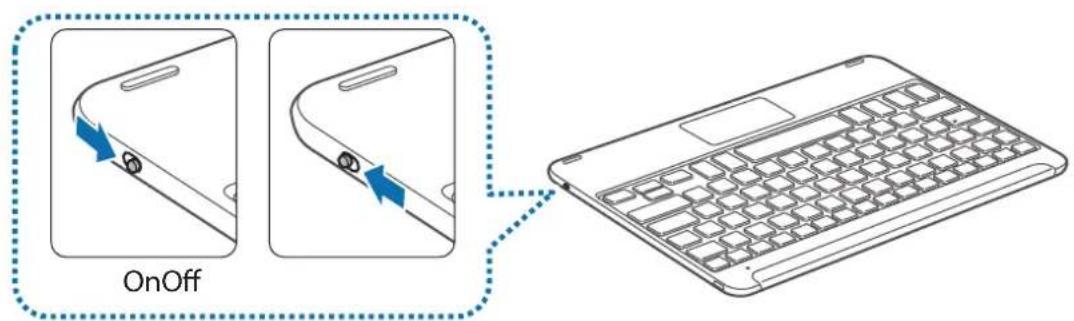

Follow all posted warnings and directions from authorized personnel in areas where the use of wireless devices is restricted, such as airplanes and hospitals.
Notification light identification
The notification light alerts you to the keyboard's status.
| Status Color | |
| Power on | • Flashes blue three times |
| Power off | • Flashes red three times |
| Bluetooth pairing mode | • Flashes red, green, and then blue |
| Connected via Bluetooth | • F11 key: Quickly flashes blue three times, and then flashes blue three times • F12 key: Quickly flashes white three times, and then flashes white three times |
| During use or in Sleep mode | • Off |

- If the notification light does not work as described, disconnect the charger from the keyboard and reconnect it.
- The notification light may work differently depending on the connected device.
Bluetooth connections
Bluetooth
About Bluetooth
Bluetooth is a wireless technology standard that uses a 2.4 GHz frequency to connect to various devices over short distances. It can connect and exchange data with other Bluetooth enabled devices, such as mobile devices, computers, printers, and other digital home appliances, without connecting via cables.
Notices for using Bluetooth
- To avoid problems when connecting your keyboard to another device, place the devices close to each other.
- Ensure that your keyboard and the other Bluetooth device are within the Bluetooth connection range (10 m). The distance may vary depending on the environment the devices are used in.
- Ensure that there are no obstacles between the keyboard and a connected device, including human bodies, walls, corners, or fences.
- Do not touch the Bluetooth antenna of a connected device.
- Bluetooth uses the same frequency as some industrial, scientific, medical, and low power products and interference may occur when making connections near these types of products.
- Some devices, especially those that are not tested or approved by the Bluetooth SIG, may be incompatible with the keyboard.
- Do not use the Bluetooth feature for illegal purposes (for example, pirating copies of files or illegally tapping communications for commercial purposes).
Connecting devices via Bluetooth
This keyboard is optimized to connect with the SAMSUNG Galaxy Tab S2. When connecting to devices other than the SAMSUNG Galaxy Tab S2, the keyboard may not work properly or some of its features may not be available.
1 Keyboard Slide the Power switch to turn on the keyboard.
2 Keyboard Press and hold the key ( F11 or F12) for approximately three seconds to enter Bluetooth pairing mode.
The notification light will flash red, green, and blue.
When you turn on the keyboard for the first time, it automatically enters Bluetooth pairing mode.
3 Other device Activate the Bluetooth feature and search for Bluetooth devices.
For more information, refer to the other device's user manual.
4 Other device Tap Samsung Tab S2 Keyboardfrom the list of available devices.
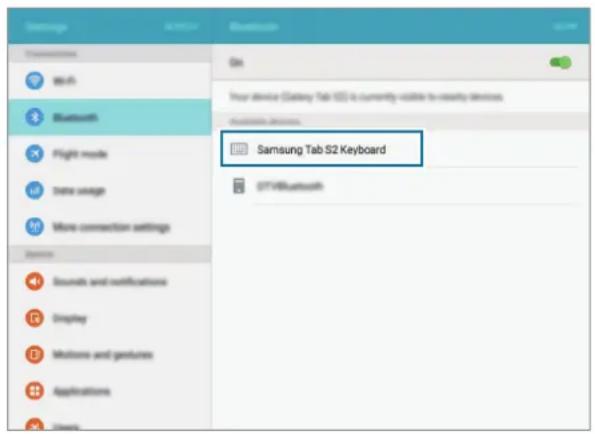
5 Keyboard Enter the passkey displayed on your other device's screen and press the Enter key.
The other device will be registered to the selected key (F11 or F12) and the connection will be made.

- If the Bluetooth connection fails or the other device cannot locate the keyboard, remove the device's information from the other device's list. Then, try to connect again.
- If the keyboard does not work properly, restart it or try to pair the devices again.
When re-pairing your device, previous pairing history will need to be cleared in order to pair the keyboard and tablet again
From tablet Bluetooth menu, select the Unpair option. Then, press the F11 key for about 3 seconds (until the LED starts blinking) to delete the paired device first.
2 Turn off the Bluetooth keyboard.
3 Turn on the Bluetooth keyboard again and set the keyboard to pairing mode by pressing and holding the F12 key.
4 Scan through tablet Bluetooth menu, then select the Samsung Tab S2 Keyboard in order to find and pair the device.
Pairing with multiple devices
Pair with up to two Bluetooth-enabled devices and easily switch connections between the keyboard and the paired devices.
Pairing with an additional device
1 Pair and connect the keyboard to a device via Bluetooth.
2 Press and hold the key ( F11 or F12) that you did not use to register the previous device for approximately three seconds to enter Bluetooth pairing mode.
The connection between the keyboard and the previously connected device will end.
3 Follow the same connection procedure used for connecting the previous device to connect the keyboard to an additional device.
Switching connections
Press the key (F11 or F12).
If the keyboard is currently connected to the device registered to the F11 key, press the F12 key to switch to the device registered to it.
If the keyboard is currently connected to the device registered to the F12 key, press the F11 key to switch to the device registered to it.

This feature may not be available depending on the paired device.
Reconnecting or disconnecting from another device
Reconnecting the device
When your keyboard is disconnected from the connected device due to the distance between the devices, bring the devices closer together. Then, press the key (F11 or F12) that the disconnected device is registered to in order to reconnect the devices. Or, you can use the Bluetooth menu on the disconnected device to connect the devices.
Disconnecting the device
Press and hold the key ( F11 or F12) for approximately three seconds. The current connection will end and the keyboard will enter Bluetooth pairing mode.
You can also end the connection by turning off the keyboard. When you turn on the keyboard again and the devices are in range, the keyboard automatically connects with the most recently connected device.
Using the keyboard
Using keyboard features

The device contains magnets. The American Heart Association (US) and the Medicines and Healthcare Products Regulatory Agency (UK) both warn that magnets can affect the operation of implanted pacemakers, cardioverters, defibrillators, insulin pumps or other electro medical devices (collectively, "Medical Device") within the range of 15cm (6 inches). If you are a user of any of these Medical Devices, DO NOT USE THIS DEVICE UNLESS YOU HAVE CONSULTED WITH YOUR PHYSICIAN.

Do not store your device near magnetic fields. Magnetic stripe cards, including credit cards, phone cards, passbooks, and boarding passes, may be damaged by magnetic fields.
Using the keyboard
Before using the keyboard, select a display language on the connected device. For more information about language settings, refer to the user manual of the connected device.
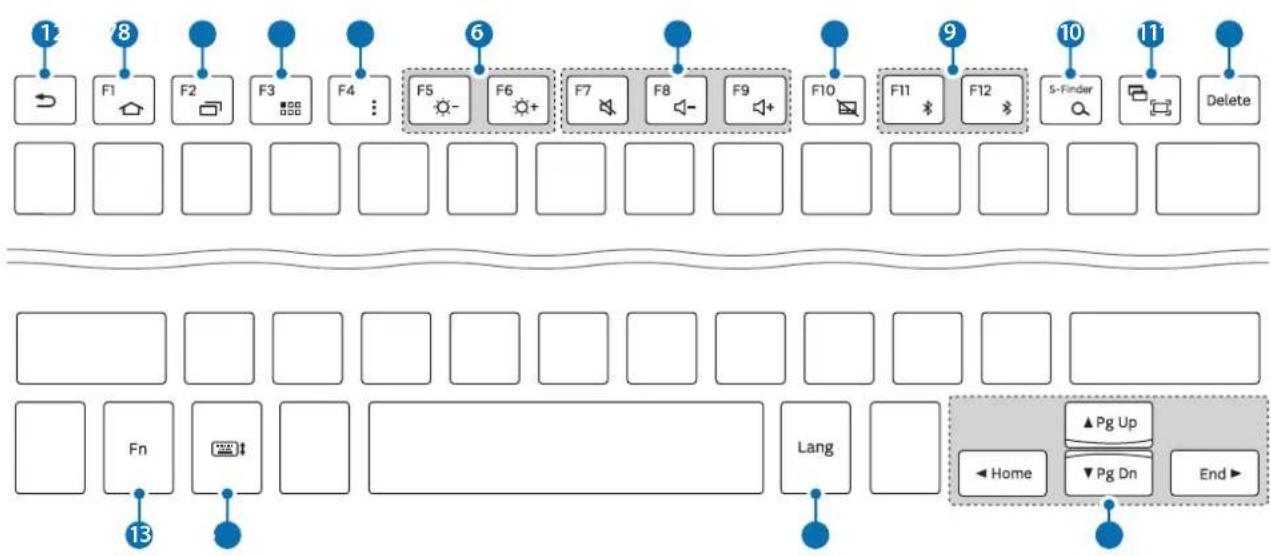
| Key Function | |
| 1 | • Press to return to the previous screen. • Press and hold to access additional options for the current screen. |
| 2 | • Press to return to the Home screen. • Press and hold to launch Google. |
| 3 | • Press to open the list of recent apps. • Press and hold to launch the split screen view. |
| 4 | • Press to open the Apps screen. |
| 5 | • Press to access additional options for the current screen. • Press and hold to launch S Finder. |
| 6 | • Press to adjust the brightness. |
| 7 | • Press to adjust the volume. |
| 8 | • Press to enable or disable the touchpad. |
| 9 | • Press to switch connections between the keyboard and the paired devices. • Press and hold to enter Bluetooth pairing mode. |
| 10 | • Press to launch Google. • Press with the Frey to launch S Finder. |
| 11 | • Press to capture a screenshot. • Press with the Frey to launch the split screen view. |
| 12 | • Press to delete characters following the cursor. |
| 13 | • Press with other keys to perform additional actions. |
| 14 | • Press to show or hide the keyboard on the touchscreen. |
| 15 | • Press to change the input language. |
| 16 | • Press to move the cursor or page. Fn+▲Scroll up the page. Fn+▼Scroll down the page. Fn+→Move the cursor to the start of the current row. Fn+→Move the cursor to the end of the current row. |

Some key functions may not work properly depending on the connected device and the software version of the connected device. For more information about updating device software, refer to each device's user manual.
Using the touchpad
Control the screen of the connected device using the touchpad. You can perform various actions, such as moving the mouse pointer or selecting a desired item.
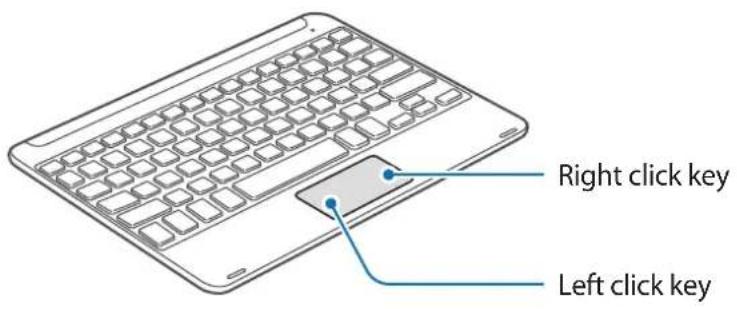
- Drag your finger on the touchpad to move the mouse pointer. To adjust the mouse speed, go to the connected device. Then, tap Apps Settings Language and input Pointer speed and drag the bar to the left or right.
- Place the mouse pointer over an item and tap the touchpad, or press the left click key, to open or launch the item.
- Place the mouse pointer over an item, double-tap and hold the touchpad, and then drag the item to a new location. You can also press and hold the left click key and then drag another finger on the touchpad.
- Press the right click key to return to the previous screen.
- Press and hold the right click key to access additional options for the current screen.

This feature may not work while using some apps.
Using the cover
Attach the cover to your tablet and use it as a stand.
1 Open the cover.
2 Align and connect the cover's push clips to the push clips on the back of your tablet.
3 Fold the back of the cover into a triangular shape. Then, stand the tablet in landscape orientation.
4 Place the keyboard on the front of the cover as shown in the image.

- When you close the cover while the keyboard is placed on it, the Bluetooth connection between the devices will end.
- Make sure to detach the cover and the keyboard from the tablet before using apps that require the gyroscope sensor, such as the map and compass. Gyroscope-related functions may not work properly due to the magnets embedded in the cover and the keyboard.
To detach the cover from the tablet, pull the cover away from the tablet while holding the tablet. Make sure to completely detach the push clips from each other.

Detaching the cover improperly may cause damage to the tablet or the cover.
Troubleshooting
Before contacting a Samsung Service Center, please attempt the following solutions. Some situations may not apply to your keyboard.
Your keyboard does not turn on
When the battery is completely discharged, your keyboard will not turn on. Charge the battery completely before turning on the keyboard.
Your keyboard does not work
If the keyboard does not work properly, try to resolve it by turning off the keyboard and then turning it on again.
If the keyboard is still unresponsive, end the Bluetooth connection and reconnect it. To do this, press the key (F11 or F12) for approximately three seconds. When the keyboard enters Bluetooth pairing mode, connect the devices again, and then check the operation of the keyboard.
If the problem is still not resolved, contact a Samsung Service Center.
The battery does not charge properly (For Samsung-approved USB cables and chargers)
Ensure that the USB cable or the charger is connected properly.
If the problem is still not resolved, contact a Samsung Service Center.
Another Bluetooth device cannot locate your keyboard
- Ensure that your keyboard is in Bluetooth pairing mode.
- Restart your keyboard and search for the keyboard again.
- Ensure that your keyboard and the other Bluetooth device are within the Bluetooth connection range (10 m).
If the tips above do not solve the problem, contact a Samsung Service Center.
Your keyboard is not connected to another Bluetooth device
- Ensure that your keyboard and the other Bluetooth device are within the maximum Bluetooth range (10 m).
- On the device you want to connect with, disconnect all paired devices and try to connect again.
Bluetooth connection is often disconnected
- If there are obstacles between the devices, the operating distance may be reduced.
- Ensure that your keyboard and the other Bluetooth device are within the maximum Bluetooth range (10 m).
- When using the keyboard with other Bluetooth devices, the connection may be affected by electromagnetic waves. Use the keyboard in environments with fewer wireless devices present.
The keyboard works differently as described in the manual
Available functions may differ depending on the connected device.
The battery depletes faster than when first purchased
- When you expose the keyboard or the battery to very cold or very hot temperatures, the useful charge may be reduced.
- The battery is consumable and the useful charge will get shorter over time.
Copyright
Copyright © 2015 Samsung Electronics
This manual is protected under international copyright laws.
No part of this manual may be reproduced, distributed, translated, or transmitted in any form or by any means, electronic or mechanical, including photocopying, recording, or storing in any information storage and retrieval system, without the prior written permission of Samsung Electronics.
Trademarks
SAMSUNG and the SAMSUNG logo are registered trademarks of Samsung Electronics.
- Bluetooth® is a registered trademark of Bluetooth SIG, Inc. worldwide.
- All other trademarks and copyrights are the property of their respective owners.
Copyright © 2015 Samsung Electronics
Copyright © 2015 Samsung Electronics
本手册受國際版權法保護。
© Samsung Electronics, 2015.
1 嵌臥捲斯能藥用依用者,賊和尅,贝,
2 基基基基基基基基基基基基基基基基基基基基基基基基基基基基基基基基基基基基基基基基基基基基基基基基基基基基基基基基基基基基基基基基基基基基基基基基基基基基基基基基基基基基基基基基基基基基基基基基基基基基基
3 越越越越越越越越越越越越越越越越越越越越越越越越越越越越越越越越越越越越越越越越
完结 走 进
F11 F12)
F11 kIe 3kIe 3kIe F12 kIe 3kIe F12 kIe 3kIe F12 kIe 3kIe F12 kIe 3kIe F12 kIe 3kIe F12 kIe 3kIe F12 kIe 3kIe F12 kIe 3kIe F12 kIe 3kIe F12 kII e F12 kII e F12 kII e F12 kII e F12 kII e F12 kII e F12 kII e F12 kII e F12 kII e F12 kII e F12 kII e F12 kII e F12 kII e F12 kII e F12 kII e F12 kII e F12 kII e F12

日部发之,
新关联/关联状态
新
丛R的理之,为F11F12)
対策は
F11 F12) 30n3.
재几乎所有
재几乎所有법


- Instructional icons
- Getting started
- Package contents
- Device layout
- Charging the battery
- Checking the battery charging status
- Turning the keyboard on and off
- Notification light identification
- Bluetooth connections
- Bluetooth
- About Bluetooth
- Notices for using Bluetooth
- Connecting devices via Bluetooth
- When re-pairing your device, previous pairing history will need to be cleared in order to pair the keyboard and tablet again
- Pairing with multiple devices
- Pairing with an additional device
- Switching connections
- Reconnecting or disconnecting from another device
- Reconnecting the device
- Disconnecting the device
- Using the keyboard
- Using keyboard features
- Using the touchpad
- Using the cover
- Appendix
- Troubleshooting
- Your keyboard does not turn on
- Your keyboard does not work
- The battery does not charge properly (For Samsung-approved USB cables and chargers)
- Another Bluetooth device cannot locate your keyboard
- Your keyboard is not connected to another Bluetooth device
- Bluetooth connection is often disconnected
- The keyboard works differently as described in the manual
- The battery depletes faster than when first purchased
- Removing the battery
- Copyright
- Trademarks
- OΦopMJIeHnE Ha yCTpoIcTBOTO
- 3apekdahe ha 6aTepeyTa
- Поберka на сбстяно на зараздане на батураута
- TbproBckn Mapkn
- Najprije pročitajte
- Veze putem Bluetooth
- Zašitni znakovi
- Trgovačke marke
- Leia primeiro
- #
- i j 100
- i
- o
- Jd
- aao jolai
- 1
- Jaaia 8g jgglb Jaaa a laa 4
- a
- BHeHnBn yCTpoIcTba
- 3apяdka aKKymyTopa
- Поберka coctoHna akKymyIaTopa
- KlaBnaTypa He BkIouaETc
- KlaBnaTypa He pa6oTaet
- AkkymyIaTOp He 3apJkaeTcra (pnp nCnoJIb3OBAHn Odo6peHHbIX Ka6eJIe USB n 3apJdNbIX yCTpoiCTB Samsung)
- KlaBiaTypa He BMnKaeTbCra
- KlaBiaTypa He npaioe
- AkymnyTop He 3apdkaetbca HalexHm cHOM (Ja Ka6eIb USB i 3apdHnx npicTpoiB, peKoMeHdoBaHnx KOMnHiEio Samsung)
- Abtopcbke npaBO
- Tobaphi 3HaKn
- АлдыIMен MeHi OKbl
- Hycayb6eIriwelep
- KymbICTbi 6actay
- Opama Kypambl
- KypbIINfblHbIH opHaJacByI
- Батурасяны заютay
- IepHeTaKaTa KəHe PlaHwET apacbIHda KxPTAcTbIpydbI KaTadAn OphATy ywiH KypblfbiHbIH KaTAt KxPTAcTbIpybl YwiH aIdbIHfbl KxPTAcTbIpyapdbIH TapNXbIH Ta3apTy KepeK
- BipHeWe KypbIaIbIMeH KyPTaCTbIPy
- KocbIMwa KypblfblMeH KynTactbipy
- KocbIbIMdapdbiayblcTbipy
- EkHsi KypblfblbI KaIta Kocy Hemece aKbipaty
- KypbIfblHbi KaTaNocy
- KypblfblHbI aXkbIpaTy
- PepHeTaKaTbI3 KocblMaIbI
- IepheTaKtahbI3 Kymblc icTeMeiDi
- Батаря дурьс зараятамайды (Samsung 6eKitken USB ka6eльдерікэн зараятавштap ушин)
- BaKa Bluetooth Kypblfbcbl nepHeTaKTaHbI3dbI Ta6a aImaDbI
- Перета КбаBluetooth КьрьлфысьИн КосьлмFaH
- Bluetooth kocbIbIMblxnniaXkbipaTbIaDbI
- IepheTaKaTaNcaybIKTa CnnaTTaHaHHan 6acka7a Kymbic iTeiDi
- Баразецьи Куаты, сатын онлайн кениrtсотke Карафанда Te3Тayсылады
- Cǎйkectikti pactay
- Ohim məlimetrepi
- Məlɪmʌdeme xəHe tɪnɪcti cɪtɪdapɪTap
- EyponaIbIK OdaKaTafbl eKil
- EAC
- ABTOPbIK KyKbIK
- Cayda 6eIrilepi
- Read me first
- 完结 走 进
- 新关联/关联状态
- 新
- 対策は
- 재几乎所有
- 재几乎所有법
Brand : SAMSUNG
Model : EJFT810UBE
Category : Keyboard