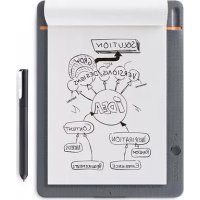
Bamboo Slate - Graphic tablet WACOM - Free user manual and instructions
Find the device manual for free Bamboo Slate WACOM in PDF.



Frequently Asked Questions - Bamboo Slate WACOM
User questions about Bamboo Slate WACOM
0 question about this device. Answer the ones you know or ask your own.
Ask a new question about this device
Download the instructions for your Graphic tablet in PDF format for free! Find your manual Bamboo Slate - WACOM and take your electronic device back in hand. On this page are published all the documents necessary for the use of your device. Bamboo Slate by WACOM.
USER MANUAL Bamboo Slate WACOM
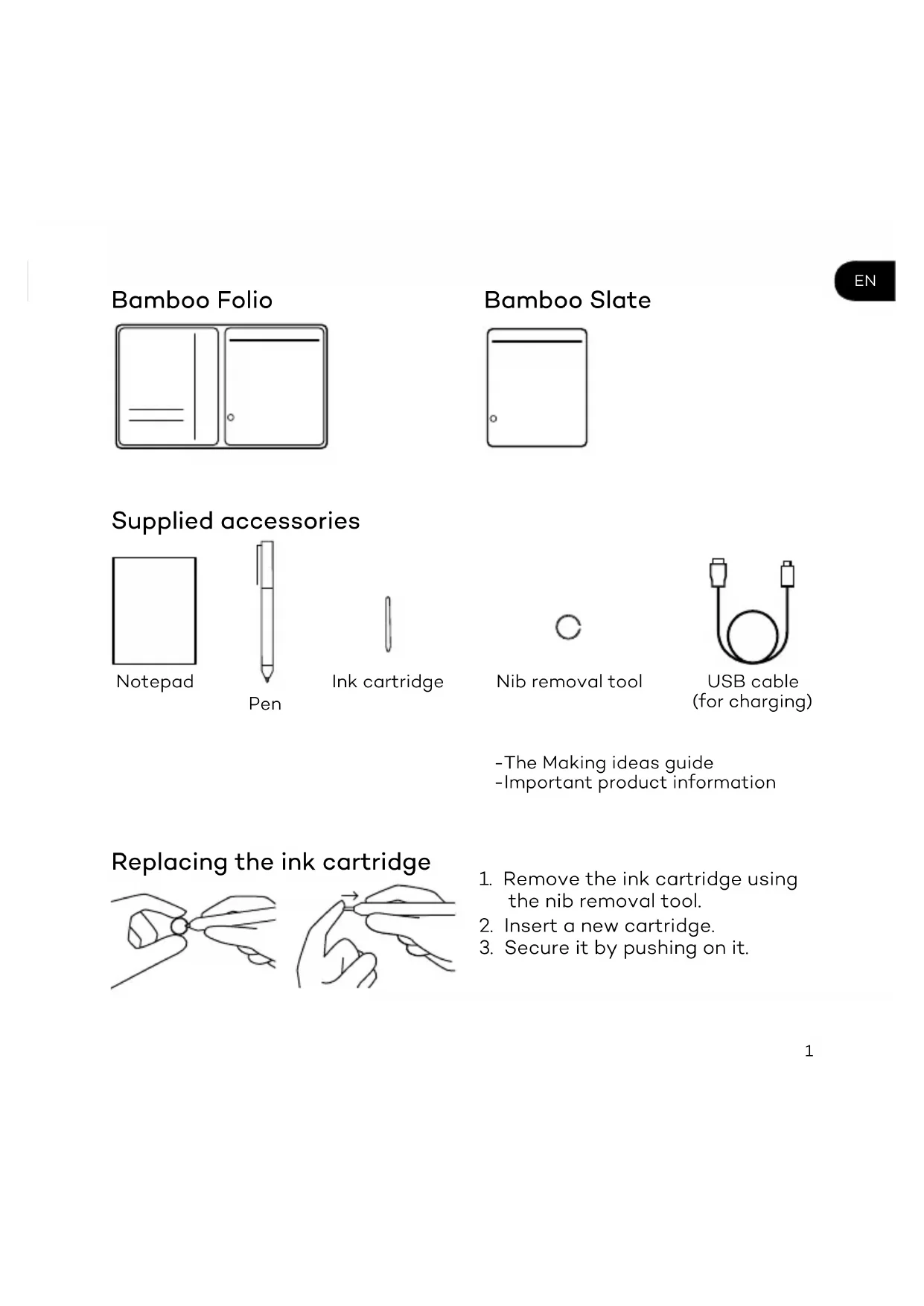
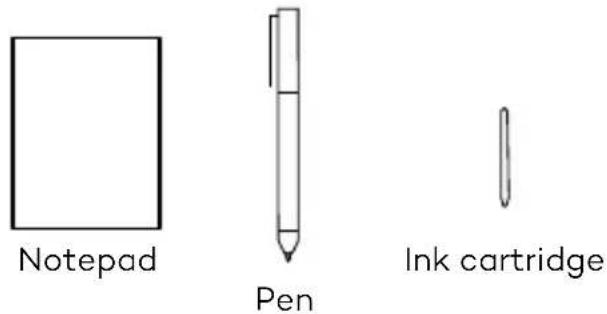
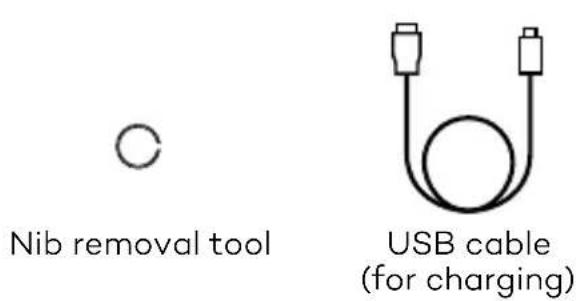
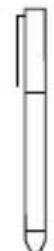
Supplied accessories
- The Making ideas guide
-Important product information
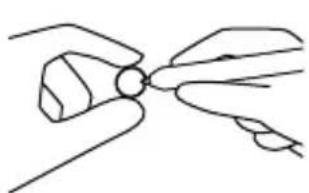
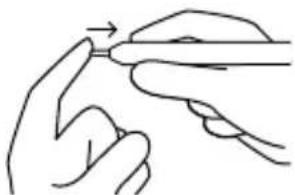
Replacing the ink cartridge
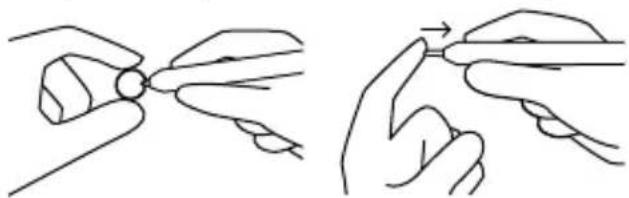
- Remove the ink cartridge using the nib removal tool.
- Insert a new cartridge.
- Secure it by pushing on it.

How to get started with your Bamboo Folio or Bamboo Slate
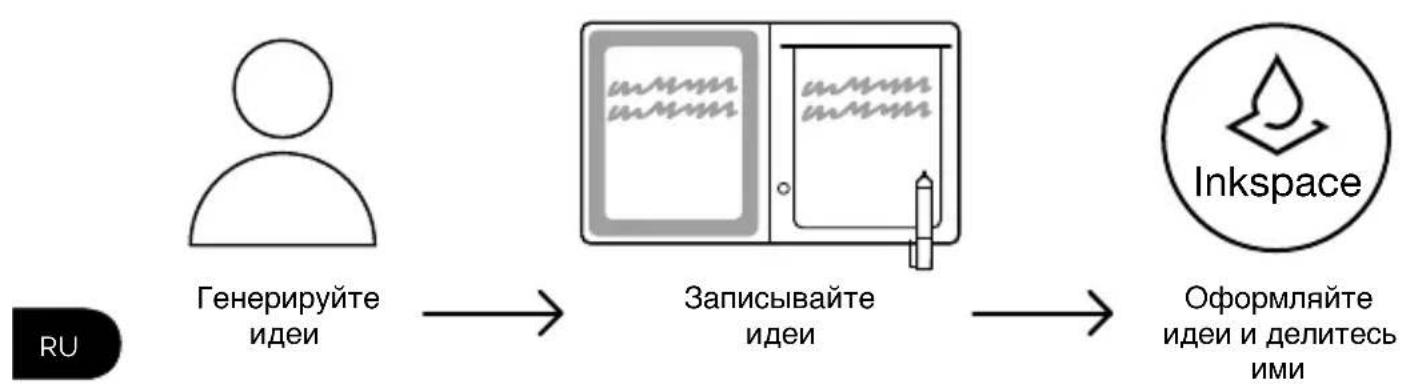
To fully use your Bamboo Folio or Bamboo Slate, you need to install the Wacom Inkspace app. It moves your handwritten ideas from paper to your mobile device, and allows basic digital editing. It also gives you access to Inkspace services, so you can store your notes in the cloud, sync them with other devices, share them with other people and much more.
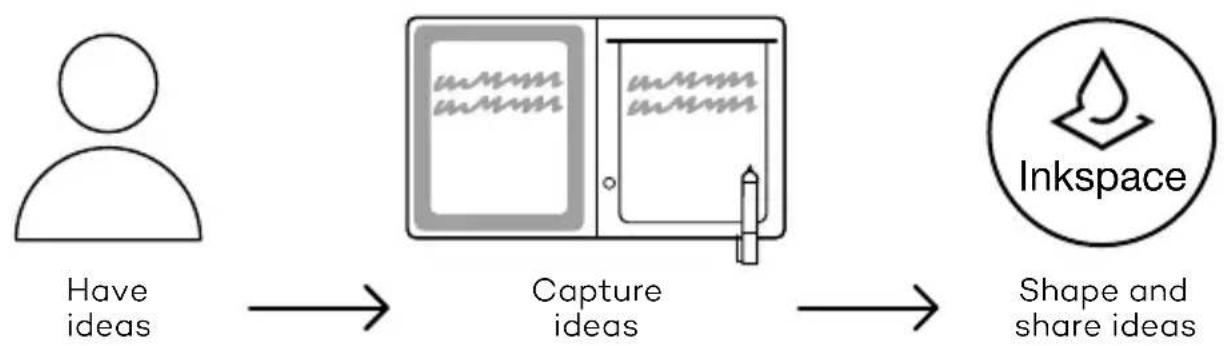
Follow the steps below to make the most of your ideas:
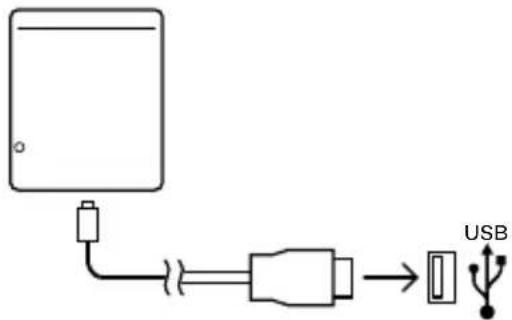
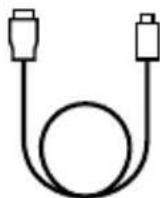
- Charge your Bamboo Folio or Bamboo Slate by connecting it to a USB charging device, using the cable provided.
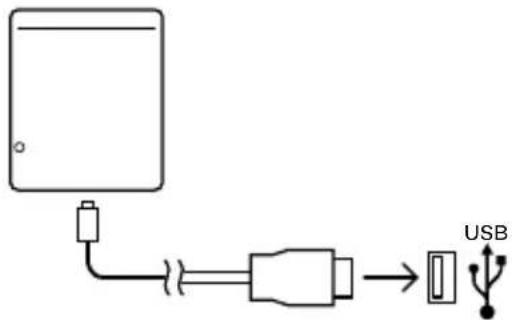
- The battery LED on the front-bottom will turn off to indicate it is fully charged.
- Download the Wacom Inkspace app from your app store. The Wacom Inkspace app will walk you through the pairing process and how to set up your Bamboo Folio or Bamboo Slate. To benefit from Inkspace services, sign up for a free Wacom ID.
- Turn on the Bamboo Folio or Bamboo Slate by pressing the button for about 3 seconds.
- To pair Bamboo Folio or Bamboo Slate, Bluetooth on your smartphone or tablet must be on. Press and hold the button on Bamboo Folio or Bamboo Slate for about 6 seconds until you see the blue LED start blinking. Pairing is complete when the LED turns green.
- Activate your free three-month package of Inkspace Plus to use many additional features, like the Ink to text functionality for converting handwriting into formatted text.

MARKETPLACE
For even more tools, services and features explore the Wacom Marketplace shop.


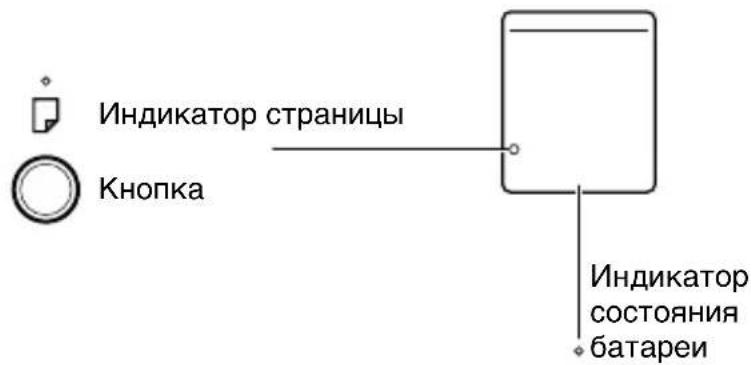
Button and LED indicator
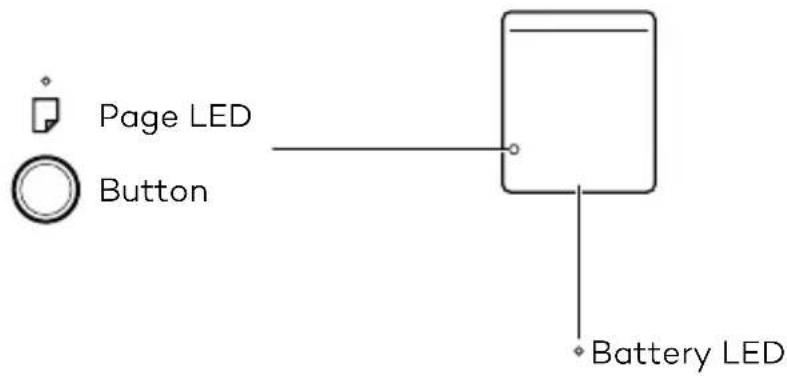
| Page LED indicator |
| Green Page is empty |
| Blue Page has content |
| Blue blinking Bluetooth pairing |
| Red Memory full |
| Button |
| Hold down the button for 3 seconds Power on / off |
| Hold down the button for 6 seconds when device is turned on. Pairing |
| Note: The LED will go off and will shortly start blinking blue. |
| Save page / Next page Single press |
| Battery LED indicator |
| Orange blinking Low battery |
| Orange Battery charging |
| Off (during charging) Battery full |
Wacom support site
For support and to register your product, go to wacom.com and click on Support.
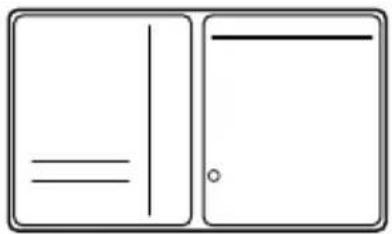
Bamboo Folio
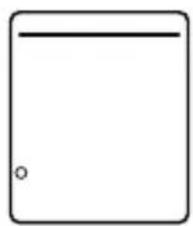
Bamboo Slate

Wacom Support-Website
<|im_start|>assistant
<|im_start|>assistant
<|im_start|>assistant Bamboo Folio 끼는 Bamboo Slate를 펋개로 펋용해려면 Wacom Inkspace
<|im_start|>assistant
<|im_start|>assistant
<|im_start|>assistant
<|im_start|>assistant
<|im_start|>assistant
<|im_start|>assistant
<|im_start|>assistant
<|im_start|>assistant
<|im_start|>assistant
<|im_start|>assistant
<|im_start|>assistant
<|im_start|>assistant
<|im_start|>assistant
<|im_start|>assistant
<|im_start|>assistant
<|im_start|>assistant
<|im_start|>assistant
<|im_start|>assistant
<|im_start|>assistant
<|im_start|>assistant
<|im_start|>assistant
<|im_start|>assistant
<|im_start|>assistant
<|im_start|>assistant
<|im_start|>assistant
<|im_start|>assistant
<|im_start|>assistant
<|im_start|>assistant
<|im_start|>assistant
<|im_start|>assistant
<|im_start|>assistant
<|im_start|>assistant
<|im_start|>assistant
<|im_start|>assistant
<|im_start|>assistant
<|im_start|>assistant
<|im_start|>assistant
<|im_start|>assistant
<|im_start|>assistant

。
- 1.
Alex Sutro =


```python
Ink to Text

MARKETPLACE
IocTbIeBpe npHaJeXHOCTN
Блokнот
Nepo
UeHnIbHbI KApTpIaX

ПинцETДЯЗamehы
нakоhoeчнka
Ka6eIb USB (dIa 3apAdkn)
3aMeHa YepHnIbHOrO KaTpNiJka
Hauano pa60tbc Bamboo Folio nnn Bamboo Slate
Дя поноцен Horo nCnoB3OBaHn Bcex Функционьн Bo3moxHocTei Bamboo Folio nIi Bamboo Slate Heo6xoJIMO yctahOBHT npINOxKeHne Wacom Inkspace. Oho obecneuBaet nepeHOC pyKoINCHbIX MaTePnaIOB C 6yMaXHOro HocHTeJIHa MObIbHoe yCTpoIcTBo I npEJaRaET 6a3OBbIe cpeCTBa dIЯIx peDAKTIpOBaHn B zuΦpoBOM φopMaTe. Kpome TOrO, npINOxKeHne obecneuBaET doCTyn K cepBucam Inkspace, NO3BOJIoUIM COxpaHrTb 3aMeTKN B OblaChHom XpaHInNlSe, CnHXPOHn3IpOBaTb INC pa3JIuHbIMN yCTpoIcTBAMn, ObMeHNBaTbC4 3aMeTKAmC dpyrIMN NOJIb3OBaTeJAMn N dp.
CneyuTe npBedeHHbIM HnXe IHCTpyKcIaM, YTO6bl HaibOlee 3o0fKeKTNBHO peaHn3OBaTb CBON Iden:
- 3apnTe yctpoCTBO Bamboo Folio nnn Bamboo Slate, noKIOuH erO K 3apnHomy yctpoCTBy USB c nomoBIO ka6eNa, BxoJauero B KOMPNeKT NOCTaBKn.
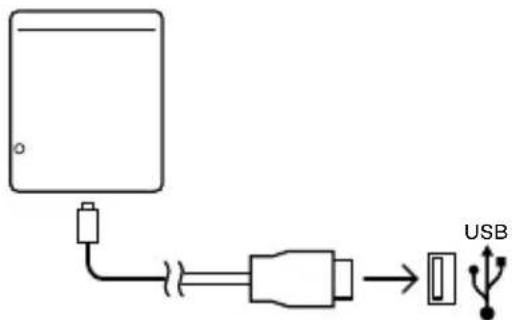
- Korda 6aTape8 6yDet nOHHocTbO 3apXKeHa, INDnKaTOp 6aTapeN, paCNoJoxeHHbI BHN3y Ha nepeDHei NaHEn yCTpOJCTBa, 6yDet BBIKIOUeH.
- 3arpy3nte npniloxeHne Wacom Inkspace n3 mara3nHa npiloxeHn. B npiloxeHn Wacom Inkspace npedocTabnTc nOsaorBbIe INCTpyKuIN NO BblONHeHIO copjxehn I nacTroyn ycTroynCTBa Bamboo Folio nn Bamboo Slate. 3apernctpnyTeCb dna noJyehn 6ecnlaTHoro ndentnckatopa Wacom, 0o3BOJIOUeRO BOCNOb3OBaTcR npemMyueCTBAMN cepBncoB Inkspace.
- Haxmte u ydepknaTe KhoNky B TeueHne np6n3ntelbNo 3 cekyHd, YTo6bl BKIOHTb ycTpoCtBO Bamboo Folio nnn Bamboo Slate.
5.Длсopяженc Bamboo Folio nIi Bamboo Slate Ha cMapTfohe nIi nIaHweTe Heo6xOIMOBKIOUHTb TexHOJOrnIO Bluetooth.HaxMnte u ydepXNBaTe KhoNky Bamboo Folio nIi Bamboo Slate B TeueHne np6JIIN3NTbHo 6 ceKyHd, NOka CBeToODNoHbI INdIKaTOP He HauHET MIRATb CINHM. I0 3aBepWeHm COpЯжENr CBET CBEToDINOHO rHdNKaTopa N3MeHNTcHa 3eJIeHbI. - AKTINBIPyIte 6ecnnaTHyIO TpexmecHnyIO NOnncky Ha naKeT Inkspace Plus, yTo6bl BOCIOJIb3OBAtbcra WnpOKIM HApOpOM DOONHITeJIbHbIX FyHKU, BKJIouaF cyHKUInk to Text IJn Ppeo6pa3OBaHH pyKOpNCHO TeKCTa B paCUnpeHHbI TEKCTOBII fOpMaT.

MARKETPLACE
Для получени дононгельнбix INHCTpymehTOB, cepBUCOB n Функui NOcETNTe mara3HH Wacom Marketplace.
KhoNka n cBeToaNoHbI NHdNKaTOp
© 2016 Wacom Co., Ltd. All rights reserved. Wacom, Bamboo and their respective logos are trademarks and/or registered trademarks of Wacom Co., Ltd. All other company names and product names are trademarks and/or registered trademarks of their respective owners.
Modifications and errors excepted.
UM-0588(B)