Advance+ - Computer accessory Mousetrapper - Free user manual and instructions
Find the device manual for free Advance+ Mousetrapper in PDF.


| Brand | Mousetrapper |
| Model | Advance+ |
| Product type | Ergonomic alternative to the computer mouse |
| Connection | USB (cable included) |
| Power supply | Via computer USB port |
| Left upper button | Double-click (default) |
| Right upper button | Right click (default) |
| Left lower button | Copy (default) |
| Right lower button | Insert (default) |
| Oval button | Scrolling (default) |
| Touchpad | Left click, double-click, scrolling, web navigation forward/back |
| Button customization | Via MT Keys software (downloadable from mousetrapper.com) |
| Limit position detection | Automatic cursor movement, can be disabled via MT Keys |
| System compatibility | Windows 98 SE, ME, 2000, XP, Vista, 7 and Mac OS X |
| Height adjustment | Reversible keyboard mat (under the keyboard or under Mousetrapper) |
| Cleaning the touchpad | With Mousetrapper cleaning wipe, device turned off |
| Cleaning the wrist rest | Surface disinfectant like Liv ytdesinfektion 70 or 85% alcohol |
| Cleaning precautions | Never use acetone |
| Support | Email: support@mouse-trapper.se, phone: +46 (0)8 730 12 24 |
| Website | www.mousetrapper.com |
| Showroom | Tegnérlunden 14, Stockholm, Sweden |
Frequently Asked Questions - Advance+ Mousetrapper
User questions about Advance+ Mousetrapper
0 question about this device. Answer the ones you know or ask your own.
Ask a new question about this device
Download the instructions for your Computer accessory in PDF format for free! Find your manual Advance+ - Mousetrapper and take your electronic device back in hand. On this page are published all the documents necessary for the use of your device. Advance+ by Mousetrapper.
USER MANUAL Advance+ Mousetrapper
English - Getting started 9
Thank you for purchasing the Mousetrapper advance/+ - the most advanced and user-friendly ergonomic alternative to a computer mouse. This brochure is a guide to help you get started quickly. We recommend that you keep it in the holder on the underside of your Mousetrapper for ready reference. Please follow these instructions carefully to ensure that your Mousetrapper is not damaged or otherwise does not work exactly as it should.
Connection
The Mousetrapper advance/+ has a USB (USB only).
USB connection
- Switch on the computer
- Connect the accompanying cable to the socket on the left side of the Mousetrapper and then connect it to the USB port on the computer
Positioning
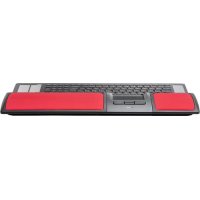
Position the Mousetrapper between you and the keyboard so that it provides support for your wrists and the control pad is within easy reach of your fingers. This makes it suitable for both right- and left- handed users.
Adjusting the height
You have a choice of two positions for the keyboard mat attached to the Mousetrapper:
Under the keyboard - if you have a flat keyboard
Under the Mousetrapper - if you have a raised keyboard
Functions
The Mousetrapper advance/+ comes with the following standard (default) function settings.
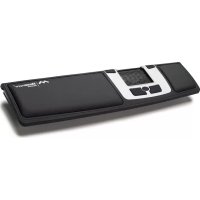
Top left button - Double click
Top right button - Right click
Bottom left button - Copy
Bottom right button - Paste
Oval button - Scroll
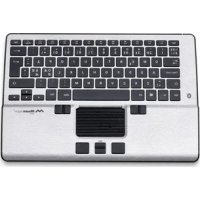
Control pad left click (click) - Touch the control pad anywhere and press down lightly until you hear a click.
Control pad double click - Press down lightly twice. Keep your finger on the pad when you press down.
Control pad scroll - Touch the right edge of the control pad and slide your finger up or down to scroll. Once you have started scrolling you can continue scrolling up/down without having to keep one finger at the edge of the control pad. This makes scrolling through long documents much more efficient as you can alternate fingers on the control pad. Scrolling stops when the control pad stops moving.
Control pad browser navigate back - Touch the right edge of the control pad then slide your finger at least one centimetre down and click. You can navigate back more pages by additional clicks.
Control pad browser navigate forward - Touch the right edge of the control pad then slide your finger at least one centimetre up and click. You can navigate forward more pages by additional clicks.
Control pad end position - When the control pad reaches the end position (at the side), the cursor automatically moves to the edge of the screen. This happens especially when the cursor speed is set to slow. This function can be disabled with the help of the application MT Keys.
Change button functions
The button functions and control pad can be reprogrammed with the application MT Keys, which can be downloaded from www.mousetrapper.com. MT Keys is only used to check or change button functions.
Cleaning
The control pad should be cleaned regularly with Mousetrapper cleaning wipes to prevent dirt and dust impairing the Mousetrapper's performance. Switch off the Mousetrapper or your computer before cleaning. The wrist support on the advance+ can be cleaned with Liv surface disinfectant 70, Daxs Surface Disinfectant Plus, Des 45+ surface disinfectant or 85 % alcohol. Do not use acetone.
System requirements
The Mousetrapper advance/+ is compatible with the following operating systems: Windows 98 SE, Windows ME, Windows 2000, Windows XP, Windows Vista, Windows 7 and Mac OS X.
Support and information
If you require further information or help, please contact our support desk during normal office hours. Email: support@mousetrapper.se or call +46(0)8 730 12 24. Answers to the most commonly asked questions can be found under FAQs. You can also visit our showroom at Tegnérlunden 14 in Stockholm, Sweden
www.mousetrapper.com
Velkommen
Ovale knop - Scrollen