Lite - Mouse Mousetrapper - Free user manual and instructions
Find the device manual for free Lite Mousetrapper in PDF.


| Product type | Ergonomic touchpad mouse |
| Brand | Mousetrapper |
| Model | Lite |
| Connection | Wired USB |
| Cable length | Approximately 1.8 meters |
| Dimensions (L x W x H) | Approximately 20 x 15 x 3 cm |
| Weight | Approximately 300 g |
| Power supply | Via USB port (5 V, 500 mA) |
| Main functions | Cursor movement, left/right click, disabling touchpad click |
| Indicator light | LED for settings confirmation |
| Compatibility | Windows, macOS, Linux (requires provided software) |
| Installation | Connect the USB cable and install the software |
| Positioning | Between the user and the keyboard, space bar in front of the touchpad |
| Keyboard support | Built-in, foldable for low-profile keyboard |
| Maintenance and cleaning | Clean with a soft, slightly damp cloth, avoid abrasive products |
| Operating temperature | 0 °C to 40 °C |
| Operating humidity | 20% to 80% (non-condensing) |
| Spare parts | USB cable available separately |
| Repairability | Not user-repairable, contact support |
| Warranty | 2 years |
Frequently Asked Questions - Lite Mousetrapper
User questions about Lite Mousetrapper
0 question about this device. Answer the ones you know or ask your own.
Ask a new question about this device
Download the instructions for your Mouse in PDF format for free! Find your manual Lite - Mousetrapper and take your electronic device back in hand. On this page are published all the documents necessary for the use of your device. Lite by Mousetrapper.
USER MANUAL Lite Mousetrapper
Getting started with Mousetrapper Lite
ENGLISH | SWENSK | DANESK | NORSK | SUOM | DEUTCH | HANZAS | NEDERLANDS

English

Connecting Mousetrapper
Basic tips
Installation
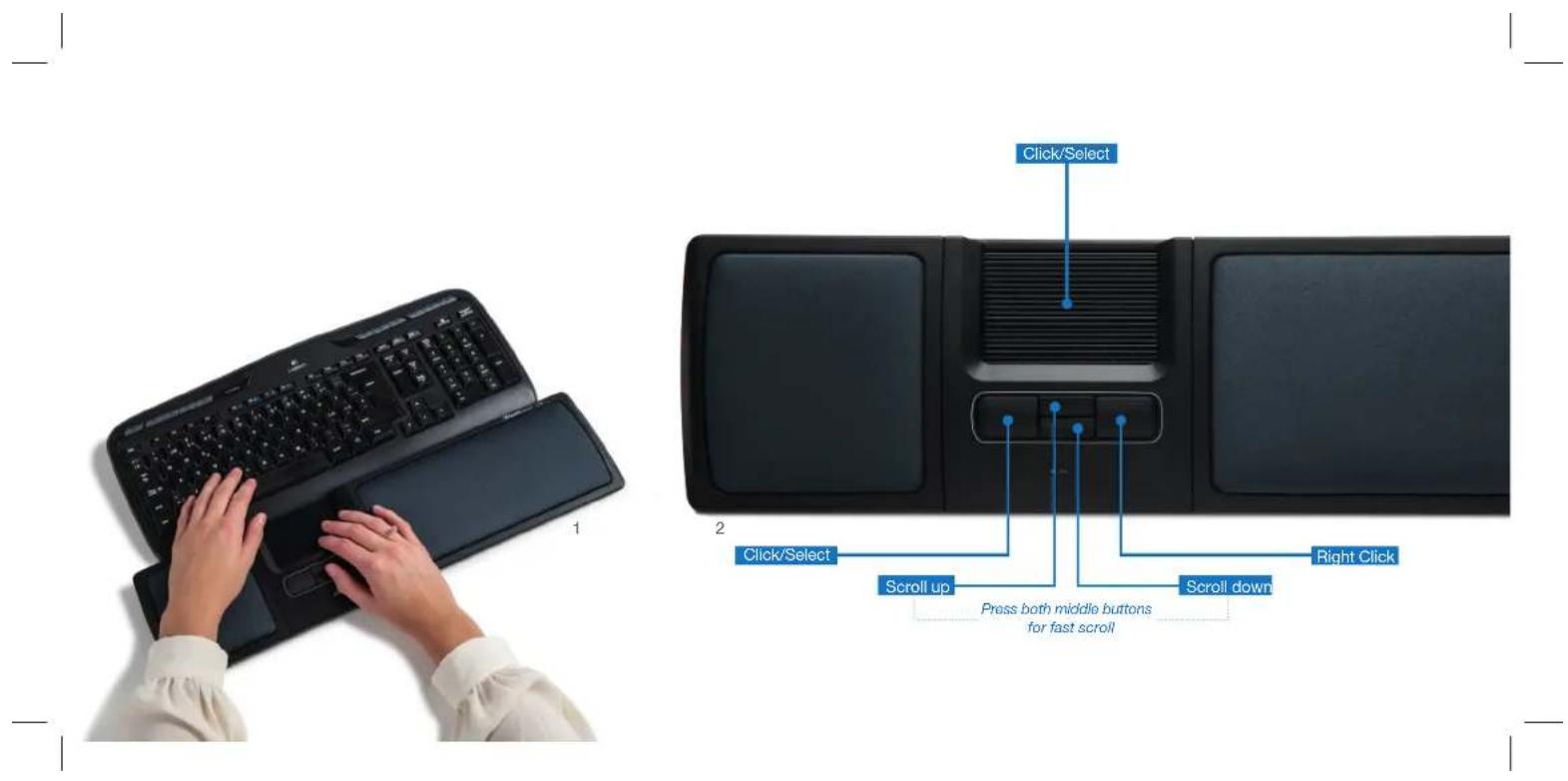
Connect the supplied cable to the socket on the left side of your Mousetrapper, and connect the other end to a USB port on the computer. Once installed, your Mousetrapper and its buttons will operate as shown in figure 2.
Positioning
Position your Mousetrapper between you and your keyboard. The space bar on the keyboard should be directly in front of the control pad, as shown in figure 1. If you have a low keyboard, unfold the keyboard support from underneath your Mousetrapper and place the keyboard on top of it.
Disabling the click function on the control pad
You can disable the click function on the control pad to prevent your computer from reacting when you click on it. To do this, hold down the right-click and left-click buttons simultaneously for about 4 seconds. The LED will flash briefly to confirm the setting. To re-enable the function, repeat the process.
Svenska

Koppla in din Mousetrapper
Installation
Responsible party name: Mousetrapper North America Inc.
www.mousestrapper.com
info@mousetrapper.com
Hereby declares that the
Product: Mousetrapper (HID mouse)
Model name: Lite MTV11
Conforms to the following specifications:
FCC 47 CFR 15: Radio frequency device, subpart B:
Unintentional radiators. Class B Equipment.
ICES-003 Issue 6: Information technology equipment-Limits
and methods of measurement, Class B.
This device complies with part 15 of the FCC Rules. Operation is subject to the following two conditions: (1) This device may not cause harmful interference, and (2) this device must accept any interference received, including interference that may cause undesired operation.
This equipment has been tested and found to comply with the requirements of China Standard Specification 2.05 of the 1998
rules. These limits are designed to provide reasonable protection
against harmful interference in a residential installation. This
equipment generates, uses, and can radiate radio frequency energy and, if not installed and used in accordance with
energy and, if not instantiated and used in accordance with the instructions, may cause harmful interference to radio
communications.
This equipment referenced in this declaration is identical to
the unit tested and found acceptable with the standards. The
technical records maintained by the responsible party continue
to reflect the equipment being produced under this Declaration 12.3.1, and to be used for the purposes of the present declaration.
of Conformity within the variation that can be expected
mousetrapper.com
DISCLAIMER AND LIMITATION OF LIABILITY
This product (the Product) has been manufactured by or on behalf of Trapper Data AB, Swedish Reg. No. 558872-7597 And its group companies (Trapper Data). As between Trapper Data and the user, the following shall be liable for any direct, indirect, specialist, punitive or consequentia damages of any kind, whether arising under breach of contract, tort (including negligence), strict liability or otherwise, and whether based on agreement or otherwise, even if advised of the possibility of such damages. Trapper Data makes no claim or representation that the Product will prevent, cure, or mitigate any medical condition, disease, Injury, pain or discomfort for all users.