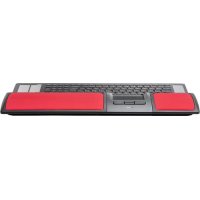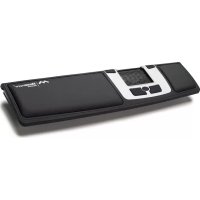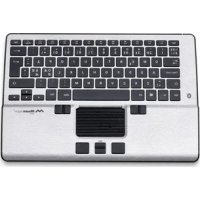
Alpha - Keyboard Mousetrapper - Free user manual and instructions
Find the device manual for free Alpha Mousetrapper in PDF.


| Product Type | Wireless Ergonomic Keyboard |
| Brand | Mousetrapper |
| Model | Alpha |
| Connectivity | Bluetooth 4.0 and Wired USB |
| Bluetooth Pairing | Up to 4 devices, switching between 2 channels |
| Power Supply | Built-in rechargeable battery, charges via USB cable |
| Charge Indicator | Red LED (low battery), green (charging), solid green (fully charged) |
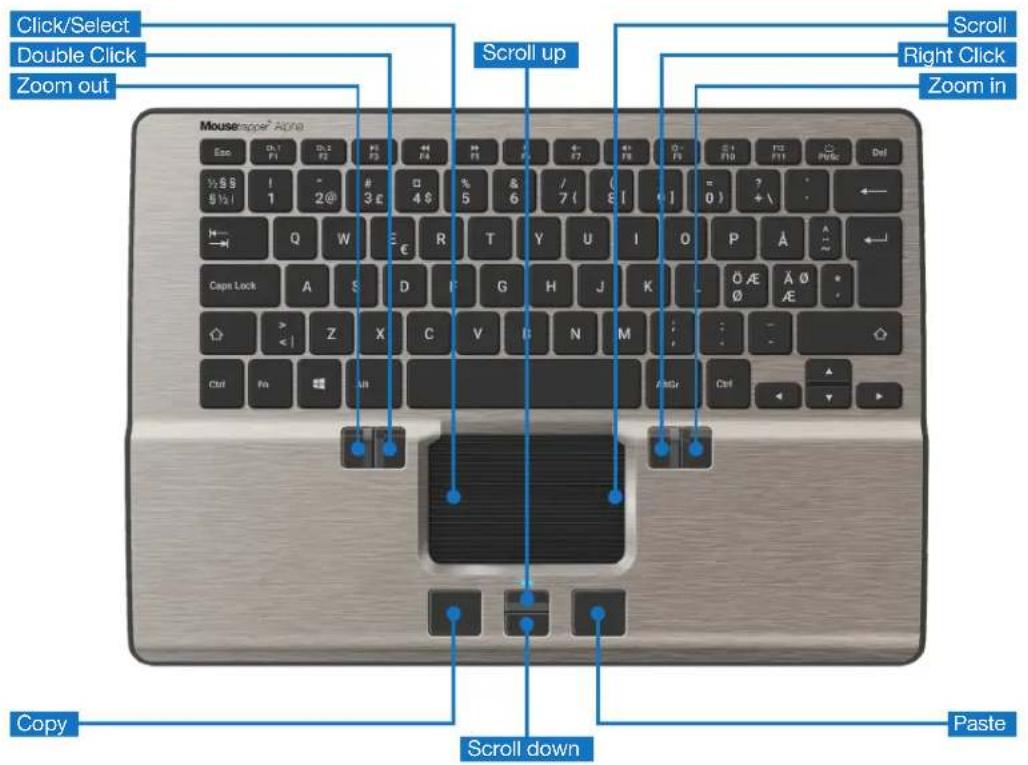
| Mac/PC Switch | Simultaneously press left and right bottom buttons for 3-4 seconds |
| Firmware Update | Via MT Keys software, USB cable connected |
| Customization Software | MT Keys (downloadable from mousetrapper.com or Microsoft Store) |
| Customizable Functions | F1-F11 keys, buttons around the command pad |
| Scrolling | By sliding finger along the right edge of the command pad |
| Compatibility | Windows, Mac, Bluetooth devices (smart TV, phone) |
| Maintenance | Clean with a soft, dry cloth. Do not use abrasive products. |
| Safety | Complies with Industry Canada CNR standards for license-exempt radio devices |
| Package Contents | Alpha Keyboard, USB cable, quick start guide |
Frequently Asked Questions - Alpha Mousetrapper
User questions about Alpha Mousetrapper
0 question about this device. Answer the ones you know or ask your own.
Ask a new question about this device
Download the instructions for your Keyboard in PDF format for free! Find your manual Alpha - Mousetrapper and take your electronic device back in hand. On this page are published all the documents necessary for the use of your device. Alpha by Mousetrapper.
USER MANUAL Alpha Mousetrapper
Getting started with Mousetrapper Alpha
ENGLISH | SVENSKA | DANSK | NORSK | SUOMI | DEUTSCHE | FRANÇAIS | NEDERLANDS
MTkeys
English
Connecting Mousetrapper
Bluetooth connection
Slide the power switch on the underside to ON. Once the Mousetrapper is discoverable, you will see a flashing blue light. Pair your Mousetrapper via the computer's Bluetooth menu. Once it is paired to the computer, the blue light will flash rapidly and then stop flashing.
Cable connection
Connect the supplied cable to the socket on the left side of your Mousetrapper, and connect the other end to a USB port on the computer.
Charging
The battery in the Mousetrapper needs charging when the battery indicator flashes red. Connect the Mousetrapper using the supplied USB cable and allow it to charge. During charging the LED will flash green and turn solid green when fully charged.
Changing from Mac to PC configuration
The product is configured for PC on delivery. To configure it for Mac, simultaneously depress the lower right and lower left buttons (Copy and Paste) for 3–4 seconds. The LED will flash fast in pink to confirm the setting. Repeat the procedure to change back into PC mode. The LED will flash slow in pink to confirm the PC mode setting.
Basic tips
Firmware updates
Make sure you keep your Alpha updated with the latest firmware. To update the firmware, launch MT Keys with the cable connected. Click the cloud in the upper part of MT Keys and follow the instruction. During the update process the LED will flash red and green. Do not disconnect the cable during this process.
Scrolling
To scroll using the control pad, place your finger on the right edge of the control pad. There is no need to press on the control pad; simply slide your finger up or down the edge, depending on which way you want to scroll.
Bluetooth devices
The Mousetrapper Alpha can be paired to two separate devices at the same time. One on Channel 1 and one on Channel 2. This means that you for instance can switch between your computer and your smart tv or phone. To switch between the channels press Fn and Ch.1/F1 or Ch.2/F2 at the same time. When pairing the LED will flash blue for Channel 1 and double flash blue for Channel 2.
The Alpha remembers and reconnects up to four devices. When pairing to a fifth, the oldest will be cleared from memory.
To clear all bluetooth devices in memory press Fn and Del at the same time. The LED will rapidly flash pink to confirm that the memory is cleared.

Customising
MT Keys
You can customise the functions of the buttons around the control pad as well as the keys F1 to F11. To do this, you need to download the software MT Keys either via www.mousetrapper.com/mtkeys or via Microsoft Store if you have Windows 10. Then follow the instructions to install the software. An image of the product will appear once MT Keys is installed and the USB cable is connected to your Mousetrapper. Position the cursor over the button you want to customise. Click on it by lightly pressing on the control pad once. You will now see a pull-down menu that lets you assign whichever action you want to that button. You can choose between functions such as adding an extra left-click, creating shortcuts and inserting text by pasting it in.
Svenska
Koppla in din Mousetrapper
Anslutning via Bluetooth
Raccordement via Bluetooth
Responsible party name: Mousetrapper North America Inc. www.mousetrapper.com info@mousetrapper.com
Hereby declares that the Product: Mousetrapper (Wireless HID mouse/keyboard) Model name: Alpha MTV12
Modification Statement:
Changes or modifications to the equipment not expressly approved by the party responsible for compliance could void the user's authority to operate the equipment.
Compliance Statement
This device complies with Part 15 of the FCC Rules. Operation is subject to the following two conditions: (1) this device may not cause harmful interference, and (2) this device must accept any interference received, including interference that may cause undesired operation.
Class B Interference Statement:
NOTE: This equipment has been tested and found to comply with the limits for a Class B digital device, pursuant to Part 15 of the FCC Rules. These limits are designed to provide reasonable protection against harmful interference in a residential installation. This equipment generates, uses and can radiate radio frequency energy and, if not installed and used in accordance with the instructions, may cause harmful interference to radio communications. However, there is no guarantee that interference will not occur in a particular installation.
If this equipment does cause harmful interference to radio or television reception, which can be determined by turning the equipment off and on, the user is encouraged to try to correct the interference by one or more of the following measures:
-- Reorient or relocate the receiving antenna.
-- Increase the separation between the equipment and receiver. -- Connect the equipment into an outlet on a circuit different from that to which the receiver is connected.
-- Consult the dealer or an experienced radio/TV technician for help.
RF Exposure Statement:
This portable device with its antenna complies with FCC/IC RF exposure limits for general population / uncontrolled exposure. The antenna used for this device must not be colocated or operating in conjunction with any other antenna or transmitter.
CAN ICES-3 (B)/NMB-3(B)
Interference Statement (RSS-GEN Section 8.4):
This Device complies with Industry Canada License-exempt RSS standard(s). Operation is subject to the following two conditions: (1) this device may not cause interference, and (2) this device must accept any interference, including interference that may cause undesired operation of the device.
This product (the Product) has been manufactured by or on behalf of Trapper Data AB, Swedish Reg. No. 556872-7597 And its group companies (Trapper Data). As between Trapper Data and the user, the following shall – to the fullest extent permitted by applicable law – apply: The Product is provided "as is" without warranty of any kind (either express or implied), including but not limited to any implied warranties of merchantability and fitness for a specific or general purpose and those arising by statute or by law, or from a cause of dealing or usage of trade. Trapper Data shall have no obligations whatsoever to repair, replace or service the Product in any manner or to provide the user with any future upgrades to the Product, if any. The user is solely responsible for the use of the Product. In no event, regardless of cause, shall Trapper Data be liable for any direct, indirect, special, incidental, punitive or consequential damages of any kind, whether arising under breach of contract, tort (including negligence), strict liability or otherwise, and whether based on agreement or otherwise, even if advised of the possibility of such damages. Trapper Data makes no claim or representation that the Product will prevent, cure, or mitigate any medical condition, disease, injury, pain or discomfort for all users.