AS 1111 - To scan AGFA - Free user manual and instructions
Find the device manual for free AS 1111 AGFA in PDF.



| Product Type | Auto-feed Photo Scanner |
| Brand | AgfaPhoto |
| Model | AS 1111 |
| Maximum Hardware Resolution | 1800 x 1200 dpi |
| Color Depth (Input/Output) | Color 48-bit / 24-bit, B&W 16-bit / 8-bit |
| Compatible Document Formats | Min. 42 x 20 mm, Max. 105 x 304.8 mm, max thickness 1.5 mm |
| Paper Weight | 50 to 105 g/m² |
| Device Weight | Approximately 0.17 kg |
| Power Supply | Power adapter: input 100-240 V~, output 6 V / 1.5 A |
| Connectivity | USB 2.0 High-Speed, Mini-USB |
| Supported Memory Cards | SD, xD, MMC, MS, CompactFlash type 1 |
| Main Functions | Scanning photos and business cards, saving to memory card, use as card reader, connection to a digital photo frame |
| Maintenance and Cleaning | Cleaning the glass with a cleaning stick, cleaning the input rollers with a cleaning sheet, calibration with a calibration sheet |
| Safety | Use only the supplied power adapter, avoid humidity and condensation, do not disassemble the device |
| Warranty | 12 months (France, Switzerland) or 24 months (Belgium, Luxembourg) depending on the country, 3 months for accessories |
| Operating Environment | Temperature: 15-35 °C, relative humidity: not specified but avoid damp locations |
Frequently Asked Questions - AS 1111 AGFA
User questions about AS 1111 AGFA
0 question about this device. Answer the ones you know or ask your own.
Ask a new question about this device
Download the instructions for your To scan in PDF format for free! Find your manual AS 1111 - AGFA and take your electronic device back in hand. On this page are published all the documents necessary for the use of your device. AS 1111 by AGFA.
USER MANUAL AS 1111 AGFA
natural_image
Child watching a black AGPA PHOTO airship flying over clouds, with another bird flying nearby (no text or symbols on the main image)Einleitung
Sehr geehrter Kunde
natural_image
Diagram of a printer or printer with a paper clip inserted, showing no text or symbols.flowchart
graph TD
    A["Monitor"] --> B["Document with Tree Pattern"]
    B --> C["Document with Tree Pattern"]
natural_image
Illustration of a printer emitting a printed document with a stylized sunburst graphic (no text or symbols)natural_image
Line drawing of a refrigerant air conditioner unit with a handle inserted (no text or symbols)natural_image
Line drawing of a cylindrical device with internal components (no text or symbols)natural_image
Line drawing of a printer with a small inset showing internal components (no text or symbols)Computeranschluss
Macintosh: Mass Storage Class Mac OS9.x or Mac OSX
natural_image
Diagram of a mechanical component with an arrow indicating direction, no text or symbols presentHinweis

natural_image
Technical line drawing of a rectangular mechanical component with internal channels (no text or symbols)natural_image
Diagram of a server rack with an attached device (no text or symbols visible)flowchart
graph TD
    A["Rectangular Object"] --> B["Document Icon"]
    B --> C["Trees with Tree Pattern"]
natural_image
Illustration of a printer and a document with abstract patterns (no text or symbols)natural_image
Line drawing of a washing machine with a close-up of its side panel (no text or symbols)natural_image
Line drawing of a car air conditioner unit with internal panel (no text or symbols)natural_image
Line drawing of a printer with a paper clip inserted, showing internal structure (no text or symbols)Configuration minimum
natural_image
Diagram of a mechanical component with an arrow indicating direction, no text or symbols presentRemarque

natural_image
Technical line drawing of a rectangular mechanical component with internal channels (no text or symbols)Dimensions (L × H × P) 156 × 46 × 38 mm
20–70% (sans condensation)
Scanner
Noir-Blanc 1 bit (Trame)
With the purchase of this device, you have chosen a quality AgfaPhoto product brand. Their device fulfils the most varied requirements for private use or in your office and business everyday.
Scan photos or business cards and transfer the data automatically on to memory cards or onto compatible digital picture frames.
In addition, you also use the scanner as a memory card reader in combination with a computer.
We hope you enjoy your device and its many functions!
About this User Manual
With the installation guide on the following pages, you can start using your device quickly and easily. Detailed descriptions can be found in the following sections of this user manual.
Read the entire user manual carefully. Follow all safety instructions in order to ensure proper operation of your device. The manufacturer accepts no liability if these instructions are not followed.
Symbols Used
DANGER!

DANGER!
Warns about dangers for people, damage to the device or other objects as well as possible loss of data. Injuries or damage can result from improper handling.
Notice

Troubleshooting
This symbol designates tips that will help you to use your device more effectively and easily.
1 Introduction
Dear Customer .... 1
About this User Manual .... 1
2 General Safety Information
3 Device Overview External View .... 4 Connections on the Rear Side .... 4
4 Initial Operation Packing Contents 5
Connecting power supply 5
Inserting a Memory Card 5
Using the digital photo frame 5
5 Scanning Loading Photos 6
Cleaning the Scanner Glass 7
Computer Connection 7
6 Service Cleaning 8
Power Cycling 9
7 Appendix Technical Data 11
Guarantee 11
General Safety Information
Read the following information before using the device in order to avoid or minimise any risk of injury or damage.
Setting Up the Device
Protect the device against direct sunlight, heat, large temperature fluctuations and moisture. Do not place the device in the vicinity of heaters or air conditioners. Observe the information on temperature and humidity in the technical data.
In the event that the device becomes too hot, or if you see smoke coming from the device, you must immediately pull the power cable out of the power socket. Have your device examined by trained professionals at a technical service location. To prevent the spread of fire, open flames should be kept away from the device.
Do not plug in the device in moist rooms. Never touch the mains cable or the mains connection with wet hands.
Under the following conditions, a layer of moisture can appear inside the device which can lead to malfunctions:
- if the device is moved from a cold to a warm area;
· after a cold room is heated;
- when this device is placed in a damp room.
Proceed as follows to avoid any moisture build-up:
1 Seal this device in a plastic bag for it to adapt to room conditions.
2 Wait one to two hours before you take the device from the plastic bag.
The device should not be used in a very dusty environment. Dust particles and other foreign objects may damage the unit.
Do not expose the device to extreme vibrations. It may damage the internal components.
Do not allow children to handle the device without supervision. The packing materials should be kept out of the hands of children.
Power Supply
Do use the AC adapter and USB cable provided with the scanner. When using other power supply units and cables, the device may not work.
Turn the device off using the on/off switch before you remove the plug from the socket.
Never touch the power cable if the insulation is damaged. Replace damaged wires immediately. Use suitable cables only; if necessary please contact our technical customer service or your retailer.
Set up your device so that the power socket is easily accessible. In an emergency, disconnect your device from the power supply by pulling the power plug.
Before cleaning the surface of your device, disconnect it from the power network. Use a soft, lint-free cloth. Never use liquid, gaseous or easily flammable cleansers (sprays, abrasives, polishes, alcohol). Do not allow any moisture to reach the interior of the device.
Remove the mains cable if you are not using the device for a long time to avoide the risk of fire.
Do not attempt to take the device apart. There is danger of an electrical shock. Opening the device voids the warranty.
Repairs
Do not make any repairs to the device yourself. Improper maintenance can result in injuries or damage to the device. Only have your device repaired by an authorised service centre.
Do not remove the type label from your device; this would void the warranty.
Device Overview
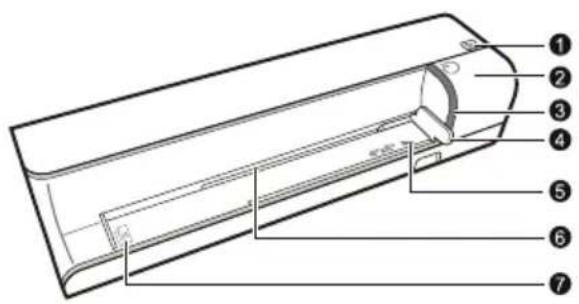
External View
① - STATUS - status indicator - displays the device status
Lit: Scanner in cleaning mode
Flashing quickly: Document jam
Flashing slowly: Scans the document, saves data, sensor is being cleaned
② - ⏻ - switch the device on/off / press and hold for longer than 5 seconds to clean the feed roller with the cleaning sheet
③ - POWER - Operating status indicator - displays the operating status of the device
Lit: Scanner ready, or scanning the document
Flashing quickly: Document jam, memory card error
Flashing slowly: Initialisation, saves data, sensor is being cleaned
④ Document guide – inserting the document/ remove the tape before using it for the first time
⑤ Markers for 10×15cm photos
6 Document feed slot
⑦ Symbol for direction of feed – insert the document into the document feeder with the printed side facing up and the top edge facing the ⏻ key
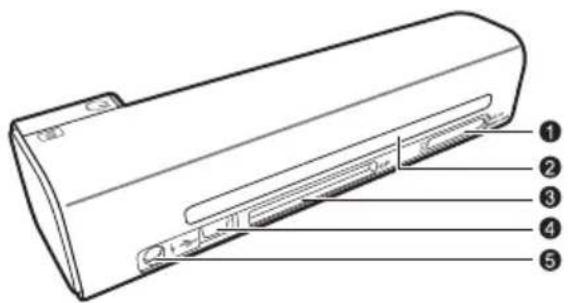
Connections on the Rear Side
① Slot for memory card – only insert the following memory cards here: SD/xD/MMC/MS
② Document outlet
③ Slot for Compact Flash memory card Type 1
4 Mini USB connection – for connecting a computer (only as a memory card reader) or a digital photo frame
⑤ - Socket - Port for power supply
Initial Operation
Packing Contents
Photo scanner
Calibration sheet
Cleaning sheet for the feed rollers
Cleaning pen for scanner
Power supply
USB cable
User Manual
Notice

Missing Package Contents
If one of the parts is missing or damaged, please contact your retailer or our customer service.
Connecting power supply
CAUTION!

Mains Voltage at the Site of Installation!
Check whether the mains voltage of your device (indicated on the type label) matches the mains voltage available at the setup location.
1 Insert the small plug of the power supply into the socket on the rear side of your device.
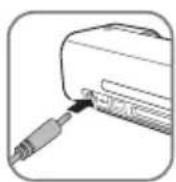
2 Insert the power supply unit into the socket.
Inserting a Memory Card
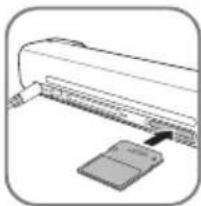
1 Insert a memory card which is not read-only into the appropriate card slot at the rear of the device. Your photo frame supports the following memory cards: SD, xD, MMC, MS, CF.
DANGER!

Inserting a Memory Card!
Only use storage media that are compatible with the device. In order to prevent damage to the card or the unit, please turn off the power before removing or inserting the card.
Never pull out the memory card while the device is accessing it. This could cause data to be damaged or lost.
Notice

Inserting a Memory Card
If both slots are occupied, the data is saved in the following sequence: SD (MMC) > CF > xD > MS.
natural_image
Diagram of a printer or printer with a paper clip inserted, showing no text or symbols.2 Press and hold the ⏻ key until the control lamp for the device status is constantly on.
Notice

Control Lamp
If this control lamp flashes, this could stem from one of the following causes.
- no memory card inserted - insufficient memory capacity available on the memory card (less than 1MB)
- The read-only option of the memory card is active
- memory card defective Please note that the initialisation process of a memory card with a capacity of 2GB or more takes longer. The control lamp can blink for up to 20 seconds
Using the digital photo frame
Notice

Using the digital photo frame
If the device is connected to a compatible digital photo frame, the scanned photos can be transferred directly to the memory of the digital photo frame.
1 Switch the device off using the on/off switch on the upper side.
2 Connect the digital photo frame to the Mini-USB of the device using a USB cable.
3 Switch the device on using the on/off switch.
Scanning
Loading Photos
You can insert different types of document into your device. Follow the specifications in the technical data.
You can scan documents using the protective cover to avoid the photo or document being damaged by scratches or creases.
Notice

Scanning documents with the protective cover
If smaller documents are scanned using the protective cover, in certain cases, the automatic cutting off function does not function properly. Either important parts of the image are cut off or too much edge remains around the document. In this case, scan the documents without using the protective cover.
CAUTION!

Unsuitable Documents!
No paper clips, staples, fixing pins or similar may be retained on the documents.
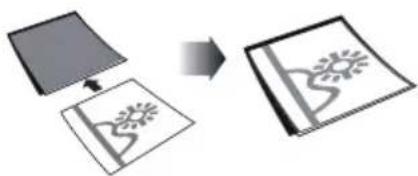
1 Open the protective cover and insert the document with the printed side facing up.
flowchart
graph TD
    A["Rectangular Object"] --> B["Treemap"]
    B --> C["Tree-like Structure"]
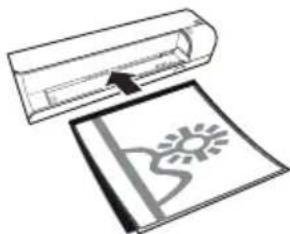
2 Lay the protective cover into the document feeder with the printed side facing upwards, the closed side of the page (black lines) forward and the page header in the direction of the ⏻ button.
3 Align the protective cover to the left hand edge.
4 Fix the protective cover in place using the document guide on the right hand side. The document guide should lightly touch the protective cover.
natural_image
Illustration of a printer emitting a printed document with a stylized sunburst graphic (no text or symbols)5 Slide the protective cover horizontally as far into the document feeder until it is automatically fed into the scanner and the scanning process is started. Ensure you do not bend the document. The control lamp POWER flashes during the scanning process.
DANGER!

Document Jam!
Do not insert documents into the feeder whilst the device is scanning. This can lead to a paper jam.
6 Wait until the control lamp POWER and the control lamp STATUS are no longer flashing and the control lamp STATUS is continually on. This means that the scanning process is completed and the data was saved onto the memory card.
DANGER!

Document Jam!
Wait until both control lamps are no longer flashing before you insert the next document in order to prevent a document jam.
7 The file name is assigned according to the DCF (Design Rule for Camera File System) standard.
Notice

Scanning documents with the protective cover
Remove the document from the protective cover after the scanning process in order to avoid the document sticking to the protective cover.
Notice

Stand-by Mode
If the scanner has not been used for approx. 15 minutes, it automatically switches off.
Cleaning the Scanner Glass
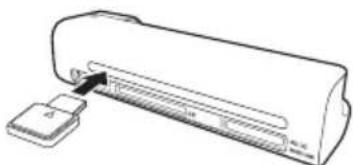
If lines appear on the scanned image or the image is not sharp, you need to clean the scanner glass.
1 Switch the device off.
2 Insert the cleaning pen into the left hand end of the document ejector.
Notice

Instructions for Cleaning
The cleaning pen must be free of any dust.
natural_image
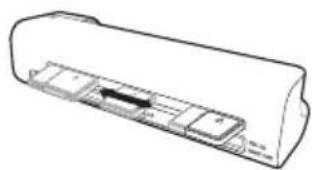
Line drawing of a printer with a paper clip inserted, showing no text or symbols3 Move the cleaning pen carefully two or three times to the other end of the document ejector.
natural_image
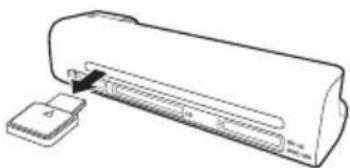
Line drawing of a cylindrical device with internal components, no text or symbols present4 Move the cleaning pen to the left hand side of the document ejector again and then remove the cleaning pen.
natural_image
Line drawing of a washing machine with a handle and base (no text or symbols)Computer Connection
You also use the scanner as a memory card reader in combination with a computer.
Requirements
Your computer must meet the following minimum requirements:
Operating System
Windows: Windows 2000 · XP · Vista · or later versions
Macintosh: Mass Storage Class Mac OS9.x or Mac OSX
Connecting to the PC
The device is Hot-Plug-and-Play capable which means you can link your computer to the device, whilst its running. You do not need to close down your computer to link the device to it.
1 Connect the device to your PC by means of the USB cable.
2 If the USB is working correctly, the device is recognised automatically. A drive letter is assigned to each memory card slot.
Notice

Connecting to an USB hub
If you would like to connect the device to a USB hub = (USB distributor), ensure that the USB hub is connected to the computer before you connect the device to the USB hub.
3 You can access the memory card (drive) and edit the saved files.
Service
Cleaning
DANGER!

Switching off the device!
Turn the device off using the on/off switch before you remove the plug from the socket.
DANGER!

Instructions for Cleaning!
Use a soft, lint-free cloth. Never use liquid or easily flammable cleansers (sprays, abrasives, polishes, alcohol, etc.). Do not allow any moisture to reach the interior of the device. Do not spray the device with any cleaning fluids.
Wipe over the surfaces gently. Be careful that you do not scratch the surfaces.
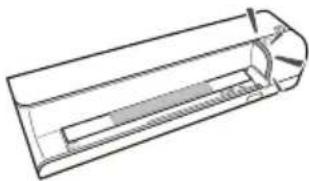
Cleaning the feed rollers
1 Switch the device off.
2 Press and hold the Ⓧ key until the control lamp POWER light up.
3 The scanner is now in cleaning mode.
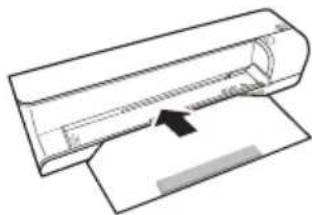
4 Push the cleaning sheet into the document feeder.
natural_image
Pure technical diagram of a mechanical component with no text or symbolsNotice

Instructions for Cleaning
Observe the direction of feed. The white sponge must be on the upper side.
Do not use any cleaning agents or cleaning fluids. Doing so can permanently damage the feed rollers.
5 The sheet is automatically fed and the cleaning process started. During cleaning, the control lamps POWER and STATUS flash.
natural_image
Technical line drawing of a rectangular mechanical component with internal channels (no text or symbols)6 After cleaning is complete, the sheet is ejected and the control lamp POWER goes out.
Notice

Cleaning sheet for the feed rollers
Store the cleaning sheet in a dust-free location.
Calibrating the scanner
Calibrate the scanner if colors appear in areas that should be white, or colors of the scanned image and the original vary a lot. This allows you to adjust and compensate for variations that can occur in the optical component over time by its nature.
1 Clean the feed rollers and the scanner glass first before calibrating the scanner.
2 Insert a memory card which is not read-only into the appropriate card slot at the rear of the device.
3 Press and hold the ⏻ key until the control lamp for the device status is constantly on.
4 Place the calibrating sheet in the document feeder with the arrows facing the feed rollers.
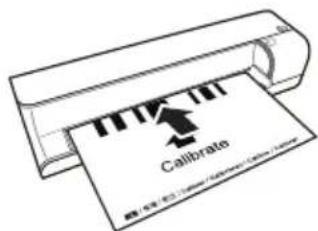
5 The sheet is automatically fed and the calibration process started.
Notice

Calibrating the scanner
Observe the direction of feed. If the calibration sheet is inserted incorrectly, the calibration process cannot be started.
Power Cycling
If a problem occurs that cannot be corrected with the instructions in this user manual (also see the help below), proceed as follows:
1 Disconnect the mains.
2 Wait at least ten seconds, then plug the power plug back into the socket.
3 If the problems repeats, please contact our technical customer service or your retailer.
| Problems Solutions | |
| The device cannot be switched on Check that power supply is connected to the device properly. | |
| The device feels warm • After a certain period of operation, the surface reaches approx. 30°C to 45 °C. This is normal. If an unusual smell comes from the device or the surface becomes too hot, disconnect the scanner immediately from the power supply and/or the computer / digital photo frame. | |
| Lines are present on the scanned picture or the image is not sharp | • Check whether the document is dirty or scratched.• Check whether the protective cover used is dirty or scratched.• Clean and calibrate the scanner if it has not been used for a longer period. |
| With scanned images, parts of the image are cut off. | • The scanner is equipped with a function for automatic cutting off of black edges. With small images, the image is only saved without the edge.When using this function, cutting off of important picture information can occur with images with a black background (e.g. night shot).In this case, rotate the image and scan it again. |
| The document is stuck in the feeder | • Switch the device off using the ⬆ button.You can now remove the document. |
| The control lamp STATUS flashes quickly, scanning not possible / memory card is not recognised | • Check whether you have used a compatible memory card and whether you have inserted the memory card correctly.• Remove the memory card and insert it into the slot again• Switch any active read-only options on the memory card off.• Make sure the memory card is not damaged.• Check the available memory space on the memory card. If the available space is less than 1MB, the scanning process cannot take place• Check the file format of the memory cardOnly memory cards with the FAT or FAT32 file format can be used.• Check whether the next document was inserted too quickly.When scanning several documents, wait until the data transfer of the first scan has ended (status lamp continuously on)• Check the document length (see technical data) |
| Transfer to a digital photo frame is not working | • This function is only available with certain photo frames. |
| Photos with a grey or black back will not be scanned. | Place a white piece of paper over the back of the photo and put it into the protective cover. Place the protective cover into the document feeder. |
EN
Appendix
Technical Data
Type ...... Color Contact Image Sensor (CIS)
Dimensions (L × H × W).... 156 × 46 × 38 mm
Weight.... 0,17 kg
Mains Connection
..... Input: 100 - 240 V \~ (±10 %) / 50 - 60 Hz
Output: 6V= / 1.5A
Power Consumption
Operation....<9W
Recommended Ambient 15–35°C
Relative humidity
20 - 70% (non-condensing)
Scanner
Input format.... 48 bit colour
Output format.... 24-Bit
Maximum hardware resolution ...1800×1200 Pixel
Document feed slot
Maximum thickness of cheque cards/plastic cards 1.5mm
Paper formats supported
Minimum (B × L) 42 × 20 mm
Maximum (B × L)....105 × 304.8 mm
Paper Weight 50-105 g/m²
Computer connection
Connection Type .....Compatible with USB 2.0 High Speed
Technical specifications subject to change without notice.
Guarantee
[Terms and Conditions for United Kingdom only]
In order to supply the guarantee, you should contact your dealer or Sagem Communications Helpdesk. The proof of purchase will be required.
Please make usage of your equipment for the purpose for which it was designed and under normal usage conditions. Sagem Communications do not accept any liability for any usage made out of the frame of its original designed purpose and any consequence that may arise from this usage.
Should any malfunctioning arise, the dealer or Sagem Communications Helpdesk will advise you what to do.
A) General Guarantee Conditions
Sagem Communications undertakes to remedy by repair or exchange at its own convenience, free of charge for labour and replacement parts, any defects in the equipment during the guarantee period of 12 -twelve- months (3 -three- months for accessories), from the date of original invoice of the Equipment, where those defects are a result of faulty workmanship.
Unless the customer has concluded with Sagem Communications a maintenance contract in respect of the equipment which specifically provides for repairs to be carried out at the customer's premises, the repairs will not be carried out on the equipment at the customer premises. The customer must however return the defective equipment at his/her own expense, to the address given by the dealer or Sagem Communications Helpdesk.
In case a product needs to be sent in for a repair, it always has to be accompanied by a proof of purchase (which is not altered, written on or in any way be made illegible) showing that the product is still under warrantee. In case no proof of purchase is enclosed, the Sagem Communications repair center will use the production date as a reference of establishing the warrantee status of the product.
Apart from all legal obligatory rules, Sagem Communications, do not give any Guarantee, either implicit or explicit which is not set force in the present section, and could not be hold responsible for any direct or indirect, material or immaterial damage, in or out of the frame of the present guarantee.
If any provision of this guarantee shall be held to be in whole or in part invalid or illegal due to an ob-
ligatory rule applicable to consumers pursuant to their national legislation, such invalidity or illegality shall not impair or affect the remaining provisions or parts of this guarantee.
This guarantee does not affect the Customer statutory rights.
B) Exclusions From Guarantee
Sagem Communications shall have no liability under the guarantee in respect of:
•) Damage, defects, breakdown or malfunction due to one or more of the following:
- Failure to properly follow the installation process and instructions for use
- An external cause to the equipment (including but not limited to: lightening, fire, shock, vandalism, inappropriate conditions of electrical network or water damage of any nature)
- Modifications made without the written approval of Sagem Communications
- Unsuitable operating conditions, particularly of temperature and humidity
– Repair or maintenance of the equipment by persons not authorized by Sagem Communications
•) Wear and tear from normal daily use of the equipment and its accessories
•) Damage due to insufficient or bad packaging of equipment when returned to Sagem Communications
•) Usage of new versions of software without previous approval of Sagem Communications
•) Work on any equipment or software modified or added without the prior written consent of Sagem Communications
•) Malfunctions not resulting from the Equipment or from software installed in user workstations for the purpose of use of the equipment.
Communication problems related to an unsuitable environment including:
– Problems related to access and/or connection to the Internet such as interruptions by access networks or malfunction of the line used by the subscriber or his correspondent
- Transmission faults (for example poor geographical coverage by radio transmitters, interference or poor line quality)
- The local network fault (wiring, servers, workstations) or the failure of the transmission network (such as but not limited to interferences, fault or poor quality of the network)
- Modification of the parameters of the cellular network carried out after the sale of the Product
•) The normal servicing (as defined in the user guide supplied with the equipment) as well as malfunctioning due to servicing not being carried out.
Servicing costs are in any event always borne by the customer.
• Malfunctions resulting from the usage of products, consumables or accessories not compatibles with the equipment.
C) Out of Guarantee Repairs
In the cases set forth in B) as well as after expiry of the guarantee period, the customer must ask the Authorized Sagem Communications Repair Centre for a cost estimation.
The repair and delivery costs will be invoiced to the customer.
The foregoing shall apply unless otherwise agreed in writing with the customer and only for the United Kingdom.
Helpdesk: 0871 - 075 22 50
AgfaPhoto is used under license of Agfa-Gevaert NV & Co. KG or Agfa-Gevaert NV. Neither Agfa-Gevaert NV & Co KG nor Agfa-Gevaert NV manufacture this product or provide any product warranty or support.
For service, support and warranty information, contact the distributor or manufacturer.
Contact: AgfaPhoto Holding GmbH,
www.agfaphoto.com
Manufacturer: Sagem Communications,
www.sagem-communications.com

The CE symbol confirms conformity with the EU directives that apply to the device.
Preservation of the environment as part of a sustainable development logic is an essential concern of AgfaPhoto. The desire of AgfaPhoto is to operate systems observing the environment and consequently it has decided to integrate environmental performances in the life cycle of this products, from manufacturing to commissioning use and elimination.

Packaging: The presence of the logo (green dot) means that a contribution is paid to an approved national organisation to improve package recovery and recycling infrastructures to facilitate. Please respect the sorting rules set up locally for this kind of waste.
Batteries: If your product contains batteries, they must be disposed of at appropriate collection points.

Product: The crossed-out waste bin stuck on the product means that the product belongs to the family of electrical and electronic equipment. In this respect, the European regulations ask you to dispose of it selectively;
- At sales points in the event of the purchase of similar equipment.
- At the collection points made available to you locally(drop-off centre, selective collection, etc.).
In this way you can participate in the re-use and upgrading of Electrical and Electronic Equipment Waste, which can have an effect on the environment and human health.
The paper and cardboard packaging used can be disposed of as recyclable paper. Have the plastic wrapping and Styrofoam packaging recycled or dispose of it in the non-recyclable waste, depending on the requirements in your country.
Trademarks: The references mentioned in this manual are trademarks of the respective companies. The lack of the trademarks ® and ™ does not justify the assumption that these dedicated terminologies are free trademarks. Other product names used herein are for identification purposes only and may be trademarks of their respective owners. AgfaPhoto disclaims any and all rights in those marks.
The reproduction of certain documents (e.g. by scanning, printing, copying) is prohibited in many countries. The list of such documents below is not intended to be complete, it only offers a general overview. In case of doubt, consult your legal advisor.
- Passports (personal identification)
- Entrance and exit visa papers (immigration papers)
· Military service documents
· Bank notes, travel checks, payment orders - Postage stamps, tax stamps (stamped or un-stamped)
· Loan papers, certificates of deposit, bonds
· Documents protected by copyright
Follow the statutory regulations of your country with regard to the legal validity of fax transmissions—particularly in connection with the validity of signatures, meeting delivery deadlines or disadvantages resulting from the loss of quality in the transmission, etc.
Take care to maintain the statutory regulations of your country regarding telecommunications secrecy and data privacy.
Neither AgfaPhoto nor its affiliates shall be liable to the purchaser of this product or third parties for damages, losses, costs, or expenses incurred by the purchaser or third parties as a result of accident, misuse, or abuse of this product or unauthorized modifications, repairs, or alterations to this product, or failure to strictly comply with AgfaPhoto operating and maintenance instructions.
AgfaPhoto shall not be liable for any damages or problems arising from the use of any options or any consumable materials other than those designated as original AgfaPhoto products or AgfaPhoto approved products.
AgfaPhoto shall not be held liable for any damage resulting from electromagnetic interference that occurs from the use of any interface cables other than those designated as AgfaPhoto products.
All rights reserved. No part of this publication may be reproduced, stored in a retrieval system or transmitted in any form or by any means, electronic, mechanical, photocopying, recording, or otherwise, without the prior written permission of AgfaPhoto. The information contained herein is designed only for use with this product. AgfaPhoto is not responsible, if this information is applied to other devices.
This user manual is a document that does not represent a contract.
Errors, printing errors and changes are reserved.
Copyright © 2009
Introduzione
Stimato cliente,
natural_image
Illustration of a printer or printer with a paper clip inserted, showing no text or symbols.natural_image
Illustration of a printer and a document with abstract patterns (no text or symbols)natural_image
Line drawing of a washing machine with a handle and base (no text or symbols)natural_image
Line drawing of a cylindrical device with internal components, no text or symbols presentnatural_image
Line drawing of a printer with a paper clip inserted, showing internal structure (no text or symbols)Collegamento a computer
natural_image
Diagram of a mechanical component with an arrow indicating a process or movement (no text or symbols present)Nota

natural_image
Technical line drawing of a rectangular mechanical component with internal channels (no text or symbols)Dimensioni (L × A × P)....156 × 46 × 38 mm
Peso 0,17 kg
natural_image
Diagram of a printer or printer with a paper clip inserted, showing no text or symbols.natural_image
Illustration of a printer emitting a printed document with a stylized logo (no text or symbols present)natural_image
Line drawing of a washing machine with a handle and outlet (no text or symbols)natural_image
Line drawing of a cylindrical device with internal components, no text or symbols presentnatural_image
Line drawing of a printer with a paper clip inserted, showing internal structure (no text or symbols)Computeraansluiting
Macintosh: Mass Storage Class Mac OS9.x or Mac OSX
natural_image
Diagram of a mechanical component with an arrow indicating direction, no text or symbols presentOpmerking

natural_image
Technical line drawing of a rectangular mechanical component with internal channels (no text or symbols)natural_image
Diagram of a printer or printer with an arrow pointing to it, no visible text or symbolsnatural_image
Illustration of a printer and a document with abstract patterns (no text or symbols)natural_image
Line drawing of a washing machine with a handle and base (no text or symbols)natural_image
Line drawing of a cylindrical device with internal components (no text or symbols)natural_image
Line drawing of a washing machine with a handle and base component (no text or symbols)Macintosh: Mass Storage Class Mac OS9.x o Mac OSX
natural_image
Pure technical diagram of a mechanical component with no text or symbolsNota

natural_image
Technical line drawing of a rectangular mechanical component with internal channels (no text or symbols)Primeira utilização
natural_image
Diagram of a computer monitor with an attached drive (no text or symbols)natural_image
Illustration of a printer and a document with a stylized logo (no text or symbols)natural_image
Line drawing of a printer or printer with a paper clip inserted, showing no text or symbols.natural_image
Line drawing of a cylindrical device with internal components, no text or symbols presentnatural_image
Line drawing of a washing machine with a plastic clip inserted (no text or symbols)Porta do computador
natural_image
Diagram of a mechanical component with an arrow indicating direction, no text or symbols presentIndicação

natural_image
Technical line drawing of a rectangular mechanical component with internal channels (no text or symbols)Uttag på baksidan
natural_image
Diagram of a mechanical device with a component inserted, showing no text or symbolsnatural_image
Illustration of a printer and a printed document with abstract graphics (no text or symbols)natural_image
Line drawing of a mechanical device with a clamped component inserted (no text or symbols)natural_image
Line drawing of a cylindrical device with internal components (no text or symbols)natural_image
Line drawing of a washing machine with a partially open lid and base (no text or symbols)Datoranslutning
natural_image
Diagram of a mechanical component with an arrow indicating direction, no text or symbols presentAnvisningar

natural_image
Technical line drawing of a rectangular mechanical component with internal channels (no text or symbols)Počáteční instalace
Obsah dodávky
Skener fotografií
Kalibrační list
natural_image
Diagram of a printer or printer with an attached cover, showing no text or symbols.natural_image
Illustration of a printer and a document with abstract line patterns (no text or symbols)natural_image
Line drawing of a washing machine with a clip inserted, showing internal components (no text or symbols)natural_image
Line drawing of a cylindrical device with internal components (no text or symbols)natural_image
Line drawing of a refrigerant air conditioner unit with a cooling fan and cooling pad (no text or symbols)natural_image
Diagram of a mechanical component with an arrow indicating direction, no text or symbols presentPoznámka

Návod k čistění
natural_image
Technical line drawing of a rectangular mechanical component with internal channels (no text or symbols)5 List je automaticky vtažen a postup kalibrace se spustí.
Poznámka

Kalibrace skeneru
Maximum hardware resolution ..... 1800×1200dpi
Maximum (B × L)....105 × 304.8 mm
natural_image
Diagram of a printer or printer with a paper clip inserted, showing no text or symbols.natural_image
Illustration of a printer and a printed document with abstract patterns (no text or symbols)natural_image
Line drawing of a mechanical device with a clamped component inserted (no text or symbols)natural_image
Line drawing of a cylindrical device with internal components (no text or symbols)natural_image
Line drawing of a refrigerant air duct with a partially cut section showing internal components (no text or symbols)natural_image
Pure technical line drawing of a mechanical component with no text or symbolsMegjegyzés

natural_image
Technical line drawing of a rectangular mechanical component with internal channels (no text or symbols)Maximum hardware resolution ..... 1800×1200dpi
Iratadagoló rés
Przyłącza z tyłu
natural_image
Diagram of a printer or printer with a paper clip inserted, showing no text or symbols.natural_image
Illustration of a printer and a document with abstract patterns (no text or symbols)natural_image
Line drawing of a printer with a paper clip inserted, showing internal structure without any text or symbolsnatural_image
Line drawing of a cylindrical device with internal components, no text or symbols presentnatural_image
Line drawing of a printer with a paper clip inserted, showing internal structure (no text or symbols)natural_image
Diagram of a mechanical component with an arrow indicating direction, no text or symbols presentWskazówku

natural_image
Technical line drawing of a rectangular mechanical component with internal channels (no text or symbols)Maximum hardware resolution ..... 1800×1200dpi
Podajnik dokumentów
Producent: Sagem Communications, www.sagem-communications.com

natural_image
Diagram of a printer or printer with a paper clip inserted, showing no text or symbols.flowchart
graph TD
    A["Rectangular Object"] --> B["Document Icon with Tree Structure"]
    B --> C["Arrow pointing right"]
natural_image
Illustration of a printer and a stylized document with a sunburst design (no text or symbols)natural_image
Line drawing of a washing machine with a partially inserted slot (no text or symbols)natural_image
Line drawing of a cylindrical device with internal components, no text or symbols presentnatural_image
Line drawing of a washing machine with a partially open lid and base (no text or symbols)Conexiune computer
Macintosh: Mass Storage Class Mac OS9.x or Mac OSX
Conectarea la un calculator
natural_image
Pure technical diagram of a mechanical component with no text, numbers, or symbolsIndicatie

natural_image
Technical line drawing of a rectangular mechanical component with internal channels (no text or symbols)Maximum hardware resolution ..... 1800×1200dpi
Minim (B × L).... 42 × 20 mm
Maxim (B × L)....105 × 304,8 mm
Greutate hârtie....50 - 105 g/m²
Conexiune computer
Tip de conectare ....USB 2.0 High Speed
natural_image
Diagram of a mechanical component with an arrow pointing to a rectangular block (no text or symbols present)2 Stlačte a držte tlačidlo ⏻, až sa kontrolka stavu zariadenia rozsvieti trvale.
Poznámka

Kontrolka
natural_image
Illustration of a printer and a printed document with abstract patterns (no text or symbols)natural_image
Line drawing of a washing machine with a clip inserted, showing internal structure and base plate (no text or symbols)natural_image
Line drawing of a cylindrical device with internal components, no text or symbols presentnatural_image
Line drawing of a refrigerant air conditioner unit with a cooling fan and cooling pad (no text or symbols)natural_image
Diagram of a mechanical component with an arrow indicating direction, no text or symbols presentPoznámka

Návod na čistenie
Sledujte smer naberania. Biela hubka musí byt' na hornej strane.
natural_image
Technical line drawing of a rectangular mechanical component with internal channels (no text or symbols)Maximum hardware resolution ..... 1800×1200dpi
Vstupná čast' podávača
Maximum (B × L)....105 × 304.8 mm
Hmotnost' papiera....50 - 105 g/m²
İlk çalıştırma
Ambalaj içeriği
Fotoğraf tarayıcısı
Kalibrasyon sayfası
natural_image
Diagram of a printer or printer with a paper clip inserted, showing no text or symbols.natural_image
Illustration of a printer printing a printed document with a stylized logo (no text or symbols present)natural_image
Line drawing of a mechanical device with a clamped component inserted (no text or symbols)natural_image
Line drawing of a cylindrical device with internal components (no text or symbols)natural_image
Line drawing of a refrigerant air conditioner unit with a cooling unit inserted (no text or symbols)Macintosh: Mass Storage Class Mac OS9.x veya Mac OSX
natural_image
Pure technical diagram of a mechanical component with no text or symbolsUyari

natural_image
Technical line drawing of a rectangular mechanical component with internal channels (no text or symbols)Ölçüler (G × Y × D) 156 × 46 × 38 mm
Gewicht.... 0,17 kg
Şebeke bağlantısı
......Giriş: 100-240V\~[±10%]/50-60Hz
......Çıkış: 6V== / 1.5A
Elektrik tüketimi
İşletim ....<9W
Maximum hardware resolution ..... 1800×1200dpi
Belge alma mekanizması
natural_image
Illustration of a printer or printer with a paper clip and arrow pointing to it (no text or symbols present)flowchart
graph TD
    A["Rectangular Object"] --> B["Document Icon with Tree-like Patterns"]
    B --> C["Arrow pointing right"]
natural_image
Illustration of a printer emitting a printed document with a stylized logo (no text or symbols present)natural_image
Line drawing of a washing machine with a partially open lid (no text or symbols)natural_image
Line drawing of a cylindrical device with internal components, no text or symbols presentnatural_image
Line drawing of a printer with a paper clip inserted, showing internal structure (no text or symbols)Συνδεσιμότητα Η/Υ
Macintosh: Mass Storage Class Mac OS9.x ¦ Mac OSX
natural_image
Diagram of a mechanical component with an arrow indicating direction, no text or symbols presentΟδηγία

natural_image
Technical line drawing of a rectangular mechanical component with internal channels (no text or symbols)Maximum hardware resolution ..... 1800×1200dpi
Τροφοδοσία εγγράφων
Ввод в эксплуатацию
Комплект поставки
Фотосканер
Калибровочный лист
natural_image
Diagram of a printer or printer with an arrow pointing to it, showing no text or symbols.natural_image
Illustration of a printer and a document with abstract patterns (no text or symbols)natural_image
Line drawing of a printer or printer with a paper clip inserted, showing no text or symbols.natural_image
Line drawing of a cylindrical device with internal components (no text or symbols)natural_image
Line drawing of a washing machine with a partially open lid and base (no text or symbols)natural_image
Diagram of a mechanical component with an arrow indicating direction, no text or symbols presentЗамечания

natural_image
Technical line drawing of a rectangular mechanical component with internal channels (no text or symbols)Maximum hardware resolution ..... 1800×1200dpi
AgfaPhoto is used under license of Agfa-Gevaert NV & Co. KG or Agfa-Gevaert NV. Neither Agfa-Gevaert NV & Co. KG nor Agfa-Gevaert NV manufacture this product or provide any product warranty or support. For service, support and warranty information, contact the distributor or manufacturer.
AS 1110 · AS 1111
Booklet
253222514-F