AC3200 - Router LINKSYS - Free user manual and instructions
Find the device manual for free AC3200 LINKSYS in PDF.


Frequently Asked Questions - AC3200 LINKSYS
User questions about AC3200 LINKSYS
0 question about this device. Answer the ones you know or ask your own.
Ask a new question about this device
Download the instructions for your Router in PDF format for free! Find your manual AC3200 - LINKSYS and take your electronic device back in hand. On this page are published all the documents necessary for the use of your device. AC3200 by LINKSYS.
USER MANUAL AC3200 LINKSYS
Where to find more help. 3
How to install your router 3
How to connect to Linksys Smart Wi-Fi 3
How to change router settings 3
Troubleshooting
Your router was not successfully set up .
Windows XP Service Pack update . 7
Your Internet cable is not plugged in message 8
Cannot access your router message. 8
Specifications
Linksys EA9200. 10
Product overview
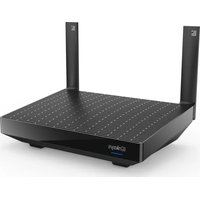
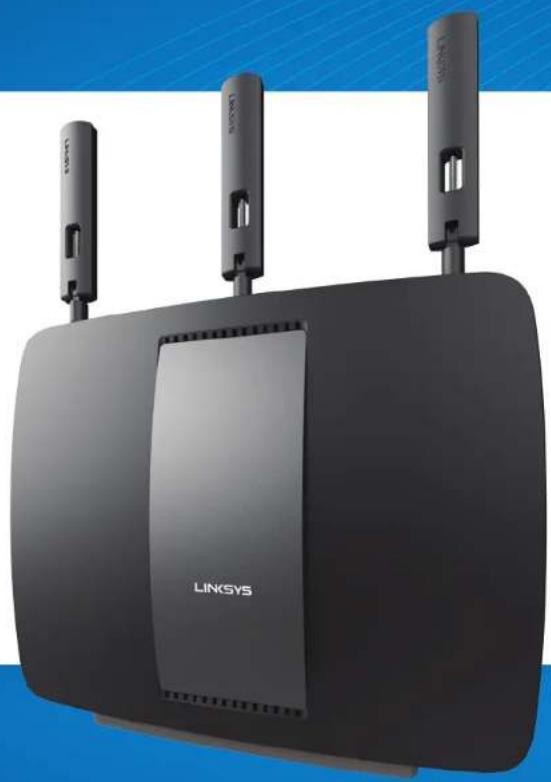
EA9200
Front view
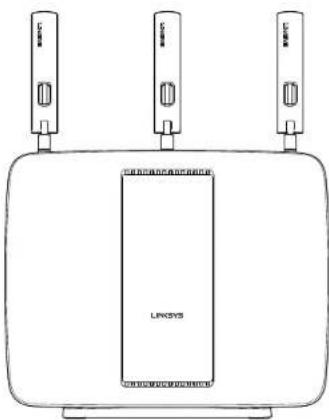
Indicator light - The Linksys logo stays on steadily while power is connected and following a successful Wi-Fi Protected Setup connection. Flashes or pulses slowly during bootup, during firmware upgrades, and during a Wi-Fi Protected Setup connection. Flashes quickly when there is a Wi-Fi Protected Setup error.
Back view
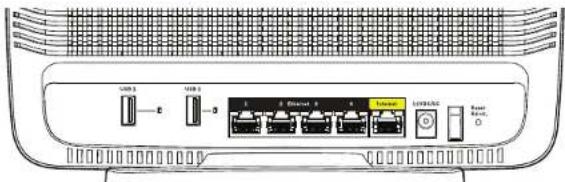
The ports/buhtons from left to right:USB 3.0,USB LED,USB 2.0,USB LED, Ethernet ports (1-4),Internet port,Power port,Power switch,Reset button
- USB ports — Connect and share a USB drive or a USB printer.
USB LEDs - Illuminate when a USB drive is connected. Flash when data is being transferred. - Ethernet ports — Connect Ethernet cables to wired Ethernet network devices.
NOTE For best performance, use CAT5E or higher rated cables on the Ethernet ports.
- Internet port — Connect an Ethernet cable to your modem.
Power port—Connect the included AC power adapter.
Power switch Press (on) to turn on the router. - Reset button — Press and hold for 10 seconds (until the port lights flash at the same time) to reset the router to factory defaults. You can also do this using Linksys Smart Wi-Fi.
Side view
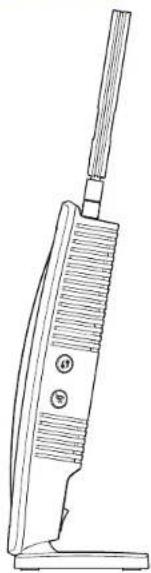
- Wi-Fi Protected Setup™ button — Press to easily configure wireless security on Wi-Fi Protected Setup-enabled network devices.
- WI-FI button — Press to disable the wireless networks (light comes on). Press again to enable the wireless networks (light goes out).
Top view

- Adjustable antenna ports — Three adjustable external antennas (included) should be connected to the router before powering it on. Twist antenna connectors clockwise onto ports.
Setting Up Your Router
Where to find more help
Linksys.com/support (documentation, downloads, FAQs, technical support, live chat, forums)
Linksys Smart Wi-Fi (linksyssmartwifi.com; click Help at the top of the screen)
How to install your router
If replacing an existing router, disconnect it.
- Connect the antennas to the top of your router and power it on.
- Connect the Internet cable from your modem to the yellow Internet port on the back of your router. Wait until the Linksys logo on the front of your router is solid.
- Connect to the secure wireless name shown in the Quick Start Guide that came with your router. (You can change these details later.) Select the option to automatically connect to this network in the future. You will not have Internet access until you complete router setup (see Step 4).
- Open a web browser to launch the Linksys Smart Wi-Fi Router setup instructions. If you don't see the instructions, type linksyssmartwifi.com in the address bar.
At the end of setup, follow the on-screen instructions to set up your Linksys Smart Wi-Fi account. Use Linksys Smart Wi-Fi to manage your router's settings, including:
- Change your router's name and password
- Set up guest access
- Configure parental controls
Connect devices to your network
Test your Internet connection speed
NOTE
As part of Linksys Smart Wi-Fi account setup, you will be sent a verification e-mail. Make sure that you open the e-mail from Linksys and click the provided link, and log in from a device connected directly to the router.
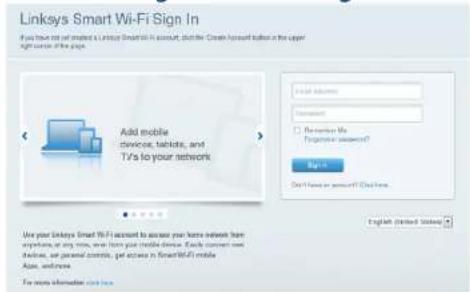
How to connect to Linksys Smart Wi-Fi
- Open a web browser and go to wwwlinksysmartwifi.com.
- Enter the e-mail address and password you set up earlier and click Sign in.
How to change router settings
NOTE
For additional help on any menu, click Help at the top of the screen.
Linksys EA9200
Setting Up Your Router
- Open Linksys Smart Wi-Fi and log in to your account.
In the menu on the left, click an option:
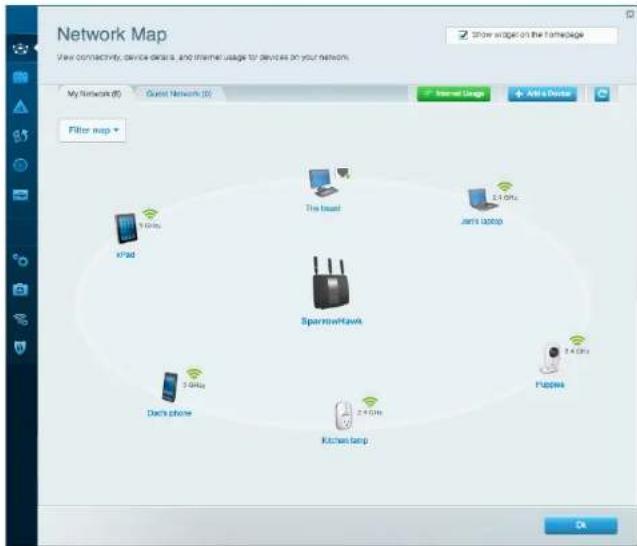
Network Map - Lets you display and manage all network devices connected to your router. You can view devices on your main network and your guest network, or display information about each device.
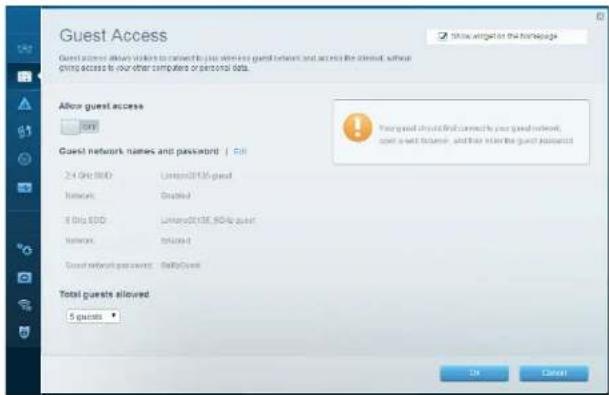
Guest Access - Lets you configure and monitor a network that guests can use without accessing all of your network resources.
Parental Controls - Lets you block web sites and set Internet access times.
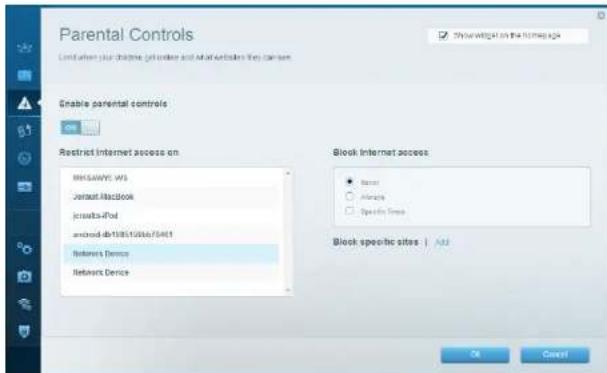
Media Prioritization - Lets you set which devices and applications have top priority for your network traffic.
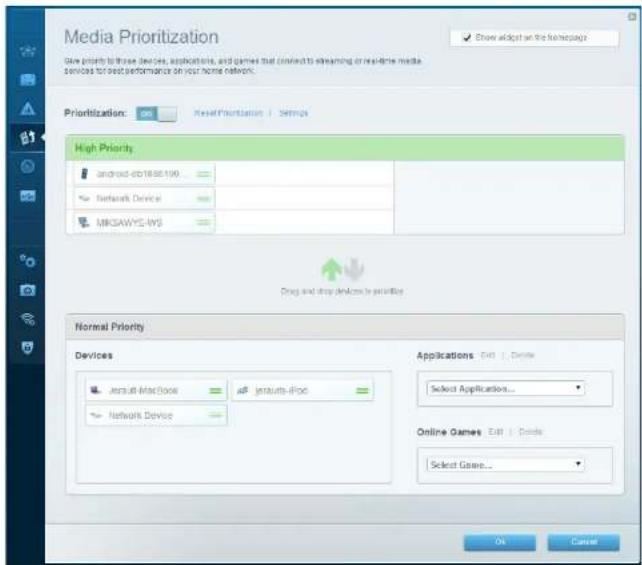
Speed Test - Lets you test your network's Internet connection speed.
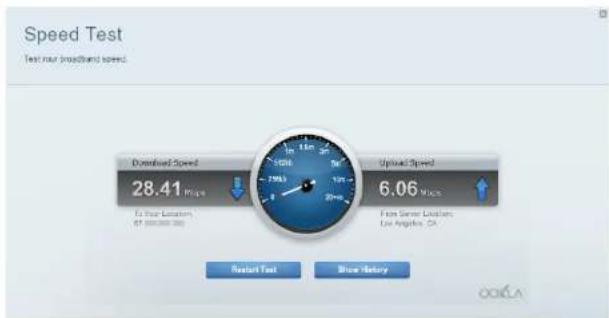
External Storage - Lets you access an attached USB drive (not included) and set up file sharing, a media server, and FTP access.
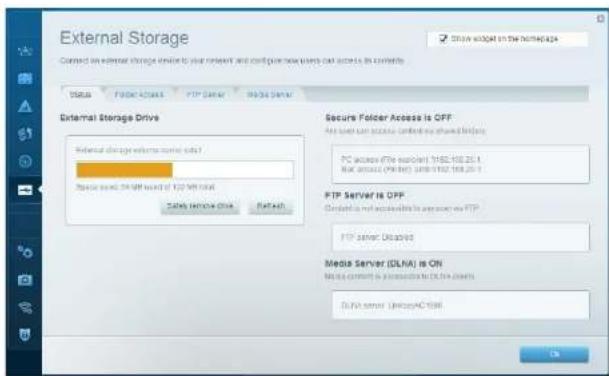
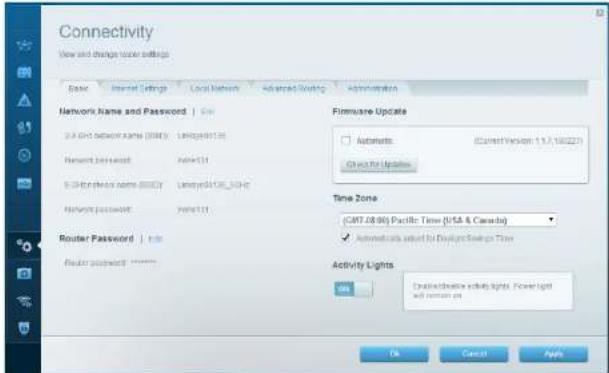
Connectivity - Lets you configure basic and advanced network settings.
Troubleshooting - Lets you diagnose problems with your router and check the status of the network.

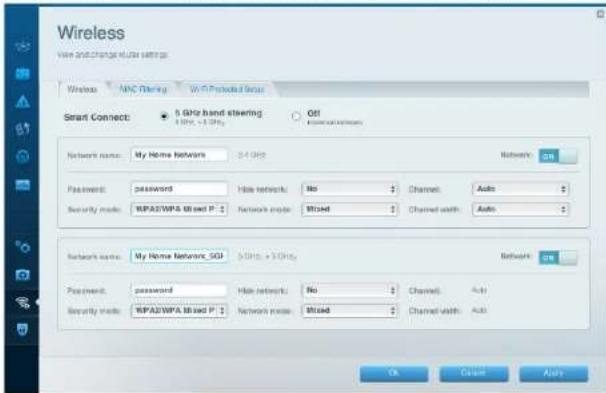
Wireless - Lets you configure your router's wireless network. Among the settings you may change are network name (SSID), security mode, password, MAC filtering, and connect devices using Wi-Fi Protected Setup.
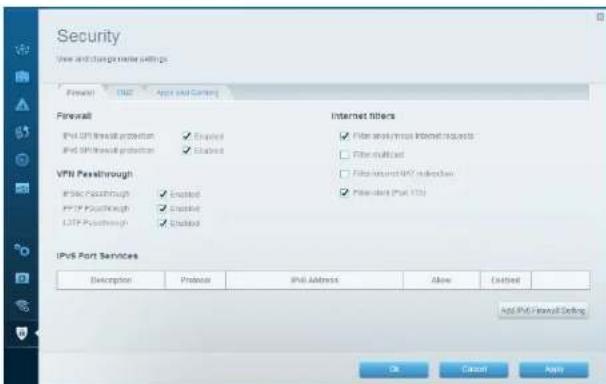
Security — Lets you configure your router's wireless security. You can set up the firewall, VPN settings, and make custom settings for applications and games.
Troubleshooting
This chapter can help you solve common setup issues and connect to the Internet. You can find more help from our award-winning customer support at linksys.com/support.
Your router was not successfully set up
If Linksys Smart Wi-Fi did not complete the setup, you can try the following:
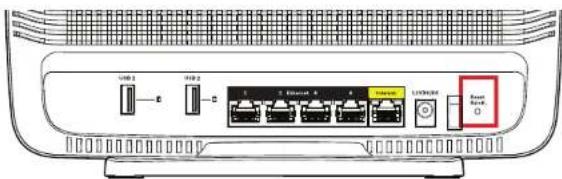
Press and hold the Reset button on your router with a paperclip or pin until the LED starts flashing (about 10 seconds), then install the router again.
If you still haven't set up the router, find another computer, and use that computer to install the router again.
Windows XP Service Pack update
On Windows XP computers, Linksys Smart Wi-Fi requires Service Pack 3. If the currently installed Service Pack is older than version 3, you need to download and install Service Pack 3.
NOTE
To temporarily connect to the Internet and download the required Service Pack, you can use the included Ethernet cable to connect your computer directly to your modem.
To Install Service Pack 3:
- Connect to the Microsoft Update website (update.microsoft.com/windowsupdate).
- Follow the instructions on the website or contact Microsoft if you need further help.
- After downloading and installing Service Pack 3, install the router again.
Your Internet cable is not plugged in message
If you get a "Your Internet cable is not plugged in" message when trying to set up your router, follow these troubleshooting steps.
Make sure that an Ethernet cable (or a cable like the one supplied with your router) is securely connected to the yellow Internet port on the back of the router and to the appropriate port on your modem. This port on the modem is usually labeled Ethernet.
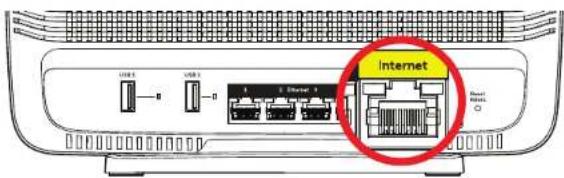
Back view of router
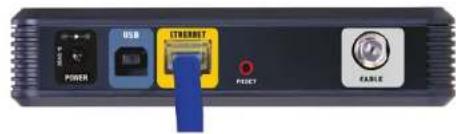
Back view of cable modem
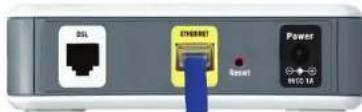
Back view of DSL modem
Make sure that your modem is connected to power and is turned on. If it has a power switch, make sure that it is set to the ON or I position.
If your Internet service is cable, verify that the cable modem's CABLE port is connected to the coaxial cable provided by your ISP.
Or, if your Internet service is DSL, make sure that the DSL phone line is connected to the modem's DSL port.
If your computer was previously connected to your modem with a USB cable, disconnect the USB cable.
Install the router again.
Cannot access your router message
To access your router, you must be connected to your own network. If you have wireless Internet access, the problem may be that you have accidentally connected to a different wireless network.
To fix the problem on Windows computers:
- On your Windows desktop, right-click the wireless icon in the system tray. The icon can differ depending on your version of Windows.
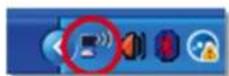
- Click View Available Wireless Networks. A list of available networks appears.
| Disable Status Repair |
| View Available Wireless Networks |
| Change Windows Firewall settings |
| Open Network Connections |
Linksys EA9200
Troubleshooting
- Click your own network name, and click Connect. In the example below, the computer was connected to another wireless network named JimsRouter. The name of the Linksys EA9200 network, BronzeEagle in this example, is shown selected.
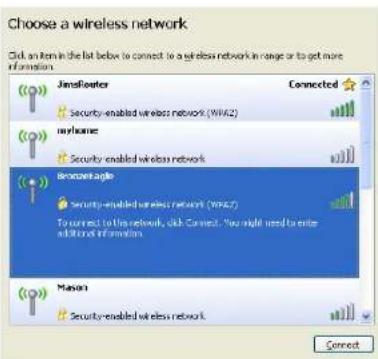
- If you are prompted to enter a network key, type your password (Security Key) into the Network key and Confirm network key fields.Click Connect.
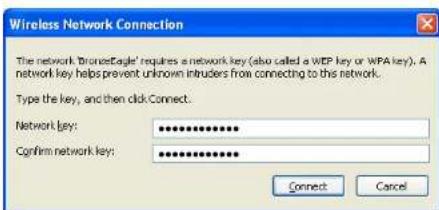
- You should be able to access the router.
To fix the problem on Mac computers:
In the menu bar across the top of the screen, click the Wi-Fi icon. A list of wireless networks appears. Linksys Smart Wi-Fi has automatically assigned your network a name.
In the example below, the computer was connected to another wireless network named JimsRouter. The name of the Linksys EA9200 network, BronzeEagle in this example, is shown selected.
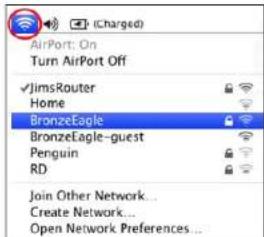
Click the wireless network name of your Linksys EA9200 (BronzeEagle in the example).
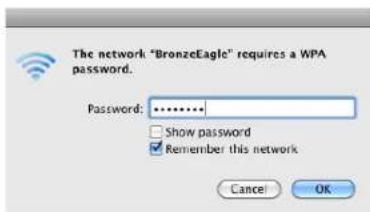
Type your wireless network password (Security Key) into the Password field, and click OK.
Specifications
Linksys EA9200
Model Name Linksys AC3200 Tri-Band Smart Wi-Fi Router
Description Tri-Band AC Router with Gigabit and 2× USB
Model Number EA9200
Switch Port Speed 10/100/1000 Mbps (Gigabit Ethernet)
Radio Frequency 2.4 GHz and 5 GHz (x2)
of Antennas 3 external adjustable dual-band antennas, 3 internal 5GHz antennas
Ports Power, USB (2), Internet,
Ethernet (1-4), R-SMA antenna (3)
Buttons Reset, Wi-Fi Protected Setup, Wireless, Power
LEDs Front panel: Power/WPS
Back panel: Internet, Ethernet (1-4), USB (2)
Side panel: Wireless
UPnP
Supported
Security Features WEP, WPA2, RADIUS
Security Key Bits Up to 128-bit encryption
Storage File Systems Support FAT, NTFS, and HFS+
Browser Support Internet Explorer 8 or higher, Firefox 4 or
higher, Google Chrome 10 or higher, and Safari
4 or higher
Environmental
Dimensions 9.76^ × 8.15^ × 3.15^
(248 x 207 x 80mm) w/o antennas
Unit Weight 25oz (710g) w/o antennas
Power 12V,4A
Certifications
FCC, IC, Wi-Fi a/b/g/n/ac,
Windows 7, Windows 8, DLNA
Operating Temp.
32 to 104^ (0 to 40^ )
Storage Temp.
-4 to 140^ (-20 to 60^ )
Operating Humidity
10 to 80% relative humidity,
non-condensing
Storage Humidity
5 to 90% non-condensing
Notes
For regulatory, warranty, and safety information, see the CD that came with your router or go to Linksys.com/support.
Specifications are subject to change without notice.
Maximum performance derived from IEEE Standard 802.11 specifications. Actual performance can vary, including lower wireless network capacity, data throughput rate, range and coverage. Performance depends on many factors, conditions and variables, including distance from the access point, volume of network traffic, building materials and construction, operating system used, mix of wireless products used, interference and other adverse conditions.
Visit linksys.com/support for award-winning technical support
BE.KIN, LINKSYS and many product names and logos are trademarks of the Belkin group of companies. Third party trademarks mentioned are the property of their respective owners. © 2012 Belkin international, Inc. and/or its affiliates. All rights reserved.
LINKSYS
PERFORMANCE PERFECTED
GUIDE D'UTILISATION
AC3200
ROUTEUR GIGABIT SANS FILTRIBANDE
Module N° EA9200
EA9200 Linksys
Table des matieres
Ports Alimentation, USB (2), Internet,