Premium 00090919 - Digital photo frame HAMA - Free user manual and instructions
Find the device manual for free Premium 00090919 HAMA in PDF.


| Product type | Digital photo frame |
| Brand | Hama |
| Model | Premium 00090919 |
| Screen | TFT-LCD 10.4 inches (26.42 cm), 4:3 aspect ratio, 640 x 480 pixels resolution |
| Internal memory | 128 MB |
| Supported image formats | JPEG, JPG, BMP, PNG, GIF |
| Supported video formats | Motion JPEG, AVI, MPEG 1/2, DivX, Xvid |
| Supported audio formats | MP3, WMA |
| Connectivity | Bluetooth (dongle provided), USB 2.0 (Host & Device, 2 ports: mini USB and USB type A), card reader CF/SD/SDHC/MMC/MS |
| Power supply | AC/DC adapter (12 V, 1.5 A) |
| Dimensions (W x D x H) | Approx. 30.0 x 4.0 x 24.0 cm (without stand); with stand: 30.0 x 20.5 x 24.0 cm |
| Weight | Not specified |
| Main functions | Slideshow with effects, zoom, rotation, split screen mode (up to 4 images), clock/calendar, alarm, auto-play, file management (copy, delete) |
| Speakers | Built-in, with 3.5 mm audio output |
| Remote control | Infrared, battery included |
| Wall mounting | Possible (mounting holes on back) |
| Care and cleaning | Use a soft microfiber cloth (e.g., Hama item no. 51076/51077). No solvents or alcohol. |
| Safety | Do not open the casing; protect from shocks, moisture, and heat sources; unplug during thunderstorms |
| General information | Class A (possible radio interference). R&TTE Declaration of Conformity at www.hama.com |
Frequently Asked Questions - Premium 00090919 HAMA
User questions about Premium 00090919 HAMA
0 question about this device. Answer the ones you know or ask your own.
Ask a new question about this device
Download the instructions for your Digital photo frame in PDF format for free! Find your manual Premium 00090919 - HAMA and take your electronic device back in hand. On this page are published all the documents necessary for the use of your device. Premium 00090919 by HAMA.
USER MANUAL Premium 00090919 HAMA
Class A information technology equipment GB
Warning! This device is categorized as class A equipment. This equipment can cause radio interference in living spaces. If this is the case, you can request the operator to undertake appropriate measures to prevent such interference.
See www.hama.com for declaration of GB
conformity according to R&TTE Directive 99/5/EC guidelines
D-86651 Monheim/Germany
www.hama.com
All listed brands are trademarks of the corresponding companies. Errors and omissions excepted, and subject to technical changes. Our general terms of delivery and payment are applied.
natural_image
Black-and-white photo of a forest scene with antler trees and grazing animals, framed in a dark square frame (no text or symbols visible)natural_image
Exterior view of a modern office building (no signage)Steuerungstasten
Ein/Aus
Lautstärkeregelung
natural_image
Line drawing of a mechanical device with a flat top and support structure, mounted on a table (no text or symbols)natural_image
Black-and-white landscape photo showing a lakeside view with mountains in the background, transitioning from left to right (no text or symbols)natural_image
Black-and-white photo of flower clusters with a right-pointing arrow indicating transformation (no text or symbols)Abb. 6
GB Operating instructions
Operating instructions
Thank you for choosing a Hama digital picture frame. Please read the complete operating instructions carefully before using the device for the first time. Please keep this manual in a safe place. It is a great help for all your questions about your digital picture frame.
This document and any associated programs (software) are protected by copyright law. The manufacturer reserves all rights that are not explicitly granted without previous written approval. This document or software may not be copied, distributed or made public in other ways unless legally permitted. This document and associated software was created with great care and checked according to the state of technology. No explicit or implied warranty or responsibility is given for the quality, performance or marketability of the product for any purpose that deviates from the scope of services covered in the product description. The licensee alone bears the risk for dangers and quality reductions that may result when using the device.
The manufacturer is only responsible in the case of malicious intent or gross negligence for damage that results directly or indirectly from the use of the documentation, software or device as well as incidental damage or consequential damage. All liability claims for the loss or damage of hardware or software data due to direct or indirect faults or destruction as well as costs (including telecommunication costs) associated with the documentation or software and that are caused by faulty installation by the manufacturer are explicitly excluded.
The information contained in this documentation and the software may be changed without notice for the purpose of technical progress. We provide you a manufacturer's guarantee as the manufacturer of this original product.
Issue of documentation: January 2010
Safety Notes:
- Do not expose the player to heavy vibrations and do not drop or knock it.
- Moisture or liquid that penetrates the casing can make your digital photo frame irrepairable. If liquid spills on the device, disconnect it from the power supply immediately and consult your specialist dealer.
- Never open the picture frame.
- Select a location where the picture frame can safely stand and can not fall down.
- The digital picture frame is a technically complex and high quality development. However, technical or electrical devices in the immediate vicinity of the picture frame can cause faulty operation. For this reason, always choose a location far enough away from TVs, radios, W-LAN devices and microwaves.
- Do not expose the device to dust or sand. The picture frame must be continually connected to the mains supply to prevent faults caused by static electricity.
- Only connect the picture frame to a suitable mains socket. The mains socket must always be easily accessed. Ensure that the cable is properly routed and maintains the frame in a safe state.
- The picture frame has a modern, high resolution LCD panel. Always avoid knocking the side of the picture frame and the display.
- Do not stand the picture frame in direct sunlight. Never operate the device when it is standing on a carpet or other textile mat. The ventilation holes on the base of the digital picture frame must not be covered.
- The display of your picture frame is behind protective glass. Only clean this when required. To do this, use a soft microfibre cleaning cloth (e.g. Hama item no. 51076/51077) or a special cleaning cloth for LC displays. Never use strong cleaners or cleaners that contain alcohol.
- Please contact your specialist dealer if you find a fault with your digital picture frame.
-
Please observe the technical data in the appendix with regard to multimedia compatibility when connecting USB devices or displaying photos and playing music, videos or films (according to the device specification).
-
Please note that that files that are displayed or played on the digital picture frame may be subject to copyright laws from third parties. All liability claims resulting from this are excluded by the manufacturer.
- Never remove the inserted memory card when playing or disconnect any USB devices.
- Return to the function selection menu using the EXIT/ENTER button before switching off the device. Do not switch off the device or disconnect it from the power supply when playing. Disconnect the digital picture frame from the mains power after switching it off using the ON button.
- When using external earphones/headphones (function according to device specification), make sure you do not listen over long periods of time or at high volume levels. This may cause hearing loss.
- When using the integrated loudspeaker (function according to device specification), loud volumes may lead to distortion. Set a lower volume if this occurs.
- Use the device with the enclosed power supply unit only. If the casing of the power supply unit or the picture frame is faulty, disconnect the device immediately from the mains power and contact your specialist dealer.
- Disconnect the device from the mains power immediately if unusually high operating temperatures, strange operating noises or smoke development occurs.
- The digital picture frame is sealed/closed. Guarantee claims are void if the seal is tampered with or the casing is opened.
Registered trademarks and brands are property of the respective manufacturers.
Function overview:
- High-resolution 10.4 (=26.42cm) TFT LC display in 4:3 format
- Incl. Bluetooth function (for wireless data transfer)
- Incl. 128MB memory
- Built-in card reader for CF/SD/SDHC/MMC/MS can also be used as external USB 2.0 card reader on a PC
- Incl. 2x USB port (mini USB + type A; Host & Device; 2.0 highspeed)
• Supported image files: JPG, JPEG, BMP, PNG, GIF - Supported image functions: zoom, image rotation, slide show and adjustable split screen mode (with 3 effects)
• Supported audio formats: MP3 & WMA - Incl. speakers and audio output (3.5mm)
- Supported video formats: Motion JPEG, AVI, MPEG 1/2
- Additional functions: clock/calendar, duration of image display, fi le description, fi le mode, representation format (normal, smart) and 7-language menu
- Incl. infrared remote control (with battery), power supply unit, USB cable, operating instructions, preparation for wall mounting and holder
- Replacement frames are separately available in different designs
Included:
- Digital picture frame
• Power supply adapter (AC/DC adapter: 12V, 1.5A) - Operating instructions
- Remote control (including battery)
- USB cable
- Bluetooth USB Stick (DC-5V, 100mA)
Power supply:
Connect the power supply unit to the digital picture frame. Now connect the power supply unit to an easily accessible power outlet suitable for use.
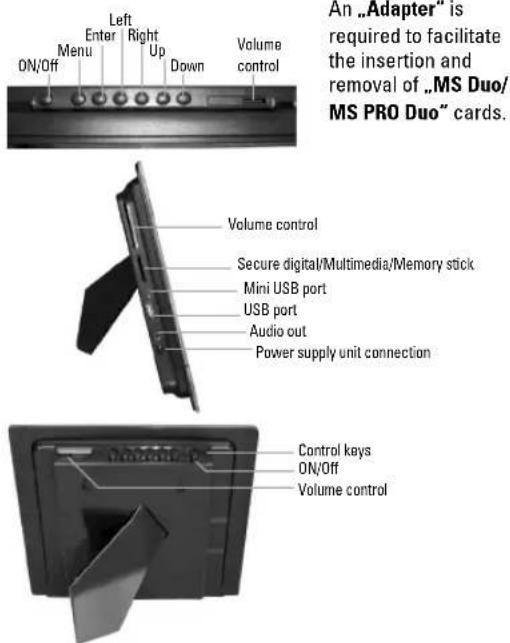
Structure of the digital picture frame and the remote control:
Remote Control Functions:
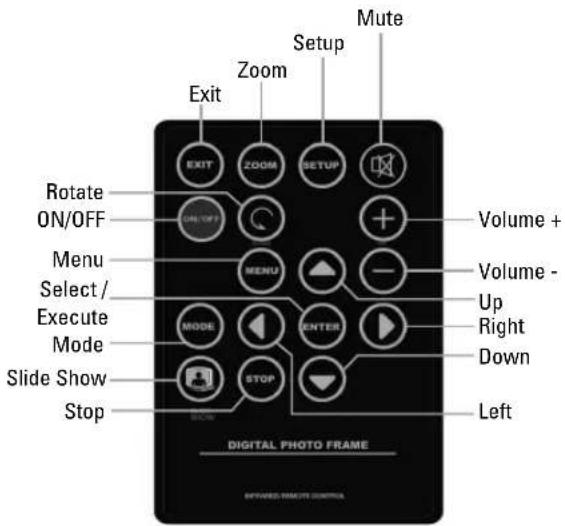
„ON“ button: for switching the digital picture frame on or off
„MENU“ button (=„M“): With this button, you get to the picture selection mode
"EXIT/ENTER" button {=,E": With this button, you confirm the desired menu entries and settings

-buttons.

ow keys are for
navigation and picture selection

Press to Rotate the photo 90 degree

Press to Zoom in photo

Turn on / Turn off Music Slide Show
Adjustable stand:
natural_image
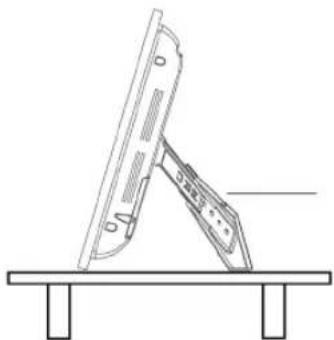
Line drawing of a table with a curved panel and a handle, no text or symbols presentThe angle of the digital picture frame on the desk can be changed with the adjustable stand. The stand can be pulled out in 6 different lengths as you require.
Menu functions:
| MENU Submenus & function descriptions |
Function selection menu
| PHOTO Photo slide show | |
| MUSIC MP3, WMA | |
| COMBO Music + photo slide show | |
| MOVIE Video | |
| PLAY LIST List of all fi les with fi le management as well as delete & copy functions | |
| SETTINGS (Setting/Setup) | System settings (varies according to the device specifi cation) |
| CALENDAR Calendar, time settings | |
Card selection menu
| SD/SDHC/MMC Different storage medium types | |
| MS | |
| CF | |
| USB | |
| MEMORY Internal memory | |
Settings
| IMAGE SETTING | Language selection | |
| Image dwell time 2 sec./5 sec./10 sec. | ||
| Image change Various adjustable image change effects | ||
| Image format Original | Smart | |
| Split screen mode Various adjustable image change effects(several images simultaneously displayed) | ||
| TIME SETTING | YEAR/MONTH/DATE/TIME |
| ALARM SETTING | YEAR/MONTH/DATE/TIME/RINGTONE (1/2)/MODE (ON/OFF) |
| START SETTING | FUNCTION SELECTION/CALENDAR/IMAGE/MUSIC/FILM/PLAY LIST |
| DISPLAY SETTINGS | BRIGHTNESS/CONTRAST/COLOUR SATURATION |
| DEFAULT SETTING | Resetting default values |
| SYSTEM INFORMATION | Information about the software version/Firmware |
natural_image
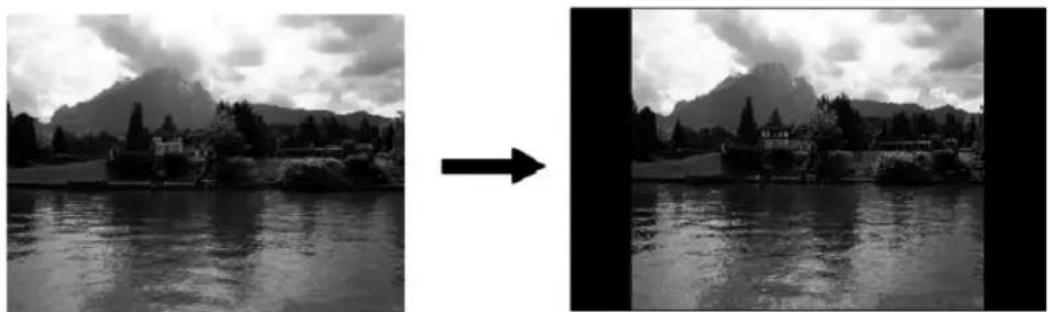
Pure horizontal gray gradient bar with no text, numbers, or symbolsOriginal:
natural_image
Black-and-white landscape photo showing a lakeside town with mountains in the background, transitioning from left to right (no text or symbols)Original size (4:3 format) With the „Normal“ setting, the image keeps its original format
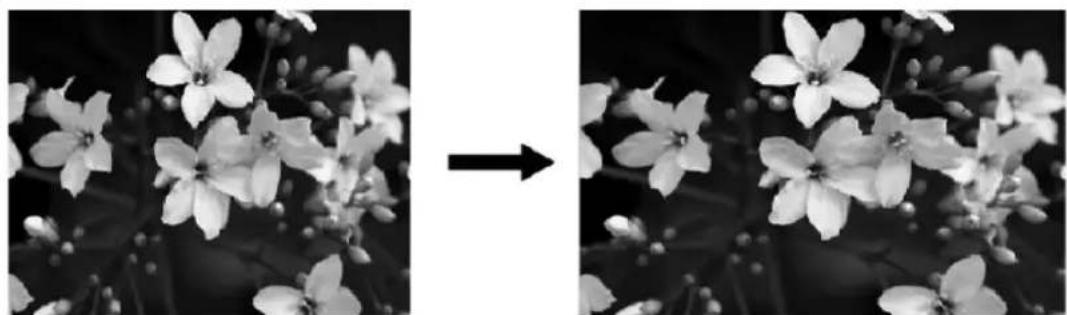
Smart:
natural_image
Black-and-white photo of flower clusters with a right-pointing arrow indicating transformation (no text or symbols)Original size (4:3 format) With the „Smart“ setting, the image is adjusted to fit the size of the display
Starting the digital photo frame
Insert the adaptor DC plug into the DPF player first, and plug the power cord to a standard wall outlet, then turn on the power. The screen will display „Loading..” interface.
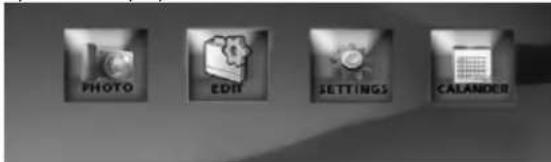
1. Funktion select
In the function select menu, you can Press ▲/▼/◄/► to select to play picture then press enter to card select menu. And you can also select to edit the fi les, setting the system or display the calendar.
2. Card Select Menu
In the function select menu, you can press ◀/▶ to select the highlight icon which shows the card is inserted or not. (Exhibit. 1) Press ENTER to display fi le list in the card. Press MENU to return to function select menu.
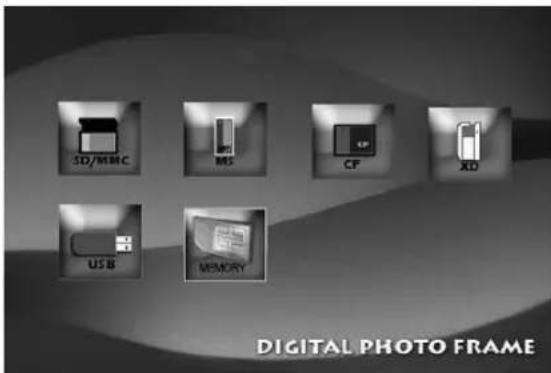
Exhibit. 1: card select menu
3. File List Screen
With USB device/Memory cards rightly inserted into the Digital Picture Frame: volume label list screen displays. (Exhibit. 2)
Actions:
a) Press ▲/▼ to select a volume label, then press ENTER to enter the file list.
b) Press ◀/▶ to select a fi le/folder, then press to enter the folder or press ENTER to play the fi le.
(Exhibit 3)
c) Press ◀ to return to previous directory.
d) Press MANU to return to card select menu.
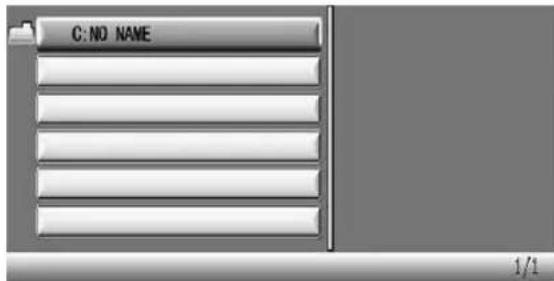
Exhibit 2: Volume Label List
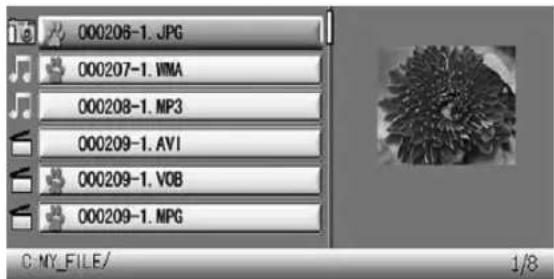
Exhibit 3: File Play List
Copying fi les:
a) Select the "Play" menu item.
b) Using the arrow buttons ▲/▼, select the file that you wish to copy.
c) Confirm your selection with the arrow button ▶.
A symbol appears next to the file name.
d) Press the arrow button ◀ to go back to the menu. You can now select and open the target folder for the file to be copied.
e) Now press MENU in order to access the desired function ("Cancel", "Paste" or "Delete") (fig. 4).
f) Select the "Paste" icon (fi g. 5a) to insert the fi le, and confi rm this with ENTER
g) The file is now copied (fi g. 6).
h) Press ENTER to go back to the file list.
Deleting fi les:
a) Select the "Play" menu item.
b) Using the arrow buttons ▲/▼, select the file that you wish to delete.
c) Confirm your selection with the arrow button ▶.
A symbol appears next to the file name.
d) Now press MENU in order to access the desired function ("Cancel", "Paste" or "Delete") (fig. 4).
e) Select the "Delete" icon (fi g. 5b) to delete the fi le, and confi rm this with ENTER
f) The file is now deleted (fi g. 6).
g) Press ENTER to go back to the file list.
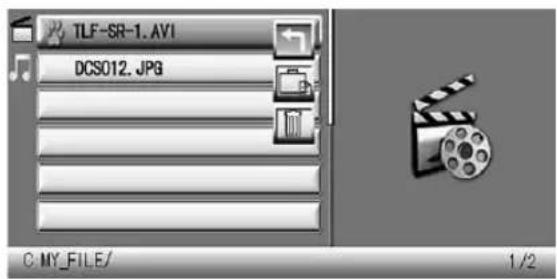
Exhibit 4: File Operation
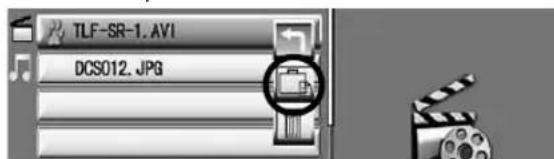
Exhibit 5a: Copy a File
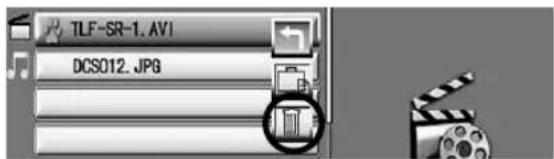
Exhibit 5b: Deleting a file
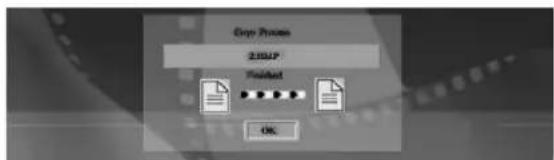
Exhibit 6
4. Playback screens
Actions:
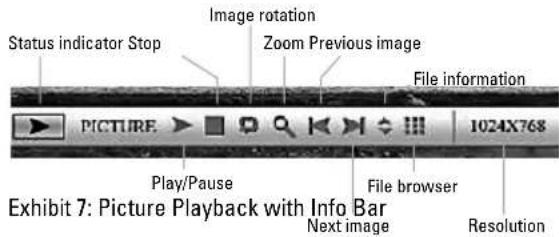
During Playback, press ENTER and info bar displays on the screen. Then select a function item by pressing ◀/▶ and press ENTER to perform the corresponding function. (Exhibit 7)
Press MENU to return to fi le list display screen.
4.2 Info bar layout and functions:
5. Use as a card reader:
You can connect your digital picture frame to your computer via USB to access fi les on the inserted memory card or exchange/copy/delete data via the USB interface. You must switch the digital picture frame off before connecting it to your computer via USB. Proceed as follows to connect it:
- Switch the digital picture frame off
- Connect the USB cable with the picture frame (USB connection cable: A-connector with mini USB B-connector (B5 pin))
- Connect the digital picture frame to your computer
- Insert a memory card in the slot of the picture frame
- Switch on the digital picture frame using the „ON“ main switch
After connecting the picture frame, it changes to USB mode. You can now access the memory card inserted in the picture frame using Windows Explorer.
WARNING: During the automatic slide show or display of individual images, no USB connection is possible. It is also not possible to start a slide show or view fi les while the digital picture frame is in operation.
6. Calender
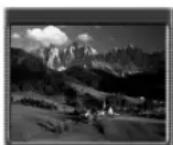
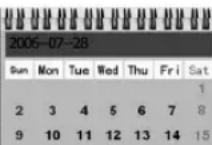
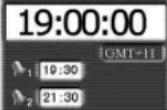
Actions:
Press ENTER to return to function select menu. Press △▽ to move to the previous or next month.
Display Information:
• Monthly calendar display
- Picture display
- Time display
7. Setup Menu
In the main menu, use the buttons to select the settings menu and then press ENTER. Alternatively, press SETUP on the remote control to access the settings menu.
You can make the following settings:
- Language setting: Language selection from several languages
- Slide time: Time interval for viewing images
- Slideshow mode: Image transfer - function settings
• Audio repeat mode: Continual audio loop
• Video repeat mode: Continual video loop - Image format selection: Adjust image to the screen
• Time: Time settings - Alarm: The integrated alarm only works in combination with the digital picture frame, which must be switched on. This is not possible when it is switched OFF.
- Brightness
- Contrast
- Colour saturation
- Time setting (ON): Here, you can set when the picture frame should switch on or
- Time setting (OFF): switch off. Caution: Functions only when the main switch is ON.
- Split screen function: Using this function, up to four images can be displayed simultaneously.
- Auto play: Function menu to set the conditions under which the picture frame should start.
- Factory settings: Function menu to reset to factory settings.
The buttons operation method is shown as below:

button: shift items or choose parameters.

button: enter the selected item.
Enter button: confirm the setup result.
8. Continual video loop settings:
To use the continual video loop function, some settings on the picture frame have to be adjusted.
First, configure the Setup menu so that the picture frame begins showing videos when it is turned on (Setup -> Start mode -> Film).
You also need to adjust the settings so that the directory is repeated for videos. To do so, play a video and then press the Enter key on the remote control. A function bar will then appear on the screen.
On the far right, you now have the option of choosing between the following modes:
To set the continual video loop, press the arrow button (>) on the remote control 10 times, until the folder mode appears. Now you can select the desired repeat function with the Enter button.
- Standard (does not repeat)
- Repeat one track (the current video is continually repeated)
- Repeat folder (all videos in the directory are repeated one after the other, and the whole directory is then repeated afterwards).
Caution:
This function is only supported for fi rmware version HA08V1.9-10-4-IN-SP-BT and higher.
9. Bluetooth:
Configuring the Bluetooth function of the digital picture frame
1.) Activate the Bluetooth function of the digital picture frame as follows:
- Main menu -> Setup -> Factory settings -> Bluetooth on/off -> ON
The Bluetooth function of the digital picture frame is now activated. Ensure that the Nano Bluetooth dongle is attached to the USB port!
2.) Activate the Bluetooth-enabled device (mobile phone, PC, etc.) which you intend to use. Conf i gure/activate the Bluetooth mode according to the operating instructions of the device.
3.) Have your device search for existing Bluetooth connections. The digital picture frame is detected as either "Digi Frame" or "Amlogic".
4.) Enter "0000" when prompted to enter the PIN.
5.) As soon as the display indicates that a connection has been established properly, you can begin to transfer data via the Bluetooth connection to the internal memory of the digital picture frame. You may also have to follow other instructions of the transfer device (e.g. mobile phones or PCs) (see the instructions of the transfer device).
Note:
Note that not all Bluetooth devices are compatible with one another (depends on profiles and internal passwords).
Caution:
To connect USB devices to the digital picture frame with a standard type-A USB connector, carefully pull the Bluetooth dongle out of the USB port. In this case, please keep the Bluetooth dongle in a safe place so that you do not lose it.
The enclosed Bluetooth dongle is available separately under Hama item no.: - 49227: "Nano Bluetooth dongle". The current driver for the dongle can be downloaded from the Hama Internet site (www.hama.de/www.hama.com). It allows you to install the enclosed Nano Bluetooth dongle on other devices (e.g. on a PC, laptop, etc.) to enable Bluetooth support.
Confi guring the Bluetooth connection via a PC/laptop
Please follow steps 1.) to 5.) mentioned above to establish the Bluetooth connection between your PC/laptop.
6.) Now select the photo/fi le to be transferred and begin transfer (see next example).
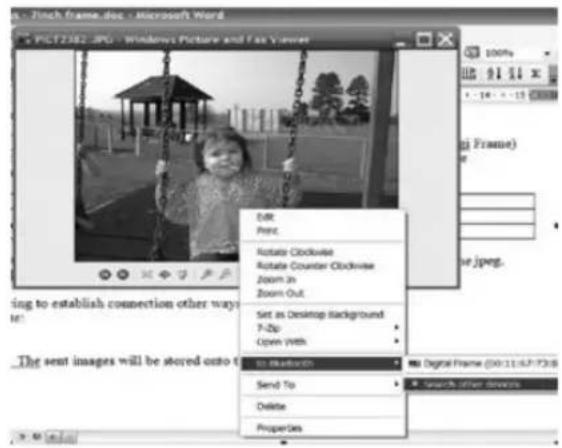
7.) Your PC/laptop now attempts to connect to the digital picture frame.
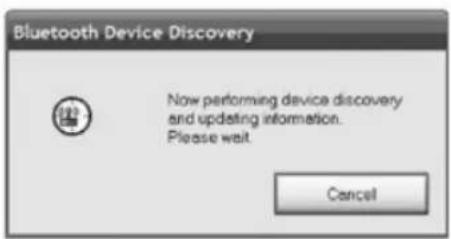
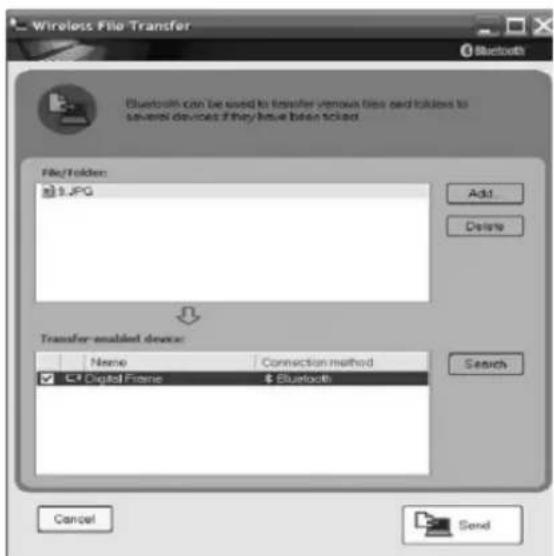
8.) Select the digital picture frame and send the file as follows:
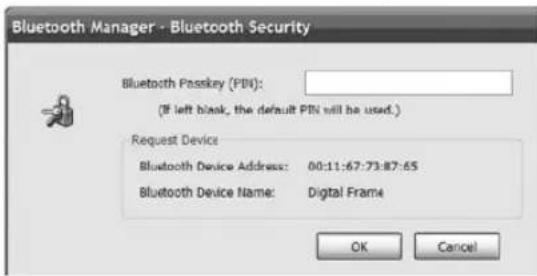
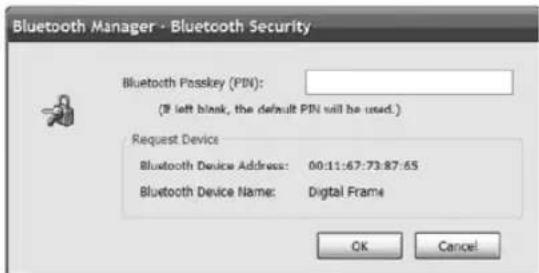
9.) Enter the PIN "0000" (four zeros) and press OK.
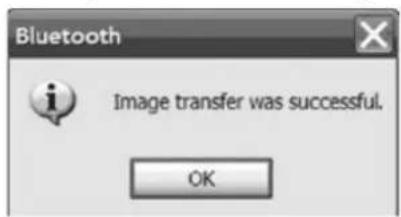
10.) As soon as transfer has been completed successfully, the following window appears. The transferred fi les are displayed/played back on the picture frame simultaneously.
Please observe the following points:
- The types of transfer described above are examples. Other devices may require different or additional settings. For this reason, read the instructions of the transfer device carefully.
- For the best possible transfer, we recommend that you send small amounts of data.
- Should you encounter problems during transfer even though the connection is working correctly, we recommend you switch off the digital picture frame via the "ON" button on the rear side, carefully pull the Bluetooth dongle out of the USB port, plug it in again and then switch on the digital picture frame by pressing "ON".
- The search for Bluetooth devices should be repeated each time the digital picture frame is switched off and/or the Bluetooth dongle is removed.
- As soon as files have been transferred, they are displayed on the screen of the digital picture frame. To return to the main menu, press "EXIT".
- All files are first transferred to the internal memory. They can be moved to other storage media or copied at a later stage.
- Please note that as soon as the max. capacity of the internal memory has been reached, no other fi les can be transferred and the connection/transfer fails as a result.
Cleaning & Care:
Occasional care and cleaning of the device ensure a long service life. Use a soft, lint-free cloth (e.g. Hama item no. 51076/51077 etc.) to clean the device. Slightly dampen the cloth if the device is very dirty. However, never use strong solvents such as alcohol, petrol or thinners. This could attack the casing or the protective glass of the display.
Caution – Danger to life!
To prevent the risk of an electric shock, never open the cover of the digital picture frame, casing or power adapter components. There are no serviceable parts in the digital picture frame or power supply.
Warranty/customer service
CAUTION! Any guarantee or warranty claims are void if the device is opened by unauthorised persons or service workshops. Please contact the specialist dealer you purchased the device from if you find a fault with your digital picture frame. Your dealer can quickly deal with your customer service requirement without problem. Service and repairs on your digital picture frame must only be performed by authorised specialist workshops.
Wall mounting:
There are installation holes on the rear of the digital picture frame to attach it to the wall using suitable screws.
Picture viewing:
Insert a memory card and switch on the digital picture frame. The start screen appears after a few seconds. The preset mode of the digital picture frame displays the data on the memory card.
TROUBLESHOOTING:
The picture frame can not be switched on:
Cause: Problem with the electrical supply of the picture screen.
Check that the plug of the power adapter is connected correctly and completely. Also check that the power supply unit is connected to the power supply and supplied with electricity
The picture frame can no longer be operated when selecting fi les:
Cause: Safety violation in the internal software of the digital picture frame.
This may be due to the fi le format used. There are some confi gurations that cause the software of the digital picture frame to crash. However, the cause does not lie with the technology/software of the digital picture screen, but with the fi le convention of the fi le to be displayed or played. If the digital picture frame can not be restored using the EXIT button in the function selection menu or can not be switched off, disconnect the picture frame from the mains supply. Reconnect it and switch it on again after a few seconds.
Films/images (according to the device specification) appear out of focus or grainy on the display
Cause: the data rate/quality or resolution is too low. The quality loss of images is caused by compression and insufficient resolution. If it is possible to have a higher resolution for the data, use this when displaying or playing fi les.
Files are not displayed:
Cause: Resolution too high
Please note that loading requires a lot more time for large file sizes. Reduce the image size (dimensions in pixels) if required.
The sound is heavily distorted (varies according to the device specification):
Cause: The volume level is too high Reduce the volume level until the distortion disappears.
USB devices are not displayed when connected.
Cause: incompatible USB protocol Not all devices support USB communication in the same way. If in doubt, test another device with the digital picture frame.
Data on a memory card can not be accessed.
Cause: incompatible memory card or incorrect data media format
There are some types of memory cards/media that are not compatible with the digital picture frame. In this case, the card is not recognised and can not be used to display or play files. Check whether the card uses the FAT or FAT32 file system.
The fi le name does not completely appear in the fi le menu or appears abbreviated.
Cause: File name is too long
The digital picture frame supports fi le names. File names that are too long can not always be fully displayed due to the limited display size and are therefore abbreviated. If the fi le name contains special characters and/or umlauts, these may be replaced by special characters/ symbols.
Specifications:
Display: 10.4 TFT LCD display; 640 x 480 pixels
USB port: USB 2.0 high speed
Storage media for: CF/SD/SDHC/MMC/MS
Image format: JPEG, JPG, BMP, PNG, GIF
Film format: Motion JPEG, MPEG 1/2, DivX, Xvid, Avi
Outputs: USB connection (host & device)
Power supply: AC/DC Adapter (12 V, 1.5 A)
Operating temperature: 0°C \~ 30°C (32°F \~ 85°F)
Dimensions: approx. 30,0 x 4,0 x 24,0 cm (W x D x H)
Space requirements: approx. 30,0 x 20,5 x 24,0 cm (W x D x H)
Relative humidity: 40–64 % RH (non-condensing)
WARNING:
So-called pixel errors can occur depending on the manufacturing process. These manifest themselves as white or black pixels that permanently light up during display. Within the context of production tolerances, a max. 0.01% of these pixel errors measured on the total size of the screen are permitted as a tolerance and do not represent a product fault.
Support and contact information
If the product is defective:
Contact your retailer or Hama Product Consulting if you have any product claims.
Internet/World Wide Web
Product support, new drivers and product information are available at www.hama.com.
Safety notes
Observe the following safety instructions to ensure safe handling of the device:
- Visually inspect the device before using it to make sure that there is no external damage. Do not operate the device if it is damaged.
- Only have the device repaired by specialists. Improper repair work invalidates any warranty claims.
- Faulty components may be replaced with original spare parts only. Only original spare parts can guarantee that applicable safety requirements are adhered to.
- Disconnect the power supply adapter before cleaning the device, during thunderstorms, and in the event of malfunctions.
- Keep the device away from moisture and protect it from being penetrated by liquids or objects.
- Disconnect the power supply adapter immediately if the device comes into contact with liquids.
- Do not place any objects on top of the device.
- Place the device on a flat, level surface.
- Do not place the device in a hot, wet, or very humid environment.
- The device requires adequate air circulation in order to function properly. During operation, do not place the device on soft surfaces, carpets, or other materials that might block air circulation.
- The socket must be easily accessible so that it is easy to disconnect the power supply adapter in case of an emergency.
C€1177
(F) Mode d'emploi
Mode d'emploi
natural_image
Line drawing of a folding table with a curved panel and a flat support (no text or symbols)natural_image
Black-and-white landscape photo of a lakeside with mountains in the background and a small building complex in the foreground (no visible text or symbols)natural_image
Black-and-white landscape photo of a lakeside town with mountains in the background and trees in the foreground (no visible text or symbols)natural_image
Black-and-white close-up of delicate white flowers with soft petals and buds, no text or symbols visible
natural_image
Black-and-white close-up of blooming flowers with visible petals and buds (no text or symbols)Fig. 6.
4. Ecran de lecture
Actions :
Garantie/service client
Interface USB : USB 2.0 (highspeed)
Support technique et contact
natural_image
Line drawing of a flatboard-mounted stand supported at a table, with no text or symbols present.natural_image
Black-and-white landscape photo showing a lakeside park with mountains and trees, separated by a directional arrow (no text or symbols)natural_image
Black-and-white photo of flower clusters before and after transformation (no text or symbols)Fig. 6
natural_image
Line drawing of a table with a stand and a flat panel, no text or symbols present
Indrukken om de foto 90 graden te roteren.

natural_image
Black-and-white landscape photo showing a lakeside town with mountains in the background, transitioning from left to right (no text or symbols)natural_image
Black-and-white photo of flower clusters with a right-pointing arrow indicating transformation (no text or symbols)2. Kaartmenu
Afb. 6
9.) Voer de pincode "0000" (4 keer 0) in en druk daarna op OK.
natural_image
Black-and-white landscape photo showing a lakeside town with mountains in the background, transitioning from left to right (no text or symbols)natural_image
Black-and-white photo of flower clusters before and after transformation (no text or symbols)Fig.6
Supporti memoria per CF/SD/SDHC/MMC/MS
Dimensioni: ca. 30,0 x 4,0 x 24,0 cm (B x P x H)
Ingombro: ca. 30,0 x 20,5 x 24,0 cm (B x P x H)
GB Note on environmental protection:

After the implementation of the European Directive 2002/96/EU and 2006/66/EU in the national legal system, the following applies: Electric and electronic devices as well as batteries must not be disposed of with household waste. Consumers are obliged by law to return electrical and electronic devices as well as batteries at the end of their service lives to the public collecting points set up for this purpose or point of sale. Details to this are defined by the national law of the respective country. This symbol on the product, the instruction manual or the package indicates that a product is subject to these regulations. By recycling, reusing the materials or other forms of utilising old devices/Batteries, you are making an important contribution to protecting our environment.