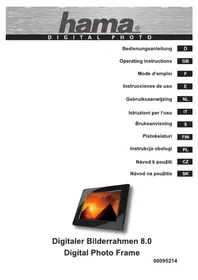
New Basic 00095214 - Digital photo frame HAMA - Free user manual and instructions
Find the device manual for free New Basic 00095214 HAMA in PDF.


| Product type | Digital photo frame |
| Brand | Hama |
| Model | New Basic 00095214 |
| Screen size | 20.3 cm (8 inches) |
| Resolution | 800 x 600 pixels (RGB) |
| Screen format | 4:3 |
| Contrast | 400:1 |
| Brightness | 200 cd/m² |
| Power supply | AC adapter 100-240 V AC, 50/60 Hz, output 5 V DC / 1.0 A |
| Power consumption | Less than 5 W |
| Dimensions (without stand) | 225 x 180 x 25 mm |
| Weight | Approx. 550 g |
| Supported image formats | JPG, JPEG, BMP up to 268 megapixels |
| Compatible storage media | SD, SDHC, MMC, MS, MS Pro, MS Duo, MS Pro Duo, USB flash drives (USB 2.0) |
| Main functions | Slideshow, rotation, zoom, delete, EXIF display, favorites |
| Remote control | Yes, with included CR2025 battery |
| Wall mount | Possible (device on back) |
| Stand | Tiltable, adjustable vertically or at an angle |
| Eco mode | Adjustable LCD eco mode |
| Menu languages | Multilingual (default German, adjustable) |
| Care and cleaning | Dry, soft cloth; do not use alcohol-based or detergent products |
| Safety | Indoor use only; do not open the housing; unplug before cleaning |
| Technical support | Hama: +49 (0) 9091 / 502 - 115 (German/English) |
Frequently Asked Questions - New Basic 00095214 HAMA
User questions about New Basic 00095214 HAMA
0 question about this device. Answer the ones you know or ask your own.
Ask a new question about this device
Download the instructions for your Digital photo frame in PDF format for free! Find your manual New Basic 00095214 - HAMA and take your electronic device back in hand. On this page are published all the documents necessary for the use of your device. New Basic 00095214 by HAMA.
USER MANUAL New Basic 00095214 HAMA
Operating Instructions
GB
Mode d'emploi
F
natural_image
Black tablet displaying a vibrant sunset over the Great Pyramid of Giza (no text or symbols visible)Supporthotline ..... 21
Einführung
D
Vorwort
natural_image
Black-and-white photo showing a beach scene with palm trees and sky reflection, alongside a charger and remote control (no text or symbols visible)natural_image
Simple line drawing of a mechanical component with a circular ring and labeled parts (no text or symbols)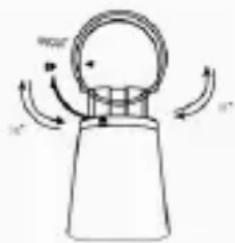
natural_image
Simple line drawing of a mechanical component with rotational arrows indicating motion (no text or symbols)ACHTUNG
natural_image
Three grayscale icons: a folder with documents, a gear with a wrench, and a document with a person (no text or symbols)natural_image
Grid of 16 black-and-white photos showing people in various activities, displayed against a black background with date and time labels (no readable text or symbols on the images themselves)natural_image
Three grayscale icons: a star, a cylindrical container with cross, and a gear with a wrench (no text or symbols)natural_image
Collection of grayscale icons representing search, lock, gear, and file operations (no text or symbols)natural_image
Close-up of a leaf with water droplets (no text or symbols visible)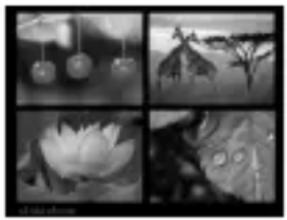
natural_image
Four-panel black-and-white photo collage showing water lilies, leaves, and a lotus flower (no text or symbols)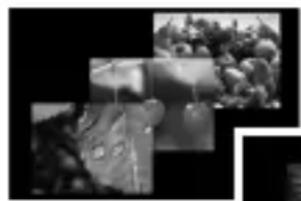
natural_image
Black-and-white collage of outdoor scenes including a person in a jacket, a close-up of fruit, and a blurred background (no visible text or symbols)
natural_image
Black-and-white landscape photo showing a coastal town with mountains and water, no visible text or symbolsnatural_image
Grayscale abstract texture with horizontal striations and a dark horizontal bar at the bottom (no text or symbols)D
About these operating instructions ..... 23
Copyright 23
Warnings 24
Proper use 25
Limitation of liability ..... 25
Safety.....26
Basic safety instructions ..... 26
Danger due to electrical current 26
Design and functionality . . .27
Digital picture frame (rear view) 27
Digital photo frame (side view)....27
Remote control.....28
Getting started .....29
Safety instructions ..... 29
Extent of delivery and delivery inspection 29
Unpacking the device ..... 30
Disposal of packaging materials 30
Requirements for the installation location ..... 30
Electrical connection ..... 31
Installation and connections .. 31
Operation 32
Using the menu 32
Changing the operating language ....33
System settings .... 33
Functions .....34
Editing/deleting photos from the storage medium .....34
Slide show types ..... 36
Cleaning and care .....36
Safety instructions ..... 36
Cleaning 36
Troubleshooting .....37
Safety instructions ..... 37
Causes of errors and error rectifi cation .... 37
Storage .....38
Disposal....38
Device disposal ..... 38
Appendix. 39
Technical specifications ..... 39
Menu structure for the DPF .. 40
Supporthotline ..... 41
Introduction
Preface
Dear customer,
By purchasing this Hama digital picture frame, you have chosen a quality product which conforms to state-of-the-art development standards in technology and functionality.
Read the following information carefully in order to familiarise yourself with the device and its full range of functions.
We hope you enjoy this device for many years to come.
About these operating instructions
These operating instructions are an integral part of the digital picture frame (hereinafter referred to as the “device”), and provide important information on the intended use, safety, connection and operation of the device.
The operating instructions must be kept near the device at all times. They must be read and adhered to by all persons responsible for operating the device or troubleshooting.
Keep these instructions in a safe place and pass them on to subsequent users or owners together with the device.
Copyright
This documentation is protected by copyright.
It may not be reprinted or reproduced (including illustrations) in whole or in part without prior written consent from the manufacturer. This also applies after changes to the documentation.
Warnings
The following warnings are used in these operating instructions:
GB
DANGER
A warning of this type indicates the immediate threat of a dangerous situation.
Death or serious injuries can result if this situation is not avoided.
▶ Follow the information in this warning to prevent death or serious personal injury.
WARNING
A warning of this type indicates the possibility of a dangerous situation.
Injuries and/or material damage can result if this situation is not avoided.
▶ Follow the information in this warning to prevent personal injury or material damage.
CAUTION
A warning of this type indicates the possibility of material damage.
Material damage can result if this situation is not avoided.
▶ Observe the information in this warning to prevent material damage.
NOTE
▶ A note indicates additional useful information for handling the device.
Intended use
This device is only intended for indoor use to display photos.
Other uses or uses that go beyond this use are considered unintended.

WARNING
Danger caused by unintended use
Danger may result from unintended or other use of the device.
▶ Only use the device as intended.
▶ Adhere to the procedures described in these operating instructions.
All claims made as a result of damage caused by unintended use are excluded.
The operator alone bears the risk resulting from unintended use.
Limitation of liability
All technical information, data and instructions contained in these operating instructions were current at the time of printing and written to the best of our knowledge based on previous experiences and findings.
Therefore, no claims can be derived from the specifications, illustrations and descriptions contained in these instructions.
The manufacturer accepts no liability for damages caused by failure to observe these instructions, improper use or repairs, unauthorised device modifications or the use of non-approved spare parts.
CAUTION
▶ Pixel defects can occur due to the manufacturing process. These manifest themselves as white or black pixels that permanently light up during playback. Within the context of production tolerances, a maximum of 0.01% of these pixel defects measured against the total size of the screen are permitted as a tolerance and are not considered a product defect.
Safety
GB
This chapter contains important safety instructions for handling the device.
This device complies with the applicable safety regulations. However, improper use can lead to personal injury or material damage.
Basic safety instructions
Observe the following safety instructions to ensure safe handling of the device:
■ Visually inspect the device before using it to make sure that there is no external damage. Do not operate the device if it is damaged.
■ Only have the device repaired by specialists. Improper repair work invalidates any warranty claims.
■ Faulty components may be replaced with original spare parts only. Only original spare parts can guarantee that applicable safety requirements are adhered to.
■ Disconnect the power supply adapter before cleaning the device, during thunderstorms, and in the event of malfunctions.
- Keep the device away from moisture and protect it from being penetrated by liquids or objects. Disconnect the power supply adapter immediately if the device comes into contact with liquids.
■ Do not place any objects on top of the device.
Danger due to electrical current

DANGER
Danger of death due to electrical current
Coming into contact with live electrical lines or components can be fatal.
Adhere to the following safety instructions to avoid dangers associated with electrical current:
▶ Only use the included power supply adapter, since otherwise the device may be damaged.
▶ Do not operate the device when the power supply adapter, connection cable or plug is damaged.
▶ Do not open the housing on the device or on the power supply adapter under any circumstances. There is a risk of electric shock when coming into contact with live connections or if the electronic or mechanical layout of the device is altered.
Design and functionality
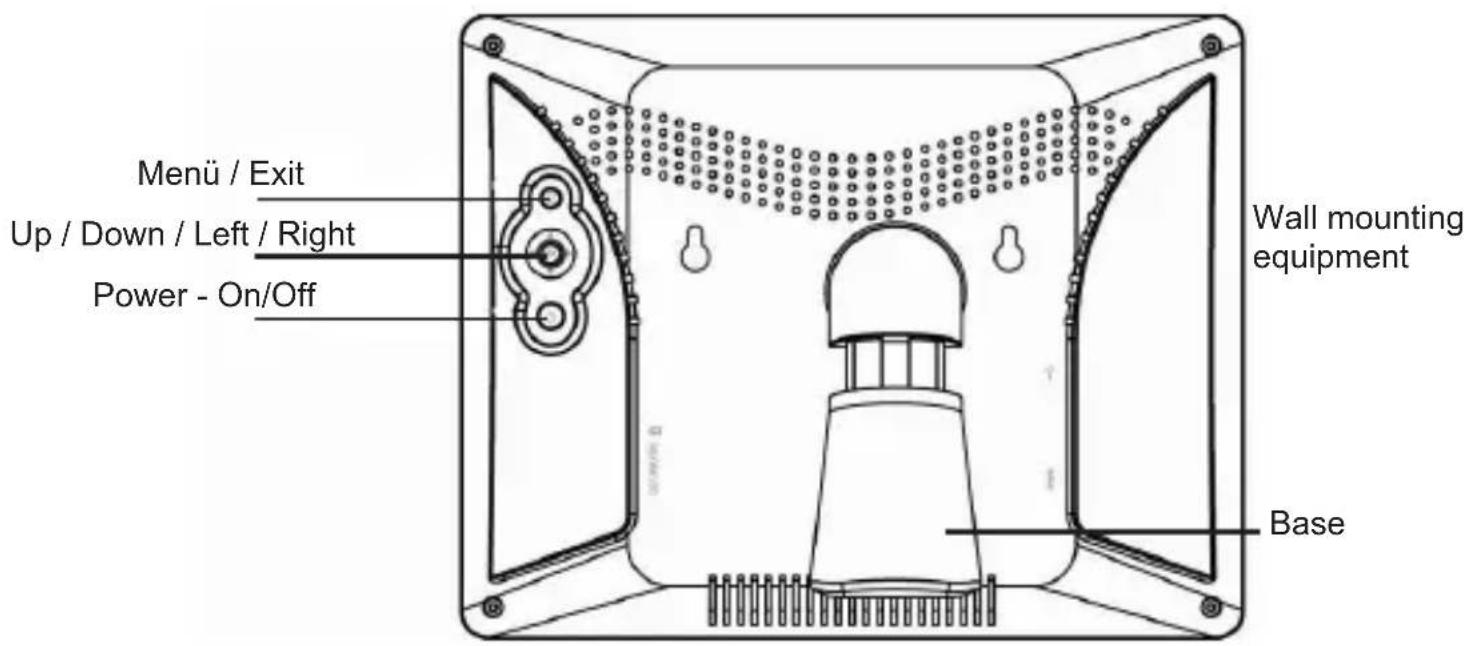
Digital picture frame (rear view)
GB
Digital photo frame (side view)
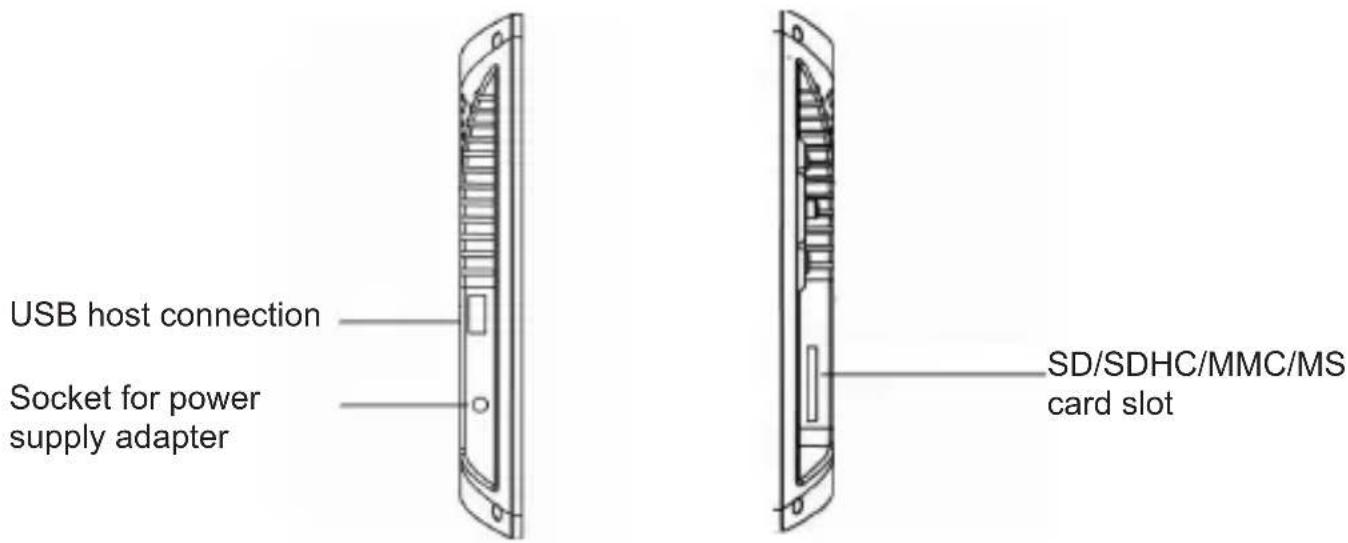
Design and functionality
GB Remote control
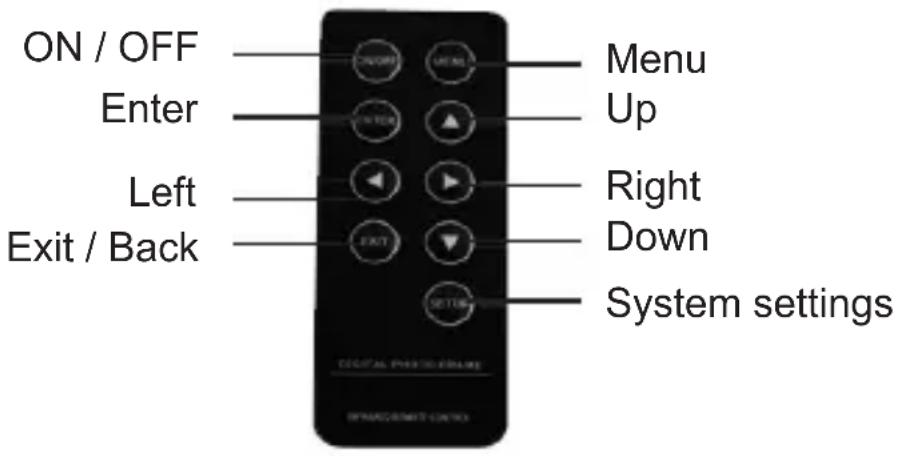
Remote control
Inserting the battery
To insert/replace the battery, proceed as follows:
◆ Remove the battery compartment from the remote control by pressing in the locking mechanism while simultaneously pulling out the battery compartment.
◆ Remove the used battery and insert a new battery of type CR2025 (button cell) in the battery compartment. Be sure to install the battery according to the correct polarity.
◆ Slide the battery compartment back into the remote control.
Getting started
Safety instructions
GB
WARNING
Personal injury and material damage may occur when using the device for the first time.
Observe the following safety instructions to avoid these dangers.
▶ Packaging materials may not be used as toys. There is a risk of suffocation.
▶ Follow the instructions for positioning the device and making the electrical connections to prevent personal injury and material damage.
Extent of delivery and delivery inspection
The device includes the following components as standard:
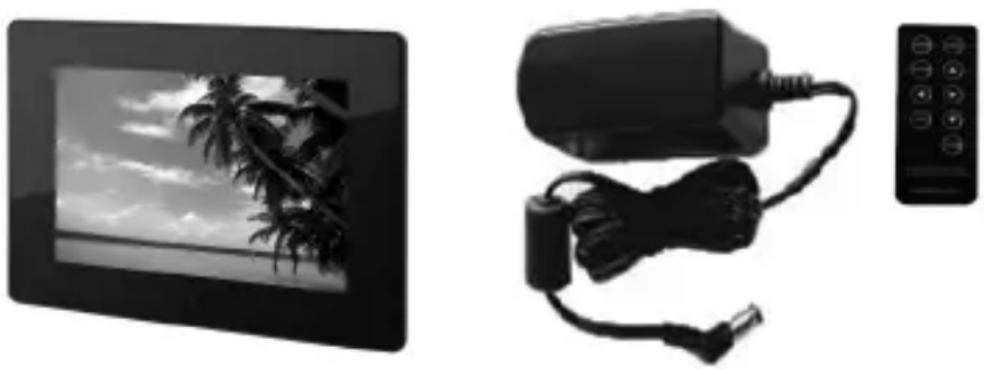
natural_image
Black-and-white photo showing a beach scene with palm trees and sky, alongside a charger and remote control (no text or symbols visible)- Digital picture frame
• Power supply adapter - Remote control
- Operating instructions
NOTE
▶ Check the delivery for completeness and visible damage. Inform your supplier/dealer in the event of incomplete or damaged deliveries.
Unpacking
When unpacking the device, proceed as follows:
GB
◆ Take the device out of the box and remove the packaging material.
◆ Remove the packaging material for the accessories.
◆ Remove the protection foil on the LCD colour screen of the device.
Disposal of packaging materials
The packaging protects the device from damage during transportation. The packaging materials have been selected according to environmental and disposal factors and can therefore be recycled.
Recycling packaging saves raw materials and reduces the volume of waste. Dispose of packaging materials that are no longer needed according to locally applicable regulations.
NOTE
▶ If possible, retain the original packaging for the duration of the warranty period so that you can pack the device properly in the event of warranty claims.
Positioning requirements
The device must be positioned according to the following requirements in order to ensure safe and error-free operation:
■ Place the device on a flat, level surface.
■ Do not place the device in a hot, wet, or very humid environment.
■ The device requires adequate air circulation in order to function properly. During operation, do not place the device on soft surfaces, carpets, or other materials that might block air circulation.
■ The socket must be easily accessible so that it is easy to disconnect the power supply adapter in case of an emergency.
Electrical connection
The electrical connections must be made according to the following instructions in order to ensure safe and error-free operation:
■ Before you connect the device, compare the connection data for the power supply adapter (voltage and frequency) on the type plate with that of your mains power supply. This data must match to avoid damage to the device.
- Keep the cable away from hot surfaces and sharp edges.
■ Make sure not to bend the cable or pull it too tightly.
Installation and connections
For continuous playback, the device can be placed on a flat surface or hung on the wall.
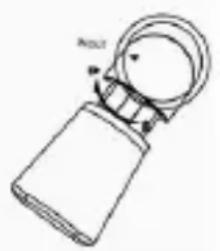
◆ Insert the stand into the device.
◆ Position the device upright or on its side. To do this, rotate the base into the correct position (see arrow direction on the rear side of the digital photo frame). The base locks into place automatically.
◆ For wall mounting, use the mount located on the rear side of the device.
natural_image
Diagram of a mechanical device with a circular component and labeled parts (no readable text or symbols)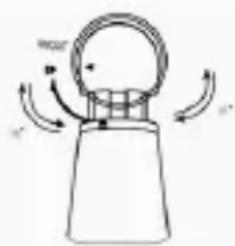
natural_image
Simple line drawing of a mechanical component with rotational arrows indicating motion (no text or symbols)CAUTION
The device can be damaged if it tips over or falls down.
▶ Make sure that the device cannot tip over.
◆ Connect the connection cable to the socket on the device and plug in the power supply adapter.
NOTE
▶ Only use the enclosed power supply adapter.
Operation
GB Using the menu
The device is equipped with a user-friendly menu. The menu appears on the screen.
◆ Connect a suitable storage medium to the device. The following types of storage media can be read:
- SD/SDHC cards
- MMC cards
- Memory sticks
- USB storage media
◆ Turn the device on by pressing the „ON/OFF“ button.
natural_image
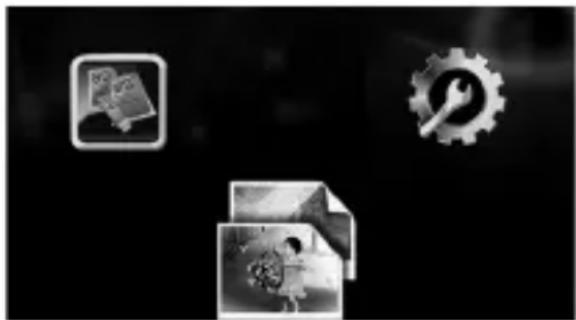
Three grayscale icons: a folder, gear, and a gear with a person inside a gear (no text or symbols)Open the main menu using the "MENU" button. In the menu, use the "◀▶" buttons to move around, and select the desired function.
When you confirm your selection by pressing "ENTER", a corresponding submenu appears. Again, use the "▲" or the "▼" button to move around, and select the desired line. The selected line is highlighted in colour.
Confir rm your selection using the "ENTER" button. Usually, an additional menu will then appear, in which you move around using the "◀▶▼▲" buttons to select the desired setting.
Press the „ENTER“ button to exit the current menu level.
For orientation purposes, the menu structure is also included in the Appendix.
You can control the device using the buttons on the rear or with the included remote control.
Changing the operating language
The operating language is set to German („Deutsch“) at the factory. To change this setting, proceed as follows:
◆ Press the “SETUP” button on the remote control.
◆ Select “Menu Language” – “OSD” and then the desired operating language, and confirm your selection by pressing the “ENTER” button.
◆ Exit the menu by pressing the “EXIT” button on the remote control.
System settings
Select "Setup" from the main menu and confirm with "Enter" to open the system menu. The following menu items are available:
| Language | Select the desired language menu/operating language. |
| Time interval | Select the time interval at which the photos should change. |
| File description | Select whether or not the fi le name of the photos is to be displayed. |
| Folder manage-ment | Select whether or not all folders are to be dis-played. |
| Aspect ratio | Here, you can select the desired display type for your photos. Normal, stretch, crop |
| Slide show mode | Select the slide show type: Individual photos or multishow. |
| LCD power saving mode | Select when your device is to switch to power saving mode. |
| Slide show sequence | Select whether your photos are to be displayed sequentially or randomly |
| Display setting | Set the brightness, contrast and saturation of the device. |
| Format | Function menu for displaying the format of the storage medium. |
| Standard setting | Function menu to reset to factory settings. |
| System infor-mation | Function menu for displaying the software infor-mation for the device. |
Functions
GB
Editing/deleting the photo from the storage device
This device lets you delete photos from the storage medium in two ways. The device has a function that allows you to view all saved photos and select individual photos to delete. The device also has a function that allows you to edit or delete individual photos during the slide show.
- Insert a storage medium into the card slot.
- Select the storage medium using the ◀/▶ buttons and then press "ENTER".
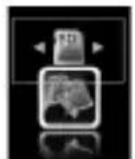
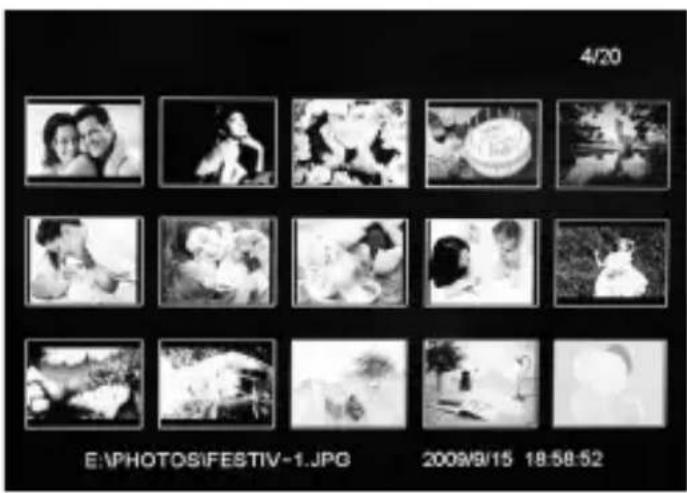
- This starts the „Photo preview mode“
natural_image
Grid of 16 black-and-white photos showing a couple, family, and landscape scenes, displayed on a black background with date and timestamp labels (no readable text in the image itself)- Select the photo using the ▲/▼/◄/► buttons and then press "MENU". A new menu window appears. You can use this window to add photos as favourites or to delete photos from the storage medium.

natural_image
Three grayscale icons: a star, a cylindrical pill with cross, and a gear with wrench (no text or symbols)Select Delete System settings
- Select the desired function using ▲/▼/◄/► and confirm by pressing „ENTER“. The menu window disappears.
HINWEIS
▶ Repeat this procedure if you have multiple photos that you would like to edit.
- To start the slide show, press „ENTER“ while you are in „Photo preview mode“. This will begin the slide show on the last photo marked.
While displaying the photos/during the slide show, you have the opportunity to edit or delete the photo that is currently being displayed.
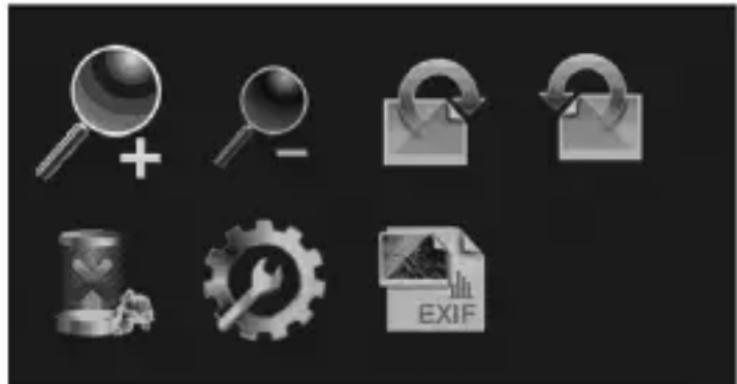
- When the photo in question is displayed on the device, press the „MENU“ button. A new window is displayed; here you can edit or delete the current photo or display information about it.
Zoom function +/- Rotate photo right/left
natural_image
Grid of grayscale icons representing search, lock, gear, and file operations (no text or symbols)Delete System settings EXIF (photo information)
- Select the desired function using ▲/▼/◄/► and confirm by pressing „ENTER“. The menu window disappears.
- Press „ENTER“ to continue displaying the photos/slide show.
WARNING
▶ Once a file/photo has been deleted, this action cannot be undone.
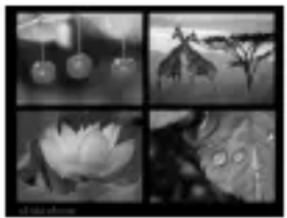
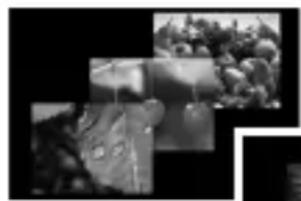
Slideshow types
Individual
mode
Slideshow
Mulitshow
natural_image
Close-up of a leaf with water droplets (no text or symbols visible)
natural_image
Four-panel black-and-white photo collage showing water lilies, a lotus flower, and tree branches (no text or symbols)
natural_image
Black-and-white collage of outdoor scenes including a person in a jacket, a close-up of fruit, and a blurred background (no visible text or symbols)
natural_image
Black-and-white landscape photo showing a coastal town with mountains and water, no visible text or symbolsCleaning and care
This chapter contains important information for the cleaning and care of the device.
Safety instructions
CAUTION
Moisture can damage the device.
▶ To prevent irreparable damage, make sure that no moisture gets into the device when you clean it.
Cleaning
The display on your device is located behind protective glass.
■ Only clean the display with a dry, soft cloth.
■ Do not apply pressure to the screen surface when you clean the device.
■ To keep from damaging the surface, do not use solvents or alcohol-based cleaners to clean the device.
NOTE
For gentle cleaning and care of the display, we recommend that you use a microfi bre cleaning cloth. This is available from Hama (item no. 51076/51077), individually or together with a cleaning gel as part of a set.
■ Clean the rest of the device with a dry cloth. You can lightly dampen the cloth if the device is very dirty.
Troubleshooting
This chapter contains important information for localising and rectifying errors. Observe the information to avoid dangers and material damage.
Safety instructions

WARNING
Observe the following safety instructions to avoid safety risks and material damage:
▶ Repairs to electrical devices may only be carried out by specialists who have been trained by the manufacturer. Improper repairs can result in significant danger to the operator and damage to the device.
Causes of errors and error rectifi cation
The following table can be used to localise and rectify minor errors with the device:
| Error Possible cause Solution | |||
| General information | Display is blank | Device is switched off | Switch on the device. |
| Power supply adapter not connected correctly | Ensure that the power supply adapter is plugged in and connected to the device. | ||
| No mains power | Check your fuse box. | ||
| Device is faulty | Inform our customer service department. | ||
| DPF | No photo appears | No storage medium is inserted | Insert a storage medium. |
| The storage medium does not contain data | Check your storage medium. | ||
Storage
GB
If you are not going to use the device for an extended period of time, switch off the device, disconnect it from power, and store it in a clean, dry place that is away from direct sunlight.
Disposal
Device disposal
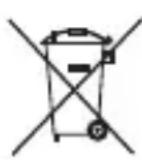
Do not dispose of the device with household waste. This product is subject to the European 2002/96/EC Waste Electrical and Electronic Equipment (WEEE) directive.

Dispose of the device at an approved waste disposal company or at your local waste disposal facility. Observe all applicable regulations. In case of doubt, contact your waste disposal facility.
Battery disposal
Batteries must not be disposed of with household waste. Consumers are obliged by law to return batteries to the public collection points set up for this purpose. This legal obligation ensures that batteries are disposed of in an environmentally-friendly fashion. Only return discharged batteries.

Appendix
Technical specifications
| General information | |
| Power supply input 100-240 V AC / 50/60 Hz / 0,3 A Max | |
| Power supply output 5 V DC / 1,0 A | |
| Power consumption <5 W | |
| Dimensions (L x W x H) 225 x 180 x 25 mm (without the base) | |
| Weight approx. 550 g | |
| Recommended ambient temperature for device | 0 to 30°C (32 to 85°F) |
| Relative humidity 40 to 64% (non-condensing) | |
| Screen | |
| Display 20,3 cm (=8") | |
| Resolution 800 x 600 (RGB) | |
| Contrast 400 : 1 | |
| Format 4:3 | |
| Max. brightness Max. 200 cd/m2 | |
| Remote control |
| Button cell battery (CR 2025) 3 V |
| Compatible storage media |
| SD/SDHC/MMC/MS/MS Pro/MS Duo/MS Pro Duo and USB 2.0 |
| Supported fi le formats |
| JPG, JPEG, BMP up to 268 megapixels |
GB
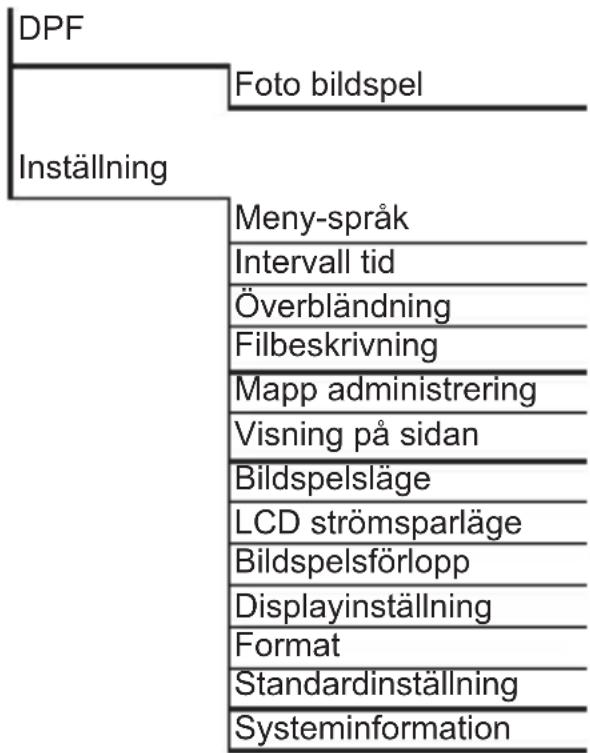
Menu structure for the DPF
GB
DPF
Photo slide show
Setup
Menu language
Time interval
Cross-fade
File description
Folder management
Aspect ratio
Slide show mode
LCD power saving mode
Slide show sequence
Display setting
Format
Standard setting
System information
Support information
Contact your dealer or Hama Product Consulting if you have a faulty product:
GB
Support hotline – Hama Product Consulting (German/English):
Phone: +49 (0) 9091/502-115
Fax: +49 (0) 9091 / 502 - 272
Email: mailto:produktberatung@hama.de
For more product information see www.hama.com.
⑤ Mode d'emploi
Sommaire
Introduction .....43
Avant-propos 43
natural_image
Black-and-white photo showing a beach scene with palm trees and sky, alongside a charger connected to a remote control (no text or symbols visible)natural_image
Simple line drawing of a device with a circular component and labeled parts (no text or symbols)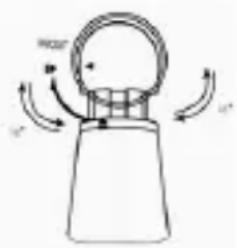
natural_image
Simple line drawing of a mechanical component with rotational arrows indicating motion (no text or symbols)ATTENTION
natural_image
Three grayscale icons: a folder with documents, a gear with tools, and a photo frame (no text or symbols)natural_image
Three metallic gear icons: star, cylindrical container with cross, and wrench (no text or symbols)natural_image
Collection of grayscale icons representing search, lock, gear, and document operations (no text or symbols)natural_image
Close-up of a leaf with water droplets, no text or symbols visible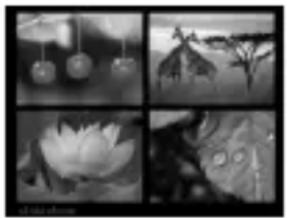
natural_image
Four-panel black-and-white photo collage showing water lilies, leaves, and a flower (no text or symbols)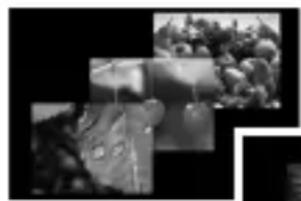
natural_image
Black-and-white collage of outdoor scenes including a person in a jacket, a close-up of fruit, and a blurred background (no visible text or symbols)
natural_image
Black-and-white landscape photo showing a coastal town with mountains and water, no visible text or symbolsnatural_image
Diagram of a mechanical device with a circular component and labeled parts (no readable text or symbols)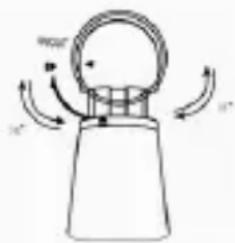
natural_image
Simple line drawing of a mechanical component with rotational arrows indicating motion (no text or symbols)ATENCIÓN
natural_image
Three grayscale icons: a folder with documents, a gear with a wrench, and a document with a person (no text or symbols)natural_image
Grid of 16 black-and-white photos showing a couple, family, and landscape scenes, displayed against a black background with date and time labels (no readable text in the image itself)natural_image
Three grayscale icons: a star, a cylindrical can with cross, and a gear with wrench (no text or symbols)natural_image
Collection of grayscale icons representing search, lock, gear, and file operations (no text or symbols)natural_image
Close-up of a leaf with water droplets (no text or symbols visible)
natural_image
Four-panel black-and-white photo collage showing water lilies, leaves, and a flower (no text or symbols)
natural_image
Black-and-white collage of outdoor scenes including a person in a jacket, a close-up of fruit, and a blurred background (no visible text or symbols)
natural_image
Black-and-white landscape photo showing a coastal town with mountains and water, no visible text or symbolsLimpieza y cuidadod
Supporthotline ..... 101
Inleiding
Voorwoord
Geachte klant,
natural_image
Black-and-white photo of palm trees against a cloudy sky (no text or symbols)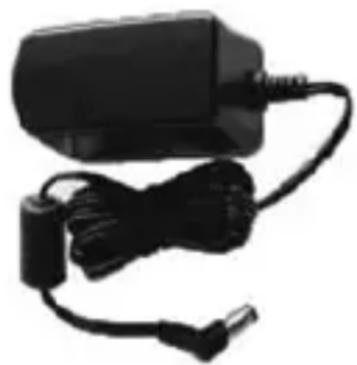
natural_image
Black electronic device with attached cable and power plug (no visible text or symbols)
natural_image
Diagram of a mechanical device with a circular component and labeled parts (no readable text or symbols)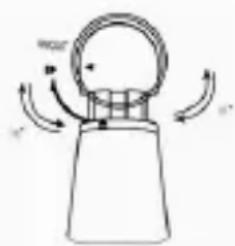
natural_image
Simple line drawing of a mechanical component with rotational arrows indicating motion (no text or symbols)ATTENTIE
natural_image
Three grayscale icons: a folder with documents, a gear with a wrench, and a document with a person (no text or symbols)natural_image
Grid of 16 black-and-white photos showing family and outdoor scenes, displayed against a black background with date and timestamp (no readable text or symbols in the image content)natural_image
Three grayscale icons: a star, a cylindrical container with checkmark, and a gear with a wrench (no text or symbols)Selecteren Wissen Systeeminstellingen
natural_image
Collection of grayscale icons representing search, lock, gear, and file operations (no text or symbols)natural_image
Close-up of a leaf with water droplets (no text or symbols visible)
natural_image
Four-panel black-and-white photo collage showing water lilies, leaves, and a flower (no text or symbols)
natural_image
Black-and-white collage of outdoor scenes including a person in a jacket, a close-up of fruit, and a blurred background (no visible text or symbols)
natural_image
Black-and-white landscape photo showing a riverbank with mountains and a distant tree (no text or symbols visible)NL
natural_image
Grayscale abstract texture with horizontal striations and a dark horizontal bar at the bottom (no text or symbols)natural_image
Black-and-white photo of palm trees against a cloudy sky (no text or symbols visible)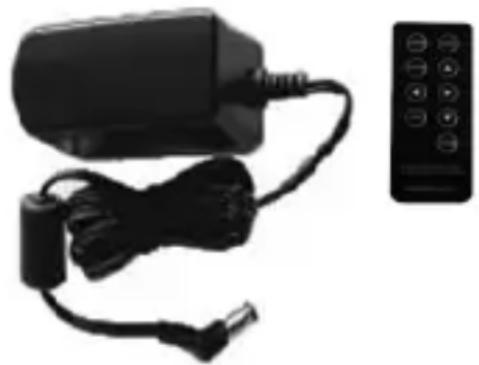
natural_image
Black electric vehicle charging plug connected to a cable with a remote control (no visible text or symbols)natural_image
Simple line drawing of a mechanical component with a circular ring and labeled parts (no text or symbols)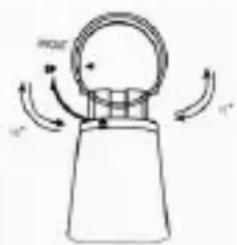
ATTENZIONE
natural_image
Abstract black-and-white image with three icons: a document, a gear, and a photo frame (no text or symbols)natural_image
Grid of 16 black-and-white photos showing a couple, family, and outdoor scenes, displayed against a black background with date and time labels (no readable text in the image itself)natural_image
Three grayscale icons: a star, a cylindrical can with cross, and a gear with wrench (no text or symbols)natural_image
Collection of grayscale icons representing search, add, delete, refresh, gear, and file (no text or symbols)natural_image
Close-up of a leaf with water droplets, no text or symbols visibleSlideshow
natural_image
Four-panel black-and-white photo collage showing water lilies, a lotus flower, and tree branches (no text or symbols)Mulitshow
natural_image
Black-and-white collage of outdoor scenes including a person in a jacket, a close-up of fruit, and a blurred background (no visible text or symbols)
natural_image
Black-and-white landscape photo showing a coastal town with mountains and water, no visible text or symbolsIT
Pulizia e cura
Supporthotline ..... 141
Inledning
Förord
Bästa/bäste kund,
natural_image
Black-and-white photo of palm trees against a cloudy sky (no text or symbols visible)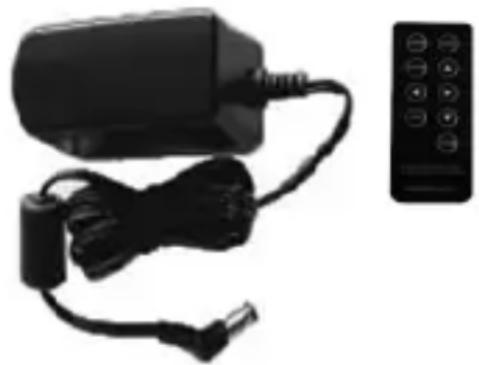
natural_image
Black electric vehicle charging plug connected to a cable with a remote control unit (no visible text or symbols)- Digital fotoram
- Adapter
- Fjärrkontroll
- Bruksanvisning
INFORMATION
natural_image
Two technical line drawings of a mechanical device with rotational arrows indicating motion (no text or symbols)OBSERVERA
natural_image
Abstract grayscale image with three icons: a document icon, a gear symbol, and a photo frame (no text or symbols present)natural_image
Three grayscale icons: a star, a cylindrical container with cross marks, and a gear with a wrench (no text or symbols)natural_image
Collection of grayscale icons representing search, refresh, email, gear, and fileback (no text or symbols)natural_image
Close-up of a leaf with water droplets (no text or symbols visible)
natural_image
Four-panel black-and-white photo collage showing water lilies, a lotus flower, and tree branches (no text or symbols)
natural_image
Black-and-white collage of outdoor scenes including a person in a jacket, a close-up of fruit, and a blurred background (no visible text or symbols)
natural_image
Black-and-white landscape photo showing a coastal town with mountains and water, no visible text or symbolsnatural_image
Grayscale abstract texture with horizontal striations and a dark horizontal bar at the bottom (no text or symbols)Menystruktur hos DPF
flowchart
graph TD
    A["DPF"] --> B["Foto bildspel"]
    A --> C["Inställning"]
    C --> D["Meny-språk"]
    C --> E["Intervall tid"]
    C --> F["Överbländning"]
    C --> G["Filbeskrivning"]
    C --> H["Mapp administrering"]
    C --> I["Visning på sidan"]
    C --> J["Bildspelsläge"]
    C --> K["LCD strömsparläge"]
    C --> L["Bildspelsförlopp"]
    C --> M["Displayinställning"]
    C --> N["Format"]
    C --> O["Standardinställning"]
    C --> P["Systeminformation"]
Supportinformation
natural_image
Grayscale abstract texture with horizontal striations and a dark horizontal bar at the bottom (no text or symbols)Asennus ja toiminta
natural_image
Black-and-white photo of palm trees against a cloudy sky (no text or symbols)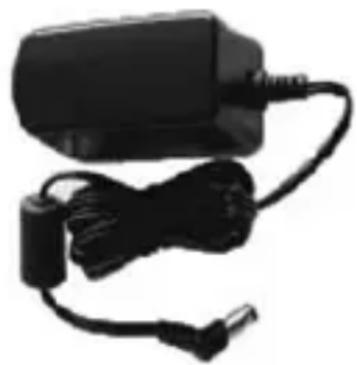
natural_image
Black electronic device with attached cable and connector (no visible text or symbols)
natural_image
Abstract grayscale image with three gear icons and two document-like images, no text or symbols present.natural_image
Grid of 16 black-and-white photos showing people in various activities, displayed against a black background with date and time labels (no readable text or symbols on the images themselves)natural_image
Three grayscale icons: a star, a cylindrical container with cross, and a gear with a wrench (no text or symbols)natural_image
Collection of grayscale icons representing search, lock, gear, and file operations (no text or symbols)natural_image
Close-up of a leaf with water droplets (no text or symbols visible)
natural_image
Four-panel black-and-white photo collage showing water lilies, leaves, and a flower (no text or symbols)
natural_image
Black-and-white photo collage showing a person in a suit, a close-up of a landscape with trees and hills (no visible text or symbols)
natural_image
Black-and-white landscape photo showing a coastal scene with mountains and water, no visible text or symbolsPuhdistus ja hoito
natural_image
Grayscale abstract texture with horizontal striations and a dark horizontal bar at the bottom (no text or symbols)natural_image
Black-and-white photo showing a beach scene with palm trees and a flat-screen TV, alongside a charger and remote control (no visible text or symbols)natural_image
Two technical line drawings of a mechanical component with rotational arrows indicating motion (no text or symbols)UWAGA
natural_image
Three grayscale icons: a folder with documents, a gear with a wrench, and a document with a gear mechanism (no text or symbols)PL
natural_image
Grid of 16 black-and-white photos showing people in various activities, labeled 'E:\PHOTOS\IFESTIV-1.JPG' and timestamped '2009/9/15 18:58:52', with no readable text or symbols beyond the date and frame.natural_image
Three grayscale icons: a star, a cylindrical container with cross, and a gear with a wrench (no text or symbols)natural_image
Collection of grayscale icons including magnifying glass, lock, gear, and document (no text or symbols)natural_image
Close-up of a leaf with water droplets (no text or symbols visible)
natural_image
Four-panel black-and-white photo collage showing water lilies, a lotus flower, and tree branches (no text or symbols)
natural_image
Black-and-white collage of outdoor scenes including a person in a jacket, a close-up of fruit, and a blurred background (no visible text or symbols)
natural_image
Black-and-white landscape photo showing a coastal town with mountains and water, no visible text or symbolsnatural_image
Grayscale abstract texture with horizontal striations and a dark horizontal bar at the bottom (no text or symbols)Struktura menu DPF
DPF
natural_image
Black-and-white photo of a digital tablet displaying a beach scene with palm trees and sky, alongside a charger and remote control (no visible text or symbols)natural_image
Simple line drawing of a mechanical component with a circular end and labeled 'PROM' (no text or symbols beyond the label)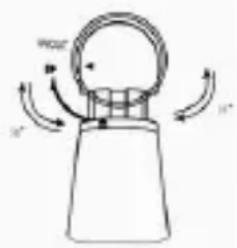
POZOR
natural_image
Abstract grayscale image with three gear icons and two document-like images, no text or symbols present.CZ
natural_image
Grid of 16 black-and-white photos showing people in various activities, displayed against a black background with date and time labels (no readable text or symbols on the images themselves)natural_image
Three grayscale icons: a star, a cylindrical container with cross, and a gear with a wrench (no text or symbols)vybrat vymazat
natural_image
Collection of grayscale icons representing search, lock, gear, and document operations (no text or symbols)vymazat systémová
nastaven
EXIF (informace o fotografi i)
natural_image
Close-up of a leaf with water droplets (no text or symbols visible)
natural_image
Four-panel black-and-white photo collage showing water lilies, a lotus flower, and tree branches (no text or symbols)mulitshow
natural_image
Black-and-white collage of outdoor scenes including a person in a jacket, a close-up of fruit, and a blurred background (no visible text or symbols)
natural_image
Black-and-white landscape photo showing a coastal town with mountains and water, no visible text or symbolsČištění a údržba
Support Hotline .....220
Úvod
Predslov
natural_image
Black-and-white photo showing a beach scene with palm trees and a charging plug connected to a remote control (no text or symbols visible)natural_image
Technical line drawing of a mechanical component with labeled parts (no text or symbols)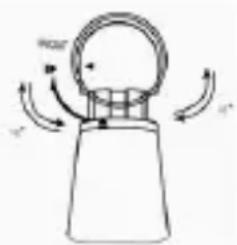
natural_image
Simple line drawing of a mechanical component with rotational arrows indicating motion (no text or symbols)POZOR
natural_image
Abstract grayscale image with three gear icons and two document-like images, no text or symbols present.SK
natural_image
Grid of 16 black-and-white photos showing people in various activities, labeled 'E:\PHOTOS\IFESTIV-1.JPG' and timestamped '2009/9/15 18:58:52', with no readable text or symbols beyond the date and frame.natural_image
Three grayscale icons: a star, a cylindrical container with cross, and a gear with a wrench (no text or symbols)Vybrat' Vymazat' Systémové nastavenia
- Pomocou tlačidiel ▲/▼/◄/► vyberte požadovanú funkciu a výber potvrďte tlačidlom „Enter“. Okno menu sa zatvorí.
UPOZORNENIE
- Ak chcete upravit' viacero obrázkov, postup opakujte.
natural_image
Grid of grayscale icons representing search, lock, email, gear, and file (no text or symbols)natural_image
Close-up of a leaf with water droplets (no text or symbols visible)
natural_image
Four-panel black-and-white photo collage showing water lilies, a lotus flower, and tree branches (no text or symbols)Mulitshow
natural_image
Black-and-white collage of outdoor scenes including a person in a jacket, a close-up of fruit, and a blurred background (no visible text or symbols)
natural_image
Black-and-white landscape photo showing a coastal town with mountains and water, no visible text or symbolsČistenie a ošetrovanie
natural_image
Grayscale abstract texture with horizontal striations and a dark base (no text or symbols)SK

natural_image
Grayscale abstract texture with horizontal striations and a dark horizontal band at the bottom (no text or symbols)hama®
Hama GmbH & Co KG
Dresdner Str. 9
D-86651 Monheim/Germany