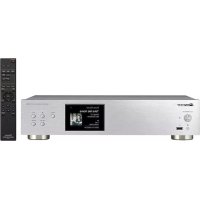
N30AES - Media player PIONEER - Free user manual and instructions
Find the device manual for free N30AES PIONEER in PDF.



| Product Type | Network Media Player |
| Brand | Pioneer |
| Model | N-30AE |
| Dimensions (W × H × D) | 435 mm × 103 mm × 300 mm |
| Weight | 3.4 kg (main unit) |
| Power Supply | Mains 220-240 V, 50/60 Hz |
| Power Consumption | 19 W (operation), 0.2 W (standby), 1.9 W (wired network standby), 2.5 W (Wi-Fi network standby) |
| Supported Audio Formats | MP3, WMA, AAC, WAV, AIFF, FLAC, Apple Lossless, DSD (DSF/DSDIFF) |
| Wired Network | Ethernet 10BASE-T/100BASE-TX |
| Wireless Network | Wi-Fi IEEE 802.11 a/b/g/n, 2.4 GHz and 5 GHz bands |
| USB Ports | 1 x USB front (5 V/0.5 A), 1 x USB rear (5 V/1 A) |
| Audio Outputs | RCA analog output (2 Vrms / 500 Ω) |
| Control Output | 3.5 mm monaural mini-jack × 2 (for centralized control) |
| Network Playback Functions | Internet Radio (TuneIn), Spotify Connect, AirPlay, Music Server (DLNA) |
| Display | Display with album art, playback information and network status |
| Remote Control | Supplied (with playback, navigation, settings buttons) |
| Firmware Update | Via network or USB (unzipped file on FAT16/FAT32 drive) |
| Auto Standby | After 20 minutes of inactivity (adjustable) |
| Network Standby | Configurable (On/Off) for wake via network |
| Control Application | Compatible with Pioneer Remote App (iOS/Android) |
| Maintenance | Clean with a soft, dry cloth. Do not use solvents. |
| Repairability | Spare parts available from Pioneer after-sales service. Reset possible via Setup menu. |
Frequently Asked Questions - N30AES PIONEER
User questions about N30AES PIONEER
0 question about this device. Answer the ones you know or ask your own.
Ask a new question about this device
Download the instructions for your Media player in PDF format for free! Find your manual N30AES - PIONEER and take your electronic device back in hand. On this page are published all the documents necessary for the use of your device. N30AES by PIONEER.
USER MANUAL N30AES PIONEER
N-30AE Instruction Manual
Before Start
What's in the box 2
Part Names
Front Panel 3
Rear Panel 4
Remote Controller 5
Display 6
Install
Connections with an amplifier 7
Connecting the power cord, etc. 9
Initial Setup
Power On & Initial Setup 10
Playback
USB Storage Device/HDD 12
Internet Radio 14
Spotify 15
AirPlay®
MusicServer 17
Entering text 19
Advanced Setup
Advanced Settings. 20
Firmware Update
Firmware Update 23
Others
Troubleshooting 25
General Specifications 27
License and Trademark Information 28
> Before Start > Part Names > Install > Initial Setup > Playback
Advanced Setup | Firmware Update | Others
What's in the box
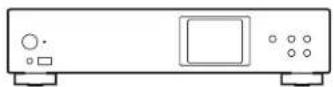
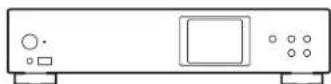
Main unit (1)
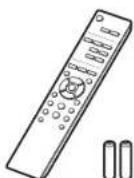
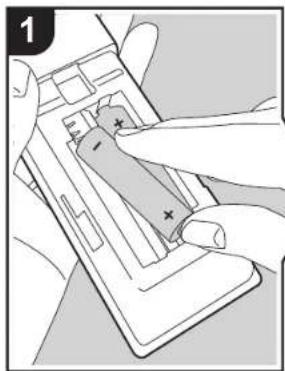
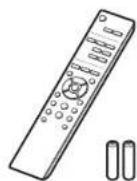
Remote controller (RC-944E) (1), Batteries (AAA/R03) (2)
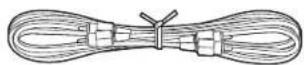
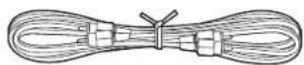
Analog audio cable (1)
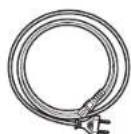
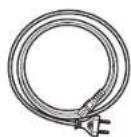
Power cord (1)

- The power cord must be connected only after all other cable connections are completed.
- We will not accept responsibility for damage arising from the connection of equipment manufactured by other companies.
- Functionality may be introduced by firmware updates and service providers may cease services, meaning that some network services and content may become unavailable in the future.
- Specifications and appearance are subject to change without prior notice.

Before Start > Part Names > Install > Initial Setup > Playback
Advanced Setup | Firmware Update | Others
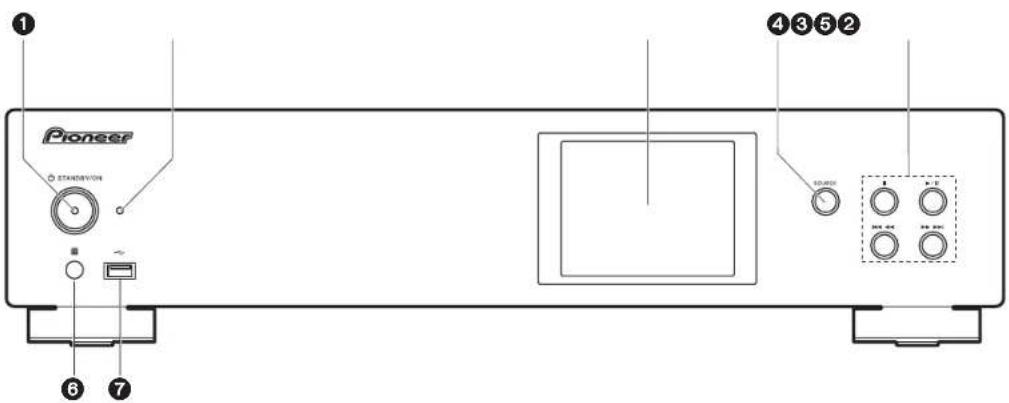
Front Panel
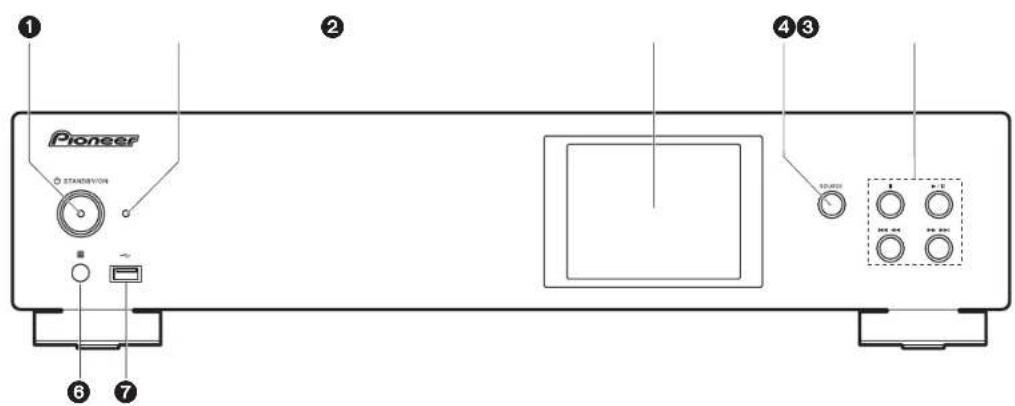
- STANDBY/ON button: Turns the unit on or to standby mode.
- STANDBY/ON indicator: This lights red when this unit is on standby and blue when it is on.
- Display (→ P6)
- SOURCE button: Switches the input to be played.
- Play button:
: This button stops playback.
▶/I: This button pauses the playback.
:Move to the previous track.
:Move to the next track.
Depending on the input, the operation may not start.
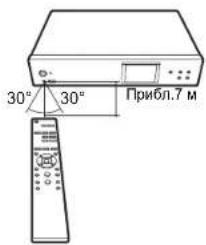
- Remote control sensor
- USB port: Connect a USB storage device or HDD (hard disk drive) to play music files. You can also supply power (maximum 5 V/0.5 A) to USB devices with a USB cable.
- When connecting a HDD that requires more than 5V / 0.5A , connect to the USB port
(maximum 5 V/1 A) on the rear of the unit.


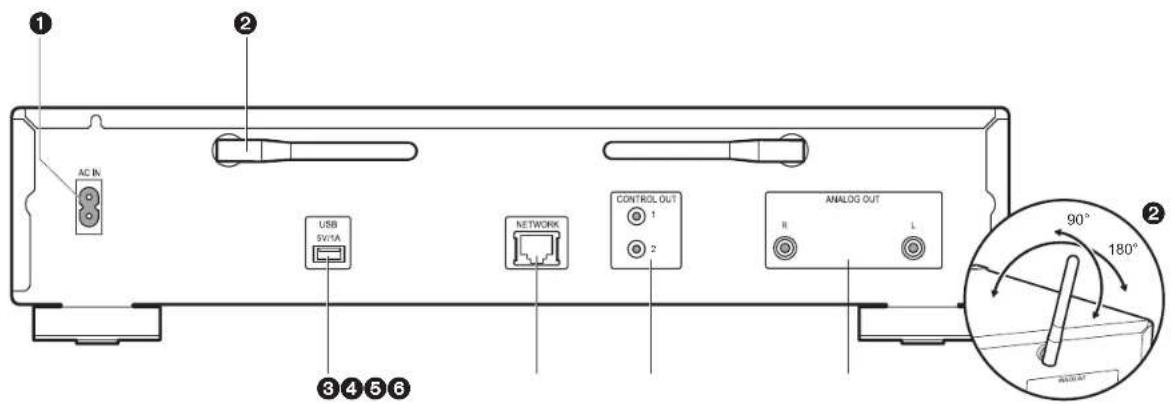
Rear Panel
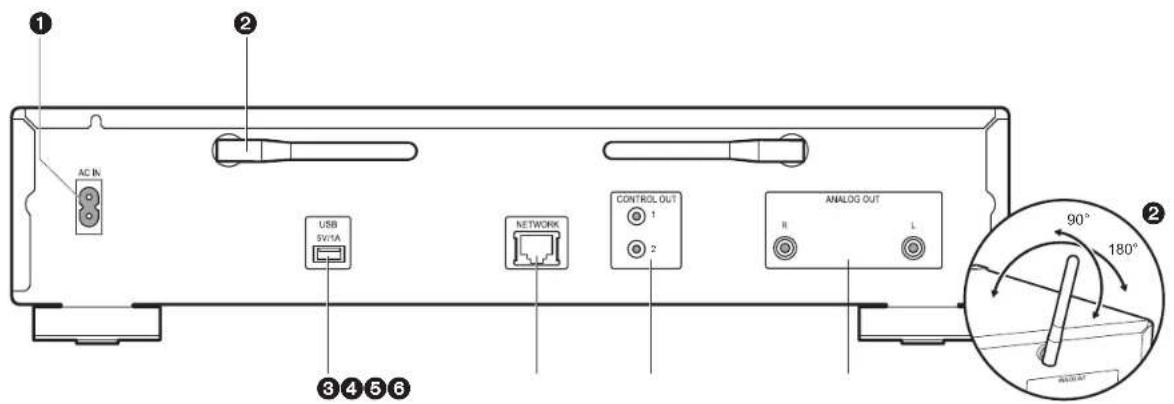
- AC IN: Connect the supplied power cord.
- Wireless antenna: Used for Wi-Fi connection. Adjust their angles according to the connection status.
- USB port: Connect a USB storage device or HDD (hard disk drive) to play music files. You can also supply power (maximum 5 V/1 A) to USB devices with a USB cable.
- NETWORK jack: Connect to the network with an ethernet cable.
- CONTROL OUT jack: By connecting Pioneer brand amplifiers and CD players, centralized control is possible, for example you can control the amplifiers and CD players from the Pioneer Remote App.
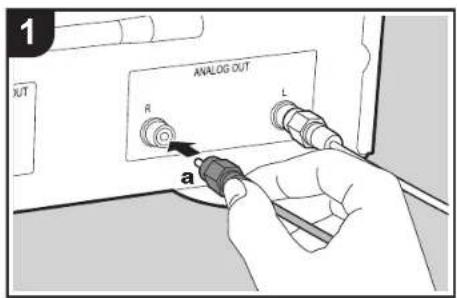
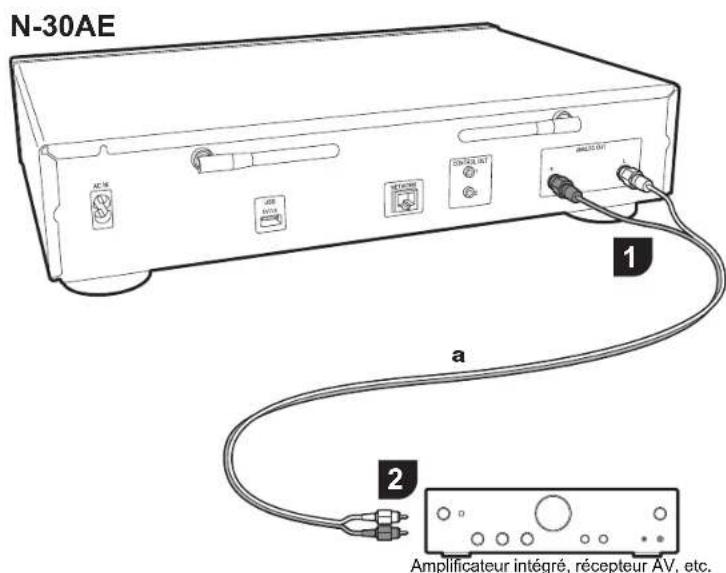
- ANALOG OUT Jacks: Use the supplied analog audio cable to connect an integrated amplifier, for example.
Before Start
PartNames
Install
Initial Setup
Playback
Advanced Setup | Firmware Update | Others
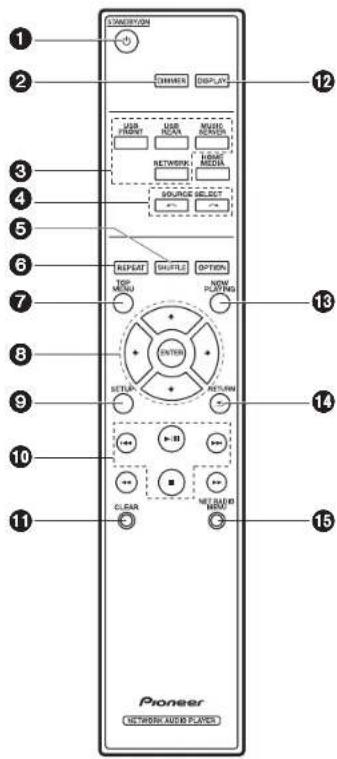
Remote Controller
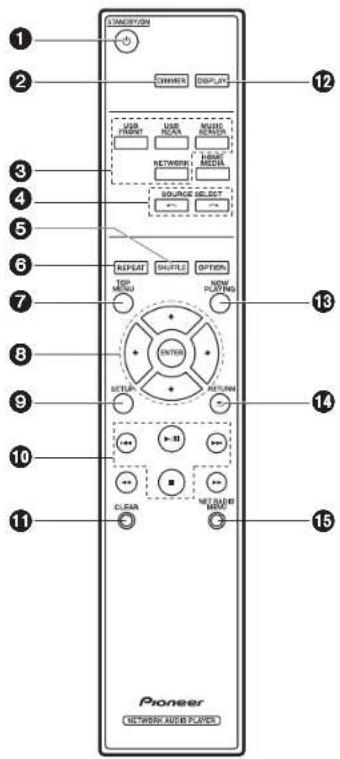
-
① STANDBY/ON button: Turns the unit on or into standby mode.
-
DIMMER button: Switch the display off or adjust the brightness of the display in three
steps.
-
INPUT SELECTOR buttons: Switches the input to be played.
-
Input source played switches each time you press one of these buttons.
-
SHUFFLE button: Set shuffle play.
-
REPEAT button: Set repeat play.
-
TOP MENU button: Move to the top menu of the selected input.
-
Cursor, ENTER button: Select the item with the cursors and press ENTER to confirm.
-
SETUP button: Displays the Setup menu.
10.Play buttons:
: Move to the track before the one being played.
▶/11: Play or pause play.
▶I: Move to the next track.
- Stop playback
Depending on the input, the operation may not start.
-
CLEAR button: Used when entering text, etc.
-
DISPLAY button: Press to turn off the display of this unit. Press again to turn the display on.
-
NOW PLAYING button: When you have changed the display during play, for example, this button returns the display to show information about the file being played.
-
RETURN button: Returns the display to the previous state.
15.NET RADIO MENU button:Use this when playing the internet radio.
HOMEMEDIA,OPTION,and are not used.

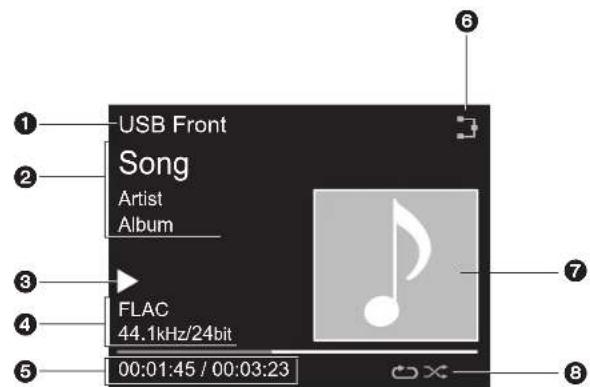
Display
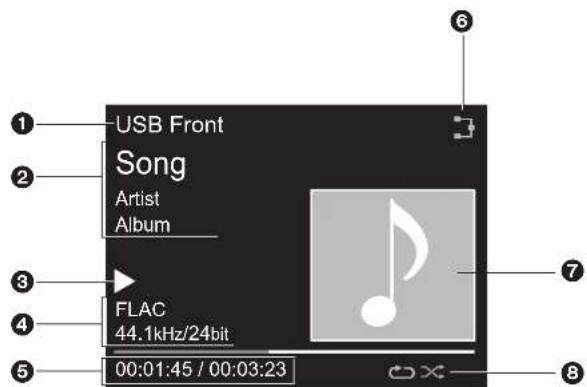

- The input mode is displayed.
(USB Front / USB Rear / Music Server / Network) - The name of the file, artist, album, etc., is displayed.
- Displays the play status.
- Displays file format, sampling frequency, and quantization bit information.
- The file play status is displayed. This may not be displayed depending on the input or file.
- Lights in the following conditions.
: When the connection setting on the unit is "Wired" and the unit is connected to the network.
X: When the connection setting on the unit is "Wired" and the unit is not connected to the network.
: When the connection setting on the unit is "Wi-Fi" and the unit is connected to the network.
: When the connection setting on the unit is "Wi-Fi"and the unit is not connected to the network. - If an album jacket is recorded for the file being played, it is displayed here.
- Lights in the following conditions.
: When all track repeat play is on
: When one track repeat play is on
: When shuffle play is on
- When DISPLAY on the remote controller is pressed to turn off the display, the unit may appear the same as if you had unplugged the unit from the power outlet, but electricity is still being supplied to the unit. To completely cut the unit off from the power supply, you need to unplug the power plug (shutoff device) unit from the power outlet.
Before Start
Part Names
Install
Initial Setup
Playback
Advanced Setup | Firmware Update | Others
Connections with an amplifier
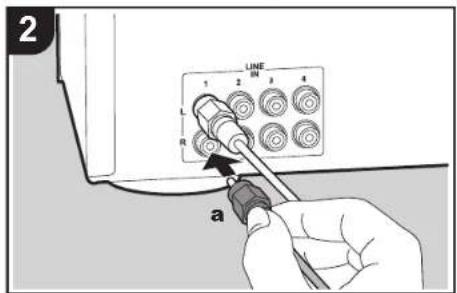
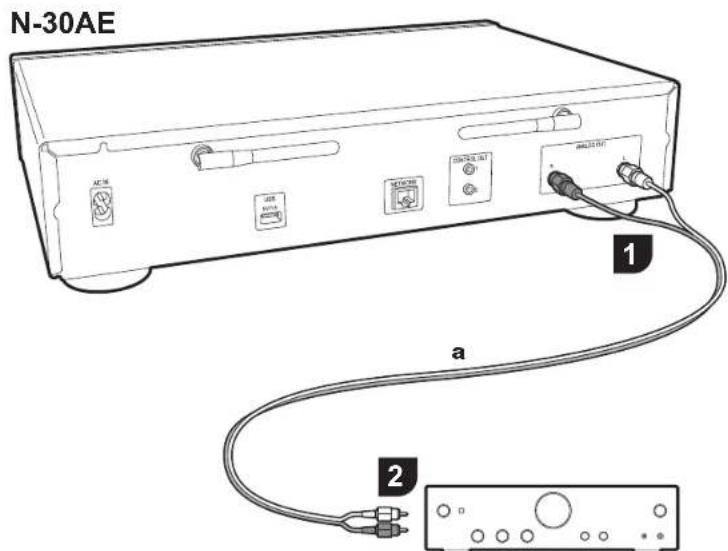
Integrated amplifier, AV receiver, etc.
Connection with an analog audio cable
You can play the audio from network features such as internet radio through speaker systems connected to integrated amplifiers or AV receivers. To connect, use the supplied analog audio cable to connect from the ANALOG OUT jack on this unit to the LINE IN input on an integrated amplifier, AV receiver, etc.
> Before Start > Part Names > Install > Initial Setup > Playback
Advanced Setup | Firmware Update | Others
The control Jack
By connecting Pioneer brand amplifiers or CD players, for example, that have control jacks using monaural miniplug cables (without resistors), you can centralize control of the devices using the Pioneer Remote App.
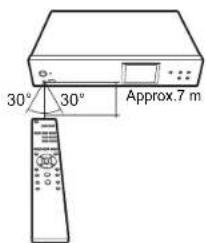
Furthermore, even when the other devices are put in places where the remote control signal is unable to reach, you can enable operation of the other components through the remote control sensor of this unit.
- Also make sure to connect with the analog audio cable. Centralized control cannot work correctly with only the control jack connection.
- With this connection, the remote control sensors on the amplifier and CD player stop working. Point the remote controller at remote control sensor of this unit.
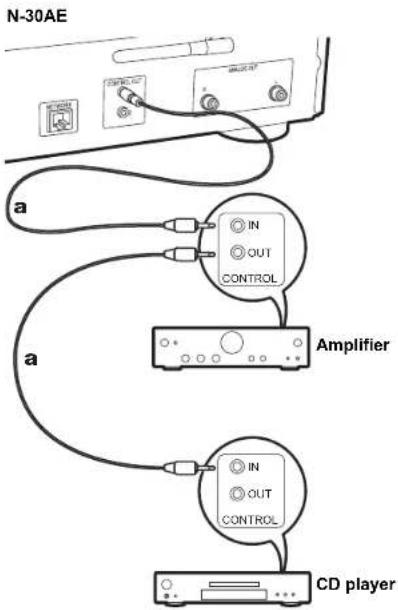
a Monaural miniplug cables (without resistors)
Before Start
Part Names
Install
Initial Setup
Playback
Advanced Setup | Firmware Update | Others
Connecting the power cord, etc.
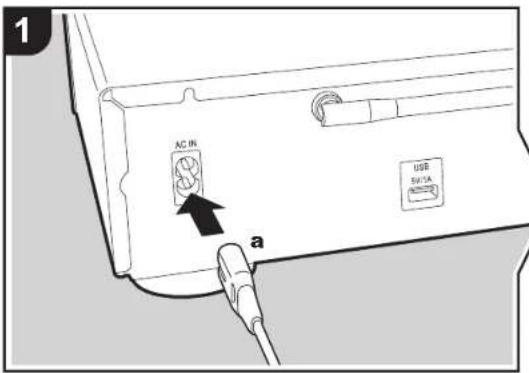
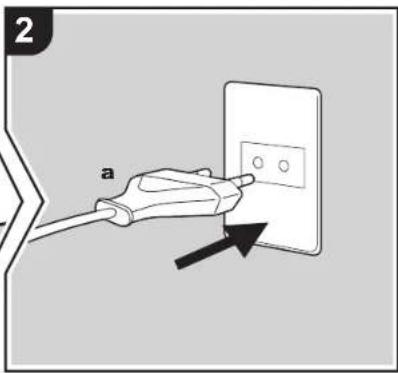
Power cord connection
This model includes a removable power cord. The power cord must be connected only after all other connections are completed. Make sure you first connect the power cord to AC IN terminal of the unit and then connect to the outlet. Always disconnect the outlet side first when disconnecting the power cord.
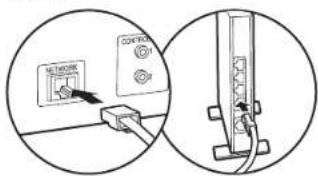
Ethernet cable connection
To connect to the network with an ethernet cable, use the NETWORK jack. When using Wi-Fi connection, make settings in initial settings (→ P10) . You can enjoy features such as internet radio and AirPlay by connecting to the network.
Before Start
Part Names
Install
Initial Setup
Playback
Advanced Setup | Firmware Update | Others
Power On & Initial Setup
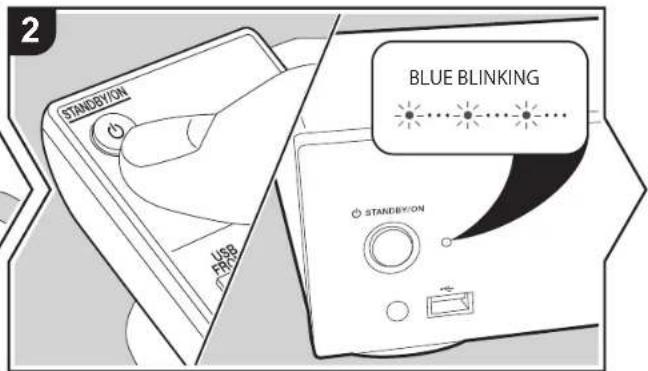
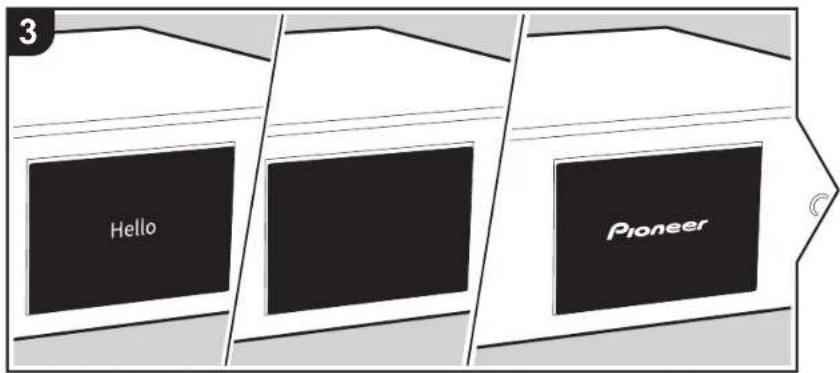
Starting up: When you press STANDBY/ON, the power indicator on the main unit slowly blinks blue, then "Hello" is displayed on the display about 20 seconds later. After this, the display goes blank, then after the Pioneer logo is displayed, you can start operating the unit.
Wi-Fi connection settings
When you first turn the power on, the initial setup screen is displayed automatically, allowing you to easily make Wi-Fi connection settings.
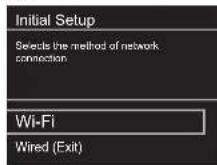
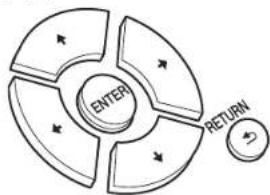
To set, select the item with the cursors on the remote controller and press ENTER to confirm. To return to the previous display, press RETURN.
To make Wi-Fi settings, select "Wi-Fi". If you have connected with an ethernet cable, select "Wired(Exit)" and confirm. If you select "Wi-Fi", select the method for setting in the next screen (for example "Scan Networks").
Before Start
Part Names
Install
Initial Setup
Playback
Advanced Setup | Firmware Update | Others
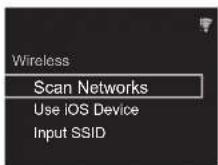
To redo the initial settings, press SETUP on the remote controller, select "Wi-Fi" in "Network Setting" - "Connection", then select "Wi-Fi Setup".
Scan Networks
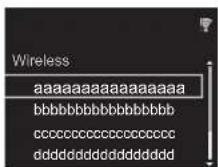
From the list of SSID for access points such as wireless LAN routers, select the required SSID and make the settings.
- Select the SSID of the access point you want to connect and then confirm.
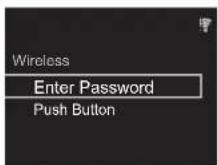
- Select either "Enter Password" or "Push Button" and confirm. If the access point has an automatic setting button, by selecting "Push Button" you can connect without entering a password.
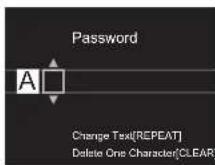
- If you select "Enter Password", enter the password of the access point and press ENTER. For details on how to enter text, refer to "Entering Text" (→P19).
If you select "Push Button", then after pressing and holding the automatic setting button on the access point for the required amount of time, press ENTER on the remote controller.
- displayed when the settings are complete.

Use iOS Device
Set by sharing the iOS device's Wi-Fi settings with this unit.
- Connect the IOS device by Wi-Fi.
- Select this device in the "SET UP NEW AIRPLAY SPEAKER..." item on the screen of the IOS device and select "Next".
-
This unit is displayed as "Pioneer N-30AE XXXXX". 3. After establishing the connection, select "Done" on the screen of the iOS device.
-
displayed on the display of the unit when the settings are complete.

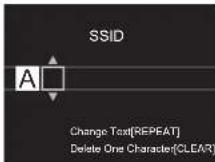
Enter SSID of the access point
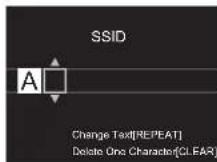
Set by entering the SSID of the access point you want to connect.
1. Enter the SSID. For details on how to enter text, refer to
"Entering text" (→P19).
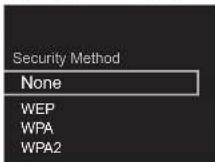
- Select and confirm the authentication method.
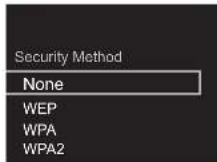
If you select "None", proceed to step 3. If you select "WEP", "WPA", or "WPA2", enter the password and confirm.
3. displayed when the settings are complete.

> Before Start > Part Names > Install > Initial Setup > P l a y b a c k
Advanced Setup | Firmware Update | Others
USB Storage Device/HDD
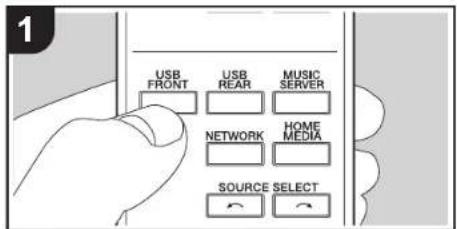
Basic operations
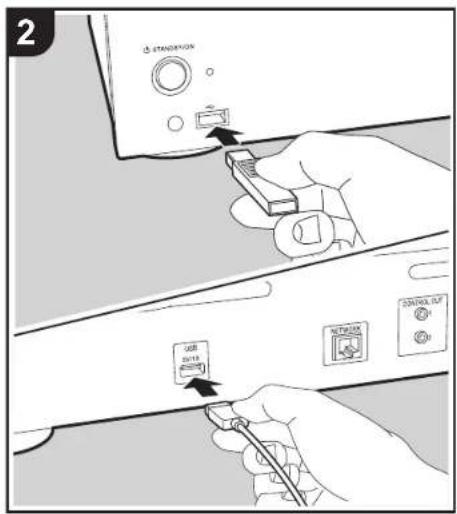
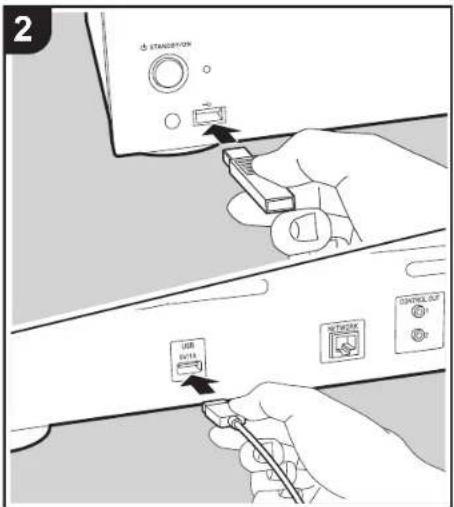
You can play music files by connecting a USB storage device or HDD (hard disk drive) to the USB port on the front or rear of the unit.
The USB port on the front supports a maximum 5 V/0.5 A power supply. If the HDD requires more than this, connect to the USB port (maximum 5 V/1 A) on the rear of the unit.
1. Turn the unit on.
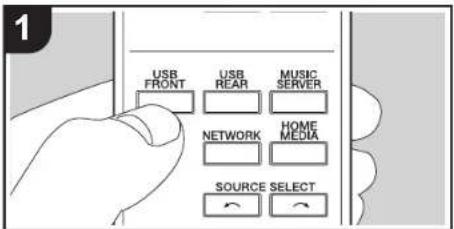
2. Press USB FRONT or USB REAR.
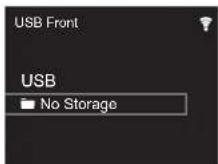
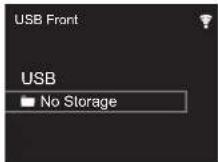
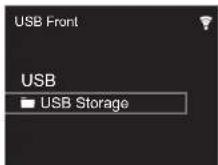
- Plug your USB storage device or HDD into the USB port on the front or rear.
- Folders and music files are displayed on the display when loading is complete.
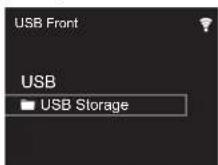
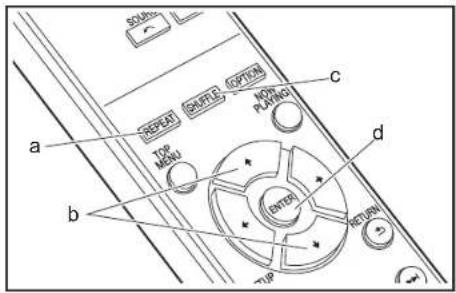
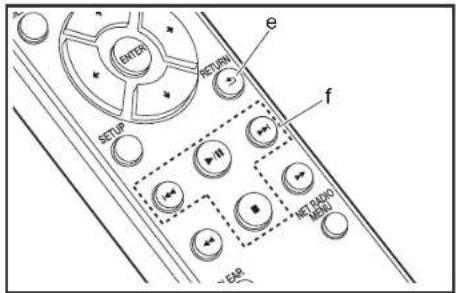
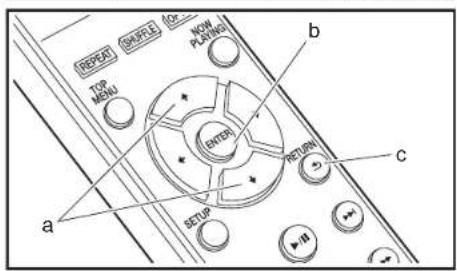
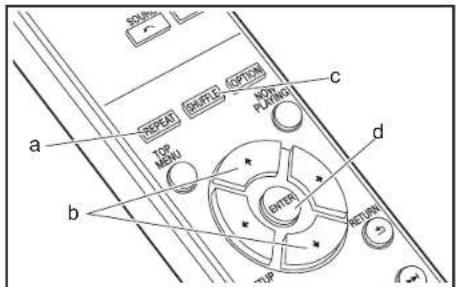
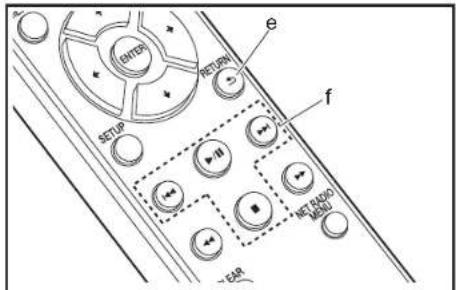
- Select the folder or music file with the cursors (b) of the remote controller and press ENTER (d) to confirm. To return to the previous display, press RETURN (e).
- Use play buttons (f) to stop play or choose tracks to play. The display of album name, artist name, and album art is supported with MP3/WMA/Apple Lossless/FLAC/AAC/
DSD (DSF only) format music files. The formats for embedded images are JPEG and PNG.
- Characters that cannot be displayed by this unit appear as "★".
- The USB port of this unit conforms with the USB 2.0 standard. The transfer speed may be insufficient for some content you play, which may cause some interruption in sound.
Repeat play
- Repeatedly press REPEAT (a) during play to display or on the display.
: Repeat play of all tracks.
: Repeat play of the selected individual track.
To cancel repeat play, press REPEAT (a) several times until the icons disappear.
Shuffle play
- Repeatedly press SHUFFLE (c) during play to display x < on the display.
× : Play tracks in a folder randomly.
To cancel shuffle play, press SHUFFLE (c) several times until the icon disappears.
USB Storage / HDD Device Requirements
Note that operation is not guaranteed with all USB storage devices or HDD.
- This unit can use USB storage devices that comply with the USB mass storage device class standard. (However, there are still devices that cannot be played by this unit even if they comply with the USB mass storage class standard.)
- The unit is also compatible with USB storage devices using the FAT16 or FAT32 file system formats. Other formats such as exFAT, NTFS, and HFS cannot be
played by this unit.
- If the USB storage device has been partitioned, each section will be treated as an independent device.
- Up to 20,000 tracks per folder can be displayed, and folders may be nested up to 16 levels deep.
- USB hubs and USB storage devices with hub functions are not supported. Do not connect these devices to the unit.
- USB storage devices with security function are not supported on this unit.
- If the USB storage device or HDD comes with an AC adapter, we recommend that you use its AC adapter to power it.
Media inserted to the USB card reader may not be available in this function. Furthermore, depending on the USB storage device, proper reading of the contents may not be possible. - We accept no responsibility whatsoever for the loss or damage to data stored on a USB storage device when that device is used with this unit. We recommend that you back up your important music files beforehand.
Supported Audio Formats
For server playback and playback from a USB storage device, this unit supports the following music file formats. Note that sound files that are protected by copyright cannot be played on this unit.
MP3 (.mp3/.MP3):
Supported formats: MPEG-1/MPEG-2 Audio Layer 3 Supported sampling rates: 44.1kHz 48kHz
Supported bitrates: Between 8 kbps and 320 kbps and VBR.
WMA (.wma/.WMA):
Supported sampling rates: 44.1 kHz, 48 kHz
Supported bitrates: Between 5 kbps and 320 kbps and VBR.
WMA Pro/Voice/WMA Lossless formats are not supported
WAV (.wav/.WAV):
WAV files include uncompressed PCM digital audio
Supported sampling rates: 44.1 kHz, 48 kHz, 88.2 kHz, 96 kHz, 176.4 kHz, 192 kHz
Quantization bit: 8 bit, 16 bit, 24 bit
AIFF.(aifl./aifl./aifc./aIFF./AIF/.,AIFC./AFC)
AIFF files include uncompressed PCM digital audio.
Supported sampling rates: 44.1 kHz, 48 kHz, 88.2 kHz,
96 kHz, 176.4 kHz, 192 kHz
Quantization bit: 8 bit, 16 bit, 24 bit
AAC (.aac/.m4a/.mp4/.3gp/.3gp/.AAC/.M4A/.MP4/.3GP/.3G2):
Supported formats: MPEG-2/MPEG-4 Audio
Supported sampling rates: 44.1 kHz, 48 kHz, 88.2 kHz, 96 kHz
- Supported bitrates: Between 8 kbps and 320 kbps and VBR.
FLAC (flac./FLAC):
Supported sampling rates: 44.1 kHz, 48 kHz, 88.2 kHz, 96 kHz, 176.4 kHz, 192 kHz
Quantization bit: 8 bit, 16 bit, 24 bit
Apple Lossless (.m4a/.mp4/.M4A/.MP4):
Supported sampling rates: 44.1 kHz, 48 kHz, 88.2 kHz, 96 kHz, 176.4 kHz, 192 kHz
Quantization bit: 16 bit, 24 bit
DSD (.dsf/.dff/.DSF/.DFF):
Supported formats: DSF/DSDIFF
Supported sampling rates: 2.8 MHz, 5.6 MHz, 11.2 MHz
> Before Start > Part Names > Install > Initial Setup > P l a y b a c k
Advanced Setup | Firmware Update | Others
Internet Radio
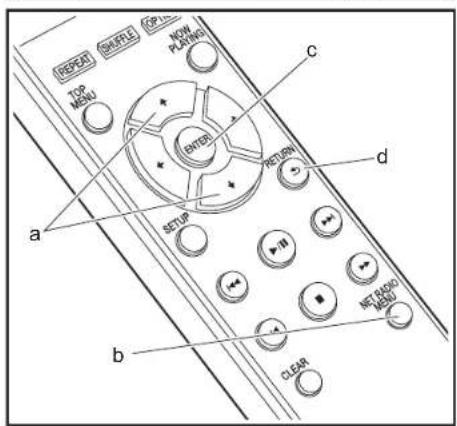
Basic operations
When this unit is connected to a network, you can listen to Tuneln or other preregistered Internet radio services. Depending on the internet radio service, the user may need to register from their computer first.
- Turn the unit on.
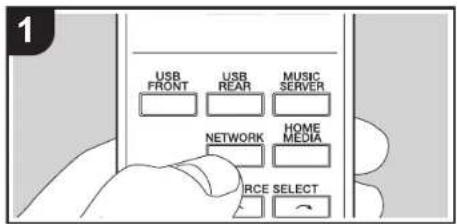
- Press NETWORK
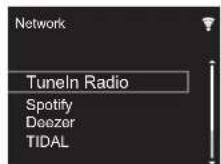
- Select "Tuneln Radio" with the cursors (a) of the remote controller and press ENTER (c) to confirm. After switching the display to the internet radio service, you can select stations with the cursors (a) on the remote controller and press ENTER (c) to confirm. To return to the previous display, press RETURN (d).
Tuneln
You can register a station you have played as a favorite.
1. Press NET RADIO MENU (b) while playing Tuneln.
2. Select "Add to My Presets" on the display and confirm.
3. To play a favorite, in the top screen of TuneIn, select the registered station in "My Presets" and confirm. To delete favorites, press NET RADIO MENU (b) during play, select "Remove from My Presets" and confirm.


> Before Start > Part Names > Install > Initial Setup > P l a y b a c k
Advanced Setup | Firmware Update | Others
Spotify
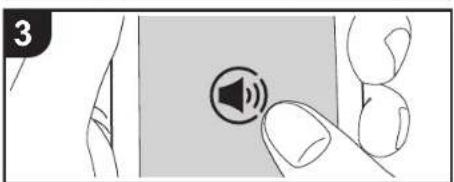
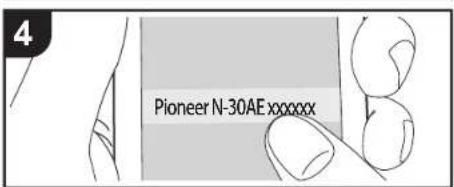
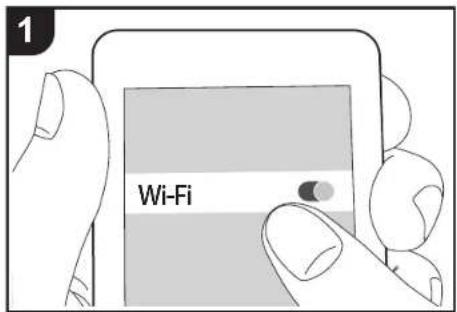
Basic Operation
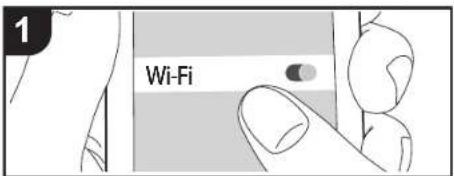
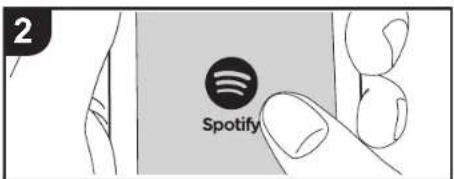
Spotify Connect play is possible by connecting this unit to the same network as a smart phone or tablet. To enable Spotify Connect, install the Spotify application on your smartphone or tablet and create a Spotify premium account.
-
Connect the smartphone to the network that this unit is connected to.
-
Click the Connect icon in the track play screen of the Spotify app.
-
Select this unit.
This unit is displayed as "Pioneer N-30AE XXXXX"
- This unit turns on automatically and the input selector
changes to NETWORK and streaming of Spotify starts.
- If "Option Setting" - "Power Off Setting" - "Network Standby" is set to "Off" in the Setup menu, manually turn the unit on and then press NETWORK on the remote controller.
Refer to the following for Spotify settings:
www.spotify.com/connect/
The Spotify software is subject to third party licenses
found here: www.spotify.com/connect/third-party-licenses
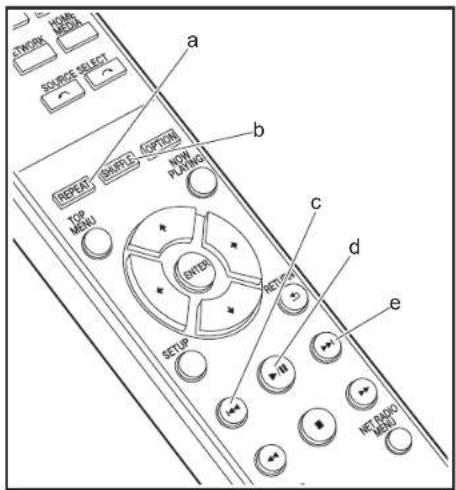
The following remote controller operations are also possible.
(a) This button starts repeat play.
(b) This button starts shuffle play.
(c) This button plays the previous track.
(d) Pressed during play this button pauses playback. Pressed while paused, and it restarts play.
(e) This button plays the next track.
> Before Start > Part Names > Install > Initial Setup > P I a y b a c k
Advanced Setup | Firmware Update | Others
AirPlay®
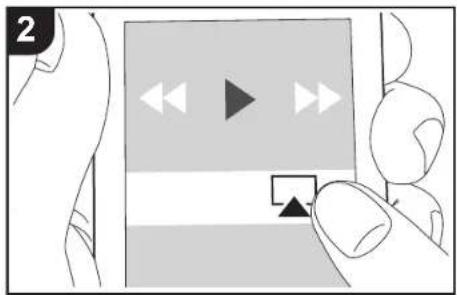
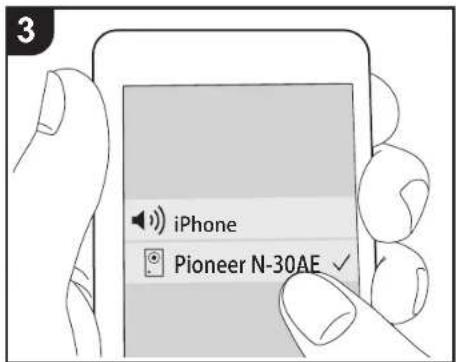
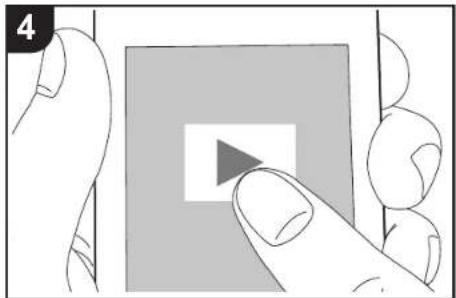
Basic Operation
You can wirelessly enjoy the music files on an iPhone, iPod touch, or iPad connected to the same access point as this unit. Update the OS version on your iOS device to the latest version.
-
Tum the unit on.
-
Connect the iOS device to the same network as this unit.
-
Tap the AirPlay icon the control center of the iOS device and select this unit from the list of devices displayed, and tap "Done".
This unit is displayed as "Pioneer N-30AE XXXXX".
If an "AirPlay Password" has been set on this unit, enter the password you set.
-
Play the music files on the iOS device.
-
In the Setup menu displayed by pressing SETUP on the remote controller, when "Option Setting" - "Power Off Setting" - "Network Standby" is set to "On", when play of AirPlay starts, this unit turns on automatically and play starts.
Due to the characteristics of AirPlay wireless technology, the sound produced on this unit may slightly be behind the sound played on the AirPlay-enabled device. - SHUFFLE and REPEAT on the remote controller do not work. Operation from the iOS device.
You can also play the music files on a computer with iTunes (Ver. 10.2.2 or later). Make sure this unit and the computer are connected to the same network, click the AirPlay icon in iTunes, select this unit from the list of devices displayed, and start play of a music file.
> Before Start > Part Names > Install > Initial Setup > P I a y b a c k
Advanced Setup | Firmware Update | Others
Music Server
It is possible to stream music files stored on PCs or NAS devices connected to the same network as this unit. The network servers this unit is compatible with are those PCs with players installed that have the server functionality of Windows Media Player 11 or 12, or NAS that are compatible with home network functionality. You may need to make some settings in advance to use Windows Media Player 11 or 12. Note that only music files registered in the library of Windows Media Player can be played.
Configuring Windows Media® Player
Windows Media Player 11
- Tum on your PC and start Windows Media Player 11.
- In the "Library" menu, select "Media Sharing" to display a dialog box.
- Select the "Share my media" check box, and then click "OK" to display the compatible devices.
-
Select this unit, and then click "Allow".
-
When it is clicked, the corresponding icon is checked. 5. Click "OK" to close the dialog.
Depending of the version of Windows MedPlayer, there may be differences in the names of items you can select.
Windows Media Player 12
- Turn on your PC and start Windows Media Player 12.
-
In the "Stream" menu, select "Turn on media streaming" to display a dialog box.
-
If media streaming is already turned on, select "More streaming options..." in the "Stream" menu to list players in the network, and then go to step 4.
-
Click "Turn on media streaming" to list players in the network.
- Select this unit in "Media streaming options" and check that it is set to "Allow".
- Click "OK" to close the dialog.
Depending of the version of Windows Media Player,
there may be differences in the names of items you can select.

Playing
- Turn the unit on.
- Start the server (Windows Media Player 11, Windows Media Player 12, or NAS device) containing the music files to play.
- Make sure that the PCs and/or NASs are properly connected to the same network as this unit.
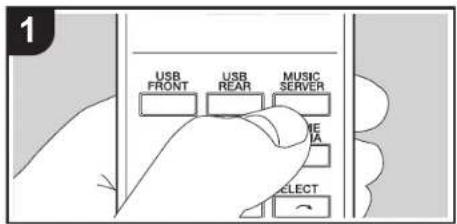
- Press MUSIC SERVER.
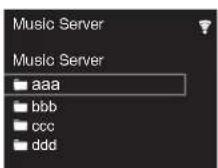
- Select the server and music file with / (a) and press ENTER (b) to confirm. To return to the previous display, press RETURN (c).
- If "No Server" is displayed, check whether the network is properly connected.
Depending on the server being used and the files played, elapsed play time and remaining play time may not be displayed.
For music files on a server, there can be up to 20,000 tracks per folder, and folders may be nested up to 16 levels deep.

Controlling Remote Playback from a PC
You can use this unit to play music files stored on your PC by operating the PC inside your home network. The unit supports remote playback with Windows Media© Player 12.
1. Turn on your PC and start Windows Media Player 12.
2. Open the "Stream" menu and check that "Allow remote control of my Player..." is checked. Click "Turn on media streaming" to list players in the network.
3. Select and right-click the music file to play with Windows Media Player 12. To remotely play a music file on another server, open the target server from "Other Libraries" and select the music file to play.
4. Select this unit in "Play to" to open the "Play to" window of Windows Media Player 12 and start playback on the unit. If your PC is running on Windows 8.1, click "Play to", and then select this unit. If your PC is running on Windows 10, click "Cast to Device", and select this unit. Operations during remote playback are possible from the "Play to" window on the PC.
- Remote playback is not possible when using a network service or playing music files on a USB storage device.
Depending of the version of Windows MediPlayer, there may be differences in the names of items you can select.
Supported Audio Formats
For server playback and playback from a USB storage device, this unit supports the following music file formats.
Note that playback via wireless LAN of sampling rates of 88.2 kHz or higher, and DSD are not supported.
Remote play of FLAC, and DSD is also not supported.
- Variable bit-rate (VBR) files are supported. However, playback times may not be displayed correctly.
Remote playback does not support the gapless playback.
MP3 (.mp3/.MP3):
Supported formats: MPEG-1/MPEG-2 Audio Layer-3
Supported sampling rates: 44.1 kHz, 48 kHz
Supported bitrates: Between 8 kbps and 320 kbps and VBR.
WMA (wma/WMA):
Supported sampling rates: 44.1 kHz, 48 kHz
Supported bitrates: Between 8 kbps and 320 kbps and VBR.
WMA Pro/Voice/WMA Lossless formats are not supported.
WAV (.wav/.WAV):
WAV files include uncompressed PCM digital audio.
Supported sampling rates: 44.1 kHz, 48 kHz, 88.2 kHz, 96 kHz, 176.4 kHz, 192 kHz
Quantization bit: 8 bit, 16 bit, 24 bit
AIFF (aif1.aifl.aifc/afc/.AIFF/.AIF/.AFC/.AFC):
AIFF files include uncompressed PCM digital audio
Supported sampling rates: 44.1 kHz, 48 kHz, 88.2 kHz, 96 kHz, 176.4 kHz, 192 kHz
Quantization bit: 8 bit, 16 bit, 24 bit
AAC. (aac./m4a/.mp4/.3gp/.3g2/.AAC/.M4A/.MP4/.3GP/3G2);
Supported formats: MPEG-2/MPEG-4 Audio
Supported sampling rates: 44.1 kHz, 48 kHz, 88.2 kHz, 96 kHz
Supported bitrates: Between 8 kbps and 320 kbps and VBR.
FLAC(.flac/.FLAC):
Supported sampling rates: 44.1 kHz, 48 kHz, 88.2 kHz, 96 kHz, 176.4 kHz, 192 kHz
Quantization bit: 8 bit, 16 bit, 24 bit
LPCM (Linear PCM):
Supported sampling rates: 44.1 kHz, 48 kHz
- Quantization bit: 16 bit
> Before Start > Part Names > Install > Initial Setup > P I a y b a c k
Advanced Setup | Firmware Update | Others
Entering text
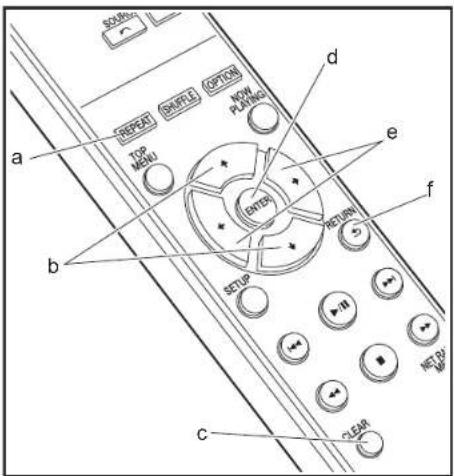
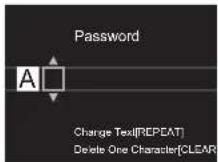
Text entry, for passwords, etc., uses the following remote controller buttons.
REPEAT button (a): Each press changes text type in the order upper case → lower case → numbers → symbols.
/ → buttons (b): Move the position (cursor position) where the character is to be entered.
+/' buttons (e): Each press changes the character.
ENTER button (d): Confirms the entered content.
RETURN button (f): Cancels input and returns you to the previous display.
CLEAR button (c): deletes the character in the cursor position.
> Before Start > Part Names > Install > Initial Setup > Playback
Advanced Setup | Firmware Update | Others
Advanced Settings
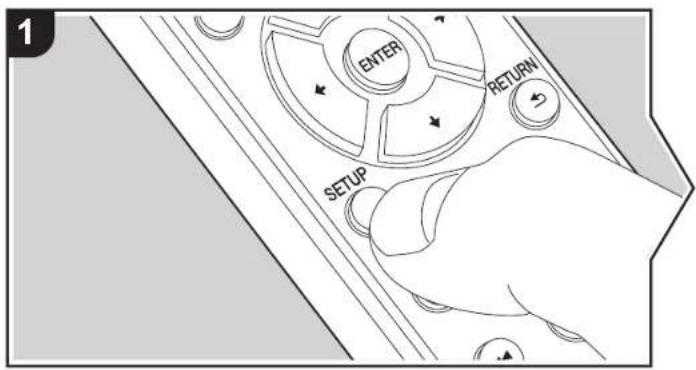
The unit allows you to configure advanced settings to provide you with an even better experience.
- Press SETUP on the remote controller.
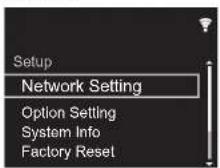
- After the Setup screen is displayed, select the content or the setting with the cursors on the remote controller and press ENTER to confirm your selection. To return to the previous screen, press RETURN.
- To exit the settings, press SETUP.
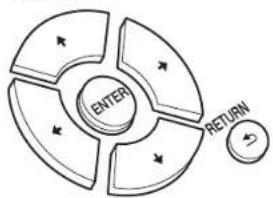
Network Setting
Connection
Select the type connection to the network.
"Wi-Fi": To connect via wireless LAN
"Wired" (Default Value): To connect via wired LAN
Perform "Wi-Fi Setup" if you select "Wi-Fi".
Wi-Fi Setup
Make Wi-Fi connection settings. (P10)
This can be set only when "Wi-Fi" is selected in "Connection".
> Before Start > Part Names > Install > Initial Setup > Playback
Advanced Setup | Firmware Update | Others
- You can make Wi-Fi connection settings using a web browser on a computer. For details, refer to "Web Setup" (P22).
DHCP
"On (Default Value): Auto configuration by DHCP
"Off": Manual configuration without DHCP
If selecting "Off", you must set "IP Address", "Subnet Mask", "Gateway", and "DNS Server" manually.
IP Address
Displays/Sets the IP address.
Subnet Mask
Displays/Sets the subnet mask.
Gateway
Displays/Sets the gateway.
DNS Server
Displays/Sets the primary DNS server.
Proxy URL
Displays/Sets the proxy server URL.
Proxy Port
Displays/Sets the proxy server port number when you enter "Proxy URL".
Friendly Name
Change the device name for this unit which is shown on other devices connected to the network to an easily recognized name. You can input up to 31 characters. For details on how to enter text, refer to "Entering text" (→P19). After finishing input, press ENTER.
AirPlay Password
You can set a password of up to 31 characters so that only registered users can use AirPlay. For details on how to enter text, refer to "Entering text" (→P19). After finishing input, press ENTER.
Network Check
You can check the network connection.
Option Setting
Power Off Setting
| Auto Standby | This setting places the unit on standby automatically after 20 minutes of inactivity without any audio input. "On" (Default Value): The unit will automatically enter standby mode. "Off": The unit will not automatically enter standby mode. |
| Network Standby | When this feature is turned "On", you can turn on the power of the unit via the network using an application that can control this unit. • Setting to "On" (Default Value) increases the power consumption even when the unit is on standby. • "Network Standby", which suppresses power consumption, may be disabled when the network connection is lost. |
Digital Filter
"Slow": Soft and fluid sound
"Sharp" (Default Value): Sound with more structure and firmness
"Short": Sound that starts quick and seems to move forward "Short"
Language
Select the language displayed on the display.
English (Default Value), German, French, Spanish, Italian, Dutch, Swedish, Russian, Chinese
System Info
The MAC address of this unit and the current firmware version will be displayed.

Factory Reset
Reset the settings of this unit to the status at the time of shipment. We recommend that you take a note of the settings you have changed before going ahead with a factory reset. Select "Start" and confirm to go ahead. The unit will be placed on standby automatically when initializing is completed.
Update
"Update" is not displayed if there are no firmware updates.
via Network
Press ENTER to select when you want to update the firmware via network.
via USB
Press ENTER to select when you want to update the firmware via USB.
Web Setup
You can make Wi-Fi connection settings using a web browser on a computer. Be sure your computer is connected to the router wirelessly. If this unit is connected to the router using ethernet cable, you can not do this setting.
- Turn the unit on.
- Press SETUP on the remote controller, select "Wi-Fi" in "Network Setting" - "Connection", then select "Wi-Fi Setup".
- Press / to select "Use iOS Device" and press ENTER.
- In the list of wireless LAN connections on your computer, select SSID of this unit (softap_0009B0xxxxxx). "xxxxxx" in SSD is the lower three bytes of the MAC address.
- Open the web browser on your computer and access http://192.168.200.1.
- The "Web Setup" menu is displayed. Make network settings for this unit.
- Depending on the equipment being used or connection environment, this function may not work.
- Consult the appropriate operating instructions for information regarding operation of the computer.
- Since this kind of connection is not encoded, a minor security risk may be involved.
> Before Start > Part Names > Install > Initial Setup > Playback
Advanced Setup | Firmware Update | Others
Firmware Update
The updating function on this unit
This unit has functionality to update the firmware (the system software) over a network or by the USB port. This enables us to make improvements to a variety of operations and to add features.
For details about the updated play features, see here.
How to update
There are two methods for updating the firmware: via network and via USB. The update may take about 5 minutes to complete for either method: via network or via USB. Furthermore, existing settings are guaranteed regardless of the method used for update.
For the latest information on updates, visit our company's website. There is no need to update the firmware on this unit if there is no update available.
- When performed over the network, it may take even more time depending on the connection status.
During an update, do not
- Disconnect and reconnect any cable or USB storage device, or perform any operation on the component such as turn off its power
- Accessing this unit from a PC or smartphone using an application
Disclaimer: The program and accompanying online documentation are furnished to you for use at your own risk. We will not be liable and you will have no remedy for damages for any claim of any kind whatsoever concerning your use of the program or the accompanying online documentation, regardless of legal theory, and whether arising in tort or contract.
In no event will we be liable to you or any third party for any special, indirect, incidental, or consequential damages of any kind, including, but not limited to, compensation, reimbursement or damages on account of the loss of present or prospective profits, loss of data, or for any other reason whatsoever.
Updating the Firmware via Network
- Check that the unit is turned on, and the connection to the Internet is secured.
-
Turn off the controller component (PC etc.) connected to the network.
-
Stop any playing Internet radio, USB storage device, or server content.
- The setup screen is displayed on the display when SETUP on the remote controller is pressed.
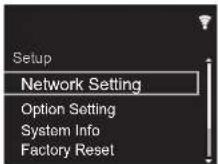
- Press / and ENTER to select "Update" - "via Network" in order.
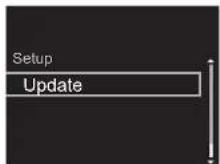
- "Update" is not displayed if there are no firmware updates.
- Press ENTER to start the firmware update.
- "COMPLETE" is displayed when the update is complete.
- Press STANDBY/ON on the main unit to switch the unit to standby. The process is completed and your firmware is updated to the latest version.

If an error message is displayed: When an error occurs, **-** Error! is displayed on the display of this unit. (*" represents an alphanumeric character.) Check the following:
-
-01, -10: Ethernet cable not found. Connect the Ethernet cable properly.
-02 -03 -04 -05 -06 -11 -13 -14 -16 -17 -18 -20 -21 : Internet connection error. Check the following: -
The router is turned on
- This unit and the router are connected via the network. Try to disconnect and then connect again the power to the unit and router. This may solve the problem. If you are still unable to connect to the Internet, the DNS server or proxy server may be temporarily down. Check the service status with your ISP provider.
- Others: Disconnect then reconnect the AC power cord, then repeat from the beginning.
Updating via USB
- Prepare a 128 MB or larger USB storage device. FAT16 or FAT32 file system format.
- Delete any data stored on the USB storage device.
- Turn off the controller component (PC etc.) connected to the network.
- Stop any playing Internet radio, USB storage device, or server content.
Some USB storage devices may take long to load, may not be loaded correctly, or may not be correctly fed depending on the device or their content. - We will not be liable whatsoever for any loss or damage of data, or storage failure arising from the use of the USB storage device with this unit. Thank you for your understanding.
- Connect the USB storage device to your PC.
- Download the firmware file from our company's website to your PC and unzip.
Firmware files are named in the following way:
PIONAP ***************************************************************************************************** Unzip the file on your PC. The number of unzipped files and folders varies depending on the model.
- Copy all unzipped files and folders to the root folder of the USB storage device.
Make sure to copy the unzipped files.
-
Connect the USB storage device to the USB port of this unit.
-
If you connect a USB hard disk drive to the USB port of the unit, we recommend that you use its AC adapter to power it.
-
If the USB storage device has been partitioned, each section will be treated as an independent device.
-
The setup screen is displayed on the display when SETUP button on the remote controller is pressed.
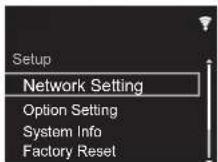
- Press / and ENTER to select "Update" - "via USB" in order.
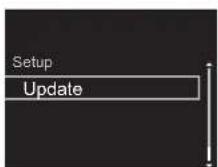
"Update" is not displayed if there are no firmware updates.
7. Press ENTER to start the firmware update.
"COMPLETE" is displayed when the update is complete.
- Press STANDBY/ON on the main unit to switch the unit to standby. The process is completed and your firmware is updated to the latest version.
- Remove the USB storage device from this unit.
If an error message is displayed: When an error occurs, * -** Error! is displayed on the display of this unit.
Check the following:
-
- -01, * -10: USB storage device not found. Check whether the USB storage device or USB cable is correctly inserted to the USB port of this unit. Connect the USB storage device to an external power source if it has its own power supply.
-
- -05, * -13, * -20, * -21: The firmware file is not present in the root folder of the USB storage device, or the firmware file is for another model. Retry from the download of the firmware file.
- Others: Disconnect then reconnect the AC power cord, then repeat from the beginning.
Troubleshooting
Before starting the procedure
When operation is unstable, problems may be solved by simply turning the power on or to standby or disconnecting/ connecting the power cord, rather than reviewing settings and operations. Try the simple measures on both the unit and the connected device. If the problem isn't fixed after referring to "Troubleshooting", resetting the unit to the status at the time of shipment may solve the problem. Note that your settings will also be initialized when you reset, so we recommend that you note down your settings before doing the following.
Resetting the unit (this resets the unit settings to the default)
- Press SETUP on the remote controller, select "Factory Reset" - "Start" in the Setup screen and press ENTER.
- Press ENTER.
- The unit switches to standby and the settings are reset.
Power
Cannot turn on the unit
- Unplug the power cord from the wall outlet, wait 5 seconds or more, then plug it in again.
The unit turns off unexpectedly
- The unit automatically switches to standby when the "Option Setting" - "Power Off Setting" - "Auto Standby" setting in the Setup menu functions.
The display doesn't light
- It is possible that the display has been turned off by pressing DISPLAY. Press DISPLAY to turn the display on.
Wi-Fi Connection
- Try plugging/unplugging the power supply of wireless LAN router and the unit, check the wireless LAN router power-on status, and try reboot of the wireless LAN router.
Cannot connect to the access point
- Check that the setting of SSID and encryption (WEP, etc.) is correct. Make sure the network settings of the unit is properly set.
- Connection to an SSID that includes multi-byte characters is not supported. Name the SSID of the wireless LAN router using single-byte alphanumeric characters only and try again.
- When the wireless LAN router setting is at stealth mode (mode to hide the SSID key) or when ANY connection is off, the SSID is not displayed. Change the setting and try again.
Connected to an SSID different to the SSID selected
Some access points allow you to set multiple SSIDs for one unit. If you use the automatic setting button on such a router, you may end up connecting with a different SSID from the SSID you wanted to connect to. Use the connection method requiring you to enter a password if this happens.
Playback is interrupted and communication does not work
- Shorten the distance from the access point or remove obstacles to improve visibility, and try again. Place the unit away from microwave ovens or other access points. It is recommended to place the access point and the unit in the same room.
- If there is a metallic object near the unit, wireless LAN connection may not be possible as the metal can effect on the radio wave.
- When other access point are used near the unit, several issues such as interrupted playback and communication
may occur. You can avoid these issues by changing the channel of the access point. For instructions on changing channels, see the instruction manual provided with the access point.
Cannot Play USB storage device / HDD
- Check whether the USB storage device or USB cable is correctly inserted to the USB port of the unit.
- Disconnect the USB storage device from the unit, and then try reconnecting.
- This unit may not recognize USB storage devices and HDDs as proper devices sometimes. Try switching this unit to standby and then turning it on again.
Depending on the type of format, the playback may not be performed normally. Check the type of the file formats that is supported. (P13) - Cautions regarding USB and HDD devices (→P13)
Network function
If you cannot select a network service, it will become selectable when the network function is started.
Try plugging/unplugging the power supply of this unit and the router, and try rebooting the router.
Cannot access the Internet radio
- Certain network service or contents available through the unit may not be accessible in case the service provider terminates its service.
Make sure that your modem and router are properly connected, and make sure they are both turned on.
Depending on ISP, setting the proxy server is necessary. - Make sure that the used router and/or modem is supported by your ISP.
Cannot access the network server
- This unit needs to be connected to the same router as the network server.
> Before Start > Part Names > Install > Initial Setup > Playback
Advanced Setup | Firmware Update

This unit is compatible with Windows MediaPlayer 11 or 12 network servers or NAS that are compatible with home network functionality. Furthermore, when using a PC, only music files registered in the Windows Media Player library can be played.
Playback stops while listening to music files on the network server
- When the PC is serving as the network server, try quitting any application software other than the server software (Windows Media Player 12, etc.).
- If the PC is downloading or copying large files, the playback may be interrupted.
The album names and artist names for the Music Server are not displayed
Meta data, such as album names and artist names, needs to be recognized on the server for distribution to this unit, so this depends on the specifications of the NAS or server you are using.
- The file formats supported depend on the NAS or server software. For details, contact the manufacturer of NAS or the server software.
Album art in Music Server is displayed sometimes but not other times
- Music Server depends on the specifications of the server software.
The formats supported depend on the server software. - For details, contact the manufacturer of the server software.

> Before Start > Part Names > Install > Initial Setup > Playback
Advanced Setup | Firmware Update

General Specifications
Analog audio output
Rated Output Level and Impedance
- RCA OUT:2 Vrms (1 kHz, 0 dB)/500 Ω
Frequency Response
- 4 Hz -70 kHz (-3 dB)
Signal to Noise Ratio
110 dB (A-weighting/RCA OUT)
Dynamic Range
100 dB (24 bit, 32 bit)
THD+N
0.002%
Channel Separation
100dB(1kHz)
Digital Audio Input
Front/Rear USB
Type A, USB2.0 High Speed
DC Output
5V1A(Rear)/5V0.5A(Front)
Network Section
Wired LAN
- Ethernet Jack
10BASE-T/100BASE-TX
Wireless LAN (Wi-Fi)
IEEE 802.11 a/b/g/n standard
5 GHz/2.4 GHz band
Others
Control out
1.9 W (in standby, Network Standby: On/Network Setting: Wired)
2.5 W (in standby, Network Standby: On/Network Setting)
Wi-Fi)
Auto standby
On (20 minutes)/Off
Dimensions (W× H× D)
435mm× 103mm× 300mm
Mass (main unit only)
3.4kg

> Before Start > Part Names > Install > Initial Setup > Playback
Advanced Setup | Firmware Update

License and Trademark Information
CERTIFIED
The Wi-Fi CERTIFIED Logo is a certification mark of Wi-Fi Alliance®.

AirPlay, iPad, iPhone, and iPod touch are trademarks of Apple Inc., registered in the U.S. and other countries.
IPad Air and IPad mini are trademarks of Apple Inc.
"Made for iPod", "Made for iPhone" and "Made for iPad" mean that an electronic accessory has been designed to connect specifically to iPod, iPhone, or iPad, respectively, and has been certified by the developer to meet Apple performance standards. Apple is not responsible for the operation of this device or its compliance with safety and regulatory standards.
Please note that the use of this accessory with iPod, iPhone or iPad may affect wireless performance.
AirPlay works with iPhone, iPad, and iPod touch with iOS 4.3.2 or later, Mac with OS X Mountain Lion or later, and PC with iTunes 10.2.2 or later.

This Mark Certifies that this product is compliant with the BLACKFIRE ALLIANCE Standard. Please refer to www.BLACKFIREALLIANCE.COM for more information. BLACKFIRE™s a Registered Trademark (No. 85,900,599) of BLACKFIRE RESEARCH CORP. All rights reserved.

FireConnect™ is technology powered by BlackFire Research.

The product with this logo is conformed to Hi-Res Audio standard defined by Japan Audio Society. This logo is used under license from Japan Audio Society.
This product is protected by certain intellectual property rights of Microsoft. Use or distribution of such technology outside of this product is prohibited without a license from Microsoft.
Windows and the Windows logo are trademarks of the Microsoft group of companies.
DSD and the Direct Stream Digital logo are trademarks of Sony Corporation.
MPEG Layer-3 audio coding technology licensed from Fraunhofer IIS and Thomson.
"All other trademarks are the property of their respective owners."
Anteros Building, Odyssey Business Park, West End Road, South Ruislip, Middlesex, HA4 6QQ United Kingdom
Tel: +44(0)208 836 3612
6, Avenue de Marais F - 95816 Argenteuil Cedex FRANCE
Tel: +33(0)969 368 050
Kopnpaun O 3nD Pn
2-3-12, R3cy, Cyo-Ky, r. Tokno, 104-0028, RIOHNA
Register your product on http://www.pioneer.eu (Europe)
© 2016 Onkyo & Pioneer Corporation. All rights reserved.
© 2016 Onkyo & Pioneer Corporation. Tous droits de reproduction et de traduction réserves.
Onkyo group has established its Privacy Policy, available at [http://www.pioneer-audiovisual.com/privacy].
"Pioneer" is a trademark of Pioneer Corporation, and is used under license.
SN 29402667A
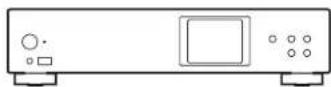
Appareil principal (1)
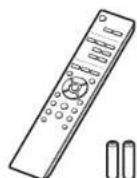
Télécommande (RC-944E) (1), Piles (AAA/R03) (2)
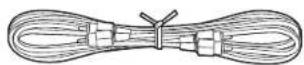
Cable audio analogue (1)
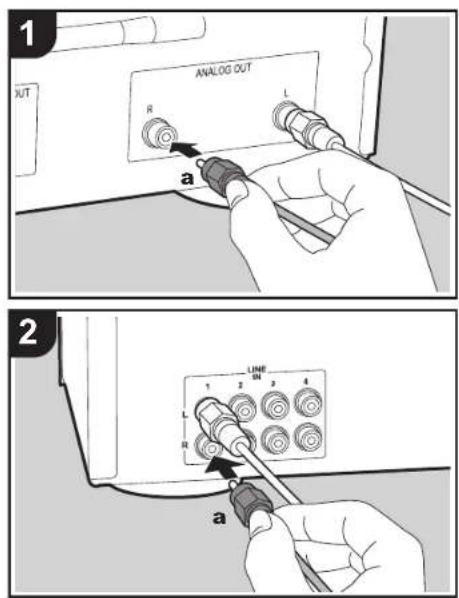
a Cable audio analogue
AIFF (aiff./aif./aifc./aifl.AIFF./AIF./AIFC./AFC):
AAC (.aac/.m4a/.mp4/.3gp/.3g2/.AAC/.M4A/.MP4/.3GP/.3G2):
www.spotify.com/connect/third-party-licenses
110 dB (A-weighting/RCA OUT)
Plage dynamique
100 dB (24 bits, 32 bits)
THD+N
0.002%
Séparation canal
100dB(1kHz)
The Wi-Fi CERTIFIED Logo is a certification mark of Wi-Fi Alliance®.

AirPlay, iPad, iPhone, and iPod touch are trademarks of Apple Inc., registered in the U.S. and other countries.
iPad Air and iPad mini are trademarks of Apple Inc.
Made for iPod, Made for iPhone and Made for iPad mean that an electronic accessory has been designed to connect specifically to iPod, iPhone, or iPad, respectively, and has been certified by the developer to meet Apple performance standards. Apples is not responsible for the operation of this device or its compliance with safety and regulatory standards.
Please note that the use of this accessory with iPod, iPhone or iPad may affect wireless performance.
AirPlay works with iPhone, iPad, and iPod touch with iOS 4.3.3 or later, Mac with OS X Mountain Lion or later, and PC with iTunes 10.2.2 or later.

BLACKFIRE
This Mark Certifies that this product is compliant with the BLACKFIRE ALLIANCE Standard. Please refer to WWW.BLACKFIREALLIANCE.COM for more information. BLACKFIRE is a Registered Trademark (No. 85,900,599) of BLACKFIRE RESEARCH CORP. All rights reserved.

FireConnect™is technology powered by BlackFire Research.

The product with this logo is conformed to Hi-Res Audio standard defined by Japan Audio Society. This logo is used under license from Japan Audio Society.
This product is protected by certain intellectual property rights of Microsoft. Use or distribution of such technology outside of this product is prohibited without a license from Microsoft.
Windows and the Windows logo are trademarks of the Microsoft group of companies.
DSD and the Direct Stream Digital logo are trademarks of Sony Corporation.
MPEG Layer-3 audio coding technology licensed from Fraunhofer IIS and Thomson.
"All other trademarks are the property of their respective owners."
Anteros Building, Odyssey Business Park, West End Road, South Ruislip, Middlesex, HA4 6QQ United Kingdom
Tel: +44(0)208 836 3612
6, Avenue de Marais F - 95816 Argenteuil Cedex FRANCE
Tel: +33(0)969 368 050
Kopnpaun O 3nD Pn
2-3-12, R3cy, Cyo-Ky, r. Tokno, 104-0028, RIOHNA
© 2016 Onkyo & Pioneer Corporation. All rights reserved.
© 2016 Onkyo & Pioneer Corporation. Tous droits de reproduction et de traduction réserves.
Onkyo group has established its Privacy Policy, available at [http://www.pioneer-audiovisual.com/privacy].
"Pioneer" is a trademark of Pioneer Corporation, and is used under license.
SN 29402667A
F1701-1
AIFF (aiff./aif/.aifc/.aif/.AIF/.AIF/.AIFC/.AFC):
AAC (aac/.m4a/.mp4/.3gp/.3g2/.AAC/.M4A/.MP4/.3GP/
DSD (.dsf/.dff/.DSF/.DFF):
- Formatos compatibles: DSF/DSDIFF
- Tasas de muestreo compatibles: 2,8 MHz, 5,6 MHz, 11,2 MHz
www.spotify.com/connect/third-party-licenses
AIFF (aiff/aif/.aifc/.aifC.AIFF.AIIF/.AIFC./.AFC):
AAC (aac/.m4a/.mp4/.3gp/.3gp/.3g2/.AAC/.M4A/.MP4/.3GP/.3G2);
- Formatos compatibles: Audio MPEG-2/MPEG-4
English (Valor predeterminado), German, French, Spanish, Italian, Dutch, Swedish,
Russian, Chinese

System Info
- RCA OUT:2 Vrms (1 kHz, 0 dB)/500 Ω
110 dB (A-weighting/RCA OUT)
Rango dinámico
100 dB (24 bit, 32 bit)
THD+N
0.002%
Separación de canal
100dB(1kHz)
Network Setting: Wired)
2,5 W (en modo de espera, Network Standby: On/
Network Setting:Wi-Fi)
Modo de espera automatico
- Encendido (20 minutes)/apagado
Dimensiones (An × Al × Pr)
435mm× 103mm× 300mm
The Wi-Fi CERTIFIED Logo is a certification mark of Wi-Fi Alliance®.


AirPlay, iPad, iPhone, and iPod touch are trademarks of Apple Inc., registered in the U.S. and other countries.
iPad Air and iPad mini are trademarks of Apple Inc.
Made for iPod, Made for iPhone and Made for iPad mean that an electronic accessory has been designed to connect specifically to iPod, iPhone, or iPad, respectively, and has been certified by the developer to meet Apple performance standards. Apples is not responsible for the operation of this device or its compliance with safety and regulatory standards.
Please note that the use of this accessory with iPod, iPhone or iPad may affect wireless performance.
AirPlay works with iPhone, iPad, and iPod touch with iOS 4.3.3 or later, Mac with OS X Mountain Lion or later, and PC with iTunes 10.2.2 or later.

BLACKFIRE
This Mark Certifies that this product is compliant with the BLACKFIRE ALLIANCE Standard. Please refer to WWW.BLACKFIREALLIANCE.COM for more information. BLACKFIRE is a Registered Trademark (No. 85,900,599) of BLACKFIRE RESEARCH CORP. All rights reserved.

FireConnect™is technology powered by BlackFire Research.

The product with this logo is conformed to Hi-Res Audio standard defined by Japan Audio Society. This logo is used under license from Japan Audio Society.
This product is protected by certain intellectual property rights of Microsoft. Use or distribution of such technology outside of this product is prohibited without a license from Microsoft.
Windows and the Windows logo are trademarks of the Microsoft group of companies.
DSD and the Direct Stream Digital logo are trademarks of Sony Corporation.
MPEG Layer-3 audio coding technology licensed from Fraunhofer IIS and Thomson.
"All other trademarks are the property of their respective owners."
"Bce ToBaphe 3HANX NARAKTOG CO6CTeHHOCTbO COOTBTCTBYKUXN
Pioneer
2-3-12 Yaesu, Chuo-ku, Tokyo 104-0028 JAPAN
18 PARK WAY, UPPER SADDLE RIVER, NEW JERSEY 07458, U.S.A.
Tel: 1-201-785-2600 Tel: 1-844-679-5350
Anteros Building, Odyssey Business Park, West End Road, South Ruislip, Middlesex, HA4 6QQ United Kingdom
Tel: +44(0)208 836 3612
6, Avenue de Marais F - 95816 Argenteuil Cedex FRANCE
Tel: +33(0)969 368 050
Kopnpaun O 3nD Pn
2-3-12, R3cy, Cyo-Ky, r. Tokno, 104-0028, RIOHNA
© 2016 Onkyo & Pioneer Corporation. All rights reserved.
Onkyo group has established its Privacy Policy, available at [http://www.pioneer-audiovisual.com/privacy].
"Pioneer" is a trademark of Pioneer Corporation, and is used under license.
SN 29402667A
AAC (aac/m4a/.mp4/.3gp/.3g2/.AAC/M4A/MP4/.3GP/.3G2):
DSD (.dsf/.dff/.DSF/.DFF):
AIFF (.aiff/.aifl/.aifc/.aiff/.AIF/.AIFL/.AFC):
AAC (aac/.m4a/.mp4/.3gp/.3gp/.3g2/.AAC/.M4A/.MP4/.3GP/ .3G2):
English (Valore predefinito), German, French, Spanish, Italian, Dutch, Swedish, Russian, Chinese

System Info
19,0 W 0,2W (in modalita standby) 1,9W (in modalita standby, Network Standby: On/ Network Setting: Wired) 2,5W (in modalita standby, Network Standby: On/ Network Setting: Wi-Fi)
Standby automatico On (20 minut) / O
Dimensioni (L x A x P) 435 mm x 103 mm x 300 mm
The Wi-Fi CERTIFIED Logo is a certification mark of Wi-Fi Alliance®.
Made for


AirPlay, iPad, iPhone, and iPod touch are trademarks of Apple Inc., registered in the U.S. and other countries.
IPad Air and IPad mini are trademarks of Apple Inc.
"Made for iPod", "Made for iPhone" and "Made for iPad" mean that an electronic accessory has been designed to connect specifically to iPod, iPhone, or iPad, respectively, and has been certified by the developer to meet Apple performance standards. Apple is not responsible for the operation of this device or its compliance with safety and regulatory standards.
Please note that the use of this accessory with iPod, iPhone or iPad may affect wireless performance.
AirPlay works with iPhone, iPad, and iPod touch with iOS 4.3.2 or later, Mac with OS X Mountain Lion or later, and PC with iTunes 10.2.2 or later.

BLACKFIRE
This Mark Certifies that this product is compliant with the BLACKFIRE ALLIANCE Standard.
Please refer to www.BLCKFIREALLIANCE.COM for more information. BLACKFIRE™ is a Registered Trademark (No. 85,900,599) of BLACKFIRE RESEARCH CORP. All rights reserved.

FireConnect™ is technology powered by BlackFire Research.

The product with this logo is conformed to Hi-Res Audio standard defined by Japan Audio Society. This logo is used under license from Japan Audio Society.
This product is protected by certain intellectual property rights of Microsoft. Use or distribution of such technology outside of this product is prohibited without a license from Microsoft.
Windows and the Windows logo are trademarks of the Microsoft group of companies.
DSD and the Direct Stream Digital logo are trademarks of Sony Corporation.
MPEG Layer-3 audio coding technology licensed from Fraunhofer IIS and Thomson.
"All other trademarks are the property of their respective owners."
Anteros Building, Odyssey Business Park, West End Road, South Ruislip, Middlesex, HA4 6QQ United Kingdom
Tel: +44(0)208 836 3612
6, Avenue de Marais F - 95816 Argenteuil Cedex FRANCE
Tel: +33(0)969 368 050
Kopnpaun O 3nD Pn
2-3-12, R3cy, Cyo-Ky, r. Tokno, 104-0028, RIOHNA
© 2016 Onkyo & Pioneer Corporation. All rights reserved.
Onkyo group has established its Privacy Policy, available at [http://www.pioneer-audiovisual.com/privacy].
"Pioneer" is a trademark of Pioneer Corporation, and is used under license.
SN 29402667A
AIFF (aiff/aifl/aifc/afc./AIFF./AIFl/AIFC./AFC):
Apple Lossless (.m4a/.mp4/.M4A/.I
- Unterschiede Abasifrequencyen: 44.1 kHz, 48 kHz, 88.2 kHz, 96 kHz, 176.4 kHz, 192 kHz
- Quantisierungsbit: 16 Bit, 24 Bit
DSD (.dsf/.dff/.DSF/.DFF):
AIFF (.aiff/.aifc/.aifc/.AIFF/.AIF/.AIFC/.AFC):
AAC (aac/.m4a/.mp4/.3gp/.3g2/.AAC/.M4A/.MP4/.3GP/ .3G2):
English (Standardwert), German, French, Spanish, Italian, Dutch, Swedish, Russian, Chinese
System Info
- RCA OUT: 2 Vrms (1 kHz, 0 dB)/500
Frequenzgang
- 4 Hz -70 kHz (-3 dB)
Signal/Rauschabstand
The Wi-Fi CERTIFIED Logo is a certification mark of Wi-Fi Alliance®.

AirPlay, iPad, iPhone, and iPod touch are trademarks of Apple Inc., registered in the U.S. and other countries.
iPad Air and iPad mini are trademarks of Apple Inc.
Made for iPod, Made for iPhone and Made for iPad mean that an electronic accessory has been designed to connect specifically to iPod, iPhone, or iPad, respectively, and has been certified by the developer to meet Apple performance standards. Apples is not responsible for the operation of this device or its compliance with safety and regulatory standards.
Please note that the use of this accessory with iPod, iPhone or iPad may affect wireless performance.
AirPlay works with iPhone, iPad, and iPod touch with iOS 4.3.3 or later, Mac with OS X Mountain Lion or later, and PC with iTunes 10.2.2 or later.

BLACKFIRE
This Mark Certifies that this product is compliant with the BLACKFIRE ALLIANCE Standard. Please refer to WWW.BLACKFIREALLIANCE.COM for more information. BLACKFIRE™ is a Registered Trademark (No. 85,900,599) of BLACKFIRE RESEARCH CORP. All rights reserved.

FireConnect™is technology powered by BlackFire Research.

The product with this logo is conformed to Hi-Res Audio standard defined by Japan Audio Society. This logo is used under license from Japan Audio Society.
This product is protected by certain intellectual property rights of Microsoft. Use or distribution of such technology outside of this product is prohibited without a license from Microsoft.
Windows and the Windows logo are trademarks of the Microsoft group of companies.
DSD and the Direct Stream Digital logo are trademarks of Sony Corporation.
MPEG Layer-3 audio coding technology licensed from Fraunhofer IIS and Thomson.
"All other trademarks are the property of their respective owners."
Anteros Building, Odyssey Business Park, West End Road, South Ruislip, Middlesex, HA4 6QQ United Kingdom
Tel: +44(0)208 836 3612
6, Avenue de Marais F - 95816 Argenteuil Cedex FRANCE
Tel: +33(0)969 368 050
Kopnpaun O 3nD Pn
2-3-12, 3cy, yo-ky, r. Tokno, 104-0028, RNOHnA
© 2016 Onkyo & Pioneer Corporation. All rights reserved.
Onkyo group has established its Privacy Policy, available at [http://www.pioneer-audiovisual.com/privacy].
"Pioneer" is a trademark of Pioneer Corporation, and is used under license.
SN 29402667A
F1701-1
- Ondersteunde demonsteringsfrequencies: 44.1 kHz, 48 kHz, 88.2 kHz, 96 kHz, 176.4 kHz, 192 kHz
Kwantiseringsbit:8bit,16bit,24bit
AIFF (aif/.aif/.aifc/.aifc/.AIFF/.AIF/.AIFC/.AFC):
AAC (.aac/.m4a/.mp4/.3gp/.3g2/.AAC/.M4A/.MP4/.3GP/ .3G2):
- Ondersteunde formaten: MPEG-2/MPEG-4 Audio
- Ondersteunde bemonsteringsfrequencies: 44,1 kHz, 48 kHz, 88,2 kHz, 96 kHz
- Ondersteunde bitsnelheden: Tussen 8 kbps en 320 kbps en VBR
FLAC(.flac/.FLAC):
- Ondersteunde demonsteringsfrequencies: 44.1 kHz, 48 kHz, 88.2 kHz, 96 kHz, 176.4 kHz, 192 kHz
Kwantiseringsbit:8bit,16bit,24bit
Apple Lossless (.m4a/.mp4/.M4A/.MP4):
- Ondersteunde bemonsteringsfrequencies: 44.1 kHz, 48 kHz, 88.2 kHz, 96 kHz, 176.4 kHz, 192 kHz
Kwantiseringsbit: 16 bit, 24 bit
DSD (.dsf/.dff/.DSF/.DFF):
- Ondersteunde formaten: DSF/DSDIFF
- Ondersteunde bemonsteringsfrequencies: 2,8 MHz, 5,6 MHz, 11,2 MHz
www.spotify.com/connect/
AIFF (.aif/.aif/.aifc/.aIF/.aIF/.aIFC/.AFC):
- Ondersteunde demonsteringsfrequencies: 44.1 kHz, 48 kHz, 88.2 kHz, 96 kHz, 176.4 kHz, 192 kHz
Kwantiseringsbit:8bit,16bit,24bit
AAC (.aac/.m4a/.mp4/.3gp/.3g2/.AAC/.M4A/.MP4/.3GP/
3G2: Ondersteunde formaten: MPEG-2/MPEG-4 Audio
- Ondersteunde bemonsteringsfrequenities: 44.1 kHz
48kHz,88.2kHz,96kHz
- Ondersteunde bitsnelheden: Tussen 8 kbps en 320 kbps en VBR
FLAC(.flac/.FLAC):
- Ondersteunde demonsteringsfrequencies: 44.1 kHz, 48 kHz, 88.2 kHz, 96 kHz, 176.4 kHz, 192 kHz
Kwantiseringsbit: 8 bit, 16 bit, 24 bit
LPCM (Linear PCM):
- Ondersteunde bemonsteringsfrequencies: 44,1 kHz, 48 kHz
Kwantiseringsbit:16 bit
Apple Lossless (.m4a/.mp4/.M4A/.MP4):
- Ondersteunde demonsteringsfrequencies: 44,1 kHz, 48 kHz, 88,2 kHz, 96 kHz, 176,4 kHz, 192 kHz
Kwantiseringsbit:16 bit,24 bit
DSD (.dsf/.dff/.DSF/.DFF):
- Ondersteunde formaten: DSF/DSDIFF
- Ondersteunde demonsteringsfrequencies: 2,8 MHz, 5,6 MHz, 11,2 MHz
"Wired" (Fabrieksinstalling): Verbinden via bedraden LAN
Voer "Wi-Fi Setup"uit als u "Wi-Fi"selecteert

Wi-Fi Setup
English (Fabrieksinstellung), German, French, Spanish, Italian, Dutch, Swedish, Russian, Chinese

System Info
- RCA OUT:2 Vrms (1 kHz, 0 dB)/500 Ω
Frequentie reactie
- 4 Hz - 70 kHz (-3 dB)
110 dB (A-weging/RCA OUT)
Dynamisch bereik
100 dB (24 bit, 32 bit)
THD+N
0.002%
Kanaalscheiding
100 dB (1 kHz)
Digitale audio-ingang
19.0W
0,2 W (in stand-by)
1.9 W (in stand-by, Network Standby: On/Network
Setting: Wired)
2,5 W (in stand-by, Network Standby: On/Network
Setting:Wi-Fi)
Auto stand-by
Aan (20 minutes)/Uit
Afmetingen (B× D× H)
- 435 mm × 103 mm × 300 mm
The Wi-Fi CERTIFIED Logo is a certification mark of Wi-Fi Alliance®.

AirPlay, iPad, iPhone, and iPod touch are trademarks of Apple Inc., registered in the U.S. and other countries.
IPad Air and IPad mini are trademarks of Apple Inc.
"Made for iPod", "Made for iPhone" and "Made for iPad" mean that an electronic accessory has been designed to connect specifically to iPod, iPhone, or iPad, respectively, and has been certified by the developer to meet Apple performance standards. Apple is not responsible for the operation of this device or its compliance with safety and regulatory standards.
Please note that the use of this accessory with iPod, iPhone or iPad may affect wireless performance.
AirPlay works with iPhone, iPad, and iPod touch with iOS 4.3.2 or later, Mac with OS X Mountain Lion or later, and PC with iTunes 10.2.2 or later.

This Mark Certifies that this product is compliant with the BLACKFIRE ALLIANCE Standard.
Please refer to www.BLCKFIREALLIANCE.COM for more information. BLACKFIRE™ is a Registered Trademark (No. 85,900,599) of BLACKFIRE RESEARCH CORP. All rights reserved.

FireConnect™ is technology powered by BlackFire Research.

The product with this logo is conformed to Hi-Res Audio standard defined by Japan Audio Society. This logo is used under license from Japan Audio Society.
This product is protected by certain intellectual property rights of Microsoft. Use or distribution of such technology outside of this product is prohibited without a license from Microsoft.
Windows and the Windows logo are trademarks of the Microsoft group of companies.
DSD and the Direct Stream Digital logo are trademarks of Sony Corporation.
MPEG Layer-3 audio coding technology licensed from Fraunhofer IIS and Thomson.
"All other trademarks are the property of their respective owners."
"Bce ToBaphe 3HANX NARAKTOG CO6CTeHHOCTbO COOTBTCTBYKUXN
Pioneer
2-3-12 Yaesu, Chuo-ku, Tokyo 104-0028 JAPAN
18 PARK WAY, UPPER SADDLE RIVER, NEW JERSEY 07458, U.S.A.
Tel: 1-201-785-2600 Tel: 1-844-679-5350
Anteros Building, Odyssey Business Park, West End Road, South Ruislip, Middlesex, HA4 6QQ United Kingdom
Tel: +44(0)208 836 3612
6, Avenue de Marais F - 95816 Argenteuil Cedex FRANCE
Tel: +33(0)969 368 050
Kopnpaun O 3Hn
2-3-12, 3cy, yo-ky, r. Tokno, 104-0028, RNOHnA
Registrar uw product op
http://www.pioneer.eu (Europa)
© 2016 Onkyo & Pioneer Corporation. All rights reserved.
Onkyo group has established its Privacy Policy, available at [http://www.pioneer-audiovisual.com/privacy].
"Pioneer" is a trademark of Pioneer Corporation, and is used under license.
SN 29402667A

F1701-1
Перед насанг >Ha3BaHnuaCTeY >УctaHOBka >HaayIbHЯнacTpOka >BocIpOn3BeDEHne
PacuHnHa NaCpOka | 06HOBHeHc BCTpoEHOro nporpaMnHO oecneHn | Dpytne fynkun

CeteBouaydnoonponrpbIBaTeJb
IyblT DaicTaHcHOnHO ynpabHeHn 5
Dncnn
YcTaHOBka IopKIOUeHne ycINITeIa 7
Kak noiknouhB uHyp nHTaHn 9
HaahbHa HaCTpoKa BkIOueHne nHTaHnHa HauhBaHa HaCTpoKa 10
Bocnpon3BeJeHne
UcTpoiCTBO namrN USB/HDD 12
INTePHT-paIO 14
Spotify 15
AirPlay 16
Music Server 17
BboTeKCTa 19
PacuHpeHHaHaCTpoKa
PacuHpeHHbHe HAcTPOKn. 20
O6HOBnEHHe BCTPOeHHoro PnporpAMmHOro o6ecneHHa
06HOBnHHe BCtpoEHnO nporpaMMHOro oecneueHH 23
Dpyrhe fynkunn POnck n yctpaHHe HeNCnpaBHOCTei 25
Ombne xapaKTepeNCTnKn 27
JIueHmN TOBapHbIe 3HaKn 28
Pioneer
EAC

Перед haayajiom
Ha3BaHnHaCTeN
YcTaHOBka
HaayabhaHacTpoKa
BocnpoH3BedeHne
Pacwnepnna Hactponka | 06noBnneHne BCTpoenHoro nporpammmHoro oeceneHHa
Dpyrmefynkun
CopeKmoe ynaKOBKn
OchOBHO annapaT (1)
IyBt Y (RC-944E) (1), 3IeMeHbI nHTaHnA (AAA/R03) (2)
Ananorobb aydnokabenb (1)
UHyp nHTaHn(1)

UHpyNTAHNEHO6OdmoIOKINHOATbTOJIbKO NOCHe BbIOIOHEMHBCEx DpyTHX KaSeBbHbIX CoEOHNHO
MlHE HECEM OTBETCTBEHHOCTN3aUyep6,BO3HMKnIM3-3aIIOKNIQUeHHN
OBopyoBaHn, N3rOToBnEHORo DpyrMMKOMnHaHmM.
- PnO6OBHNEHH BCTPOEHNO npOrpAMMHO OebcneHnma Moryt 6bIb doabneHb HOBbIe fyHKuM, a noCTaBxNkM yCnyr Moryt npEkapTaNT bix npdoctabHeHne, To eCTb
HEKOTOpblc CeTeBbIe CnyKobI N KOHTeHT B 6ydyuem MoryT CTaTb HeoctynhIM.
TEXMHcKHe XapakTePcHnIK HBEuHH NID N3MeHHTOc 6e npeBaPntelHOBFO yebdOemHry.

ПереднauthаллOM
Ha3BaHnHaacTei
YcTaHOBka
Hauanbna HacTpoKa
Bocnpn3BedeHne
PacupeHHaHn HactpoKa 06HOBHeHHe BCTpoEHOro nporpaMMHO 06ecneHn

IpeendnaheJIb

1.Khonka STANDBY/ON:BkIOHHe annapaTn ernepeKIOeHne B peXm OKuDHaHn.
2.ИндкатOP STANDBY/ON: ropit KpachbIM CBETOM, KORa annapat haoDITcB B peKHMe OKxDNAHIN, NCHINM, KORda annapat BKQNHeJ.
3.Диснnei(P6)
4. Khonka SOURCE: nepeeknoeHne BxOJHO rO CnHa nBocpon3BeDHeN.
5.KhONKBOcnpon3BeDeHnA
KHONKA DnA OCTaHOBKn BOCnPOn3BeDeHn.
1:KHONKaINaIy3bI BO BpEm BAocIpOn3BeDeHnR.
: nepexoK npebdyuey kOMNo3u.
: nepexoK cneyoue KOMnO3mU.
B 3aBnCMoCTN OT BXOHO rHana,pa60Ta MoXeT He 3anyCTNTbcra.
6.ДaTHNKДY
7. Iopr USB: nnoNDIOHcHMyCTPOCHBA NaMHTN USB HnHDD (KcTkoDncha)IINBocnpo3BeHmMy3bKaIbHbX paHOB. TaKHe MCnonlsyETcra nnoa nntan (He 60nee
5B/0.5A)Ha yctpoiCTBa USB no Kaebio USB
KecTKe DNCKC nHTaHmE 60one 5 B/0.5 A (Ho He 60one 5 B/1 A) Hc6xOdmo noKnouatb K npTy USB Ha 3aHei naHenn annapata.
ПереднauthаллOM
Ha3BaHnHaacTei
YcTaHOBka
Hauanbna HacTpoKa
Bocnpaun3BedeHne
Pacwnepnna Hactponka | 06noBnneHne BCTpoenHoro nporpammmHoro oeceneHHa

3aHnaHeJIb
1.ACIN:JnnoNIOHHeHHuHpyaNTAHNIMKOMNIeKTA NOCTABKN.
2. SecnpobOHaA aHTHeH: nONb3yETcra dna coeHNHeHn Wi-Fi. Yrbl noIOKeHH aHTEH cnEpyET opeYnipoBaB b COOTBeTCTBm CO CTATyCOM coeHNHeHn.
3. 10pt USB: nna nocknnoeHn yctpOCTb naamtn USB Hnn HDD (kctKTOI DnA BocPOMBdEHH My3bKaJIbHbX faonBn. TaKe IcNoNb3yETc dnn noDauHn TnAHH (He 6oee 5 B/1 A) Ha cyTPOCTb USB no Ka6enIO USB.
4. The Network: nnnn nn nnnn nn nnnn nn nnnn nn nnnn nn nnnn nn nnnn nn nnnn nn nnnn nn nnnn nn nnnn nn nnnn nn nnnn nn nnnn nn nnnn nn nnnn nn nnnn nn nnnn nn nnnn nn nnnn nn nnnn nn nnnn nn nnnn nn nnnn nn nnnn nn nnnn nan
5. Theo CONTROL OUT: npn noKIOHcHm yCNIITeNE H npOnrPBbATEeN KOMNAKTikDCKOB Pioneer no3BOJET CEHTpAN3OBAHNO ynpABTb MM C nMOUbTO pInIOXeHNA Pioneer Remote.
6. He3da ANALOG OUT: nna noKnHcHnHa, HApIMep, INHTerpPobAHHO yCnInTeTn, nCnoIb3yIte ananorobby aynokabEn bKOMnnKeTA NOCTaBkN.
Pered NaaJOM
Ha3BaHnYyacTei
YcTaHOBka
Hauanbna Hactpoika
BocnpoH3BeDHeHne
PacwnpeHHaHnHaTpoKa
06HOBnEHHe BcPoEHnHO nporpaMMHO oBeceHn
DpyrmeФyHKcHm
IyIbT dNCTaHcNoHHoro ynpabNeHnA
-
Khonka STANDBY/ON: Bknochene annapata nno ernepeknouche H pekmoknlaHra.
-
Khonka DIMMER: BbiknoueHne dncnner nnn Bb6p npKoctn dncnner n3 tpex ypoBHei.
3.KhONkINPUT SELECTOR:nepeKIOUeHHe BxOHOrO CnHana DnBocPOn3BeDeHnA
-
KHOJIHK HIXAKHEJI NIO60I N3 3TINX KHONK IPNBODIT K IPEKKNHOENHO BOCNPO3BDOIMTO COTHNIKA.
-
Khonka SHUFFLE: dans yctahOBKn Bocnpn3BeDeHnB CnyaHOM npAKe.
6.KhONKa REPEAT: yCTaHOBKN NOBtOPHOrO BOCnPOn3BeDEHnA.
-
Khonka TOP MENU: nepexod k mabHomy MeHIO BBbpaHHoro nCTOHHa BXoHORO cHnHa.
-
KhoNk KypCOPA, kOhONa ENTER: BbEgePte napaMeTp c n oMoUbko KhoNOK KypCOPA nI daI npTBePxKdEINH bBbOpa HaxMnTe ENTER.
-
Khonka SETUP: Otkpbbaet MeHIO Setup
10.KhONKINBOcnpon3BedeHnA:
:PepexoK npebdyuue KOMnO3nU.
11:BOCnpON3BeDHeHne nn nay3a BO BpEmBOCnpON3BeDHeHn.
1: nepexoK cneyoueien kOIMOnuMn.
:octaHOBbBOCpON3BeDEHn.
B 3aBcHMOCTN OT BXOHNORO CnHa, pa6ota moKet He 3anyCTNTbCRA.
11.Khonka CLEAR: nncnojbyetcBO Bpem BAoTa TEKCTa T.
- Khonka DISPLAY: HAKMTE DAE BILKHOENH DHCNNE ANAPATA. DAE BKNHOENH DHCNNE HAKMTE 37 KONKY EUE paa3.
13.KOHNA NOW PLAYING:ecnBBO BpEMBAOCPON3BedeHNAHΦOpMaJHA HINCIIIE HmEHnA, pNr HAKATNI 30T NKHKN HA DNCIe CHOBA NOKa3bIAEcTAHΦOpMaJIO BOCPON4BDMOIM fainE.
14.Khonka RETURN: Bo3Ba7aet DnCnIe B npedbnyuee coCTOHHie.
15.Khonka NET RADIO MENU:нспьзетс пп ррсушвани nHTepHET-paHO.
HOMEMEDIA,OPTION,nHeinonbayotca.

Pēpei NačaJIoM
Ha3BaHnHaacTei
YcTaHOBka
Hauanbna HacTpoKa
Bocnpn3BedeHne
PacupeHHaHn HactpoKa 06HOBHeHHe BCTpoEHOro nporpaMMHO 06ecneHn
Dpynne dynnn
Ducnnnei
R U
- OTo6paKaAeTcBxOaHnpeKmM
(USB Front / USB Rear / Music Server / Network) - OTo6paKaTeCnHa3BaHMe paJna, aIb6Oma, mMa nCNoNHTeNa T. n.
- OTo6paKaetaCTaTyc Bocnpoun3BedeHn.
- OTo6paKaaeTc foOpMaT faiNa, YacToTa DmckpeTu3aunn npaaepnHOCTb KBAHTOBaHna
- 0T6bpaKaetatCTaayBocpoN3BeDeHnIaIIa. B 3aBcNIMoCTn OT BXOJHO CnTHnA InnIaIaMoKet He 0T6paKaTbCn.
6.3aropaetc npn cneyoux ycnoa
Korda HactpoKa coeHHeHa annapate — "Wired" n annapat noKnOHeH K cetn.
X:Korda HacTpOka coeHHeHnHa annapaTe — "Wired" n annapaT He noDKIoueN K cetn.
KORda HAcTPOkKa CoeINHeHn Ha annpaTe — "Wi-Fi" n annapat NODKNOueH K cETN
KordaHactpoKa coeHHeHa annapate - "Wi-Fi" n annapaTe he noKnIOueH K ceTH.
7.EcnnIINBOCPOIN3BDOUMOROfaina3anicaHAn6b0kaanOto6paKaTeTCA 3eae
8.3aropaetc npn cneyuouux ycnoBnx
C: npn BknoeHHn peXmna NOBTOPOBO BCNPOM3BeHnB BCEX KOMNO3n.
:PnBKIOHcEHNPEXIMANOBTOPHORBOCNPON3BeDEHNQHOKOOMNO3UIN.
X: npn BkHoueHH mpeKmBa Bocpon3BedeHn B cnyuHOM nopAKe.
- Pnna Haxatnn Ha nylte Dny KhoNkn DISPLAY nra BbKIOHHe NcNner annapat MoKeT TaB, Ka 6yTo OTKnOHT Opo3eKN, OAnHko EJKeTpueCTBO HA Hero noPnpExHemmyoaeTc. NnnoHoro OTKnHOHannapata OT npdaaNTAHHe06xmoHm3BNEHbNNky (yCTPOICTBO OTOKNHOHHe) INo p3eTK.
Переднayaлим
Ha3BaHnHaCTeH
YcTaHOBka
Haayabha HactpoKa
BocnpoH3BedeHne
PacnepHnna HactpoKa | O6noBHeHne BCTpOeHHoro nporpaMMHoro oecneHnra Ipyrhe yHKm
-
Pecinep oTo6paKaTaTc KaK "Pioneer N-30AE XXXXX
-
NocJy yctAHOBKn CoeINHeHn Bb6epnte "Done" Ha
Ekpane ycTpoiCTBa iOS.
- 财BIAIETCRH HANCNEe annapata NOCEB BINOHNHEHACTPOE.
BbOaSSIdToQnDocTyna
BbInOnHnTe yctaHOky, BBe Da SSID ToKn DoCTyna, K KOTOpO HxHyN IOIOKnIOHTCbR. 1.BaEnIte SSID. IopNo6HyK IHΦoMaIHO TOM, KAK BBOuNTe TeKT, CM. B pa3Je "BBoD TeKTa" (P19).
2.BbIbepnTe nNoTBepeDte MeTOd ayTeHTnФkaaun.
B cnyuae bblbopa "None" nepeiHne K shary 3. B cnyuae bblbopa WEP",WPA" mNn"WPA2" BBeDIne n noTBePnte napOnb.
- 08B1EaTc NOcNE BbINHHeHaCTpoek

Pēpei NaçaJIoM
Ha3BaHnHaCTeN
YcTaHOBka
HauaJIbHaN HaCTpoIka
BocnpoIm3BedeHne
PacuHnHaN HactpoKa I 06HOBHeHne BCTpOeHHOrI nporpaMMHOro oBeceyHn
Дугге Функцин
YCTPOIcTBO namrtn USB/HDD
OchOBhble onepaun
My3bikabHbIe paHbMoKHO BOCIPON3BOIDnT,NOJKNIOHBVcPCTOBNAMrTN USB INH HDD (KecTKM DnK) K npOtyHRD
USB Ha nepedn Hn 3aHn nannapata.
Iopr USB Ha nepedn Naenp nappan HA nTaanhe
He 5 B/0.5 A. Xektnn Dnck c 60bnuHM
nTaanHm (Ho He 6oee 5 B/1 A) Heo6xmo
noKnOHTb K npTy USB Ha 3aHn naenn annapata.
1. BknouTe annapat
2. Haxmte USB FRONT nJn USB REAR.
JXHIOHTHEcYTOHOAMNTUSBINHDDKnpTy USB napeDneHN 3ADnHnAenH.
4. 10 Naabepehenn3aqrhyknHa nCnIee OTO6paTcRA TnnkN MybkyalbHbe qanbl.
- Bb6epnntankiynn My3kaknbhfoa n c nomoubo HONOK Kypcopa (b) Ha npyte Dny I ny n oadTbepeckdene Hb6opa Haxmnte ENTER (d).Hro6b bepHytbck K npdeBdyuemy kpahy, haxmnte RETURN (e).
6.ДЯ OCTAHOBIN BOCPON3BDEENH NIN HbIbOpa BOCPON3BODMbIX KOMN03NnH NCIJIb3yTe KHONK BOCPON3BDEENH (f).
Npeed NaaJom
Ha3BaHnHaCTeN
YctaHOBka
Hauanbna HactpoKa
Bocnpoun3BedeHne
PacupeHHa HactpoKa | 06HOBHeHne BCTpoEHoro nporpamMHoro oecneeynra I pyrhe ykuun
- OTo6paKeHHe N3aBAAHn ABbMoA, IMHeMnIOHNHTETnI H xyoDeKCTBeHHNOHOpFMNHeA bMbOAnoDepKbMaTeC TAN My3bkanbHbX qaiNoB oOpMaT MP3WMA/Apple Lossless/FLAC/AAC/DSD (TOnbko DSF).OPMaTb BCTpOeHHbX INo6paKeHn -JPEG n PNG.
3 NAKO, 01Ko6aKeHne KOTOpbX DAHNbMb IannapatoTbeHOB3MOxHO, IOKa3aHbK KaK "+."
FlpT USB annapata cooBteCTBye TcHApTy USB 2.0. BocponnBeDHeNOnPepEnEHHOR KOHTeHa CKOPOCTb PepaM MoKET OKaATbCHeHOCTAOHCH YTO MOKET INPBNECTK NpepbAHm3ByKa
Tobtophoe Bocnpon3BedeHne
1.Heckonbko pa3 hakmnte REPEAT (a) BO BpemBBOcnpom3BeDeHH,TO6bO OTO6pa3Hb Ha DCINnEEu
NOBTOPOHOBCPON3BeHNE BCEK KOMN0MNI. NOBTOPOHOBCPON3BeHNEOTDeHBOH BBbpaHHO KOMN0MNI.
TtObIOTMOHHTNOBTOPHOEBOCNPOM3BDEHNE, HECKIOBko pa3 haxMMTE REPEAT (a), TaK TtObI 3hAHN KNCHE3NI.
Bocpnon3BeDeHne B clyaHOM npRKe
1.HeckoIbko pa3 hakmnte SHUFFLE (c) BO BpeMRA BOCPON3BDEHnA,TO6bI OTO6pa3NtHa DINCINNEE X C:BOCPON3BDEHnEM KOOMOHN B NANKE B CNYAHOM NOPRkE.
TcBbOTMeHTHbTOBPOINBdEHEINB CByuHOMNOPJDKe, HECKIOKpOpa3HAKMITE SHUFFLCE (C), TaKTObSHaOHKMCe3.
Tpe6oBaHnK yctpOcTBy naMaTn USB/HDD
- 06paTHeBHMaHHe, YTO pa6Ota rapaHTpyET He co BCEMN yCTPOCTBAMn NAMrT USB HHD.
C DaHbIM annapatom MOXHO HCNIO3OBaYcTOPOCTBa namrnt USB, COoTeCTbOuIe CTAnDapty Knacca 3anOMHHaouHX yctPOCTB USB 60bnJou EMKOCn. (OHaiko
HEKOTOpBe yCTPOIcTBA He BOCPON3BODraTc DaHHbIM annapATOn, Daxie eCN tCOOHTBCTyOBt CTAndApTy KNacca 3aONMHaHnXuV xCTPOIcTB USB bObluE mEkOCh.1
PecnBep TaKke COBMECTM C yCTPOCTBAMN NAMT NT USB, B KOTOPbX MCN0B3YTOCT FOPMATb FAIIOBOH CNCTeMbFAT16 MN FAT32. Dpyne FOpMaTb HApNHmep exFAT,NTFS uHFS, DAHHBH ANAPATOM BCNOPOMTBECTHEHL3R.
Ecny tcyoTCTOBCTa NAMRTU USB IMeET HeckObKa pao TaenobNo, KAKKnB H3HX6 8dEt CHTtATBa H3AEBCNMbH MyCPTOBCTOM.
B03MOKHOCTbOTobpaKeHHaDO20.000KOIMo3mHIN B kaxdo npanke.FnybHa BLOKeHHa npanok MOKeT DOCTnBa 16 yPOBHeH.
Дг STOTУ сELI He NOxOAT KOHUEHTAPOTBI USB HIN yctpctB7A NaMnTb USB C cyHKUAMN KOHcETPATOPOB. He NOxKNoAHte TaikHe yctpCTBA C anapnpat.
Annapat He noIeDexKbAet yctpoCTBa namrtn USB c 3aIIHbIMn DyHKnMn.
EcnKyCTPONCTBy NAMrTn USB HIN HDD npnnaeTaCeTeBOH aadTep, nIINITaHyr cYTOpOHCTBa peKOMHUYETCR hONJb3OBATb OT aADHTpe. HOCENTHn, YCTAOBNEHHe B yCTPOCTBA UTEHN KAP TNAmRn C HHTEPcFkCOM USB, MOrY OKA3aBcS HeDQOTYNbIMB A 30f yHKUHn. KpOme TORO, B 3ABMCIOCTOn IT NTHy cYTOpCTBA nAMrTn USB, KOPEKTHOE C4NTbBAHMe KOHTBEHTa MOKeT OKa3aTBcHEB03MOXKBHM.
MbI He HECM HIKAKO OBTCTBEHCHOCHTA 3a TYPATINIOBpeXeHHeNdAHHbIX, XPAHRIUCh HA YCTPOINCTBE NAMrA USB, B C8nC hNOJIb3OBaHmE HA DAnHOM annapate. PekomEHyTeTc INpBaDAPteHbNo cDenatb pe3eepBbHE konINu CEHHbY MBy3kBuHbX fainoB
IopdepxKnBaembleayuNoΦoPMaTbI
IINBOCnpoN3BeHnCcebpaHycTPOHCTBaNAMrTN USB annapat nndepKbAeT cneDyUOuine foPOMATb My3kaJIbHbX paHIOB.ObpaNTe BHMaHHe,HTo HA 3TOM annapate HeBO3MOKHO BOCnpoN3BeHnE 3ByKObIX paHIOB,3aUNIeHHbX ABTOPCKHM PpaBOM.
MP3 (.mp3/.MP3):
- Póndepxmbaembte opMaTb: MPEG-1/MPEG-2 Audio Layer 3
IopdepjxmbaembteactoTbIcnckpeTn3aunm:44,1kTc.48KtU
Iopdepjxmbaembteckopoctnnepepaan daHHbX:ot 8do320kbnt/c
WMA (.wma/.WMA):
IopdRpXbMaBcTeAChTbIcNkPcTb3aun: 44.1 kTc, 48 kTc IopDpRbXbBaMaBcEckOCTeHnBeDaJHAnhUxst: ol 5 to 320 6KbITc.
He noepmBaiotc foopMa WMA ProVoiceWMA Lossless
WAV(wav./WAV):
Фаны WAV copekarat Hecka tbyk, oukpobahn b c cnpo103banaHm IKM.
PdopdepknaBaeMbte ChaTbTbDckpTea3a:44,1KfU, 48KfU,88,2KfU,96KfU,176,4KfU,192KfU
Pa3pHHOCTb KBaHTOBAHn:86nt,166nt,246nt
AIFF (.aiff/.aifl/.aifc/.aifl/.AIF/.AIF/.AIFC/.AFC):
DSD (.dsf/.dff/.DSF/.DFF):
- PooepxNbaemble fopMaTbI: DSF/DSDIFF
Плдржьаимьчсгын DMKрн34UMN:2.8MfU,5.6MfU11.2MfU
ПереднayaлOM
HaBaHnHaCTeN
YcTaHOBka
HaayanbnaHacTpoKa
Bocnpo3BedeHne
PacnepHnna HactpoKa | O6noBneHne BCTpOeHHoro nporpamMnHO oecneHnra I pynne Fynkun
IHTepHET-paIIO
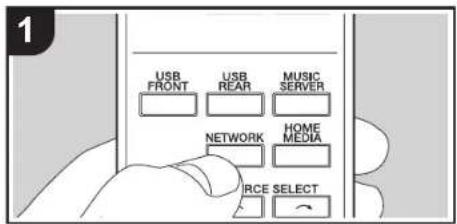
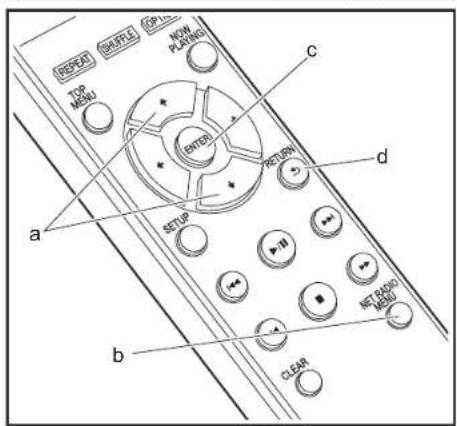
OchOBhble onepaun
KoJa ananpaT noKnIOHcH K cTeH, moXHO cHyuAtb Tunell nnpyrne npedapntelbo3apeHCTpnpobAHbIe cnkybHI INeHepET-paHO.
B3aHcMoCTOn CTnKbI INHTepHET-paHIO, noJIbSOBaTeIO MOKET NtPOBeBOATcCHaHana 3aERNTpOBoBATCBONKOMbTKeP.
1.BKIOHTE annapat.
2. HaxmnTe NETWORK
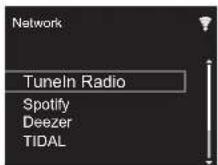
3.Bu6epnte "Tunel Radio"KHOKNAMy npabnHnner KypcopoM (a) Ha nyIbe dy Hnakmnte ENTER (c) nna NOITBepxJHnEn. NpeekNtue MtnneH na Cnyk6y INHTepHET-paHIO, MoXHO BbIpaTa CTahumC NOMOuHb KHOONK YCOPa (a) Ha nyIbe dy, dnnr NOITBepxJHnE HAKMAR ENTER (c). TROsb BEpyhTyck Pnpdebluyem My 3kpAhy, HAKMNTE RETURN (d).
Tuneln
MOxHO 3apeHCTPPOBAt npoclyuHaebMyO cTaNIO KAKn36PAHHyO.
- Haxmte NET RADIO MENU (b) BO Bpem BoCnpoun3beHn Tuneln.
- Na Ixnnne Bb6peHne n noTBePnTe "Add to My Presets".
- Tc06bl cyuWbI 36paHHyO cTaNIO, HApexHem 3KpAe TunEn B16epTe 3apeNCTPupOBaHHyO cTaNIOB "My Presents" n oDTPBePnte Bb6Op. Tc06bl ydAnNTb 36paHHbIe cTaNIO, BO BPEM
Bocipno3aebenHn HaxMMte NET RADIO MENU (b), Bb6epnte "Remove from My Presets" nOoTbePmTe Bb6op.

Ppeed Naayalom
Ha3BaHnHaCTeN
YcTaHOBka
HaayanbnaHacTpoKa
BocnpoIm3BedeHne
Pacwnepnna Hactpokka | 06noBneHne BCTpoenHoro nporpammmHoro oeceneHH
Дугге Функцин
Spotify
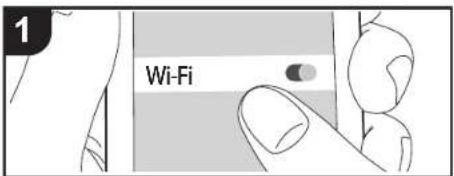
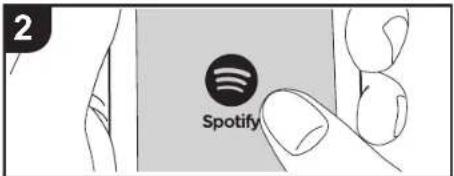
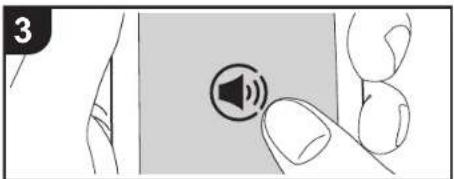
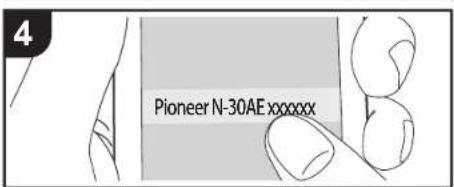
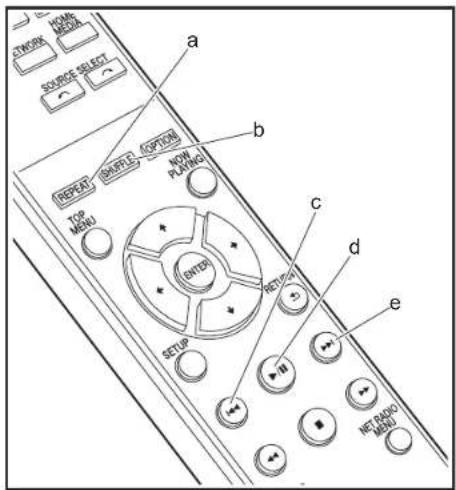
OCHOBHbIe FyHKU
IIOKIOHb annapaT KO TOn Jxce CTo, YTO H cMaprFOHnnn nnHauET, MOHO BOCPNO3BOIDNTb SpOtfy Connect. YTO6bl nONb30BaTb SpOtfy Connect, ycTaHOBtne npInoXeHne SpOtfy Ha cMAPrFOHe Hn nnHauWte H co3dante npemym-akKayHTSpOtfy.
1. NpoknouHTe CmapTPOH K ToI Jce CETN, YTO n annapat.
2. HAnKMTE 3haQoK Connect Ha kpahe BocnpOn3BedeHn KOMN03uI prinnoKeHn SpOtfy.
3. BbIepeIte annapaT.
-
Pecinbep 0to6paKaTaTc KaK "Pioneer N-30AE XXXXX"
-
PechBep ATOMATNHECKN BKHIOHTC, CEJIKTOP BXODOB nepeKHOHTCn HA NETWORK, n 3aIyCTNTcN NOTOKOBn nepedha Spotify.
B cnyuag yctahOBk "Option Setting" - "Power Off Setting"-Network Standby"Ha "Off" B MeHO Setup, BpyyHIO BKIOHHTe annapaT, a 3aTEM HAKMITE NETWORK Ha nyIbte Dv.
Bonne noIpo6bHyto INHΦoPmaUHO aHctpOikax SpOtfy CM. Ha Be6-CaIte:
www.spotify.com/connect/ - PpOrpAMMHOe oBecneHHe SpOtfy perynpyetcN MJIeH3NIM TpebIX NII, C KOTOpBIMM MOKHO O3HAKOMTbCn O cNeDyouEMy aJepcy: www.spotfmy.com/connect/third-party-licensees
Yka3aHbIe HNKe OpeAJIcM TaKKe MOxHO BbIOFNHTb C NMOUbO yNbTu D.
(a) 3a KhoKnaKncnonb3yETcR d3n aanycka NOBTPORHO BOCNPOM3BEHIN.
(B) 37a KhoNkCa IcnbnbEyTcraI danyacya (B) COnpOnsBdEHHa B cnyaHOM nopndK
(c) Bocnpo3BedeHne npdebyuuek kOIMIOu.
(d)ПИнхатиьММОНТВОСРОНЗЕDEHINNOСКIDHE npOCTAHABNBAETC(nay3a).HaxATVEBMOMENT nay3bInepe3AryckaTБОСРON3EDEHINE.
(e) Bocnpon3BedeHne cNe dyIOUeKOMnO3n.
Npeed NaaJIOm
Ha3BaHnHaCTeN
YcTaHOBka
HaayanbnaHactpoKa
Bocnpoun3BedeHne
PacwnepHnna HacrpoKa
06HOBnEHHe BcTPOeHHOro nporpaMMHoro oBeceeyHn
Дугге Функцин
AirPlay®
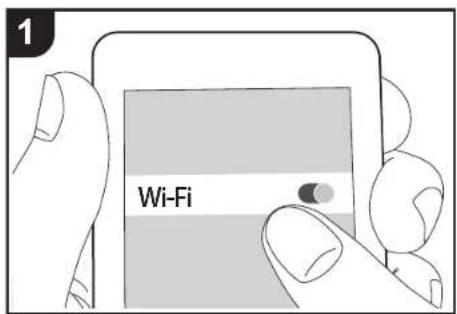
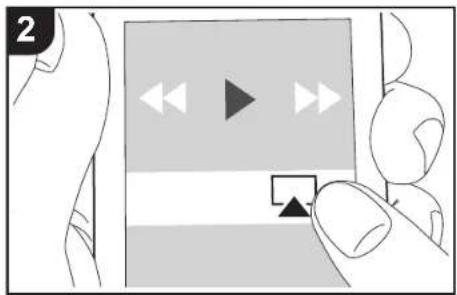
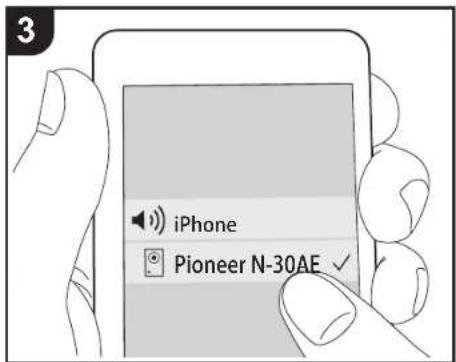
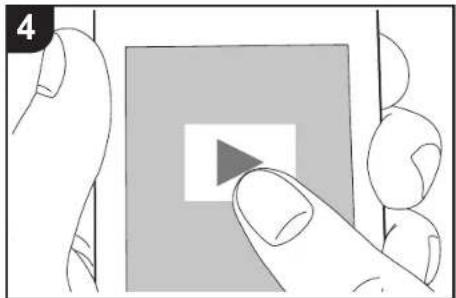
OchOBhBieФyHKUH
PecBepn 03bONHET BOCINPOBHOHTbYepe3
6eCpOBdHyIO ceTb My3bKanblHe baiNt, coxpanehHbIbe
Ha yctpoDBXbAPhonei, iPD touch n IPad
noDknOHeHHBX K ToT JKe TOTcK DoCTyNA, tO H annapat.
06HOBITE OpeaunOHHyIO CTEMy Ha yctpoCTBe IOS do
ncnceHepn BEpcnn.
- Bknoynte annapat.
- Podknochnye tycpoiNbTOIos K ToI Jx CeTn, TToN annapat.
3.KoCHTECb3nauCAiPlAeIeYpnaBHeHHy yctpoCTBa iOS,Bb6epTe daHbN annapat n3 OTKpbBIEORcCnCKa YcTPOCTBn KoCHTECb'Done
Pecinbep orobpaekaetc kak "Pioneer N-30AE XXXXX
B Cyuaye yctaHOBKn Hn anppate "AirPlay Password" BBeDte yctaHOBNeHHB Bamn npoBN.
- Bocnpon3BepnTe My3bikanbHbIe faaH YaCtpoCTBe IOS
- EcnB MeHNO Setup, OTo6paKaemoe npn Haxatnn SETUP Ha nynte Dny, napametp "Option Setting" -Power Off Setting" -Network Standby" yctahobneHa
"On",npn 3anycke Bocpon3BedeHry AirPlay annapat BKHOHTCRAABTomATuWeckn H 3anyCTHTcR BOCPOON3BDEHeHry. - BcneDCTBHeOco6eHHoCTe 6ecnpoBDHO TexHoNOrn AirPlay, KaeCTBO BocpOn3BDoMORo HA annapate 38yka MoKet OKa3aTbCRe HECKoJIbKO HmKe, Yem Ha yctpoiCTBe C fynHKeu AirPlay.
KhoNSHUFFLE N REPEAT Ha nyIbTe Ny He pa6oTaIOT. BInonHnTHe onepaunC yctpOCTBa iOS.
My3bKaIbHbIe paIbI MoKHO TaKHe BOCpON3BODnIb Ha KOMNbItepe cITUNes (BepCN 10.2.1nnn GoIe No3dHe). Y6eINTeC, YTOnapAT N KOMNbIteP NOKIOUeHbIK OJHOH N TOH KE CETN, A 3aTeM UcKNHtE NO 3HaKy AirPlay
BITunes,Bb6epnte DanHHn annapat n3 OKpbHBWEOCR CnCKA yCTPOHCTB 3aNCTHTBE OBCPON3BedeHe MBykJIbHOFO paJNA.
Npeed NaaJIOm
Ha3BaHnHaCTeN
YcTaHOBka
HaayanbnaHactpoKa
Bocnpoun3BedeHne
PacnepHnna HactpoKa | O6noBneHne BCTpOeHHoro nporpamMnHO oecneHnra I pynne Fynkun
Music Server
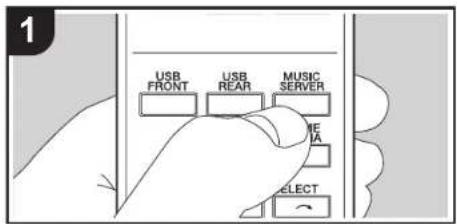
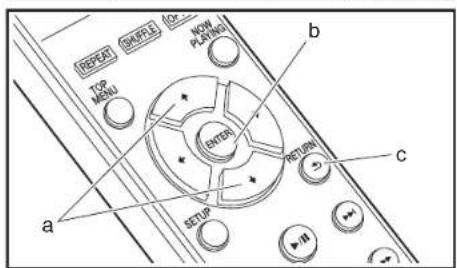
PecnBep noDpeknaeT noToKOBoe Bocpon3BeHeHne MybkaJIbIbX faonC KIN NN NAS-YCTPOINCTB, noNIOHNHHXK TOI Xe CETn. Annapat noDpeKBAeT apoToY c cTeBbIMn cepBepamn, npedctabnnOuMMn CO60 IIK, HbKOtBx yctAHOBHeNbI npoRpbBATEIn C ceBPbHMn FyHKUHOaHbHMN BO3MOHXOTAMn nporpamm Windows Media] Player 11 nII 12, nIO N6A-ycTOPICTBA, COBMECTMbIe C FyHKUHOaHbHMn xapakTePACTKAMM DOMaUNHe CETn. INr hONb3ObaHnur Windows Media] Player 11 nII 12 MOKet NOTpe60BaTc3 3apaHee BblONHITb HEKOTOpbIe HACTpOKn. ObpaTte BHIMNAH6, TTO BOCPNO3BECTN MOXHO TOnbKO My3bKaJIbIbX faIbN, 3apeMCTpnPoBaHnHiB E B6bnoteK Windows Media] Player.
Hactpoika Windows Media Player
Windows Media Player 11
- BknoHTe KOMnBToTe n 3aynCTnTe Windows Media Player 11.
- M. HENIO "Library" blybeipen nyHKT "Media Sharing", 706bIy OTKpbIy dnaIOROBOE OKHO.
- BDAHJNTHOHTAHOHOTBPOCIMOTPB
- BvbEepane Annapat n HaxmInete "Allow". Pocne HAKATNA HA 3aHKe YCTAHOBITcP DnAkoK.
- HaxMMTE "OK",ТоБи 3akpblTbДANOROBDE OKHO. -Имeha BblbpaeMbEX 3eMHeTOB MORYt sbIbpyTNIM,В 3abNCHMOCTOВ БерсIN Windows Media Player.
Windows Medi Player 12
- BknoHTe KOMnBToTe n3anyCTnTe Windows Media Player 12.
- B MeHIO "Stream" BaBepiTe NyHK "Turn on media streaming", 70b6I OTKbRb DmAnorBoe OKH.
- Ecnin NOTOKOBE BEVAMHEY BKEIHOENI, BIL6epiR "More streaming options" - MHeIO "Stream", TOnObi
0TO63PbIbTIOKNOHOUHHe K CETN pONPiPBbAteJI, 3aTeM nepeBdTe K wary 4.
- Hακπηme "Turn on media streaming", ὄθόβι έοτραδην έρλίκησου ένυμεύνης κετη προρύνβατης.
-
BúBépHrTe annapat B"Media streaming options" n y6eμTecb, cTO Jnra Hero yctaHOBneHo cctoHne "Allow".
5.HaKMITE"OK",YTO6bI 3aKpbIt dMaNOrOBoe OKHO. -
IMeha BbIbPAeMbEx 3NEMEHTOB MOrY 6bIb TYMIMB, B3aBcIMC0NTO IN Berpcn Windows Medi# Player.
Bocnpoun3BeDenne
- BknIOHTe annapat
2.3anyctte cepep (Windows Media Player 11, Windows Media Player 12, nnycptocn NAS) c My3bikabhbmmfainamn nna BocnpwnBedeHnn
3.Поветут лес�имлелбот ДостковпсьгКOMТБОТЕВИNNASY-СТРОДСТКTOКУЕСМОТСТС,ТУСИнарplaintа. - Haxmte MUSIC SERVER
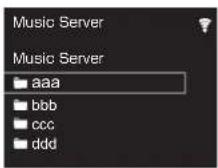
- Bb6epnte cepBn My3bkAnhBhI pann c nmoouo (a) HnKMMTE ENTER (b) I na noTbpEepkDeHn. TObbl BepHyTBCN ppeBdyUyEMy 3kpAhy, HnKMMTE RETURN (c).
- Ecniy BbIodntco coobieHe "NoServer", npOBepTe npabNHOCToPNOKIOHcHNe K cTei.
Npeed nauaJom
Ha3BaHnHaCTeN
YcTaHOBka
HaayanbnaHactpoKa
Bocnpoun3BedeHne
PacnepHnna HactpoKa | O6noBneHne BCTpOeHHoro nporpamMnHO oecneHnra I pynre yKnqnn
B3aHbMocTHOTNcIOIb3yEmoCepeBaH BOCPON3BOIMbIXdAIOB,HCTeKUeO NOCABUEeCR BPEMBOCPON3BDEHnMQEHTeOTOBpKaTbC.
Дип рамашени Муltыканьх phailanob ha cepbebe Kackdoi nankoe moket xpaHntb do 20.000 kmoNOn3nIy TynbHa BNOKENHNI NANOK MOKET DOCTrNtB 16ypOBen
IuctaHIOHOe ynpaBHeHne BocpOun3BeDHeHem Ype3 PIK
AnnapaT MoKHO HcNcIb3ObaT DnA BocpOn3BeHEnHa MykAlbHbX PaimOB. CoPxAHHeHbX Ha PI, IyTeM ynpaBHeHn PI BHTpyDmAoWHe cTeH. PecnBep NoDpeKXBaaT DCtAHUHOHOE BocpOn3BeHene C nOMoUb Windows Media Player 12.
- BknoHTe KOMnBToTe n 3anyCTnTe Windows Media Player 12.
- Otkpoin MeHIO "Stream" n yctaHOBnTe pIaxKo "Allow remote control of my Player...". HaxMITE "Turn on media streaming", YTObI OTObpa3nTb NOJIKIOueHHBe K cTeN npOIRpbBATENI.
3.Bb6epHtMey3bKanbHbIpaHnIINBcONPOn3BeDEeHnARB Windows Media Player 12 nueKInHe NO HEMY npaaoB KHONK Mo bHn. Ia NCTAHIOHOBO CpOIN3BeDEHnMAy3bKaHbHO paHa na DpyrO cepBep OTKPOJe Tpe6yEmbHcpeBep a "Other Libraries" u Bb6epHe paHn - BbIePHTAn annapat B "Play to", 706bI otKpIbI bIaIIOROBoe OkHO "Play to" Windows Media Player 12, n 3anyCTne BocIpOn3BeHnE Ha annapate. EcnB Bau KOMblbTepepaOtaeT NOy npabEnHemWindows8.1, HAKMITE "Play to" IN BbIePTE 3OT annapat. EcnB BA W KOMblbTepepaOtaeT NOy npabEnHemWindows10, HAKMITE "Cast to Device" IN BbIePTE 3OT annapat. YnpabJIbTb DuctAHIOHHBM BOCIpOn3BeHnE MOKHO cepE3 OKO "Play to" HA KOIMblbTepe.
-Пи ИСОЛБОВАМ CTeSEВОblCnykБИ NIM BOCPONB3BeDEHIN MByIaKbIbNbXfФaHOB Nc yctPOCTe NAMTNI USB DcTahUHOHHe
AIFF (aiff/aifc/aifc/AIFF/AIF/AFC/AFC):
Фаны AIFF copedkar Hecka'tb 38y, ounpobahn c
ncnoIsoBamH NKM.
- PodépkrxBaembIe CHaTObTb DnckpTeNaZIM: 44,1 KfU, 48 KfU, 88,2 KfU, 96 KfU, 176,4 KfU, 192 KfU
Pa3paHOCTb KBaHTOBaHHa:86NT,166NT,246NT
AAC (aac/.m4a/.mp4/.3gp/.3g2/.AAC/.M4A/.MP4/.3GP/.3G2):
- POndApexKnBaEmbIe fOpMaTbI: MPEG-2/MPEG-4 Audio
- Pndepkmbaembe yactotbI dNckpeTn3aun: 44,1 KfU.
48KU,88,2KU,96KU
PndepKxBaemBc KOpocTn nepeaan daHbX:OT8do 320kbTc.
FLAC (.flac/.FLAC):
PdopdepKnBaEMbIeHCToBtDnckpTeaun:44,1kTf, 48kTf,88,2kTf,96kTf,176,4kTf,192kTf
Pa3pHocTb KbaHTOBaHHa:86nt,166nt,246nt
LPCM (nHneHnHa NKM):
PnDpeKmBaembIyacToTbI duckpeTmaun:44,1Ku,48Ku
Pa3paHocb KBaHTOBaHn:166nt
Apple Lossless (.m4a/.mp4/.M4A/.MP4):
PnDnepKnBaemble qactoTbI nckpeTn3aun:44,1kU.
48KΓu.88,2KΓu.96KΓu.176,4KΓu.192KΓu
Pa3paHOCbKBAHTOBaHm:166nt,246nt
DSD (dsf./df/.DSF./DFF):
- PndepxHbAemblc foopMaTb! DSF/DSDIFF
PiDnepKNaBaeMbIyCaTObIuDCKePtn3aun:2,8M4, 5.6M4,11,2M4
ПереднayaлOM
Ha3BaHnHaCTeN
YcTaHOBka
HaayanbnaHactpoKa
Bocnpoun3BedeHne
PacnepHnna HactpoKa | O6noBneHne BCTpOeHHoro nporpamMnHO oecneHnra I pynne Fynkun
BboI TeKCTa
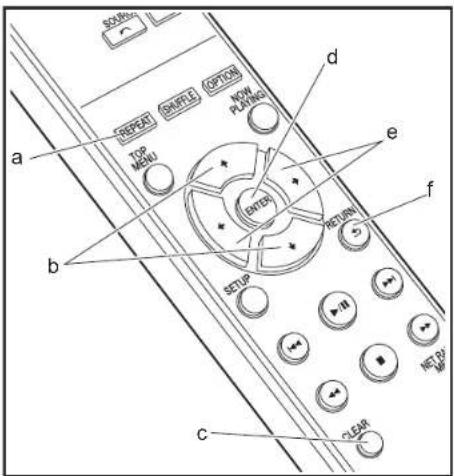
IaBDAOTEKCTA, HANHPMEAPnONIE T. n., IINONLBYOTCRYKAASAHHBEHNHE KONKHNIyNBtA DY.
Khonka REPEAT (a): pRn KAKXDOM HAXATNI 30TOKHKNI TIN TeKCTA MEHNrTeB CnElyOcEm PNOJKe: BepxHMn peHNTp HNKHm peHNTp CnIFpbl cHMBOnbI.
KhoNKn+/(b): npKaKdOM HaxKaTmM MeHReTc3HaK.
KhONk (e):NEpEMeUeHMe (NPOKENHKA KUPCOPA) HA MECTO, rJHe NHyKO BBEcT3 HAcK.
Khonka ENTER (d): NOДТВЕРЖDEHME BVEDEHHO TKeCTa.
Khonka RETURN (f): OTMeHa BBoDa N Bo3BpaueHne K npdeIduyemy 3kpany.
KhONKa CLEAR (c): yIaJIeHHe 3HaKa B MecTe Kycpcopa.
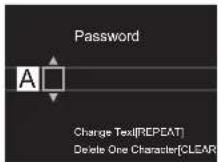
Перед haалOM >Ha3BaHnЯчсTe >YctaHOBka >HaayIbHЯнacToPoiKa >BocIpOn3BeDEHne
PacunepHnHa HacTpoKa | O6noBneHne BCTpOeHHoro nporpamMHoro oecneHnra | DpynE yKnqm
PacunpeHHbIe HacTpoiKn
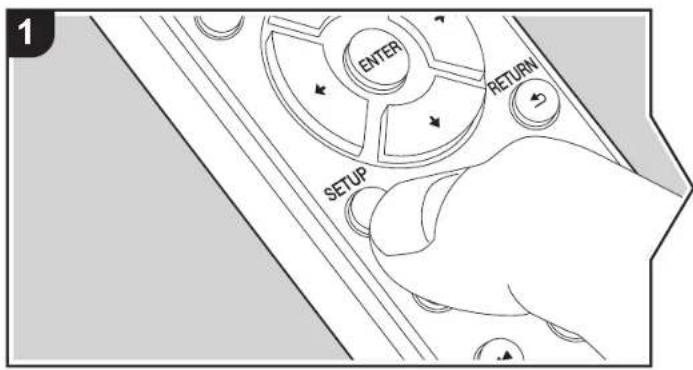
Bannapate npedyCMTopeHb paCmpeHHbIe HAcTpoKn,OTKpbBaHOme DOnONHTenbHBe BO3MOXKHOCTn pnp erO 3KcNpyatauM.
- HaxmTe SETUP Ha nyIbte Dy.
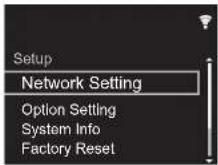
- Nocne noBnEnHnKpHa Setup BbIbePte KOHTeHT Hn npaMeTp c NOMoubHO KhoNOK Kycopa HnyIe Dy Ie nOJIOBtBePKeHnBaBopa HaxMMte ENTER. Yro6bl BEpyTcR KnpdeDuIyEmyKpAHy, HaxMMte RETURN.
3.ДЯЗавершнн Habtpoek Haxmnte SETUP.
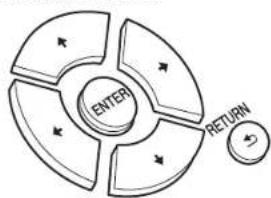
Network Setting
Connection
Bb6opTnna noKnIOHeHnK cTeH.
"Wi-Fi": noДКЛЮЧИТСЕ Урета 6eCnpoBOnHyO cetb
"Wired" (3aHcHHeN No yMOnuHaHIO): NIOKIOHHTbcYepe3 npoBOHyO cTeB
BbinoHnTe "Wi-Fi Setup",ecnn BBbpaNn "Wi-Fi".
>Перед haалOM >Ha3BaHnЯчсTe >YctaHOBka >HaayIbHЯнacToPoiKa >BocIpOn3BeDEHne
PacunepHHa HactpoKa | 06HOBnne BCTpoeHHoro nporpammmoro oecneeyenra |dpyrne ykuu
■ WI-Fi Setup
BbnoHHeHnHe HacTpoek coeHHeHHa Wi-Fi. (→ P10)
3TN yCTaHOBKn BO3MOXHbI TOJIbKO B CNYae BB6opa "Wi-Fi" B "Connection".
HacpoK CoeHHHeWi-Fi moXHO BInonHnTb C nOMOuHb Be6-6pa3epa
KOMNbHOpea.ДЯ NOIyHENH DOnOJIHHTeBHOH INHΦOpMaUN cM. "Web Setup" (→P22).
DHCP
"On (Заунун):". ABTomatuecka Hactponka no DHCP.
"Off": pyhna hactpoika 6e3 DHCP.
B cnvyae bblbopa "Off" Heo6xOJIMO BpvHvO yCTaHOBtB "IP Address", "Subnet Mask".
"Gateway" n "DNS Server".
IP Address
PpOcMoTp n 3aJaHne IP-aIpeca.
Subnet Mask
PpOcMoTp n 3aDaHHe MaCKn NoOpCetN.
Gateway
PpOcMoTp n 3aDaHne WnIO3a.
DNS Server
IpoCMOTn 3aHaHne nepBvHoro cepBepa DNS.
Proxy URL
PpocmoTn 3aDAnHe URL-apeca npokcn-cepBepa.
Proxy Port
PpOcMOTn 3aDahHe HOMepa npTa npOKCN-cepBepa,ecnBBeDoHO 3NaHEnne npaMetpa "ProxyURL".
■ Friendly Name
I3MeHHTe IIMAnapataHa JERko y3HaBaemoe IMn dno OTobpaKeHHa HpyrNx yctpoCTbax, NIOKIOHcHbIX K DAHO Cetn. MoXHO BBeCTn DO 31 3HaKa. NpOp6Hyo INHpOpMaIO O Tom, KAK BBOITb TEKT, CM. B pa3dene "BBoD TEkCTa" (P19). Pocne 3abepeHHeBA BDOa HaKMMTe ENTER.
AirPlay Password
Moxho 3aDab npoBn DnHoh Do 31 haka, TTObI cyHKun AirPlay okaanacb DocynHOJ ToJIbKnI 3apERNCTPropBaHbIX NOB3OBATEEN. PpO6Hy HOpPMAUIO O TOM, KAK BODNTb TEKT, CM. Bpa3dene "BbOg TEKCTa" (→ P19). Pocne 3abepeHHBA BBOda HAXMTTE ENTER.
Network Check
PpOBepKa noKKnUeHnK cETn.
Option Setting
Power Off Setting
English (3auehen no ymoHauHIO), German, French, Spanish, Italian, Dutch, Swedish, Russian, Chinese
System Info
OTo6paKeHHe MAC-apeca annapaTa n TekyueBepn BcTpoEHoro nporpaMMHO 0eocneeyHn.
Factory Reset
C6poc HacTpoek annapata K cocToHHHO HA MOMeH NocTaBKn. PekOMeH dyTe 3aNcA Tb N3MEHHeHbI HAcTPOKn, npeKe Yem pInctyNaB K nx C6poc Hy aBaOdcKne. Tto6bI HaaytB, Bly6epIne "Start" INoTbEprDnte Bb6Op. PecHbEp AToMaTHueckn nepeJed B peKmX OxMAnDaHn noCe BblOnTHEnHbC6pOca.
Update
"Update" He 0to6paxaetc, ecn HET 0bHHeHH BCTpoEHORo nporpaMMHO 0eocneueHH.
via Network
ФУИКИЕ 6ОБНОВЕНИ CBTOPEHORO NporpAMMHorO OБспсЕнEHЯ Yepe3 cetb.ДЯЗУСКА 6ОБНОВЕНИ HAKMTE KHOXY ENTER.
via USB
Фуншягшовпгьногьстрөногь поргамногь обсeneчигауpeз USB.Дяллэуcka Бховпгьногь нахмITE кониky ENTER.
Web Setup
HactpoKm coeINHeHn Wi-FI MoKHO BbIOHNHTb c NOMOJIbBc-6payepa KOMNbIOTepa. 06ecneYte coeINHeHn KOMNbIOTepa n Mapuyn3atop a No 6ecnpoBOHn CETn.
Пи Рд� Кунштейп annapа Т маруртузат氧 Учебя Кабел Бг.TуНСТКУ
БИПОПНТВЕЗМΟХANO.
1. BknoHte annapat.
2. Haxmte KhoKy SETUP ha nylte Y, Bb6epnte "Wi-Fi" B meHko "Network Setting" Connection" u 3aTe Mbl6epnte "Wi-Fi Setup".
- HaxMMTE / ,yTo6bI BB6paTb "Use iOS Device" n HaxMMTe ENTER.
4.B CnKne NOKnOChENK 6eCnpOBdHM cETRKMOnbIOTepa Bb6epTe SSID annapata (softap_0009B0xxxxx). - "xxxxxx" B IMeHNS SSI-D - nocneHnE TpN 6aTt MAC-adpeca.
- OTKpoTe Be6-6pay3ep KOMnbHTopea n OTKpoTe cTpaHnUy http://192.168.200.1.
- OTo6pa3ntcMeHIO "Web Setup". BbInonHnTe ceteBbIe HAcTpOKn 3Toro annapata.
B 3abuHcMOTN OHNCIOBAYMO O6OpyOBaHnI INI cTeBOHO O6OpyOBaHnI,3TA pHyHKMQKHe JapObTaTb. - VHΦopMaIIO o pa6oTe KOMNbIOTepa CM. B COOTBeTCTByIOUxN INHCTpyKUNX.
- PockofBky DaHnoe CoeDINHE BnREETC HE3aUHFPBOAHbHM, IMeETcH EKOTOPAR HE3HaTHeNbHAy rYpO3a6E0AnACHOChT.
Перед наразлom >Ha3BaHЯ чатей >Установka >Haayalbня habсюк >ВocрпоиЗБeDEнe
PacnepHnHa nactpOka | 06HOBHeHne BCTpoEHOro nporpaMMHoro oecneHnI Dpyrhe yHKm
OBHbIeHHe BCTpoEHHO nporpaMMHO oBeceueHn
Функцяобновлени Ha annapaTe
PecnepochaenHkykneHOBHeHHBCTpoehHOROpnpammmHOrOobceeneHHCHTEMHOrnpopammmHOrOobceeneHH)pee3cTeHn npot USB.BaarOapra 3OTMyMBMOKEMBHOCHTyNHeHHBa p3nnHbIeonepaunno6abnTb yHKu
IpoDp6HyIOMHΦoPMAuO 6OBHOBnEHbIXФyHKmX BOCPON3BedeHnC M.3Decb
CnocobI O6HOBNeHn
BCTPOEHHOIporpAMMOHEo6OEcNEHHeMoXHO6OBHOBHTb DByMRA CNO6OaMaH:Yepe3 CeT N Hepe3 USB.6OBHOBHeN 3AHIMaET PnIMePHO5 MHNITPNIOBOOMCNO6BE BInONHHeN: NO cTeH NmIepe3 USB.Bonee TORO, CYueCTBuOuue HAcTPOHnRapAHTPryTOCHe3ABNCMOOT NCN0N3yE moRO CNO6Oa OBHOBHeN.
IocneHIO INOpmaIO 06OBHOHEHX MOXHO HAHTHa Be6-caite Hauwei KOMAHM. PnIOTCYTCTBM IOctYhBx IOHOHeHN BCTpoEHORo NporpMMHOrO OeCNEeHN Annapata IOHOHeHN He TpeSyetc.
6OBHOBNHIEYepe3cTebMOKETa3HbIeBPOBMEH,BA3BACIMC0NToCTOCHTNIEOCEMHNHE.
B npocce 6bHOBnHnA 3anpeuaeTc; -OTKIOUaTB HBOB NIOKIOuHb KaKoI-Ni6o KaBeJI nIy UcTPOJCTBO NAMrTI USB, A taKaKe BInOnNHTb KAnKe-INo6O onepaUN Ha UcTPOJCTBE, HApIMep BbIKIOHbT OINAHae
—nyoptybdoctynkannapatcyPKnncmaptfchoa YpeepznpnoKehe
OTKA3 OT OTBETCTBEHHOCTN:IporpmaMa H
COPBOIDENTBNAOHONAHOBHADQKMEHTAUNI
npoctABNROTCDINNCNtB3OBAHNBAHNA CBO
CTPAENPCK
MJI He Hecem OTBETCTBEHHOCT IN HE BO3MEUaEM KAKMeIbno y6bIKn NO pNeTeHmIM NIOBO rpoA, kacaOuMmCRNIOBIOBAHNNIPOrPAMMa IN CONPOBOINTEJbHOHONJIHOBOI JOKYMHTAUIN, BO3NHKUIIe B p3eyfNbTATEnpoBHOAPUHEHIN MNCNPOHNEHNO DROBOPA, He3aBNCMOOT OPUDHNECIXH HOPM.
Hn npn Kxix ObctoTBeTBx Bm He Hecem OTBcTCTBHeHHOCTNpepeBAMN INI TpeTbMM NINCAAM 3a KAnkeNIO bKaTHcHcKneC, KOcEBHHe NIOBOHHe IN CNYaHHe y6bIKTN, BKJIOAHAR B TOM NCIEKOMNEHCALIO, BOMeAeHHe INN y6bIKTN BCNECTBNE NOTepn IMHOeEICN IIOO XaHaEMnpb6bJIH, YtpaBI DAHNbIX INN NO IOBOB DpyrTOpnuHHe.
06HOBJIeHHe BCtPoEHHO pporpaMMHOrO 06ecneueHHNo cTeN
BknHouHT annapat H o6ceNbTe haedexHoe cooeHNHeMe C hIePHToM.
BbKIOUHTpeYnpabraHooeeOobpyoBaHHe (NK n. n.) NOKKnOeHHoe K cTei.
Octahobite PoclyuIbIMBAHINIEHTePHT-PAIDIO NIOCTPOINBSEHINEA PAION B YCPOPTBAA TAMATN USN IIA CEBPAE.
1. Nocne HauktaHn Ha nIte Jy KhoiN SETUP NOBNIETC kApH NactPoiKn
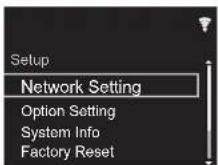
- Hanzmite / ENTER, Ytobbo n o npaJky Bb6pTaB "Update" · via Network".
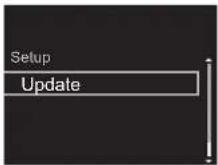
"Update"he oTo6paKaTaC,ecmHt 6b0BnHn BCTPOeHHOro InporpaMMHOro 6oeceHn.
3. KaHMeTTE ENTER, 0TObI HaHTb 6OBHNeHHe BCTPOEHHOro INpORPAMMHOrO BoeCEHHeHr.
Pocne3aBepenoe6bOHeHnOtObpaKaetc0oBpene"COMPLETE".
>Перед haалOM >Ha3BaHnЯчсTe >YctaHOBka >HaayIbHЯнacToPoiKa >BocIpOn3BeDEHne
PacnepHnHa nactpOka | 06HOBHeHne BCTpoEHOro nporpaMMHoro oecneHnI | Dpyrhe yHKm
- HaxMMTE KHNKII O STANDBY/YON HA anipapate, YTObSIpeBecNTeI eO B EHXM OXdAaHIN. IPOcEe 32ABeepH, B NCTPOeHHOE pOgPAMMHoe BOeCEHeHMe OBHOHENo DO noCnDEH BEPCMI.
Ecnn noBnBcTcO cooBHeHne 06 ouN6ke: npn B03HKnOBeHHm oU6KHa nDcNpe annpaTa OTO6pKaAeTc, ** ** Error. (3e3dOka ** " npEDCTaJIbIeAET anPabITHO-nuΦpOBn CmBOn.) PpOBepTe cEnyouee:
*01,-10:Ka6enb Ethernet He NaHdeHn. PpaBvllHO npocoeinHte Ethernet-Ka6enb.
-02, -03, -04, -05, -06, -11, -13, -14, -16, -17, -18, -20, -21 OuBck coeMHHeHc HHTepHeTOM. PpOBePbTe CnEyUooee:
- ybdeTtB TOM, 4TO MAPUPYTM3aTOP BKIOHEN.
- ybdeTtCB TOM, 4TO annapat IN mapUPyTN3aTOP COEINHHeNo CTM.
NnonpoBte BkHIOHTb, a3ATEM CHOBa BKNIOHTb NtAHHe annapata H mappyTn3aTopa. 3To MOKet NMObHpeNeHHIO pNO6BmEh. EcIn He ydaTaC
yctaHOBtbcoeiHHeeCInHTepHe,803MOxHo,cepBep DNSnnpckc-cepepbpemHHe pa6oTaOT. Obpatntecb K npobaidepy nprpoBepK coToHHn nnHH.
Pnpoe:OTcoeMHnHtne 3aTet npiocdoHNHTe LhuppntAHHNepEHMOHTOKota,3aTet NOBTOPIRE BCE CHAHAY.
06HOBJIeHHeYepe3 USB
IodrotobteyectpoCTBO NAMTN USB 128 MB nnn 60bnueeEMKcTn.ΦOpMTaainOBOn CNTcEMbI dOINKHe 6BtB FAT16 nnn FAT32.
- YdannTe Bce DaHbIe C yCTpoNCTBa nAMrTn USB.
BbKIOHHTpeYnpabnIooee o6OpDobAHne (NK n. n.) NOKIOHNHOHeK C tetn.
OctaHOBITE npOcIyUIMBAHMe INHTepHET-paJIO H BOCPON3BedeHne PAnOB C yCTPOHCTBa nAMrTn USB mnn ceppepa.
- 3arpy3ka HEKOTOPBX YCTPOBCTa NAMTt USB, B 3ABNCIMCNAO IN TO NH TnA n CoedeXKAHNO, MOKET
Notpe608ab MHIOI BPEMeHH NINI PPOXODHTB HENPABNIbHO.KPOME TOrO,MOKET TAKKE PON3OTNHEWITTHA CHTAHUNC YCTPOINCTBA.
MbI He Hecem HIKAKOITBETCTBEHHO3KaKkyIOIN60ytpaYNI NOBPEXDEHMe DAHHbX,aTAKKe 3a OTk3ayctOCTBa XpaHENH,poN3oWEnB pEeybTaTeNCNoJIb3OBAHNAY yctPOCTBA NAMHTN USB C 3TMannapATOM.BIanoJADPM 3A noHMAHne.
1.ПОДКИОЧNTe yCTPONCTBO nAMrTn USB K ПК.
2.3a py3eTne faanBCTPOEHHORnporpaMMHOO
obcepeHHc Cbe6-caHTa Hauu KOMPAAHn Ha PIK n
papaXNBpyte ero.
fAnbTbCPOEHHOrnporpaMMHOO6cepeHHN
ha3baTOc cneVIOHM 06p3a0m:
PIONAP****---zip PaaapxHbpyhe paIHa PIK. KOnuueCTBO 06pa3ObaBuaXcRa pa3aXPbHbPOBaHbXbX paIIOB n nanok 3abNCHT OT MOnEJI.
- CoknpyteBE Tce aapxHBVPOBBAHmIE faaiIbI INaIKIN B KOPHEBIO NANKY cypTOPIEBA namrnt USB
6ObPnteBHAMHNE,TOKONIPOBaTcneDyET pa3apXBNBPOABHHBeAaBn.
-
NpoknquHte ycTpoHCTBO namrnt USB K npTy USB Ha annapate.
-
PnnoKIOUeHmN JcckTkoR Dnca C nHTeppeom COM USB K npry USB annapata pekOMHyEM 3aIITbAte bero ot cobCTbeHHoro aanTepa nepemehHOToKa.
EcnnYCTPOINTOIAMTNUSBIMeETHECKIOBpa3dENOB,KaekJnH3NHX6DTeCHTATCBHe3ABNCMBMILYCTPOINTBOM.
- Noche Haukathna Ha nytbe Dy KhoHKnI KNTUPSET NOBnAETC3 ekpan HactPonKn.
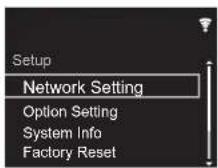
- Haxmte / n ENTER, yto6bl no nopny Bbl6patb "Update" - "via USB".
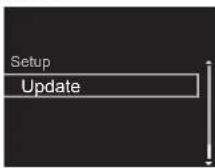
"Update" He oto6paXaTeC, cEmH n8b0BnH BCTPOEHHOI pORpAMMHOI 06cEeHHa.
- HaxMMTE ENTER, YOb6I Hayab OboHBeHne BCTPOHHORN INporpAMMHOO EoCbeHeHnE.
- Pocne 3aBepenieno6bObHnEtnoOtobpaKaetcnooBpene "COMPLETE".
8.HaKMTe KHOIky STANDBY/ON Ha annapate, YtobblnepeCTH erB PEXMM OKINDAHN. IpOcecc 3abepeuHEn H BCTPOHHe npOrpamMHOe oecneueHHe ObHOBNEHO Do NoocneDHeB cepn.
- N3BnKeHTe yCTpOCTBO nAMrTn USB n3 annapata.
Ecnn noBraTc coo6BeHme 6 ooi6ke: npn BOZHHKOBHeHH Ooi6Kn H aDinCnnee annpata
0to6paKaTcR, ** ** Error! PnpOBepBe cneJeIOuee: -01,-10,yCTPOIeCTBO NAMrNT USB HE ono3aHO. V6eJntTeB, YTO yCPOIeCTBO NAMrNT USB INN Ka6bE USB npAINbHO BCTABnEHb I NoPT USB annapata. NDOcoEDHHTe YCTPOIeCTBO NAMrNT USB K BHEUHMHe NCTOHNKY NITAHm (ecn n OHO 3aINTbBAeTCR OT CO6CTBEHORO HcTOCHNA).
*05,-13, 20 ,-21:KophebaanikaycTpOriCTBa namrnt USB he codepkit fain BcTpoehHoro nporpamHHoro obeceeneHHn OTf pain npedhaahueh dIpyroMmoenPiTOBOPATE npoecc,HaHHa c aarpykma bCTpoehHoro nporpamHHoro obeceeneHHia
- Piooe: OTOcoeHNHtE n3ATen pNHOcEOHNHtE hUHP NTHTAHNpeHEMOHoro TOKA, 3aTEN MOBOTPe Bce CHAAJNA.

Ponck nyctpaHne HncnpaBHOCTeN
Ipeed Haayalom npoueDpybbl
PnHecTaBbHOpaOte npoBHeMbMOxHOpaTeuHTbPOCTbM BNOIOHEHM NITAHNIM INIpeKNOHcHEMB PEXMM OXDAHANI IIO NOIOHcHEmNOIOHcHEm HUpyaTNaHHA,BMcTO pOBeRcN HAcTpoE KOnepaUN. NonpOByTE Chayana pInNRb 3TN pOcTbe MepbHa anapapate N oNDKIOHcHOM YcTPOINCTBe.ECN COBtB B pa3dene "PONCK N yctpAnHeHne HcncpABHoCte He NOMOT PApePbHbPbNOBmN,nonpObyTe cBpOcNTb HAcTPOHK Annapata K COCTOHNHO HA MOMeHT NoCTABKN. Obpatne BNHMAHHe, YTOBaUN HAcTPOIN TAKKE 5yDyT cPoWHeB, NO3OMY peKOMeHyDETCaNNCaTB IN DO BbINOHNHEYN YK3AAHHBX HVKe ONEAPUN.
C6poc annapaTa (BO3BpaT K 3aBOcKIM NaCTPOIKA)
1.HaKMTe SETUP Ha npIbTe DY, Bb6epnTe "Factory Reset" - "Start" Ha 3kpAne Setup n HauKMITE ENTER.
2. HaxmTe ENTER.
3. PeciBepnpeXoJNTB pekmOxuDHHN, HactpOKN 6pcbaIbAOTc.
■Питунгс
Annapat He BknoyaeTc
OTcoednHITE LhUP NPTAHNAI OT pO3eTKN, NOdoXnTHe ME Hee6 5 cekHyN nPcnoCDOEHN ERO CHOBA.
AnnapaT cAMONPON3BONbHO BbIKNIOUaETcR
- PechBep AutomatnecknpepeKnoaetcB pexkM OKdAHH,ecm BkIOHHeHaCTpOka "Option Setting" - "Power Off Setting"-Auto Standby"BMHeIb Setup.
3kpahdncnnerHeCBETTCRA
Bo3MOxHO, DnCnIe 6bl BbKIOHcH HaxKaTHEM DISPLAY.HaKMITE DISPLAY, YTo6bl BKIOCHNTB
dncnnne.
CoednHeHne yepe3 Wi-Fi
- OToCoeHNHnTe nNoCDcoeHNHnTe UHp nHTaHnMaIuppyTH3aTopa BeCnpBoHOH NOKaJIbHOH cTeHn annapata.Y6eINTEcB, YTO mapuTyTH3aTOp BKNIOHeH nepezanyctte erO.
HeBO3MOXHO NOKIOHTbC K TOKe DOCTyNa
PObepBeTpeBnBbHObct 3aDnaHMyIeHTKfKnATOPa SSID mNtDpBaHnW (WEP t. n.). PObepBeTbe
npaBnIbHocTb 3aDaHnCeTeBbIX HAcTpOeK annapata.
CoedHHe C yctpoCTBOM, INeHTnФMkATop SSID KOtOpOro CoepKHT MHO6aTOBbIE CMMBOJIbI, He NOJDPxKBAETSSC. 3aJaTe INeTHNФKATopS MauPuyTn3aTopa 6ecnpoBDHn NOKaIbHOc CETn, NCNOB3y TOnbKO OINHO6AI TOBBe AnfpaBHTHOuΦPOBbIE CMBOJIbI, INONbTAITcEb NOKIOHOTbCAc CETn eae p33.
- EcInB HactPonkax MappyTn3aTopa 6ecnpoBdoHcHcTn3adAH HeBNIMbI pekmK (ckpbltnKaNHOa SSID)nn ECINOTKNIOeHO JIOBOE coeMHHeNE, SSID HeOTOBpaKaTaC. N3MeHHTe 3OT napamETn nonpo6yTe CHOBA.
PoiKJIUOHeHne KIeHTNΦHKATOPY SSID, OTNIuAIOeMycr OT BbIbpaHnro SSID
HeKOTOpBIO TOHNOOCTNYI NO3BOJNHOHT HAnHaHbT BHeKoJIbIO HNDENTFOHATOPOB SSID DnA ONGD YCTOBpA. PInI NCOIbONBAHNI KHOKNI ABOMATHECKO HACTPOIKI HA TAKOM MapuTyTHaOpe BO3MOKHA CNTyauCA, KOJa BMeCTO KeJAeAMORO SSID Bbl NOJINHNOHTcB KDPYROMY SSID.EcnI TakoE IpNOXcOJNT, INCIOJIb3yIte CNOC6 NOJINHQUEHnI, Tpe6yoUINBBOda napOnr.
BocnpnBaBeHne nppebIbaeTcR, coepHHeHne OTCyCTByET
Cokpatinte paccotaohne do Tookn doctyna nnn yctpahtene npentrtcbn da nnpraon BuIMMOCTn
nonpo6yte eue pa3. NpeHecnTe annapat noanbIe 0f MKNPOBNOHBIX neey H npTnx TOcK DOCTyna. PekOMehyderpaMaeeTaTOky DOCTyna n annapat B OOHMO TOM KNE NOMEUHN.
Ecn pRcO C annapatom HaxoDCTc MeTAnuWeckn npdMet, NOKIOUHEN K BScnpBOHOH CTeN MOKET OKa3aBcH HeOB3MOXbHIM, NOKOJbKy 6IN30ctb MeTAnla MOKET BnIbTt Ha pAdNOBONHb.
EcnnpaomCannapatomNCnOJIb3yOTcDpyTneTOKIN DOCTyna,MOYTOB3NkATbPAJNCHBEHeHEnoAaK,TAKHE KANPpebpAHBaHNBOCPON3BDEHInCBsR,3TN HEnoAaKnMOKHOYCTpAHbTCMeHOnKaHApAToKKn DOCTyna.Yka3aHnNo CMEHe KaHAnOB pNpBEdhB BYPKOBODCTe NO EKnIpyTaUHn,PpNlaRaEMOMKTOKe DOCTyna.
HeBO3MOXHO BOCpOn3BedeHne c yctpoNCTBa nAMrTn USB/HDD
- y6eintecb, ytoyctpoiCtBO namrTu USB nnnKa6enb USB npabnBHO BCTaBHeH b nopT USB annapata.
IbneKtey eYpOHTB NOAMTN USB nAmpaata n 3ATEM NPOP6yE BOCTACOHOBt COeINHHeNE.
B HeKOTOpbix CnyaRx 3Ot annapat MoKet He pacn03Hab yCTPOiCTBa NAMrTN USB H KecTKe DNCK B KaueCTBe COOTBETCTByOuXyCTPOiCTBa. IOnbTaIteCb nepeKJIIOUHTb Ero B Pekm OxkDaHn N 3aTeM BKNIQUHTb CHOBA.
BocPON3BDEHMe KOET BInOnHHTCBn HENpaBNHbO, B 3aBNCmOCTN OT opMATA. POBeTe NOIePcXINBAEHeFOPMATb FainNo. (→)P13 - PnpoeocTepekeHnO6 yctpoNCTbax USB n HDD (P13)
Cetebaa yhknua
EbnBbIbOp ceteBoro cepBICA HeoOCTyne,3aNyCTne ceteBIOy fynKUIO.
Nonpo6yIeOTcoeHNHTbnpncOeHNHTbHHypb
>Пелегд haayanom >Ha3BaHnue yacte >YctaHOBka >HaayabHЯ hacToponka >Bocnpoun3BeDeHne
Pacnepnna Hactpokka | 06noBneHne BCTpoeHHoro nporpammmHoro oecneheny I pytne ykuu
NITAHNA anipapata N mapuyTN3atOpa INpeep3arpy3nte MAPUUPTN3ATOp.
OTcyTCTByET DOctyn K HHTepHET-paNo
HeKoTOpbIe CeTeBbIe Cnyk6bl Hnn KOHTeH,DOCTyN K KOToPbIM Bo3MOKeH Chepe3 annapat, MoryT Ok3aTbCBA HeOCTyINHbIM B CnTyAe IpeKpaUeHn IN NpDepKKn NOCTABUKNcYnR.
PpOBeBtpe npabnHbocTh coeainHeH MaDeMa HMapupyTHa3Topa n y6eHInTeC bTO 06a3Tu yCTpoHCTBa BKNIOUChHb.
PnIhOe6xOdmIOCTN HACTPOJI nPOKcN-CepBep,ecJIM 3TO TpeSyetBaWIM INHTpeRt-NpOBaBdEopom.
Y6eJNTeC,TOA mapUHTy3TAPoT M/INMOI NOMDEMNOIDepKBAHETCAI BAHIM NTHEPHT-IPOBABIDEPOM
OcTCTByeT DocTyN K cTeBomy cepBepy
Annapat Heo60dmoIOIOKJIOHUTK C SETN HEP3 TOT KE MapuPTyTATNO, ITO H SETBO cepEB.
Annapat noДржкBaet pabotry c CTeBbIMn cepaepamn nporpaMMb Windows Media Player 11 nI 12 nI60 NAS-ycpOCTBAMn, COBmctTbIMnC fHyNIOHOANbIMn XapakTEPNCTHKAMn DOMaHHe CTeN. BOnee TOrO, pni nCNoJIb3OBAHm NcMbIoTepe MoXHO BocPONBMDHTb ToJIbKO My3bIKAbHBe paIbI, aperncTpOBOAHHbE B b6bMnToTeke Windows Media Player.
IpepbBaTeCBOcnpOn3BeHeHMe My3bKaIbHbIX baHOB Ha ceTeBOM cepBepe
EbnB KaehctBe cetEBORO cepBepa nONb3yETcKOMNbHOTep, 3abepwnte BCE npKnAdHbe nporpamMbI, KpOme nporpamMHO ro6cepeHHra cepBepa (Windows Media Player 12 nT.n.)
BOCPONM3EDeHHe MOKET npebIbATc, ECINH KOMMbTepe BbINOnHReTc 3aRpy3Ka MIn KOINPOBaHMe BoIbXmФaIOA.
Ha3BaHnAaIb6BOMOB HmMeHa NcONHnTee n Dn MusicServer He oTo6paxaIOTc
- PockoIbky dny nepeIaHn Ha annapat MeTaIaHHbIX, TAKHX KAK H3BaHnA nIb60MOn N IMeHa NcNoTHnTeNl, He6OxIOIM No pACNOHabAHne Ha cepBepe, 3TO 3ABNCHT OT XeHNHeCKHX xapakTepCtNK cNcNoB3yEmoR NAS-ycTpOciCTBa INIe cepBepe.
Iopdepxmbaembe pofMaTb fainOB 3abHCRT OT nporpamHOrO oceeneHHN NAS-yctpoiCTBa Hn cepBepa.360e neoPobHO hNfOpmaueH eOpaHTeBc K npov3BQmTeNo nporpamHOrO oceeneHHN NAS-yctpoCTBa Hn cepBepa.
H BceIgT Oa 60b4aetc3x ydoXeCTBeHHoe oOpMpHeMe hIbIbMoA B Music Server
MusicServer3aBcNtOTxapakTePrcTIKnporpaMMHoro
obcepeuene cepepba.
PdopnKbMaBle fopMaTb 3aBcrt OT nporpaMMHOrO ocebnecnna cepba.
3a 60lee noPb6hoHnIUPmaOpMaB6patmTeBcK npno3aDHTenpnporpaMMHOrO 6o6ceueHHc cepBa.

>Пелерн haayanom >Ha3BaHnry qachei > YctaHOBka >HaayanbHa nHaCTpoKa > BocnpOn3BeDeHne
Pacnepnna Hactpokka | 06noBneHne BCTpoeHHoro nporpammmHoro oecnehenr Ipytne ykuu
O6uIe xapaKTepeNCTnKn
AHaIorOBbI ayDnObBIXoI
HomHaBbBbBbXoHOn ypoBeHb nMnpeHaC
- RCA OUT: 2 Vrms (1 kF, 0 dB) /500 μ
YacToTHaXapaKTePncTnKa
4Γu-70KΓ(-3△B)
OTHOWeHHe CnRHaN/WHM
110 d5 (A-B3BeeWbHne/RCA OUT)
DnHAMMueckm Dnana3OH
100dB(246nt,326nt)
THD+N
0.002%
Pa3deneHne kaHaNoB
100d(1KΓu)
UnpoBOn ayDnOBxOa
3aHn/npedn pa3bem USB
TnA, BbICOKOcKOpocTHo USB2.0
BbIXoNIOCTOHHORTOK
5B1A(3aHn/5B0,5A(nepeHn)
Cetb
PpOBoDHa cetb
- THe3do Ethernet
10BASE-T/100BASE-TX
BecnpoBoDna cTb (Wi-Fi)
CtAnapt IEEE 802.11 a/b/g/n
- Dnana3oh 5Γu/2,4Γu
DpyrmeФyHKmN
BbIXoHoe rHe3do ynpaBneHn
MHH-TH343,5(MOHOOHHeCKOe)×2
Obune xapaKTepeNCTnKn
NTaHne
220-240B,50/60T
Notpe6nemar Mooctb
19.0Bt
0,2Bt(BpeKIMeOxMuaHnA
1,9BT (BpeXnme OxndaHna, Network Standby: On/ Network Setting: Wired)
2,5BT(BpeKIMeOxuDAnH,Network Standby:On/
Network Setting:Wi-Fi)
ABTOMaTHueckn nepexod B peKm OKnDaHn
BKN. (20 MmHyT)/BbIKN.
Pa3MepbI (U X B X I)
435MM×103MM×300MM
Macca(Tonbko ochoBho yctpoiCTBO)
3,4K

>Пepeн haayanom >Ha3BaHmuaCTeY >YctaHOBka >HaayabHnHaHcTpoKa >BocnpOn3BeDHe
Pacnepnna Hactpokka | 06noBneHne BCTpoeHHoro nporpammmHoro oecnehenr Ipytne ykuu
JIuueH3nn ITOBapHbIe 3HaKn

CERTIFIED
The Wi-Fi CERTIFIED Logo is a certification mark of Wi-Fi Alliance®.
Made for


AirPlay, iPad, iPhone, and iPod touch are trademarks of Apple Inc., registered in the U.S. and other countries.
IPad Air and IPad mini are trademarks of Apple Inc.
"Made for iPod", "Made for iPhone" and "Made for iPad" mean that an electronic accessory has been designed to connect specifically to iPod, iPhone, or iPad, respectively, and has been certified by the developer to meet Apple performance standards. Apple is not responsible for the operation of this device or its compliance with safety and regulatory standards.
Please note that the use of this accessory with iPod, iPhone or iPad may affect wireless performance.
AirPlay works with iPhone, iPad, and iPod touch with iOS 4.3.2 or later, Mac with OS X Mountain Lion or later, and PC with iTunes 10.2.2 or later.

BLACKFIRE
This Mark Certifies that this product is compliant with the BLACKFIRE ALLIANCE Standard.
Please refer to www.BLKFireALLIANCE.COM for more information. BLCKFIRETM is a Registered Trademark (No. 85,900,599) of BLCKFIRE RESEARCH CORP. All rights reserved.

Fire connect
FireConnect™ is technology powered by BlackFire Research.

The product with this logo is conformed to Hi-Res Audio standard defined by Japan Audio Society. This logo is used under license from Japan Audio Society.
This product is protected by certain intellectual property rights of Microsoft. Use or distribution of such technology outside of this product is prohibited without a license from Microsoft.
Windows and the Windows logo are trademarks of the Microsoft group of companies.
DSD and the Direct Stream Digital logo are trademarks of Sony Corporation.
MPEG Layer-3 audio coding technology licensed from Fraunhofer IIS and Thomson.
"All other trademarks are the property of their respective owners."
Anteros Building, Odyssey Business Park, West End Road, South Ruislip, Middlesex, HA4 6QQ United Kingdom
Tel: +44(0)208 836 3612
6, Avenue de Marais F - 95816 Argenteuil Cedex FRANCE
Tel: +33(0)969 368 050
Kopnpaun O 3nD Pn
2-3-12, R3cy, Cyo-Ky, r. Tokno, 104-0028, RIOHNA
3aprrnctpnpyTeBaue n3dene
http://www.pioneer.eu (Espana)
© 2016 Onkyo & Pioneer Corporation. All rights reserved.
Onkyo group has established its Privacy Policy, available at [http://www.pioneer-audiovisual.com/privacy].
"Pioneer" is a trademark of Pioneer Corporation, and is used under license.
SN 29402667A


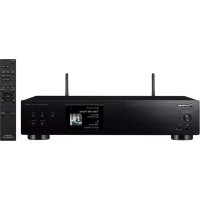

- N-30AE INSTRUCTION MANUAL
- BEFORE START
- PART NAMES
- INSTALL
- INITIAL SETUP
- PLAYBACK
- AIRPLAY®
- ADVANCED SETUP
- FIRMWARE UPDATE
- OTHERS
- BEFORE START > PART NAMES > INSTALL > INITIAL SETUP > PLAYBACK
- WHAT'S IN THE BOX
- FRONT PANEL
- REAR PANEL
- REMOTE CONTROLLER
- DISPLAY
- CONNECTIONS WITH AN AMPLIFIER
- CONNECTION WITH AN ANALOG AUDIO CABLE
- THE CONTROL JACK
- CONNECTING THE POWER CORD, ETC
- POWER CORD CONNECTION
- ETHERNET CABLE CONNECTION
- POWER ON & INITIAL SETUP
- WI-FI CONNECTION SETTINGS
- SCAN NETWORKS
- USE IOS DEVICE
- ENTER SSID OF THE ACCESS POINT
- BEFORE START > PART NAMES > INSTALL > INITIAL SETUP > P L A Y B A C K
- USB STORAGE DEVICE/HDD
- BASIC OPERATIONS
- REPEAT PLAY
- SHUFFLE PLAY
- USB STORAGE / HDD DEVICE REQUIREMENTS
- SUPPORTED AUDIO FORMATS
- MP3 (.MP3/.MP3)
- WMA (.WMA/.WMA)
- WAV (.WAV/.WAV)
- AIFF.(AIFL./AIFL./AIFC./AIFF./AIF/.,AIFC./AFC)
- AAC (.AAC/.M4A/.MP4/.3GP/.3GP/.AAC/.M4A/.MP4/.3GP/.3G2)
- FLAC (FLAC./FLAC)
- APPLE LOSSLESS (.M4A/.MP4/.M4A/.MP4)
- DSD (.DSF/.DFF/.DSF/.DFF)
- INTERNET RADIO
- TUNELN
- SPOTIFY
- BASIC OPERATION
- BEFORE START > PART NAMES > INSTALL > INITIAL SETUP > P I A Y B A C K
- MUSIC SERVER
- CONFIGURING WINDOWS MEDIA® PLAYER
- WINDOWS MEDIA PLAYER 11
- WINDOWS MEDIA PLAYER 12
- PLAYING
- CONTROLLING REMOTE PLAYBACK FROM A PC
- WMA (WMA/WMA)
- AIFF (AIF1.AIFL.AIFC/AFC/.AIFF/.AIF/.AFC/.AFC)
- AAC. (AAC./M4A/.MP4/.3GP/.3G2/.AAC/.M4A/.MP4/.3GP/3G2)
- FLAC(.FLAC/.FLAC)
- LPCM (LINEAR PCM)
- ENTERING TEXT
- ADVANCED SETTINGS
- NETWORK SETTING
- DHCP
- IP ADDRESS
- SUBNET MASK
- GATEWAY
- DNS SERVER
- PROXY URL
- PROXY PORT
- FRIENDLY NAME
- AIRPLAY PASSWORD
- NETWORK CHECK
- OPTION SETTING
- DIGITAL FILTER
- LANGUAGE
- SYSTEM INFO
- FACTORY RESET
- UPDATE
- VIA NETWORK
- VIA USB
- WEB SETUP
- THE UPDATING FUNCTION ON THIS UNIT
- HOW TO UPDATE
- UPDATING THE FIRMWARE VIA NETWORK
- UPDATING VIA USB
- CHECK THE FOLLOWING
- TROUBLESHOOTING
- BEFORE STARTING THE PROCEDURE
- RESETTING THE UNIT (THIS RESETS THE UNIT SETTINGS TO THE DEFAULT)
- POWER
- CANNOT TURN ON THE UNIT
- THE UNIT TURNS OFF UNEXPECTEDLY
- THE DISPLAY DOESN'T LIGHT
- WI-FI CONNECTION
- CANNOT CONNECT TO THE ACCESS POINT
- CONNECTED TO AN SSID DIFFERENT TO THE SSID SELECTED
- PLAYBACK IS INTERRUPTED AND COMMUNICATION DOES NOT WORK
- CANNOT PLAY USB STORAGE DEVICE / HDD
- NETWORK FUNCTION
- CANNOT ACCESS THE INTERNET RADIO
- CANNOT ACCESS THE NETWORK SERVER
- PLAYBACK STOPS WHILE LISTENING TO MUSIC FILES ON THE NETWORK SERVER
- THE ALBUM NAMES AND ARTIST NAMES FOR THE MUSIC SERVER ARE NOT DISPLAYED
- ALBUM ART IN MUSIC SERVER IS DISPLAYED SOMETIMES BUT NOT OTHER TIMES
- GENERAL SPECIFICATIONS
- ANALOG AUDIO OUTPUT
- DIGITAL AUDIO INPUT
- NETWORK SECTION
- LICENSE AND TRADEMARK INFORMATION
- CERTIFIED
- REGISTER YOUR PRODUCT ON HTTP://WWW.PIONEER.EU (EUROPE)
- AIFF (AIFF./AIF./AIFC./AIFL.AIFF./AIF./AIFC./AFC)
- PLAGE DYNAMIQUE
- THD+N
- SÉPARATION CANAL
- BLACKFIRE
- AIFF (AIFF./AIF/.AIFC/.AIF/.AIF/.AIF/.AIFC/.AFC)
- AAC (AAC/.M4A/.MP4/.3GP/.3G2/.AAC/.M4A/.MP4/.3GP
- AIFF (AIFF/AIF/.AIFC/.AIFC.AIFF.AIIF/.AIFC./.AFC)
- PIONEER
- AAC (AAC/M4A/.MP4/.3GP/.3G2/.AAC/M4A/MP4/.3GP/.3G2)
- AIFF (.AIFF/.AIFL/.AIFC/.AIFF/.AIF/.AIFL/.AFC)
- AIFF (AIFF/AIFL/AIFC/AFC./AIFF./AIFL/AIFC./AFC)
- APPLE LOSSLESS (.M4A/.MP4/.M4A/.I
- AIFF (.AIFF/.AIFC/.AIFC/.AIFF/.AIF/.AIFC/.AFC)
- FREQUENZGANG
- SIGNAL/RAUSCHABSTAND
- AIFF (AIF/.AIF/.AIFC/.AIFC/.AIFF/.AIF/.AIFC/.AFC)
- AAC (.AAC/.M4A/.MP4/.3GP/.3G2/.AAC/.M4A/.MP4/.3GP
- WI-FI SETUP
- FREQUENTIE REACTIE
- DYNAMISCH BEREIK
- KANAALSCHEIDING
- DIGITALE AUDIO-INGANG
- AUTO STAND-BY
- AFMETINGEN (B× D× H)
- CETEBOUAYDNOONPONRPBIBATEJB
- COPEKMOE YNAKOBKN
- IPEENDNAHEJIB
- 3AHNAHEJIB
- IYIBT DNCTAHCNOHHORO YNPABNEHNA
- DUCNNNEI
- BBOASSIDTOQNDOCTYNA
- YCTPOICTBO NAMRTN USB/HDD
- OCHOBHBLE ONEPAUN
- TOBTOPHOE BOCNPON3BEDEHNE
- BOCPNON3BEDEHNE B CLYAHOM NPRKE
- TPE6OBAHNK YCTPOCTBY NAMATN USB/HDD
- IOPDEPXKNBAEMBLEAYUNOΦOPMATBI
- WAV(WAV./WAV)
- AIFF (.AIFF/.AIFL/.AIFC/.AIFL/.AIF/.AIF/.AIFC/.AFC)
- IHTEPHET-PAIIO
- OCHOBHBIE FYHKU
- OCHOBHBIEФYHKUH
- HACTPOIKA WINDOWS MEDIA PLAYER
- WINDOWS MEDI PLAYER 12
- BOCNPOUN3BEDENNE
- IUCTAHIOHOE YNPABHEHNE BOCPOUN3BEDHEHEM YPE3 PIK
- FLAC (.FLAC/.FLAC)
- LPCM (NHNEHNHA NKM)
- DSD (DSF./DF/.DSF./DFF)
- BBOI TEKCTA
- PACUNPEHHBIE HACTPOIKN
- CONNECTION
- ПЕРЕД HAАЛOM >HA3BAHNЯЧСTE >YCTAHOBKA >HAAYIBHЯНACTOPOIKA >BOCIPON3BEDEHNE
- OBHBIEHHE BCTPOEHHO NPORPAMMHO OBECEUEHN
- ФУНКЦЯОБНОВЛЕНИ HA ANNAPATE
- CNOCOBI O6HOBNEHN
- OTKA3 OT OTBETCTBEHHOCTN:IPORPMAMA H
- 06HOBJIEHHE BCTPOEHHO PPORPAMMHORO 06ECNEUEHHNO CTEN
- 06HOBJIEHHEYEPE3 USB
- PONCK NYCTPAHNE HNCNPABHOCTEN
- IPEED HAAYALOM NPOUEDPYBBL
- C6POC ANNAPATA (BO3BPAT K 3ABOCKIM NACTPOIKA)
- ПИТУНГС
- ANNAPAT HE BKNOYAETC
- ANNAPAT CAMONPON3BONBHO BBIKNIOUAETCR
- 3KPAHDNCNNERHECBETTCRA
- COEDNHEHNE YEPE3 WI-FI
- HEBO3MOXHO NOKIOHTBC K TOKE DOCTYNA
- POIKJIUOHEHNE KIEHTNΦHKATOPY SSID, OTNIUAIOEMYCR OT BBIBPAHNRO SSID
- BOCNPNBABEHNE NPPEBIBAETCR, COEPHHEHNE OTCYCTBYET
- HEBO3MOXHO BOCPON3BEDEHNE C YCTPONCTBA NAMRTN USB/HDD
- CETEBAA YHKNUA
- ПЕЛЕГД HAAYANOM >HA3BAHNUE YACTE >YCTAHOBKA >HAAYABHЯ HACTOPONKA >BOCNPOUN3BEDEHNE
- OTCYTCTBYET DOCTYN K HHTEPHET-PANO
- OCTCTBYET DOCTYN K CTEBOMY CEPBEPY
- IPEPBBATECBOCNPON3BEHEHME MY3BKAIBHBIX BAHOB HA CETEBOM CEPBEPE
- H BCEIGT OA 60B4AETC3X YDOXECTBEHHOE OOPMPHEME HIBIBMOA B MUSIC SERVER
- ПЕЛЕРН HAAYANOM >HA3BAHNRY QACHEI > YCTAHOBKA >HAAYANBHA NHACTPOKA > BOCNPON3BEDEHNE
- O6UIE XAPAKTEPENCTNKN
- AHAIOROBBI AYDNOBBIXOI
- UNPOBON AYDNOBXOA
- CETB
- DPYRMEФYHKMN
- OBUNE XAPAKTEPENCTNKN
- ПEPEН HAAYANOM >HA3BAHMUACTEY >YCTAHOBKA >HAAYABHNHAHCTPOKA >BOCNPON3BEDHE
- JIUUEH3NN ITOBAPHBIE 3HAKN
- FIRE CONNECT
Brand : PIONEER
Model : N30AES
Category : Media player