AWS899 - Weather Station OREGON SCIENTIFIC - Free user manual and instructions
Find the device manual for free AWS899 OREGON SCIENTIFIC in PDF.


| Product type | Weather station with digital photo display |
| Brand | Oregon Scientific |
| Model | AWS899 |
| Main unit dimensions | 170 x 147 x 86 mm (6.7 x 5.8 x 3.4 inches) |
| Main unit weight | 508 g (without batteries) |
| Probe dimensions (RTGR328N) | 70 x 24.5 x 116 mm (2.76 x 0.96 x 4.57 inches) |
| Probe weight | 156 g (without batteries) |
| Main unit power supply | 5 V power adapter included; backup batteries: 3 AAA 1.5 V batteries |
| Probe power supply | 2 AA 1.5 V batteries |
| UV probe power supply (optional) | 4 AA 1.5 V batteries |
| Display | Color LCD screen with backlight, adjustable contrast and brightness |
| Main functions | Radio-controlled time, dual alarm (daily or weekly), weather forecast (12-24h), indoor and outdoor temperature and humidity (up to 5 probes), atmospheric pressure, UV index (with optional probe), digital photo display (6 frames, slideshow), automatic screen rotation |
| Indoor temperature | -5 °C to 50 °C (23 °F to 122 °F) |
| Indoor humidity | 25% to 95% |
| Barometer | 500 to 1050 mb/hPa or inHg; altitude compensation (-100 to 2500 m) |
| Radio frequency | 433 MHz (probe) |
| Maximum range | 30 m (100 feet) without obstacles |
| Maintenance and cleaning | Clean with a slightly damp cloth and mild detergent. Do not immerse. |
| Safety | Do not expose to shocks, extreme temperatures or humidity. Do not use rechargeable batteries. Disconnect if not used for long periods. |
| Spare parts and repairability | Compatible additional probe (THGR228N, THGR238N, THR228N, THGR328N, UVR138). Parts not detailed by the manufacturer. Contact customer service for repair. |
| General information | Warranty and support at www.oregonscientific.com. Complies with Directive 1999/5/EC. |
Frequently Asked Questions - AWS899 OREGON SCIENTIFIC
User questions about AWS899 OREGON SCIENTIFIC
0 question about this device. Answer the ones you know or ask your own.
Ask a new question about this device
Download the instructions for your Weather Station in PDF format for free! Find your manual AWS899 - OREGON SCIENTIFIC and take your electronic device back in hand. On this page are published all the documents necessary for the use of your device. AWS899 by OREGON SCIENTIFIC.
USER MANUAL AWS899 OREGON SCIENTIFIC
Colour Weather Station with Digital Photo Frame
Model: AWS899
User Manual
CONTENTS
About this guide 2
Product overview.... 2
Front view 2
Back view 3
Table stand 4
LCD display (main menu) 4
Remote sensor (RTGR328N) 4
Front view 5
LCD display 5
Back view 5
Fold-out stand 6
Getting started 6
Batteries 6
AC adaptor (main unit) 6
Remote sensor (RTGR328N) 6
Setup remote sensor 7
Remote sensor signal 7
Clock 8
Radio-controlled clock 8
Main unit sensor searching 8
Turn radio reception ON / OFF 9
How to change settings 9
Navigating through main menu 10
Changing settings 10
Clock setting mode 10
2^nd zone-offset 11
Alarm setting mode 11
Snooze / photo 12
Weather setting mode 12
Altitude compensation function 13
Sound setting mode 13
My photo setting mode 13
Display setting mode 14
Clock & alarm display 15
Turning the alarm ON / OFF 16
Weather forecast display 16
Temperature & humidity display.... 17
Thermo and hygro memory 17
Clear min / max records 17
Trends 17
Current thermo-hygro display 18
Auto scan function 18
Comfort zone 18
Pressure & UV index display 18
UV index readings 19
Auto-rotation display 19
My photo display 19
Download photos from a PC 20
Keypad tone 21
Reset system 21
Default settings 22
Low battery detection 22
Safety and care 22
Warnings.... 22
Troubleshooting 23
Specifications 23
About Oregon Scientific 24
EU-Declaration of Conformity 25
ABOUT THIS GUIDE
Thank you for selecting the Oregon Scientific™ Colour Weather Station with Digital Photo Frame (AWS899). This powerful device bundles animated weather forecasting, barometric pressure monitoring, indoor / outdoor wireless temperature and humidity readings, photo viewer with slide show option, time / date keeping, and dual alarm features into a single tool you can use from the convenience of your home.
Keep this manual handy as you use your new product. It contains practical step-by-step instructions, as well as technical specifications and warnings you should know.
In this box, you will find:
- Main unit
- Remote thermo / hygro sensor (RTGR328N)
- USB cable and CD-ROM
- Batteries
- AC adaptor
The UV sensor (UVR138) is optional with this product.
PRODUCT OVERVIEW
FRONT VIEW
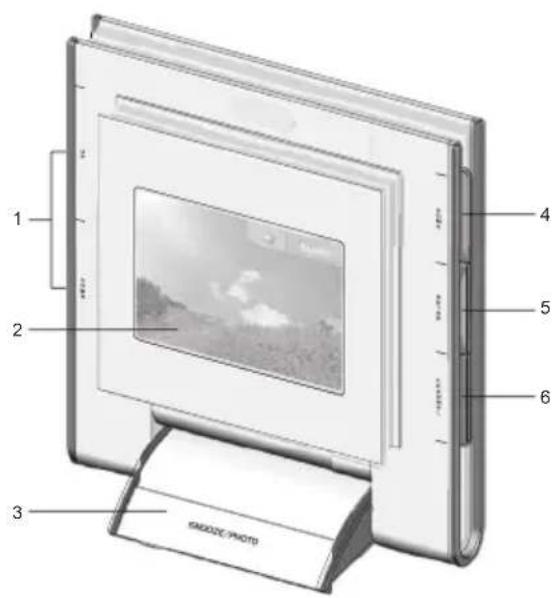
- UP / DOWN: Press to disable alarm sound; press to scroll through menu options
- LCD display
- SNOOZE / PHOTO: Press to stop the daily alarm and activate the 8-minute snooze function when the alarm goes off; press to enter MY PHOTO Display immediately
- HOME: Press to return to Main Menu; press again to exit and go back to the previous display mode
- ENTER: Press to select an option / disable alarm sound
- CHANNEL: In the TEMP & HUMIDITY Display - press to toggle among channels; press and hold to activate channel auto-scan. In PRESSURE & UV INDEX Display - press to toggle between the UV and barometric pressure display
BACK VIEW
Z
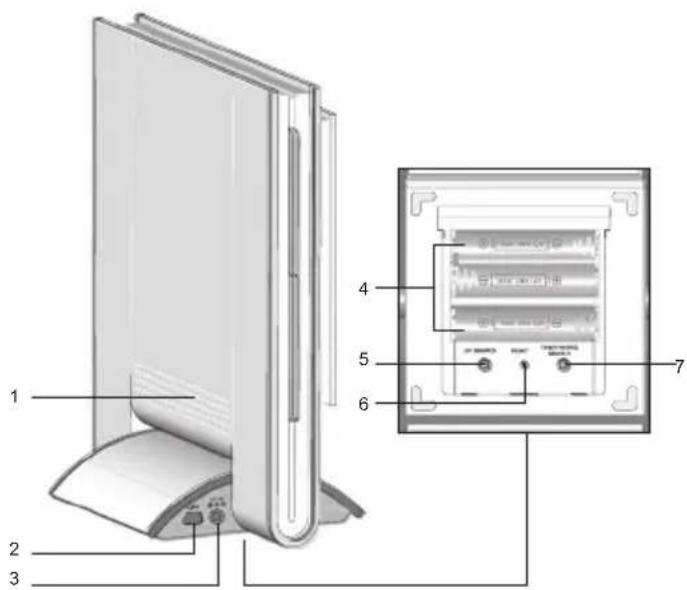
- Speaker
- USB cable socket
- AC / DC 5V adaptor socket
- Battery compartment (open)
- UV SEARCH: Press and hold to search for UV sensor
- RESET hole
- TEMP / HYGRO SEARCH: Press and hold to search for thermo / hygro sensor
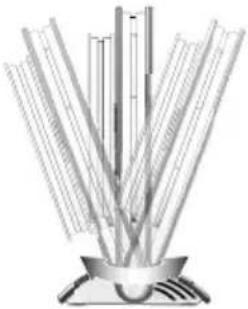
TABLE STAND
For easier viewing, you can tilt the unit to your desired level.
natural_image
Illustration of a mechanical device with multiple blades and a central base (no text or symbols)LCD DISPLAY (MAIN MENU)
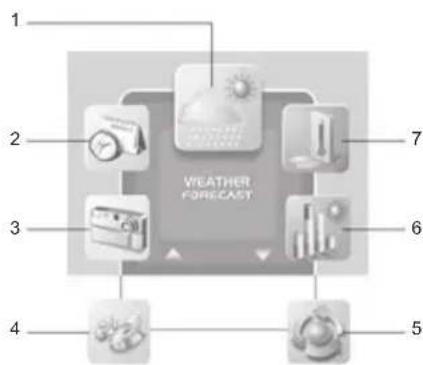
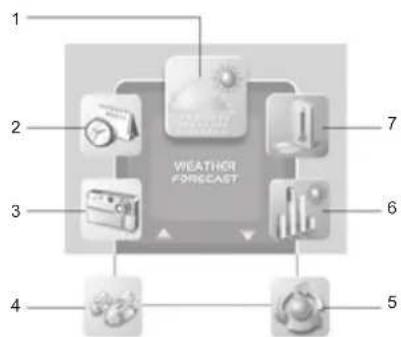
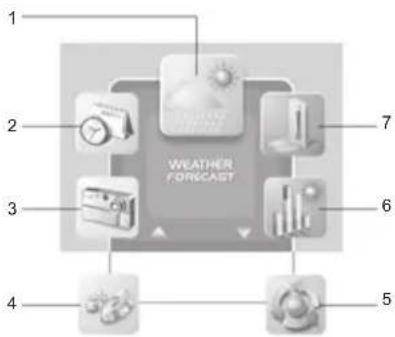
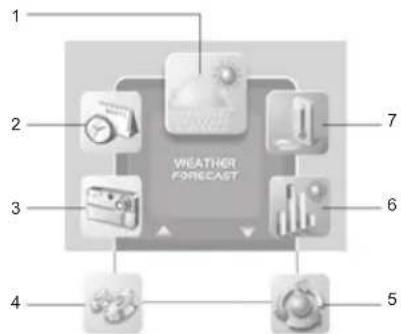
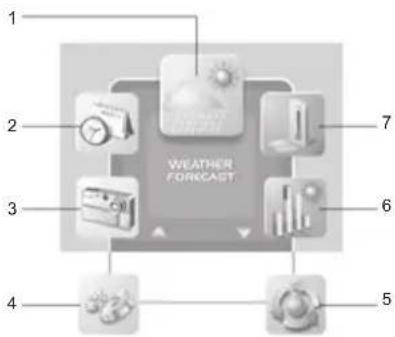
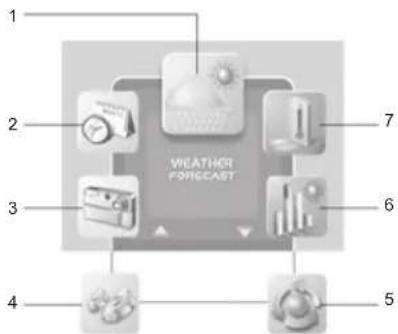
- WEATHER FORECAST Display
-
CLOCK & ALARM Display
-
MY PHOTO Display
- SETTINGS Mode: Within this mode is the following sub-menu:
• ALARM Setting Mode
• WEATHER Setting Mode
- SOUND Setting Mode
• MY PHOTO Setting Mode
• DISPLAY Setting Mode
• CLOCK Setting Mode
- AUTO-ROTATION Display
- PRESSURE & UV INDEX Display
- TEMP & HUMIDITY Display
NOTE Displays and Setting Modes will be described within the related sections.
REMOTE SENSOR (RTGR328N)
This sensor works as an RF clock receiver for the main unit. If you want to purchase additional remote sensors, select a model that does not include the RF function such as:
• THGR228N / THGR238N / THR228N (3-channel sensor)
• THGR328N (5-channel sensor)
FRONT VIEW
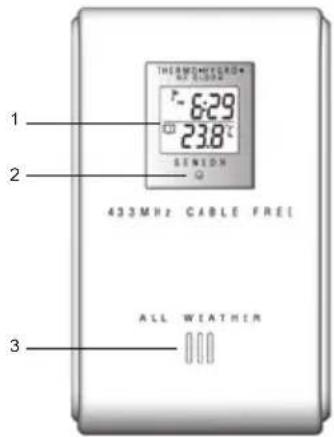
- LCD display
- LED status indicator
- Ventilation duct
LCD DISPLAY
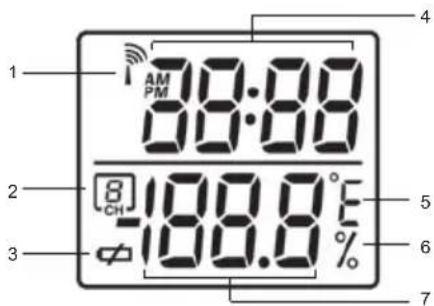
- RF clock reception
-
Channel no.
-
Low battery indicator
- Time
- Temperature (°C or °F)
- Relative humidity
- Temperature / Humidity reading
BACK VIEW
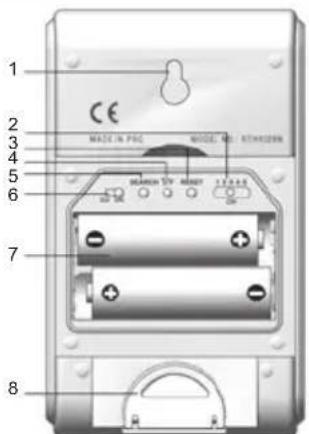
- Wall mount (recess hole)
- CHANNEL switch
- RESET
- °C / °F switch
- SEARCH button
- EU/UK radio signal format switch
- Battery compartment
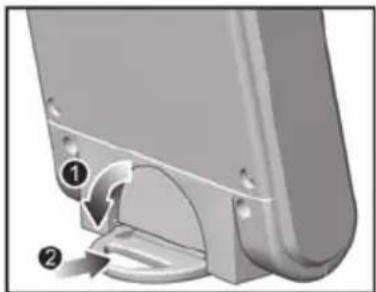
- Fold-out stand
FOLD-OUT STAND
natural_image
Mechanical component diagram showing a curved arm and base with numbered callouts (no text or symbols)- Fold-out the stand
- Lock it into place
GETTING STARTED
BATTERIES
Batteries for the remote and main units are supplied with this product. Press the RESET button whenever you change batteries.
The main unit uses:
• 3 x UM-4 (AAA) 1.5V batteries
The thermo / hygro sensor uses:
• 2 x UM-3 (AA) 1.5V batteries
The optional UV sensor uses:
• 4 x UM-3 (AA) 1.5V batteries
NOTE Insert the batteries in the remote unit before you set up the main unit. Do not use rechargeable batteries.
AC ADAPTOR (MAIN UNIT)
When the main unit is plugged into the power socket or batteries are inserted for the first time, an opening animation will be shown before the Main Menu screen.
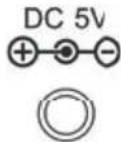
Connect the AC adaptor to your weather station's AC socket located on the side of the main unit base stand.
NOTE Batteries are for memory backup purposes only; the AC adaptor should power the main unit.
REMOTE SENSOR (RTGR328N)
This product is shipped with a RTGR328N Thermo-Hygro Sensor. The main unit can collect data from up to 6 sensors (5 Thermo-Hygro Sensors and 1 UV Sensor).
The following sensors are compatible with the main unit:
• THGR228N
• THGR238N
- THR228N
• THGR328N
The RTGR328N sensor collects temperature and humidity readings, and signals from official time-keeping organizations for the radio-controlled clock.
SETUP REMOTE SENSOR
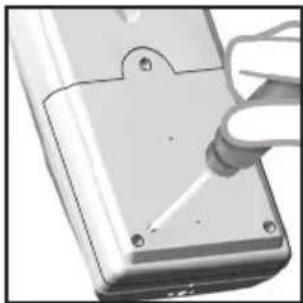
- Open the battery compartment with a small Phillips screwdriver.
- Insert the batteries.
natural_image
Close-up of a hand using a tool to apply or install electronic components (no visible text or symbols)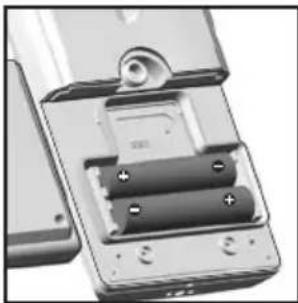
natural_image
Close-up of a partially open mobile phone case showing battery pack and socket (no visible text or symbols)- Set the channel and radio signal format. The switches are located in the battery compartment.
| SWITCH OPTION | |
| Channel If you are using | more than onesensor, select a differentchannel for each sensor. |
| Radio Signal Format E | U (DCF) / UK (MSF) |
- Press RESET. Then set the temperature unit.
| SWITCH OPTION | |
| Temp °C / °F |
- Close the battery compartment and place the sensor in your desired location.
For best results:
- Insert the batteries and select the channel before you mount the sensor.
- Place the sensor out of direct sunlight and moisture.
- Do not place the sensor more than 30 metres (100 feet) from the main (indoor) unit.
- Position the sensor so that it faces the main (indoor) unit, minimizing obstructions such as doors, walls, and furniture.
- Place the sensor in a location with a clear view to the sky, away from metallic or electronic objects.
- Position the sensor close to the main unit during cold winter months as below-freezing temperatures may affect battery performance and signal transmission.
You may need to experiment with various locations to get the best results.
REMOTE SENSOR SIGNAL
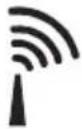
Initial reception takes 2-10 minutes, and is initiated when you first setup the unit, and whenever you press RESET. Once complete, the reception icon will stop blinking and show the signal strength by displaying between 1 and 4 waves.
| STRONG SIGNAL | WEAK SIGNAL | NO SIGNAL |
 | [0415] | ### |
Press SEARCH to manually activate a search for the radio-controlled clock signal. The reception icon will blink until the clock signal is found or the search period times out.
NOTE Signals from household devices such as doorbells, electronic garage doors, and home security systems may cause temporary reception failure. This is normal and does not affect general product performance. The reception will resume once the interference ends.
CLOCK
This product tracks the time and date based on radio-controlled signals from the RTGR328N remote sensor, or manual settings that you enter.
RADIO-CONTROLLED CLOCK
The time and date are automatically updated by radio-controlled clock signals from official time-keeping organizations in Frankfurt (Germany) and Rugby (England) unless you disable this feature. The signals are collected by the remote sensor (RTGR328N) whenever it is within 1500 km (932 miles) of a signal.
MAIN UNIT SENSOR SEARCHING
Initial reception takes 2-10 minutes, and is initiated when you first set up the unit, and whenever you press RESET. Press and hold TEMP / HYGRO SEARCH for 2 seconds to manually activate sensor searching. Once complete, the reception icon will stop blinking.
To view the status of the main unit's signal with the outdoor temperature and humidity channel(s), go to the TEMP & HUMIDITY Display:
| ICON MEANING | |
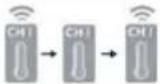 | Searching for sensor |
| [SK4W2] | Sensor found |
| [CKTZ] | No Sensor |
To view the status of the main unit's signal with the radio-controlled clock signals, look for the icon shown in the CLOCK & ALARM Display area. It indicates 2 factors:
- Connection between the main unit and the sensor (☐)
- RF signal reception ( )
How these signals work together:
| ICON MEANING | |
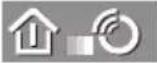 | The unit has contact with the sensor and has synchronized the time. |
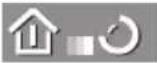 | The unit has contact with the sensor but the time has not been synchronized. |
 | The unit has lost contact with the remote sensor but the time is synchronized. |
 | The unit has lost contact with the remote sensor and the time is not synchronized. |
 | The unit cannot reach the remote sensor. |
NOTE To force a manual search for RF clock reception, press and hold TEMP / HYGRO SEARCH on the main unit for 2 seconds.
TURN RADIO RECEPTION ON / OFF
When you are in the CLOCK & ALARM Display you can turn the reception on or off.
To turn the radio reception ON: Press and hold UP for 2 seconds.
To turn the radio reception OFF: Press and hold DOWN for 2 seconds.
Alternatively, you can turn it ON / OFF in the CLOCK Setting Mode (see relevant section).
HOW TO CHANGE SETTINGS
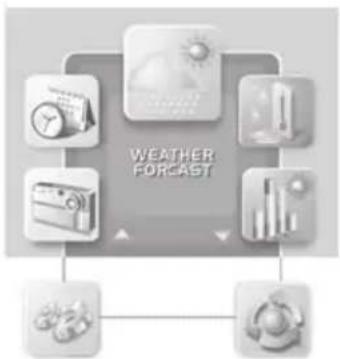
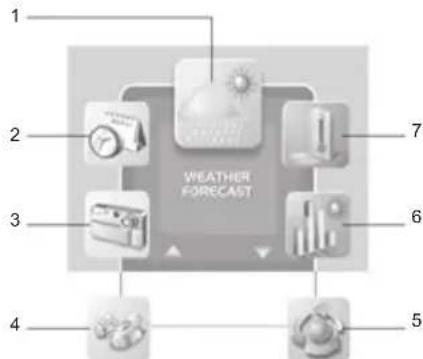
All settings and display options for this product are accessible from the Main Menu.
NAVIGATING THROUGH MAIN MENU
flowchart
graph TD
    A["Weather Icon"] --> B["Weather Forecast"]
    C["Weather Icon"] --> B
    D["Weather Icon"] --> B
    E["Weather Icon"] --> B
    F["Weather Icon"] --> B
    G["Weather Icon"] --> B
    H["Weather Icon"] --> B
To access the Main Menu from any screen press HOME. Press UP or DOWN to highlight a desired option then press ENTER to activate it.
CHANGING SETTINGS
To change the settings, navigate to the SETTINGS Mode from the Main Menu as shown above. Then:
- Press UP or DOWN to highlight the option you wish to change.
- Press ENTER to select it.
- Use the UP or DOWN buttons to change values.
- Press ENTER to confirm changes.
TIP Selecting the exit icon will return you to the previous screen.
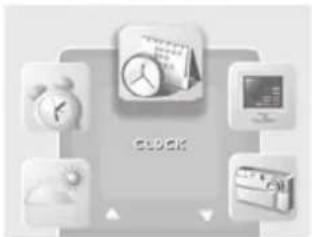
CLOCK SETTING MODE
Auto-synchronization should be deactivated before you manually set the clock. To do this, follow the instructions stated below and turn the RF clock function OFF in CLOCK Setting Mode.
- From the Main Menu, access the SETTINGS Mode.
Press UP / DOWN to select CLOCK Setting Mode, then press ENTER.
natural_image
Illustration of a clock with alarm clock, monitor, and air conditioner icons (no text or symbols)- Choose the settings that you want to adjust and edit as shown in the Changing Settings section.
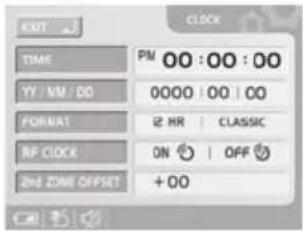
| TIME Set hour and minute | |
| YY-MM-DD Set Year, Month and Date | |
| FORMAT | Set 12 or 24 hour format and ANALOG, DIGITAL or CLASSIC clock display format |
| RF CLOCK | Set auto synchronization ON or OFF |
| 2^nd ZONE-OFFSET | Set 2^nd zone-time |
| EXIT Return to previous page | |
TIP Press HOME to return to Main Menu.
2nd ZONE-OFFSET
You can offset current local time to correspond with the time from another region ( 2^nd zone).
For example, if the current local time is 1:30pm and the time in another region is 3:30pm, you should adjust the 2^nd ZONE-OFFSET to +02 to compensate.
ALARM SETTING MODE
When activated, the crescendo alarm will sound until it shuts off at two minutes. The unit is equipped with 2 alarms (alarm 1 and alarm 2) that can be individually set to go off daily, or every weekday (ie Monday to Friday only).
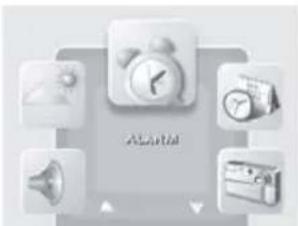
- From the Main Menu, access the SETTINGS Mode.
Press UP / DOWN to select ALARM Setting Mode then press ENTER.
- Choose the settings that you want to adjust and edit as shown in the Changing Settings section.
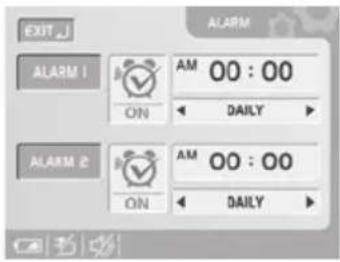
| ALARM 1 Set alarm ON / OFF, hour, minute and daily / weekday alarm type | |
| ALARM 2 | Set alarm ON / OFF, hour, minute and daily / weekday alarm type |
| Return to previous pageEXIT | |
A will indicate that an alarm is active.
SNOOZE / PHOTO
Press SNOOZE to temporarily disable the alarm for 8 minutes. The CLOCK & ALARM Display screen will appear and the alarm icon will swing while snooze is activated.
To deactivate the snooze function, press and hold ENTER.
NOTE When the snooze function is enabled, changing the clock, calendar or alarm setting will disable the snooze setting.
To view the photo in your Personal frame, press PHOTO at any time.
NOTE For your Personal photo to be displayed, the WALLPAPER option must already be selected in MY PHOTO Setting Mode.
WEATHER SETTING MODE
In this mode you can adjust various weather calibration settings, such as the unit of temperature and barometric display along with altitude settings for more accurate weather forecasting.
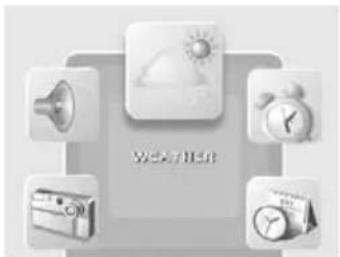
- From the Main Menu, access the SETTINGS Mode.
Press UP / DOWN to select WEATHER Setting Mode, then ENTER.
natural_image
Weather icon set with four camera and weather symbols (no text or labels)- Choose the settings you want to adjust and edit as shown in the Changing Settings section.
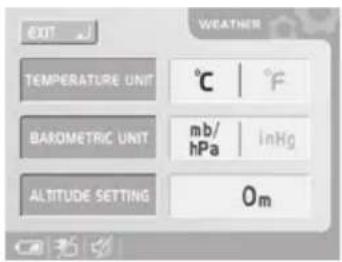
| TEMPERATURE UNIT | Select °C or °F temperature units |
| BAROMETRIC UNIT | Select mb/hPa or inHg pressure units |
| ALTITUDE SETTING | Set the compensated altitude [-100m to 2500m] (default 0m) |
| EXIT Return to previous page | |
ALTITUDE COMPENSATION FUNCTION
Set the altitude corresponding to how far above or below you are to sea level to make barometric measurements accurate.
SOUND SETTING MODE
In this mode you can adjust the sound options for the unit.
- From the Main Menu, access the SETTINGS Mode.
Press UP / DOWN to select SOUND Setting Mode.
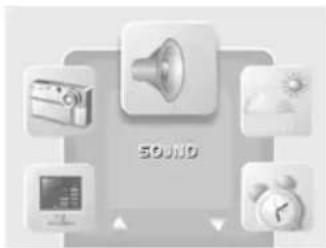
- Choose the settings that you want to adjust and edit as shown in the Changing Settings section.
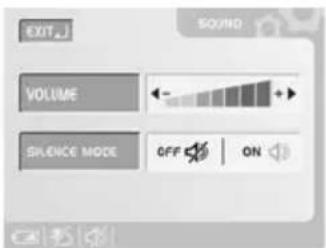
| VOLUME Adjust system volume levels | |
| SILENCE MODE | (ON) No sound will be heard and the keytone will be turned off |
| EXIT Return to previous page | |
NOTE When the SLIENCE MODE is ON, the mute icon will be shown.
MY PHOTO SETTING MODE
In this mode you can select a still picture or slide show (set of 6 photos) to display on the screen as wallpaper.
- From the Main Menu, access the SETTINGS Mode.
Press UP / DOWN to select MY PHOTO Setting Mode.
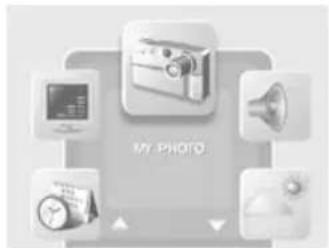
- Choose the settings that you want to adjust and edit as shown in the Changing Settings section.
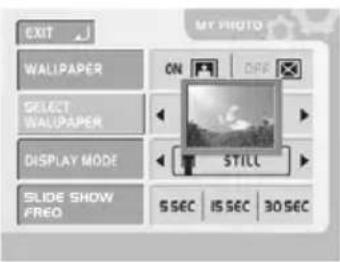
| WALLPAPER Select ON / OFF. When enabled, the selected photo will be shown on the display when SNOOZE / PHOTO is pressed in standby | |
| SELECT Select WALLPAPER | 1 of the 6 pictures availableNOTE If you have not downloaded any new pictures you can only select the default picture “Smart Living”. Once you have downloaded your own pictures you can only select 1 of these and not the default picture |
| DISPLAY MODE | Select STILL or SLIDE SHOWYou can select to display just one photo as Wallpaper or all 6 downloaded photos in sequenceNOTE If no picture has been downloaded, only STILL option can be chosen |
| SLIDE SHOW FREQ – 5 SEC | Select the slide show display speed 15 SEC or 30 SEC |
| EXIT Return to previous page | |
NOTE The WALLPAPER option must be set to ON to access the other settings on this screen. Also, the SLIDE SHOW option must be selected as the display mode to access the SLIDE SHOW FREQ setting.
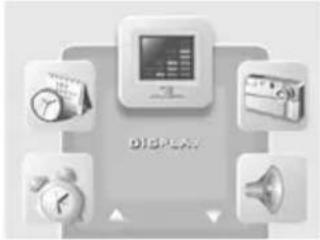
DISPLAY SETTING MODE
In this mode you can customize various system settings. 1. From the Main Menu, access the SETTINGS Mode.
Press UP / DOWN to select DISPLAY Setting Mode.
natural_image
Illustration of a display device with icons for clock, phone, alarm clock, and speaker (no text or symbols)- Choose the settings that you want to adjust and edit as shown in the Changing Settings section.
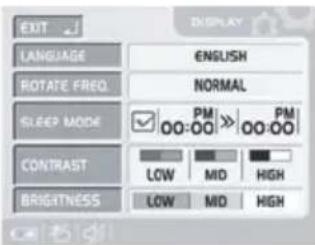
| LANGUAGE | Choose from 1 of 5 languages: ENGLISH, SPANISH, ITALIAN, FRENCH and GERMAN. |
| ROTATE FREQ | Adjust the time each screen display will show itself when the auto rotation display feature is turned on - FAST, NORMAL or SLOW |
| SLEEP MODE | Set the display to sleep from the sleep start time to the sleep end time. When in sleep mode all operations are still active but the display screen is turned off and the speaker is mute |
| CONTRAST | Set the screen contrast - LOW, MID or HIGH |
| BRIGHTNESS | Set the screen brightness - LOW, MID or HIGH |
| EXIT | Return to previous page |
CLOCK & ALARM DISPLAY
This is basically a viewing mode where time, date and alarm information is conveniently displayed. In this mode you can turn alarms 1 or 2 ON / OFF.
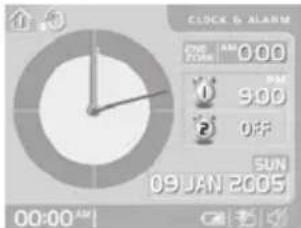
- Current time
- Zone time
- Calendar
- Two alarm settings
You can view the time, date, and alarm in one of the following ways:
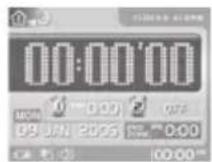
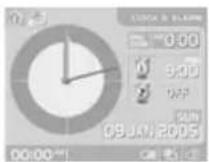
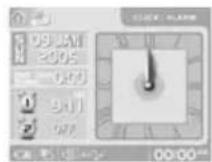
Analog*Digital Classic
Press and hold CHANNEL for 2 seconds to toggle between the different displays.
*When in Analog display mode, press UP and DOWN to change the colour of the clock (orange, green or blue).
NOTE You can set which clock is displayed from the CLOCK Setting Mode. Access the FORMAT option to toggle between DIGITAL, ANALOG and CLASSIC views.
TURNING THE ALARM ON / OFF
In the CLOCK & ALARM Display you can switch ON / OFF alarm 1 or 2 separately without going into the setting mode:
- Press CHANNEL to select alarm 1 or 2.
- Press UP / DOWN to switch alarm on or off.
- Press ENTER or wait 10 seconds to confirm the changes.
WEATHER FORECAST DISPLAY
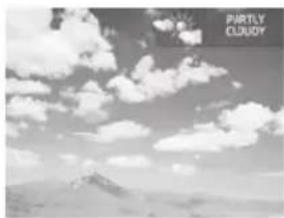
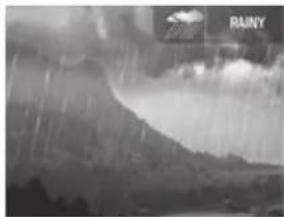
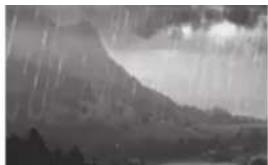
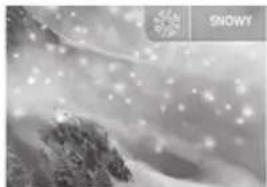
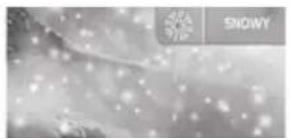
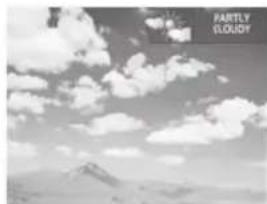
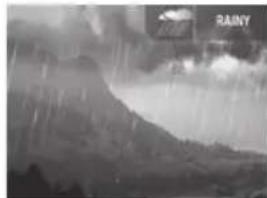
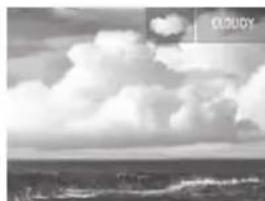
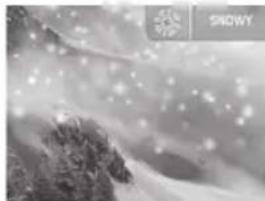
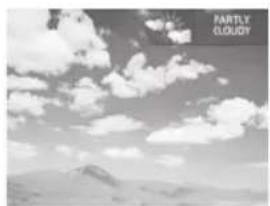
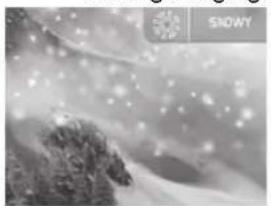
This product forecasts the next 12 to 24 hours of weather within a 30 to 50 km (19 - 31 mile) radius with 70 to 75 percent accuracy. A weather forecast with sound effect is always active:
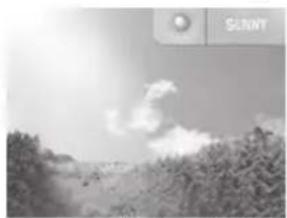
natural_image
Black-and-white landscape photo showing trees and a cloudy sky (no text or symbols)Sunny Partly Cloudy
natural_image
Black-and-white landscape photo of a mountain range under cloudy clouds, no text or symbols visible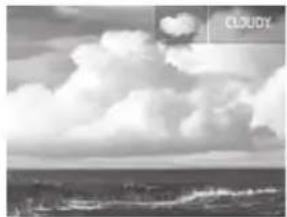
natural_image
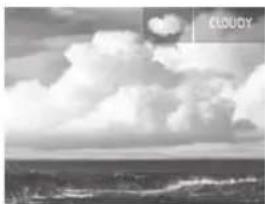
Black-and-white landscape photo of a cloudy sky with distant hills and clouds (no text or symbols)Cloudy Rainy
natural_image
Black-and-white photo of a storm with raindrops and smoke, no visible text or symbols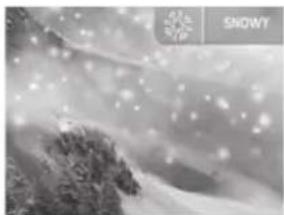
natural_image
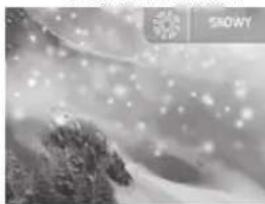
Snowy mountain landscape with mist and scattered snowflakes (no text or symbols)Snowy
The weather forecast symbol is updated every 15 minutes.
TEMPERATURE & HUMIDITY DISPLAY
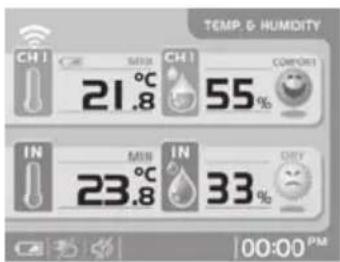
With the press of a button, you can check the current indoor or outdoor temperature, relative humidity comfort level, trend, and record measurements. Outdoor measurements are taken by the remote sensors then relayed back to the main unit.
From the Main Menu, access the TEMP & HUMIDITY Display.
THERMO AND HYGRO MEMORY
To display a (MIN/MAX) reading, select a channel by pressing CHANNEL.
When the desired channel has been selected:
• MAX: Press and HOLD UP for 2 seconds.
• MIN: Press and HOLD DOWN for 2 seconds.
CLEAR MIN / MAX RECORDS
Press and hold UP and DOWN (simultaneously) for 2 seconds until you hear a beep.
TRENDS
A trend will show the changes along with the recorded maximum and minimum values taken over a 24-hour period. For each channel the following symbols represent:
| DATA FALLING | NO CHANGE | RISING | |
| Temperature |  | [KCY0] | [BYH4] |
| Humidity |  |  |  |
CURRENT THERMO-HYGRO DISPLAY
Press CHANNEL to switch between 5 outdoor channels. A current trend corresponding to the selected channel will be displayed.
AUTO SCAN FUNCTION
When enabled, the thermo-hygro display for each channel will be displayed for 4 seconds before changing to the next channel.
To start auto scan, press and hold CHANNEL until you hear a beep (press CHANNEL again to exit auto scan mode).
COMFORT ZONE
The indoor and outdoor comfort zones are always shown, they display the relationship between temperature and humidity.
| ZONE TEMPERATURE | RELATIVE HUMIDITY | |
 | Any >70% | |
 | 20 - 25 °C(68 - 77 °F) | 40 - 70% |
 | Any <40% | |
PRESSURE & UV INDEX DISPLAY
This product tracks barometric pressure changes over the past 24 hours to provide a weather forecast. And if you purchase the optional UV sensor, it will also record the past 10 hours UV measurements.
To access the displays below, select the PRESSURE & UV INDEX Display from the Main Menu.
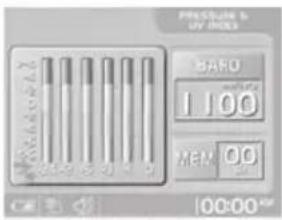
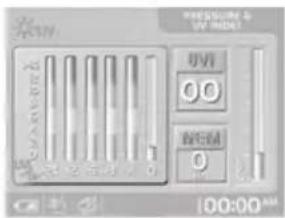
NOTE On the bottom of the Baro and UVI bar charts -1 means 1 hour ago, -6 means 6 hours ago etc.
To display current and past readings, press UP and DOWN.
To toggle between the Baro and UVI displays, press CHANNEL.
If the main unit finds no UV sensor, the UV icon will be turned off and the UVI value will show [--].

UV INDEX READINGS
To interpret the UV readings on the LCD display, see the table below.
| UV UVMESSAGE INDEX PRECAUTION | ||
| Low 1-2 Apply sunscreen | ||
| Med 3-5 Wear protective clothing | ||
| High 6-7 Wear sunglasses and protective clothing | ||
| Very High 8-10 Avoid the sun between 10am and 4pm | ||
| Extremely 1-25 Very strong rays stay indoors High |
AUTO-ROTATION DISPLAY
When this function is enabled, the unit will automatically switch between the following screen displays:
• WEATHER FORECAST
- CLOCK & ALARM
• TEMP & HUMIDITY
- PRESSURE & UV INDEX
To enable the function, simply select the AUTO-ROTATION Display option and press ENTER.
You can adjust the speed at which the screen display is shown via the rotation frequency option in the DISPLAY Setting Mode.
MY PHOTO DISPLAY
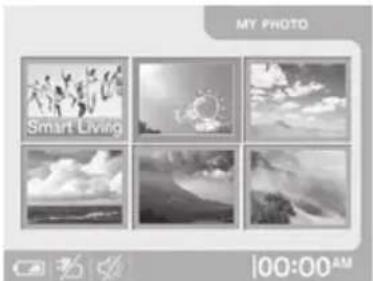
In this screen you can view all 6 default photos, or 6 photos you have downloaded from your PC. To access the display below, select the MY PHOTO Display from the Main Menu.
natural_image
Grid of six black-and-white photos showing nature scenes with sun, clouds, and mountains (no text or symbols)There are 6 photo frames in this display mode and they are classified as:
- Personal
- Sunny
- Partly Cloudy
- Cloudy
- Rainy
- Snowy
To switch between a downloaded photo and a default photo, press CHANNEL.
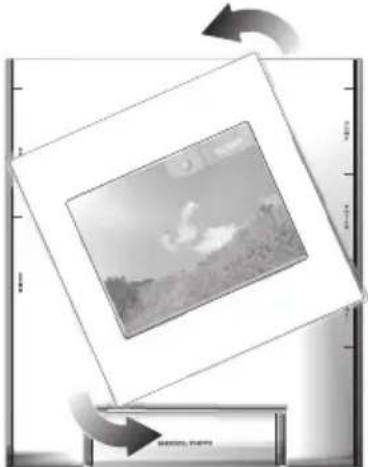
To view a photo as landscape or portrait format, turn the display screen as shown below.
natural_image
Black-and-white photo of a landscape with a bird in flight, framed by arrows and a ruler (no text or symbols visible)DOWNLOAD PHOTOS FROM A PC
To download a photo:
-
Check your PC uses Windows 2000 or Windows XP. (If your computer does not support these programmes, you will not be able to use the download option.)
-
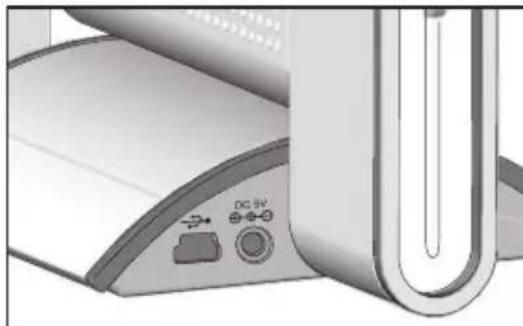
Plug in the USB cable (see below for insertion point into the main unit).
natural_image
Close-up of a printer's front panel showing a CD-ROM switch and power button (no text or symbols visible)The USB icon should appear at the bottom of the main unit display.
-
Power up your computer and load the CD-ROM application software included in this package.
-
When the PC application software (Arcsoft Photo Base) opens, you will see 6 photo albums whose names match the 6 photo frames on your unit i.e. Personal, Sunny, Partly Cloudy etc.
-
You can only download 1 photo at a time. Simply choose which frame location you wish to download your photo into i.e. Sunny. Then open the "Sunny" album at the bottom part of the PC display.
-
Copy the photo into the "Sunny" album if you have not already saved it at this location. (If you want to edit a photo you need to do this before copying it into an album.)
-
Select the desired photo (when selected the photo will be highlighted in blue).
- Press the 📄icon at the top right corner on the display to start the transfer process. If the procedure has been incorrectly done i.e. the 📄icon will not be highlighted.
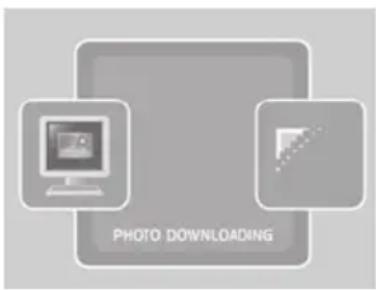
- When the process is complete the downloaded photo will automatically show on the main unit display.
NOTE To switch back to the default weather picture, press CHANNEL.
KEYPAD TONE
To activate the keypad tone:
- Navigate to SETTINGS.
- Select SOUND Setting Mode.
- Select SILENCE MODE - OFF.
To deactivate the keypad tone follow the instructions above but select ON at point 3.
NOTE If you select SILENCE MODE - ON, both the keypad tone and the background sound for the weather forecast will be deactivated.
RESET SYSTEM
The RESET buttons are located on the back of the main unit and in the battery compartment for the remote unit. Press these buttons whenever you change the batteries, or whenever performance is not behaving as expected (e.g., unable to establish radio frequency link with remote unit or automatic clock, etc.).
NOTE After resetting the system all system information will be erased and returned to factory defaults. The main unit will also check battery condition.
DEFAULT SETTINGS
| Date | 1/1/2005 |
| Time 00:00:00 (24 hour format)or 12:00:00 am (12 hour format) | |
| Clock display Time-second | display mode |
| Daily / weekday alarm Alarm | disabled |
| Sleep Mode Sleep start at | 12:00 a.m.and sleep end at 6:00 a.m. & function disabled |
| Wallpaper function Off | |
| Silence Mode Off | |
| Weather | Partly cloudy |
| Pressure display Current pressure | |
| Altitude 0m | |
| Thermo-hygro display Current indoor | |
| Indoor temperature trend Steady | |
| Indoor humidity trend Steady | |
| Sensor search | Enabled |
| Receive RF clock | Enabled |
Press RESET to restore all settings to factory defaults.
LOW BATTERY DETECTION
When battery levels get too low, the ➕ icon will appear. Also, when no adaptor is connected, the ➕ icon will be displayed.
NOTE The main unit will display the channel battery status when the corresponding channel is selected.
SAFETY AND CARE
Wash the unit with a slightly damp cloth and mild detergent. Avoid dropping the unit or placing it in a high-traffic location.
WARNINGS
This product is designed to give you years of service if handled properly. Observe the following guidelines:
- Never immerse the unit in water. This can cause electrical shock and damage the unit.
- Do not subject the main unit to extreme force, shock, or fluctuations in temperature or humidity.
- Do not tamper with the internal components.
- Do not mix new and old batteries or batteries of different types.
- Do not use rechargeable batteries with this product.
- Remove the batteries if storing this product for a long period of time.
-
Do not scratch the LCD display.
-
Do not make any changes or modifications to this product. Unauthorized changes may void your right to use the product.
- The contents of this user guide are subject to change without notice.
- Images not drawn to scale.
TROUBLESHOOTING
Check here before contacting our customer service department.
PROBLEM SYMPTOM REMEDY
| Barometer Unusual readings | Set altitude / unit | |
| Calendar Unusual date/month | Change language | |
| Clock Cannot | adjust clock | Disable auto-synchronization |
| Clock Cannot | auto-synch | 1. Adjust batteries2. Press RESET3. Manually activate auto-synch |
| Temp Shows | “LLL” or “HHH” | Temperature is out-of-range |
| Remote unit | Cannot locate remote unit | Check batteries |
| Check location | ||
| Display No display Sleep Mode may be on. | ||
SPECIFICATIONS
Main unit dimensions
L x W x H 168 x 146 x 85mm (6.7 x 5.8 x 3.4 inches)
Weight 508g (with batteries)
Remote unit dimensions
L x W x H 70 x 24.5 x 116mm (2.76 x 0.96 x 4.57 inches)
Weight 156g (with batteries)
Temperature
Unit °C or °F
Indoor Range -5 °C to 50 °C (23 °F to 122 °F)
Outdoor Range -20 °C to 60 °C (-4 °F to 140 °F)
Resolution 0.1 °C (0.2 °F) Comfort 20 °C to 25 °C (68 °F to 77 °F)
Memory Minimum / maximum
Trend +/- 0.5° change
Relative humidity
Range 25% to 95%
Resolution 1%
Comfort 40% to 70%
Memory Minimum / maximum
Trend 3% change
Barometer
Unit mb/hPa or inHg
Range 500 to 1050 mb
(14.77 to 31.01 inHg)
Resolution 1mb (0.03 inHg)
Altitude -100 to 2500 metres
(-328 to 8202 feet)
Display Sunny, partly cloudy, cloudy,
rainy, snowy
Remote unit
RF frequency 433 MHz
Range up to 30 metres (100 feet) with no
obstructions
Transmission every 1 minute
Channel No. 1, 2, 3, 4 or 5
Unit °C or °F
Radio-controlled clock
Synchronization Auto or disabled
Clock display HH:MM:SS
Hour format 12hr AM/PM (MSF format)
24hr (DCF format)
Calendar DD/MM; weekday selection in
5 languages (E, G, F, I, S)
Alarm 2 minute crescendo
Snooze 8 minutes
Power
Main unit 5V AC adaptor
3 x UM-4 (AAA) 1.5V alkaline
batteries (back-up)
Remote unit 2 x UM-3 (AA) 1.5V alkaline
batteries
ABOUT OREGON SCIENTIFIC
Visit our website (www.oregonscientific.com) to learn more about Oregon Scientific products such as digital cameras; MP3 players; children's electronic learning products and games; projection clocks; health and fitness gear; weather stations; and digital and conference phones. The website also includes contact information for our Customer Care department in case you need to reach us, as well as frequently asked questions and customer downloads.
We hope you will find all the information you need on our website, however if you're in the US and would like to contact the Oregon Scientific Customer Care department directly, please visit:
www2.oregonscientific.com/service/support
OR
Call 1-800-853-8883.
For international inquiries, please visit:
www2.oregonscientific.com/about/international
EU-DECLARATION OF CONFORMITY
Hereby, Oregon Scientific, declares that this Colour Weather Station AWS899 is in compliance with the essential requirements and other relevant provisions of Directive 1999/5/EC.
A copy of the signed and dated Declaration of Conformity is available on request via our Oregon Scientific Customer Service.
CE
COUNTRIES RTTE APPROVAL COMPLIED
All EU countries, Switzerland CH and Noway N

SCIENTIFIC
Colour Weather Station with
Digital Photo Frame
Model: AWS899
User Manual
© 2005 Oregon Scientific. All rights reserved.
086L003791-013
Bilderrahmen
Modell: AWS899
Bedienungsanleitung
INHALT
Einleitung 2
natural_image
Abstract diagram of a stylized lamp or decorative stand with vertical lines and geometric elements (no text or symbols)
flowchart
graph TD
    A["1"] --> B["WEATHER FORECAST"]
    C["2"] --> B
    D["3"] --> B
    E["4"] --> B
    F["5"] --> B
    G["6"] --> B
    H["7"] --> B
natural_image
Mechanical component diagram showing a curved arm and base with numbered callouts (no text or symbols)natural_image
Close-up of a hand using a pipette to apply material to a component with mounting holes (no visible text or symbols)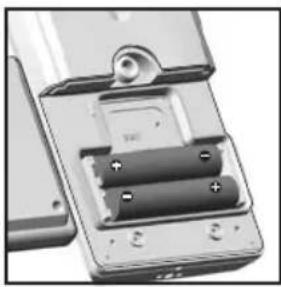
natural_image
Close-up of a battery pack with two batteries and a handle, no visible text or symbolsnatural_image
Illustration of five different household appliances or devices arranged around a central 'CLOCK' label (no text or symbols on devices)natural_image
Illustration of sound equipment icons including a megaphone, radio, monitor, alarm clock, and clock (no text or symbols)natural_image
Illustration of a computer monitor with icons for alarm clock, phone, washing machine, and megaphone (no text or symbols)natural_image
Black-and-white landscape photo showing sun rays over a forested hillside, with no visible text or symbols.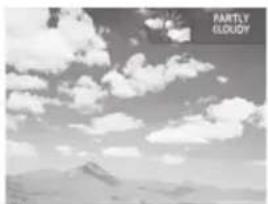
natural_image
Black and white landscape photo showing scattered clouds over a mountain range (no text or symbols)natural_image
Black-and-white landscape photo showing a cloudy sky over a flat horizon with no visible text or symbols.Bedeckt Regnerisch
natural_image
Black and white photo of a mountainous landscape with falling rain and distant trees (no text or symbols visible)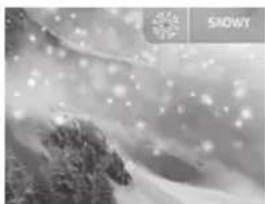
natural_image
Snowy mountain landscape with scattered light spots and a snowflake logo in the corner (no text or symbols on the main image)Schnee
natural_image
Grid of six grayscale photos showing nature scenes with sun, clouds, mountains, and sky (no text or symbols)natural_image
Black-and-white photo of a landscape with a cloud formation, framed by directional arrows (no text or symbols)natural_image
Close-up of a printer's front panel showing internal components and a U-shaped tube (no text or symbols visible)natural_image
Illustration of a decorative lamp with vertical bars and a base (no text or symbols)PANTALLA LCD (MENÚ PRINCIPAL)
1 Visualización de WEATHER FORECAST
natural_image
Mechanical component diagram showing a curved arm and mounting bracket (no text or symbols)• THGR228N
• THGR238N
- THR228N
• THGR328N
natural_image
Close-up of a hand using a screwdriver to insert or install a component on a device (no visible text or symbols)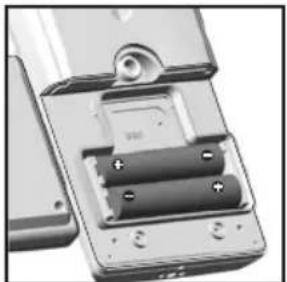
natural_image
Close-up of a mobile phone's internal battery pack and socket (no visible text or symbols)flowchart
graph TD
    A["Weather Forecast"] --> B["Sun"]
    A --> C["Ang"]
natural_image
Illustration of five different office and calendar icons arranged around a central 'CLOCK' label (no text or symbols on icons)natural_image
Illustration of a wall-mounted alarm clock with surrounding icons (no text or symbols)natural_image
Weather icons arranged in a grid, including sun, alarm clock, megaphone, camera, and calendar (no text or symbols on icons)natural_image
Illustration of sound equipment icons including a megaphone, camera, alarm clock, and monitor (no text or symbols)natural_image
Product display of a photo frame with icons for monitor, megaphone, speaker, clock, and app (no text or symbols on main image)natural_image
Black-and-white landscape photo of a forested hillside with a cloudy sky and sun in the background (no text or symbols)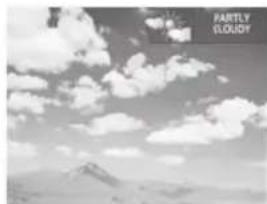
natural_image
Black-and-white landscape photo of a mountain range under cloudy skies (no text or symbols visible)Soleado Parcialmente Nublado

natural_image
Black-and-white landscape photo of a cloudy sky with distant ocean and horizon (no text or symbols)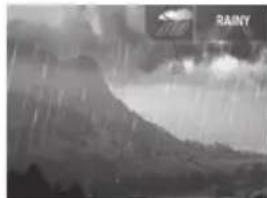
natural_image
Black-and-white photo of a rainy landscape with mountains and clouds, no visible text or symbolsNublado Lluvia
natural_image
Snowy landscape with snow-covered hills and distant snowflakes (no text or symbols)natural_image
Grid of six black-and-white photos showing nature scenes with sun, clouds, and mountains (no text or symbols)natural_image
Black-and-white photo frame with a cloud of clouds above, surrounded by curved arrows indicating rotation or movement (no text or symbols)DESCARGAR FOTOGRAFÍAS DESDE UN PC
natural_image
Close-up of a computer monitor with a paperclip and control buttons (no visible text or symbols)natural_image
Illustration of a decorative lamp with vertical lines and a base (no text or symbols)AFFICHAGE À CRISTAUX LIQUIDES (MENU PRINCIPAL)
natural_image
Mechanical component diagram showing a curved arm and base with numbered callouts (no text or symbols)natural_image
Close-up of a hand using a screwdriver to apply a component on a metallic device (no visible text or symbols)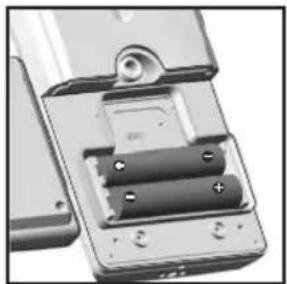
natural_image
Close-up of a battery pack with two cylindrical batteries and a terminal block (no visible text or symbols)natural_image
Illustration of a desktop computer setup with clock, monitor, alarm clock, and air conditioner (no text or symbols)natural_image
Illustration of a desktop computer with icons for alarm clock, video camera, and megaphone (no text or symbols)natural_image
Black-and-white landscape photo showing a forested area with scattered clouds and a sungy camera icon (no text or symbols)Ensoleillé
natural_image
Black and white photo of a cloudy sky over the ocean with visible waves (no text or symbols)Nuageux Pluvieux
natural_image
Snowy landscape with snowflakes and trees, no visible text or symbols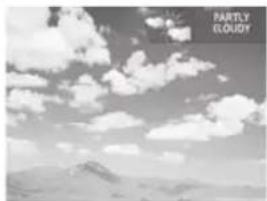
natural_image
Black-and-white landscape photo showing scattered clouds over distant mountains (no text or symbols)natural_image
Black-and-white photo of a stormy mountain landscape with heavy rain and cloud formations (no text or symbols visible)les 15 minutes.
MODE D'AFFICHAGE : TEMPÉRATURE ET HUMIDITÉ
DONNÉES THERMO ET HYGRO MÉMORISÉES
- MAV : A new user with the same role dependent?
2 secondes.
EFFACER LES ENREGISTREMENTS MIN / MAX
natural_image
Grid of six grayscale photos showing diverse scenes including mountains, clouds, sun, and a person (no text or symbols)natural_image
Black-and-white photo of a landscape with clouds and distant buildings, framed by arrows indicating rotation (no text or symbols)natural_image
Close-up of a computer monitor with a U-shaped screen and control buttons (no visible text or symbols)I x L x H 168 x 146 x 85mm
Mémoire Minimum / Maximum
Tendance Changement de +/- 0,5°
Humidité relative
Mémoire Minimum / Maximum
transmission obstacle
Transmission Toutes les minutes
(Ang, All, Fr, It, Esp)
Alarme Crescendo 2 minutes
www2.oregonscientific.com/about/international
natural_image
Illustration of a mechanical component with multiple blades and a base (no text or symbols)DISPLAY LCD (MENU PRINCIPALE)
natural_image
Mechanical component diagram showing a curved mechanical part with numbered callouts (1 and 2), no readable text or symbols present.natural_image
Close-up of a handheld electronic device with a screwdriver inserted (no visible text or symbols)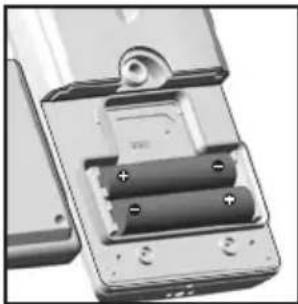
natural_image
Close-up of a handheld electronic device with two batteries and a cylindrical housing (no visible text or symbols)natural_image
Illustration of five different household appliances or devices with no visible text or symbolsnatural_image
Gray-scale icon set showing alarm clock, clock, megaphone, and envelope (no text or symbols)natural_image
Three electronic devices with analog clocks and a monitor, no visible text or symbols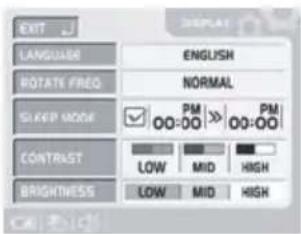
natural_image
Black-and-white landscape photo showing a sunlit sky with trees and distant hills (no text or symbols)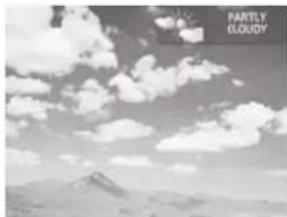
natural_image
Black-and-white landscape photo of a mountain range under a cloudy sky (no text or symbols visible)natural_image
Black-and-white landscape photo of a cloudy sky over the ocean with clouds rising in the sky (no text or symbols)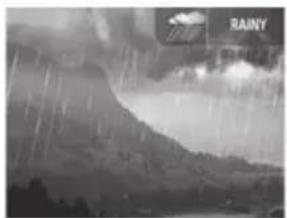
natural_image
Black-and-white landscape photo showing a hazy, cloudy terrain with falling rain and distant clouds (no text or symbols)Nuvoloso Pioggia
natural_image
Snowy weather scene with snowflakes and a snowflake logo (no readable text or symbols)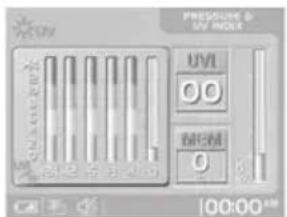
natural_image
Black-and-white photo of a landscape with wind turbines and hills, framed by directional arrows (no text or symbols)DOWNLOAD DI FOTO DA UN PC
natural_image
Close-up of a computer keyboard interface with buttons and a U-shaped readout (no visible text or symbols)natural_image
Illustration of a mechanical device with multiple blades and a base (no text or symbols)LCD-DISPLAY (HOOFDMENU)
natural_image
Mechanical component diagram showing a curved bracket with numbered callouts (1 and 2), no readable text or symbols present.• THGR228N
• THGR238N
- THR228N
• THGR328N
natural_image
Close-up of a hand using a screwdriver to apply a component to a metallic electronic device (no visible text or symbols)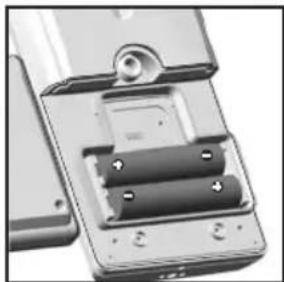
natural_image
Close-up of a battery pack with two cylindrical batteries, showing internal components (no text or symbols visible)natural_image
Illustration of five different office and home appliances including alarm clock, calendar, monitor, washing machine, and air conditioner (no text or symbols present)natural_image
Gray-scale icon set showing five different clock and device icons arranged around a central label (no text or symbols)natural_image
Illustration of a desktop computer with monitor, clock, and camera icons (no text or symbols)natural_image
Black-and-white landscape photo showing sun rays over hills and trees, with no visible text or symbolsZonnig Licht bewolkt
natural_image
Black-and-white landscape photo of a mountain range under cloudy sky (no text or symbols)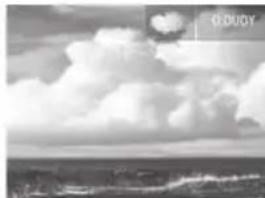
natural_image
Black-and-white landscape photo of a cloudy sky with distant water and horizon (no text or symbols)Bewolkt Regen
natural_image
Black-and-white photo of a volcanic eruption with heavy rain and cloud cover, no visible text or symbols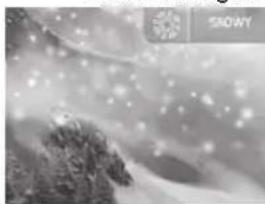
natural_image
Snowy landscape with snow-covered hills and distant snowflakes (no text or symbols)HET THERMOMETER- EN HYGROMETERGEHEUGEN
THERMOMETERHYGROMETER
natural_image
Grid of six black-and-white landscape photos showing nature scenes with sun, clouds, and mountains (no text or symbols)natural_image
Black-and-white photo frame with a landscape image and circular arrows indicating rotation (no text or symbols)DOWNLOADEN VAN FOTO'S VAN EEN PC
natural_image
Close-up of a computer monitor with ports and a U-shaped cable (no visible text or symbols)Tela LCD (Menu Principal) 4
Sensor Remoto (RTGR328N) 4
Vista Frontal 5
Tela LCD 5
Vista Traseira 5
Apoio Dobrável 6
Para Começar 6
Pilhas 6
natural_image
Illustration of a mechanical or electrical component with multiple rods and a base (no text or symbols)TELA LCD (MENU PRINCIPAL)
1 WEATHER FORECAST (PREVISÃO DO TEMPO)
-
Modo SETTINGS (AJUSTES): Encontram-se neste modo os seguintes sub-menus:
-
Modo de Ajuste ALARM (Alarme)
- Modo de Ajuste WEATHER (Tempo)
- Modo de Ajuste SOUND (Som)
- Modo de Ajuste MY PHOTO (Foto)
- Modo de Ajuste DISPLAY (Tela)
-
Modo de Ajuste CLOCK (Relógio)
-
AUTO-ROTATION (ROTAÇÃO AUTOMÁTICA)
- PRESSURE & UV INDEX (PRESSÃO E ÍNDICE UV)
- TEMP & HUMIDITY (TEMPERATURA E UMIDADE)
natural_image
Mechanical component diagram showing a curved arm and a pin (no text or symbols)natural_image
Close-up of a hand using a screwdriver to apply material to a component with four holes (no visible text or symbols)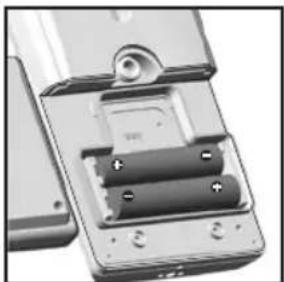
natural_image
Close-up of a battery pack with two batteries and a handle, showing internal components (no text or symbols visible)natural_image
Illustration of various household appliances including alarm clock, calendar, TV, and air conditioner (no text or symbols)natural_image
Gray-scale icon set with five alarm clock and megaphone symbols, no readable text or labelsnatural_image
Weather icon set with sun, megaphone, alarm clock, camera, and stopwatch (no text or symbols)natural_image
Illustration of a computer monitor with icons for time, alarm clock, and megaphone (no text or symbols)natural_image
Black-and-white landscape photo showing a forested hillside with scattered clouds and a sun in the sky (no text or symbols)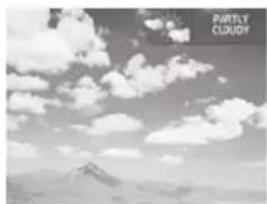
natural_image
Black-and-white landscape photo of a mountain under a cloudy sky (no text or symbols visible)Ensolarado Parcialmente Nublado
natural_image
Black and white photo of a cloudy sky over the ocean with waves in the foreground (no text or symbols)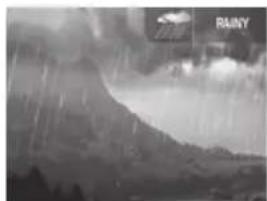
natural_image
Black-and-white landscape photo showing a mountain peak under heavy rain with visible cloud cover and no text or symbolsNublado Chuvoso
natural_image
Snowy mountain landscape with mist and scattered light spots (no text or symbols)15 minutos.
TELA DA TEMPERATURA E UMIDADE
NOTA Na parte inferior dos gráficos de barra Baro e IUV, -1 significa 1 hora atrás, -6, 6 horas atrás, etc.
To interpret the UV readings on the LCD display, see the table below.
natural_image
Grid of six black-and-white landscape photos showing sky, clouds, and distant mountains (no text or symbols)natural_image
Black-and-white photo of a landscape with a framed frame and curved arrows indicating rotation or movement (no text or symbols)TRANSFERINDO FOTOS DO PC
natural_image
Close-up of a medical device with a U-shaped tube and control buttons (no visible text or symbols)natural_image
Illustration of a decorative lamp with vertical rods and base (no text or symbols)LCD-DISPLAY (HUVUDENHET)
1 VÄDEBBPCNOS Display
natural_image
Mechanical component diagram showing a curved arm and mounting holes (no text or symbols)• THGR228N
• THGR238N
- THR228N
• THGR328N
natural_image
Two views of a battery charging mechanism: one with a screwdriver inserted, the other showing internal battery casing (no text or symbols visible)natural_image
Abstract grayscale illustration of five icons arranged around a central 'CLOCK' label, no text or symbols present.natural_image
Illustration of sound equipment icons including speaker, alarm, and clock (no text or symbols)natural_image
Product display icons including a camera, speaker, alarm clock, and megaphone (no text or symbols on devices)natural_image
Illustration of five electronic devices including a monitor, alarm clock, camera, megaphone, and speaker (no text or symbols on devices)ATT STÄNGA AV/PÅ ALARMET
natural_image
Black-and-white landscape photo of a forested hillside with scattered clouds and no visible text or symbolsSoligt Halvklart
natural_image
Black-and-white landscape photo of a mountain range under cloudy sky (no text or symbols)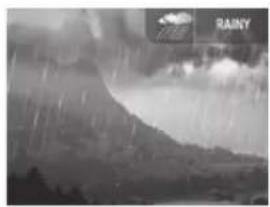
natural_image
Black-and-white photo of a volcanic eruption with visible lightning and cloud cover (no text or symbols)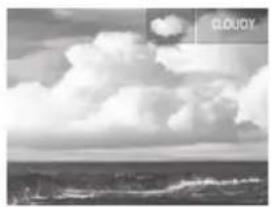
natural_image
Black and white landscape photo showing cloudy sky over ocean waves (no text or symbols)Molnigt Regnigt
natural_image
Snowy mountain landscape with snowflakes and forested slopes (no text or symbols)TEMPERATUR OCH LUFTFUKTIGHETSDISPLAY
TERMO OCH HYGROMINNE
natural_image
Grid of six black-and-white landscape photos including mountains, clouds, and a tree, displayed in a photo editing interface (no text or symbols on the images themselves)natural_image
Black-and-white photo frame with a landscape image and circular arrows indicating rotation (no text or symbols)natural_image
Close-up of a computer monitor with ports and a paperclip (no visible text or symbols)alkaline batterier (back-up)
Fjärrenhet 2 x UM-3 (AA) 1.5V alkaline
batterier