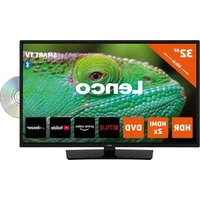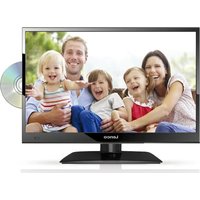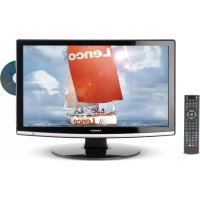
DVT228 - TV LENCO - Free user manual and instructions
Find the device manual for free DVT228 LENCO in PDF.



User questions about DVT228 LENCO
0 question about this device. Answer the ones you know or ask your own.
Ask a new question about this device
Download the instructions for your TV in PDF format for free! Find your manual DVT228 - LENCO and take your electronic device back in hand. On this page are published all the documents necessary for the use of your device. DVT228 by LENCO.
USER MANUAL DVT228 LENCO
Introduction
- Warning
- Caution
- Main Unit Description
Remote Control
- OSD basic adjustment
- DTV Features
DVD manual
- Specifications
- Trouble Shooting
Introduction
Thank you very much for your purchase of our product of LCD TV. It serves as a normal color TV and PC monitor. To enjoy your set to the full from the very beginning, read this manual carefully and keep it handy for ready reference.
INSTALLATION
① Locate the receiver in the room where direct light does not strike the screen. Total darkness or a reflection on the picture screen can cause eyestrain. Soft and indirect lighting is recommended for comfortable viewing.
② Allow enough space between the receiver and the wall to permit ventilation.
③ Avoid excessively warm locations to prevent possible damage to the cabinet or premature component failure.
④ This TV receiver can be connected to AC100-240V 50/60HZ.
⑤ Do not install the receiver in a location near heat sources such as radiator, air ducts, direct sunlight, or in a place somewhere like close compartment and close area. Do not cover the ventilation openings when using the set.
⑥ The indicator light will last about 30 seconds to go out after cutting off the electricity, during this period, you cannot repower it on until the indicator light goes out, thanks a lot for your attention!
Warning

CAUTION RISK OF ELECTRIC SHOCK DO NOT OPEN

CAUTION: TO AVOID THE RISK OF ELECTRIC SHOCK.
DO NOT REMOVE COVER (OR BACK).
NO USER- SERVICEABLE PARTS INSIDE.
REFER SERVICING TO QUALIFIED SERVICE PERSONNEL.

This symbol is intended to alert the user to avoid the risk of electric shock, do not disassemble this equipment by anyone except a qualified service personnel.

This symbol is intended to alert the user to the presence of important operation and maintenance instructions in the literature accompanying the equipment.
Caution
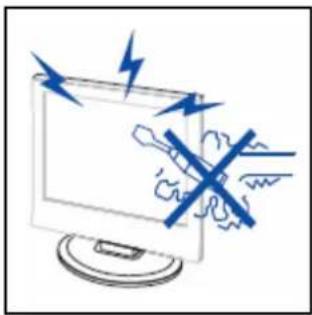

Caution
High voltages are used in the operation of this product. Do not remove the back cabinet from your set. Refer servicing to qualified service personnel.
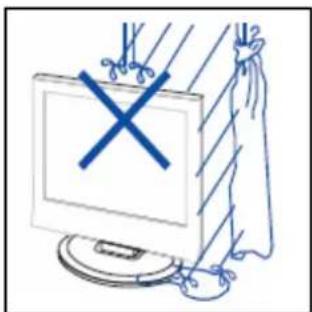

Caution
To prevent fire or electrical shock hazard, Do not expose the main unit to moisture.
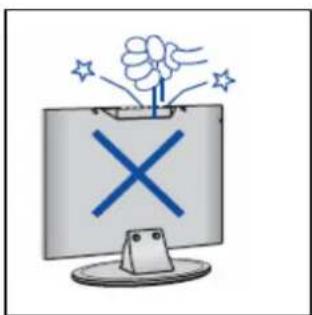

Caution
Do not drop or push objects into the television cabinet slots or openings. Never spill any kind of liquid on the television receiver.


Caution
Avoid exposing the main unit to direct sunlight and other source of the heat. Do not stand the television receiver directly on other produces which give off heat. E. g. video cassette players, Audio amplifiers. Do not block the ventilation holes in the back cover. Ventilation is essential to prevent failure of electrical component. Do not squash power supply cord under the main unit.
Caution
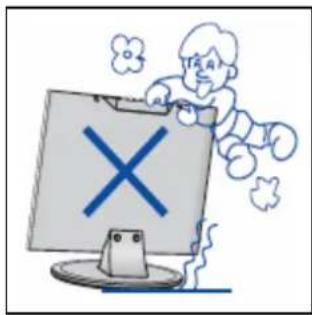

Never stand on, lean on, push suddenly the product or its stand. You should pay special attention to children.
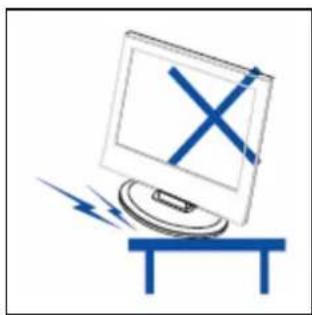

Do not place the main unit on an unstable cart stand, shelf or table. Serious injury to an individual, and damage to the television, may result if it should fall.
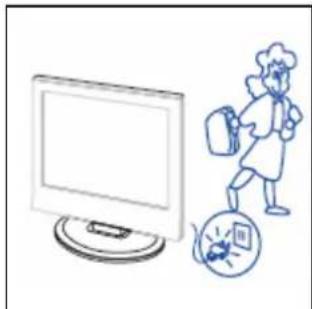

When the product is not used for an extended period of time, it is advisable to disconnect the AC power cord from the AC outlet.
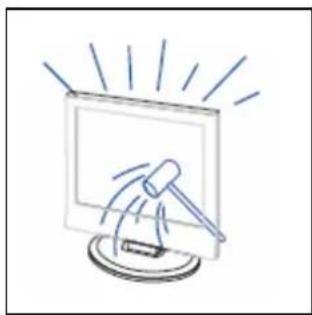

The LCD panel used in this product is made of glass. Therefore, it can break when the product is dropped or applied with impact. Be careful not to be injured by broken glass pieces in case the LCD panel breaks.
Main unit description
Control Panel Button Function
VOL^+ : Volume up.
VOL- : Volume down.
CH+ : TV channel up.
CH- : TV channel down.
MENU:Press to select the main menu.
TV/AV: Select the input signal.
POWER: Switch on when at standby mode or enter the standby mode.
TV Terminal Connections
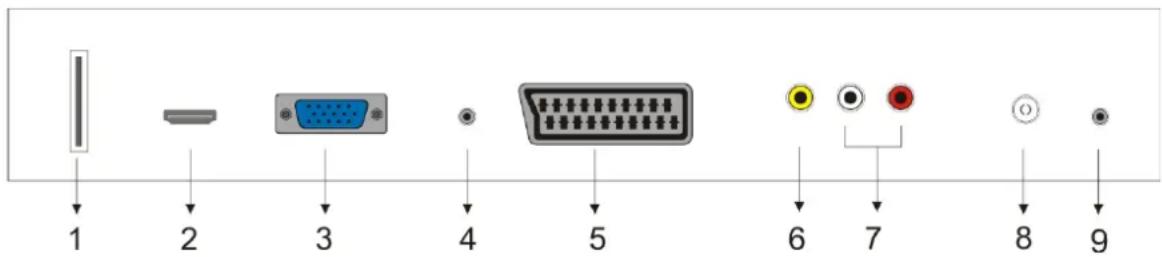
- USB input terminal (Only used for update DTV).
- HDMI input terminal.
- VGA input terminal of simulation signal of PC.
- PC AUDIO terminal.
- SCART input terminal.
- Video input terminal.
- AUDIO input terminal.
- ATV antenna/close circuit TV network port or DTV antenna port.
- HEADPHONE output terminal.
Power Input Configuration
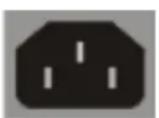
AC

POWER
Remote control
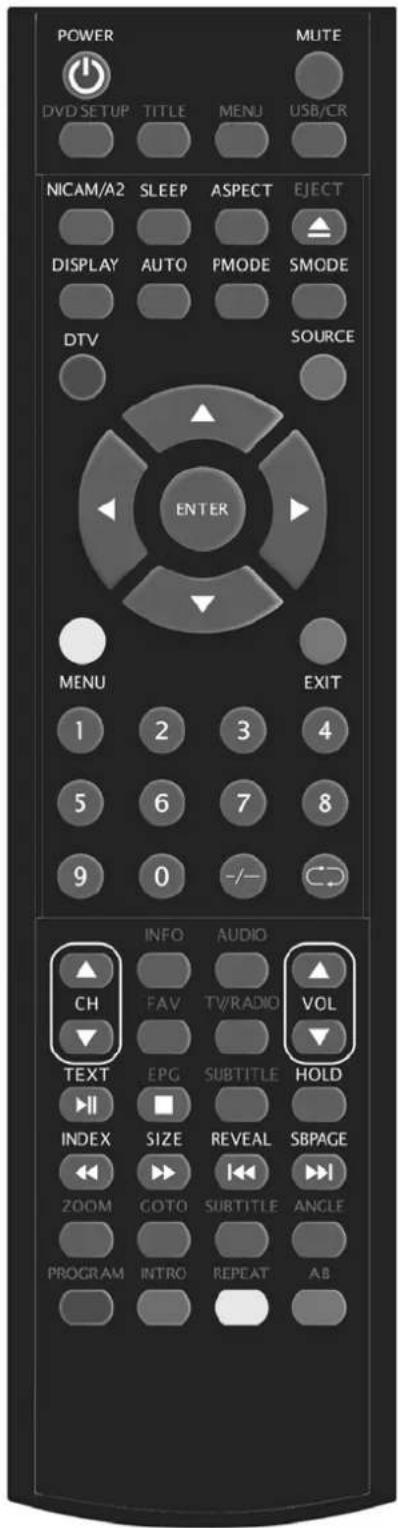
POWER: Press this button to switch on the TV when at standby mode or enter standby mode.
MUTE: Press this button to mute or restore sound.
DVD SETUP: Press this button to enter the DVD main menu and press again to exit the main menu.
(Used for models with DVD function only)
TITLE: Press this button to return the title menu.
(Used for models with DVD function only)
MENU(BLUE): Press this button to return the root menu or exit the DVD main menu.
(Used for models with DVD function only)
USB/CR: Press to select the MEDIA signal source.
(Used for models with USB/CR function only)
NICAM/A2: In the TV condition, press this button to select the stereo mode.
SLEEP: Set the sleep timer.
ASPECT: Press to select the different picture size.
EJECT: Press to eject the DVD-disc in DVD mode.
(Used for models with DVD function only)
DISPLAY: Display TV information.
AUTO: Press to adjust the picture automatically in PC mode.
PMODE: Select picture mode.
DTV: Press to enter the DTV channel.
(Used for models with DTV function only)
SOURCE: Press to change signal source.
ENTER: Enter the selected option or perform the selected operation.
MENU: Press this button to enter the main menu for various optional adjustable setting.
EXIT: Exit the OSD (On-screen display).
0-9: Select and switch to a channel using 0 - 9.
--: Switch the program digit.
: Switch back and front between the current and previous channels.
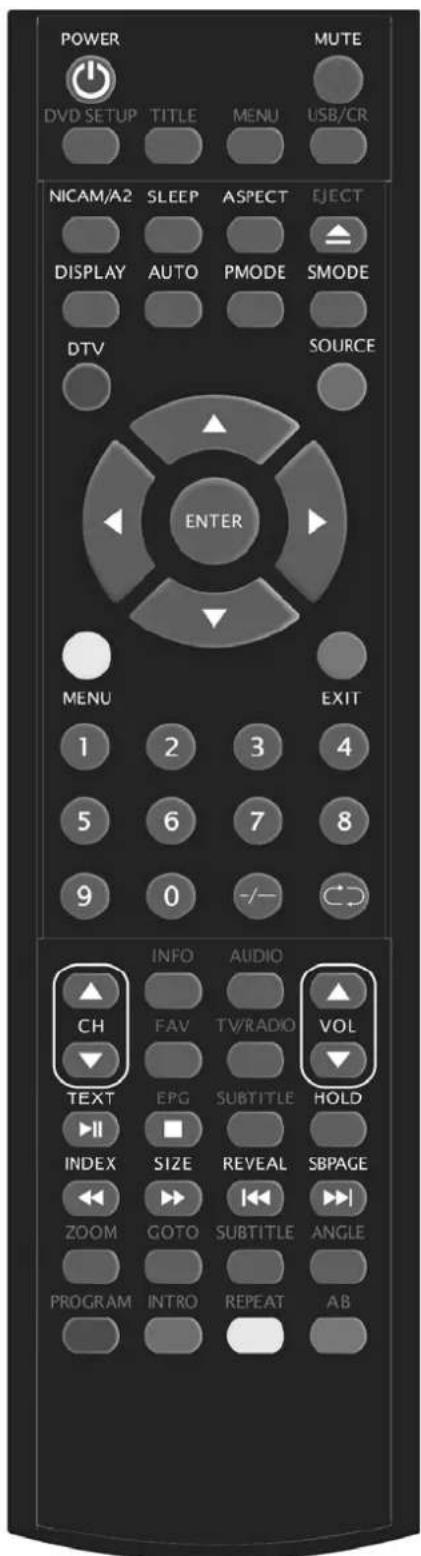
CH - CH + : Change the channel up and down.
VOL-/VOL+: Adjust the volume.
INFO: Display some information of current program in DTV mode.
(Used for models with DTV function only)
AUDIO: Press to select the DTV audio or DVD audio. (Used for models with DTV or DVD function only)
FAV: Switch between custom set "Favourite List". (Used for models with DTV function only)
TV/RADIO: Switch between DTV program and radio program (only audio but not image).
(Used for models with DTV function only)
EPG: Enter electronic program guide. (Used for models with DTV function only)
□: Stop playing the disc or Media.
(Used for models with DVD or USB/CR function only)
SUBTITLE(GREEN): Open or close subtitle. (Used for models with DTV function only)
TEXT: Press to enter the Teletext mode. (Used for European region only)
Press to start playing the disc or Media, or to pause playing.
(Used for models with DVD or USB/CR function only)
HOLD: Freeze a multi-page passage on screen in Teletext mode. (Used for European region only).
INDEX: Press this button to go to the index page in Teletext.
(Used for European region only)
Press to play backward.
(Used for models with DVD or USB/CR function only)
SIZE: Display the top, bottom or all of page to read easily in Teletext mode.
(Used for European region only)
Press to play forward.
(Used for models with DVD or USB/CR function only)
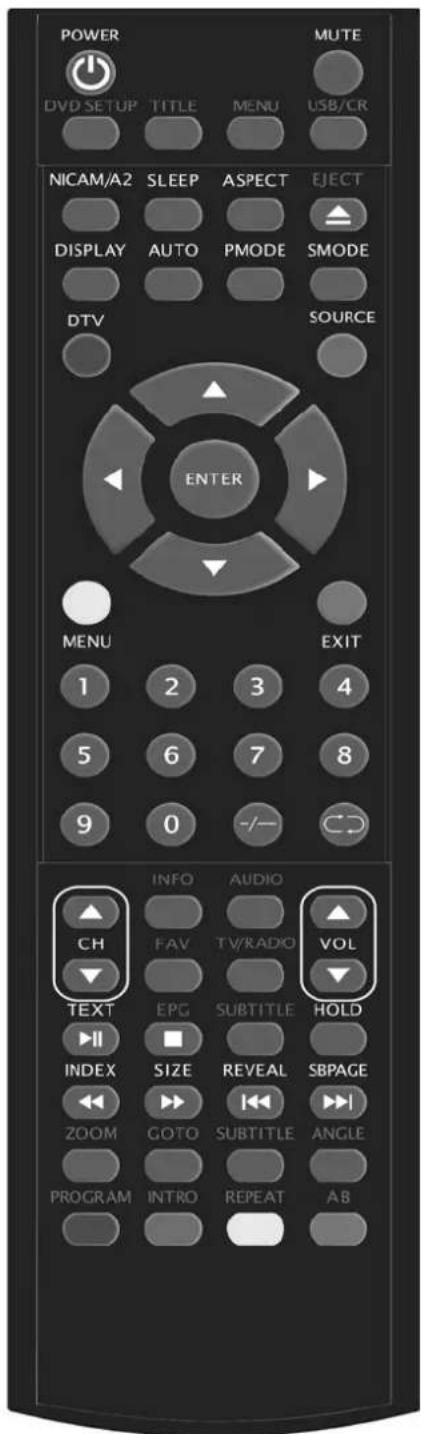
REVEAL: Press this button to reveal the hidden information in Teletext page. Press again to hide the information.
(Used for European region only)
:Skip to previous chapter
(Used for models with DVD or USB/CR function only)
SUBPAGE: Carry out the function of SUBCODE in the text while enter the text display mode.
(Used for European region only)
:Skip to next chapter
(Used for models with DVD or USB/CR function only)
ZOOM: Select the zoom picture.
(Used for models with DVD function only)
GOTO: Jump to the appointed chapter or title.
(Used for models with DVD function only)
SUBTITLE(BLUE): Select the disc caption.
(Used for models with DVD function only)
ANGLE: Select the angle.
(Used for models with DVD function only)
PROGRAM: Select the disc program.
(Used for models with DVD function only)
INTRO: Press the button to display the time of chapter remain or elapsed.
(Used for models with DVD function only)
REPEAT: Select the repeat mode.
(Used for models with DVD function only)
AB: Select the segment to repeat.
(Used for models with DVD function only)
RED,GREEN,YELLOW, BLUE: Correspond to the different colored subjects.
(Used for european region and USB/CR function only)
OSD basic adjustment
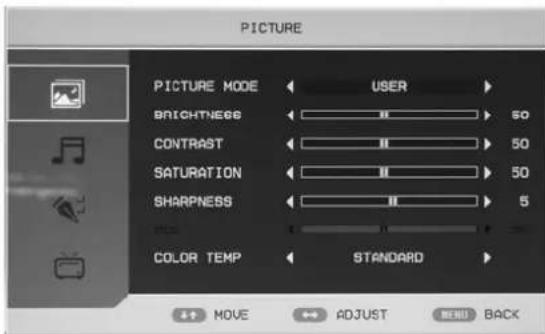
Picture
You can select the type of picture, which best corresponds to your viewing.
- Press the "MENU" button to enter the OSD menu. Then press 12 button to select the "PICTURE" menu. Enter the "PICTURE" menu by pressing 12 button.
- Press “ / ” button to select “PICTURE MODE” and press the “ / ” button to select the picture mode.
- Press “▲/▼” button to select “BRIGHTNESS” and press the “</▶” button to enter brightness adjustment menu to adjust brightness.
- Press “▲/▼” button to select “CONTRAST” and press the “ ” button to enter contrast adjustment menu to adjust contrast.
- Press “▲/▼” button to select “SATURATION” and press the “ ” button to enter color adjustment menu to adjust saturation.
- Press “▲/▼” button to select “SHARPNESS” and press the “ ” button to enter sharpness adjustment menu to adjust sharpness.
- Press “▲/▼” button to select “HUE” and press the “▲/▼” button to enter hue adjustment menu to adjust hue. Note: The item hue is only for NTSC
- Press “▲/▼” button to select “COLOR TEMP” menu and press the “ ” button to select the color temp.
Sound
You can select the type of sound, which best corresponds to your listening.
- Press the "MENU" button to enter the OSD menu. Then press 12 /▼" button to select the "SOUND" menu. Enter the "SOUND" menu by pressing 12 " button.
- Press “▲/▼” button to select “SOUND MODE” and press the “▲/▼” button to select the sound mode.
- Press "▲/▼" button to select "BASS" and press the "▲/▼" button to enter bass adjustment menu to adjust bass.
- Press “▲/▼” button to select “TREBLE” and press the “</▶” button to enter treble adjustment menu to adjust treble.
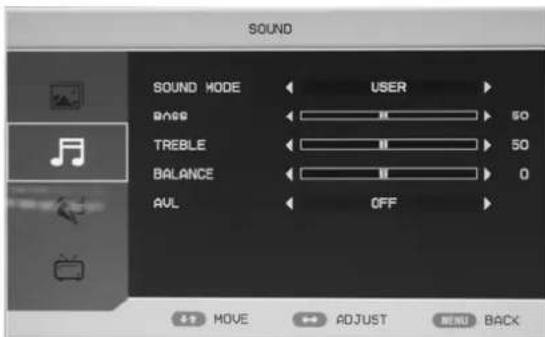
- Press “▲/▼” button to select “BALANCE” and press the “ ” button to enter balance adjustment menu to adjust balance.
- Press “ / ” button to select “AVL” and press the “ / ” button to select the avl function on or off.
FUNCTION
You can make the desired adjustment in the TV mode.
-
Press the "MENU" button to enter the OSD menu. Then press / button to select the FUNCTION" menu. Enter the FUNCTION" menu by pressing button.
-
Press "▲/▼" button to select "LANGUAGE" menu and press the "▲/▼" button to select the OSD language which you desire.
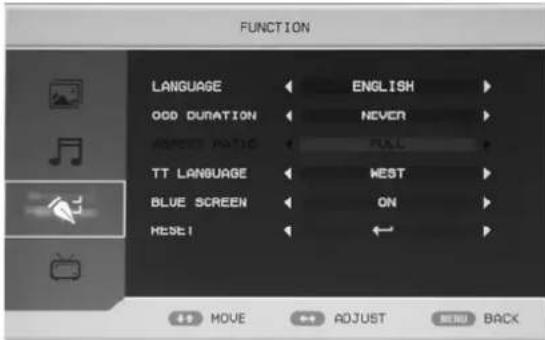
- Press “▲/▼” button to select “OSD DURATION” and press the “</▶” button to select the time how long you want OSD display.
- Press “▲/▼” button to select “ASPECT RATIO” menu and press the “</▶” button to select the size which you desire.
- Press “▲/▼” button to select “TT LANGUAGE” menu and press the “ ” button to select the local TELETEXT LANGUAGE.
- Press “▲/▼” button to select “BLUE SCREEN” and press the “ ” button to select the blue
background on or off.
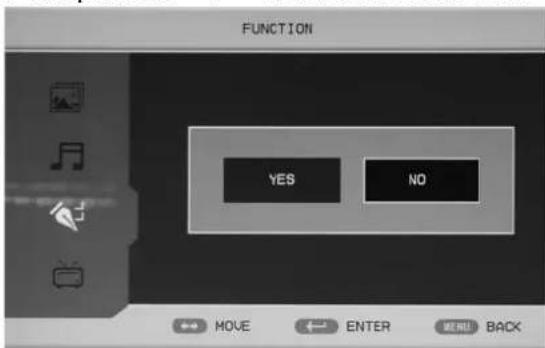
- Press “▲/▼” button to select “RESET”, then press “ENTER” button to enter. Press the “ ” button to select “YES” or “NO”.
ATV
-
Press the "MENU" button to enter the OSD menu. Then press 12 /▼" button to select the "ATV" menu. Enter the "ATV" menu by pressing " button.
-
Press “▲/▼” button to select “AREA” and press the “</▶” button to select the local country.
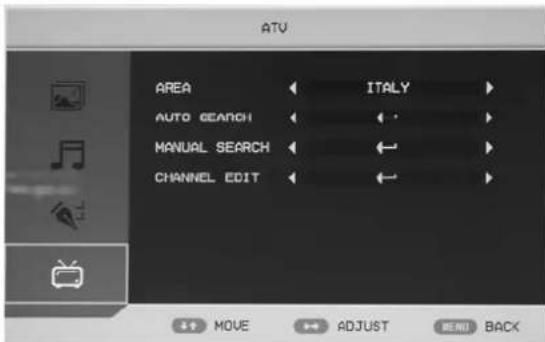
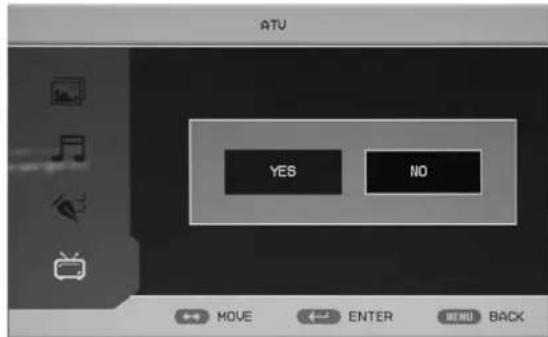
- Press “▲/▼” button to select “AUTO SEARCH” and press the “ENTER” button to enter. Press “ ” button to select “YES” or “NO”.
- Press “▲/▼” button to select “MANUAL SEARCH” and press the “ENTER” button to enter.
a.CHANNEL
Press “▲/▼” button to select “CHANNEL” and press the “</▶” button to select the different channel.
b. COLOR SYSTEM
Press / button to select "COLOR SYSTEM" and press the / button to select the local color system.
c. SOUND SYSTEM
Press / button to select "SOUND SYSTEM" and press the / button to select the local sound system.
d. FINE TUNE
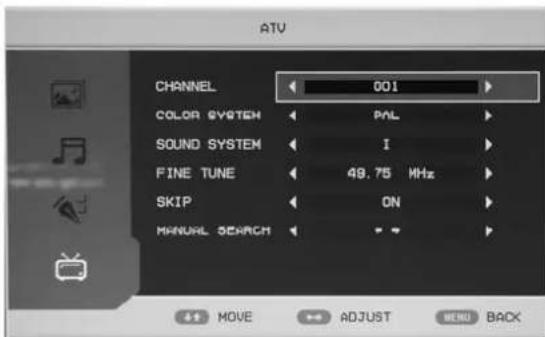
Press“▲/▼”button to select“FINE
TUNE" and press the / button to select the frequency which you want to fine tune.
e. SKIP
Press “ / ” button to select “SKIP” and press the “ / ” button to select skip the channel on or off.
f. MANUAL SEARCH
Press “ / ” button to select “MANUAL SEARCH” and press the “ / ” button to adjust the channel’s frequency.
5. Press "▲/▼" button to select "CHANNEL EDIT" and press the "ENTER" button to enter.
a. Press “▲/▼” button to select one channel and press “RED” button to pitch on. Press “▲/▼” button to select another channel which you want to swap. Press “ENTER” button to confirm.
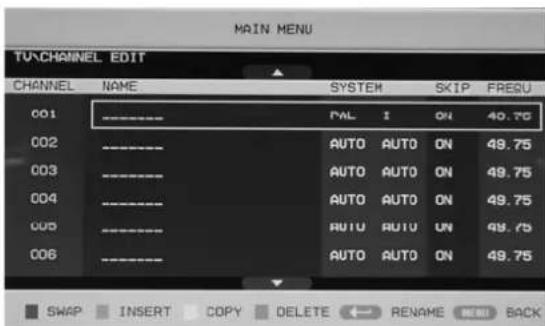
b. Press “▲/▼” button to select one channel and press “GREEN” button to pitch on. Press “▲/▼” button to select another channel which you want to insert. Press “ENTER” button to confirm.
c. Press “ / ” button to select one channel and press “YELLOW” button to pitch on. Press “ / ” button to select another channel which you want to copy. Press “ENTER” button to confirm.
d. Press “ / ” button to select the channel which you want to delete and press “BLUE” button to pitch on. Press “ENTER” button to confirm.
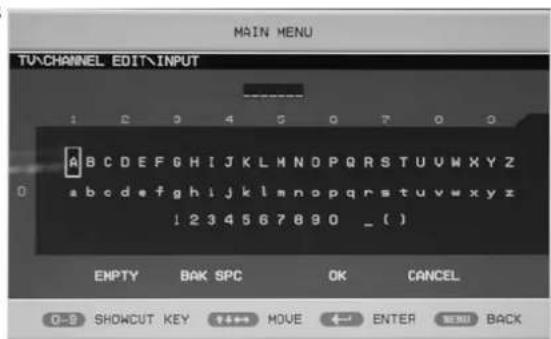
e. Press “▲/▼” button to select the channel in the list, press “ENTER” button to enter the rename channel's window.
Input channel name at “_”, press
"▲/▼▲/▼” button to select "letter", "number", "", ["", ") ", "EMPTY" or "BAK SPC", and press "ENTER" button to confirm.
Press / / button to select "OK" to save and return to the previous menu.
Press “▲/▼▲/▼” button to select “CANCEL” to exit and return to the previous menu.
PC
-
Press the "MENU" button to enter the OSD menu. Then press 12 button to select the "PC" menu. Enter the "PC" menu by pressing button.
-
Press "▲/▼" button to select "H POSITION" menu and press the "▲/▼" button to enter "H Position" adjustment menu to adjust "H Position".
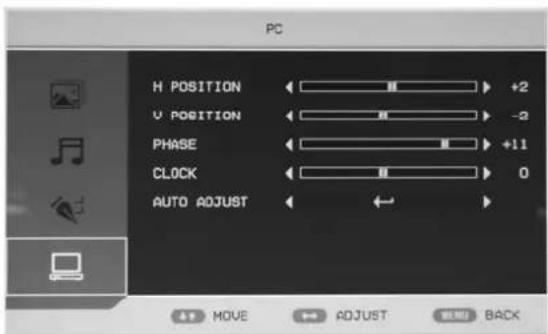
- Press “▲/▼” button to select “V POSITION” and press the “</▶” button to enter “V Position” adjustment menu to adjust “V Position”.
- Press “▲/▼” button to select “PHASE” and press the “</▶” button to enter Phase adjustment menu to adjust phase.
- Press “ / ” button to select “CLOCK” and press the “ / ” button to enter clock adjustment menu to adjust clock.
- Press “▲/▼” button to select “AUTO ADJUST” menu and press the “ENTER” button to do auto adjustment.
DTV
- Press the "MENU" button to enter the OSD menu. Then press 12 button to select the "DTV" menu when the current signal source is in DTV. Enter the "DTV" menu by pressing button.
- Press "▲/▼" button to select "AREA" menu and press the "▲/▼" button to select the local country.
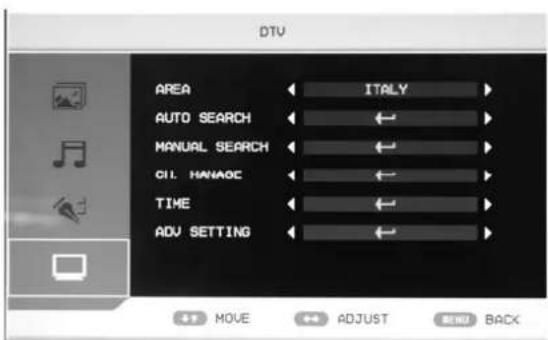
- Press "▲/▼" button to select "AUTO SEARCH" and press the "ENTER" button to enter. Press "▲/▼" button to select "YES" or "NO".
- Press “▲/▼” button to select “MANUAL SEARCH” and press the “ENTER” button to enter. Press “ ” button to select “YES” or “NO”.
- Press “▲/▼” button to select "CH.MANAGE" and press the "ENTER" button to enter.
a. CH.ORGN
Press / button to select "CH.ORGN" and press the "ENTER" button to enter. Press / button to select the channel. Press "RED" button to set the channel for favourite channel. Press "GREEN" button to delete the channel. Press "YELLOW" button to skip the channel. Press "BLUE" button to lock the channel and the default password is "0000". Press "ENTER" button to save. *The administrator password is "8888".
b. CH.SORT
Press “▲/▼” button to select “CH.SORT” and press the “ENTER” button to see the channel’s sort.
c. CH.GROUP
The left side of CHANNEL.GROUPING window lists index number and program name. Besides, the FAVOURITE lable and GROUP NUMBER are also listed. All programs can be grouped as:1 None; 2 News; 3 Science; 4 Sports; 5 Movic; 6 kids; 7 Music and 8 Fashion.
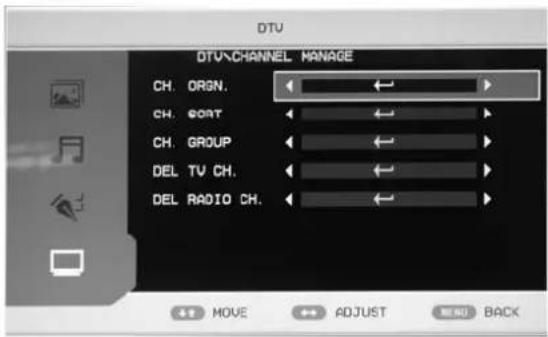
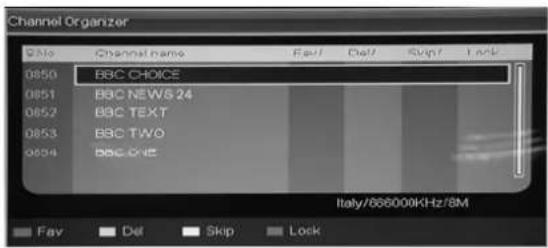
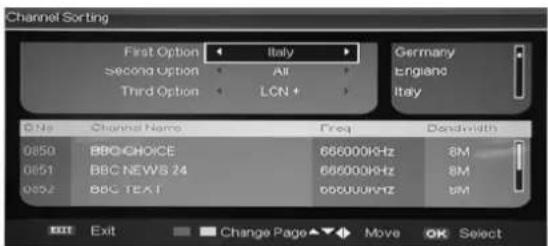
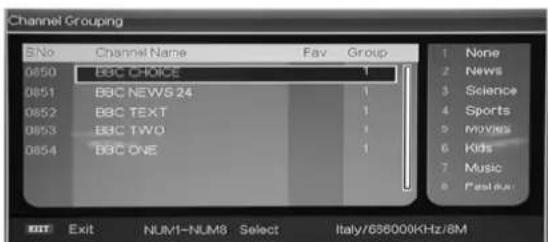
User can move cursor to the program and press the number button to set the group number. Press "EXIT" button to exit. Press "ENTER" button to save the setting. When the setting is successful, "Successfully updated..." will be displayed on the screen.
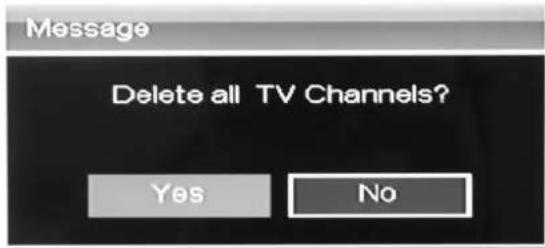
d. DEL TV CH.
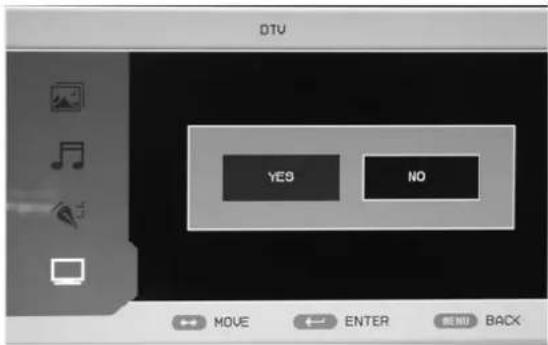
Press “▲/▼” button to select “DEL TV CH” and press the “ENTER” button to enter. Press “▲/▼” button to select “YES” or “NO”, press “ENTER” button to delete all TV channels when select “YES”, press “ENTER” button to return back to the previous menu when select “NO”.
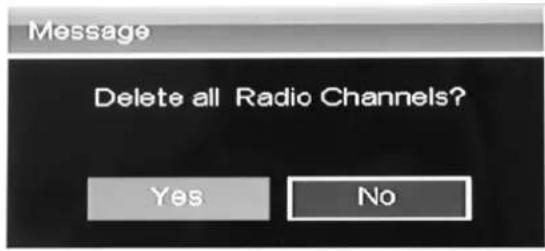
e. DEL RADIO CH.
Press “▲/▼” button to select “DEL RADIO CH.” and press the “ENTER” button to enter. Press “</▶” button to select “YES” or “NO”, press “ENTER” button to delete all radio channels when select “YES”, press “ENTER” button to return back to the previous menu when select “NO”.
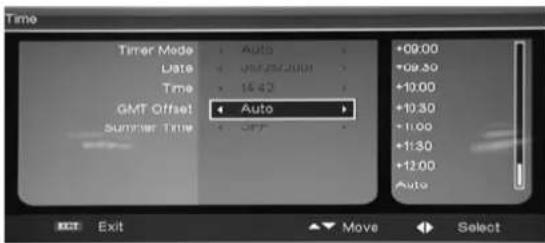
- Press “▲/▼” button to select “TIME” and press the “ENTER” button to enter.
- Press “▲/▼” button to select “ADV SETTING” and press the “ENTER” button to enter.
a. AUDIO
Press button to select "AUDIO" and press the button to select the local country.
b. SUBTITLE
Press“ / ”button to select“SUBTITLE” and press the“ / ”button to select the local country.
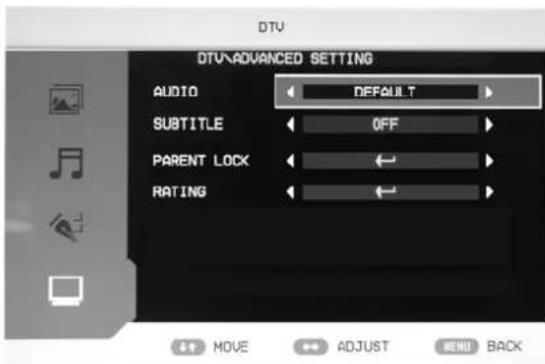
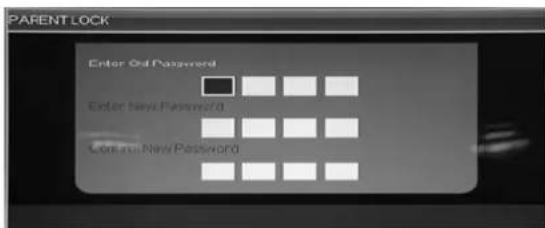
c. PARENT LOCK
When the password of parental Lock needed to be changed, user can enter the "Parental Lock" to change the password. The default password is "0000" and the administrator password is "8888".
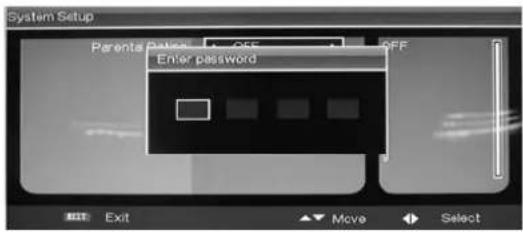
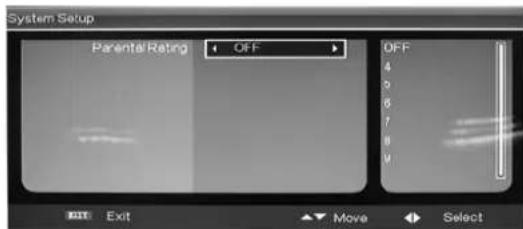
d. RATING
When user want to change or set the rating of program, first need to input the correct password. Press the “ ” button to exit/enter the rating option and press the “▲/▼” button to select the rating.
DTV Features
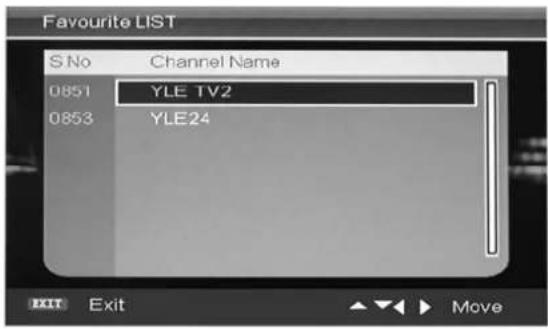
Favourite List
When the source is selected as DTV, users can enter "FAVOURITE LIST" by pressing "FAV" button. The "Favourite LIST" window is illustrated as follow:
Program Information
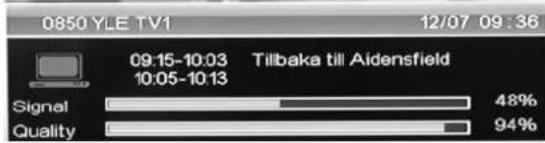
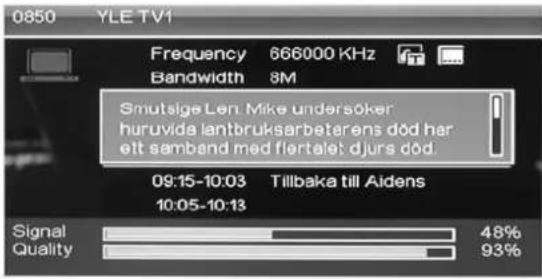
When the source is selected as DTV, you can press "INFO" button to display the channel's information. Press "INFO" button twice to display the channel's detail. The "PROGRAM INFORMATION" window is illustrated as follow:
Audio
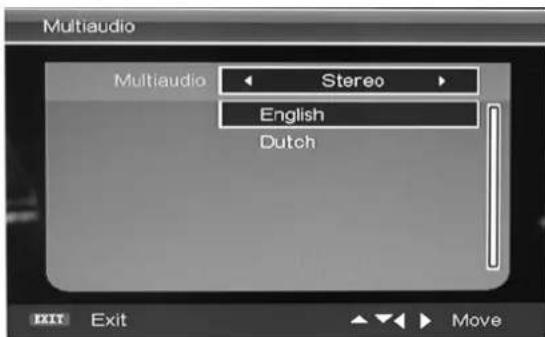
When the source is selected as DTV, users can enter "Multi audio" by pressing "AUDIO" button. The "Multi audio" window is illustrated as follow:
Press“/”button to select“Stereo” “Left” “Right”. Press“EXIT” button to exit the window and save the setting.
Electronic Program Guide (EPG)
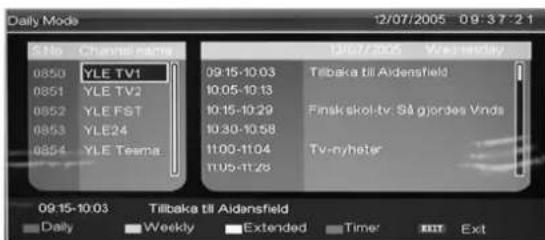
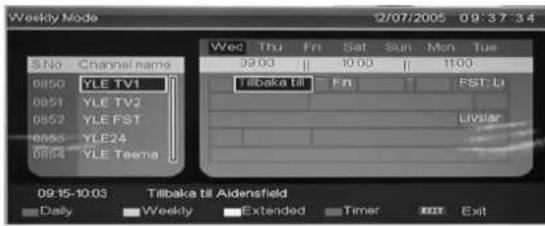
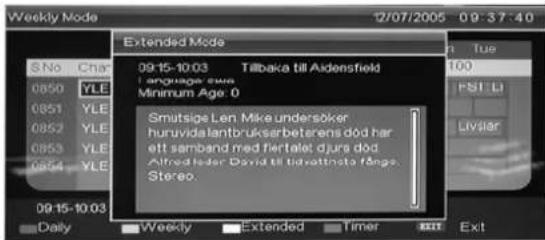
Electronic Program Guide provides program information which will be broadcasted now or in the future. The system will display "EPG" window by pressing "EPG" button. DATE and TIME information is displayed on the top-right of the window. The left side contains all channels. The right side contains the programs in the channel. The selected program is also displayed on the bottom-left of the window.
Daily Mode: The "RED" button enables the DAILY MODE, the program guide is listed and sorted by daily time.
Weekly Mode:
The "GREEN" button enables the WEEKLY MODE, the program guide is listed and sorted by weekly time
Extend Mode:
The "YELLOW" button enables the EXTEND MODE, the program guide window contains detailed information about the program.
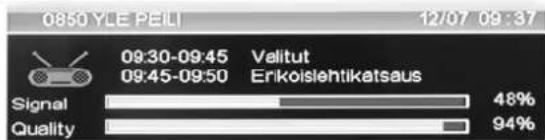
"EPG" is used for enter or closing the EPG window.
DTV / Radio Switch
"TV / RADIO" button is used for switch DTV program and radio.
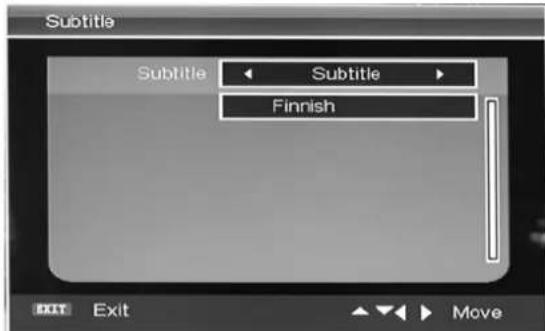
Subtitle
When the source is selected as DTV, users can enter subtitle by pressing "SUBTITLE" button. The subtitle window is illustrated as follow:
The "Subtitle" language can be turned ON/OFF by pressing the / button.
DVD manual
BASIC PLAY BACK
Preparations
Press the TV/AV button on the front panel or SOURCE button to select the DVD source.
Basic playback
- press EJECT to open the disc tray,
Place a disc on the disc tray..(If there is no disc placed on the disc tray in DVD mode, OPEN will display on the screen all the times)
There is only one disc size. Place the disc in the correct guide on the disc tray. If the disc is out of the guide, it may damage the disc and cause the DVD player to malfunction. Do not place a disc which is unplayable in this DVD player.
2. Press EJECT to close the disc tray. The playback will automatically start.
Some disc may not playback automatically, you can press PLAY/PAUSE or ENTER button to start playback.
Some disc may start playback with a menu .use the cursor button on the remote control to select menu options and press PLAY/PAUSE or ENTER to start, or pr digits to select a menu options directly.
Pause playback
Press PLAY/PAUSE or ENTER to pause playback (still mode). The sound will be muted during still mode.
Press PLAY/PAUSE or ENTER to resume normal playback.
Stop playback
- Press STOP button to go to stop mode, the TV screen will show the start-up logo, For some disc the player can recall the location where stopped, such as DVDs and audio CDs.. Press PLAY/PAUSE or ENTER to resume playback from the location where playback is stopped,
- Press STOP twice to stop completely
Previous and Next
During play back, press PREV key can go back to the beginning of this chapter, then each press of this key will skip a chapter till the start of the disc. (note; Disc function may vary depending on disc format)
Each press of NEXT key during playback will skip the current chapter and play the next one.
Fast forward and Fast reverse
Press F.FWD to fast forward through the disc. Each time the F.FWD button is pressed, the fast forward motion speed changes. it would cycle through 2x, 4x, 8x, 16x, 32x, and normal.
press PLAY/ENTER to resume normal playback,
press F.REV to fast reverse through the disc. Each time the F.REV button is pressed, the fast reverse motion speed changes, it would cycle through 2X, 4X, 8X, 16X, 32X and normal.
press PLAY/ENTER to resume normal playback.
ZOOM
Press this button can zoom enlarge or lessen the picture. Each time pressed the picture times will be change, in zoom mode press navigation buttons to move the picture displayed on the screen
IMPORTANT NOTE:
ALL DESCRIBING FUNCTION IS FOR DVD DISCS. IF YOU PLAY OTHER FORMAT DISC, THE OPERATION AND DISPLAY ON SCREEN MAY DIFFERENT.
SUBTITLE
Press "SUBTITLE", the screen will display "SUBTI-TLE 01/XX XXXXX ", "01" indicates the ordinal number of this language; "XX" indicates total number of language; "XXXX" indicates the language of country, (the number of language depends on disc). This function can select up to 32 languages displayed on screen.
REPEAT
Press REPEAT button multiple times to reach desired play mode;
DVD
Chapter repeat, title repeat, all repeat CD
Track repeat, all repeat MP3
Single, Repeat one, Repeat folder, Folder, Shuffle, random
REPEATA-B
Press A-B to mark the start-point, press again to set an end point to complete setting. The selected section A-B will be repeated immediately.,
Press the repeat A-B again to cancel this function.
ANGLE
When enjoying sports, concert or theatre, press this key to watch same actions in different angles. (Valid for discs possessing this function, Using a disc recorded in multi-angle you can view the scene from different angles, for example, front, side, whole view and exterior scene,)
MEUN
Press this key to display foot menu, select item according to your preference. (This function will work with a DVD having a multi-layer menu.).
PROGRAM
When playing discs, press "PROGRAM" to enter program mode. Press the digit buttons to select the program number that you want, when finished, move the cursor to select "START". This will start the program playback. if you want to cancel this function, press "STOP", then press PLAY/PAUSE or ENTER NOTE; This function is invalid for MP3
AUDIO
Press this key can change the audio mode.
Such as; Audio 1/2; AC 3 2 CH English
Audio 2/2; AC 3 5.1CH English
If you play CD disc, press this button can cycle among mono left, Mono Right, Mix-Mono and Stereo.
Note; When press this button continuously, you must above 3 seconds interval.
TITLE/PBC
With some DVD discs pressing this key will display the title menu, You can then use the digit buttons to select the item you prefer.
You can view Kodak picture CD and JPEG picture CD on this TV.
Playback
Insert a Kodak picture CD or JPEG picture CD into the tray and the disc will be loaded
Automatically. If the disc type can be identified, the player will start showing the pictures one by one (slide show mode).if a navigation menu will be displayed use the navigation buttons to select a file, then press the ENTER button.
Each picture in the CD will be displayed consecutively in a slide-show fashion and will be scaled to fit in the whole TV screen. Some slide show transition modes are provided use "PROGRAM" key to select. Customer can set transition effects for each picture.
TO display an image indefinitely, press the "PAUSE" key. To view the next or previous picture press "NEXT" or "PREV" key. To resume the slide show press the "ENTER" key.
Press the STOP button to preview the photos in a folder, press navigation buttons to rotate a picture.
ZOOM
We provide zoom in/out function for the pictures, press the ZOOM key to execute zoom function and select the zoom enlarging scale by pressing and buttons.
SCREENSAVERFUNCTION
If this unit is not working by 3 minutes, it will go to sleep mode with screen saver on. In this mode, you can press any key on remote control or on front panel to activate the unit.
You can set SCREEN Saver function to OFF in GENERAL SETUP PAGE of DVD SYSTEM SETUP.
MP3 PLAYBACK
When playing an MP3 disc, a navigation menu will be displayed automatically. In the menu, Use up or DOMN navigation buttons to choose the folder. Then PLAY/PAUSE or ENTER to enter the folder. Use UP or DOMN navigation buttons to choose the file and press PLAY/PAUSE or. ENTER Pressing the left navigation button will take you to the previous screen menu.
MPEG4 DISC FUNCTION INTRODUCTION
MPEG-4 is the forth video and audio encoding standard released by MPEG (The abbreviation of "moving pictures Experts Group").VCD is based on MPEG-1 technology and DVD is based on MPEG-2 MPEG-4 takes advantage of narrow bandwidth, purser the best picture quality by
compress and transmit the data in frame reconstruct technology. The audio data is compressed by WMA or MP3 standard.MPEG-4 is the most advanced compression technology standard In AV field. It has the highest compression rate. By MPEG-4 Technology, we can encode and compress a DVD film into one Or two CD-R disc with pretty good picture quality, or can burn Several films that has same quality as VCD into one CD-R disc, Or can burn
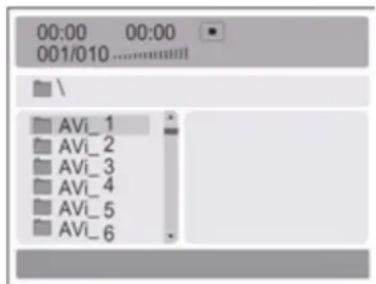
several films that has similar quality to DVD into DVD-ROM disc.
Note:
- The MPEG-4 discs in market now have many different formats, such as XVID,AVI, RM etc. But some discs with "MPEG4" logo in market are not encoded by MPEG technology. It is normal that some of the discs can't be played well in this player because of the incorrect encoding standard.
DVD SYSTEM SETUP
General Setup Process
press the DVD-SETUP button, the general setup page, preference page will be displayed in turn, press or to select, the item, then press to enter the submenu.
press or to select, then press PLAY/PAUSE or ENTER to confirm.
press DVD SETUP repeatedly to exit the set-up menus.
General setup page
ASPECT RATIO DESCRIPTION
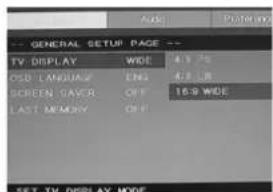
When using the DVD with the internal TV, select 4:3/LB.
The following information applies only when the DVD output is connected to an external TV.
4:3/PS (PS=Pan and Scan)
You may select if you have a normal aspect ratio (4:3) TV, although the NORMAL/LB (letter box) is a more common (letter box) choice. In PS mode, widescreen material will fill the screen, but at the expense of chopping off extreme left and right edges of the original film picture. For this feature to work, the disc must be specially coded. Such discs are uncommon.
4:3/LB (LB=Letter Box)
You may select this if you have a normal aspect ratio (4:3) TV. Widescreen material will be shown in pure unaltered form, allowing the entire picture area of the original film to be viewed without any side cropping. Black bars will appear above and below the picture,
16:9
You may select this if you have a widescreen (16:9)TV, back bars may still appear above and below the picture even if using a widescreen TV, this is because some film directors prefer to use ultra widenscreen aspect ratios e.g. 2.35:1. This will normally be indicated on the DVD packaging.
DVD SYSTEM SETUP(CONTINUED)
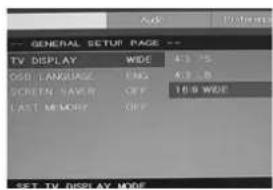
General Setup Page
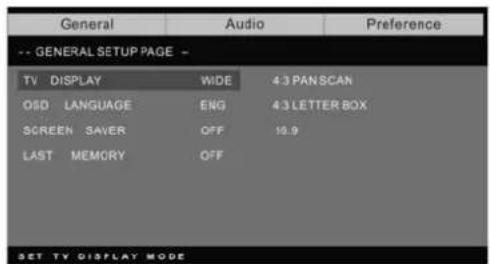
TV Display: user can select different display wide model such as 4:3 PS, 4:3 LB, 16:9 WIDE.
On Screen Display (OSD) Language:
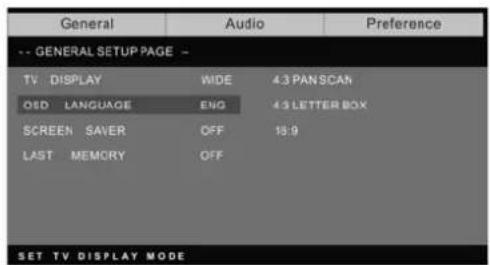
Users can select on-screen display Language.
Screen Saver: if the screen saver is on, then there will be an animated picture of DVD on the screen whenever the DVD player is idle for more than 3 minutes.
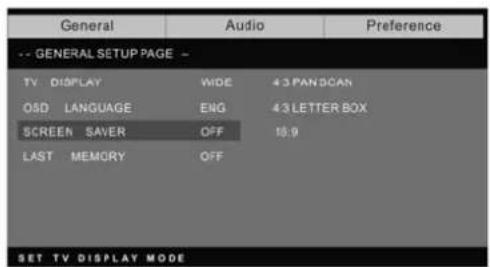
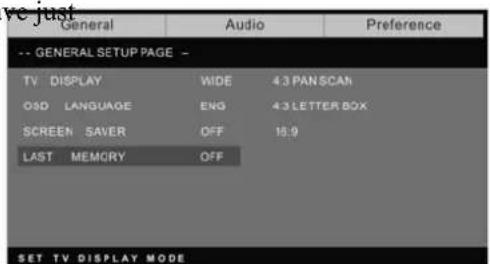
Last memory: memorize the chapter you have watched. When last memory is on, if you turn on the DVD again after off it will display from the chapter you watched when you turn off the DVD.
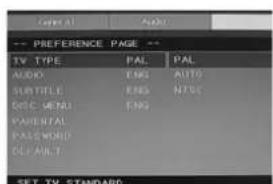
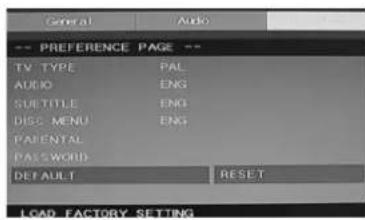
Preference page
The preference page is only available when there is no disc in the player. These settings are applied consistently to all discs which are inserted and played.
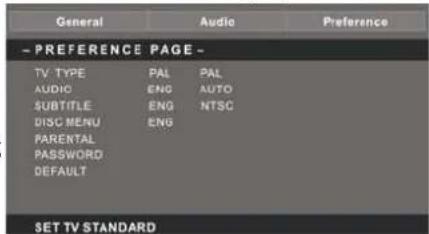
TV Type: this player
Supports different TV output, including Auto, NTSC, and PAL systems. Usually please set to Auto
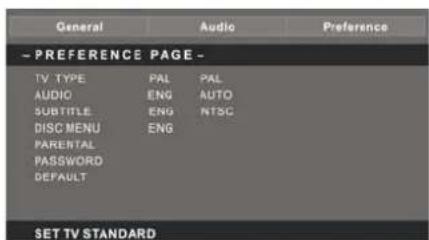
Parental:the parental control function works in conjunction with the different censorship classes assigned to DVDs.
These classes help to control the types of DVDs that the family watches, there are up to 8 censorship classes for DVDs.
Note;
To change this setting you must enter your password. (initial password is 8888)
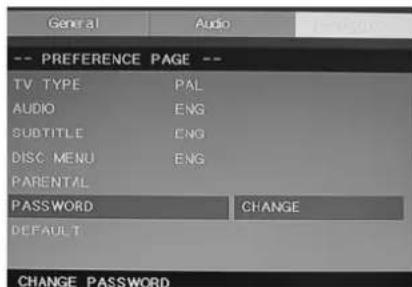
Password change;
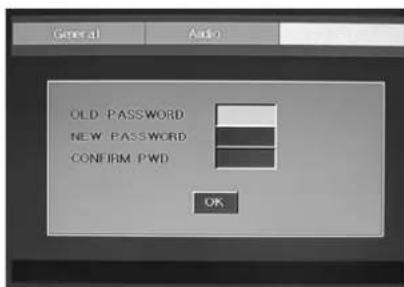
You can change your password by entering 4 digits. Your must confirm the 4 digits before the new password can be accepted
NOTE: If you forget your password or a password is accidentally set enter 8888 as the password, this will enable you to regain control.
Default: resets all settings (except password and parental lock status) for this DVD player back to the manufacturers original settings, press ENTER to perform the reset,
Note;
Some functions may not be available depending on the type of disc. ANALOG AUDIO SETUP PAGE
- Press the DVD-SETUP button, the Analog Audio Setup Page, Preference Page will be displayed in turn.
2.press or to select, the item, then press to enter the submenu.
-
Press or to select then press PLAY/PAUSE or ENTER to confirm.
-
Press DVDSETUP repeatedly to exit the set-up menus.
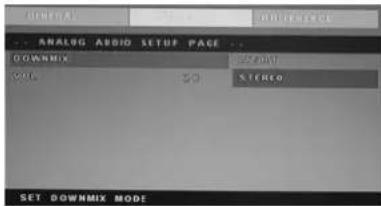
Note1: If the DVD have the USB and CARD terminal, you can use the function with these operation as below. When the current source is DVD, press "USB/CR" button to display the threshold. Press “▲/▼” button to select "USB" or "CARD" and press "ENTER" button to confirm. Press “▲/▼” button to select the item which you want to play and press the "ENTER" button to play. Press “▲” button to return back the previous catalogue when you have enter one subdirectories at least. Press “D” button to start playing or pause playing. Press “D” button to stop. Press “D” to play backward. Press “D” button to play forward. Press “K” button to skip the previous chapter. Press “K” button to skip the next chapter.
Note2:The DVD's work temperature is 0^ to 40^ .
PLAYABLE DISCS
The following discs can be played;
| DISCS | LABEL | CONTENTS | DIMENSION |
| DVD VIDEO | DVD VIDEO TM | Audio + video (moving picture) | 12cm |
| AUDIO CD | COMPACT DISC DIGITAL AUDIO | Audio | 12cm |
| JPEG | JPEG | Video(picture) | 12cm |
| KODAK CD | Kodak PICTURE CD COMPATIBLE | Video(picture) | 12cm |
| CD-R | CD·R | Audio or video (moving picture) | 12cm |
| CD-RW | CD-RW | Audio or video (moving picture) | 12cm |
| CD+G | CD+G | Video(picture) | 12cm |
| MPEG4 | Audio (moving picture) | or 12cm |
Support discs DVD, VCD, CD-R, CD-RW, SVCD, DVCD, HDCD, JPEG, CD+G, MPEG-4 Kodak CD, W MA.
- You cannot play discs other than those listed above,
- You cannot play non-standardized discs, even if they may be labeled as above.
The performance of CD-R or CD-RW disc is depend on the way of disc-burning. In a few Cases, their performance may not be very well or even not playable.
DICS PROTECTION AND DVD CHARACTERISTICS
ON HANDLING DISCS
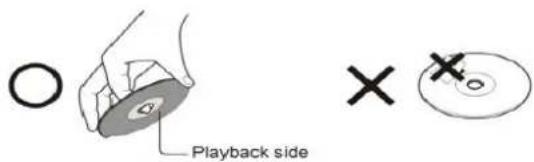
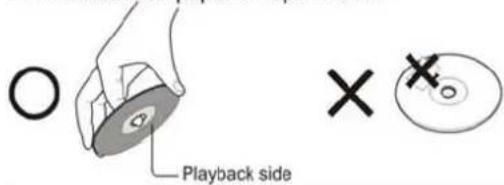
Do not touch the playback side of the disc.
Do not attach paper or tape to disc.
ON CLEANING DISCS
Fingerprints and dust on the disc cause picture and sound deterioration.
Wipe the disc from the centre outwards with a soft cloth. Always keep the disc clean.
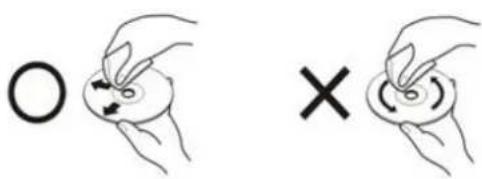
If you can not wipe off the dust with a soft cloth, wipe the disc lightly with a slightly moistened soft cloth and finish with a dry cloth.
Do not use any type of solvent such as thinner, benzene, commercially available cleaners or anti-static spray for vinyl Lps. It may damage the disc.
ON STORING DISCS
Do not store discs in a place subject to direct sunlight or near heat source.
Do not store discs in place subject to moisture and dust such as a bathroom or near a humidifier.
Store discs vertically in a case. Stacking or placing object on discs outside of their case may cause warping.
STRUCTURE OF DISC CONTENTS
Normally, DVD discs are divided into titles, and the titles are sub-divided into chapters. Audio CD are divided into tracks.
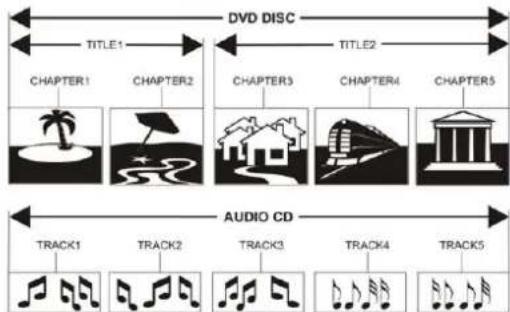
Each title, chapter, or track is assigned a number, which is called title number, chapter number or track number respectively.
There may be discs that do not have these number
Compare DVD disc with other discs;
| DVD | LG | SVCD | |||||
| Encode method | Digital/MPEG || | Analog | Digital | ||||
| Capacity | Single-side | Double-side | Single-Side | Double-Side | 650MB | 650MB | 650MB |
| Single-layer | Single-layer | Double-Layer | Double-Layer | ||||
| 4.7G | 8.5G | 9.4G | 17G | ||||
| Playing Time | 133 minutes | 242 minutes | 266 minutes | 484 minutes | Single-side60 minutesDouble-side120 minutes | 45 minutes | 74 minutes |
| Disc diameter 12cm 30cm/20cm 12cm 12cm 2cm | |||||||
| Horizontal resolution | More than 500 line No more than | No more than350 line | No more than250 line | ||||
| Picture proportion | Multiple kinds One kind One kind One kind | ||||||
| Subtitle | 32 kinds | 4 kinds | |||||
| Sound quality | 48khz, 96khz/6, 20,24bit | 44.1khz/16bit | 44.1khz/16bit | 44.1khz/16bit | |||
Specifications
RGB INPUT
| Model | Resolution | Horizontal Frequency (KHz) | Vertical Frequency (HZ) |
| DOS | 720x400 | 31.5 | 70 |
| VGA | 640x480 | 31.5 | 60 |
| SVGA | 800x600 | 37.9 | 60 |
| XGA | 1024x768 | 48.4 | 60 |
| WXGA | 1360x768 | 47.7 | 60 |
HDMI INPUT
| Model | Resolution | Horizontal Frequency (KHz) | Vertical Frequency (HZ) |
| VGA 640 x 480 | 31.47 59.94 | ||
| 480i 720 x480 | 15.73 59.94/60 | ||
| 576i | 720 x 576i | 15.63 | 50 |
| 480p | 720 x480p | 31.47 | 59.94/60 |
| 576p | 720 x 576p | 31.26 | 50 |
| 720p | 1280 x 720p | 37.50 | 50 |
| 44.96 | 59.94/60 | ||
| 1080i 1920 x 1080i 28.13 | 33.75 | 50 | |
| 59.94/60 | |||
Trouble Shooting
Before consulting service personnel, check the following chart for a possible cause of the trouble you are experiencing and for a solution.
| PROBLEM | SOLUTION |
| TV will not turn on | ●Make sure the power cord is plugged in. ●The batteries in the remote control may be exhausted replace the batteries. |
| No picture, no sound | ●Check the interface cable between TV and antenna/cable TV. ●Press the power button on the remote. ●Press the SOURCE button the remote, then press the “▲/▼” button repeatedly to select the TV source. |
| Poor picture, sound OK | ●Check the interface cable between TV and antenna/cable TV. ●Try another channel, the station may have broadcast difficulties. ●Adjust the brightness/contrast in the Video menu. |
| Audio noise | ●Move any infrared equipment away from the TV. |
The TFT LCD panel uses a panel consisting of sub pixels which requires sophisticated technology to produce. However, there may be few bright or dark pixels on the screen. These pixels will have no impact on the performance of the product.

Benutzerhandbuch
22" LCD-TV
Inhalt
(Used for models with DVD function only)
- 4:3 PAN SCAN (PS = PAN and SCAN)
BESCHRIJVING VAN HET BEELDFORMAAT
- Do not touch the playback side of the disc.
Do not attach paper or tape to disc.
ON CLEANING DISCS
Fingerprints and dust on the disc cause picture and sound deterioration. Wipe the disc from the centre outwards with a soft cloth. Always keep the disc clean.




If you can not wipe off the dust with a soft cloth, wipe the disc lightly with a slightly moistened soft cloth and finish with a dry cloth.
- Do not use any type of solvent such as thinner, benzine, commercially available cleaners or anti-static spray for vinyl Lps. It may damage the disc.
ON STORING DISCS
- Do not store discs in a place subject to direct sunlight or near heat source.
- Do not store discs in place subject to moisture and dust such as a bathroom or near a humidifier.
Store discs vertically in a case. Stacking or placing object on discs outside of their case may cause warping.
STRUCTURE OF DISC CONTENTS
Normally, DVD discs are divided into titles, and the titles are sub-divided into chapters. Audio CD are divided into tracks.
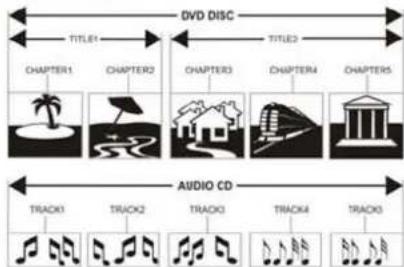
Each title, chapter, or track is assigned a number, which is called title number, chapter number or track number respectively.
There may be discs that do not have these number.
Compare DVD disc with other discs:
| DVD | LD | SVCD | VCD | CD | ||||
| Encode method | Digital/MPEG II | Analog | Digital | Digital/MPEG I | Digital | |||
| Capacity | Single-side single-layer 4.7G | Double-side single-layer 8.5G | Single-side double-layer 9.4G | Double-side double-layer 17G | 650MB | 650MB | 650MB | |
| Playing Time | 133 minutes | 242 minutes | 266 minutes | 484 minutes | Single-side 60 minutes double-side 120 minutes | 45 minutes | 74 minutes | 74 minutes |
| Disc diameter | 12cm | 30cm/20cm | 12cm | 12cm | 12cm | |||
| Horizontal resolution | More than 500 line | No more than 430 line | No more than 350 line | No more than 250 line | ||||
| Picture proportion | Multiple kinds | One kind | One kind | One kind | ||||
| Subtitle | 32 kinds | 16 kinds at most | 4 kinds | |||||
| Sound quality | 48KHz, 96KHz/6, 20, 24bit | 44.1KHz/16bit | 44.1KHz/16bit | 44.1KHz/16bit | 44.1KHz/16bit | |||